
DRC-400/425
UNIVERSAL REMOTE CONTROL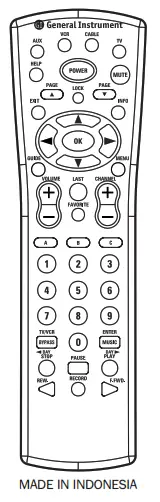
OVERVIEW
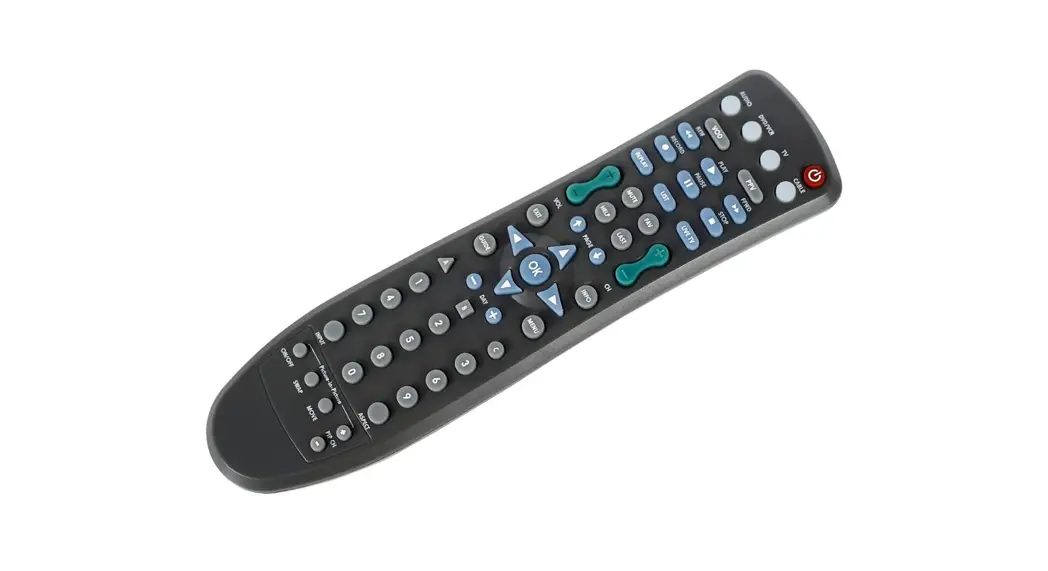
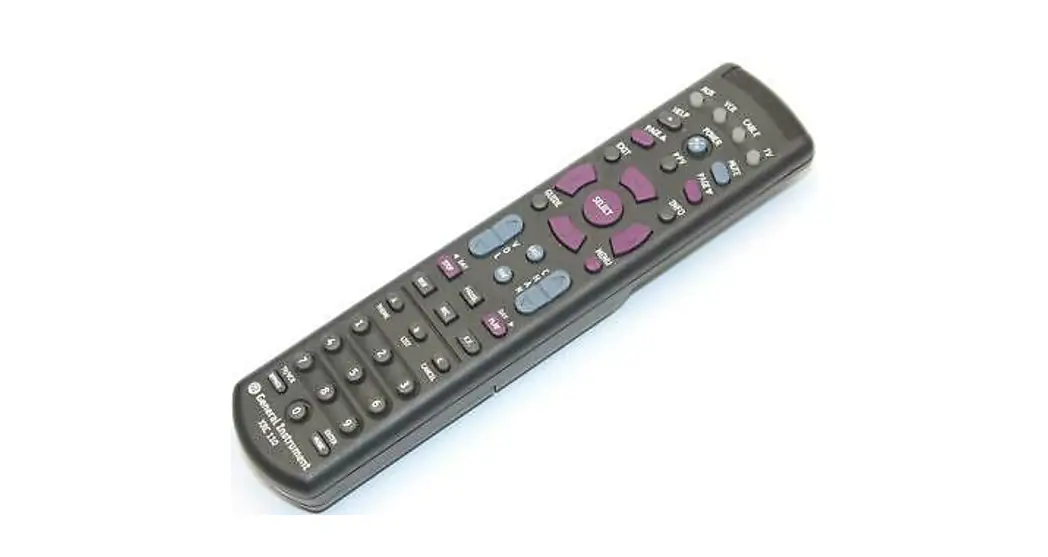
The General Instrument DRC Universal Remote Control will control up to four devices, including GI Cable Converters (i.e., DCT-1000, DCT-1200, DCT-2000, and CT5000),
most TVs and VCRs, and auxiliary components.
The DRC requires two fresh AA alkaline batteries and easy programming to control all functions of your Cable Converter, as well as all of the basic functions of your other original remote controls. For best results, please read and perform all instructions listed here. Also, keep these instructions for future reference.
FEATURES AND FUNCTIONS
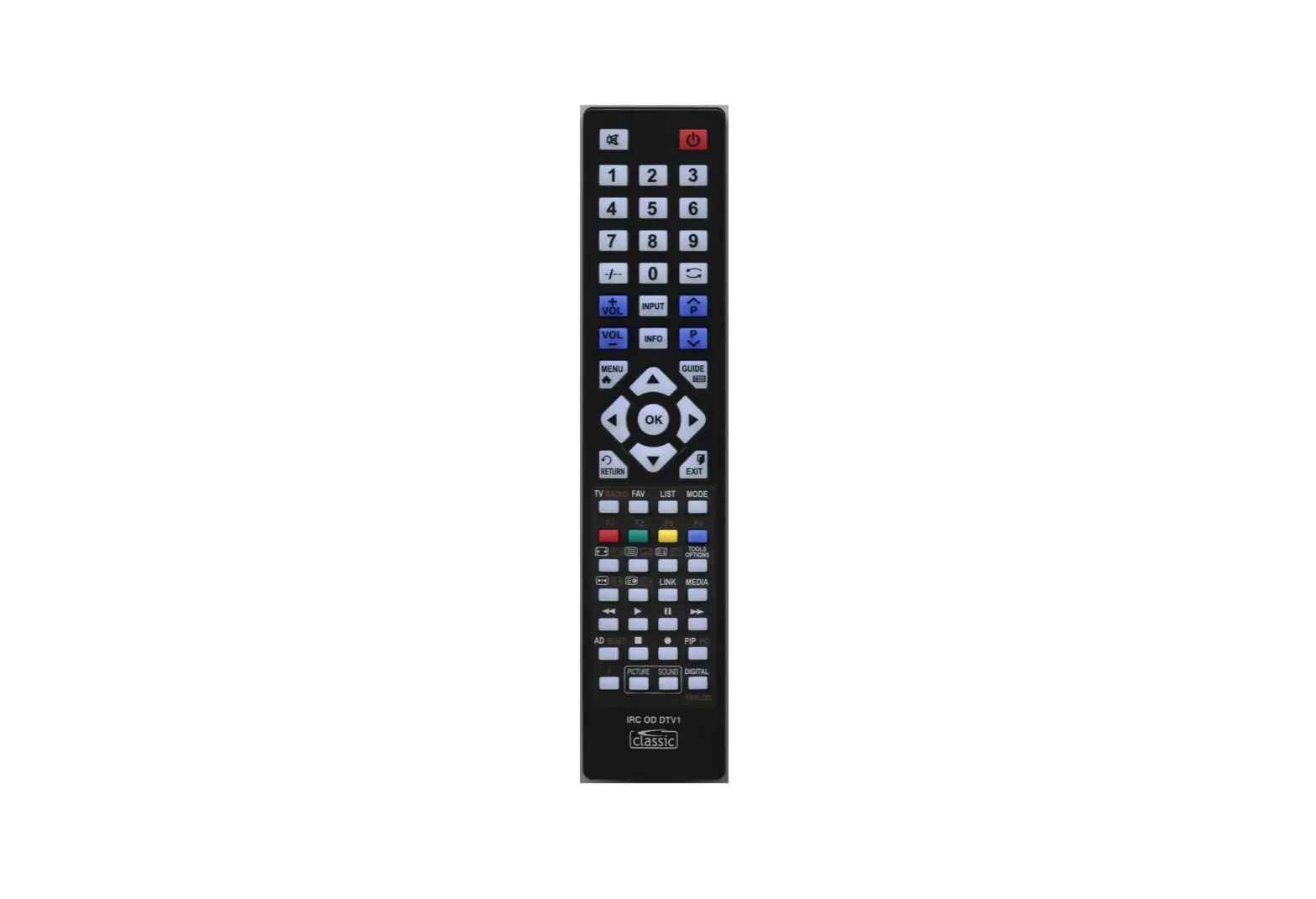
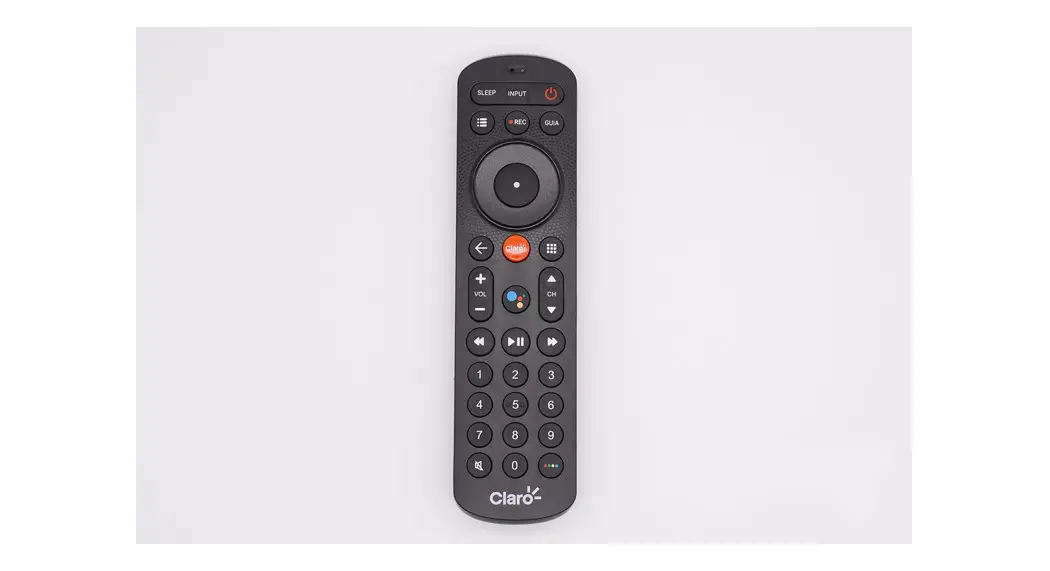
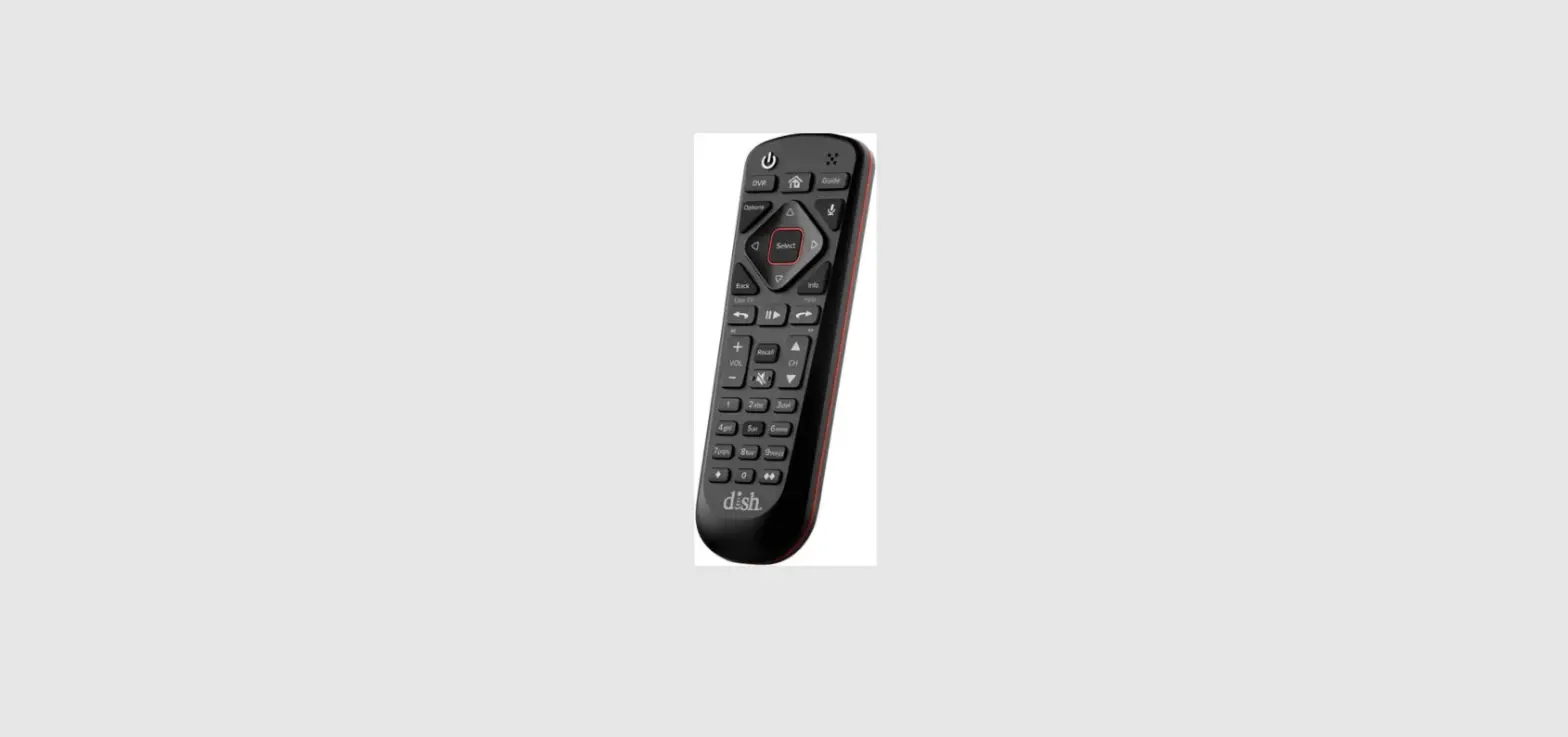
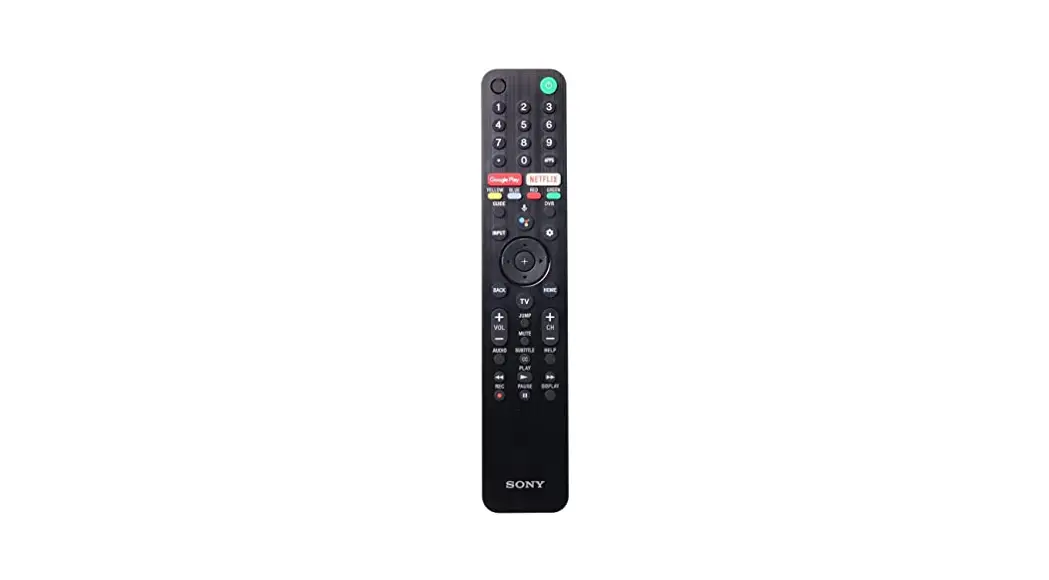
Use the DRC mode keys (i.e., AUX, VCR, CABLE, or TV) to control the desired device. When pressed, the selected mode key will light, confirming your choice. Use the other
keys to perform desired actions (see the following key chart).
NOTE: The selected mode will remain active until you press another mode key.
 AUX, VCR, CABLE, or TV AUX, VCR, CABLE, or TV | Press AUX, VCR, CABLE, or TV once to select a home entertainment component to control. |
 POWER POWER | Press POWER once to turn on or off the selected home entertainment component. |
| HELP | Press HELP once to display the help screen. |
| MUTE | Press MUTE once to turn the sound off or on. |
 | Use PAGE s (or PAG E t ) to page up (or down) through menu screens and the program guide. |
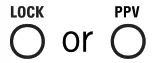
| LOCK/PPV | Use LOCK/PPV* to restrict viewing of selected programs or to view the PPV menu. |
| EXIT | Use EXIT to exit the menu or guide. |
| INFO | Use INFO to display current channel and program information. |
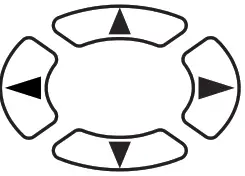 | Use cursor keys to move the cursor in the program guide and menu screens. |
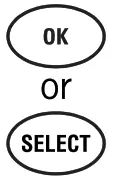 | Use OK/SELECT* to select menu options, PPV events, and to tune programs from the program guide. |
| GUIDE | Use GUIDE to display the program guide. |
| MENU | Use MENU to display the main menu. |
 VOLUME VOLUME | In TV or CABLE mode, use VOLUME + (or VOLUME -) to raise the (or lower) sound volume. |
| CHANNEL | Use CHANNEL + (or CHANNEL -) to select the next higher (or lower) channel. |
| LAST | Use LAST to recall the last channel or go back to one screen in the menu. |
| FAVORITE | In the CABLE mode, press FAVORITE once to display preset favorite cable channels. |
 | These functions are set by your cable system operator. |
 | Use the keypad (0 ~ 9) to directly select channels (e.g., 09 or 31). |
| TV/VCR BYPASS | Press TV/VCR BYPASS once to switch VCR to view TV or tape (not supported by all applications). |
| Use ENTER/MUSIC to display a menu of digital music channels, or to enter channels on some TV models. |
 | In the VCR and TV modes, use the STOP, PAUSE, P L AY, R EW. , RECORD, and F.FWD. keys to control VCR. To record a program, press RECORD once. |
| In the CABLE mode, press DAY> (or <DAY) once to move the program guide ahead (or back) 24 hours. |
*NOTE: Functionality of the LOCK/PPV and SELECT/OK keys are dependent on the software and the model of the converter.
INSTALLING BATTERIES
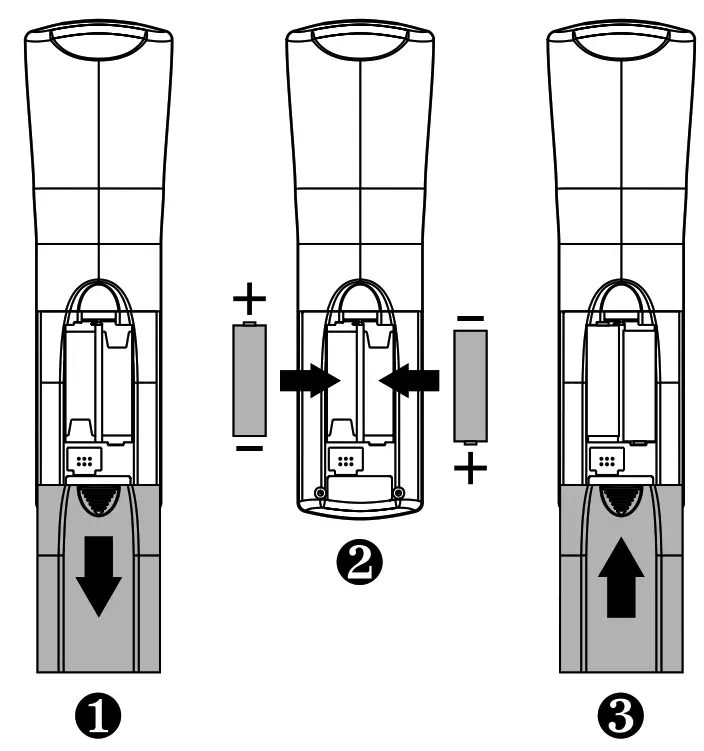
- On the DRC’s back, pull back the battery cover and remove it.
- Obtain two (2) fully charged AA alkaline batteries. Match the + and – marks on the batteries to the + and – marks in the battery case, then insert the batteries.
- Push the battery cover back into place.
- Test the unit by pressing POWER and any mode key (e.g., AUX, VCR, CABLE, or TV). If the batteries are inserted correctly, the selected mode key will be lit.
NOTE: Removing the batteries WILL NOT require you to reprogram your DRC. A selected mode key will blink two times with each key press when batteries need replacing.
PROGRAMMING TV CONTROL
- Turn on the TV.
- On the DRC, press and hold the TV (at least 6 seconds) until you see the programming mode start.
Each mode key light will turn off and on sequentially, starting with AUX on through TV, and the sequence will repeat twice. At this time, release the TV and wait until it’s lit continuously. - Locate the code for your TV in Setup Codes for TVs below. Brands are listed in alphabetical order with the most popular codes listed first.
- Enter the first four-digit code for your TV. If you perform this procedure correctly, the TV light will blink three times.
NOTE: If you enter an invalid code, the TV light will turn off. In that case, repeat steps 2 through 4 with a valid code. - Aim the DRC at your TV and press POWER once. The TV should turn off. If it does not respond, repeat steps 2-4, trying each code listed for your brand until you find the one that operates your TV. If your TV still does not work with the DRC, try searching for the code (see Searching For Your Code on the backside).
- Write your TV code in the boxes below for future reference.
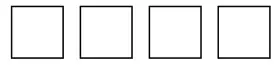
NOTE: Remember, to use the DRC to operate your TV, press TV first.
| A-Mark | 0003 |
| A | 0030, 0019, 0003, 0052, 0137, 0185 |
| Alex | 00032 |
| Admiral | 00093 |
| Adventura | 0046 |
| Aiko | 0092 |
| Akai | 0030, 0098 |
| Aaron | 0179, 0183, 0216 |
| Ambassador | 00177 |
| Ampro | 00751 |
| Anam | 0180, 0004, 0009, 0068 |
| Anam National | 0055, 0161 |
| Archer | 00003 |
| Astro Text | 0379 |
| Audiovox | 0451, 0180, 0003, 0092, 0623 |
| Baysonic | 0180 |
| Belcor | 0019 |
| Bell & Howell | 0154, 0016 |
| Bradford | 0180 |
| Brockwood | 00019 |
| Broksonic | 0236, 0463, 0003 |
| CCE | 0217, 0329 |
| CXC | 0180 |
| Candle | 0030, 0056, 0046, 0186 |
| Carnivale | 0030 |
| Carver | 0054 |
| Celebrity | 0000 |
| General | 0451, 0092 |
| Citizen | 0060, 0030, 0056, 0039, 0046, 0092, |
| Clairtone | 0185 |
| Concerto | 0056 |
| Contact | 0180, 0157, 0158, 0185 |
| Craig | 0180, 0161 |
| Crosley | 0054 |
| Crown | 0180, 0039 |
| Curtis Mathes | 0047, 0054, 0154, 0051, 0451, 0093,0060, 0030, 0145, 0056, 0016, 0039, 0166, 0466 |
| Daewoo…………………………………………………………………………………………………………………. 0451, 0451, 0019, 0039, 0091, 0092, 0623, | |
| Denon | 624 |
| Dumont | 19 |
| Dwain | 145 |
| Dynatech | 0017, 0019 |
| Electro band | 0720, 0774 |
| Electrohome | 49 |
| Emerson | 0154, 0236, 0463, 0180, 0282, 0178, 0019, 0179, 0039, 0038, 0158, 0177, 0181, 0182, 0183, 0185, 0270, 0280, 0623, 0624 |
| Envision | 0030 |
| Fisher | 0154, 0159 |
| Fujitsu | 0179 |
| Funai | 0180, 0179, 0171 |
| Futuretech | 0180 |
| GE | 0047, 0051, 0451, 0093, 0282, 0178,0021, 0055, 0027, 0029, 0135, 0174, 0251, 0279 |
| Gibraltar | 0017, 0030, 0019 |
| GoldStar | 0030, 0178, 0019, 0056, 0001, 0002, |
| Gradiente | 0053, 0056, 0392 |
| Grumpy | 0180, 0179 |
| Hallmark | 0178 |
| Harley | 0179 |
| Hitachi | 0054, 0078 |
| Infinity | 0180, 0068 |
| Inteq | 0145, 0056, 0032, 0038, 0097, 0151, |
| JBL | 0054 |
| JCB | 0017 |
| JVC | 0054 |
| Janeil | 0000 |
| KEC | 0053, 0036, 0069, 0160, 0169, 0182 |
| KMC | 0046 |
| KTV | 0180 |
| Kamp | 0106 |
| Kawasho | 0180, 0030, 0039, 0183, 0185, 0217, |
| Kaylani | 0216 |
| Kenwood | 0158, 0216, 0308 |
| Kloss 0024, LG | 0052 |
| LXI | 0030, 0019 |
| Logik | s 0024, 0046, 0078 |
| Luxman | 0056 |
| MEI | 0047, 0054, 0154, 0156, 0178, 0148 |
| MGA | 0016 |
| MTC | 0056 |
| Magnavox | 0185 0036, 0096, 0186, 0187, 0230, 0386 |
| Majestic | 0150, 0030, 0178, 0019, 0155 |
| Marantz | 0060, 0030, 0019, 0056, 0049, 0091, |
| Matsushita | 0036, 0096, 0186, 0187, 0230, 0386 |
| Megatron | 0016, 0015 |
| Memorex | 0054, 0030 0106 |
| Midland | 0250 |
| Minute | 0178, 0145, 0003 |
| Mitsubishi | 0154, 0250, 0150, 0178, 0056, 0016, |
| Motorola | 0047, 0017, 0051, 0039, 0032, 0135 0155, 0331, 0358 |
| Multitech | 0021 |
| NAD | 0093, 0150, 0178, 0019, 0014, 0098, |
| NEW | 0093, 0055 |
| NTC | 0180, 0049, 0217 |
| Nikko | 0156, 0178, 0166 |
| Noblex | 0030, 0019, 0056, 0036, 0497 |
| Noshi | 0092 |
| Onwa | 0030, 0178, 0092 |
| Optimus | 00430 |
| Optonica | 0018 |
| Orion | 0180 |
| Panasonic | 0154, 0250, 0166 |
| Penney | 0093, 01650021, 0019, 0018, 0056, 0039, 0002, 0003, 0027, 0032, 0110, 0135 |
| Philco | 0236, 0463, 0179 |
| Philips | 0051, 0250, 0055, 0162, 0226 |
| Pilot | 0047, 0156, 0051, 0060, 0030, 0178, |
| Pioneer | 0028, 0096 |
| Portland | 0054 |
| Prism | 0030, 0019, 0039 |
| Proscan | 0038, 0166 |
| Proton | 0019, 0039, 0092 |
| Pulsar | 0051 |
| Quasar | 0047 |
| RCA | 0178, 0003, 0031, 0052, 0466 |
| Harley | 0017, 0019 |
| Davidson Harman | 0051, 0250, 0165, 0055, 0219 |
| Kardon Harvard | 0047, 0051, 0093, 0019, 0018, 0029,0038, 0090, 0135, 0174, 0278 |
| Radio Shack | 0047, 0154, 0165, 0180, 0030, 0178,0019, 0056, 0039, 0032, 0409 |
| Realistic | 0056, 0039, 0032 0019, 0056, 0039, 0032, 0409 |
| Rhapsody | 0183, 0185, 0216 |
| Runco | 0017, 0030, 0251, 0497, 0603 |
| SSS | 0180, 0019 |
| Sampo | 0030, 0039, 0032, 0052, 0110 |
| Samsung | 0060, 0030, 0178, 0019, 0056, 0032,0329, 0427, 0482 |
| Sansei | 0039 |
| Sansui | 0451 |
| Sanyo | 0463 |
| Scimitsu | 0154, 0146, 0159, 0484 |
| Scotch | 0019 |
| Scott | 0178 |
| Sears | 0236, 0180, 0178, 0019, 0179 0056, 0015, 0146, 0148, 0159, 0168, 0171, 0281 |
| Semivox | 0047, 0054, 0154, 0156, 0178, 0179, |
| Sep | 0156 |
| Sharp | 0093, 0165, 0039, 0153, 0157, 0281,0386, 0491 |
| Shogun | 0019 |
| Signature | 0016 |
| Simpson | 0186, 0187 |
| Sony | 0000, 0011, 0080, 0111 |
| Soundesign | 0180, 0178, 0179, 0186 |
| Spectron | 0003, 0137 |
| Square view | 0171 ,0015, 0146, 0148, 0159 |
| Starlite | 0080 |
| Supre-Macy | 0046 |
| Supreme | 0000 |
| Sylvania | 0054, 0030, 0020, 0028, 0065, 0096,0381 |
| Symphonic | 0171 |
| TMK | 0178, 0056, 0177 |
| Tandy | 0093 |
| Tatung | 0055, 0003, 0049, 0396 |
| Technics | 0051, 0250 |
| Technol Ace | 0179 |
| Technovox | 0007 |
| Techwood | 0051, 0056, 0003 |
| Teknika | 0054, 0180, 0150, 0060, 0019, 0179,0056, 0016, 0039, 0092, 0186, 0312 |
| Telefunken | 0056 |
| Tera | 0031 |
| Toshiba | 0154, 0156, 0060, 0036 |
| Tonic | 00185 |
| Television | 0039 |
| Trial | 00157 |
| Universal | 0027 |
| Vector Research Victor | 0030 |
| Video Concepts Vidikron | 0053 |
| Vtech | 0098 |
| Viking | 0054, 0242 |
| Wards | 0178, 0019, 0036 ,0179, 0056, 0016, 0020, 0027, 0028, 0029, 0080, 0096, 0111, 0174 |
| White Westinghouse Yamaha | 0046, 0312 |
| Zenith | 0054, 0165, 0030, 0178, 0021, 0019, |
| Zonda | 0623, 0624 |
| Yamaha | 0030, 0019 |
| Zenith | 0017, 0016, 0092 |
| Zonda | 0003 |
PROGRAMMING VCR CONTROL
- Turn on your VCR and insert a videocassette.
- On the DRC, press and hold VCR (at least 6 seconds) until you see the programming mode start. Each of the mode key lights will turn off and on sequentially, starting with AUX on through TV, and the sequence will repeat twice. During this time, release VCR and wait until it’s lit continuously.
- Locate your VCR brand in the SETUP CODES FOR VCRs below. Brands are listed in alphabetical order with the most popular codes listed first.
- Enter the first four-digit VCR code for your VCR. If you perform this procedure correctly, the VCR light will blink three times.
NOTE: If you enter an invalid code, the VCR light will turn off. In that case, repeat steps 2 through 4 with a valid code. - Aim the DRC at your TV and press POWER once. Your VCR should turn off. If your VCR remote control does not have a POWER key, press PLAY. If it does not respond, repeat steps 2-4, trying each code listed for your brand until you find the one that operates your VCR. If your VCR still does not work with the DRC, try searching for the code (see Searching For Your Code on the backside).
- Write your VCR code in the boxes below for future reference.

NOTE: Remember, to use the DRC to operate your VCR, press VCR first.
Set up Codes for VCR
| Action | 0317 |
| Admiral | 0048 |
| Adventura | 0000 |
| Aiko | 0278 |
| Aiwa | 0037, 0000, 0307, 0468 |
| Akai | 0041, 0049, 0053, 0061, 0106, 0156,0242 |
| American High Asha | 0035 |
| Audiovox | 0240 |
| Beaumark | 0037 |
| Bell & Howell | 0240 |
| Broksonic | 00104 |
| CCE | 0184, 0121, 0209, 0002, 0211, 0295, |
| Calix | 0072, 0278 |
| Canon | 0037 |
| Capehart | 0035, 0102, 0167 |
| Carver | 0020 |
| General | 0081 |
| Citizen | 0278 |
| Colt | 0037, 0278 |
| Craig | 0072 |
| Curtis Mathes | 0037, 0047, 0240, 0072, 0271 |
| Cybernex | 0060, 0035, 0041, 0162 |
| Daewoo | 0240, 0051 |
| Dayton | 0045, 0278, 0017, 0020, 0087, 0561 |
| Denon | 0020 |
| Dynatech | 0042 |
| Electrohome | 0000 |
| Electrophonic | 0037 |
| Amerex | 0037 |
| Emerson | 0032 |
| Fisher | 0037, 0184, 0000, 0121, 0043, 0209,0002, 0278, 0036, 0061, 0068, 0088, 0208, 0211, 0212, 0294, 0295, 0361, 0479, 0510, 0561 |
| Fuji | 0047, 0104, 0054, 0066 |
| Funai | 0035, 0033 |
| GE | 0000 |
| Garrard | 0060, 0035, 0048, 0240, 0065, 0202 |
| Go Video | 0000 |
| GoldStar | 0232, 0279, 0350, 0432, 0526 |
| Gradiente | 0037, 0038, 0018, 0471, 0480 |
| Grundig | 0000, 0008, 0408 |
| HI-Q – | 0047 |
| Harley Davidson | 00000 |
| Harman/Kardon | 0081,0038,0075 |
| Harwood | 0072,0068 |
| Headquarter | 00046 |
| Hitachi | 0000,0042,0041,0065,0082,0105, 0166,0292,0396 |
| WC | 0067,0041,0008,0206,0207,0384′ |
| I Jensen | 00041 |
| KEC | 0037,0278 |
| KLH | 00072 |
| Kemvood | 0067t 0041t 0038r 0384 |
| Kodak | 0035,0037 |
| LXI | 00037 |
| Lloyd’s | 0000,0208 |
| Logik | 00072 |
| MEI | 00035 |
| MGA ‘ | 0290,0043,13061 |
| MGN Technology | 00240 |
| MTC | 0290,0006 |
| Magnasonic | 00278 |
| Magnavox | 0035,0039,0081, 0000,0149,010 i, 0110 |
| Magnin | 00240 |
| Marantz | 4.’0035,0081 |
| Marta | 0037 |
| Matsushita | 0035.0162,0454 |
| Memorex | 0035,0037, 0048, 0039,0047, 0290,4 0000,0104,0162, 0046,0299,0307 |
| Minolta | 0042,0105 |
| Mitsubishi | 0048,0067,0043,0061,0075,0173, 0219,0292,0443 |
| Motorola | 0035,0048 |
| Multitech | 0000,0072 |
| N AD | 000584 |
| NEC | 0104,0067,0041, 0038,0040,0050, 0082 |
| Nikko | 0037 |
| Nikon | 0034,0253 |
| Noble: | 000290 |
| %Olympus | 0035.0226 |
| Optimus | 0037,0048,0104, 0162,0058,0432, 0454 |
| Optomo | 0062 |
| Orion | 0184.0002.0295, 0479 0035,0162,0077, 0102, 022p, 0226, 0227,0246,0378, 0454 |
| Panasonic | |
| Penney | 0035,0037,0240,0042,0038,0040, 0054 |
| Pentax | 0092,0065,0105 |
| Philco | 0035,0209,0479 |
| Philips | 0035,0081,0062,0110,0403 |
| Pilot | 0037 |
| Pioneer | 0067,0058, (9168 |
| Portland | 0230 |
| Protnromc | 0240 |
| Proscan | 0060,0202 |
| Protec | 0072 |
| Pulsar | 0039,0051 |
| Quarter | 0016 |
| Quartz | 0046, 0155 |
| Quasar | 0035,0162,0077,0454 |
| 0060,0035,0048,0240,0042,0149, 0065,0077,0105,0106,0202,0277 | |
| RCA | |
| Radio Shack | 00000 |
| _Radix | 000037— 4 |
| Randex | 0037 |
| Realistic | 0035,0037,0048,0047,0000,0104, 0062,0046,0066 |
| Ricoh | 0039,0253 |
| Runco | 0039 |
| SI S | 0042 |
| Salon | 0075 |
| Samsung | 0240, 0015, 0051, 0053 |
| Sank’ | 480039 |
| Sansui | 0000,0067.0041.0082,0271,0479 |
| Sanyo | 0047,0290,0104, 0096 |
| Scott | 0189,0095,0121, 0043,0210,0211, 0212 |
| Sears | 0035,0037,0047, 0000,0042,0104, 0046,0054,0057, 0066, 0105 |
| Semp | 0045 |
| Sharp | 0048,0062 |
| Shmtom | 0072 |
| Shogun | 0290,0051 |
| Singer | 0072 |
PROGRAMMING VCR CONTROL
Setup Codes for VCRs (continued):
| Sony | 0253 |
| Sunpak | 0253 |
| Sylvania | 0035, 0081, 0000, 0043, 0103, 0110 |
| Symphonic | 0000 |
| TMK | 0240, 0036, 0208 |
| Tatung 0041 | 0041 |
| Teac | 0000, 0041 |
| Technics | 0035, 0162, 0246 |
| Teknika | 0035, 0037, 0000, 0052 |
| Thomas | 0000 |
| Toshiba | 0045, 0043, 0057, 0066, 0210, 0212, |
| Totevision | 0037, 0240 |
| Unitech | 0240 |
| Vector | 0045 |
| Vector | h 0038, 0040 |
| Research | 0045, 0040, 0061, 0221 |
| Video Concepts | 0240 |
| Videosonic | 0060, 0035, 0048, 0047, 0081, 0240, |
| Wards | 0278 |
| White Westinghouse-1000 | 0035, 0000, 0072 |
| Yamaha | 0038 |
| Zenith | 0039, 0000, 0033, 0034 |
Setup Codes for TV/VCR Combos:
| Brocksonic | 0002, 0479 (for TV use 0463) |
| Citizen | 00278 |
| Colt | 0072 |
| Curtis Mathes | 0035 (for TV use 0051) |
| Daewoo | 0278 (for TV use 0624) |
| Emerson | 0002, 0278 (for TV use 624), |
| Funai | 0479 (for TV use 0463) |
| GE | 0000 |
| Goldstar | 0240, 0035 (for TV use 0051), |
| Harley Davidson Hitachi | 0037 (for TV use 0056) |
| Lloyds | 0000 |
| Magnasonic | 0000 |
| Magnavox | 0000 |
| Magnin | 0278 |
| Memorex | 0000, 0081 (for TV use 0054) |
| MGA | 00240 |
| Mitsubishi | 0037 |
| Orion | 0240 |
| Panasonic | 0048 (for TV use 0093) |
| Radio Shack | 0002, 0479 (for TV use 0463) |
| RCA | 0035 (for TV use 0051) |
| Sansui | 0037 |
| Sanyo | 0240, 0035 (for TV use 0051), |
| Sears | 0000, 0240, 0479 (for TV use 0463) |
| Sharp | 0240 |
| Sony | 0000, 0037 (for TV use 0056) |
| Sylvania | 0048 (for TV use 0093) |
| Symphonic | 0000, 0032 (for TV use 0000) |
| Thomas | 0081 (for TV use 0054) |
| White | 0000 |
| Westinghouse | 0000 |
| Thomas | 0278 (for TV use 0624) |
| Zenith | 0000, 0479 |
NOTE: Some TV/VCR Combo codes may require a separate TV code to control volume. Check the codes above and follow the instructions in the “Programming TV ontrol” section (on the front side) using the supplied TV code. If there is no TV code listed for your TV/VCR Combo’s operating code, you will need to use the volume control capabilities of your General Instrument Cable Converter.
PROGRAMMING CABLE CONVERTER (OR DBS) CONTROL
When you received your DRC remote control, it was already programmed to operate your GI Cable Converter. However, if you want to control a DBS receiver or a different Cable Converter, perform the following instructions (otherwise skip to the next topic):
- Turn on the Cable Converter or DBS Receiver.
- On the DRC, press and hold CABLE (at least 6 seconds) until you see the programming mode start. Each of the mode key lights will turn off and on sequentially, starting with AUX on through TV, and the sequence will repeat twice. During this time, release CABLE and wait until it’s lit continuously.
- Locate your Cable Converter or DBS brand in the SETUP CODES FOR CABLE CONVERTERs or SETUP CODES FOR DBSs below. Brands are listed in alphabetical order with the most popular codes listed first.
- Enter the first four-digit code for your Cable Converter or DBS. If you perform this procedure correctly, the CABLE light will blink three times.
NOTE: If you enter an invalid code, the CABLE light will turn off. Repeat steps 2 through 4 with a valid code. - Aim the DRC at your Cable Converter or DBS Receiver and press POWER once. Your Cable Converter or DBS receiver should turn off. If it does not respond, repeat steps 2-4, trying each code listed for your brand until you find the one that operates your Cable Converter or DBS Receiver. If your unit still does not work with the DRC, try searching for the code (see Searching For Your Code).
- Write down the Cable Converter or DBS Receiver code in the boxes below for future reference.”NOTE: Remember, to use your DRC to operate your Cable Converter or DBS Receiver, press CABLE first.
SETUP CODES FOR CABLE CONVERTERS
| General Instrument | 0000, 0001, 0002, 0003, 0004, 0005, 0006, 0008 |
| Tom | 0005, 0007 |
SETUP CODES FOR DBS RECEIVERS
| General Instrument | 0100, 0101, 0102, 0103, 0104, 0105, 0106, 0107 |
| Primestar | 0100, 0101, 0102, 0103 |
PROGRAMMING AUXILIARY COMPONENT CONTROL
To program the DRC to control an auxiliary component (e.g., a second TV or VCR, a GI DBS Receiver, or Digital Audio Tuner):
- Turn on your auxiliary component (and if it’s a VCR, insert a video cassette).
- On the DRC, press and hold AUX (at least 6 seconds) until you see the programming mode start. Each of the mode key lights will turn off and on sequentially, starting with AUX on through TV, and the sequence will repeat twice. During this time, release AUX and wait until it’s lit continuously.
- Locate the brand in the SETUP CODES listed for your type of auxiliary unit (e.g., VCRs, TVs, Cable Controllers, or DBS Receivers) or audio service listed below. Brands
are listed in alphabetical order with the most popular codes listed first. - Press AUX, VCR, CABLE, or TV once to let the DRC know what type of device you want to assign to the AUX mode.
- Enter the first four-digit code for your auxiliary component. If you perform this procedure correctly, the AUX light will blink three times.
NOTE: If you enter an invalid code, the AUX light will turn off. In that case, repeat steps 2 through 5 with a valid code. - Aim the DRC at your auxiliary component and press POWER once (or PLAY once if it’s a VCR). The device should turn off (or start playing the tape). If the auxiliary component does not respond, repeat steps 2-6, trying each code listed for your brand until you find the one that operates your auxiliary component. If it still does not work with the DRC, try searching for the code (see Searching For Your Code).
- Write down the auxiliary component type and its code in the spaces below for future reference.
TYPE: __________________NOTE: Remember, to use the DRC to operate your auxiliary component, press AUX first.
DRC Setup Codes for Miscellaneous
Audio Services:
| General Instrument | 0201, 0200 |
| Scientific Atlanta | 0202 |
SEARCHING FOR YOUR CODE
If your TV, VCR, Cable Converter or Auxiliary Component does not respond to the DRC after trying all of the codes listed for your brand, or if your brand is not listed at all, try searching for your code. For example, after trying all of the codes for your TV, you still cannot get the DRC to operate your TV, then:
- Turn on your TV.
- On the DRC, press and hold a TV (at least 6 seconds) until you see the programming mode start. Each of the mode key lights will turn off and on sequentially, starting with AUX on through TV, and the sequence will repeat twice. During this time, release the TV and wait until it’s lit continuously.
- Press the (UP) cursor key once to start the search mode.
NOTE: In the search mode, the DRC will send IR codes from its library to the selected component, starting with the most popular codes first. When the component responds to a subsequent key command (e.g., POWER), the correct device code will be found. - Press POWER once. The TV key will light on and off, showing that an IR code has been sent.
- If your television does not turn off, press the UP cursor key once again to call up the next IR code and press POWER once again.
- If your television still does not turn off, repeat step 5 as many times as needed until your TV turns off.
- When your television does turn off, a working code has been found. Press OK once to save the code and the TV key will blink three times, confirming the selection.
- To search for the codes of your other components, repeat steps 1 through 7, but substitute the appropriate device key (i.e., VCR, CABLE, or AUX) for the component you are searching for.
CHECKING THE CODES
If you have set up the DRC using the Searching For Your Code procedure, you may need to find out which four-digit code is operating your equipment. Perform the following procedure after you have set up your components to find out which four-digit code is operating your equipment.
For example, to find out which code is operating your TV:
- Turn on your TV.
- On the DRC, press and hold the TV (at least 6 seconds) until you see the mode light sequence start. Each of the mode key lights will turn off and on sequentially, starting with AUX on through TV, and will repeat twice. During the sequence, release the TV key and wait until it stays lit continually.
- Press 9 – 9 – 0. The TV key will blink three times.
- To view the code for the first digit, press and release 1. Count the number of TV key blinks (e.g., 3 blinks = 3) and write down the number in the leftmost box below.
NOTE: The mode key will not blink if the code digit is a “0”. - Repeat step 4 three more times for each successive digit by pressing and releasing 2, 3, and then 4. Finish writing down the code in the boxes above.
- To check for the codes of your other components, repeat steps 1 through 5, only substitute the appropriate device key (i.e., VCR, CABLE, or AUX) for the component you are checking. Write down the codes in the boxes below.
VCR
CABLEAUX
CHANGING VOLUME LOCK
Your new DRC is set to control the volume of a component through its associated mode (i.e., through the cable in the Cable mode, through the TV in the TV mode, and through the auxiliary device in the Aux. mode). If your TV is not remote controllable, or if you would like the volume to be controlled by a different component, you can change the Volume Lock setting to control a volume through a non-associated mode (e.g., through the cable in the TV mode).
Changing the Volume Lock setting to the Cable or TV mode will change the volume control for all modes except Aux., which will continue to control its own volume. If you change the Volume Lock setting to the Aux. mode, all modes (i.e., Aux., Cable, and TV) will be controlled by the Aux. mode.
NOTE: The volume controls will not operate if Volume Lock is set to VCR mode.
To change the Volume Lock setting to the TV mode:
- On the DRC, press and hold the TV (at least 6 seconds) until you see the programming mode start. Each of the mode key lights will turn off and on sequentially, starting with AUX on through TV, and the sequence will repeat twice. During this time, release the TV and wait until it’s lit continuously.
- Press and release VOLUME +.
- . The TV key light will blink three times, indicating the volume has been locked to the TV mode.
- Now, whenever you press VOLUME +, VOLUME -, or MUTE on the DRC, the volume will be controlled by your TV.
To change the Volume Lock setting to the CABLE mode:
- On the DRC, press and hold CABLE (at least 6 seconds) until you see the programming mode start. Each of the mode key lights will turn off and on sequentially, starting with AUX on through TV, and the sequence will repeat twice. During this time, release CABLE and wait until it’s lit continuously.
- Press and release VOLUME +.
- The CABLE key light will blink three times, indicating the volume has been locked to the CABLE mode.
- Now, whenever you press VOLUME +, VOLUME -, or MUTE on the DRC, the volume will be controlled by your Cable Converter.
To change the Volume Lock setting to the AUX mode:
- On the DRC, press and hold AUX (at least 6 seconds) until you see the programming mode start. Each of the mode key lights will turn off and on sequentially, starting with AUX on through TV, and the sequence will repeat twice. During this time, release AUX and wait until it’s lit continuously.
- Press and release VOLUME +.
- The AUX key light will blink three times, indicating the volume has been locked to the AUX mode.
- Now, whenever you press VOLUME +, VOLUME -, or MUTE on the DRC, the volume will be controlled by your Auxiliary Device.
To unlock Volume Lock:
- On the DRC, press and hold a mode key (at least 6 seconds) until you see the programming mode start. Each mode key light will turn off and on sequentially, starting with AUX on through TV, and the sequence will repeat twice. During this time, release the mode key and wait until it’s lit continuously.
- Press and release VOLUME -.
- The mode key light will blink three times, indicating volume has been unlocked for the selected mode.
- Now, whenever you press VOLUME +, VOLUME -, or MUTE on the DRC, the volume controls will reset to their original device.
TROUBLESHOOTING
| PROBLEM: | A mode key does not blink or blink 2 times when you press a key. |
| SOLUTION: | Replace the batteries with two (2) new AA alkaline batteries. |
| PROBLEM: | A mode key blinks when you press a key, but the home entertainment component does not respond. |
| SOLUTION: | Make sure the DRC is aimed at your home entertainment component and is no farther than 15 feet away. |
| PROBLEM: | DRC does not control home entertainment components or commands are not working properly. |
| SOLUTION: | ‘fry all listed codes for the component brands being set up. Make sure they can be operated with infrared remote control. |
| PROBLEM: | TV/VCR combo does not respond properly. |
| Use the VCR codes for your brand. Some combo units may require both a TV code and a VCR code for full operation. | |
| SOLUTION: | |
| PROBLEM: SOLUTION: | No volume on a 2nd TV. I Follow instructions in Changing Volume Lock. |
| PROBLEM: | CHANNEL+, CHANNEL-, and LAST do not work for your RCA TV. |
| SOLUTION: | Due to the RCA design (19831987), only the original remote control will operate these functions. |
| PROBLEM: | Changing channels does not work properly. |
| SOLUTION: | If the original remote control required pressing ENTER to change channels, press ENTER on the DRC after entering the channel number. |
ADDITIONAL INFORMATION
The GI DRC does not have any user-serviceable parts. Opening the case, except for the battery cover, may cause permanent damage to your GI remote control. Copyright 1999 by General Instrument, Inc. No part of this publication may be reproduced, transmitted, transcribed, stored in any retrieval system, or translated to any language, in any form or by any means, electronic, mechanical, magnetic, optical, manual, or otherwise, without the prior written permission of General Instrument, Inc.