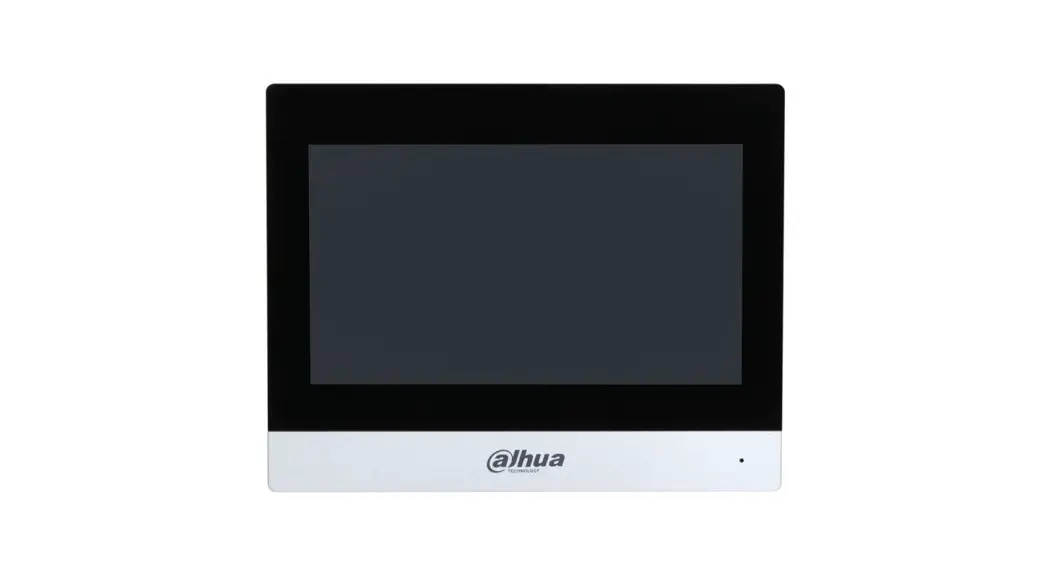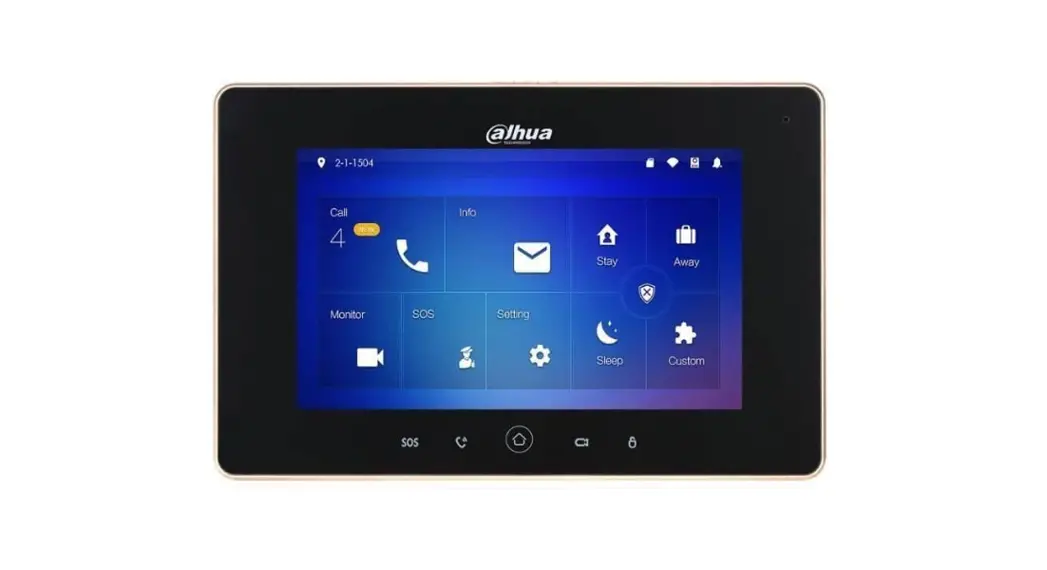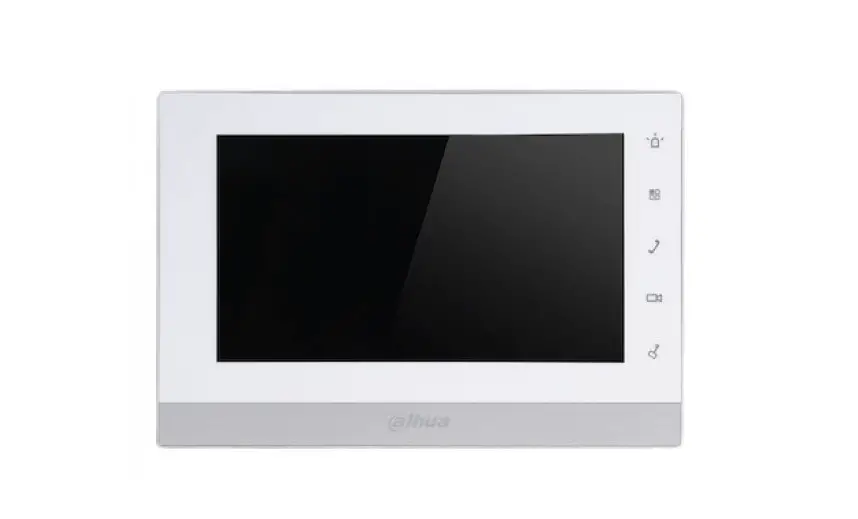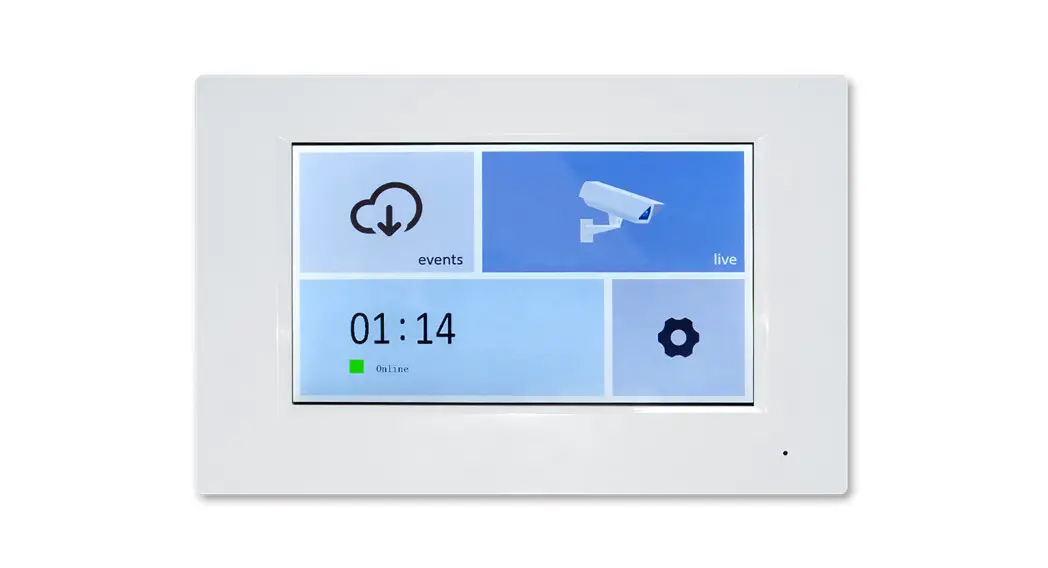

GBF WiFi IP Indoor Monitor MR920
User Manual
- Install app “doordeer” before setup an indoor monitor
in APP storeiPhone or iPad or google playAndroid mobile phone
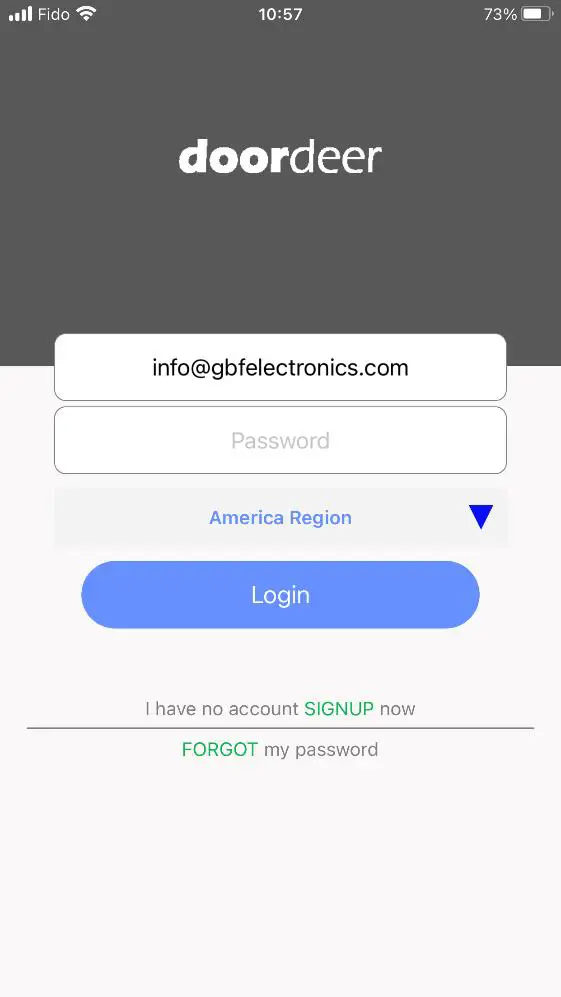
- Installation and Sign up user account
After installation You can sign up an user account. Choose the nearby service region for better user experience.
- Add your first indoor monitor
Indoor monitor support both WIFI and RJ45 cable network connection.
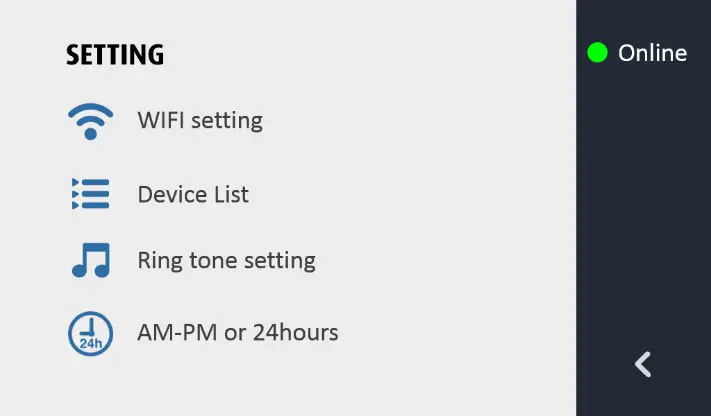
• If the device use RJ45 cable connection, make sure router and switch support DHCP and turn on your mobile phone WIFI setting and choose the same network as the indoor monitor connected. When click “add device”, APP will find the indoor monitor and you can add it into device list. • If the indoor monitor uses WiFi, Please go to indoor monitor wifi setting page (Settings wifi setup), It is ready for setup when the WiFi configuration page appears (see the following image). Then you will find Setting manual and click the Wifi setting.
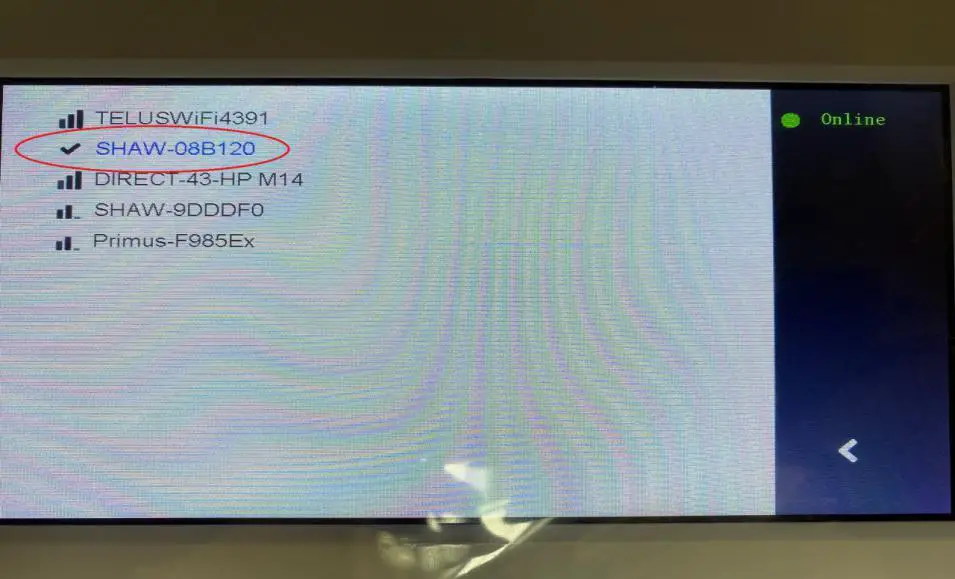
 Find the your wifi name and click it to connect.
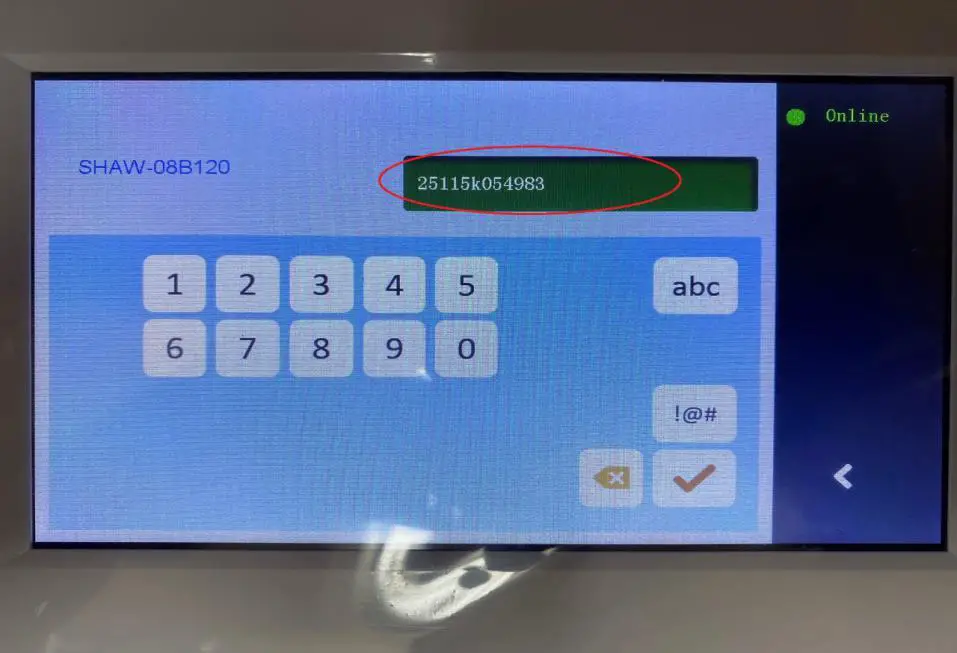
 Input the password of the wifi and click the check mark to make sure your monitor has been connected.
 Open Doordeer app and switch to left slider bar, click “Add Device” add your indoor monitor, see the following steps:
- The Doordeer APP will use “LAN Search” to find any online indoor monitor at the same network. You will see Monitor-hhxxxx in your new device list, then click that and add into your device list.

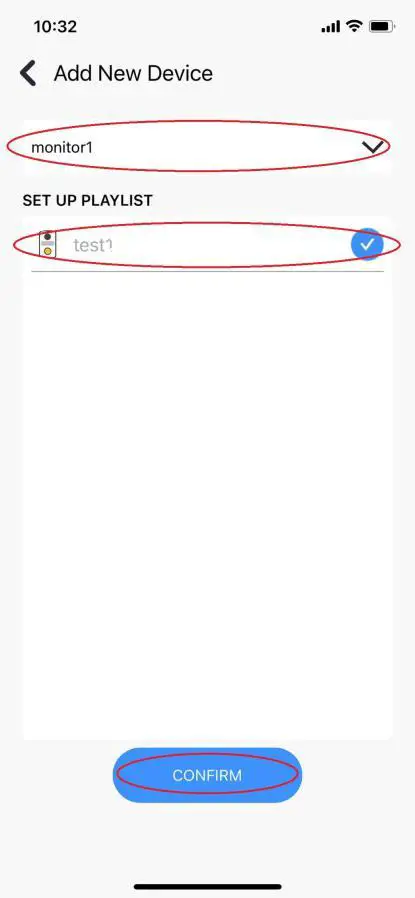
- Naming indoor monitor:
You could add the new name for your indoor monitor first. In SET UP PLAYLIST, you need to select which outdoor station you would like this indoor monitor to connect, check the box for that outdoor station to confirm your selection. Then click confirm.
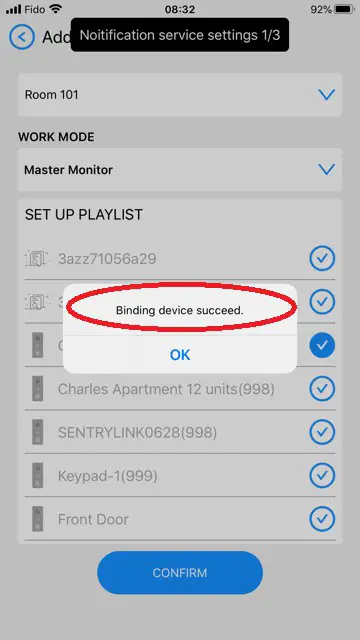
- After you select your outdoor station for this new indoor monitor, the APP will show you “Binding device succeed”. Then press ok to continue.

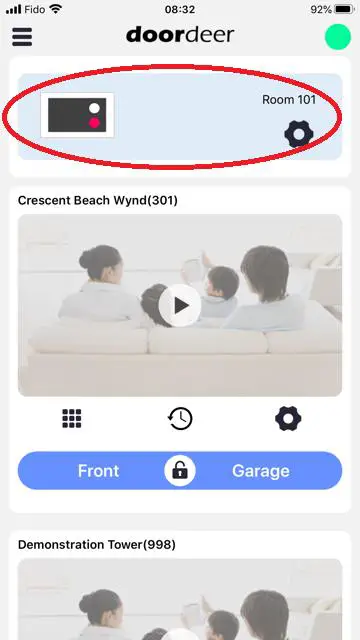
- Indoor monitor ICON in Doordeer APP:
After the indoor monitor is successfully added into your system, you will see this indoor monitor ICON in Doordeer APP. You could press Setting icon to change this indoor monitor setting such as rename, select second outdoor station etc..
- The Doordeer APP will use “LAN Search” to find any online indoor monitor at the same network. You will see Monitor-hhxxxx in your new device list, then click that and add into your device list.
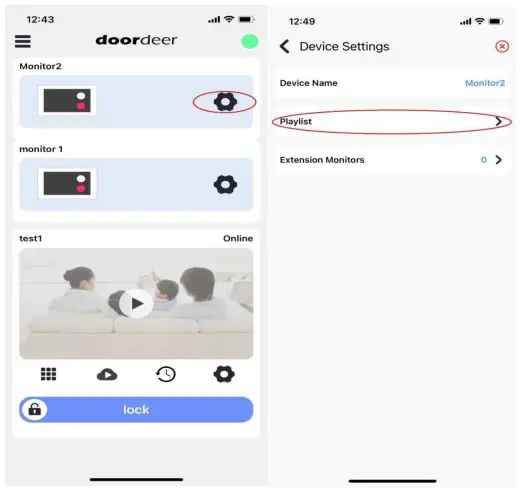
- Choose the doorbell(s) you want to bind to indoor monitor
Click the”Setting” button of Monitor, and then click Playlist. During adding indoor monitor, you can choose the different outdoor stations or multiple door stations in device list to bind the indoor monitor and make sure check the device you want to add.
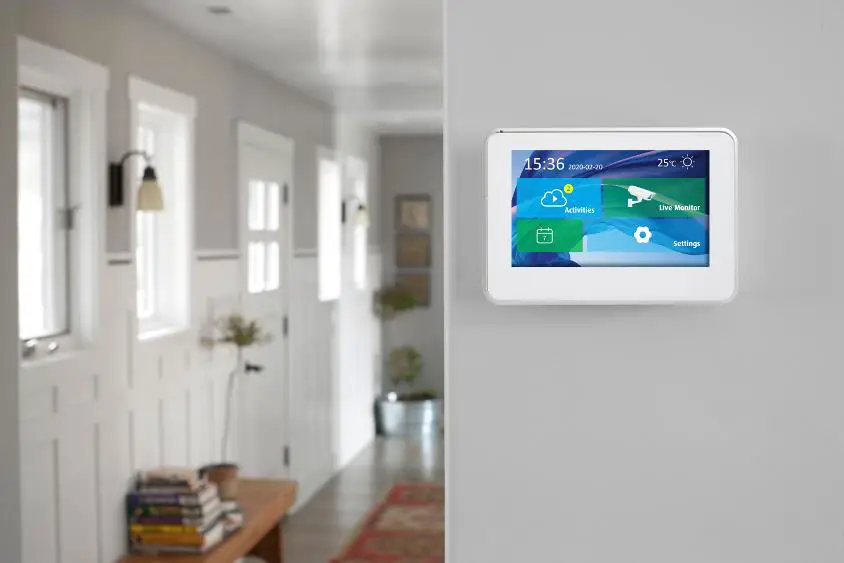
- Indoor monitor UI introduction
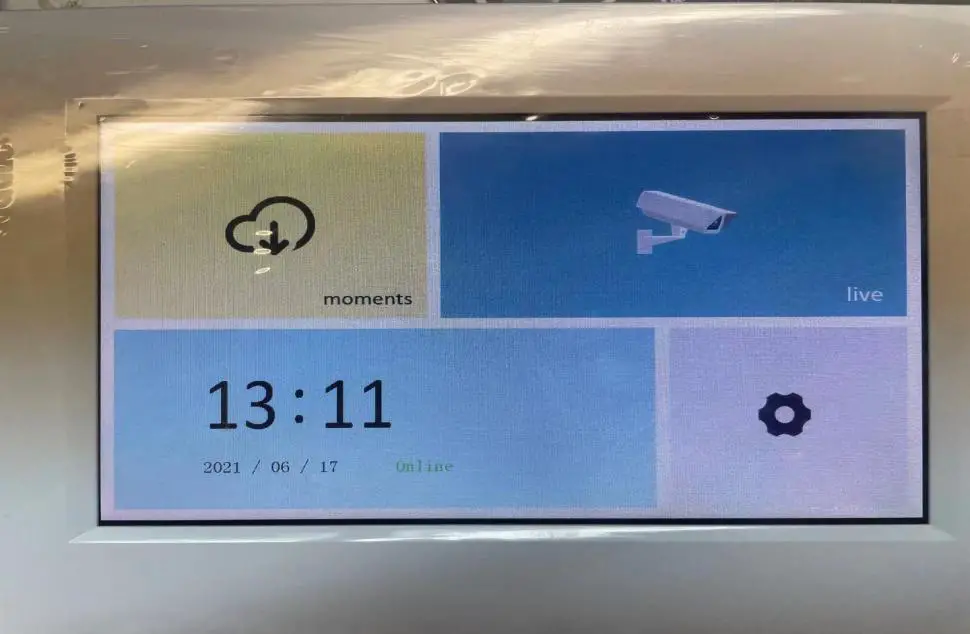
After added in app , indoor monitor will automatically reboot and update the system in 10 minutes.
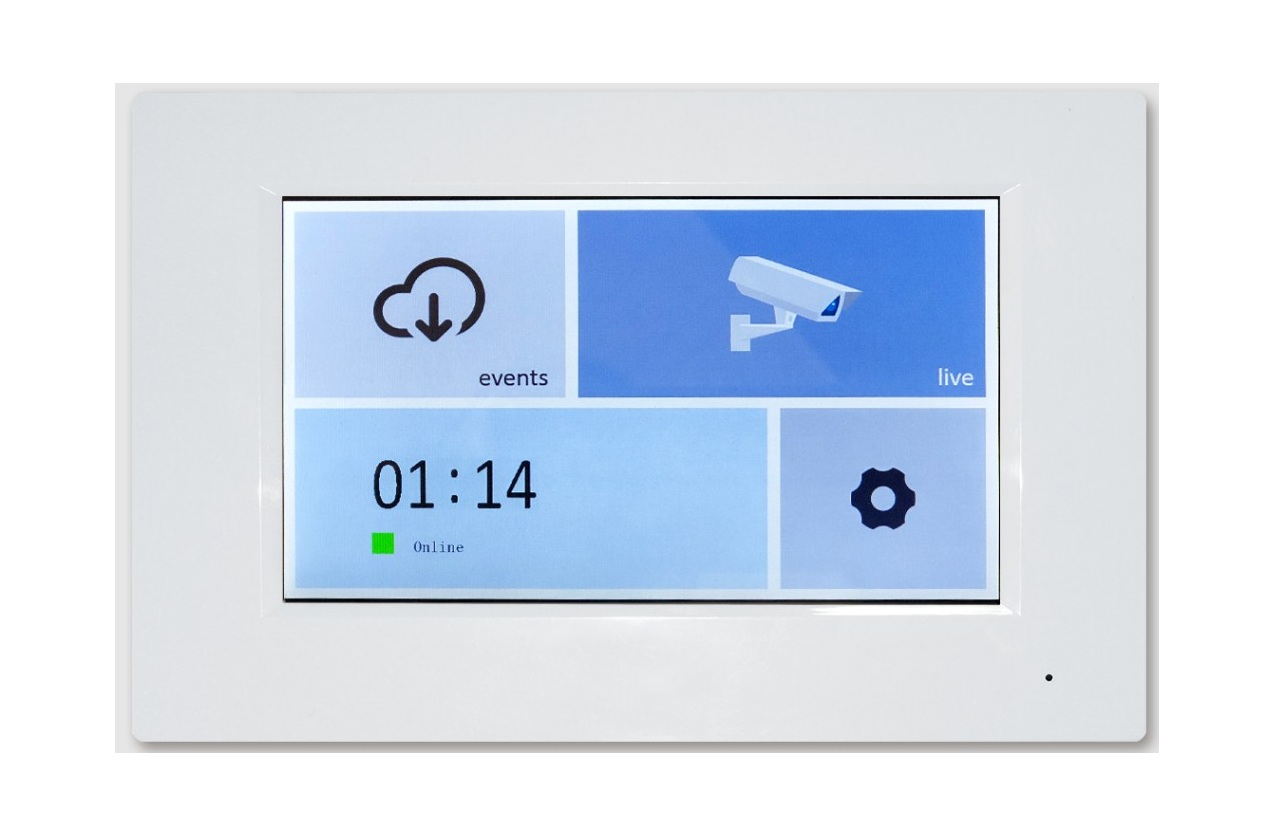
moments Cloud record activities and SD record Live Realtime monitor & unlocking Settings Switch to WIFI setup mode/Ringtone - Basic Settings
You can setup ringtones and switch to WIFI setup mode. Setup 12-24 hours mode.
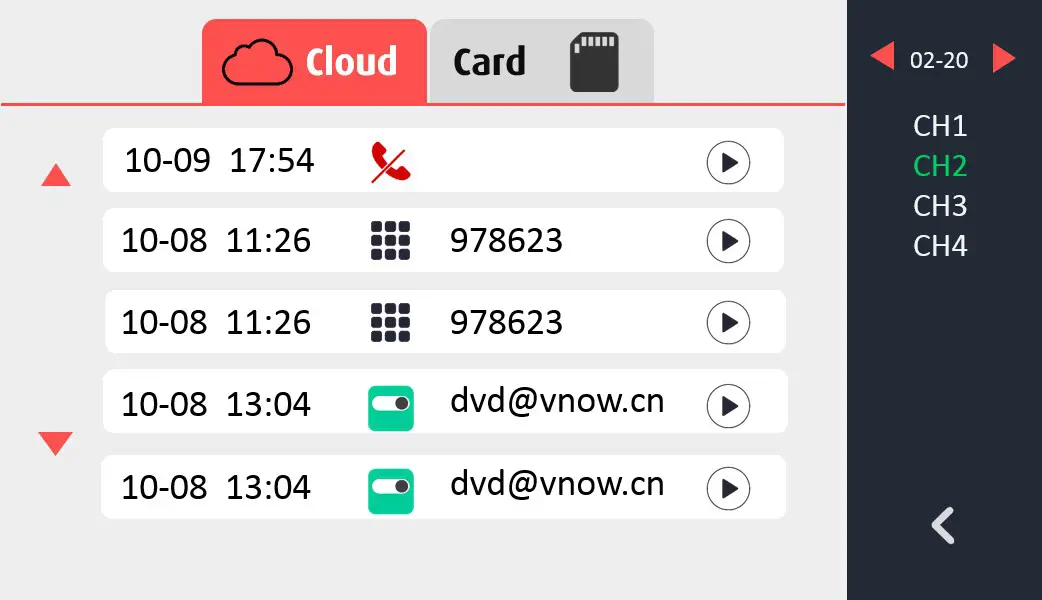
- Cloud & SD card record playback
Click “moments button”, you can playback the activities in cloud or SD card.
- Live monitor and unlocking
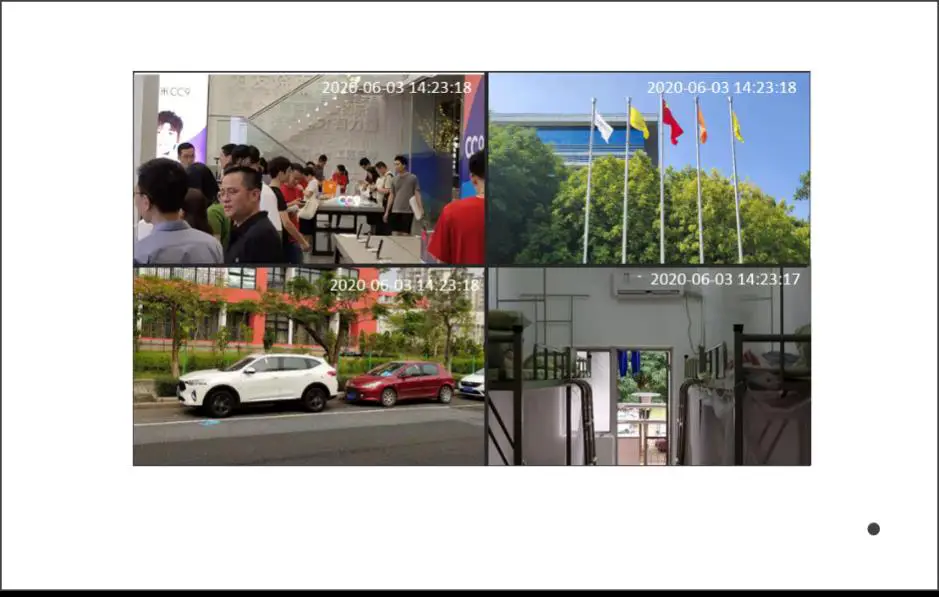
Doordeer indoor monitor supports up to 4 channels live video simultaneously. To see more detail you can enlarge it by single-click the small window.
- Calling, talking and unlocking
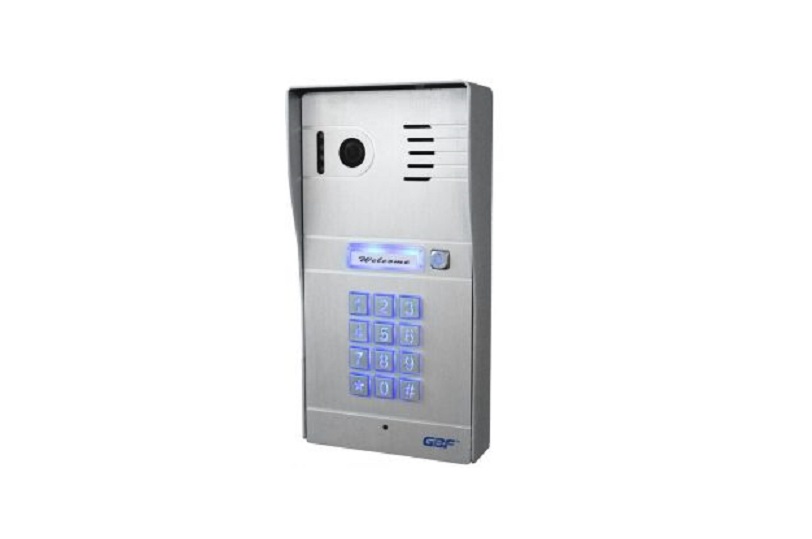
When a visitor presses your room number or your name in outdoor station, indoor monitor will show the video of door station camera and it will send ringing notification as well. You can answer the visitor and talk, unlock from this indoor monitor.
- Adding Second Indoor Monitor
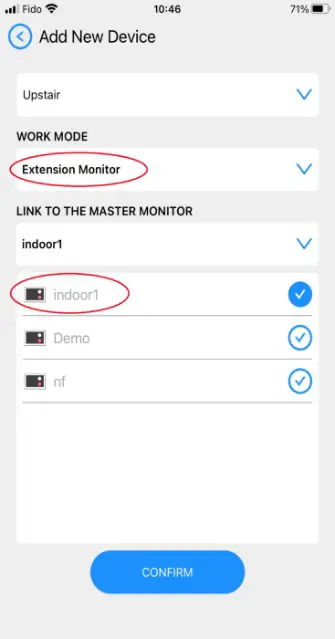
Adding the second indoor monitor in one family house is the same as adding the first one by your smart phone. See the step 3.1-3.3. In 3.3, Naming the indoor monitor, choose the Work Mode to Extension Monitor. And Link this second monitor to your first indoor monitor (Master monitor). Same setup for third or fourth indoor monitor in one house.
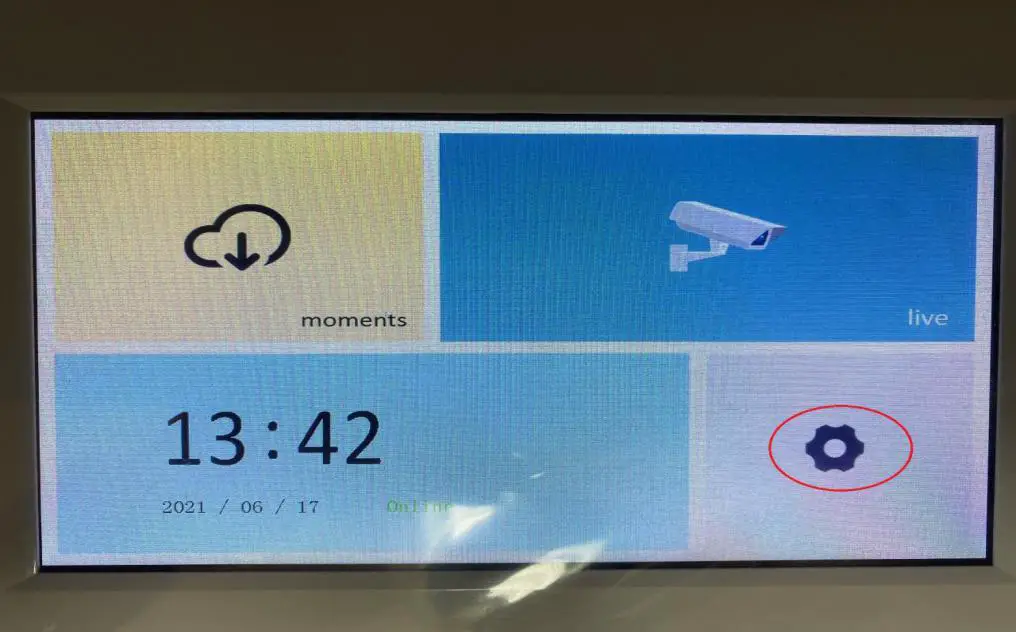 Then you will find Setting manual and click the Wifi setting.
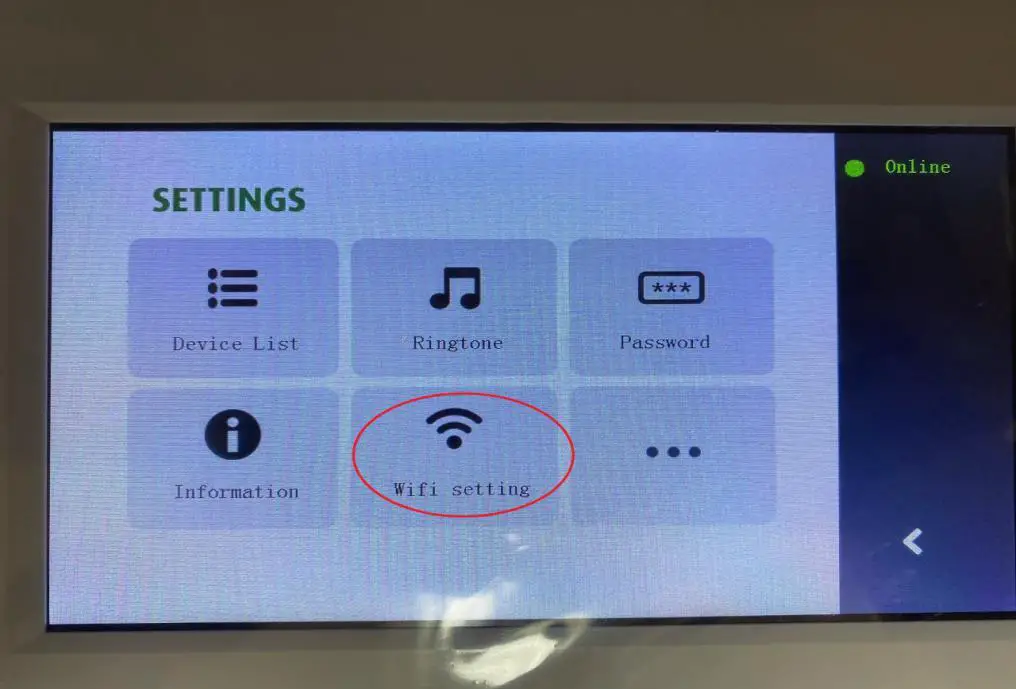 Find the your wifi name and click it to connect.
 Input the password of the wifi and click the check mark to make sure your monitor has been connected.
 Open Doordeer app and switch to left slider bar, click “Add Device” add your indoor monitor, see the following steps: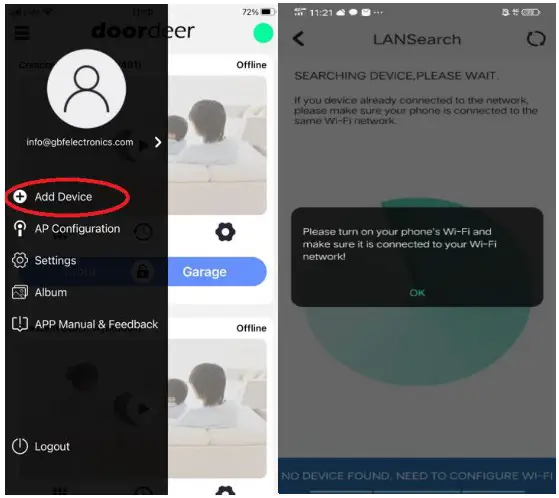
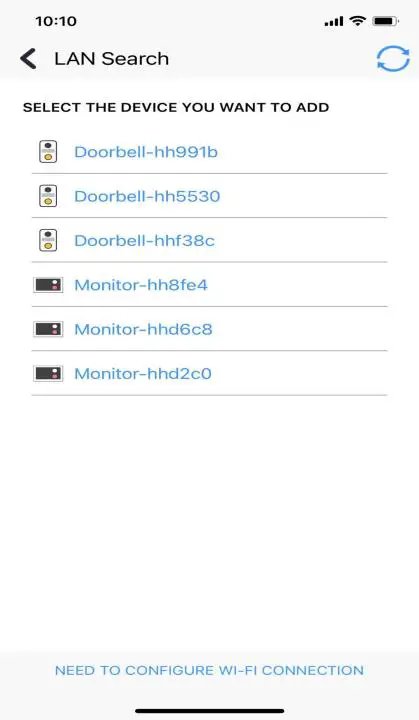
 During adding indoor monitor, you can choose the different outdoor stations or multiple door stations in device list to bind the indoor monitor and make sure check the device you want to add.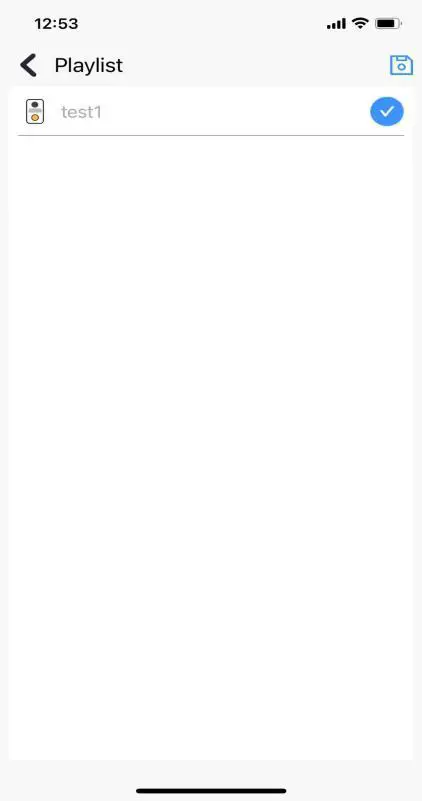

Tips
A. before add your first indoor monitor
You need at least one door station added in your doordeer app account . Then you can bind one or multiple door stations with your indoor monitor or multiple indoor monitors.
B. During adding this indoor monitor to your smart phone
Please make sure to turn off your smart phone Bluetooth and Cellular Data, and connect your smart phone to your local wifi connection if you try to use wifi connection with your indoor monitor.
C. Can indoor monitor work with LAN which do not connect to internet
Yes. When indoor monitor and door station are in the same local network (LAN), they can work together. Your mobile phone will not get a push notification when LAN does not connect internet.
D. Is there any reset button on the indoor monitor?
Yes, you could reset this indoor monitor to factory default setting by pressing the reset button on the back of the indoor monitor. You will hear one “dingdong” sound after pressing and holding the reset button.
GBF Customer Support Contact:
Phone: 1-604-278 6896 or 1-604-285 8721
Email: [email protected]
URL: www.gbfelectronics.com
 GBF electronics Inc