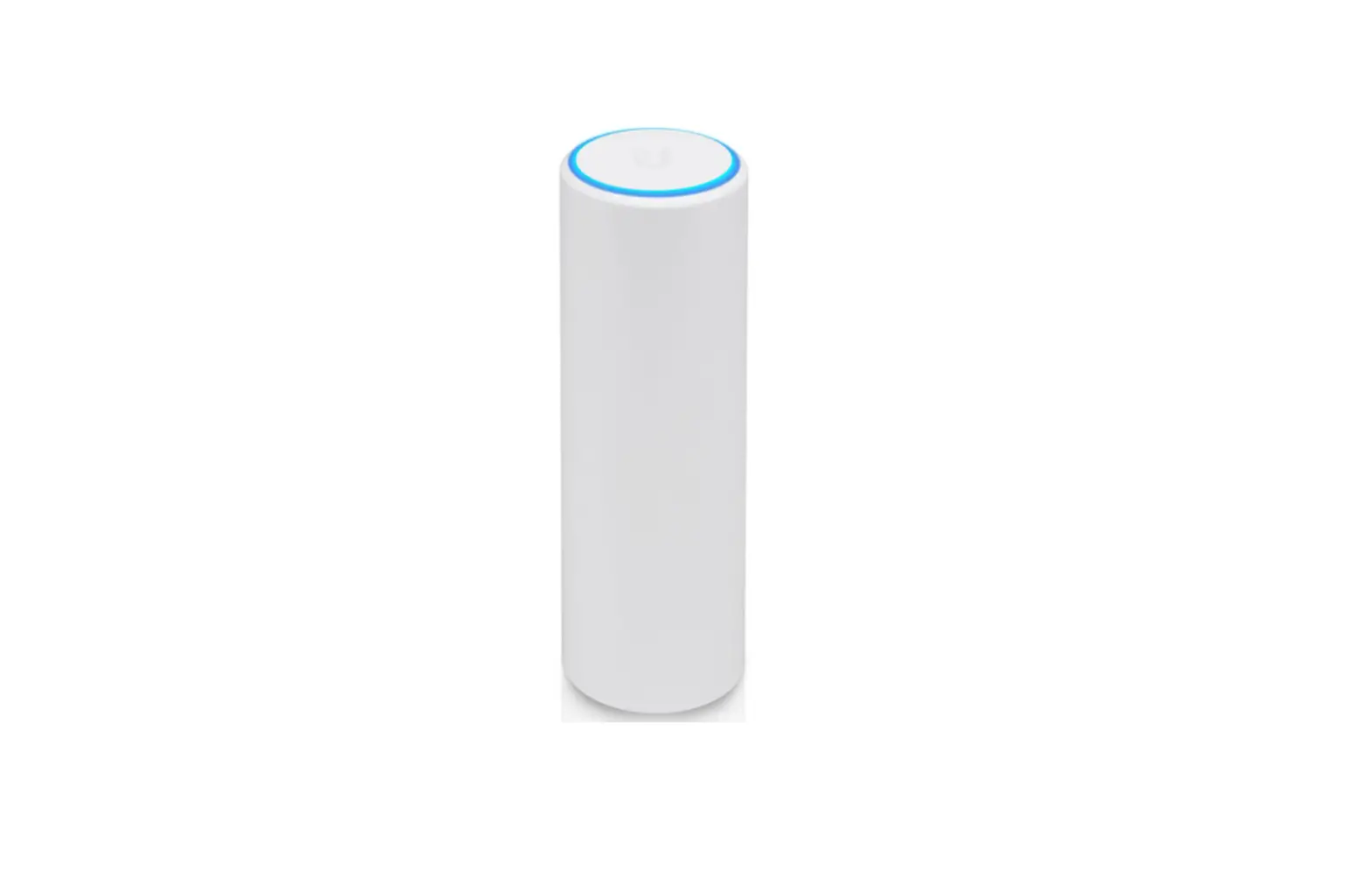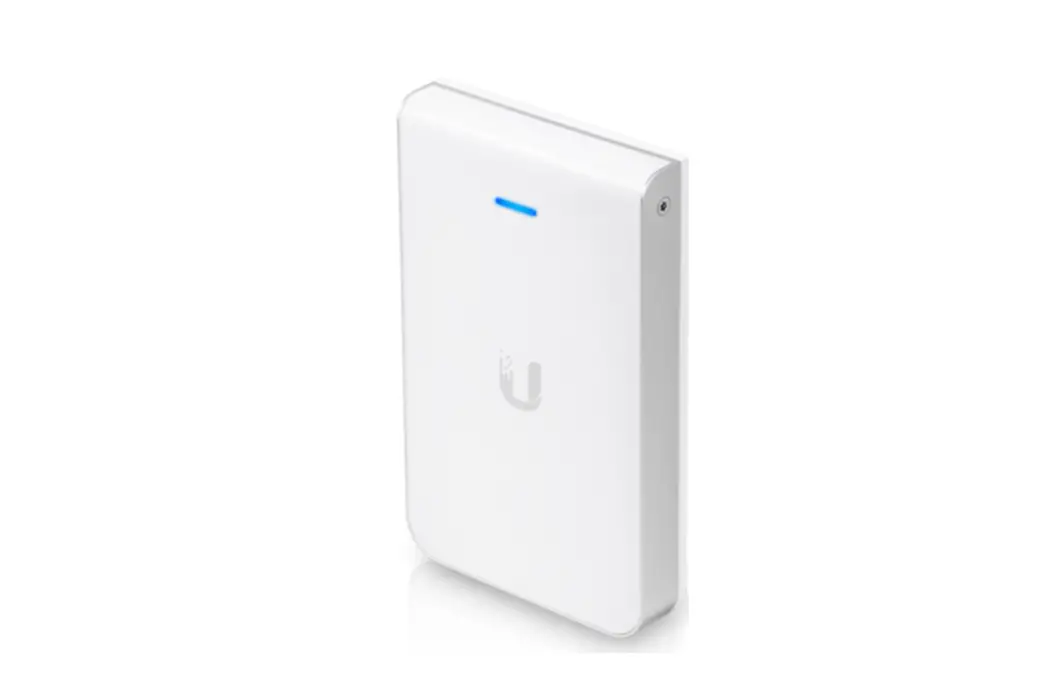
 Ubiquiti Networks UAP-FlexHD-US UniFi FlexHD
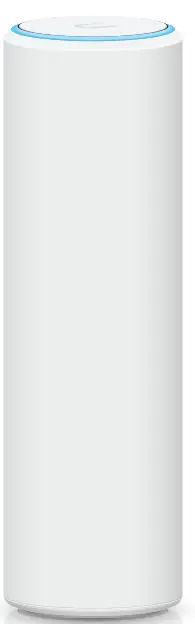
Package Contents
 Installation Requirements
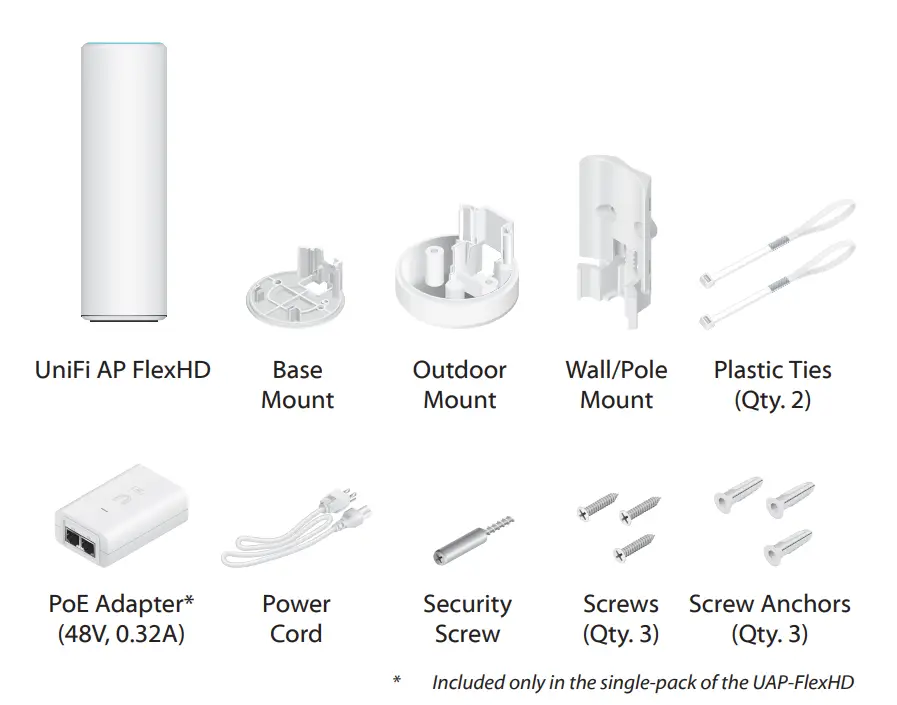 Installation Requirements
- Phillips screwdriver
- Cat5/6 UTP cable for indoor installations
- Shielded Category 5 (or above) cabling should be used for all outdoor wired Ethernet connections and should be grounded through the AC ground of the PoE.
System Requirements
- UniFi Cloud Key or Dream Machine, or machine running Linux, Mac OS X, or Windows 7/8/10
- Java Runtime Environment 1.8 or above recommended
- Web Browser: Google Chrome (Other browsers may have limited functionality.)
- UniFi Controller software v5.11.31 or newer (available at: ui.com/download/unifi)
Hardware Overview
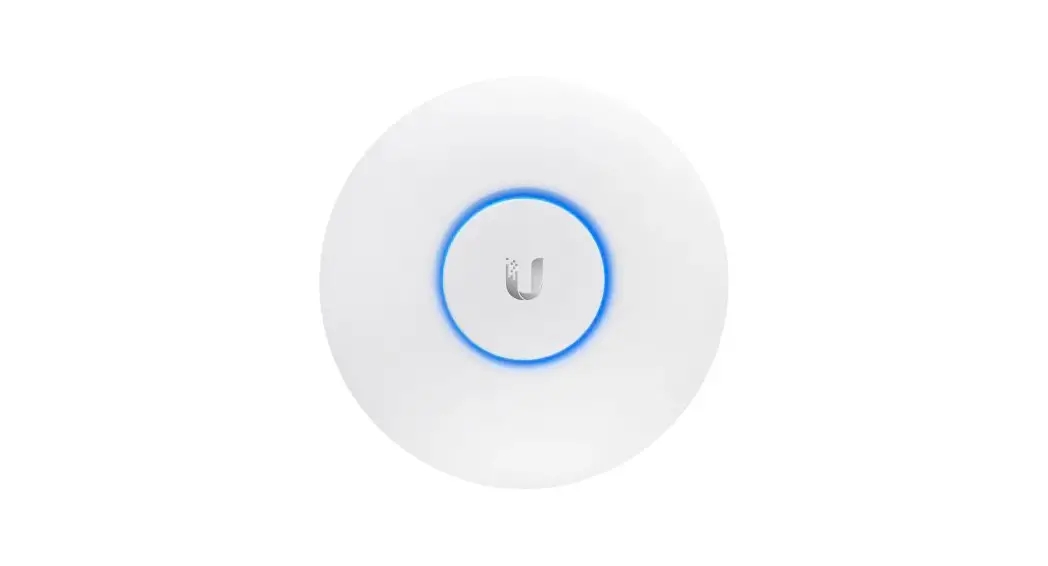
LED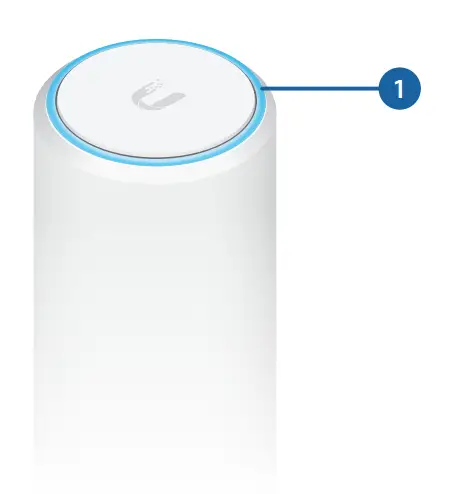
| LED Color | Status |
| White | Factory default, waiting to be integrated. |
| Flashing White | Initializing. |
| Alternating White/Blue | Device is busy; do not touch or unplug it. This usually indicates that a process such as a firmware upgrade is taking place. |
|
Blue | Indicates the device has been successfully integrated into a network and is working properly. |
|
Quickly Flashing Blue | This is used to locate an AP.
When you click Locate in the UniFi Controller software, the AP will flash. It will also display the location of the AP on the map. |
| Steady Blue with Occasional Flashing | Indicates the device is in an isolated state (all WLANs are brought down until an uplink is found). |
Ports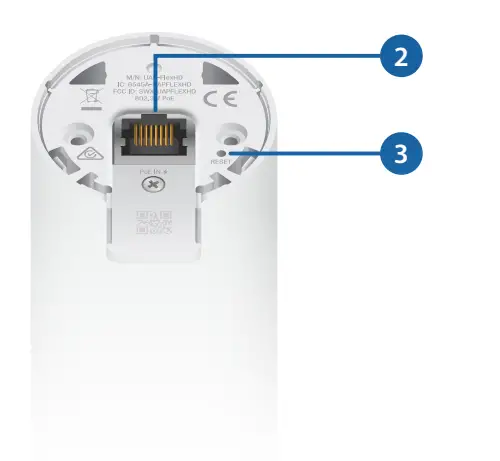 Ethernet Gigabit Ethernet port used to connect 802.3af PoE power and should be connected to the LAN and DHCP server.
Reset The Reset button serves two functions for the UniFi AP:
- Restart Press and release the Reset button quickly.
- Restore to Factory Default Settings Press and hold the Reset button for more than five seconds.
Installation
Determine the installation location of the UAP FlexHD:
- Desktop For installing on a flat surface such as a desktop or table/shelf; could be set up for temporary installations.
- Wall For installing in a secure location; used more for stationary or permanent installations.
- Ceiling For installing in a ceiling tile using the optional recessed ceiling mount assembly (sold separately).
- Pole For installing on a pole (indoor or outdoor).
Note: When installing Ethernet cabling on a pole or up the outer surface of a wall, use RJ45 connectors without strain-relief boots on them. This will prevent unnecessary tension on the cable ends.
Proceed to the appropriate section for your installation.
Desktop
- Remove the Base Mount from the UAP FlexHD.

- Connect an Ethernet cable to the Ethernet Port at the base of the UAP FlexHD.

- Reattach the Base Mount to the UAP FlexHD.

- Orient the UAP FlexHD in the upright position and place on a flat surface for installation.
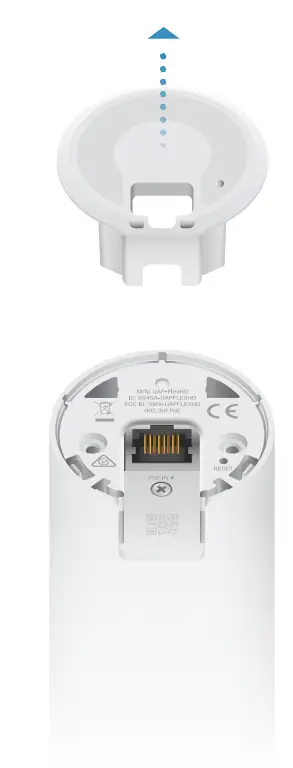
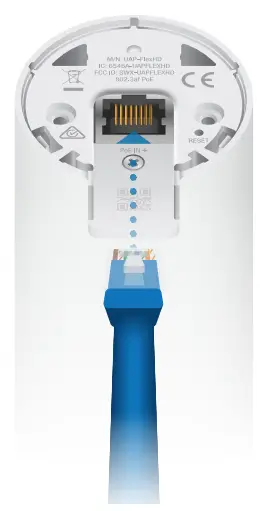
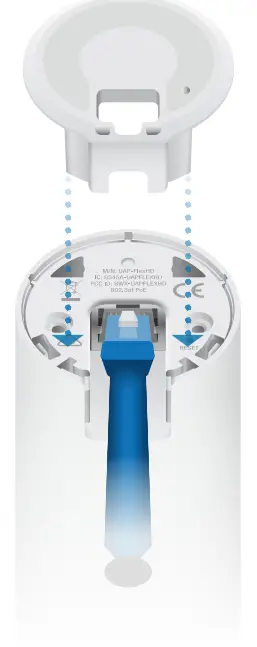
Wall
If the Ethernet cable is coming from the inside of a wall:
- Bend and remove the plastic tab that covers the cable feed.
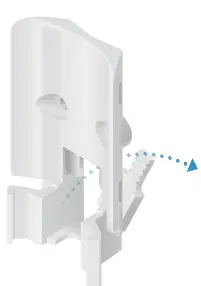
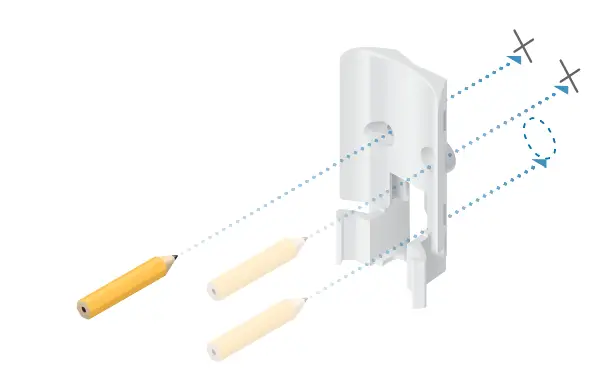
- Use the Wall Mount as a template to mark the holes on the wall where the UAP FlexHD will be installed.

- Pre-drill the holes in the wall and pull the Ethernet cable forward, sliding it through the opening in the Wall Mount.
Then use the Screws and Screw Anchors to secure the Wall Mount to the wall.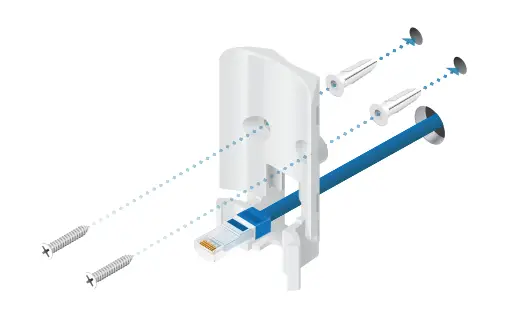
- Connect the Ethernet cable to the Ethernet Port and slide the UAP FlexHD onto the wall mount.

Note: If you are mounting the UAP-FlexHD outside or near the outdoors, attach the Outdoor Mount prior to attaching the UAP FlexHD to the Wall Mount.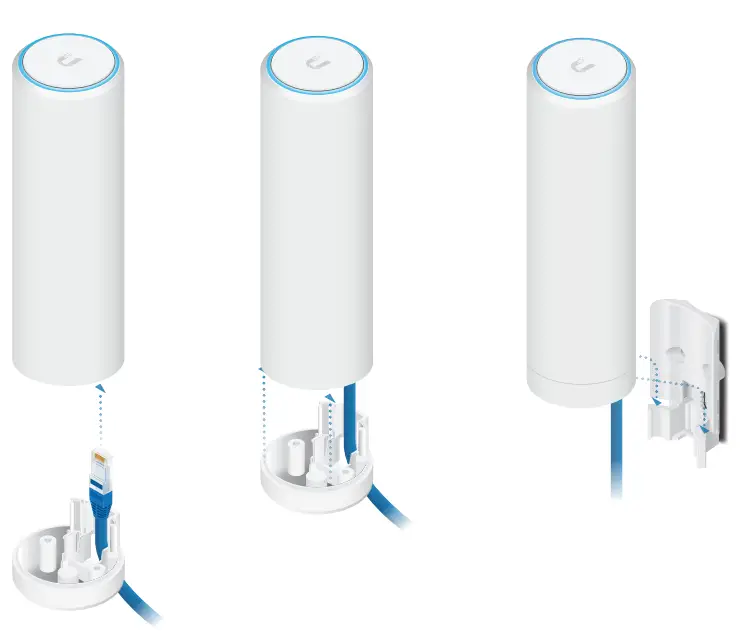
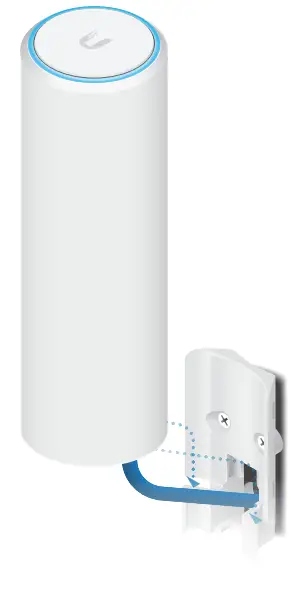
Installation complete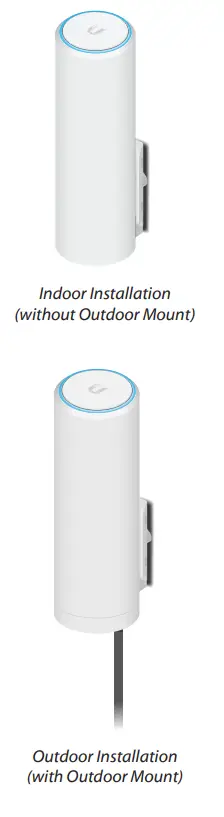
Ceiling (Optional Accessory)
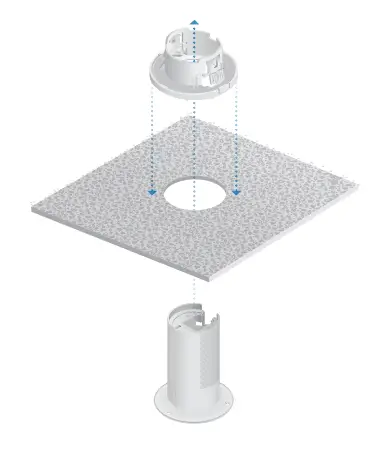
Use the optional Ceiling Mount, Mount Cover, and Back Plate Assembly to install the UAP FlexHD on a drop tile ceiling or horizontal surface where the interior side of the Ceiling Mount is accessible.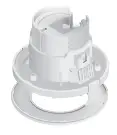
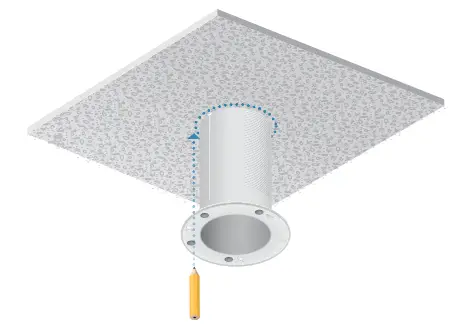
- Use the base of the Ceiling Mount as a template to mark the diameter of the hole where the UAP FlexHD will be installed. Then, cut along the marked line to make a hole in the ceiling tile.

- Slide the Ceiling Mount through the hole and secure it to the ceiling tile by attaching the Back Plate Assembly to the Ceiling Mount.

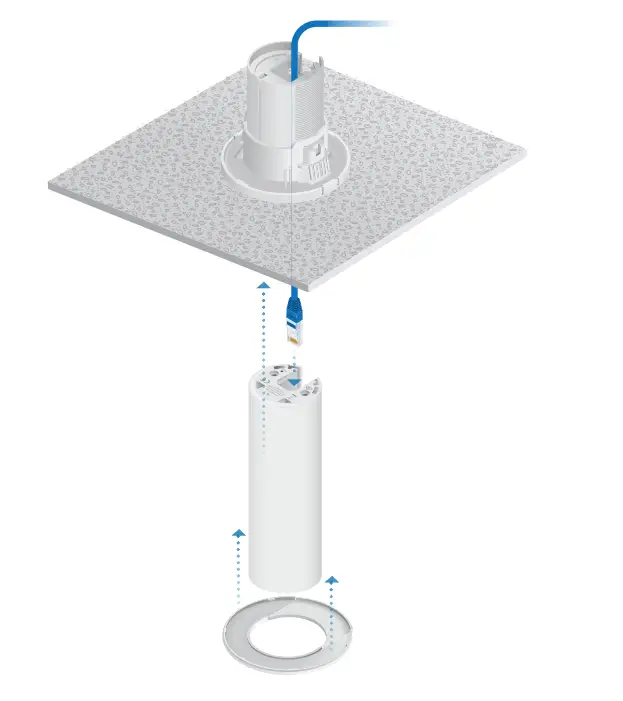
- Pass the Ethernet cable through the Ceiling Mount and connect it to the Ethernet port on the UAP FlexHD.
- Slide the UAP FlexHD all the way up into the Ceiling Mount until it snaps into place. Then, attach the magnetic cover to the base of the ceiling mount.

Installation complete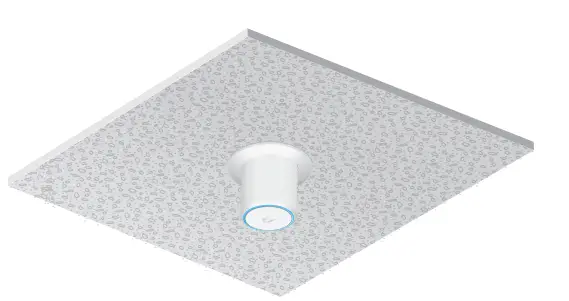
Pole
Note: If you are mounting the UAP-FlexHD outdoors, it must be installed in an upright position to prevent water from getting into the base of the device.
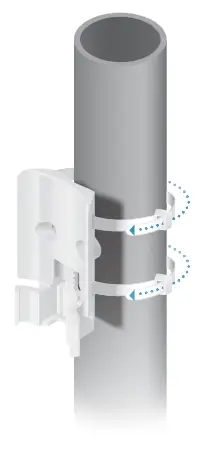
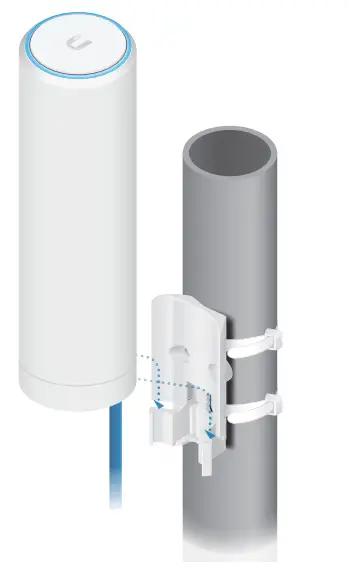
- Attach the Pole Mount to a pole using the included Zip Ties.

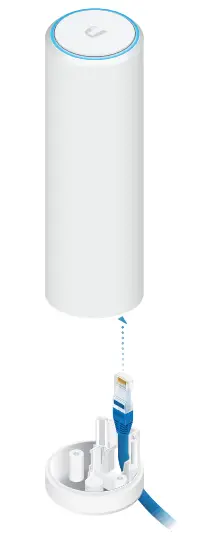
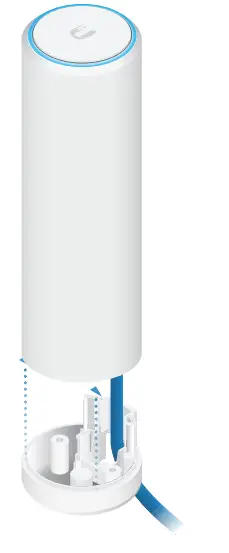
- Slide the Ethernet cable through the opening in the Outdoor Mount and connect the Ethernet cable to the Ethernet Port.

- Attach the Outdoor Mount to the UAP FlexHD.

- Slide the UAP FlexHD onto the Pole Mount.

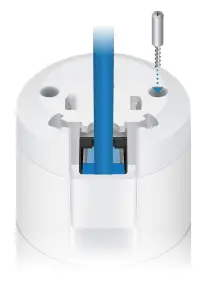
- Use a phillips screwdriver to install the Security Screw through the Outdoor Mount and into the base of the UAP FlexHD. This secures the device to the pole mount.

Installation complete.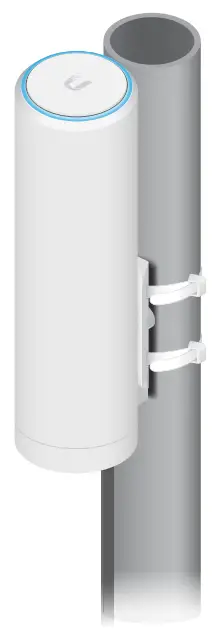
Powering the UAP-FlexHD
The UAP-FlexHD features auto-sensing 802.3af PoE support and can be powered by any of the following:
- Ubiquiti UniFi Switch with 802.3af PoE support
- Ubiquiti Gigabit PoE Adapter (48V, 0.32A) (included)
Connecting to an 802.3af PoE Switch
Connect the Ethernet cable from the UAP-FlexHD directly to an 802.3af PoE port on the switch.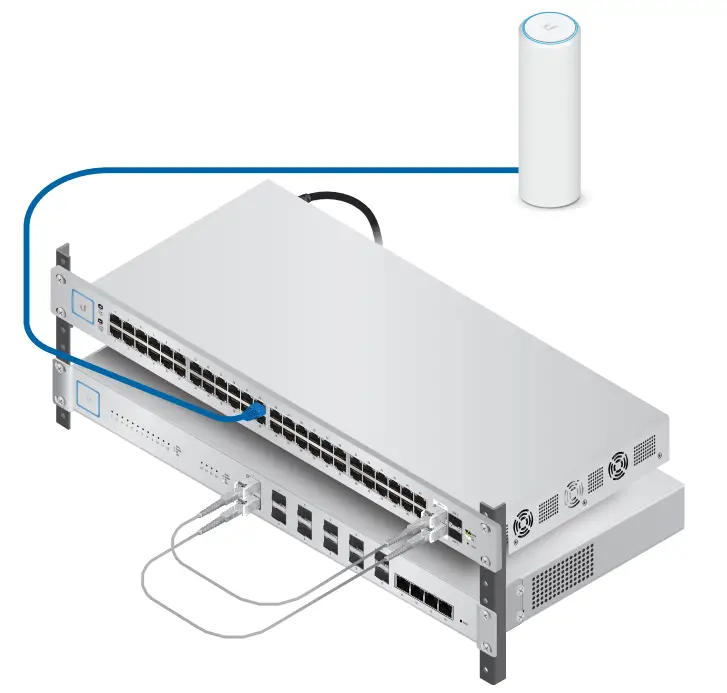
Connecting to a PoE Adapter
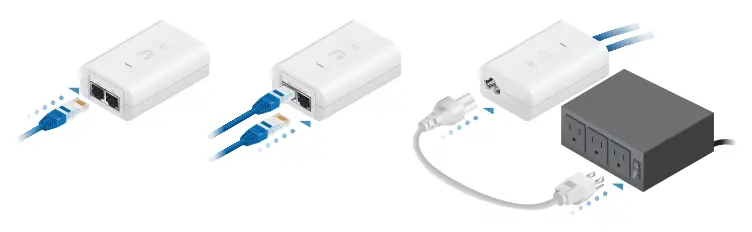
- Connect the Ethernet cable from the UAP-FlexHD to the POE port of the Gigabit PoE adapter.
- Connect an Ethernet cable from your LAN to the LAN port of the Gigabit PoE adapter.
- Connect the Power Cord to the adapter, and then plug the Power Cord into a power outlet.

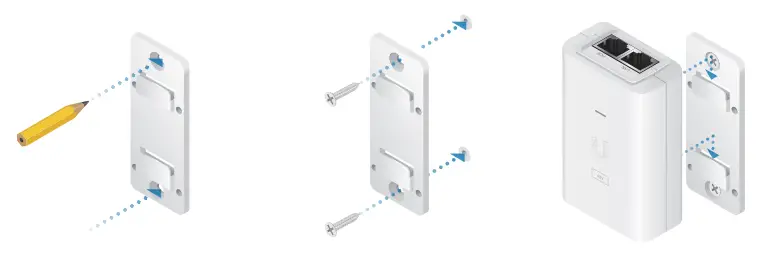
Mounting the PoE Adapter (Optional)
- Remove the PoE Mounting Bracket from the adapter, place the bracket at the desired location, and mark the two holes.
- Pre-drill the holes if necessary, and secure the bracket using two fasteners (not included).
- Align the adapter’s slots with the tabs of the PoE Mounting Bracket, and then slide the adapter down.

Software Installation
Download and install the latest version of the UniFi Controller software. Launch it and follow the on-screen instructions. The software and step-by-step instructions in the User Guide are available at: ui.com/download/unifi After you install the UniFi Controller software and run the installation wizard, you will be prompted for the credentials to log into UniFi Controller. Enter the username and password you created and click Sign In.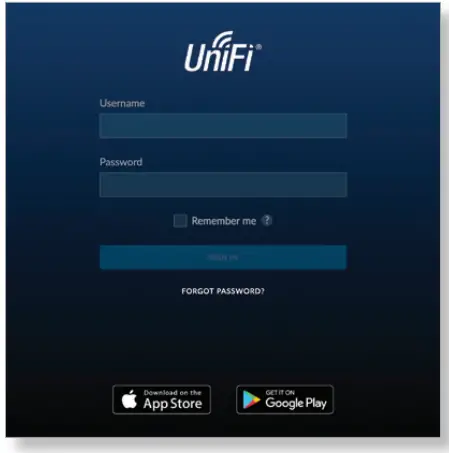
You can manage your wireless network and view network statistics using the UniFi Controller management interface. For information on configuring and using the UniFi Controller software, refer to the User Guide.
Mobile App Installation
Ubiquiti also offers the UniFi app, which is available from the App Store® (iOS) or Google Play™ Store (Android). You can use it to provision an UniFi AP for basic functionality without configuring an UniFi Controller. It also allows seamless provisioning of APs for remote controllers (controllers not on the same Layer 2 network) and easy access to local controllers and those monitored on unifi.ui.com
Specifications
| UAP-FlexHD | |
| Dimensions | Ø 48.50 x 159.49 mm (1.90 x 6.28″) |
| Weight | 315 g (0.69 lb) |
| Networking Interface | (1) 10/100/1000 Ethernet Port |
| Button | Reset |
| LED | White / Blue |
| Power Method | 802.3af |
| Power Supply | 802.3af
48V, 0.32A Gigabit PoE Adapter |
| Max. Power Consumption | 10.5W |
| Supported Voltage Range | 44 – 57VDC |
| Operating Frequency | 2.4 GHz 5 GHz |
| Max. TX Power
2.4 GHz 5 GHz |
23 dBm 26 dBm |
| Throughput
2.4 GHz 5 GHz |
300 Mbps 1733 Mbps |
| Antenna Gain
2.4 GHz 5 GHz |
1.6 dBi 4 dBi |
| Wi-Fi Standards | 802.11 a/b/g/n/ac/ac-wave2 |
| Wireless Security | WEP, WPA-PSK,
WPA-Enterprise (WPA/WPA2, TKIP/AES) |
| Mounting | Ceiling/Pole/Tabletop/Wall |
| Operating Temperature | -30 to 70° C (-22 to 158° F) |
| Operating Humidity | 5 to 95% Noncondensing |
| Certifications | CE, FCC, IC |
Safety Notices
- Read, follow, and keep these instructions.
- Heed all warnings.
- Only use attachments/accessories specified by the manufacturer.
WARNING: Do not use this product in a location that can be submerged by water.
WARNING: Avoid using this product during an electrical storm. There may be a remote risk of electric shock from lightning.
Electrical Safety Information
- Compliance is required with respect to voltage, frequency, and current requirements indicated on the manufacturer’s label. Connection to a different power source than those specified may result in improper operation, damage to the equipment or pose a fire hazard if the limitations are not followed.
- There are no operator serviceable parts inside this equipment. Service should be provided only by a qualified service technician.
- This equipment is provided with a detachable power cord which has an integral safety ground wire intended for connection to a grounded safety outlet.
- Do not substitute the power cord with one that is not the provided approved type. Never use an adapter plug to connect to a 2-wire outlet as this will defeat the continuity of the grounding wire.
- The equipment requires the use of the ground wire as a part of the safety certification, modification or misuse can provide a shock hazard that can result in serious injury or death.
- Contact a qualified electrician or the manufacturer if there are questions about the installation prior to connecting the equipment.
- Protective earthing is provided by Listed AC adapter. Building installation shall provide appropriate short-circuit backup protection.
- Protective bonding must be installed in accordance with local national wiring rules and regulations.
Limited Warranty
www.ui.com/support/warranty
The limited warranty requires the use of arbitration to resolve disputes on an individual basis, and, where applicable, specify arbitration instead of jury trials or class actions.
Compliance
FCC
Changes or modifications not expressly approved by the party responsible for compliance could void the user’s authority to operate the equipment.
This device complies with Part 15 of the FCC Rules. Operation is subject to the following two conditions:
- This device may not cause harmful interference, and
- This device must accept any interference received, including interference that may cause undesired operation.
NOTE: This equipment has been tested and found to comply with the limits for a Class A digital device, pursuant to part 15 of the FCC Rules. These limits are designed to provide reasonable protection against harmful interference when the equipment is operated in a commercial environment. This equipment generates, uses, and can radiate radio frequency energy and, if not installed and used in accordance with the instruction manual, may cause harmful interference to radio communications. Operations of this equipment in a residential area is likely to cause harmful interference in which case the user will be required to correct the interference at his own expense.
This radio transmitter (FCC ID: SWX-UAPFLEXHD) has been approved by FCC.
ISED Canada
CAN ICES-3(A)/NMB-3(A)
This device complies with ISED Canada licence-exempt RSS standard(s). Operation is subject to the following two conditions:
- This device may not cause interference, and
- This device must accept any interference, including interference that may cause undesired operation of the device.
This radio transmitter (IC: 6545A-UAPFLEXHD) has been approved by ISED Canada.
The device for operation in the band 5150-5250 MHz is only for indoor use to reduce the potential for harmful interference to co-channel mobile satellite systems.
IMPORTANT NOTE:
Radiation Exposure Statement:
- This equipment complies with radiation exposure limits set forth for an uncontrolled environment.
- This equipment should be installed and operated with a minimum distance 21 cm between the radiator and your body.
- This transmitter must not be co-located or operating in conjunction with any other antenna or transmitter.
Australia and New Zealand
Warning: This is a Class A product. In a domestic environment, this product may cause radio interference in which case the user may be required to take adequate measures.
Brazil
Nota: Este equipamento não tem direito à proteção contra interferência prejudicial e não pode causar interferência em sistemas devidamente autorizados.
CE Marking
CE marking on this product represents the product is in compliance with all directives that are applicable to it.
| AT | BE | BG | CY | CZ | DE | DK | EE | EL | ES | FI | FR | HR | HU |
| IE | IT | LV | LT | LU | MT | NL | PL | PT | RO | SE | SI | SK | UK |
BFWA (Broadband Fixed Wireless Access) members noted in blue
Note: This device meets Max. TX power limit per ETSI regulations.
The following apply to products that operate in the 5 GHz frequency range:
Note: This device is restricted to indoor use only when operating in the 5150 – 5350 MHz frequency range within all member states.
Note: All countries listed may operate at 30 dBm. BFWA member states may operate at 36 dBm.
Note: Operation in the 5.8 GHz frequency band is prohibited in BFWA member states. Other countries listed may use the 5.8 GHz, frequency band.
RoHS/WEEE Compliance Statement
European Directive 2012/19/EU requires that the equipment bearing this symbol on the product and/or its packaging must not be disposed of with unsorted municipal waste. The symbol indicates that this product should be disposed of separately from regular household waste streams. It is your responsibility to dispose of this and other electric and electronic equipment via designated collection facilities appointed by the government or local authorities. Correct disposal and recycling will help prevent potential negative consequences to the environment and human health. For more detailed information about the disposal of your old equipment, please contact your local authorities, waste disposal service, or the shop where you purchased the product.
Hereby, UBIQUITI declares that the radio equipment type UAP-FlexHD is in compliance with Directive 2014/53/EU, 2014/30/EU & 2014/35/EU. The full text of the EU declaration of conformity is available at the following internet address: www.ui.com/compliance
Online Resources
Support help.ui.com
Community community.ui.com
Downloads downloads.ui.com
Ubiquiti Inc. 685 Third Avenue, 27th Floor New York, NY 10017
USA ©2019 Ubiquiti Inc. All rights reserved. Ubiquiti, the Ubiquiti U logo, the Ubiquiti beam logo, TOUGHCable, and UniFi are trademarks or registered trademarks of Ubiquiti Networks, Inc. in the United States and in other countries. Apple andthe Apple logo are trademarks of Apple Inc., registered in the U.S. and other countries. App Store is a service mark of Apple Inc., registered in the U.S. and other countries. Android, Google, Google Play, the Google Play logo and other marks are trademarks of Google Inc. All other trademarks are the property of their respective owners. AJ092419
FAQS
Yes
First, these are the best access points I’ve ever used. They’re really fast and have great antennas.
The UAP nodes can use either a traditional wired network connection or the can use a Wi-Fi link to another node, as with a mesh.
On their website they have all the requirements of mounting outdoors. One of my friends has it mounted under a awning but it is protected from the rain. If it is exposed to rain then it must be mounted vertically.
This is a difficult question to answer – it’s essentially almost the same as how far wifi will work. Remember that mesh components need to be close enough to have a good signal – it will then extend the range further and will have good quality.
both – each frequency independently meshes. I’m not sure if 2.4 can use 5g if only 5 is meshed. Suggest you look at the UniFi documentation.
Depends on the AP you are referring to. Some are similar but have better/worse performance. Also depends on placement, walls, local interference. To test apples to apples there, replace the previous one with the new one in the same orientation and location and redo your tests with a WiFi analyzer app, speed test website, and file transfer on local network.
If you want to hide the wire, no. If you don’t care about exposing the wire, yes. I have had good coverage mounting it to the wall.
Yes. I currently have meshed the Flex HD, the Mesh, and Mesh Pro all to the Dream Machine via wireless uplink. No issues.
Yes. I have added it to my Dream Machine. Wired and wireless uplink.
it comes with a desktop mount. You can either just stand it up or screw it down. It also comes with a wall/pole mount. There is a ceiling mount available but it is sold separately. The Ubiquiti site shows all the mounting options.
This is NOT a Wifi 6 device.
Have not specifically measured the actual Mbps as the ISP interface is still the bottleneck. I will say this single AP is covering my 2-strong 3k sq/ft house with zero coverage issues.
Apology for the delay.
Thank you for contact TDCorp. To answer your question, the FlexHD boot up and connect time will be up to 2 mins. We would like to share a youtube video on how to set it up and some other info so you can look at it.
Yes you can adjust the radio transmit power using the unifi controller software.
Probably…but I wouldn’t. Depends on how much heat you ha e rolling up the fro t of the FP.
Did not know there was a locked version. There is no added license required if that is your question. UBNT is not like Cisco in that regard.