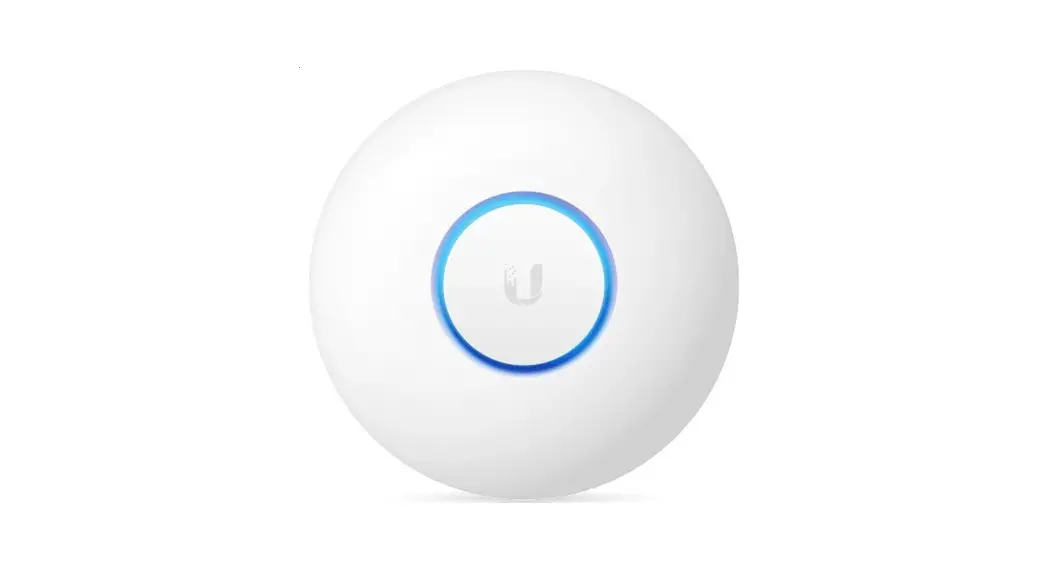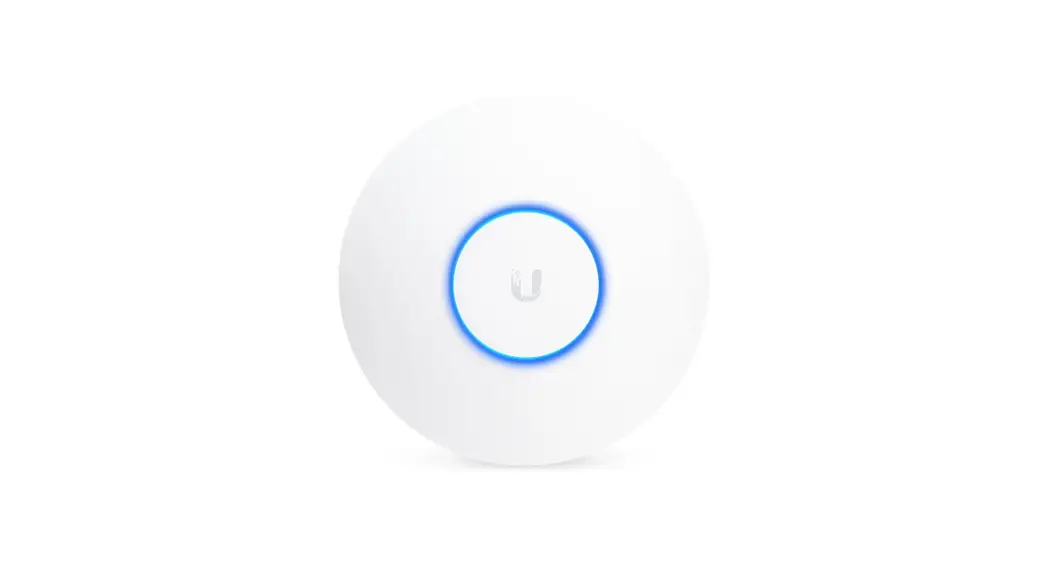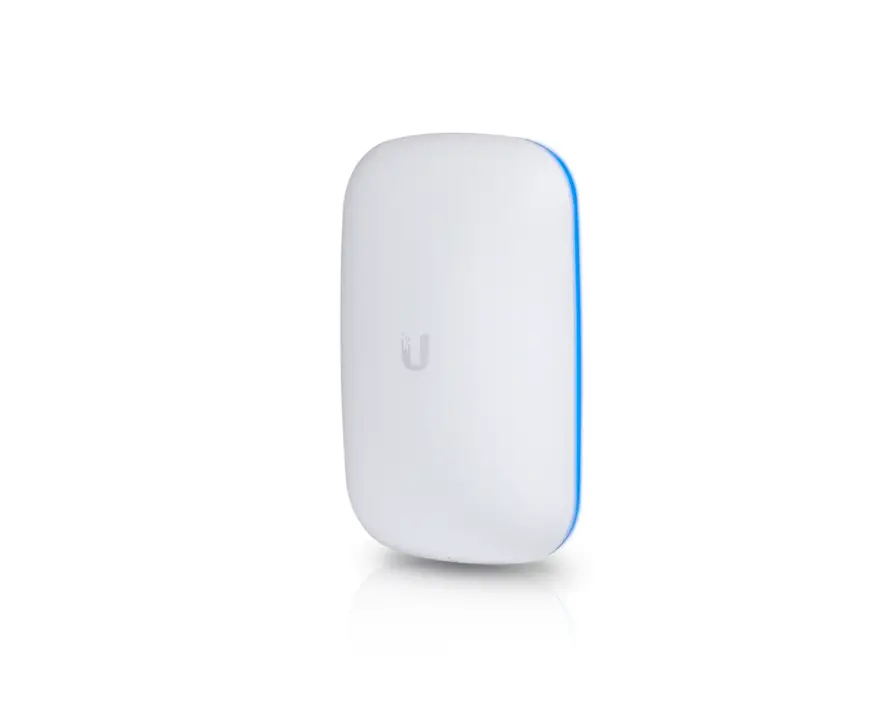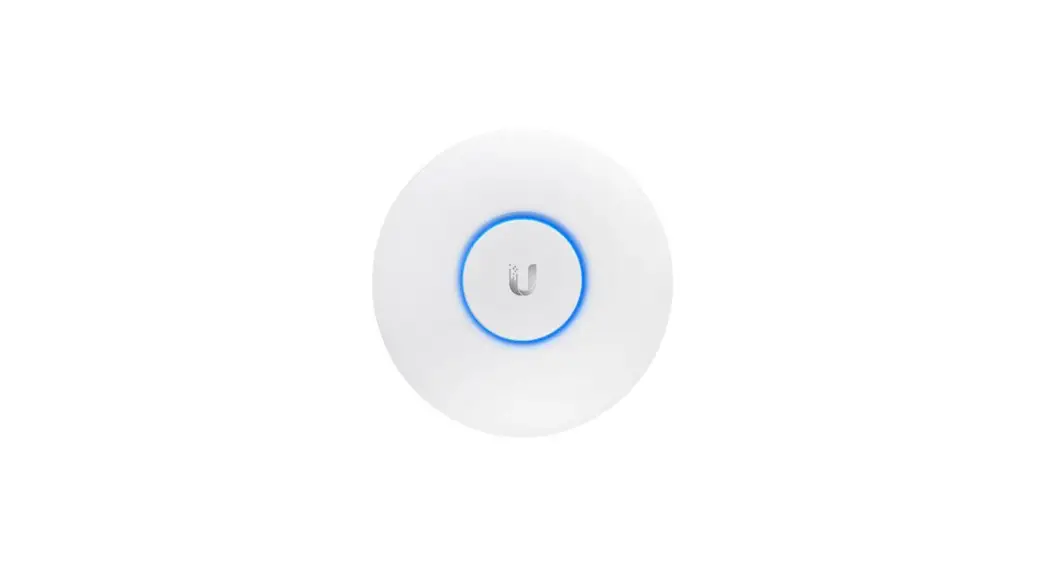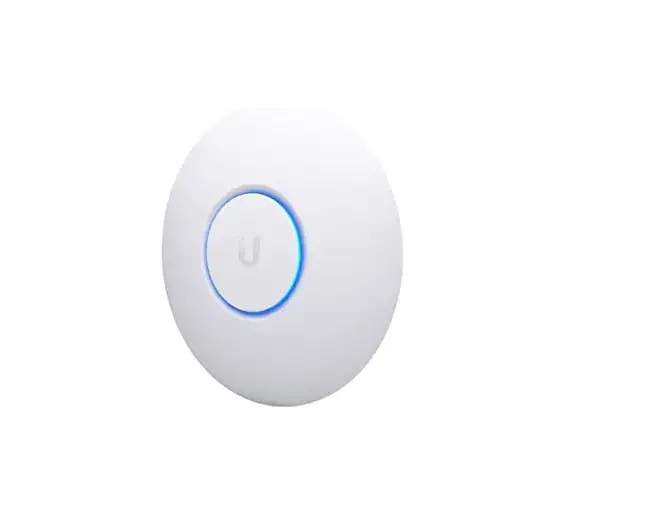

Ubiquiti Networks UAP-NANOHD-US nanoHD Compact 802.11ac
INTRODUCTION
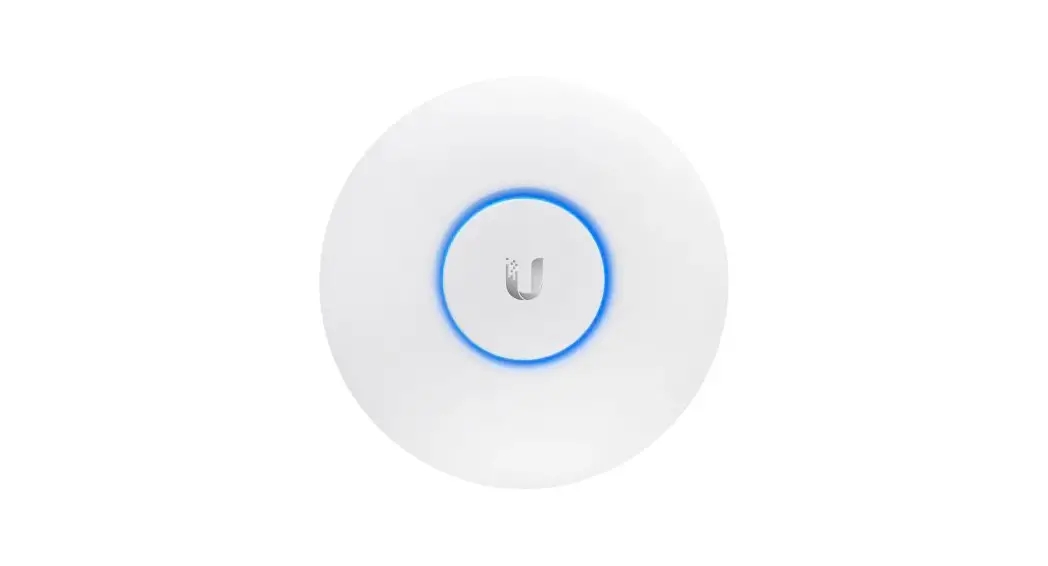
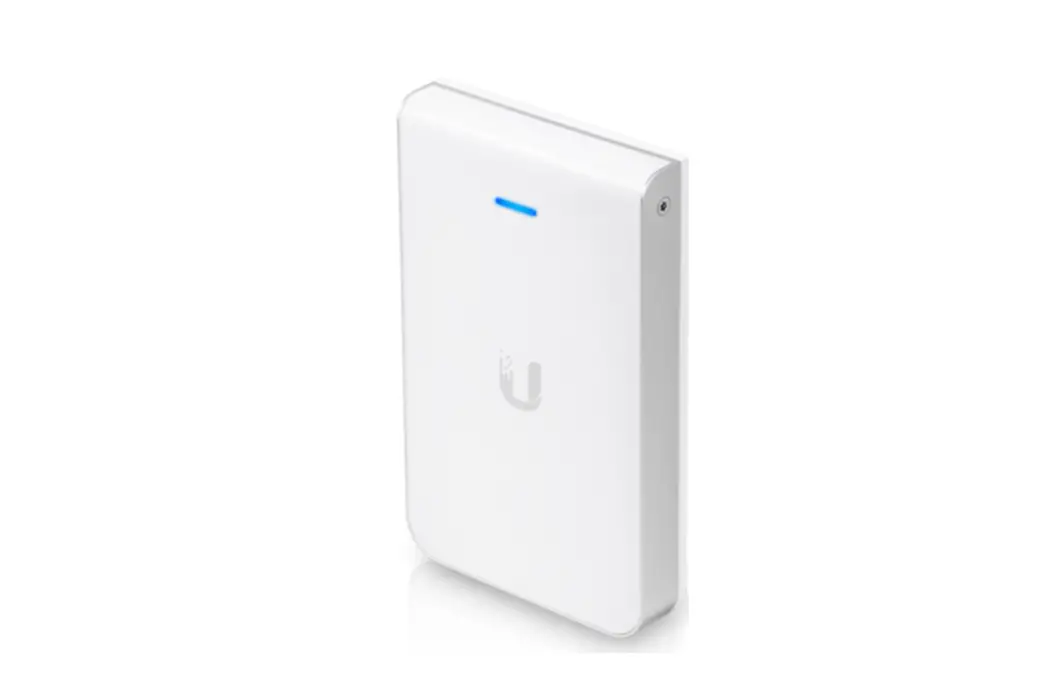
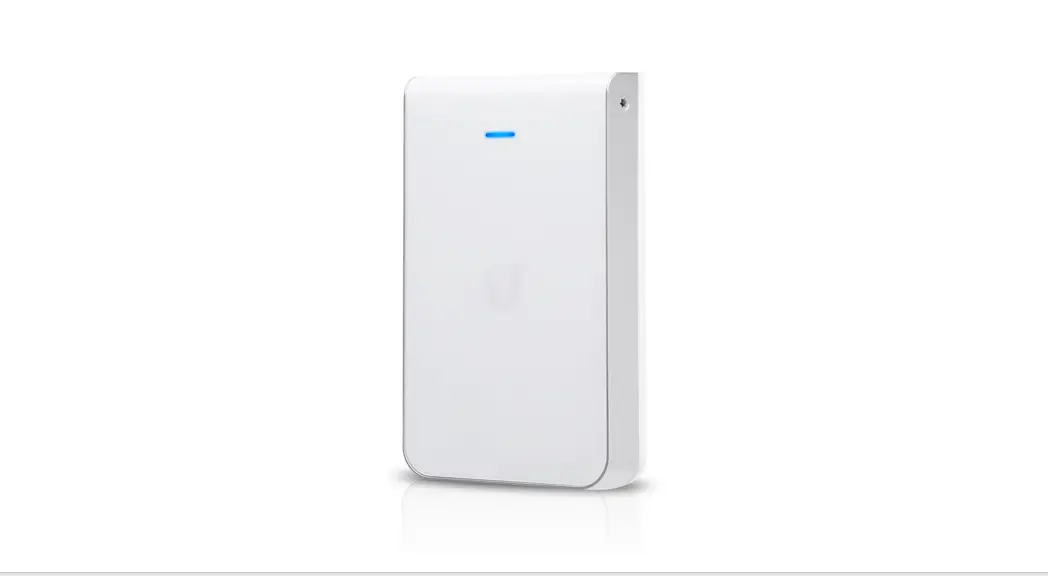
Use the Unifi nanohd AP in high-density areas where optimum wireless performance and a small footprint are required. The simultaneous, Dual-Band, 4×4 MU-MIMO technology and practical 802.3af PoE compliance are features of the Unifi nanohd AP. Unifi nanohd APs can be powered by switches that are 802.3af PoE compliant. We advise using a unified PoE switch to power your unified devices (sold separately). All Unifi PoE switches and 48V adapters are compatible with the Unifi nanohd AP.
Thank you for purchasing the Ubiquiti Networks® UniFi® 802.11ac Wave 2 Enterprise Access Point. This Quick Start Guide is designed to guide you through installation and includes warranty terms.
IMPORTANT: The UAP-nanoHD requires the UniFi Controller v5.7 or higher, available at: www.ubnt.com/download/unifi
PACKAGE CONTENTS
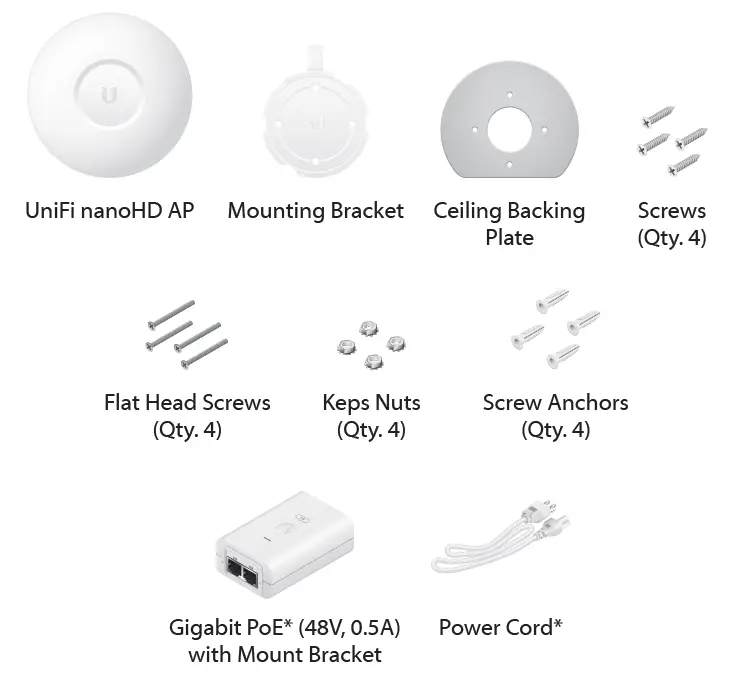
Included only in the single-pack of the UAP-nanoHD
TERMS OF USE: All Ethernet cabling runs must use CAT5 (or above). It is the professional installer’s responsibility to follow local country regulations, including operation within legal frequency channels, output power, indoor cabling requirements, and Dynamic Frequency Selection (DFS) requirements.
INSTALLATION REQUIREMENTS
- CAT5 cable
- Phillips screwdriver
- Drill and drill bit (6 mm for wall-mounting or 3 mm for ceiling-mounting)
- Optional: Drywall or keyhole saw (to cut 18 mm hole for Ethernet cable feed)
SYSTEM REQUIREMENTS
- Microsoft Windows 7/8/10, Mac OS X, or Linux
- Java Runtime Environment 1.8 (or above)
- Web Browser: Google Chrome (Other browsers may have limited functionality.)
- UniFi Controller software v5.7 or higher (available at:
NETWORK TOPOLOGY REQUIREMENTS
- A DHCP-enabled network (for the AP to obtain an IP address as well as for the wireless clients after deployment)
- A UniFi Cloud Key or management station running the UniFi Controller software, located either on-site and connected to the same Layer-2 network, or off-site in the cloud or a NOC
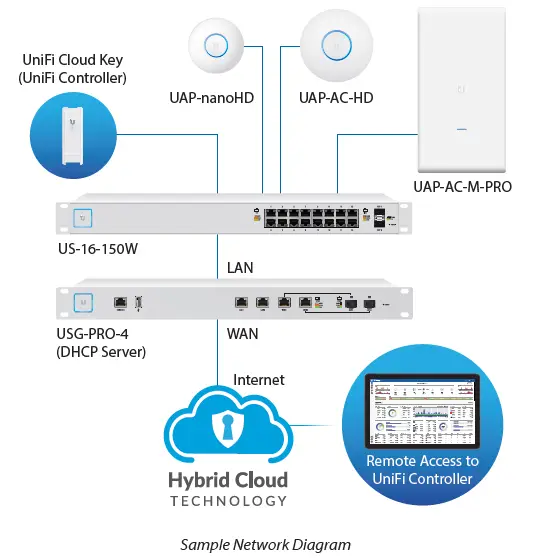
All UniFi devices support off-site management controllers. For setup details, see the User Guide on the website: www.ubnt.com/download/unifi
HARDWARE OVERVIEW
LED
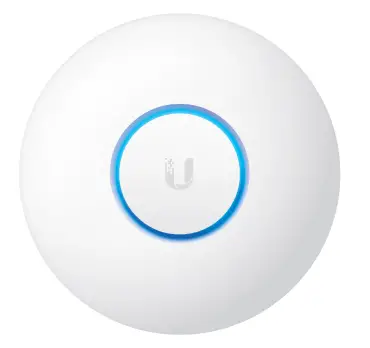
| LED Color | Status |
| White | Factory default, waiting to be adopted. |
| Flashing White | Initializing. |
| Alternating White/Blue | Device is busy; do not touch or unplug it. This usually indicates that a process such as a firmware upgrade is taking place. |
|
Blue | Indicates the device has been successfully adopted by a network and is working properly. |
|
Quickly Flashing Blue | This is used to locate an AP.
When you click Locate in the UniFi Controller software, the LED on the AP will flash. It will also display the location of the AP on the map. |
| Steady Blue with Occasional Flashing | Indicates the device is in an isolated state (all WLANs are brought down until an uplink is found). |
PORTS
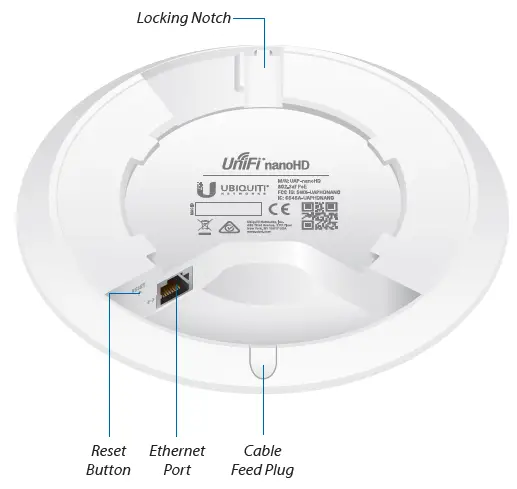
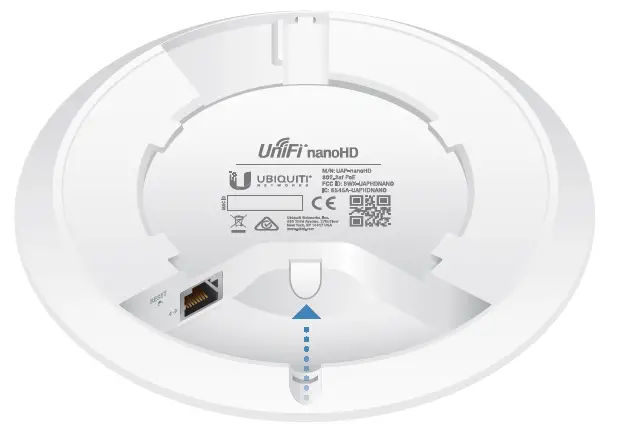
- LOCKING NOTCH: The Locking Notch will be used with the Mounting Bracket to help secure the UniFi AP. (This is described further in the Mounting Bracket section.)
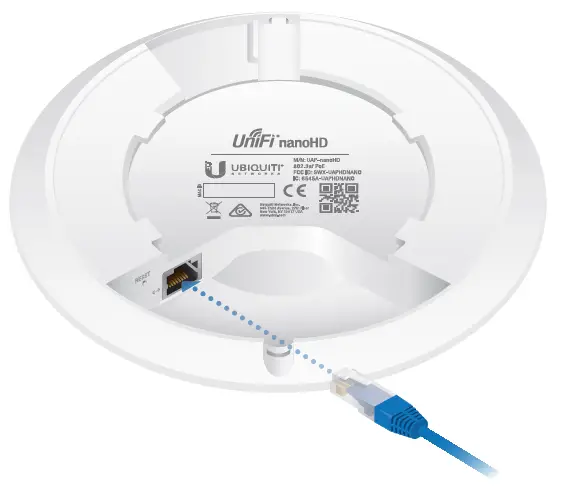
- ETHERNET: This Gigabit Ethernet port is used to connect the power and should be connected to the LAN and DHCP server.
- RESET: The Reset button serves two functions for the UniFi AP:
- RESTART: Press and release the Reset button quickly.
- RESTORE TO FACTORY DEFAULT SETTINGS: Press and hold the Reset button for more than five seconds.
- CABLE FEED: Plug If your Ethernet cable feeds along the mounting surface, remove the Cable Feed Plug.
MOUNTING BRACKET
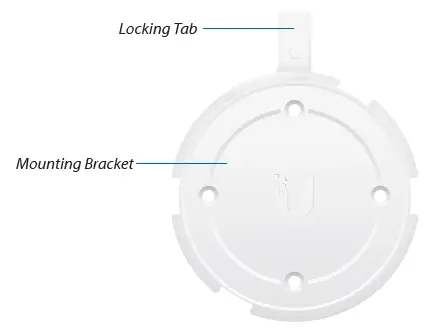
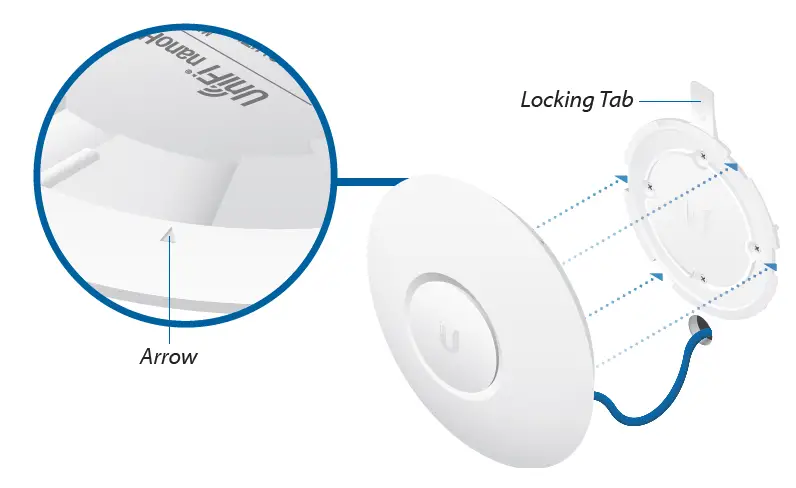
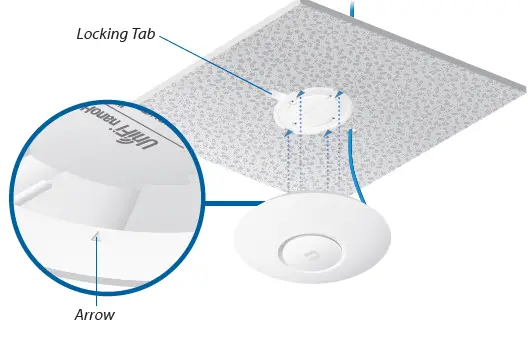
Locking Tab During installation, the Locking Tab on the Mounting Bracket moves from the Initial Position to the Final Position, where the Locking Tab fits securely into the Locking Notch on the UniFi AP to help prevent theft.
NOTE: If you need to remove the UniFi AP from the Mounting Bracket, insert a paper clip in the Slot to release the Locking Tab and turn the UniFi AP counterclockwise.
HARDWARE INSTALLATION
The UniFi AP can be mounted on the wall or ceiling. Perform the steps for the appropriate installation:
WALL MOUNT
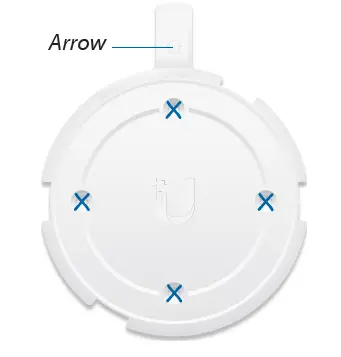
- Position the Mounting Bracket at the desired location on the wall with the arrow pointing up.
- Use a pencil to mark the four mounting holes. Use a 6 mm drill bit to drill the mounting holes.

- If your Ethernet cable feeds through the wall, then cut or drill a circle approximately 18 mm in diameter. Then feed the CAT5 cable through the hole.
 NOTE: 25 mm is the distance from the center of the bottom mounting hole to the center of the cable hole.
 - Insert the Screw Anchors into the 6 mm holes. Secure the Mounting Bracket to the wall by inserting the Screws into the anchors.

- If the Ethernet cable runs along the mounting surface, remove the Cable Feed Plug.

- Connect the Ethernet cable to the Ethernet port.

- Align the arrow on the UniFi AP with the arrow on the Locking Tab of the Mounting Bracket.

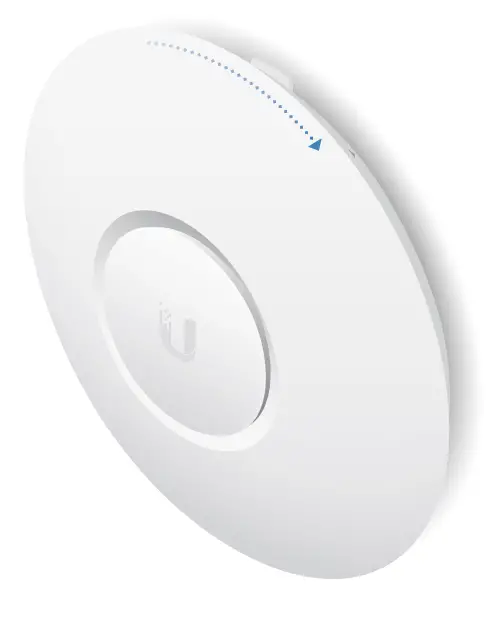
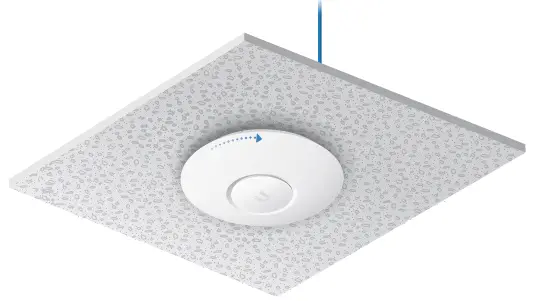
- Ensure that the UniFi AP is firmly seated on the Mounting Bracket. Turn the UniFi AP clockwise until it locks into place and the Locking Tab fits securely into the Locking Notch.

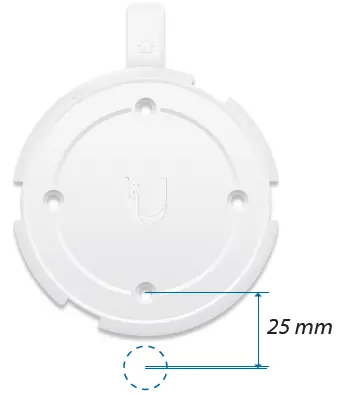 NOTE: 25 mm is the distance from the center of the bottom mounting hole to the center of the cable hole.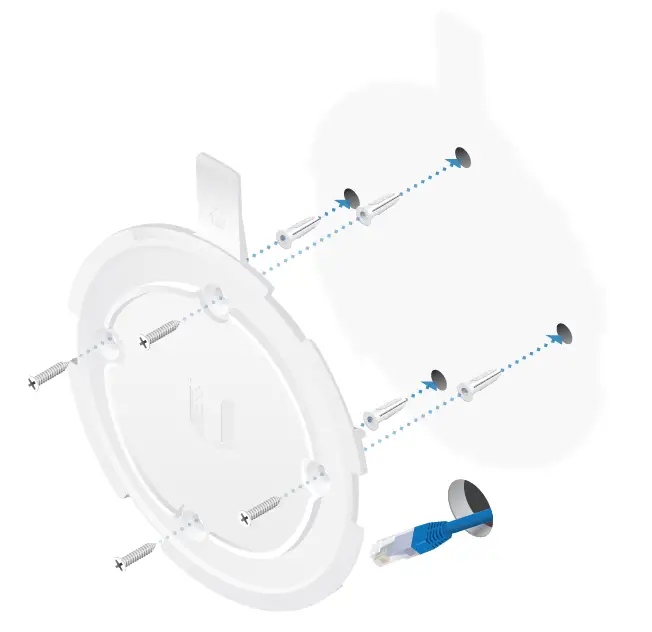
CEILING MOUNT
- Remove the ceiling tile.
- Place the Ceiling Backing Plate in the center of the ceiling tile. Mark the four mounting screw holes.
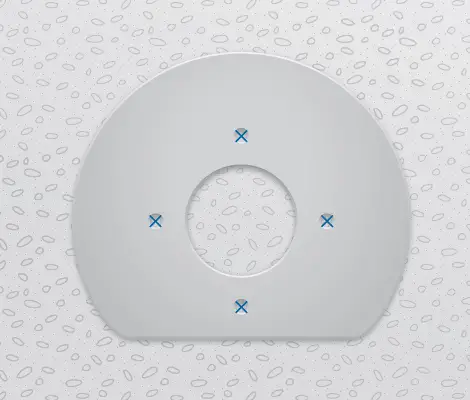
- Mark a hole approximately 18 mm in diameter for the Ethernet cable feed.

Note: 25 mm is the distance from the center of the bottom mounting hole to the center of the cable hole.
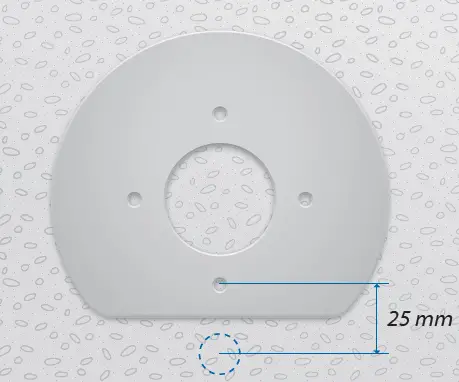
- Use a 3 mm drill bit to drill the screw holes, and cut or drill the hole for the Ethernet cable feed.
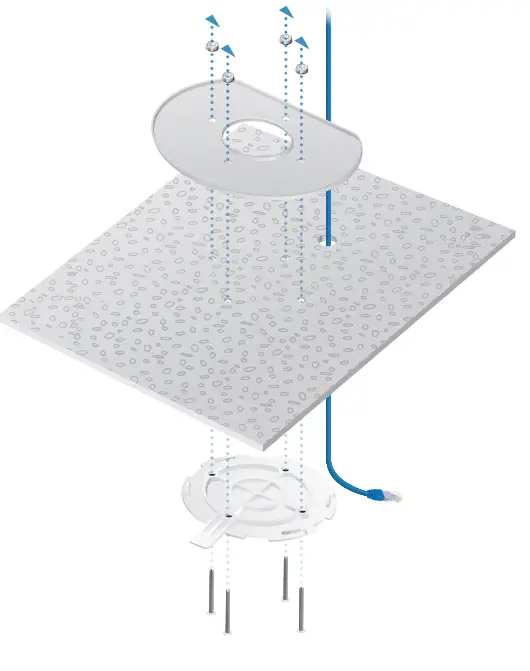
- Insert the Flat Head Screws through the Mounting Bracket, ceiling tile, and Ceiling Backing Plate. Fasten the screws using the Keps Nuts. Then feed the Ethernet cable through the 18 mm hole.

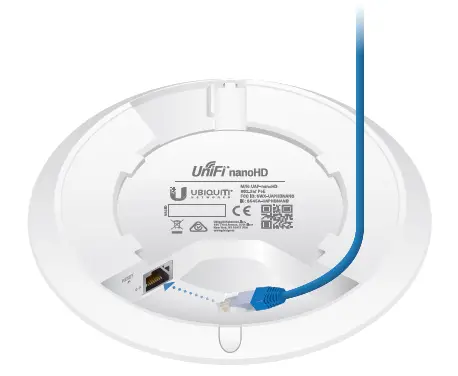
- Connect the Ethernet cable to the Ethernet port.

- Align the arrow on the UniFi AP with the arrow on the Locking Tab of the Mounting Bracket.

- Ensure that the UniFi AP is firmly seated on the Mounting Bracket. Turn the UniFi AP clockwise until it locks into place and the Locking Tab fits securely into the Locking Notch.

- Set the ceiling tile back into place.
POWERING THE UNIFI AP
The UAP-nanoHD features auto-sensing 802.3af PoE support and can be powered by any of the following:
- Ubiquiti Networks UniFi Switch with PoE
- 3af PoE compliant switch
- Ubiquiti Networks Gigabit PoE Adapter (48V, 0.5A)
The single-pack of the UAP-nanoHD includes one Gigabit PoE adapter. For multi-pack units, PoE adapters or a UniFi Switch with PoE may be purchased separately.
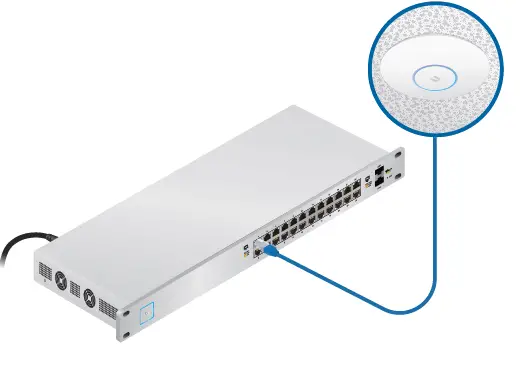
CONNECTING TO A POE SWITCH
Connect the Ethernet cable from the UniFi AP directly to an 802.3af-compliant port on the switch.
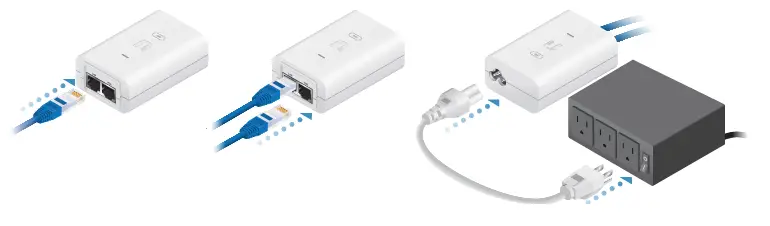
CONNECTING POWER OVER ETHERNET
- Connect the Ethernet cable from the device to the adapter’s POE port.
- Connect an Ethernet cable from your LAN to the adapter’s LAN port.
- Connect the Power Cord to the adapter’s power port. Connect the other end of the Power Cord to a power outlet.
MOUNTING THE POE ADAPTER (OPTIONAL)
- Remove the PoE Mounting Bracket from the adapter, place the bracket at the desired location, and mark the two holes.
- Pre-drill the holes if necessary, and secure the bracket using two fasteners (not included).
- Align the adapter’s slots with the tabs of the PoE Mounting Bracket, and then slide the adapter down.

SOFTWARE INSTALLATION
Download and install the latest version of the UniFi Controller software. Launch it and follow the on-screen instructions. The software and step-by-step instructions in the User Guide are available at: www.ubnt.com/download/unifi
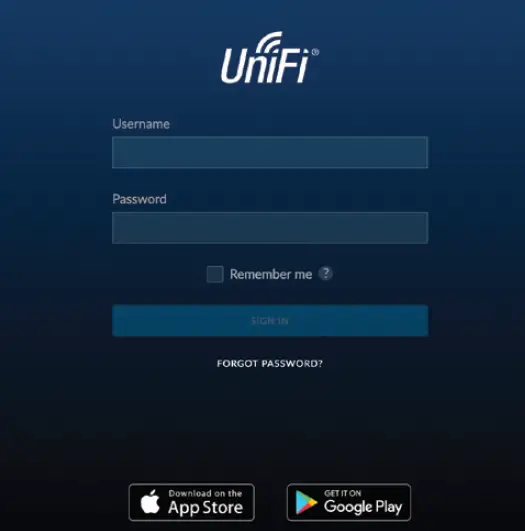
After you have installed the software and run the UniFi Installation Wizard, a login screen will appear for the UniFi Controller management interface. Enter the Admin Name and Password that you created and click Sign In.
MOBILE APP INSTALLATION
Ubiquiti Networks also offers the UniFi app, which is available from the App Store® (iOS) or Google Play™ Store (Android).
You can use it to provision a UniFi AP for basic functionality without configuring a UniFi Controller. It also allows seamless provisioning of APs for remote controllers (controllers not on the same Layer 2 network) and easy access to local controllers and those monitored on unifi.ubnt.com
SPECIFICATIONS
| UAP-nanoHD | |
| Dimensions | 160 x 160 x 32.65 mm
(6.3 x 6.3 x 1.29″) |
| Weight
With Mounting Kits | 300 g (10.6 oz)
315 g (11.1 oz) |
| Networking Interface | (1) RJ45 GbE |
| Buttons | (1) Reset to Defaults |
| Power Method | 802.3af |
| Power Supply | 48V, 0.5A Gigabit PoE Adapter* |
| Max. Power Consumption | 10.5W |
| Operating Frequency | 2.4 GHz 5 GHz |
| Max. TX Power
2.4 GHz 5 GHz |
23 dBm 26 dBm |
| Antenna Gain
2.4 GHz 5 GHz |
2.8 dBi 3 dBi |
| MIMO
2.4 GHz 5 GHz |
2×2 4×4 |
| Radio Rate
2.4 GHz 5 GHz |
300 Mbps 1733 Mbps |
| Wi-Fi Standards | 802.11 a/b/g/n/ac/ac-wave2 |
| Wireless Security | WEP, WPA-PSK,
WPA-Enterprise (WPA/WPA2, TKIP/AES) |
| BSSID | 8 per Radio |
| Mounting | Wall/Ceiling (Kits Included) |
| Operating Temperature | -10 to 70° C (14 to 158° F) |
| Operating Humidity | 5 to 95% Noncondensing |
| Certifications | CE, FCC, IC |
- Only the single-pack of the UAP-nanoHD includes a PoE adapter.
SAFETY NOTICES
- Read, follow, and keep these instructions.
- Heed all warnings.
- Only use attachments/accessories specified by the manufacturer.
WARNING: Do not use this product in a location that can be submerged by water.
WARNING: Avoid using this product during an electrical storm. There may be a remote risk of electric shock from lightning.
ELECTRICAL SAFETY INFORMATION
- Compliance is required with respect to voltage, frequency, and current requirements indicated on the manufacturer’s label. Connection to a different power source than those specified may result in improper operation, damage to the equipment or pose a fire hazard if the limitations are not followed.
- There are no operator serviceable parts inside this equipment. Service should be provided only by a qualified service technician.
- This equipment is provided with a detachable power cord which has an integral safety ground wire intended for connection to a grounded safety outlet.
- Do not substitute the power cord with one that is not the provided approved type. Never use an adapter plug to connect to a 2-wire outlet as this will defeat the continuity of the grounding wire.
- The equipment requires the use of the ground wire as a part of the safety certification, modification or misuse can provide a shock hazard that can result in serious injury or death.
- Contact a qualified electrician or the manufacturer if there are questions about the installation prior to connecting the equipment.
- Protective earthing is provided by Listed AC adapter. Building installation shall provide appropriate short-circuit backup protection.
Protective bonding must be installed in accordance with local national wiring rules and regulations.
Frequently Asked Questions
The 1 pack has a POE. The 5 pack does not have POE injectors.
Just like the AC -Pro/LR/Lite, the HD series supports what Ubiquiti calls wireless uplink. You configure the AP wired and then can untether it and the controller will still find it and ask the user if you want to implement wireless uplink. It acts basically like a range extender.
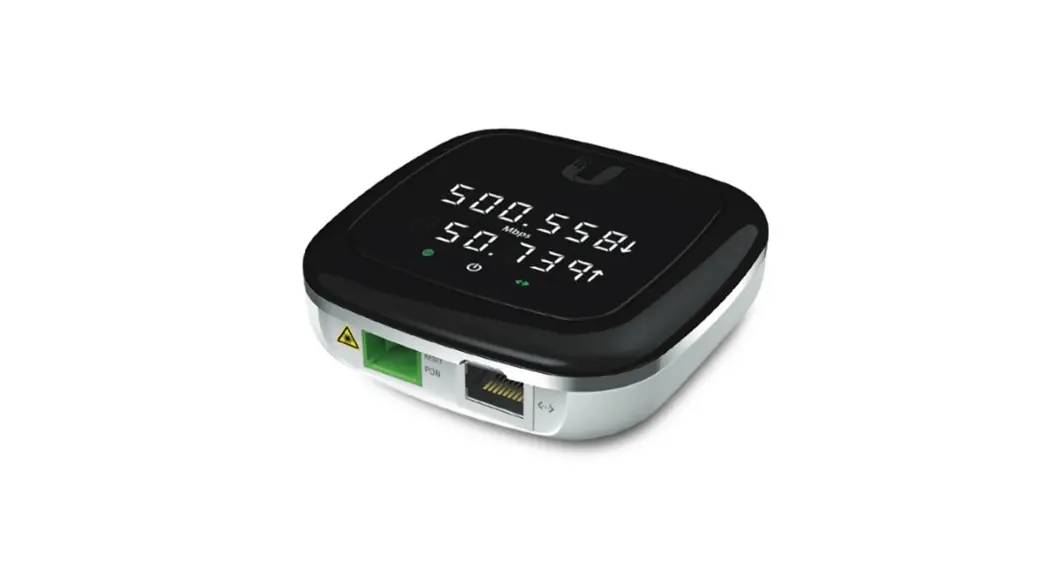
I consistently get over 500 mb/s down using this AP as long as its connected to 5 GHz band.
Depends on your definition of outside…I plan on installing in both of my garages, but to me these areas are not exposed to the elements.
You’ll need to either have the other end of the cable patched into a PoE+ switch or a PoE injector to power the AP without an outlet nearby. These work well enough with any off the shelf Poe+ switch by Netgear, D-Link, Tplink etc.
I’m using one nanoHD right now in the center of a 3000 sq. foot house and it covers pretty well on both bands. I will be going with 2 just to help a little with the drop at the edges of the home. One on either end of the house. The sheet does not say what the range is for the nanoHD.
5ghz generally isnt good about penetrating more than one standard interior residential wall.
Max recommended is 125. Theoretical max is 200
No. You still need a router. The UniFi software only provisions the APs.
The LR is for long range and it does outperform the Nano. If you search YouTube for Lawrence Systems they did a recent performance test of different Ubiquiti APs.
No, current purchases are not Beta. I ordered three access points, with manufacture dates in late 2018 with the standard product name.
It will not integrate into Netgear’s mesh system. It has its own software and setup system and would end up being a second wifi network.
Yes. UniFi APs are managed in the UniFi Controller (APP or website) where you can select to turn the blue indication light on/off.
You’ll be able to cover over the white. Not replace it entirely.
If your U-verse router has multiple LAN connections and is not simply a wireless router, then it will work. The Nano is an enterprise style AP and there are many options on provisioning, controlling and defining your network.