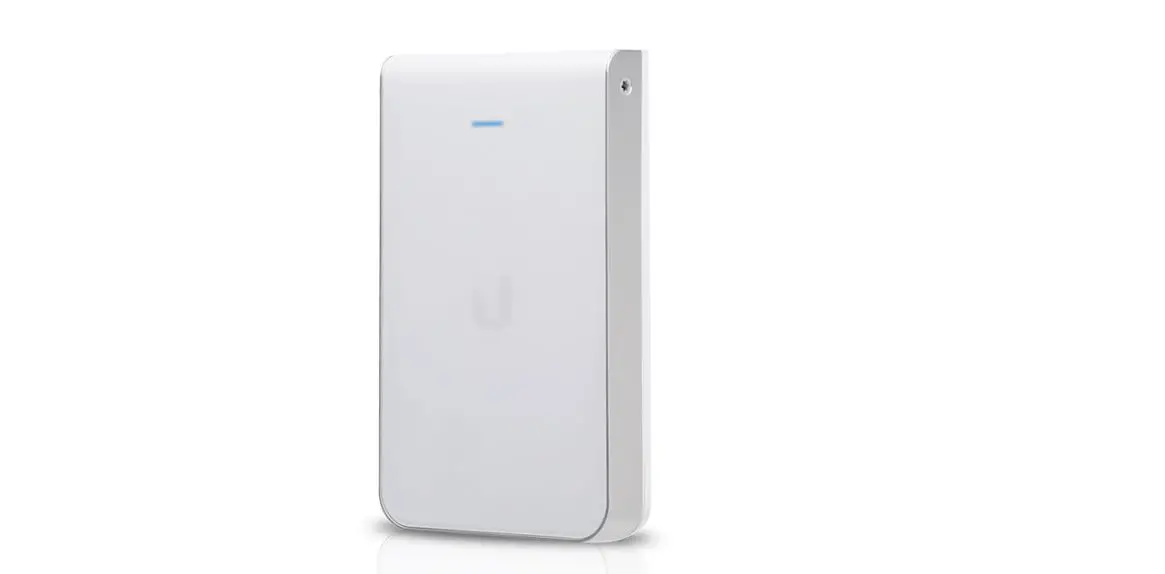
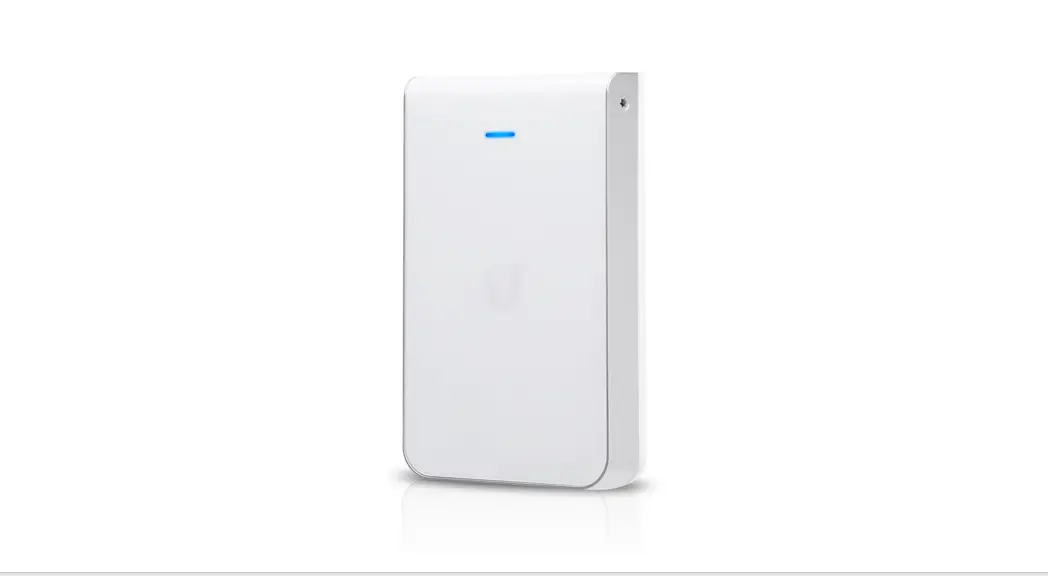
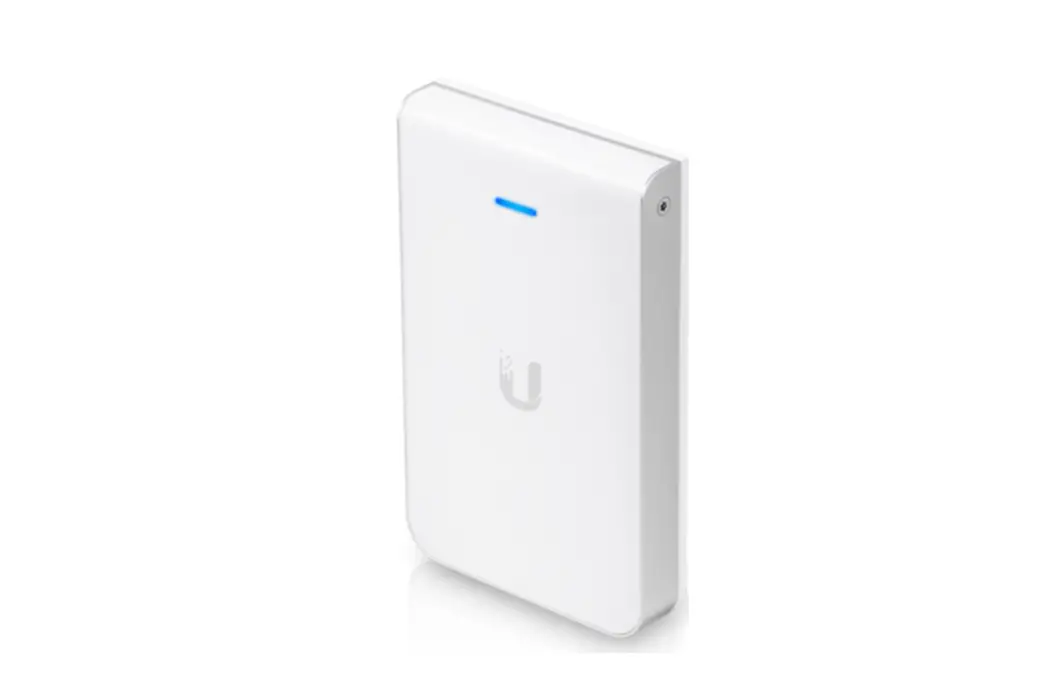
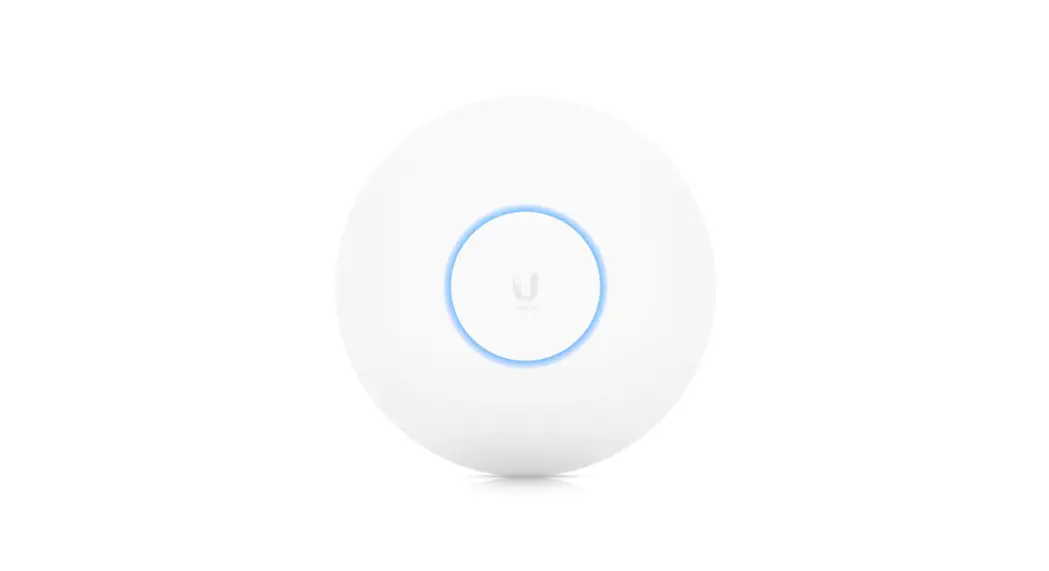
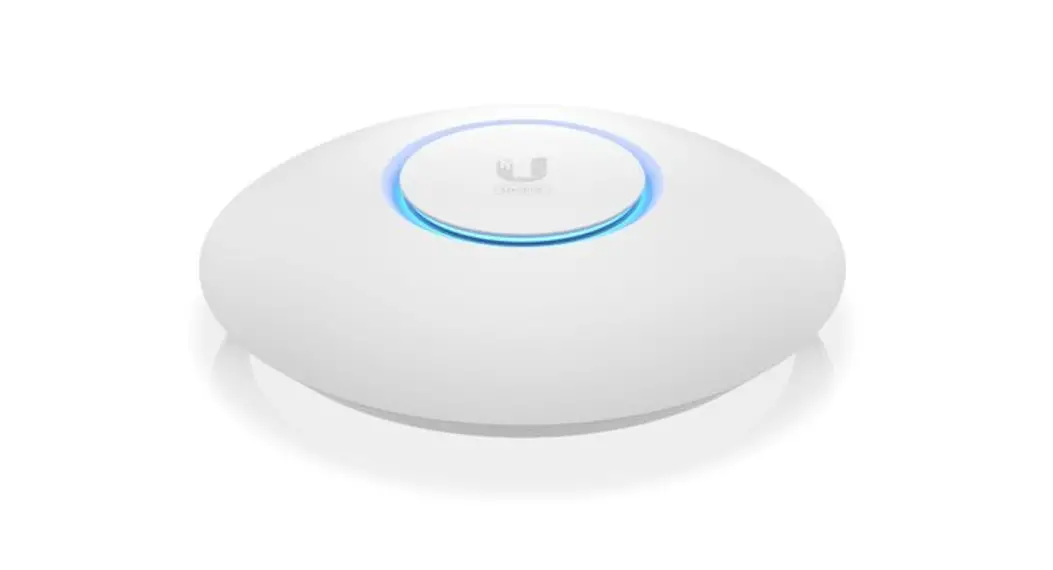
UAP-IW-HD WiFi Access Point
error
nginx
the following is the text from the user manual / instructions:
UAP-IW-HD Quick Start Guide
Package content
cover plate
UAP-IW-HD
back plate
Wall screws (qty: 4)
Torx screws (quantity: 2)
Phillips screws (qty: 2)
Torx security screw
Phillips security screw
installation requirements
Pre-installed electrical wall box Category 5 (or higher) UTP cable certified for indoor use Phillips and flat head screwdrivers T10 Torx bit (for Torx screw option)
UniFi Switch with PoEUAP-IW-HD Quick Start Guide
IMPORTANT: The UAP-IW-HD requires a UniFi switch with PoE for power. Passive PoE adapters are not recommended. IMPORTANT: The UniFi Driver v5.7 is recommended to manage the UAP-IWHD, available for download at: ui.com/download/unifi
System Requirements
Linux, Mac OS X o Microsoft Windows 7/8/10 Java Runtime Environment 1.8 (o superior) Web browser: Google Chrome (other browsers may have limited functionality). UniFi Controller Software v5.7 or later (available at: ui.com/ download/unifi)
hardware description back section
PoE + Data Input
The 10/100/1000 Ethernet port supports 802.3af PoE input and data. The UAP-IW HD itself requires 11W.
PyoouEr+L8A0N2.a3nadt iDnHpuCtPnesSeetdravsrettrGo. uuisdeeapoProt EtogaatUenwiFayi .swCiotcnhnewcitththPisoEUAcPon-InWe-cHteDdQtouick
Panel inferior
Salida PoE + LAN 1 10/100/1000 Ethernet port supports data and PoE gateway (requires 802.3at PoE+ input). The maximum output power of the PoE gateway is 12W.
Note: To power and connect an 802.3af device to the LAN, you must use an 802.3at PoE+ input. AND 2 – AND 4 These three 10/100/1000 Ethernet ports support data only. They are used to connect client devices to the LAN. Reset The reset button has two functions for the UAP-IW-HD: Reset: Press and quickly release the Reset button. Restore Factory Default Settings: Press and hold the Reset button for more than five seconds.
Panel lateral
UAP-IW-HD Quick Start Guide
security screw (Optional) Security screw secures cover plate after installation. You have the option of using the included Torx security screw (shown) or Phillips security screw.
LED
security tab
In addition to the optional security screw, the security tab helps secure the cover plate after installation. If you need to remove it, use a flat head screwdriver to depress the security tab while removing the cover plate:
UAP-IW-HD Quick Start Guide
back plate
The back plate has several mounting holes for use with different wall boxes. Here are some examples with the proper mounting holes highlighted in blue:
EE. UU. o China UAP-IW-HD Quick Start Guide
Europe
hardware installation
An electrical wall box should be pre-wired with an Ethernet cable from the box to a UniFi switch with PoE.
1.
UAP-IW-HD Quick Start Guide
2. 3.
UAP-IW-HD Quick Start Guide
4.
O
UAP-IW-HD Quick Start Guide
5.
Optional
UAP-IW-HD Quick Start Guide
O
software installation
Download and install the latest version of the UniFi Controller software. Run it and follow the instructions on the screen. The software and step-by-step User Guide instructions are available at: ui.com/download/unifi Once you have installed the software and run the UniFi Setup Wizard, a login screen for the UniFi Controller management interface will appear. Enter the administrator name and password you created and click the option to login.
UAP-IW-HD Quick Start Guide
Package content
cover plate
UAP-IW-HD
back plate
Wall screws (qty: 4)
Torx screws (quantity: 2)
Phillips screws (qty: 2)
Torx security screw
Phillips security screw
installation requirements
Pre-installed electrical wall box Category 5 (or higher) UTP cable certified for indoor use Phillips and flat head screwdrivers T10 Torx bit (for Torx screw option)
UniFi Switch with PoEUAP-IW-HD Quick Start Guide
IMPORTANT: The UAP-IW-HD requires a UniFi switch with PoE for power. Passive PoE adapters are not recommended. IMPORTANT: The UniFi Driver v5.7 is recommended to manage the UAP-IWHD, available for download at: ui.com/download/unifi
System Requirements
Linux, Mac OS X o Microsoft Windows 7/8/10 Java Runtime Environment 1.8 (o superior) Web browser: Google Chrome (other browsers may have limited functionality). UniFi Controller Software v5.7 or later (available at: ui.com/ download/unifi)
hardware description back section
PoE + Data Input
The 10/100/1000 Ethernet port supports 802.3af PoE input and data. The UAP-IW HD itself requires 11W.
PyoouEr+L8A0N2.a3nadt iDnHpuCtPnesSeetdravsrettrGo. uuisdeeapoProt EtogaatUenwiFayi .swCiotcnhnewcitththPisoEUAcPon-InWe-cHteDdQtouick
Panel inferior
Salida PoE + LAN 1 10/100/1000 Ethernet port supports data and PoE gateway (requires 802.3at PoE+ input). The maximum output power of the PoE gateway is 12W.
Note: To power and connect an 802.3af device to the LAN, you must use an 802.3at PoE+ input. AND 2 – AND 4 These three 10/100/1000 Ethernet ports support data only. They are used to connect client devices to the LAN. Reset The reset button has two functions for the UAP-IW-HD: Reset: Press and quickly release the Reset button. Restore Factory Default Settings: Press and hold the Reset button for more than five seconds.
Panel lateral
UAP-IW-HD Quick Start Guide
security screw (Optional) Security screw secures cover plate after installation. You have the option of using the included Torx security screw (shown) or Phillips security screw.
LED
security tab
In addition to the optional security screw, the security tab helps secure the cover plate after installation. If you need to remove it, use a flat head screwdriver to depress the security tab while removing the cover plate:
UAP-IW-HD Quick Start Guide
back plate
The back plate has several mounting holes for use with different wall boxes. Here are some examples with the proper mounting holes highlighted in blue:
EE. UU. o China UAP-IW-HD Quick Start Guide
Europe
hardware installation
An electrical wall box should be pre-wired with an Ethernet cable from the box to a UniFi switch with PoE.
1.
UAP-IW-HD Quick Start Guide
2. 3.
UAP-IW-HD Quick Start Guide
4.
O
UAP-IW-HD Quick Start Guide
5.
Optional
UAP-IW-HD Quick Start Guide
O
software installation
Download and install the latest version of the UniFi Controller software. Run it and follow the instructions on the screen. The software and step-by-step User Guide instructions are available at: ui.com/download/unifi Once you have installed the software and run the UniFi Setup Wizard, a login screen for the UniFi Controller management interface will appear. Enter the administrator name and password you created and click the option to login.
UAP-IW-HD Quick Start Guide
You can manage your wireless network and view network statistics through the UniFi Controller’s management interface. For information on setting up and
using the UniFi Controller software, see the User’s Guide.
Mobile app installation
Ubiquiti also offers a UniFi app, available from the App Store® (iOS) or the Google PlayTM Store (Android). You can use it to make use of basic UniFi access point features without the need to set up a UniFi controller. It also allows constant connection of access points for remote controllers (controllers not on the same Layer 2 network) and easy access to local controllers and those being monitored on unifi.ui.com
specs
Dimensions
Weight
network interface
Buttons
feeding method
UAP-IW-HD
139,7 x 86,7 x 25,75 mm (5,5 x 3,41 x 1,01″)
210 g (7,41 oz)
(5) 10/100/1000 Ethernet ports
Reset
PoE 802.3af compatible PoE+ 802.3at compatible
Power supply
UAP-IW-HDUAQP-IuWi-HcDk Start Guide
UniFi switch (PoE)
Energy saving PoE output
Maximum power consumption with PoE gateway
operating frequency
Compatible
48V direct access (sockets: 1, 2+; 3, 6-)
11W 23W*
2,4 GHz 5 GHz
Maximum transmit power 2,4 GHz 5 GHz
23 dBm 26 dBm
DESPITE
2,4 GHz 5 GHz
2 x 2 4 x 4
max speed of data 2,4 GHz 5 GHz
antenna gain 2,4 GHz 5 GHz
300 Mbps 1733 Mbps
1,8 dBi 4 dBi
Wi-Fi standards
802.11 a/b/g/n/ac/ac-wave2
wireless security
WEP, WPA-PSK, WPA-Enterprise (WPA/WPA2, TKIP/AES)
Mounting
1 electrical wall box (not included)
Operating temperature operating humidity
-10° C to 60° C (14° F to 140° F) 5 to 95% non-condensing
Certifications
CE, FCC, IC
* Requires 802.3at PoE+ switch.
safety instructions
1. Read, follow and save these instructions. 2. Pay attention to all warnings. 3. Only use the devices or accessories indicated by the manufacturer.
WARNING: Do not use this product in a location where it may be submerged in water.
WARNING: Avoid using this product during a lightning storm. There is
remote possibility of an electrical discharge caused by lightning.
UAP-IW-HD Quick Start Guide
electrical safety information
1. It is mandatory to comply with the current, frequency and voltage requirements indicated on the manufacturer’s label. Connection to a power source other than those specified may result in malfunction, equipment damage, or fire hazard if limitations are not followed.
2. This equipment contains no operator-serviceable parts. Only a qualified service technician should provide services.
limited warranty
ui.com/support/warranty The limited warranty requires arbitration to resolve disputes on a case-by-case basis and, where appropriate, specifying arbitration instead of jury trials or class actions.
Compliance
FCC
Changes or modifications not expressly approved by the party responsible for compliance could void the user’s authority to operate the equipment. This device complies with part 15 of the FCC Rules. Operation is subject to the following two conditions. 1. This device may not cause harmful interference. 2. This device must accept any interference received, including interference that may
may cause undesired operation. This equipment has been tested and found to comply with the limits for a Class A digital device, pursuant to part 15 of the FCC Rules. These limits are designed to provide acceptable protection against harmful interference when the equipment is operated in a commercial environment. This equipment generates, uses, and can radiate radio frequency energy and, if not installed and used in accordance with the instruction manual, may cause harmful interference to radio communications. Operation of this equipment in a residential area is likely to cause harmful interference, in which case the user will be required to correct the interference at his own expense.
The FCC has approved this radio transmitter.
ISED Canada
CAN ICES-3(A)/NMB-3(A)
This device complies with ISED Canada licence-exempt RSS standard(s). Operation is subject to the following two conditions: 1. This device may not cause interference.
2. This device must accept any interference, including interference that may cause undesired operation of the device UAP-IW-HD Quick Start Guide .
ISED Canada has approved this radio transmitter. The device for operation in the 5150-5250 MHz band is intended for indoor use only to reduce the possibility of harmful interference to co-channel mobile satellite systems.
IMPORTANT NOTE
Radiation Exposure Statement:
This equipment complies with radiation exposure limits set forth for an uncontrolled environment.
This equipment should be installed and used with a minimum distance of 20 cm between the radiator and your body. This transmitter must not be co-located or used in conjunction with any other antenna or transmitter.
Australia and New Zealand
Warning: This equipment is compliant with Class A of CISPR 32. In a residential environment, this equipment may cause radio interference.
Brazil
Note: This equipment is not entitled to protection against harmful interference and may not cause interference in authorized systems.
CE marked
The CE marking of this product indicates that the product complies with all applicable directives.
list of countries AT BE BG CY CZ DE DK EE EL ES FI FR HR HU IE IT LV LT LU MT NL PL PT RO SE SI SK UK Members with broadband fixed wireless access are highlighted in blue
Note: This device complies with the maximum transmit power limit per ETSI regulations.
The following shall apply to products operating in the 5 GHz frequency range:
Note: range
Tohf i5s1d5e0v-ic5e3Ui5s0AoMnPlHy-IzsWuinita-aHblllemDfeomQr ibnuedriocsoktrautSesset.awrhteGn oupiedraeting
in
the
frequency
Note: Operation in the 5.8 GHz frequency band is prohibited in member states with fixed broadband wireless access. The rest of the listed countries can use the 5.8 GHz frequency band.
WEEE Compliance Statement
Declaration of conformity
online resources
© 2022 Ubiquiti Inc. All rights reserved.
 Ubiquiti - Rethinking IT
 Ubiquiti Account
 WEEE Compliance Statement
 Ubiquiti - Compliance