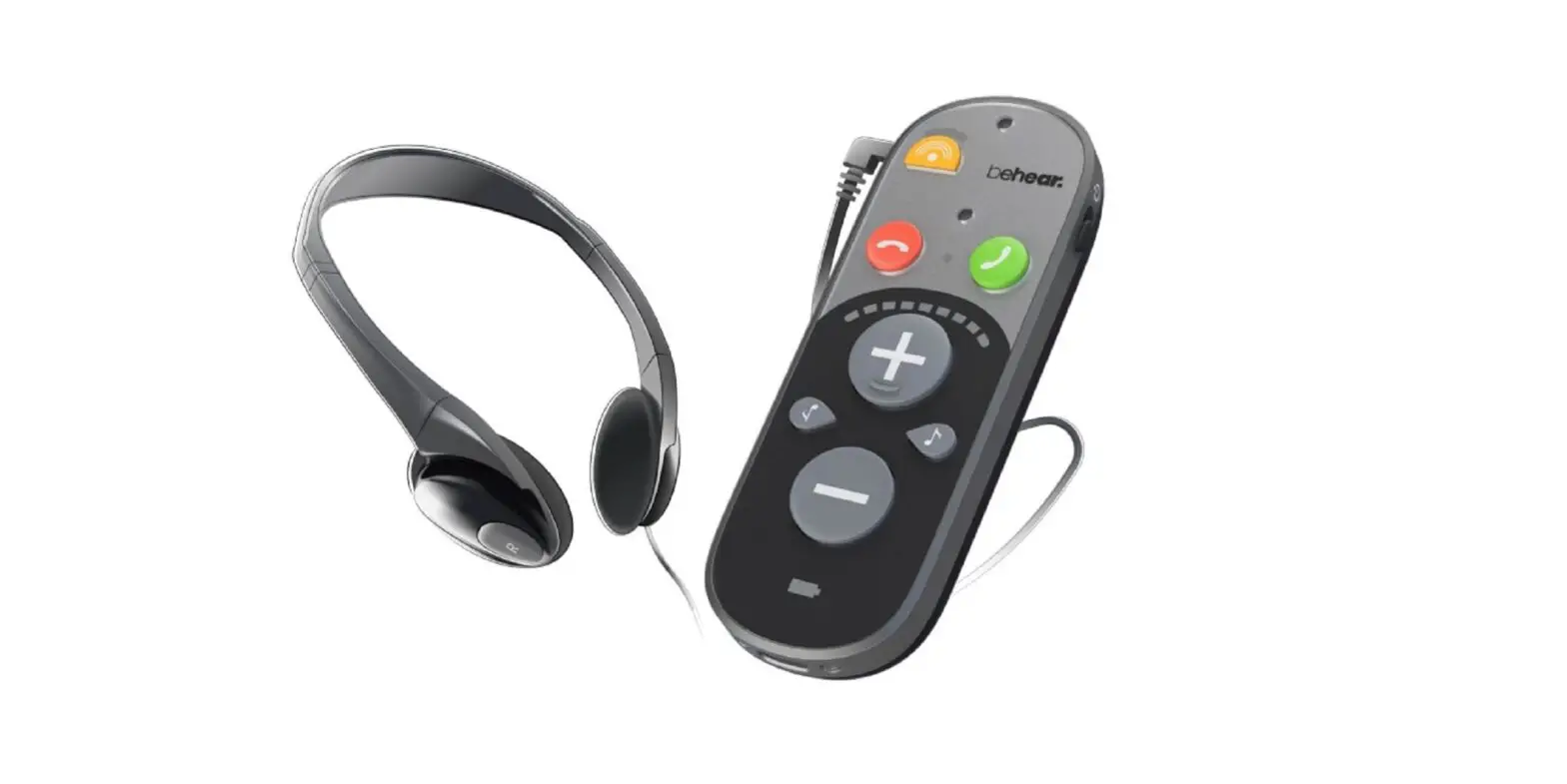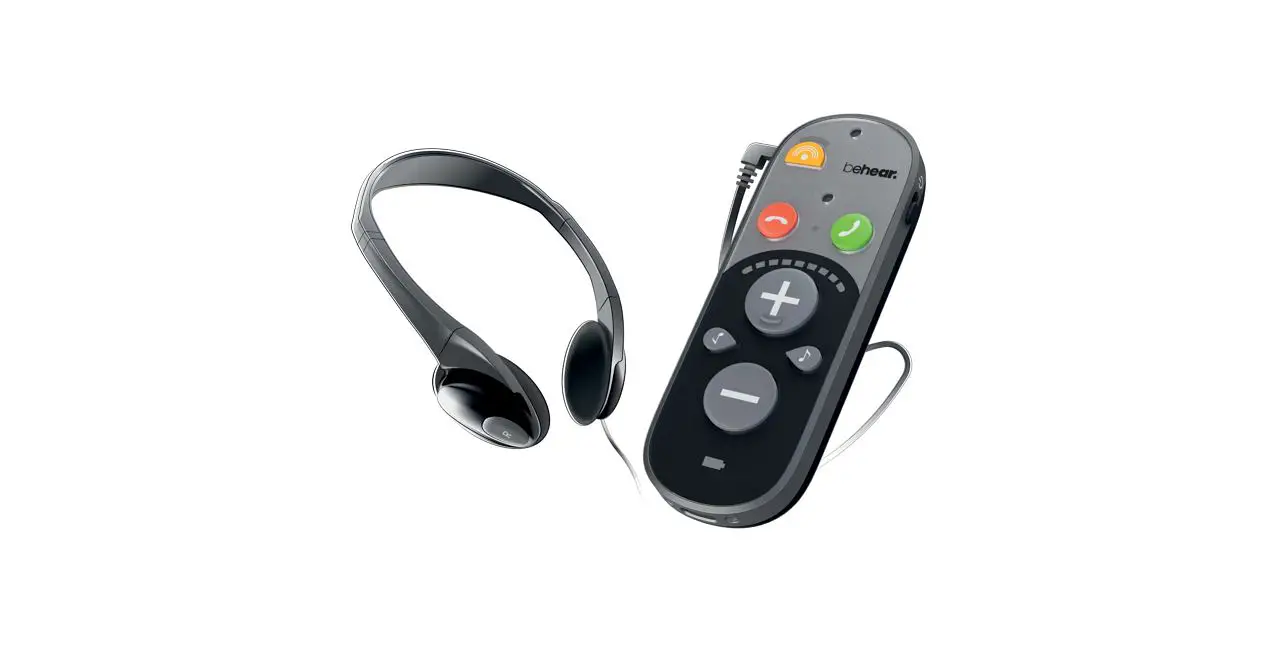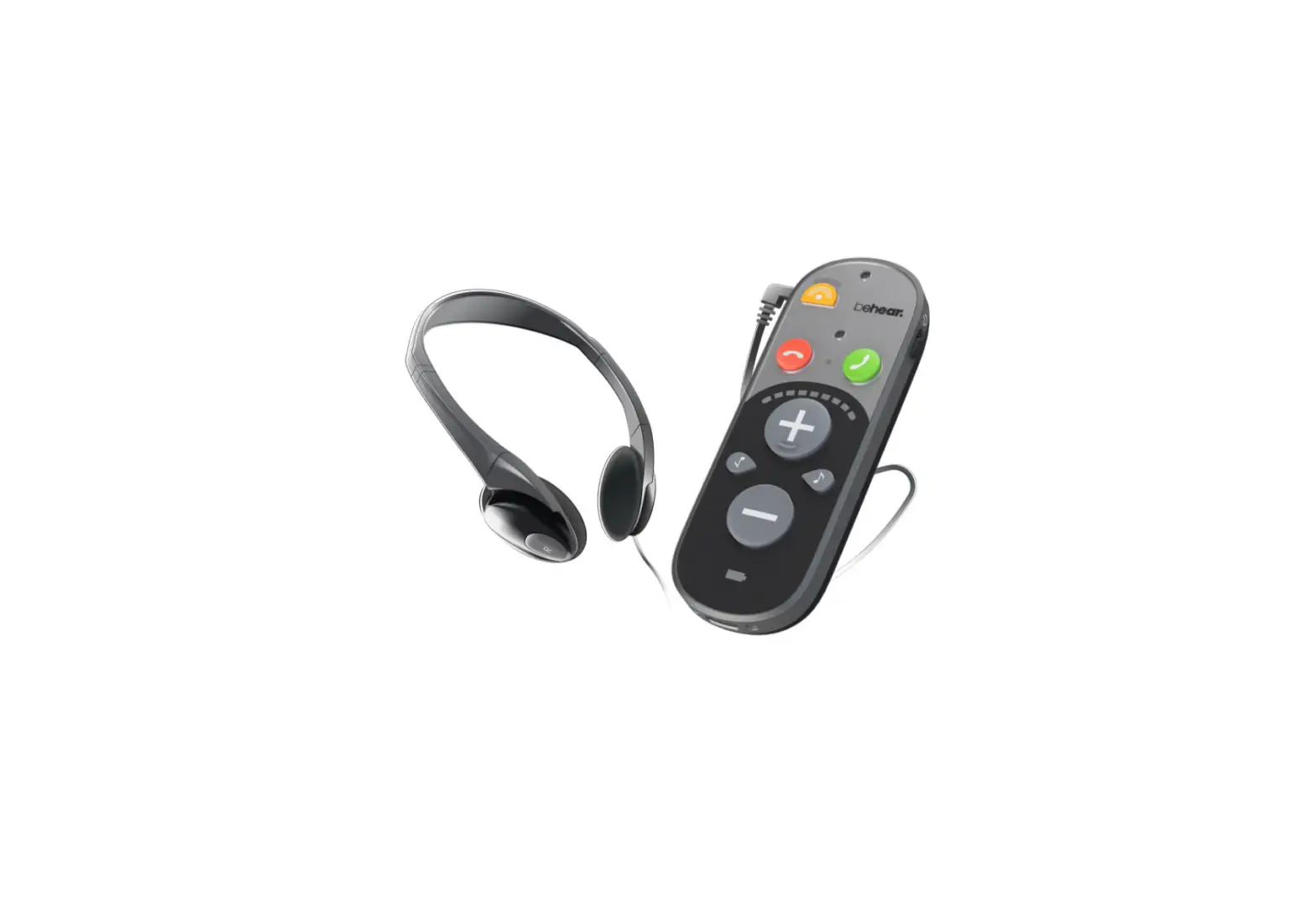
BeHear ABH-410 SMARTO Personal Hearing Amplifier User Guide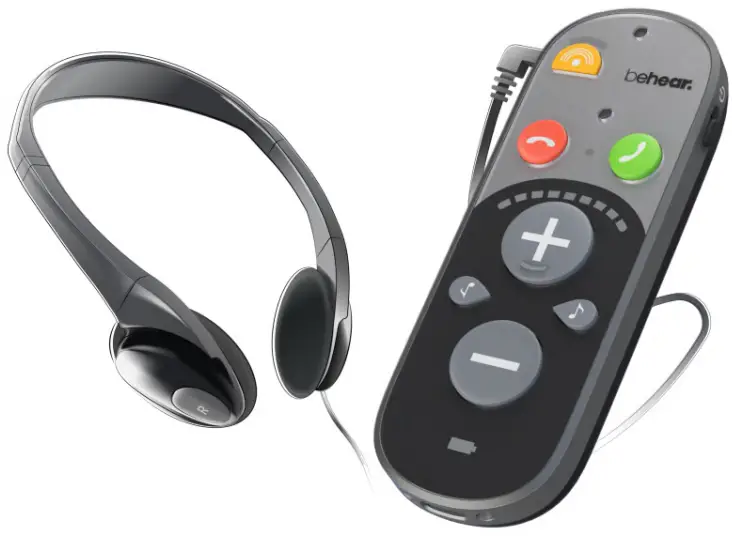
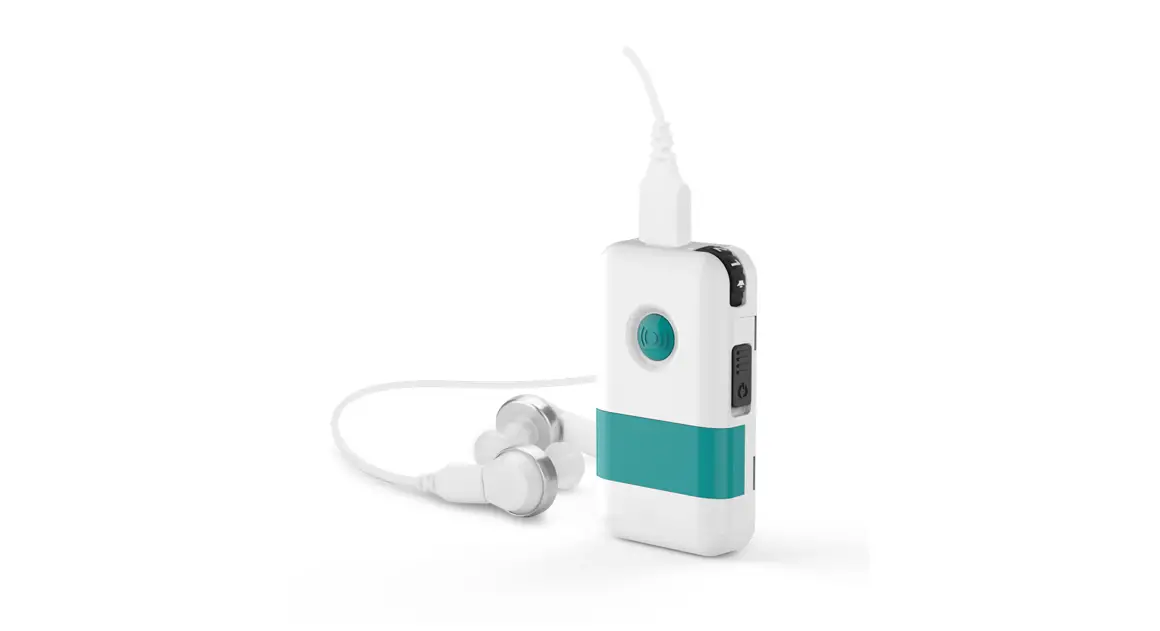
BeHear SMARTO is a simple yet powerful personal hearing amplifier with Bluetooth connectivity to help you hear the world!
Getting Started
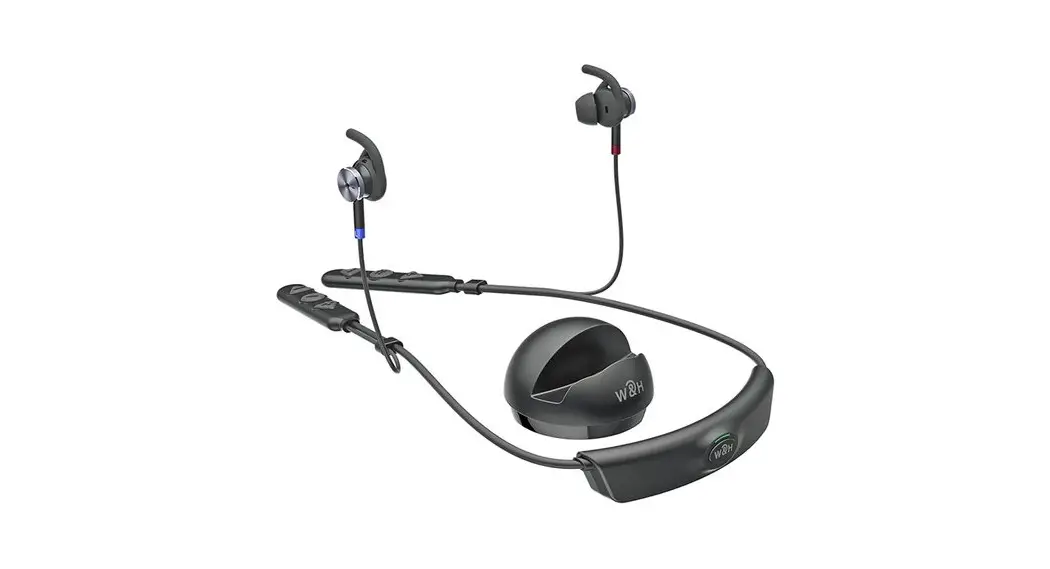
What’s in the Box?
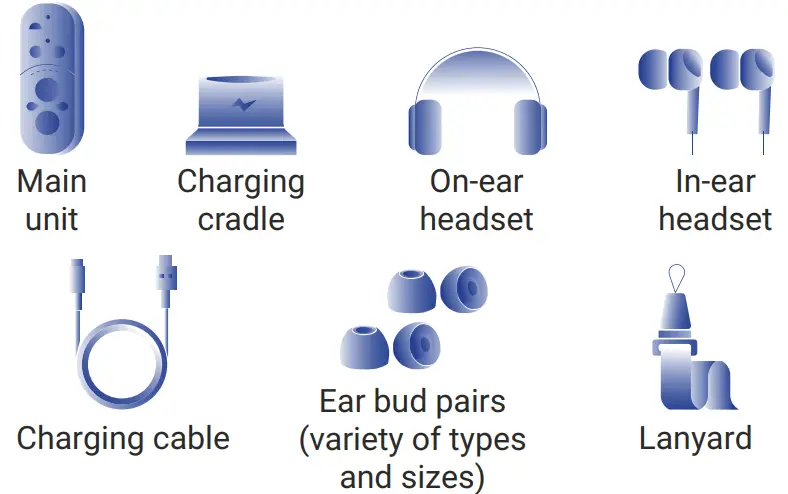
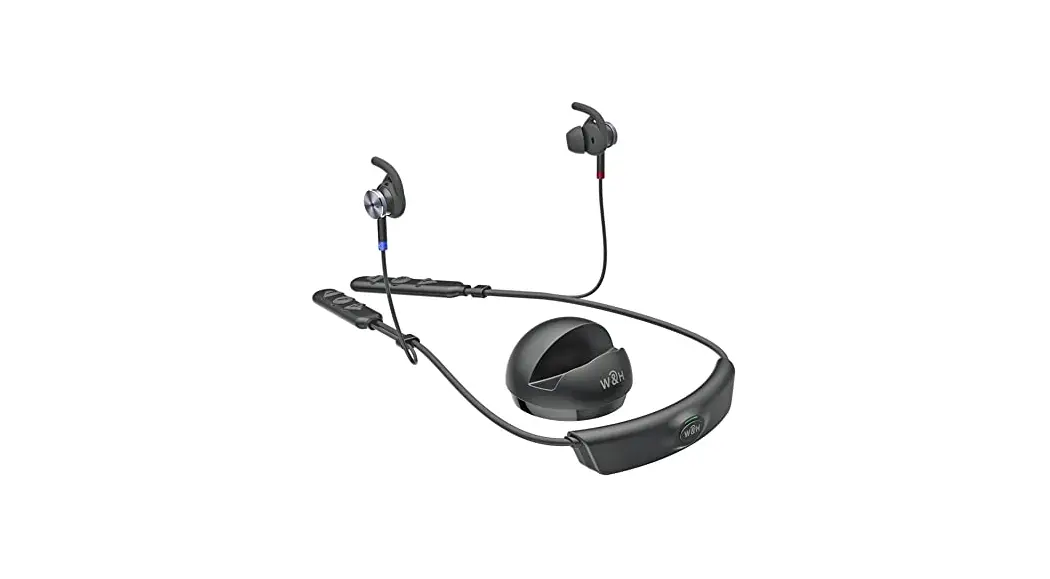
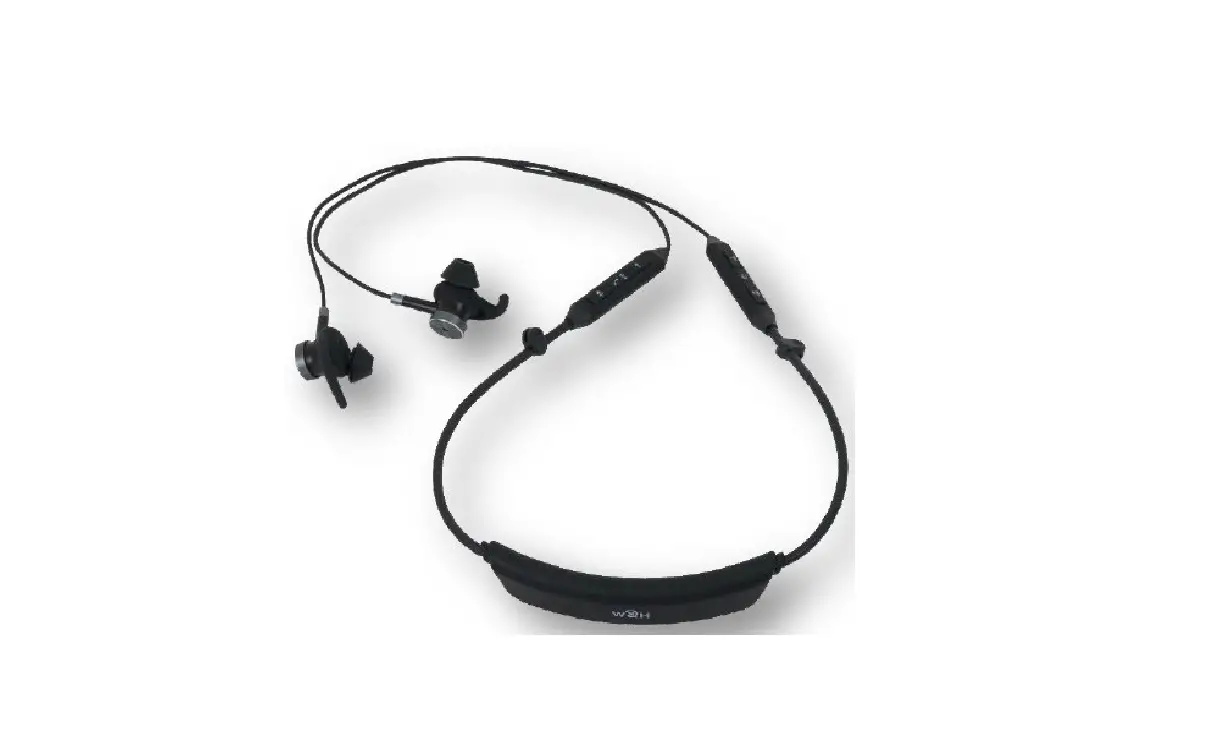
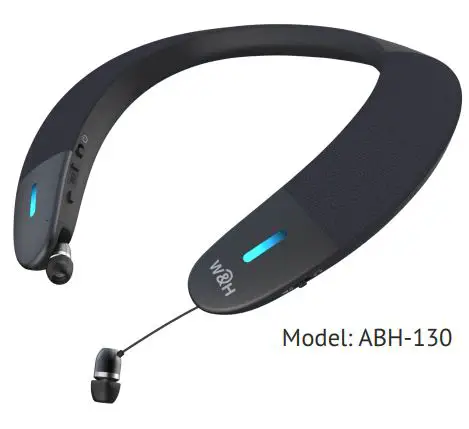
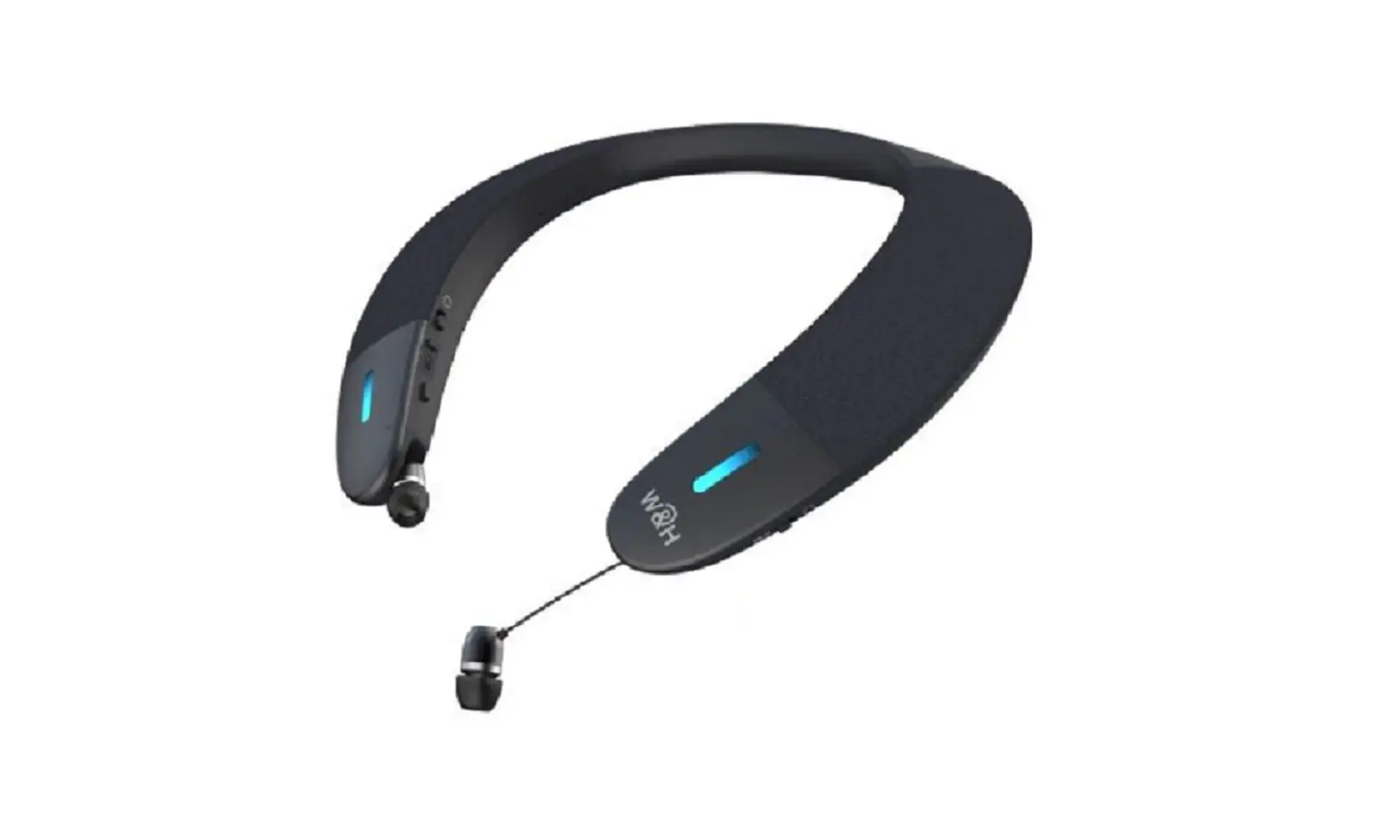
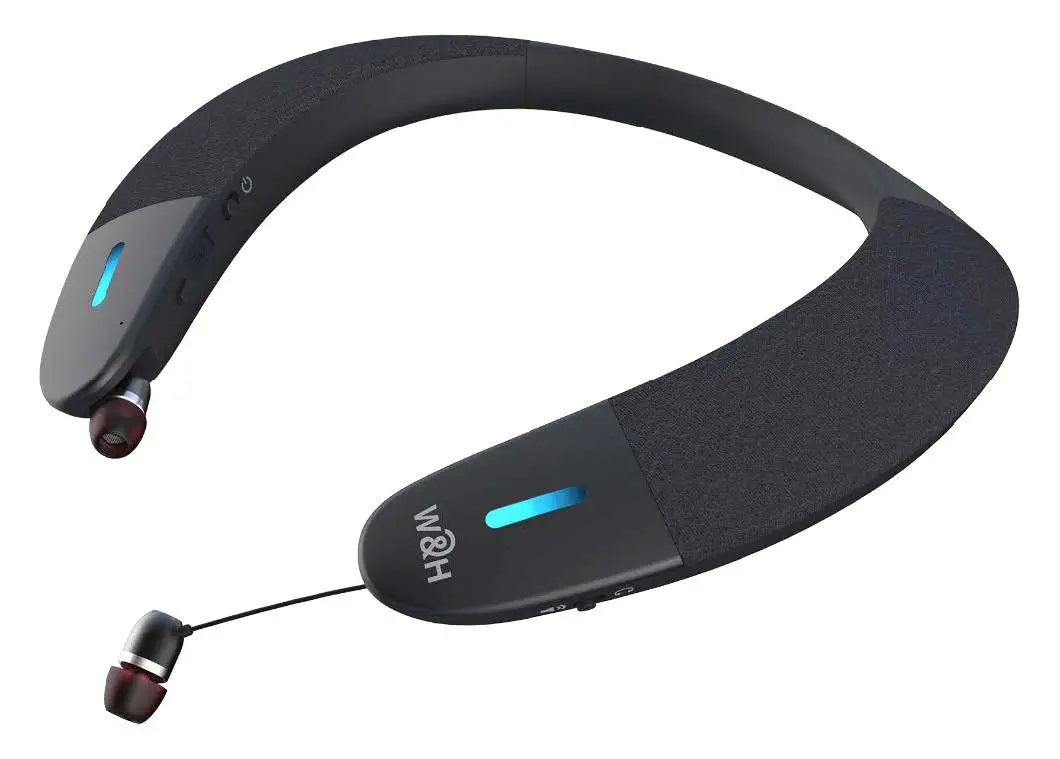
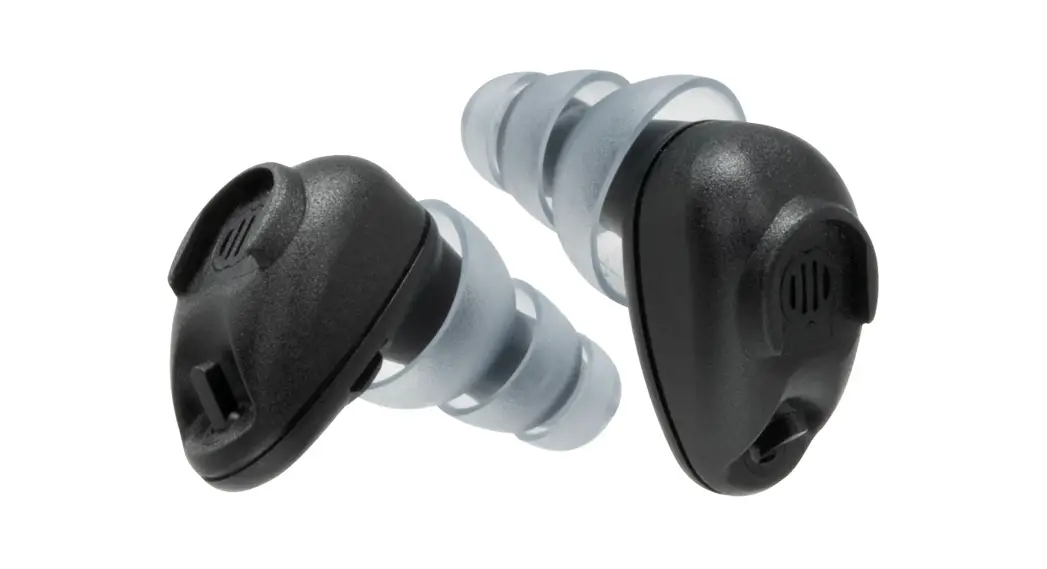
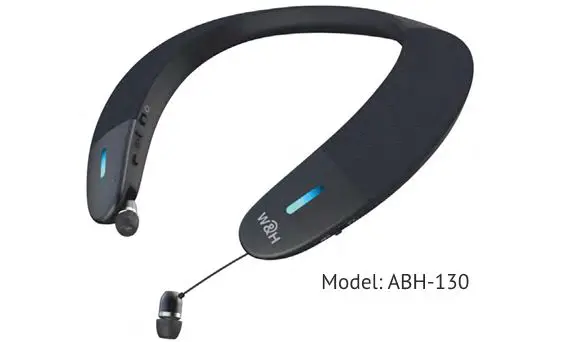
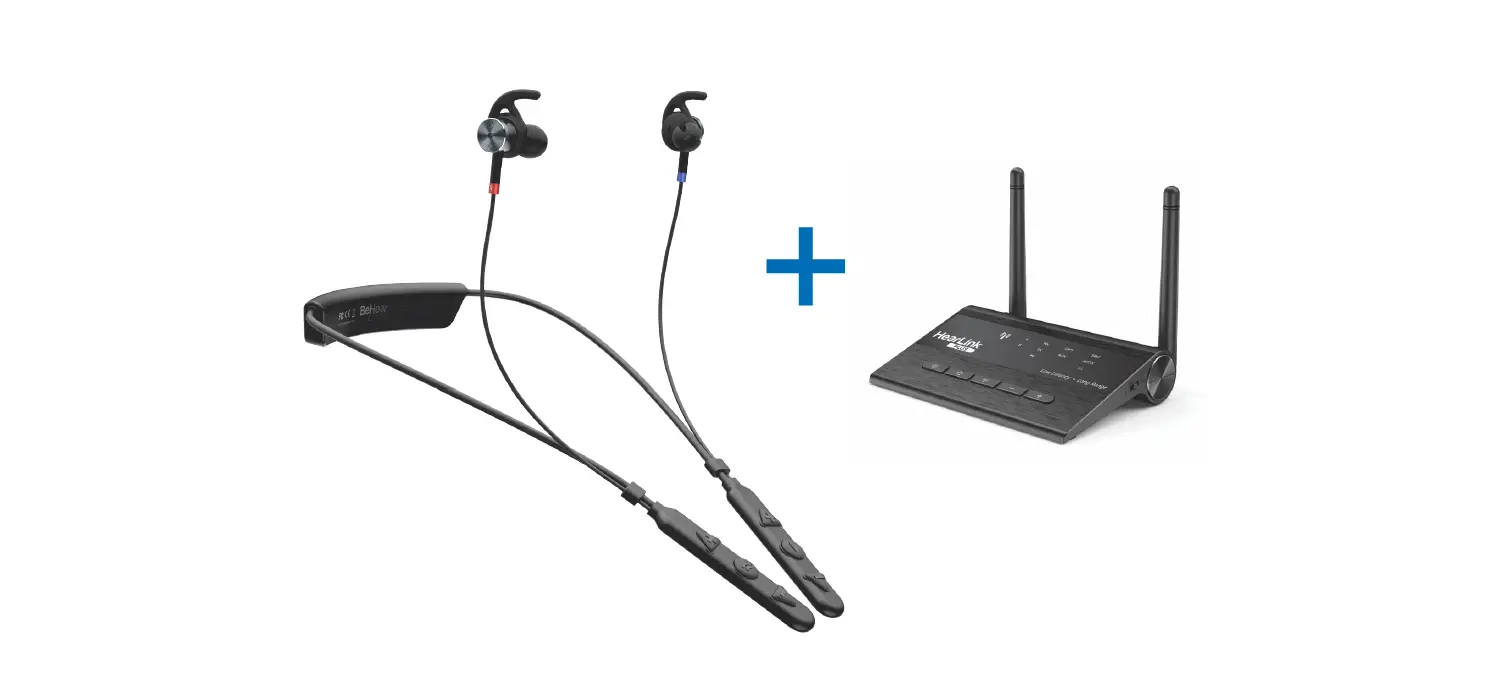
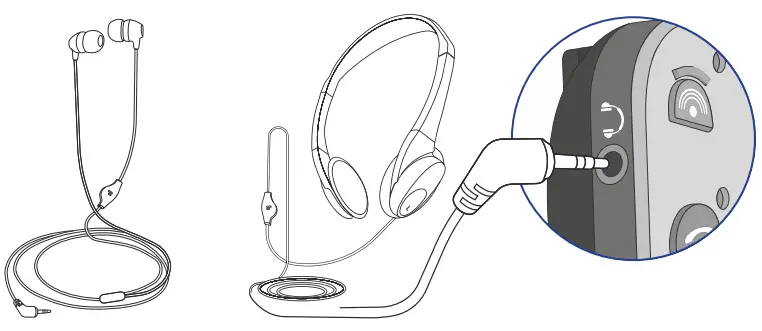
Choose and Connect a Headset
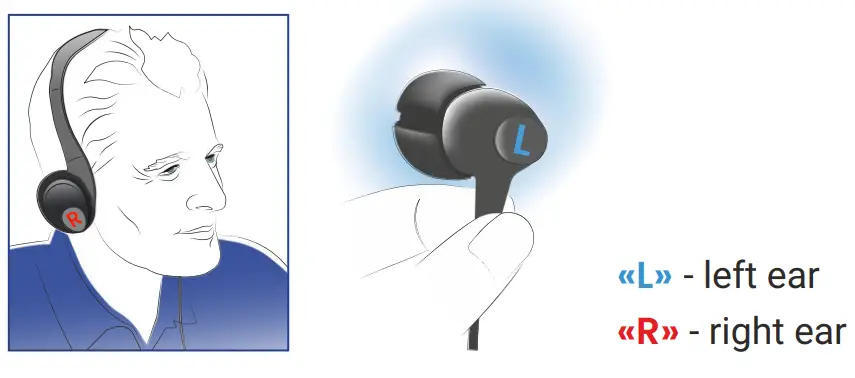
Put on the Headset
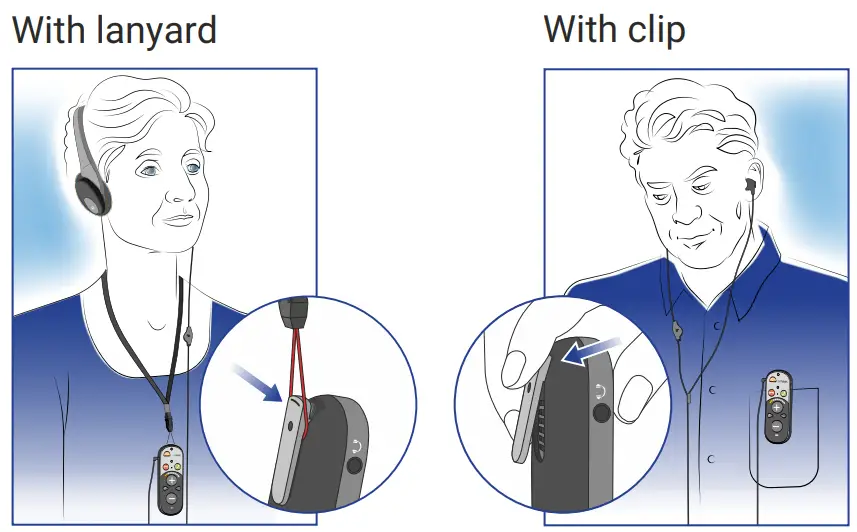
Secure the Unit (optional)
Basic Handling
ON / OFF
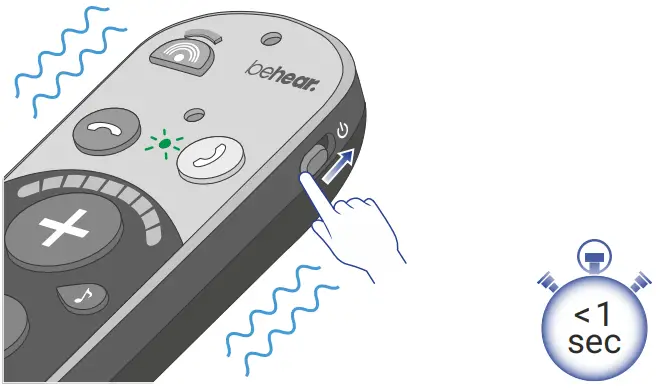
To turn ON:
Shift the power button up and hold it until the unit vibrates and the LED indicator flashes green. 
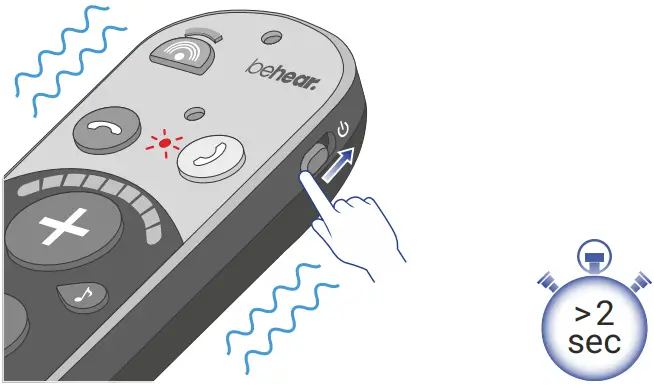
To turn OFF:
Shift the power button up and hold it until the unit vibrates and the LED indicator flashes red. 
Volume
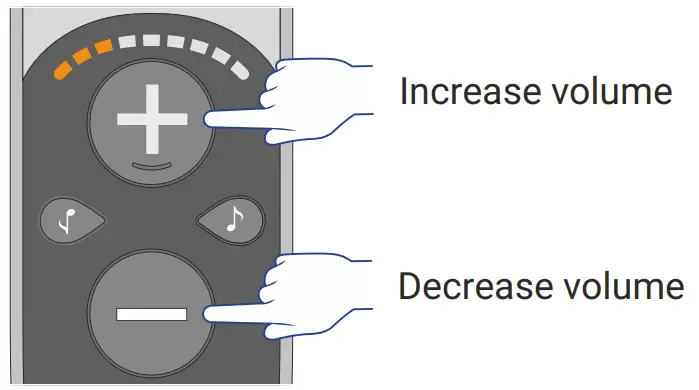
Three different volume ranges are supported. See page 8 for details.
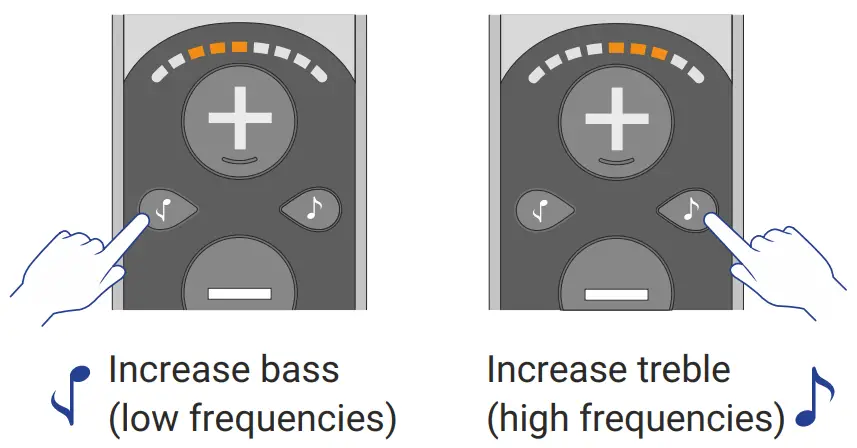
Bass / Treble
Advanced Functions
Sound Focus
Toggle between Omni (all directions) and Front modes.
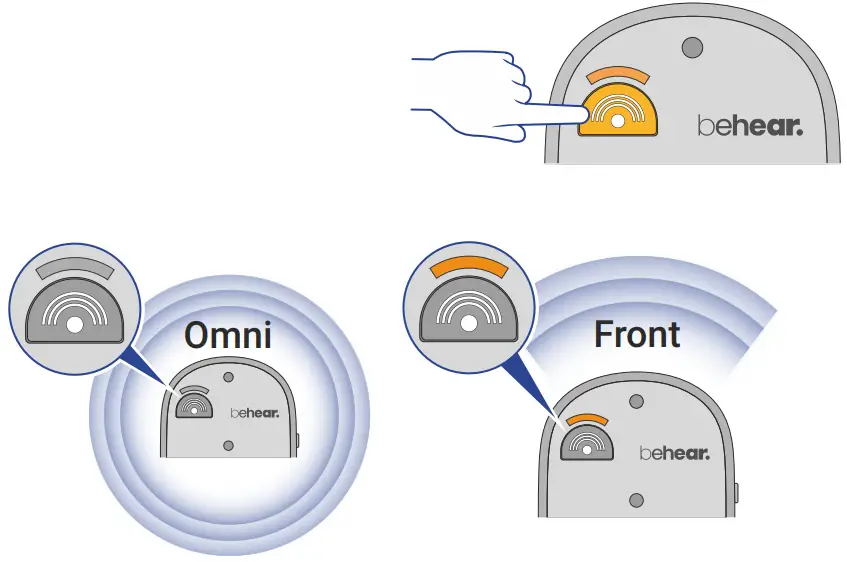
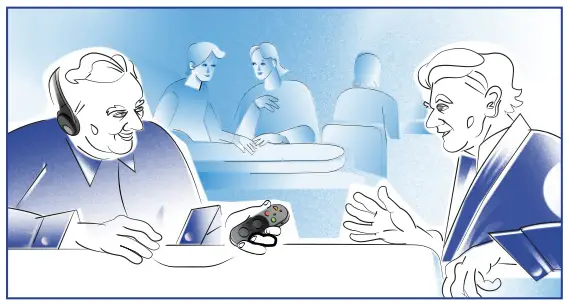
In Front mode, point SMARTO towards the sound to focus on it.
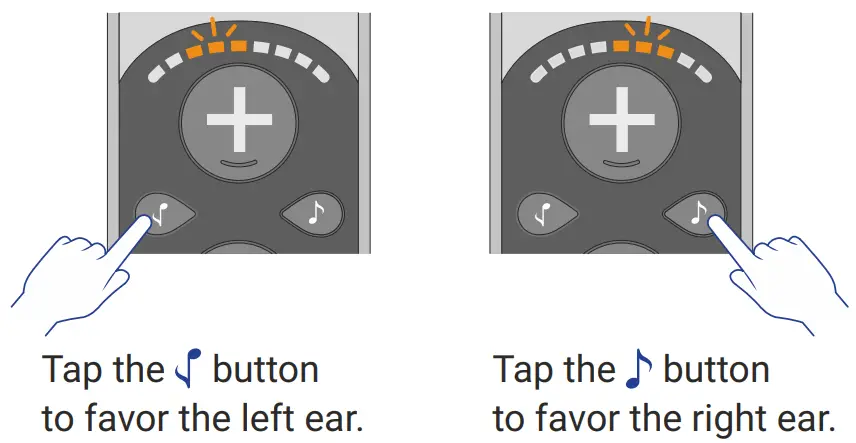
Left / Right Balance
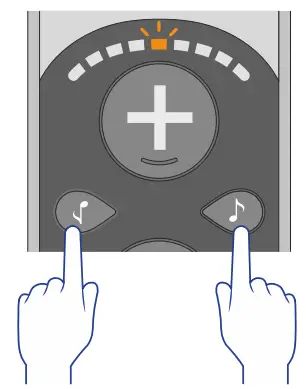
Press and hold the  and
and  buttons simultaneously for 5 seconds until the volume scale starts blinking.
While the volume scale is blinking:
Maximum Volume Level
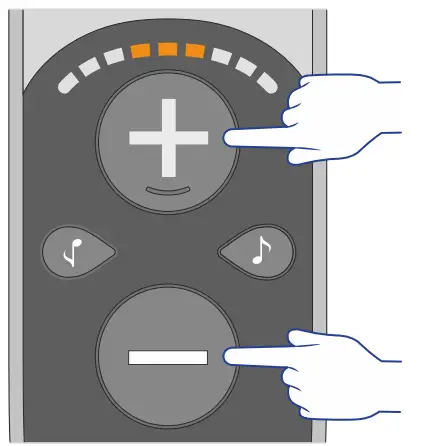
Press and hold the and buttons simultaneously for 5 seconds to scroll between 3 ranges of volume.
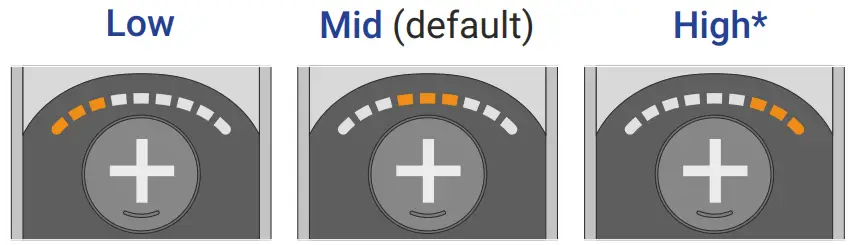
If the “High” setting is not loud enough, perform the Hearing Assessment in the app to enable an additional boost.
CAUTION: Listening at high volume for long periods may damage your hearing.
Lock / Unlock
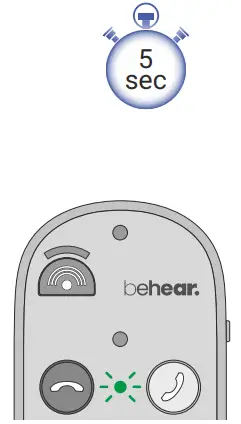
To prevent accidental operation, lock all control buttons by pressing and holding these three buttons simultaneously for 5 seconds until the red LED blinks once.
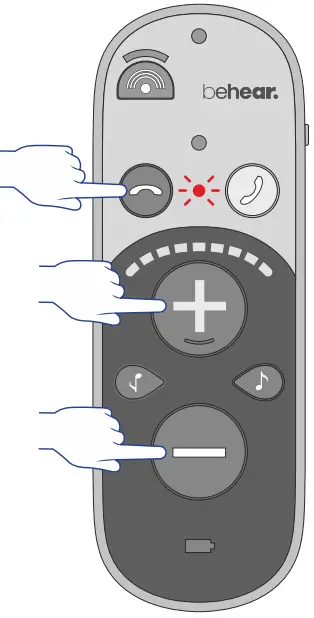
To unlock the buttons, repeat this action until the green LED blinks once.
Battery
Checking the Battery Level
Shift the power button up briefly and observe the battery LED color.
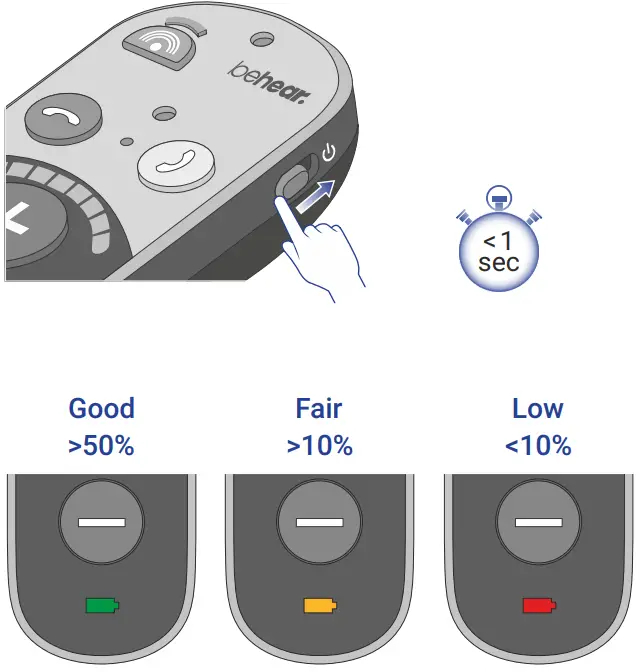
Charging with the Cradle
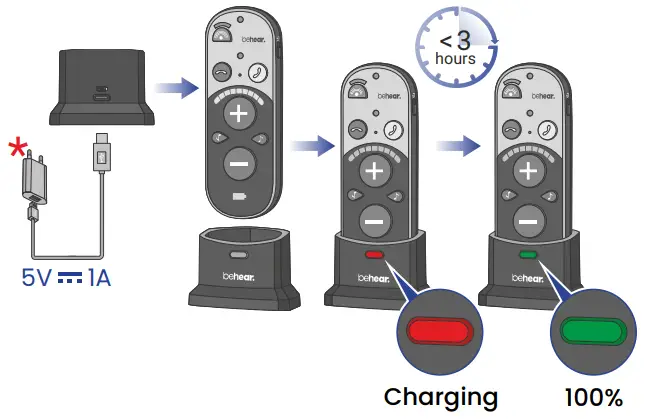
Charging without the Cradle
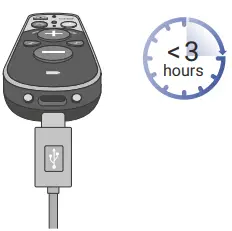
Wall plug purchased separately
Bluetooth
First Time Connection
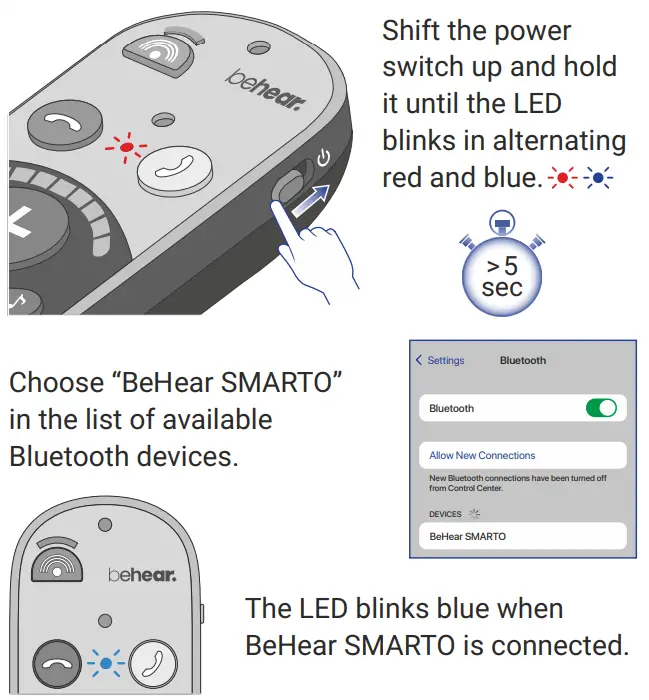
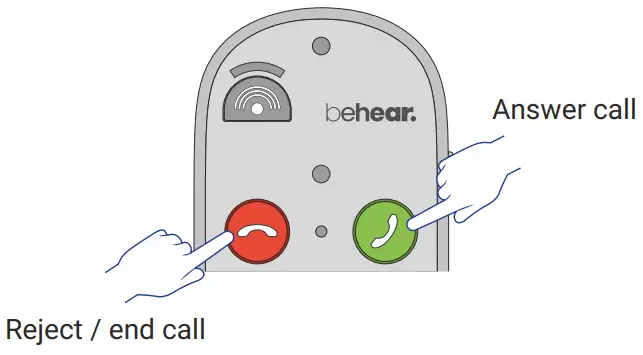
Managing Phone Calls
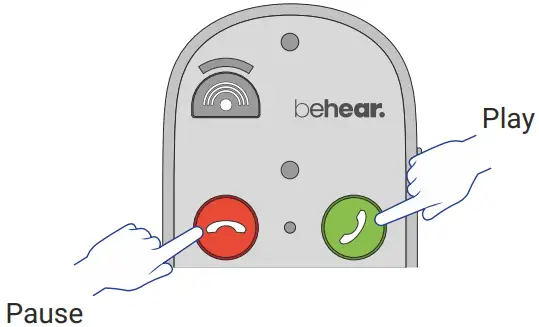
Listening to Audio
Emergency Call
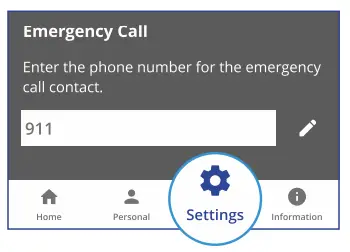
Use the BeHear app to specify the emergency phone number for your SMARTO.
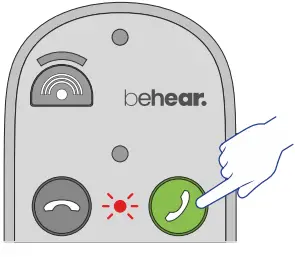
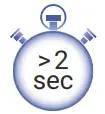
To dial the predefined phone number press and hold the  button until the LED blinks red.
Bluetooth connection is required.
Application (optional)





Special Features in BeHear App
Tinnitus Masking – Customize a noise to ease the discomfort of tinnitus. See section for details.
Slow Down Speech TM – Apply EasyListen to improve intelligibility of mobile calls.
Sound Tuning – Set noise reduction levels, balance between ears, best sound point, etc.
True Personalization – Perform hearing assessment for customized amplification across all frequencies.
Wireless Updates – Obtain latest features delivered «over the air».
Button Lock/Unlock – Prevent accidental operation for specific functions.
Personalization (optional)
Adjust the acoustic performance of the amplifier to suit your own hearing preferences.
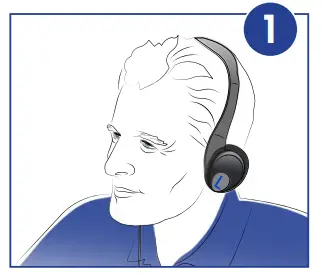
- Put on the headset you want to personalize.

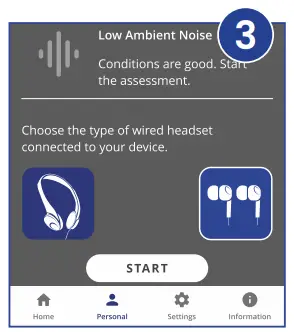
- Choose Personal >> Assessment in the BeHear app.
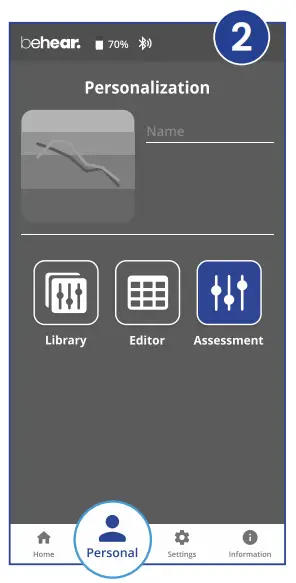
- Confirm which headset type you are wearing.

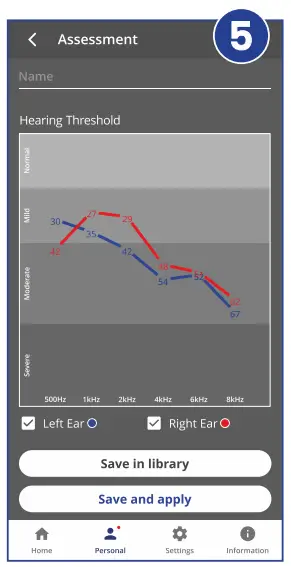
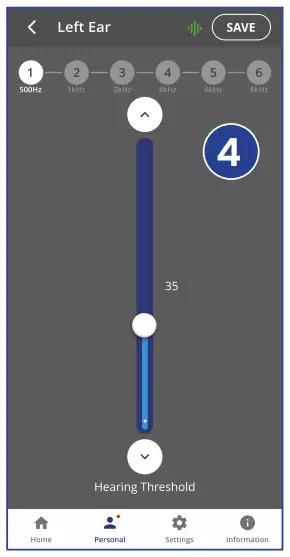
- Follow the prompts to perform the hearing assessment.

- Save and apply the results.
Tinnitus Masking (optional)
Tinnitus Masking Sound Therapy is designed to ease the discomfort of tinnitus sufferers.
In Personal Hearing mode, you can activate the masking noise file to distract yourself from your tinnitus.
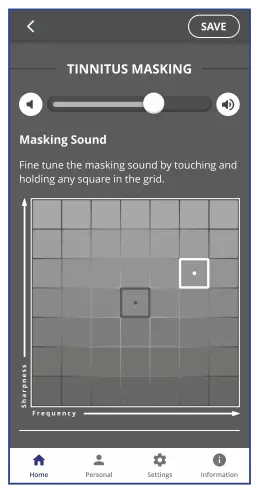
This noise can be customized for volume, tone, frequency, modulation, and balance between ears using the BeHear app.
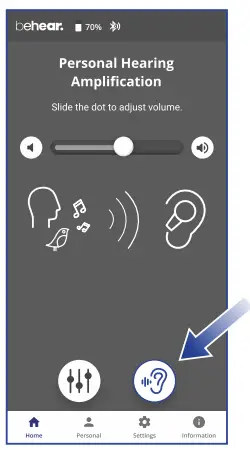
Access these parameters by tapping the  icon on the Home screen.
See section for instructions G about downloading the app.
Troubleshooting
No sound
- Make sure headphones are plugged in.
- Verify battery is charged.
- Adjust volume level.
Ear buds are uncomfortable
Experiment with different silicone ear tips
Phone calls and/or music not routed
Verify Bluetooth сonnection.
Bluetooth disconnects often
Verify that you are not more than 10 meters (30 feet) from the Bluetooth device.
Hearing interruptions
Silence phone tones (alerts, notification sounds, key taps, etc.).
Unexpected behavior
Reset SMARTO by connecting it to the charger.
Support

Video Tutorials:
https://bit.ly/smarto-video

North America Support:
[email protected]
Tel: (888) 215-0620


 behear.com - This website is for sale! - behear Resources and Information.
 Listening Enhancement Solutions » Life Sounds Better with BeHear
 YouTube