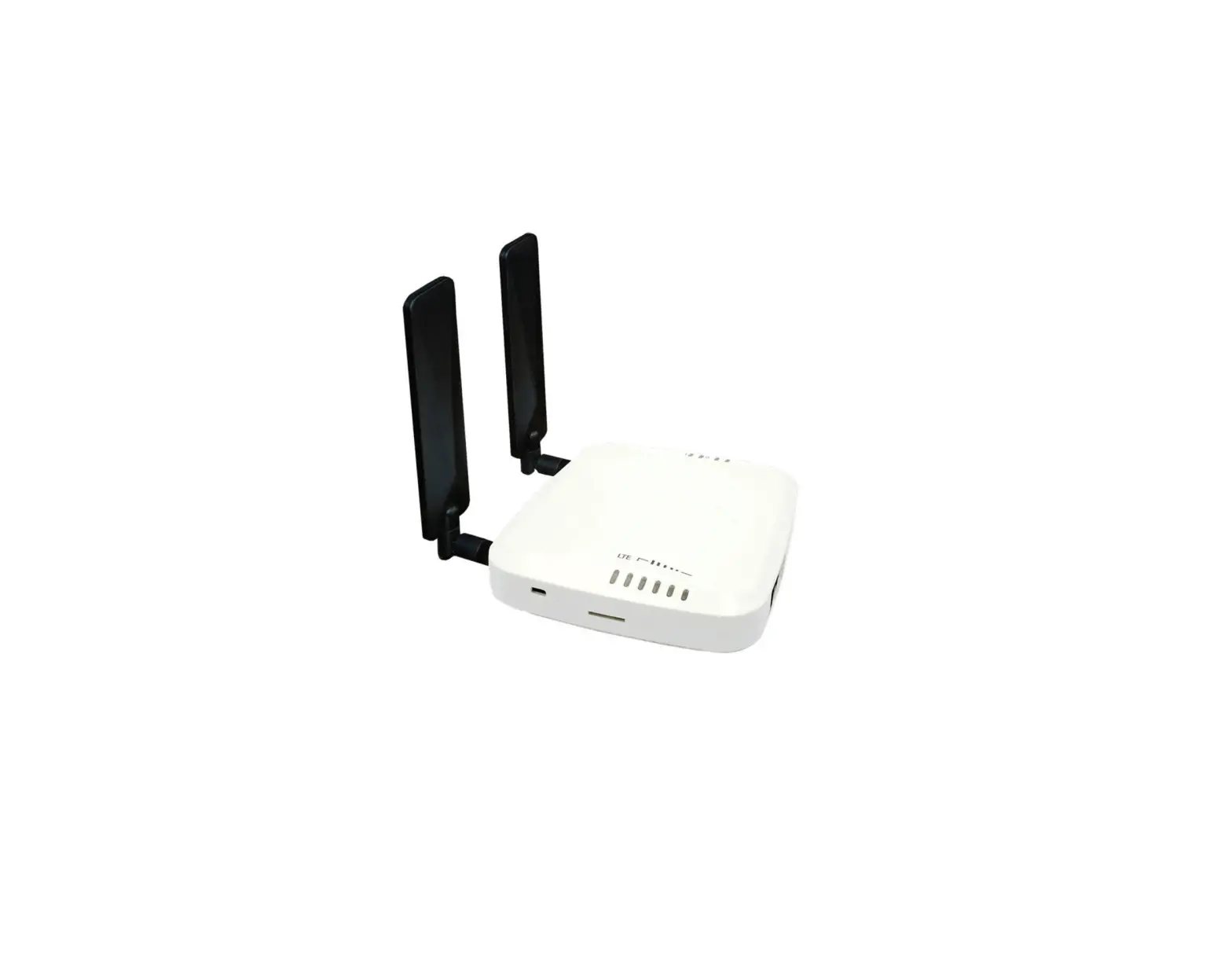
GX GSM Cellular Modem
GX GSM Manual
Revision 01 – 02/2023
This manual is also available in HTML5.
Table of Contents
- Introduction
- 1.1. General Description
- 3.1. Installation Step-by-Step
- 3.2. Configuration
- 5.1. Troubleshooting Guide
- 5.2. What to do if the GX GSM is not staying connected?
- 6.1. Technical Data
- 8.1. Five Year Limited Warranty
Introduction
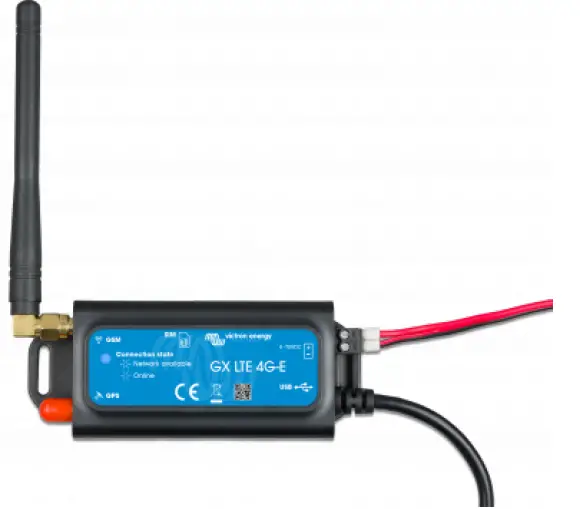
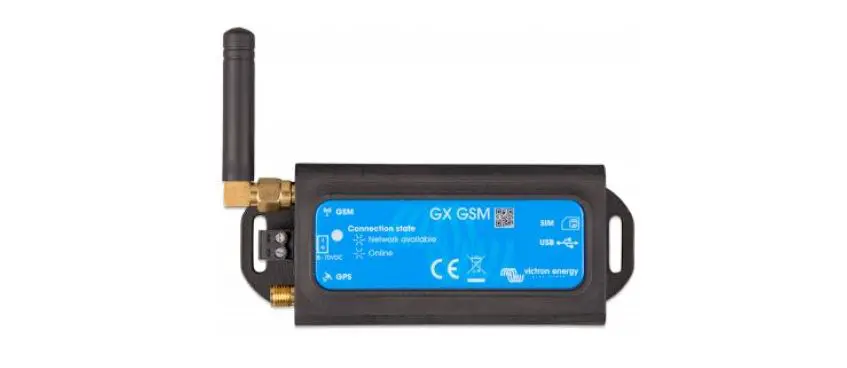
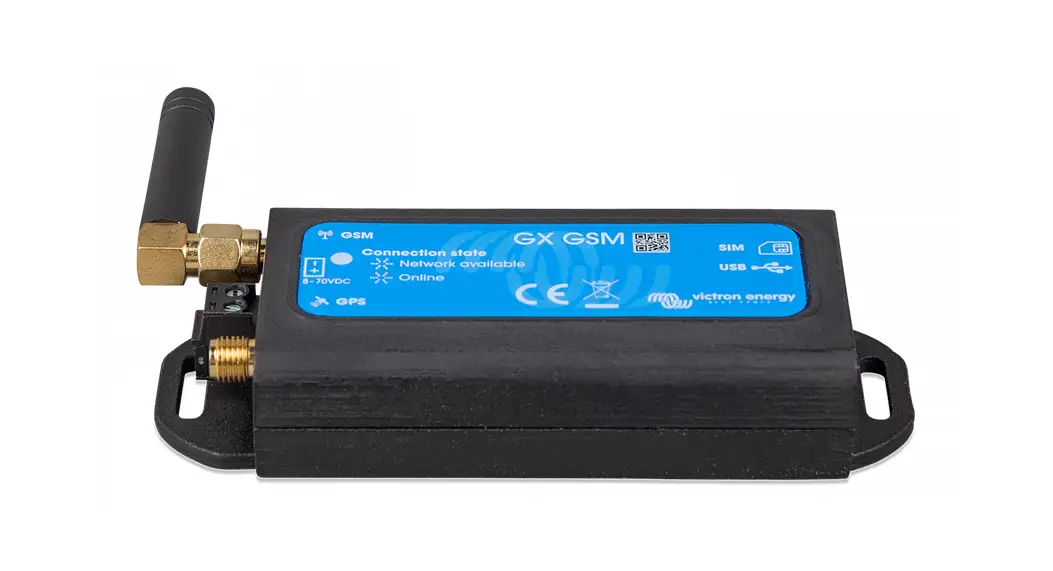
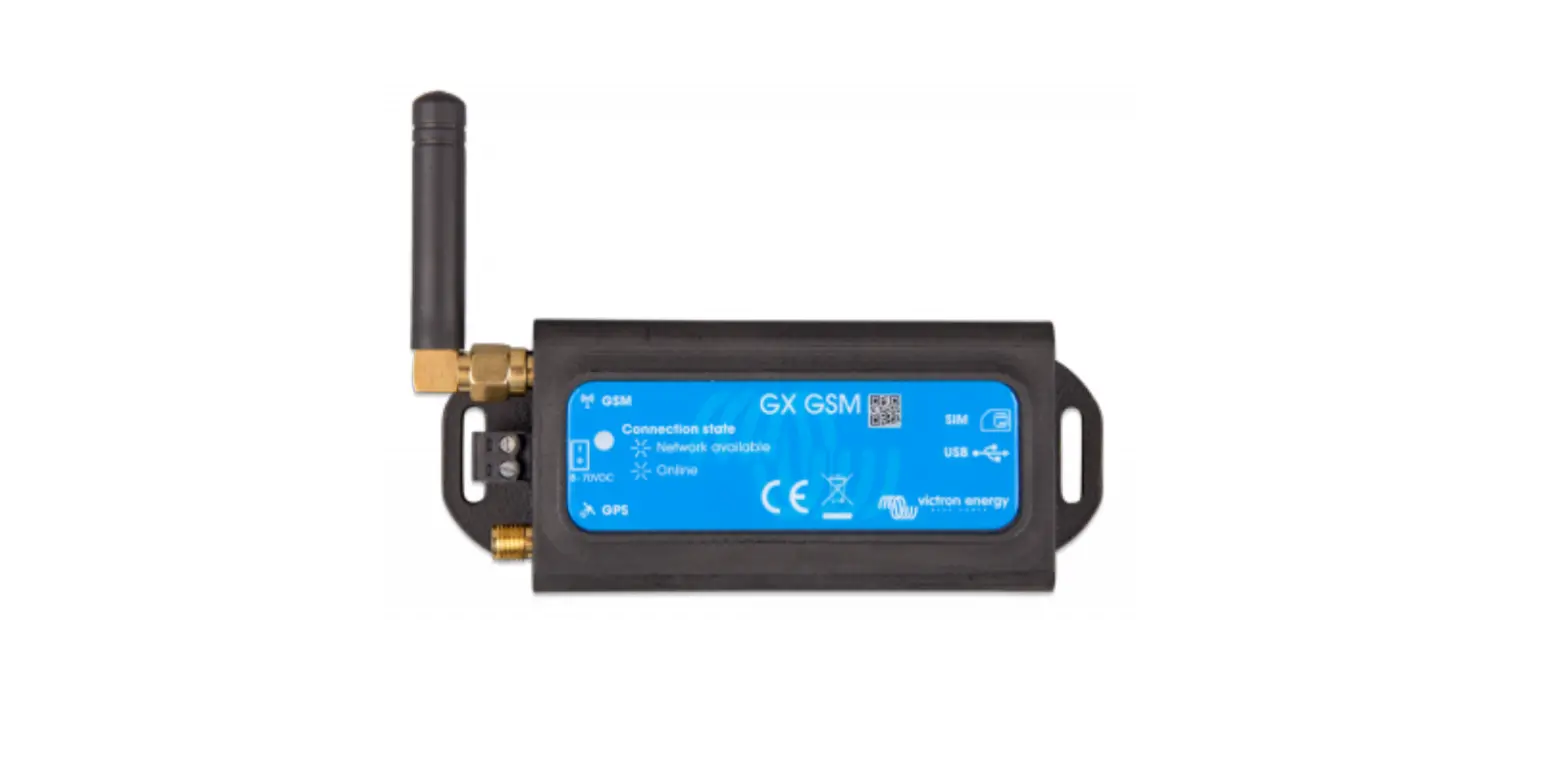
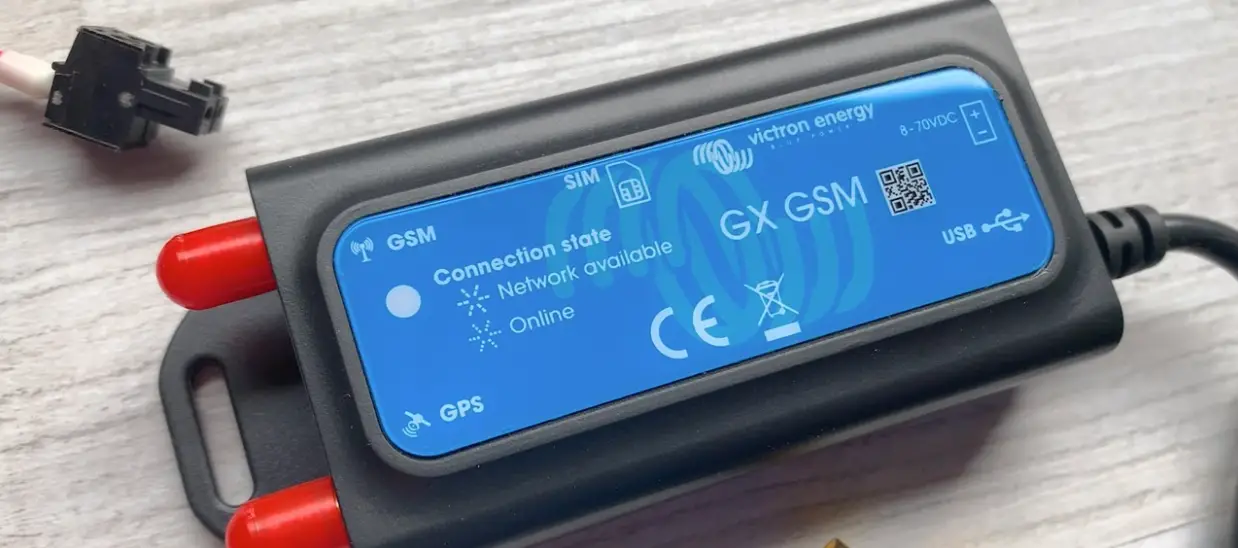
The GX GSM is a modem and GPS accessory for the GX range of
monitoring products. It is a cellular modem that provides mobile
internet for the system and connection to the VRM Portal. However,
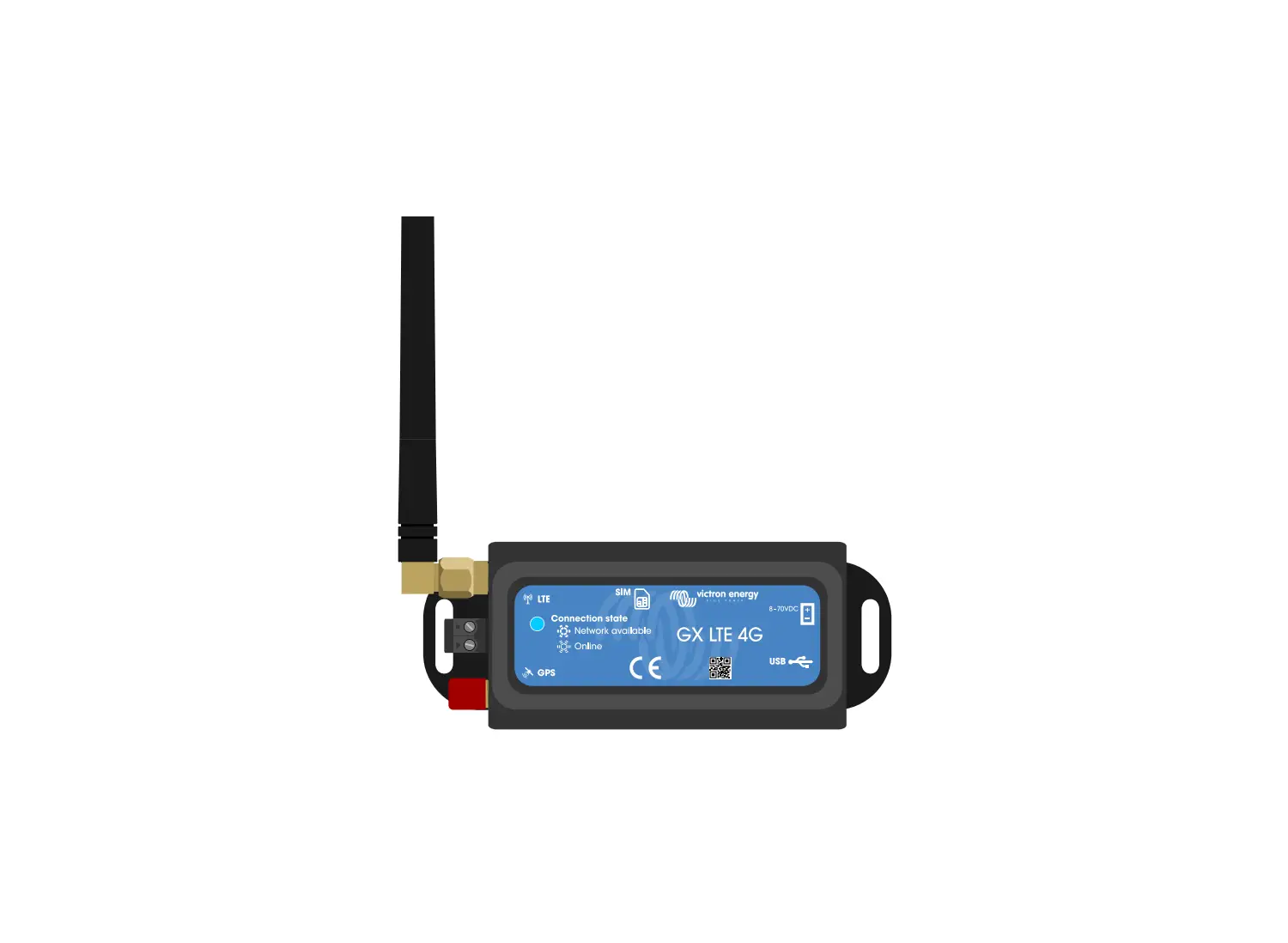
the product described in this guide has been replaced by the newer
GX LTE 4G modem which is more future-proof as it works with newer
networks. The GX GSM only works with 2G and 3G networks which are
being phased out in different countries.
General Description
The GX GSM is available in multiple models, each with different
supported frequencies for 2G and 3G networks. To determine which
model best matches the available cellular network bands in your
region, refer to the table below:
| Part Number | Name | Region* | Used Module | Supported 2G Frequencies | Supported 3G Frequencies |
|---|---|---|---|---|---|
| GSM100100100 | GX GSM 900/2100 | Europe, Asia, Australia, Middle East, Africa | SIMCom SIM5360E | 850/900/1800/1900 MHz (Quad-Band) | 900/2100 MHz (Dual-Band) |
| GSM100200100 | GX GSM 850/1900 | United States, Canada, Mexico and most countries of S. America | SIMCom SIM5360A | 850/900/1800/1900 MHz (Quad-Band) | 850/1900 MHz (Dual-Band) |
* In case of uncertainty please double-check: GSM World Coverage
Map VRM Portal
Features
Built-in GPS Receiver
The GX GSM includes a built-in GPS receiver. When the optional
active GPS antenna is installed, the system can be tracked as well
as geo-fenced on the VRM Portal. The required accessory part number
is GSM900200100 – Active GPS Antenna for GX GSM.
Installation and Configuration
Installation Step-by-Step
The installation process for the GX GSM is detailed in the user
manual. Follow the steps carefully to ensure proper
installation.
Configuration
Configuration of the GX GSM is also detailed in the user manual.
Follow the steps carefully to ensure proper configuration.
Troubleshooting
Troubleshooting Guide
If you are experiencing issues with the GX GSM, refer to the
troubleshooting guide in the user manual. It provides solutions to
common problems.
What to do if the GX GSM is not staying connected?
If the GX GSM is not staying connected, check that the SIM card
is inserted correctly and that there is sufficient signal strength
in your area. If the problem persists, refer to the troubleshooting
guide in the user manual.
Technical Data
Technical Data
Detailed technical data for the GX GSM can be found in the user
manual. Refer to it for more information.
Warranty
Five Year Limited Warranty
The GX GSM comes with a five year limited warranty. Refer to the
user manual for more information on the warranty and how to make a
claim if necessary.
ENGLISH
GX GSM manual
rev 01 – 02/2023
This manual is also available in HTML5.
GX GSM manual
Table of Contents
1. Introduction …………………………………………………………………………………………………………… 1 1.1. General description …………………………………………………………………………………………… 1
2. Features ……………………………………………………………………………………………………………….. 2 2.1. Built-in GPS receiver ………………………………………………………………………………………….. 2 2.2. GX compatibility ………………………………………………………………………………………………. 2 2.3. SIM card ………………………………………………………………………………………………………. 2 2.4. When to use a mobile router instead ………………………………………………………………………….. 2 2.5. Antennas and accessories ……………………………………………………………………………………. 2 2.6. What’s in the box? …………………………………………………………………………………………….. 2
3. Installation and configuration ……………………………………………………………………………………….. 3 3.1. Installation step-by-step ………………………………………………………………………………………. 3 3.2. Configuration ………………………………………………………………………………………………….. 4
4. Operation ……………………………………………………………………………………………………………… 6 4.1. SIM status …………………………………………………………………………………………………….. 6 4.2. Status Bar …………………………………………………………………………………………………….. 6 4.3. GPS …………………………………………………………………………………………………………… 6
5. Troubleshooting ………………………………………………………………………………………………………. 7 5.1. Troubleshooting guide ………………………………………………………………………………………… 7 5.2. What to do if the GX GSM is not staying connected? …………………………………………………………. 7
6. Technical data ………………………………………………………………………………………………………… 8 6.1. Technical data …………………………………………………………………………………………………. 8
7. Appendix ………………………………………………………………………………………………………………. 9 7.1. Accessory / Antennas …………………………………………………………………………………………. 9 7.1.1. Outdoor 2G and 3G GSM Antenna ………………………………………………………………….. 9 7.1.2. Active GPS Antenna …………………………………………………………………………………. 9 7.2. Notes regarding regional coverage ………………………………………………………………………….. 10 7.3. Dimensions ………………………………………………………………………………………………….. 10
8. Warranty …………………………………………………………………………………………………………….. 11 8.1. Five year limited warranty …………………………………………………………………………………… 11
1. Introduction
GX GSM manual
1.1. General description
The product described in this guide is replaced by the newer GX LTE 4G modem.
The GX GSM only works with 2G and 3G networks, which are slowly being phased out in different countries. Therefore, depending on the installation location, the GX LTE 4G can be a more future-proof solution.
The GX GSM is a modem and GPS accessory for our GX range of monitoring products. The GX GSM is a cellular modem; providing a mobile internet for the system and connection to the VRM Portal. It works on 2G and 3G networks.
There are multiple models, refer to the table below to see which model best matches the available cellular network bands in your region.
Part number
Name
GSM100100100
GX GSM 900/2100
GSM100200100
GX GSM 850/1900
Region*
Used module
Europe, Asia, Australia, Middle East, Africa
United States, Canada, Mexico and most countries of S. America
SIMCom SIM5360E
SIMCom SIM5360A
Supported 2G (GSM/GPRS/EDGE)
frequencies
850/900/1800/1900 MHz (Quad-Band)
Supported 3G (UMTS/HSPA+)
frequencies
900/2100 MHz (Dual-Band)
850/900/1800/1900 MHz (Quad-Band)
850/1900 MHz (Dual-Band)
* In case of uncertainty please double-check: GSM World Coverage Map
VRM Portal
Page 1
Introduction
2. Features
GX GSM manual
2.1. Built-in GPS receiver
The GX GSM includes a built-in GPS receiver. When the optional active GPS antenna is installed, the system can be tracked as well as geo-fenced on the VRM Portal. The required accessory part number is GSM900200100 – Active GPS Antenna for GX GSM.
2.2. GX compatibility
The GX GSM can be used with any of the GX devices and requires Venus OS v2.22 or newer to be installed on the GX device.
2.3. SIM card
It requires a SIM card of the Mini-SIM format and connects to the GX device with an included 1m USB cable.
2.4. When to use a mobile router instead
The GX GSM provides an internet connection for the GX device only. There is no option to share the internet to laptops, phones, or other devices.
For installations where more devices need internet, such as a yacht or RV, consider installing a mobile router instead.
2.5. Antennas and accessories
A small indoor GSM antenna is included. Optionally, we also sell an outdoor outdoor 2G and 3G GSM antenna, which increases the range: · Part number GSM900100100 – Outdoor 4G GSM Antenna
2.6. What’s in the box?
· GX GSM (with integrated USB cable) · GSM mini rod antenna (for indoor use) · DC power cable (with inline fuse and terminal block)
Page 2
Features
GX GSM manual
3. Installation and configuration
3.1. Installation step-by-step
Follow the steps below to install the GX GSM: 1. Mount the device in a place that is not covered by metal objects. Consider using the optional outdoor antenna when installing
the GX GSM in a closed metal enclosure, car, or van to increase the range. 2. Mount the supplied antenna to the SMA connector marked GSM or connect an optional external outdoor antenna if required. 3. An optional active GPS antenna is screwed onto the SMA connector labeled GPS. 4. Insert the SIM card. You will need to eject the SIM card tray with a pen or other pointy object. Be aware that the SIM card tray
sits slightly recessed inside the unit. Be sure to push it all the way in. 5. Connect the GX GSM to the GX device with the supplied USB cable. Use a USB hub if all USB sockets are already in use. 6. Connect the DC power supply (8 to 70 VDC). A 1.4 m cable with M10 cable lugs and a built-in Slow Blow fuse 3.15A 250V,
5x20mm is included. Pay attention to the correct polarity as labeled on the front sticker. 7. After power-up, the blue LED will be solid blue. Once it has registered on a network, the LED will start blinking slowly. Finally,
when the internet connection is established, the LED will blink quickly.
Page 3
Installation and configuration
GX GSM manual
3.2. Configuration
The GX GSM is configured entirely via the connected GX device. Setting a SIM-PIN helps reducing the risk of the SIM card being stolen and used. Use a mobile phone to set the SIM-PIN, and thereafter configure it on the GX device as follows: 1. When using a SIM card with its SIM-PIN security disabled, the system will work without further configuration.
2. Setting a SIM-PIN helps reducing the risk of the SIM card being stolen and used. Use a mobile phone to set the SIM-PIN, and there after configure it on the GX device as follows: Go to Settings GSM modem PIN.
3. Enter the same PIN that was previously set in the mobile phone or provided by the network operator.
4. Go to Settings GSM Modem APN and set the APN name if necessary. Some mobile networks require manual configuration of an APN especially when roaming. Contact your network operator for details.
5. If you are installing the GX GSM in an area where you can expect internet coverage to be occasionally disrupted, you should enable the “Reboot device when no contact” option in the GX device’s VRM menu. This will automatically restart the GX device and power cycle the GX if it has failed to transmit data to VRM for the configured time.
Page 4
Installation and configuration
GX GSM manual
Note that if you are leaving internet service coverage areas (such as an RV on the move, or a boat leaving dock to go to sea), then it is recommend to disable this setting, so that your GX is not rebooting itself for no reason. Or set it, for example, to a two hour time-out and accept a reboot every two hours when underway.
Watch this video to learn how to connect via LAN, WiFi and the GX GSM: Connecting a Victron GX Device online and setting up a GX GSM
Page 5
Installation and configuration
4. Operation
GX GSM manual
4.1. SIM status
The SIM status is displayed on the GSM overview page on the GX device. The following table shows all possible states and their meaning:
Status Ready SIM not inserted PIN required PUK required SIM failure SIM busy SIM wrong
Description SIM card is installed properly and registered to the network. SIM card is missing or not inserted properly. SIM tray might hang out a little. SIM card requires a 4 digit PIN for unlock. SIM is locked due to wrong PIN inputs. 8 digit PUK is required to release the lock state. SIM does not respond – might be broken. SIM is in busy state. Type of SIM is not supported.
4.2. Status Bar
GSM modem status can be checked at a glance by looking at the status bar.
Icon
Details
GSM modem is connected to network, but not to the internet (no data connection). Possibly on purpose, because an Ethernet or WiFi connection is available.
GSM modem is properly configured, the 3G/EDGE etc. icon reflects that the cellular modem internet connection is in use and what type of connection is applied.
WiFi is available and its internet connection is in use. WiFi has priority over GSM connection.
SIM-PIN code is required.
Roaming, only informative. To use internet connection while roaming, it needs to be enabled in Settings GSM modem Allow roaming.
4.3. GPS
When the optional active GPS antenna is added, the position is sent to the VRM portal and also displayed in the GX device as follows:
Page 6
Operation
5. Troubleshooting
GX GSM manual
5.1. Troubleshooting guide
There are many reasons for a modem internet connection to not work. Carefully go through each step of this troubleshooting guide. Make sure to start at the first step. When asking for help, make sure to mention each step taken and the result.
Step 1 2 3
Element Power USB connection SIM card status
4
Signal strength
5
Carrier
registration
6
Internet
connection
7
Connection to
VRM portal
Details
Check that the blue LED is either lit continuous or blinking.
The modem must be connected to USB, and visible in the Settings GSM modem menu.
Check the SIM Status in the menu, it must show “Ready”. It will show “SIM not inserted”, or “PIN required”, or “PUK required” and more related errors when there is a problem. Please refer to the SIM status list for details.
1 bar minimum for VRM logging, 2 or 3 bars are necessary for a working remote console. An outdoor antenna typically increases received signal by 15 dB to 25 dB.
Check that a name of a Cellular provider is visible in the “Carrier” field. If it is not, check signal strength and otherwise contact your SIM card provider and/or insert the SIM card in a phone to double check its operation and subscription status.
Verify that the Internet shows “Online”. Reasons for the system to not go “Online” whilst properly registered on the Network are:
1) APN not configured, contact the network operator for details.
2) The network is a different one than the home network (ie. roaming), and the setting to permit Roaming is disabled.
3) Signal strength is strong enough to register on the network, but not to open the data connection to the internet.
Verify that the VRM Portal menu shows a recent last connection time. See Settings VRM Portal. For more details, see the VRM Connection troubleshooting chapter of the GX Manual.
Note that Ethernet and WiFi connections have priority over the cellular connection. Even when the available Ethernet or WiFi connection does not have a good connection to the internet, there is no automatic detection in place which in such case switches over to the GX GSM. In more technical language: when the cellular data connection is active, it is configured with a high routing metric. This way, the Linux kernel prioritises Ethernet or Wifi when these are available.
5.2. What to do if the GX GSM is not staying connected?
Enable the “Reboot device when no contact” configuration setting in the VRM menu of the GX device. That will reboot the GX (and with it the GX GSM) automatically if the internet connection is not available. See also the configuration chapter [4] for more details.
Page 7
Troubleshooting
6. Technical data
GX GSM manual
6.1. Technical data
GX GSM Supply voltage range
Power draw
Operating temperature range Power cable (included) Inline fuse (included) COMMUNICATION USB communication port
LTE antenna connector
GPS antenna connector GNSS SIM card
Data transmission (max. Download/ Upload)
Status indicator INSTALLATION & DIMENSIONS Dimensions (l x w x h) Weight Wire gauge (power cable) Recommended fuse size STANDARDS Safety Emission / Immunity QM
GSM100100100 | GSM100200100 8 – 70VDC
2.5W while 2G/3G data transfer <1.0W in idle mode
+0.4W if GPS is enabled -40 +50°C (-40 – 120°F) 1.4m cable with inline fuse holder, terminal block and 10mm ring terminals
T3.15A250V
Fixed 1.0m cable with USB-A connector (connects to the GX device) Type SMA Female (optional Outdoor 2G and 3G GSM antenna GSM900100100) Type SMA Female (optional GPS antenna GSM900200100) GPS/Beidou/GLONASS/GALILEO/QZSS Regular Mini SIM (supports both 1.8V and 3V) 3G (HSPA+): 42 Mbps / 5.76 Mbps 2G (EDGE): 236.8 Kbps / 236.8 Kbps 2G (GPRS): 85.6 Kbps / 85.6 Kbps Blue LED
106 × 42.5 × 22mm 0.08kg (0.177lbs) 0.5..1.5mm2 / AWG 28..16 or use supplied power cable 500mA @ 12V / 250mA @ 24V / 100mA @ 48V or use supplied inline fuse
EN 60335-1 / EN 60335-2-29 / EN 62368-1 ECE R10-5
EN 9001:2015
Page 8
Technical data
7. Appendix
GX GSM manual
7.1. Accessory / Antennas
7.1.1. Outdoor 2G and 3G GSM Antenna
This antenna can be used with the GX GSM for 2G and 3G bands.
Part number Mounting option Cable type Cable length Connector Frequencies Signal Gain
GSM900100100 Screw mount RG-316 3.0 m SMA Male straight 800/900/1800/1900/2100 MHz 3 dBi
7.1.2. Active GPS Antenna
Part number Mounting option Cable type Cable length Connector Frequencies Impedance
GSM900200100 Magnet RG-74 3.0 m SMA Male straight 1575.42 MHz 50
Page 9
Appendix
GX GSM manual
7.2. Notes regarding regional coverage
A good reference to check frequencies is 4G world Coverage Map. Note that the page also contains 2G and 3G information, which is on its GSM World Coverage link on the top.
USA, Mexico, Canada and most of South America: 1900 MHz is the most common frequency for 3G, which is unsupported for this version of GX GSM. Use the GX LTE 4G instead.
Australia: The 900 MHz 3G frequency in remote areas is typically provided by Optus. Telstra’s rural 3G network operates at 850 MHz, which is not supported with the current version of GX GSM. Both Telstra and Optus operate 2100 Mhz networks in urban areas, and are supported.
7.3. Dimensions
1
2
3
4
5
6
7
8
Dimension Drawing – GX GSM
GSM100100100
GX GSM
A
A
106
96
B
81
22
B
15.25
12
42.5
15.25
C
3.5
C
D
D
19
3
E
E
Dimensions in mm
F
F
1
2
3
4
5
6
7
8
Page 10
Appendix
8. Warranty
GX GSM manual
8.1. Five year limited warranty
This limited warranty covers defects in materials and workmanship in this product and lasts for five years from the date of original purchase of this product.
The customer must return the product together with the receipt of purchase to the point of purchase.
This limited warranty does not cover damage, deterioration or malfunction resulting from alteration, modification, improper or unreasonable use or misuse, neglect, exposure to excess moisture, fire, improper packing, lightning, power surges, or other acts of nature.
This limited warranty does not cover damage, deterioration or malfunction resulting from repairs attempted by anyone unauthorized by Victron Energy to make such repairs.
Victron Energy is not liable for any consequential damages arising from the use of this product.
The maximum liability of Victron Energy under this limited warranty shall not exceed the actual purchase price of the product.
Page 11
Warranty
References
 SIM card format and size comparison | Comparison tables - SocialCompare
-
GX LTE 4G - Victron Energy
-
Victron GX product range [Victron Energy]
-
VRM Portal
-
GX GSM manual
-
VRM - Remote Monitoring - Victron Energy
 4G map LTE World Coverage Map - LTE WiMAX HSPA 3G GSM Country List
-
GSM World Coverage Map- GSM Country List by frequency bands
 SIM card format and size comparison | Comparison tables - SocialCompare
 GX LTE 4G - Victron Energy
 4G map LTE World Coverage Map - LTE WiMAX HSPA 3G GSM Country List