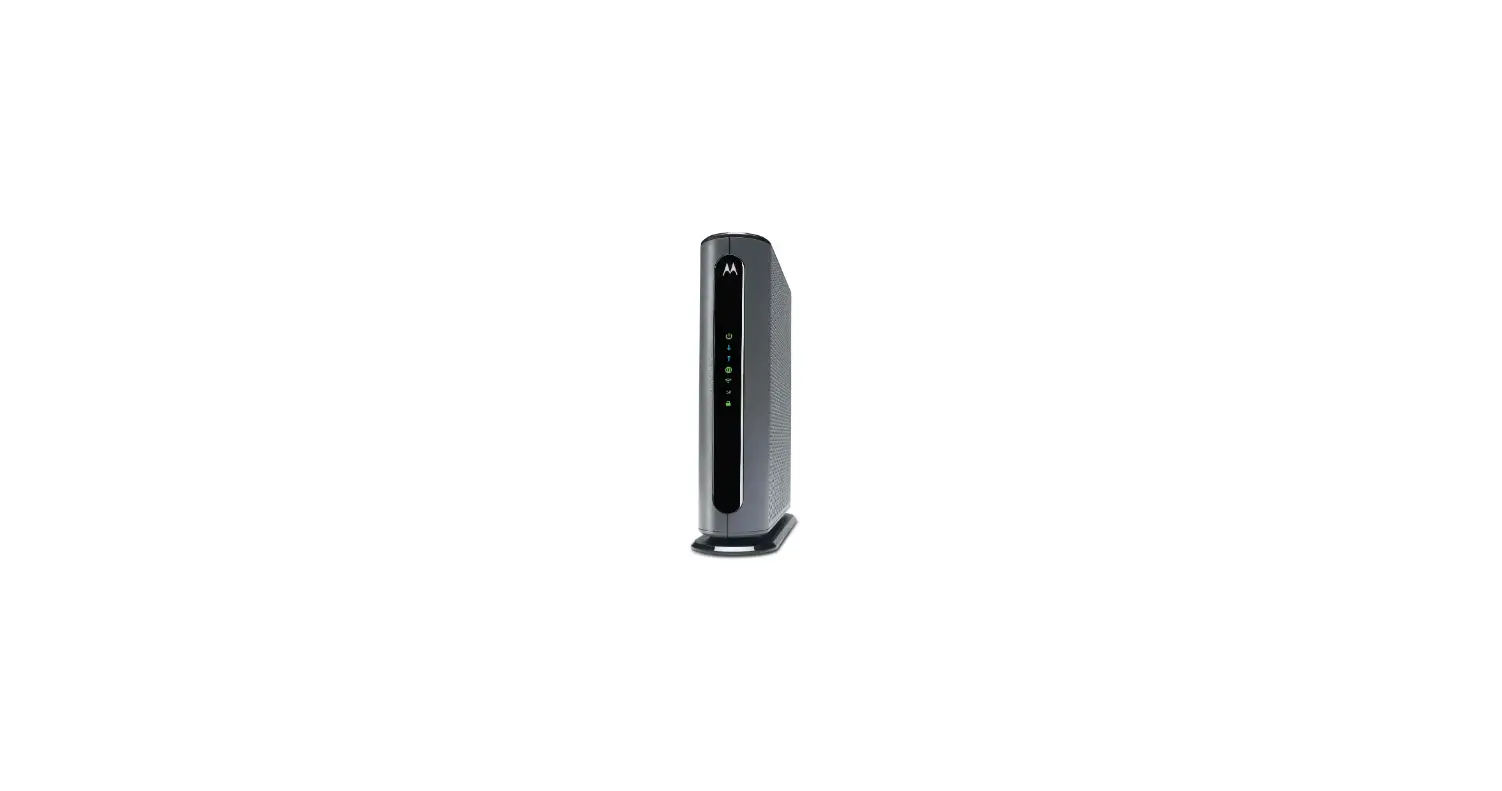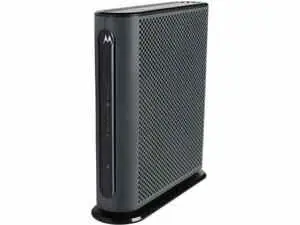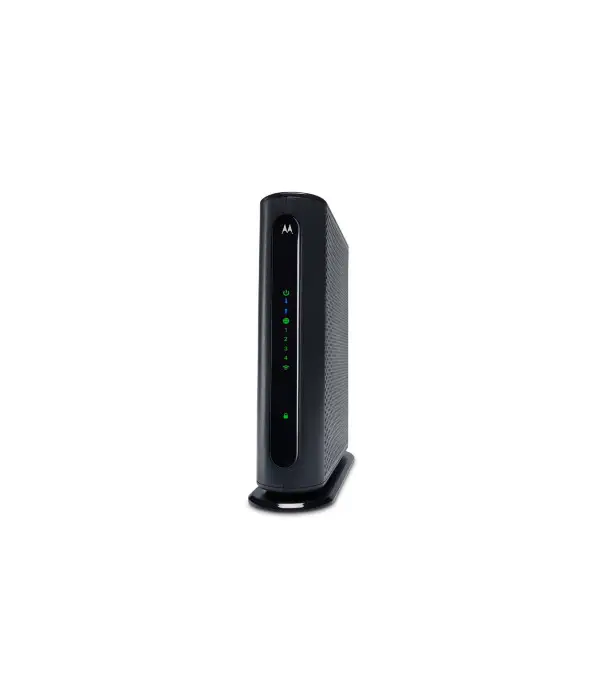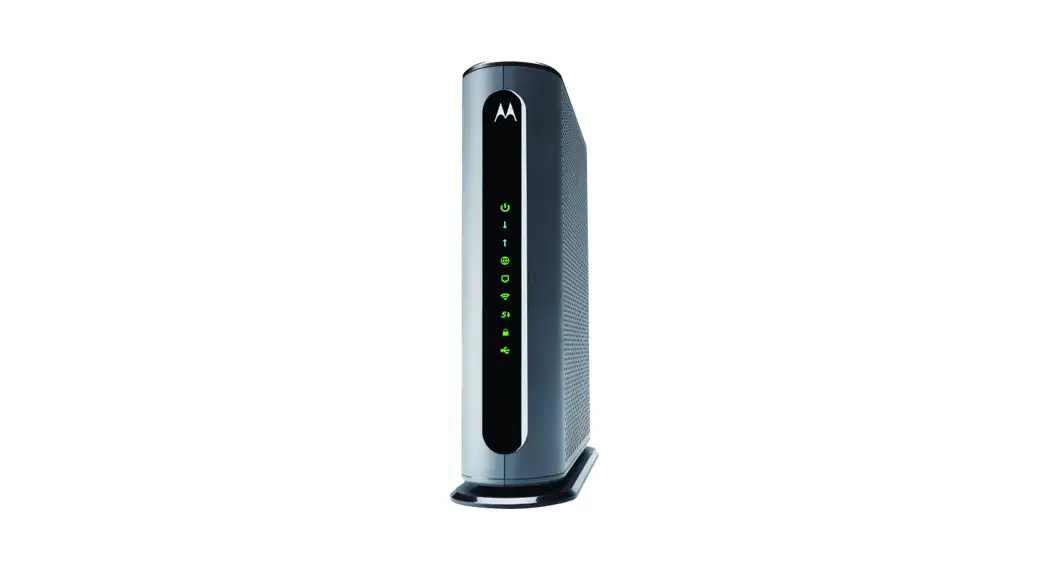
Motorola MG7310 Cable Modem
Modem InformationDOCSIS 3.0 Dual Band WiFi Modem Manage wifi compatible 8×4 channels with speeds of up to 150 Mbps on a wired connection Cox recommends a DOCSIS 3.0 16×4 or higher modem | Highest Service LevelPreferred 150 |
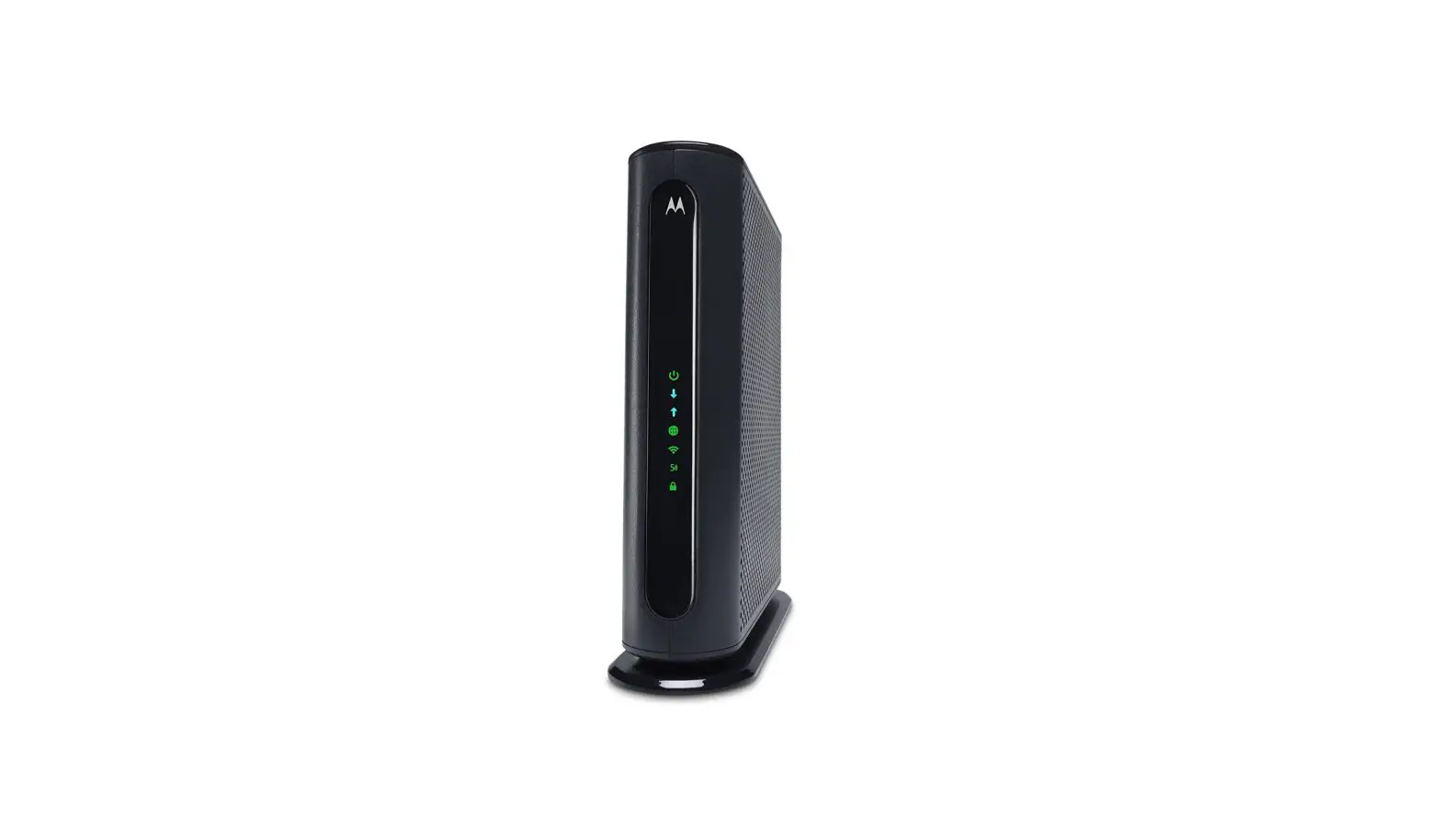
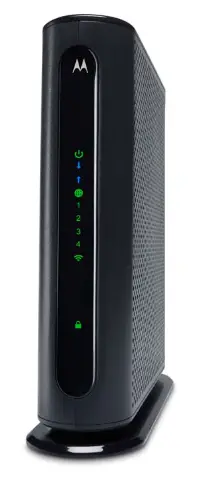
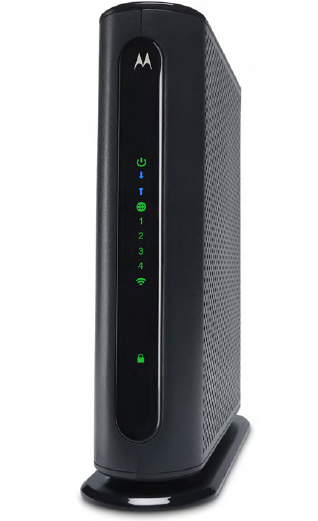
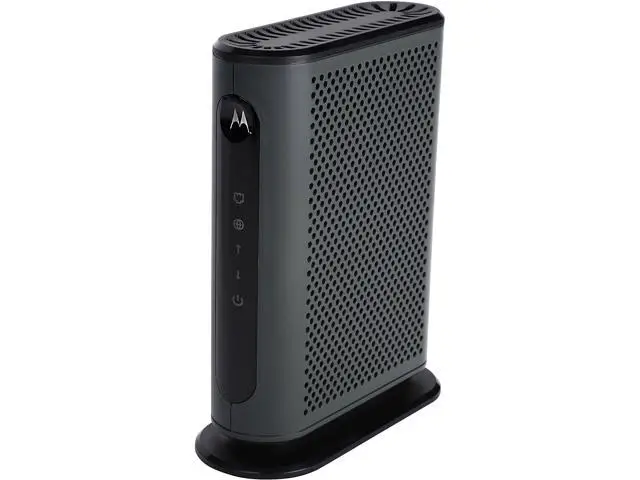
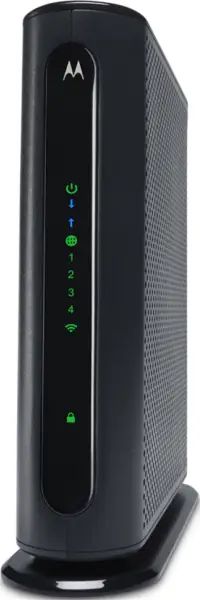
Front View
| After the cable modem successfully registers on the network, the Power, Upstream, Downstream, and Internet indicators illuminate continuously to indicate that the modem is online and fully operational. For more details, refer to the Modem Lights section. | |
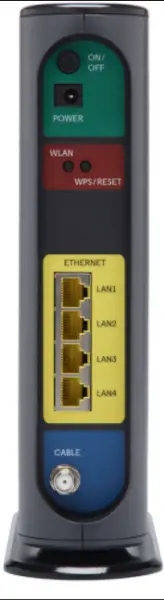
Back View
| The Motorola MG7310 has the following ports available on the back of the modem.
| |
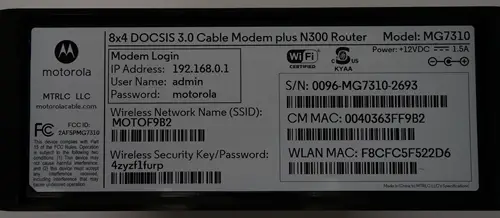
MAC Address
| MAC addresses are written as 12 digits containing both letters and numbers (0-9, A-F). A MAC address is unique. The first six characters of the MAC address are unique to the manufacturer of the device.
|
Troubleshooting
The lights indicate the current status of your gateway. To troubleshoot any connection problems, use the table below.
| Modem Light | Status | Problem |
|---|---|---|
| Power
| On | None. The modem is powered on. |
| Off | No power. | |
| Downstream
| Solid Blue | None. Multiple downstream channels are in use. |
| Blinking Blue | None. Negotiating multiple downstream bonded channels. | |
| Solid Green | None. One downstream channel is in use. | |
| Blinking Green | None. Scanning for downstream channels. | |
| Upstream
| Solid Blue | None. Multiple upstream channel is in use. |
| Blinking Blue | None. Negotiating multiple upstream bonded channels. | |
| Solid Green | None. One upstream channel is in use. | |
| Blinking Green | None. Scanning for an upstream channel. | |
| Off | No upstream channels are in use. | |
| Online
| On | None. The modem is online. |
| Blinking | None. The modem is registering a connection. | |
| Off | The modem is offline. | |
| Ethernet LAN
| Green | None. A device is connected to the Ethernet port and is using 1 Gbps LAN speed. |
| Amber | None. A device is connected to the Ethernet port and is using 10 or 100 Mbps LAN speed. | |
| Blinking | None. Data is being transferred over the Ethernet connection. | |
| Off | No device is connected or the device is disabled. | |
| WLAN
| Off | WiFi is not enabled. |
| Blinking | None. Data is being transferred over the WiFi connection. | |
| On | None. WiFi is enabled. | |
| WPS
| Blinking | None. WPS is in discovery mode. |
| On | None. WPS configuration is successful. |


Manufacturer Resources
For more detailed technical information, use the resources below.