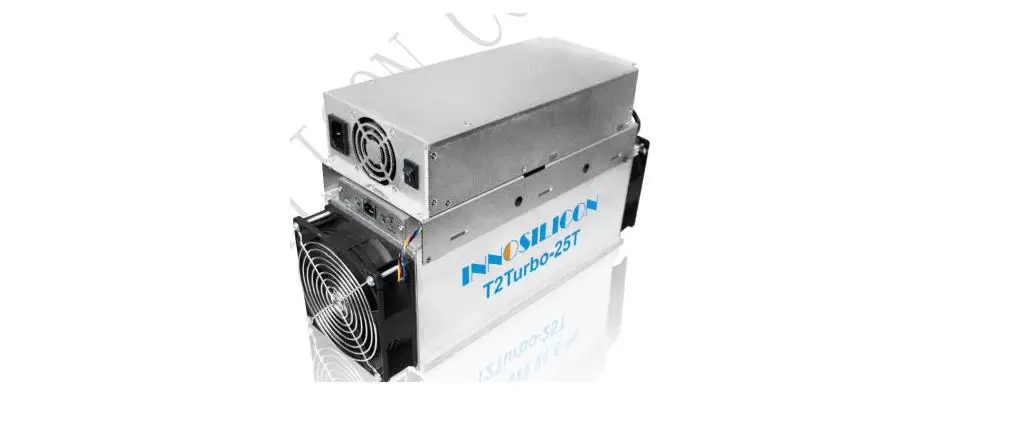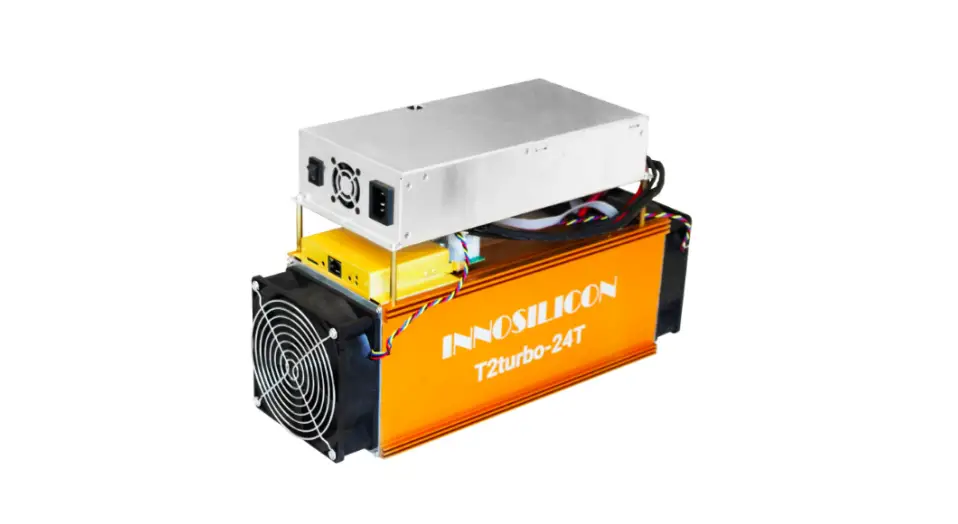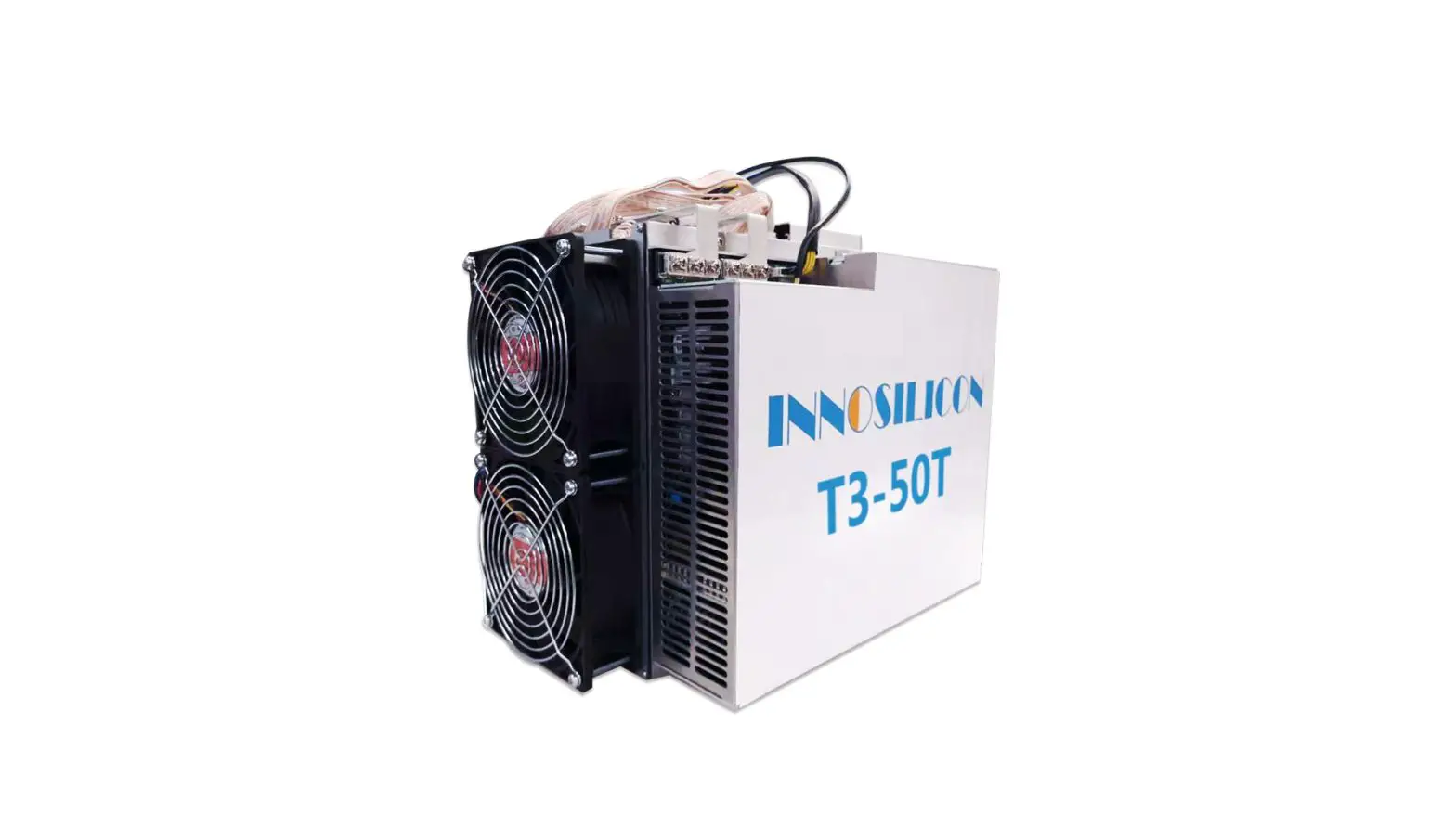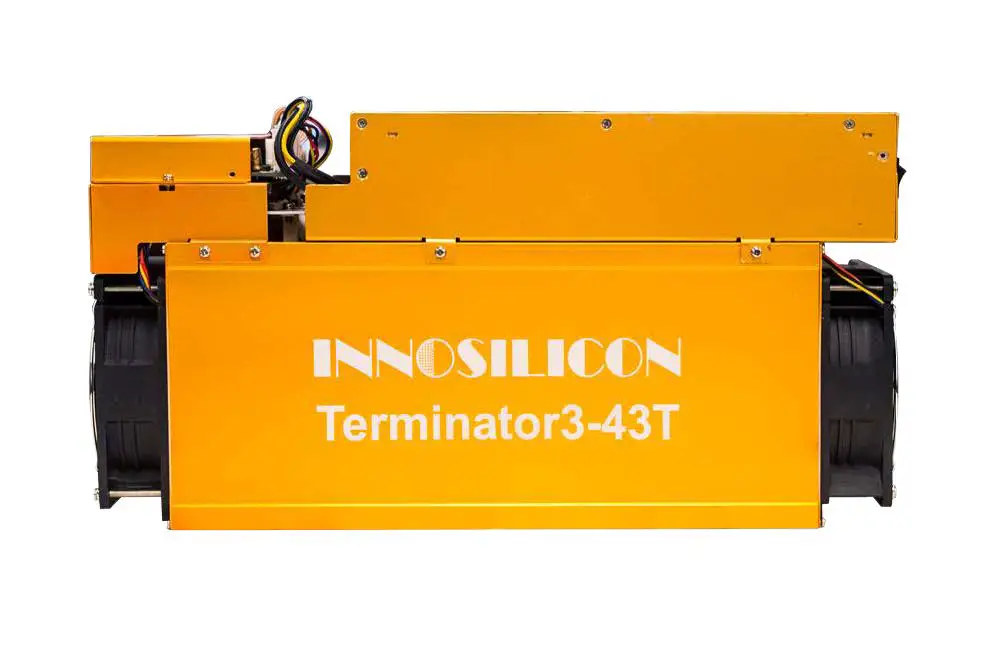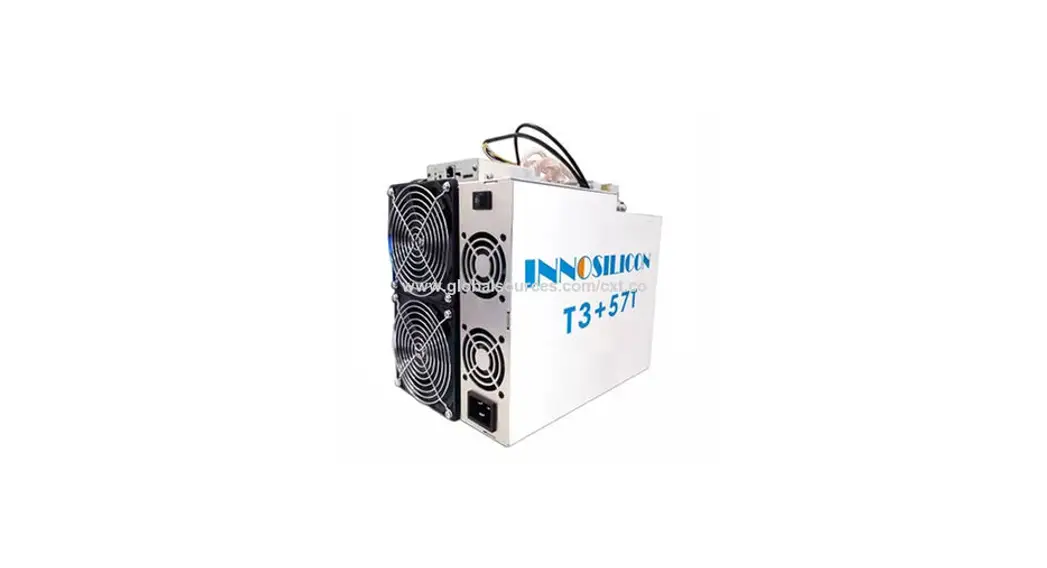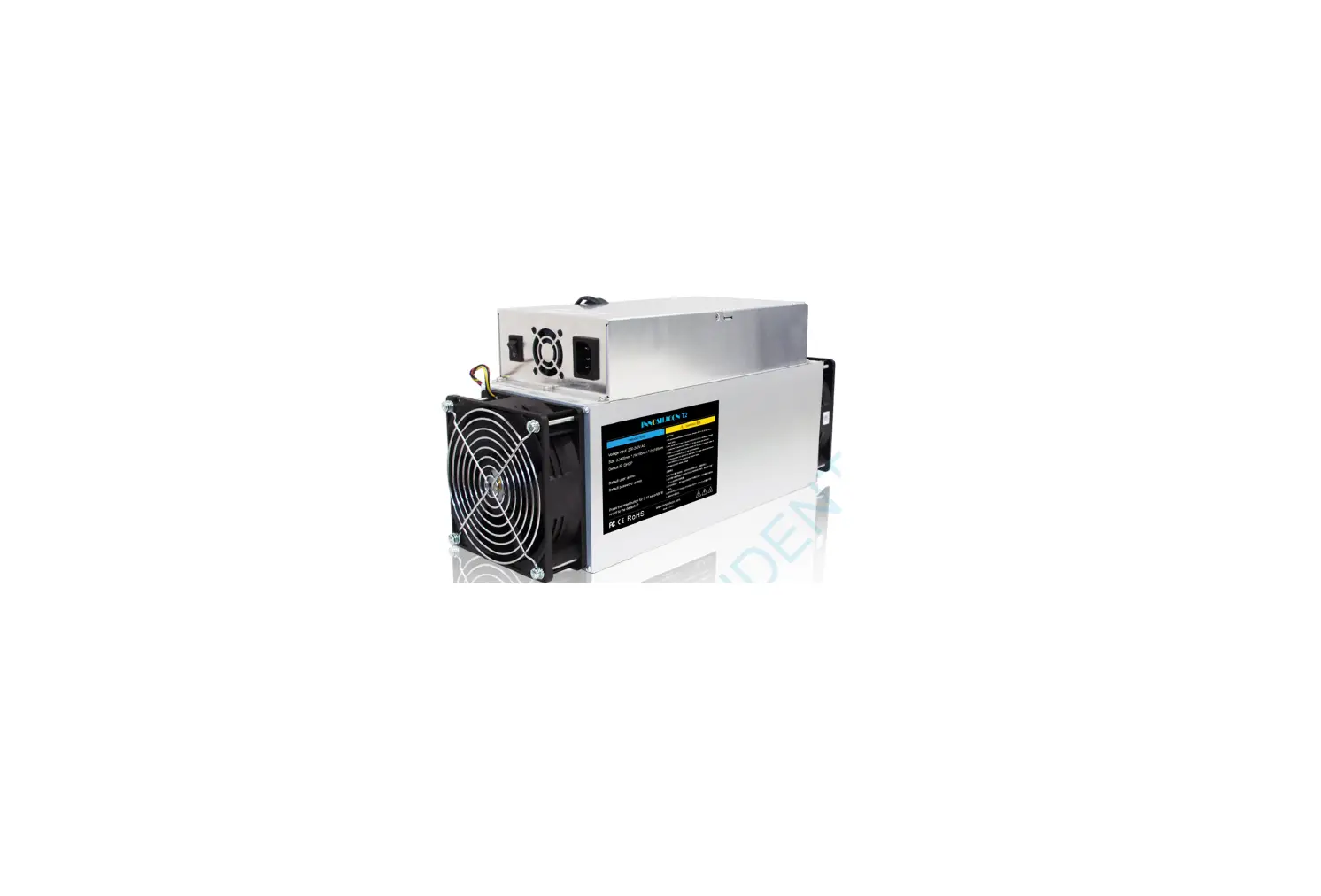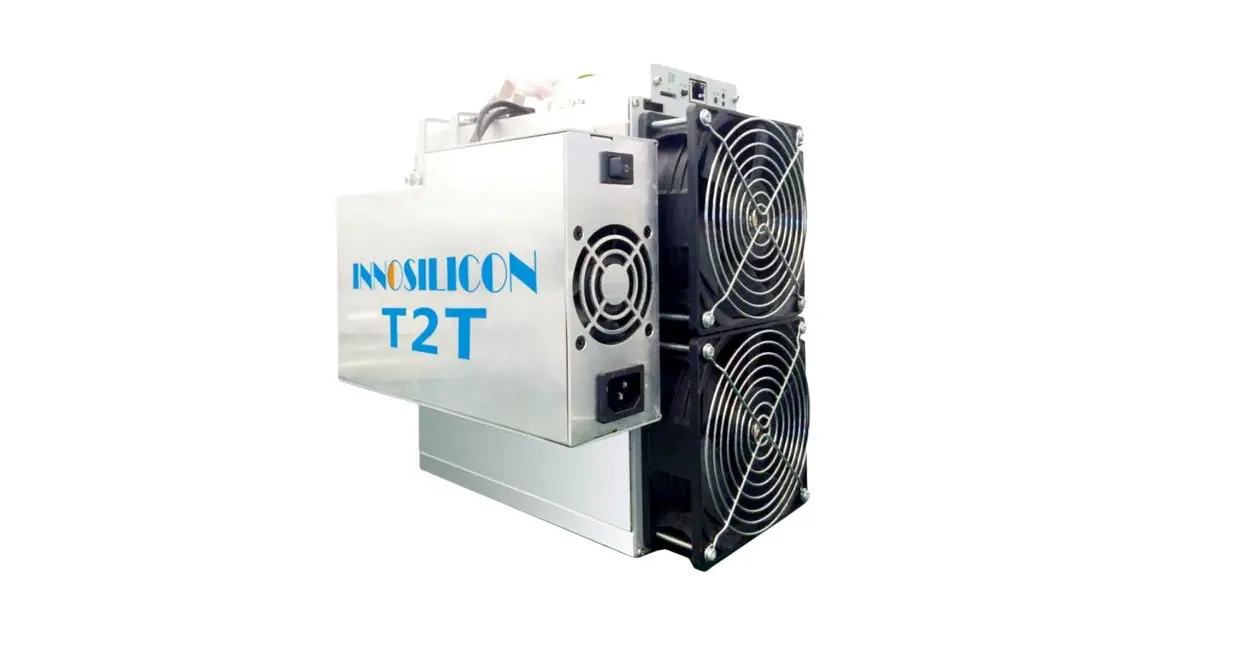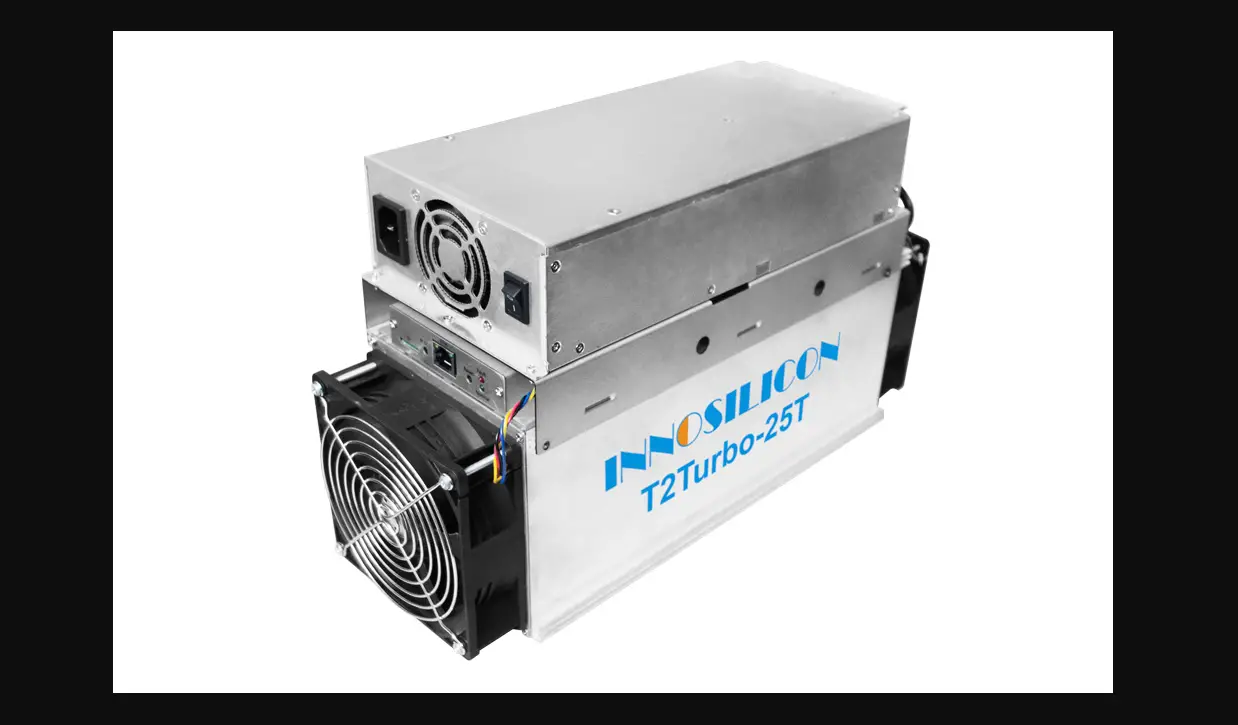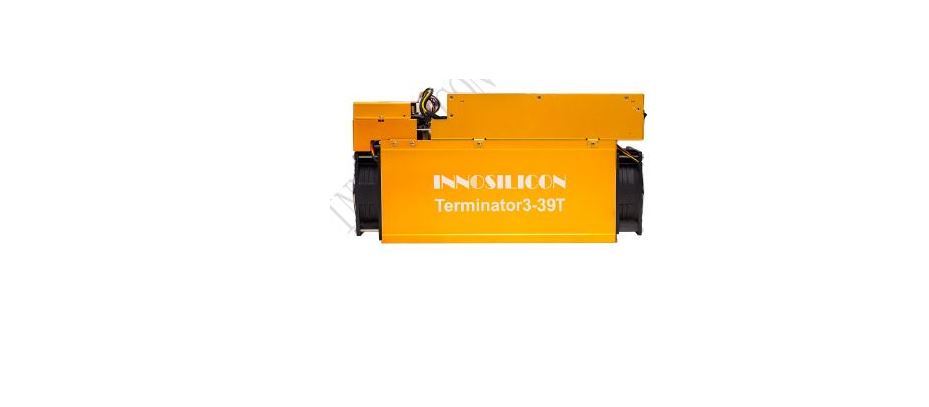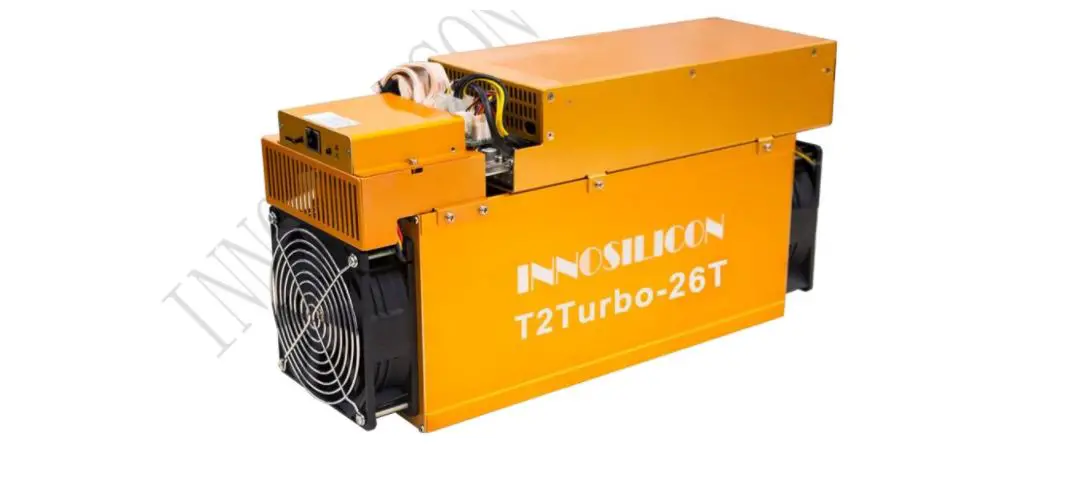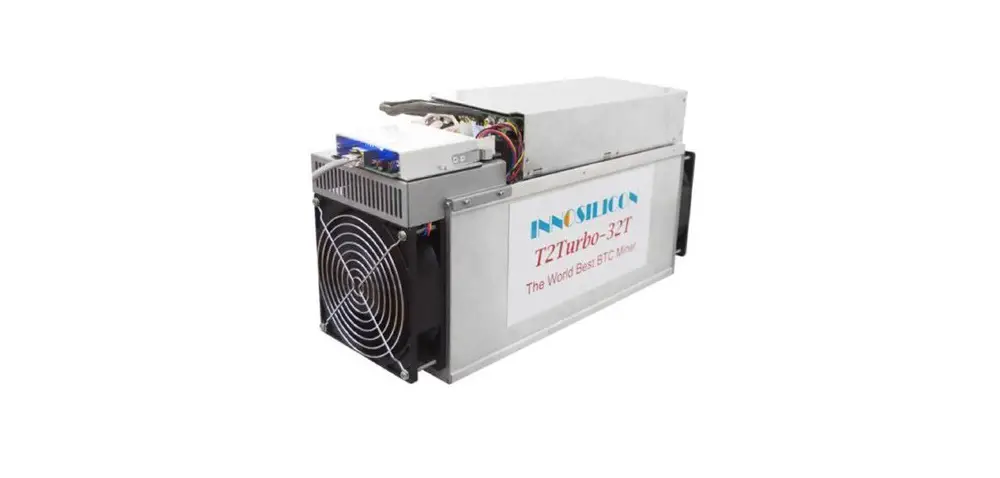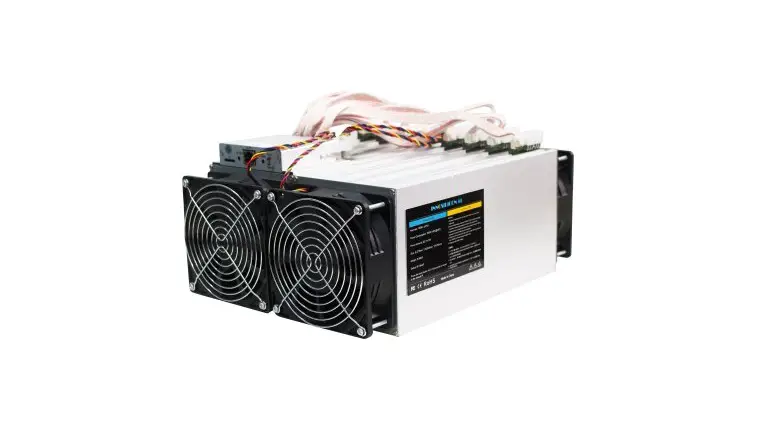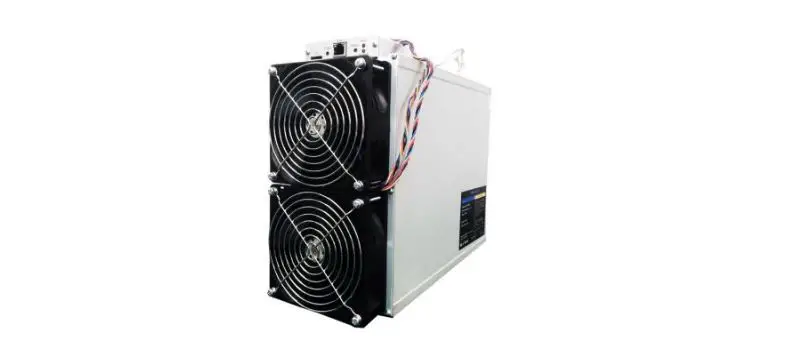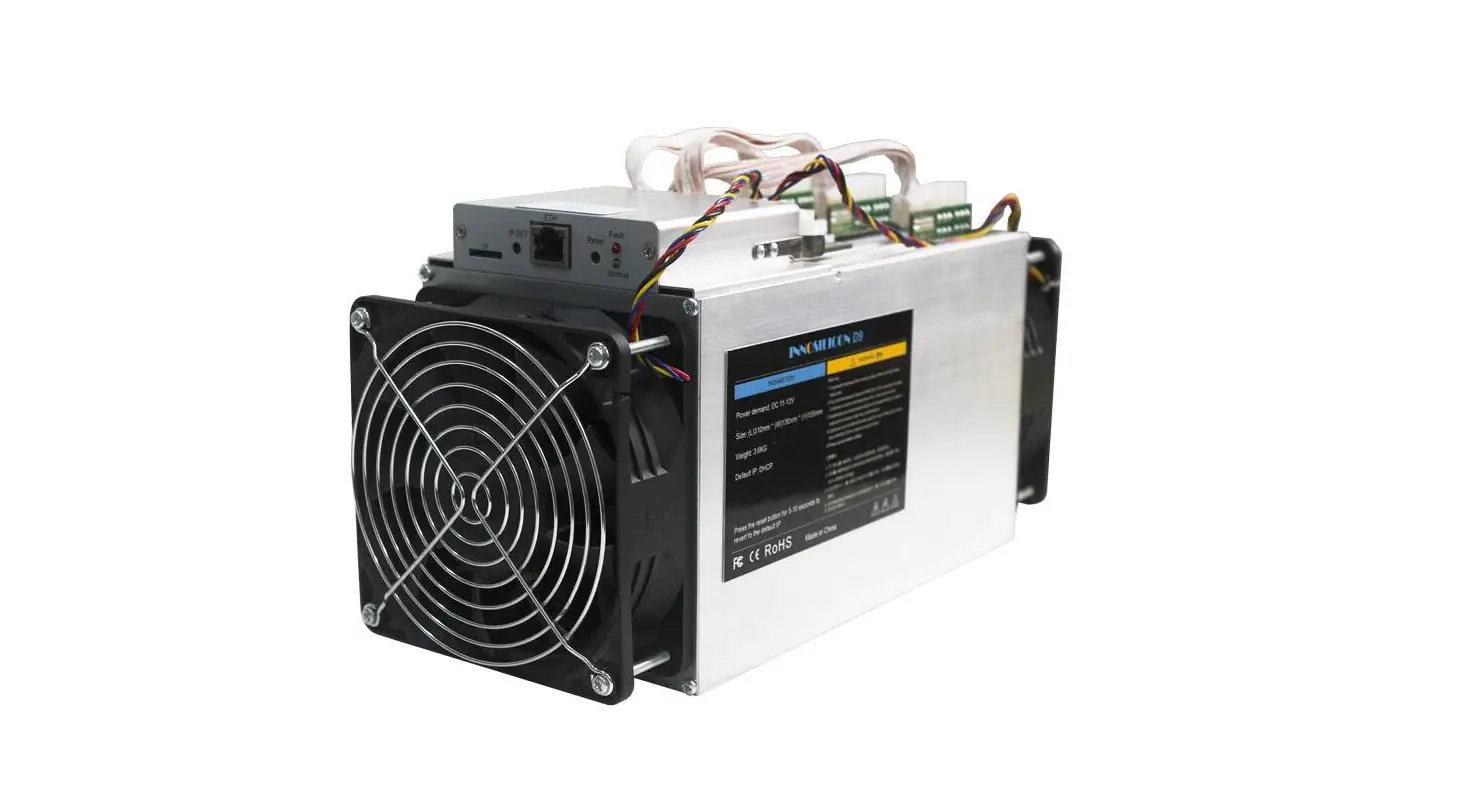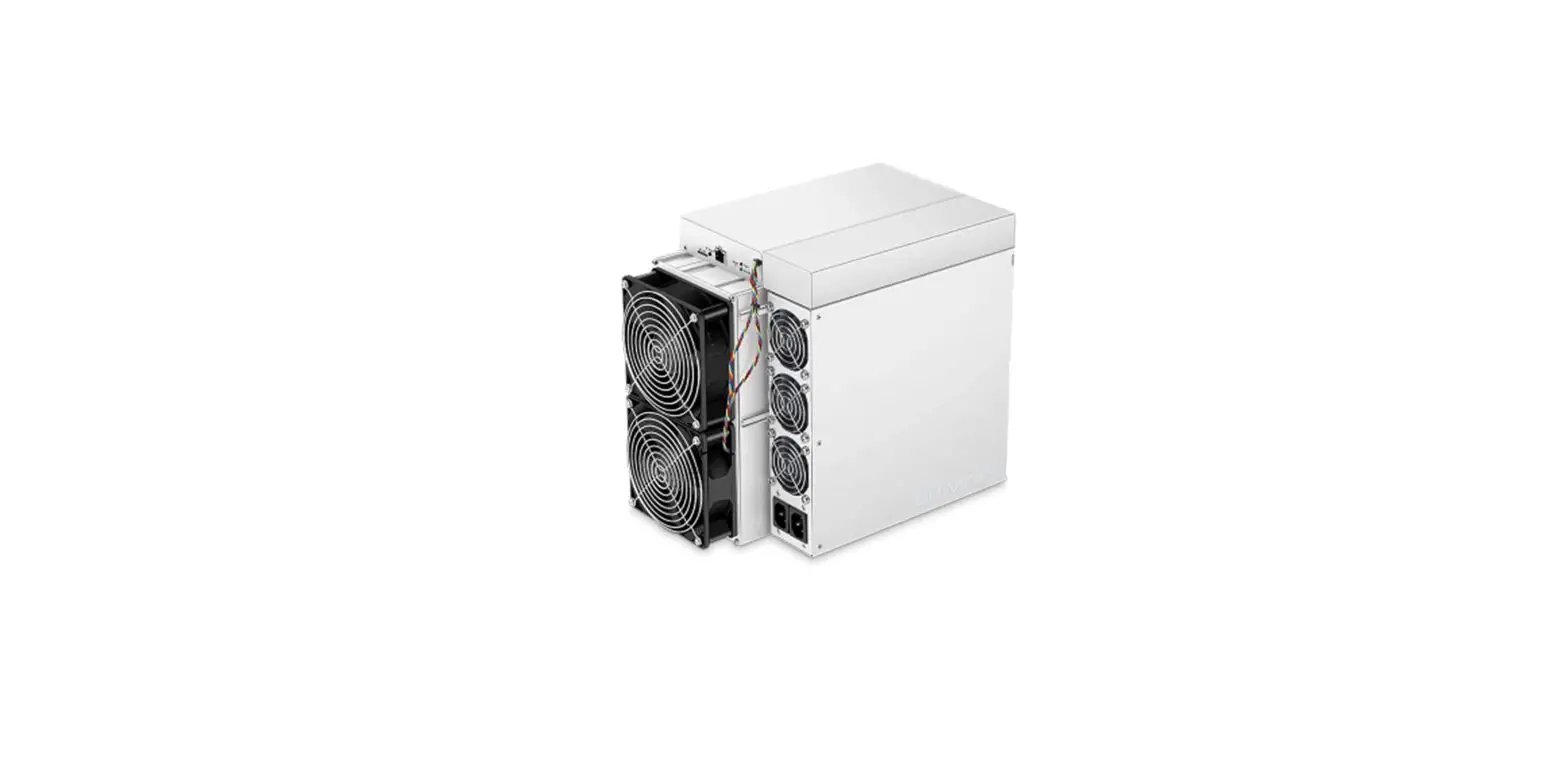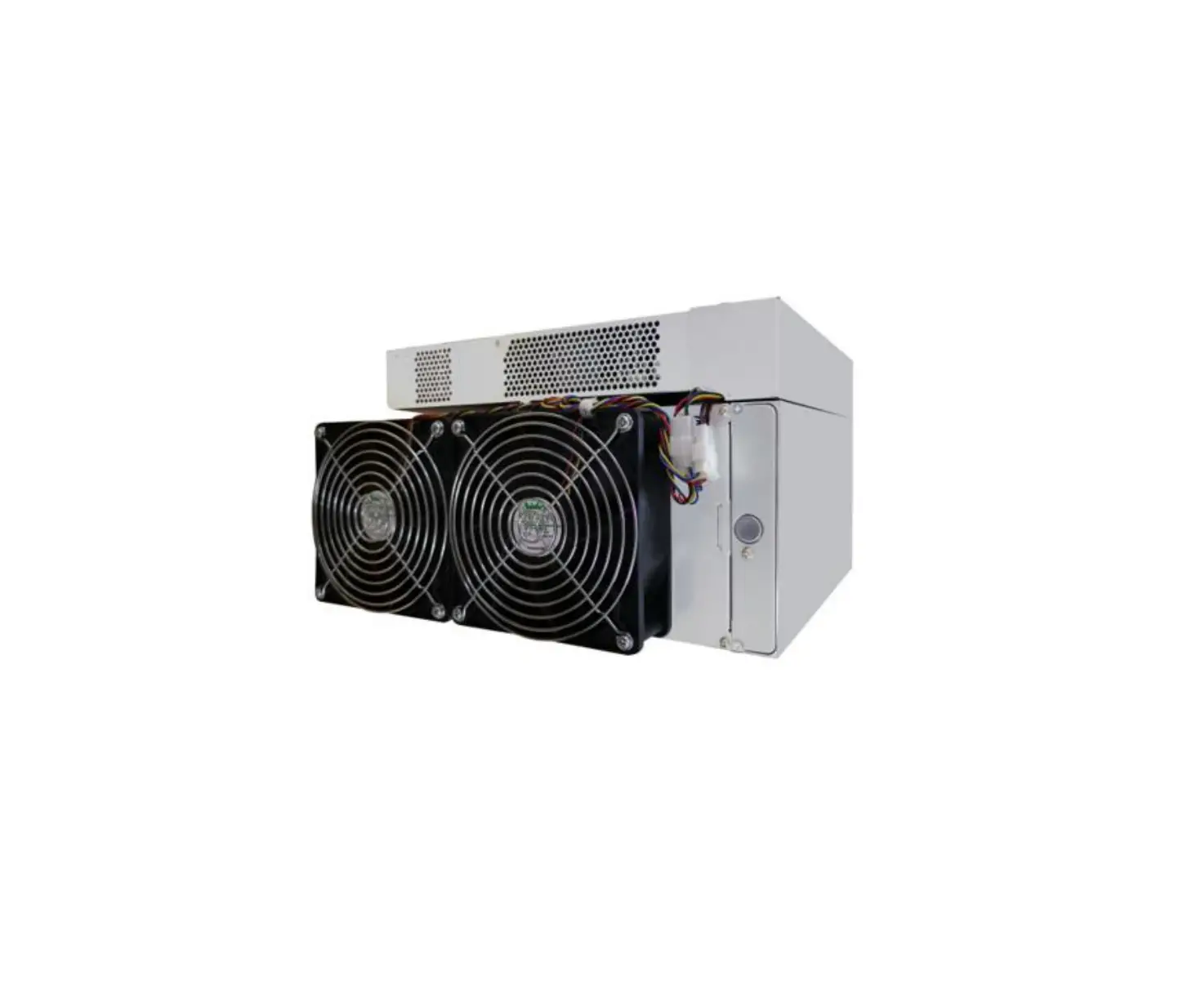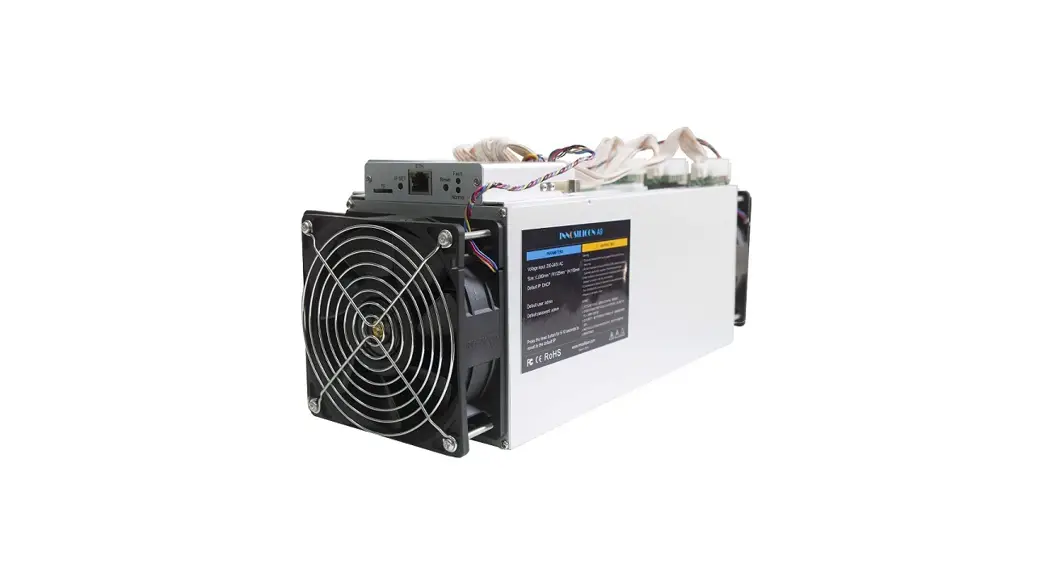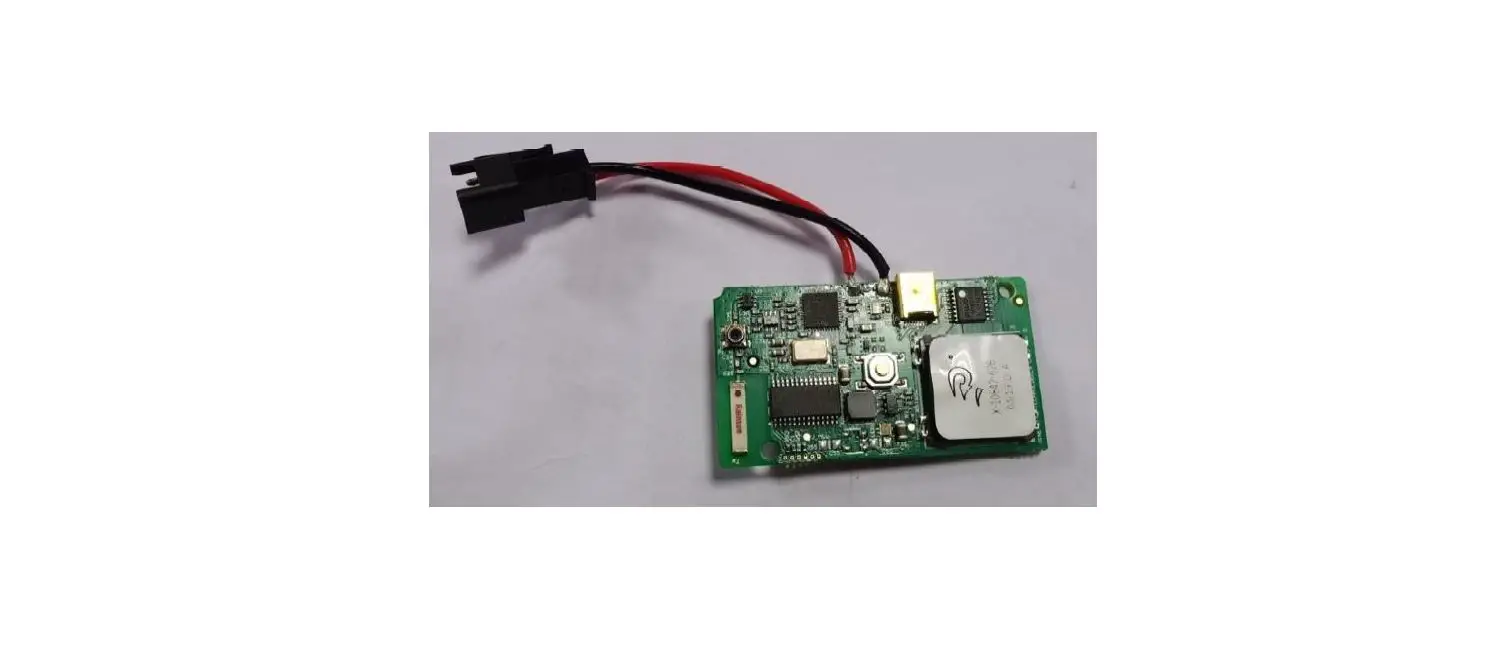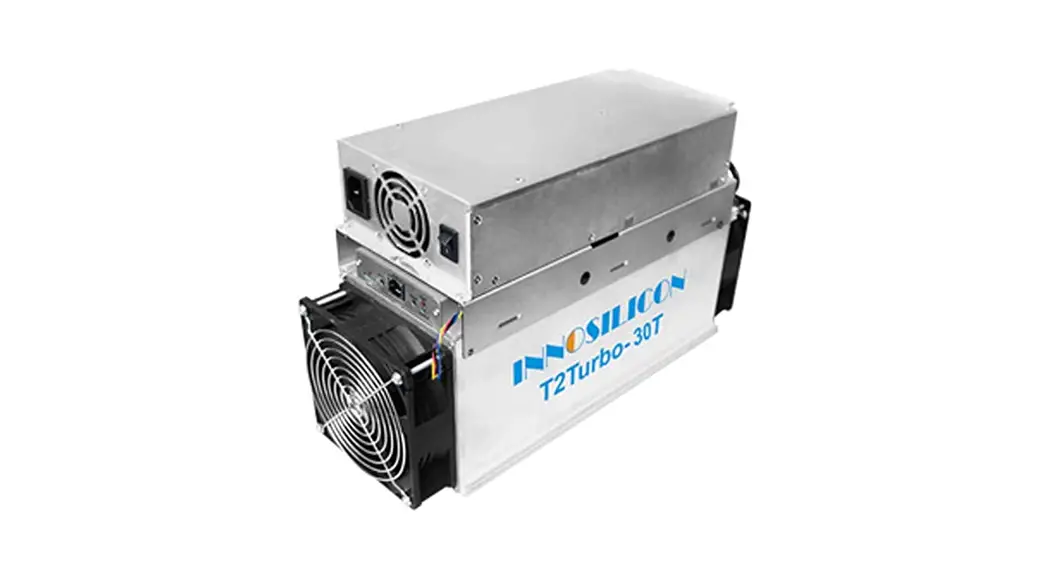

T2TZ-30T BTC
USER MANUAL
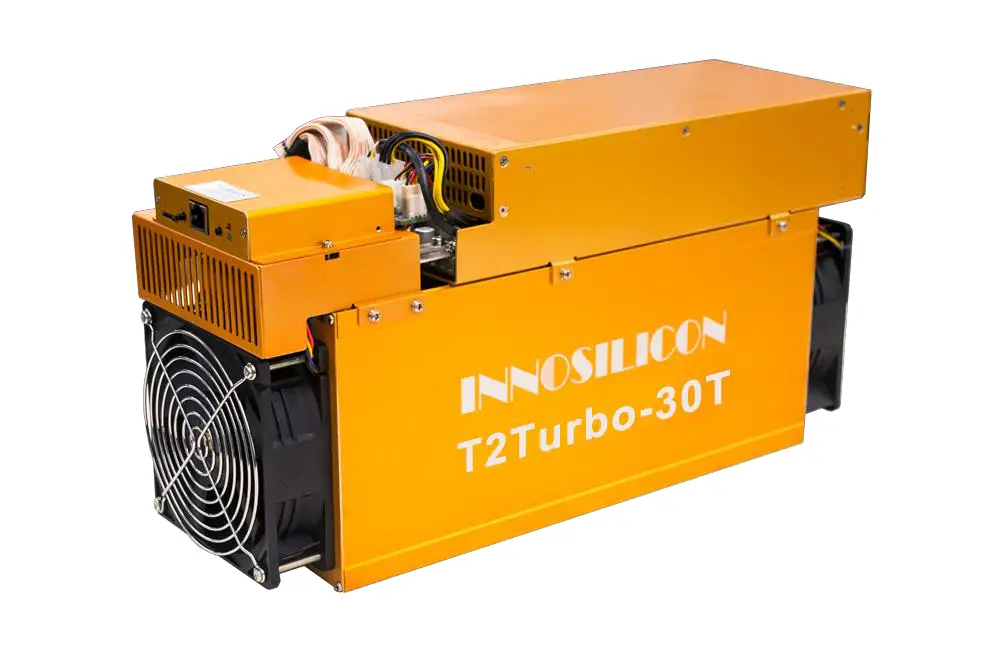
Overview
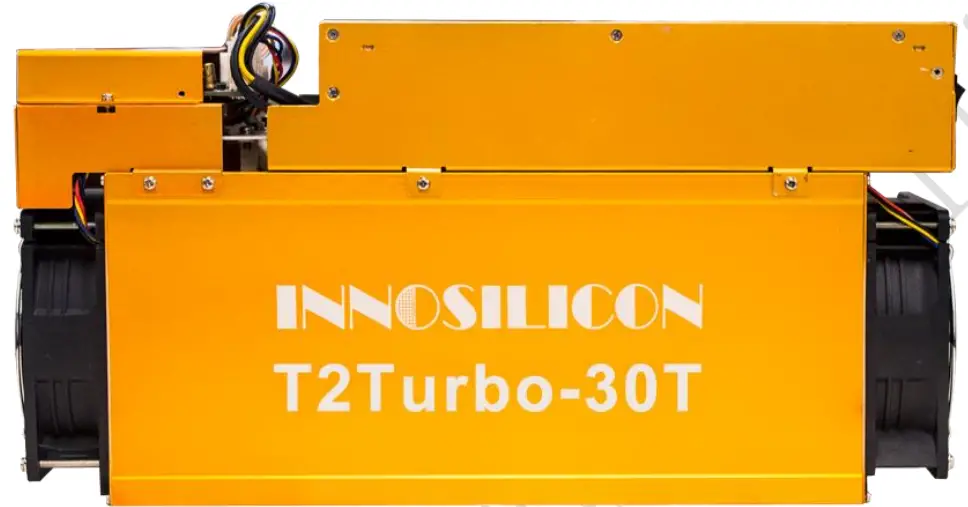
Specifications
| Part Number | T2TZ-30T |
| Algorithm | Sha256 |
| Size (L X W X H) | 422mm(L)*142mm(W)*213mm ( H ) |
| Net Weight | 9.5KG |
| Operating Temperature | 0-40 °C (device junction temperature) |
| Network Connection | Ethernet |
Typical Hashrate and Power Dissipation of the Four Mode:(You can set the mode following the manual 3.5.1)
| Mode | Performance | Factory | Balance | Efficient |
| Hashrate | 30TH ± 5% | 29TH± 5% | 26TH –I– 5% | 24TH± 5% |
| Power dissipation | 2200W± 10% | 2100W± 10% | 1900W± 10% | 1620W± 10% |
Assemble the miner
2.1 Check the miner before power on
- Check the warranty sticker is well or not, especially the hash boards PSU port side. If the warranty sticker is damaged when you received the miner, please contact our After-sales.
- Before you power on the miner, shake the miner softly, if you can hear the sound of metal banging on metal, please contact our After-sales.
- Check if the fans work well if you find the fans broken please contact our After-sales.
- The cable connection should be the same as in the following picture.
Note:
There is a lead on each dashboard, which can show the work status of the hashbaord.
When the miner start to work, they led
Solid—working well
Blink—the dashboard overheat, please check the fans of the miner and the room temp
Off-the hashboard doesn’t work, please try to reboot the miner or change the data cable. You can contact our after-sales team if the problem still exists.
Innosilicon After-sales Team
Email:[email protected]
2.2 Assemble&Operate
Connect the miner and the router by the Ethernet cable, then the miner can start to run after power on the miner.
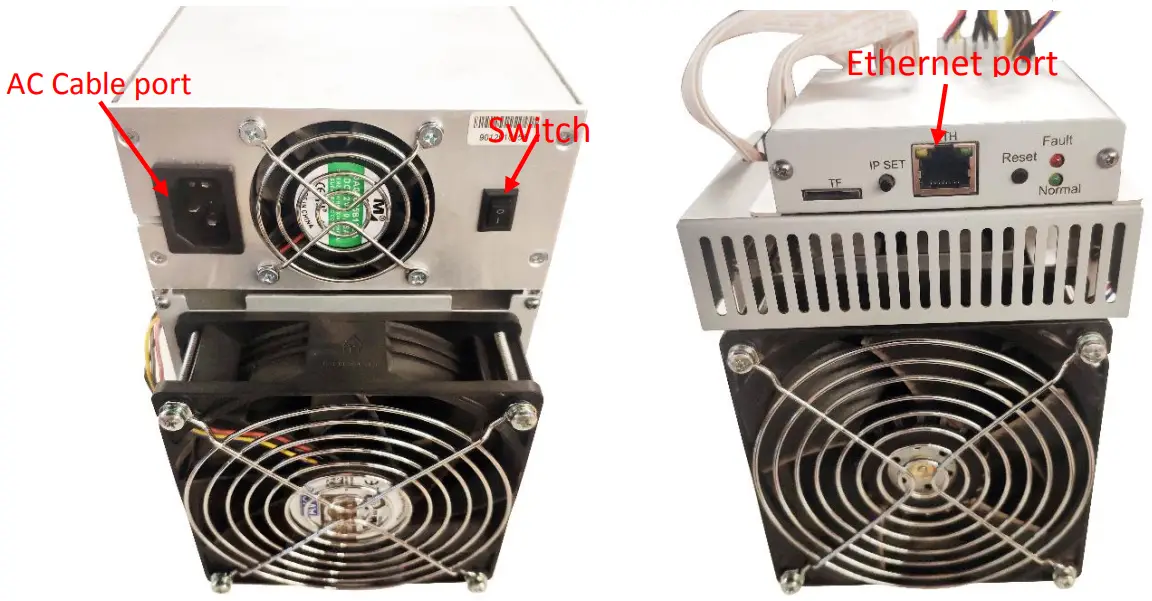
Normal Led: Solid means static IP; Blinking means DHCP
Fault Led: On means, the network has something wrong; Off means OK.
IP SET button:
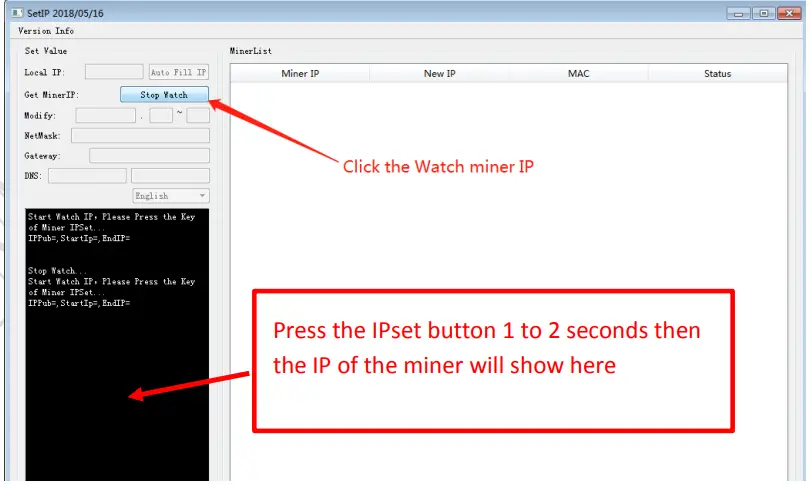
Press it 1—4 seconds, it will (1) show the IP of the miner in the “Set IP” tool; (2) change the miner to
Static IP mode and modify the IP to the IP range you set in the “Set IP” tool
Press it 4—15 seconds, the miner will become to DHCP and the settings of the miner should be restored to default.
Press it more than 20 seconds to switch the Dynamic (Static) IP to Static (Dynamic)
RESET button: Your miner will restart if you press it.
Operate the miner
3.1 Enter the miner console
DHCP is the default IP mode of the miner, find the IP via the router or the IP scanner. Or you can use the
“SetIP” tool which is developed by ourselves to search the IP. Download link is:
https://drive.google.com/open?id=1O3D4OYfFfYYT5prN6J6DgrW1bFJrCKmx
a. Put the tool on the PC which is connected with the same router with the miner, then double click the tool and choose the language.
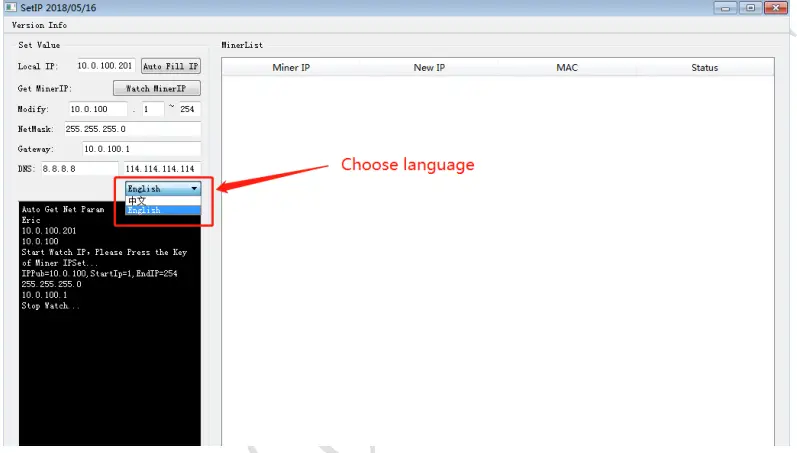
b.Report the miner IP
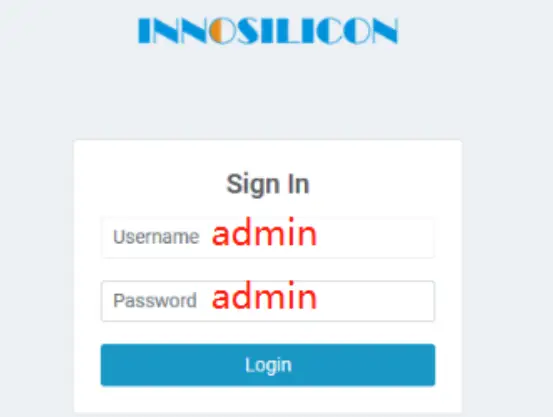
Enter the IP of the miner on the browser and press the Enter button. Chrome is the suggested browser.
3.2 Set up the pool
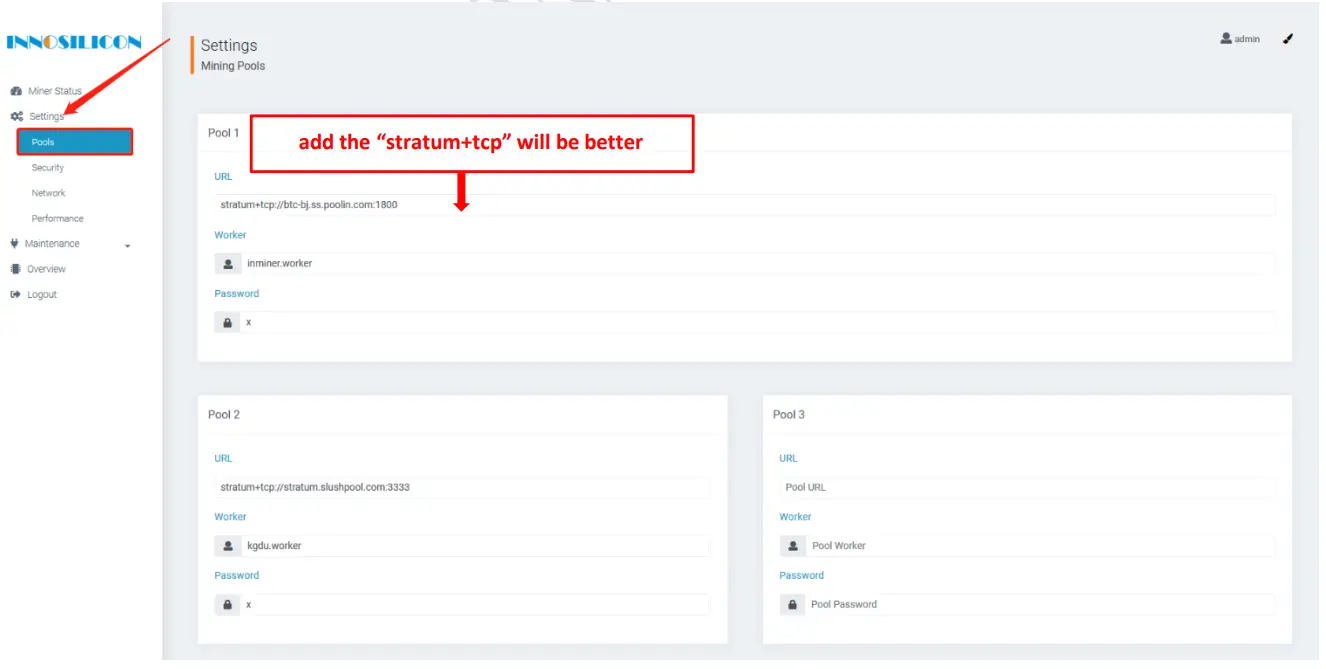
You can use the suggested pool as below:
- f2pool:stratum+tcp://btc-65536.f2pool.com:3333
- poolin: stratum+tcp://btc-bj.ss.poolin.com:1800 or stratum+tcp://btc-sz.ss.poolin.com:1800
- ckpool:stratum+tcp://cn.ckpool.org:443 or stratum+tcp://pool.ckpool.org:3333
- btc.top:stratum+tcp://t2.btc.top:8888 or stratum+tcp://bak.t2.btc.top:3333
- slushpool:stratum+tcp://stratum.slushpool.com:3333
3.3 check the hash rate of the miner
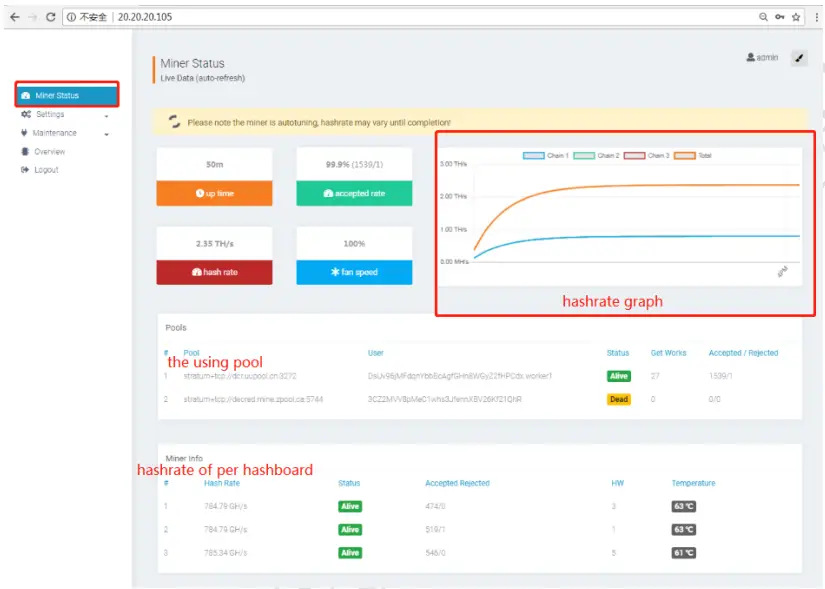
After setting up the pool, the miner will mine for you.
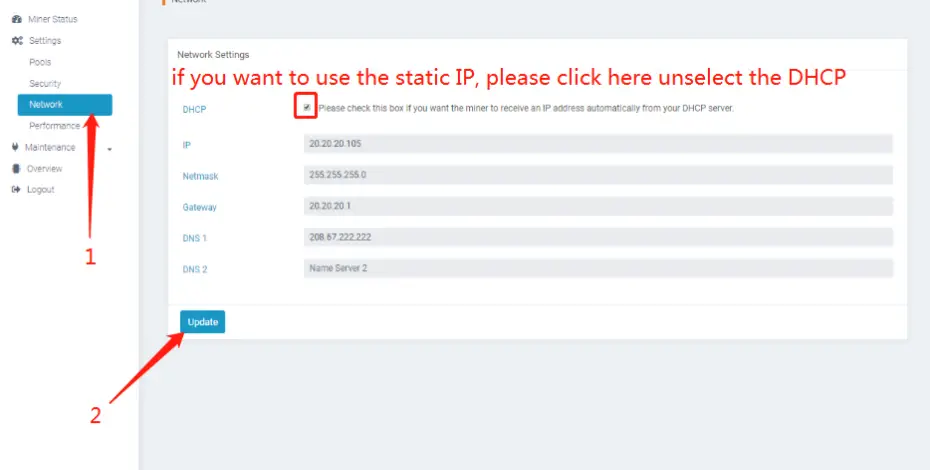
3.4 network configuration
3.5 Other pages
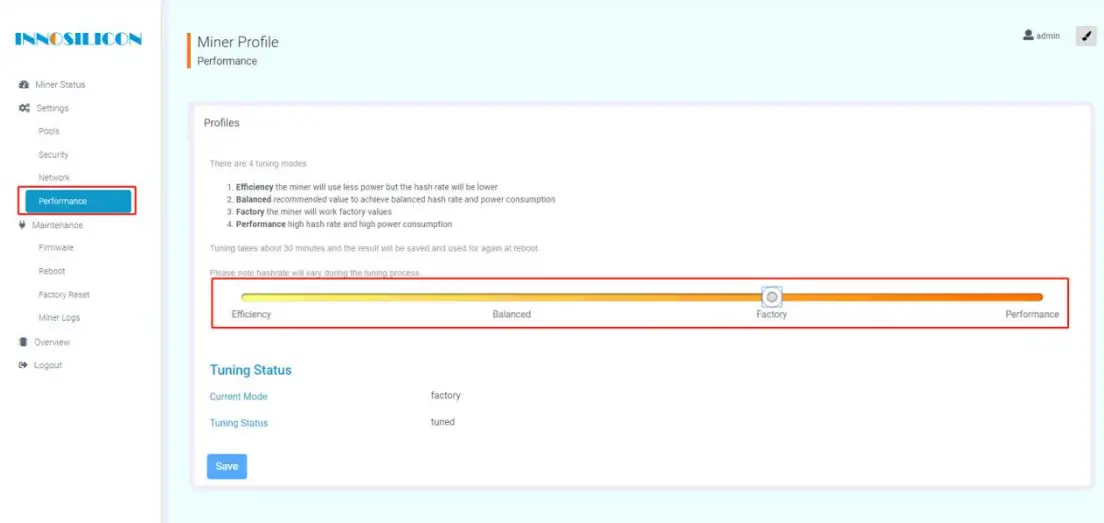
3.5.1 Change the operating mode
There are 4 modes that can be chosen, please click the “Save” after you set the mode.
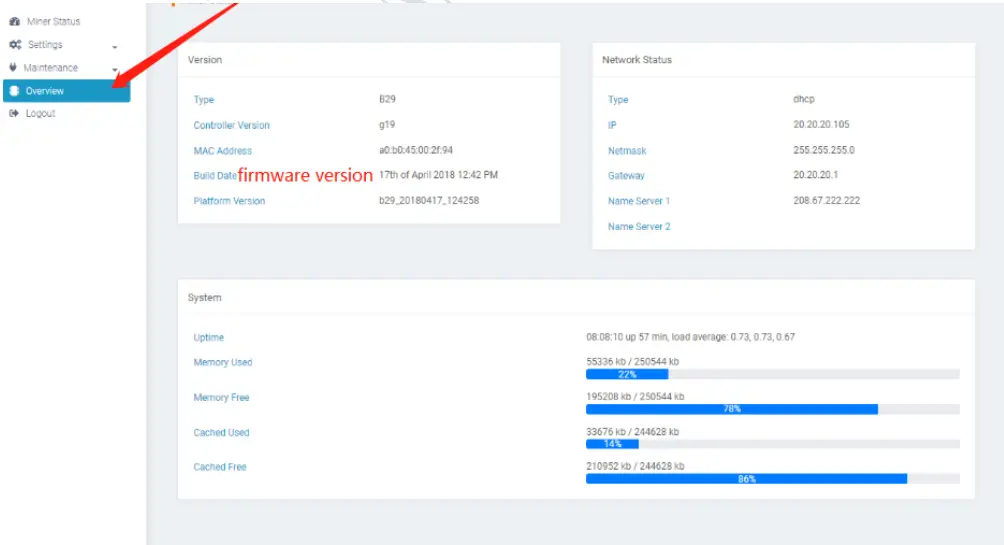
3.5.2 Overview
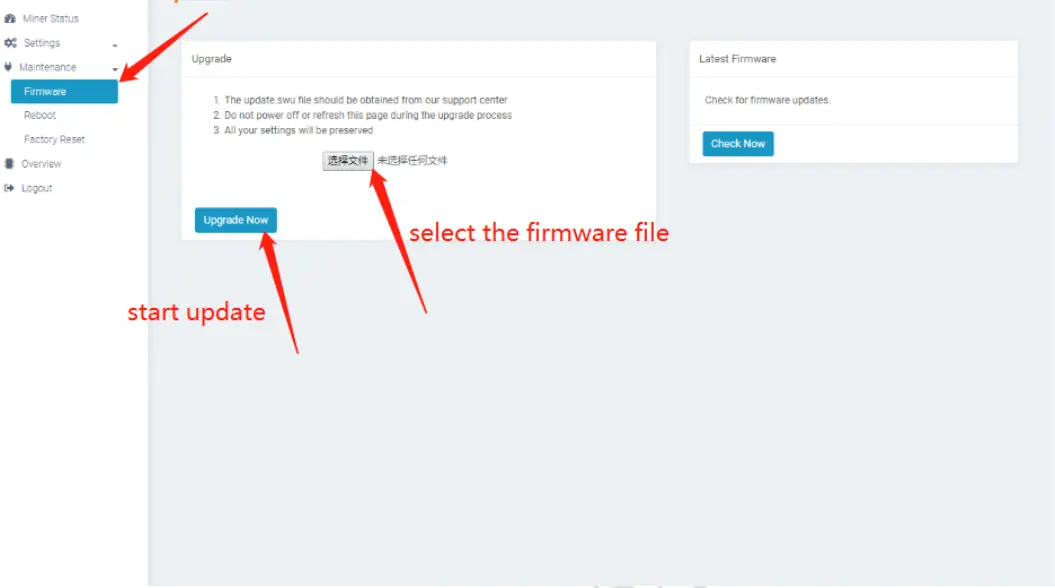
3.5.3 Upgrade
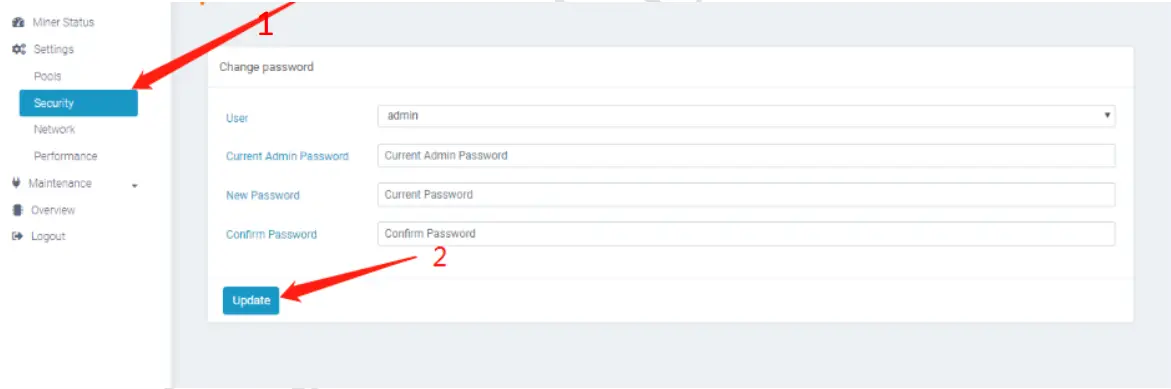
3.5.4 Modify the password
3.5.5 Reboot

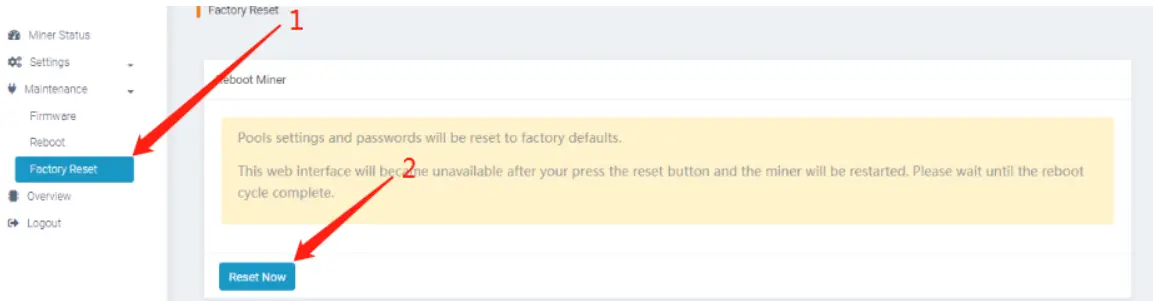
3.5.6 Factory reset
Innosilicon After-sales Team
Email:[email protected]