
vtech 80-551700 Little Apps Light-Up Tablet  INTRODUCTION
 INTRODUCTION
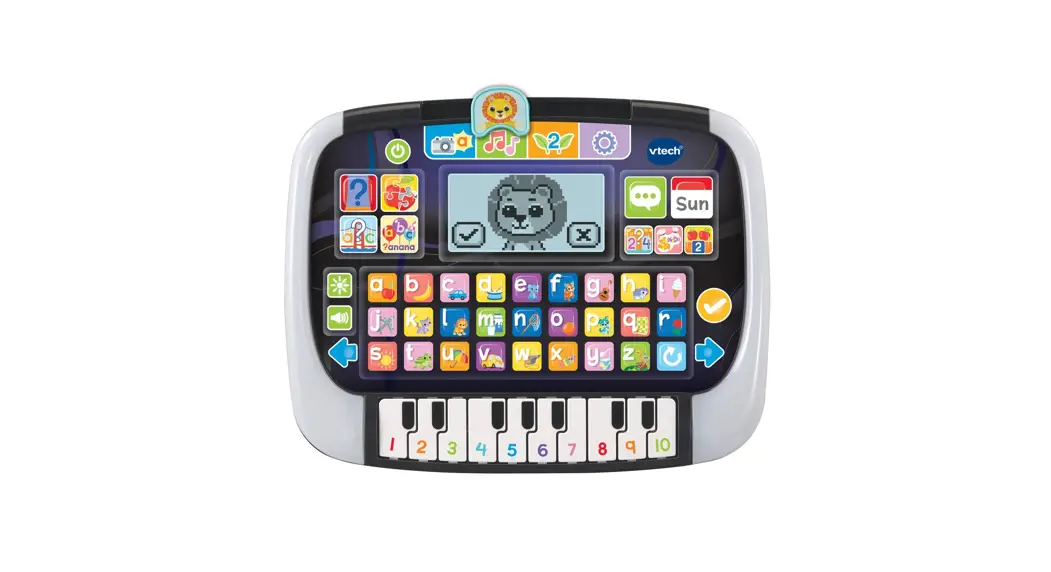
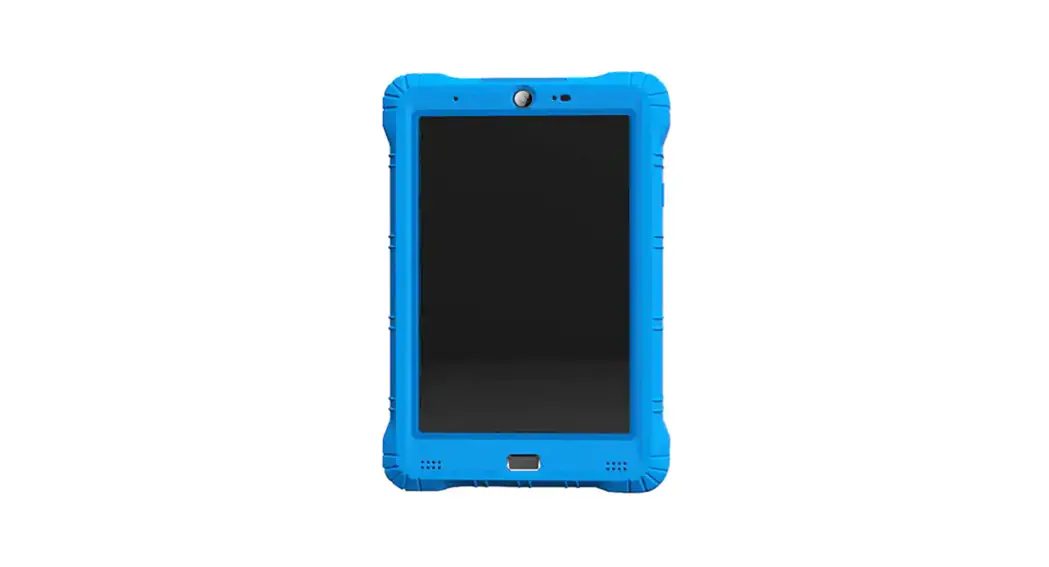
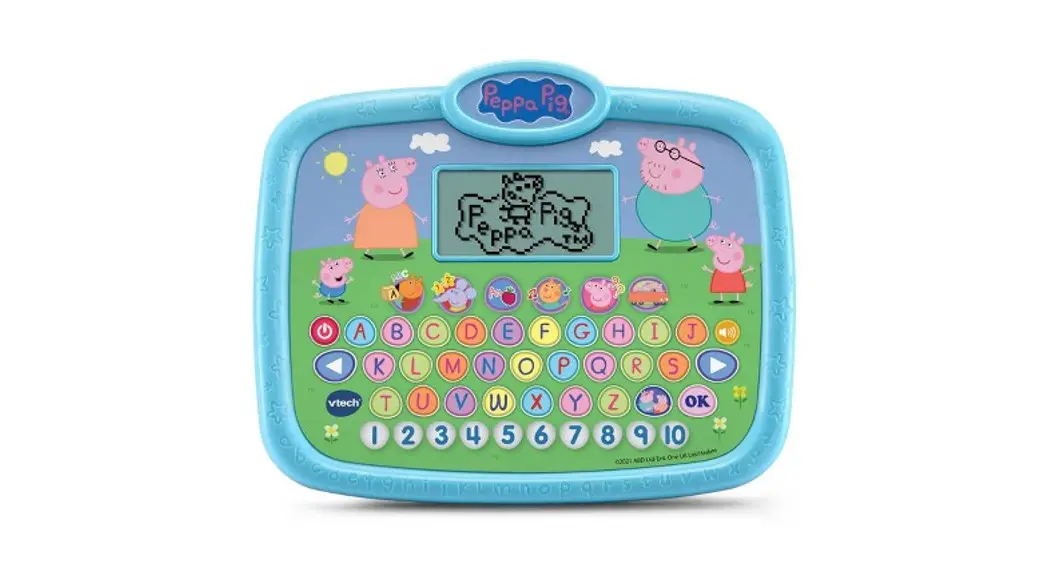
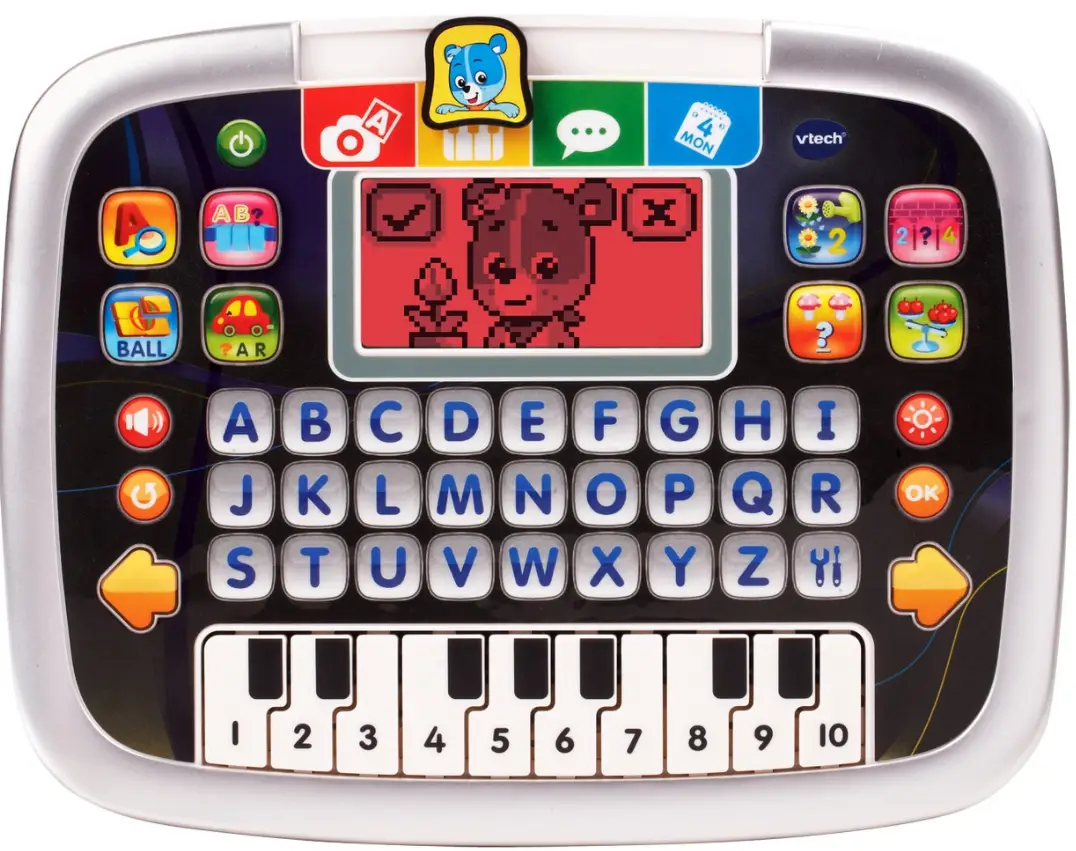
Thank you for purchasing the Little Apps Light-Up Tablet™. Play 12 exciting activities that help to reinforce learning of letters, words, math, and music skills. Magical color-changing borders brighten your playtime and learning with the lion!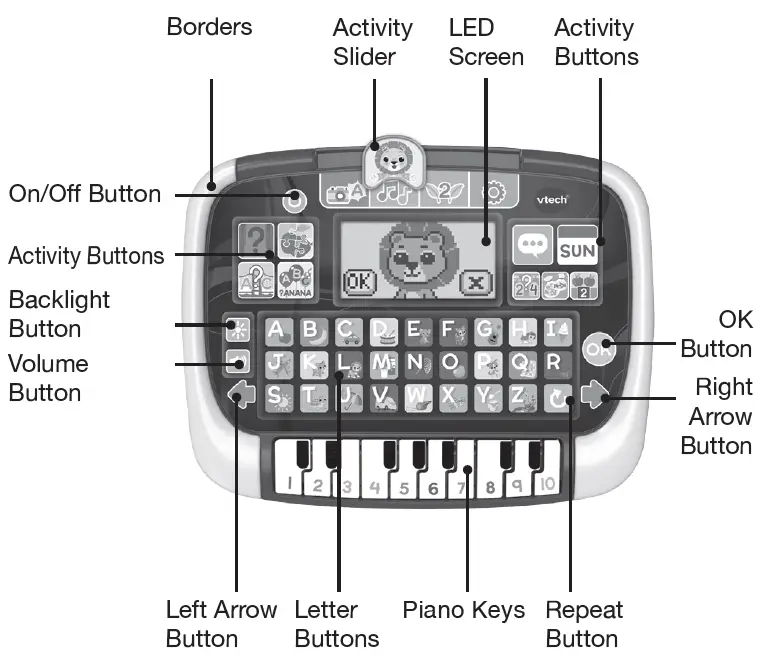
INCLUDED IN THE PACKAGE
- Little Apps Light-Up Tablet™
- Quick Start Guide
WARNING
All packing materials such as tape, plastic sheets, packaging locks, removable tags, cable ties, cords, and packaging screws are not part of this toy and should be discarded for your child’s safety.
NOTE
Please save this Instruction Manual as it contains important information.
Unlock the Packaging Locks 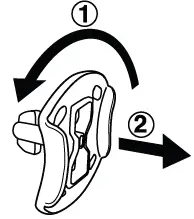
- Rotate the packaging locks 90 degrees counterclockwise.
- Pull out the packaging locks and discard.
GETTING STARTED
Battery Removal and Installation
- Make sure the unit is turned Off.
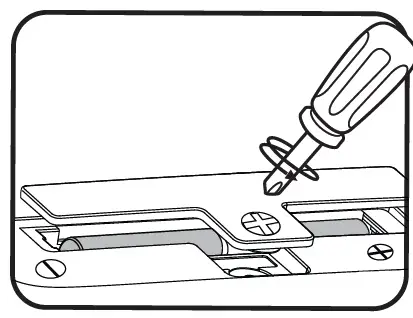
- Find the battery cover located on the back of the unit, use a screwdriver to loosen the screw, and then open the battery cover.

- Remove old batteries by pulling up on one end of each battery.
- Install 2 new AA (AM-3/LR6) batteries following the diagram inside the battery box. (For best performance, alkaline batteries or fully charged Ni-MH rechargeable batteries are recommended.)
- Replace the battery cover and tighten the screw to secure.
WARNING:
- Adult assembly required for battery installation.
- Keep batteries out of reach of children.
IMPORTANT: BATTERY INFORMATION
- Insert batteries with the correct polarity (+ and -).
- Do not mix old and new batteries.
- Do not mix alkaline, standard (carbon-zinc) or rechargeable batteries.
- Only batteries of the same or equivalent type as recommended are to be used.
- Do not short-circuit the supply terminals.
- Remove batteries during long periods of non-use.
- Remove exhausted batteries from the toy.
- Dispose of batteries safely. Do not dispose of batteries in fire.
RECHARGEABLE BATTERIES
- Remove rechargeable batteries (if removable) from the toy before charging.
- Rechargeable batteries are only to be charged under adult supervision.
- Do not charge non-rechargeable batteries.
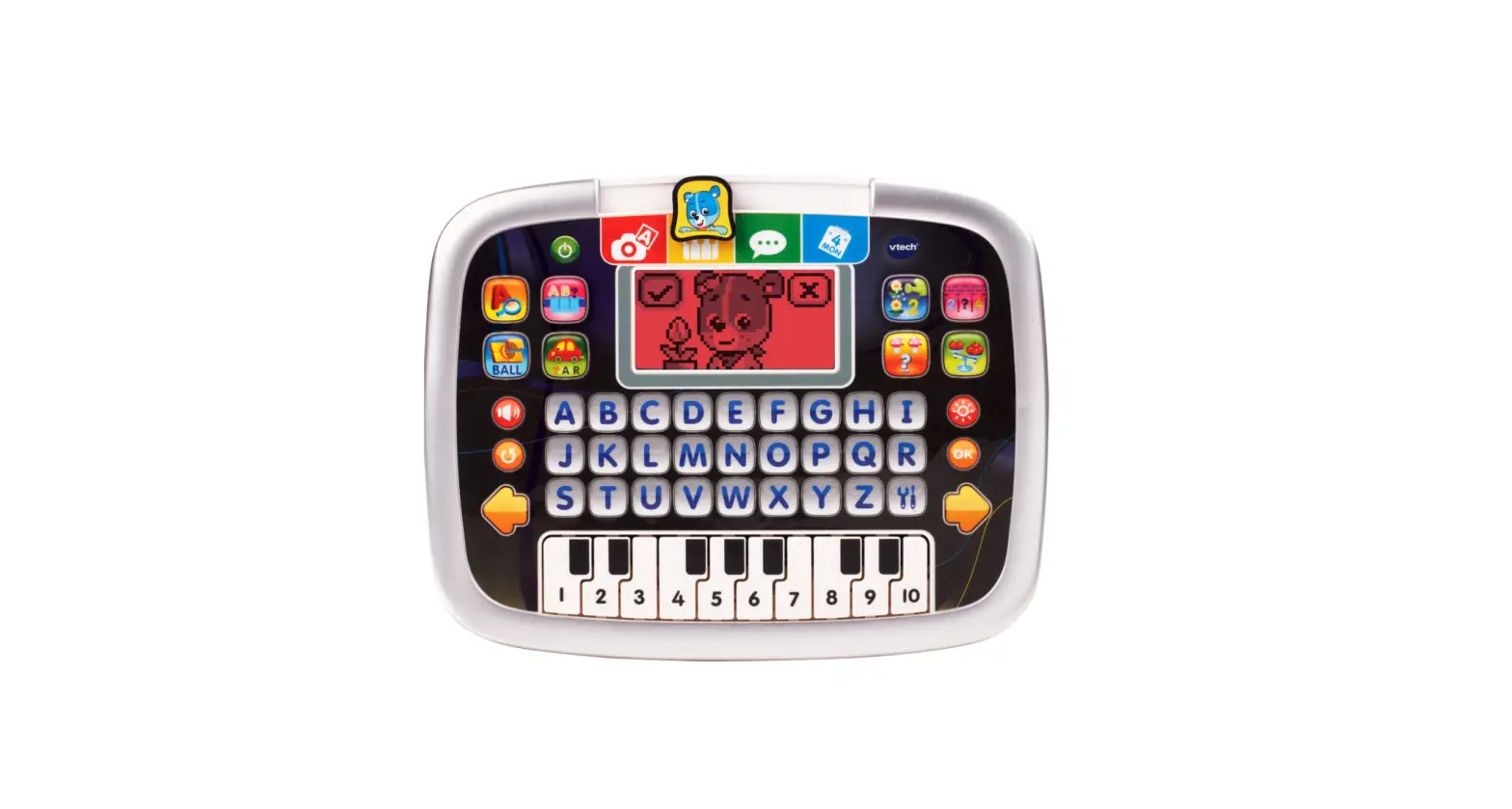
PRODUCT FEATURES
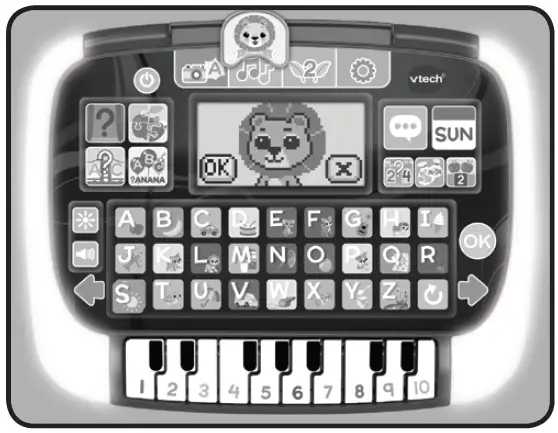
- On/Off Button

To turn the unit on, press the On/Off Button. Press the On/Off Button again to turn the unit Off. - Color Borders
Four vibrant border colors including red, blue, pink and purple glow as you play.
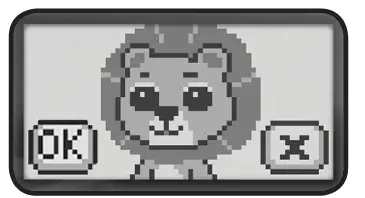
- LED Screen
Watch the screen turn red, purple, blue or pink.
- Activity Slider

Slide the Activity Slider to choose among three activities and settings. - Activity Buttons
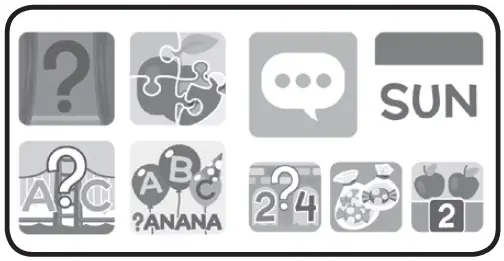
Press one of the Activity Buttons to choose any of the nine activities.
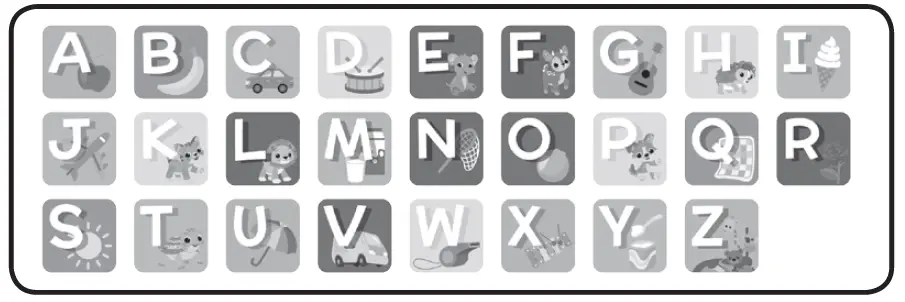
- Letter Buttons
Press the Letter Buttons to learn about about letters, to answer letter-related questions.
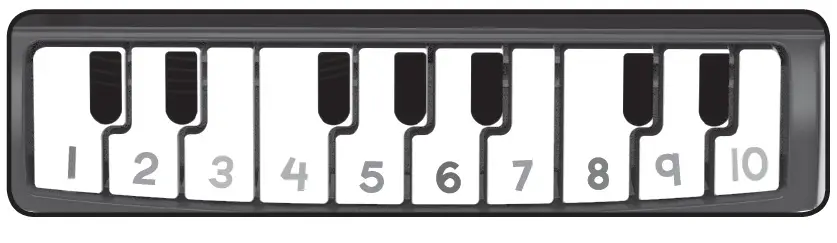
- Piano Keys
Press the Piano Keys to learn about numbers, to answer number-related questions or to play piano.
- Arrow Buttons

Press the Arrow Buttons to navigate on the screen or to select an option. - OK Button

Press the OK Button to confirm a selection. - Backlight Button

Press the Backlight Button to change the backlight color of the screen to red, blue, pink or purple or to turn the backlight off. - Volume Button

Press the Volume Button to adjust the volume. Press the Left Arrow Button to reduce the volume level, or press the Right Arrow Button to increase the volume level, and then press the OK Button to confirm. - Repeat Button

Press the Repeat Button to repeat the game instruction or question. - Automatic Shut-Off
To preserve battery life, the Little Apps Light-Up Tablet™ will automatically shut off after several minutes without input. The unit can be turned on again by pressing the On/Off Button. The unit will also automatically turn off when the batteries are very low. A warning will be displayed on the screen as a reminder to change the batteries.




NOTE If the unit powers down or if the lights fade during play, please install a new set of batteries.
TO BEGIN PLAY
- Press the On/Off Button to turn the unit On. A short animation will play and you will be asked to select an activity.
- Slide the Activity Slider to choose one of the four activities or press one of the Activity Buttons to play.
ACTIVITIES
- My Camera

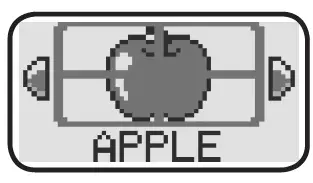
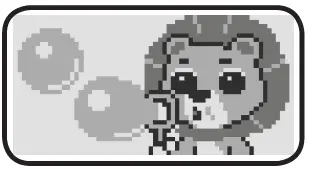
Press any of Letter Buttons to learn about the alphabet and words, or press the Piano Keys to discover numbers 1-10.
- My Piano

Press the Piano Keys to play piano notes, or press the Letter Buttons to hear fun sounds.
- Planting Fun

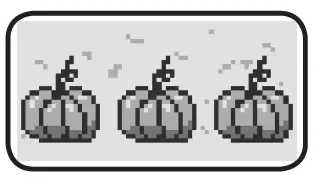
Press any of the Piano Keys to see that number of plants grow and be counted.
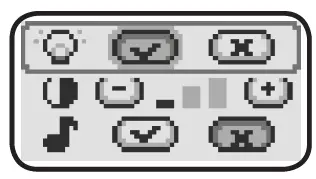
- Settings

In Settings, you can turn the border light on or off, adjust the screen contrast, and turn the background music on or off.
Press the Arrow Buttons to set and press the OK Button to confirm.
- Hidden Letters

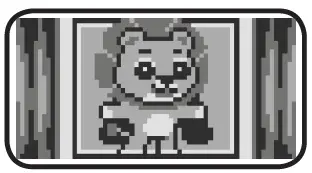
Which letter is hidden by the lion? Use the Arrow Buttons to move the lion aside and press the correct Letter Button to answer.
- Picture Puzzle

Press the Arrow Buttons to flip four pieces of the picture, then press the OK Button once the picture is formed correctly.
- Letter Bridge

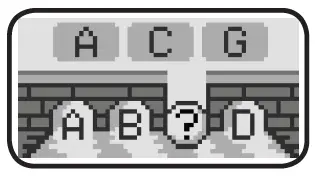
Find the missing letter to complete the bridge for the lion to cross.There are three levels. The difficulty level will increase as you progress.
- Word Party

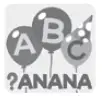
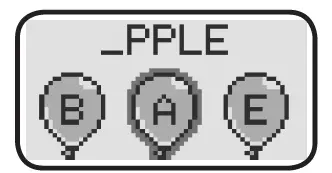
Find the missing letter to spell the words. There are three levels. The difficulty level will increase as you progress.
- Talking Pal

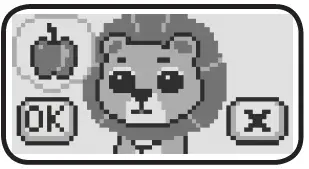
The lion will ask you some questions. Press the Arrow Buttons to select the answer, then press the OK Button to confirm.
- My Calendar

Use the Arrow Buttons and the OK Button to choose a day of the week and see the lion’s fun daily activities.
- Number Bridge

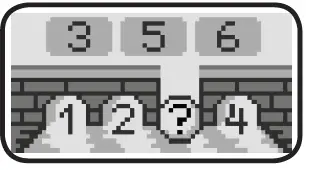
Find the missing number to complete the bridge for the lion to cross. There are three levels. The difficulty level will increase as you progress.
- More or Less

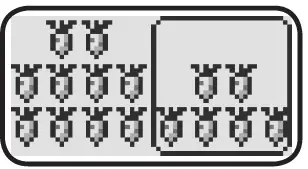
Press the Arrow Buttons and the OK Button to choose which side of the screen has more or less options. There are three levels. The difficulty level will increase as you progress.
- Counting Fun

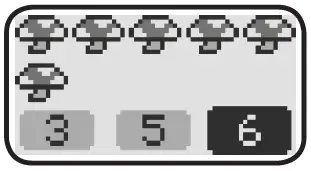
Count how many objects are on the screen and press the Piano Keys to answer. There are three levels. The difficulty level will increase as you progress.











CARE & MAINTENANCE
- Keep the unit clean by wiping it with a slightly damp cloth.
- Keep the unit out of direct sunlight and away from any direct heat sources.
- Remove the batteries if the unit is not in use for an extended period of time.
- Do not drop the unit on a hard surface and do not expose the unit to moisture or water.
TROUBLESHOOTING
If for some reason the unit stops working, please follow these steps:
- Turn the unit Off.
- Interrupt the power supply by removing the batteries.
- Let the unit stand for a few minutes, then replace the batteries.
- Turn the unit On. The unit should now be ready to use again.
- If the unit still does not work, install a new set of batteries.
IMPORTANT NOTE
If the problem persists, please call our Consumer Services Department at 1-800-521-2010 in the U.S. or 1-877-352-8697 in Canada, or visit our website at vtechkids.com and fill out our Contact Us form located under the Customer Support link. Creating and developing VTech® products is accompanied by a responsibility that we take very seriously. We make every effort to ensure the accuracy of the information, which forms the value of our products. However, errors sometimes can occur. It is important for you to know that we stand behind our products and encourage you to contact us with any problems and/or suggestions that you might have. A service representative will be happy to help you.
CAUTION
Changes or modifications not expressly approved by the party responsible for compliance could void the user’s authority to operate the equipment.
NOTE
This equipment has been tested and found to comply with the limits for a Class B digital device, pursuant to Part 15 of the FCC Rules. These limits are designed to provide reasonable protection against harmful interference in a residential installation. This equipment generates, uses and can radiate radio frequency energy and, if not installed and used in accordance with the instructions, may cause harmful interference to radio communications. However, there is no guarantee that interference will not occur in a particular installation. If this equipment does cause harmful interference to radio or television reception, which can be determined by turning the equipment off and on, the user is encouraged to try to correct the interference by one or more of the following measures:
- Reorient or relocate the receiving antenna.
- Increase the separation between the equipment and receiver.
- Connect the equipment into an outlet on a circuit different from that to which the receiver is connected.
- Consult the dealer or an experienced radio/TV technician for help.
Supplier’s Declaration of Conformity 47 CFR § 2.1077 Compliance Information
- Trade Name: VTech®
- Model: 5517
- Product Name: Little Apps Light-Up Tablet
- Responsible Party: VTech Electronics North America, L.L.C.
- Address: 1156 W. Shure Drive, Suite 200 Arlington Heights, IL 60004
- Website: vtechkids.com
THIS DEVICE COMPLIES WITH PART 15 OF THE FCC RULES. OPERATION IS SUBJECT TO THE FOLLOWING TWO CONDITIONS: (1) THIS DEVICE MAY NOT CAUSE HARMFUL INTERFERENCE, AND (2) THIS DEVICE MUST ACCEPT ANY INTERFERENCE RECEIVED, INCLUDING INTERFERENCE THAT MAY CAUSE UNDESIRED OPERATION.
CAN ICES-003(B)/NMB-003(B)
 VTech Canada | Official Electronic Learning Toys & Games for Kids
 Best Kids Tech Toys | Electronic Learning Toys | VTech America