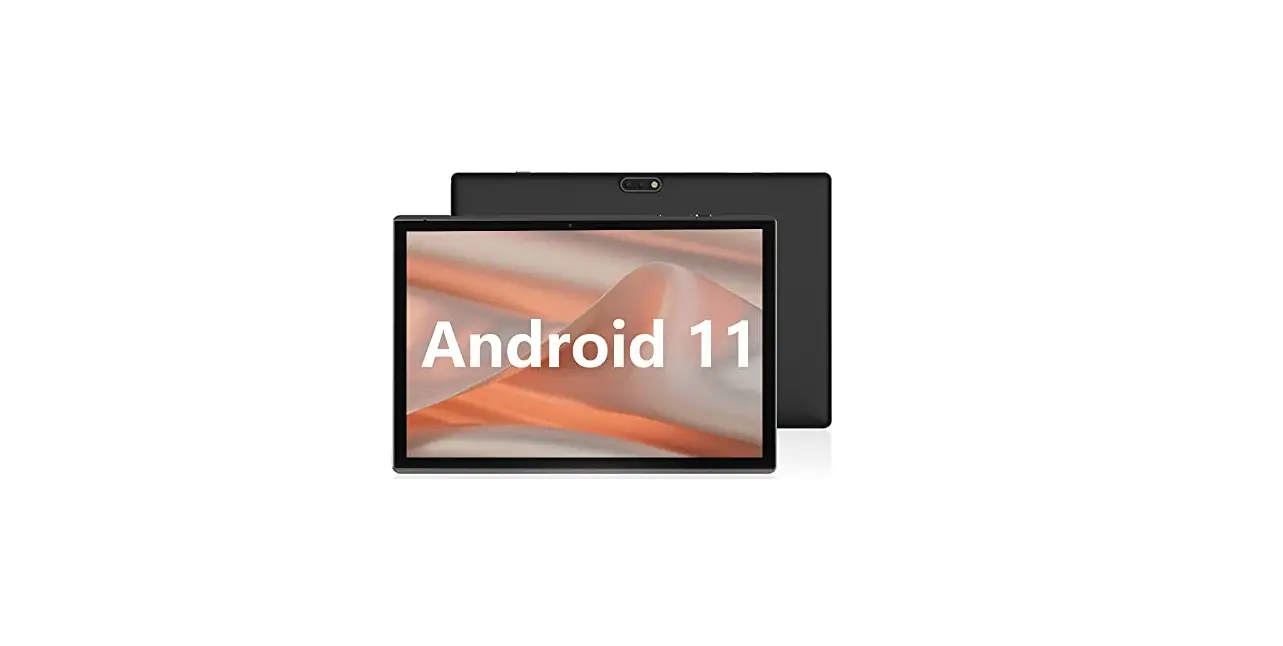
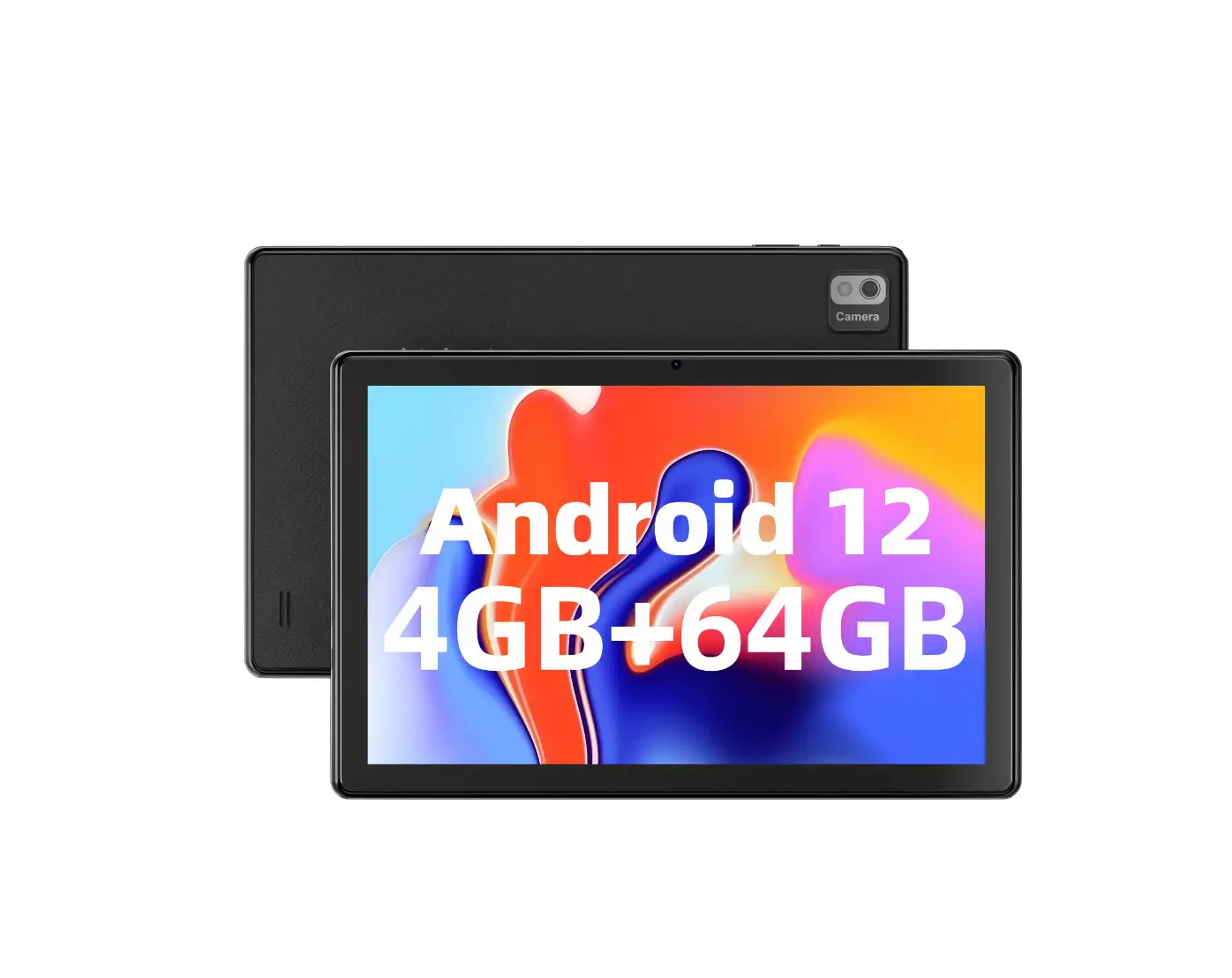
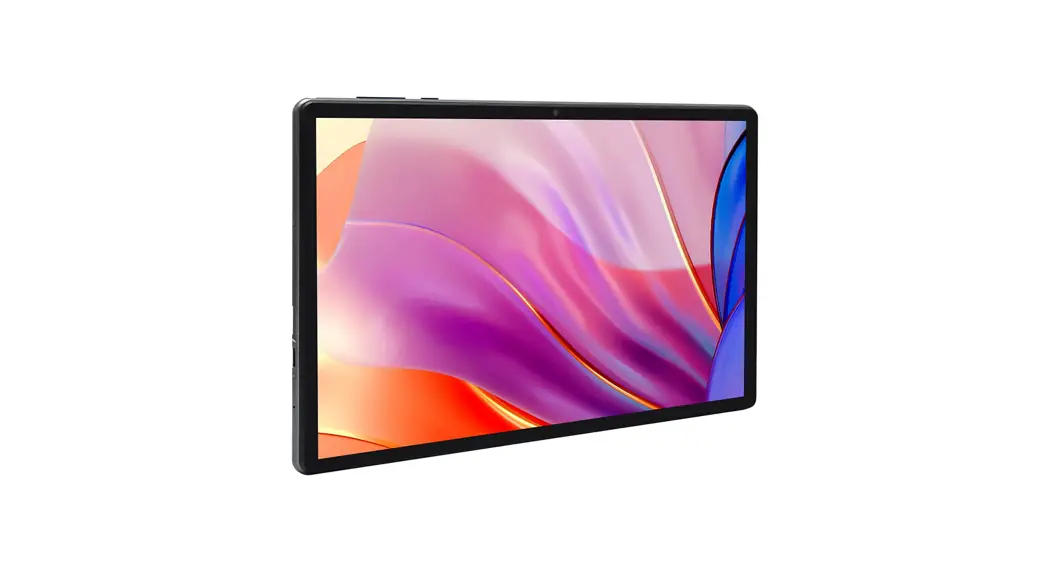
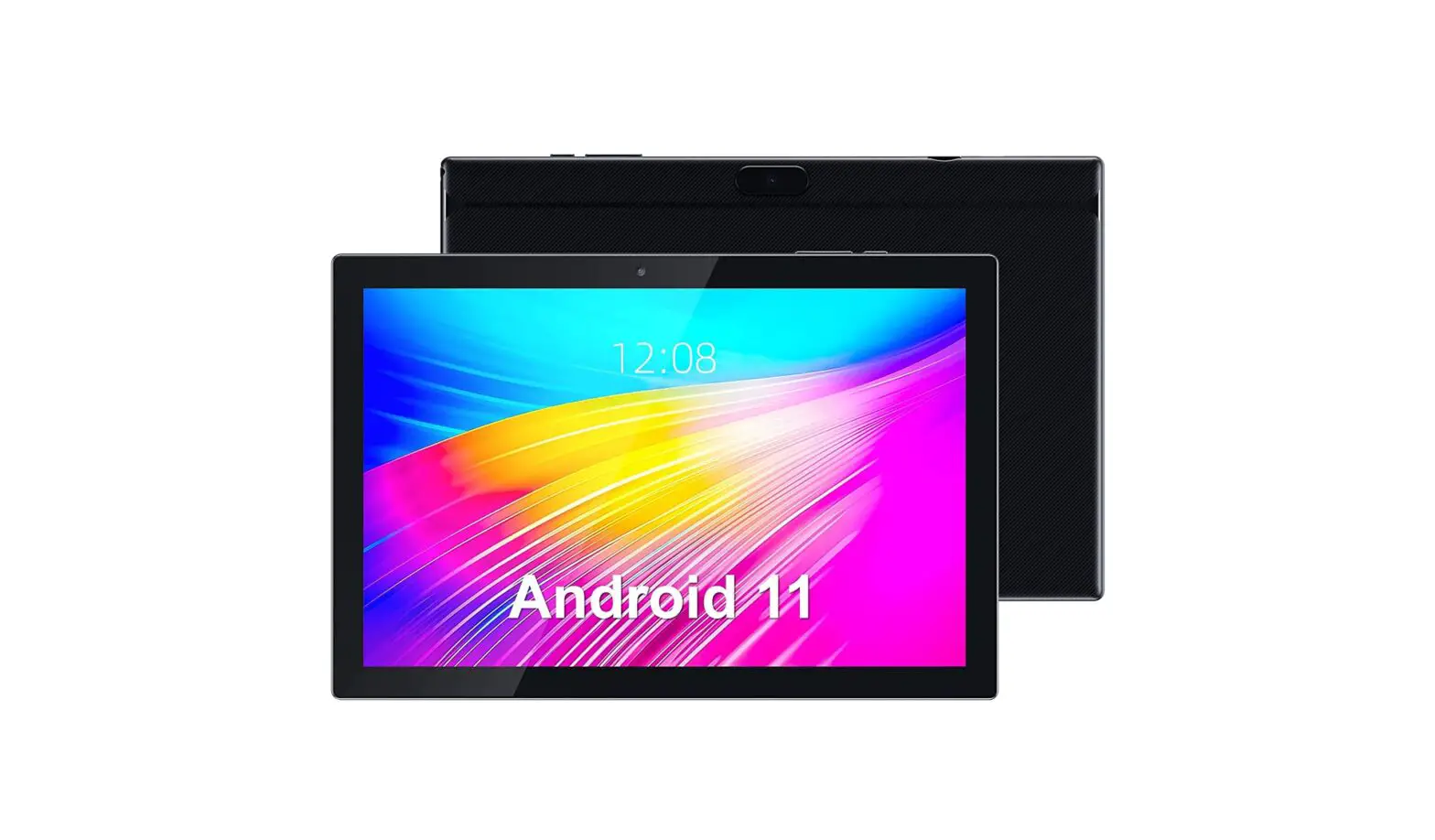
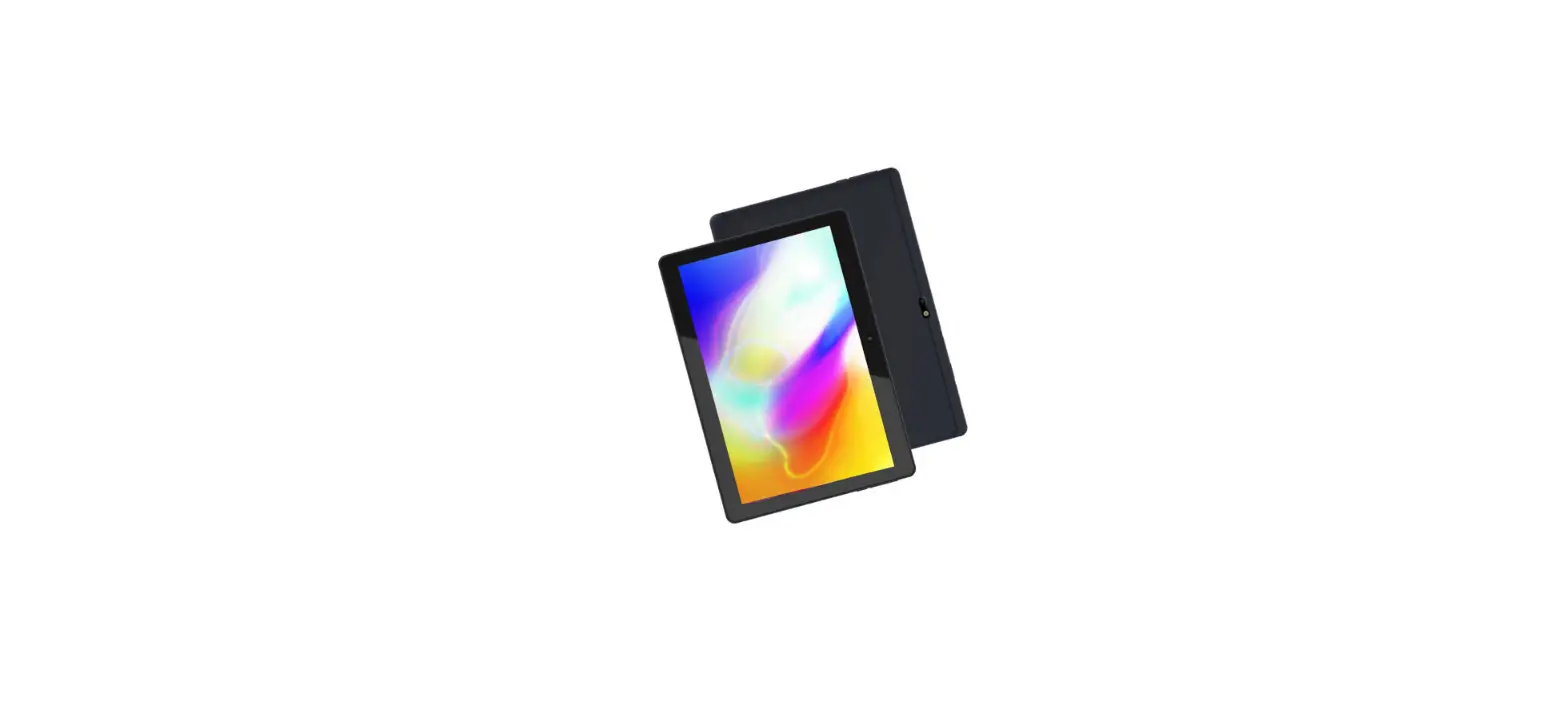
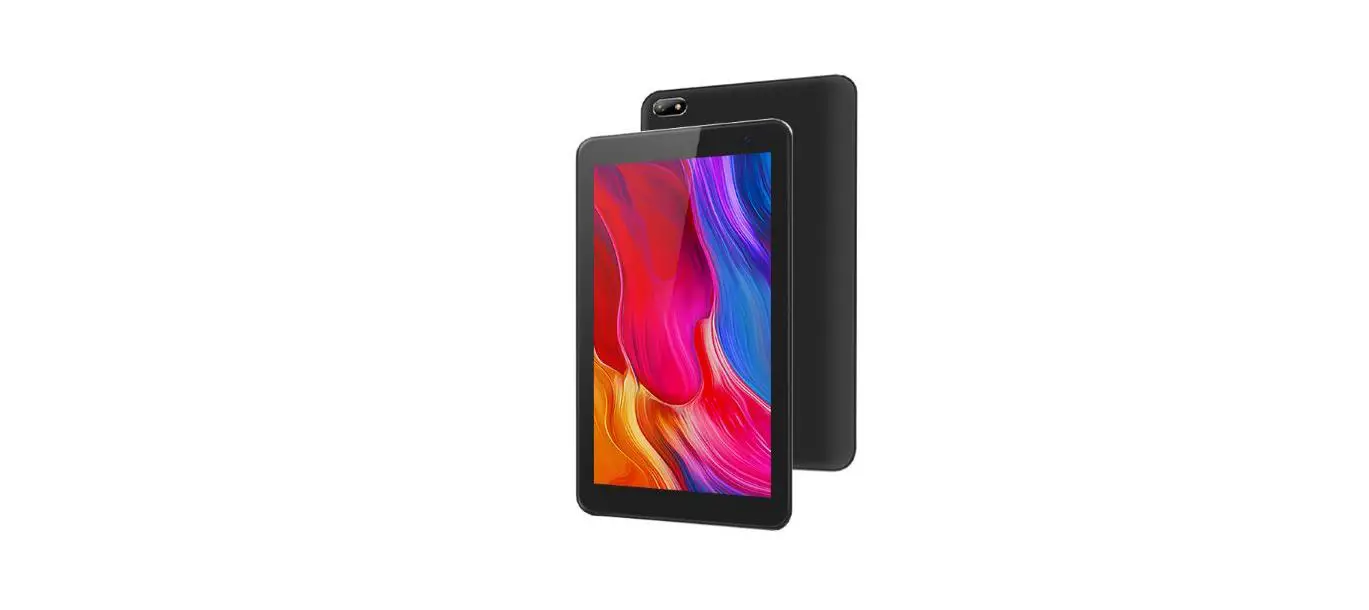
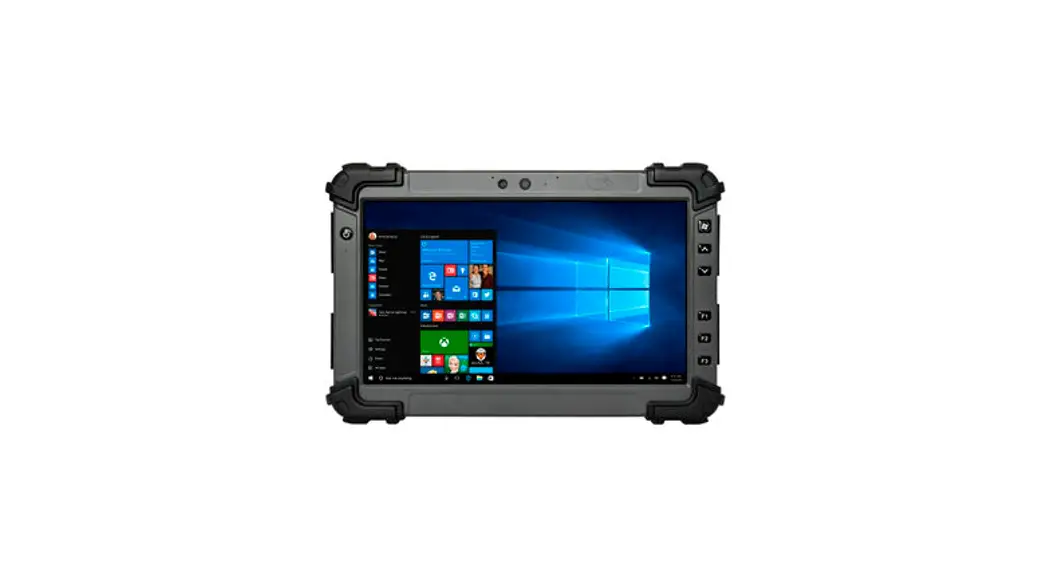
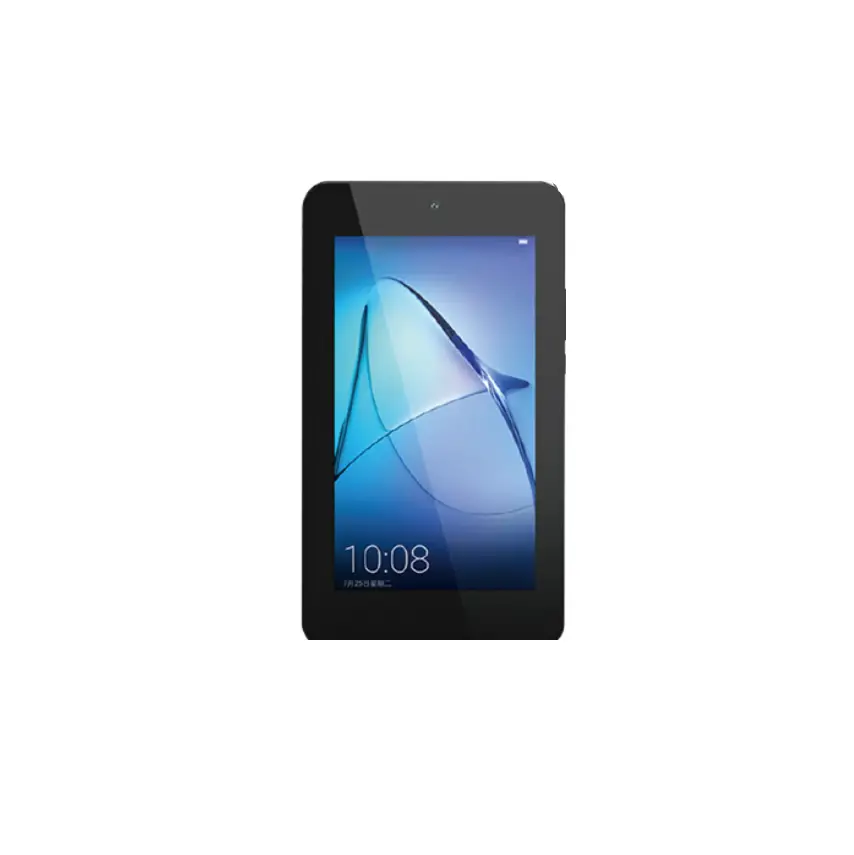
VT10M1 10.1 Inch Tablet PC
Product Information
10.1 inch Tablet PC
Model: VT10M1
NOTICE:
- Keep the device and all accessories out of the reach of small
children. - Do not use or store the device in dusty, hot, cold, electric,
chemical, moist, or magnetic areas. - Do not drop, shake or knock the device. Rough handling can
break the device. - Do not leave the device in areas that may become hotter without
attention, like tables in sunshine, a car with all windows closed,
or on bed & charging, because the device can get to very high
temperature and may cause an accident. - Never play the device while driving! Keep your eyes focusing on
the road. - Please turn off the device in aircraft and follow any
restrictions. Wireless devices can cause interference in
aircraft. - Please do not disassemble the device or change the case
personally, as it will void your warranty. - Please use proper power adapter along with packing, or
suggested by qualified sellers. - Availability and network speed depend on the User’s network,
and 4G/3G/2G data network fees apply. - Due to different marketing period, product update, regional
disparities, System update or such reasons, we may, without
notifications to you, change or modify some functions which could
be different from the content in this page, please refer to real
product received.
Product Usage Instructions
Main Functions Overview
Basic Operation:
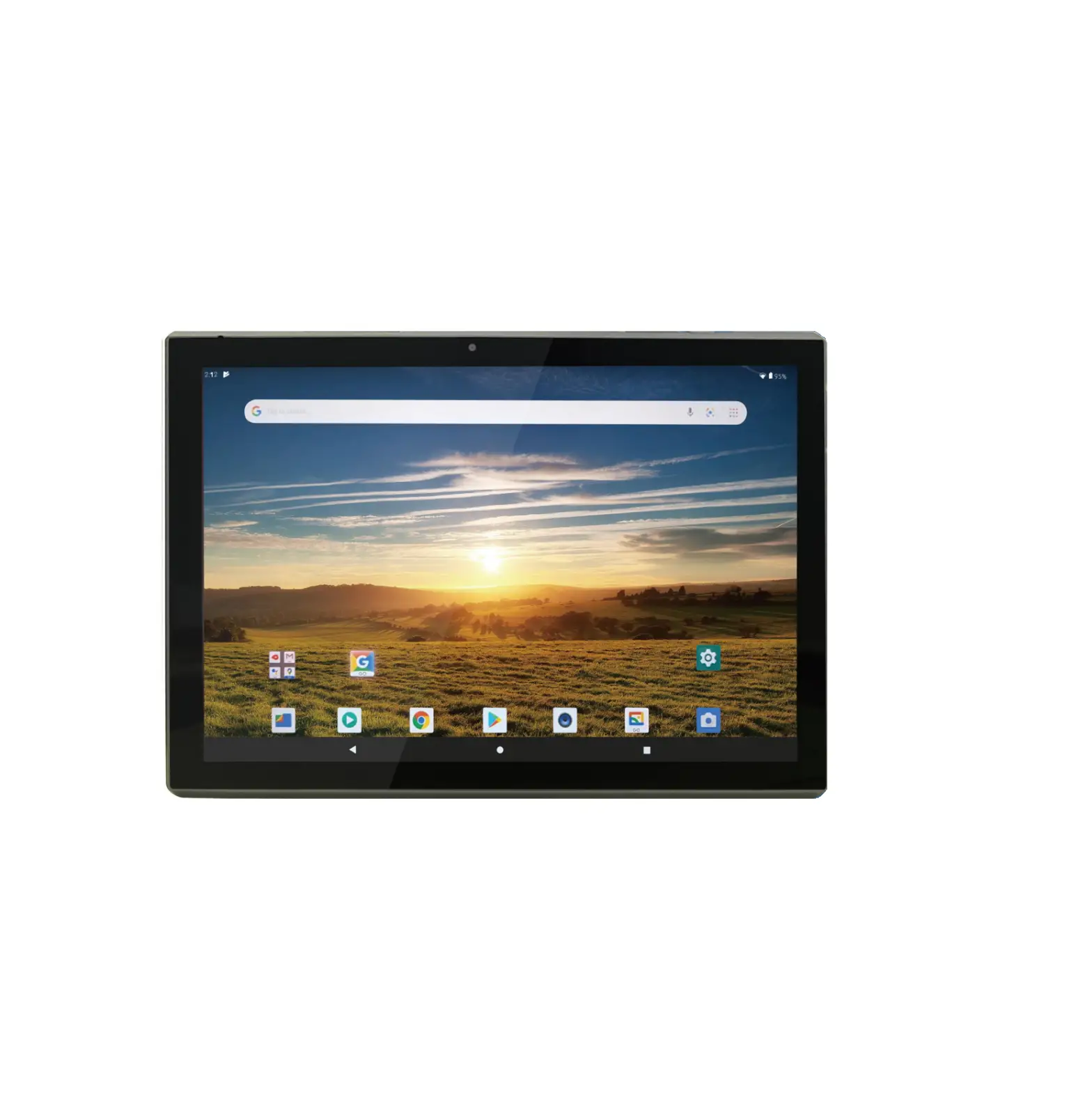
- Home Screen: Notification Bar – At the top of the screen. It
displays time, battery, Wi-Fi signals, and notification icons or
previews, etc. - Notification Panel: Slide down from the Notification Bar. It
displays switchers of functions and notifications. Tap the
switchers to turn ON/OFF functions. Tap the notifications to open
it, or slide it leftwards quickly to clear the notification. You
can also slide the notification leftwards or rightwards slowly, and
click the notification, or click to set notification type. - Navigation Button: At the bottom of the screen.
- Back Button: Tap it to go to the previous page.
- Home Button: Tap it to go to the Home Screen.
- Recent Task Button: Tap it to view recent tasks. Tap the task
frame to open it, or long press it to remove from the list.
- Google Search Widget: Tap the Widget to input keywords or tap
the icon for voice search (need network). - Enter App Menu: At the Home Screen, slide up to enter the App
menu, in which you can view all Apps list and search Apps. - Add Home Screen Apps: You can add an App icon to the Home
Screen from the App menu by long pressing the App icon and move it
to the Home Screen before loosening your finger. Click the App icon
to open it. Long press the App icon to see most used functions and
choose one to open. - Remove Home Screen Apps: Long press the App icon and move it to
the top of the screen to remove it. - Home Screen Settings: Long press a blank area of the Home
Screen, you can set WALLPAPERS, WIDGETS, and SETTINGS from the
pop-up options. Tap SETTINGS and make general Home Screen
settings. - Set Wallpaper: Long press a blank area of the Home Screen,
choose WALLPAPERS, and choose a way to open wallpapers. After
choosing a picture, tap Set wallpaper, set wallpaper as Home
screen, or Lock screen, or Home screen and lock screen. - Add Widgets to Home Screen: Long press a blank area of the Home
Screen, choose WIDGETS, and press a widget and move it to the Home
Screen before loosening your finger. - Home Screen Pages: Long press a widget or App icon on the Home
Screen, and move it to the left or right edge of the screen, the
widget or App icon will be moved to another page (if no existed
page, it will create a new page). At the Home Screen, slide
leftward or rightward to switch between pages.
User Manual
10.1 inch Tablet PC
Model: VT10M1
NOTICE
Keep the device and all accessories out of the reach of small children.
Do not use or store the device in dusty, hot, cold, electric, chemical, moist, or magnetic areas.
Do not drop, shake or knock the device. Rough handling can break the device.
Do not leave the device into areas that may become hotter without attention, like tables in sunshine, a car with all windows closed, or on bed & charging, because the device can get to very high temperature and may cause accident.
Never play the device while driving! Keep your eyes focusing on the road.
Please turn off the device in aircraft and follow any restrictions. Wireless devices can cause interference in aircraft.
Please do not disassemble the device or change the case personally, as it will void your warranty.
Please use proper power adapter along with packing, or suggested by qualified sellers.
Availability and network speed depend on the User’s network, and 4G/3G/2G data network fees apply.
Due to different marketing period, product update, regional disparities, System update or such reasons, we may, without notifications to you, change or modify some functions which could be different from the content in this page, please refer to real product received.
1
Main Functions Overview
Phone call function. Messaging function. Wireless connections via Wi-Fi or 4G/3G/2G networks. Emergency Call function without SIM card. GPS location & navigation function. Bluetooth function. FM radio function. System: AndroidTM 11 Built-in multiple languages. Different applications supported (.apk files). Various music file supported. 1080P videos supported. Pictures browsing with zooming and slide-show. E-book reading with bookmark function. Photographing and Video recording Built-in Email client. Built-in electronic calculator. Built-in electronic calendar Built-in voice recorder. All-directional G-Sensor. Built-in speaker and microphone. High-speed USB connection with PC. External Micro-SD card supported. External mouse and keyboard supported via OTG.
2
Basic Operation
Power On Press Power button for around 2 seconds and the device will start up and display the lock screen. Slide up to unlock the device, if needs password or pattern, please input them to unlock device. Power Off / Restart Press Power button for around 2 second and choose Power off in the popup, or choose Restart to re-boot the device. Standby When the device is working, press Power button shortly to shut the screen and it goes into standby mode. Press Power button again to awake the device, and slide the lock to continue. Volume + / At most interfaces, the volume buttons are used to adapt sound. At some interfaces, the volume buttons can be used to switch between selections, or zoom in / out, or take a picture.
3
Home Screen
Notification Bar: At the top of screen. It displays time, battery, Wi-Fi signals, and notification icons or previews, etc.
4
Notification Panel: Slide down from Notification Bar. It displays switchers of functions and notifications. Tap the switchers to turn ON/OFF functions. Tap the notifications to open it, or slide it leftwards quickly to clear the notification. You can also slide the
notification leftwards or rightwards slowly, and click
the notification, or click
to set notification type.
to delay
Navigation Button: At the bottom of screen.
Back Button Tap it to go to the previous page. Home Tap it to go to Home Screen. Recent Task Tap it to view recent tasks. Tap the task
5
frame to open it, or long press it to remove from list.
Google Search Widget: Tap the Widget to input keywords or tap the icon for voice search (need network).
Enter App Menu: At Home Screen, slide up to enter App menu, in which you can view all Apps list and search Apps.
Add Home Screen Apps: You can add App icon to Home Screen from App menu by long pressing App icon and move to Home Screen before loosen your finger. Click App icon to open it. Long press App icon to see most used functions and choose one to open.
Remove Home Screen Apps: Long press App icon and move to top of screen to remove it.
Home Screen Settings: Long press blank area of Home Screen, you can set WALLPAPERS, WIDGETS and SETTINGS from pop-up options. Tap SETTINGS and make general Home Screen settings.
Set Wallpaper: Long press blank area of Home Screen, choose WALLPAPERS, and choose a way to open wallpapers. After choose a picture, tap Set wallpaper, set wallpaper as Home screen, or Lock screen, or Home screen and lock screen.
Add Widgets to Home Screen: Long press blank area of Home
6
Screen, choose WIDGETS, and press a widget and move to Home Screen before loosen your finger. Home Screen Pages: Long press a widget or App icon on Home Screen, and move to left or right edge of screen, the widget or App icon will be moved to another page (if no existed page, it will create a new page). At Home Screen, slide leftward or rightward to switch between pages.
7
App Menu
At Home Screen, slide up to enter App Menu, in which you can view all Apps list and search Apps. At App Menu, Slide up and down to view all Apps. Click an App icon to open it.
8
Click Search apps to search Apps. Enter keywords of App name to search for Apps. At search result, click App icon to open it.
9
Wi-Fi
Connect to Wi-Fi With Wi-Fi network, you can connect to the internet or other network devices anywhere an access point or wireless hotspot is available. Activate the Wi-Fi (1) At App Menu, tap Settings , (2) Tap Network & Internet, tap Wi-Fi switcher to turn on it. You can also turn on Wi-Fi from Notification Panel. (3) Once you enter Wi-Fi, the device automatically searches for available Wi-Fi connection. (4) Tap the name to select a Wi-Fi. (5) Enter a password for the network (if necessary) and select CONNECT. After Wi-Fi is connected, it displays icon at notification bar.
Remove connected Wi-Fi Long press a connected Wi-Fi name, choose Forget network.
10
Mobile Network
Connect to Mobile Network To use mobile network, you need to insert a SIM card, 4G/3G/2G data network fees apply. Activate the Mobile Network (1) At App Menu, tap Settings , (2) Tap Network & Internet, tap Mobile Network, and turn on Mobile data. You can also turn on Mobile data from Notification Panel.
More settings of Mobile Networks are available in this interface, please set them on your own needs.
Tips: Availability and network speed depend on the User’s network, and 4G/3G/2G data network fees apply.
11
Phone Functions
All functions in this chapter require 4G/3G/2G mobile network service, which means you need to install proper SIM cards into this device. Service fees of network apply.
Phone call
Tap the icon to dial.
Tap the icon
to show or hide keypad.
Input a phone number, tap to dial, or tap Create new contact, or Add to contacts to save as number to contact, or
Send SMS.
Tap to select more options.
Contacts
Tap the icon
to enter Contacts.
Tap contact names to call or send message.
12
Tap the icon
to add a new contact. Input names and numbers
and then tap back to save the contact.
Messaging
Tap the icon Tap the icon Tap the icon
Tap the icon Tap the icon
to enter messaging function. to create new message. to search messages.
to choose receiver from contacts. to send message.
13
Location
You can open GPS directly from Notification Panel. Tap Location to open GPS. You can also open GPS from Settings Security & location Location, tap the switcher to turn on. After turning on GPS, you can use Google Maps, please log in Google Account. You can also use other map Apps. Please notice, with GPS working on, battery consumption is higher than normal. You can directly open Notification Panel and tap Location again to turn off GPS to save battery.
14
USB Connections
You connect the device to a computer via USB cable to charge the device or transfer files, etc. After USB connected, slide down from Notification Bar. It displays Android System . Charging this device via USB, and you can tap for more options.
15
Charge this device: it can just charging the device. Transfer files: You can transfer all kinds of files from available spaces. Transfer photos (PTP): You can only transfer photos from/to system default folder DICM and Pictures. Use device as MIDI: Use Android devices as a peripheral controller for another Android device. For more information please visit android.com.
16
Apps
Install New Apps from Google Play
Google Play
allows you to easily download an abundance of
Apps directly to your device. Before using the Google Play, you must
have a Google Account.
From the App Menu, tap Google Play. Sign in to your Google Account. Search for and download Apps as desired. Follow the on-screen instructions. Note: All Apps offered by Google Play are developed by third party.
To get the information about the developers, you can read the
descriptions of each App. The original manufacturer of this Tablet PC
is not liable for performance issues caused by third-party Apps.
Install unknown Apps
Besides installing Apps from Google Play, you can also download App from browser, or transfer App packages from PC or other ways. Tap Setting Apps & notifications App. Tap Advanced. Tap Special app access. Tap Install unknown apps, and allow different ways of install apps according to needs
Install New Apps from device storage If you have transfer Apps’ package files into the device, you can tap ES File Explorer to find APK files locations. Tap the APK name to install it.
Applications management.
17
Tap Setting Apps & notifications App. Tap App and choose Force stop, or set App notifications, Permissions, Storage, Data usage, Open by default, Display over other apps, and Modify system settings by tapping selections.
Tips: If some App cannot run correctly, you can check Permissions settings if you have forbid necessary permissions of the App. Uninstall Apps Tap Setting Apps & notifications App. Tap See all apps to find the app you want to uninstall. Tap UNINSTALL and select OK.
18
19
Music
On the App Menu, tap Play Music
icon to access.
Note: Some files may not play properly depending on how they are
encoded. To add music files to your device, transfer files to your
device or memory card first.
Play music: Tap music folder name from Recent activity, and then tap music name to play.
20
Loop Play (OFF)
Prev / Next Music
Loop Play (ON)
Loop Play 1 Music
Random Play (OFF)
Random Play (ON)
Play / Pause
Like (Add to List) Unlike (Play next)
Show / Hide Playlist
Create a playlist: 1) Tap the MENU icon (next to the music file). 2) Select Add to playlist. 3) Select NEW PLAYLIST. 4) Enter a playlist Name and Description. 5) Tap CREATE PLAYLIST.
Delete a playlist: To delete a playlist, tap icon at left top corner at Play Music main interface, tap Music library, enter the playlist, tap the MENU icon (next to the playlist name), and tap Delete.
21
Search Tap to search music.
Music library Tap icon at left top corner at Play Music main interface, and you can tap Music library to enter it. Here you can view music by PLAYLISTS, ARTISTS, ALBUMS, SONGS and GENRES. Settings Tap icon at left top corner at Play Music main interface, and you can tap Settings to enter it. Here you can set up Account, Manage Play Music history, Manage Activity controls, Manage Google Location History, Delete recommendation history, Delete my library, Privacy Help Centre, Equaliser, etc..
22
Photo
To view or organize images, send your files to other devices and set
pictures as wallpapers, select Photos
from App Menu.
View a picture (1) Select a picture to view. To view more pictures, scroll left or right. (2) To zoom in, place two fingers on the screen and spread them apart. To zoom out, move fingers closer together.
(3) To start a slideshow, tap the option button Slideshow.
and then select
(4) To view the details of a file, tap the info button ,
(5) To share a picture with others via Email, tap .
(6) To set a picture as wallpaper, tap the menu button at the
23
upper right–select Use as, select Wallpaper, Zoom in or out, and then tap SET WALLPAPER. (7) To edit a picture effect, tap to edit.
24
Video
To play or organize videos, select Photos
from App Menu.
Play a video Tap the video preview image to play the video.
When playing, tap the screen and
icon to pause.
Tap the bin icon to move the video to bin.
Drag the line to change the playing progress.
You can also open video from ES File Explorer: Tap Internal Storage, find video file location, and click video name, select Photos or other video app to play the video.
In ES File Explorer, you can also long press video files name, to copy, cut, delete, rename or do other operations to the video.
25
Camera
With the camera function, you can take pictures and record videos. Tap the Camera icon to enter.
Take a picture (1) Before taking a picture, you need to make some adjustments. Place two fingers on the screen and move them apart or closer together to zoom in or zoom out. (2) Aim the lens at the subject and tap shutter icon to take a photo. The photo is saved automatically to the folder DCIM. Tap thumbnail to view saved pictures, or open from Gallery.
Record a video (1) Tap to change to video mode from picture mode. (2) Tap to start recording. (3) During recording a video, tap the frame to take a picture, which does not stop the video recording. (4) Tap to pause, tap again to continue recording. (5) Tap to save the video to the folder DCIM. (6) You can view saved video from Gallery. Camera Settings Tap at Camera interface to set up options for camera, including Image properties, picture size, video quality, etc. Please set according to actual needs.
26
Settings
Tap Setting icon
to enter system settings, including Network &
Internet, Connected devices, App & Notification, Battery, Display,
Sound, Storage, Security & Location, Users & Account, Accessibility,
Google, System. etc.
Quick Search
You can also tap at the upper area of Setting interface, input keywords of settings for quick access.
Network & Internet Set Wi-Fi, Hotspot, VPN, Airplane mode.
Connected devices Set Bluetooth, Cast, Printing, USB connection.
App & Notification Set Apps and Notifications.
Battery Check battery status, set up Power management, auto-sleep time of screen, etc.
Display Set up brightness level, wallpaper, auto-sleep time of screen, auto-rotate screen, font size, display size, etc.
Sound Set up volume of media & alarm & notification, do not disturb preferences, default notification sound, default alarm sound, screen
27
lock sounds, charging sounds, touch sounds, etc.
Storage Check used space, or free up spaces: Tap FREE UP SPACE, select apps, and tap FREE UP.
Privacy Check permissions, Account activity, personal data, etc.
Security Check security status, set up screen lock (Swipe, Pattern, PIN, Password), Location, etc.
Accessibility Set up Volume key shortcut (TalkBack), Text-to-speech output, Font size, Display size, Magnification, Color correction, Color inversion, Large mouse pointer, Click after pointer stops moving, Auto-rotate screen, Touch & hold delay, Audio & on-screen text, High contrast text, etc.
Google Set up Google services: Ads, Android Auto, Cast media controls, Location, Nearby, Restore contacts, Search, Security, Set up nearby device, Set up work profile, Firebase App Indexing, etc.
System
Add a new language: To change languages, tap Languages & input, Languages, Add a language, after choose the language, long press the language name and move to top to set it as default language.
28
Manage input: Tap Virtual keyboard, tap the input name to manage.
Date & time: Set up Automatic date & time, time zone, date, time, time zone, 24-hour format, etc.
Backup: turn on/off Backup my data, to set up Backup Account and Automatic restore.
Developer options: These are advanced settings, please don’t change the default setting unless you are professional enough to manage them.
System update: check for update.
Reset options: you can choose DRM reset, Reset Wi-Fi, Bluetooth, Reset app preferences, Erase all data (factory reset).
Factory reset: Tap Reset, and tap ERASE EVERTHING, the reset process takes around 5 minutes, after reset, the first boot-up time will be longer than normal, please wait for around 2 minutes.
Warning! Factory data reset will erase all data from your device and SD card, including your Google Account, system and App data and settings and any other downloaded App, please backup your files before factory reset.
About device Check Status, Legal information, Model, Android version, Build number, etc.
29
FAQ
Q: I don’t read a foreign language, how can I change it back to English?
Find setting icon
and access Settings.
Choose last selection System icon , choose the first icon to enter Language & input setting, the first option is language setting, tap + to add a new language.
Q: How can I set the screen auto shut off time? Access Setting Display Sleep, and set default input.
Q: How to set screen lock? Access Setting Security & Location Screen lock, there are several different ways to set screen lock. Tips: Please do remember your screen lock Pattern or Pass word after setting, if you forget the pass word, you have to rebuild system of the Tablet (to reload Firmware/ROM Pack), you will lose all your applications or data in the Tablet PC. Please backup data regularly.
Q: What is APK file? For Android system, all Apps’ installation package file is in .APK format, just like for Windows system, installation package file is in .exe format.
Q: How to make factory reset? Tap Reset, and tap ERASE EVERTHING, the reset process takes around 5 minutes, after reset, the first boot-up time will be longer than normal, please wait for around 2 minutes. Warning: Factory data reset will erase all data from your device and SD card, including your Google Account, system and App data and settings and any
30
other downloaded App, please backup your files before reset.
Google, Android, Google Play, YouTube and other marks are trademarks of Google LLC.
31
FCC Statement
This device complies with part 15 of the FCC rules. Operation is subject to the following two conditions: (1) this device may not cause harmful interference, and (2) this device must accept any interference received, including interference that may cause undesired operation.
Changes or modifications not expressly approved by the party responsible for compliance could void the user’s authority to operate the equipment.
NOTE: This equipment has been tested and found to comply with the limits for a Class B digital device, pursuant to part 15 of the FCC Rules. These limits are designed to provide reasonable protection against harmful interference in a residential installation. This equipment generates uses and can radiate radio frequency energy and, if not installed and used in accordance with the instructions, may cause harmful interference to radio communications. However, there is no guarantee that interference will not occur in a particular installation. If this equipment does cause harmful interference to radio or television reception, which can be determined by turning the equipment off and on, the user is encouraged to try to correct the interference by one or more of the following measures: · Reorient or relocate the receiving antenna. · Increase the separation between the equipment and receiver. · Connect the equipment into an outlet on a circuit different from that to
which the receiver is connected. · Consult the dealer or an experienced radio/TV technician for help.
The device has been evaluated to meet general RF exposure requirement. The device can be used in portable exposure condition without restriction.
32
Specific Absorpt ion Rat e (SAR) informat ion: This 10.1 inch Tablet PCmeet s t he government ‘s requirement s for exposure t o radio w aves. The guidelines are based on st andards t hat w ere developed by independent scient ific organizat ions t hrough periodic and t horough evaluat ion of scient ific st udies. The st andards include a subst ant ial safet y margin designed t o assure t he safet y of all persons regardless of age or healt h. FCC RF Exposure Informat ion and St at ement t he SAR limit of USA (FCC) is 1.6 W/ kg averaged over one gram of t issue. Device t ypes: 10.1 inch Tablet PC has also been t est ed against t his SAR limit . This device w as t est ed for t ypical body-w orn operat ions w it h t he back of t he phone kept 0mm from t he body. To maint ain compliance w it h FCC RF exposure requirement s, use accessories t hat maint ain an 0mm separat ion dist ance bet w een t he user’s body and t he back of t he phone. The use of belt clips, holst ers and similar accessories should not cont ain met allic component s in it s assembly. The use of accessories t hat do not sat isfy t hese requirement s may not comply w it h FCC RF exposure requirement s, and should be avoided.
 Android - Secure & Reliable Mobile Operating System