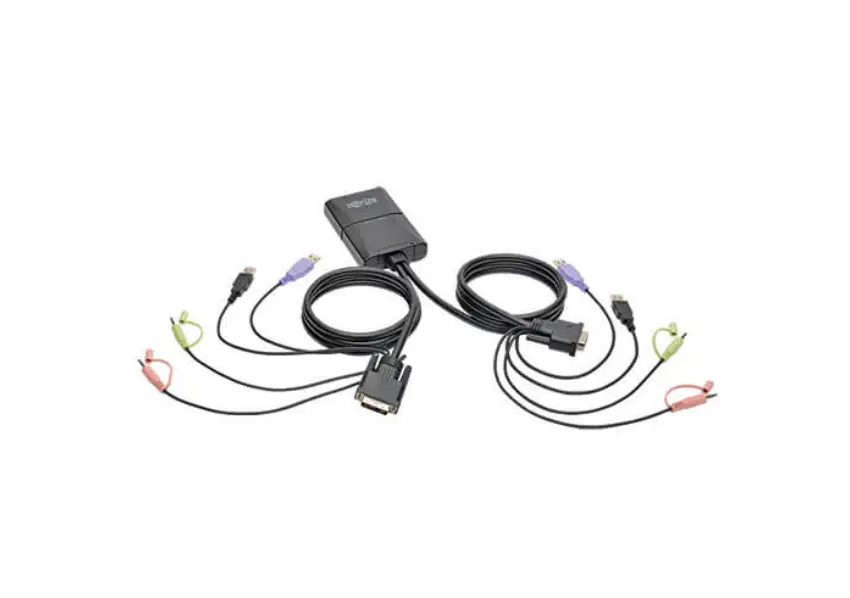
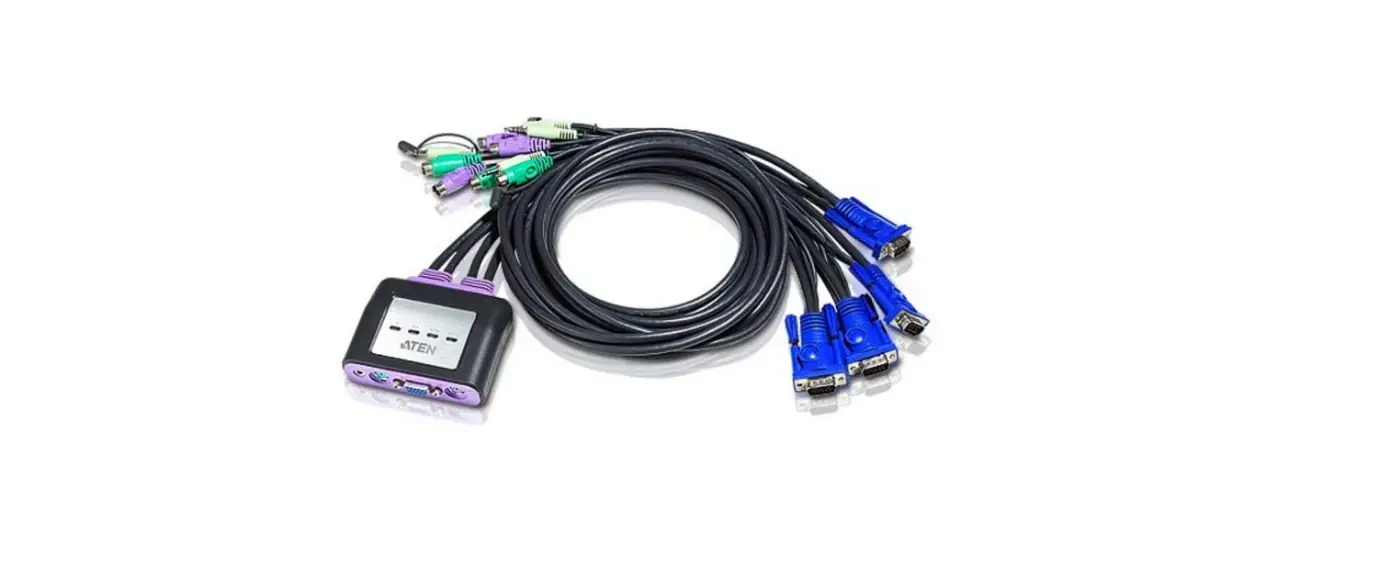
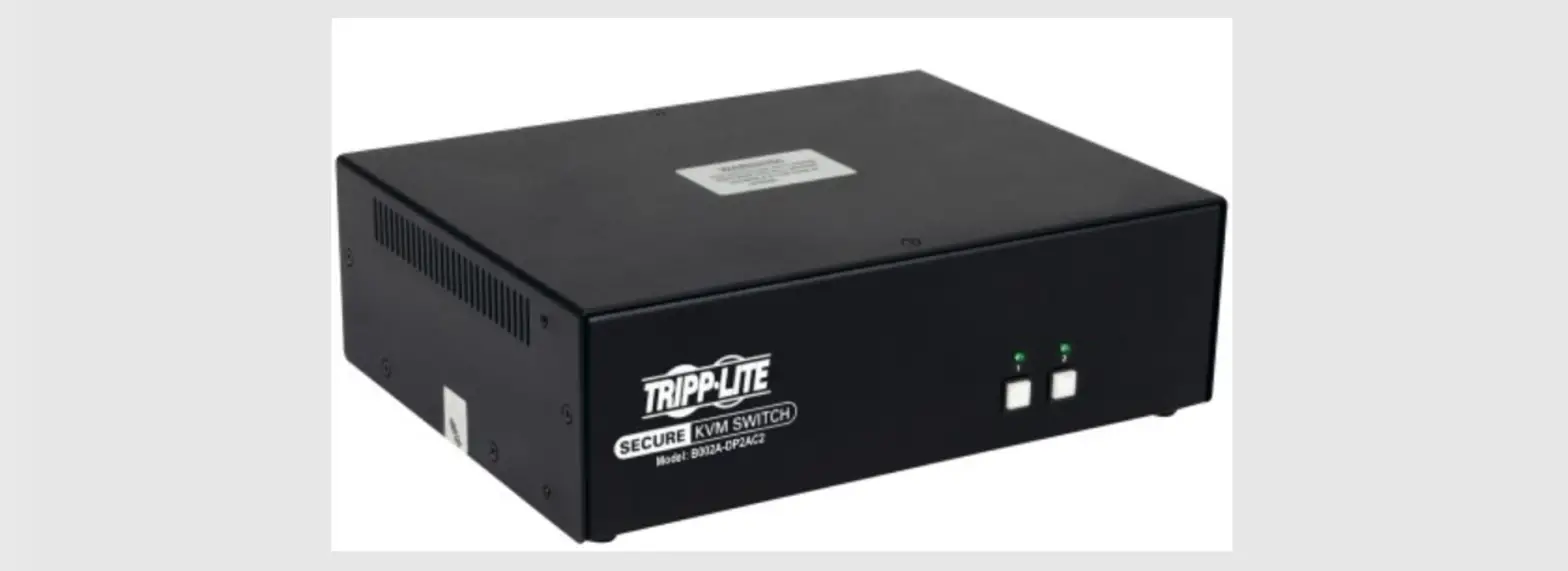
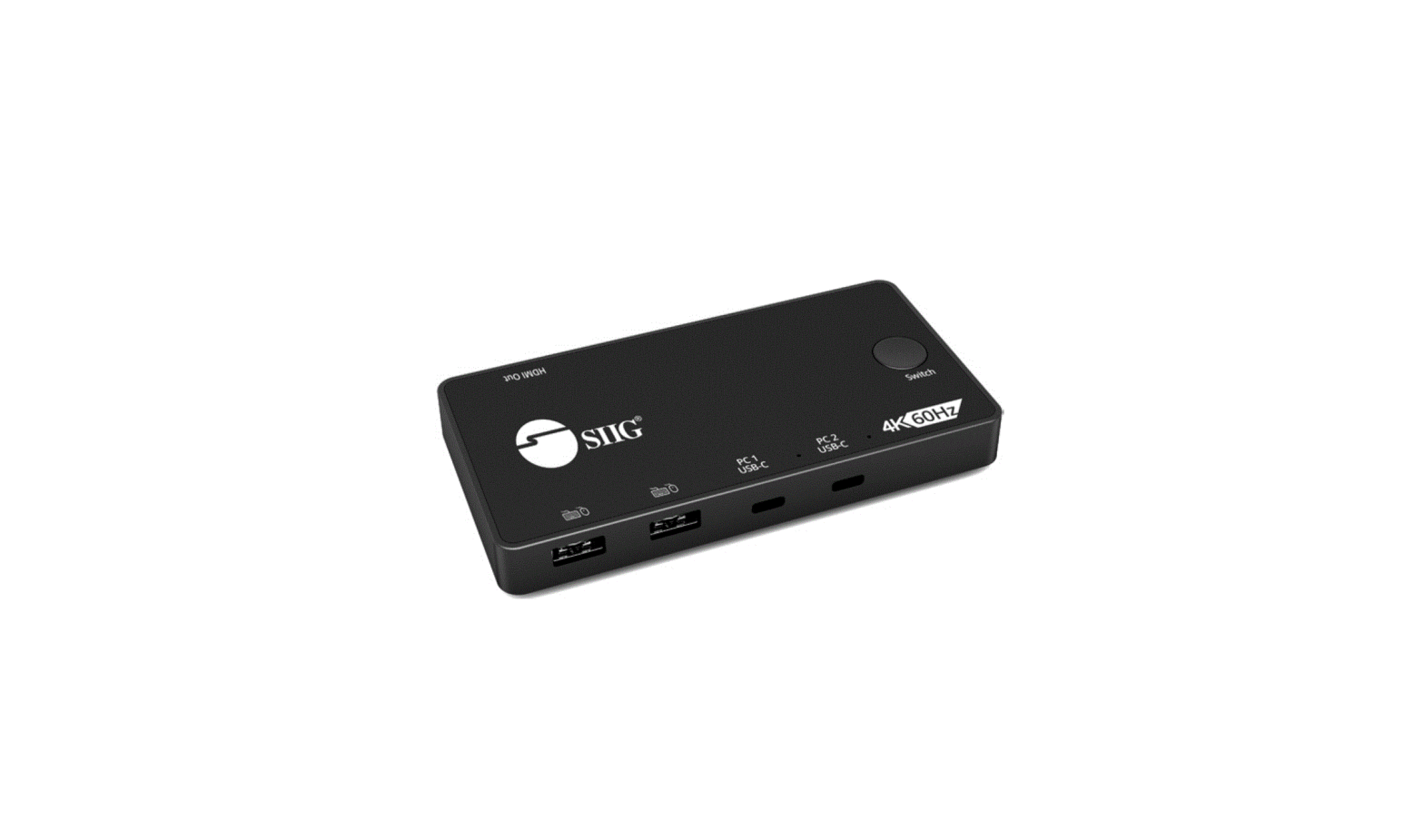
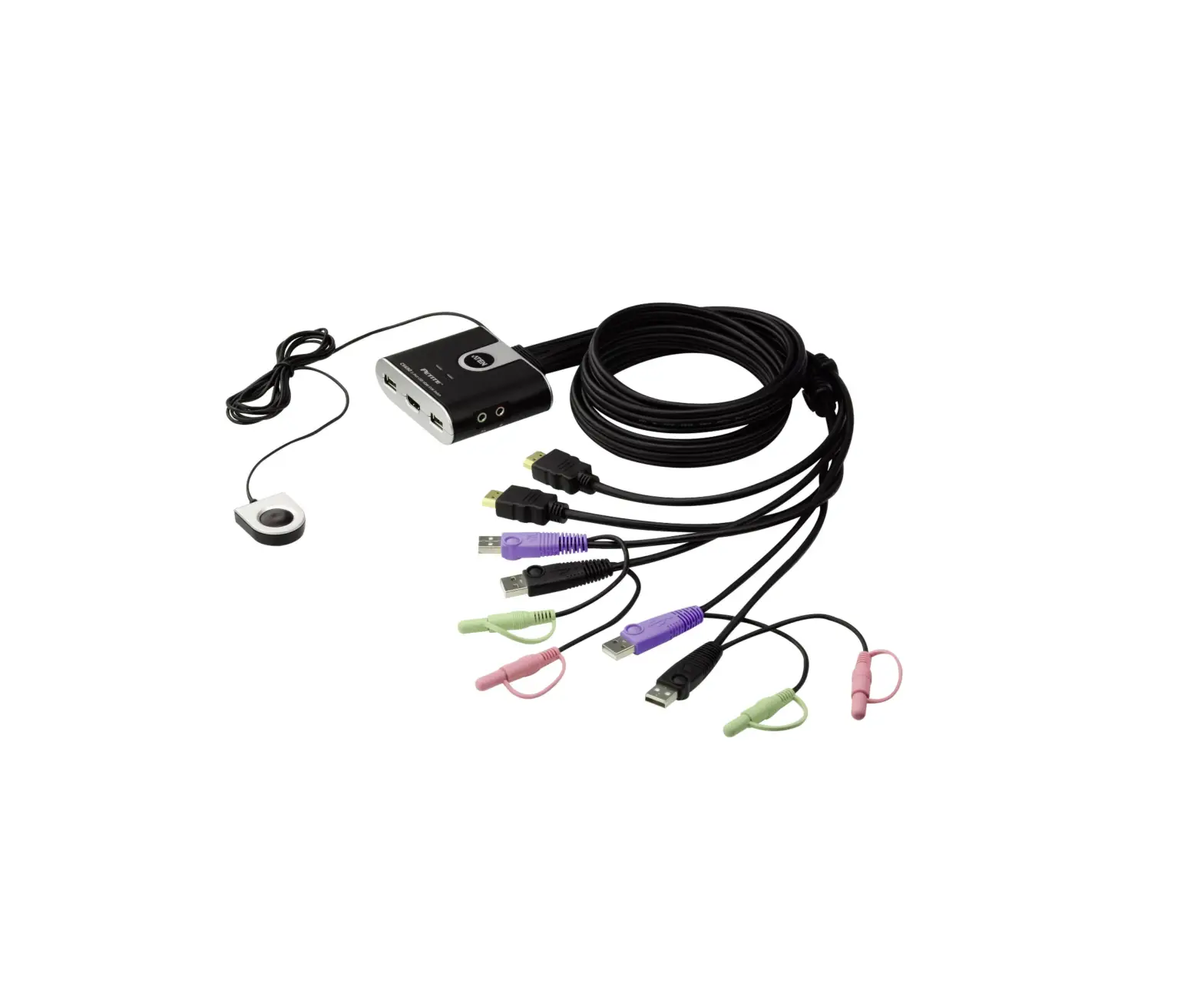
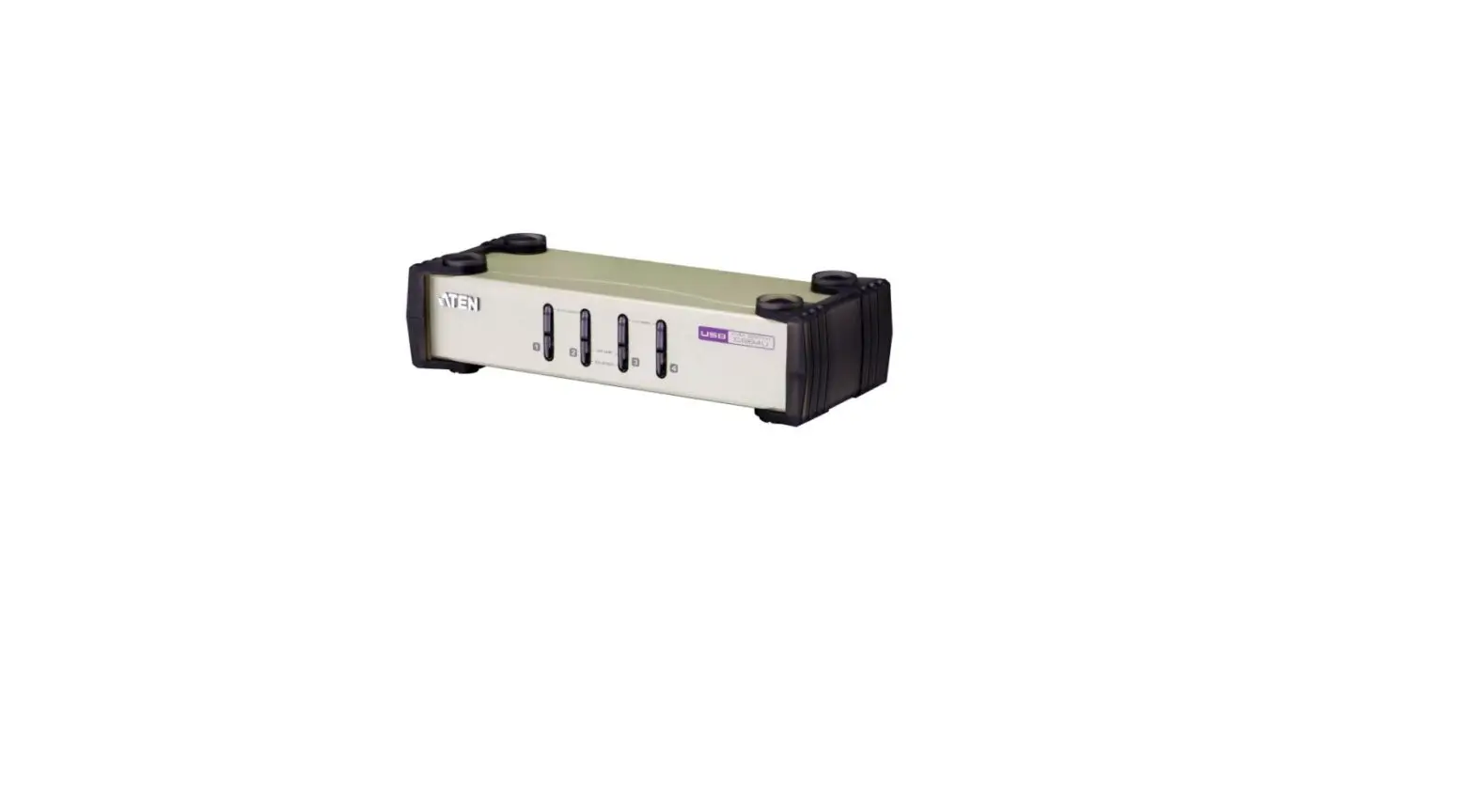
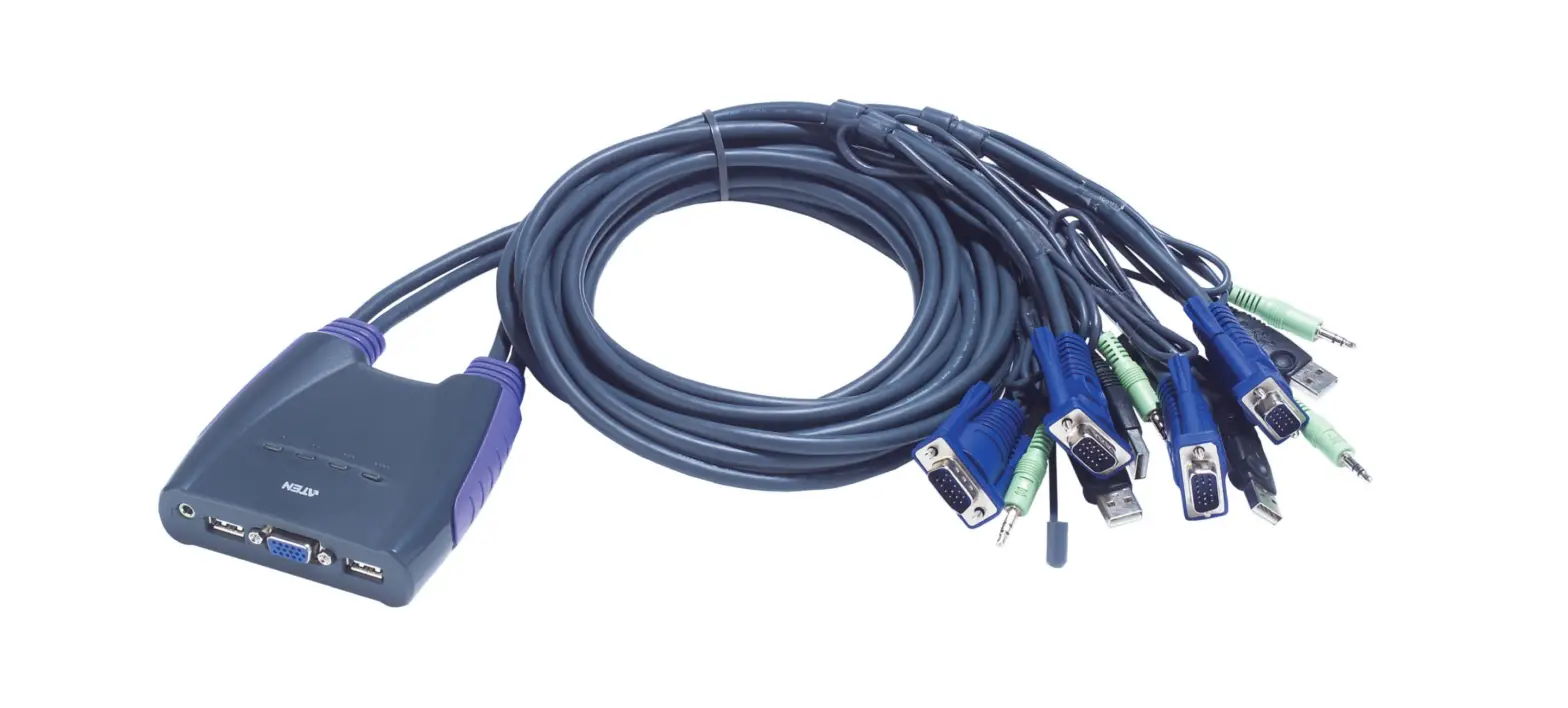
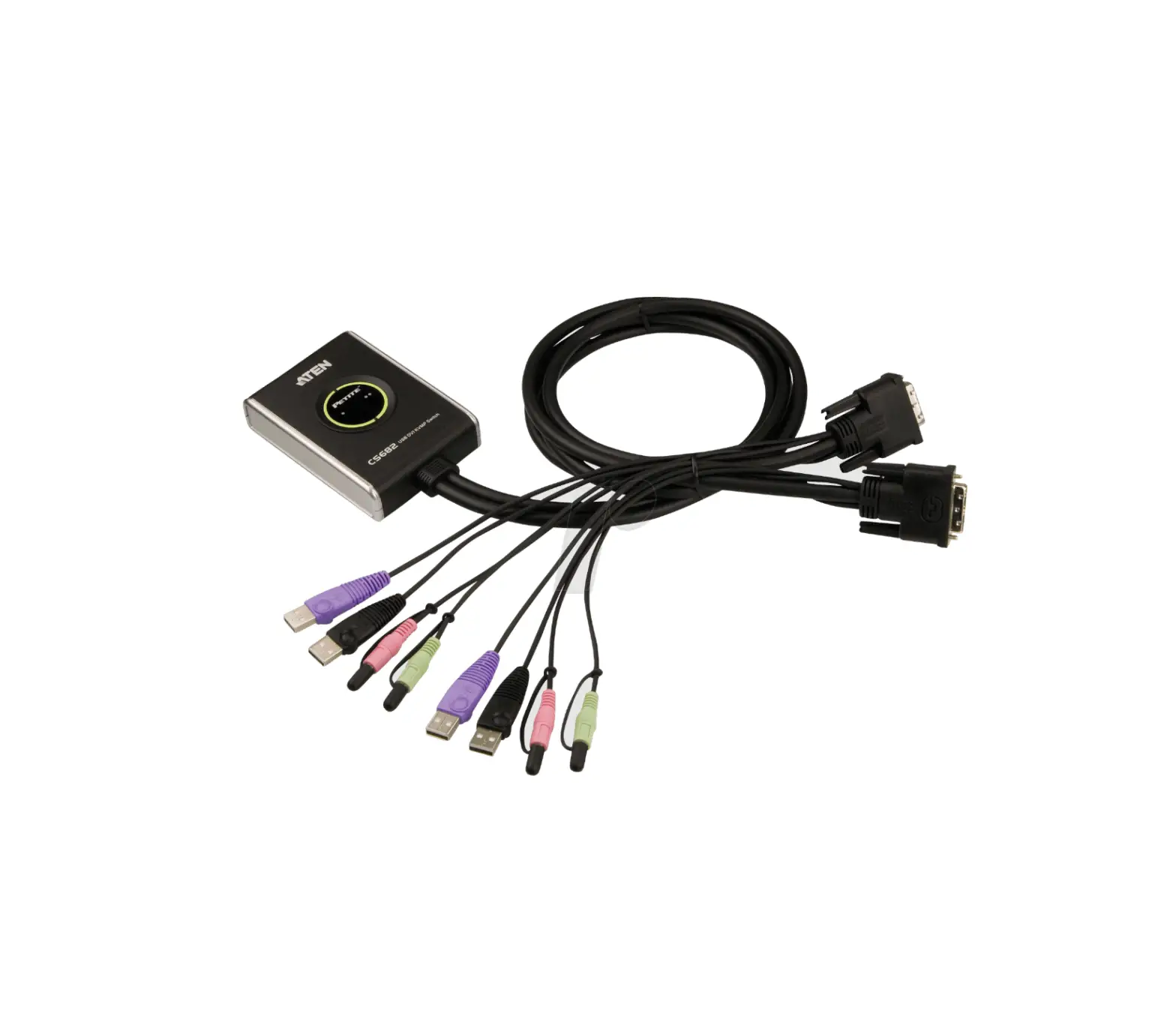
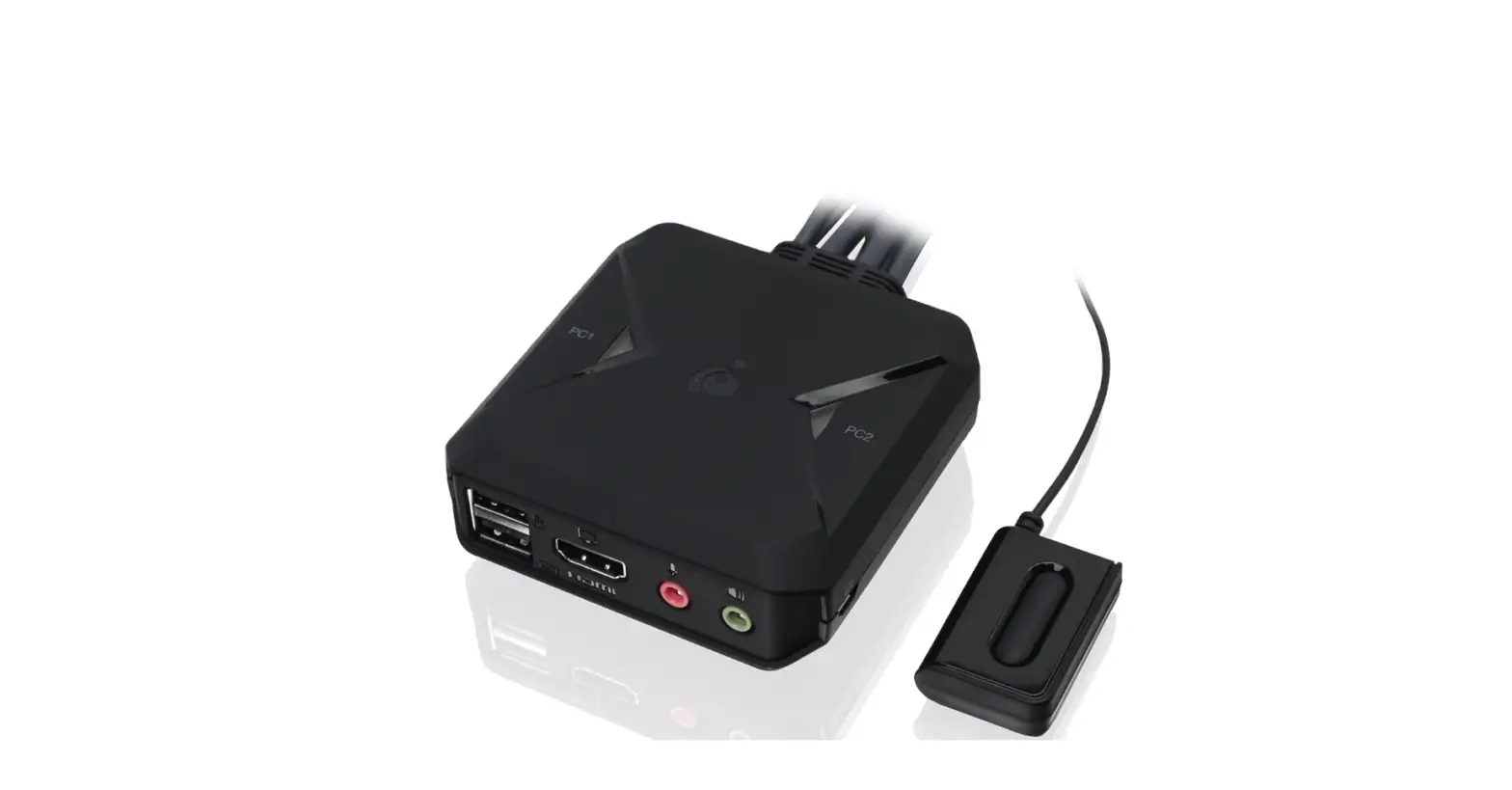
B032-VUA4 4-Port USB VGA Audio Cable KVM Switch
Product Information:
4-Port USB VGA/ Audio Cable KVM Switch – Model: B032-VUA4
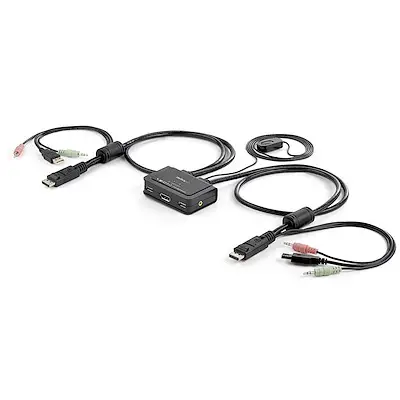
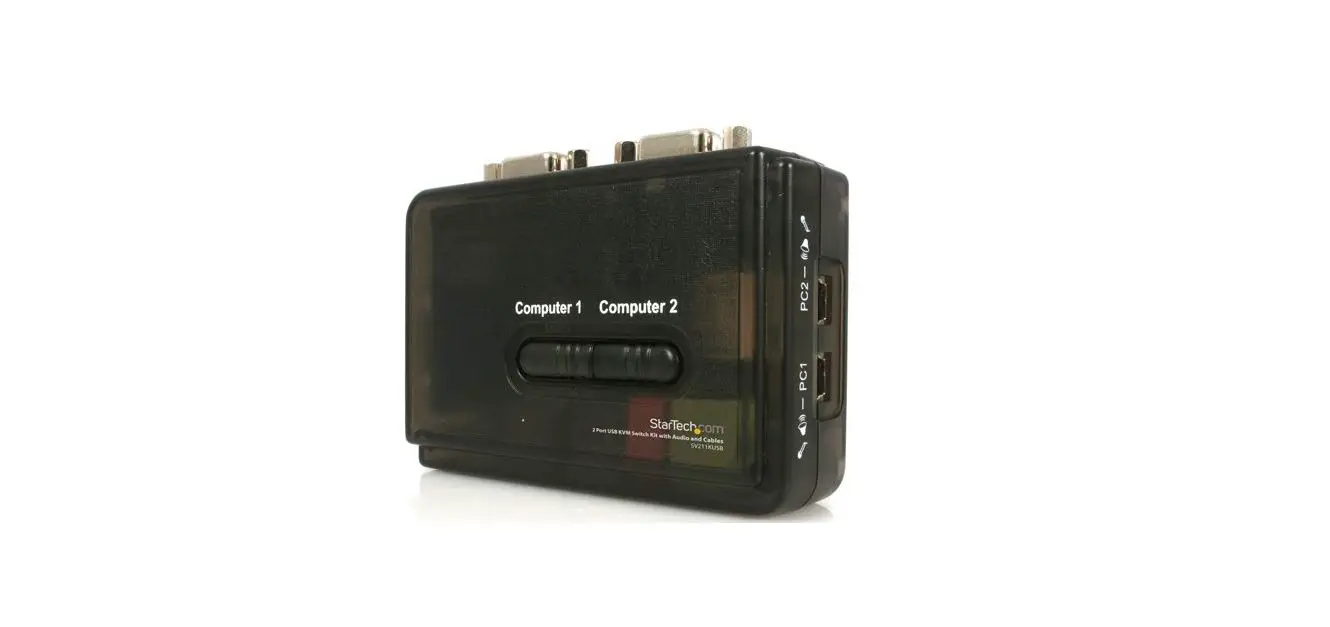
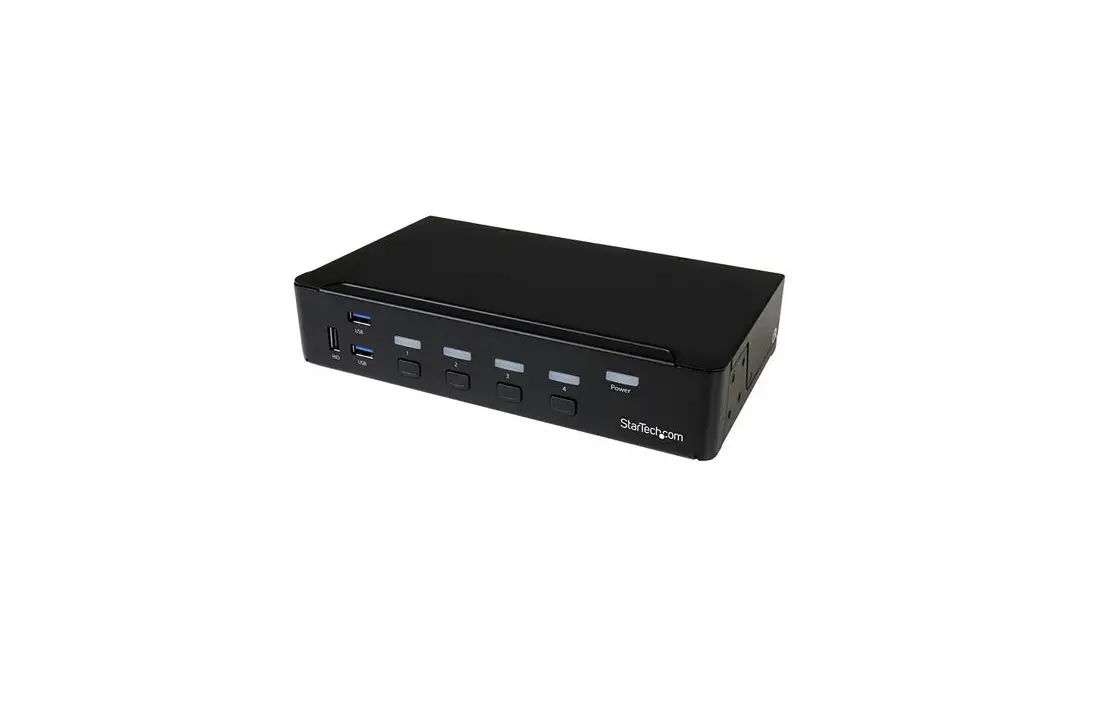
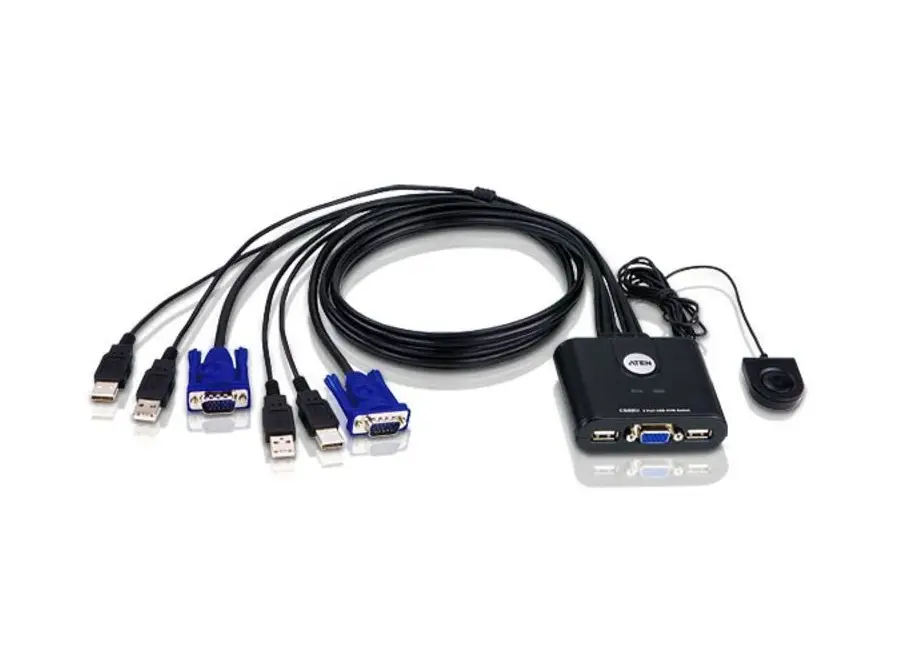
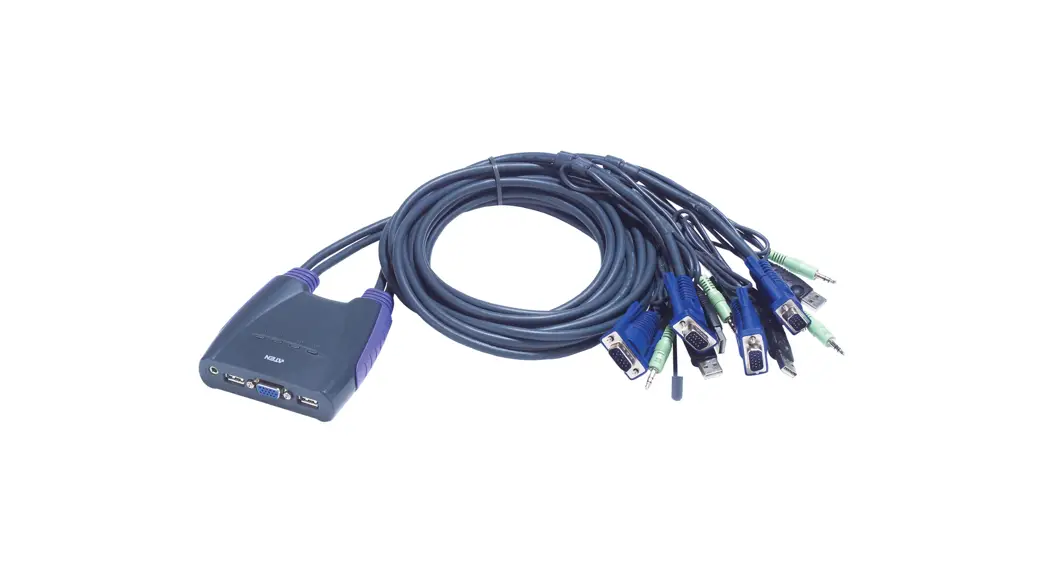
The B032-VUA4 is a 4-port KVM switch with built-in VGA and audio
cables. It allows you to control up to four computers using a
single keyboard, mouse, and monitor. The switch also includes
speaker connectors for audio output. No additional cables are
required for installation.
Package Contents:
- 4-Port USB VGA/ Audio Cable KVM Switch (Model: B032-VUA4)
- Console (USB keyboard, USB mouse, VGA monitor)
- Computers
- Cables
System Requirements:
- USB keyboard
- USB mouse
- VGA monitor
Hardware Overview:
- 1 Port LEDs
- KVM cables
- Audio speaker jack
- Console ports
- Speaker connector
- Video connector
- USB keyboard / mouse connector
Product Usage Instructions:
Installation:
- Plug your USB keyboard, mouse, and VGA monitor into the console
ports on the unit. - Plug your speakers into the 3.5 mm speaker jack.
- Plug the unit’s built-in USB, VGA, and audio cables into the
corresponding ports on the computers. - Power on your devices.
Note: The unit’s default power-on function will link to the
first computer being powered on.
Operation:
Port Selection:
All port switching operations begin by tapping the Scroll Lock
key twice.
| Hotkey | Action |
|---|---|
| [Scroll Lock] [Enter] | Brings the KVM and Audio focus from the port that currently has the KVM focus to the next port on the installation (1 to 2; 2 to 3; 3 to 4; 4 to 1). Note: If the KVM and Audio focus are on different ports, only the KVM focus switches. |
| [n] [Enter] | Brings the KVM and Audio focus to the computer attached to the corresponding Port ID. Note: Replace [n] with the port number (1, 2, 3, 4). |
| [Num Lock] [-] [Ctrl] [F12] | Invoking Hotkey Setting Mode |
| [Scroll Lock] [Scroll Lock] [A] [Enter] | Starts Auto Scan. The KVM focus cycles from port to port at 5-second intervals. |
| [Scroll Lock] [Scroll Lock] [A] [n] [Enter] | Starts Auto Scan. The KVM focus cycles from port to port at n-second intervals. Note: Replace n with a number between 1 and 99. |
Hotkey Summary Table:
| Combination | Function |
|---|---|
| [Num Lock] [H] | Toggles between the default [Num Lock] [-] and alternate [Ctrl] [F12] HSM invocation keys. |
| [T] | Toggles between the default [Scroll Lock] [Scroll Lock] and alternate [Ctrl] port-switching keys. |
| [F2] | Activates Mac keyboard mapping. |
| [F3] | Activates Sun keyboard mapping. |
| [F10] | Activates Windows keyboard mapping. |
| [F4] | Lists current switch settings via the paste function of a text editor. |
| [F5] | Performs a USB keyboard and mouse reset. |
| [F6] [nn] | Sets the keyboard language layout. |
| [Enter] [R] [Enter] | Resets hotkeys to the default setting. |
| [N] | Enables / disables keyboard emulation. |
| [u] [p] [g] [r] [a] [d] [e] [Enter] | Invokes Firmware Upgrade Mode |
| [Esc] or [Space Bar] | Quits Hotkey Setting Mode. |
Note: For more information, refer to the complete Owner’s Manual
at tripplite.com.
Quick Start Guide
4-Port USB VGA/ Audio Cable KVM Switch
Model: B032-VUA4
WARRANTY REGISTRATION
Register your product today and be automatically entered to win an ISOBAR® surge protector in our monthly drawing!
tripplite.com/warranty
1111 W. 35th Street, Chicago, IL 60609 USA · tripplite.eaton.com/support (c) 2023 Eaton. All rights reserved. 1
Package Contents
· B032-VUA4 · Quick Start Guide
System Requirements
Console
· VGA, SVGA or Multisync monitor (P502-006-SM cable recommended) · USB Keyboard and USB Mouse.
Note: If your USB cable’s connector is too wide to fit, use a UR024-001 Universal Reversible USB 2.0 Extension Cable. · Speakers (optional)
Computers
The following equipment must be installed on each computer that is to be connected to the system: · VGA, SVG, or Multisync video port · USB-A port · Speaker port (optional)
Cables
The B032-VUA4 innovative design features built-in KVM and speaker cables for extra convenience. No further cables are necessary.
2
Hardware Overview
3
1
2
4
KVM Cable Connectors
5
6
7 1 Port LEDs 2 KVM cables 3 Audio speaker jack 4 Console ports 5 Speaker connector 6 Video connector 7 USB keyboard / mouse connector
3
Installation
3 3
To prevent damage to your installation
from power surges or static electricity, it
is important that all connected devices
are properly grounded.
2
1
Notes: · The user must plug keyboard into B032-VUA4’s keyboard port in order for
hotkey command to function. The keyboard port indicator can be found on the bottom of unit. · Make sure the power to all devices is turned off prior to installation. You must unplug the power cords of any computers that have the Keyboard Power On Function. · Make sure all devices you will be installing are properly grounded.
1 Plug your USB keyboard, mouse and VGA monitor into the console ports on the unit.
Notes · If using a wireless keyboard and mouse, the dongle must be plugged into the unit’s keyboard port to use the hotkey function. · If the USB cable has a special molding, use a UR024-001 Universal Reversible USB 2.0 Extension Cable, Reversible A to A M/F.
2 Plug your speakers into the 3.5 mm speaker jack.
3 Plug the unit’s built-in USB, VGA and audio cables into the computers’ corresponding ports.
4 Power on your devices.
Note: The unit’s default power-on function will link to the first computer being powered on.
4
Operation
Port Selection
All port switching operations begin by tapping the Scroll Lock key twice.
Hotkey
Action
[Scroll Lock] [Enter]Brings the KVM and Audio focus from the
[Scroll Lock] +port that currently has the KVM focus to
the next port on the installation (1 to 2; 2
to 3; 3 to 4; 4 to 1) Note: If the KVM and Audio focus are on different ports, only the KVM focus switches.
[n] [Enter] Brings the KVM and Audio focus to thecomputer attached to the corresponding
Port ID. Note: Replace [n] with the port number (1, 2, 3, 4).
Note: If using the Scroll Lock key conflicts with other programs running on the computer, the Ctrl key can be used instead.
Invoking Hotkey Setting Mode
All hotkey operations begin by holding the Num Lock key, pressing and releasing the [-] key, then releasing the Num Lock key. Note: If using [Num Lock] [-] conflicts with other programs, [Ctrl] [F12] can be used instead.
Auto Scanning
Hotkey
Action
[Scroll Lock] [Scroll Lock] [A] Starts Auto Scan. The KVM focus cycles [Enter]from port to port at 5-second intervals.
[Scroll Lock] [Scroll Lock] [A] Starts Auto Scan. The KVM focus cycles [n] [Enter]from port to port at n-second intervals. Note: Replace n with a number between 1 and 99.
Note: To exit Auto Scan, press [Esc] or [Spacebar]. Auto Scanning stops when you exit Auto Scan mode.
5
Operation
Hotkey Summary Table
Combination
Function
[Num Lock] [H]Toggles between the default [Num Lock] [-] +
[-] and alternate [Ctrl][F12] HSMinvocation keys.
[T]Toggles between the default [Scroll
Lock] [Scroll Lock] and alternate [Ctrl] [Ctrl] port-switching keys.
[F2]Activates Mac keyboard mapping.
[F3]Activates Sun keyboard mapping.
[F10]Activates Windows keyboard mapping.
[F4]Lists current switch settings via the
paste function of a text editor.
[F5]Performs a USB keyboard and mouse
reset.
[F6] [nn]Sets the keyboard language layout.
[Enter] [R] [Enter]Resets hotkeys to the default setting.
[N]Enables / disables keyboard emulation.
[u] [p] [g] [r] [a] Invokes Firmware Upgrade Mode [d] [e] [Enter] [Esc] or [Space Bar]Quits Hotkey Setting Mode.
Note: For more information, refer to the complete Owner’s Manual at tripplite. com.
6
Specifications
Function Computer Connections Console Connections Port Selection Connectors Console Keyboard
Ports Video Mouse Speakers
KVM Ports
Keyboard / Mouse Video Speakers
LEDs
Selected
Cable Length
Emulation Keyboard /Mouse
Video
Scan Interval
Power Consumption
Environment Operating Temp.
Storage Temp.
Humidity
Physical
Housing
Properties Weight
Dimensions (L x W x H)
B032-VUA4 4 1 Hotkeys 1 x USB Type A-Female (White) 1 x HDB-15 Female (Blue) 1 x USB Type A-Female (White) 1 x Mini Stereo Jack Female (Green) 4 x USB Type-A Male (White)
4 x HDB-15 Male (Blue)
4 x Mini Stereo Jack Female
(Green)
4 x (Green)
2 x 3 ft. (0.9 m); 2 x 4 ft. (1.2 m)
USB
2048 x 1536; DDC2B
5 sec.
1-99 sec.
(default: 5 sec.)
DC5V: 0.33W: DC5V: 0.9W:
14BTU
8BTU
32 – 122ºF (0 – 50ºC)
-4 – 140ºF (-20 – 60ºC)
080% RH, Non-condensing
Plastic
0.62 lb.
1.28 lb.
(0.28 kg)
(0.58 kg)
3.44 x 2.39 x 3.7 x 3.83 x
1.10 in. (8.75 x 1.02 in. (9.41 x
6.08 x 2.80 cm) 9.72 x 2.6 cm)
7
Warranty and Product Registration
3-YEAR LIMITED WARRANTY Seller warrants this product, if used in accordance with all applicable instructions, to be free from original defects in material and workmanship for a period of three (3) years from the date of initial purchase. If the product should prove defective in material or workmanship within that period, Seller will repair or replace the product, in its sole discretion. Visit tripplite.com/support before sending any equipment back for repair. THIS WARRANTY DOES NOT APPLY TO NORMAL WEAR OR TO DAMAGE RESULTING FROM ACCIDENT, MISUSE, ABUSE OR NEGLECT. SELLER MAKES NO EXPRESS WARRANTIES OTHER THAN THE WARRANTY EXPRESSLY SET FORTH HEREIN. EXCEPT TO THE EXTENT PROHIBITED BY APPLICABLE LAW, ALL IMPLIED WARRANTIES, INCLUDING ALL WARRANTIES OF MERCHANTABILITY OR FITNESS, ARE LIMITED IN DURATION TO THE WARRANTY PERIOD SET FORTH ABOVE; AND THIS WARRANTY EXPRESSLY EXCLUDES ALL INCIDENTAL AND CONSEQUENTIAL DAMAGES. (Some states do not allow limitations on how long an implied warranty lasts, and some states do not allow the exclusion or limitation of incidental or consequential damages, so the above limitations or exclusions may not apply to you. This Warranty gives you specific legal rights, and you may have other rights which vary from jurisdiction to jurisdiction). WARNING: The individual user should take care to determine prior to use whether this device is suitable, adequate or safe for the use intended. Since individual applications are subject to great variation, the manufacturer makes no representation or warranty as to the suitability or fitness of these devices for any specific application.
PRODUCT REGISTRATION Visit tripplite.eaton.com/warranty today to register your new Tripp Lite product. You’ll be automatically entered into a drawing for a chance to win a FREE Tripp Lite product!* *No purchase necessary. Void where prohibited. Some restrictions apply. See website for details.
Use of this equipment in life support applications where failure of this equipment can reasonably be expected to cause the failure of the life support equipment or to significantly affect its safety or effectiveness is not recommended. Regulatory
Compliance Identification Numbers For the purpose of regulatory compliance certifications and identification, your Tripp Lite product has been assigned a unique series number. The series number can be found on the product nameplate label, along with all required approval markings and information. When requesting compliance information for this product, always refer to the series number. The series number should not be confused with the marking name or model number of the product
8
Warranty and Product Registration
FCC Notice, Class B This device complies with part 15 of the FCC Rules. Operation is subject to the following two conditions: (1) This device may not cause harmful interference, and (2) this device must accept any interference received, including interference that may cause undesired operation. Note: This equipment has been tested and found to comply with the limits for a Class B digital device, pursuant to part 15 of the FCC Rules. These limits are designed to provide reasonable protection against harmful interference in a residential installation. This equipment generates, uses and can radiate radio frequency energy and, if not installed and used in accordance with the instructions, may cause harmful interference to radio communications. However, there is no guarantee that interference will not occur in a particular installation. If this equipment does cause harmful interference to radio or television reception, which can be determined by turning the equipment off and on, the user is encouraged to try to correct the interference by one or more of the following measures: · Reorient or relocate the receiving antenna. · Increase the separation between the equipment and receiver. · Connect the equipment
into an outlet on a circuit different from that to which the receiver is connected. · Consult the dealer or an experienced radio/TV technician for help. Any changes or
modifications to this equipment not expressly approved by Tripp Lite could void the user’s authority to operate this equipment. WEEE Compliance Information for Tripp Lite Customers and Recyclers (European Union)
Under the Waste Electrical and Electronic Equipment (WEEE) Directive and implementing regulations, when customers buy new electrical and electronic equipment from Tripp Lite they are entitled to: · Send old equipment for recycling on a one-for-one, like-for-like basis (this varies
depending on the country) · Send the new equipment back for recycling when this ultimately becomes waste. Tripp Lite has a policy of continuous improvement. Specifications are subject to change without notice. Photos and illustrations may differ slightly from actual products.
9
10
11
1111 W. 35th Street, Chicago, IL 60609 USA · tripplite.eaton.com/support
12
23-04-042 93461C_RevB
 Help Center | Eaton
 Help Center | Eaton