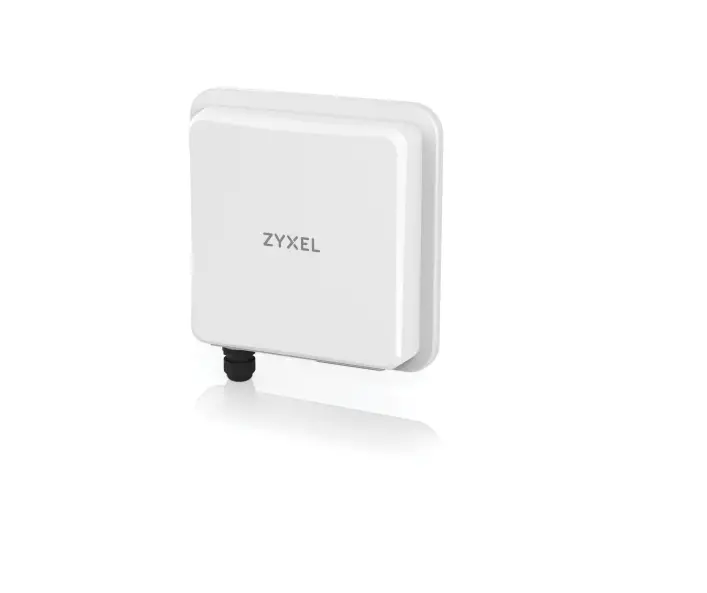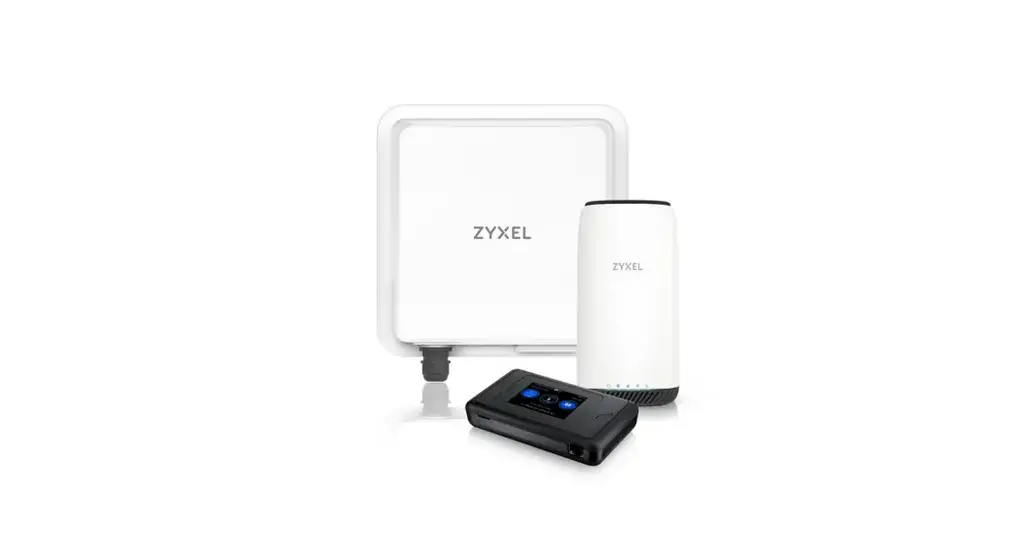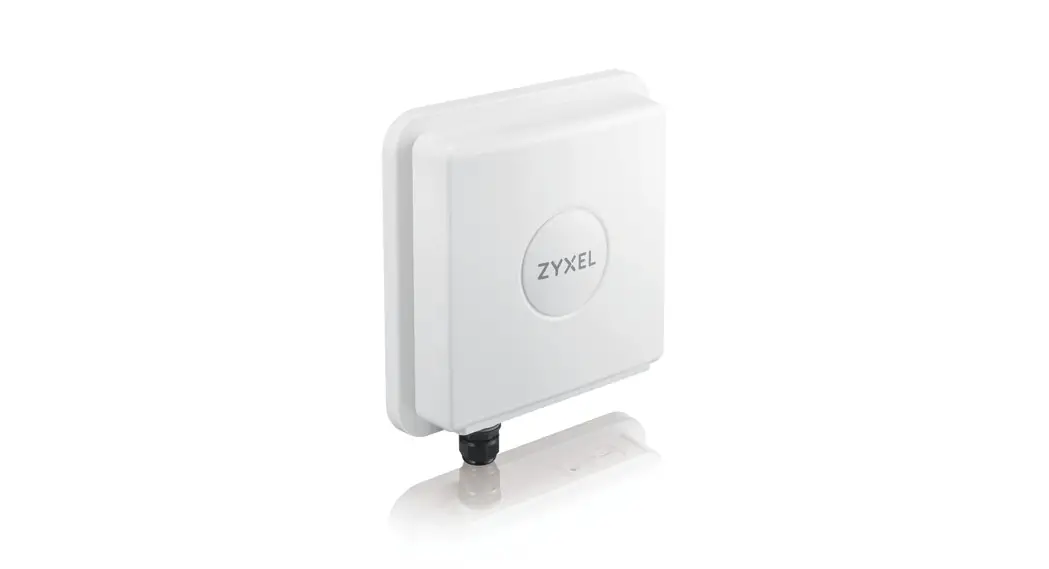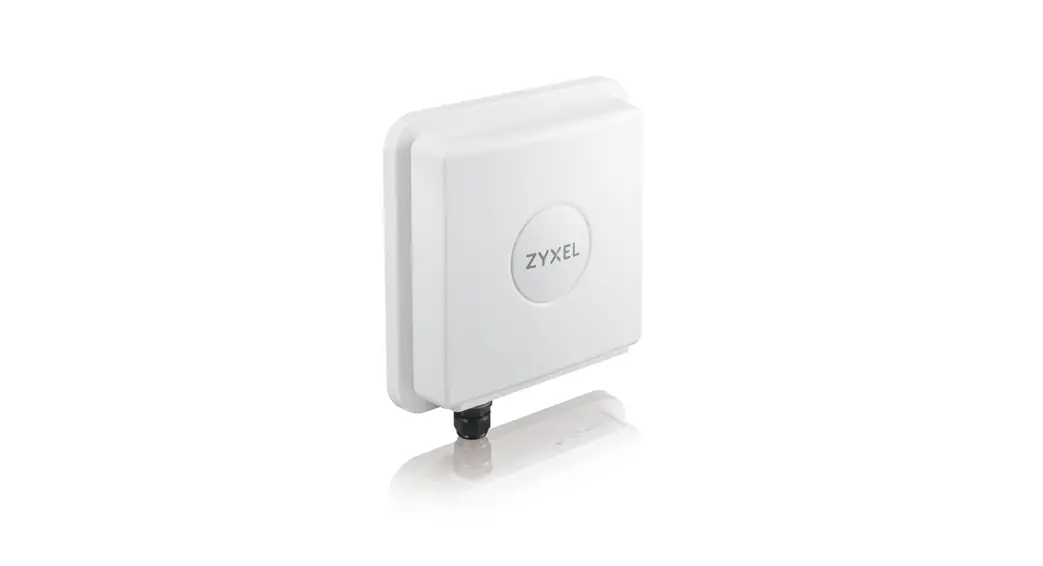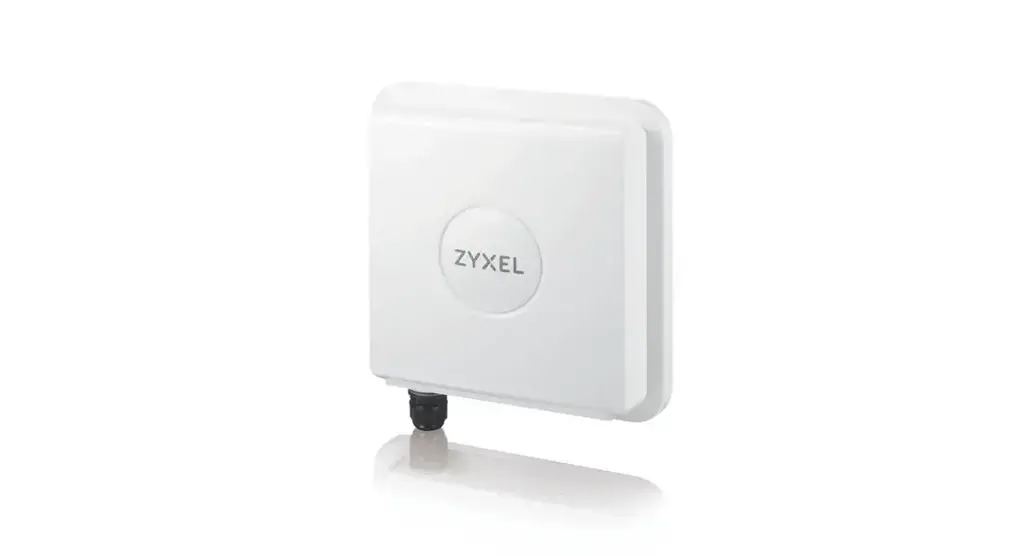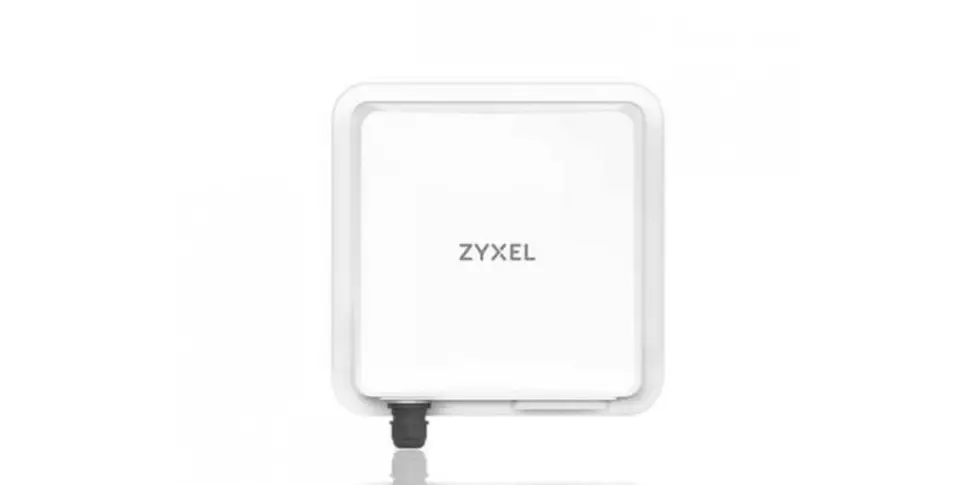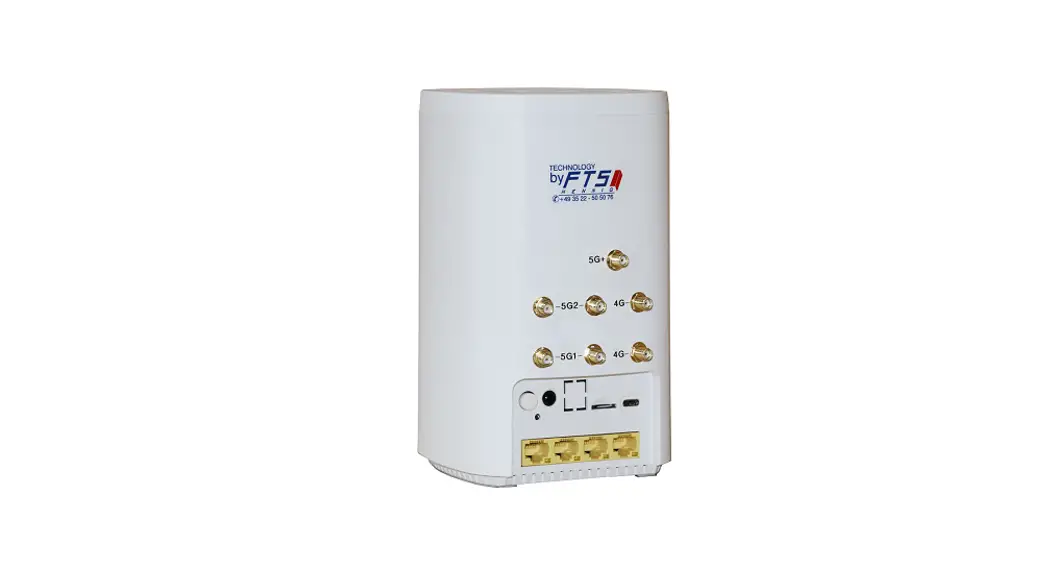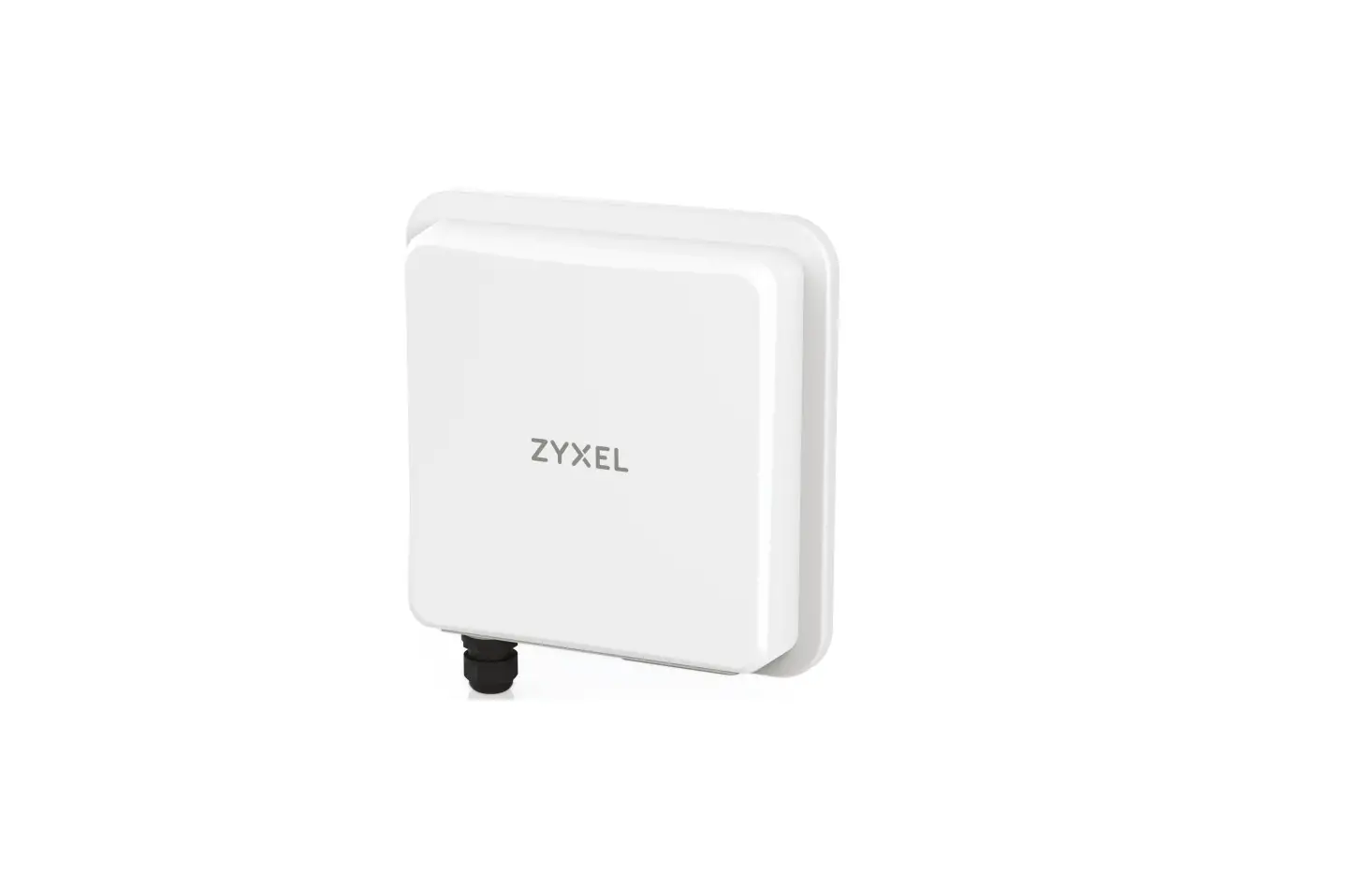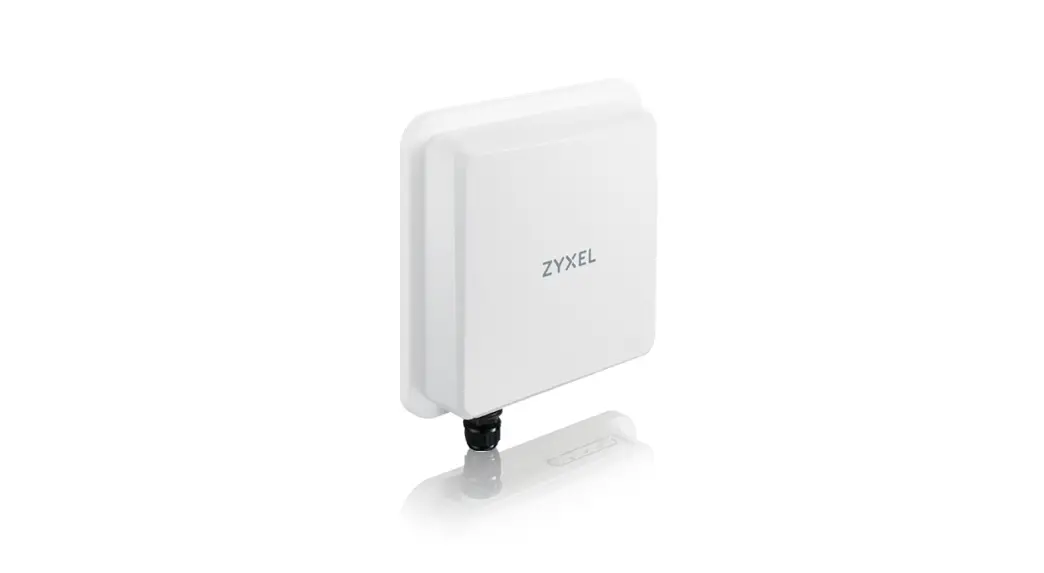
 NR7101
5G New Radio Outdoor Router
Quick Start Guide
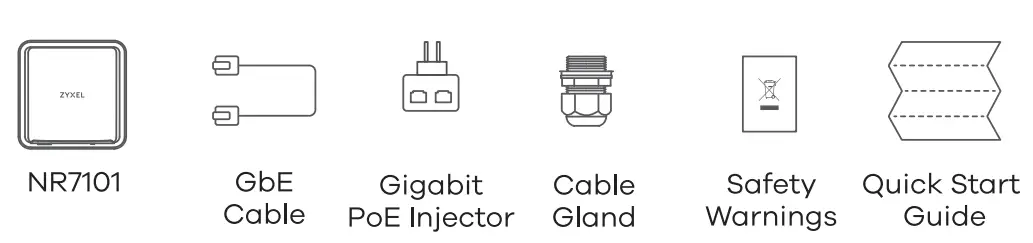
Package Contents
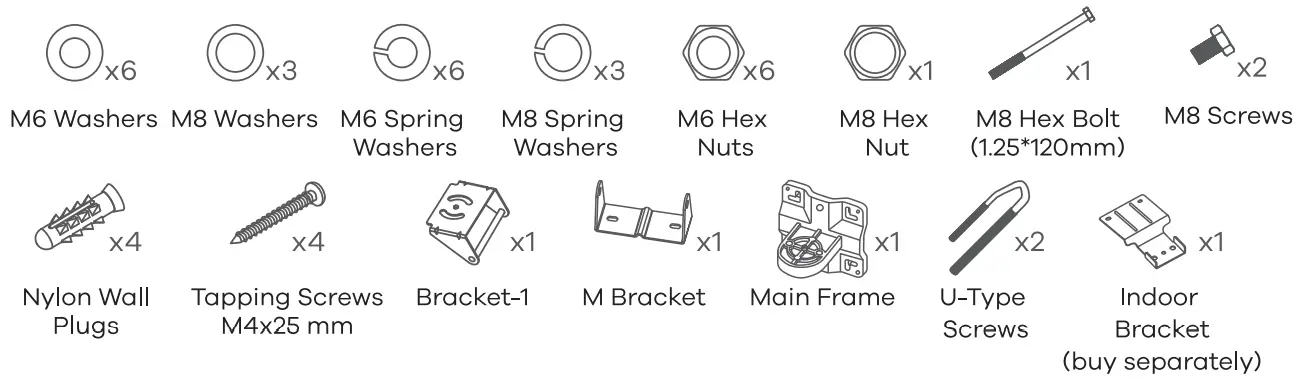
Mounting Kit
Location Examples
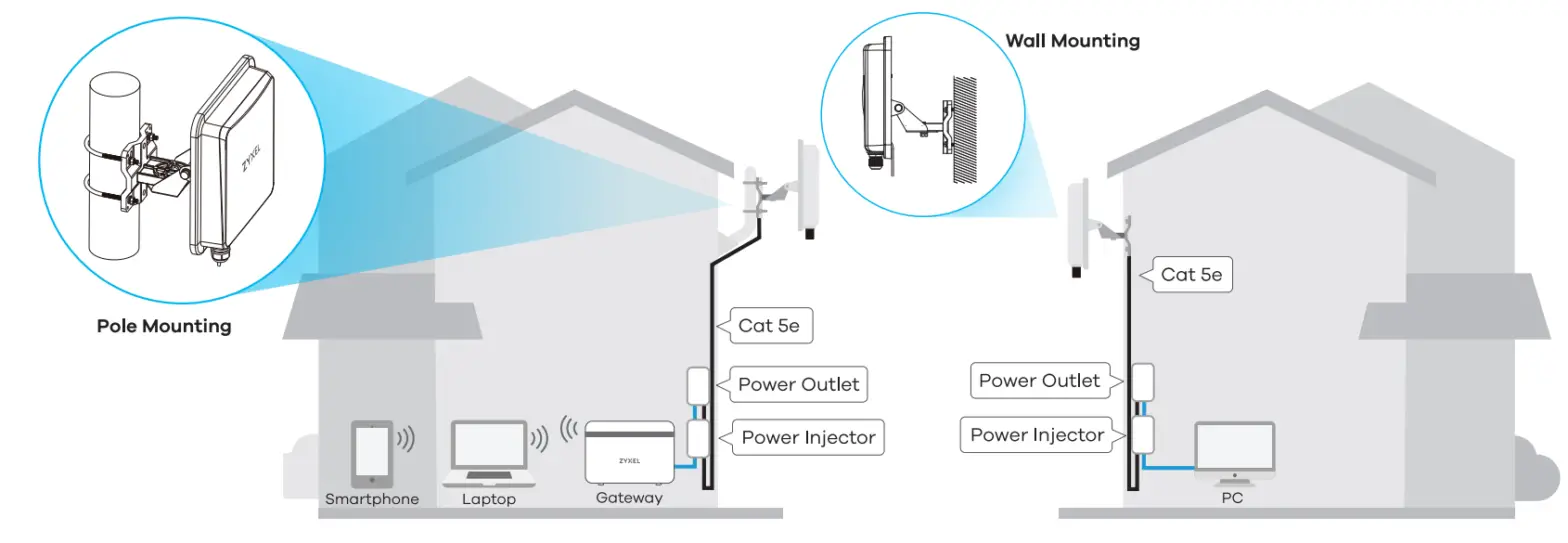
 Place the NR7101 in an open area free of obstacles, and adjust the angle to point the front panel towards the base station to have the strongest possible LTE signal.
Step 1 SIM Card Installation
- Make sure the NR7101 is turned off. There should be no Ethernet cable connected providing power using PoE. Unscrew the SIM card slot cover and remove it.
- Insert your SIM card provided by an LTE ISP (Internet Service Provider) into SIM card slot 1 first. Make sure the SIM card is fully inserted into the card slot.
Step 2 Cable Connections
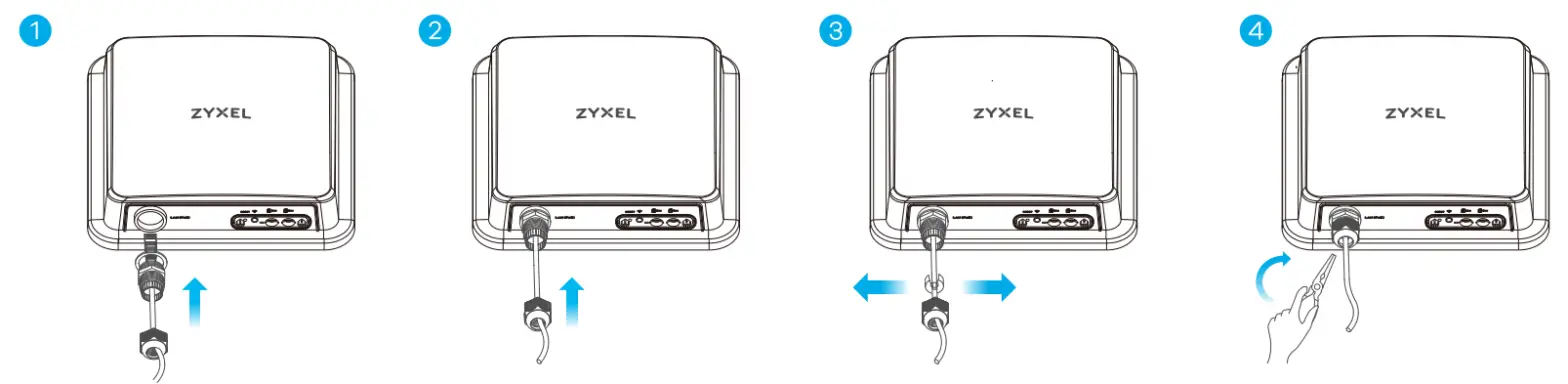 1-4 Follow steps 1 to 4 in the drawing to connect an 8-pin Cat Se Ethernet cable to the NR7101’s LAN port.
Step 3 Cable Connections
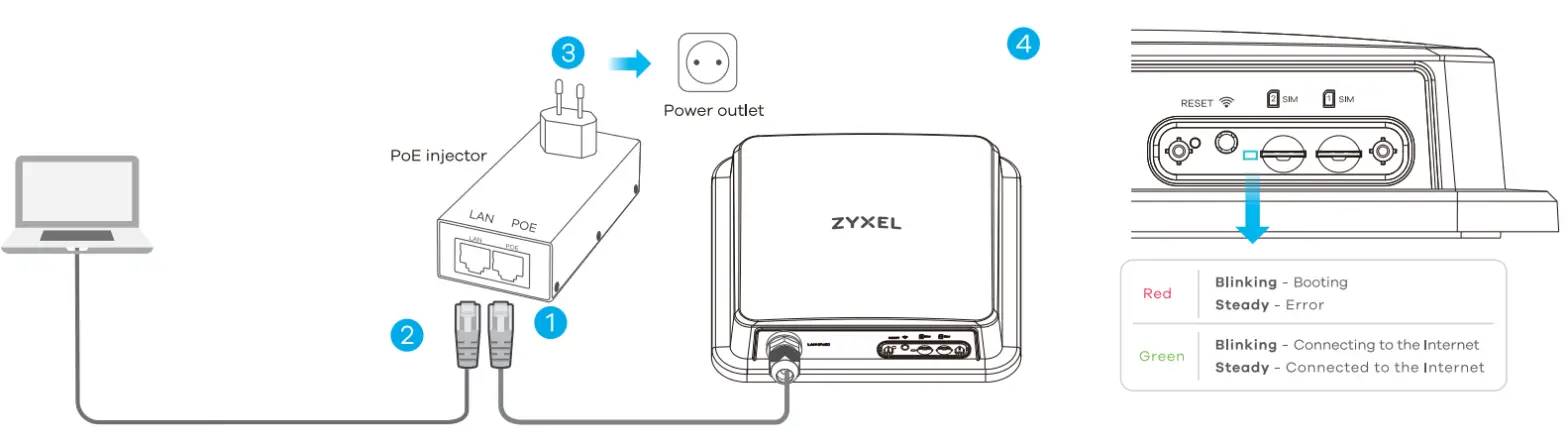
- Connect the other end of the Ethernet cable to the provided PoE injector’s POE port.
- Use an Ethernet cable to connect the injector’s LAN port to a computer for initial configuration.
- Connect the power plug on the PoE injector to a power outlet.
- Check the LED next to the SIM card slot
Step 4 Connecting to Your NR7101’s WiFi for Easy Setup
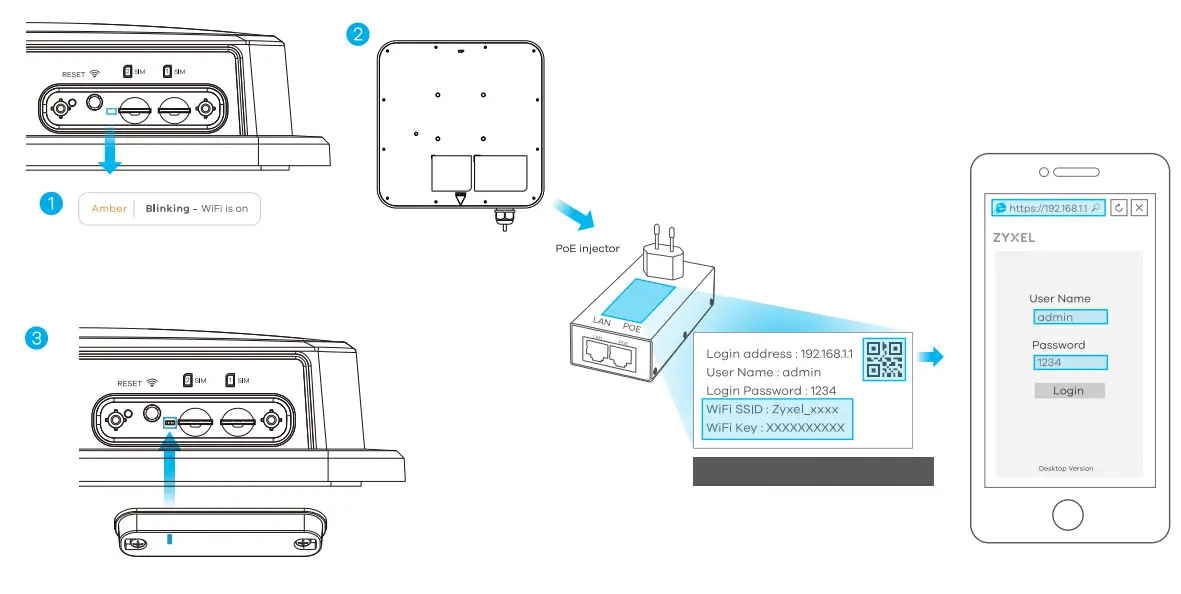
- Check if WiFi is on – the amber LED is blinking. If not, press the WiFi button to enable WiFi.
- Remove the label from the back of the NR7101 and put it on the injector. Connect to the NR7101 WiFi network using the WIFI SSID and WIFI Key on the label, or on your smartphone simply scan the QR code to connect.
- Screw the SIM card slot cover bock into place. Make sure the cover is in the correct position and tightly screwed to the NR7101.
Configuring Your NR7101 (Optional)
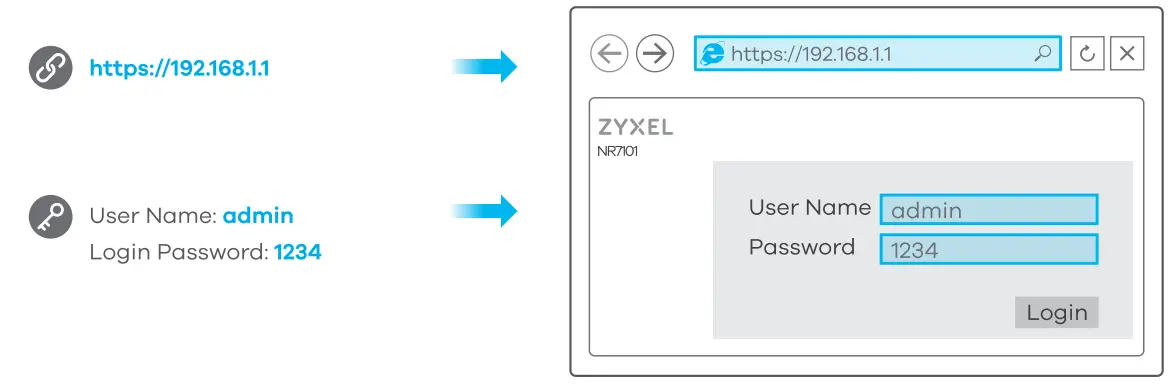
Open a web browser and go to https://192.16811. Enter the default username (admin) and password (see label), and then click Login. See the Users Guide at www.zyxel.com for more information.
Step 5 Pole / Wall Mounting: Connect M Bracket and Main Frame
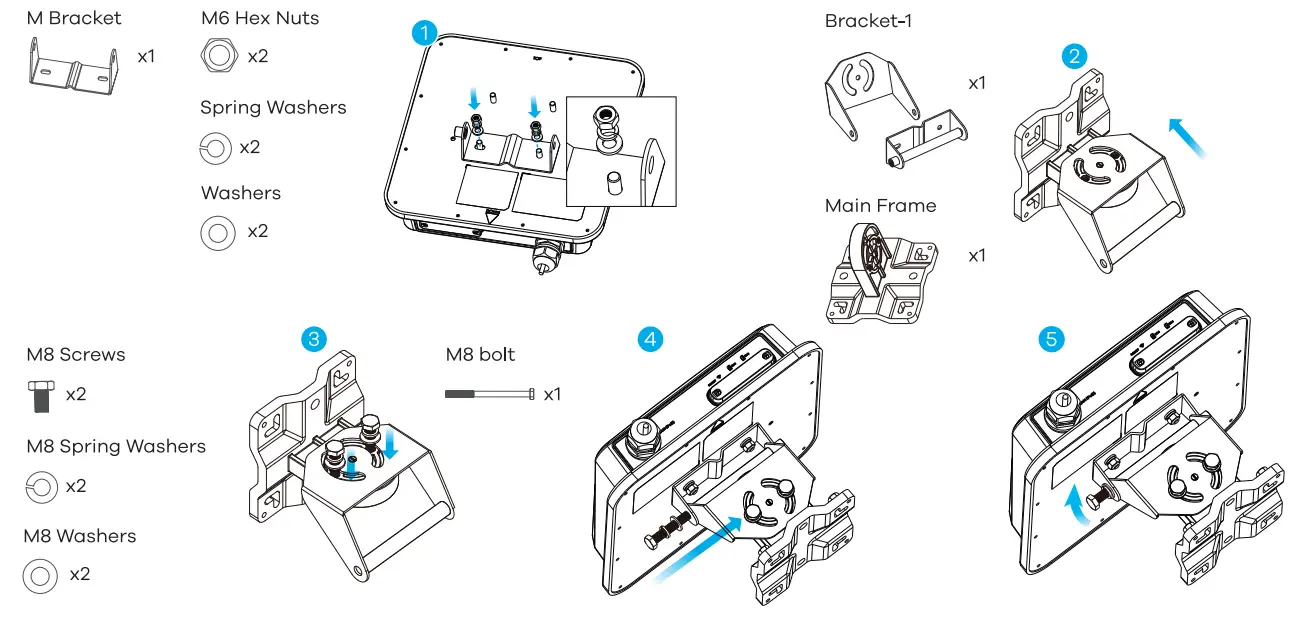
1 Use washers, spring washers, and nuts to attach the M-type bracket to the back of the NR7101.
2-3 Follow steps 2-3 in the drawing to attach the rotating bracket to the main mounting frame using M8 screws, washers, spring washers, and hex nuts. Do not tighten the nuts until you adjust the mounting angle in the final step.
4-5) Follow steps 4-5 in the drawing to align the rotating bracket with the M-type bracket, insert the M8 bolt through the holes, and use washers, spring washers, and nuts to secure it.
Wall Mounting (Optional)
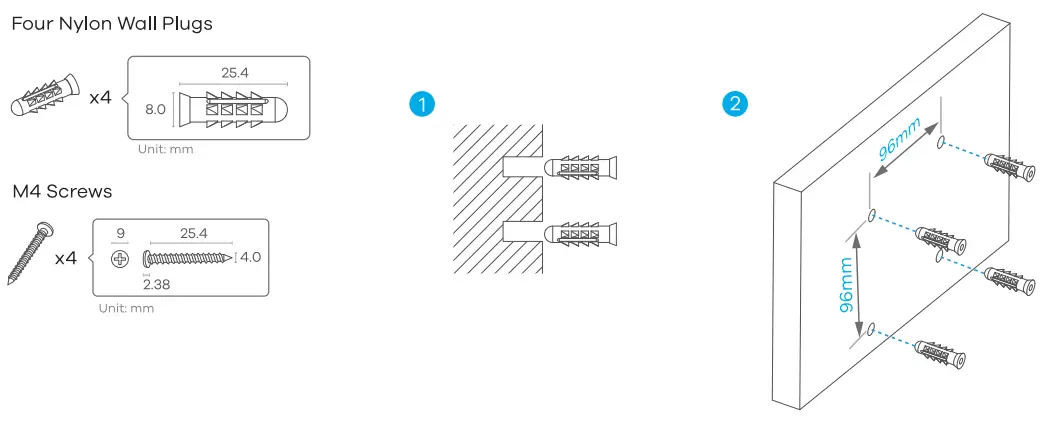
- Use the four corner holes of the mainframe to mark holes on a wall. Drill four holes in a wall.
- Insert the screw anchors and screws into the holes.

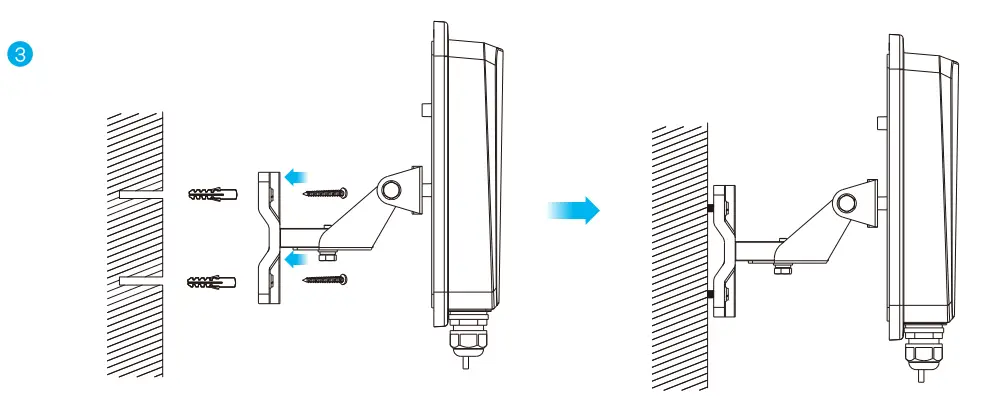
- Insert nylon wall plugs into the wall. Use mounting screws to secure the mainframe to the wall through the nylon plugs.
Pole Mounting (Optional)
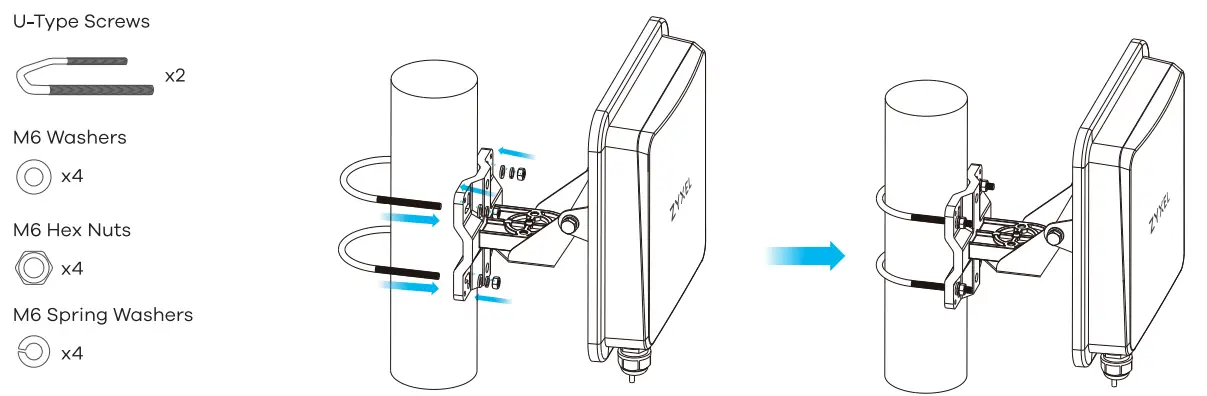
- Place the U-bolt around a pole. Insert the U-bolt into the holes on the mainframe. Use a wrench to secure the mainframe to the pole with the washers, spring washers, and nuts.
Table Stand (Optional)
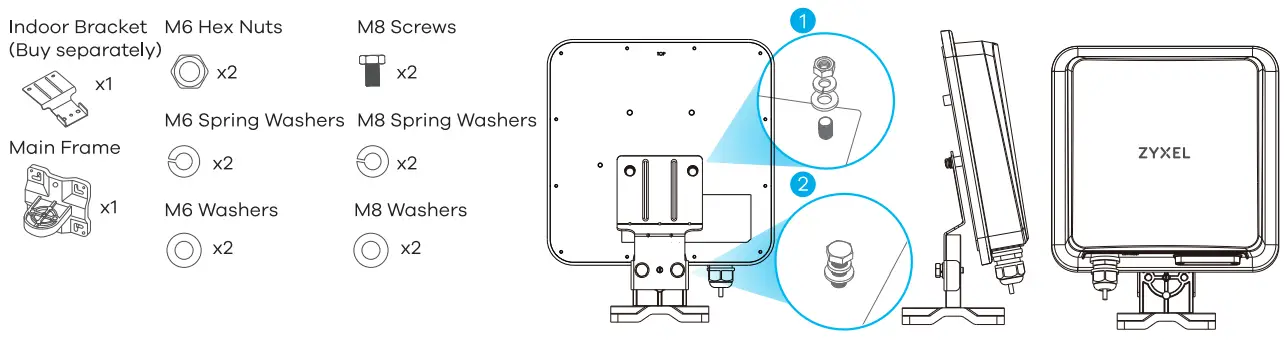
- Use washers, spring washers, and nuts to attach the indoor bracket to the back of the device.
- Use M8 screws, washers, spring washers, and screws to attach the mainframe to the indoor
Step 6 Pole / Wall Mounting Angle Adjustment
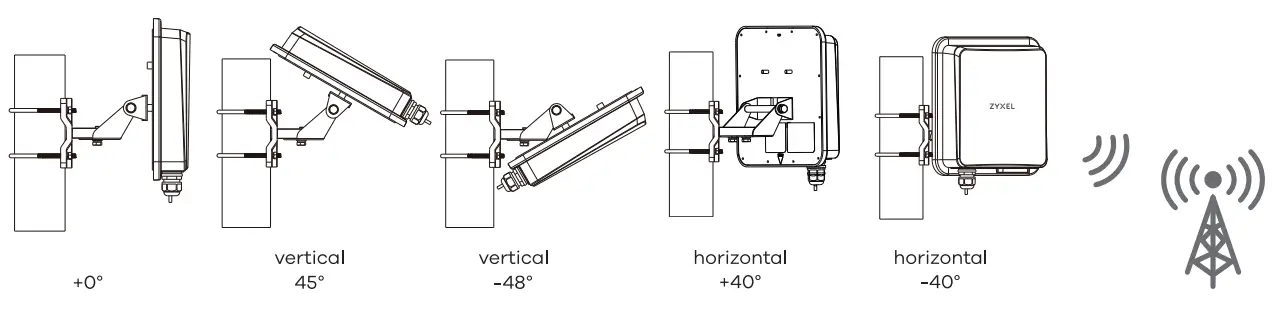
Connect the PoE injector to a power outlet. Use the LTE Ally app (available on the App Store for Apple devices and Google Play for Android devices) to find the optimal LTE signal strength and manage your NR7101.
Note: After configuring the NR7101, turn its WiFi off.
See the User’s Guide at www.zyxel.com for more information, including customer support and safety warnings.
EU Importer
Zyxel Communications A/S Gladsaxevej 378,2 th. 2860 Soborg,
Denmark https://www.zyxel.com/dk/da/ Copyright © 2020 Zyxel Communications Corp. All Rights Reserved.