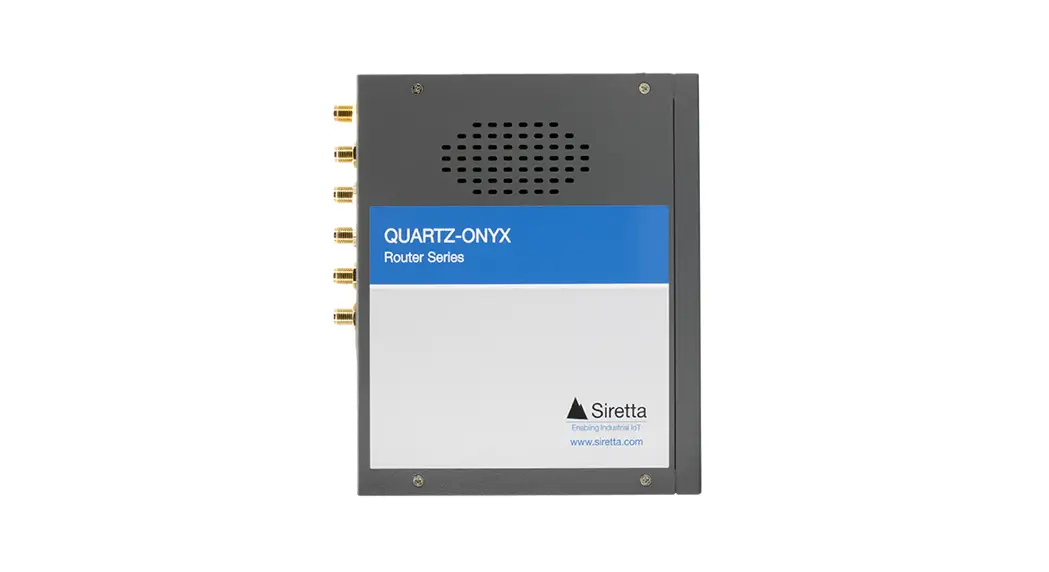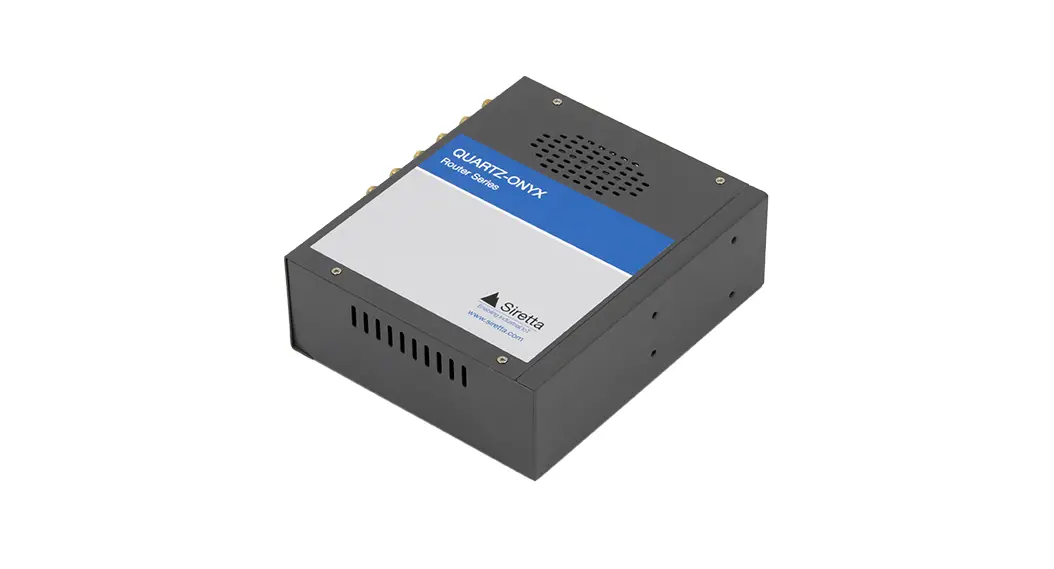

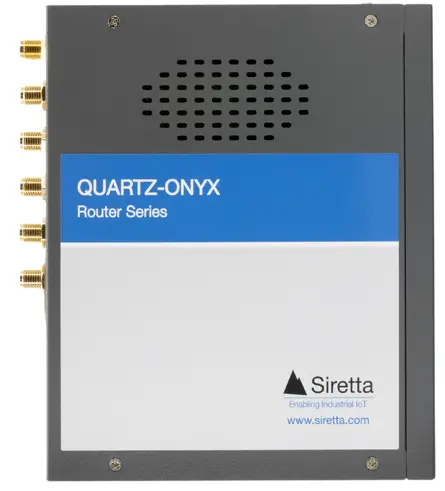
 QUARTZ-ONYX
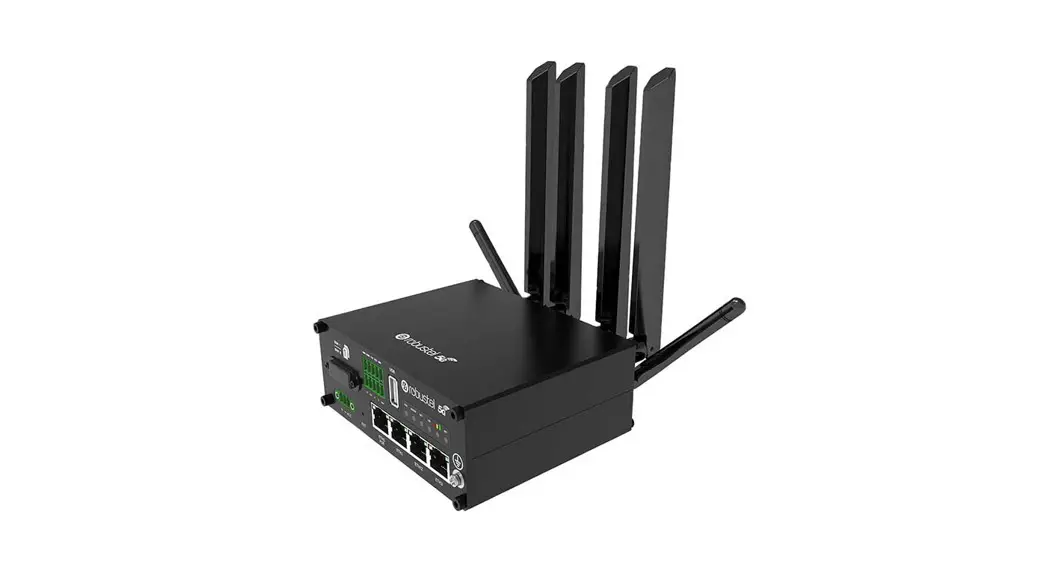
5G NR Industrial Router
Quick Start Guide
Rev 1.0
What’s in the Box?
This quick start guide is intended for the QUARTZ-ONYX router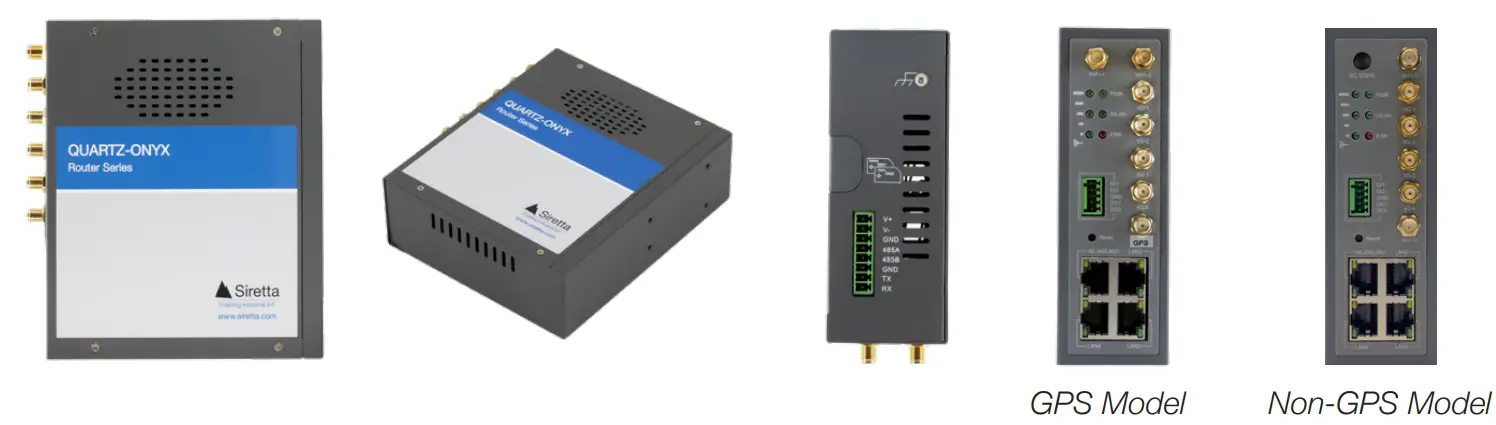
Common Accessories
If you ordered a router with accessories, you will also receive the following items: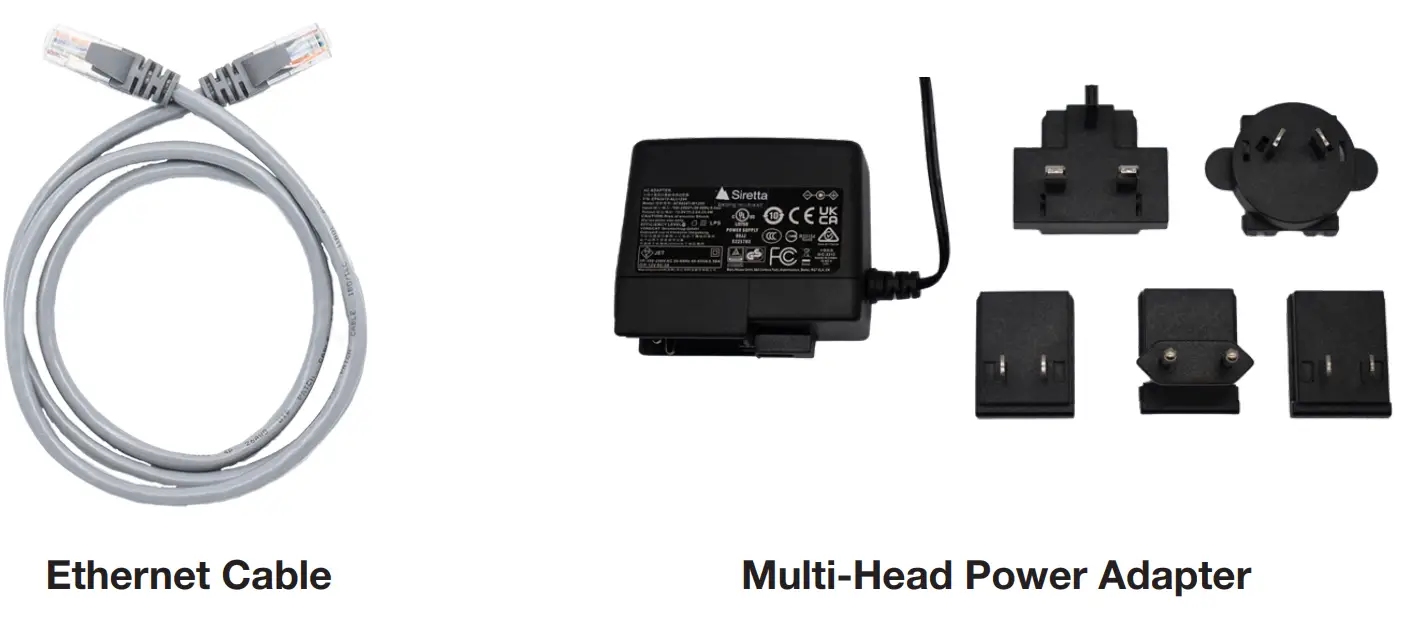
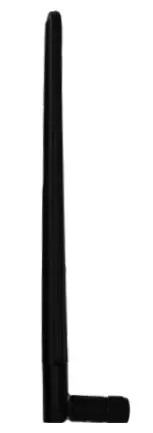 | Cellular Antenna x4 |
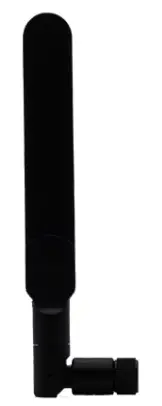 | WiFi Antenna x2 |
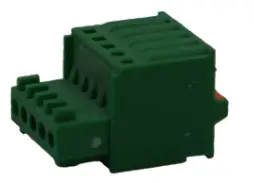 | GPIO Connector |
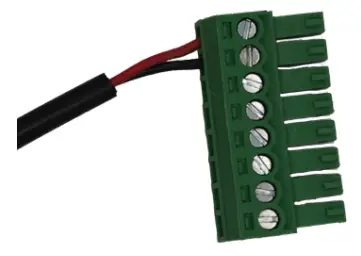 | Power Cable and Connector |
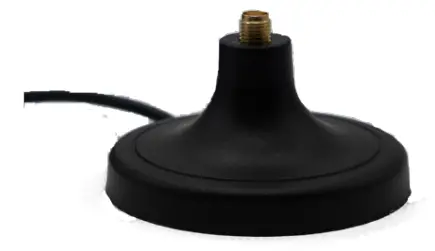 | Magnetic Mount Antenna Extender x4 |
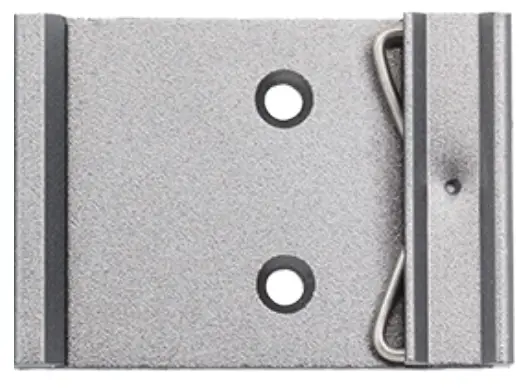 | DIN Rail Adapter |
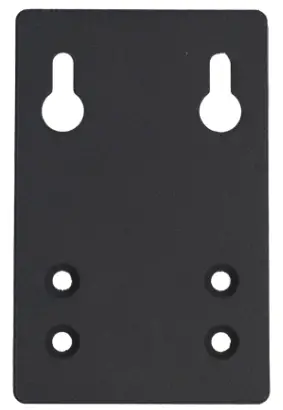 | Wall Mount Bracket |
NOTE – Both the DIN Rail Adapter and Wall Mount Bracket are supplied with x2 screws.
Optional Accessories
If you ordered a QUARTZ-ONYZ with accessories and opted for GPS, then you will also receive a GPS antenna. 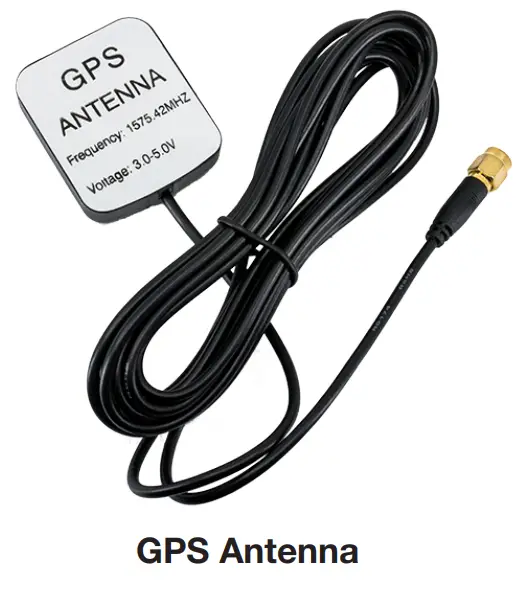
Additional Items
You will require the following items for configuring your router:
» SIM that is subscribed to a 5G service with APN details
» Screwdriver to open the SIM cover
» PC to configure the router
Step 1: SIM: Use a screwdriver to open the SIM cover on your router.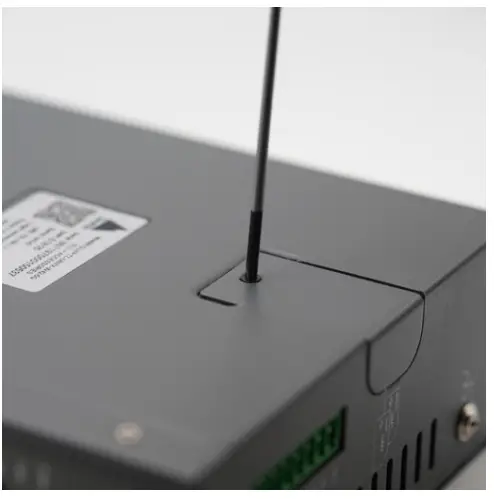
Step 2: SIM: Insert a SIM card fully into the SIM slot. Close the SIM cover, ensuring it is screwed back into place. (SIM slot 1 is in use illustrated below)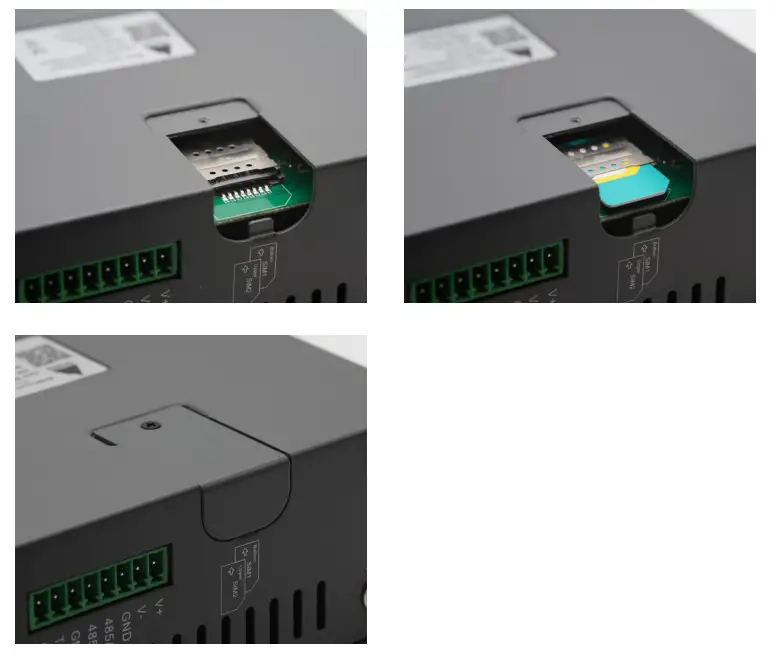
Step 3: ANTENNA CONNECTIONS: Screw in the 4 magnetic cellular antenna extensions onto the router. Twist the connector clock-wise until the extension is firmly connected. Repeat the process for the 2 WiFi antennas onto the router (the cellular antennnas must be attached to the magnetic antenna extension).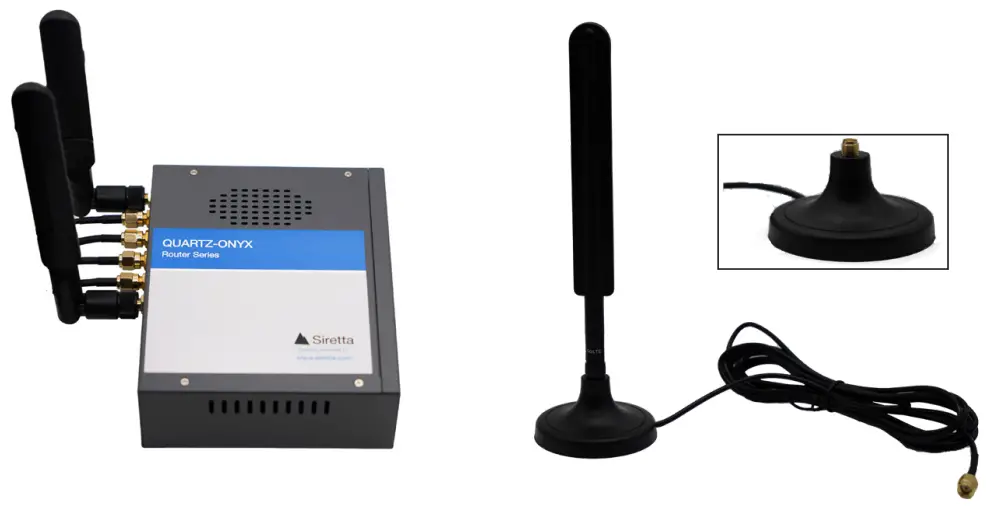
If you have a GPS router, connect the GPS antenna to the GPS connector on the router.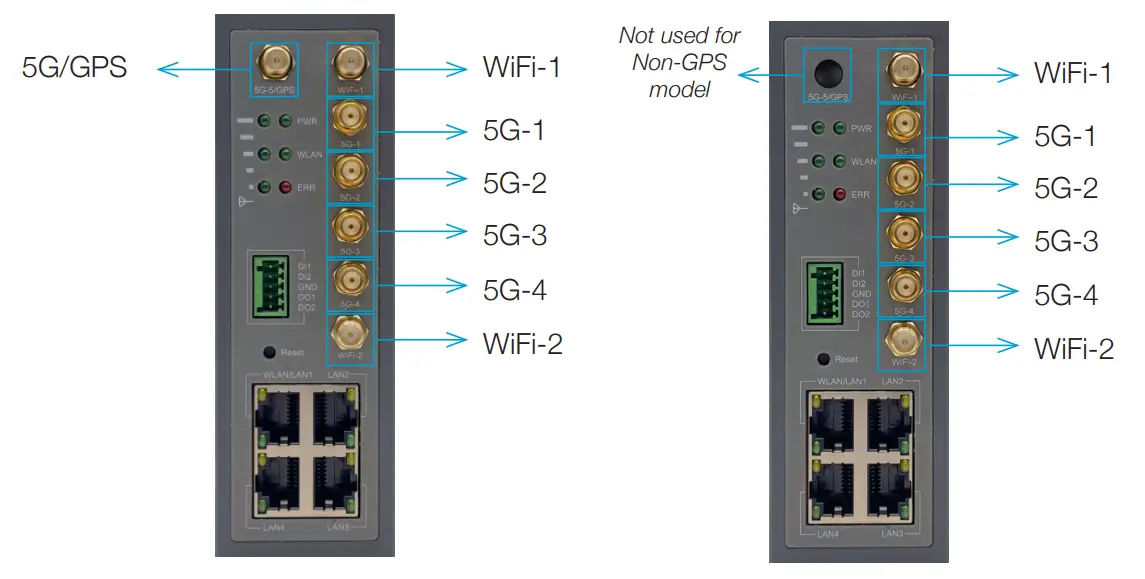
Step 4: LAN CONNECTION: Connect one end of the Ethernet cable to the router LAN port, and connect the other end of the cable to an Ethernet port on your PC.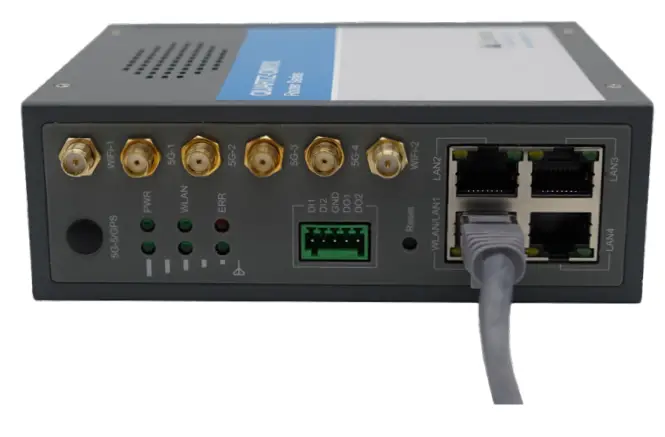
Step 5: POWER: Plug in the green power connector on the power adapter cable into the router as shown below.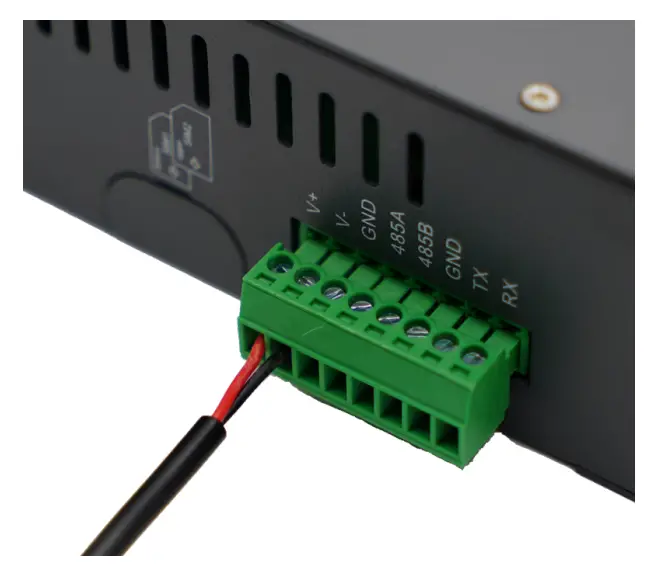
Step 6: POWER: Select the connector type for your power adaptor depending on your geographical location (UK/EU/USA/AU). Plug the power adaptor to the mains.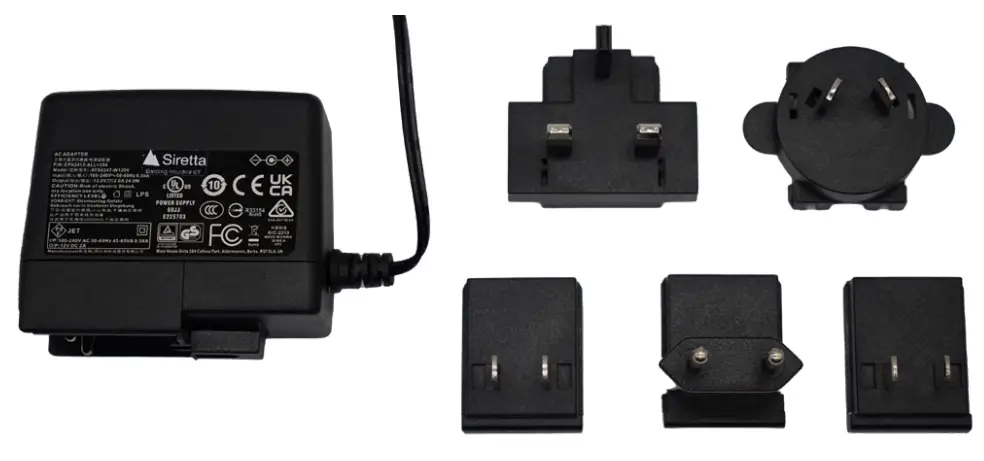
Step 7: POWER: Switch on the power. See the table below for LED indications when the router is powered on.
| Label | Indication | Meaning |
| Signal 1 Signal 2 Signal 3 | Green Solid | Signal strength bar graph when connected to the Internet. Read highest lit LED. Signal 3: Strong (CSQ 20-31) Signal 2: Good (CSQ 11-19) Signal 1: Weak (CSQ 0-10) |
| Signal 1 | Green Blinking Solid | Connected to cellular, obtaining IP address Online, connected to the Internet |
| PWR | Green Off Solid | No power applied to QUARTZ-ONYX QUARTZ-ONYX powered |
| WLAN | Green Off Blinking Solid | WLAN not enabled Data transfer in progress Enabled, no data transfer in progress |
| ERR | Red Off Solid | Connected to Cellular network No cellular connection. See note below. |
Step 8: IP ADDRESS: Obtain the IP address of your router. You can find this on the silver label on the back of your router. Type the IP address of your router into your PC
browser. When prompted for your username and password use the following:
User name: admin
Password: admin
These credentials are factory defaults. You can set your own username and password in the router settings.
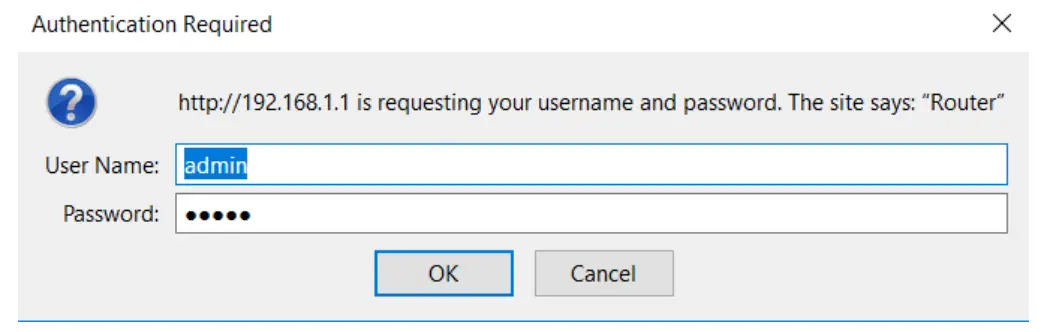
Step 9: APN SET-UP: On successful login, navigate to the Basic Network > Cellular tab.
When you arrive at the ‘Cellular Settings’ page, you will need to enter the APN details for the network provider of your SIM card.
In the image below, we have used the APN details relevant to “EE”. These being:
- APN: everywhere
- Username: secure
- Password: secure
You are not required to enter any ‘Proxy’ or ‘Port’ details.
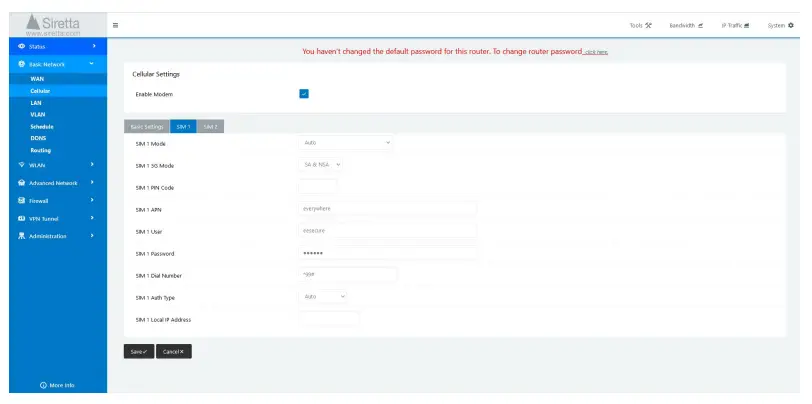
Step 10: CONNECTING TO NETWORK: Click “Save”. Your router will reboot itself. The router will then connect to the network and is ready for use with your application.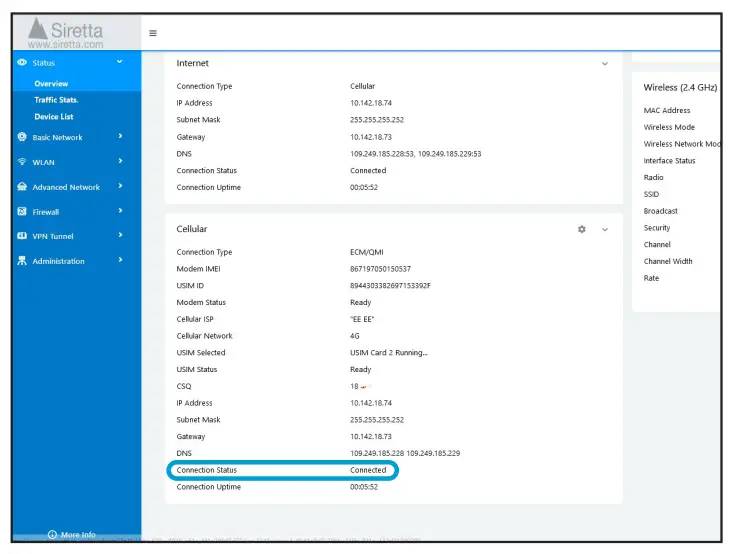
NOTE – If you cannot access the router GUI, please check your local area network settings.
Further Information
For more information when using your router, a range of application notes, hardware, and software user manuals are available to download. You can request these from your
Siretta representative, alternatively these can be downloaded from www.siretta.com
sales +44 (0)118 976 9000
email [email protected]
www.siretta.com
Siretta Ltd
Basingstoke Road
Spencers Wood
Reading
Berkshire
RG7 1PW
United Kingdom
Company No. 08405712
VAT Registration No. GB163 04 0349
https://www.siretta.com/
 Siretta - Cellular Modems, Routers, Signal Analysers, Antennas, Cables