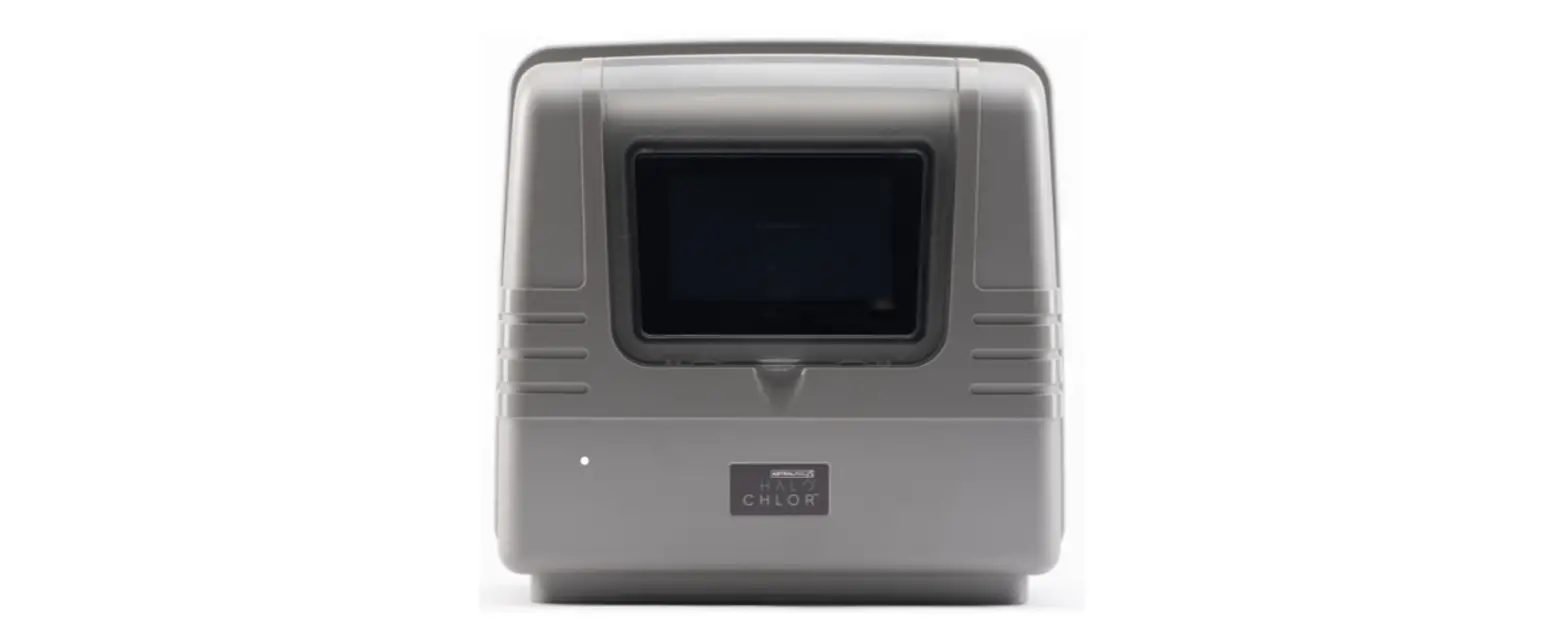

ASTRALPOOL HALO CHLOR High Performance Chlorinator
Important Safety Instructions
READ AND FOLLOW ALL INSTRUCTIONS
All electrical work must be performed by a qualified installer and conform to all national, state, and local codes. When installing and using this electrical equipment, basic safety precautions should always be followed, including the following:
- If the supply cord is damaged, it must only be replaced by AstralPool, its service agent or a similarly qualified person, in order to avoid a hazard.
- The transformer is not intended for series/parallel connection.
- Never connect more than one light to a single power supply outlet. Each outlet on the power supply must go to one – and one only – underwater light.
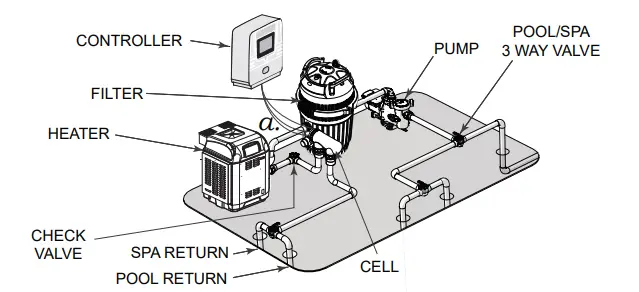
System Overview
Contents of this Kit
Before starting, check that you have the correct parts as shown in Figure 1. If any parts are missing or incorrect, please call your local distributor or technical support at 1300 186 875 for assistance.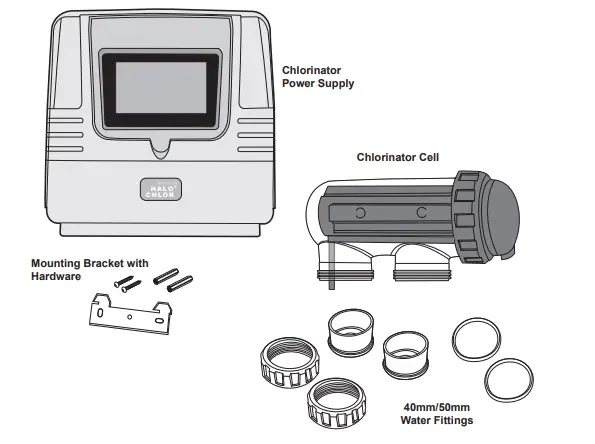
View of the Base of the Unit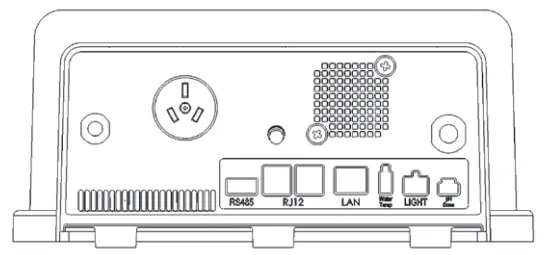
Installation
Mounting the Controller
The Halo Chlorinator must be mounted to a wall using the steel mounting bracket supplied (see Figure 1). The following diagram shows the position of the mounting bracket, relative to the top and base of the product, which will aid in setting out the equipment area and aligning with other Halo products. If the controller is mounted to a post, a 320 mm * 320 mm flat sheet must be used. The Halo Chlorinator can be used to communicate with other Halo devices using Bluetooth so the chlorinator needs to be located less than 5 m from pH and ORP sensors and from other devices that are paired to it, e.g., Halo LITE’s, Halo Xpand, or Halo Hub. The controller should be located 1 metre above the ground to prevent splash back or sprinkler spray to the underside of the controller and should preferably be mounted out of direct sunlight.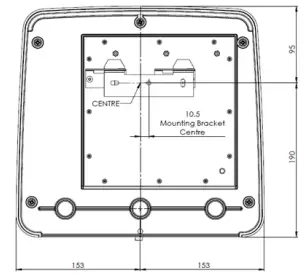
Pool Plumbing
The chlorinator cell must be plumbed in a position within 1.2 metres of the controller, where it is the last piece of equipment in the line, before the water returns to the pool. (Unless acid dosing is installed, in which case the acid dosing injection point is the last piece of equipment). The cell must be installed horizontally, with the barrel unions underneath (as per the following image). The water flow through the cell must be as shown below (also shown on the cell label). The cell kit contains 40 mm and 50 mm fittings. Generally, 50 mm pipework provides better water flow through equipment and can ensure a more efficient system. The 4 wire cable from the chlorinator to the cell is colour coded. Unclip the endcap from the cell and plug the cell cable wires into the cell, ensuring that the colour codes are followed. If an acid dosing pump is being installed it should be separated from the other equipment to avoid the possibility of fumes damaging the other equipment. The acid injection point (where the acid goes into the pool water) must be mounted into the pipework, afte the chlorine cell and all other equipment (see acid dosing pump instructions for further information). If pH or chlorine sensors are being installed, the sensor mounting chamber must be mounted after the filter, but before the chlorinator cell (see sensor probe instructions for more information).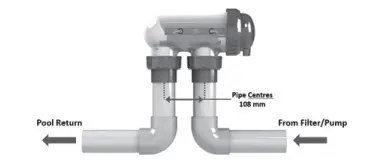 Power Connections
Halo Chlorinators are provided with a 1.75 m power cable for connection to a mains outlet. The maximum load that can be connected to the Halo Chlorinator pump outlet is 8.5 amps.
Other Connections
The following connectors are available on the Halo Chlorinator.
| CONNECTOR | USE FOR |
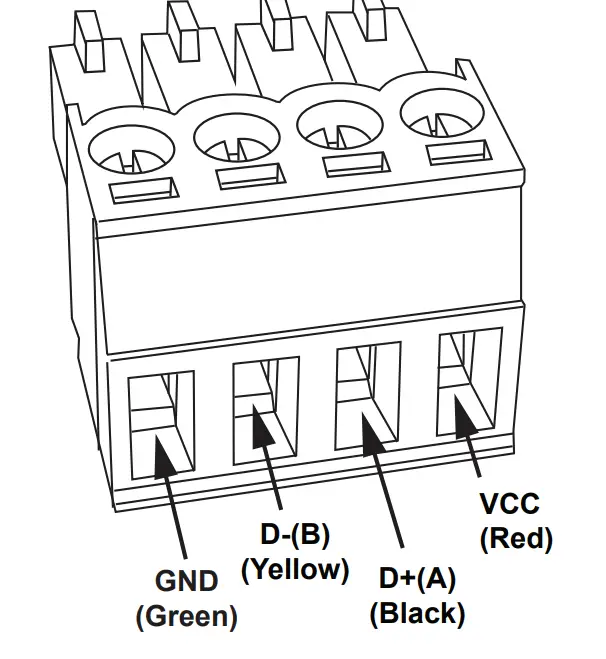
| RS485 | AstralPool® IXi Heaters, Zodiac JXi Heaters and VSP pumps. Appendix 2 shows the wiring of the connector. Refer also to the appropriate heater or pump manual. |
| RJ12 | All AstralPool “Genus” products (Viron® Connect 10, Gas Heaters, XT Pumps (Not XT BT), Connect Lite, etc.) |
| LAN | Standard RJ45 style ethernet connection to home internet routers. |
| Water temp | Water temperature sensor for the filter pump water circuit. See also Appendix 1: Heater Connection Tables. |
| Light | Connection for a single AstralPool SLX or FLX light. This light must be assigned to Lighting Zone 1. |
| pH dose | Connection for the Halo pH dose pump. |
General Operation and Pool Chemistry
Cyanuric Acid
(Also referred to as stabiliser or sunscreen) If a chlorine sensor is connected, cyanuric acid will supress the ORP (chlorine) reading. Whilst many suppliers will recommend up to 50 ppm of cyanuric acid (CyA), AstralPool recommend a maximum of 20 ppm cyanuric acid on Halo Chlorinators.
Chlorine Level/ORP
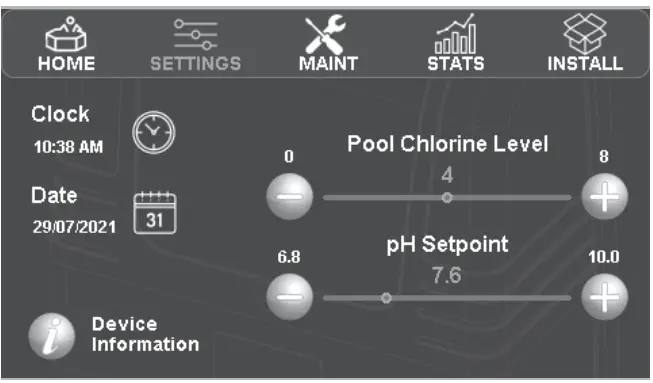
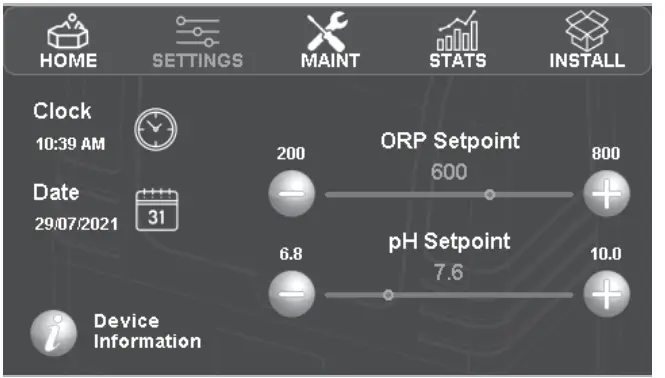
The recommended free chlorine level is 1 – 3 ppm. If your Halo Chlorinator is not fitted with a chlorine (ORP) sensor, then the chlorine output is set in the settings menu and can be adjusted from 0 (OFF) to 8. It is recommended to run the chlorinator at level 8 for 6-8 hours per day. (4-5 hours in the off season). Generally, 2 timers are used to achieve the desired run time, e.g., 4 hours in the morning and 4 hours in the afternoon/evening. To obtain the free chlorine level of 1 – 3 ppm the chlorine output or timers can be adjusted. If your Halo Chlorinator is fitted with a chlorine (ORP) sensor then, as above 2 timers are used to achieve 8 hours of run time, 4 hours in the morning and 4 hours in the afternoon/evening and the ORP set point should be set to achieve the 1-3 ppm level. There are many factors that affect ORP readings such as pH, salt level and cyanuric acid. Generally, an ORP level of 700 is a good starting point. If the free chlorine level is too low increase the ORP set point (reduce the setpoint to reduce the free chlorine). When making adjustments it is advisable to make small changes (e.g. 700-715) and then wait 2 days before retesting the free chlorine.
pH Level
For fibreglass pools a pH level between 7.2 and 7.4 is recommended. For all other pools a pH level between 7.4 and 7.6 is recommended.
Total Alkalinity
Total Alkalinity between 80 and 120 ppm is recommended.
Salt Level
Never add salt to the pool skimmer box. Salt should be added gradually to the pool and brushed around until it dissolves. A salt level of 4000 ppm is recommended. (A 50,000 litre pool will require 200 kg of salt to achieve this level.) If the salt level drops below 3000 ppm the chlorinator will display “Low Salt” and more salt should be added to the pool. NOTE: When the water is cold (below 16°), the chlorinator may show “Low Salt”. If the salt level is actually correct, then this warning can be ignored. Salt is not consumed by the chlorinator, however it is lost during backwashing and splashing, etc.
Ai Mode
Ai Mode is available on Halo Chlorinators that are fitted with pH and ORP sensors and a variable speed pump. In Ai mode, the Chlorinator automatically adjusts the pump speed to achieve correct filtration and sanitisation. At the start of the day the pump will run for a period at high speed and then as the ORP (chlorine) level rises it will automatically switch to medium speed. Once the ORP is within range the pump will slow to low speed and just sample the
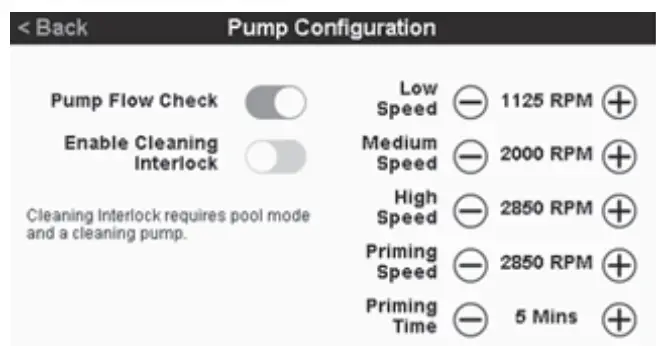
water (No Chlorine production). If the ORP drops, the pump speed will increase again and the chlorinator will start to produce chlorine again. In Ai mode the pump speeds need to be set so that Low speed is only bringing in enough water to allow for the ORP measurement. (A Typical starting point is 1200 RPM). In this mode, no Chlorine is produced. It is just a sampling mode. Medium speed needs to be fast enough to keep the Chlorinator Cell full of water during Chlorine production. (A Typical starting point is 2000 RPM). To conserve energy, it is important to not run the pump too fast during this period. High speed is usually set to allow for correct skimming of the water surface and is typically close to the maximum speed of the pump (2850 RPM). Typically timers can be set for a longer period (covering the times when the pool may be used) when using Ai mode to ensure that the Chlorine level is always optimised . (In areas where leaf debris is high, it is also good practice to have a timer to run the pump at high speed and skim the pool at the end of the day.)
Introduction to the Chlorinator Touchscreen
Home Screen
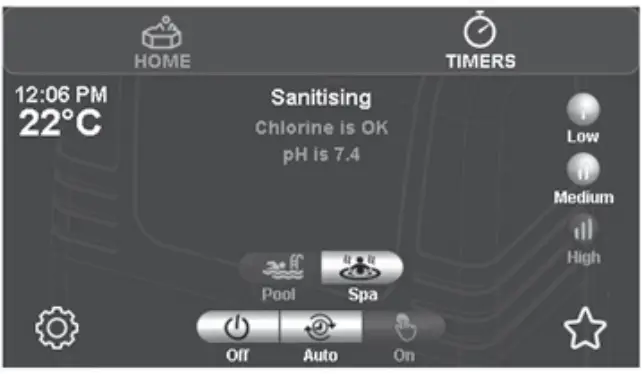
The default screen of the Halo Chlorinator is the “Home” screen. The items on this screen will vary depending on the installation. This example assumes that a variable speed pump, pH & ORP probes and a temperature sensor are fitted The area of text at the top centre of the screen is used to describe the mode that the chlorinator is in. If ORP and/or pH probes are fitted the results will be shown in green if the results are close to the setpoint, orange if they are below and Red if they are above the setpoint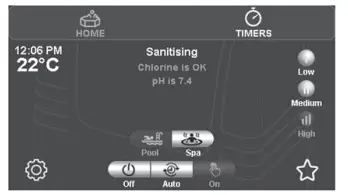
Any system faults will also be shown in red type in this area. Clicking on the “?” will give further info on the fault. See Figure 7.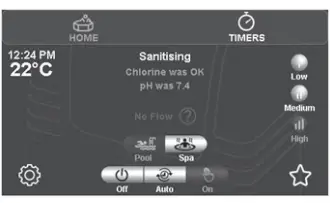
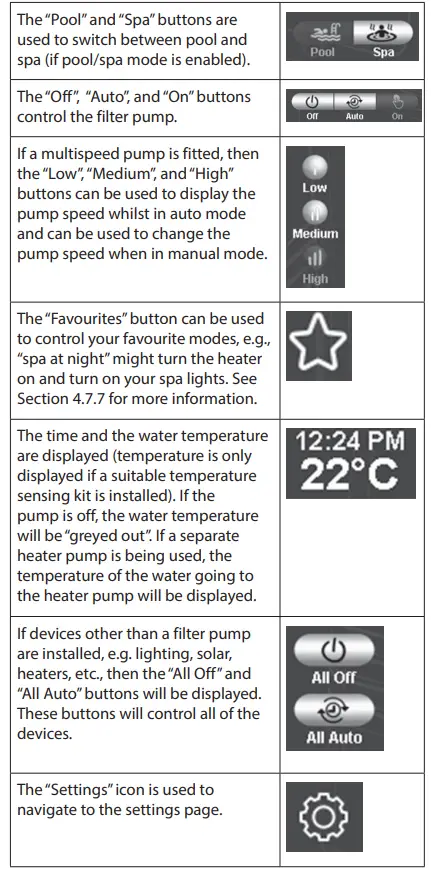
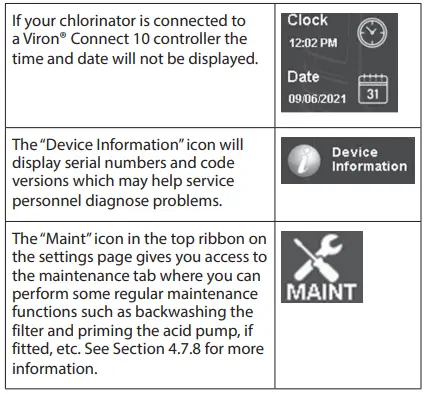 The “Stats” icon in the top ribbon on the settings page gives you access to the statistics of your chlorinator. Information here may help service personnel diagnose problems. On this page is also an “Events” icon which, when pressed will display a log history of recent events such as when a software update was completed or when the chlorinator may have encountered a warning message such as no water flow etc., that the chlorinator may have encountered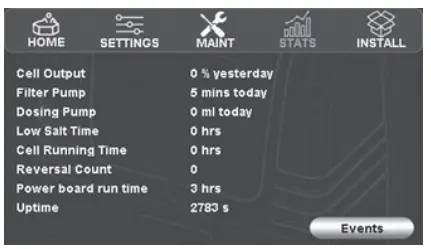
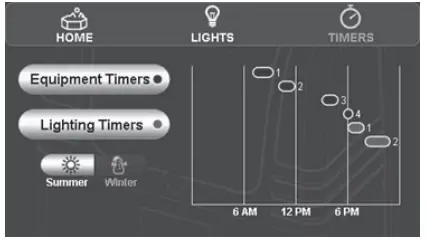 There are 8 timers available for equipment. The timer numbers are also shown next to the line graph on the previous screen. To modify which equipment is intended to run in each timer, to change the timer’s start or finish times, or to activate/deactivate the timer, press the relevant timer number in this screen.
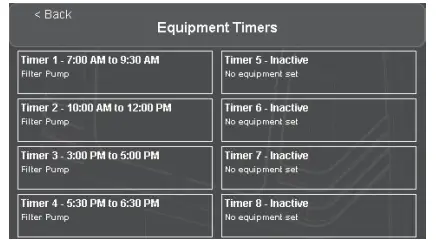 Timer screens will vary depending on the installed equipment. Timers 2‑8 can be made active or inactive using the slider in the top right corner. Timer 1 is always active.The start and finish times can be adjusted on thisscreen, as well as filter pump operation. If other equipment such as a variable speed pump is fitted, the speed can be set here as well as pool/spa, heater state,and other equipment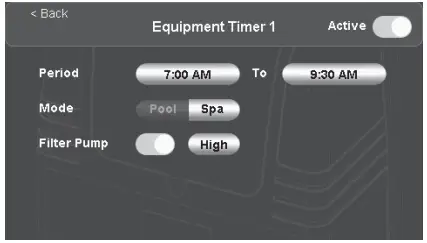
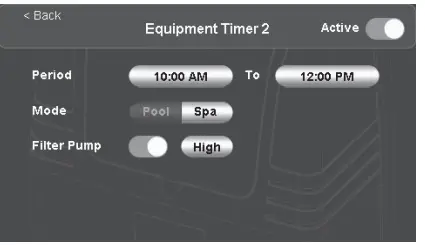 some instances, items will appear “greyed out”. This indicates that they cannot be adjusted on this screen,e.g., if a heater is enabled along with a variable speed pump, the pump speed may be greyed out due to the minimum required heater speed.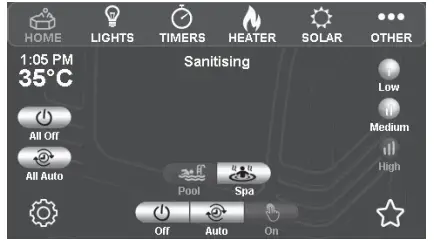
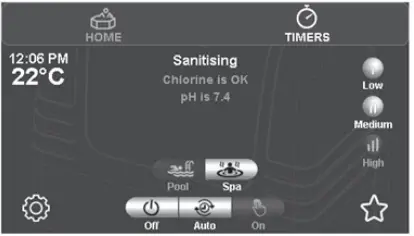 To activate a favorite, press the relevant favorite button. To edit the function of the favorite button, press the edit icon next to it. This example below assumes that a pool and spa are installed
 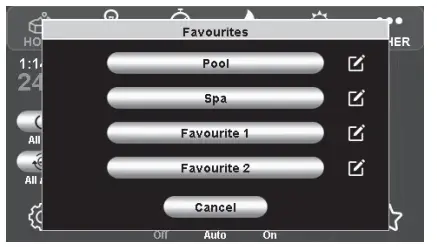 Any equipment that is installed can be configured to come on when the favorite is pressed. Some functions may be “greyed out”, e.g., “CleaningPump” may be greyed out in spa mode if the cleaning ter lock is enabled during installation.To edit the name of the favorite, press the edit icon next to the name. (“Pool” and “Spa” favorite names can’t be edited.)The pool and spa favorites in this menu also relate to the pool and spa buttons on the home page, so if you edit the function of either of these favorites, the pool and spa buttons on the home page will also be affected.
Maintenance Screen
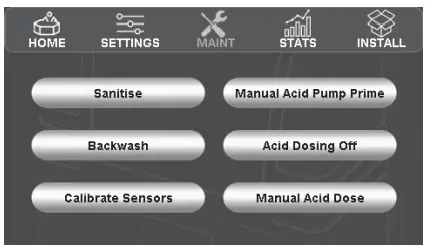
Sanitise
- Sanitise until first timer tomorrow – If this is selected, the chlorinator will run the filter pump and chlorinate until after the first filter timer period the next day has finished. The chlorinator will then revert to “Auto” mode.
- Filter for period
- If this is selected you get the option to run the filter pump for a period of up to 24 hours. The chlorinator will NOT produce chlorine during this period. (This setting is often used to “start up” a pool, add salt etc and balance the water chemistry prior to starting to chlorinate.)
This button allows you to backwash your filter for between 1 and 15 minutes. During this period the chlorinator doesn’t produce chlorine.
- This button allows you to calibrate your pH or chlorine sensors. There is an option to “Run the pump during calibration”.
- If the sensors are still in place in the pool pipework, then the pump should be run during calibration. To ensure that the pool water is thoroughly mixed, it is advisable to run the filter pump for at least an hour before performing a calibration.
- If the sensors have been removed and placed into calibration fluid, then the pump should not be run during calibration.
- For pH sensors, if you notice that your pH measurement is slightly different from your pool shop’s measurement, or a test strip, etc., then you can use the “Run the pump during calibration” option and adjust the sensor reading up or down to match the other reading. Alternatively, you can choose to not run the pump during calibration and use pH calibration fluid to calibrate the pH probe. (Calibration fluid is available from AstralPool® dealers.)
- For ORP sensors, the differences in pool chemistry (salt level, pH, cyanuric acid “stabiliser”, hardness, etc.) makes comparisons between the ORP level and measured free chlorine (chlorine ppm) levels extremely difficult.
- Because of this, calibrating the ORP sensor using the pool water is of little value, so if you wish to calibrate (or check the performance) of the ORP sensor then the “Run the pump during calibration” option should not be used and the ORP sensor should be removed fro the pipework and calibrated using calibration fluid. (Calibration fluid is available from AstralPool® dealers.)
This button allows you to turn acid dosing off either indefinitely or for a period between 1 minute and 24 hours. For example, if you have run out of acid you may wish to turn the acid dosing pump off indefinitely (until you purchase more acid), or if you have added sodium bicarbonate to increase alkalinity, you may wish to disable dosing for 24 hours. (After this period the dosing pump will resume normal operation.)
This button allows you to choose to dose a specific amount of acid into the pool. The filter pump will start automatically during this manual dosing. You can select if you want the filter pump to be on, off or in auto mode at the end of the dosing period.
Introduction to the Install Screen
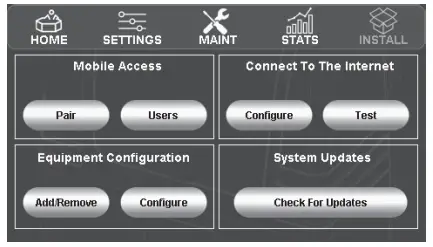
- The “Install” page is accessed via the settings icon on the Home Page.
- The “Install” page is used to configure the chlorinator and allow app access.

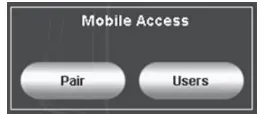
- The “Mobile Access” area assists with setting up the Halo ChlorGo app.

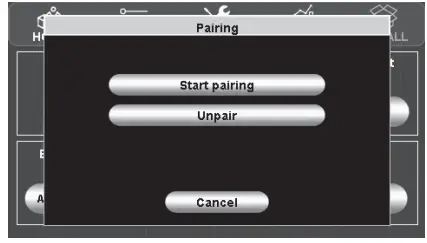
- Pairing
- Start pairing
- This will allow the phone application to pair with the chlorinator.
- Unpair
- By pressing this button, all previously set up LAN and Bluetooth connections will no longer have access.

- By pressing this button, all previously set up LAN and Bluetooth connections will no longer have access.
- Start pairing
- Users

- Connection states
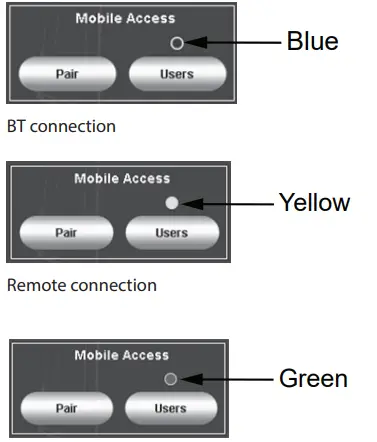
- Above the “Users” button the current state of the mobile connection will be shown.
- A Bluetooth connection is starting
- Blue = A Bluetooth connection established
- Green = LAN connection established
- Yellow = Remote connection established
- Users
- Within the “Users” menu a list of current remote users can be seen.
- To stop a user from accessing the Chlorinator remotely, press the “Remove” button next to their name in the Users list. See Figure 20.
- If a remote user is currently connected, a yellow dot will appear against their name

- Connection states
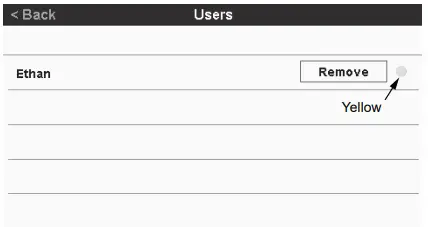
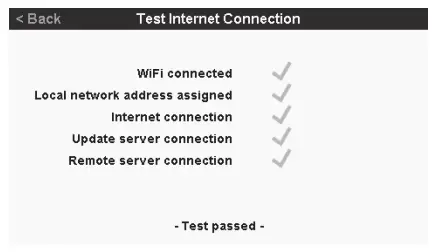
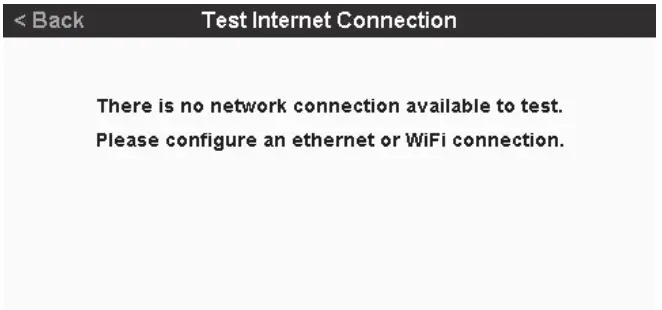
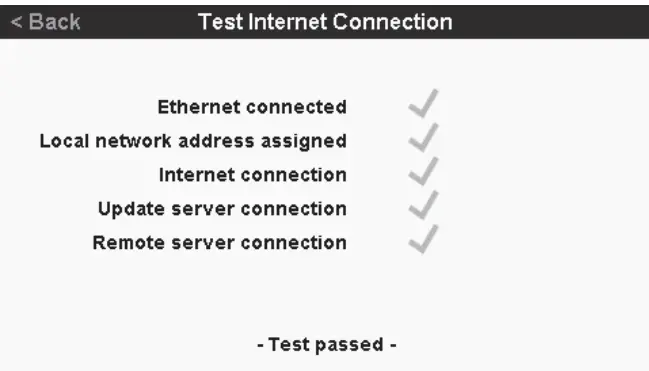
The remote user has currently connected The “Connect to the Internet” area allows you to connect the chlorinator to the internet. This allows you to update the chlorinator software if required and to control the chlorinator remotely using the HaloChlorGo app 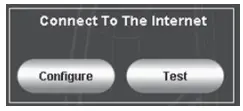 . The “Test” button allows you to test the current internet connection and will show a number of tests. See Section 9 for more information
  “Configure” button shows the existing internet connection details (if any) and allows you to configure/change the chlorinator to use either WiFi or ethernet. (WiFi uses the onboard antenna, ethernet uses the LAN connection.) If any Internet connection test fails, see Section 9 for more information about Troubleshooting
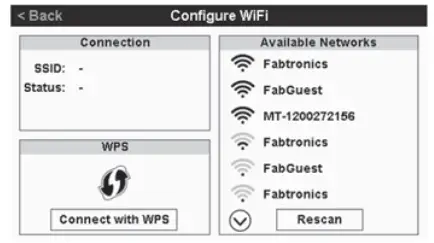
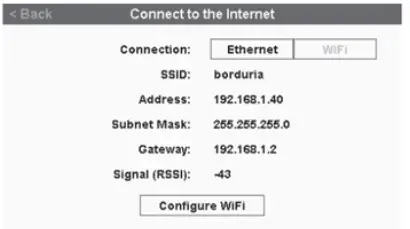 . This example shows a WiFi Connection. If an ethernet cable is connected, the internet connection is automatic. Otherwise, when “Configure WiFi” is pressed a list of available WiFi networks is shown. At this point, you can either select a WiFi network to join or connect using WPS. If your home internet connection supports WPS,follow the router’s WPS instructions and then press the“Connect with WPS” button. Otherwise, select the WiFi network that you wish to join and enter the password for that network
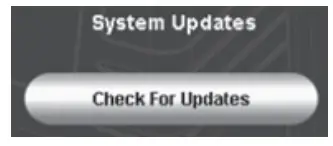
  “System Updates” button allows you to update the software of the chlorinator. To use this feature the chlorinator must be connected to the internet above.
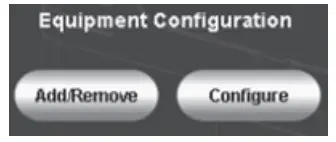
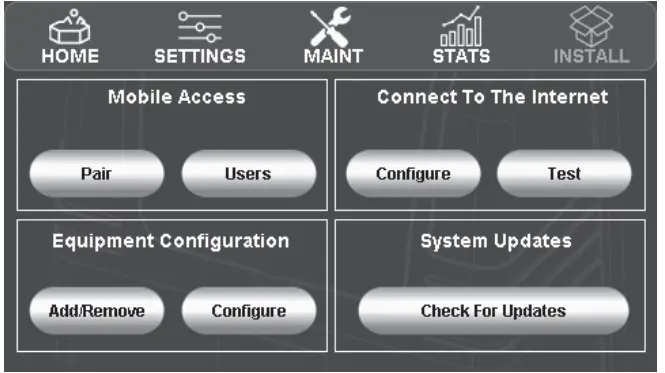
 The “Equipment Configuration” area is used by the installer to configure the chlorinator
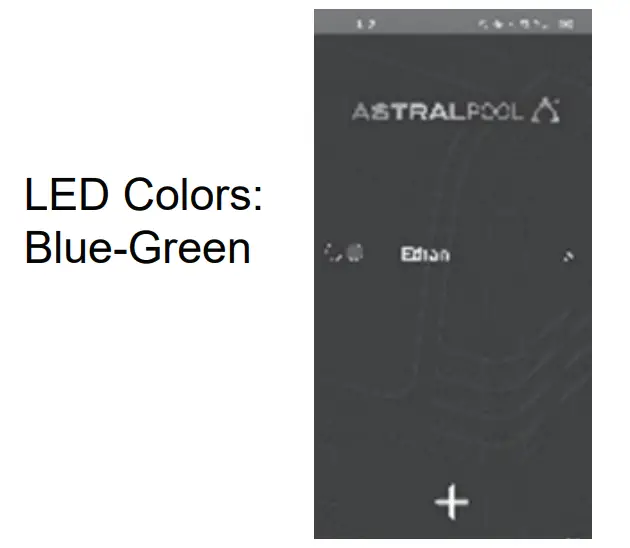
 Setup Required to Use the HaloChlorGo AppThe Halo ChlorGo app can connect to the HaloChlorinator using 2 different methods. Bluetooth connection, which allows short-range connection to the chlorinator is available on allHalo Chlorinators. Internet connection, which allows connection wherever the internet is available, through your local WiFi or mobile service. For this process, the HaloChlorinator needs to be connected to the internet as described previously. The Halo ChlorGo app automatically determines which connection method is appropriate. The app can be loaded onto multiple mobile devices, however, you can only connect one device at a time. To pair your mobile device to the Halo Chlorinator for the first time:
- Download the Halo ChlorGo app from the appropriate app store

- Enable Bluetooth and Location Services before connecting the Halo ChlorGo to your mobile device.
- Open the Halo ChlorGo app.
- Navigate to the install page.
- Start pairing on the chlorinator.
- Press the “+” button on the app to add your new device.
- Follow pairing instructions on the app


 The Halo Chlorinator can be set up to be pool only, spa only or pool and spa. To set this, and the water volumes
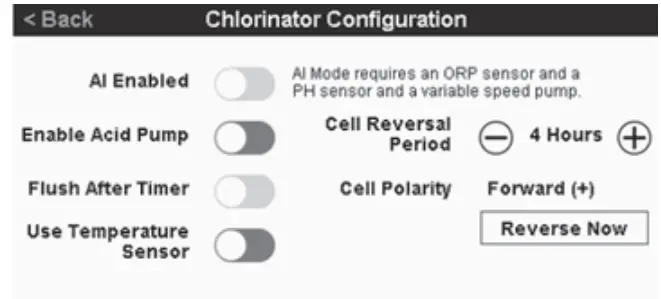
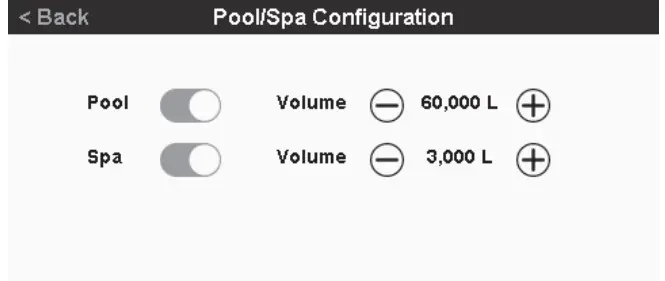 , press “Configure” in the “EquipmentConfiguration” section above and then select “Pool/Spa”. On this page you can use the slider to select pool and/or spa and then use the “+” and “‑ “ buttons to set the water volume you need to adjust the “Cell reversal period” or wish to install a pH dosing pump (without a pH Probe)or have a temperature sensor attached to the HaloChlorinator, press “Configure” in the “EquipmentConfiguration” section above, select “Chlorinator”.The “+” and “‑ “ buttons can be used to set “CellReversal Period” and the sliders can be used to enable the other features.
  Installing an XT pump using an RJ12 cable or a Zodiac®VSP using RS485 is automatic. Just plug the pump and communications cables in and turn the pump on from the chlorinator. (You will still need to set each pump speed as per the section below though.)To install an XT‑BT pump, press “Add/Remove” in the“Equipment Configuration” section, then select “FilterPump” and then “Astral Variable Speed (Wireless
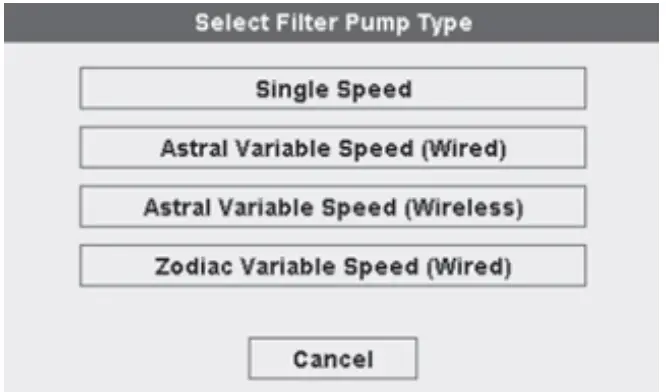 To configure the variable speed pump press“Configure” in the “Equipment Configuration” section and then select the type of variable speed pump that you have installed.
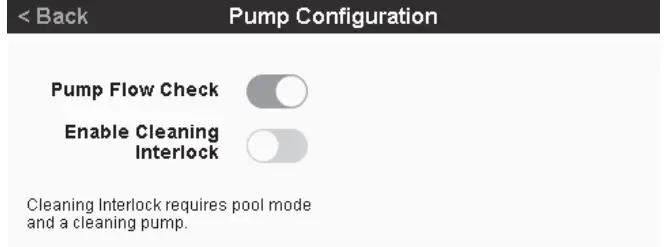 (On AstralPool® Variable Speed pumps, priming speed can be set to max which drives the pump at a higher speed than normal to facilitate quicker priming. The priming time can also be adjusted on this page. The pump flow check feature can be disabled on this page if required (not advisable), and a “CleaningInterlock” can be turned on if an in-floor cleaning pump is installed. This interlock stops the cleaning pump from coming on whilst in spa mode and also enforces that the filter pump must be on with the cleaning pump.
  One pH sensor can be fitted and if a pH sensor is fitted, then a Gold Tip chlorine sensor can also befit. To add a sensor press “Add/Remove” in the“Equipment Configuration” section above and then select “pH Sensor”. To pair with the sensor, press and release the “pair” button on the top of the sensor. Connection is automatic. A Gold Tip chlorine sensor can then also be added in a similar manner. If Ai mode is required (pH and ORP probes and variable speed pump must already be installed), return to the “Equipment Configuration” section on the Install page, press “Configure”, and choose“Chlorinator” and slide the Ai enabled slider to the right. This will allow timers to select Ai mode for the pump speed. Enabling Ai in the timer will allow the chlorinator to decide the required pump speed automatically.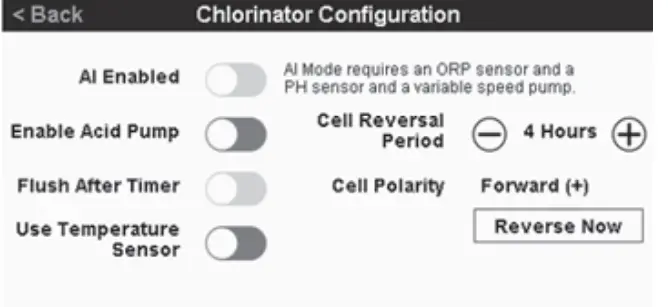
One Halo pH doser can be connected to a Halo Chlorinator through the “pH dose” connector. This connector powers the dose unit and no other electrical connections are required. The pH doser kit contains the required tubing and connectors along with installation instructions. Halo LITE2 and Halo LITE4 A total of 2 Halo LITE’s can be connected wirelessly to a Halo Chlorinator. (2 LITE2’s or 2 LITE4’s or 1 of each). If a Halo LITE 4 is connected wirelessly, up to 4 more Halo LITE 4’s can be connected to it via RJ12 cables. Halo Hub and Halo Xpand Only 1 Halo Hub can be connected to a Halo Chlorinator. If a Halo Hub is connected, then you can also connect a Halo Xpand. If a Halo Hub is not connected, then you can connect up to 2 Halo Xpands. The Halo Hubs and Xpands connect wirelessly to the Halo Chlorinator.
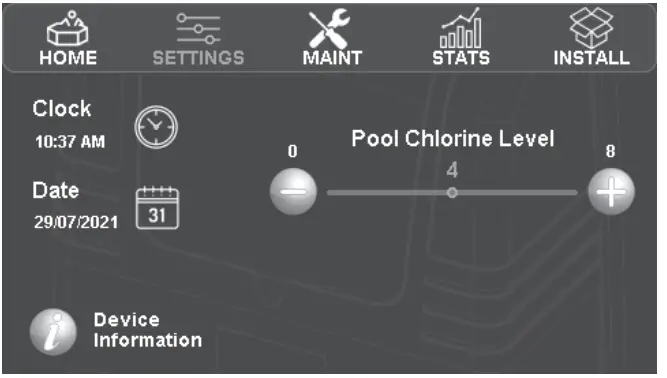
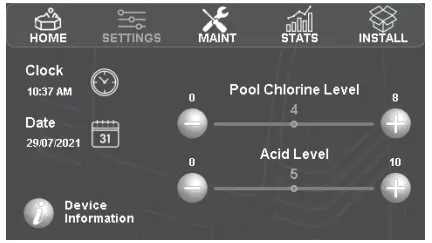
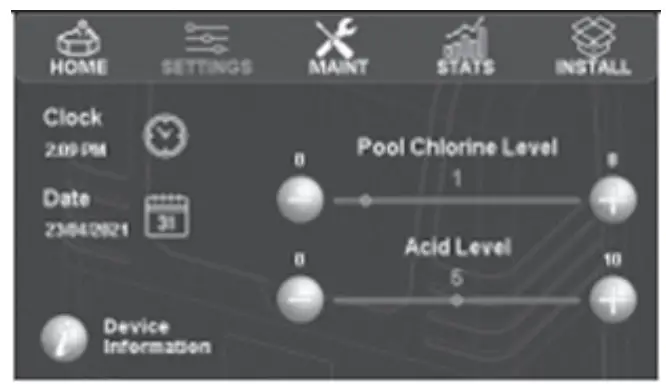
As above the amount of chlorine produced is controlled by the “Chlorine Level” slider. The “Acid Level” slider is used to estimate how much acid needs to be added. Generally, level 5 is a good starting point, however it can be adjusted to increase or reduce the amount of acid dispensed. Acid dosing can be disabled for a period, if required, using the “Maint” icon (to add this feature order part number 20389).
As in case 1 above, the amount of chlorine produced is controlled by the “Chlorine Level” slider. And the pH is controlled by setting the pH level on the settings page. The actual pH will be displayed on the home page. Previous pH setting will be displayed when the pump is off (to add this feature order part number 20390).
In this set up, the chlorine level is set by adjusting the ORP level (higher ORP => higher chlorine level). Remember that it can take several days for your adjustments to be seen in the pool. Using the “Stats” icon will show the % cell output yesterday. This is useful when determining the filter pump timers settings. Generally if this figure is above 80%, you should increase your filter pump time (to add this feature order part number 20391).
See section 4.8 for app installation instructions. Control using the Halo ChlorGo app is essentially thsame as from the chlorinator, however, the icons are situated on the bottom ribbon rather than the top. Some maintenance functions aren’t permitted from the app as you need to be in close control of thechlorinator to perform them.No installation functions are available from the app. On the “Settings” page of the app, there is a settingfor date & time. If this is selected then there is anoption to update the time and date automatically. Ifautomatic update is selected, then every time thatyou connect to the chlorinator via Bluetooth or localconnection, the time will be updated. Some WiFi routers (particularly in commercialproperties), are set so to block “UDP” communications.If this is the case, then you won’t be able tocommunicate with your chlorinator from these sitesusing WiFi. If you disable WiFi on your phone, then youshould be able to communicate with your chlorinatorthrough your phone’s internet connection
Troubleshooting
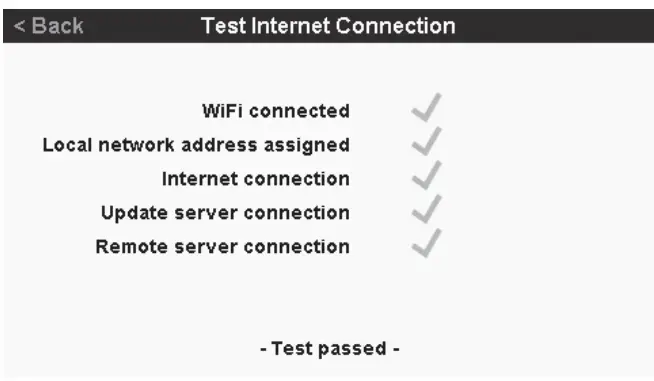
This will be ticked if a connection is detected.
This shows that an IP address has assigned by the router.
The software update server can be contacted by the chlorinator. This will allow software updates to be uploaded if required.
The remote connection server can be contacted by the chlorinator
Appendices
| HEATER TYPE | DEVICE TO CONNECT TO | CONNECTOR | EXTERNAL TEMPERATURE SENSOR REQUIRED? | NOTES |
| AstralPool® “Genus” style Heaters | Halo Chlor | RJ12 | No | |
| AstralPool IXi Heaters | Halo Chlor | RS485 | No | |
| Zodiac® JXi Heaters | Halo Chlor | RS485 | No | |
| AstralPool Viron Heatpumps | Halo Chlor OR | RJ12 | No | Requires “13709 Heatpump Interface” module. |
| Halo Hub | RJ45 | No | Connects directly to Hub using RJ45 cable. | |
| Other heaters and heatpumps using “T‑Stat” or other low voltage control | Halo Hub | Heater | Yes Temp sensor plugs into Halo Chlorinator. | See Halo Hub manual for connection details. |
| Other heaters and heatpumps using 240 volt mains control | Halo Hub OR Halo Xpand | GPO1 | Yes Temp sensor plugs into Halo Chlorinator. | See Halo Hub or Xpand manual for connection details. See also Note 1. |
| HEATER TYPE | DEVICE TO CONNECT TO | CONNECTOR | EXTERNAL TEMPERATURE SENSOR REQUIRED? | NOTES |
| AstralPool “Genus” style Heaters | Halo Chlor | RJ12 | No | |
| AstralPool IXi Heaters | Halo Chlor | RS485 | No | |
| Zodiac JXi Heaters | Halo Chlor | RS485 | No | |
| AstralPool Viron Heatpumps | Halo Chlor OR | RJ12 | No | Requires “13709 Heatpump Interface” module. |
| Halo Hub | RJ45 | No | Connects directly to Hub using RJ45 cable. | |
| Other heaters and heatpumps using “T‑Stat” or other low voltage control | Halo Hub | Heater | Yes Temp sensor plugs into Halo Hub | See Halo Hub manual for connection details. |
| Other heaters and heatpumps using 240 volt mains control | Halo Hub OR Halo Xpand | GPO1 | Yes Temp sensor plugs into Halo Hub/Xpand | See Halo Hub/Xpand manual for connection details. See also Note 1. See also Note 2. |
 Premium Pool & Spa Equipment | AstralPool Australia