dji AI Education Set User Guide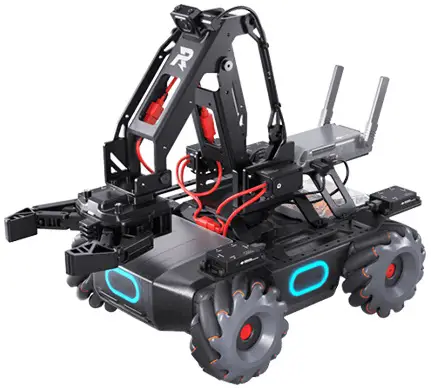
Carefully read this entire document and all safe and lawful practices provided before use.
Package contents
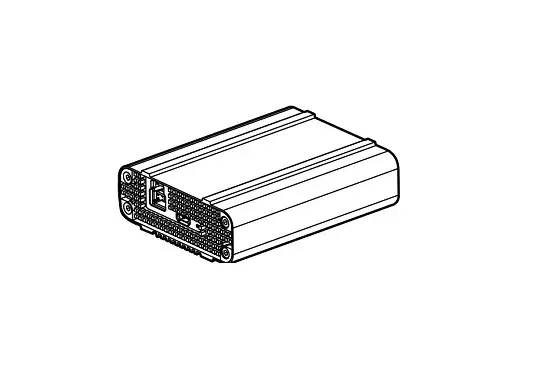
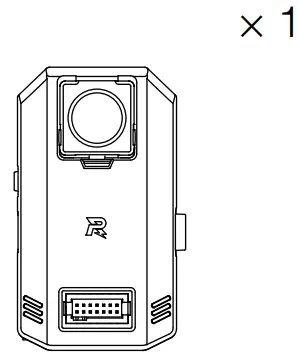
- Core Module

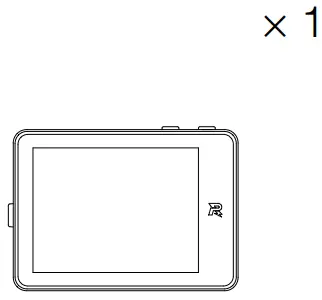
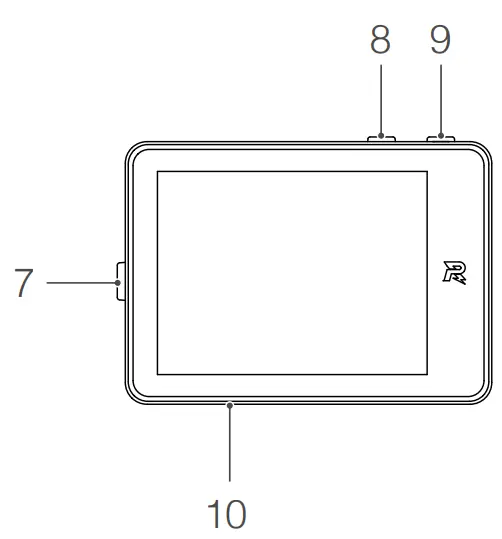
- Touch Screen

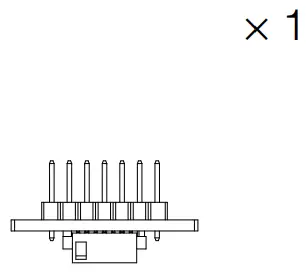
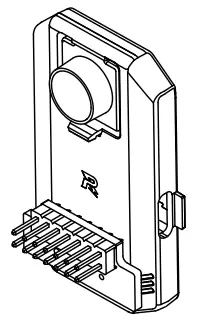
- Pin Header

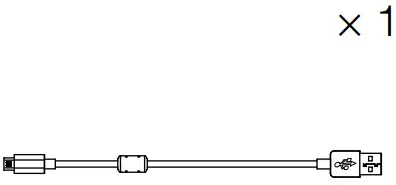
- Micro USB Cable

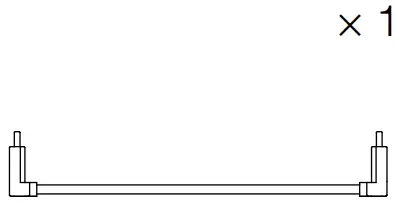
- Touch Screen Cable

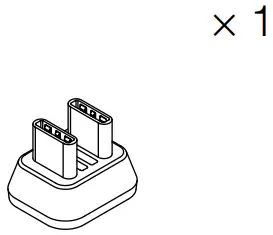
- Touch Screen Connector

Product overview
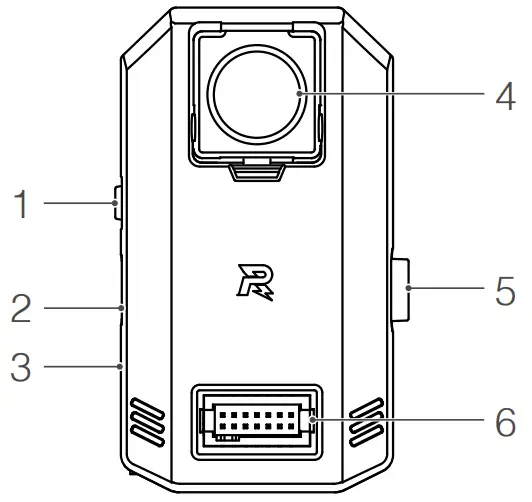
- Button
- Micro USB Port
- Status Indicator
- Camera
- Touch Screen Port
- 14-Pin Expansion Port

- Touch Screen Port
- Object Detection Mode Button
- Image Capture Mode Button
- microSD Card Slot

Installation
- A

- B

- C

Introduction
The AI Education Set is designed for primary and secondary school students. It has a built-in AI processing chip with general neural network processing ability, as well as a high-performance camera module. On the AI Training Platform of the DJITM Education Hub, users can train the neural network model to detect an object and download the model to the AI Education Set to run offline. The detection results can be outputted in real-time to facilitate the machine vision and application of the on-device machine. Used with the AI Education Set, multiple applications such as simple automatic driving, gesture recognition, and tracking, and automatic transfer robots can be executed via the robotic platform.
Usage
- Download DJI Education Hub
Download DJI Education Hub on edu.dji.com, finish the neural network model training on the AI Training Platform and download the model to the core module. Refer to the AI Education Set User Manual for more information.
 - Application
- a. Using the AI Education Set as a Standalone Device
Connect the core module to the touchscreen to detect objects and display the object’s information on the screen.
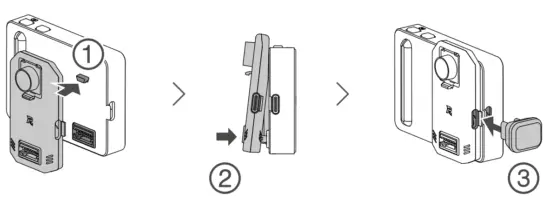
How to connect: Align the notches on the core module and touchscreen and attach them together. Align and connect their 14- pin expansion ports, and insert the touchscreen connector as shown.
(Figure A)
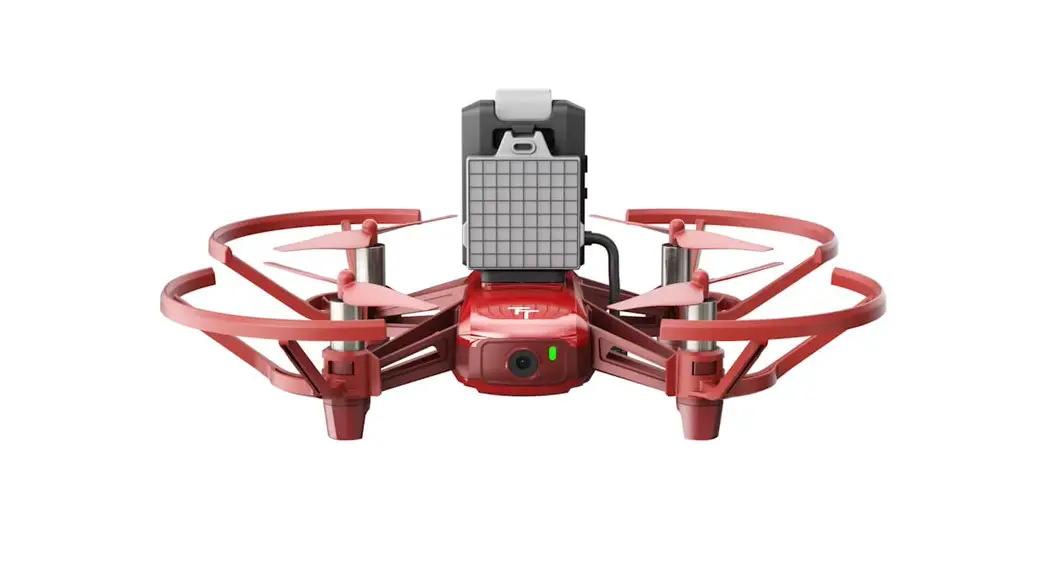
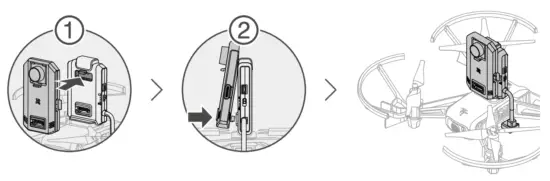
Press the Object Detection Mode button to enter Object Detection mode. In this mode, the core module will capture images of the object and display the detection results on the touch screen in real-time. Connect the Micro USB port of the core module to the computer or use a USB power source to power the core module and touch screen. - b. Using the AI Education Set with ROBOMASTERTM TT Attach the core module to the open-source controller of RoboMaster Users can obtain detection results and program the robot via Python SDK to run relevant AI applications. Scan the QR code or visit the link to learn more about Python SDK.
https://robomaster-dev.readthedocs.io
How to connect: Align the notches on the core module and the open source controller and attach them together, then align and connect their 14-pin expansion ports. (Figure B) - c. Using the AI Education Set With RoboMaster EP
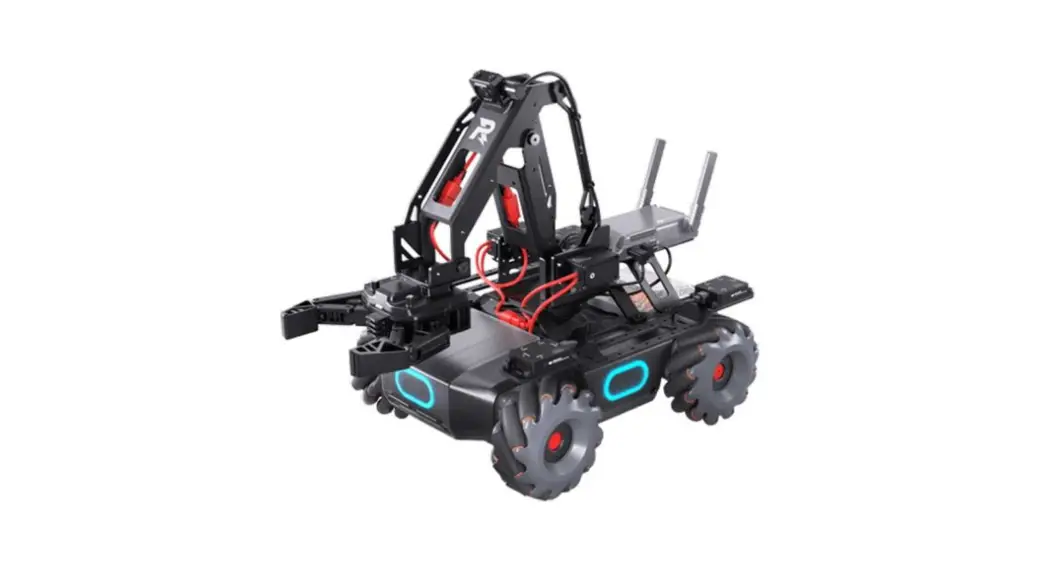
Using the AI Education Set with RoboMaster EP requires the RM Expansion Module (not provided). Refer to the RM Expansion Module Quick Start Guide for installation steps. - d. Using the AI Education Set With a Third-Party Controller
To obtain detection results via the serial port, attach the pin header to the 14-pin expansion port of the core module, and then connect the core module with a third-party controller using a Dupont cable (not provided). (Figure C)Scan the QR code, or visit the link, to get the open-source code and program sample:
https://www.dji.com/ai-module/downloads Refer to the AI Education Set User Manual for more information.
- a. Using the AI Education Set as a Standalone Device
 Refer to the AI Education Set User Manual for more information.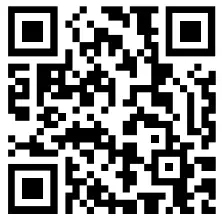

 For more information, read the User Manual:
https://www.dji.com/ai-module/downloads
This content is subject to change without prior notice.
 and
and  are trademarks of DJI.
Copyright © 2022 All Rights Reserved.