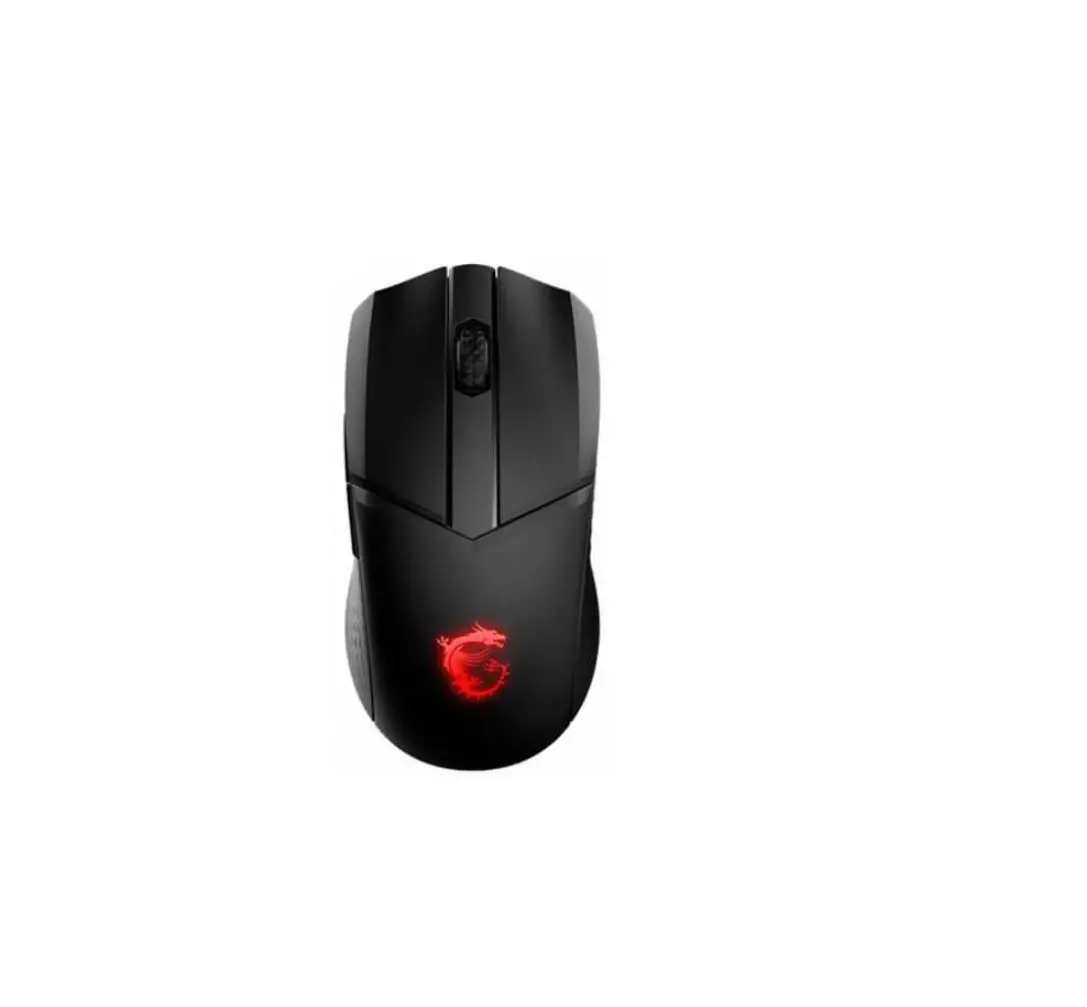
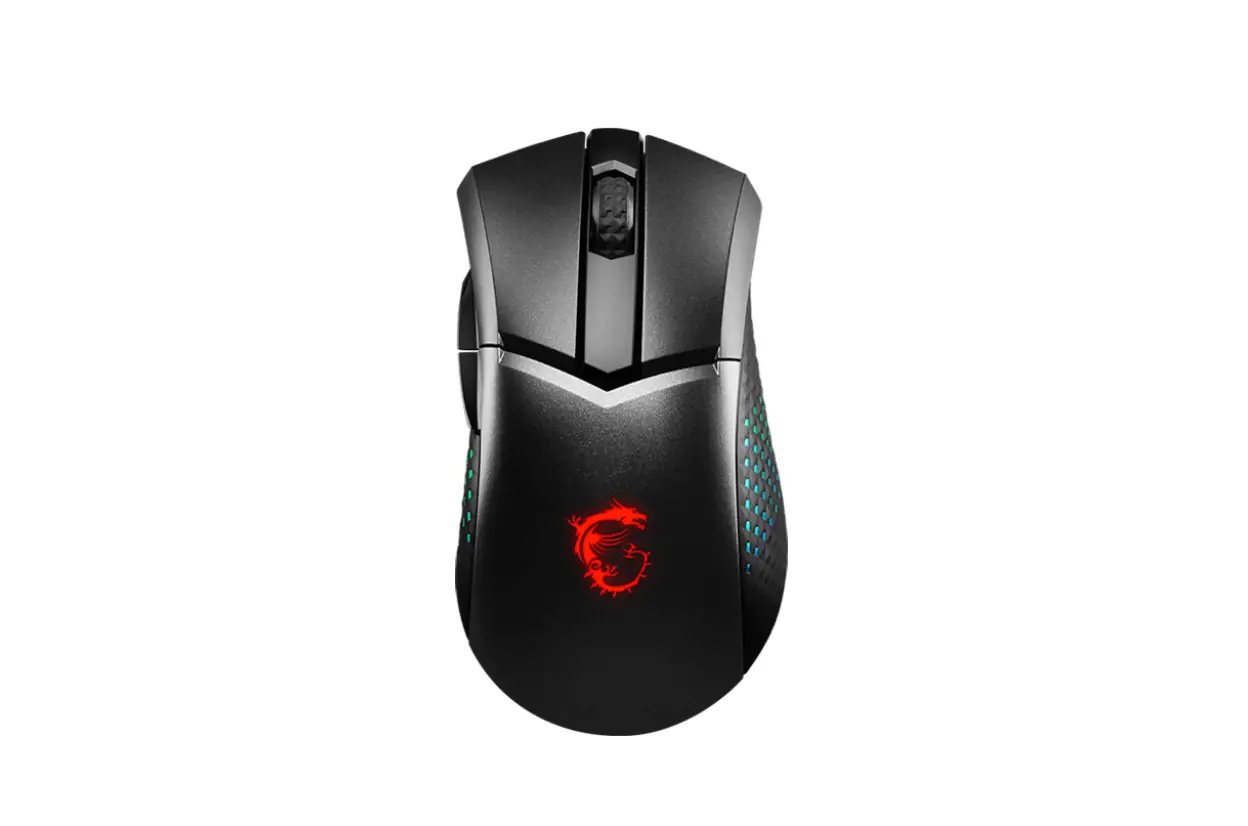
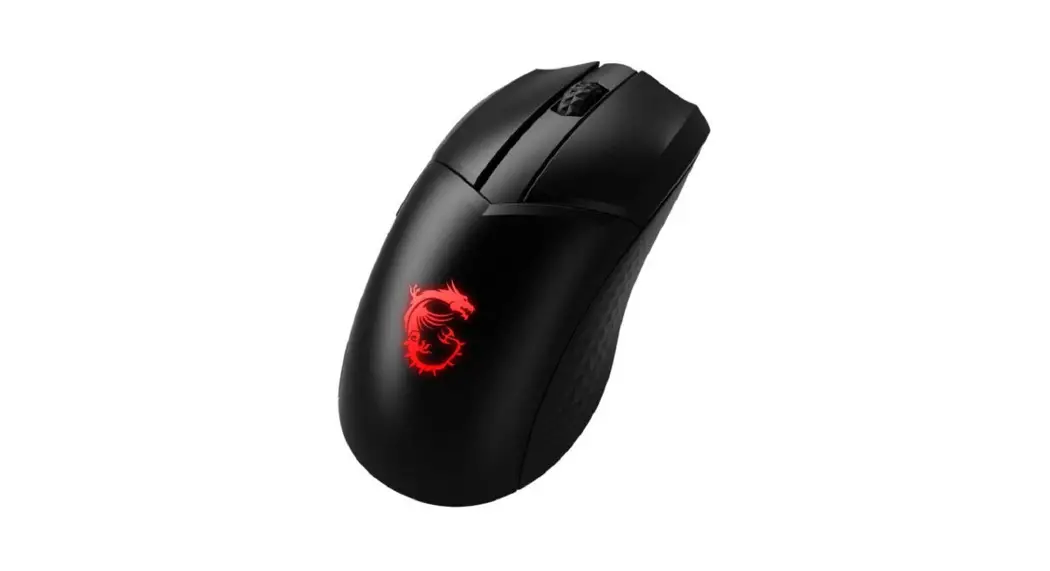
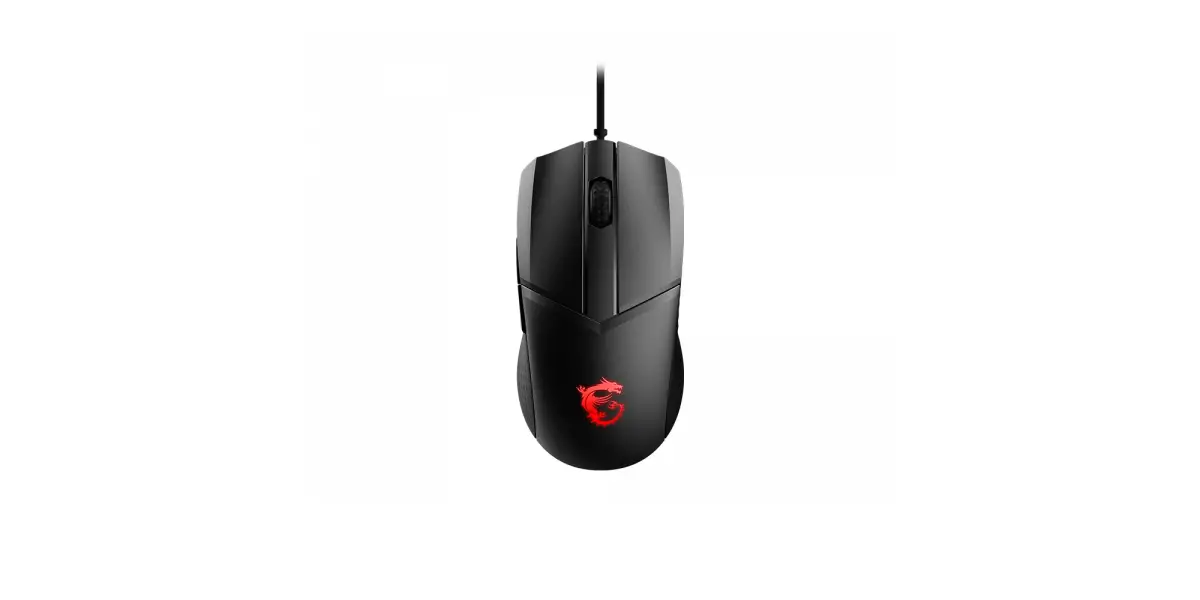
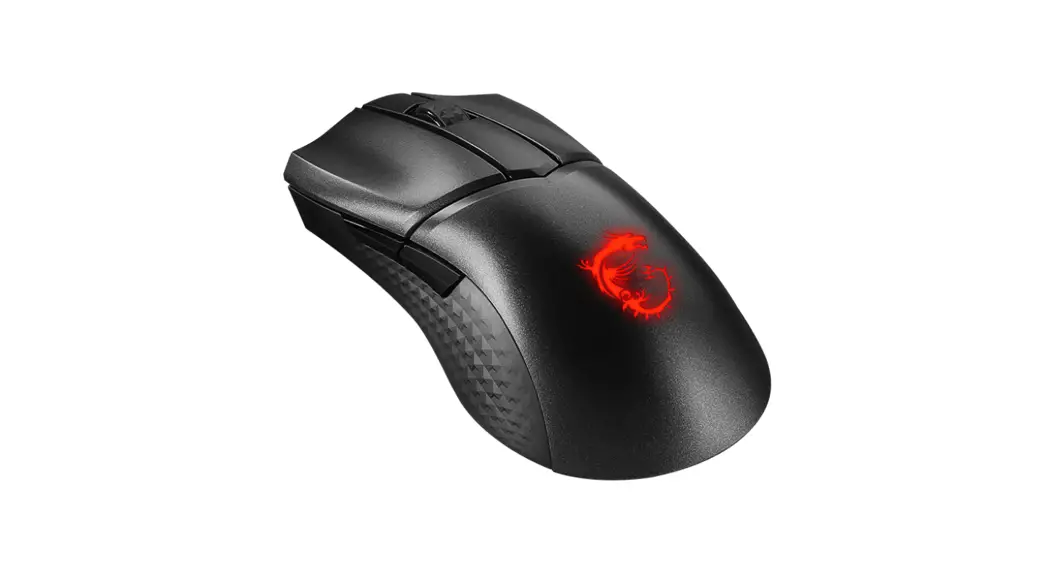
CLUTCH GM51 Lightweight Wireless Mouse
Product Information
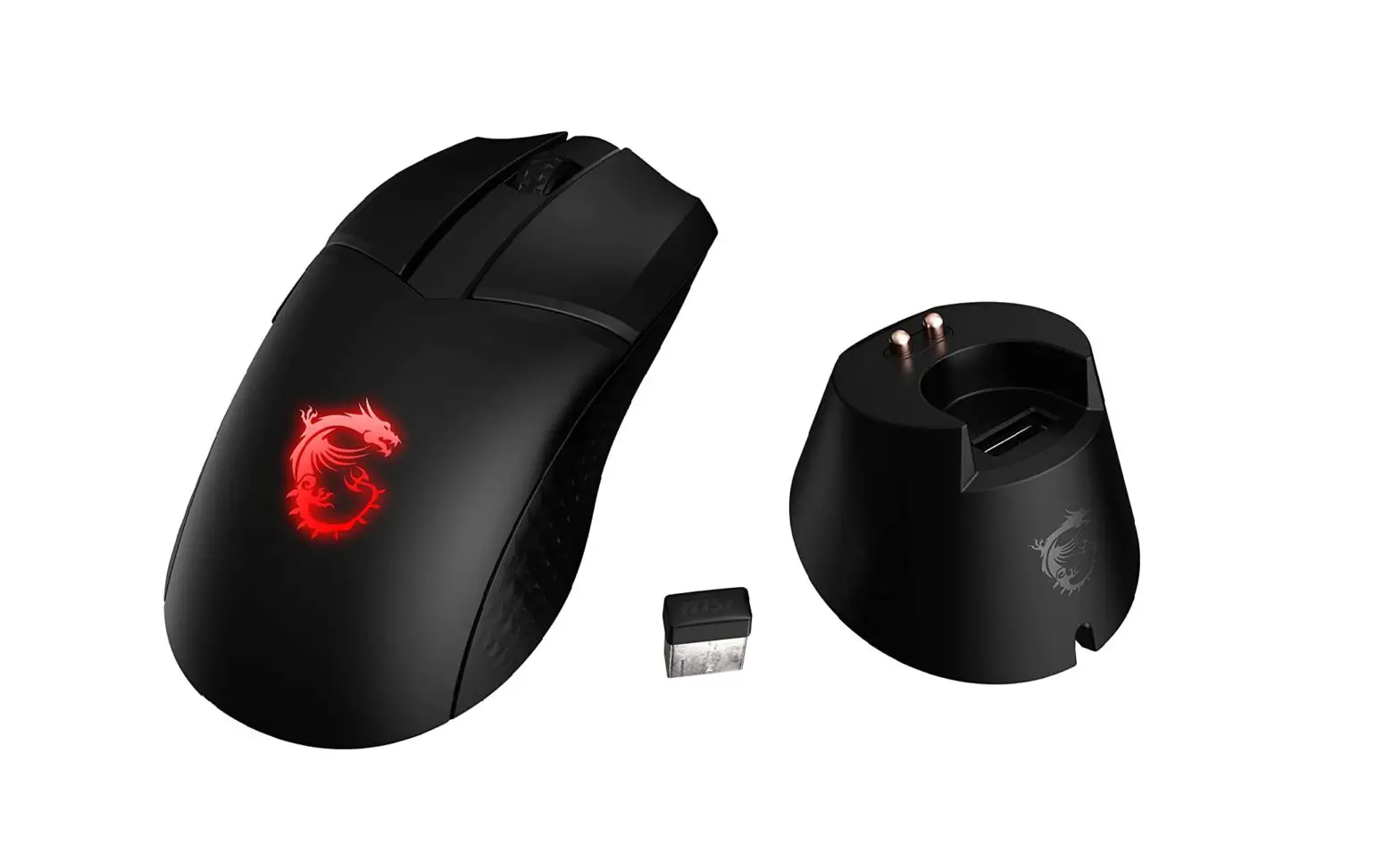
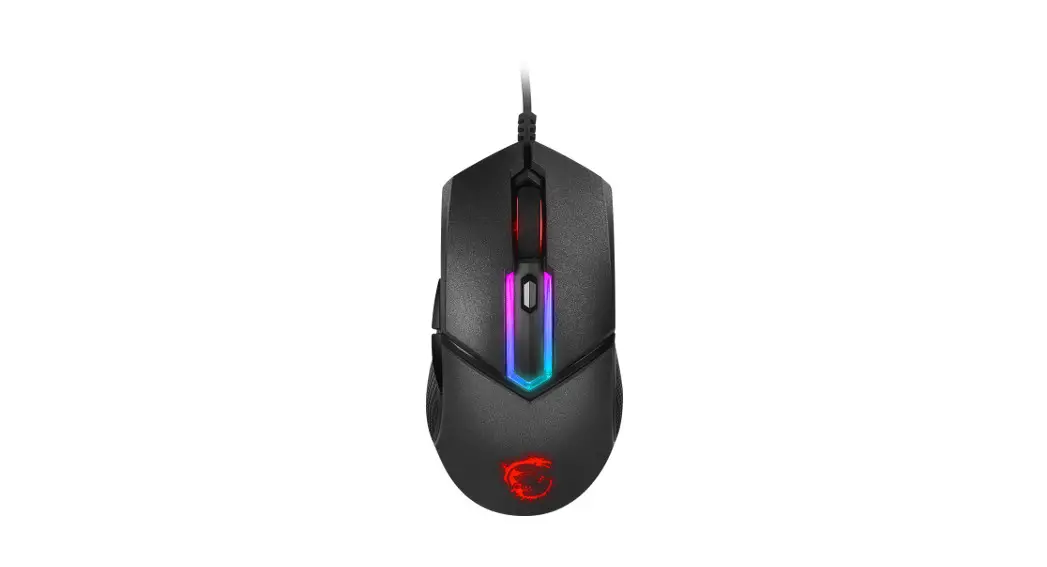
The CLUTCH GM51 LightWeight Wireless is a wireless gaming mouse
manufactured by MSI. It comes equipped with an optical sensor, MSI
Diamond LightGrip, Dragon RGB LED Light, FriXionFree Cable, DPI
switch, slider switch, PTFE skates, wireless USB dongle, charging
port, and anti-slip strip. The mouse is compatible with Microsoft
Swift Pair and has a maximum DPI of 26000.
Product Usage Instructions
Bluetooth Pairing
- Turn off the power of the mouse.
- Press and hold the DPI button.
- Set the slider switch to Bluetooth mode and keep holding the
DPI button for 5 seconds then release it to activate the pairing
mode. - Activate Bluetooth on your device and select MSI GM51 from the
list of devices found.
Note: For more information on LED indicators adjustment and
other product features, please visit the MSI official website.
105 X 140 mm
CLUTCH
GM51
LIGHTWEIGHT WIRELESS
Model Name: : 8ZB5
1. 2. 3. 4. 1 5. 2 6. MSI Diamond LightGrip 7. RGB LED 8. FriXionFree 9. DPI 10. 2.4G / /
11. 12. 13. 14. USB 15. (CLUTCH GM51 LIGHTWEIGHT
WIRELESS ) 16. MSI 17. USB Type-C 18.
LED · DPI + = · DPI + = · DPI + 1 = · DPI + 2 =
MSI
1. 2.DPI 3.DPI 4.MSI GM51
* Microsoft Swift Pair
5 DPI DPI DPI
DPI
LED
DPI 400 800 1600
3200 6400
DPI26000 DPI100 ()
RGB LED
90% – 100% 70% – 90% 50% – 70% 30% – 50% 10% – 30% 0% – 10%
LED
MSI Dragon Center / MSI Center : 5V 600mA : 40 C MSI
Tieng Viet
Tng quan
1. Nút chut trái 2. Nút chut phi 3. Con ln 4. Nút cnh bên 1
(Cài t mc nh: Trang tip theo) 5. Nút cnh bên 2 (Cài t mc nh: Trang trc) 6. MSI Diamond LightGrip
7. èn RGB LED hình rng 8. Dây cáp FriXionFree di ng 9. Chuyn i DPI 10. Nút gt chuyn i: Ch 2.4G /
Ch Bluetooth / Tt
11. Cm bin quang 12. Cng sc 13. Chân chut bng nha PTFE 14. Dongle USB không dây 15. Chân sc ( sc CLUTCH GM51 LIGHTWEIGHT
WIRELESS)
16. Cng dongle (c s dng khi lp MSI Dongle) 17. u ni USB Type-C 18. Ming chng trt ca sc
iu chnh èn LED ch báo
S dng các t hp nút sau nhiu ln cho n khi bn hài lòng vi la chn ca mình. · Chuyn i DPI + Nút phi = iu chnh mc sáng ca èn LED · Chuyn i DPI + Con ln = chn Hiu ng ánh sáng ca èn LED · Chuyn i DPI + Nút cnh bên 1 = iu chnh Tc hiu ng ánh sáng · Chuyn i DPI + Nút cnh bên 2 = chn màu èn LED
bit thêm thông tin, vui lòng ghé thm trang web chính thc ca MSI.
Ghép ni Bluetooth
1. Tt ngun 2. Nhn gi nút DPI 3. Gt nút chuyn i sang ch Bluetooth, tip tc gi nút DPI trong 5 giây sau ó th ra bt ch ghép ni. 4. Bt Bluetooth trên thit b ca bn và chn “MSI GM51” t danh sách thit b tìm thy.
* H tr Microsoft Swift Pair.
DPI 5 cp cài sn
Nên s dng DPI cao i vi các màn hình có phân gii ln. Nhn nút chuyn i DPI liên tc nm di chut cho n khi bn hài lòng vi la chn ca mình.
Màu èn LED Xanh lam Tím Vàng Xanh lá
DPI 400 800 1600 (mc nh) 3200 6400
DPI ti a: 26000 (bng phn mm)
Ch báo dung lng pin Xem màu ca èn RGB LED hình rng ch báo bit dung lng pin ca chut.
Dung lng pin 90% – 100% 70% – 90% 50% – 70% 30% – 50% 10% – 30% 0% – 10%
Màu èn LED Màu xanh lá cây tnh Màu xanh lá cây nhp chm u Màu vàng nhp chm u Màu cam nhp chm u Màu nhp chm u Màu nhp nháy
Bn có th tìm thy Phn trm pin (%) trong Dragon Center / MSI Center
in áp / Dòng in nh mc : 5V 600mA; Nhit hot ng ti a: 40 °C
bit thêm thông tin, vui lòng ghé thm trang web chính thc ca MSI
Svenska
Översikt
1. Vänster knapp
11. Optisk sensor
2. Höger knapp
12. Laddningsport
3. Skrollhjul
13. PTFE-fötter
4. Sidoknapp 1 (Standardinställning: Nästa sida)
14. Trådlös USB-dongel
5. Sidoknapp 2 (Standardinställning: Föregående sida) 15. Laddningsstift (för att ladda CLUTCH GM51
6. MSI Diamond LightGrip
LIGHTWEIGHT WIRELESS)
7. RGB drakindikator
16. Dongelport (används för att sätta i MSI-dongel)
8. Bärbar FriXionFree-kabel
17. USB Type-C-kontakt
9. DPI-omkopplare
18. Glidskyddsremsa för laddare
10. Skjutreglage: 2.4 G-läge/Bluetooth-läge/Av
Justeringar av indikatorer
Använd följande knappar i kombination flera gånger tills ett val har gjorts. · DPI-omkopplare + höger knapp = justera LED-ljusstyrkenivåerna · DPI-omkopplare + skrollhjul = välj en LED-belysningseffekt · DPI-omkopplare + sidoknapp 1 = justera belysningseffektens hastighet · DPI-omkopplare + sidoknapp 2 = välj en LED-färg
För mer information, besök MSI:s officiella webbplats.
Bluetooth-länkning
1. Stäng av strömmen
2. Tryck på DPI-knappen och håll den intryckt 3. Ställ skjutreglaget på Bluetooth-läge, fortsätt att hålla DPI-knappen intryckt i 5 sekunder och släpp därefter för
att aktivera länkningsläget. 4. Aktivera Bluetooth på enheten och välj “MSI GM51” i listan över enheter som hittas.
* Stödjer Microsoft Swift Pair.
DPI-förinställningar i 5 nivåer
Högre DPI rekommenderas för bildskärmar med högre upplösning. Tryck flera gånger på DPI-omkopplaren på musens undersida tills du har gjort ditt val.
LED-färg Blue (Blå) Lila Red (Röd) Yellow (Gul) Green (Grön)
DPI 400 800 1600 (standard) 3200 6400
Maximal DPI: 26000 (efter program)
Indikator för batterikapacitet
Titta på färgen på Dragon RGB LED-indiktorn för att se musens batterikapacitet.
Batterikapacitet 90% – 100% 70% – 90% 50% – 70% 30% – 50% 10% – 30% 0% – 10%
LED-färg Fast grön Pulserande grön Pulserande gul Pulserande orange Pulserande röd Blinkande röd
Batterprocent (%) finns också i Dragon Center/MSI-center Rated Voltage (Märkspänning)/Current (Ström): 5 V 600mA.
Maximal driftstemperatur: 40 °C För mer information, besök MSI:s officiella webbplats
Model Name: 8ZB5
1
2
3
4
5
10
11
6
7
14
Model Name: GM01WD
18 16
15
17
English 8
13 9 12
1. 2. 3. 4. 1 () 5. 2 () 6.MSI Diamond LightGrip 7.Dragon RGB LED 8. FriXionFree 9.DPI 10.2.4G / /
11. 12. 13.PTFE 14. USB Dongle 15. ( CLUTCH GM51 LIGHTWEIGHT
WIRELESS ) 16.Dongle ( MSI Dongle ) 17.USB Type-C 18.
LED · DPI + = LED · DPI + = LED · DPI + 1 = · DPI + 2 = LED
MSI
1. 2. DPI 3. DPI 5 4. “MSI GM51″
* Swift Pair ()
5 DPI DPI DPI
LED
DPI 400 800 1600 3200 6400
DPI26000
RGB LED
90% – 100% 70% – 90% 50% – 70% 30% – 50% 10% – 30% 0% – 10%
LED
(%) Dragon Center / MSI Center / 5V 600mA 40 °C MSI
1. 2. 3. 4. 1 (:) 5. 2 (:) 6. MSI Diamond LightGrip 7. RGB LED 8. 9. DPI 10. : 2.4G/
Bluetooth/
11. 12. 13. PTFE 14. USB 15. (CLUTCH GM51 LIGHTWEIGHT
WIRELESS ) 16. USB (MSI ) 17. USB Type-C 18.
LED
· DPI += · DPI += · DPI +1= · DPI +2 =
MSI Web
Bluetooth
1. 2. DPI 3. BluetoothDPI5
4. BluetoothMSI GM51
* Microsoft Swift Pair
5 DPI
DPI DPI DPI
LED
DPI 400 800 1600 3200 6400
DPI: 26000
Dragon RGB LED
90% – 100% 70% – 90% 50% – 70% 30% – 50% 10% – 30% 0% – 10%
LED () () () ()
Dragon Center / MSI Center (%)
/ : 5V 600mA : 40 °C MSI Web
XXX-XXXXXX XXX-XXXXXX
Magyar
Áttekintés
1. Bal gomb 2. Jobb gomb 3. Görgetkerék 4. 1. oldalsó gomb (Alapértelmezett beállítás:
következ oldal) 5. 2. oldalsó gomb (Alapértelmezett beállítás:
elz oldal) 6. MSI Diamond LightGrip 7. Dragon RGB LED lámpa 8. Hordozható FriXionFree kábel 9. DPI-kapcsoló 10. Csúszókapcsoló: 2.4 G mód/Bluetooth mód/Ki
11. Optikai érzékel 12. Töltaljzat 13. PTFE csúszófelület 14. Vezeték nélküli USB-kulcs 15. Töltérintkez (a CLUTCH GM51 LIGHTWEIGHT
WIRELESS töltéséhez) 16. Kulcs aljzat (kizárólag az MSI-kulcs behelyezése
esetén használva) 17. USB Type-C csatlakozó 18. Tölt csúszásgátló szalag
A LED-jelzfények beállítása
Az alábbi gombkombinációk ismételt használatával választhatja ki a kívánt üzemmódot. · DPI kapcsoló + Jobb gomb = a LED fényerejének állítása · DPI kapcsoló + Görgetkerék = LED világítási effektus kiválasztása · DPI kapcsoló + 1. oldalsó gomb = a világítási effektus sebességének állítása · DPI kapcsoló + 2. oldalsó gomb = a LED színének kiválasztása
További tudnivalókért látogasson el az MSI hivatalos webhelyére.
Bluetooth párosítás
1. Kapcsolja ki. 2. Nyomja meg és tartsa lenyomva a DPI gombot 3. Állítsa a csúszókapcsolót Bluetooth módba, tartsa lenyomva a DPI gombot 5 másodpercig, majd engedje el a
párosítási mód aktiválásához. 4. Aktiválja a Bluetooth-funkciót a készülékén, és válassza ki az ,,MSI GM51” eszközt a talált eszközök listájából.
* A Microsoft Swift Pair támogatása.
5 szint DPI-elbeállítások
A nagyobb DPI a nagyobb felbontású monitorokhoz ajánlott. Nyomja meg többször az egér alján lév DPI kapcsolót a kívánt üzemmód kiválasztásához.
LED színe Kék Bíbor Vörös Sárga Zöld
DPI 400 800 1600 (alapértelmezett) 3200 6400
Maximális DPI: 26000 (szoftver által)
Elemkapacitás kijelz
Olvassa le a Dragon RGB LED jelzfény színét, hogy megtudja az egér elemkapacitását.
Elemkapacitás 90% – 100% 70% – 90% 50% – 70% 30% – 50% 10% – 30% 0% – 10%
LED színe Folyamatos zöld Lélegz zöld Lélegz sárga Lélegz narancssárga Lélegz vörös Villogó vörös
A elemszázalék (%) a Dragon Center / MSI Center alkalmazásban is megtalálható
Névleges feszültség / áramersség: 5 V 600mA Maximális üzemi hmérséklet: 40 °C
További tudnivalókért látogasson el az MSI hivatalos webhelyére
English
Overview
1. Left Button 2. Right Button 3. Scroll Wheel 4. Side Button 1 (Default Setting: Next Page) 5. Side Button 2 (Default Setting: Previous Page) 6. MSI Diamond LightGrip 7. Dragon RGB LED Light 8. Portable FriXionFree Cable 9. DPI Switch 10. Slider Switch: 2.4G Mode/Bluetooth Mode/Off
11. Optical Sensor 12. Charging Port 13. PTFE Skates 14. Wireless USB Dongle 15. Charging Pin (For charging the CLUTCH
GM51 LIGHTWEIGHT WIRELESS) 16. Dongle Port (Used when MSI Dongle is
inserted) 17. USB Type-C Connector 18. Charger Anti-Slip Strip
LED Indicators Adjustment
Use the following buttons in combination repeatedly until the preferred selection is made. · DPI Switch + Right Button = adjust the LED brightness levels · DPI Switch + Scroll Wheel = select a LED Lighting Effect · DPI Switch + Side Button 1 = adjust the Lighting Effect Speed · DPI Switch + Side Button 2 = select a LED Color
For more information, please visit MSI official website.
Bluetooth Paring
1. Turn off the power 2. Press and hold the DPI button 3. Set the Slider Switch to Bluetooth mode, keep holding the DPI button for 5 secs then release it to activate
the pairing mode. 4. Activate Bluetooth on your device and select “MSI GM51” from the list of devices found.
* Support Microsoft Swift Pair.
5-level DPI Presets
The higher DPI will be recommended to the monitors with higher resolution. Press repeatedly the DPI switch located underneath the mouse until the preferred selection is made.
LED color Blue Purple Red Yellow Green
DPI 400 800 1600default 3200 6400
Maximum DPI: 26000by software
Battery Capacity Indicator
Read the color of the Dragon RGB LED indicator to learn the battery capacity of the mouse.
Battery capacity 90% – 100% 70% – 90% 50% – 70% 30% – 50% 10% – 30% 0% – 10%
LED color Steady Green Breathing Green Breathing Yellow Breathing Orange Breathing Red Flashing Red
Battery Percentage (%) can also be found in DragonCenter / MSI Center
Rated Voltage / Current : 5V 600mAMaximum Operating Temperature : 40 °C
For more information, please visit MSI official website
1. 2. 3. 4. 1 ( : ) 5. 2 ( : ) 6. MSI 7. RGB LED 8. FriXionFree 9. DPI
10. : 2.4G / / 11. 12. 13. PTFE 14. USB Dongle 15. (CLUTCH GM51 LIGHTWEIGHT
) 16. Dongle (MSI Dongle )
LED . · DPI + = LED · DPI + = LED · DPI + 1 = · DPI + 2 = LED
MSI .
1. . 2. DPI . 3. DPI 5 . 4. “MSI GM51″ .
*
5- DPI DPI . DPI
.
LED
DPI 400 800 1600 3200 6400
DPI: 26000by software
RGB LED .
90% – 100% 70% – 90% 50% – 70% 30% – 50% 10% – 30% 0% – 10%
LED
(%) / MSI . / : 5V 600mA : 40 °C MSI .
Slovencina
Prehad
1. avé tlacidlo 2. Pravé tlacidlo 3. Rolovacie koliesko 4. Bocné tlacidlo 1 (predvolené nastavenie:
nasledujúca strana) 5. Bocné tlacidlo 2 (predvolené nastavenie:
predchádzajúca strana) 6. Diamantové svetelné drzadlo MSI 7. RGB LED svetlo draka 8. Prenosný kábel FriXionFree 9. Spínac DPI 10. Posuvný prepínac: Rezim 2.4G/
rezim Bluetooth/vypnutie
11. Optický snímac 12. Nabíjací port
13. Klzné podlozky PTFE 14. Bezdrôtový USB kúc 15. Nabíjací kolík (na nabíjanie AHKEJ BEZDRÔTOVEJ
MYSI CLUTCH GM51) 16. Port na USB kúc (pouzíva sa, ke je pripojený USB
kúc MSI) 17. Konektor USB Type-C 18. Protismykový pás nabíjacky
Nastavenia LED indikátorov
Opakovane pouzite nasledujúcu kombináciu tlacidiel tak, aby sa vykonala pozadovaná voba. · Prepínac DPI + pravé tlacidlo = nastavenie úrovne jasu LED indikátorov · Prepínac DPI + rolovacie koliesko = vobe svetelného efektu LED indikátorov · Prepínac DPI + bocné tlacidlo 1 = nastavenie rýchlosti svetelného efektu · Prepínac DPI + bocné tlacidlo 2 = voba farby LED indikátorov
alsie informácie nájdete uvedené na oficiálnej webovej stránke spolocnosti MSI.
Párovanie prostredníctvom Bluetooth
1. Vypnite napájanie 2. Podrzte stlacené tlacidlo DPI 3. Posuvný prepínac nastavte do rezimu Bluetooth, na 5 sekúnd podrzte stlacené tlacidlo DPI a potom ho uvonite,
aby sa aktivoval rezim párovania. 4. Aktivujte funkciu Bluetooth na svojom zariadení a zvote ,,MSI GM51” zo zoznamu nájdených zariadení.
* Podpora funkcie Microsoft Swift Pair.
5-stupové predvoby DPI
Vyssie DPI sa odporúca pre monitory s vyssím rozlísením. Opakovane stlácajte prepínac DPI na spodnej strane mysi dovtedy, kým sa nevykoná pozadovaná voba.
Farba LED indikátorov Modrá Fialová Cervená Zltá Zelená
DPI 400 800 1600 (predvolené nastavenie) 3200 6400
Maximálne DPI: 26000 (poda softvéru)
Indikátor úrovne nabitia batérie
Pozrite si farbu LED indikátora Dragon RGB na zistenie úrovne nabitia batérie mysi.
Úrove nabitia batérie 90% – 100% 70% – 90% 50% – 70% 30% – 50% 10% – 30% 0% – 10%
Farba LED indikátorov Stabilná zelená Dýchajúca zelená Dýchajúca zltá Dýchajúca oranzová Dýchajúca cervená Blikajúca cervená
Percento nabitia batérie (%) je mozné nájs aj v centre Dragon / centre MSI
Menovité napätie/menovitý prúd : 5 V 600mAmaximálna prevádzková teplota: 40 °C
alsie informácie nájdete uvedené na oficiálnej webovej stránke spolocnosti MSI.
1. 2. 3. 4. 1 ( :
) 5. 2 ( :
) 6. MSI Diamond 7. RGB LED 8. FriXionFree 9. DPI 10. : 2.4G/
Bluetooth/
11. 12. 13. Skates PTFE 14. USB Dongle 15. ( CLUTCH GM51
LIGHTWEIGHT WIRELESS)
16. Dongle ( MSI Dongle)
17. USB Type-C. 18.
LED
. · DPI + = LED · DPI + = LED · DPI + 1 = · DPI + 2 = LED
MSI.
Bluetooth
1. 2. DPI 3. Bluetooth, DPI 5
, , . 4. Bluetooth “MSI GM51″
. * Microsoft Swift Pair.
DPI 5
DPI . DPI
.
LED
DPI 400 800 1600 () 3200 6400
DPI: 26000 ( )
LED Dragon RGB .
X LED
90% – 100%
70% – 90% 50% – 70% 30% – 50% 10% – 30% 0% – 10%
(%) Dragon Center / MSI Center
/ : 5V 600mA.
: 40 °C
MSI.
RoHS
Declaration of the Presence Condition of the Restricted Substances Marking
Unit
8ZB5
Equipment name
Type designation (Type)
Lead (Pb)
Restricted substances and its chemical symbols
Mercury (Hg)
Cadmium
(Cd)
Hexavalent chromium
(Cr+6 )
Polybrominated
biphenyls
(PBB)
Polybrominated diphenyl ethers
(PBDE)
—
—
1.0.1 wt %0.01 wt % Note 1″Exceeding 0.1 wt %and”exceeding 0.01 wt %indicate that the percentage content of the
restricted substance exceeds the reference percentage value of presence condition. 2. Note 2″indicates that the percentage content of the restricted substance does not exceed the
percentage of reference value of presence. 3.– Note 3The”–indicates that the restricted substance corresponds to the exemption.
(Pb)
(Hg)
(Cd) Cr (VI) (PBB)
(PBDE)
*
SJ/T11363 2006
× SJ/T11363 2006
* : X ROHS
10
Bahasa Indonesia
Gambaran Umum
1. Tombol Kiri 2. Tombol Kanan 3. Roda Gulir 4. Tombol Samping 1 (Pengaturan Default:
Halaman Berikutnya) 5. Tombol Samping 2 (Pengaturan Default:
Halaman Sebelumnya) 6. MSI Diamond LightGrip 7. Lampu RGB LED Dragon 8. Kabel FriXionFree Portabel 9. Tombol DPI 10. Tombol Slider: Mode 2.4G/Mode Bluetooth/Mati
11. Sensor Optik 12. Port Pengisian Daya
13. PTFE Skates 14. Dongle USB Nirkabel 15. Pin Pengisian Daya (Untuk mengisi daya mouse
CLUTCH GM51 LIGHTWEIGHT WIRELESS) 16. Dongle Port (Digunakan ketika MSI Dongle disisipkan) 17. Konektor USB Tipe-C 18. Tali Anti Selip Pengisi Daya
Penyesuaian Indikator LED
Gunakan tombol-tombol berikut dalam kombinasi berulang kali sampai pilihan yang diinginkan dibuat. · Tombol DPI + Tombol Kanan = menyesuaikan tingkat kecerahan LED · Tombol DPI + Roda Gulir = memiliki Efek Pencahayaan LED · Tombol DPI + Tombol Samping 1 = menyesuaikan Kecepatan Efek Pencahayaan · Tombol DPI + Tombol Samping 2 = memilih Warna LED
Untuk informasi selengkapnya, silakan kunjungi situs web resmi MSI.
Perpasangan Bluetooth
1. Matikan daya 2. Tekan terus tombol DPI 3. Atur Tombol Slider ke mode Bluetooth, tetap tahan tombol DPI selama 5 detik lalu lepaskan untuk mengaktifkan
mode perpasangan. 4. Aktifkan Bluetooth di perangkat Anda dan pilih “MSI GM51” dari daftar perangkat yang ditemukan.
* Mendukung Microsoft Swift Pair.
Praatur DPI 5 Level
DPI yang lebih tinggi direkomendasikan untuk monitor dengan resolusi lebih tinggi. Tekan berulang kali tombol DPI yang terletak di bawah mouse sampai pilihan yang diinginkan dibuat.
Warna LED
DPI
Biru
400
Ungu
800
Merah
1600(default)
Kuning Hijau
3200 6400
DPI Maksimum: 26000 (berdasarkan perangkat lunak)
Indikator Kapasitas Baterai
Baca warna indikator LED RGB Dragon untuk mengetahui kapasitas baterai mouse.
Kapasitas baterai 90% – 100% 70% – 90% 50% – 70% 30% – 50% 10% – 30% 0% – 10%
Warna LED Hijau Stabil Hijau Breathing Kuning Breathing Oranye Breathing Merah Breathing Merah Berkilat
Persentase Baetrai (%) juga bisa ditemukan pada Dragon Center / MSI Center
Tegangan / Arus yang Sudah Dinilai: 5V 600mASuhu Maksimum Operasi : 40 °C
Untuk informasi selengkapnya, silakan kunjungi situs web resmi MSI
Suomi
Yleiskatsaus
1. Vasen painike 2. Oikea painike 3. Vierityspyörä 4. Sivupainike 1 (Oletusasetus: Seuraava sivu) 5. Sivupainike 2 (Oletusasetus: Edellinen sivu) 6. MSI Diamond LightGrip 7. Lohikäärme RGB LED -valo 8. Kannettava FriXionFree -kaapeli 9. DPI-kytkin 10. Liukukytkin: 2.4G Tila/Bluetooth-tila/Pois
11. Optinen anturi 12. Latausportti 13. PTFE-luistimet 14. Langaton USB-Dongle 15. Lataustappi (CLUTCH GM51 LIGHTWEIGHT WIRELESS:
n lataamiseen) 16. Dongle-portti (käytetään, kun MSI-dongle on asetettuna) 17. USB Tyyppi-C – liitin 18. Laturi luistamaton nauha
LED-merkkivalojen säädöt
Käytä seuraavia painikkeita yhdistelmässä toistuvasti, kunnes mieleisesi valinta on tehty. · DPI-kytkin + oikea painike = säädä LEDin kirkkaustasot · DPI-kytkin + vierityspyörä = valitse LED-valotehoste · DPI-kytkin + sivupainike 1 = säädä valotehosteen nopeus · DPI-kytkin + sivupainike 2 = valitse LEDin väri
Lisätietoja varten vieraile MSI:n virallisella web-sivustilla.
Bluetooth-pariliitos
1. Katkaise virta 2. Pidä DPI-painiketta painettuna 3. Aseta liukukytkin Bluetooth-tilaan, pidä DPI-painiketta painettuna 5 sekunnin ajan ja vapauta se aktivoidaksesi
pariliitostilan. 4. Aktivoi Bluetooth laitteessa ja valitse “MSI GM51” löydettyjen laitteiden luettelosta.
* Tukee Microsoft Swift Pairia.
5-tasoiset DPI-esiasetukset
Suurempaa DPI-arvoa suositellaan näytöille, joiden tarkkuus on parempi. Paina toistuvasti hiiren alla olevaa DPI-kytkintä, kunnes haluttu valinta tehdään.
LED-väri Sininen Violetti Punainen Keltainen Vihreä
DPI 400 800 1600oletus 3200 6400
Suurin DPI: 26000ohjelmistolla
Akun kapasiteetin ilmaisin
Lue lohikäärmeen RGB LED -ilmaisimen väri oppiaksesi hiiren akun kapasiteetin
Akun kapasiteetti 90% – 100% 70% – 90% 50% – 70% 30% – 50% 10% – 30% 0% – 10%
LED-väri Tasainen vihreä Hengityksen vihreä Hengityksen keltainen Hengityksen oranssi Hengityksen punainen Vilkkuu punaisena
Akun prosenttiosuus (%) löytyy myös Dragon Centeristä / MSI Centeristä
Nimellisjännite / -virta: 5 V 600mASuurin käyttölämpötila: 40 °C
Lisätietoja varten vieraile MSI:n virallisella web-sivustilla
Român
Descriere
1. Buton stânga 2. Buton dreapta 3.Roat scroll 4. Buton lateral 1 (Setare implicit: Pagina urmtoare) 5. Buton lateral 2 (Setare implicit: Pagina precedent) 6. MSI Diamond LightGrip 7. Lumin RGB LED dragon 8. Cablu portabil FriXionFree 9. Comutator DPI 10. Comutator glisant: Mod 2.4G/Mod Bluetooth/Oprit
11. Senzor optic 12. Port de încrcare 13. Patine PTFE 14. Dongle USB fr fir 15. Pin de încrcare (pentru încrcarea CLUTCH GM51
LIGHTWEIGHT WIRELESS) 16. Port dongle (Folosit atunci când dongle-ul MSI este
introdus) 17. Conector USB Tip C 18. Fâie antialunecare încrctor
Ajustare indicator LED
Folosii urmtoarele butoane în combinaie repetat pân când se ajunge la selecia preferat. · Comutator DPI + buton dreapta = ajustarea nivelului de luminozitate al LEDului · Comutator DPI + roat scroll = selectai efectul de iluminare LED · Comutator DPI + buton margine 1= ajustarea vitezei efectului de iluminare · Comutator DPI + buton margine 2 = selectare culoare LED
Pentru mai multe informaii v rugm vizitai site-ul oficial MSI.
Asociere Bluetooth
1. Oprii alimentarea 2. Apsai i meninei apsat butonul DPI 3. Setai comutatorul glisant pe modul Bluetooth, inei apsat butonul DPI timp de 5 secunde, apoi eliberai-l pentru
a activa modul de asociere
4. Activai Bluetooth pe dispozitivul dvs. i selectai “MSI GM51″ din lista de dispozitive gsite. * Suport Microsoft Swift Pair.
Presetri DPI pe 5 nivele
Pentru monitoare cu rezoluie mai mare se recomand DPI mai mare. Apsai în mod repetat comutatorul DPI localizat sub mouse pân când se face selecia preferat.
Culoare LED
DPI
Albastru
400
Mov
800
Rou
1600 (implicit)
Galben
3200
Verde
6400
DPI maxim: 26000 (prin software)
Indicator capacitate baterie
Citii indicatorul de culoare Dragon RGB LED pentru a afla capacitatea mouse-ului.
Capacitate baterie Culoare LED
90% – 100%
Verde stabil
70% – 90% 50% – 70% 30% – 50% 10% – 30% 0% – 10%
Verde respir Galben respir Portocaliu respir Rou respir Rou clipete
Procentajul de baterie (%) poate fi gsit i în Dragon Center / MSI Center Voltaj/Curent nominal: 5V 600mATemperatura maxim de operare:
40 °C
Pentru mai multe informaii v rugm vizitai site-ul oficial MSI
105 X 140 mm
Cestina
Pehled
1. Levé tlacítko
11. Optický snímac
2. Pravé tlacítko
12. Nabíjecí port
3. Posunovací kolecko
13. PTFE klouzace
4. Bocní tlacítko 1 (výchozí nastavení: dalsí stránka)
14. Bezdrátový adaptér USB Dongle
5. Bocní tlacítko 2 (výchozí nastavení: pedchozí stránka) 15. Nabíjecí kolík (pro nabíjení CLUTCH GM51
6. MSI Diamond LightGrip
LIGHTWEIGHT WIRELESS)
7. Svtelný RGB LED drak 8. Penosný kabel FriXionFree 9. Pepínac DPI 10. Posouvací pepínac: Rezim 2.4G/
rezim Bluetooth/vypnuto
16. Port adaptéru dongle (pouzívá se, kdyz je pipojen adaptér MSI Dongle)
17. Konektor USB Type-C 18. Protiskluzová páska pro nabíjecku
Nastavení indikátor LED
Opakovaným pouzitím následujících kombinací tlacítek vyberte pozadované nastavení. · Pepínac DPI + tlacítko Vpravo = úpravy úrovní jasu LED · Pepínac DPI + posunovací kolecko = výbr svtelného efektu LED · Pepínac DPI + bocní tlacítko 1 = úpravy rychlosti svtelného efektu · Pepínac DPI + bocní tlacítko 2 = výbr barvy LED
Dalsí informace naleznete na oficiálních webových stránkách MSI.
Párování Bluetooth
1. Vypnte napájení 2. Stisknte a podrzte tlacítko DPI 3. Nastavte posouvací pepínac na rezim Bluetooth, stisknte a podrzte tlacítko DPI po dobu 5 sekund a potom
uvolnním aktivujte rezim párování. 4. Aktivujte funkci Bluetooth ve vasem zaízení a v seznamu nalezených zaízení vyberte ,,MSI GM51”.
* Podpora funkce Microsoft Swift Pair.
Pedvolby 5 úrovní DPI
Vyssí DPI se doporucuje pro monitory s vysokým rozlisením. Opakovaným stisknutím pepínace DPI na spodní stran mysi vyberte pozadované nastavení.
Barva LED Blue (Modrá) Purple (Fialová) Red (Cervená) Zlutá Zelená
DPI 400 800 1600 (výchozí) 3200 6400
Maximální DPI: 26000 (softwarové)
Indikátor kapacity baterie
Barva LED indikátoru Dragon RGB signalizuje kapacitu baterie mysi.
Kapacita baterie 90% – 100% 70% – 90% 50% – 70% 30% – 50% 10% – 30% 0% – 10%
Barva LED Svítí zelen Pulzuje zelen Pulzuje zlut Pulzuje oranzov Pulzuje cerven Bliká cerven
Kapacita baterie v procentech (%) je rovnz uvedena v aplikaci Dragon Center / MSI Center
Jmenovité naptí / proud : 5 V 600mAmaximální provozní teplota: 40 °C
Dalsí informace naleznete na oficiálních webových stránkách MSI
Español
Descripción general
1. Botón izquierdo
11. Sensor óptico
2. Botón derecho
12. Puerto de carga
3. Rueda de desplazamiento 4. Botón lateral 1 (Configuración por defecto: Página
siguiente) 5. Botón lateral 2 (Configuración por defecto: Página
anterior) 6. MSI Diamond LightGrip 7. Luz LED RGB Dragón 8. Cable FriXionFree portátil 9. Conmutador ppp
13. Patines PTFE 14. Llave inalámbrica USB 15. Pin de carga (para cargar el CLUTCH GM51
LIGHTWEIGHT WIRELESS) 16. Puerto para llave (se utiliza cuando se inserta la llave
MSI) 17. Conector USB Tipo-C 18. Banda antideslizante del cargador
10. Conmutador deslizante: Modo 2.4G/Modo Bluetooth/
Desactivado
Ajuste de indicadores LED
Utilice los siguientes botones en combinación repetidamente hasta que se realice la selección preferida. · Conmutador PPP + Botón derecho = Ajustar los niveles de brillo del LED · Conmutador PPP + Rueda de desplazamiento = Seleccionar un efecto de iluminación LED · Conmutador PPP + Botón lateral 1 = Ajustar la velocidad del efecto de iluminación · Conmutador PPP + Botón lateral 2 = Seleccionar un color de LED
Para más información, por favor, visite la página web oficial de MSI.
Asociación Bluetooth
1. Apague la alimentación. 2. Presione sin soltar el botón PPP. 3. Coloque el conmutador deslizante en el modo Bluetooth, mantenga presionado el botón PPP durante 5
segundos y, a continuación, suéltelo para activar el modo de asociación. 4. Active Bluetooth en el dispositivo y seleccione “MSI GM51” en la lista de dispositivos encontrados.
* Compatible con Microsoft Swift Pair.
Ajustes preestablecidos de PPP de 5 niveles Se recomendarán los valores de PPP más altos para los monitores con mayor resolución. Presione repetidamente el conmutador PPP ubicado debajo del ratón hasta que se realice la selección preferida.
Color del LED
ppp
Azul
400
Púrpura Rojo Amarillo Verde
800 1600 (valor predeterminado) 3200 6400
Valor de PPP máximo: 26000 (por soft ware)
Indicador de capacidad de la batería
Lea el color del indicador LED Dragon RGB para conocer la capacidad de la batería del ratón.
Capacidad de la batería 90% – 100% 70% – 90% 50% – 70% 30% – 50% 10% – 30% 0% – 10%
Color del LED Verde fijo Respiración en verde Respiración en amarillo Respiración en naranja Respiración en rojo Rojo intermitente
El porcentaje de batería (%) también se puede encontrar en Dragon Center/MSI Center
Voltaje y corriente nominales: 5V 600mA. Temperatura máxima de funcionamiento: 40
Para más información, por favor, visite la página web oficial de MSI
Português
Visão geral
1. Botão esquerdo 2. Botão direito 3. Roda de deslocação 4. Botão lateral 1 (Predefinição: Página seguinte) 5. Botão lateral 2 (Predefinição: Página anterior) 6. MSI Diamond LightGrip 7. Dragão com luz RGB LED 8. Cabo FriXionFree portátil 9. Interruptor de DPI 10. Interruptor deslizante: Modo 2.4G/Modo Bluetooth/
Desligado
Ajustes dos indicadores LED
11. Sensor ótico 12. Porta de carregamento 13. Pés de PTFE 14. Adaptador sem fios USB 15. Pino de carregamento (para carregar o CLUTCH
GM51 LIGHTWEIGHT WIRELESS) 16. Porta de adaptador (Utilizada para inserir o adaptador
MSI) 17. Conector USB Tipo C 18. Faixa antiderrapante do carregador
Utilize as seguintes combinações de botões repetidamente até selecionar a sua preferência. · Interruptor de PPP + Botão direito = ajustar os níveis de brilho do LED · Interruptor de PPP + Roda de deslocamento = selecionar um efeito de iluminação LED · Interruptor de PPP + Botão lateral 1 = ajustar a velocidade do efeito de iluminação · Interruptor de PPP + Botão lateral 2 = selecionar uma cor do LED
Para obter mais informações, visite o site oficial da MSI.
Emparelhamento Bluetooth 1. Desligue o aparelho 2. Mantenha pressionado o botão DPI 3. Desloque o interruptor deslizante para o modo Bluetooth, mantenha o botão DPI pressionado durante 5
segundos e, em seguida, liberte-o para ativar o modo de emparelhamento. 4. Ative a função de Bluetooth no seu dispositivo e selecione “MSI GM51″ na lista de dispositivos encontrados.
* Suporta Microsoft Swift Pair.
5 níveis de predefinições de PPP O nível de PPP mais elevado é recomendado para monitores com maior resolução. Pressionerepetidamente o interruptor de PPP localizado debaixo do rato até selecionar a sua preferência.
Cor do LED Azul Roxo Vermelho Amarelo Verde
PPP 400 800 1600 (predefinição) 3200 6400
Máximo de PPP: 26000 (através de software)
Indicador de capacidade da bateria
Verifique a cor do indicador LED RGB Dragon para saber a capacidade da bateria do rato
Capacidade da bateria Cor do LED
90% – 100%
Verde estático
70% – 90%
Verde intermitente lento
50% – 70%
Amarelo intermitente lento
30% – 50%
Laranja intermitente lento
10% – 30%
Vermelho intermitente lento
0% – 10%
Vermelho intermitente
A percentagem da bateria (%) pode também ser encontrada no Dragon Center / MSI Center
Tensão/corrente nominal: 5V 600mA Temperatura máxima em funcionamento: 40 °C
Para obter mais informações, visite o website oficial da MSI.
1. 2. 3. 4. 1 ( :
) 5. 2 ( :
) 6. MSI Diamond LightGrip
7. Dragon RGB LED 8. FriXionFree 9. DPI 10. 2.4G/
Bluetooth/.
11. 12. 13. PTFE 14. USB 15. ( CLUTCH
GM51 LIGHTWEIGHT WIRELESS) 16. (,
MSI) 17. ‘ USB Type-C 18.
, . · DPI + = · DPI + = · DPI + 1 = · DPI + 2 =
– MSI.
Bluetooth 1. 2. DPI 3. Bluetooth, DPI 5 , ,
. 4. Bluetooth «MSI GM51».
* Microsoft Swift Pair.
5 DPI DPI . DPI, , .
DPI 400 800 1600 ( ) 3200 6400
DPI: 26000 ( )
Dragon RGB .
90% – 100%
70% – 90% 50% – 70% 30% – 50% 10% – 30% 0% – 10%
(%)
Dragon Center / MSI Center
/ : 5 600A
: 40 °C
– MSI
Deutsch
Übersicht
1. Linke Taste
11. Optischer Sensor
2. Rechte Taste
12. Aufladestation
3. Scrollrad
13. PTFE Gleiter
4. Seitentaste 1 (Standardeinstellung: Nächste Seite) 14. WLAN-USB-Dongle
5. Seitentaste 2 (Standardeinstellung: Vorherige Seite) 15. Ladestift (zum Laden des CLUTCH GM51
6. MSI Diamond LightGrip
LIGHTWEIGHT WIRELESS)
7. Drachen RGB LED Licht
16. Dongle-Anschluss (Nur bei Verwendung eines
8. Steckbares FriXionFree Kabel
eingesteckten MSI-Dongles)
9. DPI-Schalter
17. USB Typ-C Anschluss
10. Schiebeschalter 2,4G-Modus/Bluetooth-Modus/Aus 18. Anti-Rutsch-Seitengriff am Ladegerät
Einstellung der LED-Anzeigen
Verwenden Sie die folgenden Kombinationstasten wiederholt, bis eine richtige Auswahl getroffen wurde. · DPI-Schalter + Rechte Taste = Anpassen Sie der LED-Helligkeitsstufen · DPI-Schalter + Scrollrad = Wählen Sie einen LED-Beleuchtungseffekt · DPI-Schalter + Seitentaste 1 = Anpassen der Lichteffektgeschwindigkeit · DPI-Schalter + Seitentaste 2 = Wählen Sie eine LED-Farbe
Weitere Informationen besuchen Sie bitte die offizielle MSI website.
Bluetooth-Paring 1. Schalten Sie den Strom aus 2. Drücken und halten Sie die DPI-Taste 3. Stellen Sie den Schiebeschalter auf Bluetooth-Modus, halten Sie die DPI-Taste 5 Sekunden lang gedrückt und
lassen Sie sie dann los, um den Kopplungsmodus zu aktivieren. 4. Aktivieren Sie Bluetooth auf Ihrem Gerät und wählen Sie ,,MSI GM51” aus der Liste der gefundenen Geräte aus.
* Unterstützt Microsoft Swift Pair.
5-stufige DPI-Voreinstellungen
Die höhere DPI wird den Monitoren mit höherer Auflösung empfohlen. Drücken Sie wiederholt den DPI-Schalter unter der Maus, bis die gewünschte Auswahl getroffen ist.
LED-Farbe Blau Lila Rot Gelb Grün
DPI 400 800 1600 (Standard) 3200 6400
Maximale DPI: 26000von software
Anzeige der Batteriekapazität
Lesen Sie die Farbe der Dragon RGB-LED-Anzeige ab, um die Batteriekapazität der Maus zu erfahren.
Batteriekapazität 90% – 100% 70% – 90% 50% – 70% 30% – 50% 10% – 30% 0% – 10%
LED-Farbe Statisch grün Atmend Grün Atmend gelb Atmend orange Atmend rot Blinkt rot
Batterieprozentsatz (%) kann auch im Dragon Center / MSI Center gefunden werden
Nennspannung / Strom : 5V 600mAMaximale Betriebstemperatur : 40°C
Weitere Informationen besuchen Sie bitte die offizielle MSI website.
Italiano
Panoramica
1. Tasto Sinistra 2. Tasto Destra 3. Rotella di scorrimento 4. Tasto laterale 1 (impostazione predefinita: Pagina
successiva) 5. Tasto laterale 2 (impostazione predefinita: Pagina
precedente) 6. MSI Diamond LightGrip 7. LED RGB a forma di dragone 8. Cavo FriXionFree portatile 9. DPI switch
10. Interruttore cursore: Modalità 2.4G/Modalità Bluetooth/Off
11. Sensore ottico 12. Porta di carica 13. Cuscinetti in PTFE 14. Dongle USB wireless 15. Pin di carica (per caricare CLUTCH GM51
LIGHTWEIGHT WIRELESS) 16. Porta dongle (usata con dongle MSI inserito) 17. Connettore USB tipo C 18. Striscia antiscivolo del caricatore
Regolazione dei LED
Utilizzare ripetutamente i seguenti tasti in combinazione finché non viene effettuata la selezione preferita. · DPI switch + Tasto destro = regolare i livelli di luminosità del LED · DPI switch + Rotella di scorrimento = selezionare un effetto di illuminazione LED · DPI switch + Tasto laterale 1 = regolare la velocità dell’effetto luminoso · DPI switch + Tasto laterale 2 = selezionare un colore del LED
Per ulteriori informazioni, visitare il sito Web ufficiale MSI.
Associazione Bluetooth 1. Spegnere l’alimentazione 2. Tenere premuto il tasto DPI 3. Impostare Interruttore cursore su Modalità Bluetooth, tenere premuto il tasto DPI per 5 secondi, quindi
rilasciarlo per attivare la modalità di associazione. 4. Attivare il Bluetooth sul dispositivo e selezionare “MSI GM51” dall’elenco dei dispositivi trovati.
* Supporta Microsoft Swift Pair.
Preimpostazioni DPI a 5 livelli
Il DPI più alto è consigliato per i monitor con una risoluzione più alta. Premere ripetutamente il DPI switch situato sotto il mouse finché non viene effettuata la selezione preferita.
Colore LED Blue (Blu) Viola Rosso Giallo Verde
DPI 400 800 1600 (predefinito) 3200 6400
DPI massimo: 26000 (in base al software)
Indicatore capacità batteria Leggi il colore del LED Dragon RGB per conoscere la capacità della batteria del mouse.
Capacità della batteria Colore LED
90% – 100%
Verde fisso
70% – 90%
Verde intermittente
50% – 70%
Giallo intermittente
30% – 50%
Arancione intermittente
10% – 30%
Rosso intermittente
0% – 10%
Rosso lampeggiante
La percentuale della batteria (%) può essere trovata anche in Dragon Center / MSI Center
Tensione/corrente nominale: 5 V 600mA; temperatura operativa massima: 40°C
Per ulteriori informazioni, visitare il sito Web ufficiale MSI
Nederlands
Overzicht
1. Knop Links 2. Knop Rechts 3. Scrollwiel 4. Zijknop 1 (standaardinstelling: Volgende pagina) 5. Zijknop 2 (standaardinstelling: Vorige pagina) 6. MSI Diamond LightGrip 7. Dragon RGB LED-lampje
11. Optische sensor 12. Laadpoort 13. PTFE-skates 14. Draadloze USB-dongle 15. Laadpen (voor opladen van de CLUTCH GM51
LICHTGEWICHT DRAADLOOS) 16. Dongle-poort (gebruikt wanneer MSI-dongle wordt
geplaatst)
8. Draagbare FriXionFree-kabel
17. USB Type-C-connector
9. DPI-schakelaar
18. Antislipstrook lader
10. Schuifschakelaar: Modus 2.4G/Bluetooth-modus/Uit
Afstellingen LED-indicatoren Gebruik de volgende knoppen in combinatie herhaaldelijk tot de gewenste selectie wordt gemaakt. · DPI-schakelaar + knop rechts = pas de LED-helderheidsniveaus · DPI-schakelaar + scrollwiel = selecteer een LED-verlichtingseffect · DPI-schakelaar + zijknop 1 = pas de snelheid van het verlichtingseffect aan · DPI-schakelaar + zijknop 2 = selecteer een LED-kleur
Ga voor meer informatie naar de officiële website van MSI.
Koppelen via Bluetooth
1. Schakel de stroom uit 2. Houd de DPI-knop ingedrukt 3. Stel de schuifschakelaar in op Bluetooth-modus, blijf de DPI-knop 5 sec ingedrukt houden en laat het
vervolgens los voor het activeren van de koppelmodus. 4. Activeer Bluetooth op uw apparaat en selecteer “MSI GM51” uit de lijst met gevonden apparaten.
* Ondersteunt snel koppelen van Microsoft.
DPI-voorinstellingen met 5 niveaus
De hogere DPI wordt aanbevolen voor monitors met hogere resolutie. Druk herhaaldelijk op de DPI-schakelaar onder de muis tot de gewenste selectie is gemaakt.
LED-kleur Blauw Paars Rood Geel Groen
DPI 400 800 1600 (standaard) 3200 6400
Maximum DPI: 26000 (door software)
Indicator van batterijcapaciteit
Lees de kleur van de Dragon RGB LED-indicator voor informatie over de batterijcapaciteit van de muis.
Batterijcapaciteit 90% – 100% 70% – 90% 50% – 70% 30% – 50% 10% – 30% 0% – 10%
LED-kleur Constant groen Ademend groen Ademend geel Ademend oranje Ademend rood Knipperend rood
Batterijpercentage (%) kan men tevens vinden in Dragon Center / MSI Center
Nominale spanning / stroom : 5V 600mAMaximum bedrijfstemperatuur : 40 °C
Ga voor meer informatie naar de officiële website van MSI
1.
11.
2.
12.
3.
13. PTFE Skates
4. 1 ( : 14. USB
)
15. ( CLUTCH
5. 2 ( :
GM51 LIGHTWEIGHT WIRELESS)
)
16. ( ,
6. MSI Diamond LightGrip
MSI)
7. Dragon RGB LED
17. USB Type-C
8. FriXionFree
18.
9. DPI
10. 2.4G /Bluetooth /
LED , . · DPI + = LED · DPI + = LED · DPI + 1 = · DPI + 2 = LED , MSI.
Bluetooth 1. 2. DPI 3. Bluetooth, DPI 5 , ,
. 4. Bluetooth MSI GM51 .
* Microsoft.
5 DPI – DPI – . DPI , , .
LED
DPI 400 800 1600 ( ) 3200 6400
. DPI: 26000 ()
Dragon RGB LED , .
K LED
90% – 100%
70% – 90%
50% – 70%
30% – 50%
10% – 30%
0% – 10%
(%) Dragon Center / MSI Center
/ : 5V 600mA . : 40°C
, MSI
Français
Vue d’ensemble
1. Bouton gauche
11. Capteur optique
2. Bouton droit
12. Port de charge
3. Molette
13. Patins PTFE
4. Bouton latéral 1 (Réglage par défaut : Page suivante) 14. Dongle USB sans fil
5. Bouton latéral 2 (Réglage par défaut : Page
15. Broche de charge (pour charger CLUTCH GM51
précédente)
LIGHTWEIGHT WIRELESS)
6. Grip antidérapant MSI Diamond LightGrip
16. Port pour dongle (Utilisé lorsque le dongle MSI est
7. Logo Dragon MSI avec rétroéclairage LED RGB
inséré)
8. Câble FriXionFree amovible
17. Connecteur USB Type-C
9. Bouton DPI
18. Bande antidérapante du chargeur
10. Commutateur à glissière : Mode 2.4G/Mode
Bluetooth/ARRÊT
Réglage du rétroéclairage LED
Utilisez les combinaisons de touches suivantes de manière répétée jusqu’à ce que la sélection appropriée soit effectuée. · Bouton DPI + Bouton droit = régler les niveaux de la luminosité LED · Bouton DPI + Mollete = sélectionner un effet d’éclairage LED · Bouton DPI + Bouton latéral 1 = régler la vitesse de l’effet d’éclairage · Bouton DPI + Bouton latéral 2 = sélectionner une couleur de LED
Pour plus d’information, veuillez visiter le site officiel de MSI.
Appairage Bluetooth
1. Éteignez l’alimentation. 2. Appuyez sur le bouton DPI et maintenez-le enfoncé. 3. Réglez le commutateur à glissière sur le mode Bluetooth, maintenez le bouton DPI enfoncé pendant 5 secondes,
puis relâchez-le pour activer le mode d’appairage. 4. Activez la connexion Bluetooth sur votre appareil et sélectionnez « MSI GM51 » dans la liste des appareils détectés.
* Support de Microsoft Swift Pair.
Préréglages DPI à 5 niveaux Le DPI le plus élevé est recommandé pour une utilisation avec des écrans à résolution plus élevée. Appuyez plusieurs fois sur le commutateur DPI situé sous la souris jusqu’à atteindre le taux de DPI souhaité.
Couleur LED Bleu Violet Rouge Jaune Vert
DPI 400 800 1600par défaut 3200 6400
DPI maximum : 26000 (par logiciel)
Indicateur du niveau de charge de la batterie La couleur de l’indicateur LED RGB Dragon vous indique le niveau de charge de la batterie de la souris.
Niveau de charge de la batterie 90% – 100% 70% – 90% 50% – 70% 30% – 50% 10% – 30% 0% – 10%
Couleur LED
Vert statique
Vert respiration
Jaune respiration Le pourcentage de batterie (%) peut également être trouvé
Orange respiration dans Dragon Center/MSI Center
Tension nominale/Courant nominal : 5V 600mA
Rouge respiration
Température maximale de fonctionnement : 40°C
Rouge clignotant Pour plus d’information, veuillez visiter le site officiel de MSI.
Türkçe
Genel Baki 1. Sol Düme 2. Sa Düme 3. Kaydirma Tekerlei 4. Yan Düme 1 (Varsayilan Ayar: Sonraki Sayfa) 5. Yan Düme 2 (Varsayilan Ayar: Önceki sayfa) 6. MSI Diamond LightGrip
7. Dragon RGB LED Iik 8. Tainabilir FriXionFree Kablo 9. DPI Anahtari 10. Kaydirici Anahtari: 2.4G Modu/Bluetooth Modu/
Kapali
11. Optik Sensör 12. arj Balanti Noktasi 13. PTFE Mouse Patenleri 14. Kablosuz USB Donanim Anahtari 15. arj Pimi (CLUTCH GM51 HAFF KABLOSUZ’u arj
etmek içindir) 16. Donanim Kilidi Yuvasi (MSI Donanim Kilidi takiliyken
kullanilir) 17. USB Type-C Konektörü 18. arj Aleti Kaymaz Kayi
LED Göstergeleri ayarlari stenilen seçim yapilana kadar aaidaki dümeleri tekrarli kombinasyonda kullanin. · DPI Anahtari + Sa Düme = LED parlaklik seviyelerini ayarlayin · DPI Anahtari + Kaydirma Tekerlei = Bir LED Aydinlatma Efekti seçin · DPI Anahtari + Yan Düme 1 = Aydinlatma Efekti Hizini ayarlayin · DPI Anahtari + Yan Düme 2 = Bir LED Rengi seçin
Daha fazla bilgi için lütfen MSI resmi web sitesini ziyaret edin.
Bluetooth Eletirme 1. Gücü kapat 2. DPI dümesini basili tutun 3. Kaydirici Anahtari Bluetooth moduna ayarlayin, DPI dümesini 5 saniye basili tutun ve ardindan eletirme
modunu etkinletirmek için birakin. 4. Aygitinizda Bluetooth’u etkinletirin ve bulunan aygitlar listesinden “MSI GM51″i seçin.
* Microsoft Swift Çiftini destekleyin.
5 seviyeli DPI Ön Ayarlari Daha yüksek DPI daha yüksek çözünürlüe sahip monitörler için tavsiye edilir. Mouse’un altinda bulunan DPI anahtarina tercih edilen seçim yapilana kadar tekrar tekrar basin.
LED rengi Mavi Mor Kirmizi Sari Yeil
DPI 400 800 1600 (varsayilan) 3200 6400
Maksimum DPI: 26000 (yazilim ile)
Pil Kapasitesi Göstergesi Mouse pil kapasitesini örenmek için Dragon LED göstergesinin rengine bakin.
Pil kapasitesi 90% – 100% 70% – 90% 50% – 70% 30% – 50% 10% – 30% 0% – 10%
LED rengi Sabit Yeil Nefes Yeil Nefes Sari Nefes Turuncu Nefes Kirmizi Yanip Sönen Kirmizi
Pil Yüzdesi (%) ayrica Dragon Center / MSI Center’dan görülebilir. Anma Gerilimi/ Akimi : 5V 600mAMaksimum Çalima
Sicaklii : 40 °C Daha fazla bilgi için lütfen MSI resmi web sitesini ziyaret edin
Norsk
Oversikt
1. Venstre knapp
11. Optisk sensor
2. Høyre knapp
12. Ladeport
3. Rullehjul
13. PTFE-skøyter
4. Sideknapp 1 (standardinnstilling: neste side)
14. Trådløs USB-dongle
5. Sideknapp 2 (standardinnstilling: forrige side)
15. Ladepinne (for å lade CLUTCH GM51 LIGHTWEIGHT
6. MSI Diamond LightGrip
WIRELESS)
7. Dragon RGB LED-lampe
16. Dongle-port (brukes når MSI-dongle er satt inn)
8. Bærbar FriXionFree-kabel
17. USB Type-C-kontakt
9. DPI-bryter
18. Angisklistrimmel for lader
10. Skyvebryter: 2.4 GHz-modus / Bluetooth-modus / Av
Justere LED-indikatorer Bruk følgende knapper i kombinasjon gjentatte ganger til det riktige er valgt. · DPI-bryter + høyre knapp = juster LED-lysstyrkenivå · DPI-bryter + rullehjul = velg en LED-lyseffekt · DPI-bryter + sideknapp 1 = juster lyseffekthastigheten · DPI-bryter 2 + sideknapp 2 = velg en LED-farge
Besøk det offisielle nettstedet til MSI for mer informasjon.
Bluetooth-paring 1. Slå av strømmen 2. Trykk og hold inne DPI-knappen 3. Sett glidebryteren til Bluetooth-modus, hold inne DPI-knappen i 5 sekunder, og slipp den for å aktivere paring. 4. Aktiver Bluetooth på enheten og velg «MSI GM51» fra listen over enheter som er funnet.
* Støtter Microsoft Swift Pair.
5-nivåers DPI-forhåndsinnstillinger Høyere DPI anbefales ved skjermer med høyere oppløsning. Trykk DPI-bryteren under musen flere
ganger til det riktige er valgt.
LED-farge
DPI
Blå
400
Lilla Rød Gul Grønn
800 1600 (standard) 3200 6400
Maksimal DPI: 26000 (i programvare)
Batterikapasitetsindikator
Les fargen på Dragon RGB LED-indikatoren for å finne batterikapasiteten til musen.
Batterikapasitet 90% – 100% 70% – 90% 50% – 70% 30% – 50% 10% – 30% 0% – 10%
LED-farge Lyser grønt Puster grønt Puster gult Puster oransje Puster rødt Blinker rødt
Batteriprosent (%) finner du også i Dragon Center / MSI Center Nominell spenning / strøm : 5 V 600mA Maksimal
driftstemperatur: 40 °C Besøk det offisielle nettstedet til MSI for mer informasjon.
1.
11.
2.
12.
3.
13.
4. 1 ( : ) 14.
5. 2 ( : )
15. ( CLUTCH GM51 LIGHTWEIGHT WIRELESS)
6. MSI Diamond LightGrip
16. (
7.
MSI)
8. FriXionFree
17. USB Type-C
9. DPI
18.
10. : 2.4G /
Bluetooth /.
. · DPI + = · DPI + = · DPI + 1 = · DPI + 2 = MSI.
Bluetooth 1. . 2. DPI. 3. Bluetooth. DPI 5 , , . 4. Bluetooth «MSI GM51» .
* Microsoft Swift Pair.
DPI ( 5 )
DPI . DPI, .
DPI 400 800 1600 ( ) 3200 6400
DPI: 26000 ( )
.
90% – 100% 70% – 90% 50% – 70% 30% – 50% 10% – 30% 0% – 10%
(%) Dragon Center / MSI Center
: 5 900; : 40 °C
MSI
Polski
Przegld
1. Lewy przycisk
10. Przelcznik suwakowy: tryb 2.4G/tryb Bluetooth/wyl.
2. Prawy przycisk
11. Czujnik optyczny
3. Kólko przewijania
12. Gniazdo ladowania
4. Boczny przycisk 1 (ustawienie domylne: nastpna 13. lizgacze PTFE
strona)
14. Bezprzewodowy modul USB
5. Boczny przycisk 2 (ustawienie domylne: poprzednia 15. Styk ladowania (do ladowania myszy CLUTCH GM51
strona)
LIGHTWEIGHT WIRELESS)
6. Uchwyt w romby MSI LightGrip 7. Logo smoka z podwietleniem LED RGB 8. Przenony kabel FriXionFree 9. Przelcznik DPI
16. Gniazdo modulu (sluy do wloenia modulu MSI) 17. Zlcze USB typu C 18. Antypolizgowy pasek ladowarki
Dostosowywanie wskaników LED Naley kilka razy uy poniszych kombinacji przycisków w celu wybrania preferowanego ustawienia. · Przelcznik DPI + prawy przycisk = regulacja poziomu jasnoci podwietlenia LED · Przelcznik DPI + kólko przewijania = wybór efektu podwietlenia LED · Przelcznik DPI + boczny przycisk 1 = regulacja szybkoci efektu podwietlenia · Przelcznik DPI + boczny przycisk 2 = wybór koloru podwietlenia LED
Wicej informacji mona znale w oficjalnej witrynie firmy MSI.
Parowanie Bluetooth 1. Wylcz zasilanie. 2. Nacinij i przytrzymaj przycisk DPI. 3. Ustaw przelcznik suwakowy w pozycji trybu Bluetooth, przytrzymaj przycisk DPI jeszcze przez 5 s, a nastpnie
zwolnij, aby uaktywni tryb parowania. 4. Wlcz funkcj Bluetooth urzdzenia i wybierz ,,MSI GM51” z listy wyszukanych urzdze.
* Obsluga funkcji Swift Pair firmy Microsoft.
5 wstpnie ustawionych poziomów DPI Wysze ustawienie DPI jest zalecane w przypadku monitorów o wyszej rozdzielczoci. Nacinij kilka razy znajdujcy si pod mysz przelcznik DPI, a do wybrania preferowanego ustawienia.
Kolor LED Niebieski Fioletowy Czerwony ólty Zielony
DPI 400 800 1600 (domylna) 3200 6400
Maks. DPI: 26000 (za pomoc oprogramowania)
Wskanik poziomu naladowania baterii Na podstawie koloru wskanika LED myszy Dragon RGB mona okreli poziom naladowania jej baterii.
Poziom naladowania baterii
LED
90% – 100%
Stale zielone
70% – 90%
Oddychajce zielone
50% – 70%
Oddychajce ólte
30% – 50%
Oddychajce pomaraczowe
10% – 30%
Oddychajce czerwone
0% – 10%
Migajce czerwone
Poziom naladowania baterii w procentach (%) mona take sprawdzi w Dragon Center/ MSI Center
Napicie/natenie znamionowe: 5 V 600mA Maks. temperatura robocza: 40°C
Wicej informacji mona znale w oficjalnej witrynie firmy MSI
Dansk
Oversigt
1. Venstre knap
11. Optisk sensor
2. Højre knap
12. Opladningsport
3. Rullehjul
13. PTFE-skøjter
4. Sideknap 1 (standardindstilling: Næste side)
14. Trådløs USB-dongle
5. Sideknap 2 (standardindstilling: Forrige side)
15. Opladningsstik (til opladning af din CLUTCH
6. MSI diamant lysgreb
GM51 LET TRÅDLØS)
7. Dragon RGB LED-lys
16. Dongle-port (bruges når MSI Dongle tilsluttes)
8. Bærbart gnidningsfrit kabel
17. USB Type-C-stik
9. DPI-skifteknap
18. Oplader med skridsikker strimmel
10. Funktionsknap: 2.4G funktion/Bluetooth-funktion/Sluk
Justeringer af LED-indikatorer Brug følgende knapper sammen gentagne gange, indtil du har den foretrukne indstilling. · DPI-kontakt + højre knap = juster lysstyrken på LED-lyset · DPI-kontakt + rullehjul = vælger en LED-lyseffekt · DPI-kontakt + sideknap 1 = juster hastigheden på lyseffekten · DPI-kontakt + sideknap 2 = vælg en LED-farve
For yderligere oplysninger bedes du gå på MSI officialle hjemmeside.
Parring via Bluetooth
1. Sluk enheden 2. Hold DPI-knappen nede 3. Sæt funktionsknappen på Bluetooth, hold DPI-knappen nede i 5 sekunder og slip den, hvorefter parrigen starter. 4. Slå Bluetooth til på din enhed, og vælg “MSI GM51” på listen over fundne enheder.
* Understøtter Microsoft Swift Pair.
5 Forudindstillede DPI-konfigurationer En højere DPI-indstilling anbefales på skærme med højere opløsninger. Tryk gentagne gange på
DPI-kontakten under musen, indtil du har den foretrukne indstilling.
Indikatorfarve
DPI
Blå
400
Lilla
800
Rød Gul Grøn
1600 (standard) 3200 6400
Maksimum DPI: 26000 (efter software)
Batteri-indikator
Læs farven på Dragon RGB LED-indikatoren for, at se musens batteriniveau.
Batteriniveau 90% – 100%
Indikatorfarve Lyser grøn
70% – 90% 50% – 70% 30% – 50% 10% – 30% 0% – 10%
Blinker langsomt grøn Blinker langsomt gul Blinker langsomt orange Blinker langsomt rødt Blinker rødt
Batteriprocenten (%) kan også findes i Dragon Center/ MSI Center Klassificeret spænding/strøm: 5V 600mA, maksimum
driftstemperatur: 40 °C For yderligere oplysninger bedes du gå på MSI officialle
hjemmeside
FCC Compliance Statement
This device complies with Part 15 of the FCC Rules. Operation is subject to the following two conditions: (1) this device may not cause harmful interference, and (2) this device must accept any interference received, including interference that may cause undesired operation. This equipment has been tested and found to comply with the limits for a Class B digital device, pursuant to Part 15 of the FCC Rules. These limits are designed to provide reasonable protection against harmful interference in a residential installation.
This equipment generates, uses and can radiate radio frequency energy and, if not installed and used in accordance with the instructions, may cause harmful interference to radio communications. However, there is no guarantee that interference will not occur in a particular installation. If this equipment does cause harmful interference to radio or television reception, which can be determined by turning the equipment off and on, the user is encouraged to try to correct the interference by one or more of the following measures: — Reorient or relocate the receiving antenna. — Increase the separation between the equipment and receiver. — Connect the equipment into an outlet on a circuit different from that to which the receiver is
connected. — Consult the dealer or an experienced radio/TV technician for help.
Any changes or modification not expressly approved by the party responsible for compliance could void the user’s authority to operate the device. Where shielded interface cables have been provided with the product or specified additional components or accessories elsewhere defined to be used with the installation of the product, they must be used in order to ensure compliance with FCC regulations. Services web address: www.msi.com
CEHereby, MSI declares that the radio equipment type 8ZB5 is in compliance with Directive 2014/53/EU. The full text of the EU declaration of conformity is available at the following internet address: www.msi.com
BSMI Statement
1. Replacement of battery with an incorrect type that can defeat a safeguard (for example, in the case of some lithium battery types);
2. Disposal of a battery into fire or a hot oven, or mechanically crushing or cutting of a battery, that can result in an explosion;
3. Leaving a battery in an extremely high temperature surrounding environment that can result in an explosion or the leakage of flammable liquid or gas;
4. A battery subjected to extremely low air pressure that may result in an explosion or the leakage of flammable liquid or gas.
1. (: ); 2. , ; 3. ; 4.
ISED Compliance Statement
This device contains licence-exempt transmitter(s)/receiver(s) that comply with Innovation, Science and Economic Development Canada’s licence-exempt RSS(s). Operation is subject to the following two conditions: (1)This device may not cause interference.(2)This device must accept any interference, including interference that may cause undesired operation of the device. L’émetteur/récepteur exempt de licence contenu dans le présent appareil est conforme aux CNR d’Innovation, Sciences et Développement économique Canada applicables aux appareils radio exempts de licence. L’exploitation est autorisée aux deux conditions suivantes :(1)L’appareil ne doit pas produire de brouillage; (2)L’appareil doit accepter tout brouillage radioélectrique subi, même si le brouillage est susceptible d’en compromettre le fonctionnement.
CAN ICES-003(B)/NBM-003(B)
This Class B digital apparatus complies with Canadian ICES-003. Cet appareil numérique de la claseee B est conforme a la norme ICES-003 du Canada.
NCC
Mouse
Dongle
FCC I4L-8ZB5
I4L-GM01WD
NCC XXXXXXXXXXXXXX XXXXXXXXXXXXXX
IC 3715A-8ZB5
3715A-GM01WD
Specifications Mouse Input/ : DC5.0V/600mA Dongle
Input/ : DC 5.0V/30mA Mouse/ Dongle Frequency range : 2.400-2.4835GHz Mouse Output power : 0 dBm +-1dBm Dongle output power : 0 dBm +-1dBm
R-R-MSI-8ZB5
: () : ( ) : 8ZB5 : 2022 : MSI/
R-R-MSI-GM01WD
: () : (Receiver) : GM01WD : 2022 : MSI/
R-R-MSI-GM01WC
: () : : GM01WC : 2022 : MSI/
 MSI - Redirect