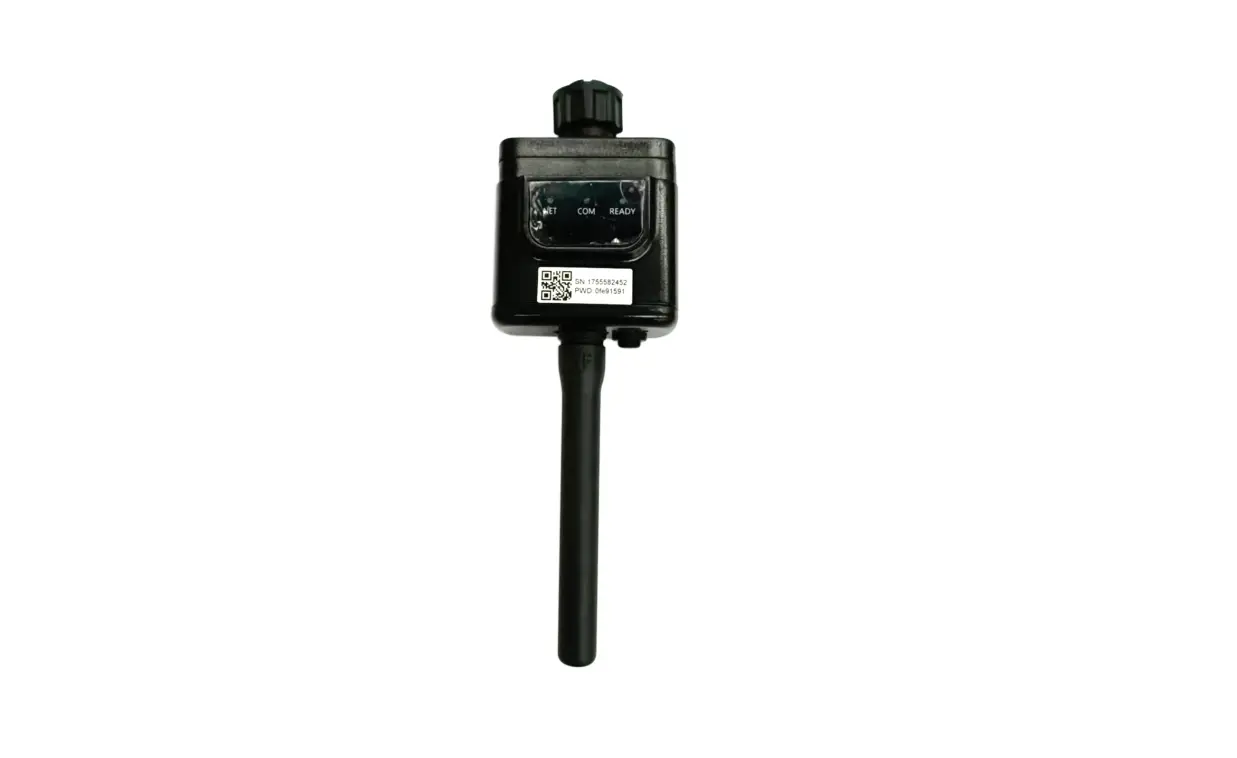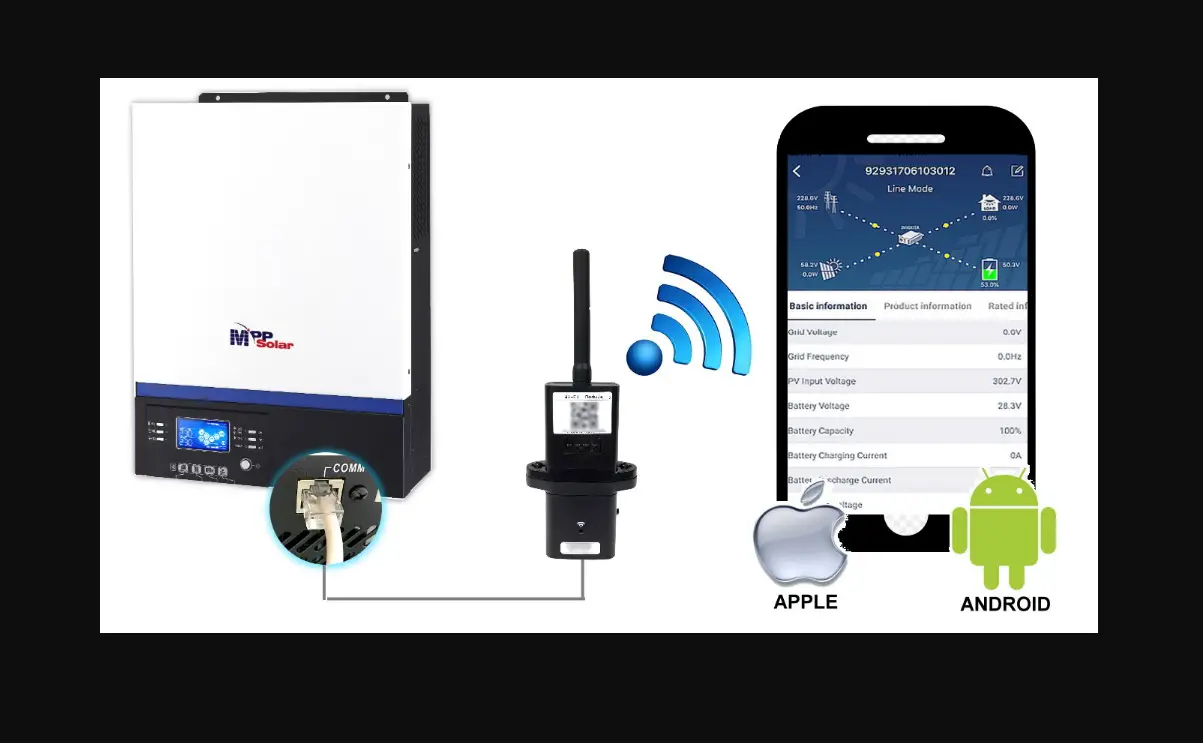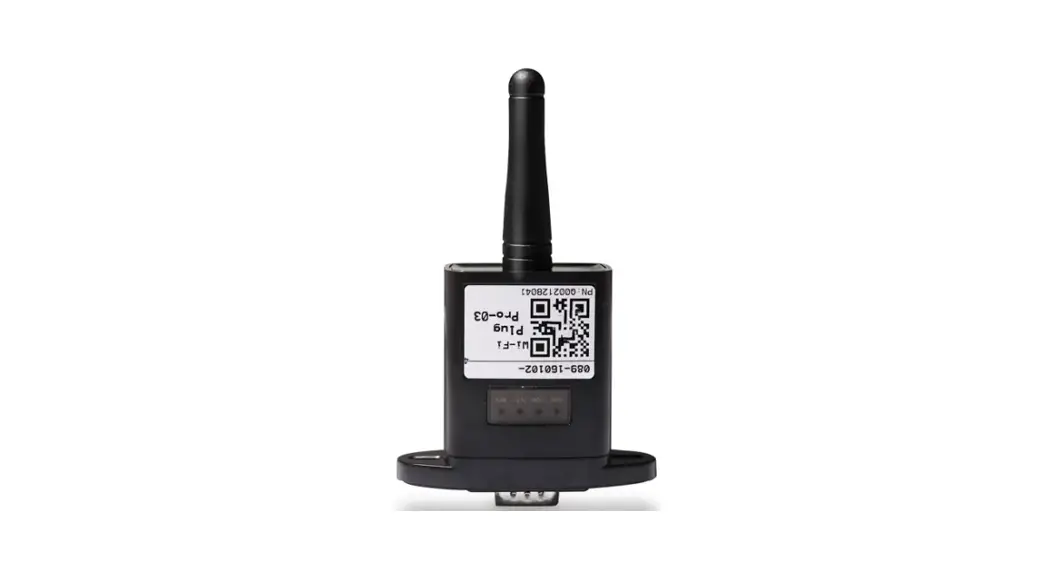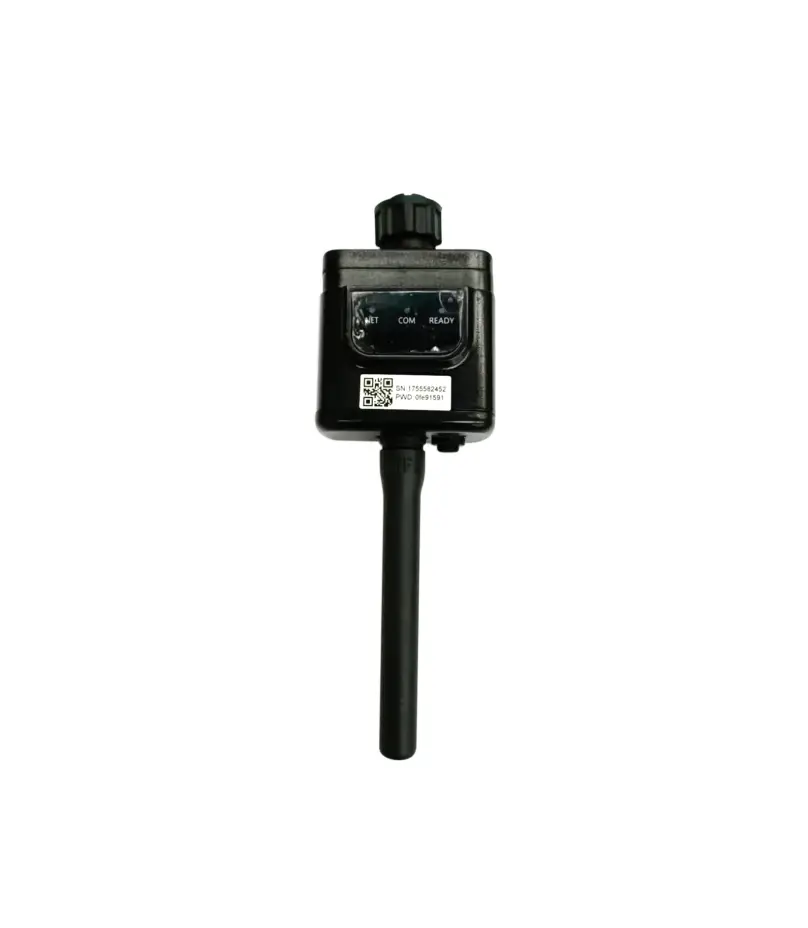
V-TAC VT-660000 Wifi Dongle for Solar Inverter
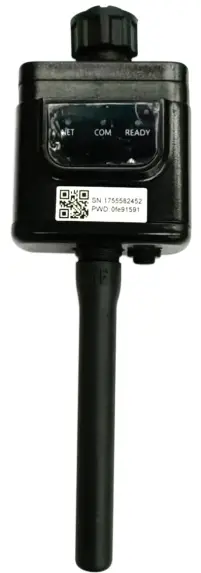
INTRODUCTION
Thank you for selecting and buying V-TAC Product. V-TAC will serve you the best. Please read these instructions carefully & keep this user manual handy for future reference. If you have any another query, please contact our dealer or local vendor from whom you have purchased the product.
They are trained and ready to serve you at the best.
Multi-Language Manual QR CODE
Please scan the QR code to access the manual in multiple languages.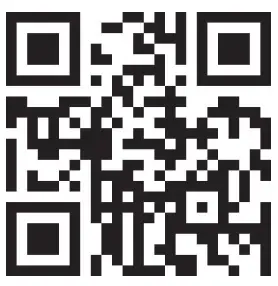
WARNING
- Please make sure to turn off the power before starting the installation.
- Installation must be performed by a qualified electrician.
 This marking indicates that this product should not be disposed of with other household wastes.
 Caution, risk of electric shock.
NOTICE:
Please read this manual carefully before using products and keep it in the place where O&M providers can easily find.
Due to product upgrade and other factors, the content of this manual might change from time to time. Please take actual product as standard and get latest manual from www.vtacexports.com or sales. Unless otherwise agreed herein, this manual will only be used as guidance. Any statement, information or suggestion in this manual will not take any form of responsibility.
Without written permission, any content of this document (partly or entirely) cannot be extracted, copied or transmitted in any form by any company or individual.
DOWNLOAD APP
SOLARMAN Smart for end user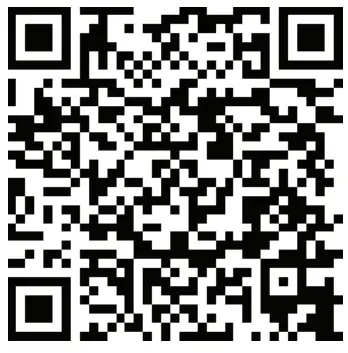
SOLARMAN Business for business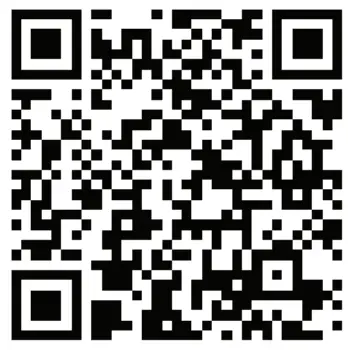
IOS: Search “SOLARMAN Smart” in Apple Store.
Android: Search “SOLARMAN Smart” in Google Play.
Stick Logger Installation
Type 1
Step1: Assemble logger to the inverter communication interface as shown in the diagram.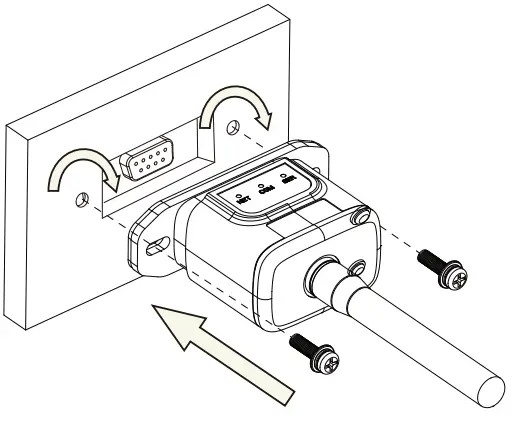
Type 2
Step1: Assemble logger to the inverter communication interface as shown in the diagram.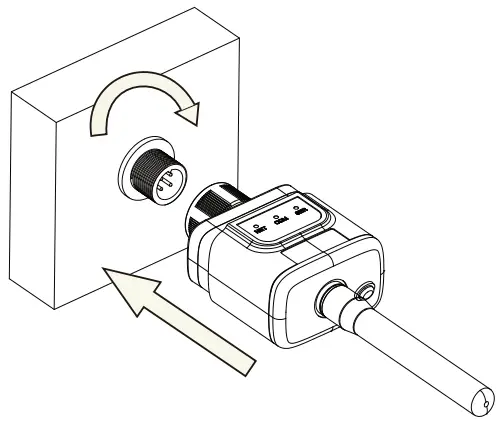
 Warning:
Please do not hold the logger body to rotate while install or remove the logger.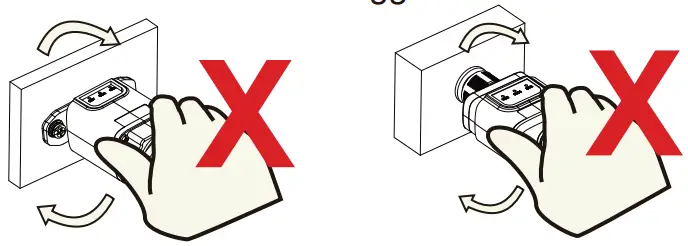
Logger Status
Check Indicator light
| Lights | Implication | Status Description(All lights are single green lights.) |
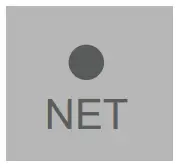 | Communication with router |
|
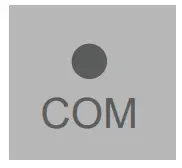 | Communication with inverter |
|
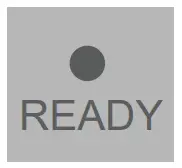 | Logger running status |
|
The normal operation status of the stick logger, when router connected to the network normally:
- Connection to the server succeeded: NET light keeps on after the logger powered on.
- Logger running normally: READY light flashes.
- Connection to the inverter succeeded: COM light keeps on.
ABNORMAL STATE PROCESSING
| NET | COM | READY | Fault Description | Fault Cause | Solution |
| | | |||
| Any state | OFF | Slow flash | Communication with inverter abnormal |
|
|
| OFF | ON | Slow flash | Connection between logger and router abnormal |
|
|
| Slow flash | ON | Slow flash | Connection betwe- en logger and router normal, connection between logger and remote server abnormal. |
|
|
| OFF | OFF | OFF | Power supply abnormal |
|
|
| Fast flash | Any state | Any state | SMARTLINK networking status | Normal |
|
| Any state | Any state | Fast flash | Restore factory settings | Normal |
|
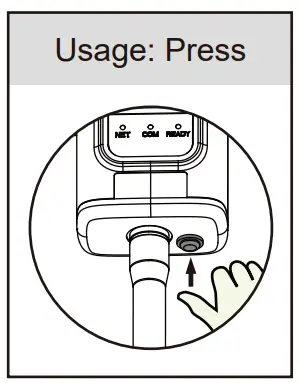
Usage methods and key-press descriptions for Reset button
| Key-press | Status Description | Light Status |
| Short press 1s | SMARTLINK rapid networking status. | NET light flashes fast for 100ms. |
| Long press 5s | Rebooting the stick logger. | All lights are extinguished immediately. |
| Long press 10s | Resetting the stick logger. |
|
| Notice: Do not remove waterproof plug. | 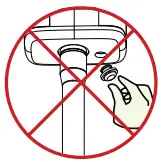 |
USER MANUAL FOR SOLARMAN SMART APP
- Registration
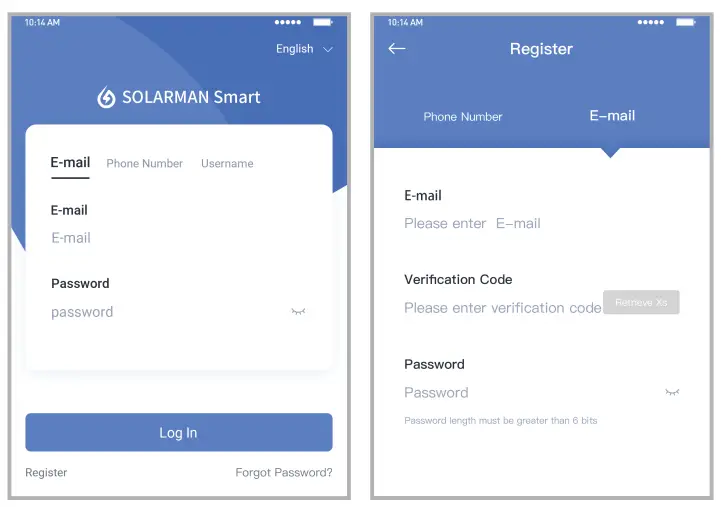
Go to SOLARMAN Smart and register. Click “Register” and create your account here.
- Create a Plant
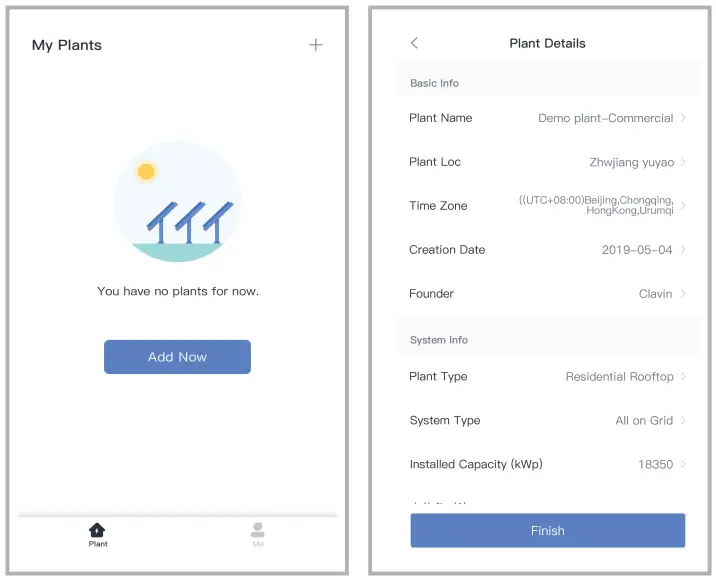
Click “Add Now” to create your plant. Please fill in plant basic info and other info here.
- Add a Logger
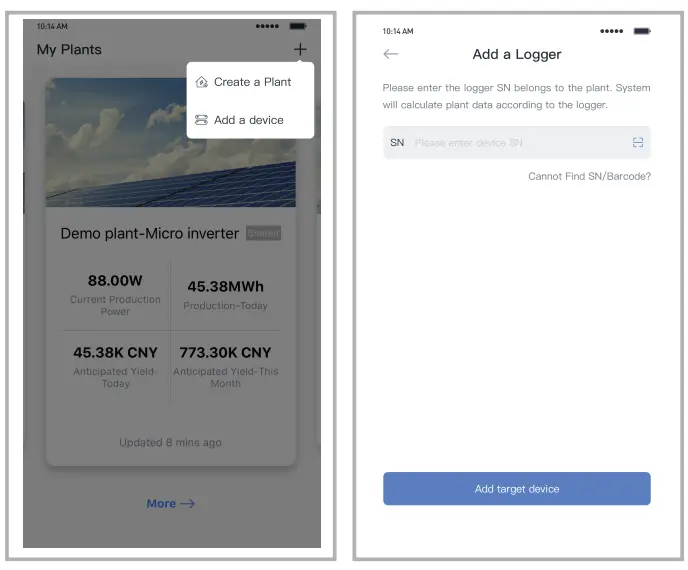
Method 1: Enter logger SN manually.
Method 2: Click the icon in the right and scan to enter logger SN
You can find logger SN in the external packaging or on the logger body
- Network Configuration
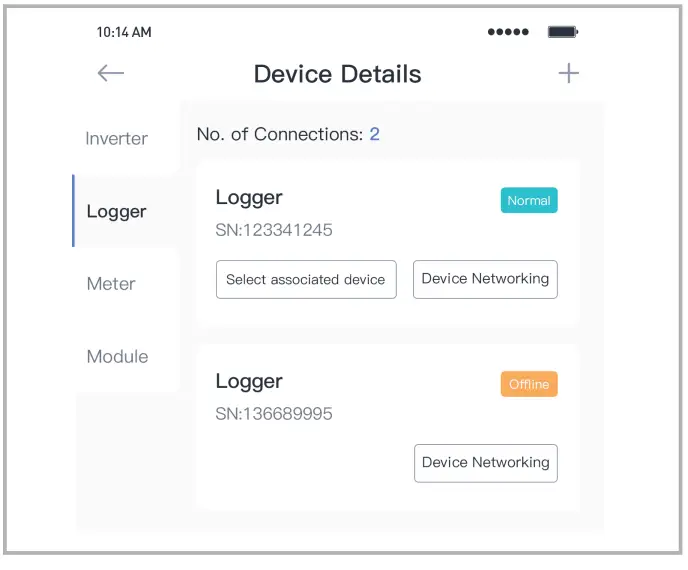
After the logger is added, please configure the network to ensure normal operation.
Go to “Plant Details”-“Device List”, find the target SN and click “Networking”.
Step 1:Confirm Wi-Fi Info Please make sure your phone has connected to the right WiFi network. And click “Start”.
Notice:
5G WiFi is not supported .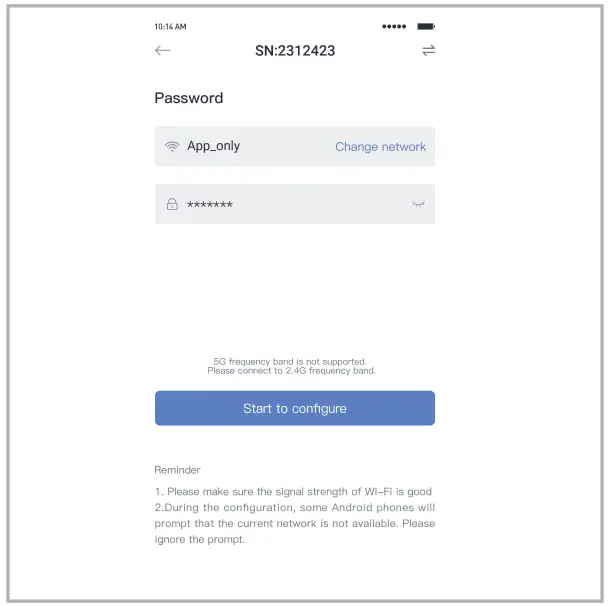
Step 2:Connect to AP network Click “Go to connect” and find the right “AP_XXXXX” network (XXXXX Refers to logger SN).
If the password is required, you can find the password on the logger body. Go back to SOLARMAN Smart APP, after connecting to AP network.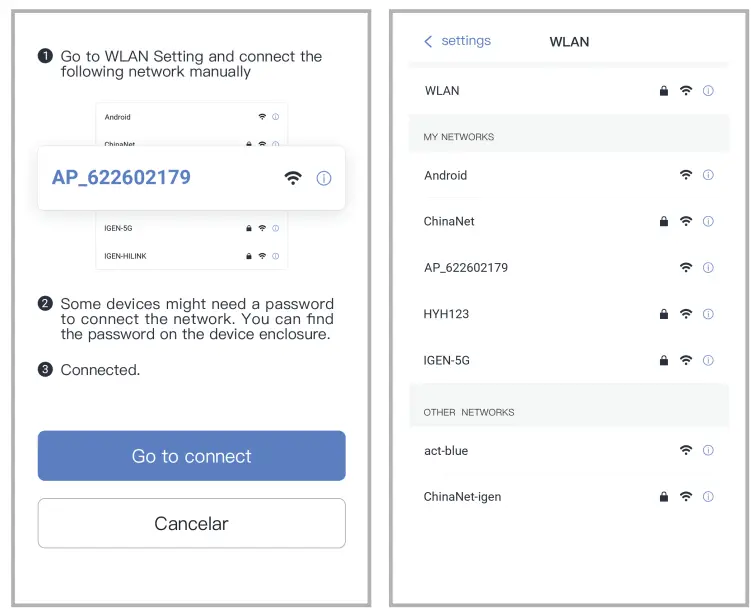
Step 3:Auto Configuration
Please wait for a while to complete the configuration. Then system will switch to the following page.
Click “Done” to check plant data. (Usually, the data will be updated in 10 mins)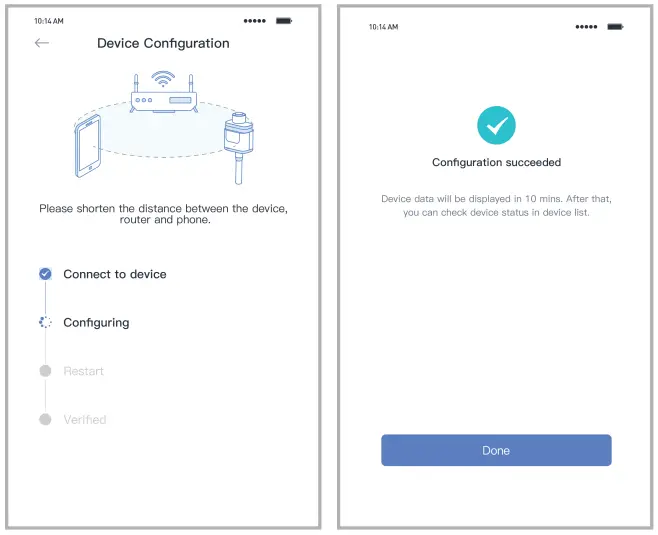
Warning:
Please make sure the stick logger is working properly before you leave the site. If there is anything abnormal, please do not leave the site and contact customer service
 TAC.EU
 Leading Lighting Manufacturer & Supplier | V-TAC | V-TAC UK