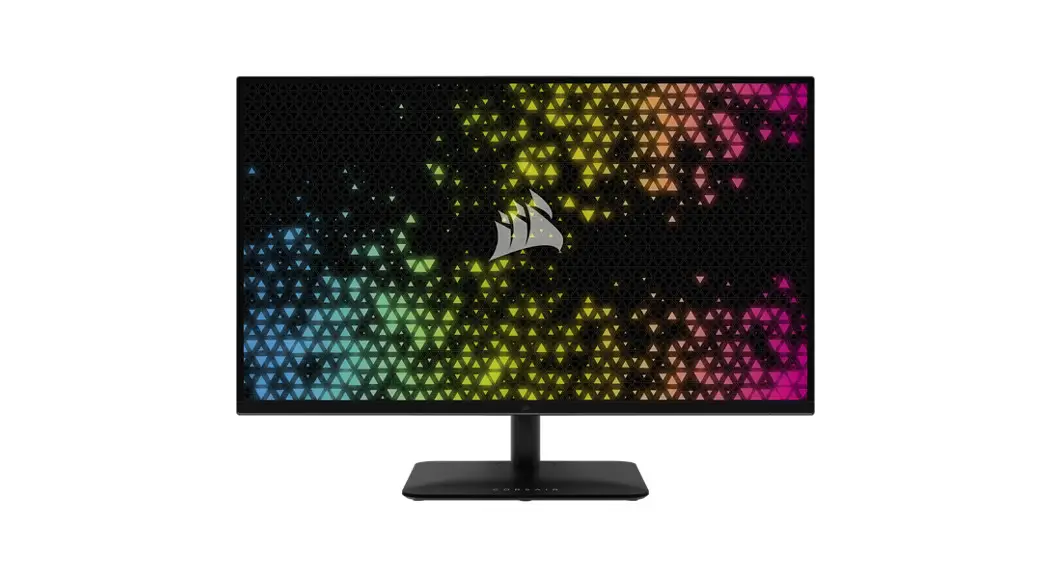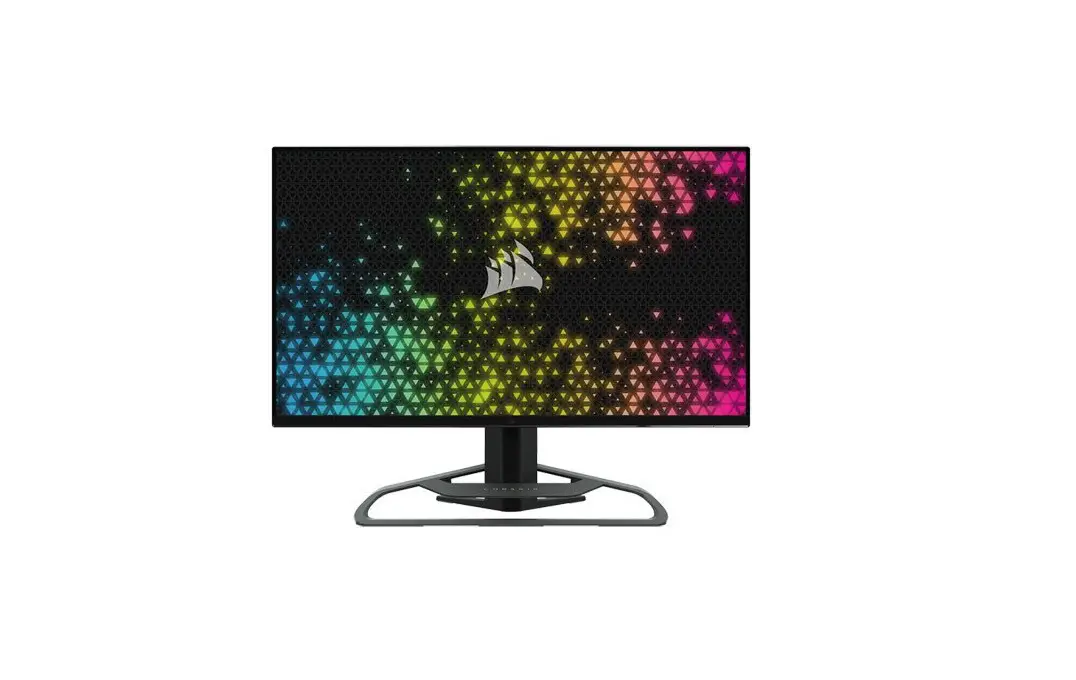
XENEON 32QHD165
XENEON 32QHD165
EN ENGLISH FR FRANÇAIS DE DEUTSCH
IT ITALIANO ES ESPAÑOL PT PORTUGUÊS SC
RU P JA KO
ENGLISH
TABLE OF CONTENTS
Precautions
2
Package Contents
3
Assembly
4
Tilt, Swivel and Height Adjustment
5
Cable Management, Camera Mount (optional) & Other Mounting options
6
Connectivity
9
Operation
10
Controls
10
On-Screen Display (OSD)
10
OSD Picture Settings
11
OSD OSD Setting
13
OSD System Setting
14
OSD Audio
16
OSD Input Select
17
OSD Information
18
Frequently Asked Questions / Troubleshooting
19
Specifications
22
Technical Specifications
22
Supported Display Modes
23
Default Picture Preset Values
24
ENGLISH
Scan QR code for Quickstart guide and setup videos
1
PRECAUTIONS
· Only use the accessories that are provided with the monitor or that which are recommended by the manufacturer.
· Keep the plastic packaging bag for the product in a place that cannot be reached by children.
· Before connecting the monitor to the power outlet, make sure that the voltage rating of the power cable is compatible with the power specification in the country where you are located.
· The power cord plug must be connected to a properly wired and grounded power outlet. · Do not touch the plug with wet hands, otherwise can easily cause electric shock. · Place the monitor in a stable and well-ventilated place. · Do not place the monitor near any heat sources such as electric radiators or direct sunlight. · The holes or openings on the monitor are for ventilation. Do not cover or block the ventilation
holes with any objects. · Do not use the monitor near water, drinks, or any type of liquids. Failure to do so may result
in electric shock or damage to the monitor. · Make sure to unplug the monitor from the power outlet before cleaning. · As the screen surface can be easily scratched, avoid touching the surface with any hard or
sharp object. Use a soft lint-free cloth instead of a tissue to wipe the screen. You may use a glass cleaner to clean the equipment if required. However, never spray the cleaner directly onto the screen. · Disconnect the power cable if the equipment is not being used for a long period of time. · Do not attempt to disassemble or repair the monitor yourself.
2
ENGLISH
XENEON 32QHD165 DISPLAY CONTENTS
A B
C D
G
H
E F I
A — XENEON 32QHD165 DISPLAY PANEL F — AC POWER CABLE
B — MOUNTING POST
G — DISPLAYPORT CABLE (1.5M)
C — STAND
H — HDMI CABLE (1.5M)
D — MOUNTING SCREWS (X4)
I — USB-C CABLE (1.5M)
E — AC ADAPTER
3
ENGLISH
ASSEMBLY
Before you begin, you will need a Phillips head screwdriver.
1. Remove top layer of foam (see image 1) that includes accessories and stand to expose rear of panel.
2. Carefully open up the foam bag covering the panel to expose the mounting area. Do not remove the panel from the bag
3. Align the monitor post with the mounting slots on the back of the panel (see image 2). Slide the upper hooks into the mounting slots on the rear of the panel. Using a Phillips screwdriver, secure the post to the panel with the 4 screws.
4. Attach the stand base to the monitor post (see image 3) and tighten the captive thumbscrew into the bottom of the post (see image 4).
5. Slowly remove the monitor from the packaging and sit upright on your desk. Do not touch the front of the panel while lifting the monitor.
1
2
3
4
ENGLISH
4
TILT, SWIVEL AND HEIGHT ADJUSTMENT
Your Xeneon display features a sturdy and stylish stand that offers Tilt, Swivel and Height Adjustment
· Tilt -5/+20 degrees · Swivel ± 30 degrees · Height Adjust Range 110mm (497mm ~ 607mm)
Tilt
Swivel & Height Adjustment
5
ENGLISH
CABLE MANAGEMENT, CAMERA MOUNT (OPTIONAL) & OTHER MOUNTING OPTIONS
Your Xeneon display has built-in RapidRoute cable management to keep your desktop tidy. There are 4 adjustable cable clips that slide up and down the monitor post to allow for customizing your cable management needs. Open each cable clip by pressing the thumb clasp to the left and pulling out on the cable clip. If you need to remove the cable clips, remove the base from the post by sliding the cable clips down and out of the channel guides.
6
ENGLISH
ELGATO FLEX ARM COMPATIBILITY
The top of the Xeneon display post features a ¼” connector to allow for the addition of the Elgato Flex Arm and Camera Mounting Adapter Kit (sold separately) to attach a camera to the top of your Xeneon display. These accessories are available to be purchased directly from Corsair.
· Xeneon Camera Adapter & Ball Mount Kit (CM-8900001) · Elgato Flex Arm-S (10AAH9901) or Flex Arm-L (10AAC9901)
Setup video and instructions for Camera Mount is available at https://www.corsair.com/xeneon-quickstart
FLEX ARM S
FLEX ARM L
ENGLISH
7
WALL MOUNT COMPATIBILITY
Before mounting your display with compatible wall mount (VESA 100mm x 100mm), make sure that:
· You have removed the stand from the display with a Phillips screwdriver · The wall mount bracket that you purchased supports the weight of this display
Review the instructions that came with your wall mount for more information about how to correctly mount your display. WARNING: Your display has four VESA mounting holes on the back. You must secure a wall mount bracket to all four holes. If you do not use all four holes, your display may fall and cause property damage or personal injury. Note: Wall-mount screws are not included. Screws: type M4, 10mm to 12mm length depending on wall mount
8
ENGLISH
CONNECTIVITY
A
B
C
D
E
F
G
AUDIO OUT
HDMI-1
HDMI-2
DP
TYPE-C
USB-IN
USB 3.0
USB 3.0
DC IN
DP ALT
A. 3.5mm Audio Jack Audio output from connected HDMI, DisplayPort, and USB-C Alt Mode devices.
B. HDMI 2.0 Ports Dual HDMI inputs correspond to “HDMI-1” and “HDMI-2” inputs.
C. DisplayPort 1.4 Port DisplayPort input corresponds to “DisplayPort” input.
D. USB Type-C Port Supports DisplayPort Alt Mode and upstream USB input (connects to USB 3.0 ports). Corresponds to “TYPE-C” input. This port or the USB Upstream Port must be connected to a USB-capable port on your host device to support CORSAIR iCUE functionality and downstream USB 3.0 ports.
E. USB-IN Port Upstream USB input port. This port or the USB Type-C Port must be connected to a USB-capable port on your host device to support CORSAIR iCUE functionality and downstream USB 3.0 ports.
F. USB 3.0 Ports Dual Type-A 5Gbps USB ports.
G. DC In Connects to included AC adapter.
ENGLISH
9
OPERATION
Controls
POWER ON/OFF
PRESS — Open Display Settings
UP — Open Brightness Slider DOWN — Open Picture Mode Select LEFT — Open Volume Slider RIGHT — Open Input Source Select
Your monitor includes a joystick on the rear, right facing side for opening shortcuts and navigating display settings. Note that many of these settings can also be controlled in CORSAIR iCUE software if you have the USB hub connected to your computer via USB IN port. Please install the latest version of iCUE (4.16 or later) available at https://www.corsair.com/us/en/icue.
On-Screen Display (OSD)
By pressing the joystick inward, you can access your monitor’s display settings. You can use the joystick to navigate the settings and pressing the joystick inward will confirm your selection.
10
ENGLISH
OPERATION
OSD Picture Settings
The first menu, labeled “Picture”, contains the following settings for adjusting the overall picture quality.
11
ENGLISH
OPERATION
OSD Picture Settings
Setting
Picture Mode
Brightness Contrast Sharpness Color Temperature
Gamma Saturation Eye Saver Response Time Refresh Overlay MPRT
Options
Standard
Movie Text
sRGB
Creative
Game HDR 0-100 0-100 0-5 Cool Normal Warm
Custom
2.0, 2.2, 2.4 0-10 ON or OFF Normal, Fast, Fastest
ON or OFF
ON or OFF
Description
Selects a display preset factory calibrated for general use and best power savings.
Selects a display preset optimized for watching movies. Selects a display preset optimized for reading text.
Selects a display preset factory calibrated to the sRGB color space.
Selects a display preset factory calibrated for content creation tasks. Selects a display preset optimized for playing fast moving games. Selects a display preset that is VESA DisplayHDR400 certified. Adjusts the intensity of the display backlight. Adjusts the display’s contrast. Adjusts the display’s sharpening filter, increasing edge detail. Sets the display’s color temperature to 9300K. Sets the display’s color temperature to standard 6500K. Sets the display’s color temperature to 5000K.
Allows you to manually set the display’s color temperature with sliders controlling the red, blue, and green levels.
Adjusts the relationship between color and brightness; default is 2.2.
Adjusts the intensity of the display’s colors. Reduces blue light emissions of display when enabled.
Lets you increase how fast pixels can transition between colors, which can reduce blurring of fast moving objects.
Toggles an overlay in the top right corner which displays the monitor’s current refresh rate, useful for tracking frames per second when Adaptive Sync is enabled.
Toggles the “Moving Picture Response Time” setting, which can reduce blurring of moving objects when set to “On.”
ENGLISH
12
OPERATION
OSD OSD SETTING
The second menu, labeled “OSD Setting”, contains the following settings for adjusting the on-screen display.
Setting
Language
Transparency Time Out
Options
English French German Italian Spanish Japanese Korean Portuguese Russian Chinese (Traditional)
Description Selects the OSD’s language.
ON or OFF Sets the OSD to be transparent or opaque.
10-60
Adjusts how long (in seconds) the OSD stays on screen before disappearing.
13
ENGLISH
OPERATION
OSD System Setting
The third menu, labeled “System Setting”, contains the following settings for adjusting the display’s internal settings.
14
ENGLISH
OPERATION
OSD System Setting
Setting Aspect Ratio
Options
Auto, 4:3, 16:9
Description
Selects the display’s aspect ratio. “Auto” will try to match the display’s aspect ratio to the incoming video signal. Not available with Adaptive Sync enabled.
AMD FreeSync Premium
ON or OFF
Enables or disables the adaptive sync functionality when connected to a compatible GPU. Select ON to enable Adaptive Sync for AMD FreeSync via HDMI.
NVIDIA G-Sync compatibility is available when connected via DP cable or USB Type-C Alt Mode cable to compatible GPU. For NVIDIA G-Sync functionality:
· Install/Open NVIDIA Control Panel · Select “Set up G-Sync” · Select Enable G-Sync Compatible checkbox · Select the 32QHD165/RDD0013 · Select “Enable settings for the selected display model”
checkbox.
May require a system reboot to access NVIDIA settings.
LED Source Detection
ON or OFF
AUTO or MANUAL
USB-C Alt Mode (only present when display is connected through USB-C video port)
4-lane 2-lane
Selects front Power LED indicator ON or OFF
Determines whether the display will automatically switch to a different input if it detects a signal, or if you will need to manually switch between inputs.
Toggles the number of USB lanes to use on the USB-C port for video.
· 4-Lane Mode allows up to 2560×1440 @ 165Hz resolution but reduces speed of the USB Type-A ports to USB 2.0
· 2-Lane Mode allows for up to 2560×1440 @ 120Hz but enables USB Type-A at USB 3.0 speed
Factory Reset
–
Resets all monitor settings to their factory defaults.
ENGLISH
15
OPERATION
OSD Audio
The fourth menu, labeled “Audio”, lets you control the display’s audio.
Setting Volume
Audio Input
Options 0-100
Auto, HDMI-1, HDMI-2, DisplayPort, USB-C
Description
Adjusts the volume of the audio output from the headphone jack.
Selects which input the display passes audio to the headphone jack from. “Auto” will use the current input.
16
ENGLISH
OPERATION
OSD Input Select
The fifth menu, labeled “Input Select”, lets you switch between the display’s different inputs.
Setting HDMI-1 HDMI-2 DisplayPort TYPE-C
Description Switches to the device connected to the HDMI-1 port. Switches to the device connected to the HDMI-2 port. Switches to the device connected to the “DP” DisplayPort port. Switches to the device connected to the TYPE-C port.
17
ENGLISH
OPERATION
OSD Information
Provides current settings status for key features.
18
ENGLISH
OPERATION
Frequently Asked Questions / Troubleshooting
Question Power LED not on
No image on screen
Image too light/dark Video signal not supported
Answer Press the power button on the back of your monitor to check if it is set to ON. Check to see if the power cable is fully plugged into the monitor as well as the power adapter. Check Power LED toggle in OSD System Setting Menu is toggled on.
Check to see if your monitor is on.
Check to see if the video cable is properly connected to the monitor as well as the source device. Check the quality of the video cable and ensure that it isn’t damaged. Avoid low quality video cables and extensions. Check which video source input your monitor is set to (if the Auto Source feature is disabled in OSD).
Connect another source device to test monitor video input.
Connect the source device to another available monitor to test video output. Avoid hot-plugging the monitor. Have the monitor connected to the source prior to powering up the source device.
Adjust the brightness/gamma/contrast settings via the OSD.
Reset the monitor to factory settings.
Check the video output settings of the source device. Supported input resolutions for the CORSAIR XENEON 32QHD165 Gaming Monitor are located on page 22.
ENGLISH
19
OPERATION
Frequently Asked Questions / Troubleshooting
Question
Does the CORSAIR XENEON 32QHD165 support video over USB-C?
Answer
Yes, the CORSAIR XENEON 32QHD165 supports DisplayPort over USB-C through the dedicated TYPE-C DP ALT input. Use the included 1.5m Type-C cable or a quality USB Type-C cable that supports USB 3.2 Gen 2 for best results.
I’m unable to use devices connected to the USB-A ports on my monitor when connected to my device that supports USB-C Alt Mode using a single USB-C cable.
Image is stretched/squished
Image has color issues
USB-C Alt Mode, by default will operate in “4 lane” mode which allows for full DisplayPort resolution over USB-C, however this disables the use of the USB Type-A ports. To re-enable the USB Type-A ports when connected solely via the TYPE-C DP ALT input, switch to “2 lane” mode which will limit the supported video output resolution in order to re-enable the USB Type-A ports for peripherals connected to the monitor’s USB Type-A ports. Alternatively, you may connect the source device to the USB downstream port as well as the TYPE-C DP ALT port for full video resolution and USB port functionality. Ensure that you’re using a quality USB Type-C cable that supports USB 3.2 Gen 2 for best results.
Check the “Aspect Ratio” setting under “System Setting”. By default this is set to “Auto”, however in certain instances, you may need to manually set an aspect ratio (ex: certain combinations of adapters and retro game consoles).
Check the quality of the video cable and ensure that it isn’t damaged. Avoid low quality video cables and extensions.
Reset the monitor to factory settings.
Artifacts in onscreen image Monitor has a dead pixel What kind of VESA mount is compatible?
Adjust the picture settings via OSD.
Check the quality of the video cable and ensure that it isn’t damaged.
Check your source device, a faulty graphics card or game console may require contacting the manufacturer for assistance.
CORSAIR provides a “Zero Dead Pixel” policy for monitor products, if 1 or more bright pixels or 6 or more dark subpixels are found, the monitor will be exchanged during the 3-year warranty period.
CORSAIR XENEON 32QHD165 supports a standard 100mm x 100mm mount, the monitor head must be removed from the stand. Use the mounting screws supplied with your VESA mount.
ENGLISH
20
OPERATION
Frequently Asked Questions / Troubleshooting
Question Can I mount a webcam or DSLR/mirrorless camera?
My CORSAIR XENEON monitor isn’t detected by CORSAIR iCUE
What adaptive refresh rate options are available to CORSAIR XENEON?
AMD FreeSync / G-SYNC aren’t enabled.
I’m not getting the monitor’s rated 165Hz refresh rate.
Answer
CORSAIR XENEON 32QHD165 supports standard webcams that sit on the top bezel of the display as well as larger DSLR/ mirrorless cameras when used with the Elgato Multi-Mount Adapter Kit for XENEON and Elgato Flex Arm L/S kit (Both adapter kit and Flex Arm kits sold separately)
Check to ensure that your PC has the latest version of CORSAIR iCUE installed. The CORSAIR XENEON 32QHD165 is supported in iCUE version 4.15 or newer.
Check to ensure that the cable connected to the USB-C upstream on the monitor and your PC’s USB 3.0 port is properly connected. Avoid connecting the monitor through a USB hub or extension if possible. We strongly recommend using the USB-C cable provided with the CORSAIR XENEON monitor for best results.
The CORSAIR XENEON 32QHD165 is certified for AMD FreeSync Premium and is also NVIDIA G-SYNC compatible.
Check that AMD FreeSync is enabled via OSD.
Check your graphics card settings and ensure that AMD FreeSync / NVIDIA G-SYNC are enabled. AMD FreeSync functions over any of the video ports. NVIDIA G-Sync compatibility only works over DP or USB Type-C Alt-Mode DP
Check your graphics card/system display settings and ensure that 165Hz refresh rate has been enabled. See Supported Display Mode table in Appendix for available options.
Check the quality of the video cable and ensure that it isn’t damaged. Avoid low quality video cables and extensions.
ENGLISH
21
APPENDIX
Technical Specifications
Product Name Part Number Device USB Hub ID Panel Size Display Surface Pixels per inch Aspect Ratio Native Resolution Response Time (MPRT) Response Time (GtG) Display Colors Panel Technology Flicker Free Viewing Angles Peak Brightness Static Contrast Ratio HDR Certification Color Gamut (CIE 1976) Variable Refresh Rate HDMI Input DisplayPort Input
USB-C Input
USB-C Upstream Input USB-A Output 3.5mm Audio
XENEON 32QHD165 CM-9020001 32QHD165 / RDD0013 CORSAIR USB 3.0 Hub 32″ Diagonal Non-Glare 91.8 16:9 2560 x 1440 @ 165Hz 1ms <3ms 16.7M (8-bit RGB) IPS with Quantum Dot Technology Yes 178° (H) / 178° (V) 400 nit (SDR) / 440 nit (HDR) 1000:1 VESA DisplayHDR 400 98% (DCI-P3), 100% (AdobeRGB), 100% (sRGB) AMD FreeSync Premium Certified, NVIDIA G-Sync compatible 2x HDMI 2.0 1x DisplayPort 1.4 1x DisplayPort 1.4 (USB-C Alt Mode), 15W Power Delivery, USB 5Gbps Data Upstream 1x 5Gbps USB-C 2x 5Gbps Type-A USB (5V/0.9A *2) Yes, passthrough from video input
ENGLISH
22
APPENDIX
Technical Specifications
Power Consumption (On) Power Consumption (Sleep) Power Consumption (Off) VESA Compatibility Dimensions Weight Stand Tilt Stand Swivel Stand Height Adjustment Range AC Adapter
68W <0.5W <0.3W 100mm x 100mm 732mm x 607mm x 316mm (W x H x D) 9.5kg -5° / +20° -30° / +30° 110mm 90W Note: your device uses the following power supply: Asian Power Devices Inc. / DA-90J19
Supported Display Modes
Resolution 640×480 800×600 1024×768 1280×1024 1440×900 1680×1050 1920×1080 2560×1440 3840×2160***
Refresh Rate 60, 67, 72, 75Hz 56, 60, 72, 75Hz 60, 70, 75Hz 60, 75Hz 60Hz 60Hz 30, 50, 60, 100, 120Hz 30*, 60, 120, 144*, 165Hz** 30, 60Hz
*HDMI only. **DisplayPort/USB-C Alt Mode (4-lane) only. ***Image is downscaled to native resolution.
23
ENGLISH
APPENDIX
Default Picture Preset Values
Setting Brightness Contrast
Standard
Varies by Region*
50
Movie 100 50
Sharpness Color Temp Gamma Saturation Low Blue Light Response Time MPRT
5 Normal 2.2 0 Off Fast Off
7 Normal 2.2 2 Off Fast Off
* Default brightness will vary by region · North America = 40 · Europe = 30 · UK = 30 · Asia = 60
Game 100 50 6 Normal 2.2 1 Off Fast Off
Text 30 50 5 Warm 2.2 0 Off Normal Off
Creative 100 50 5 Normal 2.2 0 Off Normal Off
sRGB
HDR
27
100
50 5 sRGB sRGB 0 Off Normal Off
50 5 Normal 2.2 0 Off Fast Off
HDMI Legal Disclosure
HDMI The adopted trademarks HDMI, HDMI High-Definition Multimedia Interface, and the HDMI logo are trademarks or registered trademarks of HDMI Licensing Administrator, Inc. in the United States and other countries.
The terms HDMI, HDMI High-Definition Multimedia Interface, and the HDMI logo are trademarks or registered trademarks of HDMI Licensing Administrator, Inc.
ENGLISH
24
Web: Phone: Warranty:
corsair.com (888) 222-4346 corsair.com/support/warranty
Support: Blog: Forum: YouTube:
support.corsair.com corsair.com/blog forum.corsair.com youtube.com/corsairhowto
© 2021 CORSAIR MEMORY, Inc. All rights reserved. CORSAIR and the sails logo are registered trademarks of CORSAIR in the United States and/or other countries. All other trademarks are the property of their respective owners. Product may vary slightly from those pictured. 49-002525 AA
 PC Components | Gaming Gear | CORSAIR
 Home - Corsair Community
 iCUE Software | Drivers | Software | CORSAIR