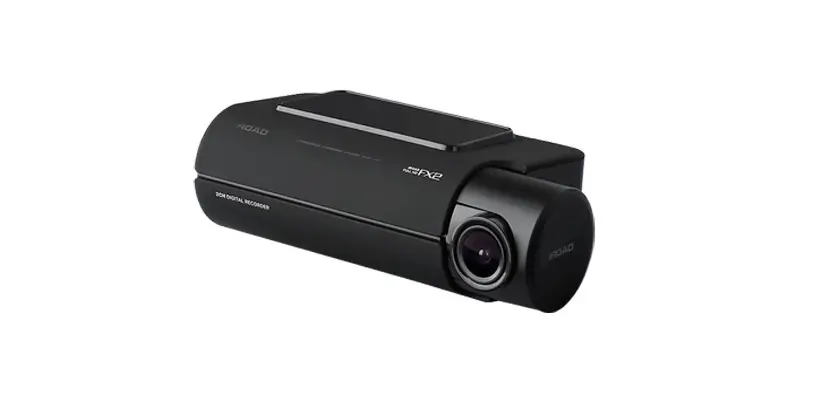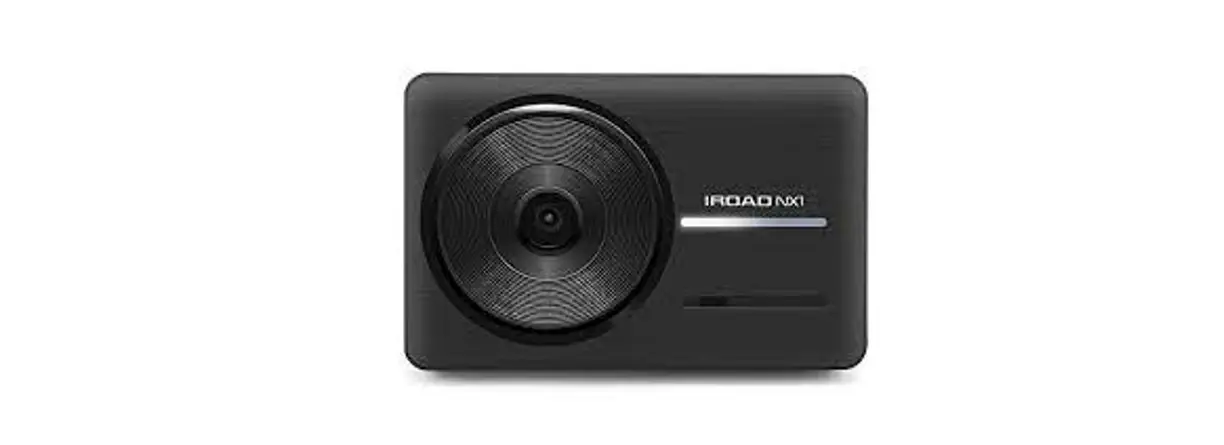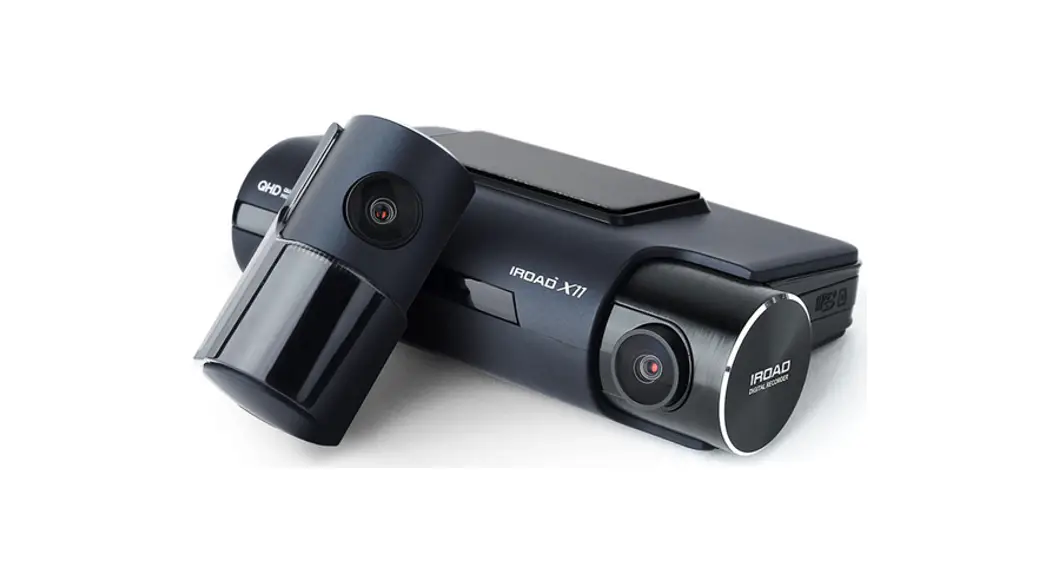
 FX1 Car Dash Camera
User Manual
PRECAUTIONS
- Do not arbitrarily disassemble and modify the product.
It should be considered the user’s fault and it will void the warranty. - Do not handle the product while driving, it can cause serious accidents.
(Please operate the product in a safe place after parking.) - Turn the recorder off when exposed to direct sunlight or used for too long.
Otherwise, malfunction or breakdown will occur. - Do not remove the SD card or turn off the power cable during the firmware update.
It may cause malfunction or loss of data. - Use of a genuine IROAD memory card is recommended.
Failure to use a genuine SD card may cause an error or malfunction. - Real-time recording and playback via Wi-Fi could be delayed depending on the specifications of your smart device.
- Motion detection is initiated by image sensor software.
Errors may occur depending on the surrounding environment and the voltage of the car. - If the GPS signal is good, ADAS will activate when the speed of the car is above the set speed.
The surrounding environment may cause errors. - Unauthorized connection of the uninterrupted power cable may cause malfunctions.
Connections must be different depending on the power type of the vehicle. (Please contact a professional engineer if you need help installing it)
WARRANTY
| PRODUCT NAME | |
| SERIAL NUMBER | |
| DATE OF PURCHASE | |
| SUPPLIER | SHOP NAME |
| CONTACT NUMBER |
- IROAD Global guarantees the quality of the item.
- Only signed members can use this Warranty. Transferring and lending the card to others is strictly not allowed.
- The warranty period of each part is as follows.
Product(Front/Rear Camera) : 1Year / Memory Card : 6 Months Cable(for Fuse,Rear,Cigar Power), Wifi Dongle : Does Not Cover
[IMPORTANT] Please keep this WARRANTY page to make use of after-sale-service!
SPECIFICATIONS
| Model | IROAD FX1 |
| Resolution | FHD 1920x1080p |
| Viewing angle | 140° |
| Wi-Fi supported | Smartphone Playback/Settings, Firmware Automatic Update |
| Wi-Fi button | Activate “Stand-by Mode for Registration” |
| Audio input | Embedded MIC |
| Video/Audio | H.264/ PCM |
| Vibration Sensor | 3-axis Acceleration Sensor |
| Voice guidance | Effect sound/buzz alerted to inform the condition of the device Voice guidance supported |
| Built-in GPS | Synced with Google Maps, records the location and traveling speed of the vehicle |
| Storage medium | Micro SD 32GB – 512GB (Class10) |
| Recording mode | Driving(Normal, Hyperlapse), Event(‘ impact), Parking(Timelapse,Motion Detection) |
| Uninterrupted power | Uninterrupted Power (Low voltage cut-off, overheating prevention is embedded) |
| Power supply | DC 12V/24V |
| Operating temperature | -10 – 60°C |
| Humidity | 10 – 95% |
| Dedicated PC viewer | Win7, Win8, Win10 (64Bit), Mac (macOS 11.0 or higher) |
| Application | Android 6.0, iOS 13.0 or higher |
PACKAGE
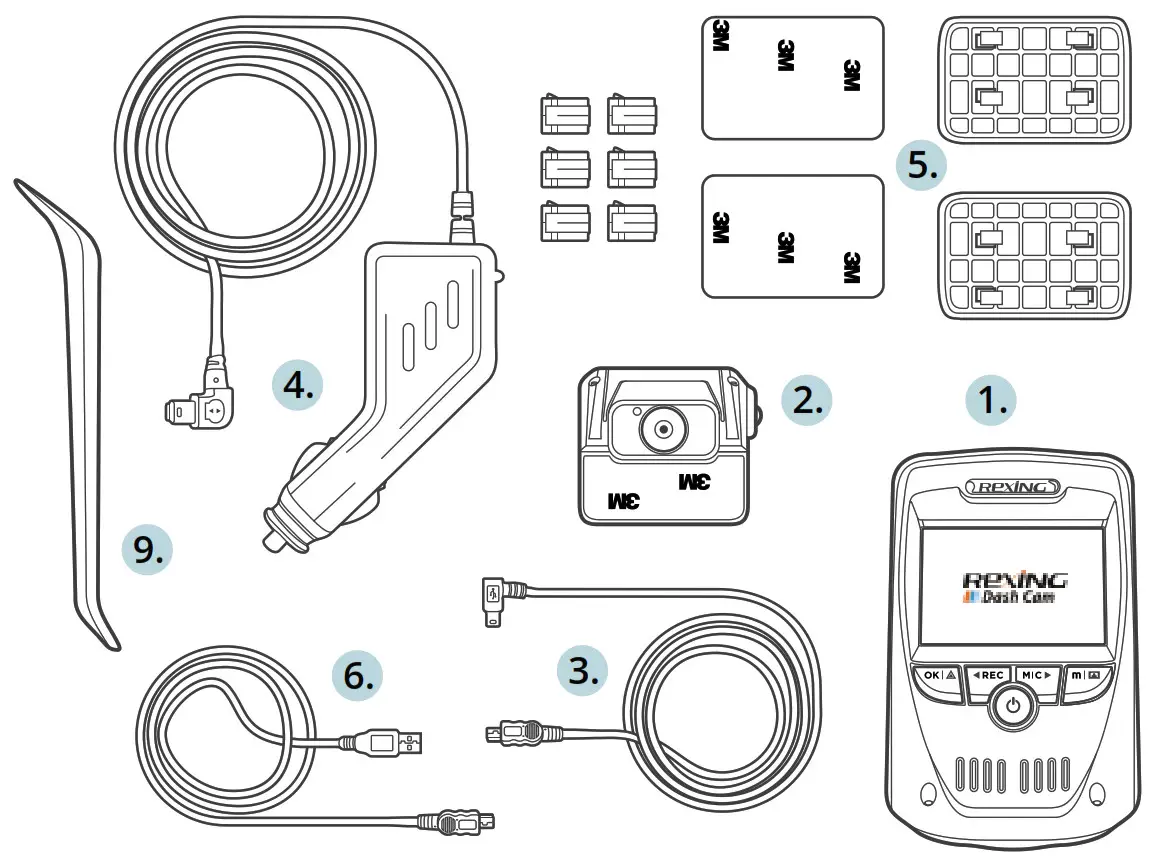
Basic Components
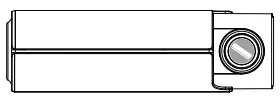 | Front Camera/ Cradle |
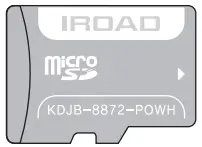 | IROAD Genuine MicroSD |
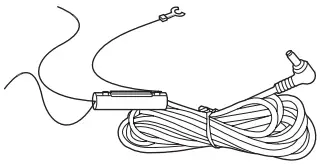 | Uninterrupted Fuse Cable |
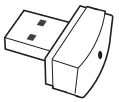 | Wi-Fi USB Dongle |
 | User Manual |
- The Basic components may change without prior notice.
Optional Items
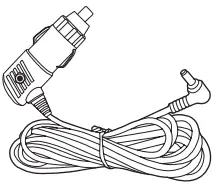 | Cigar Jack Power Cable |
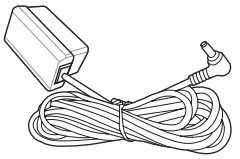 | OBD- II Power Cable(Non-Electric / Electric) |
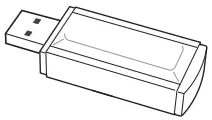 | USB MicroSD Reader |
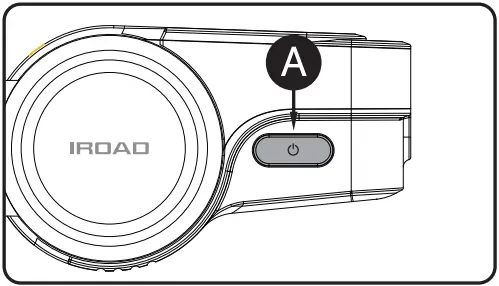
POWER OFF/ON
MODE | OPERATION | OPERATION EXPLANATION |
| POWER OFF | Press and hold the button (A) for 3 seconds long. | “Shutting down the system.” will be signaled, and the device will be powered off. |
| POWER ON | Press and hold the button (A) for 3 seconds long. | “Starting recording.” will be signaled, and the device will be powered on. |
Wi-Fi OFF/ON
MODE | OPERATION | OPERATION EXPLANATION |
| Wi-Fi OFF | Press the button (A) for 1 second long. “Ding” sound will signal. | “Wi-Fi power is off.” will be signaled, and the Wi-Fi connection will be unavailable. |
| Wi-Fi ON | Press the button (A) for 1 second long. “Ding” sound will signal. | “Wi-Fi power is on.” will be signaled, and a Wi-Fi connection will be available. |
- When ‘OFF’, the consumption power is reduced by 0.3w, and the device operating time is increased by 10%.
- ‘Wi-Fi ON/OFF function allows Users to turn Wi-Fi power on/off.
Do not confuse it with the ‘Wi-Fi registration button’.
When connecting to a smartphone, you must press the ‘Wi-Fi registration Button’ - For smartphones that have already been registered previously, users do not have to re-register even if the Wi-Fi on/off function was used
- Default setting – Wi-Fi function is ON.
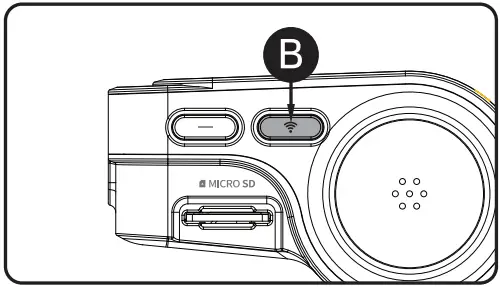 Wi-Fi STAND BY MODE OFF/ON
MODE | OPERATION | OPERATION EXPLANATION |
| Wi-Fi STAND BY MODE OFF | Press the button (B) shortly. “Ding-Dong” sound will signal. | “Stand-by mode for registration is deactivated.” will be signaled, and a Wi-Fi connection cannot be initiated. |
| Wi-Fi STAND BY MODE ON | Press the button (B) shortly. “Ding-Dong” sound will signal. | “Stand-by mode for registration.” will be signaled, and a Wi-Fi connection can be initiated. |
AUDIO RECORDING OFF/ON
MODE | OPERATION | OPERATION EXPLANATION |
| AUDIO RECORDING OFF | Press the button (B) for 4 seconds long. “Ding-Dong” sound will signal. | “Voice recording is OFF.” will be signaled, then videos will be recorded without audio. |
| AUDIO RECORDING ON | Press the button (B) for 4 seconds long. “Ding-Dong” sound will signal. | “Voice recording is ON.” will be signaled, then videos will be recorded with audio. |
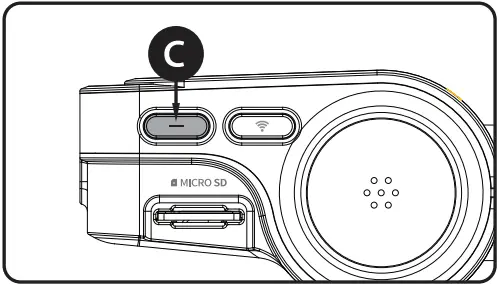
MANUAL RECORDING
MODE | OPERATION | OPERATION EXPLANATION |
| MANUAL RECORDING | Press the button (C) shortly. | “Manual recording.” will be signaled, and manual recording will start. |
FORMATTING THE MICRO SD CARD
MODE | OPERATION | OPERATION EXPLANATION |
| FORMATTING THE MICRO SD CARD | Press the button (C) for 7 seconds long. | “SD Card is formatting. Please wait.” will be signaled, then the SD card will be formatted. |
USING THE MOBILE APP
ANDROID DEVICE
- On your Android device, open “Google Play Store” and download and install “IROAD X VIEW”
- After running the application, register your device.
– Activate the registration standby mode by pressing the Wi-Fi registration button “Stand-by mode for registration” (Voice guidance) - Tap Connect Now
– From the IROAD X VIEW, select your dashcam.
– The SSID and model will be shown.
– Once the user selects the device, it will be registered & connected.
iOS DEVICE
- On your iOS device, open “App Store” and download and install “IROAD X VIEW”
- After running the application, register your device.
– Activate the registration standby mode by pressing the Wi-Fi registration button “Stand-by mode for registration” (Voice guidance) - Tap Connect Now
– follow the on-screen instructions to connect the product to your smartphone. - Select the Wi-Fi Network
– From the Wi-Fi setting menu on your smartphone, select the Wi-Fi network starting with “I ROAD” - Enter Password
– Enter “qwertyuiop” in the password field Now the product is connected to your iOS device via Wi-Fi
• The password is the first row of the alphabet on the keyboard
USING THE MOBILE APP
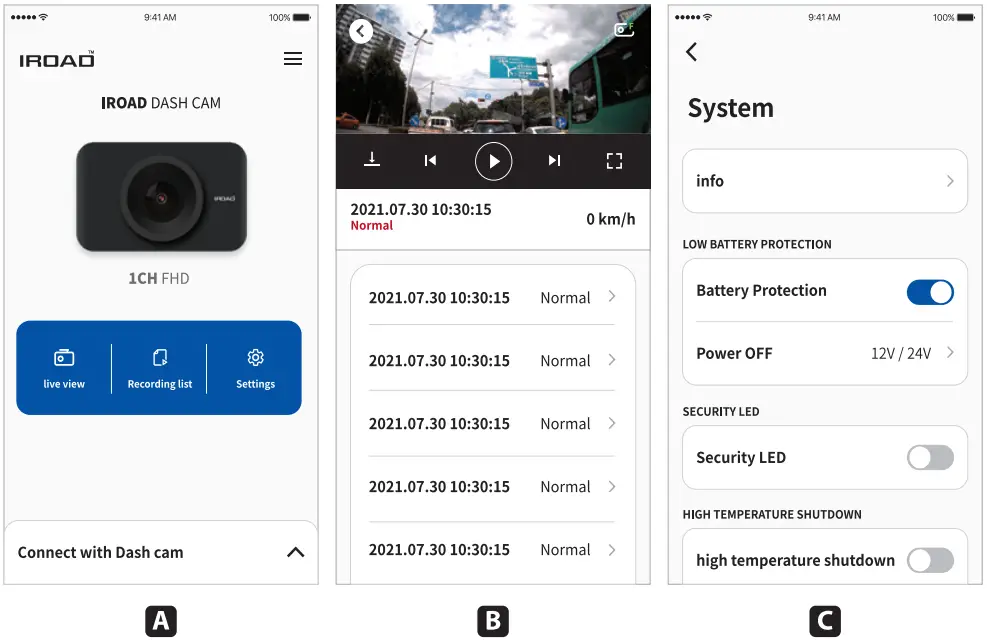 A. Main Screen
– Displays information about the connected product.
– Access to the live view screen.
– Access to the recorded videos.
– Configuring the dashcam settings.
B. Playback recording for Front / Rear Camera
– Playback the recorded videos.
– Choose video clip from the list and save it.(Video or Image)
C. Configuration System
– Configuring the dashcam settings. (Once settings change the device will be rebooted)
• Setting Language : Dashcam setting> System > System language > Change language.
• English is the default language.
USING THE PC VIEWER
The following provides brief information about the PC VIEWER screen layout.
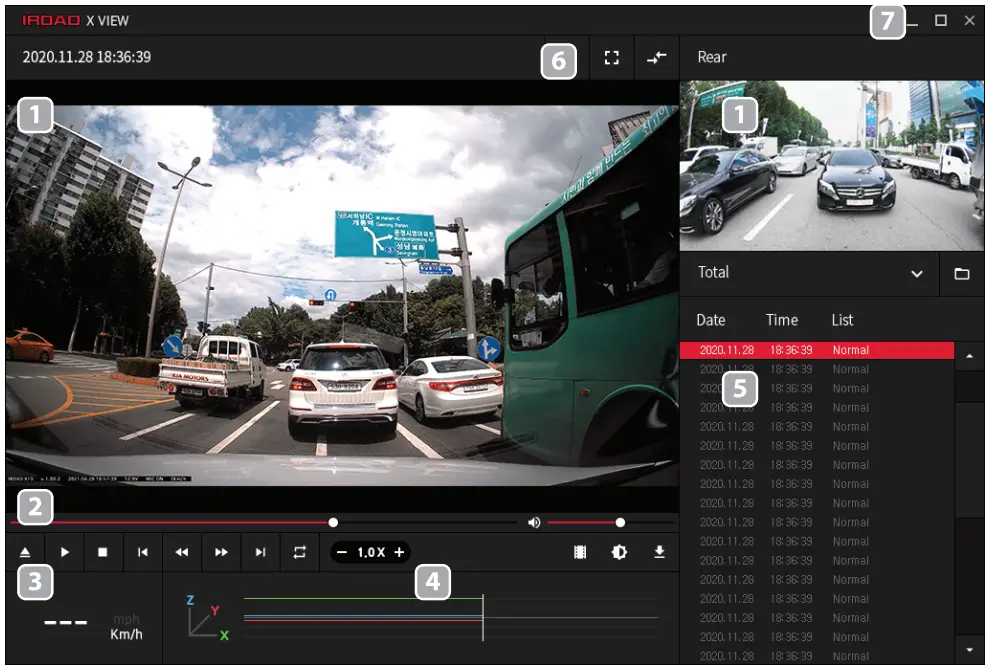
- Front/Rear video playback screen
- Video controller
- Speed indicator
(only when GPS is connected) - G-sensor information
- Recording file list
- Map / Full-screen
Switch screens (Front/ Rear) - Dashcam settings
Minimize/ Maximize /close the PC viewer
MAMO
THE LEADING DASHCAM BRAND |
 1CH Full HD DASHCAV
Model: IROAD FX1
Product: IROAD DASHCAM
Verification Number: R-R-JWW-IROADFX
JAEWONCNC Co., Ltd
Made in Korea JAEWONCNC CO., LTD.
HEADQUARTERS
www.iroadkr.com
CORVIT INTERNATIONAL ( SINGAPORE )
www.iroad.sg
POSIS ( HONG KONG)
www.iroad.hk
IROAD MALAYSIA( MALAYSIA)
www.iroad.my