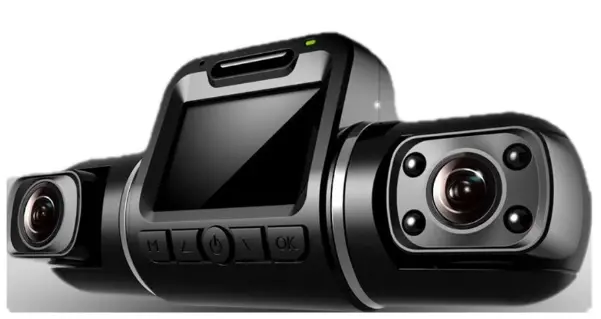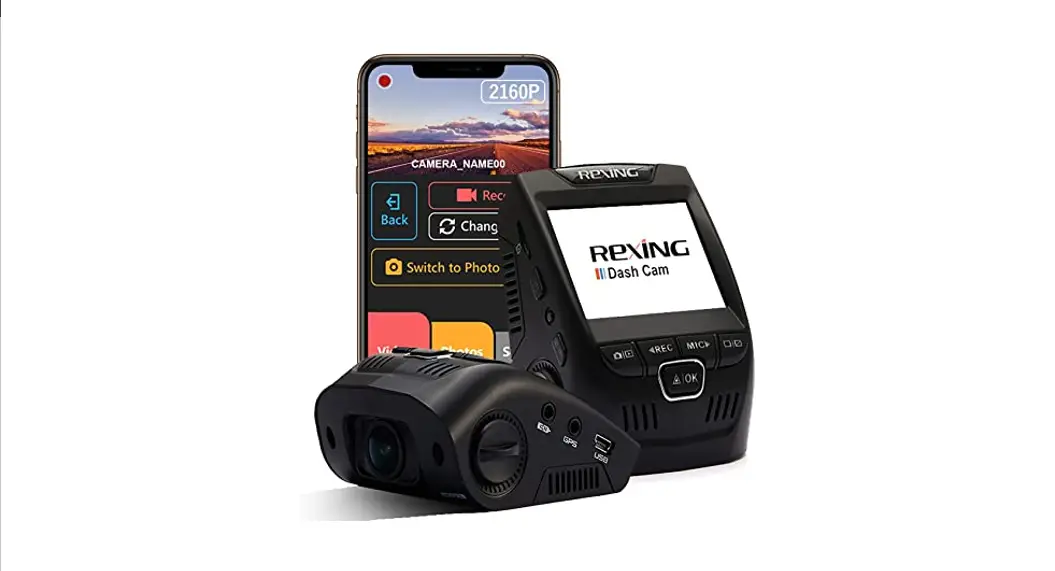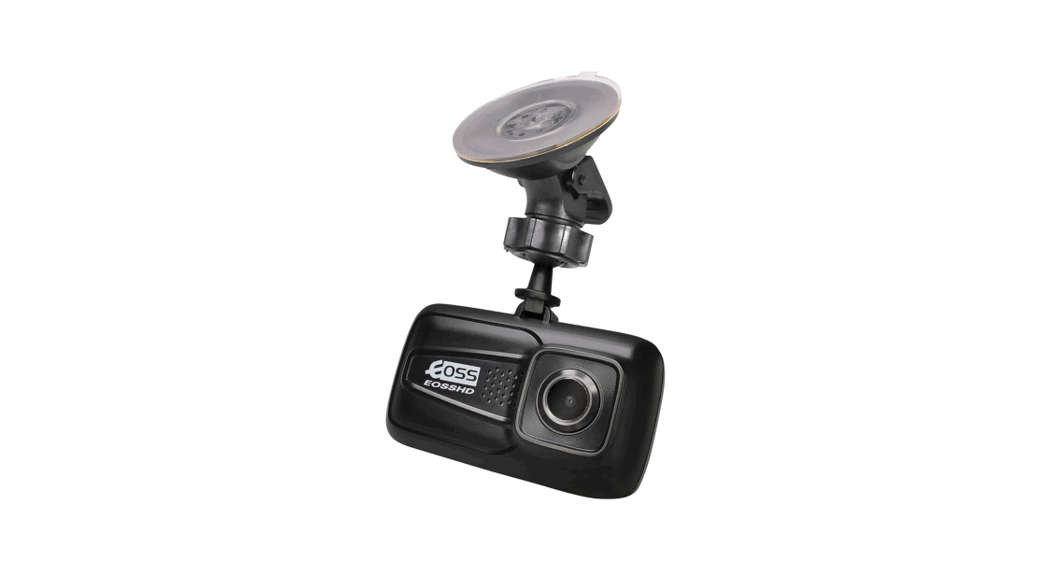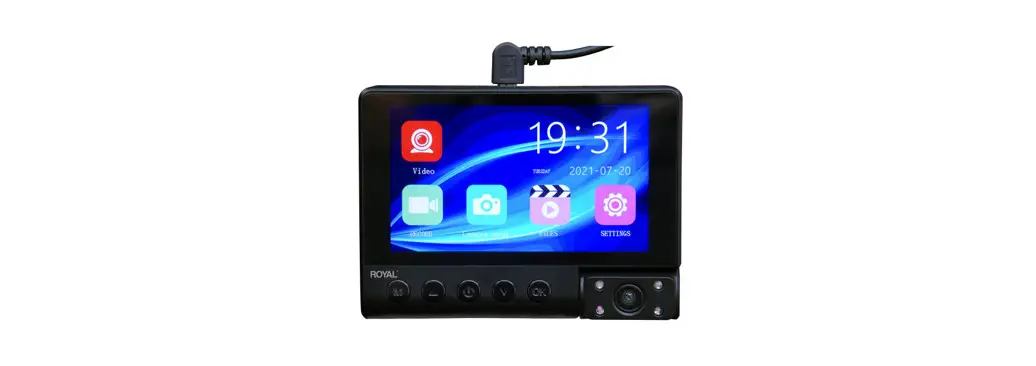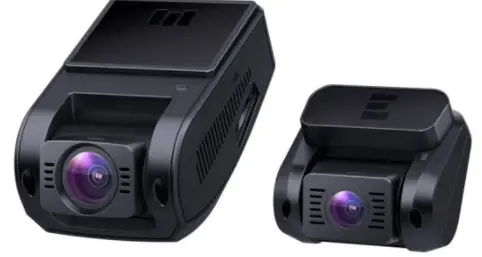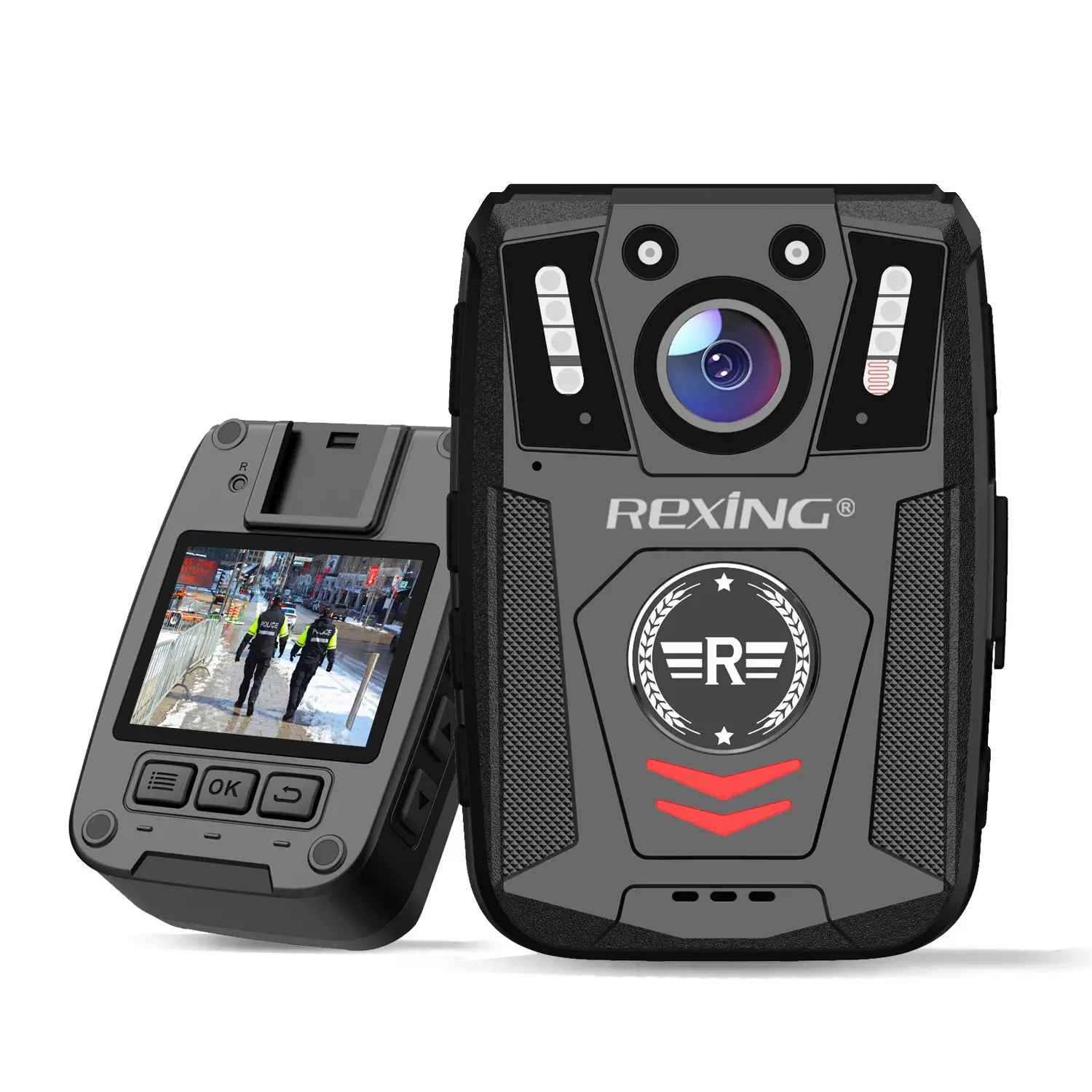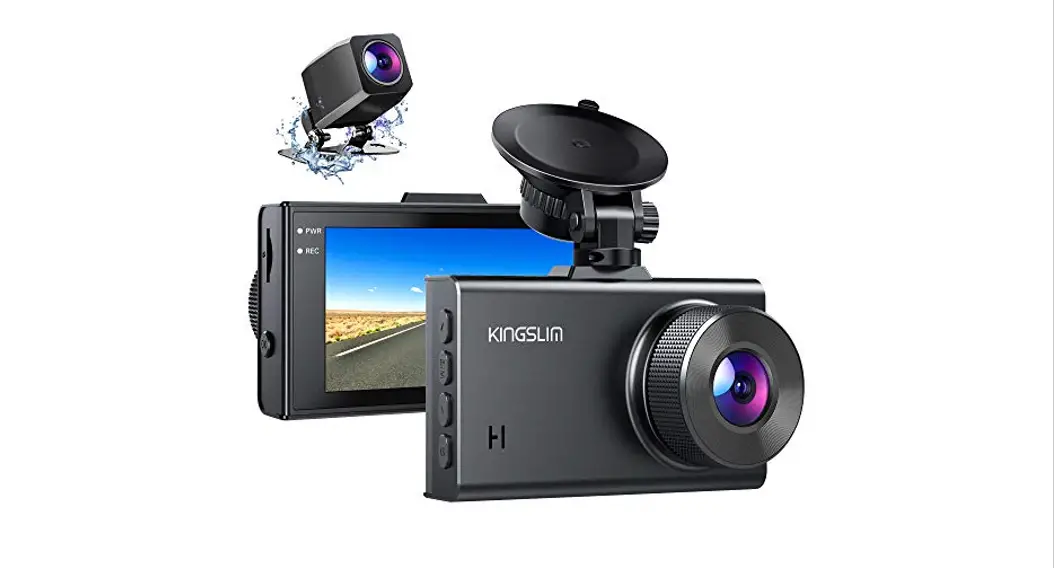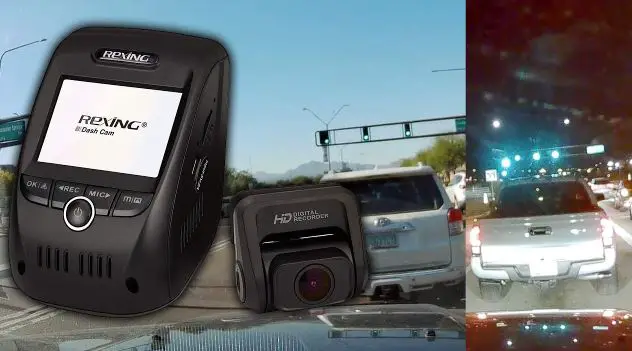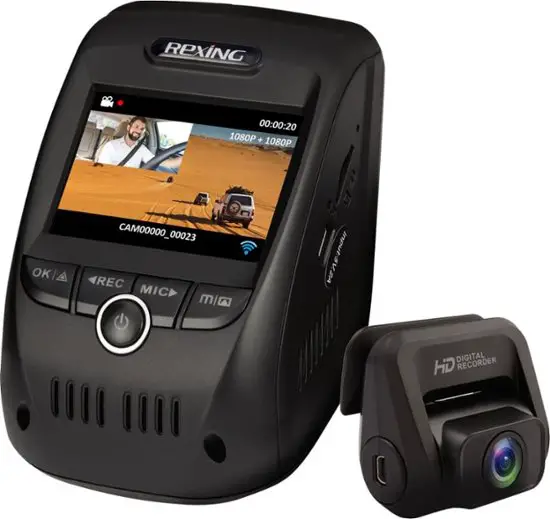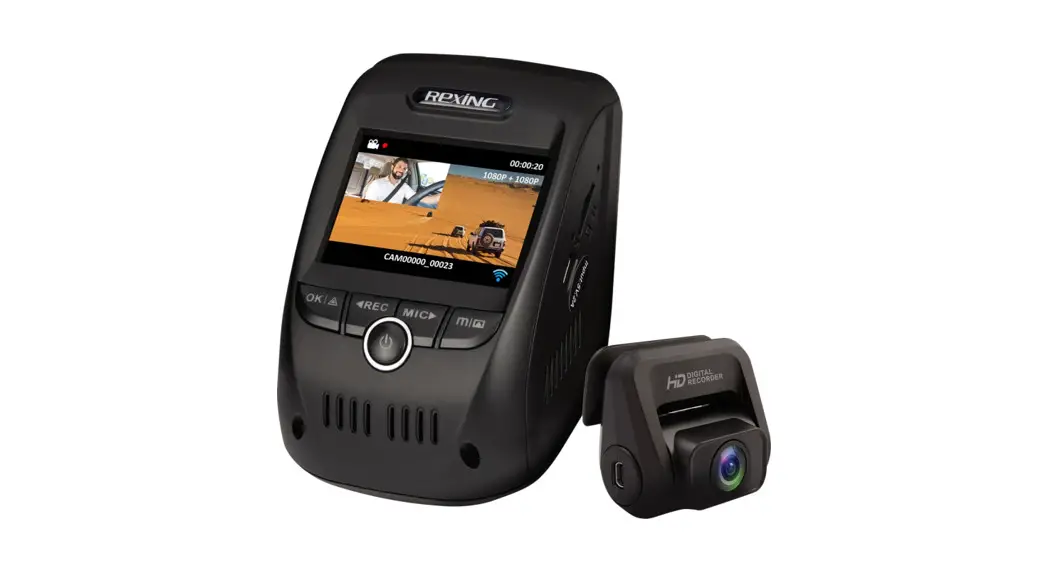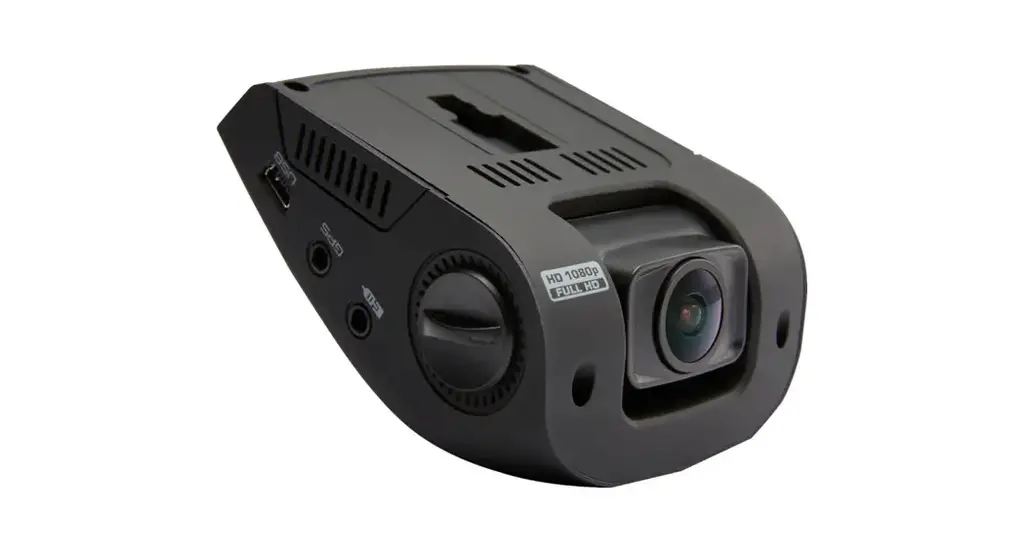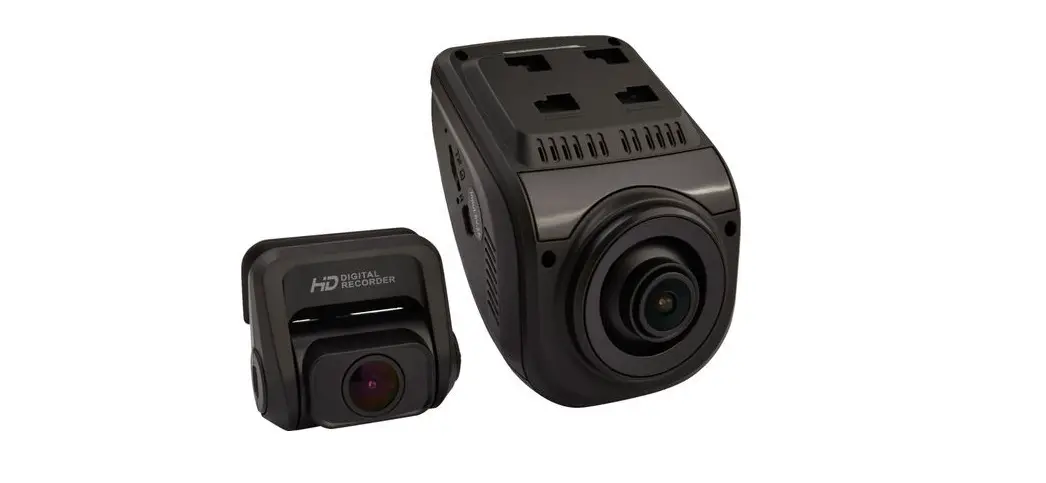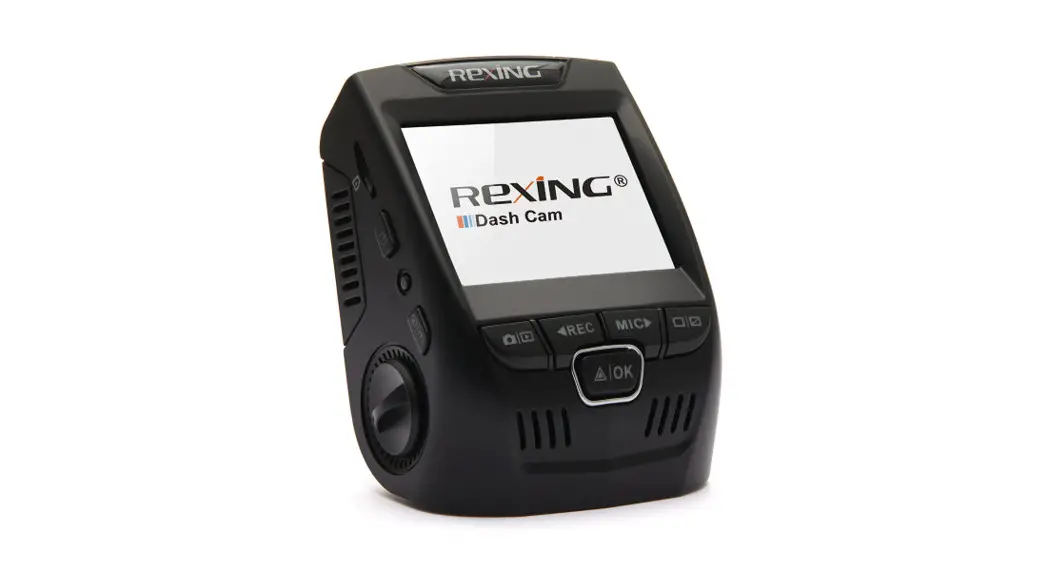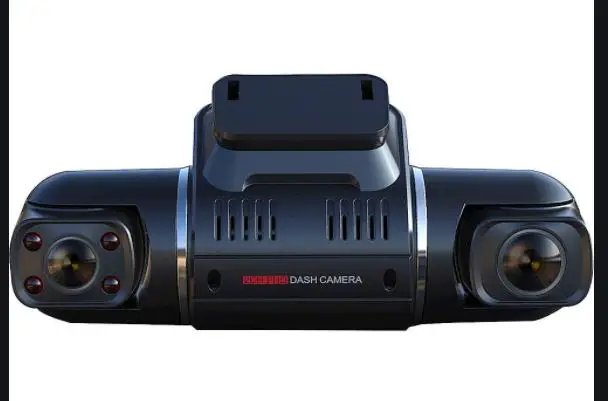

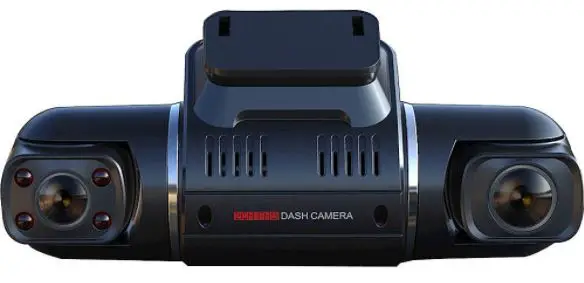
REXING V2PRO Full HD Dual Dash Camera
Note: If you do not use the parking mode function, please change the G-Sensor setting to low sensitivity. Otherwise, the dash cam will easily lock the videos and these videos cannot be deleted by the loop recording function. This will cause the memory card to be full of locked videos and cause the recorder to fail to work normally.
Option 2: Motion Detection
To use this feature, you need to connect it with an Intelligent Hardwire Kit (ASIN B0973MBCT8, sold separately). Make sure that the Parking Mode is turned off on your dash cam.
Once the sensor has detected MOTIONS. The intelligent hardwire kit will power up the dash earn automatically and start recording until the MOTION is cleared.
GPS
The built-in GPS allows you to view and track the speed and location while driving.
- Press the OK button to stop recording
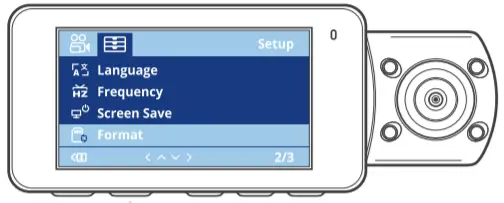
- Press the MENU button twice to enter Setup Setting
- Press the UP or DOWN button and toggle to “GPS”
- Press the OK button to turn it on/off.
GPS Player
Please download GPS logger player through the link gpsb.rexingusa.com OR Scan the QR Code below.
The video track player enables the display of traveling track information when playing a video.
Operating Steps
- Connect the MicroSD card to the computer via a card reader.
- For the initial operation, please copy the link contained in GPS Player Download.txt to the browser and open it in the browser. Depending on your computer system {32 or 64 bit), select an appropriate player program and download it to your computer for installation.
- After installation, click the shortcut II icon to run the player. The following picture shows the player playing a video with front and rear tracks of the road.
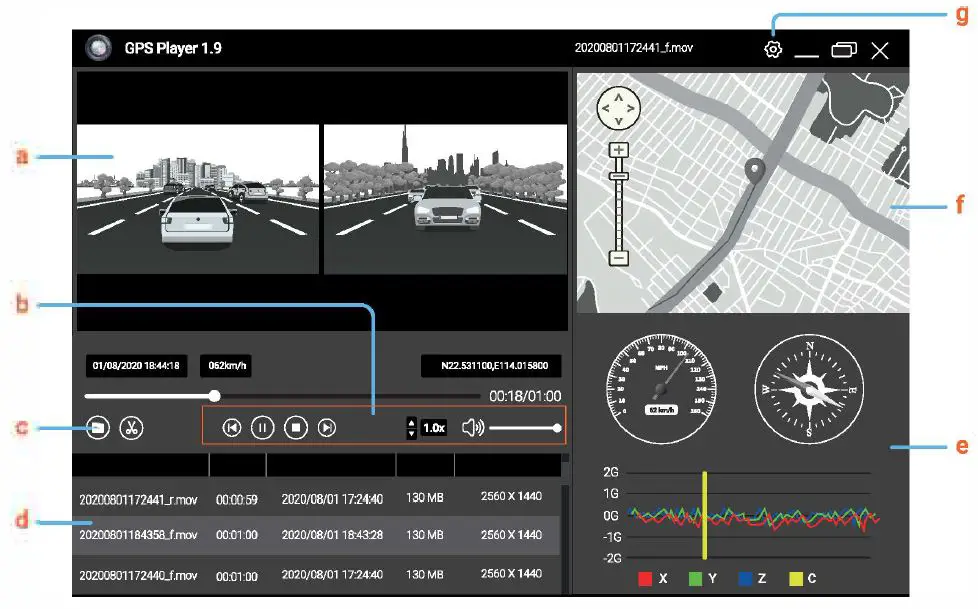
a. Video Play Window.
If the video files of front and rear road tracks are recorded synchronously and loaded into the playing list at the same time, they can be played separately in split left and right screens.
b. Play Control Panel
c. Open a Video File
Press the button and select storage path. When you find the desired video file, click on the video and load it into the play list to play it When you need to select several files, hold down the left mouse button and drag the desired files to the box to load them into the play list
d. Play List
e. Speed And Driving State Indication
f. Map and Track Display
g. Setup of primary functions such as language, map selection, and speed
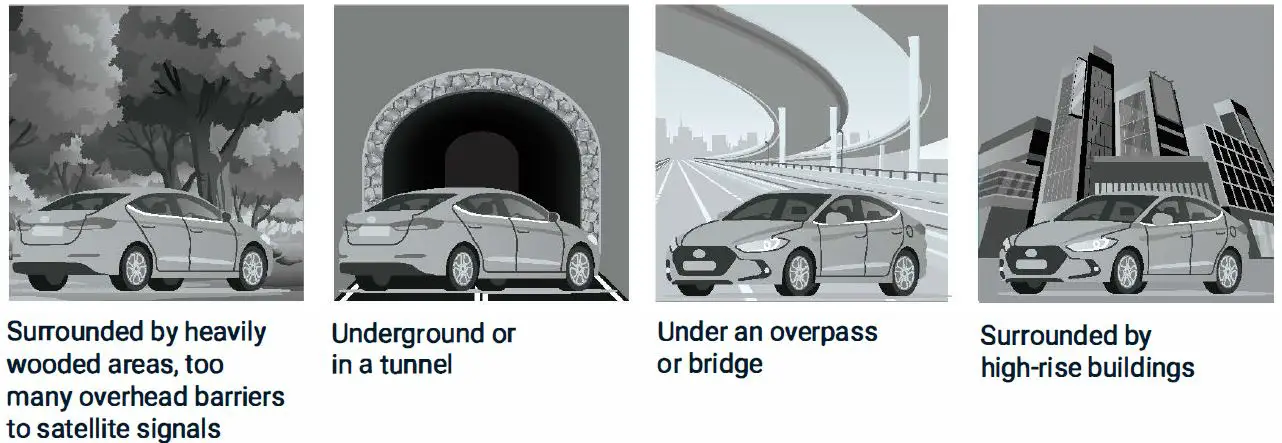
GPS Satellite Connection Exception
Even when the GPS is successfully connected with the satellite network, your location and environmental factors may directly affect its accuracy. The following factors have a direct impact on satellite signal reception and may cause a failure to the speed detection and camera reporting features.
Video Playback
To playback on a Computer
- Unplug the used MicroSD card and place it into a card reader
- Connect the card reader to the USB port of the computer. Open the removable disc and you will see the following file folders
- PICTURE: Pictures saved
- VIDEO_FNIDEO_R: Video records of front and rear road tracks
- VIDEO_F _LOCK/VIDEO_R_LOCK: locked video records of front and rear road tracks
Note: Be careful when deleting any locked video. Important videos, if any, should be backed up.
- To play videos, your computer must have the necessary software available.
- Backup Files
If you intend to keep important and memorable videos and pictures for a long time, we suggest that you make a copy of each file from the card to your computer. Do not save them in a new folder created in the same storage card; doing so will reduce the available space of the card.
Specifications
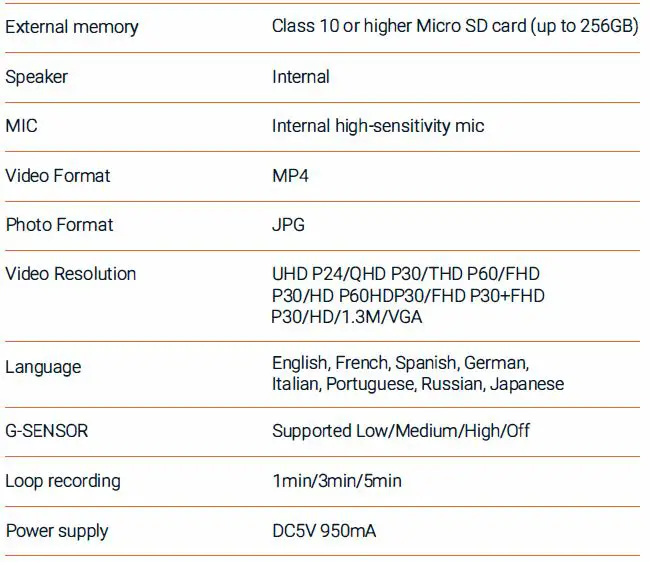
Note: Design and specifications are subject to change without prior notice.
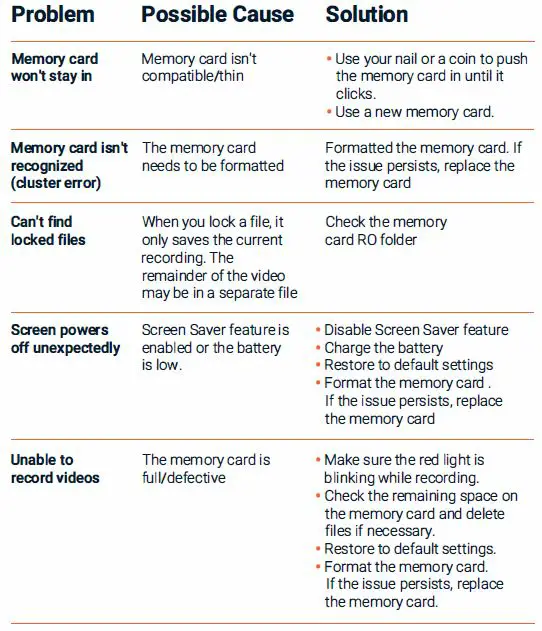
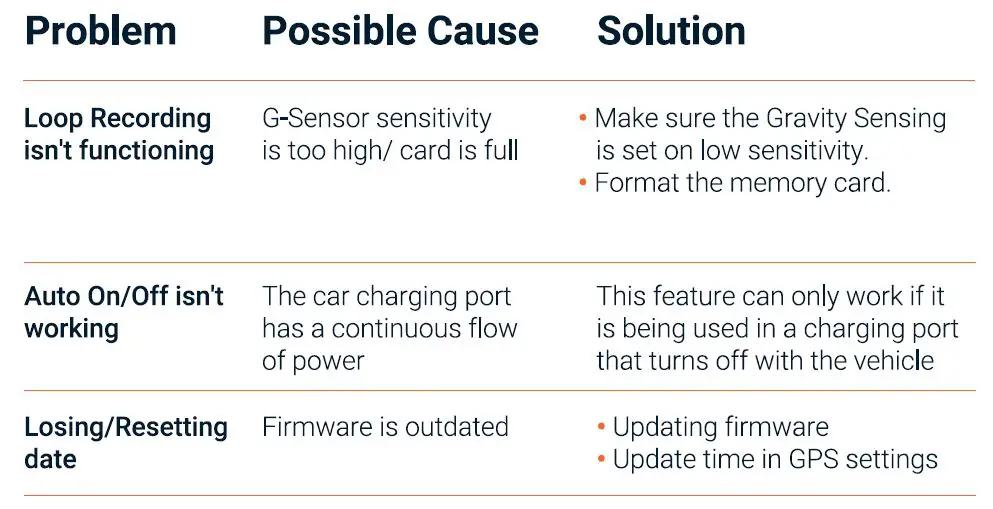
Troubleshooting and FAQ
| Problem | Possible Cause | Solution |
| Images are not | Memory card is full | Format memory card or replace |
| being saved | or malfunctioning | with a new one |
| None of the | Processing error or | Press RESET to restart the |
| buttons are | faulty device operation. | camera. Format the memory |
| responding | Memory card contains | card. If the issue persists, |
| errors or is damaged | replace the memory card | |
| Menu button isn’t | Camera is recording | Press REC to stop recording |
| responding | before accessing the menu | |
| The device will | Battery is depleted | Charge the battery for 3 hours. |
| not turn on | Make sure the device is off | |
| while charging. | ||
| Not holding | Battery/Power cord | Charge the battery for 3 hours. |
| charge | is depleted | Make sure the device is off |
| while charging. Turn on the | ||
| device, unplug it If it turns off | ||
| immediately, contact | ||
| customer service for | ||
| assistance with a replacement | ||
| Device keeps | Battery is depleted | Charge the battery for 3 hours. |
| rebooting | Make sure the device is off while | |
| charging. Ensure you are using a | ||
| proper connection for charging | ||
| your device while driving |
Warranty & Support
Warranty
The Rexing V2 PRO-Al Dash Cam comes with a full 12-month warranty. If you register your product on our official site
https://www.rexingusa.com/support/registration, you can extend the warranty to 18 months.
Support
If you have any questions regarding your product, please do not hesitate to contact us at [email protected], or call us at {877) 740-8004. Queries are typically answered within 12-24 hours.
Your opinion matters
Rexing is firmly committed to always improving our products, services, and user experience. If you have any thoughts on how we can do even better, we welcome your constructive feedback and suggestions.
Connect with us today at [email protected]
Thank you for choosing Rexing!