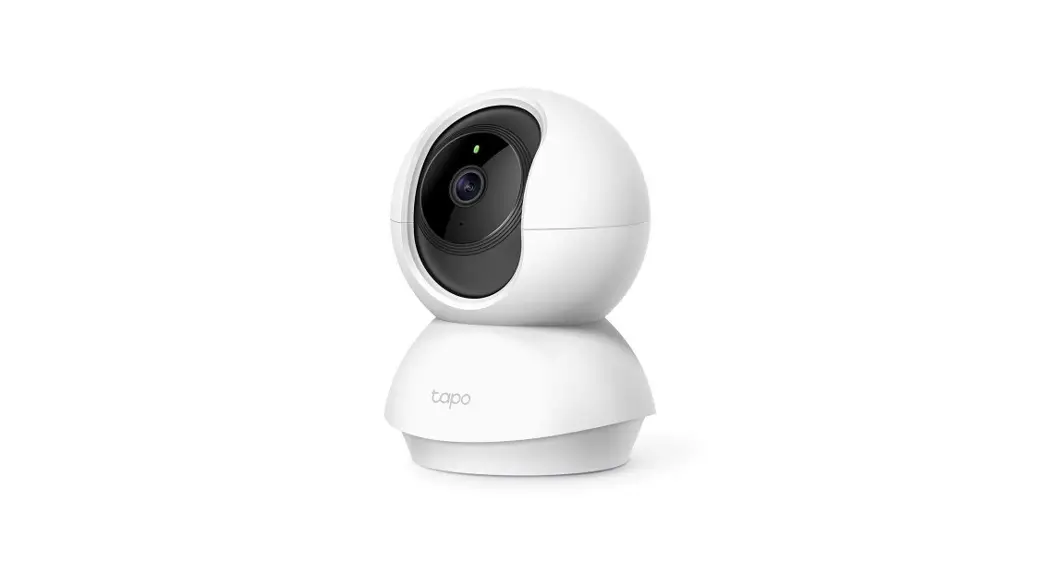
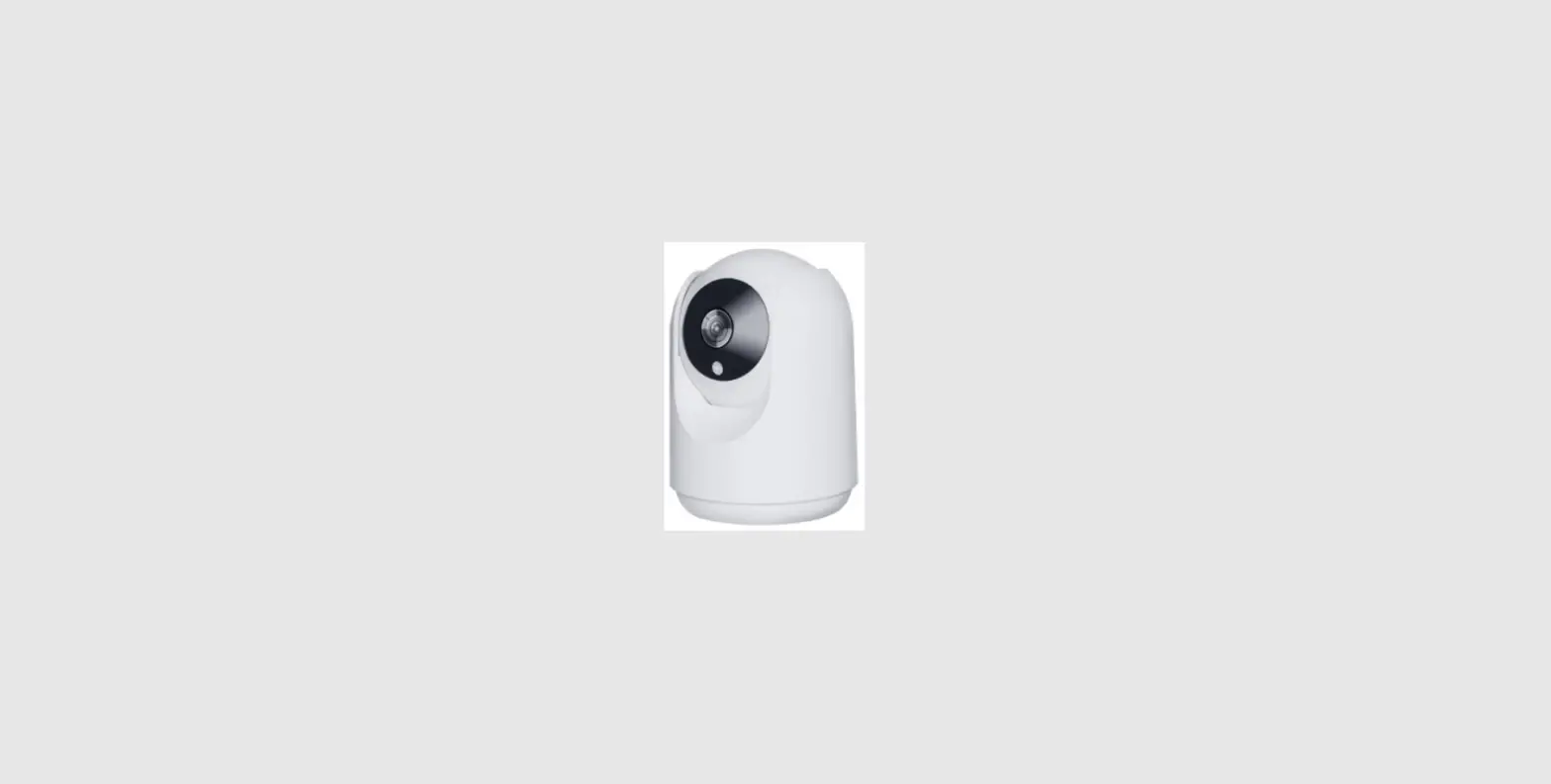
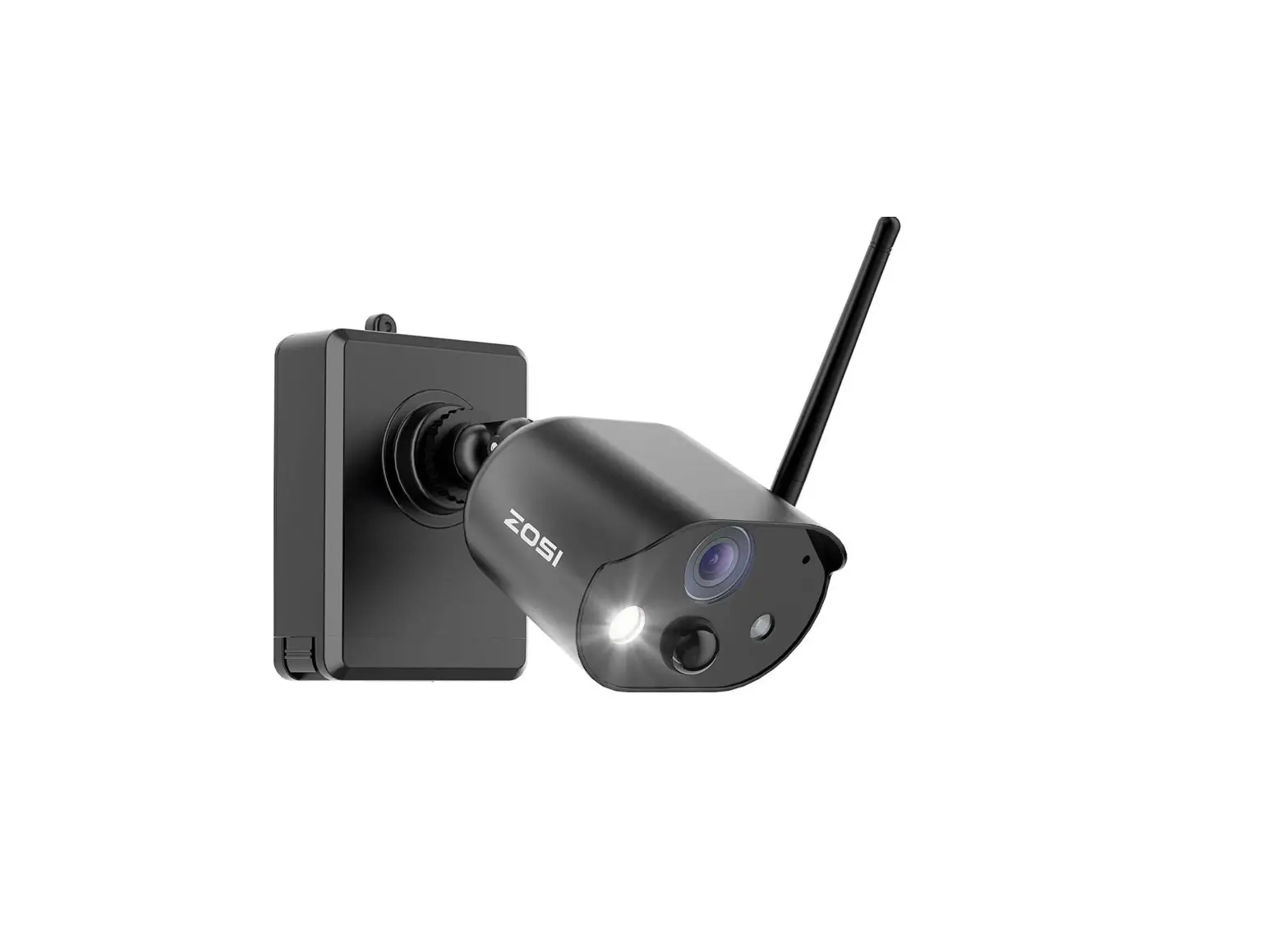
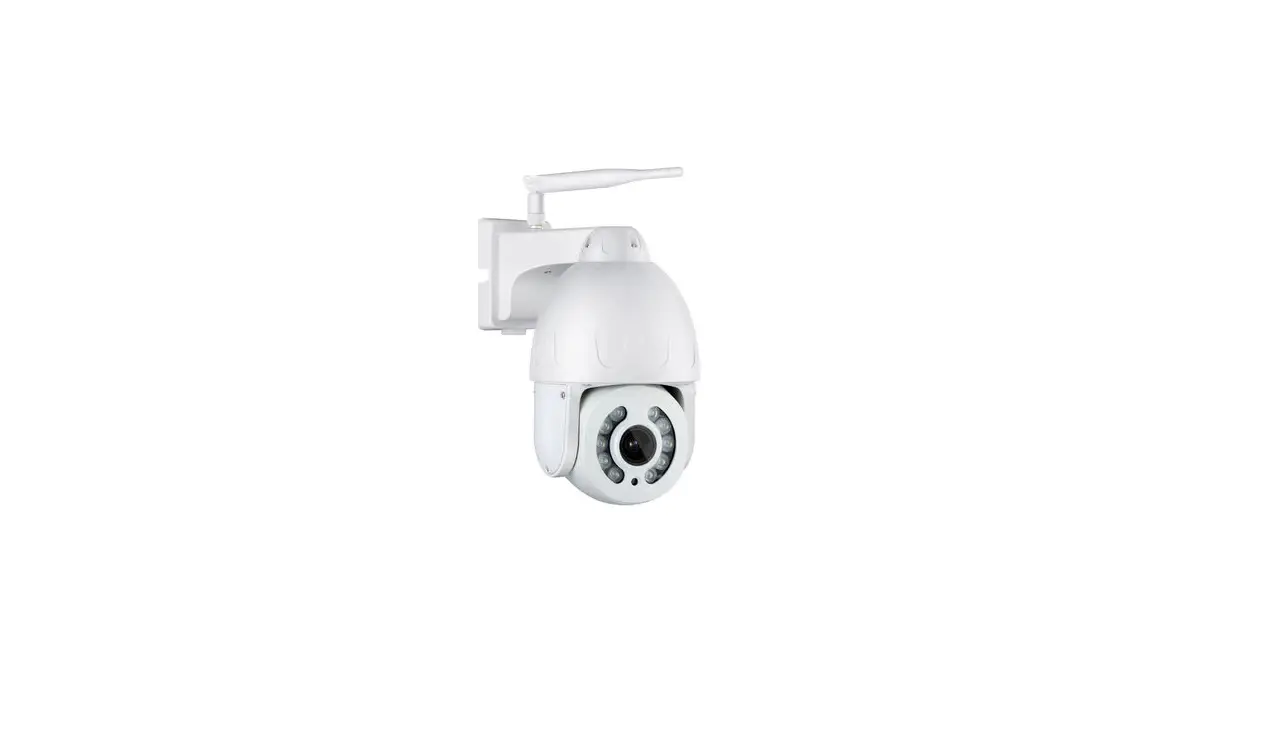
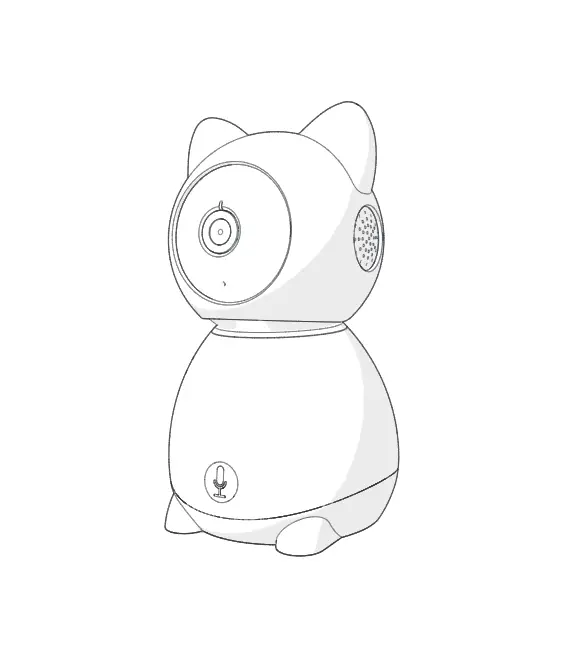
NG-C2300 IP PT WiFi Camera
Product Information
The NG-C2300/NG-C2400 Series is a smart camera device that can
be connected to a Wi-Fi network for remote monitoring and video
recording. The camera has a built-in microphone and speaker, IR LED
lens, light sensor, and TF card slot for storage. The camera is
designed to work with the NGTeco Home App, which can be downloaded
from Apple App Store or Google Play Store.
Important Notes
- If you have any problems, please read the manual carefully or
contact Customer Care. - The device can only connect to 2.4GHz Wi-Fi networks.
- Make sure the entered Wi-Fi password is correct when adding a
new device. - Please make sure the device is close to the router for a stable
network connection. - Do not mount the camera before confirming a successful network
connection and smooth live video. - We couldn’t guarantee the exact consistency between the actual
product and the written information in this manual due to the
regular app and product updates.
What’s in the Box
- Camera
- Mounting Bracket
- Reset Pin
- Power Adapter
- USB Charging Cable
- Screw Kit (mounting screws*2, anchors*2)
Product Overview
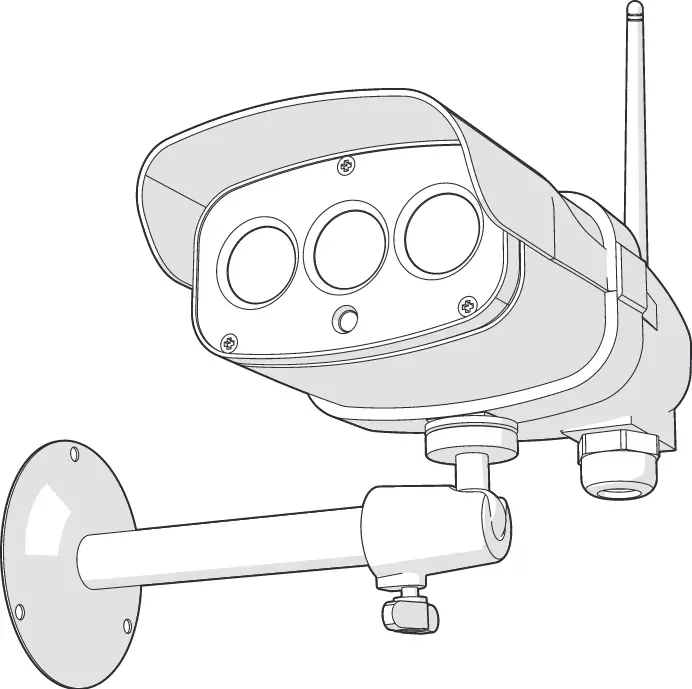
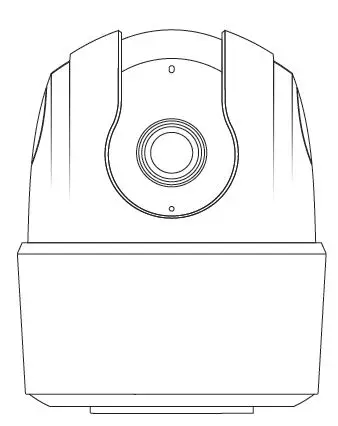
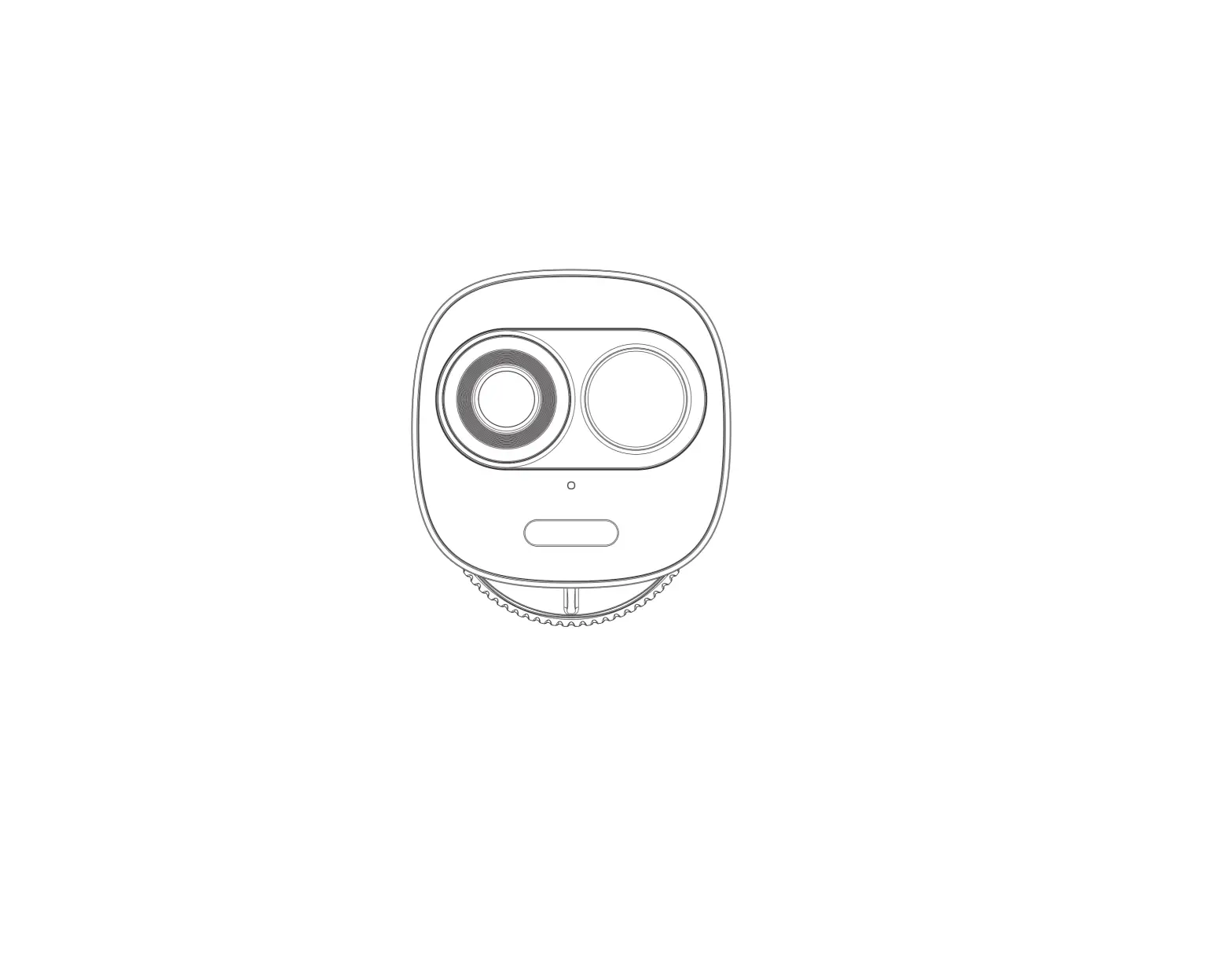
The NG-C2300 Series has a speaker, indicator LED, IR LED lens,
light sensor, microphone, TF card slot, reset button, and power
interface. The NG-C2400 Series has a light sensor lens, status LED,
IR LED, reset button, microphone, TF card slot, speaker, and power
interface.
Product Usage Instructions
Follow the steps below to connect the device to the NGTeco Home
App:
Step 1: Download the App and Register Your Account
- Search for the NGTeco Home App in Apple App Store or Google
Play Store and download the App to your mobile phone. - Open the NGTeco Home App and log in with your account. If you
do not have an account, create an account with your phone number or
Email ID.
Step 2: Power on the Device
- Plug the camera into the power socket using the provided power
adapter and USB cable. - Wait for a few seconds until you hear the prompt “Camera start,
please configure network.” Note: If you did not hear the prompt,
press and hold the Reset Button for 5 seconds until you hear the
prompt “Restore Factory Settings.”
Step 3: Add the Device to the App
- Open the app, tap the + button on the top right corner of the
interface, and then select the Add Device option. Select the Smart
Camera option and then choose the corresponding model
purchased. - Tick Next if you have finished the above steps on the
interface. Select the desired Wi-Fi and enter the correct password.
Then tap the Next button. - Show the QR code towards the device lens, and the camera will
scan the QR code. Once you hear the audio prompt “Camera
configured, connecting to Network,” tap the “I Heard a Prompt”
button on your mobile, the App will connect the device
automatically. - You can manually change the name of the device once you see the
message “Added successfully” on the mobile app. To finish the
setting, tap the Done button.
Note: If you failed to connect your device to Wi-Fi, press and
hold the RESET Button for 5 seconds until you hear the audio prompt
“Restore Factory Settings,” then repeat the above steps.
Quick Start Guide
Model: NG-C2300/NG-C2400 Series
Version: 1.0 English
Due to the regular upgrades of systems and products, NGTeco could not guarantee exact consistency between the actual product and the written information in this manual.
Important Notes
1. If you have any problems, please read this manual carefully or contact Customer Care.
2. The device can only connect to 2.4GHz Wi-Fi networks. If you have a dual-band router with separate 2.4GHz and 5GHz networks, make sure your phone is connected to the 2.4GHz network.
3. Make sure the entered Wi-Fi password is correct when adding a new device.
4. Please make sure the device is close to the router for a stable network connection.
5. Do not mount the camera before confirming a successful network connection and smooth live video.
6. We couldn’t guarantee the exact consistency between the actual product and the written information in this manual due to the regular app and product updates.
1
Table of Contents
What’s in the Box………………………………………. 3 Product Overview………………………………………. 4 Setup……………………………………………………6 Connecting the Device to NGTeco Home App……………… 6 Watching the Videos from Browser…………………………7 . *Connecting the Device to Amazon Alexa or Google Assistant 8 Installation………………………………………………9 Installation Location……………………………………… 9 Installation Steps………………………………………… 9 Product Features……………………………………… 11
2
What’s in the Box
or
Camera
Quick Start Guide
Mounting Bracket
Reset Pin
Quick Start Guide
Power Adapter
USB Charging Cable
Screw Kit
(mounting screws*2, anchors*2)
Note:
1. The power plug may vary in different regions.
2. The above picture is only taken the model NG-C2400 as an example, please refer to the actual purchased products.
3
Product Overview
NG-C2300 Series:
Speaker
Indicator LED
IR LED Lens Light Sensor
Microphone
TF Card
Slot
Reset Button
Power Interface
4
NG-C2400 Series:
Light Sensor Lens
Status LED IR LED
Reset Button
Microphone TF Card Slot
Speaker Power
Interface
5
Setup
Connecting the Device to NGTeco Home App
Step 1: Download the App and Register Your Account Search for the NGTeco Home App in Apple App Store or Google Play Store and download the App to your mobile phone. Open the NGTeco Home App and log in with your account. If you do not have an account, create an account with your phone number or Email ID.
Step 2: Power on the Device 1. Plug the camera into the power socket using the provided
power adapter and USB cable. 2. Wait for a few seconds until you hear the prompt “Camera
start, please con gure network”. Note: If you did not hear the prompt, press and hold the Reset Button for 5 seconds until you hear the prompt “Restore Factory Settings”.
6
Step 3: Add the Device to the App 1. Open the app, tap the “+” button on the top right corner of
the interface, and then select the “Add Device” option. Select the “Smart Camera” option and then choose the corresponding model purchased.
2. Tick “Next” if you have finished the above steps on the interface. Select the desired Wi-Fi and enter the correct password. Then tap the “Next” button.
3. Show the QR code towards the device lens, and the camera will scan the QR code. Once you hear the audio prompt “Camera con gured, connecting to Network”, tap the “I Heard a Prompt” button on your mobile, the App will connect the device automatically.
Note: Please hold the phone about 15-20 cm (68 inches) away from the camera. You can slightly move your mobile device forward and backward for better scanning.
4. You can manually change the name of the device once you see the message “Added successfully” on the mobile app. To finish the setting, tap the “Done” button.
Note: If you failed to connect your device to Wi-Fi, press and hold the RESET Button for 5 seconds until you hear the audio prompt “Restore Factory Settings”, then repeat the above steps.
Watching the Videos from Browser
1. Visit https://ipc – us . ismar tlife . me , and then selec t the corresponding data server on the top right corner of the interface.
2. Use NGTeco Home App to scan the QR code to login to your account.
3. Click the corresponding device to watch the live videos.
7
*Connecting the Device to Amazon Alexa or Google Assistant
Tap the EDIT Button in the upper right corner of the device interface after successfully connecting the device to the NGTeco Home App. To link your NGTeco Home Account to Amazon Alexa or Google Assistant, select the Amazon Alexa or Google Assistant icon and follow the on-screen instructions.
After completing the setup, you can use the supported voice commands that include:
Echo, show me <device name>.
Hey Google, show me <device name>.
Note:
1. Every time you change the name of a linked device, you must discover it again to update the name.
2. This voice control feature is optional, only the model NG-C23XXA/NG-C24XXA can support.
8
Installation
Installation Location
The device can be put on the ceiling or the wall, or it can be placed horizontally. Choose a location with a clear, unblocked field of view and with a good wireless signal to the device, and can reach a power outlet easily.
Installation Steps
After confirming a successful Wi-Fi connection and smooth live video, you can select the required position to mount the device. The installation steps are as follows:
1. Drill two holes in the wall according to the hole positions of the mounting plate, and then insert the plastic anchor into the holes; anchors are necessary for walls that are made of hard materials such as concrete, brick or stucco.
2. Fix the mounting plate onto the wall with two screws.
3. Align the mounting plate with the grooves of the camera base, and tighten the device by rotating clockwise.
1
2
9
3
4
5
Note: The above picture is only taken the model NG-C2400 as an example, please refer to the actual purchased products.
10
Product Features
Image Quality
Sound
Screenshot Fullscreen
Record
Speak
Main Interface:
Image Quality: To switch the image quality between HD and SD. Sound: To mute or unmute the sound from the device. Fullscreen: Tap it to switch to the full screen. Screenshot: Capture a picture to the photo album in App. Speak: Tap it to talk to people in front of the device. Record: Manually record a video to the photo album in App. Playback: Watch the recorded videos in the Micro-SD Card. Gallery: Review the recorded photos when detecting the motion.
11
Theme Color: Change the UI theme to light mode or dark mode. Private Mode: Disable the live videos with one click to protect your privacy. Night Mode: Switch on/off the night vision mode or set it to Auto Mode. Motion Tracking: Keep tracking the subject when motion activity is detected. Motion Detection: Enable or disable the alarm of motion detection. Message: Check the specific logs of all the motion detection or video call. Direction: Tap the buttons to rotate and set the camera’s point of view.
More Settings: Basic Settings:
Status Indicator: The status LED can be set as ON or OFF. Flip Screen: Rotate the current monitoring image at 180 degrees. Time Watermark: Choose whether the monitoring interface displays the real time watermark. Talk Mode: To fit the actual requirements, select the one-way or two-way talk mode.
12
Detection Alarm Settings: Motion Detection: Enable or disable the alarm of motion detection. Alarm Sensitivity Level: The level can be set to High/ Medium/Low modes as required. Motion Tracking: Keep tracking the subject when motion activity is detected. Schedule: Customize the schedule for the motion detection to be active.
Storage Settings: After inserting the Micro-SD card, you could check the status of storage capacity. Recording Settings: Select the recording mode and set the schedule of the local recording. *Voice Control: To see live video from the Amazon Echo or Google Home device, use Amazon Alexa or Google Assistant voice commands. This feature is optional. Offline Noti cation: It enables to receive the offline push message of the camera. Remove Device: Remember to REMOVE the device from the current account when the owner of the camera changes.
13
 ipc-us.ismartlife.me