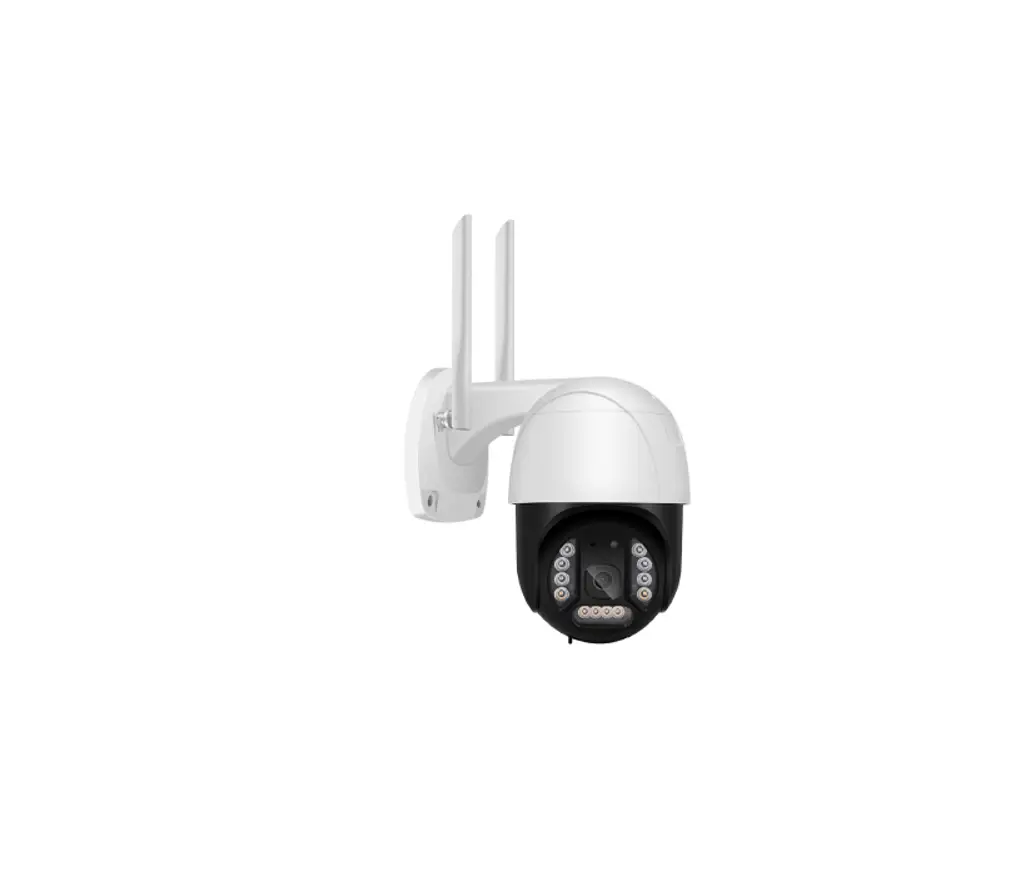
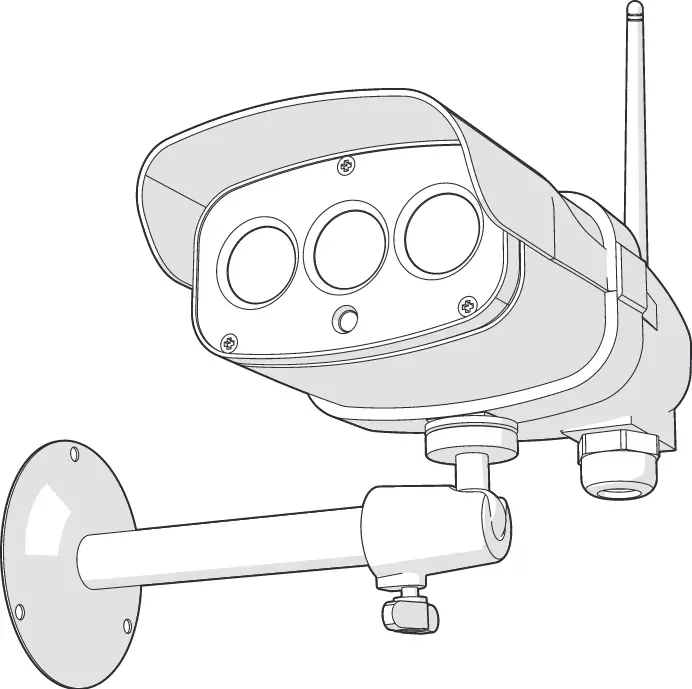
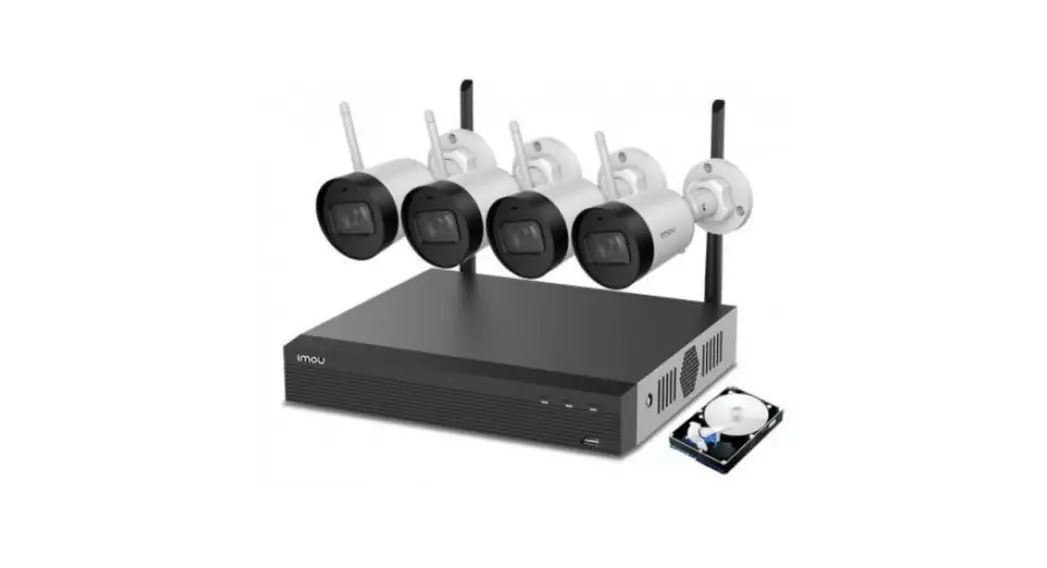
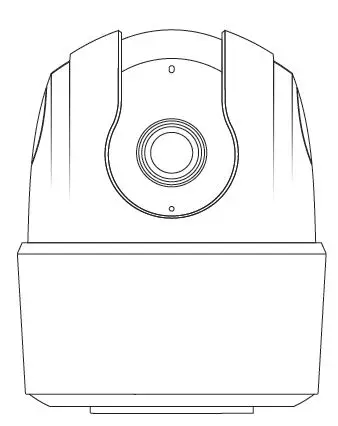
NG-C1200 Series Camera IP Cubo WiFi
Product Information
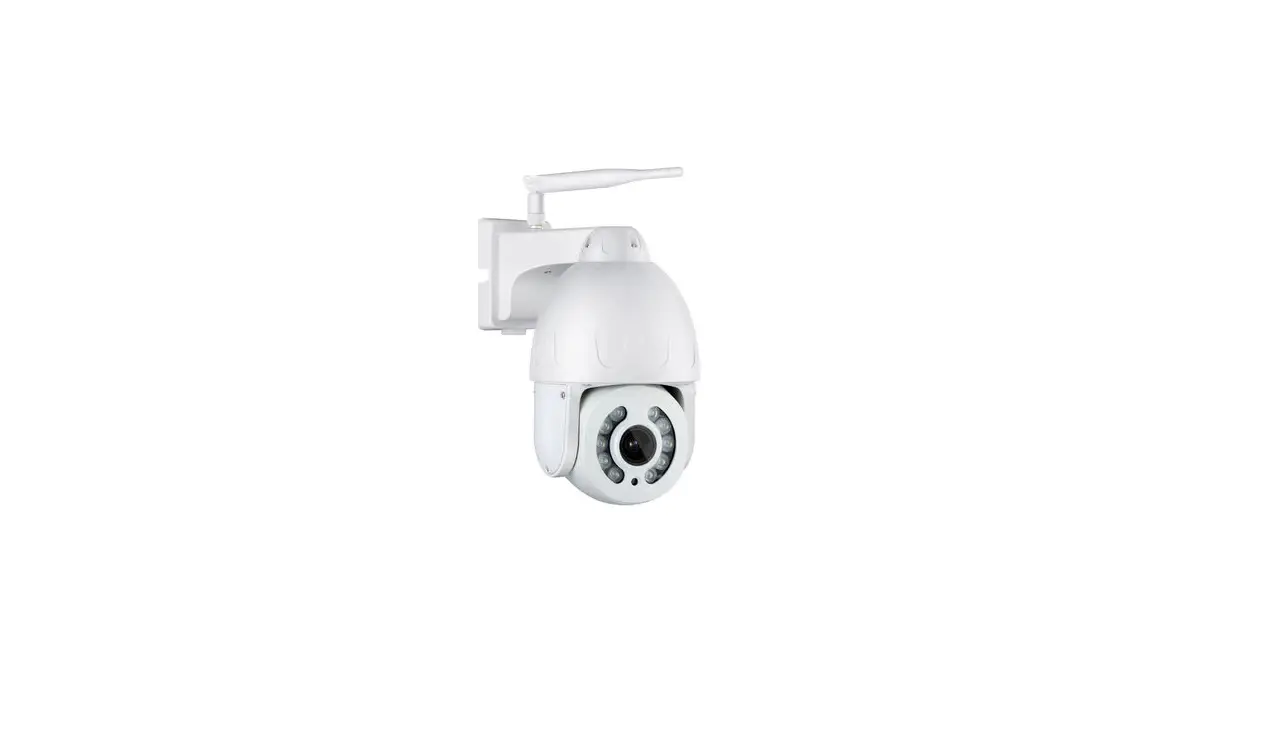
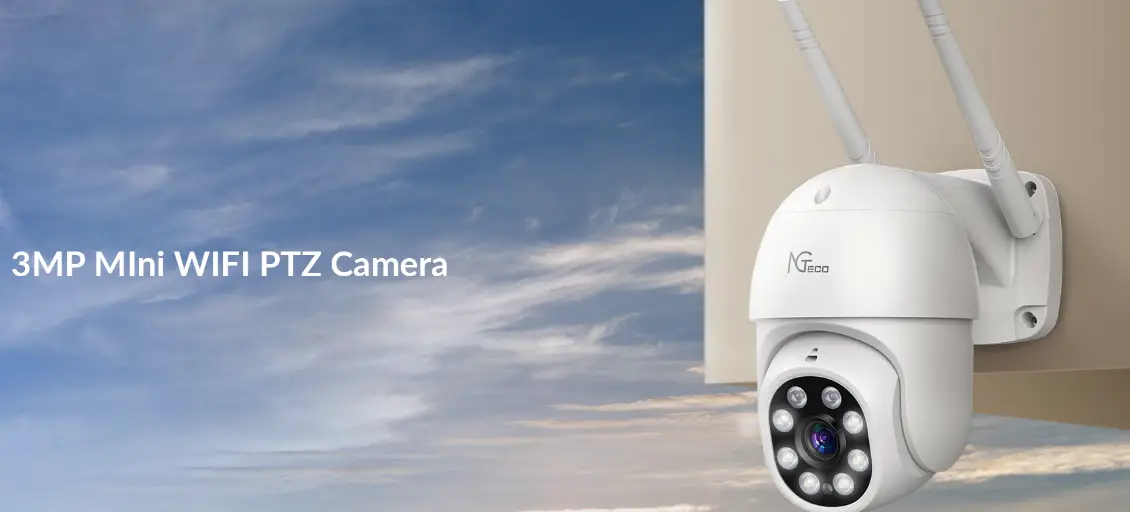
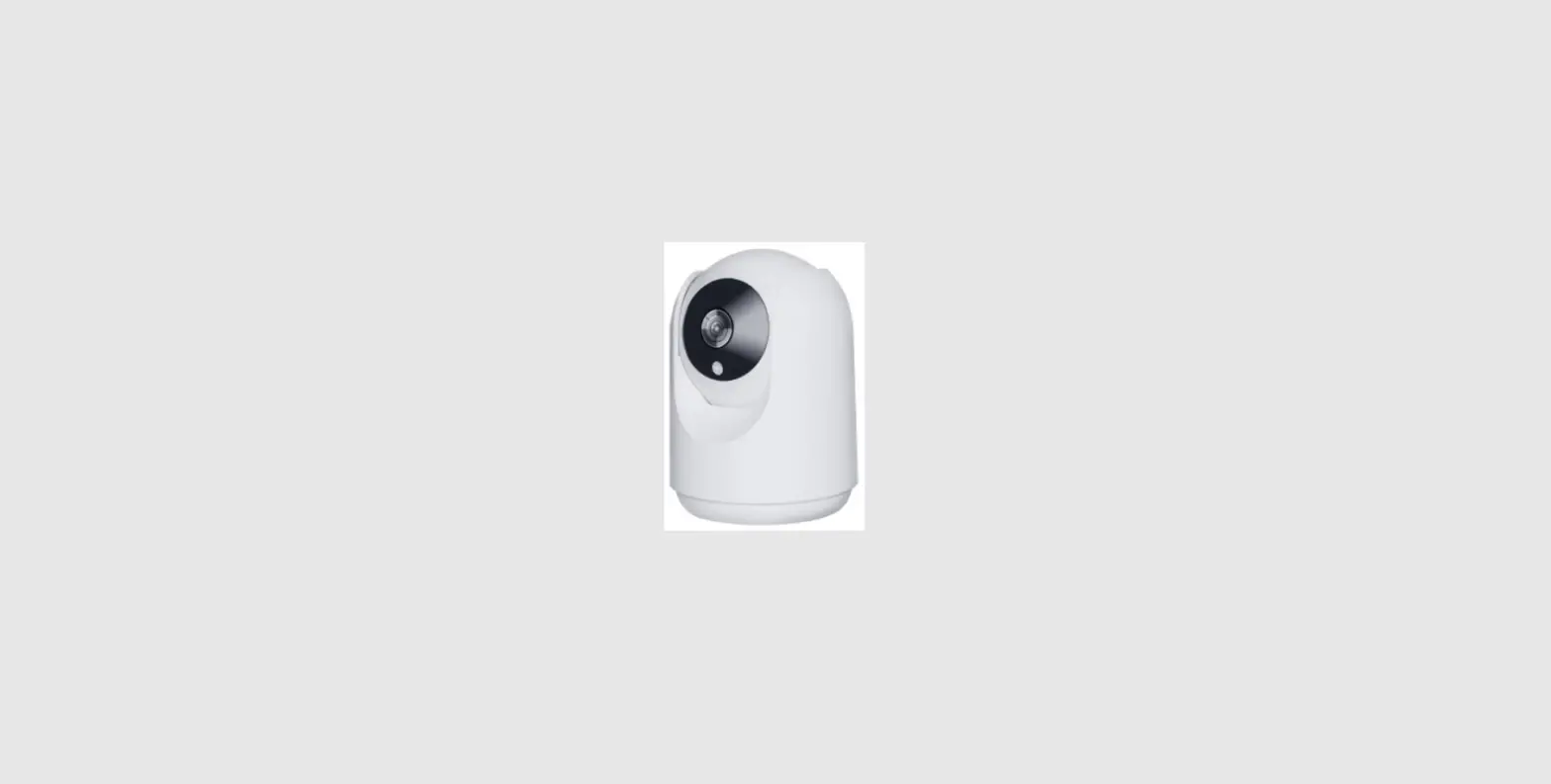
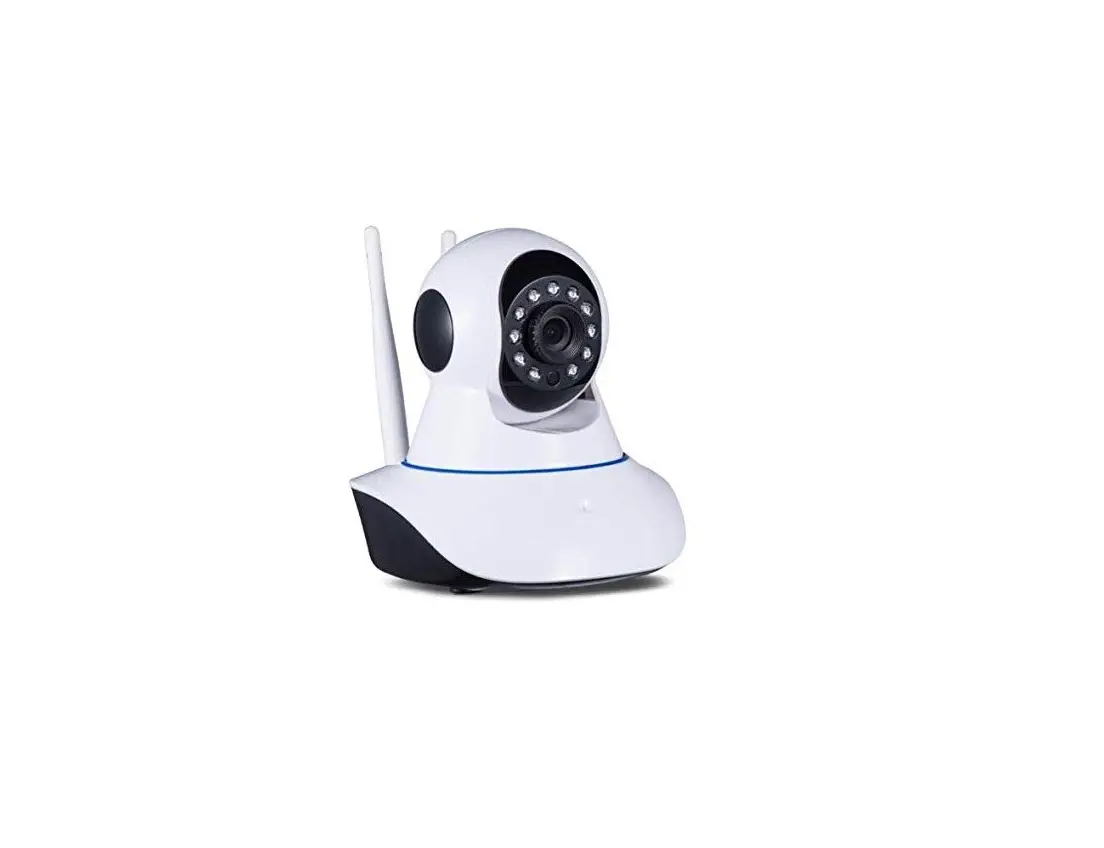
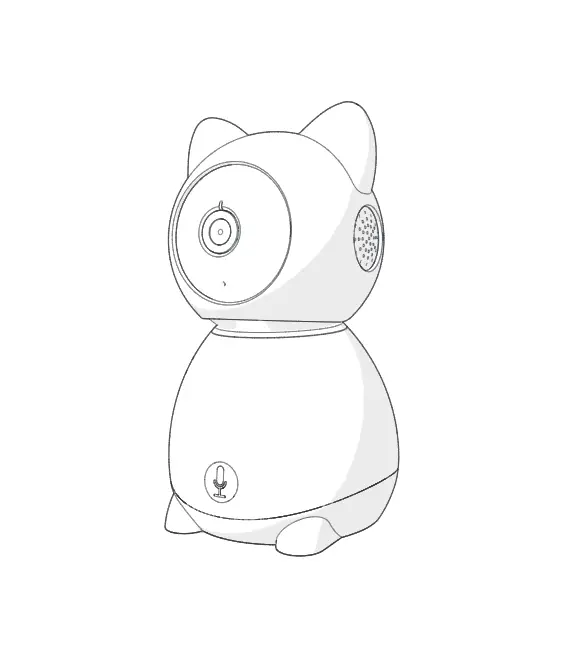
The NG-C1200 Series is a camera device that can connect to a
2.4GHz Wi-Fi network. It comes with a power adapter, USB charging
cable, screw kit, and quick start guide. The camera features a
microphone, status LED, lens, light sensor, speaker, micro-SD card
slot, reset button, and power interface. The device can be
connected to the NGTeco Home App for remote viewing and control. It
also has the capability to be linked to Amazon Alexa or Google
Assistant for voice commands.
Product Usage Instructions
Important Notes:
- If you encounter any problems, please read the manual carefully
or contact Customer Care. - The device can only connect to 2.4GHz Wi-Fi networks. If you
have a dual-band router with separate 2.4GHz and 5GHz networks,
make sure your phone is connected to the 2.4GHz network. - Ensure that the entered Wi-Fi password is correct when adding a
new device. - The device should be close to the router for a stable network
connection. - Do not mount the camera before confirming a successful network
connection and smooth live video. - The actual product may have differences from the written
information in this manual due to regular app and product
updates.
Setup
- Download the NGTeco Home App from the Apple App Store or Google
Play Store and register your account using your phone number or
email ID - Plug the camera into the power socket using the provided power
adapter and USB cable - Wait for a few seconds until you hear the prompt “Camera start,
please configure network.” If you don’t hear the prompt, press and
hold the reset button for 5 seconds until you hear the prompt
“Restore Factory Settings.” - Open the NGTeco Home App and tap the + button on the top right
corner of the screen to add the device to the app
Watching Videos from Browser
- Visit https://ipc-us.ismartlife.me and select the corresponding
data server on the top right corner of the interface - Use the NGTeco Home App to scan the QR code to log in to your
account - Click on the corresponding device to watch live videos
Connecting to Amazon Alexa or Google Assistant
- After successfully connecting the device to the NGTeco Home
App, tap the EDIT button in the upper right corner of the device
interface - Select the Amazon Alexa or Google Assistant icon and follow the
on-screen instructions to link your NGTeco Home Account to either
service - After completing setup, use supported voice commands such as
“Echo, show me [device name]” or “Hey Google, show me [device
name]”. Note that this feature is only available for model
NGC12XXA.
Quick Start Guide
Model: NG-C1200 Series
Version: 1.0 English
Due to the regular upgrades of systems and products, NGTeco could not guarantee exact consistency between the actual product and the written information in this manual.
Important Notes
1. If you have any problems, please read this manual carefully or contact Customer Care.
2. The device can only connect to 2.4GHz Wi-Fi networks. If you have a dual-band router with separate 2.4GHz and 5GHz networks, make sure your phone is connected to the 2.4GHz network.
3. Make sure the entered Wi-Fi password is correct when adding a new device.
4. Please make sure the device is close to the router for a stable network connection.
5. Do not mount the camera before confirming a successful network connection and smooth live video.
6. We couldn’t guarantee the exact consistency between the actual product and the written information in this manual due to the regular app and product updates.
1
Table of Contents
2
What’s in the Box
Quick Start Guide
Model: NG- C1200 Series Version: 1.0 English
Camera
Power Adapter
USB Charging Cable
Due to the regular upgrades of systems and products, NGTeco could not guarantee exact consistency between
the
actual product and the written information in this manual.
Screw Kit
Quick Start
(mounting
Guide
screws, anchors)
Note: The power plug may vary in different regions.
Product Overview
Microphone /Status LED Lens Light Sensor
Speaker Micro-SD Card Slot
Reset Button Power
Interface
3
Setup
Connecting the Device to NGTeco Home App
Step 1: Download the App and Register Your Account Search for the NGTeco Home App in Apple App Store or Google Play Store and download the App to your mobile phone. Open the NGTeco Home App and log in with your account. If you do not have an account, create an account with your phone number or Email ID.
Step 2: Power on the Device 12. Plug the camera into the power socket using the provided
power adapter and USB cable. 22. Wait for a few seconds until you hear the prompt “Camera
start, please con gure network”. Note: If you did not hear the prompt, press and hold the Reset Button for 5 seconds until you hear the prompt “Restore Factory Settings”.
4
Step 3: Add the Device to the App 12. Open the app, tap the “+” button on the top right corner of the
interface, and then select the “Add Device” option. Select the “Smart Camera” option and then choose the corresponding model purchased. 21. Tick “Next” if you have finished the above steps on the interface. Select the desired Wi-Fi and enter the correct password. Then tap the “Next” button. 32. Show the QR code towards the device lens, and the camera will scan the QR code. Once you hear the audio prompt “Camera con gured, connecting to Network”, tap the “I Heard a Prompt” button on your mobile, the App will connect the device automatically. Note: Please hold the phone about 15-20 cm (68 inches) away from the camera. You can slightly move your mobile device forward and backward for better scanning. 42. You can manually change the name of the device once you see the message “Added successfully” on the mobile app. To finish the setting, tap the “Done” button. Note: If you failed to connect your device to Wi-Fi, press and hold the RESET Button for 5 seconds until you hear the audio prompt “Restore Factory Settings”, then repeat the above steps.
Watching the Videos from Browser
1. Visit https://ipc-us.ismartlife.me, and then select the corresponding data server on the top right corner of the interface.
2. Use NGTeco Home App to scan the QR code to login to your account.
3. Click the corresponding device to watch the live videos.
5
*Connecting the Device to Amazon Alexa or Google Assistant
Tap the EDIT Button in the upper right corner of the device interface after successfully connecting the device to the NGTeco Home App. To link your NGTeco Home Account to Amazon Alexa or Google Assistant, select the Amazon Alexa or Google Assistant icon and follow the on-screen instructions. After completing the setup, you can use the supported voice commands that include:
Echo, show me <device name>. Hey Google, show me <device name>. Note: 12. Every time you change the name of a linked device, you must discover it again to update the name. 22. This voice control feature is optional, only the model NGC12XXA can support.
6
Installation
Installation Location
The device can be put on the ceiling or the wall, or it can be placed horizontally. Choose a location with a clear, unblocked field of view and with a good wireless signal to the device, and can reach a power outlet easily.
Installation Steps
After confirming a successful Wi-Fi connection and smooth live video, you can select the required position to mount the device. The installation steps are as follows: 1. Drill two holes in the wall according to the hole positions of
camera base, and then insert the plastic anchor into the holes; anchors are necessary for walls that are made of hard materials such as concrete, brick or stucco. Leave some gap between the screws and the wall. 2. Align the screws with the grooves of the camera base, and then push the device down until it clicks into place. 3. Adjust the viewing angle by checking the live video in the mobile app.
7
Product Features
Image Quality
Screenshot Fullscreen
Sound
Speak Record
Main Interface: Image Quality: To switch the image quality between HD and SD. Sound: To mute or unmute the sound from the device. Fullscreen: Tap it to switch to the full screen. Screenshot: Capture a picture to the photo album in App. Speak: Tap it to talk to people in front of the device. Record: Manually record a video to the photo album in App. Playback: Watch the recorded videos in the Micro-SD Card. Gallery: Review the recorded photos when detecting the motion.
8
Theme Color: Change the UI theme to light mode or dark mode. Private Mode: Disable the live videos with one click to protect your privacy. Night Mode: Switch on/off the night vision mode or set it to Auto Mode. Motion Detection: Enable or disable the alarm of motion detection. *Cloud: This Video Cloud Storage service is needed to pay for the monthly or annually subscription. You could check the video from cloud storage with App anytime, anywhere. The cloud storage only supports recording the events video clips. Smart: Manage the related smart automation settings.
More Settings: Basic Settings:
Status Indicator: The status LED can be set as ON or OFF. Flip Screen: Rotate the current monitoring image at 180 degrees. Time Watermark: Choose whether the monitoring interface displays the real time watermark. Talk Mode: To fit the actual requirements, select the oneway or two-way talk mode. Detection Alarm Settings: Motion Detection: Enable or disable the alarm of motion detection. Alarm Sensitivity Level: The level can be set to High/ Medium/Low modes as required.
9
Schedule: Customize the schedule for the motion detection to be active. Storage Settings: After inserting the Micro-SD card, you could check the status of storage capacity. Recording Settings: Select the recording mode and set the schedule of the local recording. *Voice Control: To see live video from the Amazon Echo or Google Home device, use Amazon Alexa or Google Assistant voice commands. This feature is optional. Offline Noti cation: It enables to receive the offline push message of the camera. Remove Device: Remember to REMOVE the device from the current account when the owner of the camera changes.
10
Guía Rápida
Modelo: Serie NG-C1200
Versión: 1.0 Español
Debido a las actualizaciones periódicas de los sistemas y productos, NGTeco no puede garantizar la consistencia exacta entre el producto real y la información escrita en este manual.
Notas Importantes
1. Lea atentamente este manual o comuníquese con atención al cliente para cualquier consulta.
2. Este dispositivo sólo trabaja con redes Wi-Fi de 2.4GHz. Si tiene un enrutador doble banda con redes de 2.4 GHz y 5 GHz, asegúrese de que su teléfono esté conectado a la de 2.4 GHz.
3. Asegúrese de que la contraseña Wi-Fi ingresada sea correcta alagregar un nuevo dispositivo.
4. Para una conexión de red estable, asegúrese de que el dispositivo esté colocado cerca del enrutador.
5. No instale la cámara antes de confirmar una conexión de red exitosa y un video en vivo fluido.
6. Debido a las actualizaciones periódicas de la aplicación y los productos, no podemos garantizar la coherencia exacta entre el producto real y la información escrita en este manual.
1
Tabla de Contenidos
Contenido………………………………………………………………………..3 Descripción del Producto………………………………………………….3 Con guración…………………………………………………………………..4 Conexión del Dispositivo con la App NGTeco Home……………………….4 Revisar Grabaciones desde Navegador……………………………………………..5 *Conexión del Dispositivo con Amazon Alexa o Google Assistant..6 Instalación……………………………………………………………………….7 Ubicación de la instalación…………………………………………………………………7 Pasos de la instalación…………………………………………………………………………7 Características del Producto………………………………………………8
2
Contenido
Guía Rápida
Modelo: Serie NG- C1200 Versión: 1.0 Español
Cámara
Adaptador de Corriente
Cable de Carga USB
Debido a las actualizaciones periódicas de los sistemas y productos, NGTeco no puede garantizar la consistencia exacta entre el producto real y la información escrita en este manual.
Kit de Tornillos Guía Rápida (anclajes, tornillos
de la placa de montaje)
Nota: El enchufe de corriente puede variar en diferentes regiones.
Descripción del Producto
Micrófono /LED de Estado Lente Sensor de Luz
Altavoz Ranura para
Tarjeta Micro-SD
Botón de Reinicio
Interfaz de Alimentación
3
Configuración
Conexión del Dispositivo con la App NGTeco Home
Paso 1: Descargue la App y Registre su Cuenta Busque la aplicación NGTeco Home en Apple App Store o Google Play Store y descargue la aplicación en su teléfono móvil. Abra la aplicación NGTeco Home e inicie sesión con su cuenta. Si no tiene una cuenta, cree una cuenta con su número de teléfono o correo electrónico.
Paso 2: Encienda el Dispositivo 12. Conecte la cámara a una toma de corriente con el adaptador
de corriente y el cable USB ofrecidos. 22. Espere unos segundos hasta que escuche el mensaje de audio
“La cámara está iniciando, por favor, con gure la red”. Nota: Si no escuchó el mensaje, mantenga presionado el Botón de Reinicio durante 5 segundos hasta que escuche el mensaje “Restaurar ajustes de fábrica”.
4
Paso 3: Añada el Dispositivo a la App 12. Abra la aplicación, toque el botón “+” en la esquina superior
derecha de la interfaz y luego seleccione la opción “Agregar dispositivo”. Seleccione la opción “Cámara Inteligente” y luego elija el modelo correspondiente comprado. 22. Marque “Siguiente” si ha terminado los pasos anteriores en la interfaz. Seleccione el Wi-Fi deseado e ingrese la contraseña correcta. Luego toque el botón “Siguiente”. 3. Muestre el código QR hacia la lente del dispositivo y el dispositivo escaneará el código QR. Una vez que escuche el mensaje de audio “La cámara está con gurada, Conectado a la red”, toque el botón “Oír el tono de aviso” en su móvil, la aplicación conectará el dispositivo automáticamente. Nota: Sostenga el teléfono a unos 15-20 cm de distancia del dispositivo. Puede mover ligeramente su dispositivo móvil hacia adelante y hacia atrás para escanear mejor. 4. Una vez que vea el mensaje “Se agregó con éxito” en la aplicación, puede editar el nombre del dispositivo manualmente. Toque el botón “Finalizado” para completar la configuración. Nota: Si no pudo conectar su dispositivo a Wi-Fi, mantenga presionado el Botón de Reinicio durante 5 segundos hasta que escuche el mensaje de audio “Restaurar ajustes de fábrica”, luego repita los pasos anteriores.
Revisar Grabaciones desde Navegador
1. Visite https://ipc-us.ismartlife.me y luego seleccione el servidor de datos correspondiente en la esquina superior derecha de la interfaz.
2. Use la aplicación NGTeco Home para escanear el código QR para iniciar sesión en su cuenta.
5
31. Haga clic en el dispositivo correspondiente para ver los videos en vivo.
*Conexión del Dispositivo con Amazon Alexa o Google Assistant
Después de conectar correctamente el dispositivo a la aplicación NGTeco Home, toque el botón EDITAR en la esquina superior derecha de la interfaz del dispositivo. Seleccione el ícono de Amazon Alexa o Google Assistant, luego siga las instrucciones en pantalla para vincular su cuenta NGTeco Home a Amazon Alexa o Google Assistant. Después de completar la configuración, puede usar los comandos de voz admitidos que incluyen:
Alexa, muéstrame <nombre del dispositivo>. Hey Google, muéstrame <nombre del dispositivo>. Nota: 12. Después de cambiar el nombre del dispositivo vinculado, actualice nuevamente la cuenta para actualizar el nombre.
6
2. Esta función de control por voz es opcional, sólo es compatible con el modelo NG-C12XXA.
Instalación
Ubicación de la instalación
El dispositivo se puede colocar en el techo o en la pared, o se puede colocar en posición horizontal. Elija una ubicación con una visión despejada para tener un amplio campo de visión sin obstrucciones y con una buena señal inalámbrica para el dispositivo y puede llegar fácilmente a una toma de corriente.
Pasos de la instalación
Después de confirmar una conexión Wi-Fi exitosa y un video en vivo fluido, puede seleccionar la posición requerida para montar el dispositivo. Los pasos de instalación son los siguientes: 1. Taladre dos orificios en la pared de acuerdo con las posiciones
de los orificios de la base de la cámara y luego inserte el anclaje de plástico en los orificios; los anclajes son necesarios para paredes hechas de materiales duros como hormigón, ladrillo o estuco. Deje algo de espacio entre los tornillos y la pared. 2. Alinee los tornillos con las ranuras de montaje en la base de la cámara y empuje el dispositivo hacia abajo hasta que encaje en su lugar. 3. Ajuste el ángulo de visión revisando el video en vivo en la aplicación móvil.
7
Características del Producto
Calidad de Imagen
Sonido
Tomar Fotos Pantalla Completa
Hablar Grabar
Interfaz Principal: Calidad de Imagen: Para cambiar la calidad de imagen entre HD y SD. Sonido: Silencie o reactive el sonido del dispositivo.
8
Pantalla Completa: Tóquelo para cambiar a la pantalla completa. Tomar Fotos: Tome una imagen en el álbum de fotos en la APP. Hablar: Tóquelo para hablar con las personas frente al dispositivo. Grabar: Grabe manualmente un video en el álbum de fotos en la APP. Reproducir: Vea los videos grabados en la tarjeta Micro-SD. Álbum de Fotos: Revise las fotos grabadas al detectar el movimiento. Color de Tema: Cambie el tema de la interfaz de usuario al modo claro o al modo oscuro. Modo Privado: Desactive los videos en vivo con un clic para proteger su privacidad. Visión Nocturna: Encienda/apague el modo de Visión Nocturna o configúrelo en Modo Automático. Detección de Movimiento: Habilite o deshabilite la alarma de detección de movimiento. *Cloud: Este servicio de Almacenamiento en la Nube requiere pagar la suscripción mensual o anual. Puede ver el video desde el almacenamiento en la nube con la aplicación en cualquier momento y en cualquier lugar. El almacenamiento en la nube solo admite la grabación de videoclips por eventos. Smart: Administre la configuración de automatización inteligente relacionada.
Más Configuraciones: Ajustes Básicos:
Indicador de estado: El LED de estado se puede configurar como ENCENDIDO o APAGADO.
9
Vuelta de imagen: Gire la imagen de monitoreo actual a 180 grados. Filigrana de tiempo: Elija si la interfaz de monitoreo muestra la filigrana de tiempo real. Modo de audio: Para adaptarse a los requisitos reales, seleccione el modo de conversación unidireccional o bidireccional. Con guración de Alarma de Detección: Detección de Movimiento: Habilite o deshabilite la alarma de detección de movimiento. Nivel de Sensibilidad de la Alarma: El nivel se puede configurar en los modos Alto/Medio/Bajo como sea necesario. Horario: Personalice el horario para que la función de detección de movimiento esté activa. Con guración de Almacenamiento: Después de insertar la tarjeta Micro-SD, puede verificar el estado de la capacidad de almacenamiento. Ajustes de grabación: Seleccione el modo de grabación y con gure el horario de la grabación local. *Control por Voz: Para ver videos en vivo desde el dispositivo Amazon Echo o Google Home, use los comandos de voz de Amazon Alexa o Google Assistant. Esta función es opcional. Recordatorio de Falta de Conexión: Habilite para recibir una notificación cuando el dispositivo no tenga conexión. Eliminar Dispositivo: Recuerde ELIMINAR el dispositivo de la cuenta actual cuando cambie el propietario del dispositivo.
10
Warning:
This device complies with Part 15 of the FCC Rules. Operation is subject to the following two conditions: (1) This device may not cause harmful interference, and (2) this device must accept any interference received, including interference that may cause undesired operation. This equipment has been tested and found to comply with the limits for a Class B digital device, pursuant to Part 15 of the FCC Rules. These limits are designed to provide reasonable protection against harmful interference in a residential installation. This equipment generates, uses, and can radiate radio frequency energy and, if not installed and used in accordance with the instructions, may cause harmful interference to radio communications. However, there is no guarantee that interference will not occur in a particular installation. If this equipment does cause harmful interference to radio or television reception, which can be determined by turning the equipment off and on, the user is encouraged to try to correct the interference by one or more of the following measures:
Reorient or relocate the receiving antenna. Increase the separation between the equipment and receiver. Connect the equipment into an outlet on a circuit different from that to which the receiver is connected. Consult the dealer or an experienced radio/TV technician for help.
FCC RF Radiation Exposure Statement: This Transmitter must not be co-located or operating in conjunction with any other antenna or transmitter. This equipment complies with RF radiation exposure limits set forth for an uncontrolled environment.
IMPORTANT! Any changes or modifications not expressly approved by the party responsible for compliance could void the user’s authority to operate the equipment.
1600 Union Hill Road Alpharetta, GA 30005 E-mail: [email protected] www.ngteco.com
Copyright©2022 NGTECO CO., LIMITED. All rights reserved.
 NGTECO
 ipc-us.ismartlife.me