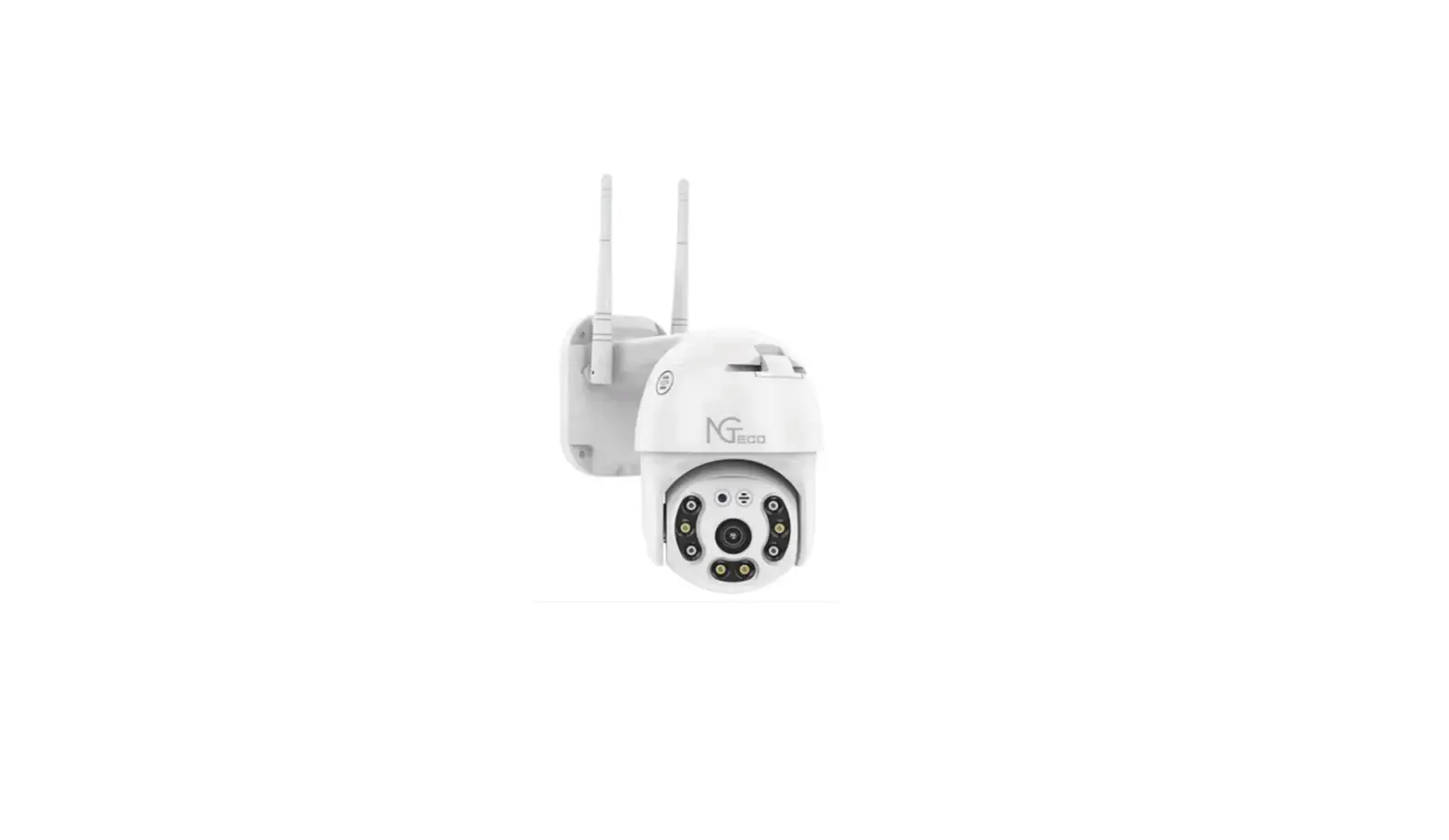
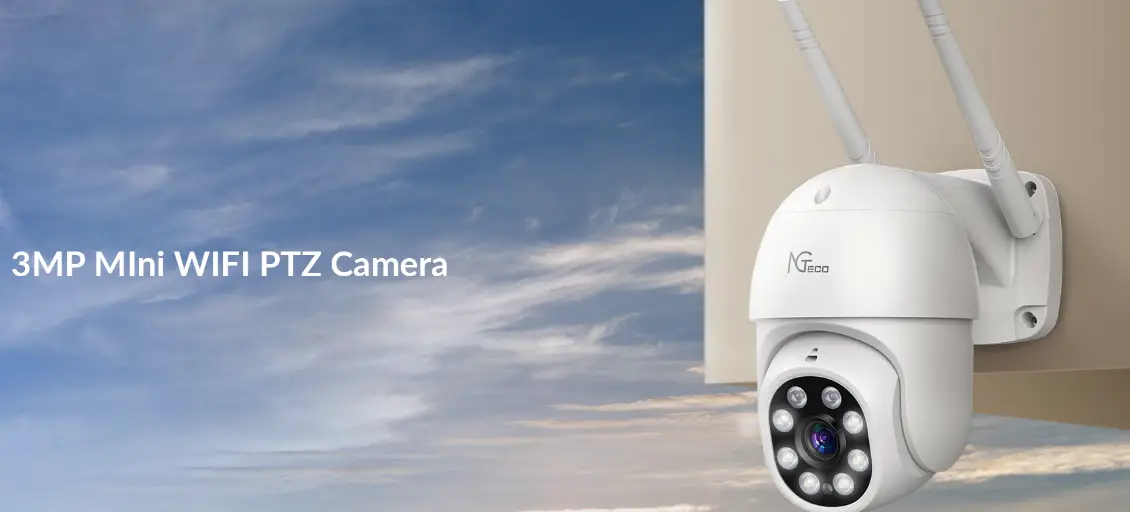
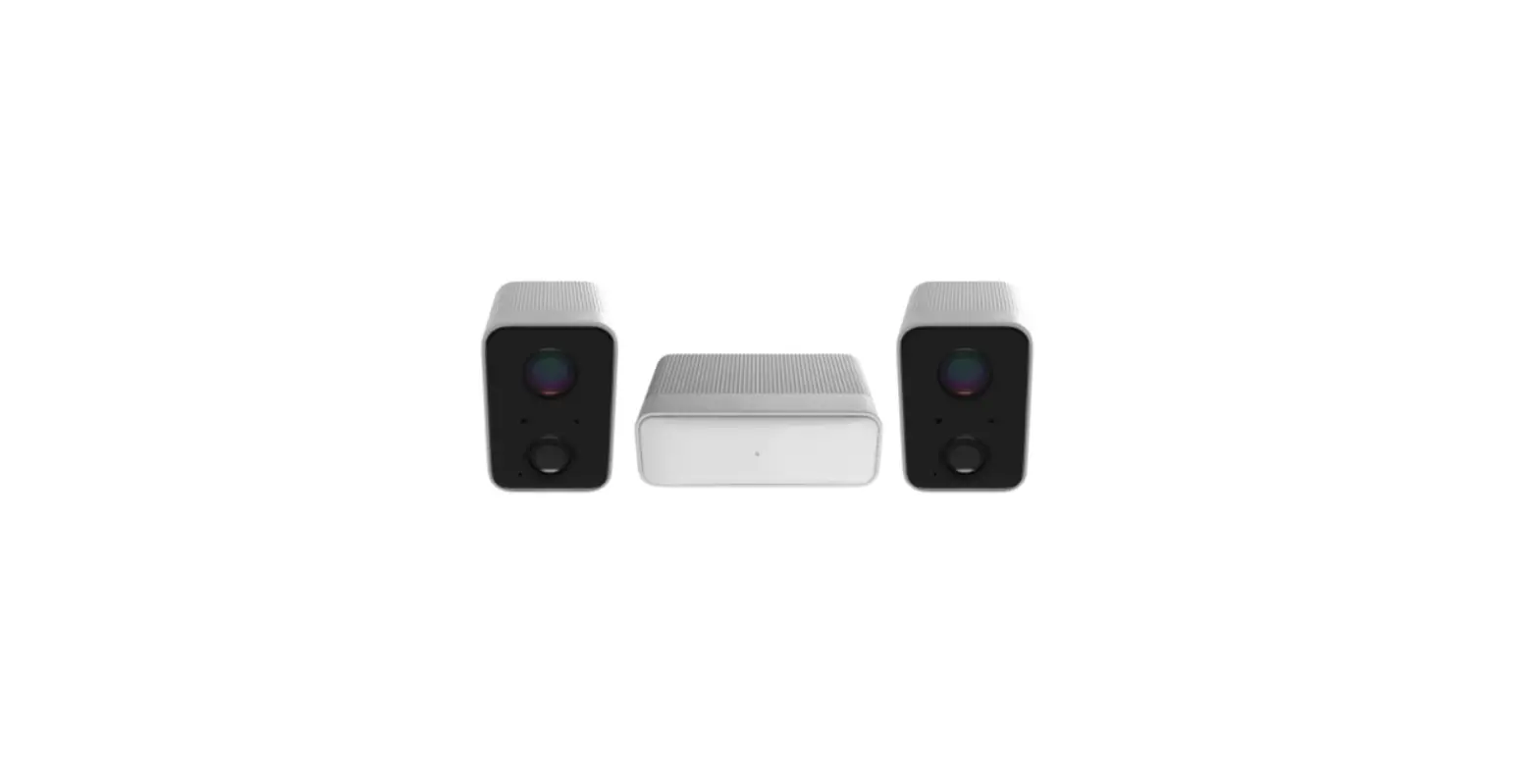
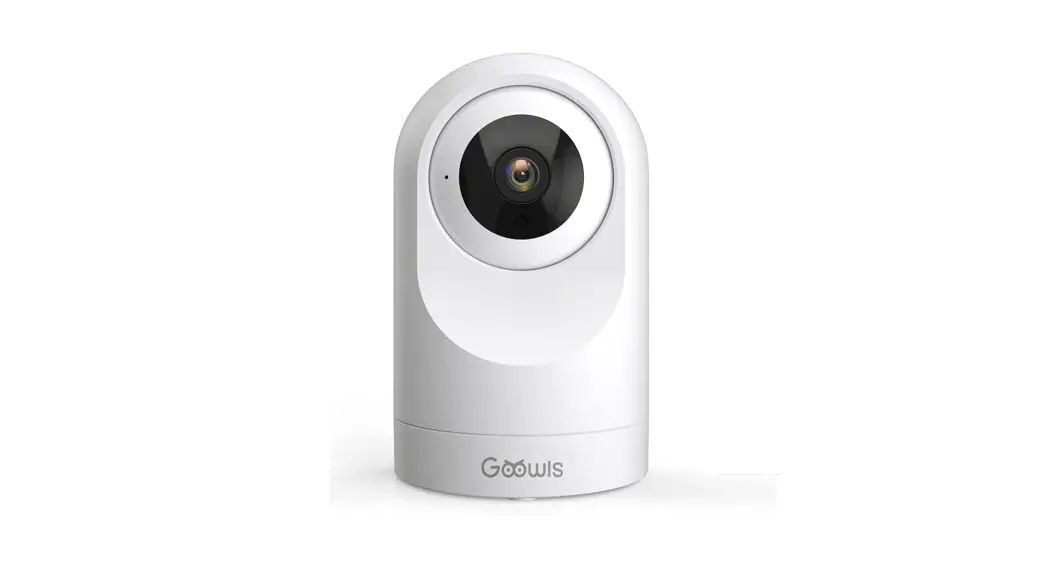
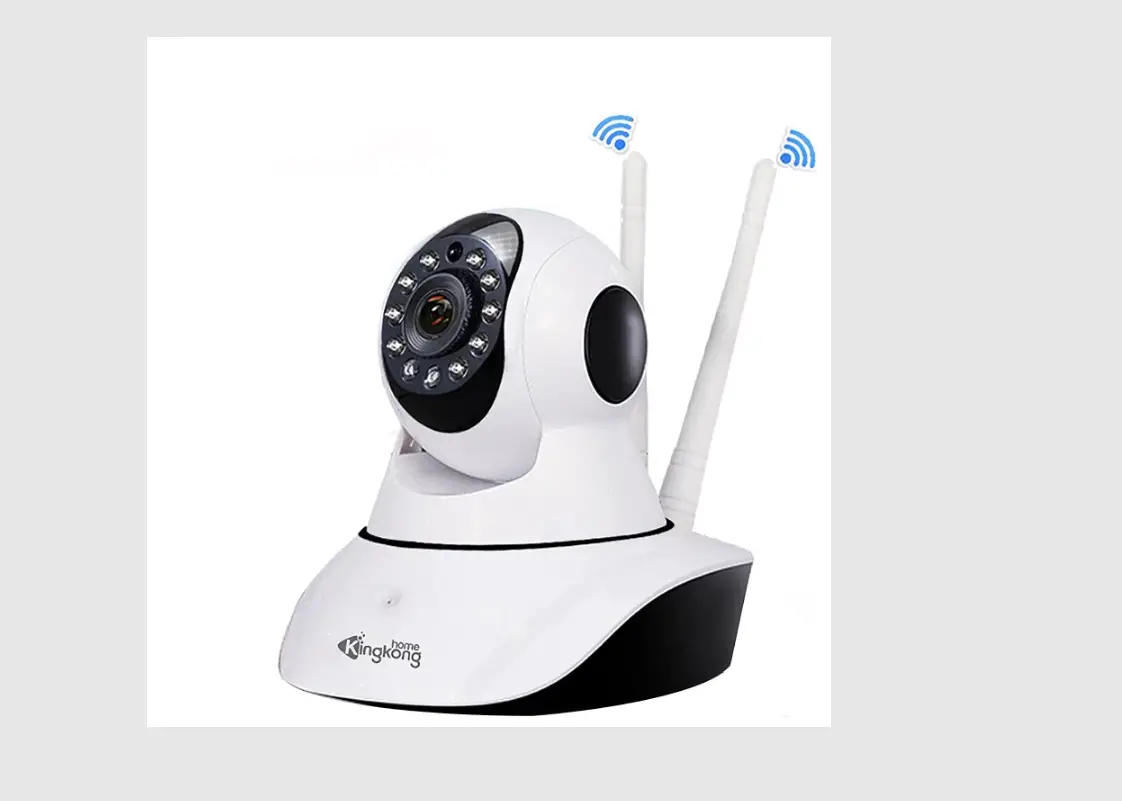
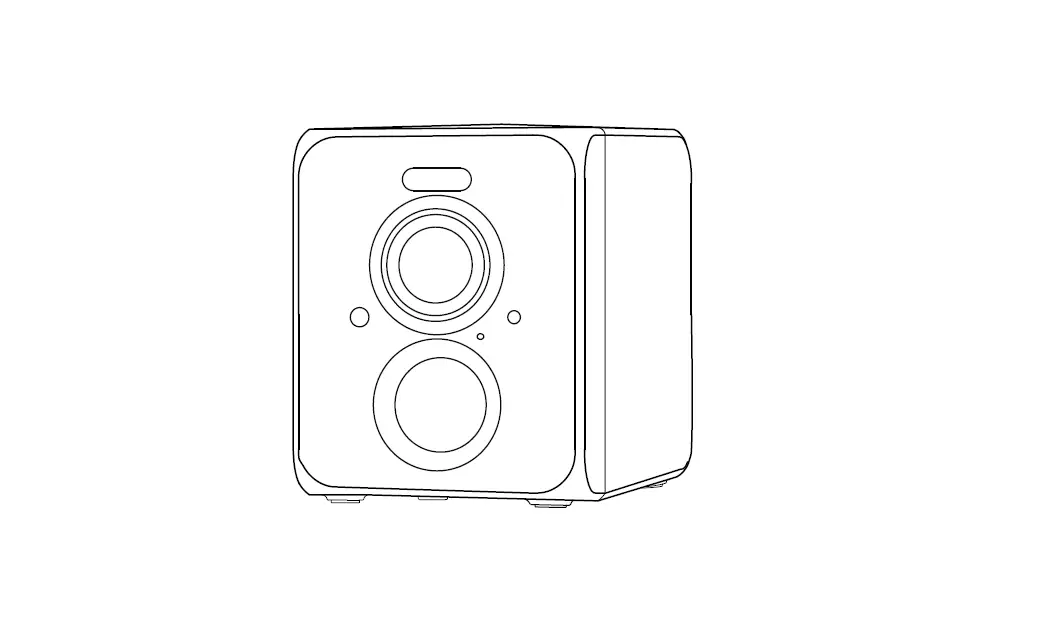
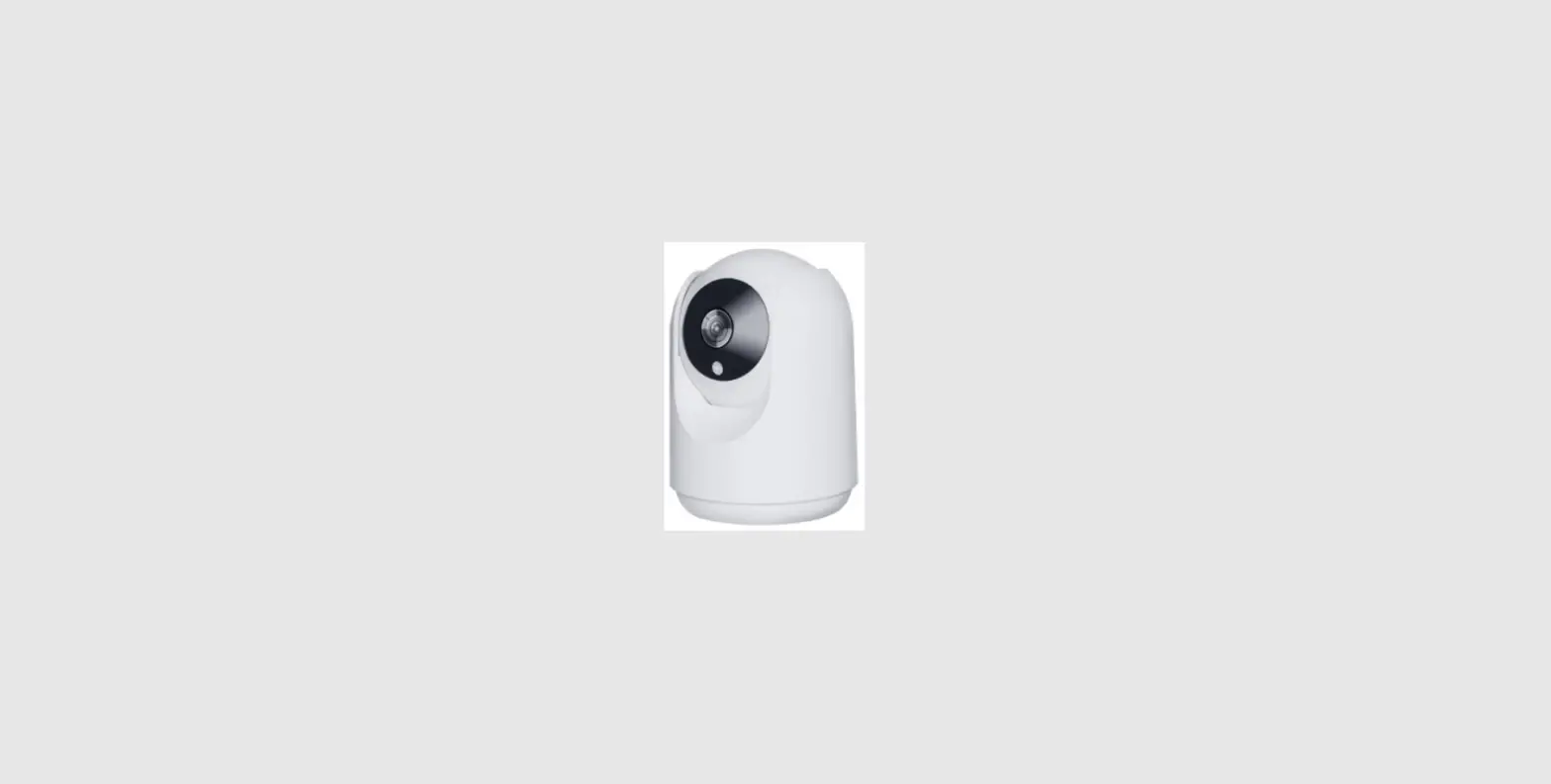
NG-C2200 Smart Camera
Product Information
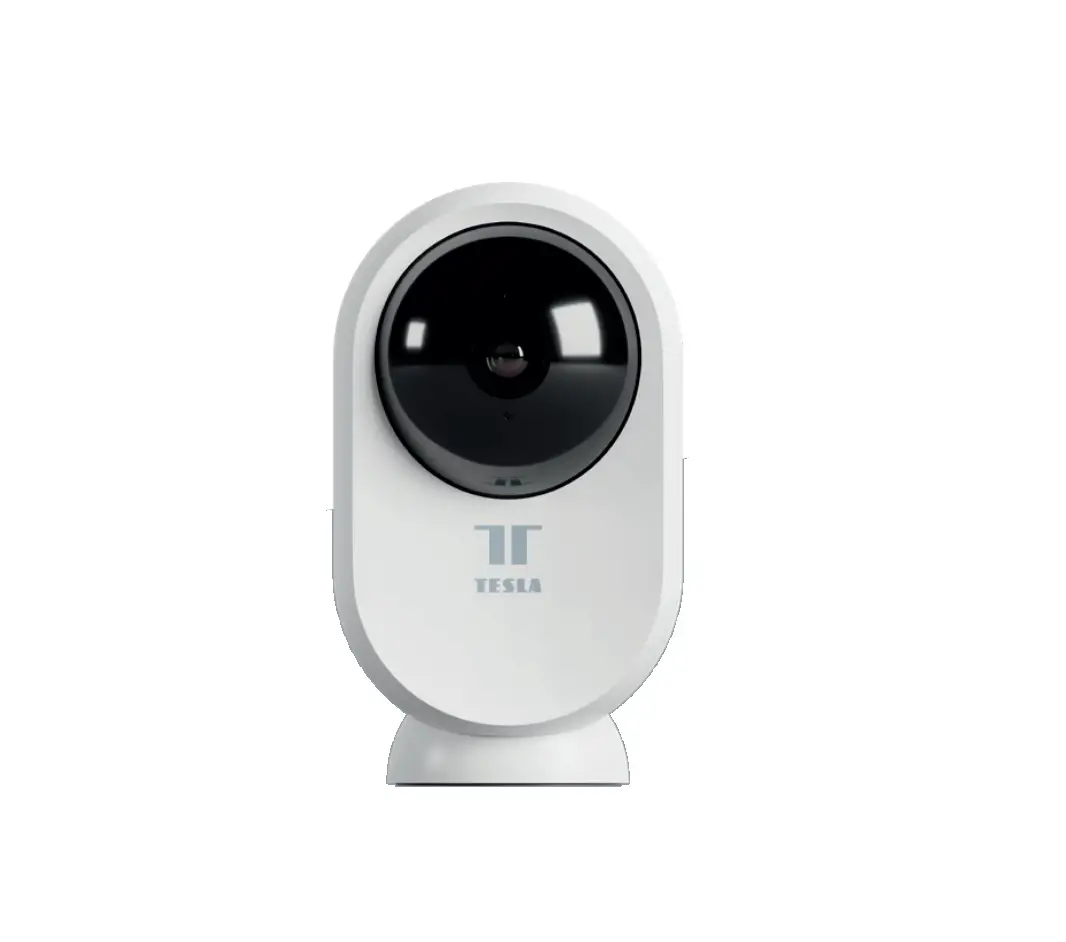
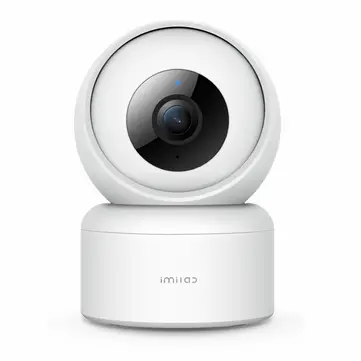
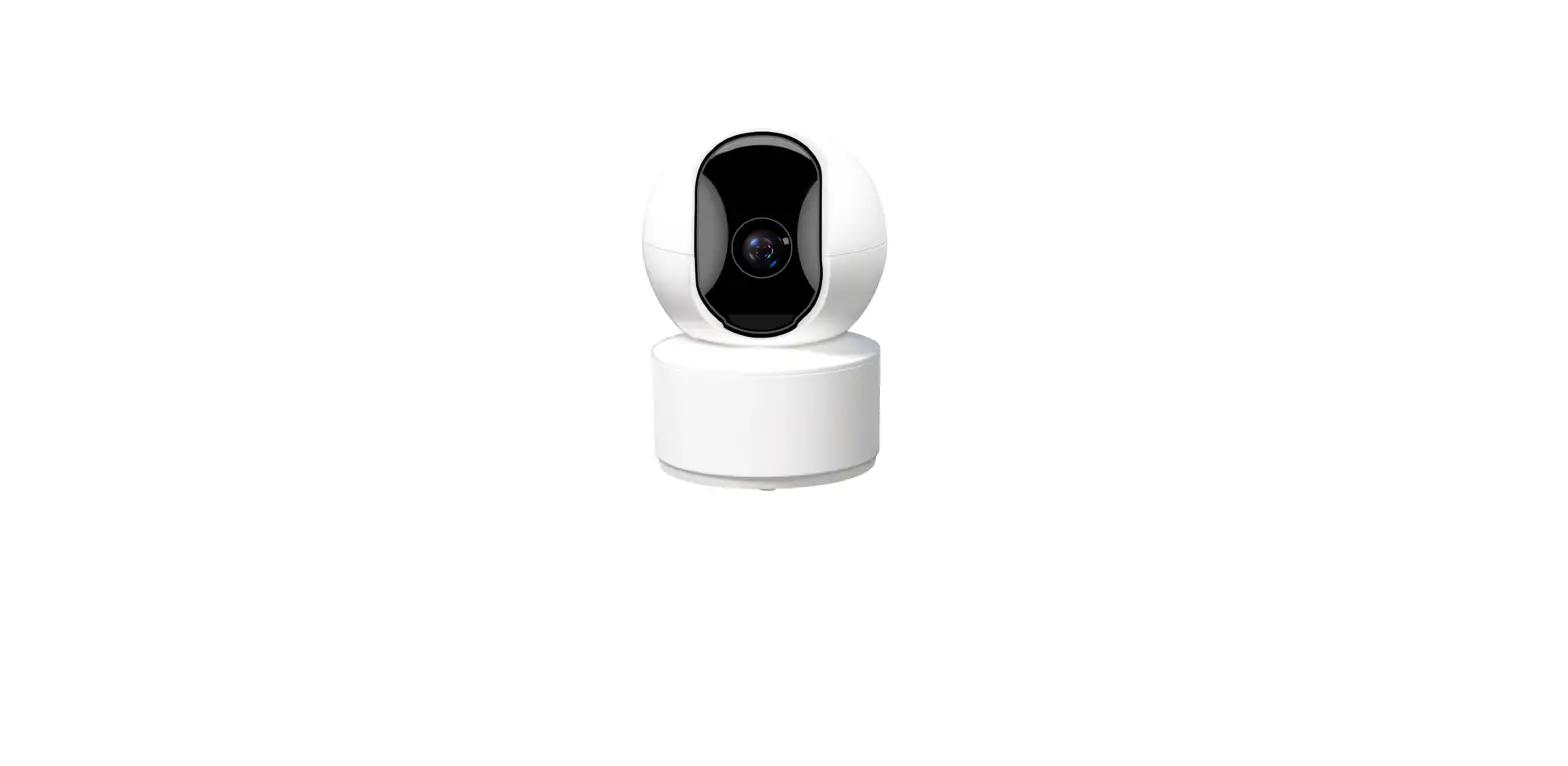
The NG-C2200 is a P&T camera that comes with a TFCard slot,
reset button, and can be connected to the NGTeco Home App. The
camera supports a 2.4GHz network and requires the router
broadcasting function to be enabled. The encryption method should
be set as WPA2-PSK, and the authorization type should be set as AES
or Auto. The device should be kept within a certain distance from
the router for better connectivity, and the signal value should be
kept above 70%.
What’s in the Box
- P&T Camera
- X3 Screw Sets
- Adapter
- Alignment Sticker 1
- Micro USB Cable
- User Manual
Product Usage Instructions
Connecting the Camera to NGTeco Home App
Step 1: Download the App and Register Your Account
Search for the NGTeco Home App in Apple App Store or Google Play
Store and download it to your mobile phone. Open the app and log in
with your account. If you do not have an account, create an account
with your phone number or Email ID.
Step 2: Power on the Camera
Plug the camera into the power socket using the provided power
adapter. Wait for a few seconds until you hear the prompt, and then
the red LED blinks rapidly. If you did not hear the prompt, press
and hold the Reset button until you hear the prompt and see the red
LED blink rapidly. Connect the camera to the app within three
minutes after reset.
Step 3: Add the Camera to the App
You are advised to enable Bluetooth to add Wi-Fi devices easily.
Place the camera close to the router.
Method 1: Connecting by Scanning the QR Code
- Open the app, tap the + button on the top right corner of the
interface, and then select the Smart Camera option and then choose
the corresponding model purchased. - Tick if you have finished the above steps on the interface, and
then tap the Next button. Select the desired Wi-Fi and enter the
correct password. Then tap the Next button. - Show the QR code towards the camera lens, and the camera will
scan the QR code. Once you hear the prompt and see the green LED
flashing. Tap the I Heard a Prompt button on your mobile, the App
will connect the camera automatically.
User Manual
Model: NG-C2200
Version: 1.0
Important Notes
1. Please make sure the device is connected to the power and your phone is connected with Wi-Fi.
2. Routers: If the router is a dual-band router the device does not support 5GHz network, please select a 2.4GHz network to add the device. You also need to enable the router broadcasting function.
3. Wireless Router: Set the encryption method as WPA2-PSK and authorization type as AES or set both as Auto. Please name the Wi-Fi router in English. To achieve better connectivity, please keep the device and router within a certain distance.
4. Check whether the devices connected to the router have achieved the maximum number. If so, please try to turn off the Wi-Fi connection of some devices.
5. Make sure the router wireless MAC filtering function is enabled. 6. Remove the device from the filter and make sure that the
router is not prohibiting the device from the connection. 7. Make sure the entered Wi-Fi password is correct when adding a
new device. 8. When the equipment is connected and working, try to keep
the signal value of the equipment above 70%. You can choose a good network broadband, branded routers, and a short connection distance, as far as possible barrier-free shielding. 9. Due to regular upgrades of systems and products, NGTeco could not guarantee exact consistency between the actual product and the written information in this manual. If you have any questions about using the product, please call our technical support number, Call: +1 (770) 800-2321 Mon-Fri: 6:00am-9:00pm (EST ).
Table of Contents
Product Overview……………………………………………………………..1 What’s in the Box………………………………………………………………1 How to Setup……………………………………………………………………2 Connecting the Camera to NGTeco Home App………………………………..2 Connecting the Camera to Amazon Alexa or Google Assistant……..7 Watching the Videos from PC……………………………………………..8 Installation Diagram…………………………………………………………8 Product Features………………………………………………………………9 Main Interface……………………………………………………………………………………….9 More Settings……………………………………………………………………………………..10
Product Overview
TFCard Slot
Reset Button
What’s in the Box
P&T Camera
X3 Screw Sets
Adapter
Alignment Sticker 1
Micro USB Cable
User M anual Model: NG-C2200 Version: 1.0
User Manual
How to Setup
Connecting the Camera to NGTeco Home App
Step 1: Download the App and Register Your Account Search the NGTeco Home App in Apple App Store or Google Play Store and download the app to your mobile phone. Open the NGTeco Home App and log in with your account. If you do not have an account, create an account with your phone number or Email ID.
Step 2: Power on the Camera Plug the camera into the power socket using the provided power adapter. Wait for a few seconds until you hear the prompt, and then the red LED blinks rapidly. Note: If you did not hear the prompt, please press and hold the “Reset” button until you hear the prompt and see the red LED blinks rapidly. Please connect the camera to the app within three minutes after reset. Step 3: Add the Camera to the App Note: 1. You are advised to enable Bluetooth. Enable Bluetooth to
Add Wi-Fi devices easily. 2. Place the camera close to the router. Method 1: Connecting by Scanning the QR Code 1 Open the app, tap the “+” button on the top right corner of the interface, and then select the “Smart Camera” option and then choose the corresponding model purchased.
2
2 Tick if you have finished the above steps on the interface, and then tap the “Next” button. Select the desired Wi-Fi and enter the correct password. Then tap the”Next”button.
3 Show the QR code towards the camera lens, and the camera will scan the QR code. Once you hear the prompt and see the green LED flashing. Tap the “I Heard a Prompt” button on your mobile, the App will connect the camera automatically. 3
Note: Please hold the phone about 15-20 cm (68 inches) away from the camera. You can slightly move your mobile device forward and backward for better scanning. 4 Once you see the message “Added successfully” on the mobile app, you can edit the name of the camera manually. Tap the “Done” button to complete the setup.
4
Method 2: Connecting by EZ Mode 1 Open the app, tap the “+” button on the top right corner of the
interface, and then select the “Smart Camera” option and then choose the corresponding model purchased.
2 Tap on the top right corner to change Net Pairing Mode to “EZ Mode”. Tick if you have finished the above steps on the interface, and then tap the”Next”button.
5
3 Enter the Wi-Fi password, click OK to enter the Wi-Fi quick connection network interface, then it will automatically search for the device.
4 Once you see the message “Added successfully” on the mobile app, you can edit the name of the camera manually. Tap the “Done” button to complete the setup.
Note: Make sure that the camera and the smart phone are close to the router.
6
Connecting the Camera to Amazon Alexa or Google Assistant
Tap the Settings button on the upper right corner of the device interface. Select the Amazon Echo or Google Home icon, then follow the on-screen instructions to link your NGTeco Home Account to Amazon Alexa or Google Assistant.
After completing the setup, you can use the supported voice commands that include:
Alexa, show the front door. OK Google, show the front door. Note: For renaming the linked camera or linking a new camera with Amazon Alexa or Google Assistant, please discover the device again.
7
Watching the Videos from PC
1 Visit https://ipc.ismartlife.me, then use NGTeco Home App to scan the QR code to login your account.
2 Click the corresponding device to watch the live videos.
Installation Diagram
After confirming the successful Wi-Fi connection and smooth live video, you can select the required position to mount the camera. The installation steps are as follows: 1 Drill four screw holes on the wall, then insert the plastic
expansion pipes into the holes; expansion pipes are necessary for walls that are made out of hard materials such as concrete, brick, or stucco. 2 Fix the base of the camera into the expansion pipes with the metal screws. 3 Adjust the viewing angle of the camera by checking the live video in the NGTeco Home App.
8
Product Features
Main Interface
Sound: Tap it and you won’t hear the sound from the camera. Image Quality: Switch the image quality between HD and SD. Fullscreen: Tap it to switch to the full screen. Screenshot: Capture a picture to the photo album in App. Speak: Tap it to talk to people in front of the camera. Record: Manually record a video to the photo album in App.
9
Playback: Watch the recorded videos in the Micro SD Card. *Cloud Storage: Review the videos saved to the cloud (requires paid subscription). Alarm: Review the recorded photos when detecting the motion. Gallery: Save the photos and videos from “Screenshot” and “Record”. Patrol: Able to move to the position you want to monitor regularly. Site: The position of the camera can be adjusted through the buttons on the screen.
More Settings
Privacy Mode: Enable or disable watching the live videos. Night Vision: Switch on/off the night vision mode or set it to Auto Mode. Motion Detection Settings:
Sensitivity: The level can be set to High/Medium/Low modes as your need. Offline Noti cation: Enable to receive the offline push message of the camera. Remove Device: Remember to REMOVE the device from the current account when changing the owner of the camera.
10
Warning:
This device complies with Part 15 of the FCC Rules. Operation is subject to the following two conditions: (1) This device may not cause harmful interference, and (2) this device must accept any interference received, including interference that may cause undesired operation.
This equipment has been tested and found to comply with the limits for a Class B digital device, pursuant to Part 15 of the FCC Rules. These limits are designed to provide reasonable protection against harmful interference in a residential installation. This equipment generates, uses, and can radiate radio frequency energy and, if not installed and used in accordance with the instructions, may cause harmful interference to radio communications. However, there is no guarantee that interference will not occur in a particular installation. If this equipment does cause harmful interference to radio or television reception, which can be determined by turning the equipment off and on, the user is encouraged to try to correct the interference by one or more of the following measures:
Reorient or relocate the receiving antenna.
Increase the separation between the equipment and receiver.
Connect the equipment into an outlet on a circuit different from that to which the receiver is connected.
Consult the dealer or an experienced radio/TV technician for help.
IMPORTANT! Any changes or modifications not expressly approved by the party responsible for compliance could void the user’s authority to operate the equipment.
1600 Union Hill Road Alpharetta, GA 30005 Tel: +1 (770) 800-2321 E-mail: [email protected] www.ngteco.com
Copyright©2021 NGTECO CO., LIMITED. All rights reserved.
 NGTECO
 ipc.ismartlife.me/,