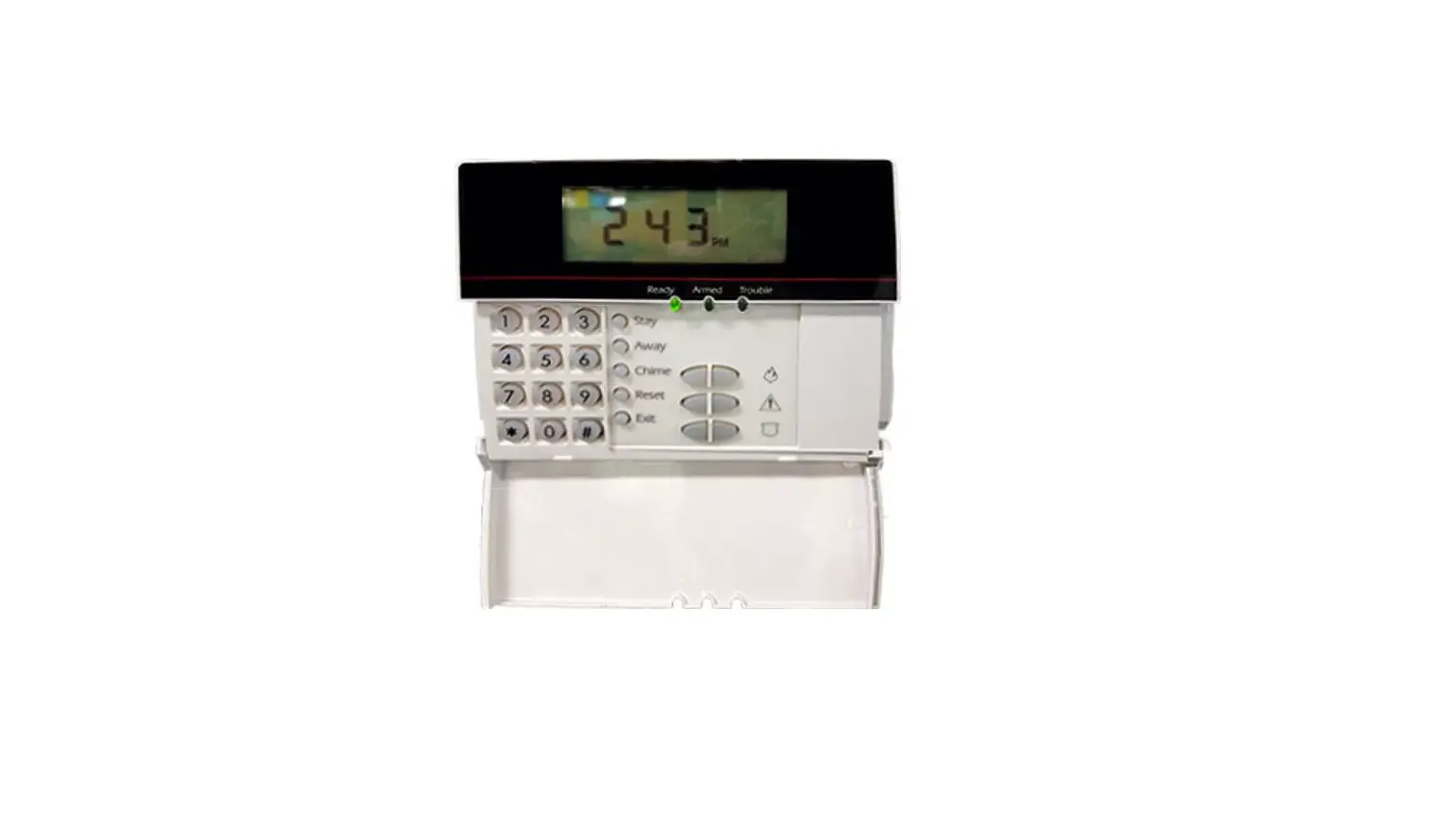
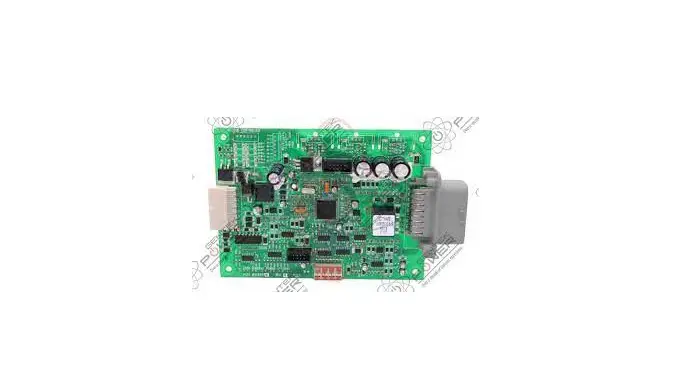
DMP LT-2742 XR Control Panel User Manual
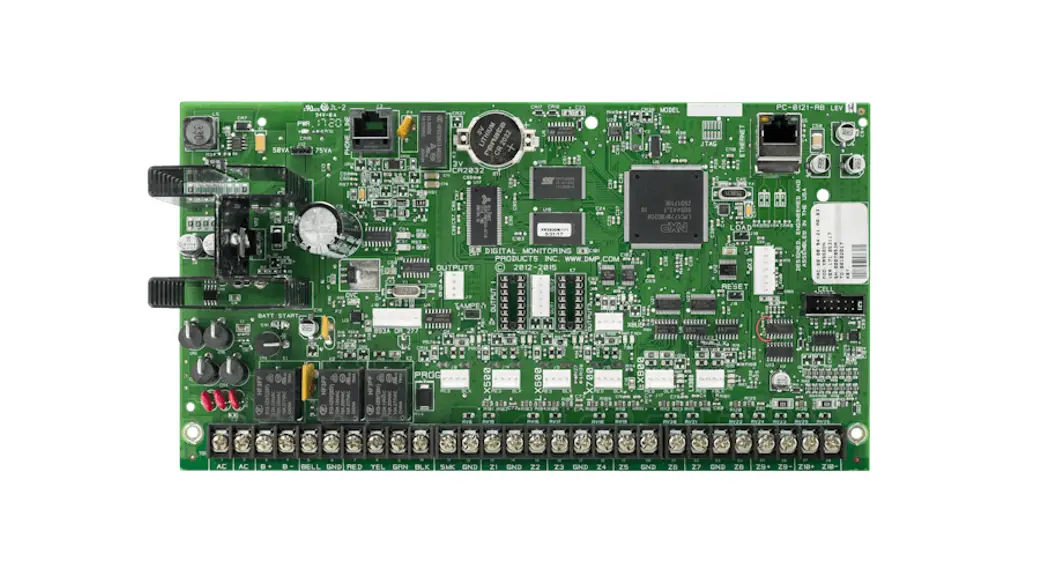
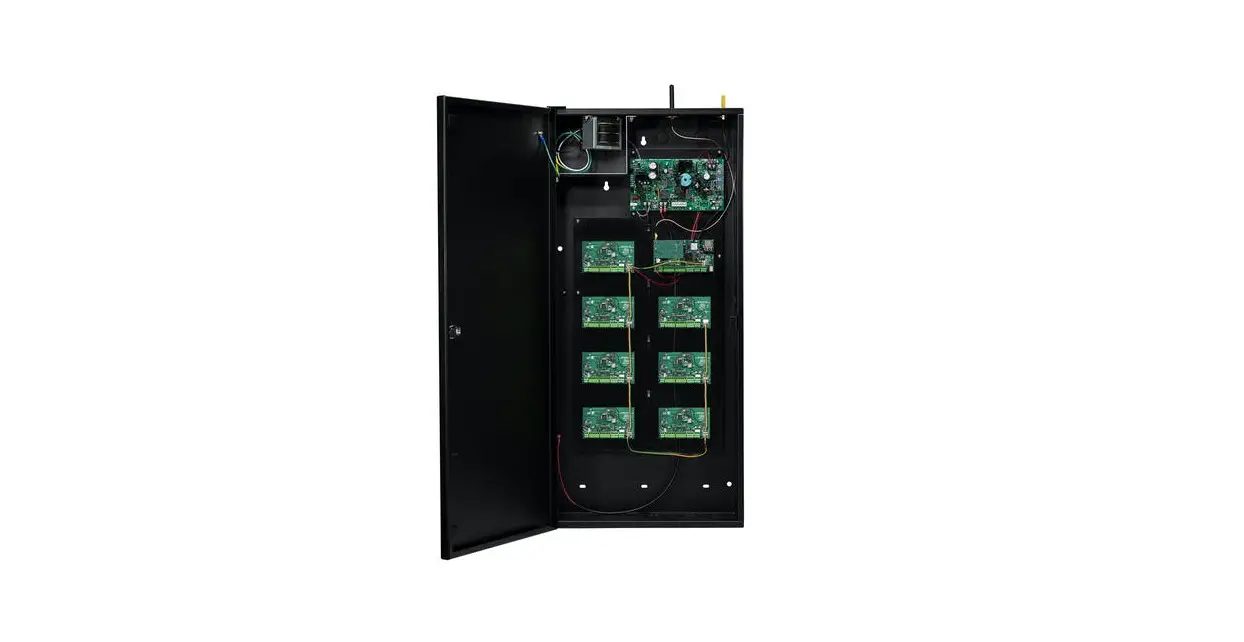
IDENTIFY PANEL COMPONENTS
1. Identify the following panel components using the panels in front of you, or the on-screen photo of the XR.
- Reset header
- Programming header
- Outputs
- AC Power terminals
- Cellular pins
- 1100 Series receiver connection
- On-board zone terminals
- Network connection
- EXP header
POWER UP THE CONTROL PANEL
- Connect AC power to terminals 1 & 2
Transformer type: 16.5VAC 50VA - Connect battery backup to terminals 3 & 4
- Connect alarm bell to terminals 5 & 6
Normal 12VDC is supplied to terminal 5, terminal 6 is ground reference
1/2 W 1K Ohm resistor should be added across the bell circuit for supervision
ENTER PANEL PROGRAMMER
- Reset the panel using the RESET JUMPER
- Enter 6653 (PROG) and press CMD
- Press CMD to navigate through the panel programmer menus:
• Initialization
• Communication
• Network Options
• Device Setup
• Remote Options
• System Reports
• System Options
• Bell Options
• Output Options
• Output Information
• Output Groups
• Status List
• Menu Display
• PC Log Reports • Area Information
• Zone Information
• Stop
• Set Lockout Code
• Feature Upgrade
ADJUST COMMUNICATION TYPE
- Navigate to COMMUNICATION and press a top-row select area
- Press a top-row select area to clear the default ACCOUNT NUMBER
- Enter in an ACCOUNT NUMBER
- Press CMD to navigate to PATH
- Press 1 to program PATH 1
- Press a top-row select area to display the COMMUNICATION types
- Select NET
- Press CMD to navigate to CHECKIN
- Press a top-row select area and select YES
- Press a top-row select area and enter your CHECKIN MINS
- Press a top-row select area and enter your FAIL MINS
- Press CMD to navigate to RECEIVER IP
- Press a top-row select area and enter in the DMP Tech Support receiver IP Address
ê 209.248.148.051 (Port 2001) - Press CMD to navigate to PATH
- Press 2 to program PATH 2
- Press a top-row select area to display the
COMMUNICATION TYPES - Select CELL
- Press CMD to navigate to CHECKIN
- Press a top-row select area and select YES
- Press a top-row select area and enter your CHECKIN MINS
- Press a top-row select area and enter your FAIL MINS
- Press CMD to navigate to RECEIVER IP
- Press a top-row select area and enter in the DMP Tech Support receiver IP Address
ê 209.248.148.051 (Port 2001) - Press CMD to navigate to ADVANCED
- Press the fourth top-row select area
- Press CMD to navigate to SUB CODE
- Press a top-row select area and select YES
- Press CMD to exit COMMUNICATION
ADD AN ANNUNCIATOR
- Navigate to DEVICE SETUP and press a top-row select area
- Enter a DEVICE NUMBER and press CMD
The valid range for an XR150 panel is 1-8, XR550 is 1-16 - Press a top-row select area and enter a DEVICE NAME
- Press CMD to confirm the DEVICE TYPE
- Press CMD to exit DEVICE SETUP
ADJUST AN ANNUNCIATOR ADDRESS
- Press and hold the BACK ARROW and CMD for 2 seconds
- Enter 3577 (INST) and CMD
- Select KEYPAD OPTIONS (KPD OPT)
- Press a top-row select area or key to change the keypad address
- Press CMD to exit KEYPAD OPTIONS
- Select STOP to save keypad programming
CONFIGURE SYSTEM OPTIONS
- Navigate to SYSTEM OPTIONS and press a top-row select area
- Press CMD to navigate to HOURS FROM GMT
- Press a top-row select area, enter in the hours from GMT for your location and press CMD
- Using CMD, navigate to HOUSE CODE
- Press a top-row select area and enter a house code from 1-50 and press CMD
- Press CMD to navigate to SEND 16 CHAR NAMES
- Press the third top-row select area to select NO
- Press CMD to exit SYSTEM OPTIONS
ADD AN AREA
- Navigate to AREA INFORMATION and press a toprow select area
- Press CMD to navigate to AREA NO
- Enter an AREA NUMBER and press CMD
- Press a top-row select area to clear any text and enter in FIRE
- Exit AREA INFORMATION and navigate to STOP to save changes
ADD A WIRELESS FIRE ZONE
Dealer Admin
6. Select the CUSTOMERS tab on the side menu
7. Select a SYSTEM to open the System Information page for that system
8. Select PROGRAMMING
9. Select ZONE INFORMATION
10. Select ADD ZONE
11. Enter a ZONE NUMBER and ZONE NAME
ê Valid wireless zone numbers are 500-599 on an XR150 and 500-999 on an XR550
12. Select the Zone Type drop-down menu and select FIRE
13. Toggle on DMP WIRELESS
14. Enter a SERIAL NUMBER
15. Select SEND ALL CHANGES
Keypad
- Reset the panel using the RESET JUMPER
- Enter 6653 (PROG) and press CMD
- Press CMD to navigate to Zone Information and press a top-row select key
- Enter a ZONE NUMBER and press CMD
ê Valid wireless zone numbers are 500-599 on an XR150 and 500-999 on an XR550 - Press a top-row select key and enter a ZONE NAME
- Press a top-row select key and select FI (FIRE)
- Press a top-row select key and enter the FIRE BELL OUTPUT
- At the NEXT ZONE? NO YES prompt, select NO to program a wireless zone
- At the DMP WIRELESS? NO YES prompt, select YES and press CMD
- Enter a SERIAL NUMBER and press CMD to navigate to the NEXT ZONE? NO YES prompt
- Navigate to STOP to save programming
ADD A WIRED FIRE ZONE
Dealer Admin
- Select the CUSTOMERS tab on the side menu
- Select a SYSTEM to open the System Information page for that system
- Select PROGRAMMING
- Select ZONE INFORMATION
- Select ADD ZONE
- Enter a ZONE NUMBER and ZONE NAME
ê Valid wireless zone numbers are 500-599 on an XR150 and 500-999 on an XR550 - Select the Zone Type drop-down menu and select FIRE
- Select SEND ALL CHANGES
Keypad
- Reset the panel using the RESET JUMPER
- Enter 6653 (PROG) and press CMD
- Press CMD to navigate to Zone Information and press a top-row select key
- Enter a ZONE NUMBER and press CMD
- Press a top-row select key and enter a ZONE NAME
- Press a top-row select key and select FI (FIRE)
Press a top-row select key and enter the FIRE BELL OUTPUT - At the NEXT ZONE? NO YES prompt, select YES
- Navigate to STOP to save programming
STANDARD WALK TEST
- At the keypad, enter 8144 (WALK) to enter the WALK TEST menu
- Select STD to begin the standard walk test
- Trip wired and wireless zones to complete the standard walk test
WIRELESS CHECK-IN TEST
- At the keypad, enter 8144 (WALK)
- Select WLS to begin the wireless check-in test
FIRE DRILL
- Enter the USER MENU and navigate to the FIRE DRILL? NO YES prompt
- Press a top-row select key to display the SURE? YES NO prompt
- Press the top-row select key underneath YES to start the fire drill
- To end the fire drill either:
• Enter your USER CODE and press CMD
• Enter the USER MENU and navigate to the
ALARM SILENCE? prompt and press a top-row select key
- At the keypad, enter 2313 (DIAG) to enter the DIAGNOSTIC MENU
- Press CMD until the keypad displays COMM STATUS and press a top row select area
- Press 1 to test COMMUNICATION PATH 1
- When the signal strength is displayed, select YES to continue the test
• Cellular Communcation Only - Press CMD and select STOP to exit the DIAGNOSTIC MENU
CREATE A PROFILE
- At the keypad, press CMD until the USER MENU? prompt displays
- Select YES and enter 99+CMD to enter the USER MENU
- Using CMD, navigate to PROFILES? and press a toprow select area
- Select ADD and enter 11 to create Profile 11
- Press a top row area to name the profile ACCESS
- Assign ARM/DISARM AREA 2 and press CMD
- Assign ACCESS AREA 2 and press CMD
- Press CMD until DISARM? displays and select YES
- Navigate to DOOR ACCESS and confirm it is set to YES
- Navigate to FIRST ACCESS SCHEDULE and press the third select area to enter the schedule number
for the access schedule - LIST will show the schedule names
- Press CMD until PROFILE 11 ADDED is displayed
- Create another profile named MANAGEMENT using Profile 12
The instructor will provide settings for this profile
ADD A USER CODE WITH PIN
14. Enter the USER MENU and navigate to the USER CODES? prompt
15. Press a top-row select area to add a USER CODE
16. Select ADD
17. Select the USER NUMBER and press CMD
• The fourth top row select area will display the lowest available user number
18. Enter in a 5-digit user code and press CMD
19. Press a top-row select area to add a USER NAME and press CMD
20. Press a top row select area enter 12 to assign PROFILE 12 to this user
• LIST will display the profile names
21. Press CMD until USER ADDED displays
PROGRAM A RELAY
- Remove all power from the panel
- Plug a MODEL 305 relay into the socket for OUTPUT 1
ê Make sure the relay is oriented correctly - Connect the MODEL 431 harness to the header between the output sockets
- Connect the POSITIVE leg of the LED to the RED terminal on the panel
- Connect the other leg of the LED to the second ORANGE wire on the harness
- Connect the second GRAY wire to the BLACK terminal on the panel
- Power the panel back up
- Enter the Programmer by entering 6653 (PROG) at the keypad
- Navigate to ZONE INFORMATION and press a toprow select area
- Navigate to settings for ZONE 1
- Program ZONE 1 as a NIGHT type zone in AREA 1
- At the NEXT ZN? prompt, select NO
- Navigate to DISARMED SHORT and press CMD until OUTPUT NO is displayed
- Press a select area to set the output to 1.
- Set the output action to FOLLOW
- Navigate to STOP to save changes and exit the Programmer
- Press the button to trip ZONE 1.
• Notice the output state follows the zone state.
QUESTIONS
What else would you like to learn about Fire?
NOTES:
Read More About This Manual & Download PDF: