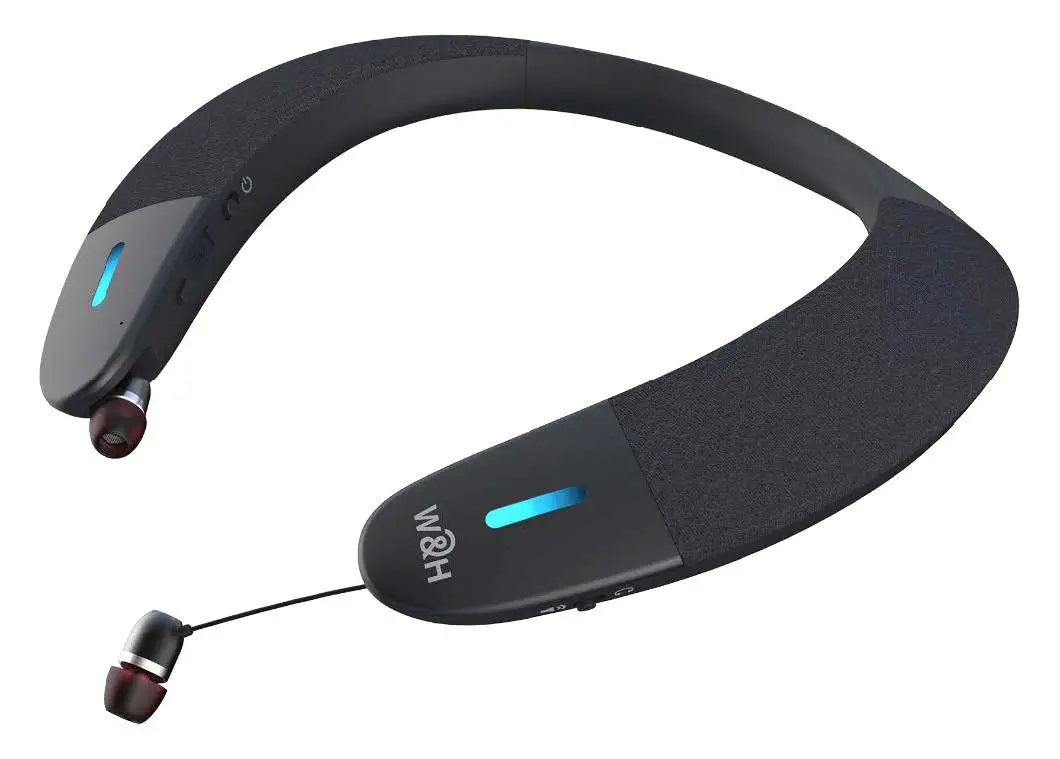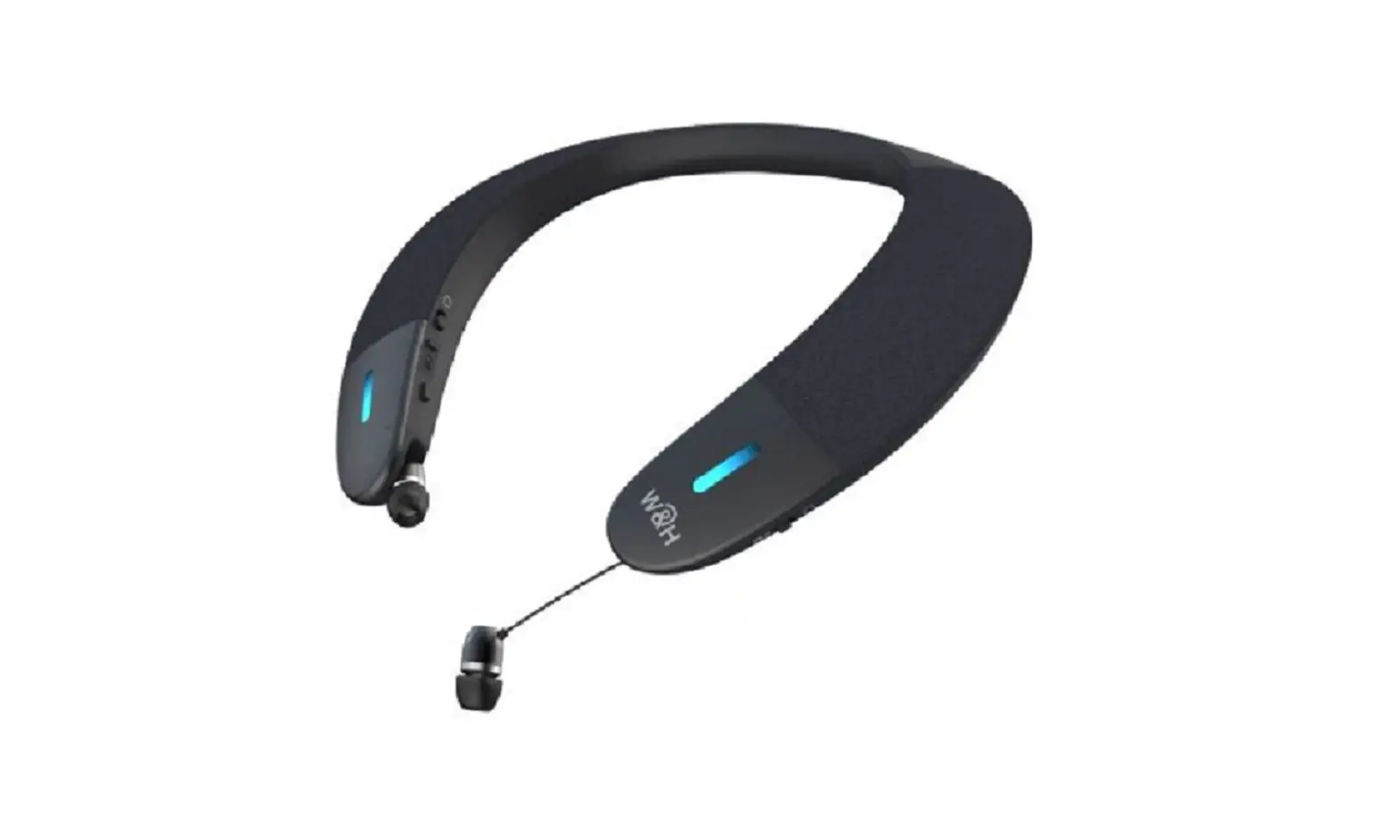
BeHear PROXY ABH-130 User Guide
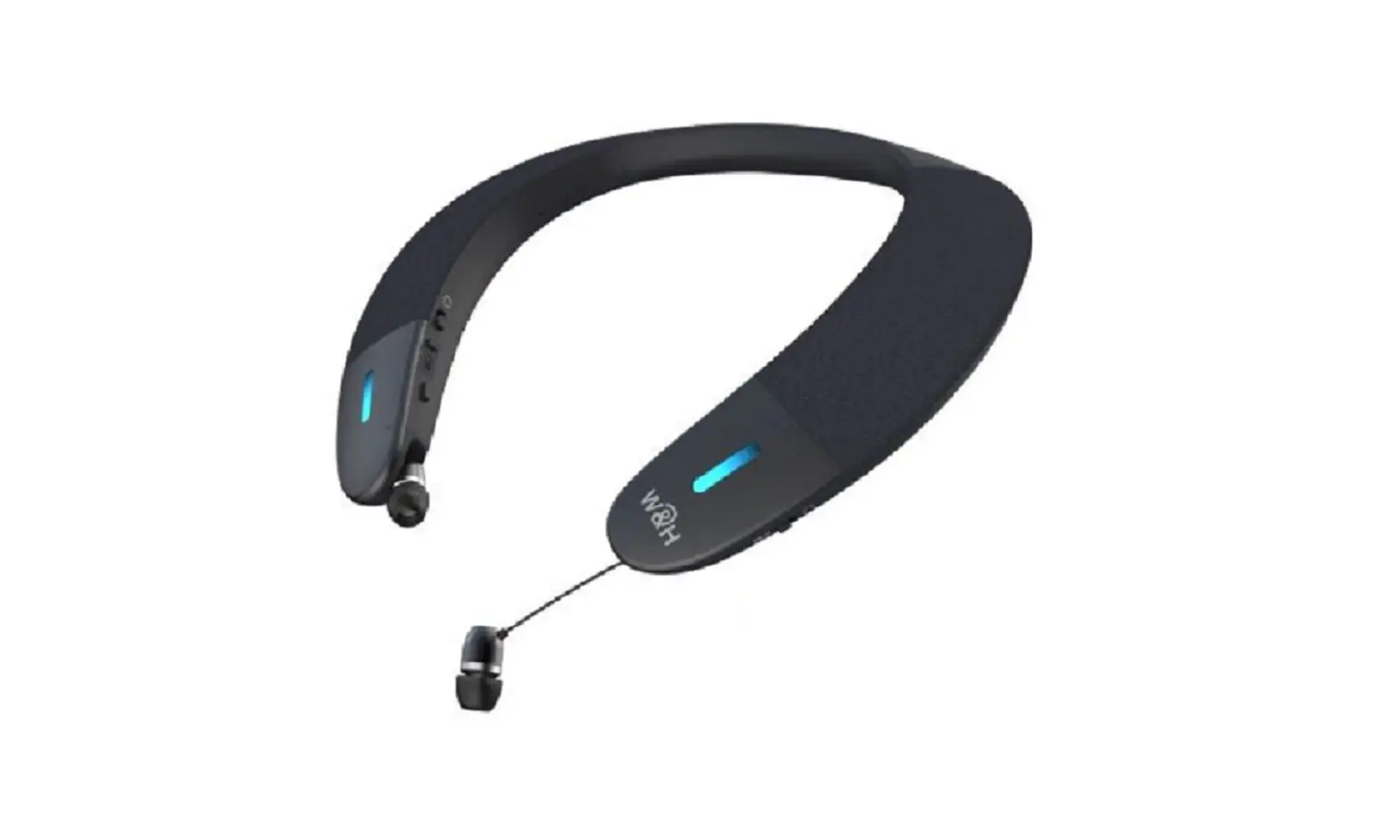
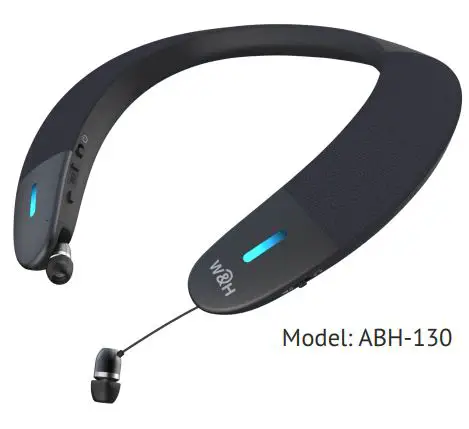
Neck Speaker & Personal Hearing Amplifier
Place BeHear PROXY on your shoulders and enjoy a rich, clear, and comfortable listening experience for:
- Television
- Streamed music
- Mobile calls
- Gaming
Use its extractable earphones for privacy and personalized hearing amplification.
Getting Started
What’s in the Box?
Neck Speaker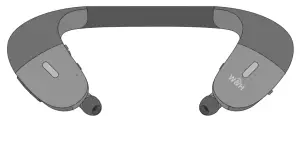
Charging cable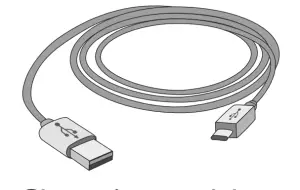
Ear bud pairs (variety of types and sizes)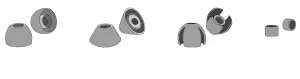
2 Turn ON BeHear PROXY
Shift the power button up and hold it until the unit vibrates and the LED turns light blue. A voice prompt will be played. To turn BeHear PROXY OFF repeat this action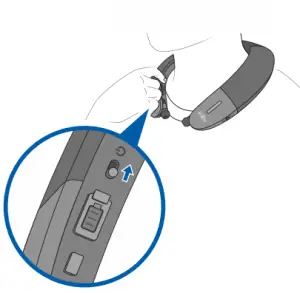
Verify that the mode switch is set to Speakerphone position.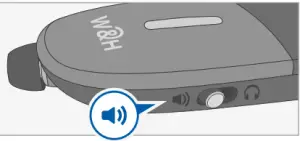
Connect to Bluetooth Device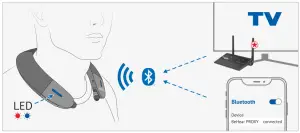
First Time Connection
- Turn BeHear PROXY ON and ensure the LED blinks in alternating red and blue.
- Choose “BeHear PROXY” in the smartphone’s list of available Bluetooth devices.
For connecting to other devices, such as a TV set, audio transmitter, etc., please refer to their respective manuals.
Subsequent Connections - Turn OFF BeHear PROXY.
- Shift its power switch up and hold it until the LED blinks in alternating red and blue.
Place on Your Shoulders
Put the BeHear PROXY neck band around your neck. The hard plastic tips should rest on either side of your chest and the fabric covers of the speakers should face up, just below your ears.
Listen and Talk with BeHear PROXY
Watching Television

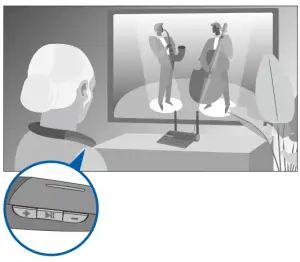
Connect BeHear PROXY to your TV set and manage the audio from the right hand side of the neck speaker Short press to mute/unmute the sound.
 Increase the volume.
 Decrease the volume.
Mobile Calls
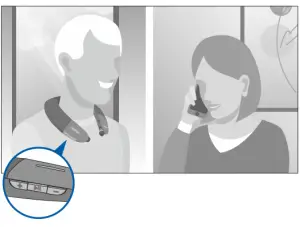
Connect BeHear PROXY to your smartphone and handle calls from the right-hand side of the neck speaker.Short press to accept an incoming call
Short press to end the active call.
Long press to reject an incoming call.
Double press to redial last number
Music / Gaming / Video Calls

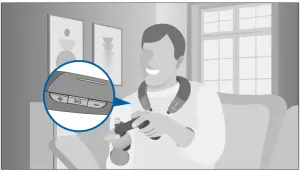
Connect BeHear PROXY to your smartphone, music player, game console, laptop, or other audio streaming device and manage audio play from the right-hand side of the neck speaker.
Short press to toggle Play/Pause audio.Short press to increase the volume.
Press and hold to advance to the next audio track.Short press to decrease the volume.
Press and hold to return to the previous audio track
Privacy Mode
Handle phone calls and listen to music privately with your BeHear PROXY by using the extractable earphones housed in the neck speaker.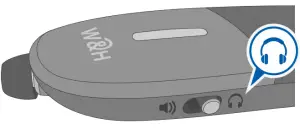
Switch the Mode
Set the mode switch to “Earphones”.
Extract the Earphones
Pull the earphones gently to extract the cables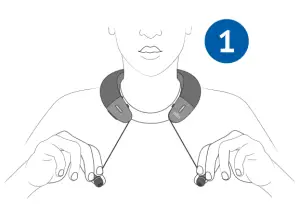
Insert the earphones into your ears.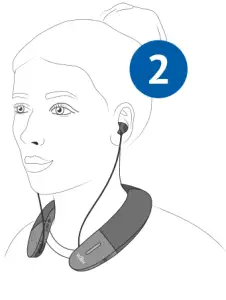
Press the buttons to retract the cables, or to adjust their length.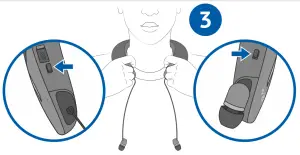
Choose Earbuds
Experiment to find the buds that fit your ears most comfortably for continuous wear.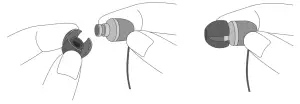
Smartphone Application
Personalize, manage, and get help for your BeHear PROXY neck speaker with the free W&H BeHear smartphone application
Download the App



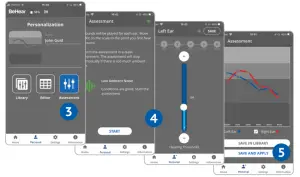
Personalize What You Hear
Adjust the acoustic performance of the neck speaker to suit your own hearing preferences.
- Set the mode switch to “Earphones”.


- Put on the neck speaker, inserting the ear buds.

- Choose Personal >> Assessment in the W&H BeHear app.
- Follow the prompts to perform the hearing assessment.
- Save and apply the results to the neck speaker

Manage Your BeHear PROXY
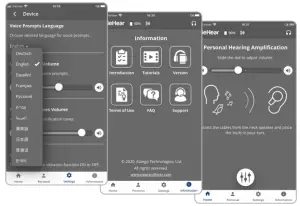
Assistive Listening Functions
For Mobile Calls

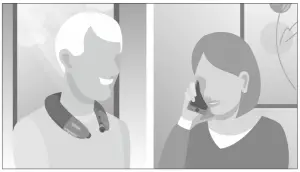
Improve intelligibility during a mobile call by slowing down incoming speech using EasyListen™.
Press and hold briefly to slow down the speech.Press and hold briefly to return to the normal speech tempo
In Privacy and Speakerphone modes 
For Private Listening
To stay aware of important world sounds and nearby conversation activate the Listen Through™ function. Ambient sounds pass to your ears even when the earphones are inserted.
Press and hold briefly to turn ambient sounds ON/OFF.
To enable this function, go to Settings >> Device menu in the W&H BeHear app.
For Live Conversations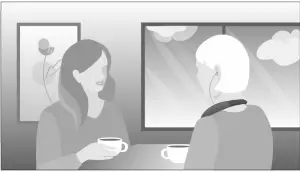
- Amplify and clarify nearby conversations.
- Use the most comfortable ear buds.
- Match amplification level to suit your own hearing profile.
Press and hold briefly to turn sound amplification ON/OFF. To enable this function, go to Settings >> Device menu in the W&H BeHear app.Increase the volume.Decrease the volume.
Device Overview
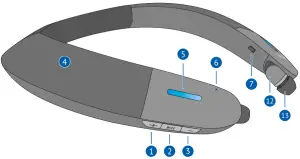
- Volume up
- Multifunction button
- Volume down
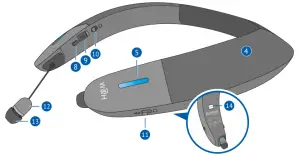
- Loudspeakers (left & right)
- Notification LED (left & right)
- Microphone
- Left retract button

- Right retract button
- Micro USB charging port
- Power ON/OFF switch
- Mode switch
- Extractable earphones (left & right)
- Silicone earbuds (left & right)
- Serial number label
LED Indication
Light blue (1s flash) Neck speaker is powered ON/OFF (toggle)
Purple, blinking Assistive function active
Red/blue alternating Bluetooth pairing mode
Red, blinking Disconnected from paired Bluetooth device, or battery low
Red, steady Charging
Green, steady Battery fully charged
To check battery level, briefly press power button when the unit is turned on:
Green Good > 50%
Yellow Fair > 10% and < 50%
Red, blinking Low < 10%
Charging the Battery
Charge the neck speaker directly from a wall outlet or computer USB port.
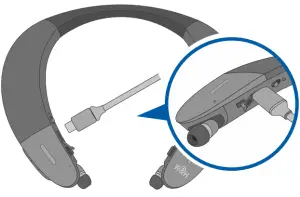
The LED indicator is red during charging and turns green when the neck speaker is fully charged. Full charging takes up to 3 hours.
Troubleshooting
No sound Verify battery is charged.
Adjust volume level.
Check ear caps for debris
Ear buds are uncomfortable
Experiment with different silicone ear tips.
Phone calls and/or music not routed
Verify Bluetooth pairing
Bluetooth disconnects often
Verify that you are not more than 10 meters (30 feet) from the Bluetooth device.
Hearing interruptions
Silence phone tones (alerts, notification sounds, key taps, etc.).
Unexpected behavior
Reset the neck speaker by connecting it to the charger.

 Listening Enhancement Solutions » Life Sounds Better with BeHear