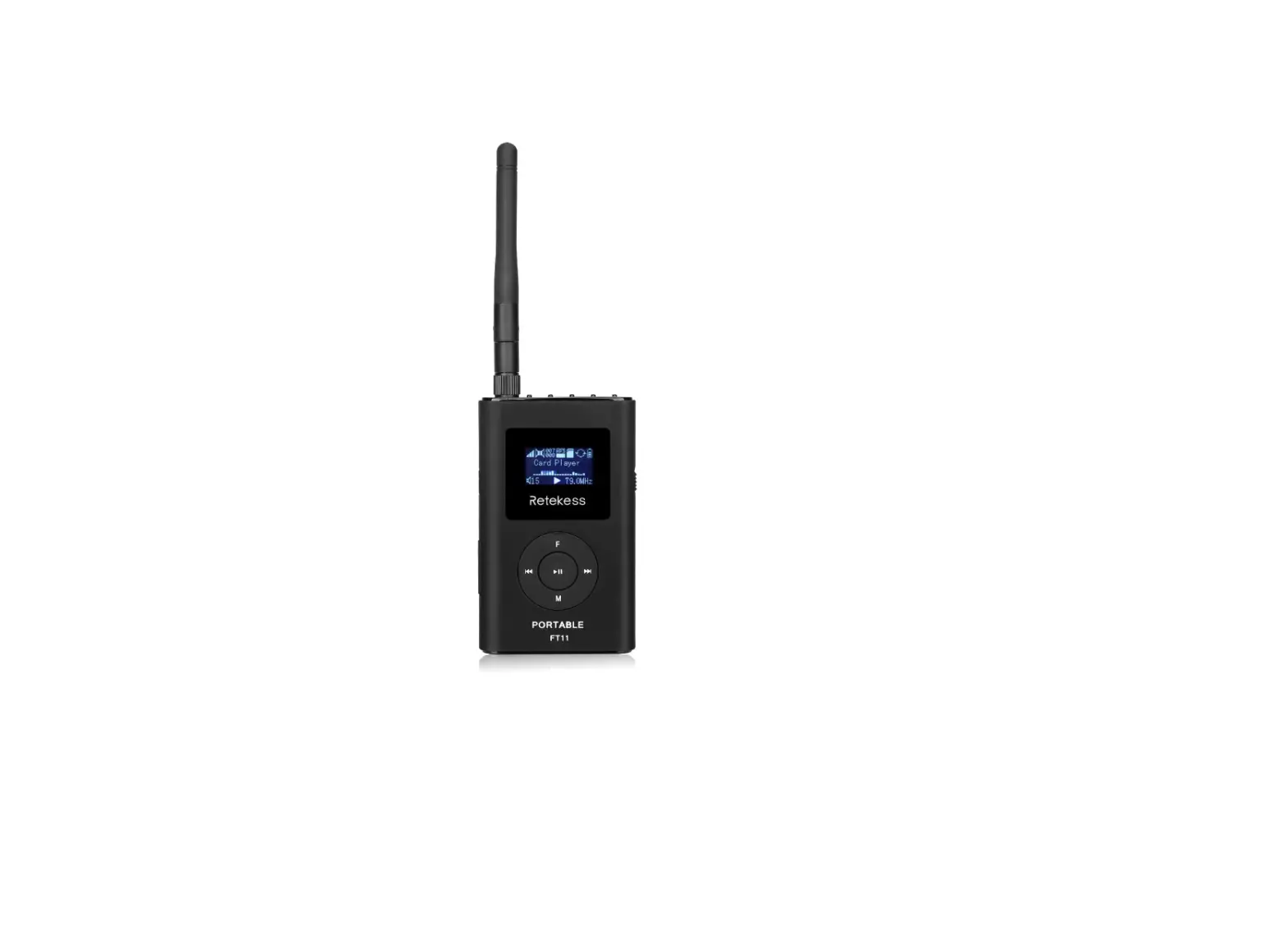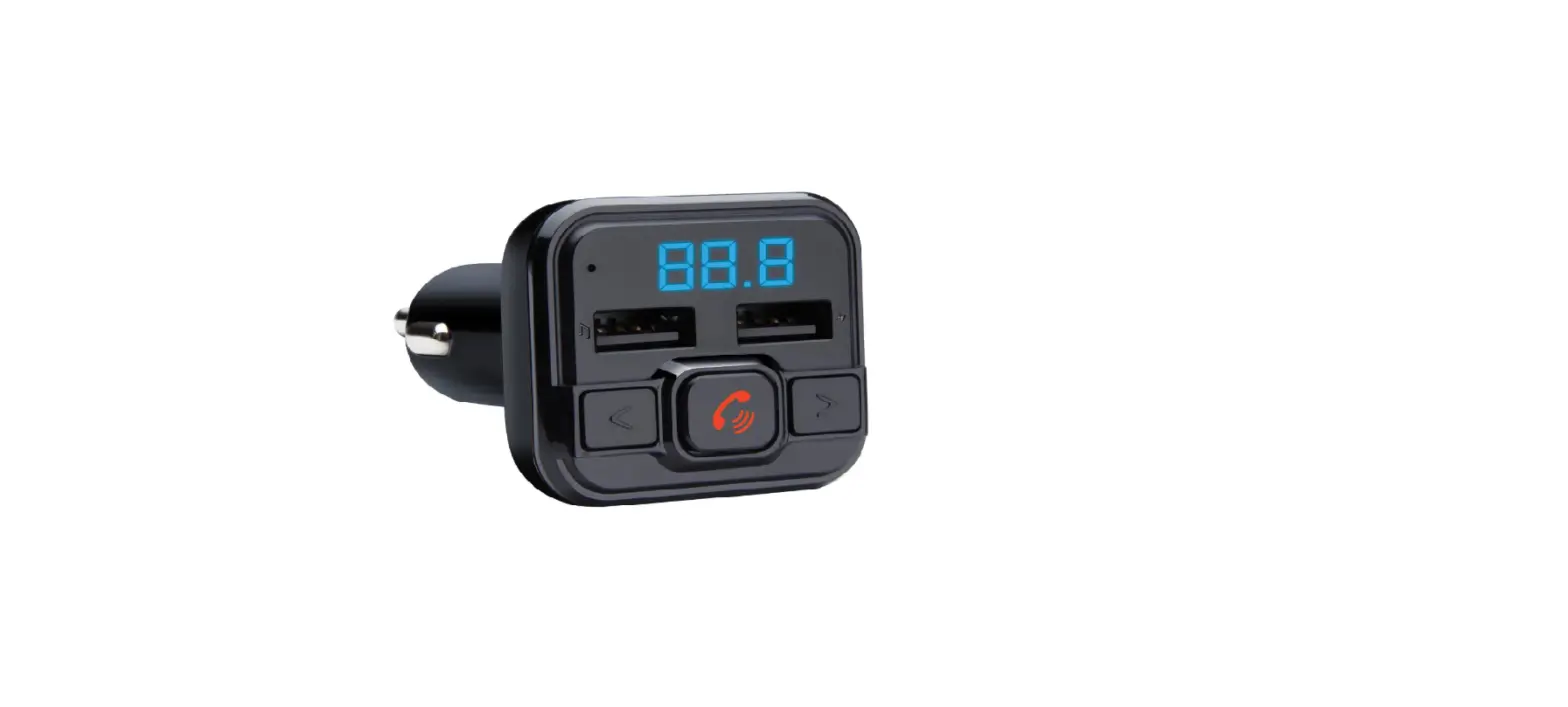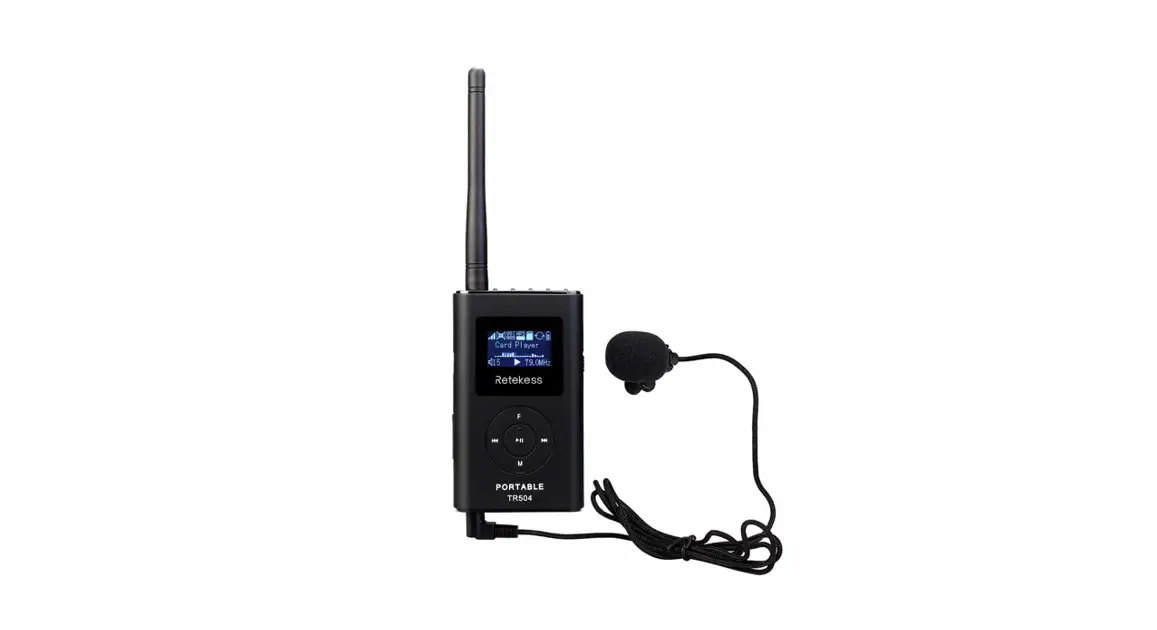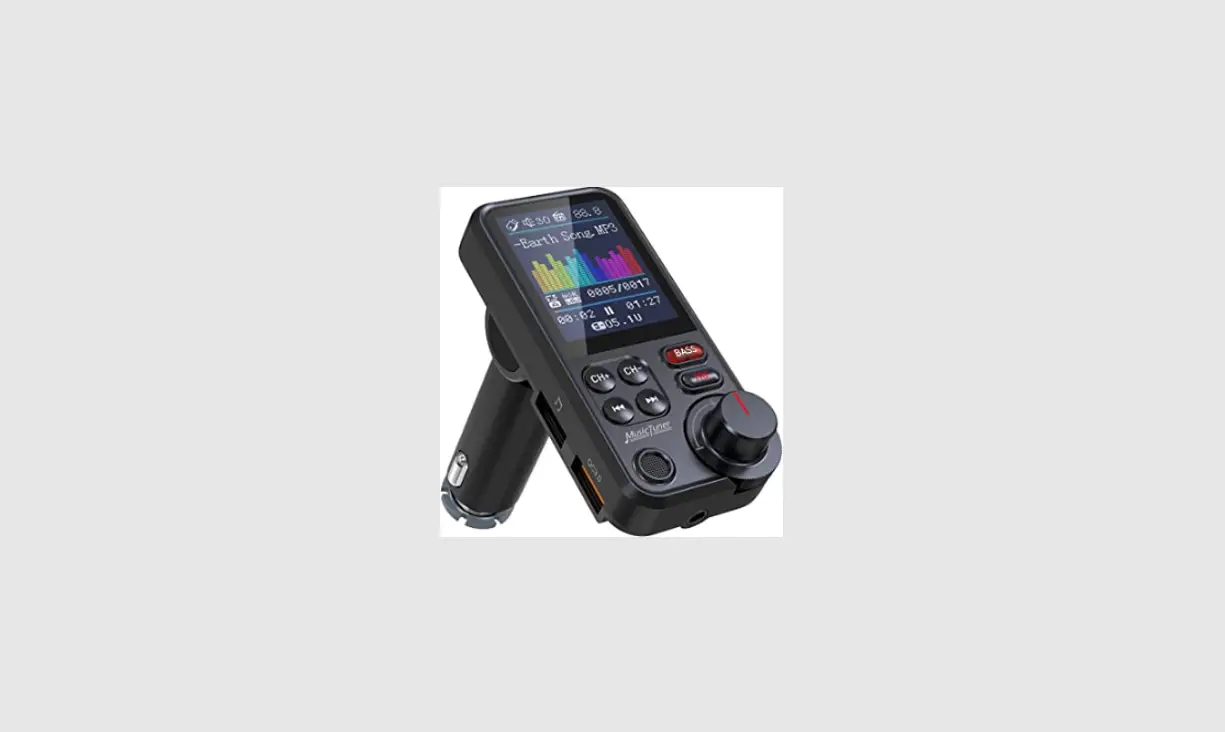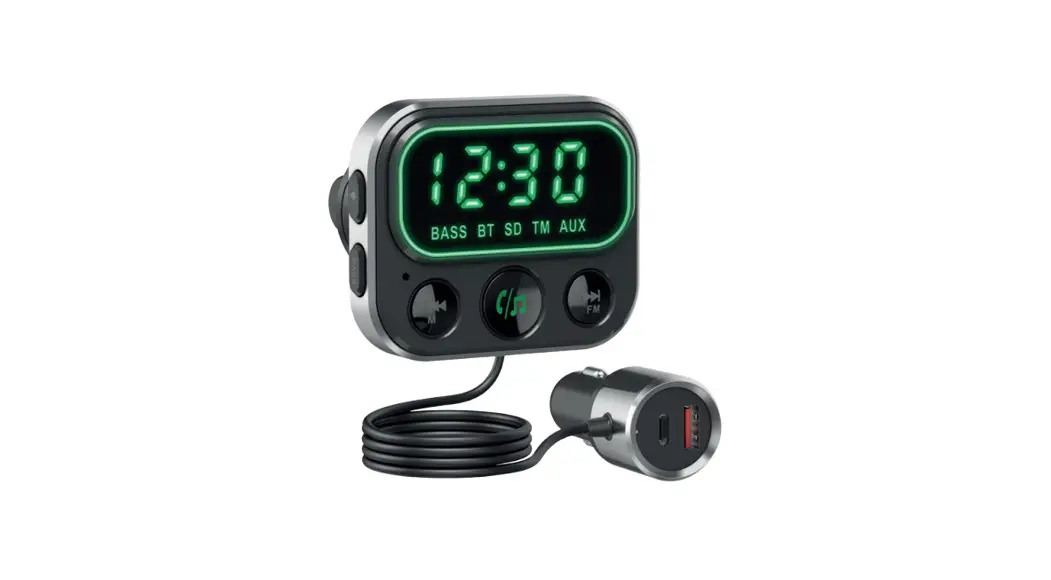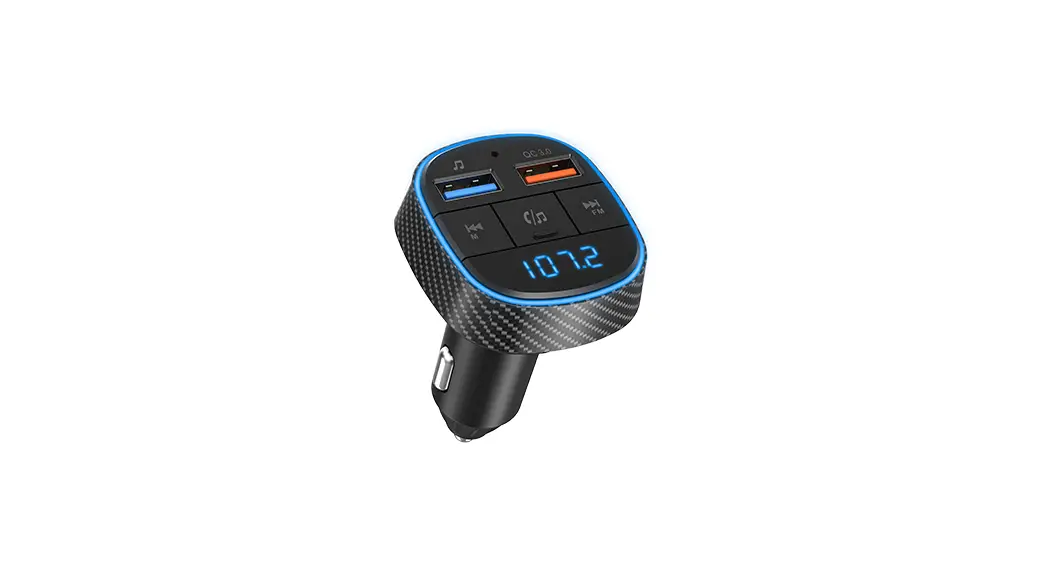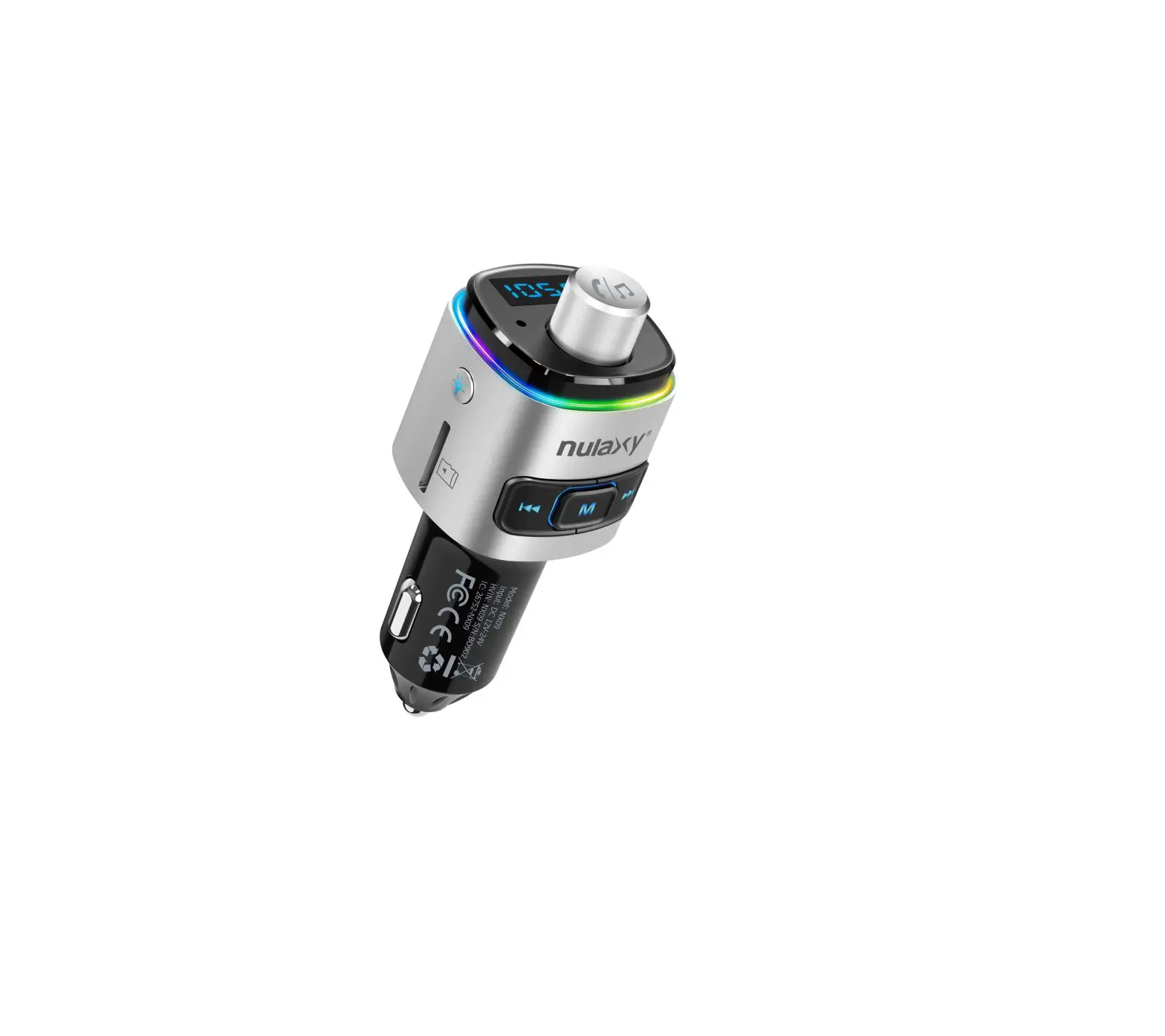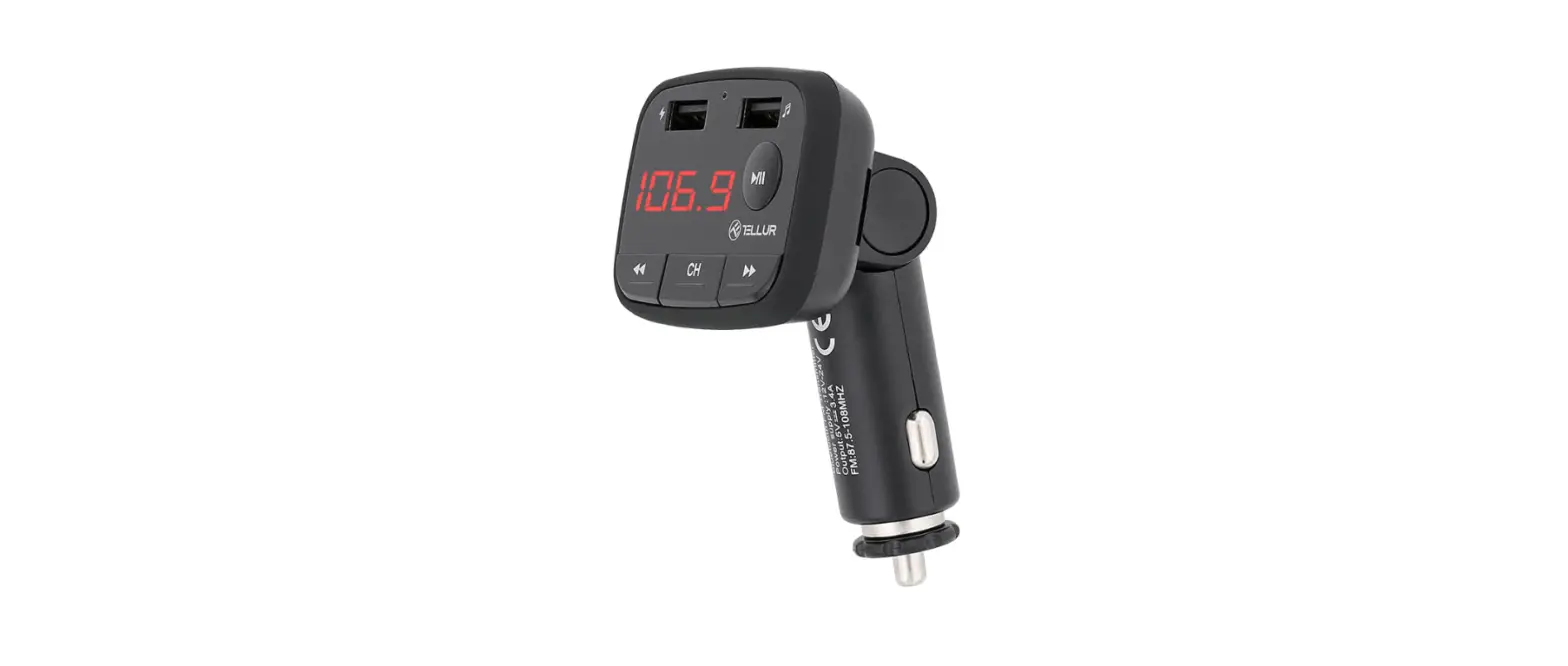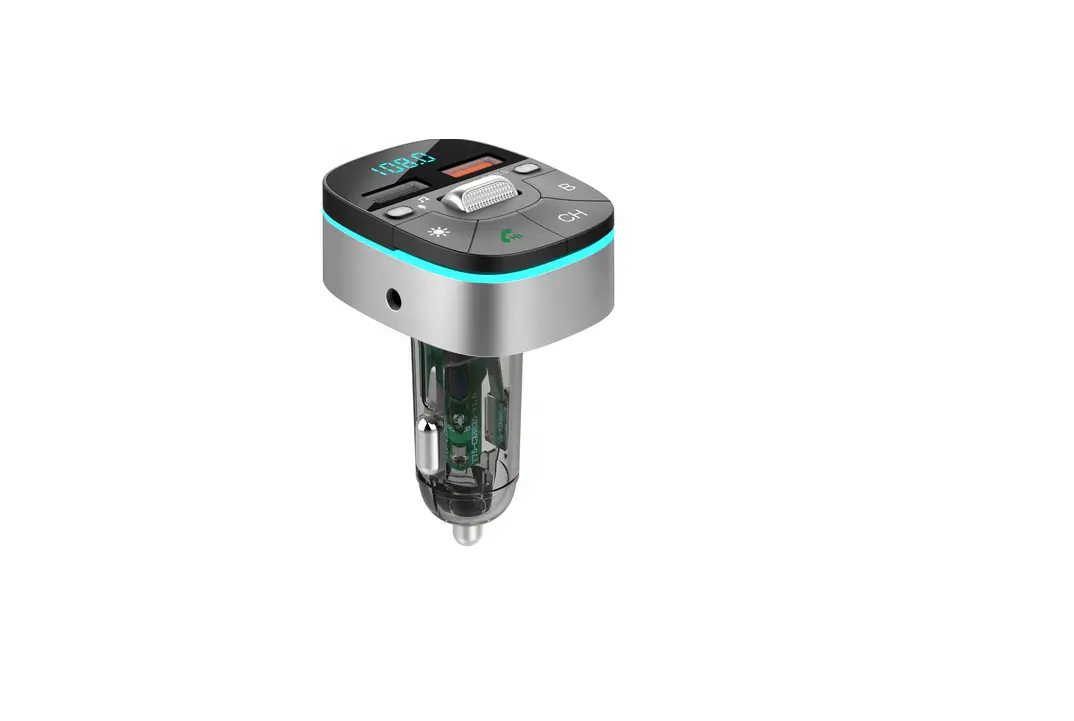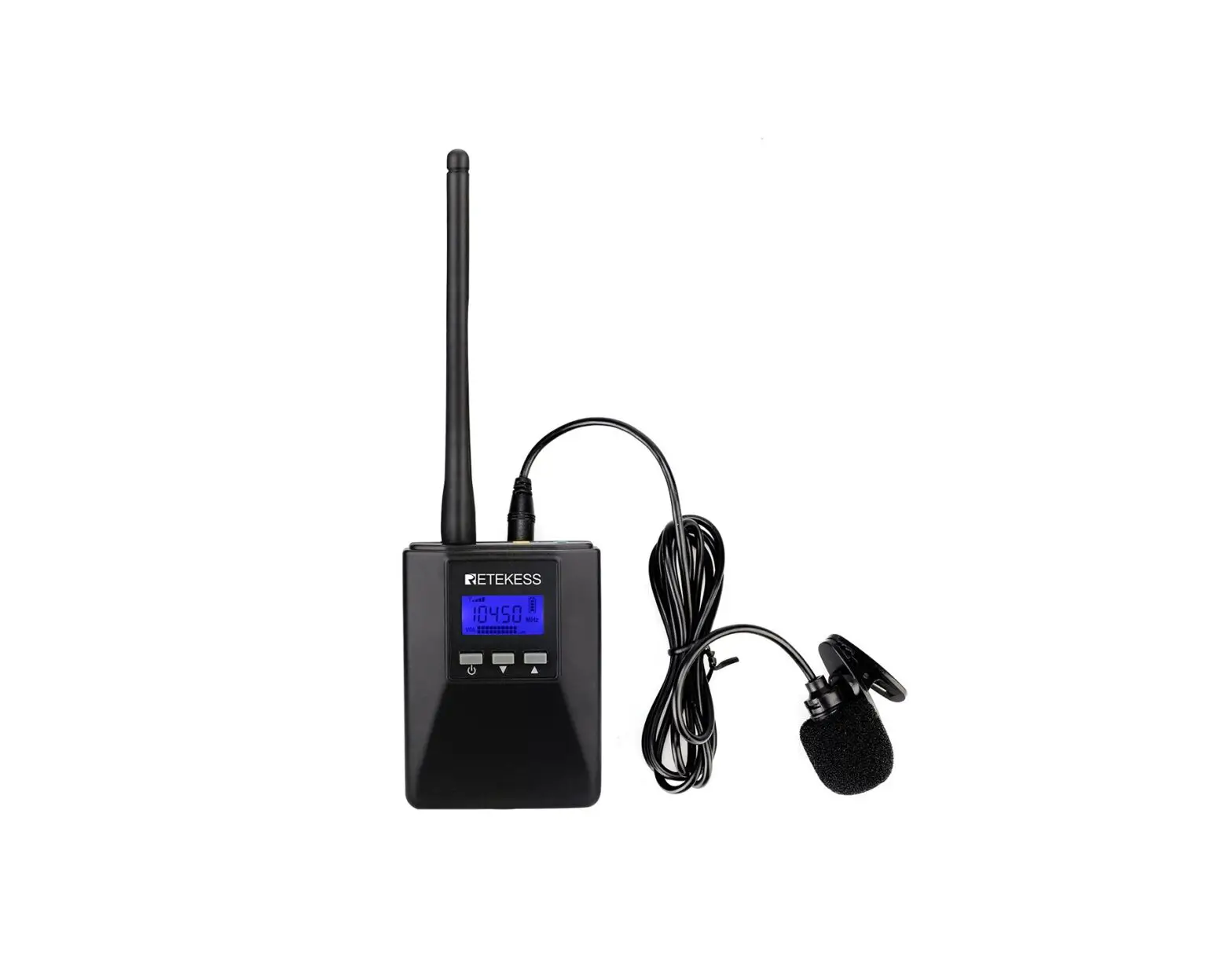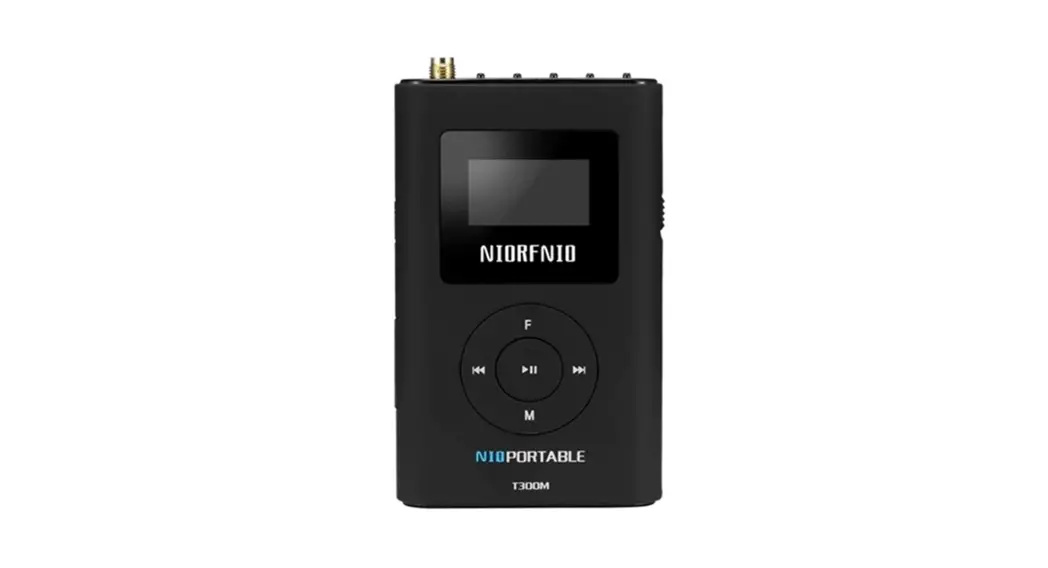

NIO-T300M 0.3W Portable FM Transmitter with TF Card Play
Instructions
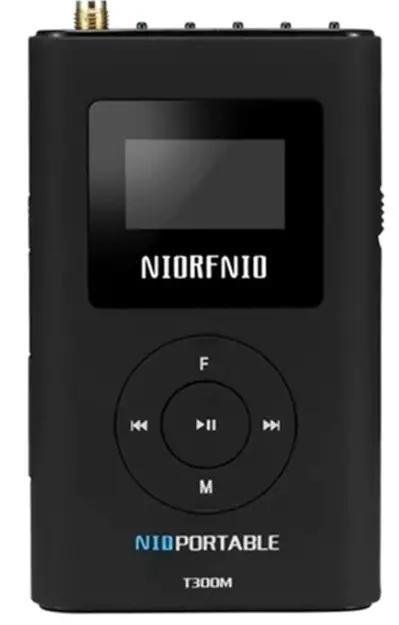
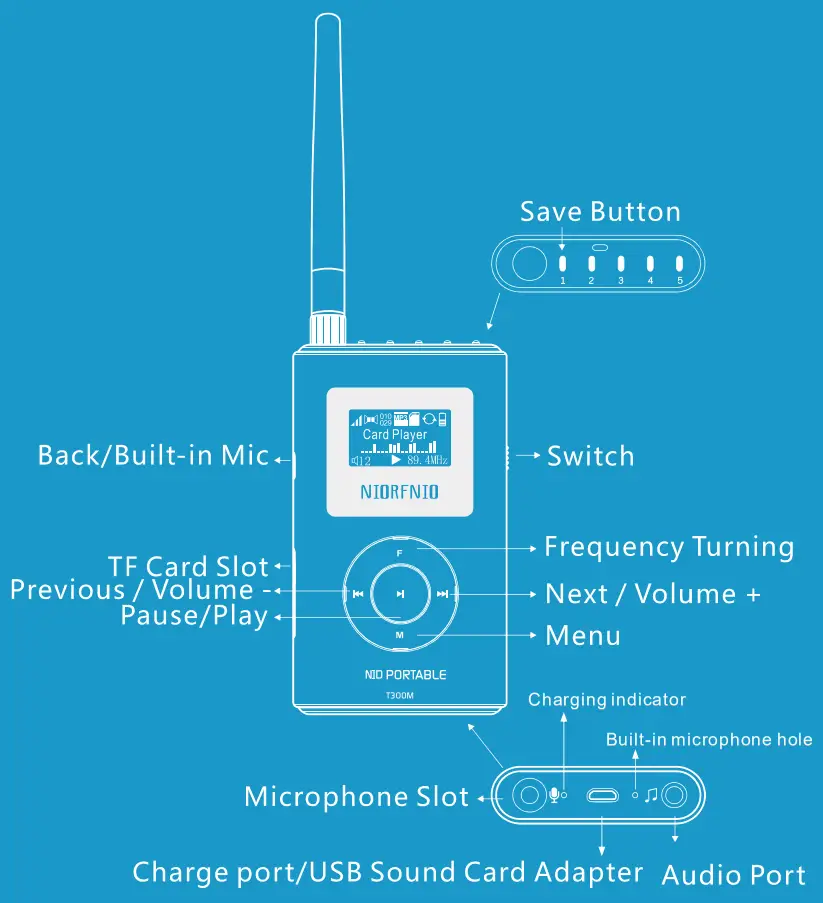
Power ON/OFF
Power ON Shelf power switches downwards to make the green part of the switch visible. Thus, the transmitter gets into work mode.
Power Off Shift power switches upwards to make the red part of the switch visible. Thus, the transmitter stops working.
Main Interface Operation
[Play/Pause] In TF mode or computer sound adapter mode, a short press [ ] button can play or pause audio.
[Previous] In TF mode or compute sound adapter mode, short press [  ] button to play the previous video.
[Next] In TF mode or compute sound adapter mode, short press [ 1 button to play the next video.
[VOlume] Long press [ ] button to decrease volume,Long press [ ] to increase volume.
[Start up built-in microphone] Hold and press on [ ] button to turn on the built-in microphone. When you stop pressing [] button, the microphone will shut off.
[Turn on screen/Return] Short press [] button can light up the screen and back to the main interface.
FM Frequency Setting
[Frequency]
Short press [F] button continuously,until [1 Frequency] appears.Short press [ ] or [] button, the frequency will go forwards 100K each time; Long press []or [ ]button, the frequency will go forwards 1MHz each time.
[RF Power]
Short press the [F] button continuously, until [2 RF Power] appears. Short press []button to increase power rate and short press [] button to decrease power rate. Attention: In small area usage, for example, in the car, a low power rate mode is recommended.
[Built in Mic]
Short press the [F] button continuously, until [3 Built in MIC] appears. Short press the [ ] or [] button to go to built-in microphone setting mode.
- [External MIC] means turning off the built-in microphone.
- [MIC ON By Key] means turning on the built-in microphone.
- [MIC Always ON] means the built-in microphone is ready all the time.
[Sound Channel]
Short press the [F] button continuously, until [4 Sound Channel] appears. Short press [] or [] button to set FM soundtracks.
[Pre-emphasis]
Short press the [F] button continuously, until [5 Pre-emphasis] appears. Short press [] or [] button to set FM pre-emphasis time.
MP3 Setting
[MIC VOL]
Short press [M] button continuously, until [1 MIC VOL] appears. Short press [ ] button to increase mic volume. Short press [ ] to decrease mic volume.
[MIC ECHO]
Short press [M] button continuously, until [2 MIC ECHO] appears. Short press [] button to increase echo volume. Short press [ ] to decrease echo volume.
[MIC Delay]
Short press [M] button continuously, until [3 MIC delay] appears. Short press [] button to increase mic delay. Short press [] to decrease mic delay.
[EQ]
Short press [M] button continuously, until [4 EQ] appears. A short press [] or [ ] button can set sound effects for the whole kit.
[Repeat]
Short press [M] button continuously,until [5 Repeat] appears.Short press [ ] or [] button can set Mp3 cycle mode.
[BASS]
Short press [M] button continuously, until [6 BASS] appears. A short press [] or [ ] button can set BASS for the whole kit.
[TREB]
Short press [M] button continuously, until [7 TREB] appears.A short press [ ] or [] button can set the tone for the whole kit.
[Language]
Short press [M] button continuously, until [8 Language] appears. Short press [ ] or [ ] button can set Language for the whole kit.
Frequency Saving and Use Saved Frequencies
Turn out your wanted frequency, then long press the saves button until the frequency button flashes. Thus, this frequency is saved. When you want to switch to this frequency next time, you just need short press the save button to find it.
TF Card, Audio Input, USB Sound Card, Microphone
[TF Card Intallation]Put TF card in card slot, follow up the [Main Interface Operation]
[Audio Input Paly] Connect this item to an audio source device with a 3.5mm audio cable. The main interface will display the connector icon. Thus, the connection is finished
[USB Sound Card Display] Connect this item to a computer with a USB cable. The main interface will display a computer icon. Thus, the connection is finished.
[TIP: Audio score priority]
Audio Input>USB Sound Card>TF Card
[External Microphone]
Put the external microphone connector to the transmitter’s microphone port. The main interface displays the microphone icon.lt means the connection is successful.
[TIP: Microphone priority]
The external microphone must be a 3-step condenser microphone.
Charge
The transmitter can be charged when it is connected to a USB power supply device by USB cable.
Tips: The item can be charged both in on and off mode.
CAUTIONS
- Do not turn on the transmitter when its antenna is not installed.
- Don does not use the transmitter in an explosive environment such as gas stations and oil warehouses.
- Please follow local laws and regulations when using this transmitter.
- Repair of this transmitter can only be operated by professional technicians.
Technology Parameters
| No. | Index | Data |
| 1 | Power | 5V, 1000mA |
| 2 | Battery capacity | 3.7V, 1500 mA |
| 3 | Battery Endurance | T300M_ 5h |
| T600M 3h | ||
| 4 | Work Currency | T300M < 200mA |
| T600M < 300mA | ||
| 5 | Frequency stability | ±1OPPNI |
| 6 | Frequency | |
| 7 | Frequency Step | 100KHz |
| 8 | Work Temperature | -10°C-45°C |
| 9 | Output Impedance | 500 |
| No. | Index | Data |
| 10 | Harmonic and noise wave | – 30dB |
| 11 | TF Card Capacity | .?.128G |
| 12 | Audio Format | FLAC, WAV, PCM, WMA, MP3 |
| 13 | Audio Distortion | 0.1% |
| 14 | Response Frequency | 30Hz-15000Hz |
| 15 | Isolation | 40dB |
| 16 | Input Electric Potential | – 15 — 15dBV |
| 17 | frequency Offset | ±75KHZ |
| 18 | SNR. | .70dB |
| 19 | Item Size | 99*58*15mm |
| 20 | Item Weight | 76g |
FCC Statement
This equipment has been tested and found to comply with the limits for a Class B digital device, pursuant to part 15 of the FCC Rules. These limits are designed to provide reasonable protection against harmful interference in a residential installation. This equipment generates, uses, and can radiate radio frequency energy and, if not installed and used in accordance with the instructions, may cause harmful interference to radio communications. However, there is no guarantee that interference will not occur in a particular installation. If this equipment does cause harmful interference to radio or television reception, which can be determined by turning the equipment off and on, the user is encouraged to try to correct the interference by one or more of the following measures:
- Reorient or relocate the receiving antenna.
- Increase the separation between the equipment and receiver.
- Connect the equipment into an outlet on a circuit different from that to which the receiver is connected.
- Consult the dealer or an experienced radio/TV technician for help.
Caution: Any changes or modifications to this device not explicitly approved by the manufacturer could void your authority to operate this equipment. This device complies with part 15 of the FCC Rules. Operation is subject to the following two conditions: (1) This device may not cause harmful interference, and (2) this device must accept any interference received, including interference that may cause undesired operation.
RF Exposure Information
The device has been evaluated to meet general RF exposure requirements. The device can be used in portable exposure conditions without restriction.