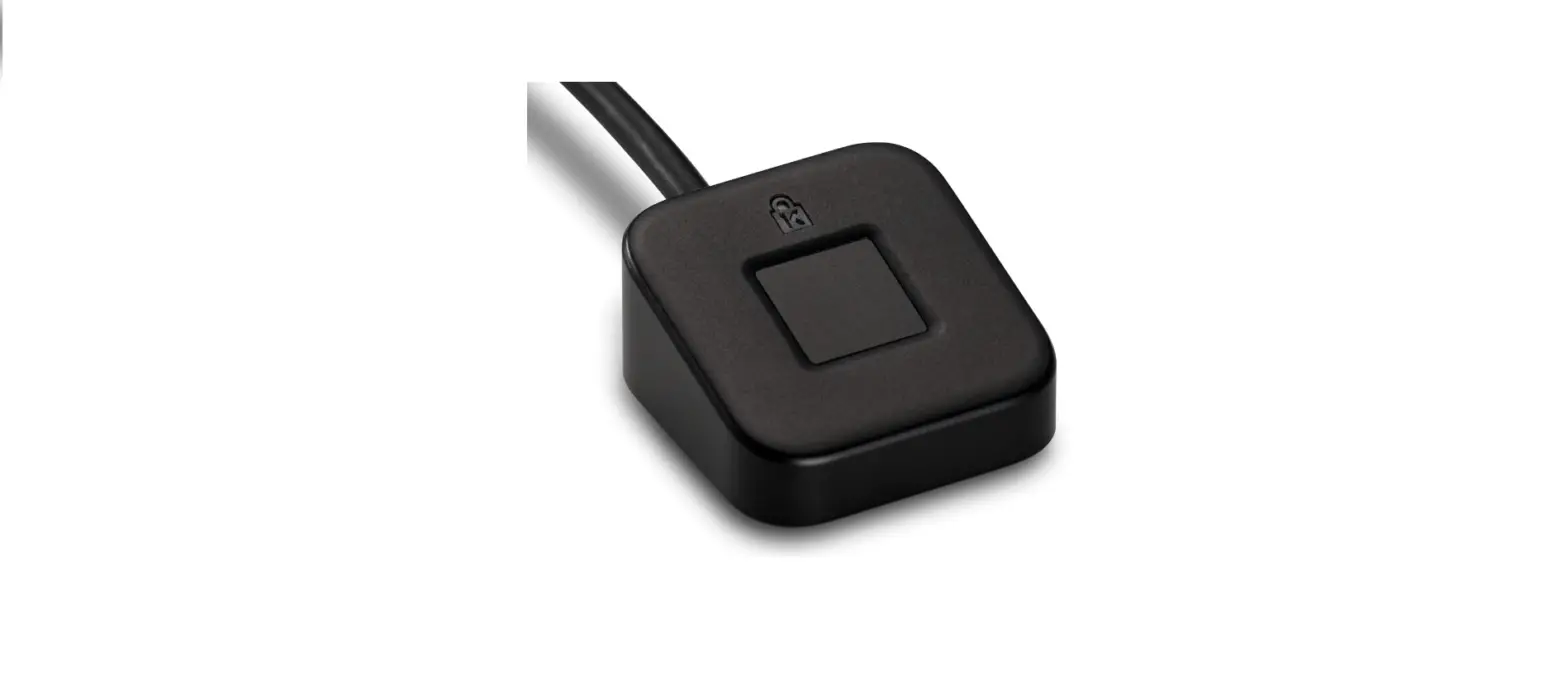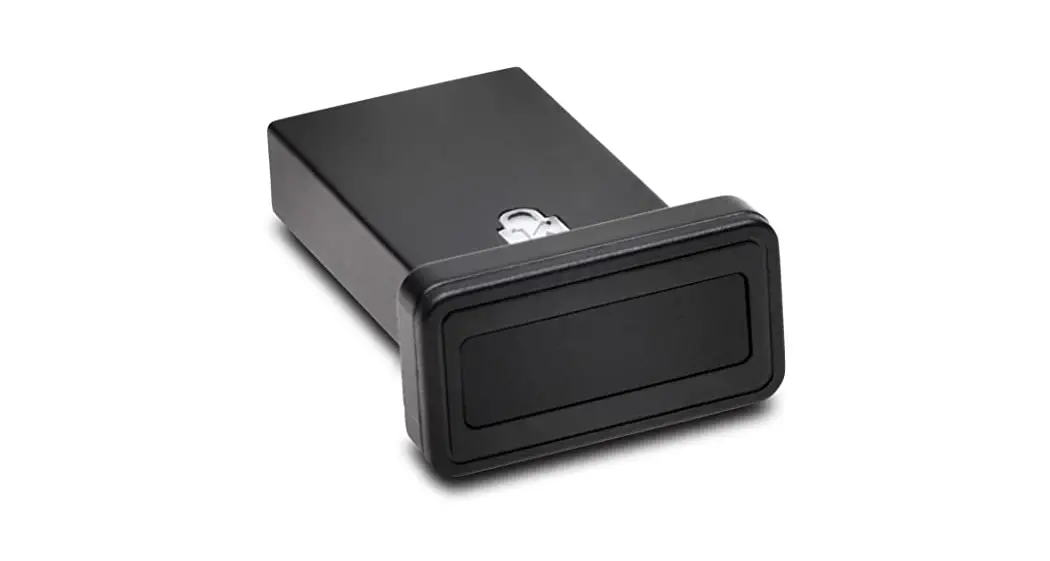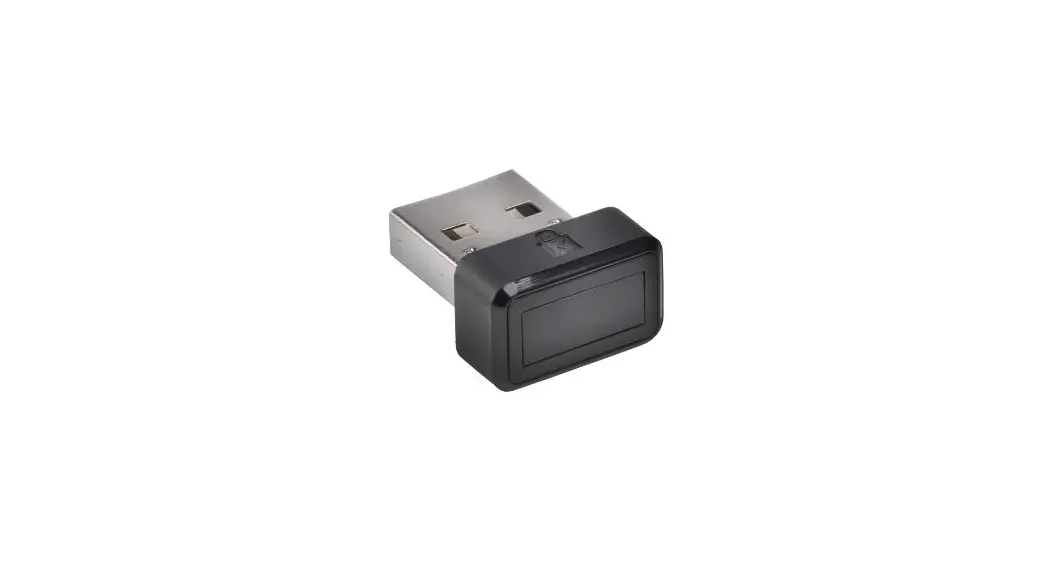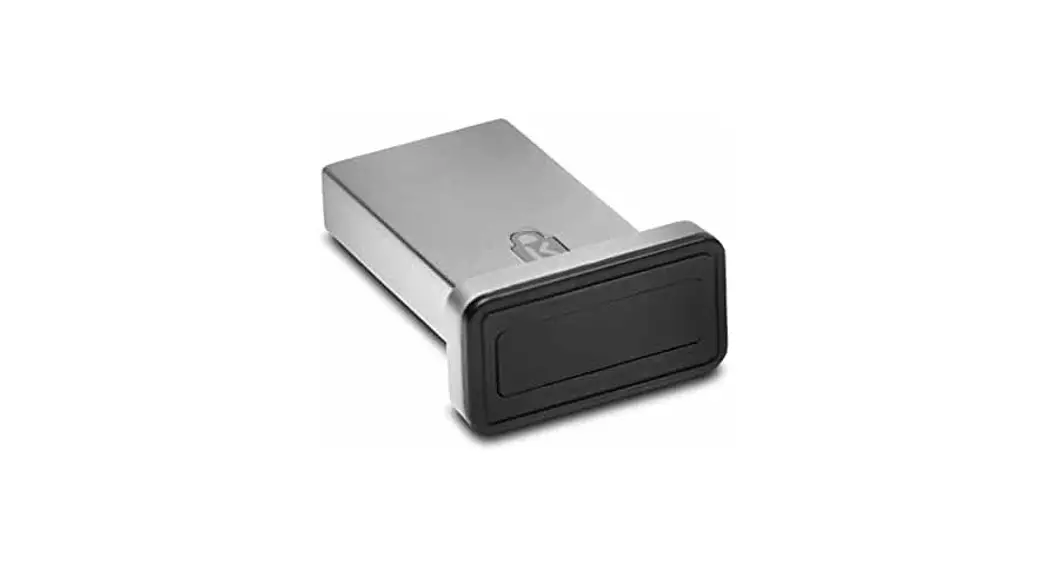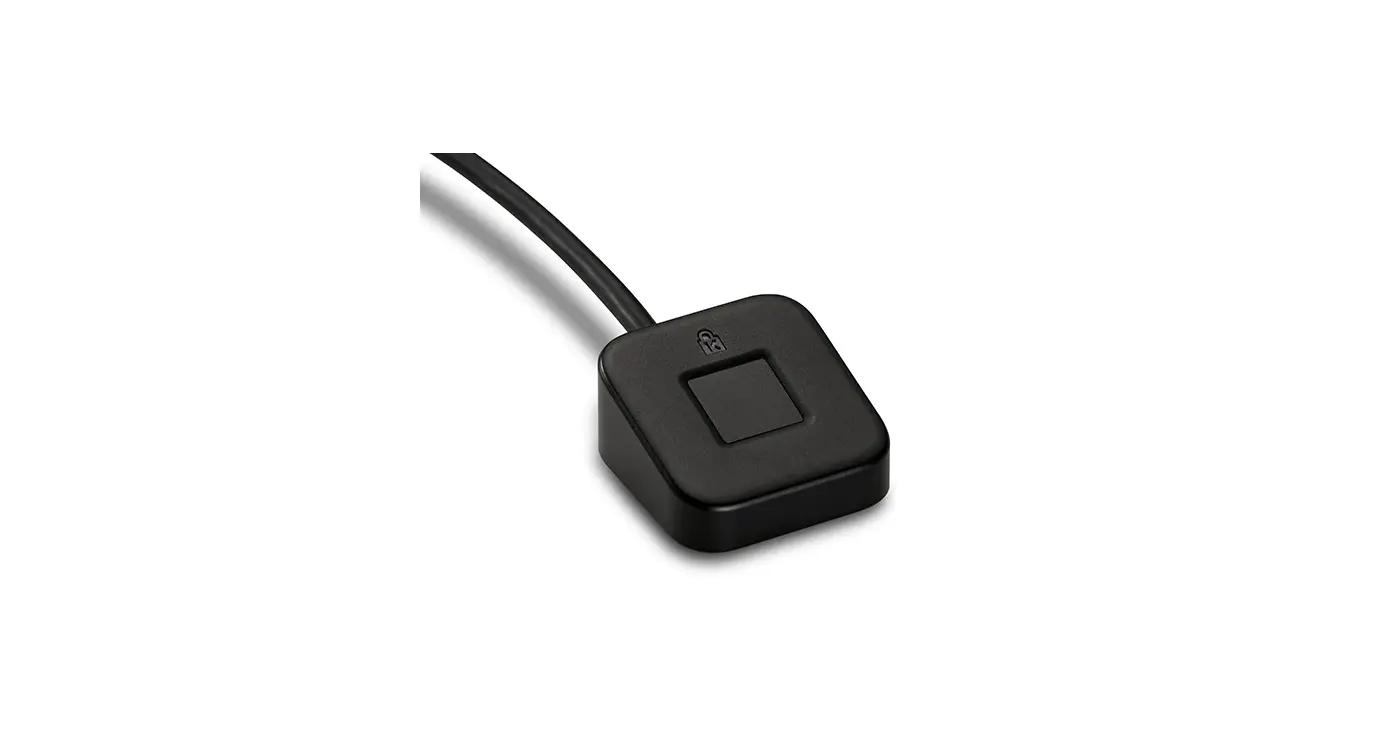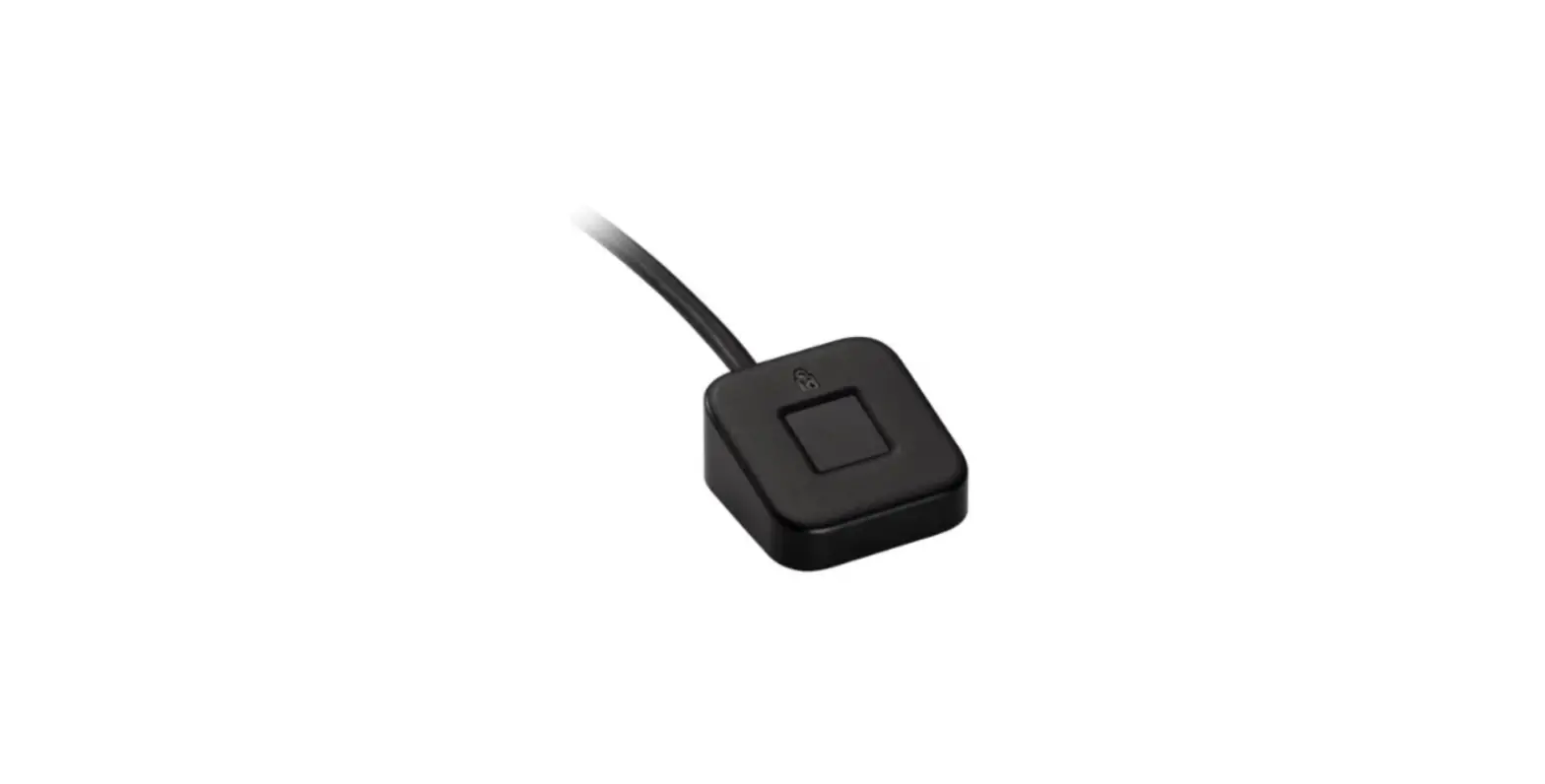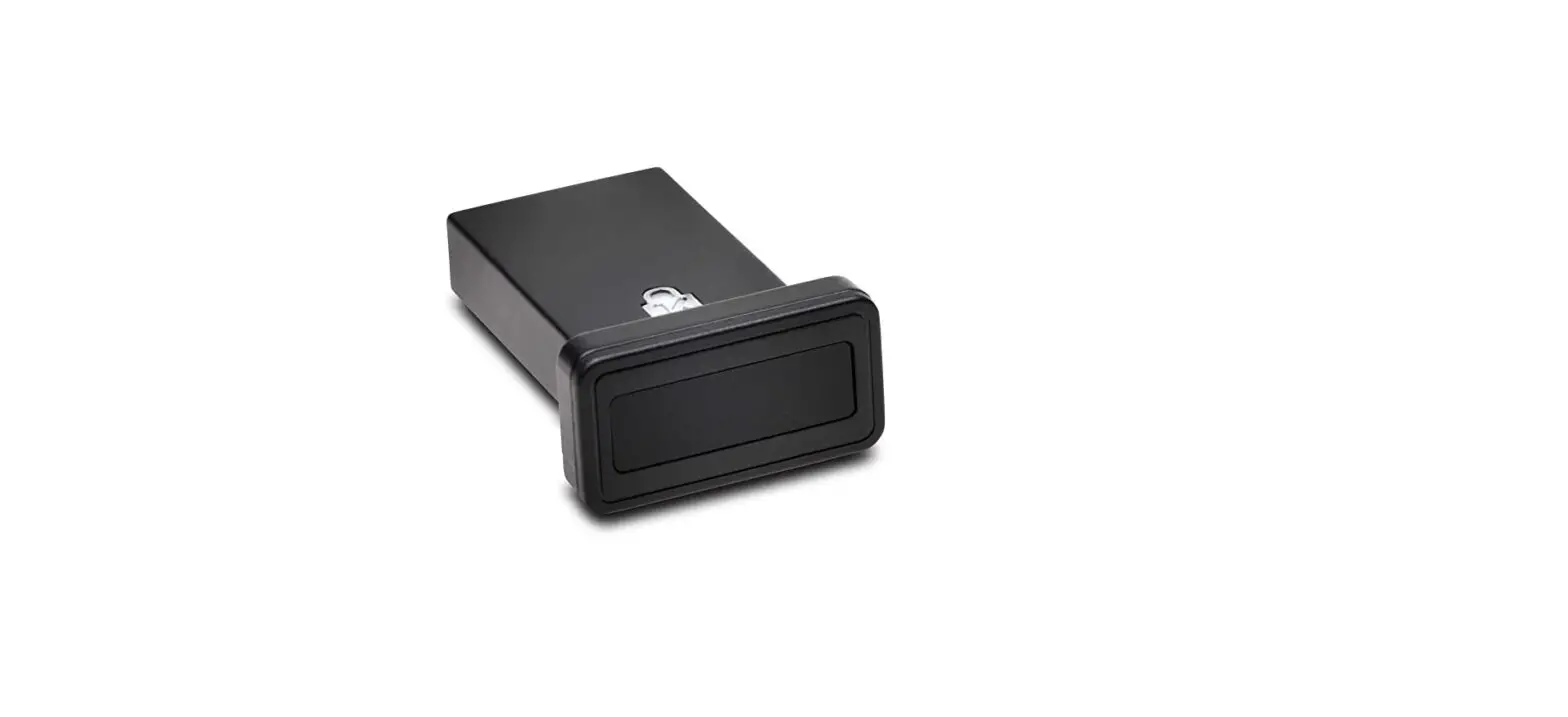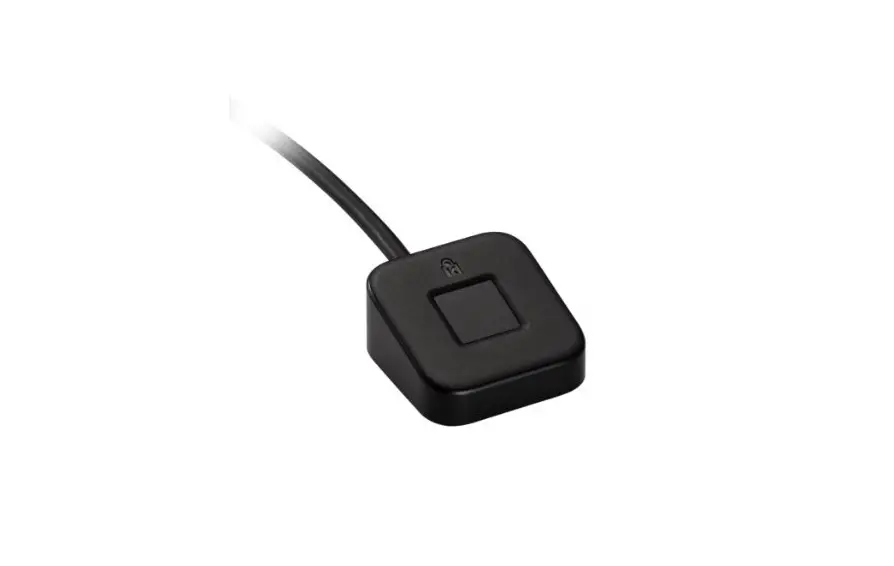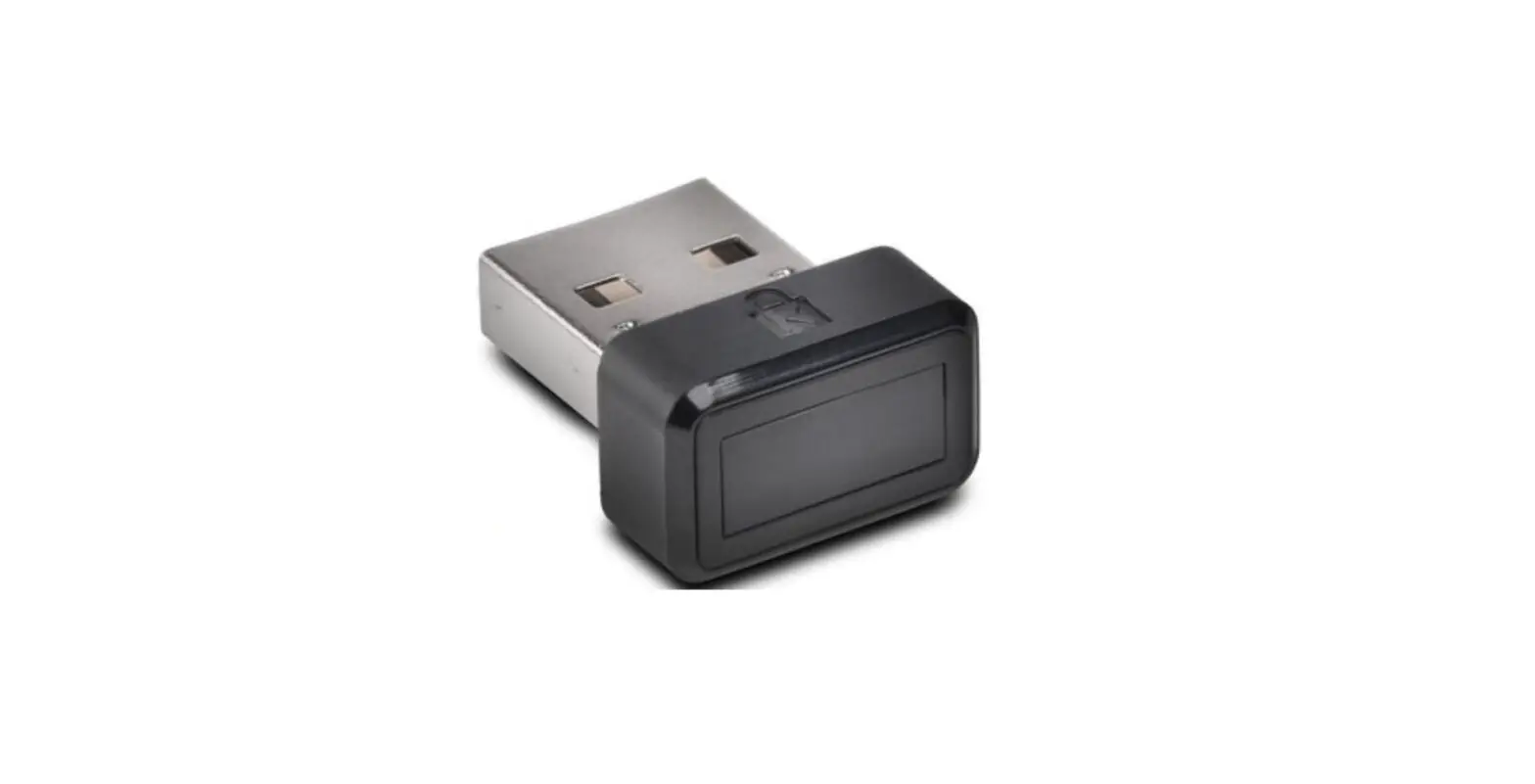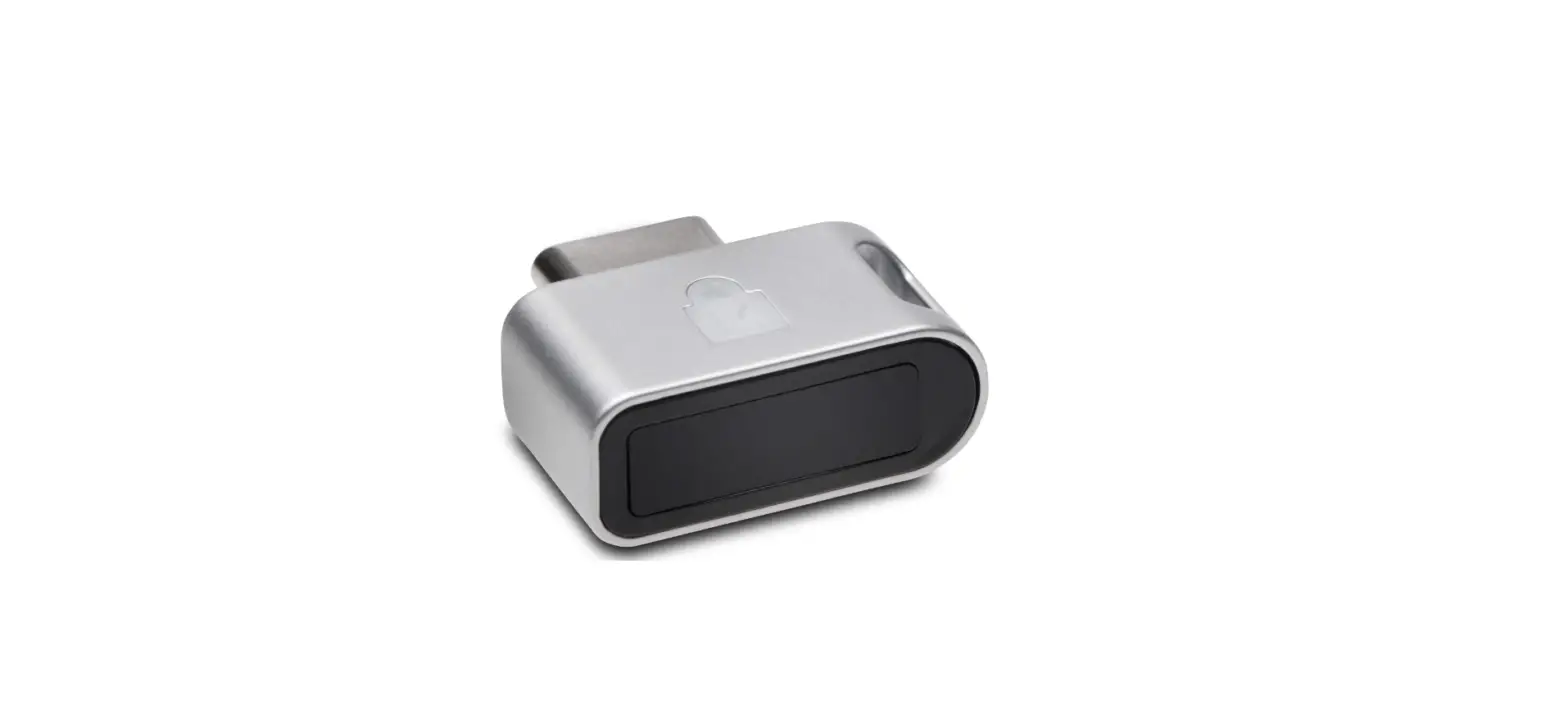

Kensington Windows 11 VeriMark Guard
INSTALLATION
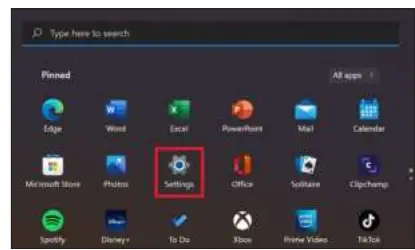
- Click on Start on the taskbar and click on Settings

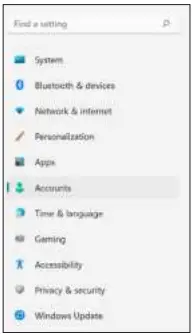
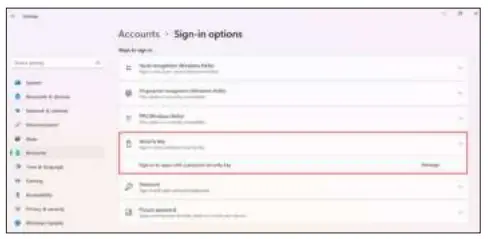
- Click on Accounts to show sign-in options.

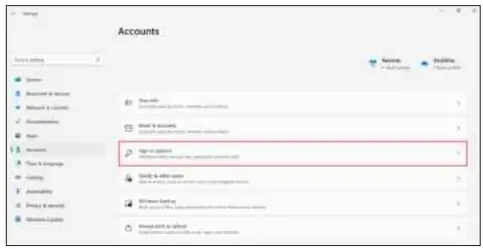
- Click on the Sign-in options

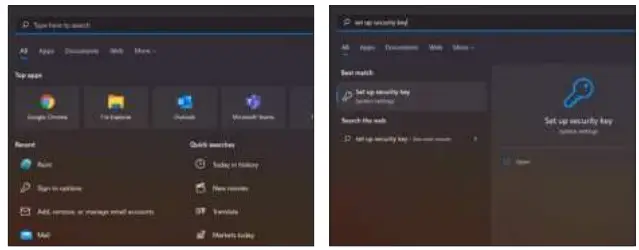
- Alternatively, you can click on the magnifier glass on the taskbar and search for “Set up security key”

- Click on Security Key and Manage

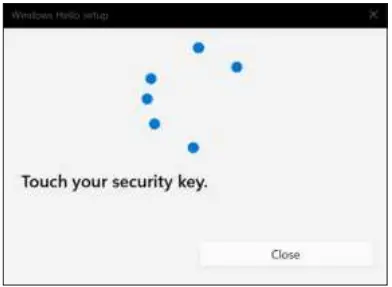
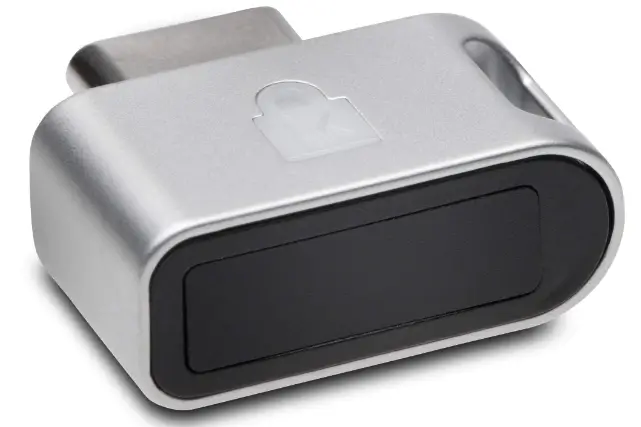
- Under Manage touch the USB dongle to access features

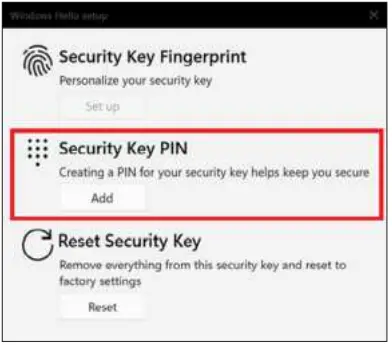
- If it is the first time using a security key, you need to add a security PIN. Click on add under Security Key

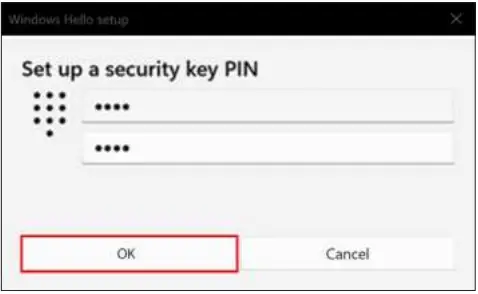
- Enter a security key PIN then click OK for the next step

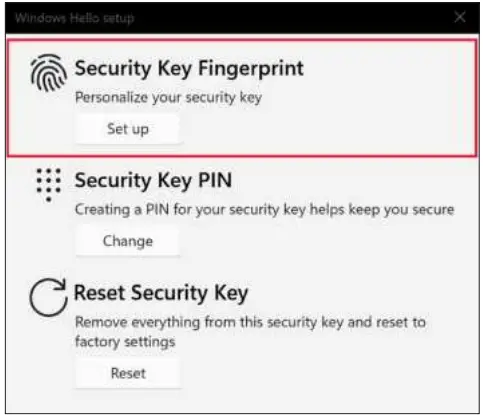
- Once PIN has been entered Set Up fingerprint on the following window

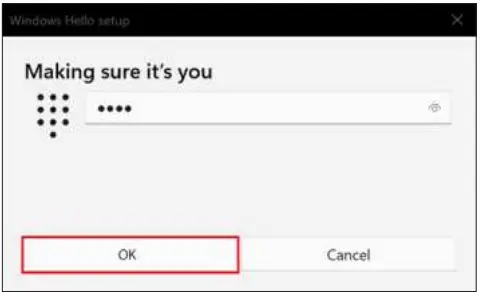
- Enter the PIN previously set up and click OK to proceed

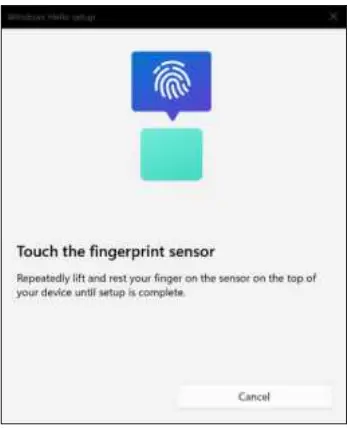
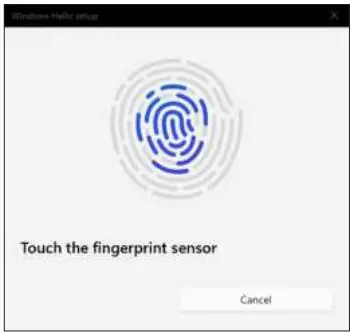
- Touch the fingerprint sensor area repeatedly

- Enter the PIN previously set up and click OK to proceed

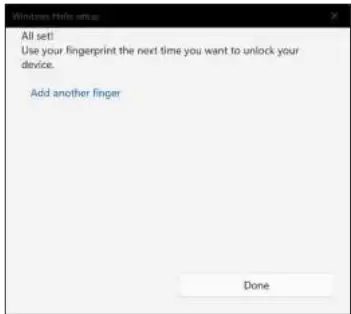
- Click Done to finish fingerprint enrollment or Add another finger to set up another fingerprint

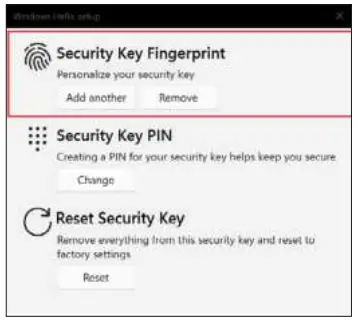
- On the main window, you can also add another fingerprint or remove the fingerprint as well as change the PIN

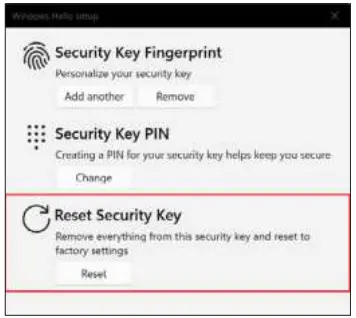
- To reset the USB dongle and erase all the fingerprints click on Reset Security Key

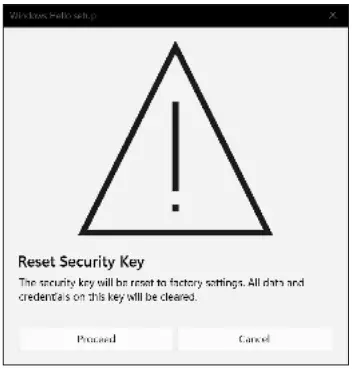
- Click proceed and follow the instructions to reset the USB dongle

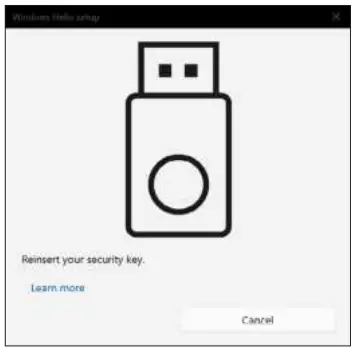
- Disconnect and reconnect the USB dongle

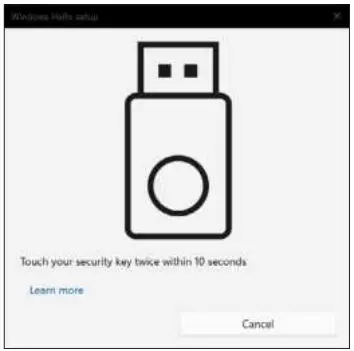
- Touch the security key twice

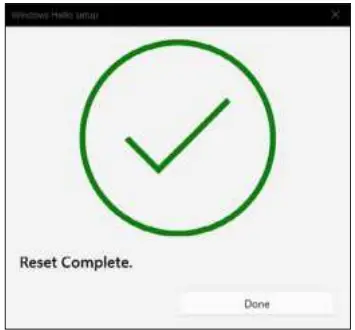
- Click done to finish reset