 Quick Start
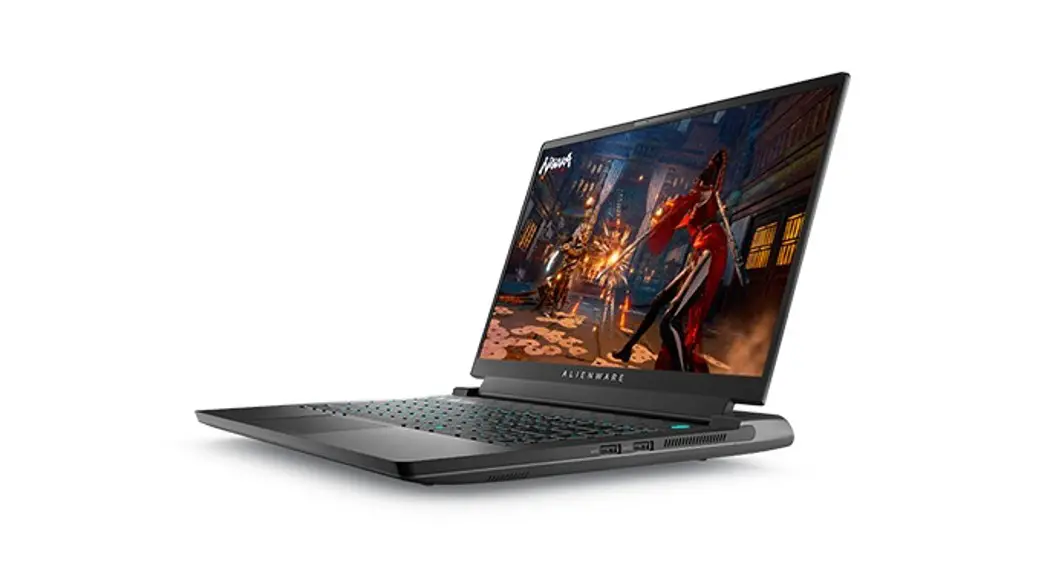
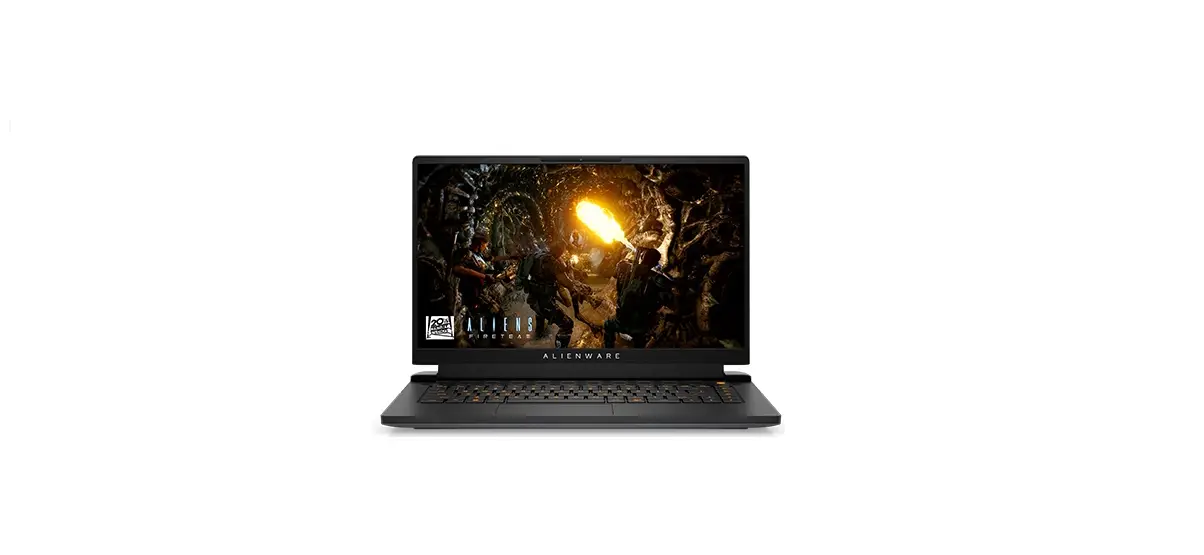
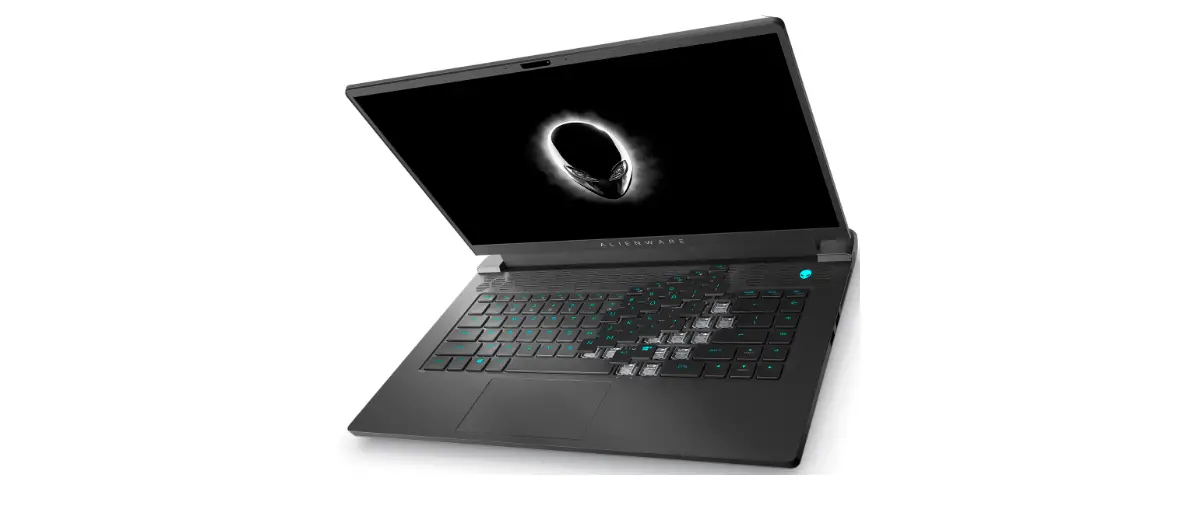
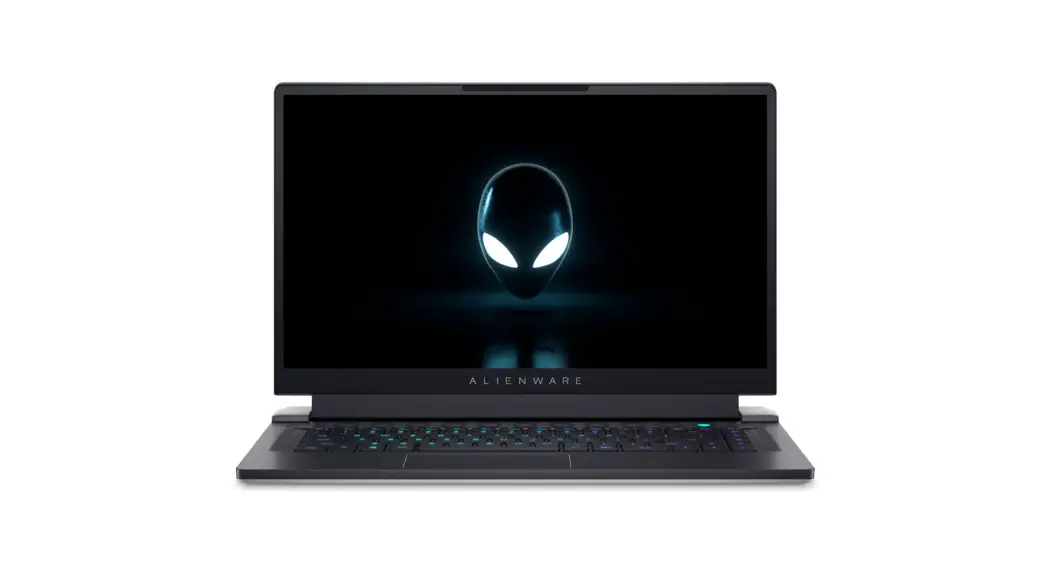
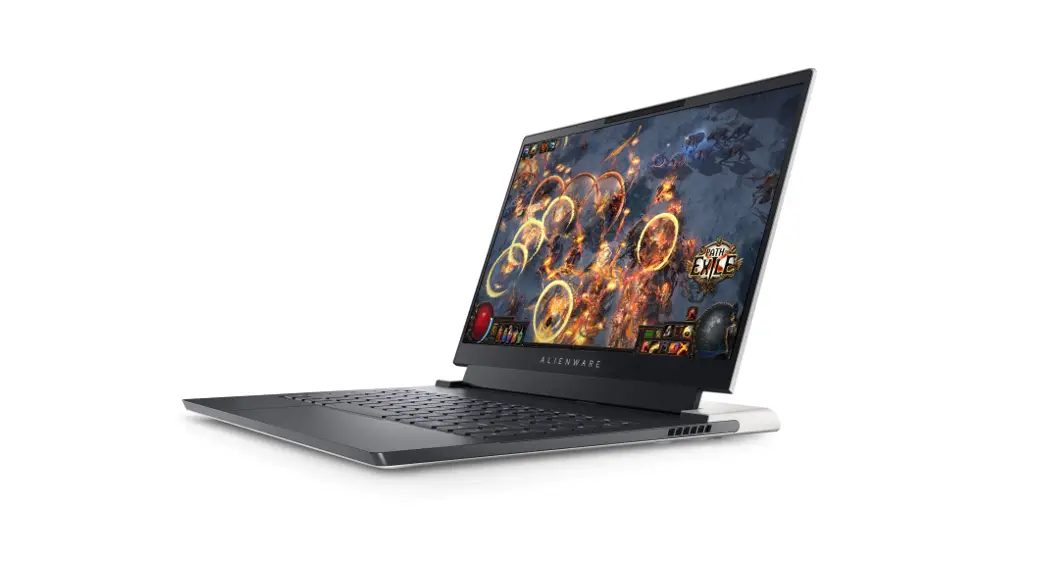
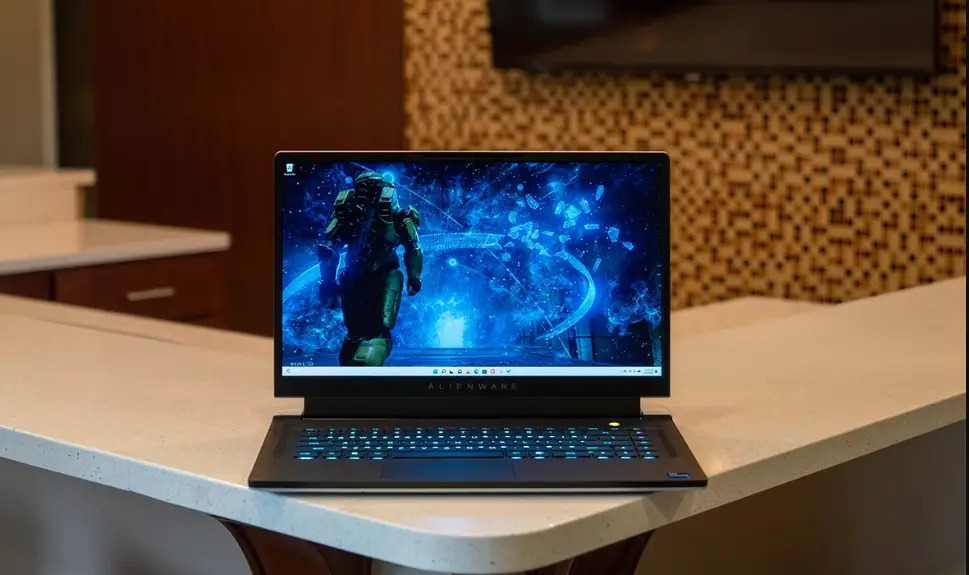
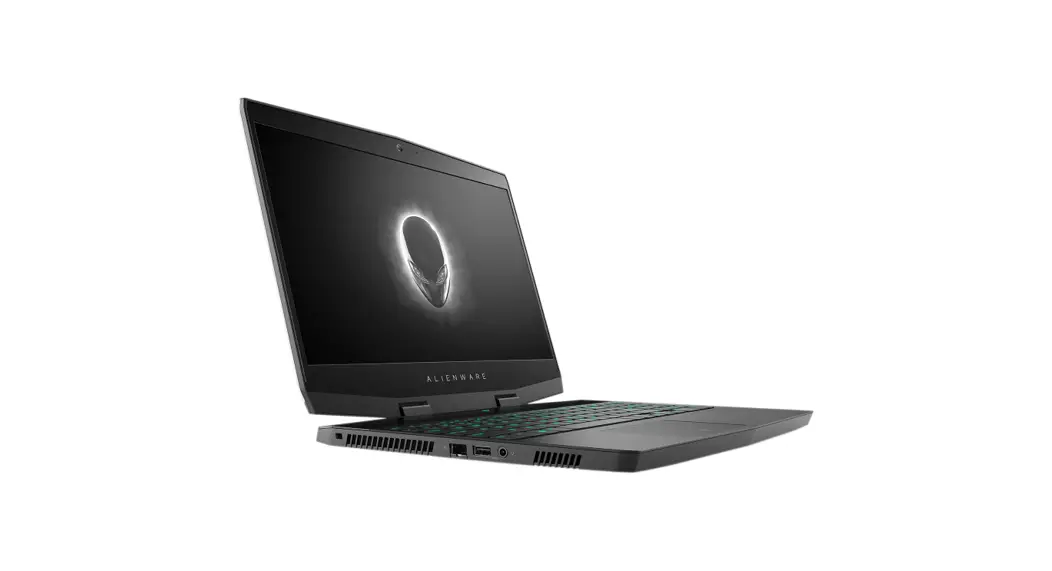
Alienware m15 Ryzen Edition R5
P109F
P109F002,P109F003
 Read the safety information that shipped with your computer. For additional safety best practices information, see the Regulatory Compliance Homepage at Dell.com/regulatory_compliance.
 Do not remove the computer cover unless you need to install internal accessories for your computer. For instructions on removing and replacing parts, see the Owner’s or
Service Manual at Dell.com/support.
Retain the filler brackets or cards that ship with your computer. Installing filler brackets or filler cards over empty card-slot openings is necessary to maintain FCC certification of the computer. The filler brackets and filler cards keep dust and dirt out of your computer and maintain the airflow that cools your computer.
| Power Adapter | |
| Input voltage | 100-240 V AC |
| Input current (maximum) | 1.3 A |
| Input frequency | 50-60 Hz |
| Output current | 2.31 A |
| Output voltage | 19.5 V DC |
| Maximum operating temperature | °C ( °F) |
| Connect the power adapter or the power cable to your computer and to the display, if required. | 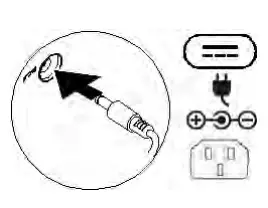 |
| Power on the computer (and the display, if connected). |  |
Depending on your computer configuration, some ports or connectors may not be available.
| Icons | |
| Power adapter |  |
| USB 2.0 |  |
| USB 3.0/USB 3.1 Gen 1 |  |
| USB 3.0/USB 3.1 with PowerShare |  |
| USB 3.1 Type-C |  |
| eSATA |  |
| Thunderbolt |  |
| Thunderbolt 3 port with Power delivery (USB-C) |  |
| Network |  |
| VGA |  |
| DVI |  |
| HDMI |  |
| DisplayPort |  |
| Mini DisplayPort |  |
| TV-in |  |
| External Graphics Port |  |
| Infrared (IR) emitter |  |
| Headphone/Audio-out |  |
| Headset |  |
| Microphone |  |
| Line-in |  |
| Line-out/Speakers: front left-right |  |
| Speakers: rear left-right |  |
| Speakers: side left-right |  |
| Speakers: Audio center/subwoofer |  |
| S/PDIF | 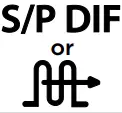 |
| Screen-rotation lock | 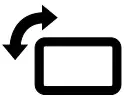 |
| SIM-card slot |  |
| ExpressCard slot |  |
| Media-card reader | 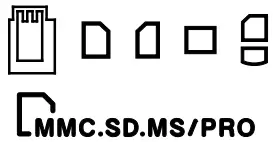 |
| Security-cable slot |  |
| Power/Battery-status light | |
| Battery-status light |  |
| Hard-drive activity light |  |
| Wi-Fi light |  |
| Bluetooth light |  |
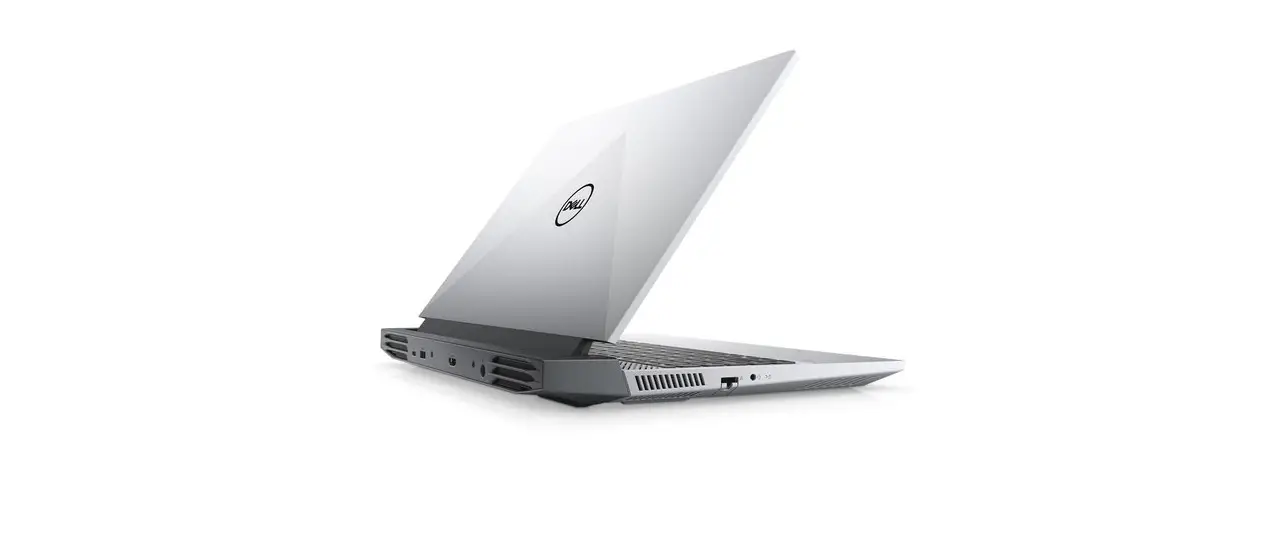
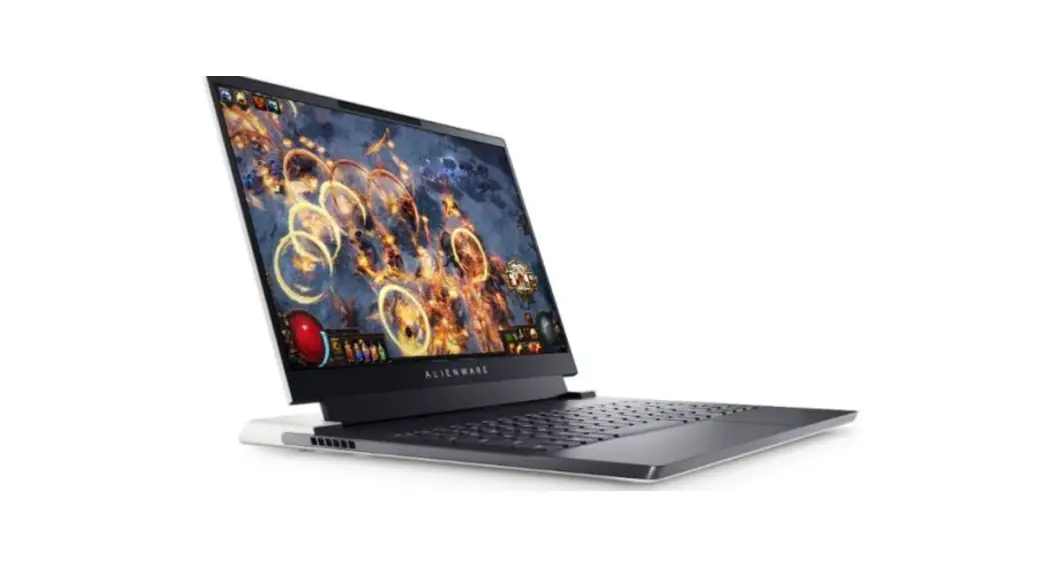
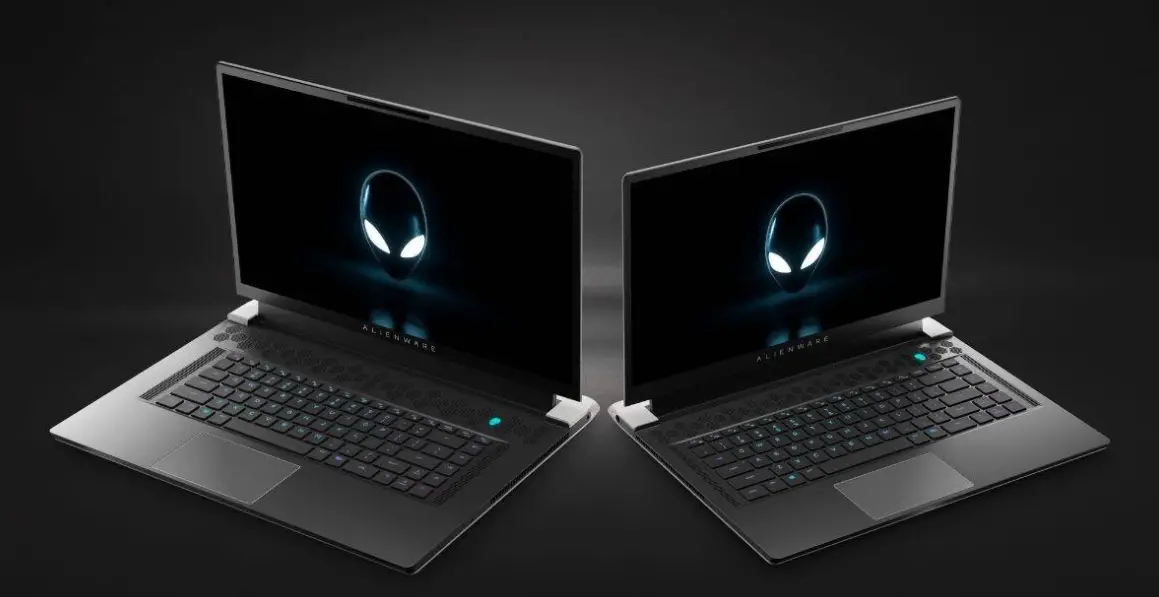
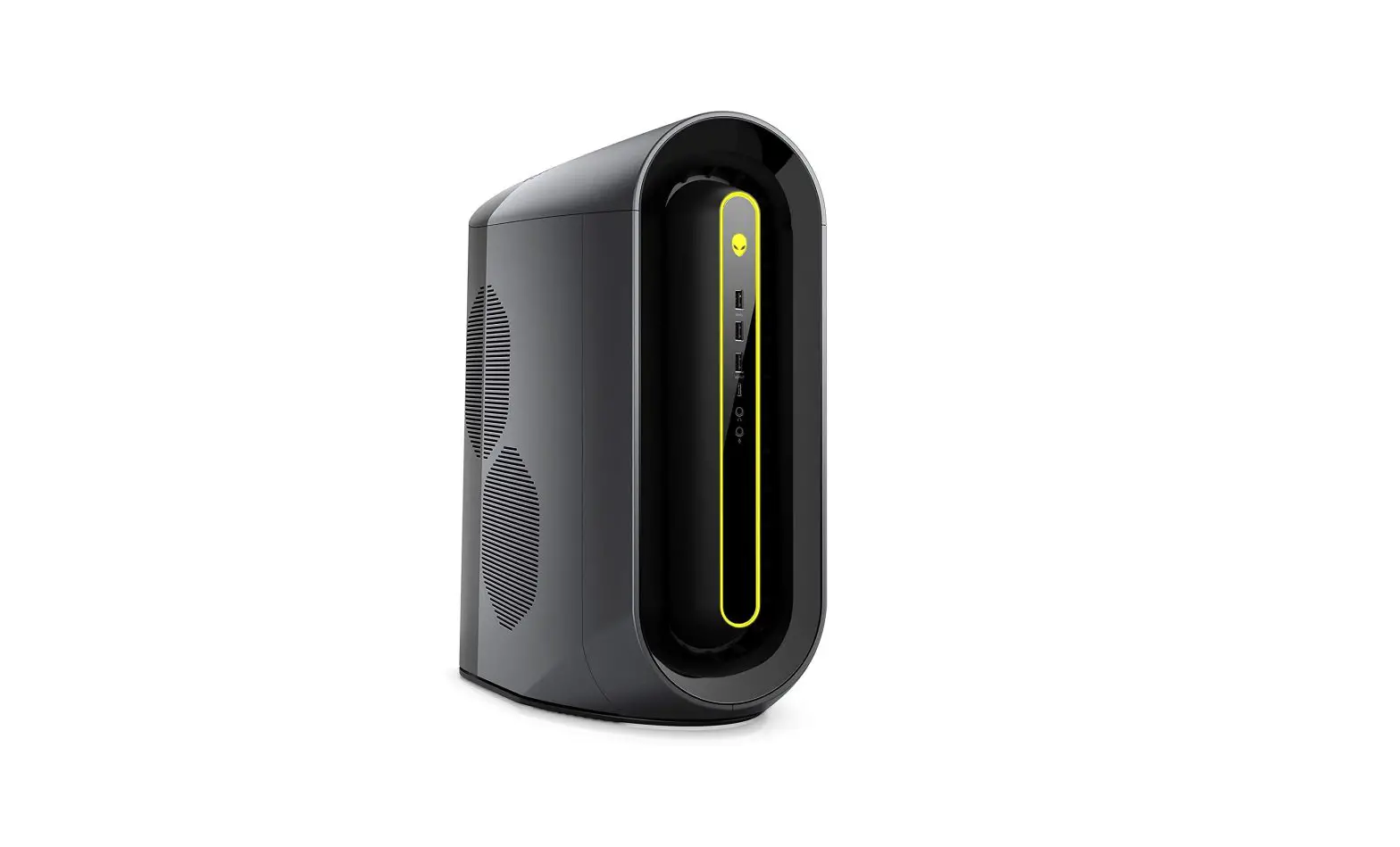
Views
FCC Radio Frequency (RF) Exposure Information
This device has been evaluated to, and shown to be compliant with, the FCC Radio Frequency (RF) exposure limits.
Devices such as Desktop computers and Access Points (AP) that contain wireless functions (such as 802.11, Bluetooth, 3G or 4G) must be installed to provide a separation distance of at least 20cm from people to ensure compliance with the RF exposure requirements.
Certain laptop/notebook computers, with antennas located toward the top of the screen, may require a separation distance of at least 20cm between the antennas and persons when they are operating to ensure compliance with the RF exposure requirements. These laptop/notebook computers are designed such that, during normal use with the screen open, the antenna-to-user distance is greater than 20cm.
Some devices may have additional requirements for operating conditions to ensure compliance with RF exposure requirements. Specific instructions, where required, will be contained in the manual for that device. Please read your operating manual carefully.
Interference Statement
This equipment generates, uses, and can radiate radio frequency energy and, if not installed and used in accordance with the manufacturer’s instruction manual, may cause interference with radio and television reception. This equipment has been tested and found to comply with the limits for a Class B digital device pursuant to Part 15 of the FCC Rules.
This device complies with Part 15 of the FCC Rules. Operation is subject to the following two conditions:
1) This device may not cause harmful interference. 2) This device must accept any interference received, including interference that may cause undesired operation.
Notice: The FCC regulations provide that changes or modifications not expressly approved by Dell Inc. could void your authority to operate this equipment.
These limits are designed to provide reasonable protection against harmful interference in a residential installation. However, there is no guarantee that interference will not occur in a particular installation. If this equipment does cause harmful interference with radio or television reception, which can be determined by turning the equipment off and on, you are encouraged to try to correct the interference by one or more of the following measures:
- Reorient the receiving antenna.
- Relocate the system with respect to the receiver.
- Move the system away from the receiver.
- Plug the system into a different outlet so that the system and the receiver are on different branch circuits.
If necessary, consult a representative of Dell Inc. or an experienced radio/television technician for additional suggestions.
NOTE: Any additional Wireless module must be installed and used in strict accordance with the manufacturer’s instructions as described in the user documentation that comes with the product.
Any other unauthorized installation or use will violate FCC Part 15 regulations. Modifications not expressly approved by Dell could void your authority to operate the equipment.
Canada, Industry Canada (IC) Notices
Class B digital circuitry of this device complies with Canadian ICES-003.
This device complies with Industry Canada license-exempt RSS standard(s). Operation is subject to the following two conditions: (1) this device may not cause interference, and (2) this device must accept any interference, including interference that may cause undesired operation of the device.
Under Industry Canada regulations, the radio transmitter(s) in this device may only operate using an antenna of a type and maximum (or lesser) gain approved for the transmitter by Industry Canada. To reduce potential radio interference to other users, the antenna type and its gain should be so chosen that the equivalent isotropically radiated power (e.i.r.p.) is not more than that necessary for successful communication.
Warning:
(i) the device for operation in the band 5150-5250 MHz is only for indoor use to reduce the potential for harmful interference to co-channel mobile satellite systems;
(ii) the maximum antenna gain permitted for devices in the bands 5250-5350 MHz and 5470-5725 MHz shall comply with the e.i.r.p. limit; and
(iii) the maximum antenna gain permitted for devices in the band 5725-5825 MHz shall comply with the e.i.r.p. limits specified for point-to-point and non-point-to-point operation as appropriate.
(iv) Users should also be advised that high-power radars are allocated as primary users
(i.e. priority users) of the bands 5250-5350 MHz and 5650-5850 MHz and that these radars could cause interference and/or damage to LE-LAN devices.
Radio Frequency (RF) Exposure Information
The radiated output power of this device is below the Industry Canada (IC) radio frequency exposure limits. This device has been evaluated for and shown compliant with the IC Radio Frequency (RF) Exposure limits. The device should be used in such a manner that the potential for human contact during normal operation is minimized.
This device has been certified for use in Canada. The status of the listing in the Industry Canada’s REL (Radio Equipment List) can be found at the following web address:
http://www.ic.gc.ca/app/sitt/reltel/srch/nwRdSrch.do?lang=engc
Additional Canadian information on RF exposure also can be found at the following web address: http://www.ic.gc.ca/eic/site/smt-gst.nsf/eng/sf08792.html
MCMC certification mark
Windows
In Windows Search, type System. In the search results, click System.
Ubuntu
On the desktop, click → About This Computer.
Di impor oleh:
PT Dell Indonesia
Menara BCA Lantai 48 Unit 4804
Jalan M.H Thamrin No. 1 Jakarta Pusat,
10310 Indonesia
Connection and use of this communications equipment is permitted by the Nigerian Communications Commission.
 Regulatory Compliance | Dell
 Materials – Restricted Material Compliance | Dell 台灣
 Frequently Asked Questions (FAQ) on Radiofrequency (RF) Energy and Health