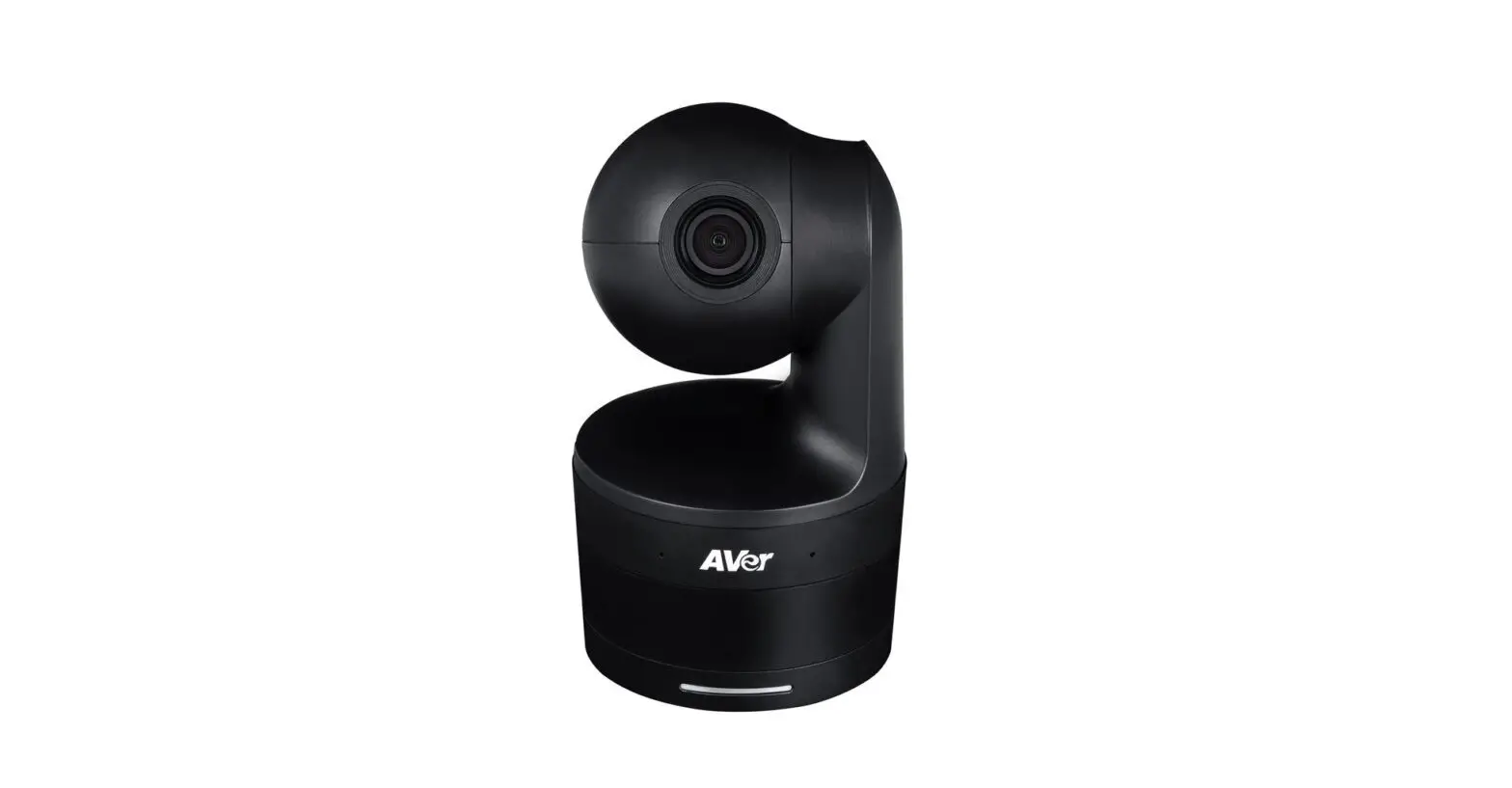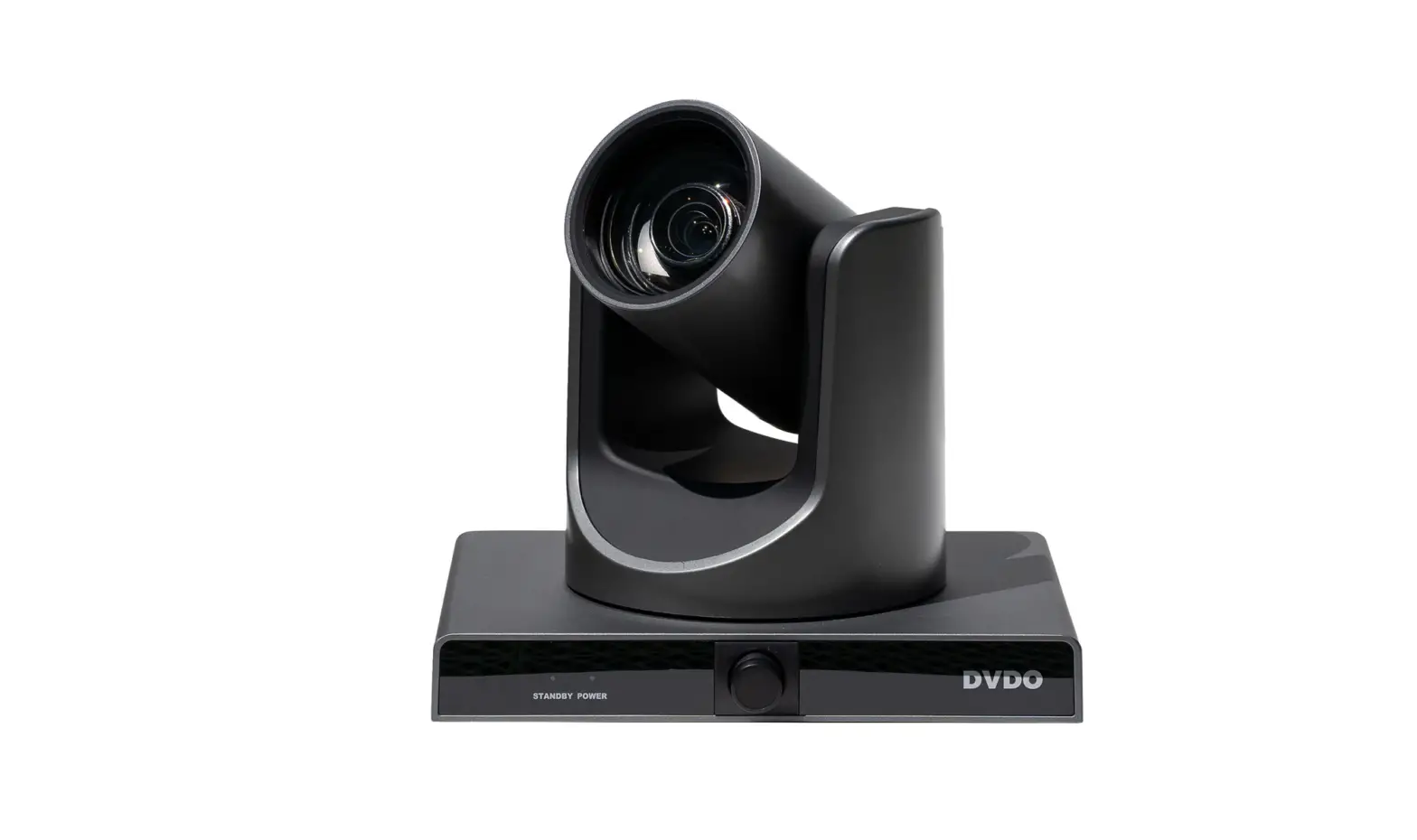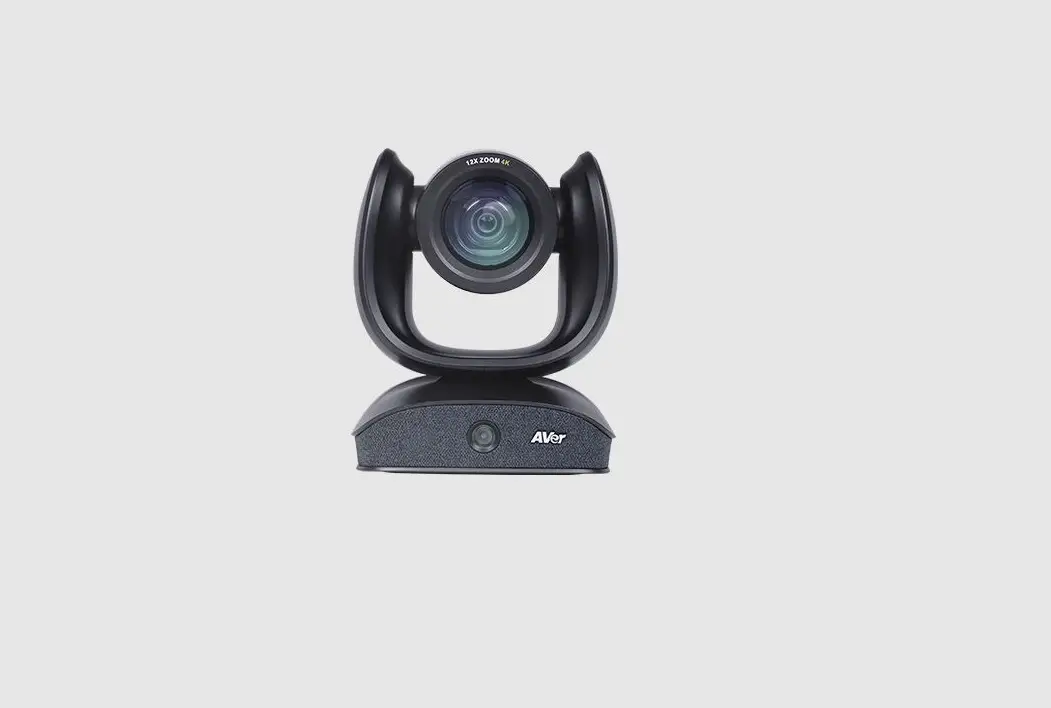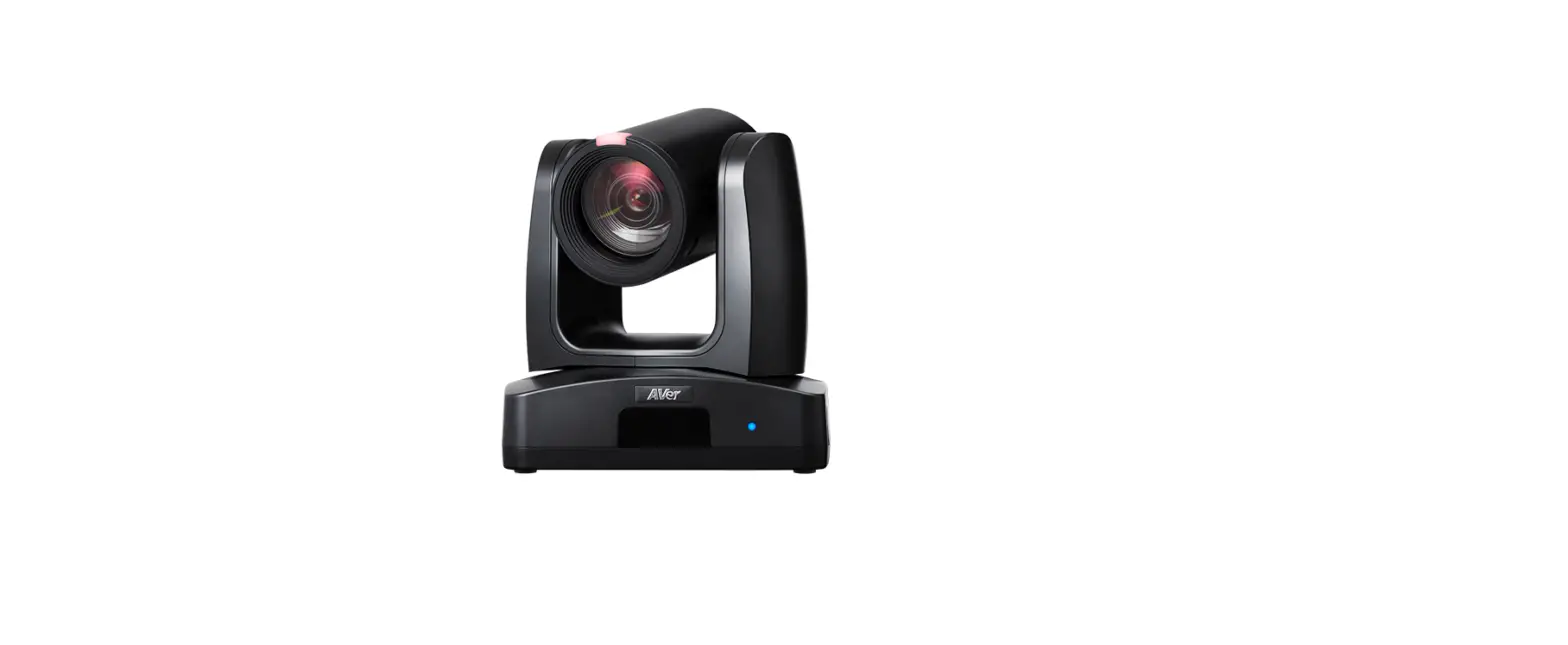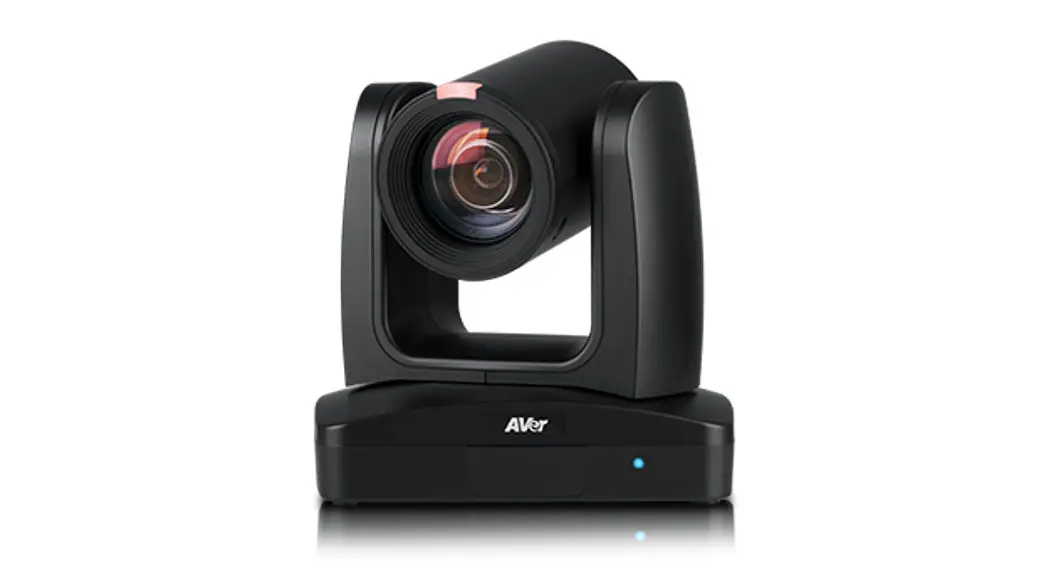
 Professional Tracking Camera
Quick Start Guide
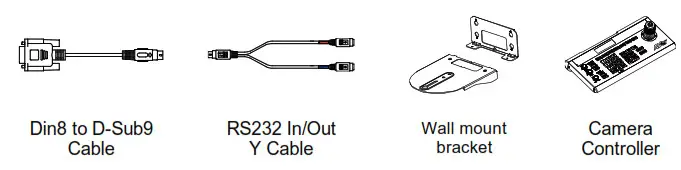
Package Contents
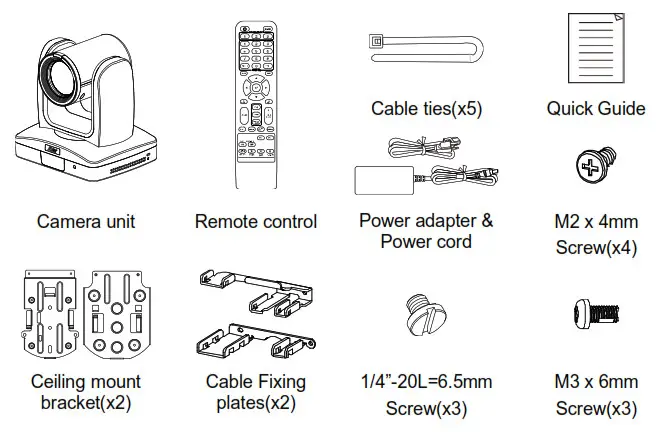
Optional accessory
LED Indicator
| LED | Status |
| Blue(Solid) | Normal Operation |
| Orange(Blinking) | Camera Initialization |
| Orange (Solid) | Standby |
| Red (Blinking) | FW Updating |
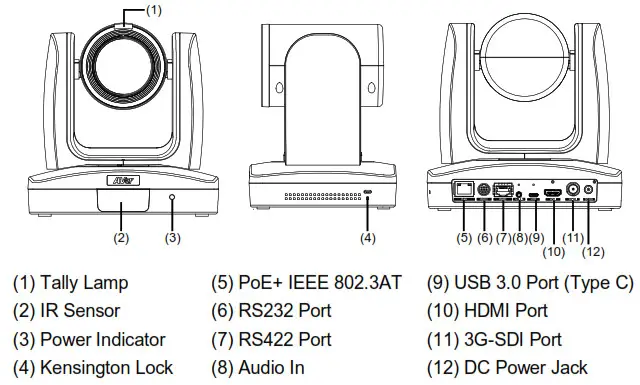
Overview
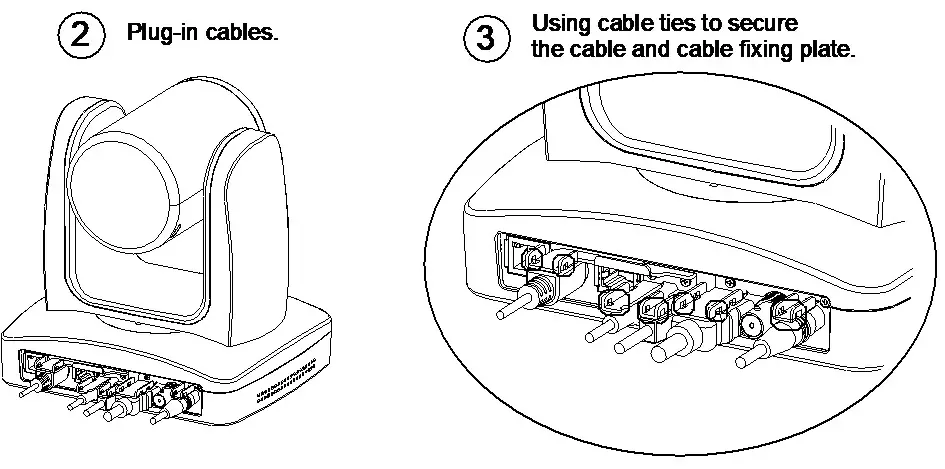
 Connections
 Connections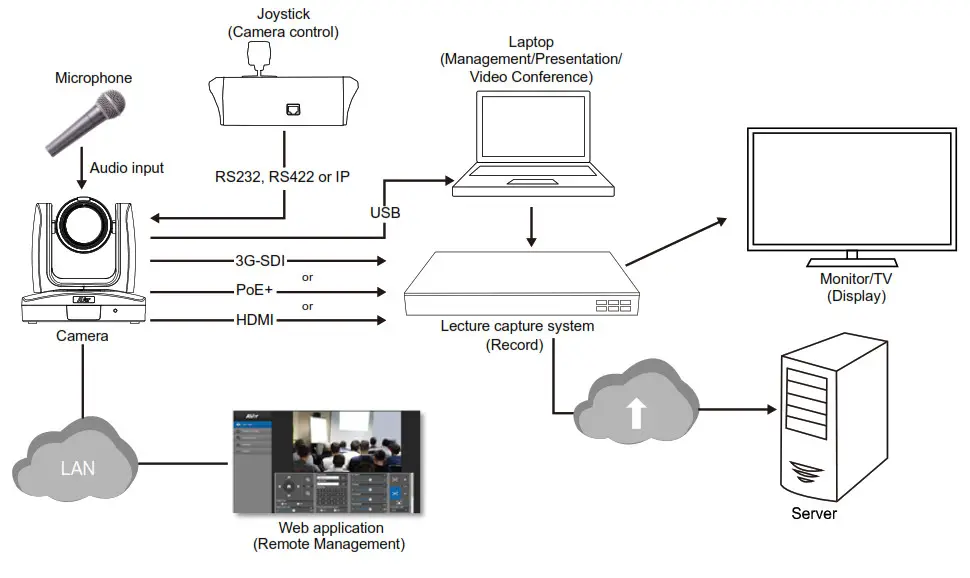
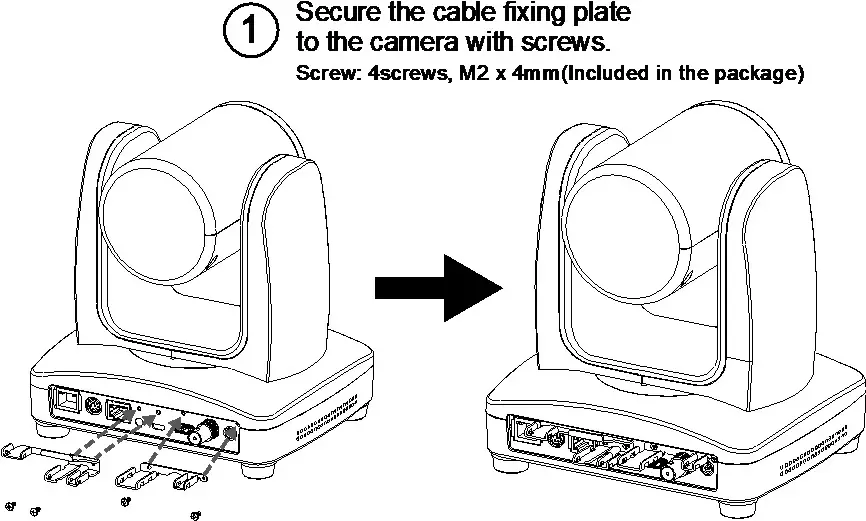
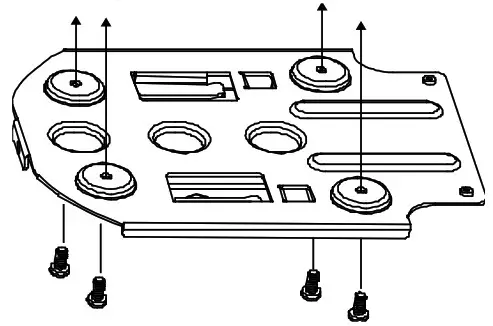
Install Cable Fixing Plate
Remote Control
The remote controller requires two (2) “AAA” size batteries, make sure batteries are installed properly before use.
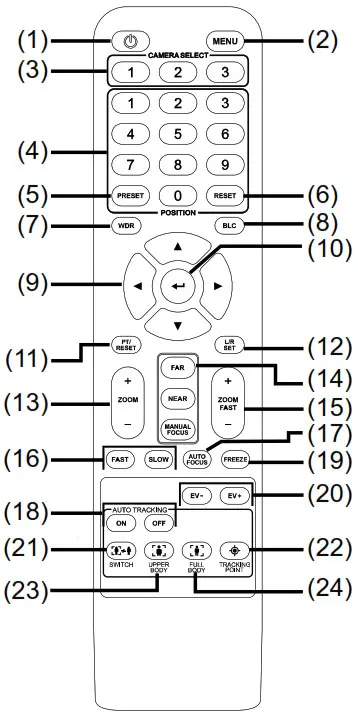
| Name | Function |
| (1)Power | Turn the unit on/standby. |
| (2)Menu | Open and exit the OSD menu. |
| (3)Camera Select | CAM1 to CAMS button Selects a camera to operate. |
| (4)Numeric Pad |
|
| (5)Preset | Press “Preset” + “Number button (0-9)” to set the preset position. |
| (6)Reset | Press “Reset” + “Number button (0-9)” to cancel pre-configure preset position. |
| (7)WDR | Turn on/off WDR function. |
| (8)BLC | Turn on/off backlight compensation |
(9)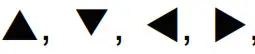 | Pan and tilt the camera. |
| (10)Enter | When opening the OSD menu and Confirm the selection or make a selection in OSD menu. |
| (11)PT Reset | Reset the Pan-Tilt position. |
| (12)UR DIR | Left and right orientation setting. – Press “UR DIR” + “#1” button to reset setting. – Press “UR DIR” + “#2” button to move to opposite direction. |
| (13)Zoom +/- | Zoom in/out slow. |
| (14)MF/Far/Near | Enable manual focus. Use Far/Near to adjust the focus. |
| (15)Zoom Fast +/- | Zoom in/out fast. |
| (16)Pan-tilt Fast/Slow | Pan-Tilt speed adjustment. |
| (17)AF | Autofocus. |
| (18)Auto Tracking | Auto Tracking on/off. |
| (19)Freeze | Freeze the live image |
| (20)EV +/- | EV level adjustment. |
| (21)Switch | Change presenter. |
| (22)Tracking Point | When the presenter enters this area, the camera will start tracking. |
| (23)Upper Body | The presenter’s size on the screen is upper body. |
| (24)Full Body | Full body Presenter’s size on screen is Full body. |
Setup Tracking Point
Set up a tracking point as a start point of auto-tracking. In general, the tracking point is set at the position of the speaker. When the camera detects a person at the tracking point it will start to track that person. Also, when tracking is lost, the camera will revert back to the tracking point after a few seconds.
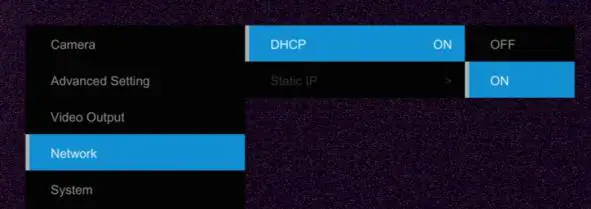
- Press [MENU] button on the remote control to call out the OSD menu.
- Go to Network > DHCP > On. Then, go to System > Information to check the IP address of the camera.

- Next, open the browser on your PC/laptop, enter the IP address of the camera and connect to the camera (Default login account and password are admin/admin). User should see the camera Web UI.
 4. Select Tracking Settings > Presenter. Use
  ,
,  and to set the camera position, then
 , select to save the tracking point. For more detailed settings of tracking, please refer to the user manual.
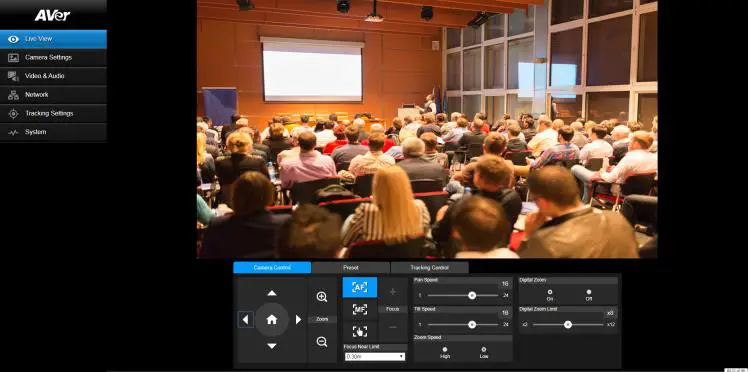 4. Select Tracking Settings > Presenter. Use
  and
and to set the camera position, then
 , select to save the tracking point. For more detailed settings of tracking, please refer to the user manual.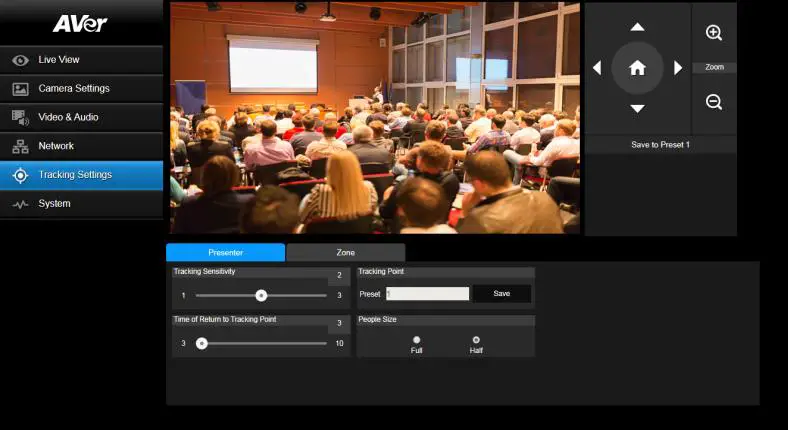
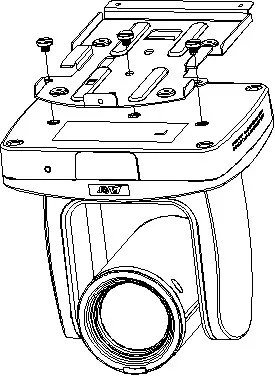
Ceiling installation
- Secure the mount bracket on the ceiling. Screw: 4 screws, M4 x 10mm(Not Included in the package)

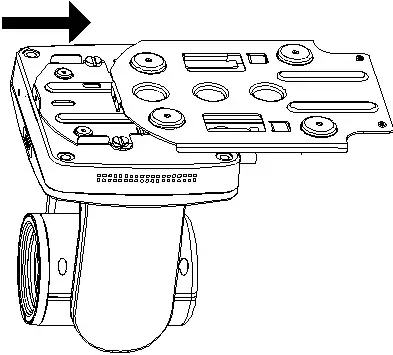
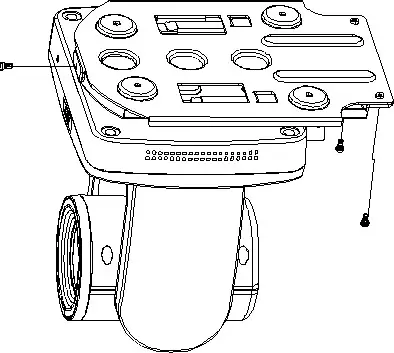
- Install the mount bracket on the camera. Screw: 3 screw, 1/4″-20 L=6.5mm(Included in the package)

- Slide the mount bracket with the camera into the mount bracket is secured on the ceiling.

[Note] Connects necessary cables after sliding the camera into the mount bracket. - Secure the camera with screws. Screw: 3 screws, M3 x 6mm(Included in the package)

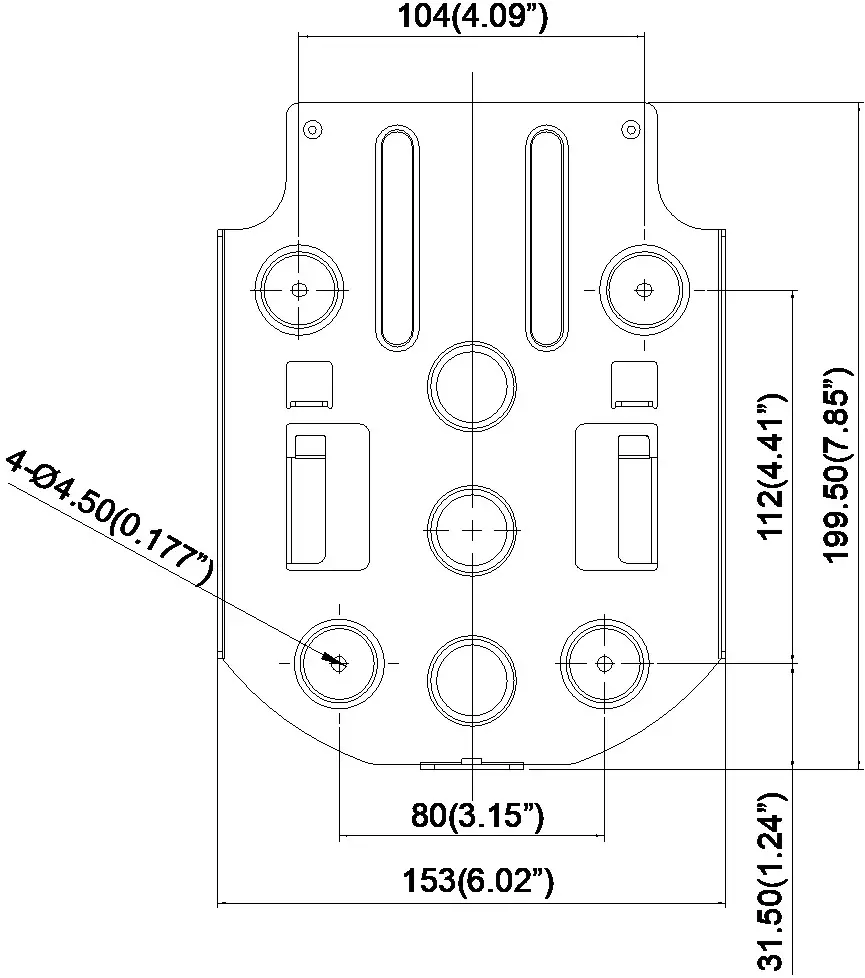
Dimensions
Federal Communication Commission Interference Statement
NOTE: This equipment has been tested and found to comply with the limits for a Class A digital device, pursuant to part 15 of the FCC Rules. These limits are designed to provide reasonable protection against harmful interference when the equipment is operated in a commercial environment. This equipment generates, uses, and can radiate radio frequency energy and, if not installed and used in accordance with the instruction manual, may cause harmful interference to radio communications. Operation of this equipment in a residential area is likely to cause harmful interference in which case the user will be required to correct the interference at his own expense.
FCC Caution: Any changes or modifications not expressly approved by the party responsible for compliance could void the user’s authority to operate this equipment. This device complies with part 15 of the FCC Rules.
The Operation is subject to the following two conditions:
- This device may not cause harmful interference, and
- this device must accept any interference received, including interference that may cause undesired operation.
Warning: This is a class A product. In a domestic environment, this product may cause radio interference in which case the user may be required to take adequate measures.
Caution
- Risk of explosion if the battery is replaced by an incorrect type.
- Dispose of used batteries in a safe and proper manner.
©2020 AVer Information Inc. All rights reserved.
All rights of this object belong to AVer Information Inc. Reproduced or transmitted in any form or by any means without the prior written permission of AVer Information Inc. is prohibited. All information or specifications are subject to change without prior notice.
Contract Information
| Global AVer Information Inc. www.aver.com 8F, No.157, Da-An Rd. Tucheng Dist., New Taipei City Taiwan Tel: +886-2-2269-8535 | USA AVer Information Inc. 668 Mission Ct. Fremont, CA 94539 www.averusa.com Toll-free: 1(877)528-7824 Local: 1(408)263-3828 [email protected] |
| Europe B.V. AVer Information Inc. Westblaak 140, 3012KM Rotterdam, Netherland Tel: +31(0)10 7600 550 Technical support: [email protected] | |
 AVer USA
 AVer USA