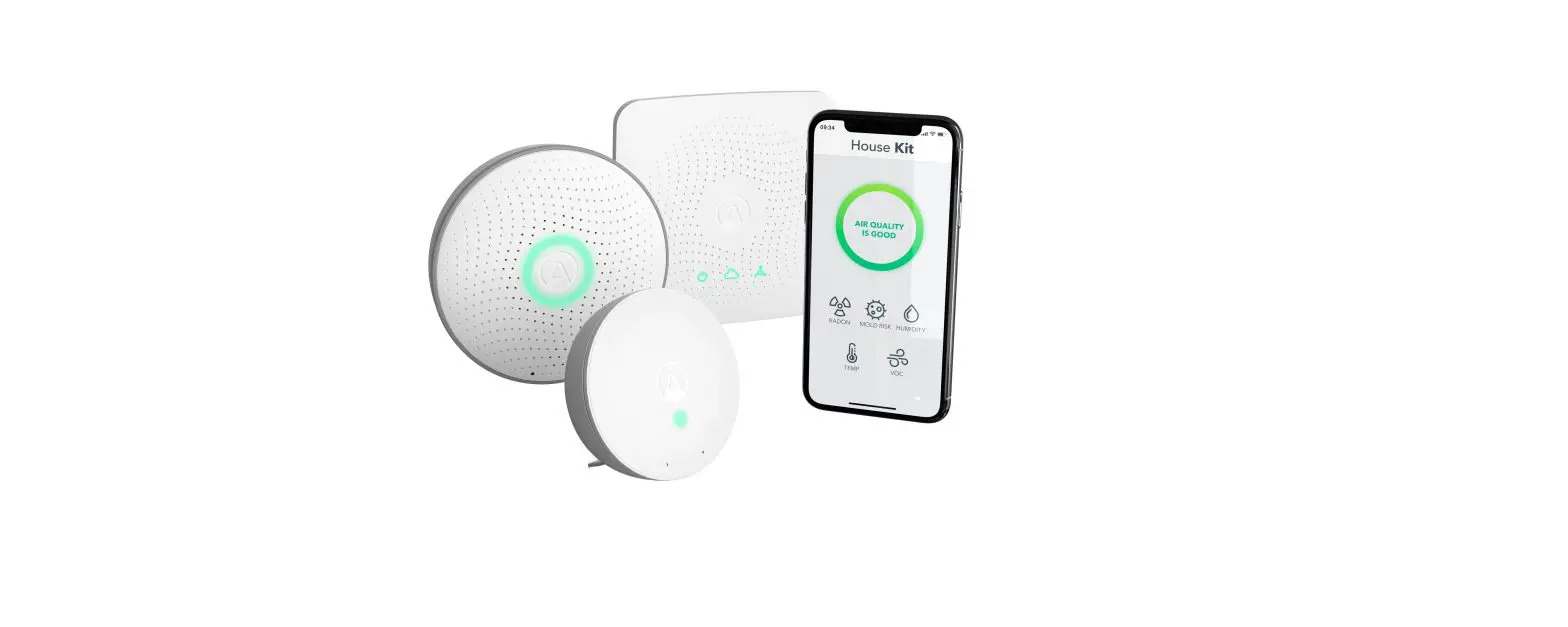
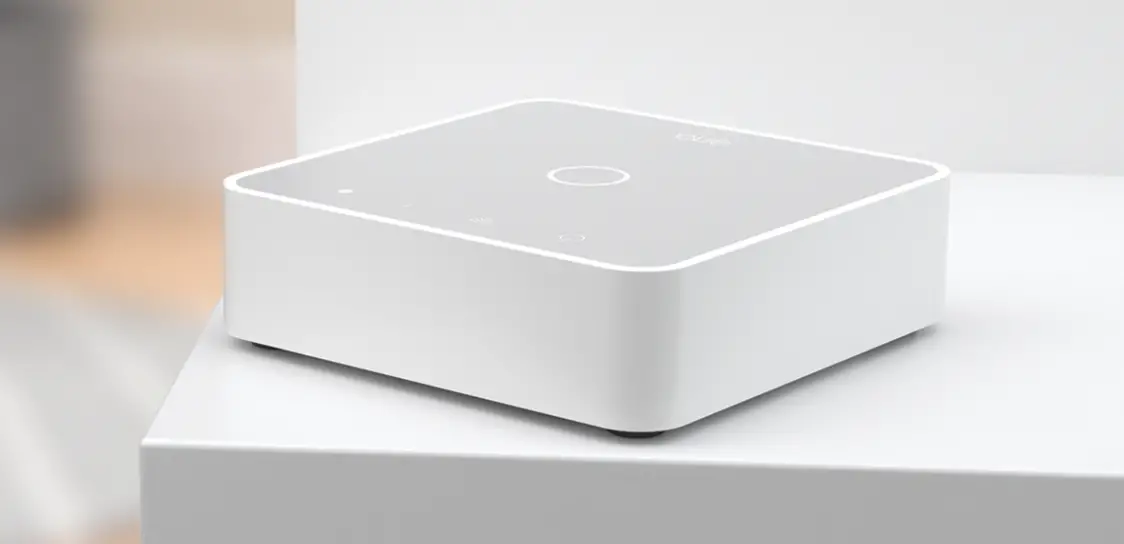
312B Space Hub
Product Information:
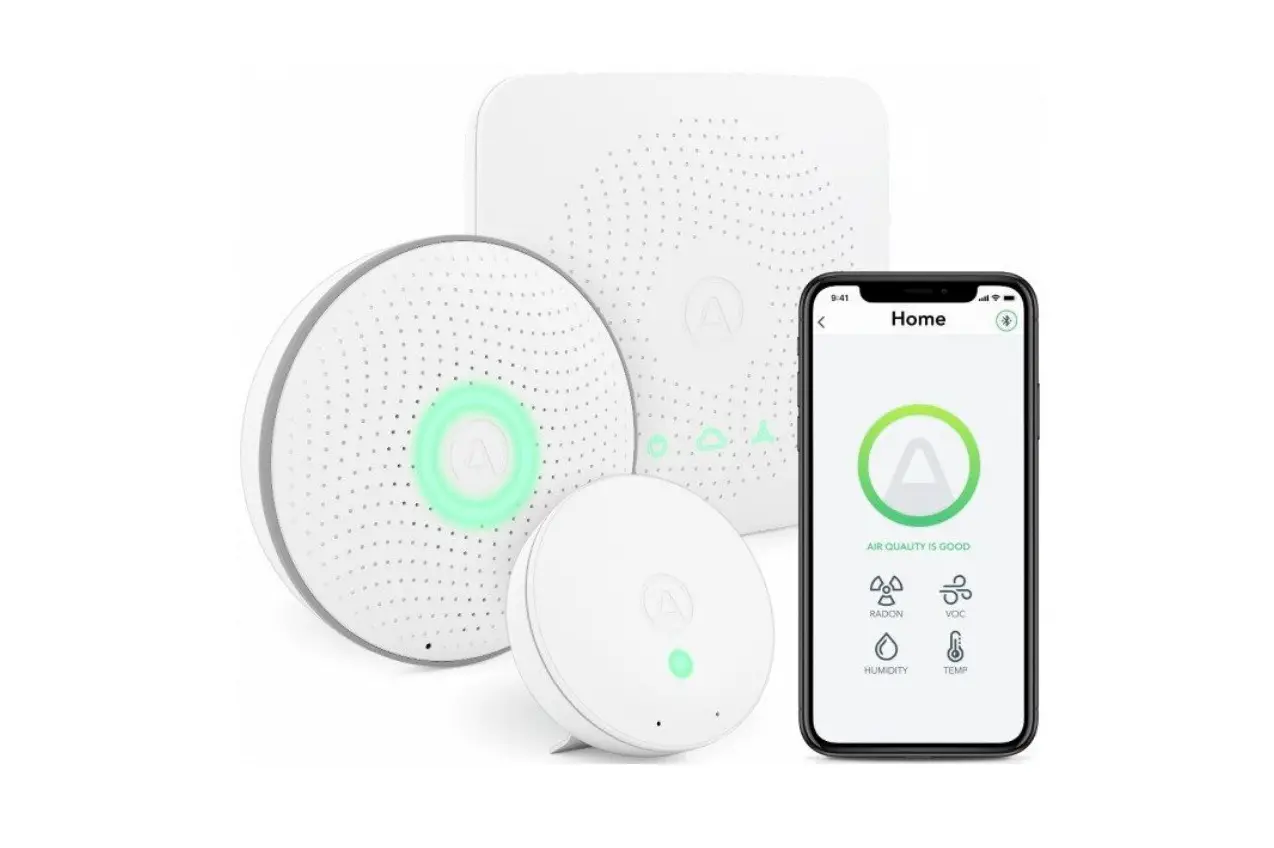
The Airthings for Business solution provides remote access to
your ecosystem. It consists of various devices and a Space Hub that
allows you to monitor and manage your indoor air quality. The
solution offers live data streaming to the cloud, which can be
accessed through the Airthings API or the dashboard.airthings.com
platform. The Space Hub is specifically designed for Airthings for
Business devices and should not be connected to consumer Airthings
devices to avoid subscription issues and additional charges.
The Space Hub comes with a set of accessories, including a
charger and plug adapters, eSIM/SIM card (preinstalled), rubber
bumper pads, double-sided tape, Ethernet cable, and AA batteries
(preinserted). It features a light indicator that shows the power
supply status, cloud connection status, and Airthings SmartLink
data reception status. The Space Hub can be powered through an
Ethernet connection or with the built-in eSIM, depending on the
model.
The Airthings for Business solution operates in different
regions, including EU/UK/UAE, US/Canada, Hong
Kong/Macao/Singapore/Malaysia/Thailand, Australia/New
Zealand/Japan, and India. The region is determined during the setup
of the Airthings for Business account and device registration. It
is important to set the correct region to comply with regional
radio regulations.
Product Usage Instructions:
- Getting started:
- Visit the Airthings for Business setup page at https://www.airthings.com/business/setup
for initial setup instructions.
- Visit the Airthings for Business setup page at https://www.airthings.com/business/setup
- Technical support:
- If you have any questions or need technical support, you can
reach out to Airthings for Business through email at
[email protected] or via the chat widget on the bottom
right of the dashboard.airthings.com platform.
- If you have any questions or need technical support, you can
- Space Hub setup:
- Ensure that you only connect Airthings for Business devices to
the Space Hub. Connecting consumer Airthings devices may disrupt
your subscription and result in additional charges. - Refer to the Space Hub specifications section for details on
the components included in the box. - Connect the Space Hub to a power source using the provided
charger and plug adapters. - If using an Ethernet connection, connect the Space Hub to your
network using the Ethernet cable. If using the built-in eSIM, no
additional connection is required. - Mount the Space Hub using the provided mounting bracket.
- Make sure the AA batteries are properly inserted if using them
as a backup power source. - Refer to the light indicators section to understand the
different status indications of the Space Hub.
- Ensure that you only connect Airthings for Business devices to
- App and software usage:
- Manage your Airthings for Business account and access your data
through the dashboard.airthings.com platform. - Install your Airthings for Business devices using the dedicated
app. - Refer to the provided links for more information on app
installation and usage.
- Manage your Airthings for Business account and access your data
25/07/2023, 14:14
Solution Setup | Airthings for Business
Airthings for Business Solution Setup
Remote access to your ecosystem
Getting started
October 4th, 2022
Congratulations on taking this important step toward a healthier building! The Airthings for Business solution keeps track of your indoor air quality, enabling you to make informed decisions that lead to increased productivity, reduced sick leave and greater energy e ciency. The Airthings Space Hub provides you 24/7 access to real time sensor data as well as historical sensor data on your Airthings for Business Dashboard. At Airthings, we deliver indoor air insights so that you can nd the ideal balance between building health and energy e ciency. The Airthings Team
Get in touch
https://www.airthings.com/business/setup
1/24
25/07/2023, 14:14
Solution Setup | Airthings for Business
For technical support or if you have any questions or comments that we did
not answer here, you can reach us at [email protected] or
through the chat widget on the bottom right when you log into your account
at dashboard.airthings.com.
Warning
The Airthings Space Hub only works with Airthings for Business devices. Connection to consumer Airthings devices could upset your subscription and cause additional charges. Please do NOT try to connect with any devices other than Airthings for Business devices.
Click the section you want to go to
Getting started https://www.airthings.com/business/setup
What’s in the box 2/24
25/07/2023, 14:14
Solution Setup | Airthings for Business
Space Hub speci cations
Setting up
Regulatory information
What’s in the box Space Hub
Airthings Space Hub
Charger and plug adapters
eSIM/SIM card (preinstalled)
https://www.airthings.com/business/setup
3/24
25/07/2023, 14:14
Solution Setup | Airthings for Business
Rubber bumper pads
Double-sided tape
Ethernet cable
Airthings Devices
Airthings Space Pro,
2 Space CO , Space Plus, 2 Space CO Mini
AA batteries (preinserted)
Double-sided tape
Space Hub Specifications
https://www.airthings.com/business/setup
4/24
25/07/2023, 14:14
Solution Setup | Airthings for Business
1
Light indicator
2
Ethernet port
3
Power input
4
Mounting bracket
Light indicators
Power Supply: Green when there is power to the Space Hub
Cloud: Green if Hub is connected to cloud. O no connection OR if no successful transfer to cloud occurred within the last 6 minutes Airthings SmartLink: Green when sensor data is received within the last 6 minutes
Connectivity
Ethernet OR
https://www.airthings.com/business/setup
5/24
25/07/2023, 14:14
Solution Setup | Airthings for Business
Cellular LTE Cat.M1 & EGPRS(2G)
Space Hub Cellular Model 2820 can operate with ethernet connection or with the built-in eSIM Space Hub Model 2810 can only operate with ethernet connection
App & Software
Manage your account and access your data at dashboard.airthings.com Install your devices using the Airthings for Business app:
Protocol
Airthings SmartLink, 865-870/902-928MHz long-range wireless connection
https://www.airthings.com/business/setup
6/24
25/07/2023, 14:14
Remote Access
Solution Setup | Airthings for Business
Live data streaming to the cloud and accessible at dashboard.airthings.com or through Airthings API
Power Supply
100-240V AC / 50-60 Hz Adapter to 5V DC2A
Important information
Regional operation
The Hub can operate in EU / UK / UAE, US / Canada, Hong Kong / Macao / Singapore / Malaysia
/ Thailand, Australia / New Zealand / Japan and India. Space Pro, Space CO2 and Space CO2 Mini
cover the same regions, while Space Plus covers a sub-set of regions.
During the setup of the Airthings for Business account and when devices are added, the user needs to add an address for each location/building, which will set the correct region for the Hub and devices. Correct information must be set to operate the Hub in compliance with regional radio regulations. The region of the devices will be set by registering the devices in the Airthings for Business app.
https://www.airthings.com/business/setup
7/24
25/07/2023, 14:14
Solution Setup | Airthings for Business
Device packages are marked with the region they are supported within. Devices that have a coloured sticker underneath the battery cover have a pre-programmed region. You can
change this region by registering the devices using the Airthings business app. The coloured stickers have the following meaning: EU / UK / UAE is blue, US / CA (North America) is red,
Singapore, Hong Kong, Macao, Malaysia and Thailand are black, Australia / New Zealand / Japan is yellow, and India is green.
Business sensor devices connection & monitoring
Do NOT connect your consumer Airthings devices to Airthings Space Hub. That will cause additional charges to your Airthings for Business subscription due to the additional consumer devices connected.
Monitor your Airthings for Business devices via the Airthings Dashboard at dashboard.airthings.com or in the Airthings Business app. Do not use the Airthings or Airthings Wave app with the business devices.
Optimum radio range
The SmartLink radio signal has a typical indoor range of more than 50 meters or 150 feet indoors (Hub to sensor device). The signal can normally penetrate 10 drywalls (non-load bearing walls), or 3 thick walls or oors.
Place the Hub somewhere in the center of the area you want to cover. If the area is too large, or if conditions are not optimal for the SmartLink radio signal, multiple Hubs are required. When multiple Hubs are present, sensor devices will connect to the nearest Hub as long as the Hubs are registered and installed before installing sensor devices.
Avoid placing the devices near large metal objects as they will disrupt the SmartLink radio signal. Moving sensor devices closer to the Hub will usually improve the signal strength, but in some cases, a sensor device might be in a local “radio shadow” where the Hub cannot see the device. Should a device display less radio signal strength than expected, try moving it slightly to see if signal strength improves.
Batteries
Airthings for Business devices are designed to be used with 1.5V lithium batteries and typically ship with them pre-installed.
Using batteries with a higher voltage can overheat and damage the products which is considered as misuse and will void the warranty.
https://www.airthings.com/business/setup
8/24
25/07/2023, 14:14
Solution Setup | Airthings for Business
When the batteries need to be replaced, we recommend using the same 1.5V lithium batteries. The estimated battery life in our product sheets is based on 1.5V lithium batteries. Alkaline
batteries will result in a lower battery lifetime.
USB plug for Space Pro and Space CO2
The Space Pro and Space CO2 can be powered using a 5V USB-C power adapter. Higher voltage adapters can damage the product which is considered as misuse and will void the warranty.
Setting up
1
Activate account
2
Download the App
3
Add building
4
Set up Space Hub
5
Set up device
6
Mount devices
7
Battery replacement
Step 1
https://www.airthings.com/business/setup
9/24
25/07/2023, 14:14
Solution Setup | Airthings for Business
Activate Airthings for Business account
Check Airthings for Business invitation email sent to your email address. Follow the instructions in the email to activate your Airthings for Business account.
Attention
The Airthings for Business Solution requires an active subscription. You will not be able to continue with the setup without activating your account.
If you do not receive an invitation email, please contact your Airthings Sales Representative.
Alternatively, please contact Airthings Support at [email protected].
Step 2 Download Airthings for Business App
Download the Airthings for Business app and log in with your credentials.
https://www.airthings.com/business/setup
10/24
25/07/2023, 14:14
Solution Setup | Airthings for Business
App for Android
Step 3
https://www.airthings.com/business/setup
App for iOS
11/24
25/07/2023, 14:14
Add building
Solution Setup | Airthings for Business
Add building using the Airthings Business app
1. Fill in the building name 2. Fill in the building information elds 3. Add the building
Add building using the web Dashboard
1. Fill in location name 2. Fill in the address of the location 3. Fill in the building information elds 4. Select the correct timezone 5. Enable opening hours of the building (in order to create insight reports)
Step 4 Set up Space Hub
https://www.airthings.com/business/setup
12/24
25/07/2023, 14:14
Solution Setup | Airthings for Business
https://www.airthings.com/business/setup
13/24
25/07/2023, 14:14
Solution Setup | Airthings for Business
https://www.airthings.com/business/setup
14/24
25/07/2023, 14:14
Solution Setup | Airthings for Business
Serial number and Device ID can be found at the back of your device, after removing the mounting bracket
1. Register your Hub
a. Log in to the Airthings Business app with your newly activated account b. Remove the mounting bracket at the back of the Space Hub by slightly lifting it up and pulling it out. c. Locate the QR code next to Serial Number and at the back of your device d. Navigate in the app to the building page, click on the + in the top right corner e. Scan the QR code to register your device
https://www.airthings.com/business/setup
15/24
25/07/2023, 14:14
Solution Setup | Airthings for Business
2. Start up Space Hub
Option A – Using Ethernet
a. Register the Space Hub. The Space Hub has to be registered to an Airthings account before it will connect.
b. Connect Space Hub to your Ethernet cable, one end of the cable to the Space Hub port, the other end to the ethernet outlet
c. Connect Space Hub to power socket
d. Wait for Space Hub rmware upgrade to be completed. This may take 10 to 70 minutes. Registering the Space Hub rst (as speci ed in section 1) can help to reduce waiting time.
Question
Where should I place the Space Hub?
https://www.airthings.com/business/setup
16/24
25/07/2023, 14:14
Solution Setup | Airthings for Business
Place the Space Hub somewhere in the center of the area you would like to measure air quality. Place and set up up to 30 Airthings for Business devices clustered around
the Space Hub. For each Space Hub, fully complete also setup of the Airthings for Business devices within range, before moving onto next Space Hub.
Attention
The Space Hub will not connect to any devices before it has been registered. Make sure you register the Space Hub to your Airthings account at dashboard.airthings.com or in the Airthings Business app. The Space Hub conducts a registration check on start-up, so to avoid issue register the device before powering the Space Hub.
Option B – Using cellular connection
a. Register the Space Hub. The Space Hub has to be registered to an Airthings account before it will connect.
b. Connect Space Hub to power socket. An eSIM/SIM card is pre-inserted in the Space Hub and is ready for use.
c. Wait for Space Hub rmware upgrade to be completed. This may take 10 to 70 minutes. Registering the Space Hub rst (as speci ed in section 1) can help to reduce waiting time.
Notes
Space Hub model 2810 can only operate with ethernet connection.
Hub Cellular model 2820 can operate with ethernet connection or built-in eSIM (the SIM card slot should be empty). The Space Hub will only work with the built-in eSIM (or SIM card) provided by Airthings.
https://www.airthings.com/business/setup
17/24
25/07/2023, 14:14
Solution Setup | Airthings for Business
Space Hub model name and number can be found at the back of the device after removing the mounting bracket.
Step 5 Set up your sensor device
https://www.airthings.com/business/setup
18/24
25/07/2023, 14:14
Solution Setup | Airthings for Business
https://www.airthings.com/business/setup
19/24
25/07/2023, 14:14
Solution Setup | Airthings for Business
a. Bring the device to the room you want to monitor.
b. Pull the battery tab to power the device.
c. Log in to the Airthings Business app with your newly activated account.
d. In the app, navigate to the building and click on the + in the top right corner to add a device.
e. Locate the QR code next to the Serial Number and Device ID at the back of your device behind the back plate.
Question
Where should I place the device?
Place the device in the area you would like to measure air quality and within the radio link range of the Space Hub.
See “Optimal radio range” for more information. Do not permanently mount your devices until the device is checked to be in good radio link range.
To set up multiple Space Hub devices
Repeat Step 4
To set up multiple devices
Repeat Step 5
Troubleshooting
I cannot see my device on the dashboard/app
Any devices that do not show up at all are most likely completely out of radio range of the Space Hub. Note that one Space Hub can connect to maximum 30 devices. If a
https://www.airthings.com/business/setup
20/24
25/07/2023, 14:14
Solution Setup | Airthings for Business
Space Hub lls up with more than 30 devices, it can take up to 4 hours for the devices to nd and connect to another Hub within radio range.
What do the radio bars mean?
You can check received radio signal strength for each device in the Dashboard or app. With no signal bars, there is need for improvement. With one or two signal bars you might occasionally miss some sensor data samples. If you see missing data and want to improve, move the device closer to the Space Hub or bring in an additional Space Hub.
Notes
A SmartLink connection will be established between a powered-up device and a nearby powered-up Space Hub. It can normally take up to 20 minutes to connect a device to a Hub.
It takes an additional 5 to 10 minutes for device sensor data to be made available in the Airthings Dashboard/App.
Devices are upgraded seamlessly in the background and you do not need to take any action in this process.
Allow 7 days after deployment for data calibration of indoor air quality sensors such as Radon,
VOC and CO2.
Warning
The Space Hub only works with Airthings for Business devices. Connection to consumer Airthings devices could upset your subscription and cause additional charges.
Only use the Airthings Business app. Do not use the Airthings or Airthings Wave app with Business devices. Doing this can make the Business devices unusable.
https://www.airthings.com/business/setup
21/24
25/07/2023, 14:14
Solution Setup | Airthings for Business
Please do NOT try to connect with any devices other than Airthings for Business devices.
Step 6
Mount devices
Once the device is con rmed in good radio range to the Space Hub, you can permanently
mount the device. Use the included double-sided tape for temporary installations. For
permanent installations it is recommended to use screws for wall-mount. The devices should
never be mounted on the ceiling. Ensure that the device cannot fall onto someone or
something and cause damage. Products should not be mounted above 2m. Exception is Space
2 CO mini, which If absolutely needed, can also be placed > 6 ft (1.8m) above
case double sided tape must not be used.
oor, but in this
Optimum product placement is breathing height of 4 – 6 ft (1.2m – 1.8m) above oor. Mount the device at least 1 m away from exterior walls, doors, air supply/exhausts, mechanical fans, heaters or any other signi cant source of heat or cold.
https://www.airthings.com/business/setup
22/24
25/07/2023, 14:14
Solution Setup | Airthings for Business
Double-sided tape
https://www.airthings.com/business/setup
23/24
25/07/2023, 14:14
Solution Setup | Airthings for Business
Screw (not included)
Step 7
Battery replacement
At end of product battery lifetime, always replace with fresh batteries of same type and brand. Non compliance can be a safety hazard. It is recommended to replace with type Energizer Ultimate Lithium L91 batteries for accurate battery estimation in web dashboard and longest possible battery lifetime.
https://www.airthings.com/business/setup
24/24
 Airthings
 Solution Setup | Airthings for Business