
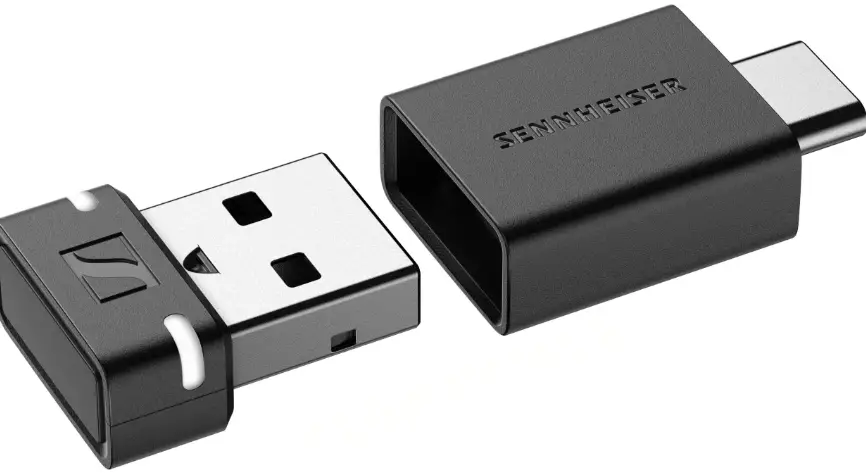
SENNHEISER BTD 600 Bluetooth USB Adapter
Important safety instructions
- Read this instruction manual carefully and completely before using the product.
- Always include this instruction manual when passing the product on to third parties.
- Do not use an obviously defective product.
- Only use the product in environments where Bluetooth® wireless transmission is permitted.
Preventing damage to health and accidents
- Do not use the product near water. Do not expose the product to rain or moisture to reduce the risk of fire or electric shock.
- Keep the product, accessories and packaging parts out of reach of children and pets to prevent accidents. Swallowing and chok-ing hazard.
Preventing damage to the product and malfunctions
- Always keep the product dry and do not expose it to extreme tem- peratures (hairdryer, heater, extended exposure to sunlight, etc.) to avoid corrosion or deformation. The normal operating tempera-ture is from 0 °C to 40 °C/32 °F to 104 °F.
- If you connect the dongle to a mobile device using the USB-C adapter, there is a risk that the protruding dongle and/or the USB socket can be damaged if the dongle is subjected to mechanical stress. Use a USB extension cable to reduce the mechanical stress.
- Use only attachments/accessories/spare parts supplied or rec- ommended by Sonova Consumer Hearing.
- Clean the product only with a soft, dry cloth.
- Use the product with care and store it in a clean, dust-free environment.
Notes on data collection and processing and on firmware updates
This product stores individual settings such as the Bluetooth address of the paired device. This data is required for the operation of the product and is not transferred to Sonova Consumer Hearing GmbH or companies commissioned by Sonova Consumer Hearing GmbH and is not processed. Using the “Sennheiser transmitter updater” program, you can update the product’s firmware free of charge via an Internet connection. If the PC/Mac on which the program is installed is connected to the Internet, the following data is automatically transferred to and pro-cessed by Sonova Consumer Hearing servers in order to provide and transfer suitable firmware updates: product part number. The data is only used for the purpose of providing and transferring the firmware updates and is not stored permanently. If you do not want this data to be transferred and processed, do not connect to the Internet.
Intended use/Liability
This product is designed for wireless audio communication via Blue-tooth wireless technology between a PC/Mac and headphones.
This product is intended for private domestic use only. It is not intended for commercial use.
It is considered improper use when the product is used for any appli-cation not named in the corresponding product documentation. Sonova Consumer Hearing GmbH is not liable for damages to devices that are not consistent with the interface specifications (USB). Sonova Consumer Hearing GmbH is not liable for damages resulting from the loss of connection due to exceeding the Bluetooth transmission range. Sonova Consumer Hearing GmbH does not accept liability for damage arising from misuse or improper use of this product and its attachments/accessories. Before putting the product into operation, please observe the respective country-specific regulations.
Package contents
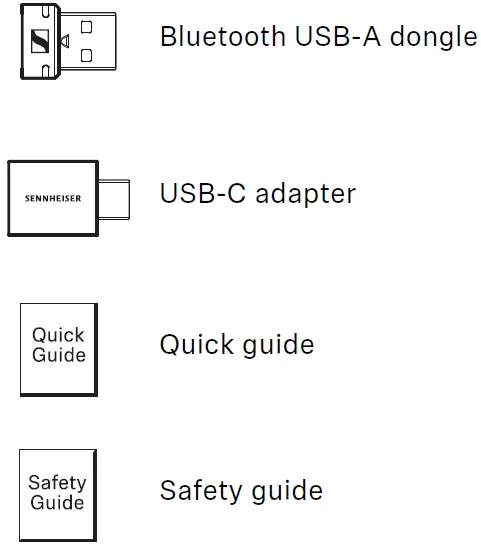
Online you can find:
- this detailed instruction manual and additional information
(www.sennheiser-hearing.com/download) - the “Sennheiser transmitter updater program” to update the dongle (www.sennheiser-hearing.com/download or www.senn-heiser-hearing.com/btd-600)
Product overview
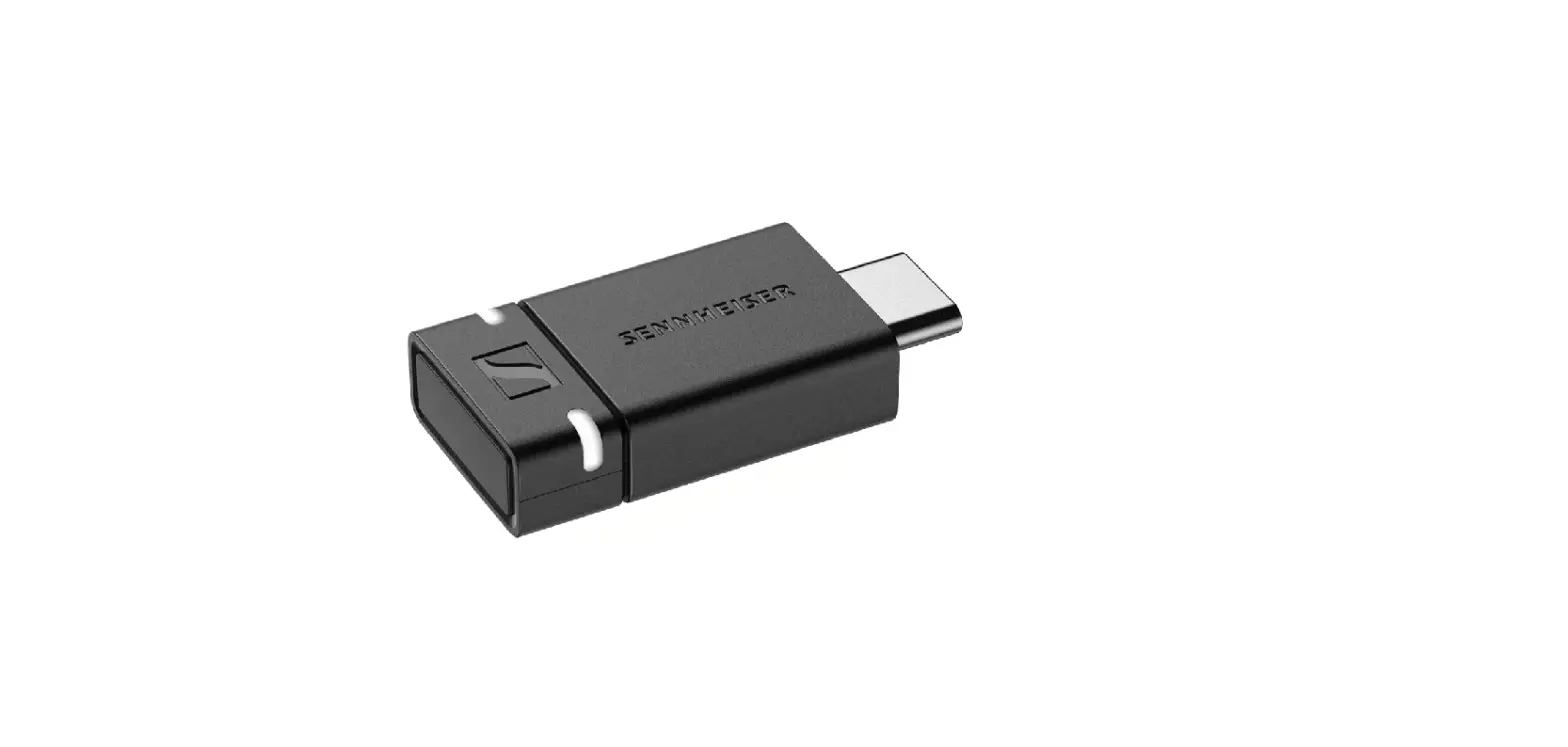
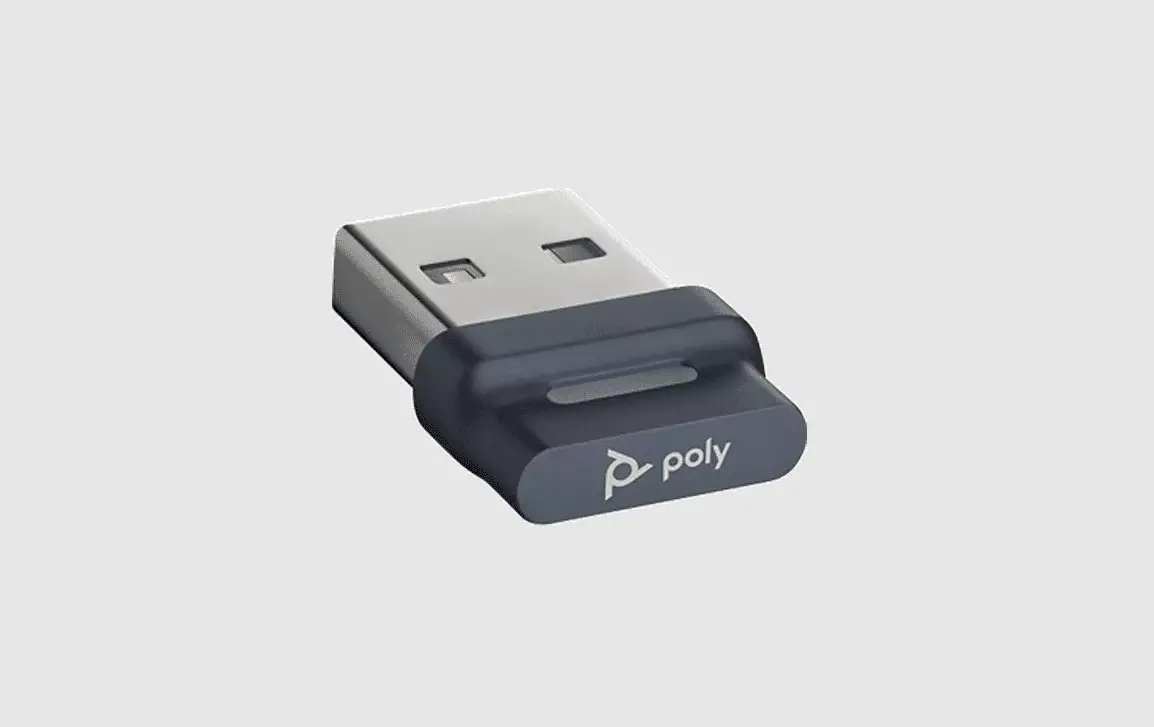
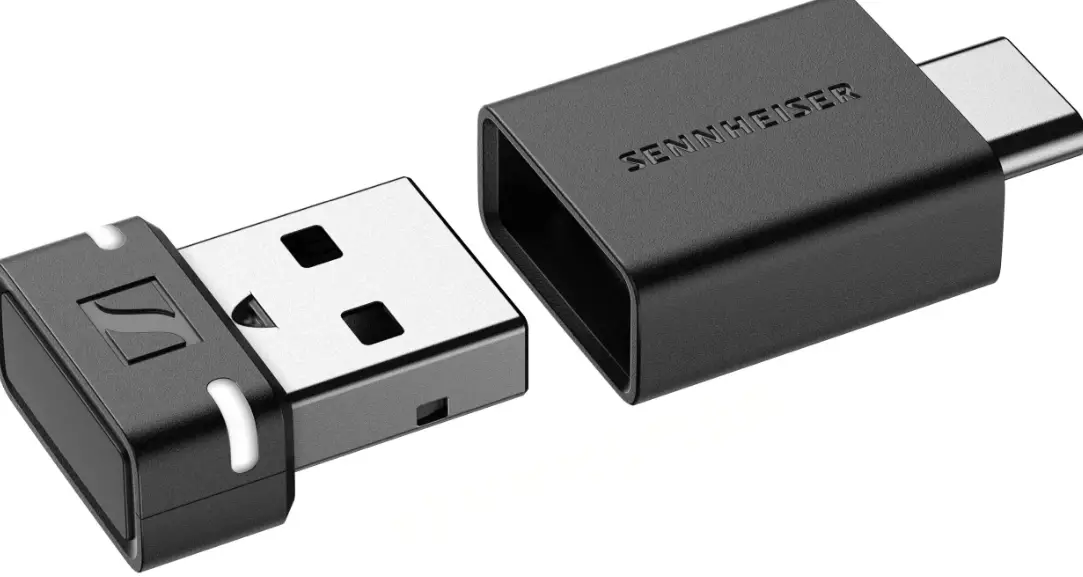
Dongle with USB-C adapter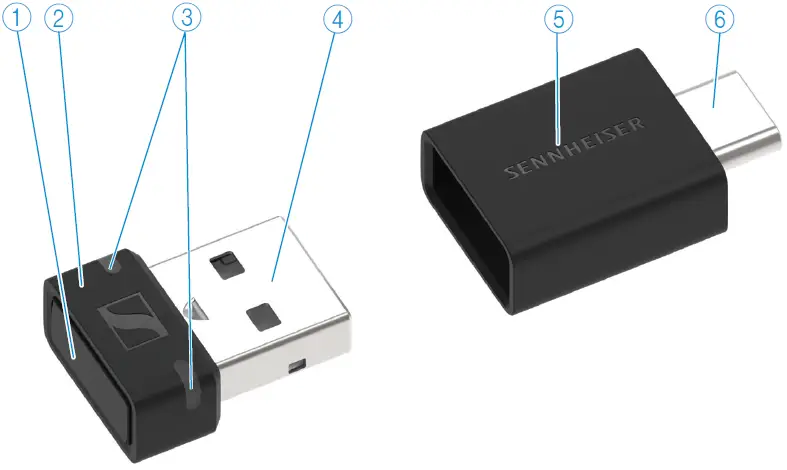
- Pairing button
triggers device functions, e.g. the pairing process - Dongle housing
- Status LEDs
indicate the operating state of the dongle - USB-A connector
- USB-C adapter
(USB-A to USB-C) - USB-C connector
Overview of the status LEDs on the dongle housing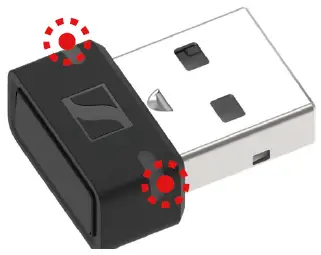 The two status LEDs on the dongle housing indicate the operating state of the dongle:
| LEDs | Operating state of the dongle | |
 | flash red-white | Pairing with headphones is being performed |
 | flash white 3x | Pairing with headphones suc- cessful |
 | repeatedly flash white 3x for 20 seconds | Searches for paired head- phones for up to 20 seconds |
 | light up white | Connected to headphones |
| flash white | Incoming call |
 | light up white dimly | Audio coding via SBC codec |
 | light up pink | Audio coding via aptX codec |
 | flash pink 3x | Dongle is being reset to factory default settings |
 | off | Connection to headphones dis- connected |
 | light up red | Mute function is active |
 | flash purple for 10 seconds | Searches for an installation of Microsoft Teams for up to 10 seconds |
 | light up purple | Installation of Microsoft Teams found and connected to head- phones |
 | flash purple | Incoming notification from Microsoft Teams |
 | flash purple 3x | Starting Microsoft Teams via the Microsoft Teams button of the headphones failed |
Getting started
Connecting the dongle to a computer (PC/Mac)
The dongle is compatible with PC and Mac. You can either connect the dongle to a USB-A socket or to a USB-C socket using the sup-plied USB-C adapter.
No driver installation is required to connect to a PC/Mac. The dongle is automatically recognized as an external sound card.
- The dongle is intended for connection to a PC/Mac. It cannot be used with TV or hi-fi devices.
- If you connect the dongle to a mobile device, there is a risk that the protruding dongle and/or the USB socket can be damaged if the dongle is subjected to mechanical stress.
Connect the dongle to mobile devices using an extension cable to reduce the mechanical stress
Connecting the dongle to a USB-A socket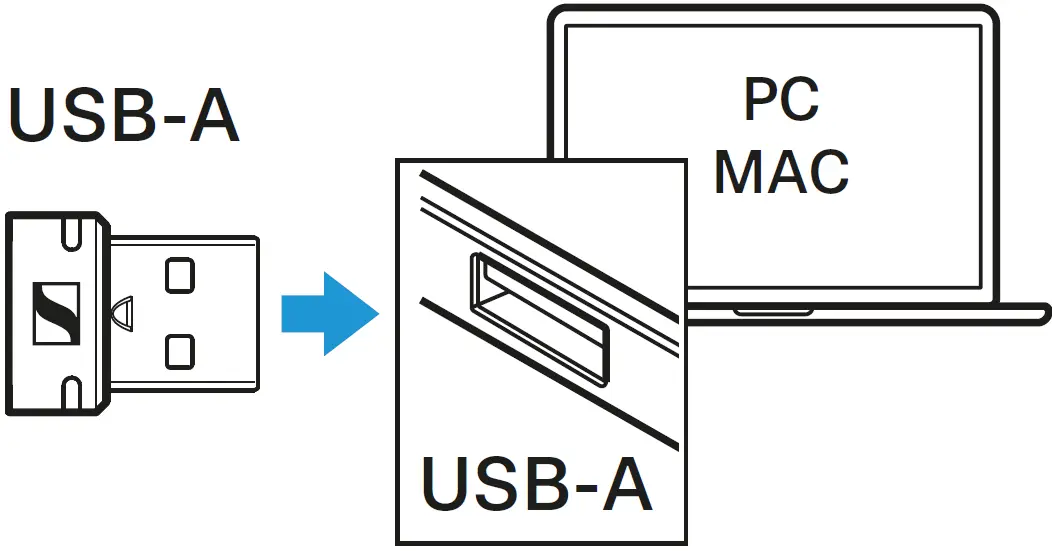
- Connect the dongle to a USB-A socket of your PC/Mac.
Connecting the dongle to a USB-C socket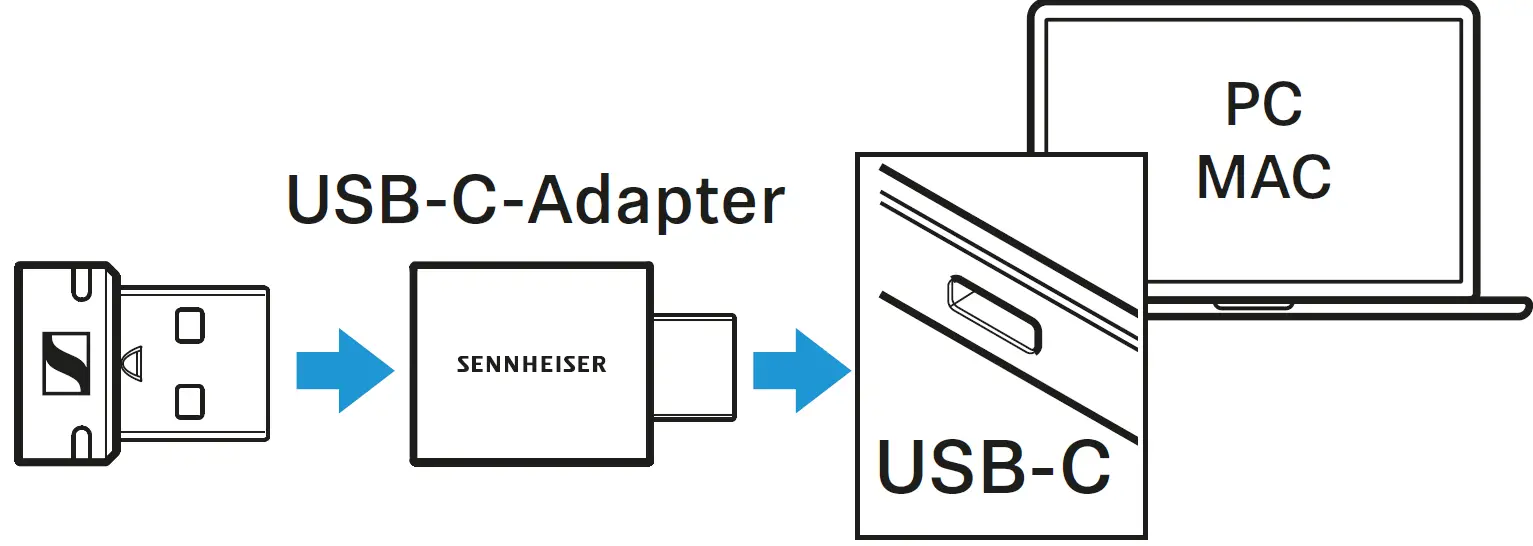
- Connect the dongle to the supplied USB-C adapter.
- Connect the USB adapter to a USB-C socket of your PC/Mac.
Pairing Bluetooth headphones with the USB dongle
The dongle is compatible with all Bluetooth headphones.
- Make sure that the desired Bluetooth headphones are ready for pairing (see the instruction manual of the Bluetooth headphones). After connecting to a PC/Mac, the dongle is automatically in pair-ing mode and searches for Bluetooth headphones to be paire d with.
While the dongle is in pairing mode, the status LEDs on the don-gle housing will alternately flash red and white. - If the dongle does not automatically change to pairing mode, start the pairing mode manually. To do this, press the pairing button for 3 seconds.

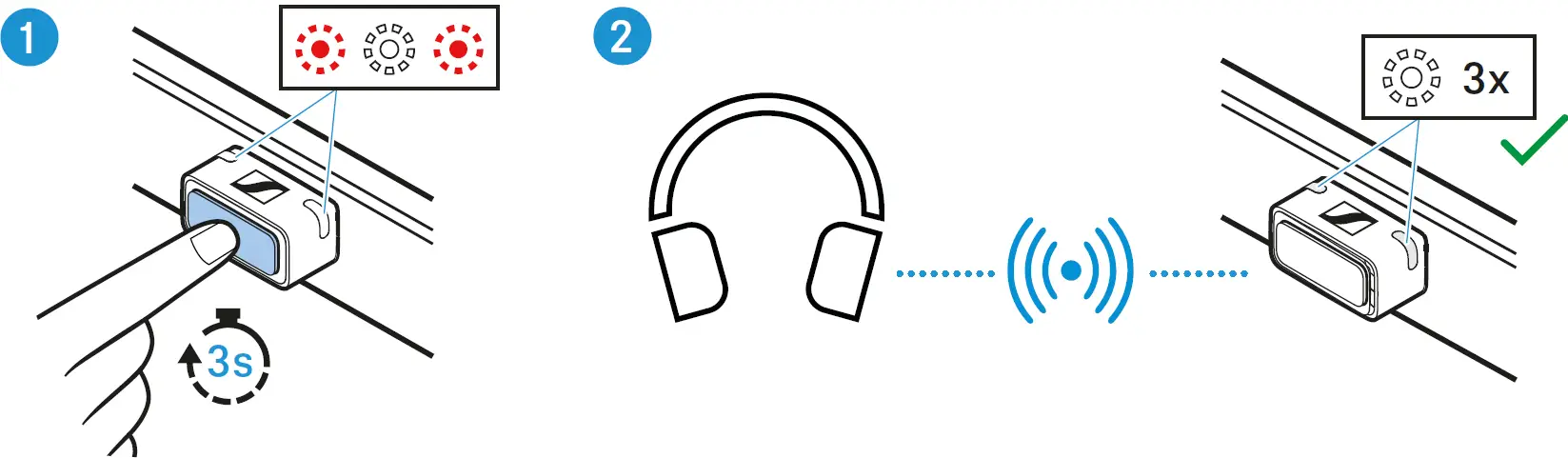
As soon as the dongle is paired with a pair of Bluetooth head-phones, the status LEDs on the dongle housing flash white 3x.
- Once the dongle is successfully paired with a pair of Bluetooth headphones for the first time, the dongle will save the connec-tion profile of the Bluetooth headphones in the pairing list. When you reconnect the paired dongle to a PC/Mac, the dongle will automatically try to reconnect to the paired Blue-tooth headphones.
Using the dongle
Switching the dongle on and off
The dongle is automatically switched on as soon as you connect it to a PC/Mac.
- Connect the dongle to a PC/Mac (> 7).
If the dongle is already paired with a pair of Bluetooth head-phones, the dongle will automatically try to connect to the last paired Bluetooth headphones.
If the dongle is not paired with a pair of Bluetooth headphones , the dongle will automatically be in pairing mode and will search for Bluetooth headphones to pair with. - If you want to switch off the dongle, disconnect it from the USB
socket of the PC/Mac.
Pairing the dongle with new Bluetooth headphones
If the dongle is already paired with a pair of Bluetooth headphones and you want to pair the dongle with another pair of Bluetooth head-phones, you have to trigger the pairing mode manually. This will overwrite the last saved pairing profile with the pairing profile of the new Bluetooth headphones.
- Connect the dongle to a PC/Mac (> 7).
- Press the pairing button of the dongle for at least 3 seconds.
The dongle switches to pairing mode. While the dongle is in pairing mode, the status LEDs on the don-gle housing will flash red and white.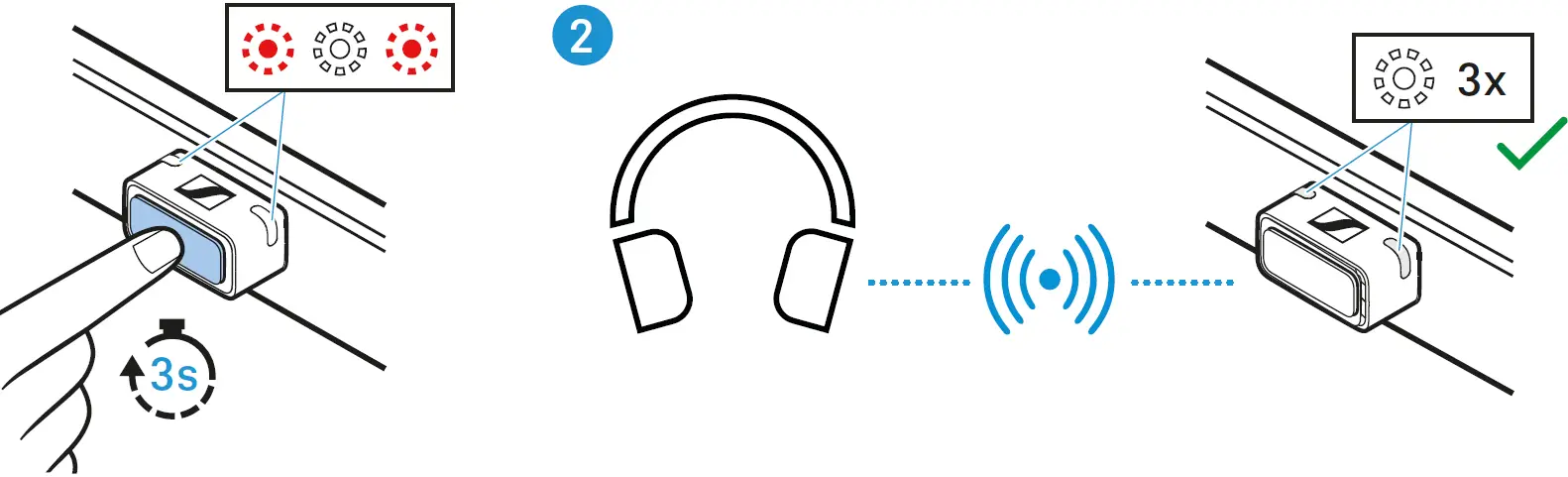 As soon as the dongle is paired with a pair of Bluetooth head-phones, the status LEDs on the dongle housing flash white 3x.
Reconnecting paired Bluetooth headphones with dongle
If the dongle has lost the connection to the paired Bluetooth head-phones, you can try to re-establish the connection.
- Briefly press the dongle’s pairing button.

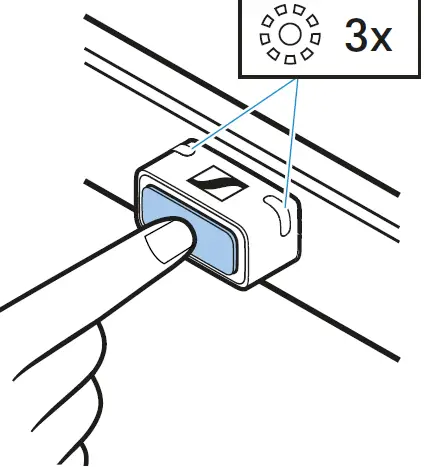
During the connection attempt, the status LEDs on the dong le housing repeatedly flash white 3x. The connection process can take up to 20 seconds.
Switching between SBC codec and aptX codec
If your headphones support one of the following high-resolution audio encoding methods, you can play music in high quality: aptX™ Adaptive (aptX™, aptX™ Low Latency).
During audio playback, you can switch between SCB codec and aptX codec using the dongle’s pairing button:
- Briefly press the dongle’s pairing button during audio playback. If audio encoding via the SBC codec is active, the status LEDs on the dongle housing light up white dimly.
 If audio encoding via the aptX codec is active, the status LEDs on the dongle housing light up pink.
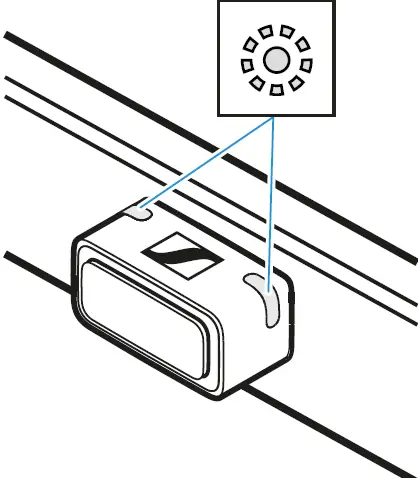 If audio encoding via the aptX codec is active, the status LEDs on the dongle housing light up pink.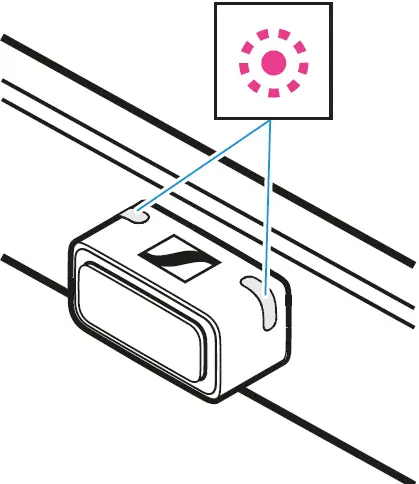
Activating or deactivating the mute function during a call
During a call, for example via Microsoft Teams, you can mute or unmute yourself by pressing a button.
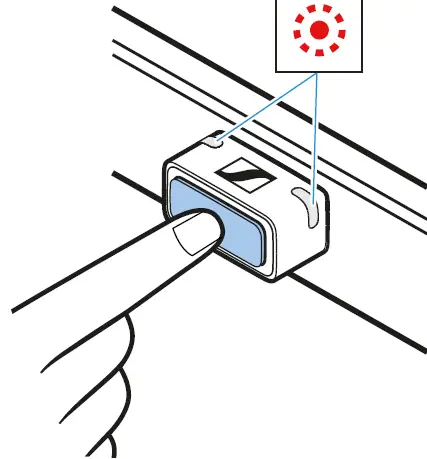
- If you want to mute yourself, briefly press the dongle’s pairing button during the call.
While the mute function is active, the status LEDs on the dong le housing light up red.
- If you want to deactivate the mute function, briefly press the pairing button again.
Disconnecting the Bluetooth headphones from the dongle
- If you want to disconnect the Bluetooth headphones from the dongle, press the pairing button 2x quickly.

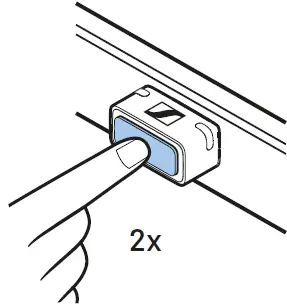
The status LEDs on the dongle housing go off.
Microsoft Teams support
The dongle shows special signals when Microsoft Teams is being used.
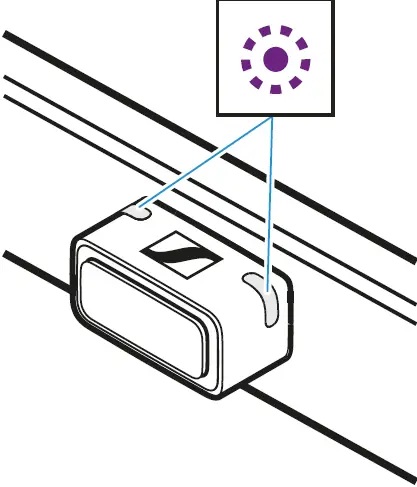
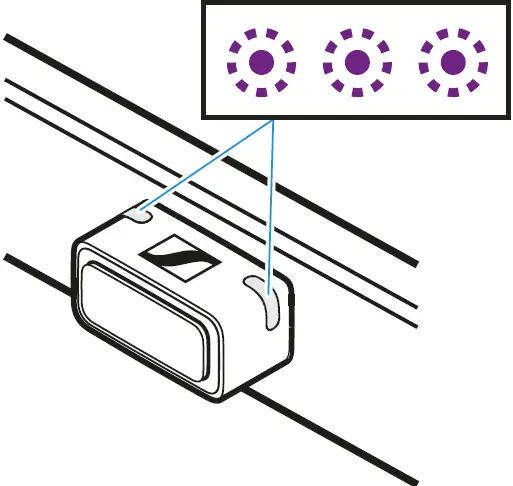
- If you connect a dongle that is already paired with a pair of head-phones to a computer, the dongle will search for an installation of Microsoft Teams for up to 10 seconds. During the search, the status LEDs flash purple.
- If the dongle is connected to a pair of headphones and finds an installation of Microsoft Teams on your computer, the status LEDs on the dongle housing light up purple.

- If you receive notifications from Microsoft Teams, the status LEDs on the dongle housing flash purple for 5 minutes or until the mes-sage is marked as read.

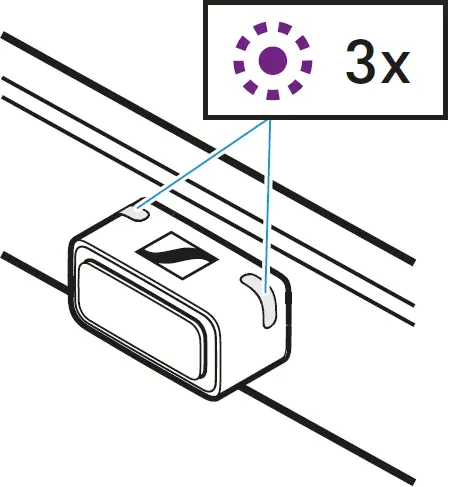
- If you try to start Microsoft Teams using headphones with a Mic-rosoft Teams button and starting the program fails, the status LEDs on the dongle housing flash purple 3x.

Information on the Bluetooth wireless connection
The dongle is compliant with Bluetooth 5.2.
If your headphones support one of the following high-resolution audio encoding methods, you can play music in high quality: aptX™ Adaptive (aptX™, aptX™ Low Latency). Otherwise your music will be played in normal audio quality (SBC). The status LEDs on the dongle housing indicate the audio encoding method used. When you watch videos and your headphones support aptX™ Low Latency, the audio-image synchronization is automatically optimized. This means that audio (sound) and video (picture) always stay in sync. The dongle saves the connection profile of the last paired Bluetooth headphones in the pairing list. After connecting to a PC/Mac, the dongle automatically connects to the saved Bluetooth headphones. This way, you can use the dongle and headphones immediately after switch-on, even if you change computers, for example. The dongle can only save one connection profile. If you pair the dongle with another pair of Bluetooth headphones, the saved connection profile will be overwritten.
Care and maintenance of the dongle and the adapter
Cleaning the dongle and the adapter
ATTENTION
Liquids can damage the electronics of the product!
Liquids entering the housing of the product can cause a short-circuit and damage the electronics.
- Keep all liquids far away from the product.
- Do not use any solvents or cleansing agents.
- Clean the dongle and the adapter only with a soft, dry cloth.
Firmware updates
Firmware updates can be downloaded free of charge from the Inter-net using the “Sennheiser transmitter updater program”
(www.senn-heiser-hearing.com/btd-600/ or www.sennheiser-hearing.com/ download).
FAQ/If a problem occurs …
If a problem has occurred, proceed in the following order until the problem is solved and you can use the dongle again:
- Connect the dongle to the “Sennheiser transmitter updater pro-gram” to install the latest firmware (> 13).
- Reset the dongle to the factory default settings (> 14).
- Check the list of frequently asked questions to see if there is a solution to the problem (> 14).
- Contact your Sonova Consumer Hearing partner to solve th e problem (> 14).
Current list of frequently asked questions (FAQ)
Visit the BTD 600 product page at
www.sennheiser-hearing.com/btd-600/
There you will find a current list of frequently asked questions (FAQ) and suggested solutions.
Your question has not been answered or the problem persists?
If a problem occurs that is not listed in the FAQ section or if the prob-lem cannot be solved with the proposed solutions, please contact your Sonova Consumer Hearing partner for assistance.
To find a partner in your country, search at www.sennheiser-hearing.com/service-support.
Leaving the Bluetooth transmission range
Wireless calling and streaming are only possible in the Bluetooth transmission range of your dongle. The transmission range largely depends on environmental conditions such as wall thickness, wall composition etc. With a free line of sight, the transmission range of the dongle is up to 10 meters. If you, and therefore the Bluetooth headphones, leave the Bluetooth transmission range of the dongle, the sound quality deteriorates increasingly until the connection breaks down completely. If the dongle loses the connection to your Bluetooth headphones, you can try to re-establish the connection (> 9).
Resetting the dongle to the factory default settings
If the function of the dongle is disturbed, reset the dongle to the fac-tory default settings. The saved connection profile of the last paired Bluetooth headphones will be deleted from the pairing list.
- Press the pairing button of the dongle for 10 seconds.
As soon as the reset is performed, the status LEDs on the dongl e housing flash pink 3x.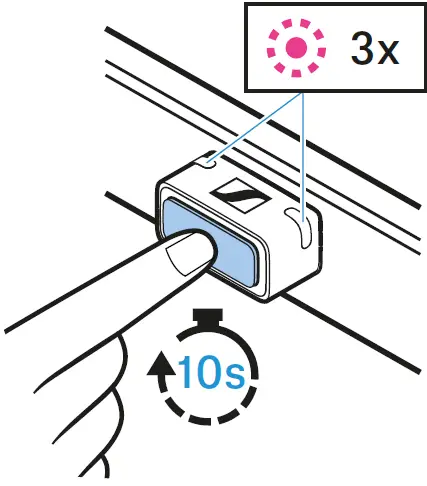
Specifications
Model: BTD 600
- Length x width x height
- Dongle approx. 20 mm x 15.5 mm x 8 mm
- Adapter approx. 22 mm x 15.5 mm x 8 mm
- Weight
- Dongle approx. 2 g
- Adapter approx. 3 g
- USB interface USB 2.0
- Power supply 5 V DC ⎓, 100 mA
- Input voltage 4.75 to 5.25 V DC ⎓
- Operating current ≤ 100 mA
- Standby current < 2.5 mA
- Temperature range operation: 0 to +40 °C storage: –20 to +60 °C
- Relative air humidity, non-condensing operation/storage: < 85 %
- Supported host operating systems Windows 10 or higher Windows 8.1 Mac OS V11 and V12
Bluetooth
- Version Bluetooth 5.2 compliant, class 1
- Transmission frequency 2,402 MHz to 2,480 MHz
- Modulation GFSK, π/4 DQPSK, 8DPSK
- Profiles HFP, A2DP, AVRCP/HID
- Output power 10 mW (max)
- Codec Qualcomm® aptX™, Qualcomm® aptX™ Adaptive Audio, Qualcomm® aptX™ Low Latency, SBC
- Device name BTD 600
- Range up to 10 m
Manufacturer Declarations
Warranty
Sonova Consumer Hearing GmbH gives a warranty of 24 months on this product.
For the current warranty conditions, please visit our website at www.sennheiser-hearing.com/warranty or contact your Sonova Consumer Hearing partner.
EU declaration of conformity
- RoHS Directive (2011/65/EU)
Hereby, Sonova Consumer Hearing GmbH declares that the radio equipment type BTD 600 is in compliance with the Radio Equipment Directive (2014/53/EU).
The full text of the EU declaration of conformity is available at the fol-lowing Internet address: www.sennheiser-hearing.com/download.
UK declaration of conformity
- RoHS Regulations (2012)
- Radio Equipment Regulations (2017)
Notes on disposal
- EU: WEEE Directive (2012/19/EU)
- UK: WEEE Regulations (2013)
The symbol of the crossed-out wheeled bin on the product, the battery/rechargeable battery (if applicable) and/or the packaging indicates that these products must not be disposed of with normal household waste, but must be disposed of separately at the end of their operational lifetime. For packaging disposal, observe the legal regulations on waste segregation applicable in your country. Improper disposal of packaging materials can harm your health and the environment. The separate collection of waste electrical and electronic equipment, batteries/rechargeable batteries (if applicable) and packagings is used to promote the reuse and recycling and to prevent negative effects on your health and the environment, e.g. caused by potentially hazardous substances contained in these products. Recycle electrical and electronic equipment and batteries/recharge-able batteries at the end of their operational lifetime in order to make contained recyclable materials usable and to avoid littering the environment. If batteries/rechargeable batteries can be removed without damaging them, you are obliged to dispose of them separately (for the safe removal of batteries/rechargeable batteries, see the instruction manual of the product). Handle lithium-containing batteries/rechargeable batteries with special care, as they pose particular risks, such as the risk of fire and/or the risk of ingestion in the case of coin batteries. Reduce the generation of battery waste as much as possible by using longer-life batteries or rechargeable batteries. Further information on the recycling of theses products can be obtained from your municipal administration, from the municipal col-lection points, or from your Sonova Consumer Hearing partner. You can also return electrical or electronic equipment to distributors who have a take-back obligation. Herewith you make an important contribution to the protection of the environment and public health.
Trademarks
The Bluetooth® word mark and logos are registered trademarks owned by Bluetooth SIG, Inc. and any use of such marks by Sonova Consumer Hearing GmbH is under license. Qualcomm® aptX™ is a product of Qualcomm Technologies International, Ltd. Qualcomm is a trademark of Qualcomm Incorporated, registered in the United States and other countries, used with per-mission. aptX is a trademark of Qualcomm Technologies International, Ltd., registered in the United States and other countries, used with per-mission. Other product and company names mentioned in the user documentation may be the trademarks or registered trademarks of their respective holders.