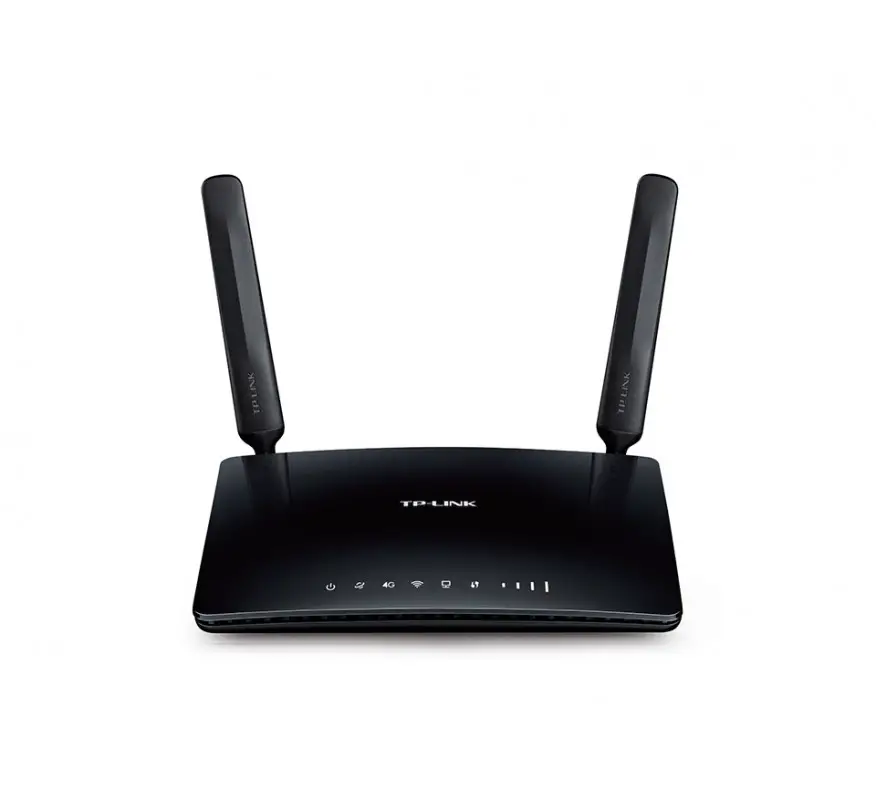
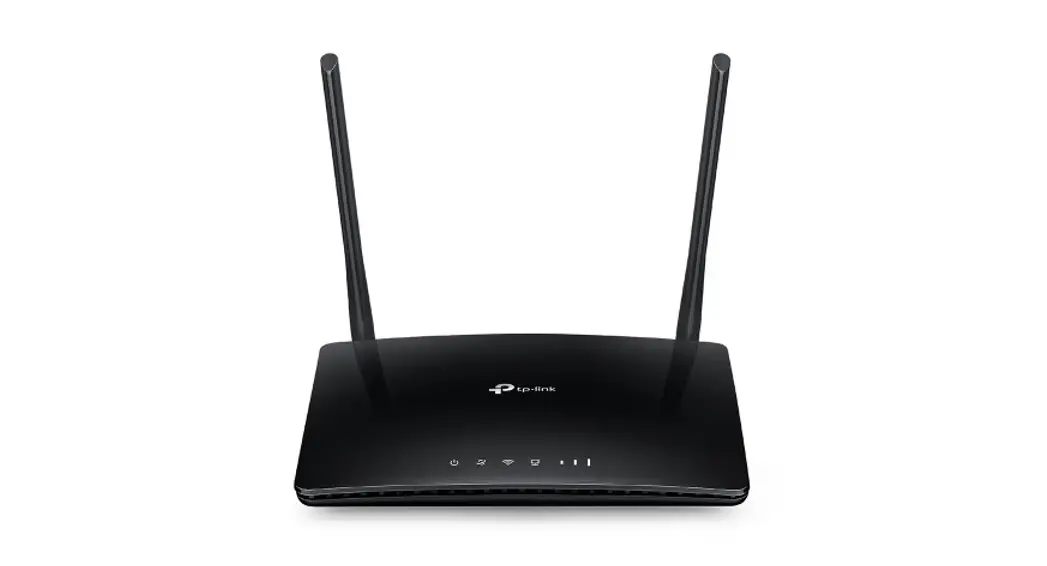
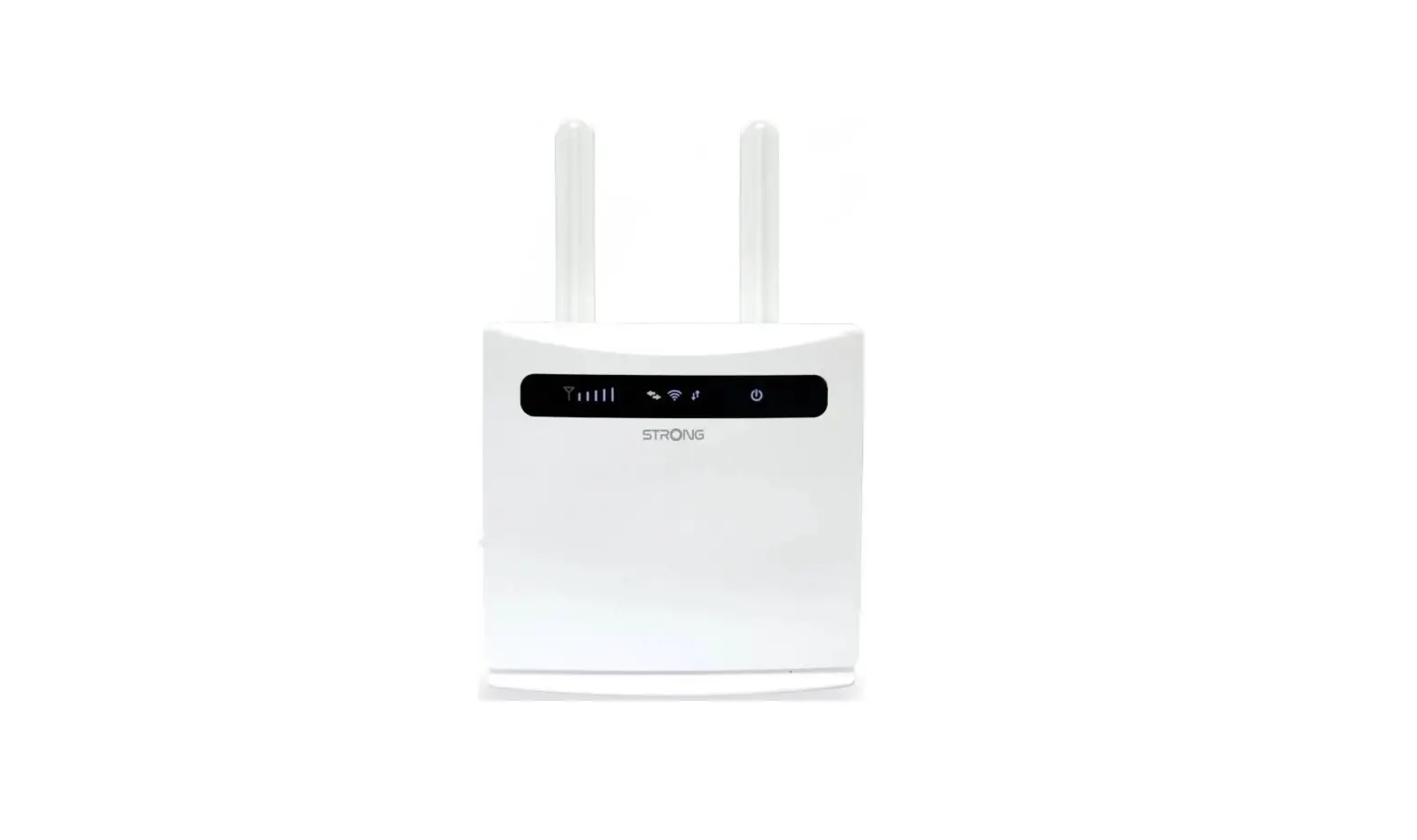
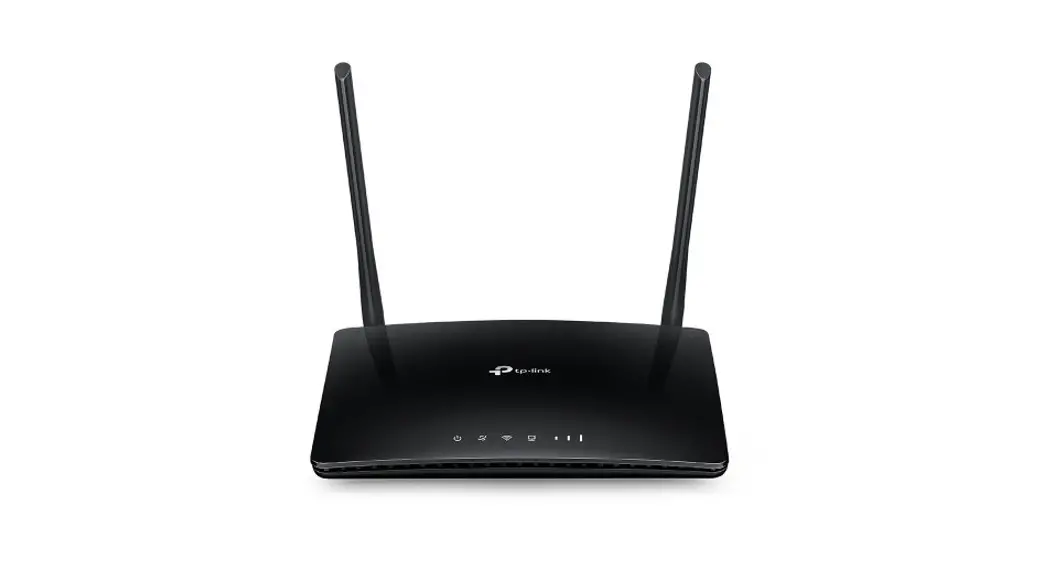
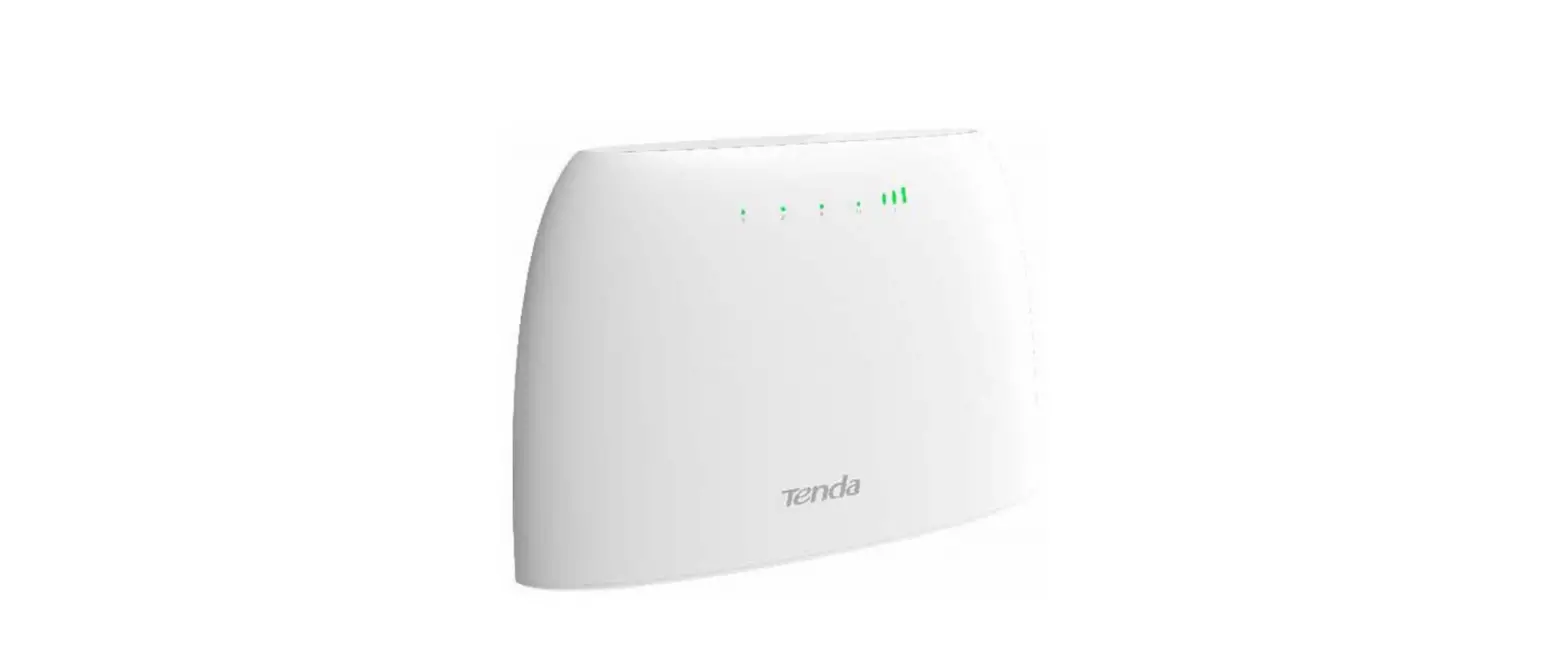
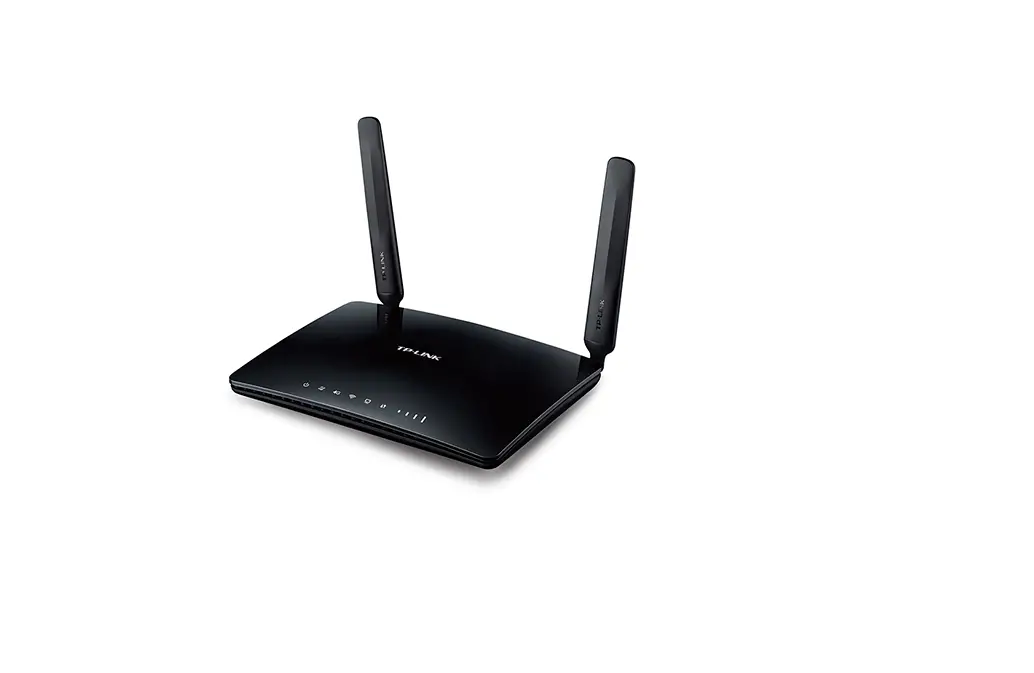
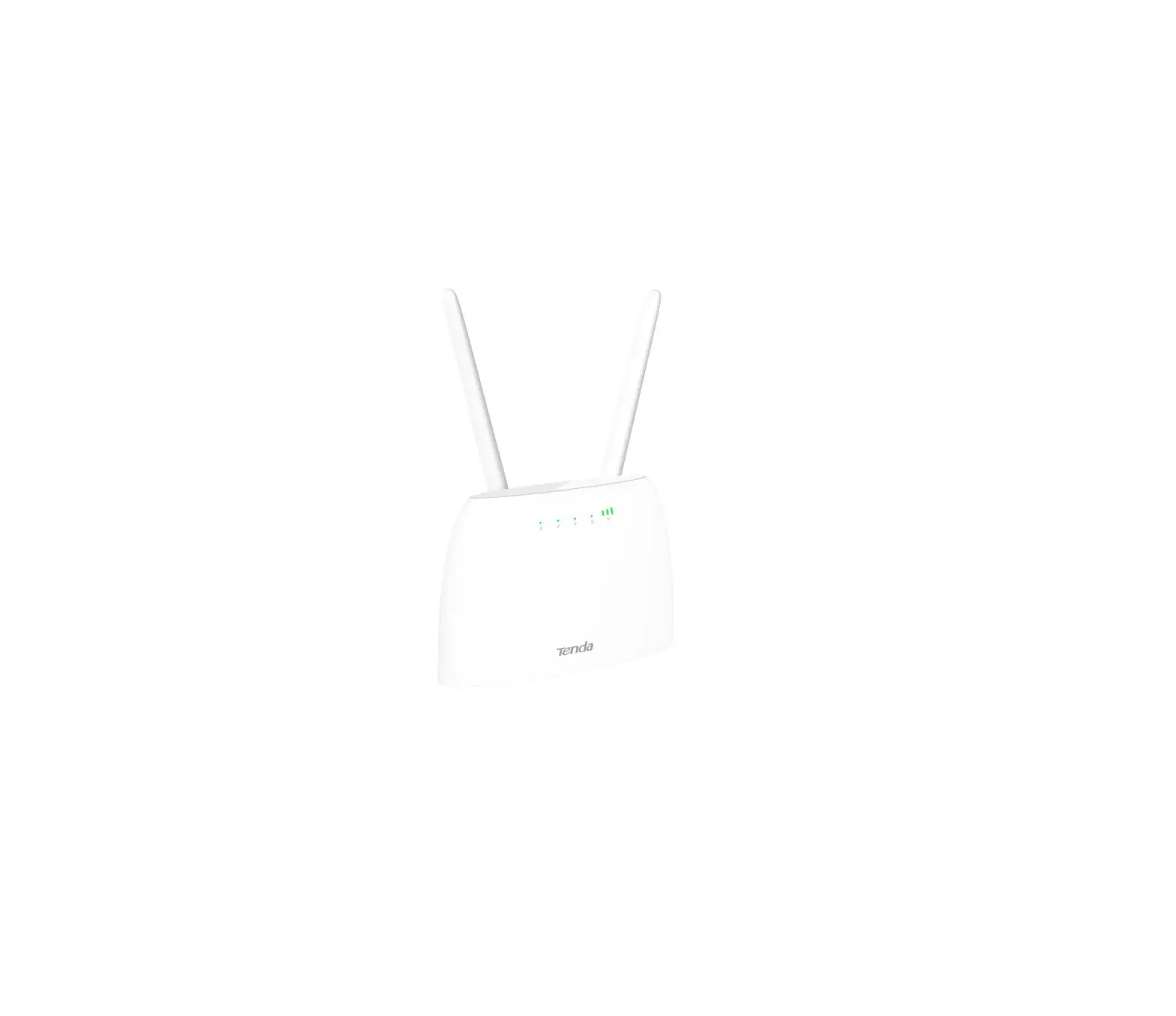
LT220 M 4G Wireless Router
Product Information
The product is a 4G wireless router manufactured by LTC Lejon
Trading Co AB. It is designed to provide wireless internet
connectivity using a SIM card. The router supports standard size
SIM cards, as well as micro SIM and nano SIM cards. The dimensions
of the SIM card slots are as follows:
- Standard SIM: 15 x 25 (mm)
- Micro SIM: 12 x 15 (mm)
- Nano SIM: 8.8 x 12.3 (mm)
The product is equipped with LAN ports for wired connections and
has WiFi capabilities for wireless connections. It comes with a
power adapter for power supply.
The default WiFi network name (SSID) and password can be found
on the device label.
Product Usage Instructions
- Hardware connection:
- Insert a standard size SIM card into the appropriate slot on
the device. Make sure to remove the PIN code from the SIM card
before inserting it. - Connect the power adapter to the power supply socket of the
device.
- To connect wirelessly, search for WiFi networks on your device
and find the WiFi signal sent by the router. The WiFi name (SSID)
and password can be found on the device label. - If you prefer a wired connection, connect your device to the
LAN network port on the router.
- If you are using a Micro SIM or Nano SIM card, you need to
insert it into a card sleeve before inserting it into the SIM card
slot. Failure to do so may result in difficulty removing the
card. - When inserting the SIM card, make sure the metal chip is facing
downward and the missing angle of the card is facing inward. Insert
the card into the slot and fasten it when you hear a click. Ensure
that the SIM card is inserted correctly and without a PIN
code.
- If you prefer to configure the router using a computer, enter
“192.168.188.1” in the browser address bar to access the management
interface. Log in using the default account (admin) and password
(admin), then set the desired parameters. - If you prefer to set up the router using a mobile phone,
connect to the WiFi signal and scan the QR code to access the
management interface. - In the router management interface, navigate to LAN settings
-> Wi-Fi 2.4G. Enter the desired network name (SSID) and
password in the corresponding input boxes, then click “Apply” to
confirm the settings.
Note: After setting up the router, your mobile WiFi connection
may be disconnected. Reconnect using the WiFi name and password you
set.
4G TRÅDLÖS ROUTER Snabbinstallationsguide
Tack för att du valde vår produkt. Vänligen läs denna bruksanvisning noggrant innan du använder denna produkt. Vi på LTC förbehåller oss rätten att förbättra samt ändra specifikationer och prestanda utan speciellt meddelande.
Hårdvaruanslutning
1 Sätt i SIM-kort av standardstorlek (OBS! SIM-KORTET måste vara utan pinkod, säkerställ detta vid beställning av SIM-kort. Annars ta bort pinkoden i en mobiltelefon.)
Sätt i SIM-kortet enligt anvisning på din router och var
uppmärksam på metallkontakten och kortets riktning. (Se bild
nedan) SIM
Micro SIM
Nano SIM
15 x 25 (mm)
12 x 15 (mm)
8.8 x 12.3 (mm)
Mikro-SIM- eller Nano-SIM-kort måste sitta i hållaren för standard-SIM annars kommer det inte att matas ut korrekt.
LTC Lejon Trading Co AB, Hortensiagatan 4, 256 68 Helsingborg, Sverige www.ltc.se
OBS! SIM-KORTET måste vara utan pinkod. Ta bort denna i en mobiltelefon. Som visas i bilden är SIM-kortet vänt med den saknade vinkeln inåt, och metallchipset är vänt nedåt. Tryck in kortet tills du hör ett klick.
1
Vanliga frågor
Faq1: Vad ska jag göra om jag glömt mitt användarnamn och/eller lösenord? (hur återställer man enheten?) SVAR: Tryck och håll ned återställningsknappen på enheten i 5 till 8 sekunder när enheten är påslagen och släpp sedan knappen för att återställa enheten till dess fabriksinställningar. OBS! ALLA INSTÄLLNINGAR FÖRSVINNER VID ÅTERSTÄLLNING Under återställningen blinkar indikatorlampan.
Faq2: Jag hittar inte enhetens WiFi? SVAR: Anslut datorn till LAN-porten via nätverkskabeln, logga in på visningssidan “LAN-settings” och “WiFi 2.4G” för att aktivera/ avaktivera den trådlösa funktionen och bekräfta att det här alternativet är aktiverat. Om du inte har en dator kan du också återställa enheten, se faq1 för detaljer.
FAQ3: Jag kan inte öppna hanteringssidan genom att ange 192.168.188.1 i webbläsarens adressfält? SVAR1: Om du använder datorinställningar, öppna webbläsaren, klicka på “verktyg” – > “Internetalternativ”, klicka på “anslutning” > “LAN-inställningar” och se till att proxyservern inte är markerad.
Om du vill använda datorinställningarna, kontrollera den trådlösa nätverkskonfigurationen eller den lokala nätverkskonfigurationen för datorn för att säkerställa att datorn “automatiskt erhåller IPadressen” och DNS-serveradressen. SVAR2: Starta om enheten, koppla bort strömförsörjningen till enheten, vänta 2 minuter och koppla in den igen.
Om du fortfarande inte kan logga in på inställningar efter att ovanstående åtgärder har slutförts, rekommenderas att du återställer enheten. Se faq1.
Faq4: Enhetens indikatorlampa lyser, det finns dataöverföring, men internethastigheten är låg.
SVAR1: Flytta enheten till en annan plats, till exempel nära fönstret, för att säkerställa god signalmottagning SVAR2: Starta om enheten.
Faq5: Varför ska jag inte sätta i SIM-kort när enheten är igång? SVAR: Routern stödjer inte detta, stäng av enheten före isättning av SIM-kort.
(OBS! SIM-KORTET måste vara utan pinkod, säkerställ detta vid beställning av SIM-kort.
Annars ta bort pinkod i en mobiltelefon.)
Beskrivning av ingångar och lampor
DC WiFi
Förklaring Ingång för strömförsörjning.
Ingång för WiFi-antenner.
4
5
2 Anslut strömadaptern Strömförsörjningsuttag
Trådlös anslutning
WiFi namn och WiFi lösen finns på enheten
Anslutning för nätverkskabel
Kabelanslutning Om du inte vill ha en kabelanslutning behöver du inte ansluta detta.
Använd enhetens WiFi-signal Sök efter WiFi, hitta och anslut den trådlösa WiFi-signalen som skickas av enheten som standard [varje produkt har ett unikt WiFi-namn (SSID) och lösenord, som finns på routerns etikett]
LTC_mobile_XXXX Lösen:**********
TIPS: när routern används för första gången skickar den en trådlös signal med LTC_mobile som namn som standard, och telefonen kan anslutas till WiFi. Om det inte hittas rekommenderas det att kontrollera SSIDnamnet och lösenordet på produktetiketten. Se FAQ för detaljer om hur du återställer routern.
GRATTIS
Din router är nu kopplad till 4G-nätet och det går att använda enhetens WiFi-nätverk.
2
LTE LAN SIM
RESET
Ingång för 4G-antenner.
Plats för nätverkskabel. Plats för SIM-kort.
Fabriksinställningsknapp, tryck och håll ned i 5-8 sekunder under drift av enheten, och släpp sedan, enheten återgår till fabriksinställningarna.
LAMPOR 4G 3G
LAN2 LAN1
Förklaring
Indikatorn för 4G-mobilnätverk tänds när du har kontakt med nätverk. Indikatorn för 3G-mobilnätverk tänds när du har kontakt med nätverk.
Internetstatusindikator, nätverksanslutning lyckades (blinkar).
Något är anslutet till LAN2 via kabel, indikatorlampan blinkar under dataöverföring och lyser annars med fast sken.
Något är anslutet till LAN1 via kabel, indikatorlampan blinkar under dataöverföring och lyser annars med fast sken.
Visar att WiFi är tillgängligt. Indikatorlampan blinkar under dataöverföring och lyser annars med fast sken.
Lyser alltid när enheten är igång.
VIKTIGT!
1. Använd de medföljande kablarna för strömförsörjning. 2. Använd och förvara i en torr miljö. 3. Ta bort strömförsörjningen och alla kablar till utrustningen vid åska. 4. Undvik installation av utrustningen nära högeffektsradio och radarsändare.
6
Konfiguration Ställ in WiFi-nätverksnamn och lösenord
1. Skriv 192.168.188.1 i webbläsarens adressfält. 2. Ange standardkonto admin och standardlösenord admin . När du har loggat in, gå in i inställningar och ställ in de parametrarna du vill ändra.
Om ni vill ställa in med mobiltelefon kan ni ansluta till WiFi genom att skanna QR-kod.
TIPS: Det rekommenderas att ställa in routern med din mobiltelefon då detta är enklare och ger samma funktioner. 3. I gränssnittet för routerhantering, klicka på navigeringsfältet “LAN settings” – > “WiFi setting” – > “WiFi 2.4G”, ange namnet du vill ställa in i inmatningsrutan “network name (SSID)”, välj “AES” i “WiFi password encryption” och skriv in i inmatningsrutan “wpapsk key”. Ange lösenordet du vill ställa in och klicka på “apply”knappen för att bekräfta inställningen. TIPS: efter installationen kan din mobila WiFi-anslutning kopplas bort. Återanslut till WiFi-namnet du ställt in och ange lösenordet du valt för att ansluta.
3
7
4G wireless router
Quick installation guide
LTC Lejon Trading Co AB, Hortensiagatan 4, 256 68 Helsingborg, Sverige www.ltc.se
Thank you for choosing our product. Please read this manual carefully before using this product. We at LTC reserve the right to improve and change specifications and performance without special notice.
Hardware connection
1 Insert standard size SIM card (NO PIN CODE)
According to the interface identification on the device, insert the SIM card, and pay attention to the metal contact and the lack angle direction of the card. Do not insert the small size card, in case it cannot be removed
SIM 15 x 25 (mm)
Micro SIM 12 x 15 (mm)
Nano SIM 8.8 x 12.3 (mm)
2 Connect the power adapter Power supply socket
Wireless connection
Wireless name and WiFi password Available on the device label
Connect to LAN network port
Wired connection If you don’t want a cable connection, you don’t need to connect
3 Use the device’s WiFi signal Search for WiFi, find and connect the WiFi wireless signal sent by the device by default [each product has a unique WiFi name (SSID) and password, which is located on the device label]
Micro SIM or Nano SIM card needs to be restored by card sleeve to SIM to insert; otherwise it will not be ejected inside the card.
As shown in the figure, the SIM card is facing inward with the missing angle, and the metal chip is facing downward. Insert the card slot, and then fasten it when you hear the click. Be sure to insert it correctly. (NO PIN CODE)
LTC_mobile_XXXX Password:**********
TIP: when the machine is used for the first time, it will send a wireless signal with LTE WiFi as the prefix by default, and the phone can be connected to the WiFi. If it is not found, it is recommended to check the SSID name and password on the product label. See FAQ FAQ for details on how to reset the router.
The device can successfully plug in the SIM card to use the traffic of SIM card and supply network for other devices.
Computer settings
If you use the mobile phone to configure the connection, you can connect the WiFi signal directly. You do not need to set up the computer. This step can be skipped.
Confirm that your computer is [automatically obtain IP address]
Please connect your computer network cable to the LAN interface of this product, or connect to the default WiFi of this product. 1. Open the computer – right click Network – properties – change adapter settings; 2. For wired connection, right-click [local connection] (wireless connection, click [WLAN]). Select [attribute]; 3. Double click [Internet Protocol version 4 (TCP / IPv4)] in the connection item of the property dialog box. (see the left figure below); 4. In the Internet Protocol version 4 dialog box, the confirmation option is [obtain IP address automatically]. [obtain DNS service address automatically] (as shown in the right figure below), click [OK].
1
2
3
configuration parameter
Set Wi Fi network name and password 1. Enter 192.168.188.1 in the browser address bar to enter the management background. 2. Enter the default account admin, the default password admin (no spaces, all small Write). After logging in successfully, enter the management interface and set the relevant parameters you want to set.
If it is set by mobile phone, you can connect the WiFi, scan QR code, enter the management background.
Warm tip: if you are not familiar with the computer, it is recommended to set up the router with your mobile phone.
3. In the router management background interface, click the navigation bar “LAN settings” – > “Wi Fi 2.4G, enter the name you want to set in the “network name (SSID)” input box, select “AES” in “WPA password policy”, and enter in the “wpa-psk key” input box. Enter the password you want to set and click the “apply” button to confirm the setting. Warm tip: after setting up, your mobile wifi connection may be disconnected. Reconnect the WiFi name you set and enter the password you set to connect.
4
frequently asked questions
Faq1: what should I do if I forget my user name and password? (how to reset the device?) If you forget your user name and password, or you cannot enter the background due to an error during the setting process, you can press and hold the reset button on the device for 5 to 8 seconds when the device is powered on, and then release it to restore the device to its factory status. Restoring the factory settings will clear the non default configuration data of the device. Please operate carefully! During the restoration of factory settings, the indicator light of the equipment is obviously off or on. Faq2: can’t find the device’s Wi Fi signal? Connect the computer to the LAN port through the network cable, log in to the “LAN settings” and “Wi Fi 2.4G” view page of the device management interface to enable / disable the wireless function, and confirm that this option is enabled. If you do not have a computer, you can also reset the device, see faq1 for details. Faq3: can’t open the management page by entering 192.168.188.1 in the browser address bar? 1. If you use computer settings, open the browser, click “tools” – > “Internet Options”, click “connection” – > “LAN settings”, and make
5
sure that the proxy server is not checked. 2. If you want to use the computer settings, please check the wireless network configuration or local network configuration of the computer to ensure that the computer “automatically obtains the IP address” and the DNS server address. 3. Restart the device, disconnect the power supply of the device, and plug it in later. 4. If you still cannot log in to the device management interface after the above operations are completed, it is recommended that you reset the device. See faq1 for the reset method. Faq4: the device indicator light is on, there is data transmission, but the Internet speed is slow. 1. Please move the device to another location, such as near the window, to ensure good signal reception 2. Power up again and restart the device. Faq5: when the device is running, why can’t the device read the SIM card? The device doesn’t support the hot plug-in of SIM card. Please disconnect the router’s power supply and plug in the power supply later.
Description of indicator key interface
Interface / key DC
WiFi
Explain The power supply interface of the equipment is connected with the DC connector of the adapter of the product.
For wifi antenna installation, do not confuse. Please tighten when installing.
6
LTE LAN SIM
RESET
For LTE antenna installation, do not confuse. Please tighten when installing. A network interface used to connect switches or computers.
Sim standard large card interface for inserting traffic card.
Reset the factory setting button, press and hold for 5 seconds during the live operation of the device, and then release, the device will return to the default factory configuration.
Indicator light
Explain
4G 3G
LAN2
The 4G mobile network indicator lights up when registering to the network.
The 3G mobile network indicator lights up when registering to the network.
Internet status indicator, network connection succeeded (flashing).
The lan2 interface is connected to the network cable, which is normally on, and the indicator light flashes during data transmission.
LAN1
The lan1 interface is connected to the network cable, which is normally on, and the indicator light flashes during data transmission.
Wi Fi wireless status indicator, wi-f enabled (long on), data transmission (flashing).
The power indicator is always on when the power is on.
Matters needing attention
1. Please use the rated power adapter of the device. 2. Pay attention to waterproof and moisture-proof in storage, transportation and operation environment. 3. Please remove the power supply and all wiring of the equipment in thunderstorm weather. To avoid damage by lightning. 4. Try not to install the equipment in the place of high-power radio and radar transmitter.
7
 Start - LTC - Makes mobile living easy!