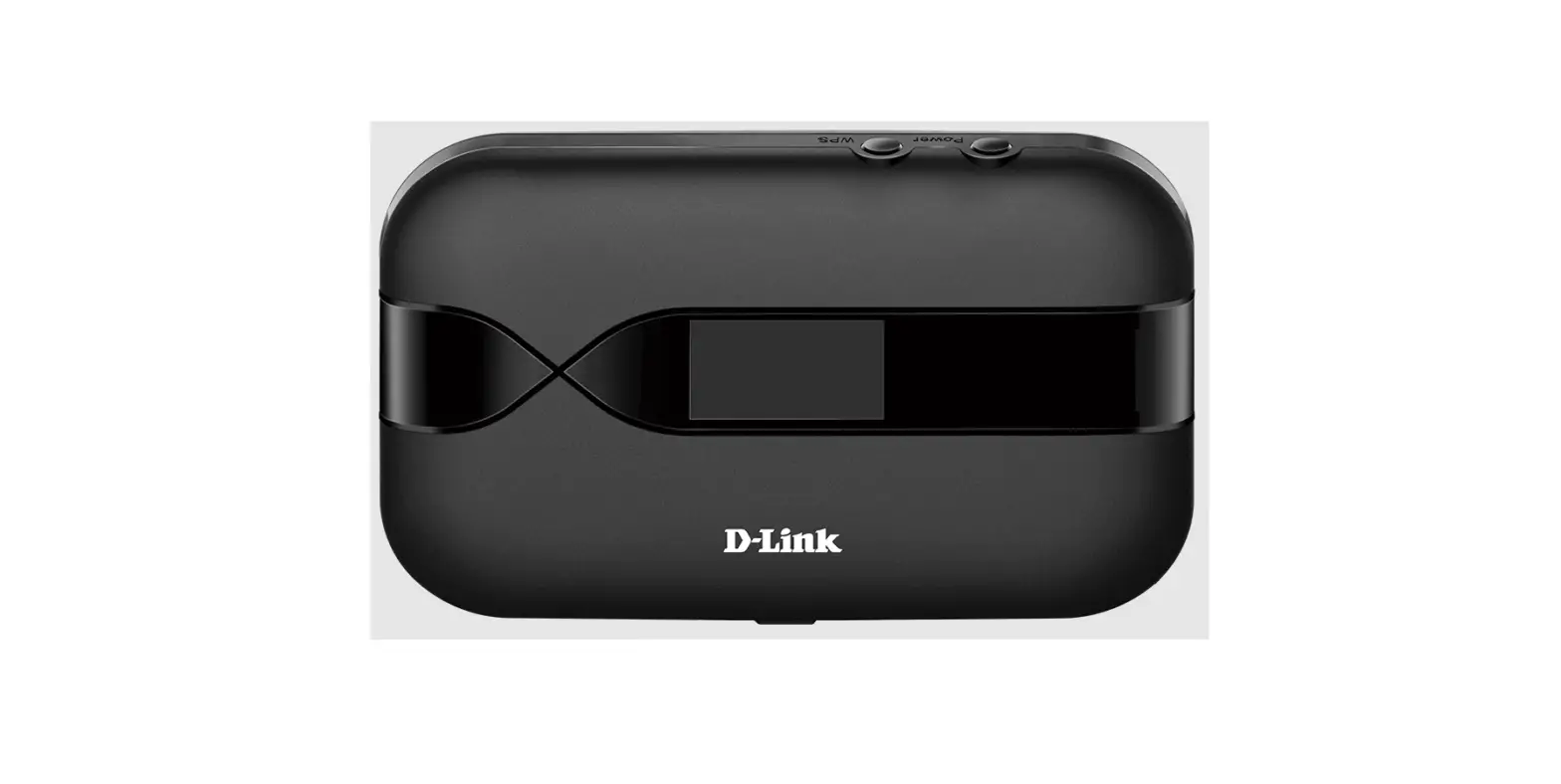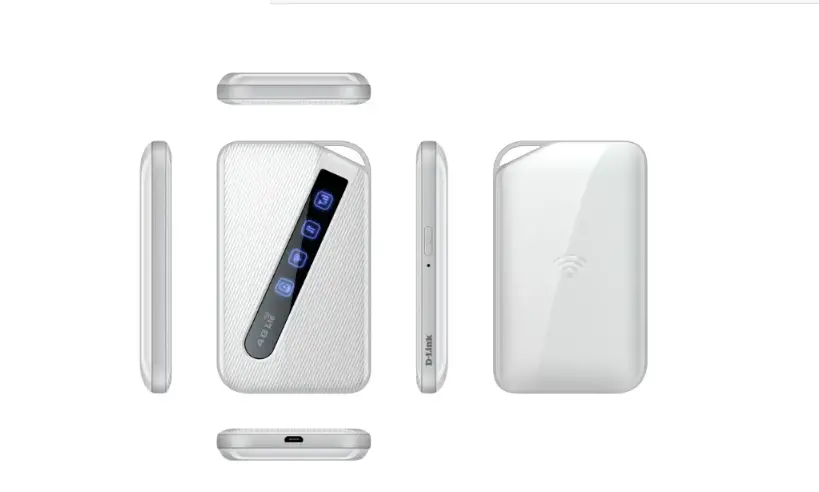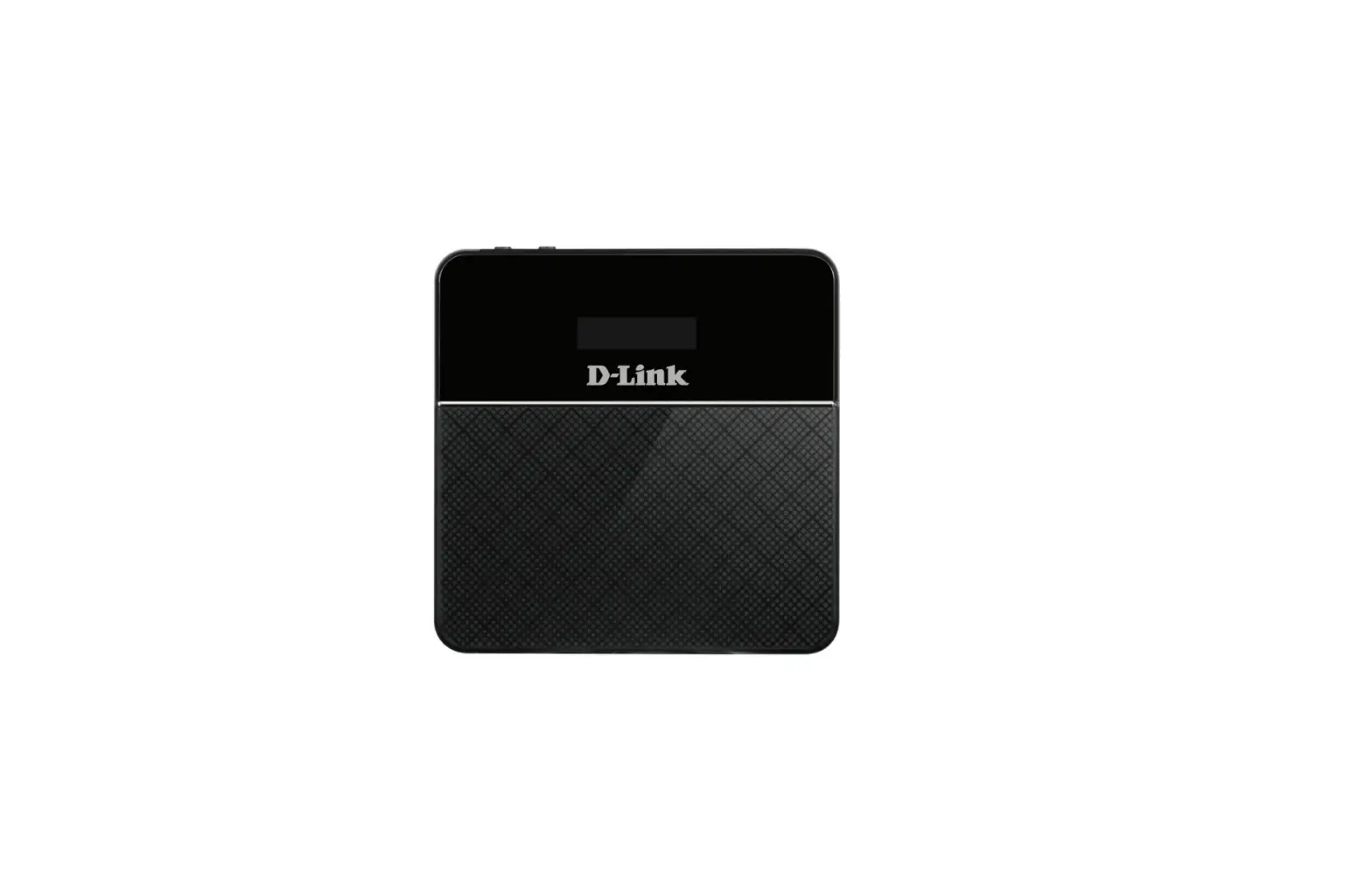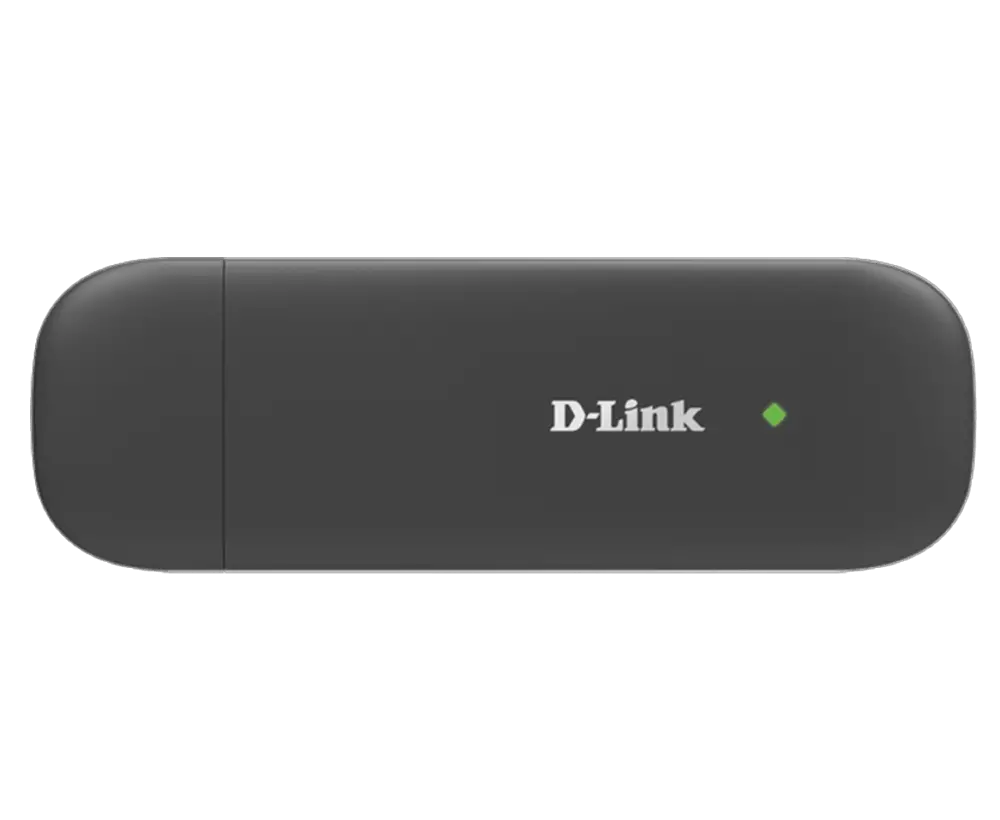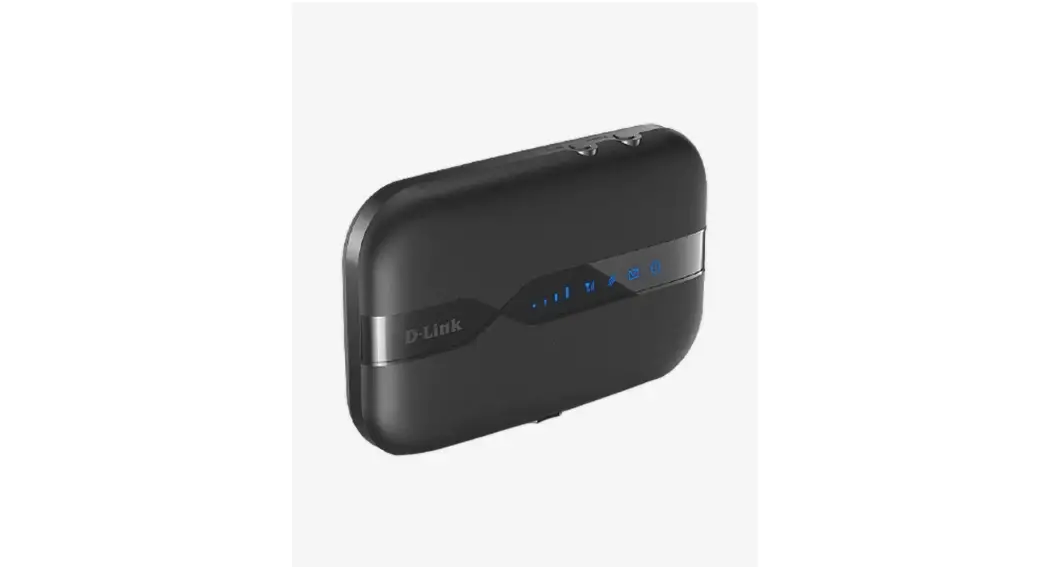
 DWR-932C 4G LTE Mobile Router
Installation Guide
CONTENTS OF PACKAGING
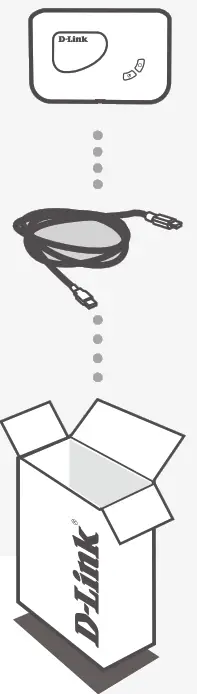 | LTE MOBILE ROUTER DWR-932C |
| USB CABLE MICRO A-TYPE PLUG | |
| If any of these items are missing from your packaging, please contact your reseller. |
SYSTEM REQUIREMENTS
- A 4G (U)SIM card.
- Computer with:
- Microsoft Windows®10/8/7, or Mac with OS X 10.9 or higher
- 500 MHz processor or above and at least 128 MB RAM
- Internet Explorer 9, or Chrome 25 or higher version with Java installed and enabled
HARDWARE SETUP
QUICK INSTALLATION
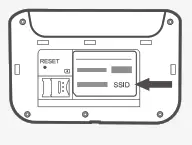
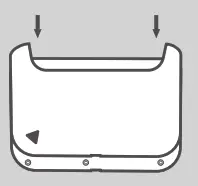
- Remove the cover on the back of the device.

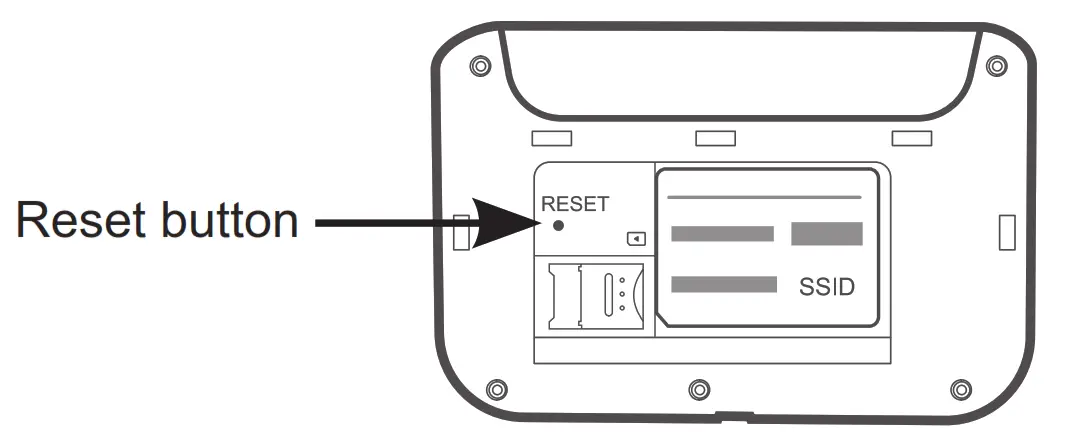
- If you want to configure the DWR-932C wirelessly, take note of the SSID (network name) and password on the label under the back cover, you will first need to connect to this SSID.

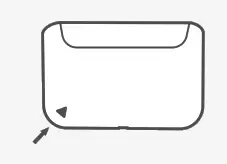
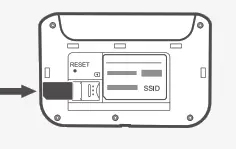
- Insert the SIM card into the SIM card slot as shown, ensuring the gold contacts are facing down.

- Reattach the back cover.

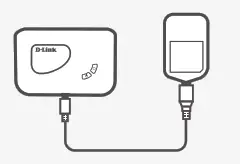
- Connect the Micro USB end of the USB cable to the Micro USB port on the bottom of the DWR-932C and plug the USB end into the USB port of the power adapter or a PC to charge the battery. After charging is complete, you may use this USB port to power your mobile devices.

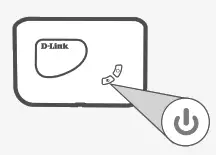
- Press and hold the power button for four seconds to turn on the device. Once the power LED icon lights up solid blue, you may proceed with the configuration.
ROUTER MODE
QUICK INSTALLATION:
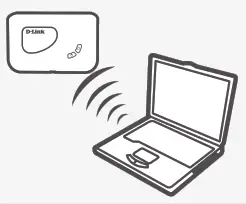
- Use your PC’s wireless adapter to connect to the dlink_DWR-932C_xxxx wireless network. The wireless network name(SSID) and password are printed on the label under the back cover.

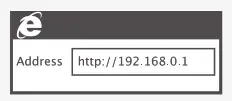
- Use a web browser to go to 192.168.0.1 to log in to the router’s configuration interface. The default username is admin, and the default password is also admin.
4G USB MODEM MODE
QUICK INSTALLATION:
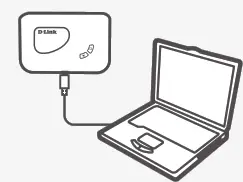
- Connect the DWR-932C to your PC using the USB cable. Follow the on-screen Windows driver pop-ups.

- Use a Web Browser to 192.168.0.1 to log in to DWR-932C’s configuration interface. The default username is admin, and the default password is also admin.
TROUBLESHOOTING
SETUP AND CONFIGURATION PROBLEMS:
- WHY AM I UNABLE TO CONNECT TO MY MOBILE INTERNET SERVICE?
– Check to make sure the SIM card is installed properly, and that your SIM card has 4G data service. Also, make sure that antivirus software is not blocking your connection and that you are not connected to other Internet sources.
– Open Windows Explorer and double-click on the storage drive for the DWR-932C. - HOW DO I CONFIGURE MY DWR-932C ROUTER OR CHECK MY WIRELESS NETWORK NAME (SSID) AND WIRELESS ENCRYPTION KEY?
– Power on the DWR-932C and connect it to your PC using the supplied Micro-USB cable.
– Open a web browser and enter the router’s IP address: http://192.168.0.1
– The default username is admin, and the default password is also admin.
– Once logged in, you can use the wizard to view the wireless network name and password of your router or make changes manually.
Note: If you have changed the password and cannot remember it, you will need to reset the router to factory defaults. - HOW DO I RESET MY DWR-932C TO FACTORY DEFAULT SETTINGS?
– If you cannot remember your router’s administrator password or wireless network settings, you may reset the DWR-932C to default settings by removing the battery cover and using an implement such as a straightened paperclip to press and hold the reset button on the router for 3 seconds.
Note: Resetting the router to factory default will erase the current configuration settings.
TECHNICAL SUPPORT
You can find software updates and user documentation on the D-Link website.
Tech Support for customers in
| Australia: Tel: 1300-700-100 24/7 Technical Support Web: http://www.dlink.com.au E-mail: [email protected] | D-Link Middle East – Dubai, U.A.E. Plot No. S31102, Jebel Ali Free Zone South, P.O.Box 18224, Dubai, U.A.E. Tel: +971-4-8809022 Fax: +971-4-8809066 / 8809069 Technical Support: +971-4-8809033 General Inquiries: [email protected] Tech Support: [email protected] |
| India: Tel: +91-832-2856000 or 1860-233-3999 Web: in.dlink.com E-Mail: [email protected] | Kingdom of Saudi Arabia Riyadh – Saudi Arabia E-Mail: [email protected] |
| Singapore, Thailand, Indonesia, Malaysia, Philippines, Vietnam: Singapore – www.dlink.com.sg Thailand – www.dlink.co.th Indonesia – www.dlink.co.id Malaysia – www.dlink.com.my Philippines – www.dlink.com.ph Vietnam – www.dlink.com.vn | Egypt: 19 Helmy El-Masry, Almaza, Heliopolis Cairo, Egypt Tel: +202-24147906 Technical Support Center no. : +202-25866777 General Inquiries: [email protected] |
| Pakistan Karachi Office: D-147/1, KDA Scheme #1, Opposite Mudassir Park, Karsaz Road, Karachi – Pakistan Phone: +92-21- 34548158, 34305069 Fax: +92-21-4375727 General Inquiries: [email protected] | |
| New Zealand: Tel: 0800-900-900 24/7 Technical Support Web: http://www.dlink.co.nz E-mail: [email protected] Bahrain Technical Support: +973 1 3332904 Kuwait Email: [email protected] | Kingdom of Saudi Arabia Riyadh – Saudi Arabia E-Mail [email protected] Morocco Sidi Maarouf Bussiness Centre, 1100 Bd El Qods, Casanearshore 1 Casablanca 20270 Phone office: +212 700 13 14 15 Email: [email protected] |
| Pakistan Karachi Office: D-147/1, KDA Scheme #1, Opposite Mudassir Park, Karsaz Road, Karachi – Pakistan Phone: +92-21- 34548158, 34305069 Fax: +92-21-4375727 General Inquiries:[email protected] |
References
 µð¸µÅ©ÄÚ¸®¾Æ
 Consumer | D-Link
-
Consumer | D-Link
-
synnex-grp.com
 D-Link Southern Africa - Quality WiFi Products That Connect You to More
-
D-Link - Indonesia
-
Home Networking Solutions - D-Link Australia New Zealand
-
D-Link - Thailand
-
Home Networking Solutions - D-Link Australia New Zealand
-
Suporte - D-Link
-
D-Link HK │Welcome
-
D-Link HK │Welcome
-
D-Link - Malaysia
-
D-Link - Philippines
-
D-Link - Singapore
-
D-Link | Welcome
-
D-Link - Vietnam
-
D-Link Главная
 Inicio - D-Link Latinoamérica
-
Call Center D-Link - D-Link Latinamerica
-
D-Link Support
 µð¸µÅ©ÄÚ¸®¾Æ
 Consumer | D-Link
 Consumer | D-Link
 synnex-grp.com
 D-Link Southern Africa - Quality WiFi Products That Connect You to More
 D-Link - Indonesia
 Home Networking Solutions - D-Link Australia New Zealand
 D-Link - Thailand
 Home Networking Solutions - D-Link Australia New Zealand
 Suporte - D-Link
 D-Link HK │Welcome
 D-Link - Malaysia
 D-Link - Philippines
 D-Link - Singapore
 D-Link | Welcome
 D-Link - Vietnam
 D-Link Главная
 Inicio - D-Link Latinoamérica
 D-Link Support