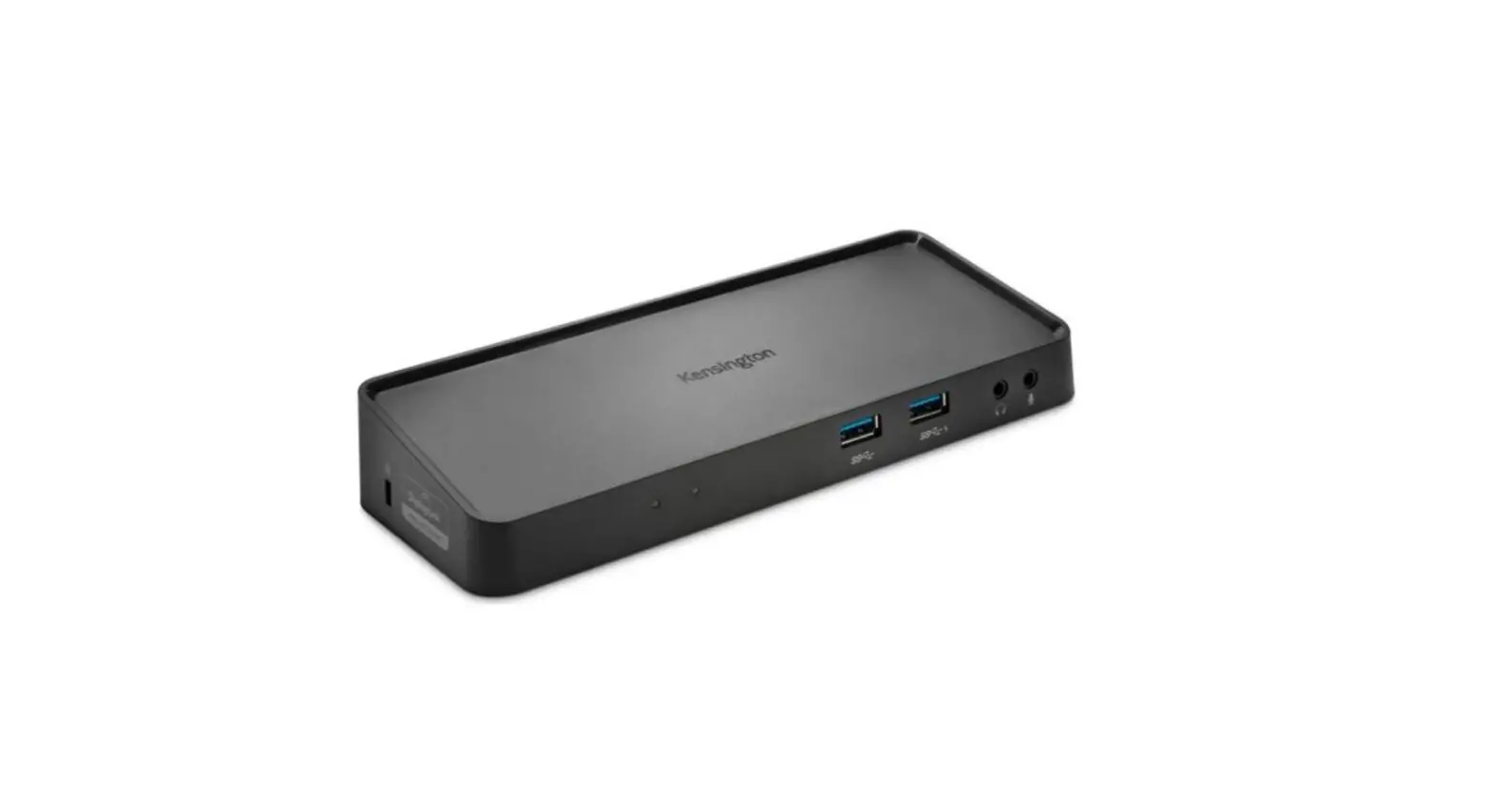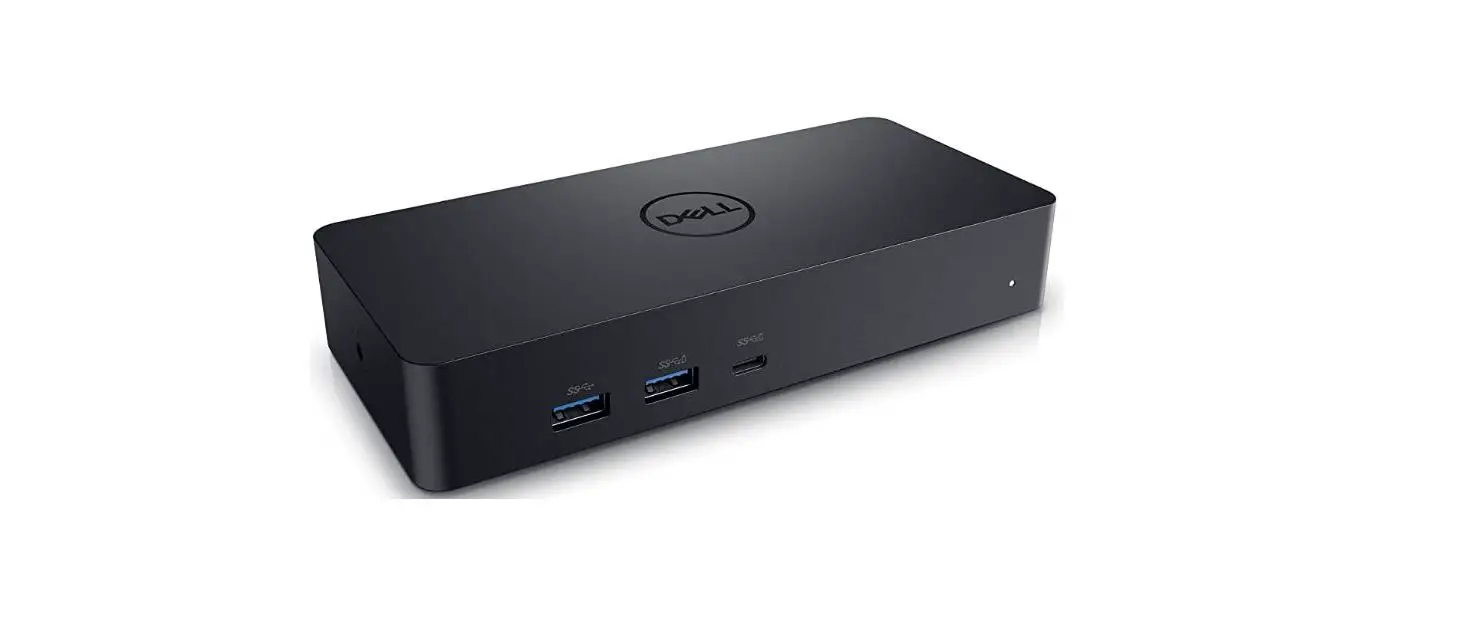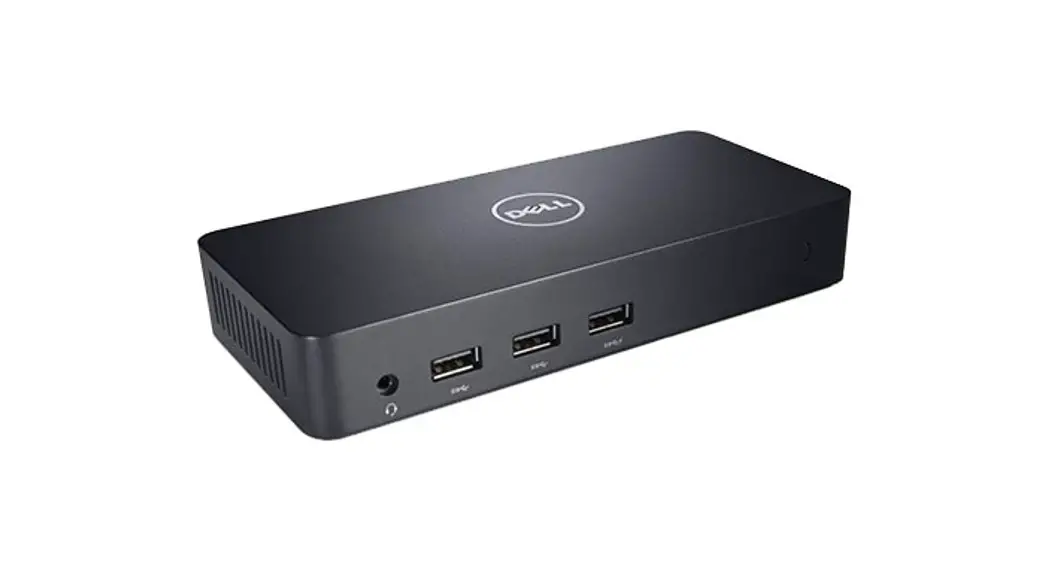

Dell Docking Station – USB 3.0
User Guide
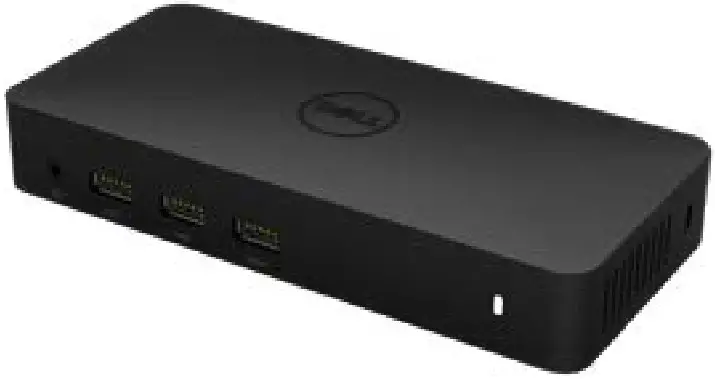
Model: D3100
D3100 Docking Station USB 3.0
 NOTE: A NOTE indicates important information that helps you make better use of your computer.
 CAUTION: A CAUTION indicates potential damage to hardware or loss of data if instructions are not followed.
 WARNING: A WARNING indicates a potential for property damage, personal injury, or death.
© 2014 Dell Inc. All rights reserved.
Information in this document is subject to change without notice. Reproduction of these materials in any manner whatsoever without the written permission of Dell Inc. is strictly forbidden.
Trademarks used in this text: Dell and the Dell logo are trademarks of Dell Inc., Intel®, Centrino®, Core™, and Atom™ are either trademarks or registered trademarks of Intel Corporation in the U.S. and other countries; Microsoft®, Windows®, and Windows start button logo are either trademarks or registered trademarks of Microsoft Corporation in the United States and/or other countries; Bluetooth® is a registered trademark owned by Bluetooth SIG, Inc. and is used by Dell under license; Blu-ray Disc™ is a trademark owned by the Blu-ray Disc Association (BDA) and licensed for use on discs and players; Other trademarks and trade names may be used in this document to refer to either the entities claiming the marks and names or their products. Dell Inc. disclaims any proprietary interest in trademarks and trade names other than its own.
2017 06 Rev. A02
Contents
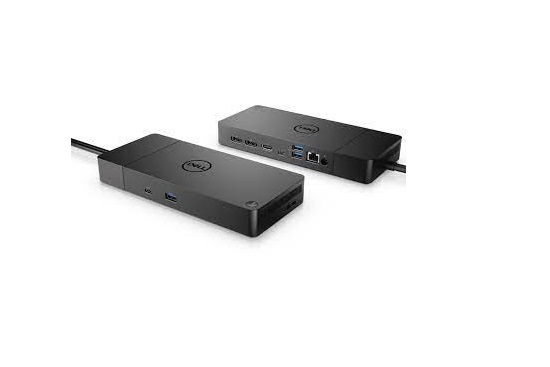
a. Dell Docking Station – USB 3.0 (D3100)
b. USB 3.0 I/O cable (2 ft)
c. Power adapter & power cord
d. HDMI to DVI adapter

Specifications
Upstream Input
• 1 x USB 3.0 (Standard B Type)
Downstream Outputs
- 3 x USB 3.0
- 2 x USB 2.0
- 1 x DisplayPort
- 2 x HDMI
- Gigabit Ethernet
- Combo Audio (Headphone/Mic)
- Audio line out
- 2 High-powered ports (
 ) for battery charging (BC 1.2).
Resolution/Refresh Rate
| No. of video ports connected | DP | HDMI 1 | HDMI 2 |
| Single | 3840 x 2160 / 30Hz | Not connected | Not connected |
| Single | Not connected | 2560 x 1440 / 50Hz | Not connected |
| Single | Not connected | Not connected | 2560 x 1440 / 50Hz |
| Dual Display | 3840 x 2160 / 30Hz | 2560 x 1440 / 50Hz | Not connected |
| Dual Display | 3840 x 2160 / 30Hz | Not connected | 2560 x 1440 / 50Hz |
| Dual Display | Not connected | 2048 x 1152 / 60Hz | 2048 x 1152 / 60Hz |
| Triple Display | 3840 x 2160 / 30Hz | 2048 x 1152 / 60Hz | 2048 x 1152 / 60Hz |
*Resolution supports also dependent on display EDID resolution
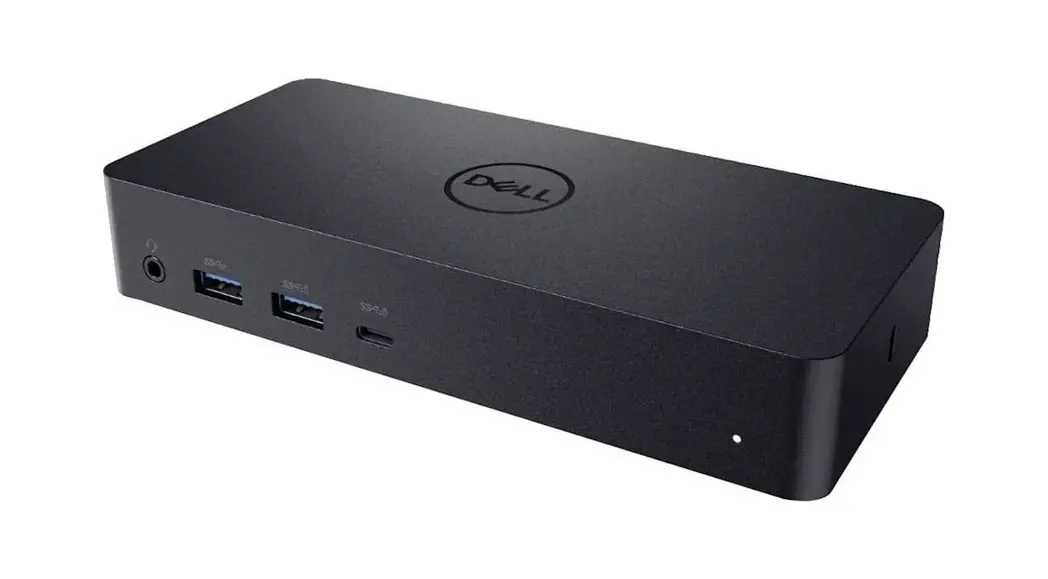
Product Overview
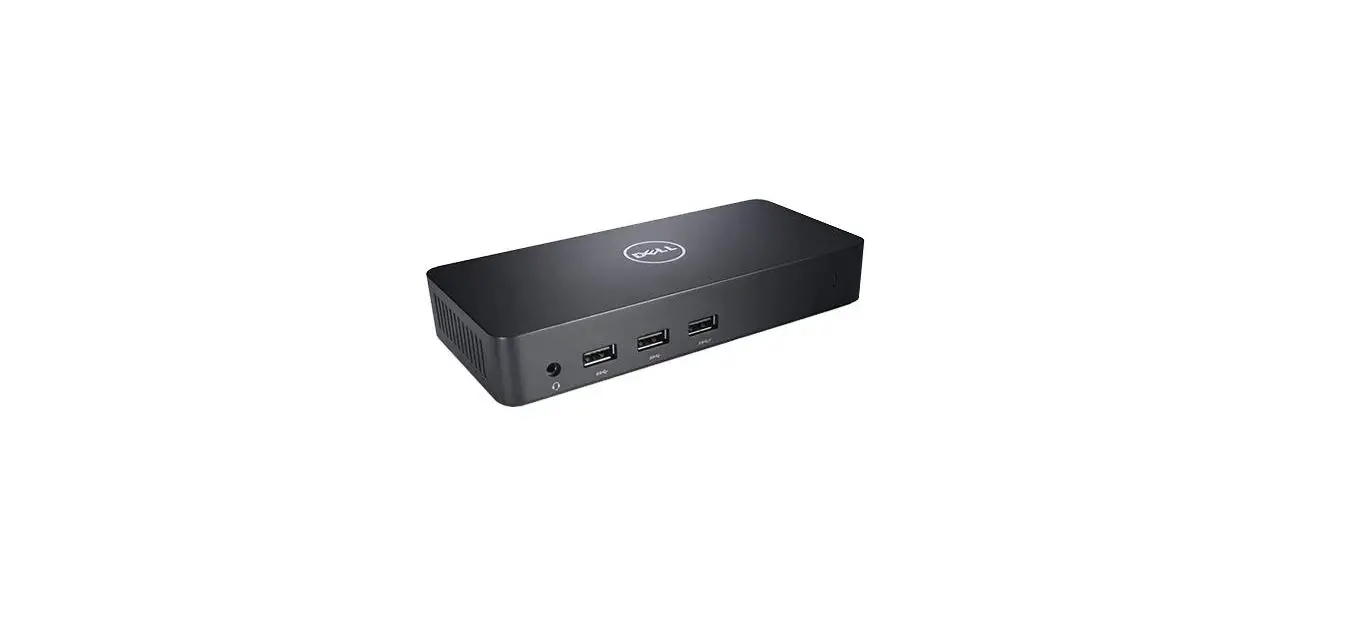
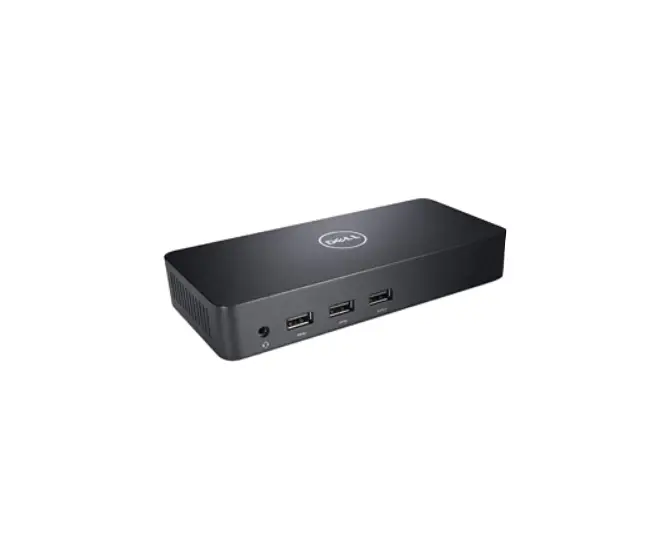
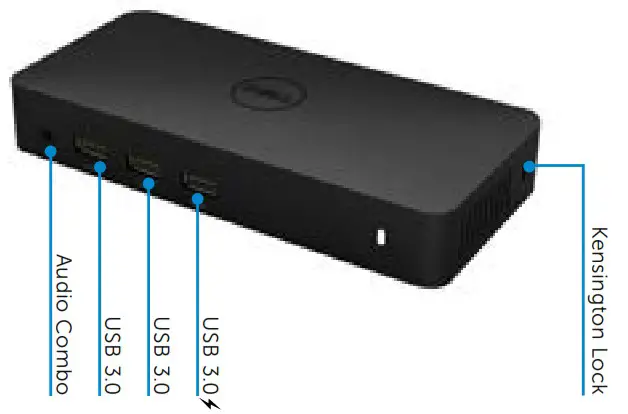
Front View
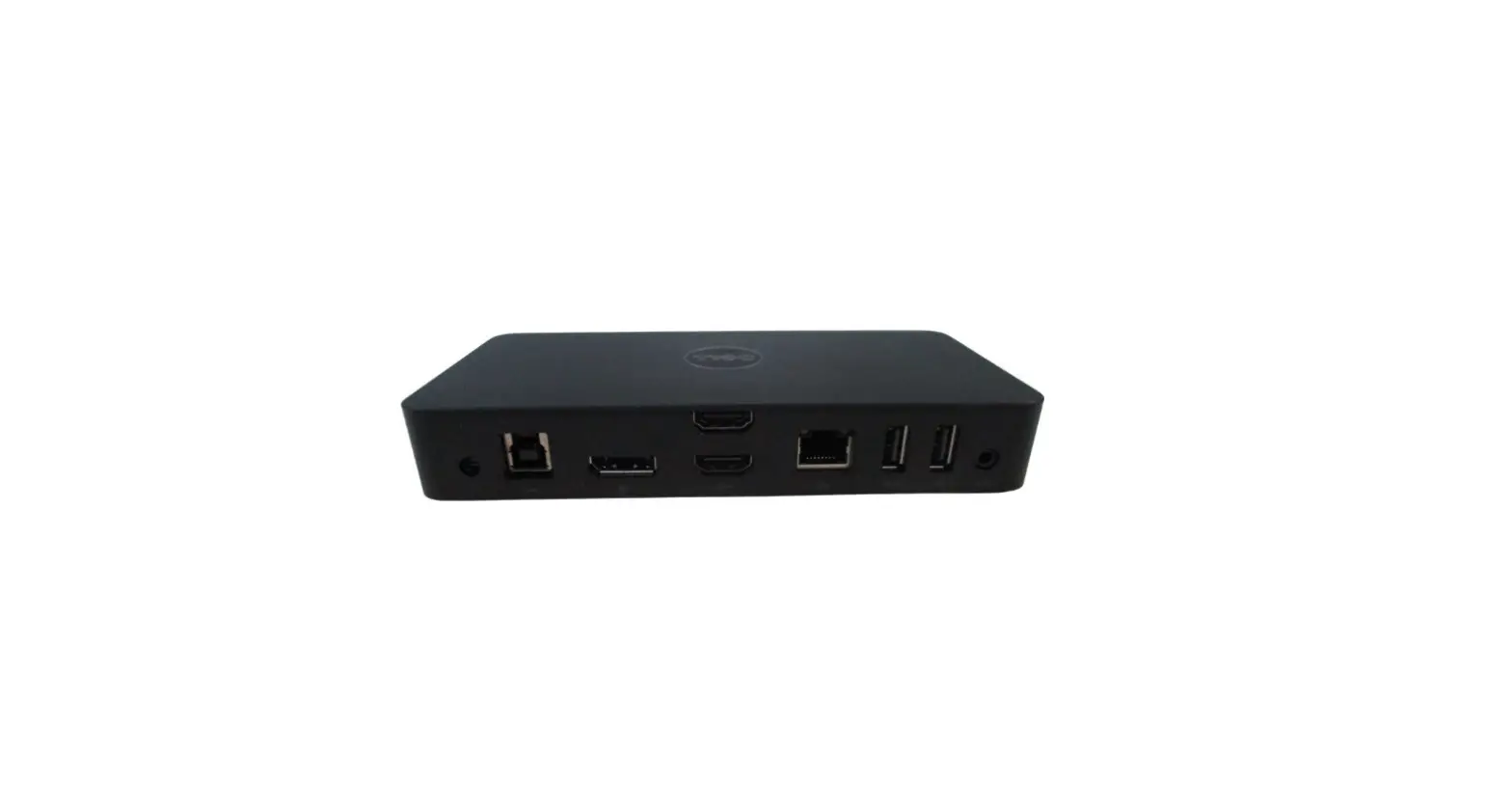
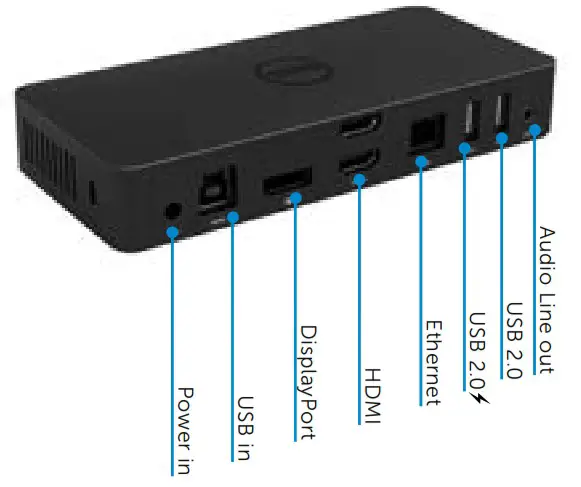
Back View
Recommended System Requirements
Hardware DL-5xxx devices
- Minimum Requirements for Office, Productivity, Web
Processor: Intel Core i3 2+GHz / Intel Core M / AMD Trinity or better Memory: 4GB Video Card: Intel HD 4000, ATI Radeon HD7xxx, NVidia GeForce 5xxM or better, with drivers released specifically for the Windows version. USB: USB 2.0 but USB 3.0 recommended - Minimum Requirements for Full-Screen Video Playback
Processor: Intel Sky Lake i3 or Intel Core i7 2+GHz / AMD Richland A10-575x / AMD Kaveri A10-7400P or better
Memory: 8GB Video Card: Intel HD 4000, ATI Radeon HD 8650, NVidia GeForce 7xxM or better, with drivers released specifically for the Windows version. USB: USB 3.0 Disk: 7200RPM or SSD If playing UHD content (4K), the system must be capable of decoding the 4K video in the GPU.
Operating System
• Wins OS (Win 7, 8, 8.1, 10) 32/64 bits
Operating Temperature
Max. operating temperature is 40 oC
Windows 7/8/8.1/10 Setup
- Connect the dock to your laptop
Note: It is recommended to download the latest drivers from the Display Link support website at www.displaylink.com/support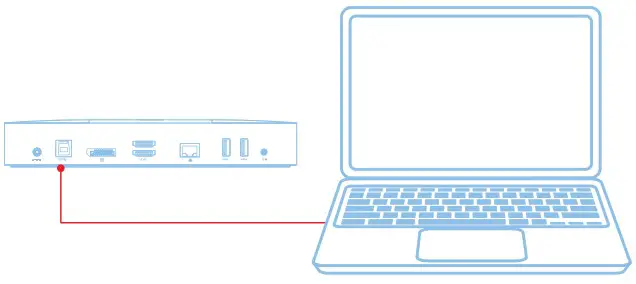 For network/IT administrators, please visit this link for a corporate installation software package. (*User registration required) http://www.displaylink.com/corporateinstall/
 - Windows will start installing the display link Driver Automatically.
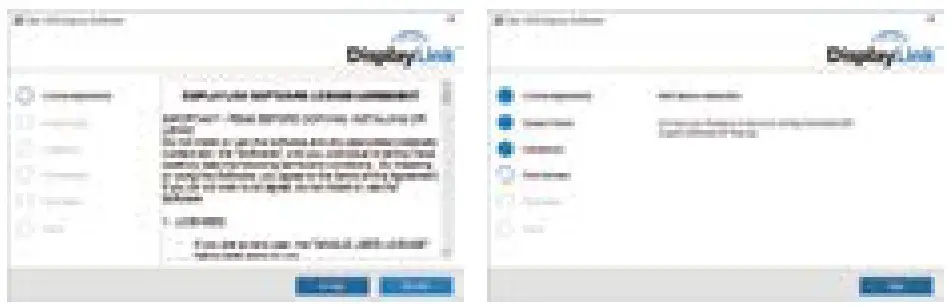
- Follow the screen instructions until the installation is complete.
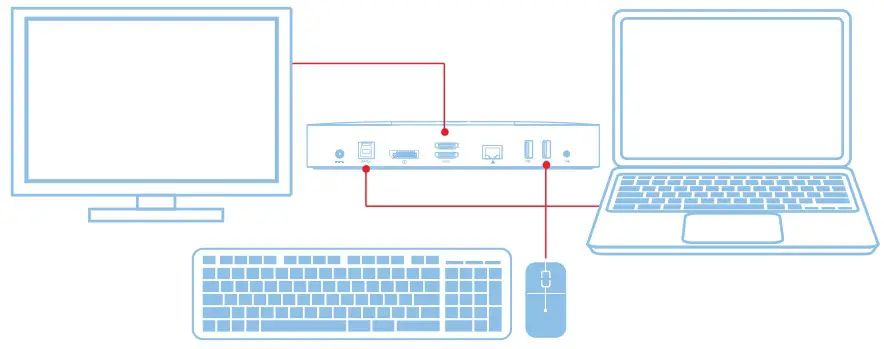
- Connect your docking station and peripherals to your PC.
| Menu Option | Description |
| Display Link Manager | Clicking on this item will show the version of Display Link software installed. |
| Check for Updates | Windows update checking. |
| Display Link Devices | Connected Display Link devices checking. |
| Audio Setup | Opens the Windows Audio Configuration Window. |
| Video Setup | Opens the Windows Screen Resolution window. |
| Screen Resolution | Displays a list of available resolutions. |
| Screen Rotation | Rotates the screen in clockwise or counter-clockwise direction. |
| Extend To | Extends the display to the right or left of the main display. |
| Extend | Extends the Windows desktop onto the display. |
| Set as Main Monitor | Sets this screen as the main display. |
| Notebook Monitor Off | Switches off the display of the notebook and makes the Display Link display the main display. |
| Mirror | Copies what is on the main display and reproduces it on this display. |
| Off | Switches off the display. |
| Fit to TV | Use this function to adjust the size of the windows to fit the TV screen. |
To set the display into extended mode
- Click on the Display Link icon
 .
. - Select Extend.
The device is now extended in the direction it was the last time the display was in this mode. For more control, use the Extend To submenu and select one of the options. This puts the device into extend mode, and places it to the Left/Right/Above/Below the main (primary) monitor.
To set the display into mirror mode
- Click on the Display Link icon .
- Select Mirror.
The resolution, colour depth and refresh rate of the primary screen are replicated on the monitor connected to the Display Link USB Graphics device.
Fit to TV configuration
- To configure Fit to TV, choose the option from the DisplayLink GUI.
The following interface appears
- You will also see a red border on the Display Link screen
The red border shows the size of the new Windows desktop. Use the “+” and “-” controls on the Fit to TV GUI to change the size of the red border until it fits on the TV screen.
Note: Finer configuration of the size of the border can be achieved by holding down the CTRL key and clicking the “+” and “-”. - Once the red border is at the edges of the TV screen, click “Apply” to resize the Windows desktop.

FAQs of Dell Docking Station – USB 3.0 (D3100)
| Troubleshooting | Suggested Solutions |
| There is no video on the monitor attached to the dock | Check the video connection cables. Unplug from the power, wait 10 seconds, and then reconnect. |
| The video on the attached monitor is distorted or corrupted. | Check video connection cables. Check the video resolution under Control Panel Items\ Display\Change Display Setting. |
| The video on the attached monitor is not displaying in extended mode | Change the settings by either: • Configuring under Control Panel Items\Display\ Change Display Setting. • Switch by cycling the “Windows Key +P”. |
| The audio jacks are not functioning | Check the settings under Control Panel\All Control Panel Items\Sound to make sure the USB Audio device is available and set to default. Right click to show all available options. |
| USB ports are not functioning on the docking station | Unplug from the power, wait 10 seconds, and then reconnect. Update to the latest USB 3.0 host controller driver |
| External USB 3.0 Media Card Reader is not detected. | Unplug from the power, wait 10 seconds, and then reconnect. Update to the latest USB 3.0 host controller driver |
| HDCP content is not able to display on the attached monitor | HDCP content support is currently not available. |
| Displaylink Driver not able to install | Get the driver by either: • Downloading the latest driver from the Displaylink website. • Connect to Windows Update with Docking station (by using Wi-Fi or Ethernet port of the laptop). |
| Laptop failed to boot with dock connected | Remove all USB devices connected to the dock; some unqualified boot devices may cause lock up at boot screen. |
| Laptop failed to wake up from Ethernet port | Check the settings under BIOS Items to make sure laptop supports wake-up-from-Ethernet port function. |
Power LED Indication
Normal working mode: Bright white light Platform standby: White light Power Off: Light Off
LAN port LED Indication
Connection: Green (Solid green)
Active Link: Amber (blinking)
Regulatory Information
Dell USB3.0 SuperSpeed Universal Docking System – D3100 complies with the FCC/CE rules and abides by worldwide regulatory compliance, engineering, and environmental affairs.
Contacting Dell:
- Visit www.dell.com/support
- Select your support category
- Select the appropriate service or support link based on your need.
Or Visit: http://www.displaylink.com/support/.
 Support | Dell US
 Corporate Installers for Windows for Downloads section | Synaptics