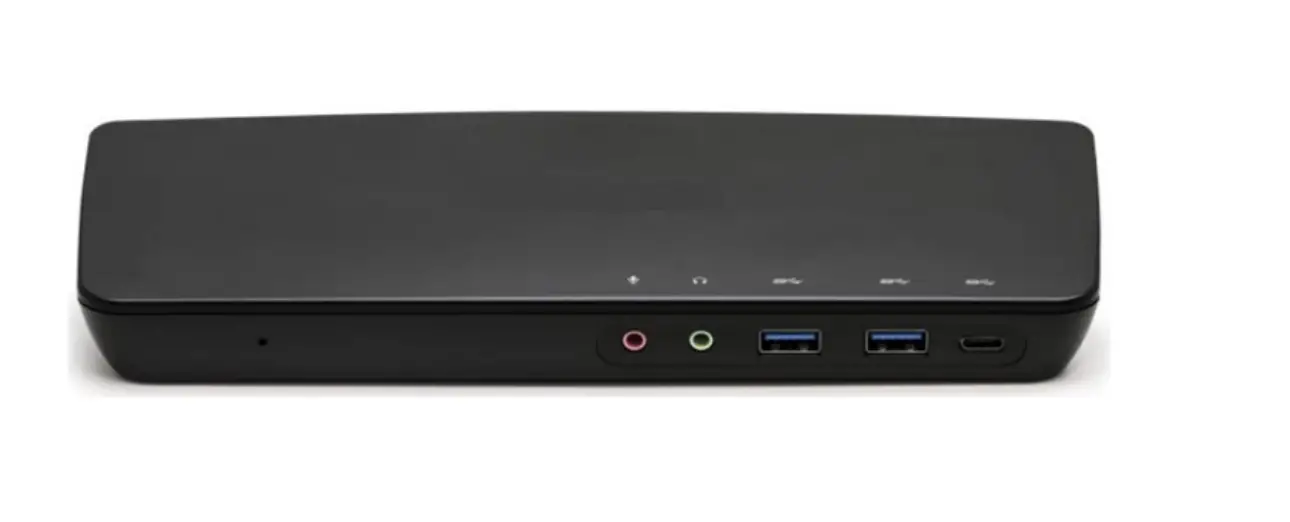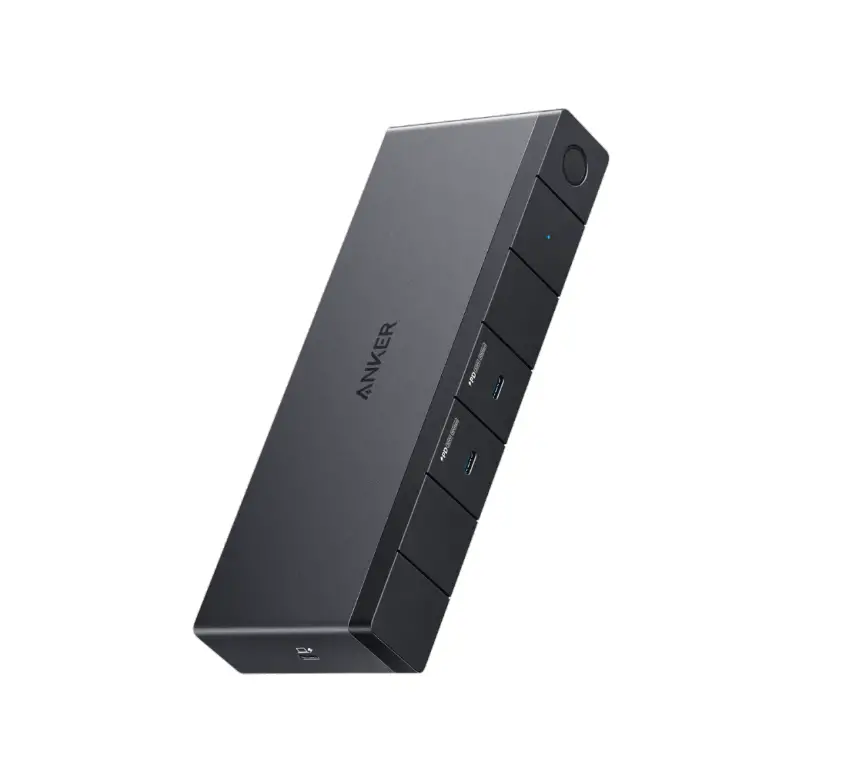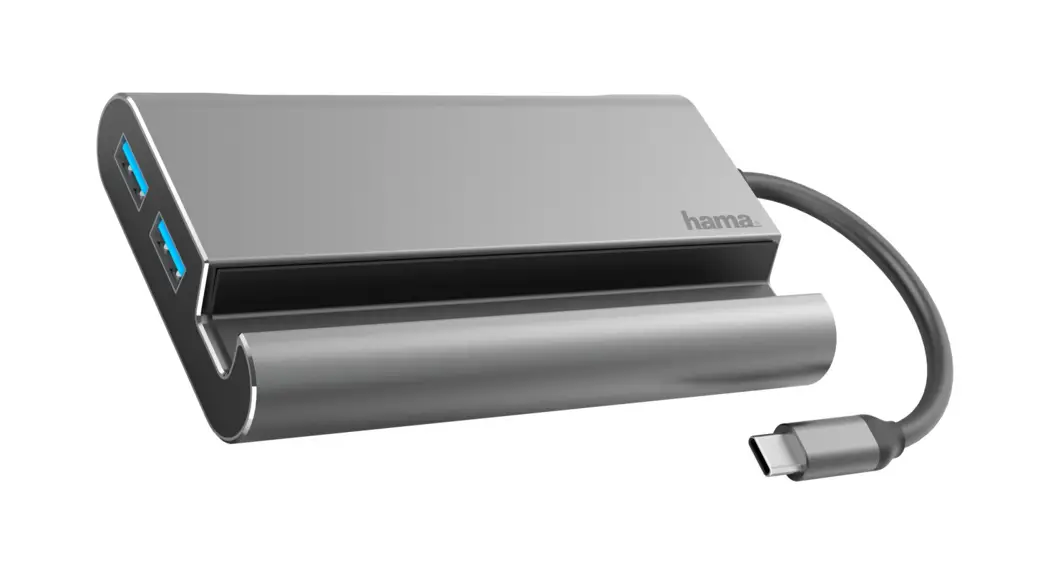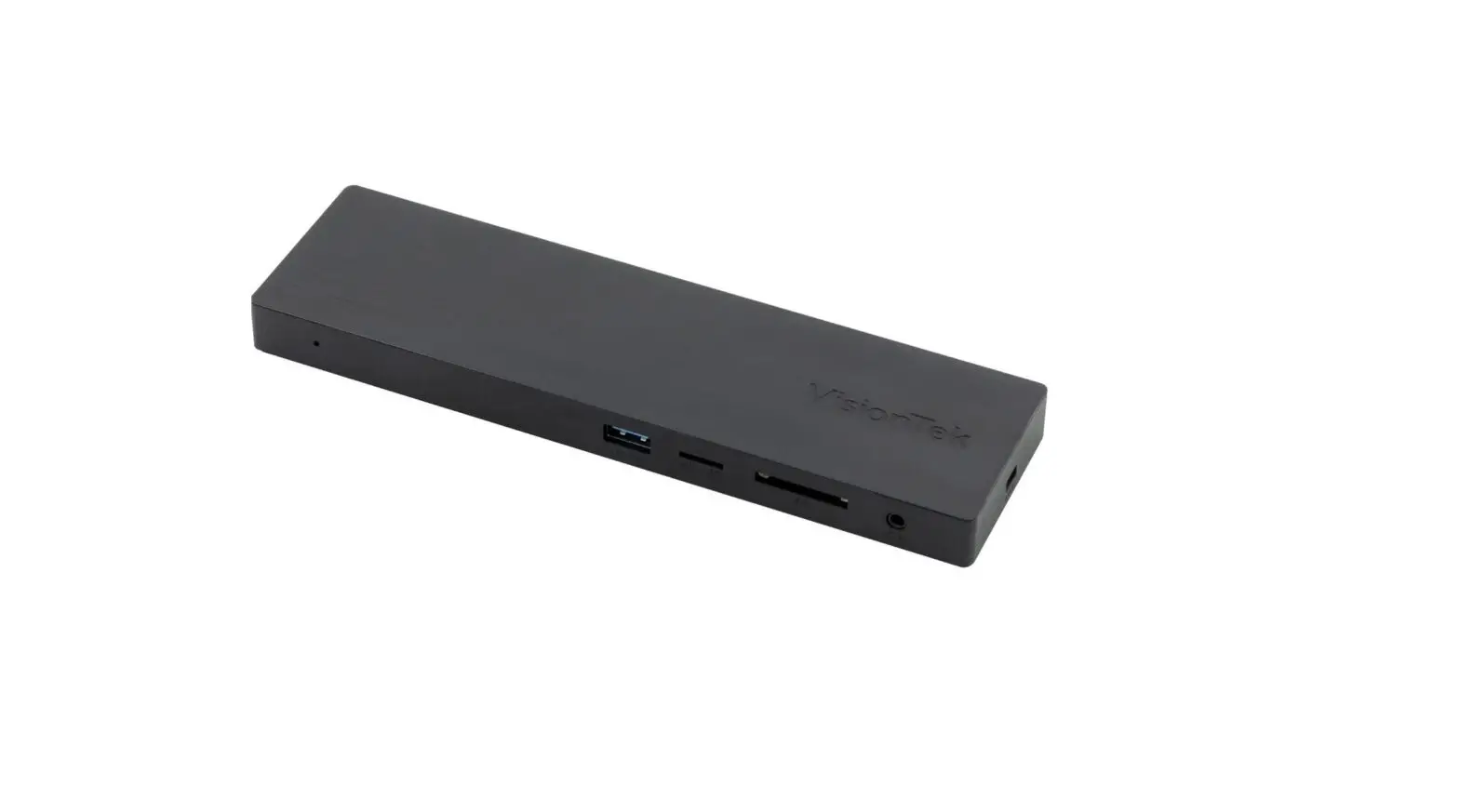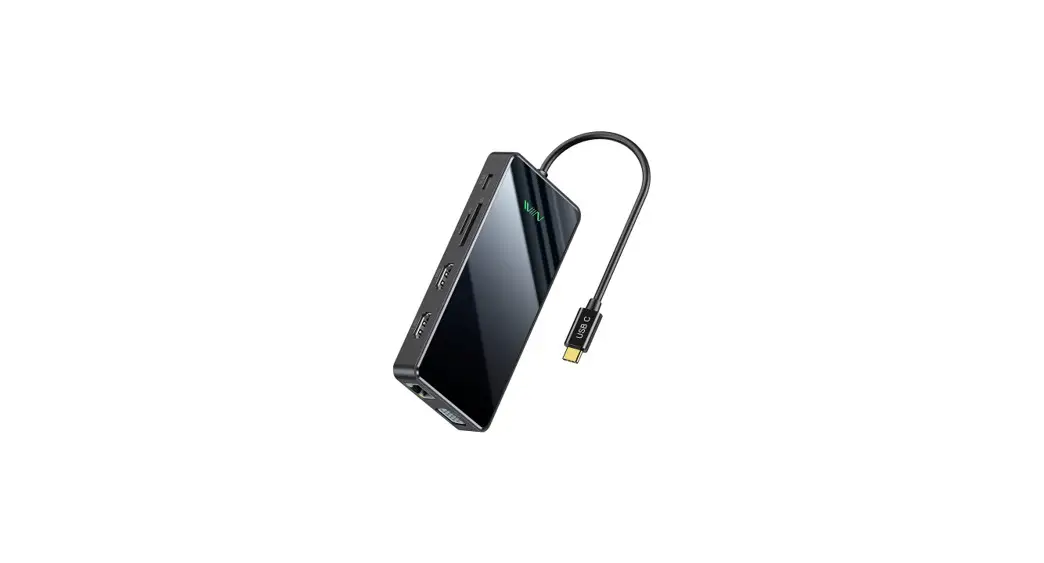
 D3812 USB C Docking Station
User Manual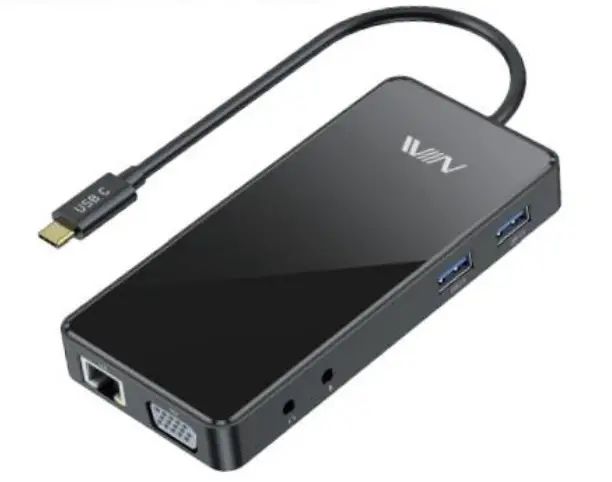
Introduce
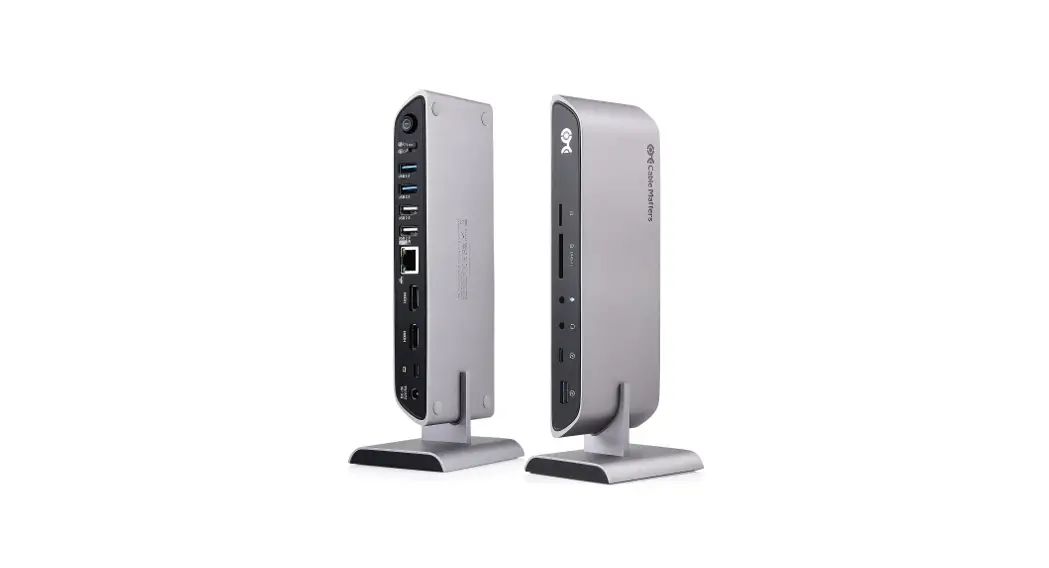
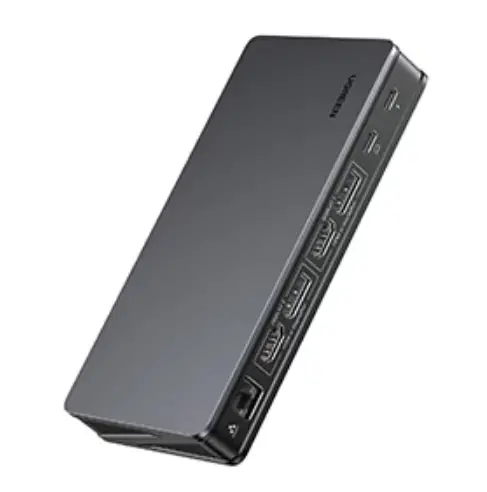
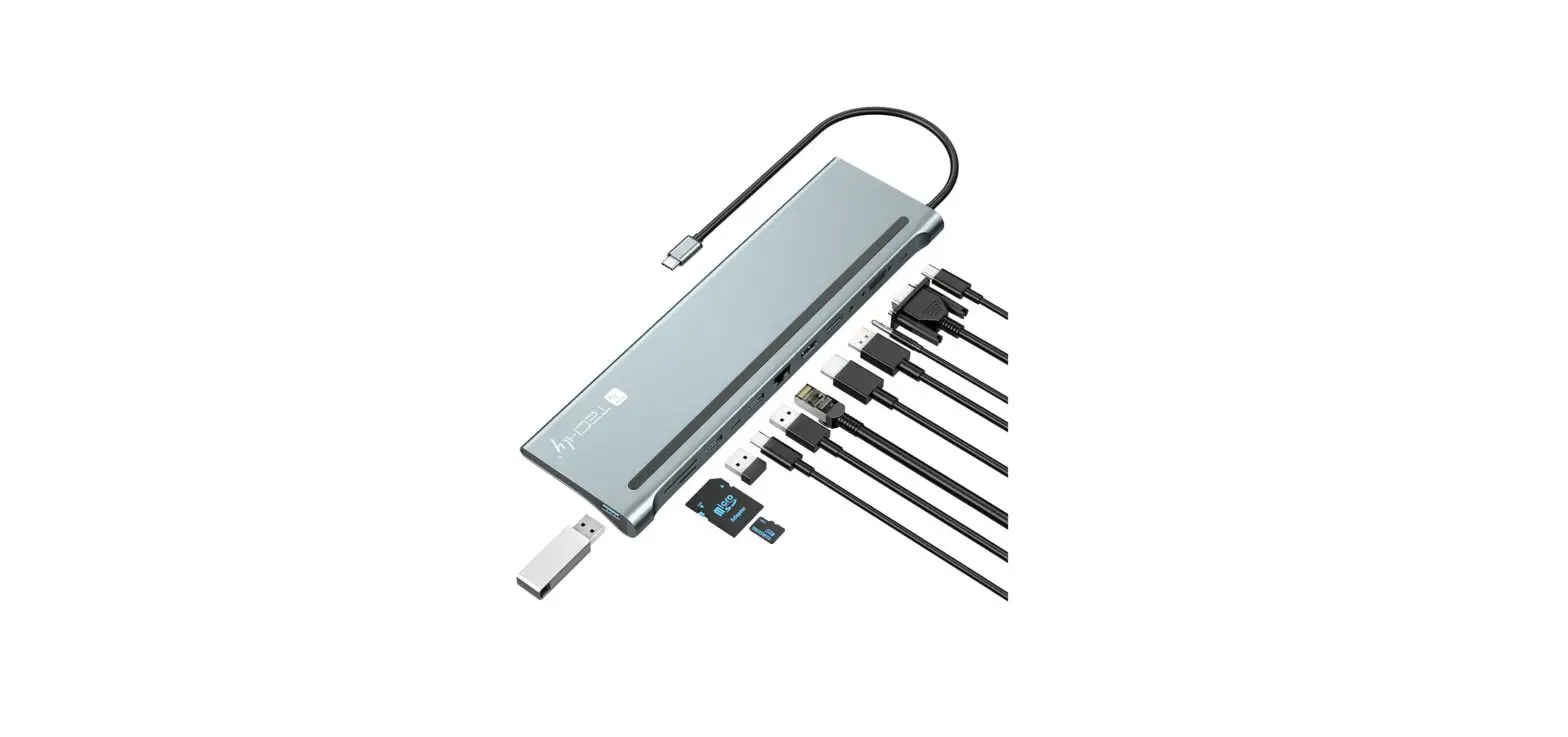
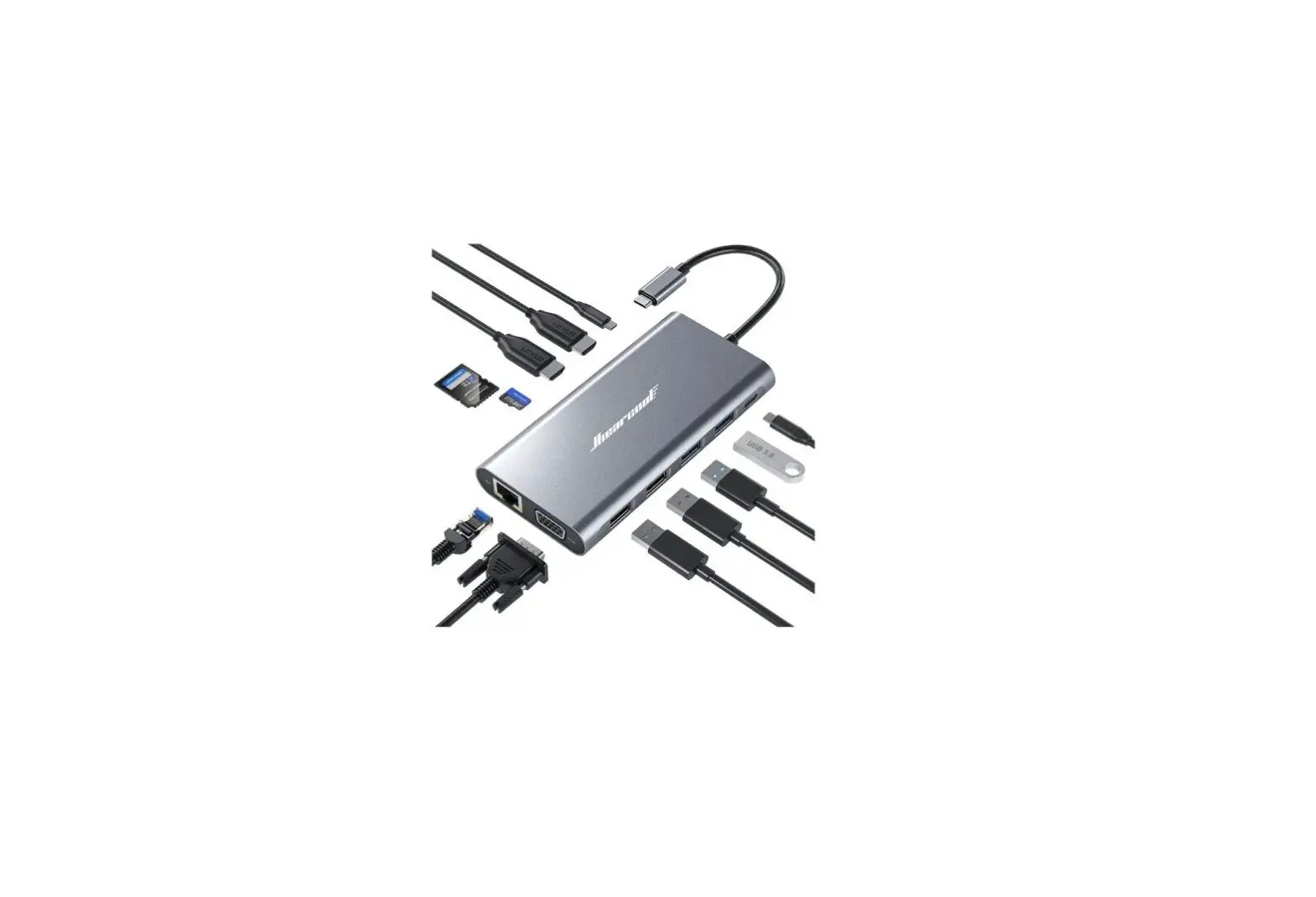
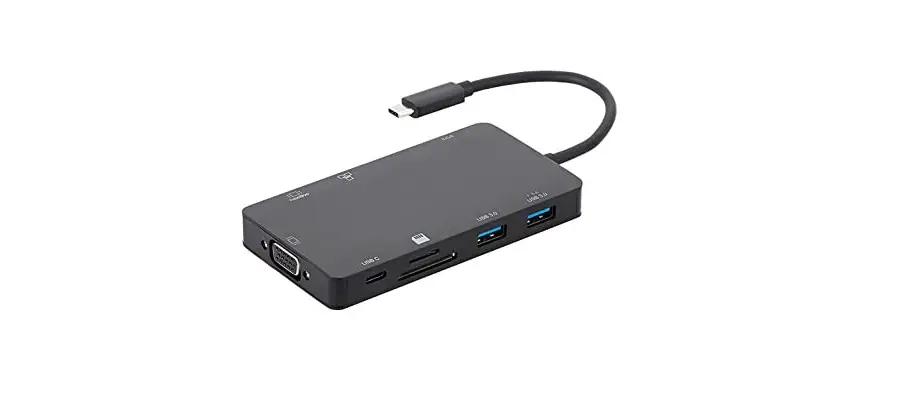
It’s the 11 in 1 mini USB C HUB. triple displays same time.Dual HDMI video output and VGA video output .Dual USB port expand and PD charging. build in card reader, Gigabit ethernet, Microphone and Earphone input & output.
Note: To ensure product functionality, please install the displaylink driver on the host that supports displayport Alt mode and use it.
Website link: https://www.synaptics.com/products/displaylink-graphics/downloads
Features
- USB C male end cable connect laptop’s USB C port.
- USB C Upstream transfet rate 5Gbps,
- HDMI1: 4k@30. HDMI2:2048*1152. VGA:1920*1080.
- Multi-display has been setting to extend,mirror, main display ect..
- Only one audio out when triple display same time.
- 3.5mm Headphones are only valid for HDMI2 audio.
- RJ45 support 10/100/1000Mbps adaptive
- USB3.0 transfer rate 5Gbps.compatible with USB3.0/2.0/1.1 USB device.
- USB C (PD in) support fast charging.Max 100wat.
- SD and TF card solt support SD and TF card
Package content and Dimensions
| Mini docking station | *1 |
| User manual | *1 |
| Unit Dimensions: | 132*62*16 |
| Package Dimensions: | 190*105*25 |
Operating system
Minimum configuration;
With USB3.0 port Support Alt mode
Windows 7 8 10 10x MacOS
Ubuntu
Chrome OS
Android x5.0 above
Note: HDMI1 without display by win7 8 system
Application Reality
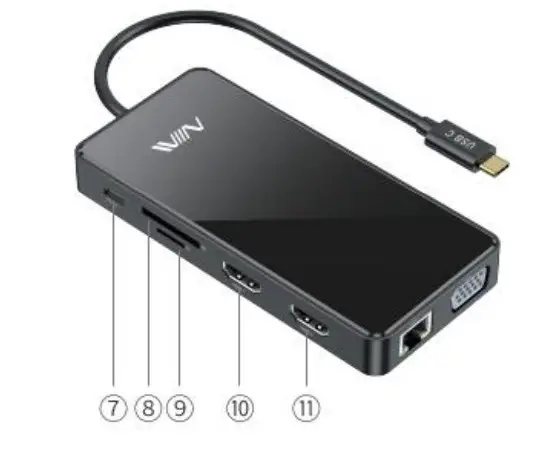
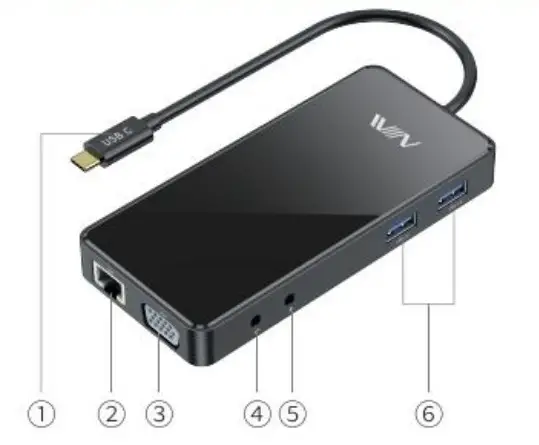
- Connect Laptop’ USB C port.
- RJ45 connect net cable from route
- VGA : connect VGA monitor through VGA cable.
- 3.5″eraphone.
- 3.5″ Microphone
- USB 3.0 extend port 5Gbps.it can connect keyboard mouse U disk.SSD. etc USB interface device.

- PD Power input port. charge your laptop through PD power adapter.
- SD card slot, support SD card
- TF card slot, support TF card
- HDMI1 Port.it can connect HDMI monitor through HDMI cable, max 3840*2160
- HDMI2 Portit can connect HDMI monitor through HDMI cable, max 2048.1152
Audio setting (for windows)
Limited by the system,only one sound will be output for multiple displays
Setp 1: audio icon Bottom right corner 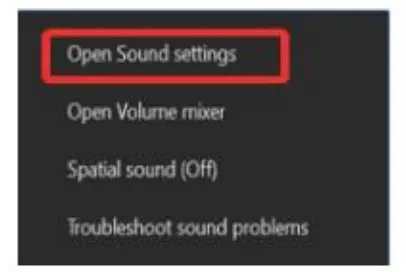
Setp 2: chose audio source
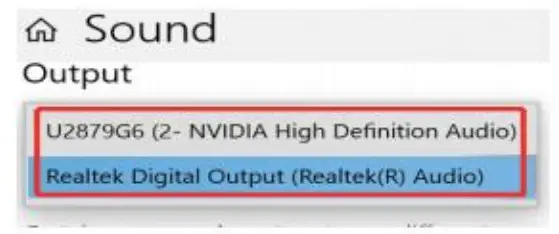 Note: 3.5″Headphones are only valid for HDMI2 audio
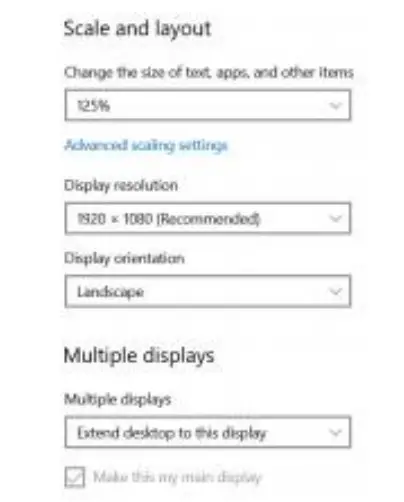
Video setting (for windows)
Setp 1: Desktop right click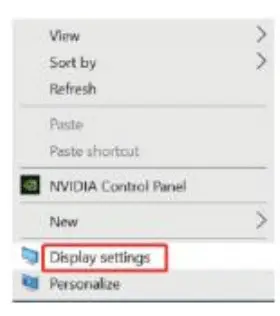
Setp 2: chose monitor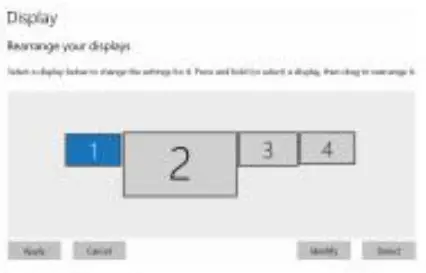 Setp 3: chose function
Audio setting (for Mac)
Limited by the system,only one sound will be output for multiple displays
Setp 1: system preference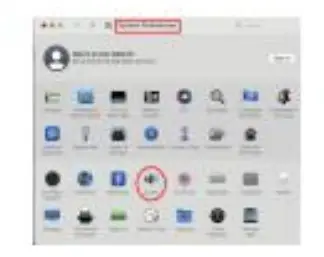 Setp 2: chose audio device
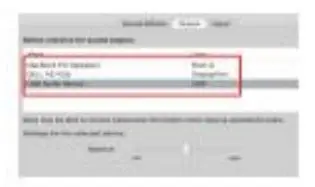 Note: 3.5 “Headphones are only valid for HDMI2 audio
Video setting (for Mac)
| Setp 1: system preference Setp 2: chose monitor Setp 3: chose function | 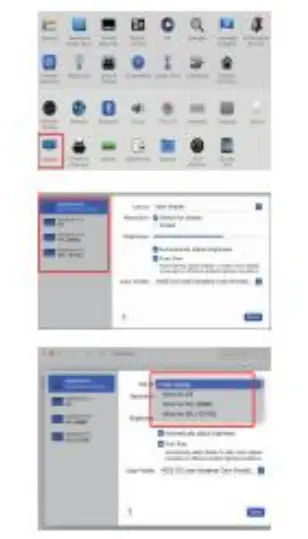 |
Driver installation (for windows)
https://www.synaptics.com/products/displaylink-graphics/downloads
Step 1: Open DisplayLink USB Graphics Software for Windows exe
Step 2: Click Yes.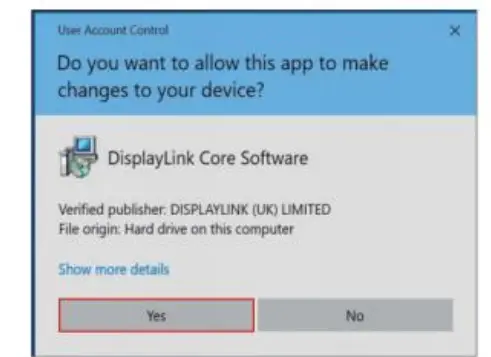
Step 3: Automatically detects the installation environment.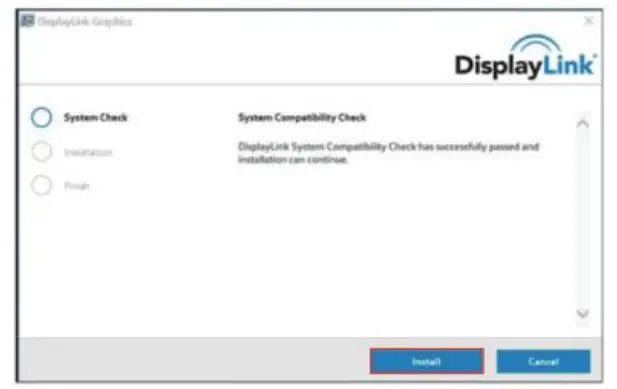 Step 4: Waiting for “Finish installation”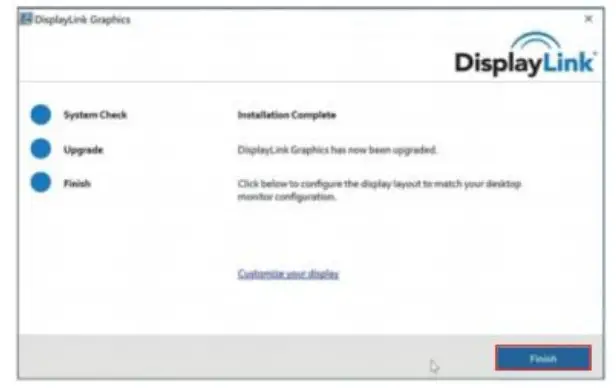
Driver installation (for Mac)
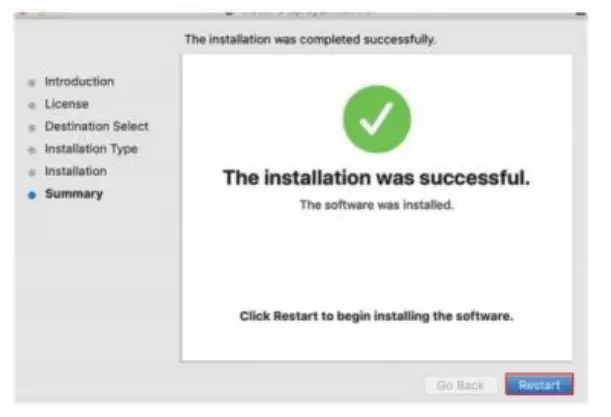
Step .1. Open DisplayLink USB Graphics Software for macOs dmg file.
Step 2: Click Displaylink Software installer.pkg
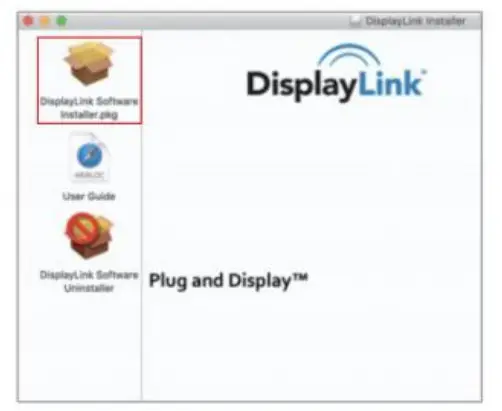 Step 3: Continue
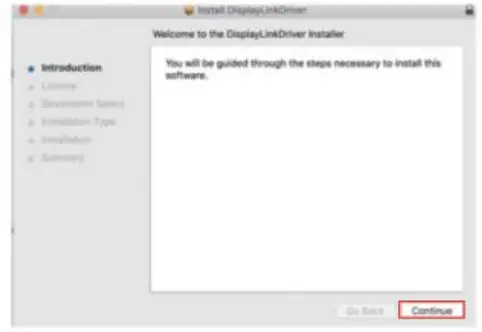 Step 4: Continue……
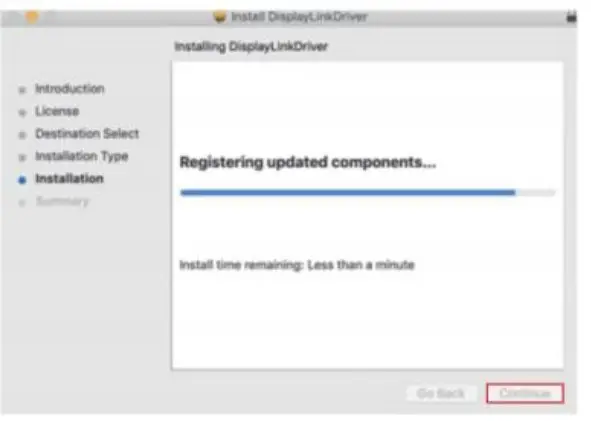 Step 5: Finish over Restart