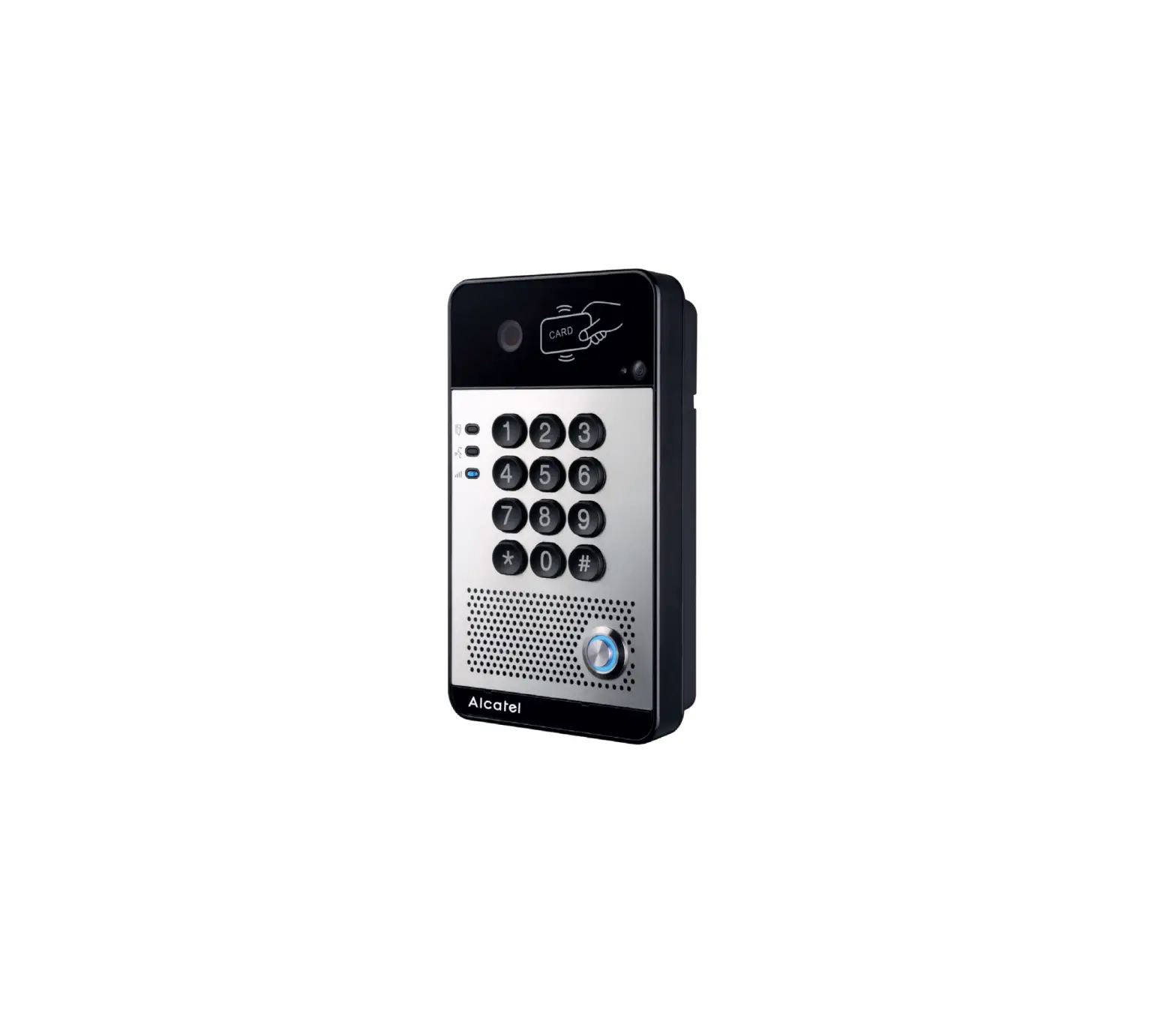
alcatel SD601 Remotely Control
Description
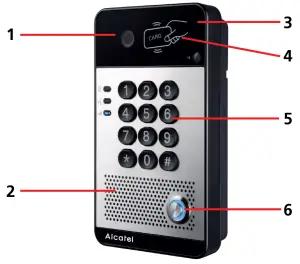
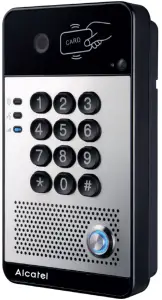
| 1 | Camera |
| 2 | Speaker |
| 3 | Mic/ Micro |
| 4 | RFID reader |
| 5 | Keypad |
| 6 | DSS key |
Visual indicators
Status | Description | |
|  | Door unlocking |
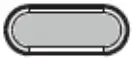 | Door locked | |
| | Talking state |
| On hook | |
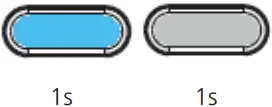 | Ringing or Call Hold | |
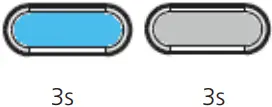 | Card issuing state | |
| | SIP Registration succeeded |
| Network is normal, SIP not registered | |
| Network error | |
| SIP Registration failed |
 Lock
Lock Call Status
 Network & SIP Regist
Port Definition
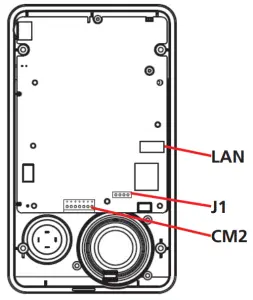 | LAN | Network connector |
J1 | Jumper | |
CM2 | Power and lock connector |
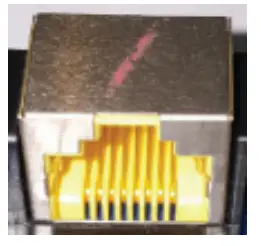
LAN: Network Connector
CM1: Power and lock connector
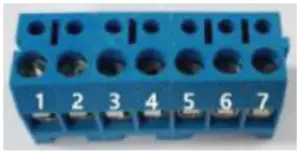
1 | 2 | 3 | 4 | 5 | 6 | 7 |
+DC12V | VSS | NC | COM | NO | S-IN | S-OUT |
| 12V DC In | Electric-lock switch | Indoor switch | ||||
J1: Jumper
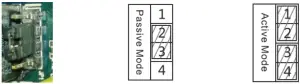
Mode | Description |
P | For locks requiring more than 12V/700mA; external power supply is required. Electric lock interface provides simple contact output, normally open or closed. Default mode. |
A | For relays requiring less than 12V/700mA. Electric lock interface will provide 12V output |
Lock: Electric lock type
Fail safe: power OFF unlocked – power ON locked
Fail secure: power OFF locked – power ON unlocked
Wiring instructions
Mode | Lock | J1 | CM1 | ||
| Active | Passive | Fail Safe | Fail Secure | ||
√ | √ | 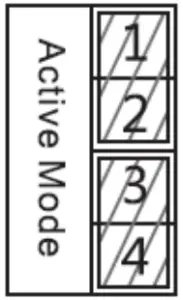 | 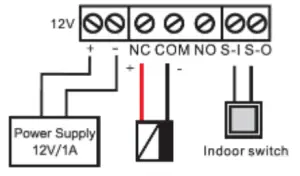 | ||
√ | √ | | | ||
| √ | √ | 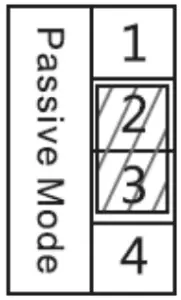 | 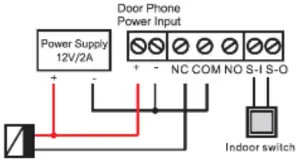 | ||
| √ | √ | | | ||
| √ | √ | | 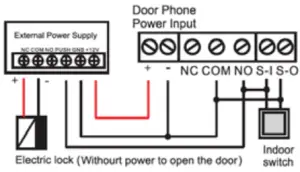 | ||
Wall mounting
A. Drilling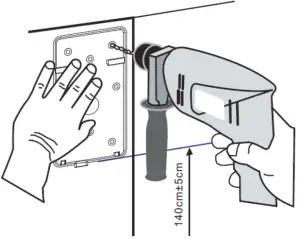
B. Remove wall mounting bracket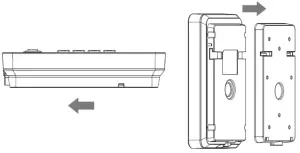
C. Hanging the wall mount bracket and cabling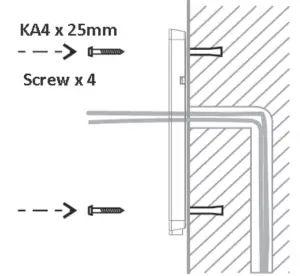
D. Line connection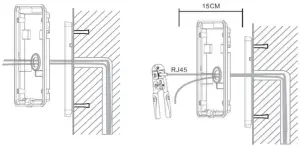
E. Mounting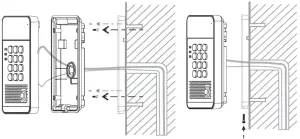
Note: Before closing the unit verify connections are functional: press the # button for 3 seconds to get a voice announcement of the device’s IP address.; Input access password or press the indoor switch to check electric-lock installation.
Door Phone web interface
- To set up your system you will need to find out the IP address of your CD601. Press and hold the “#” key for 3 seconds: a voice announcement will read out your CD601 IP address.
- Open a web browser on our computer. Enter http:// and the IP address in the address bar
- Default login and password: admin/admin for administrator.
Note: your system uses DHCP by default to acquire an IP address. If you wish to switch to fixed IP (default address 192.168.1.128), press and hold the DSS Key for 10 seconds, until you hear a bip. Then press the DSS key 3 times. After 10secs the IP address acquisition mode will have changed.
SIP Door Phone Setting
SIP account
Go to SYSTEM>>SIP Accounts. Configure at least SIP proxy address and port, phone number and authentication name and password. Select “Activate”, and click “Apply” to save.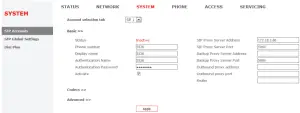
Setting DSS key
Go to PHONE>>Function Key. For a quick start, set the DSS key as Quick Dial (see figure above), with your desired destination numbers.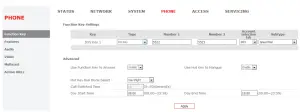
Access Control Setting Options
Local password
Go to PHONE>>Features>>Doorphone Settings >> Local Password (Default value is “6789”).
To unlock the door simply input local password and “#” key on the door phone numeric keypad.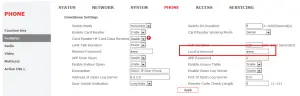
Private access code
Go to ACCESS>>Access Control Settings>>Add Access Rule. Enter private Access Code and press Add. To open the door, input this access code and press # key on the door phone numeric keypad.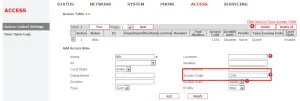
Remote password
Go to PHONE>>Features>>Doorphone Settings >> Remote Password (Default value is “*”). To unlock the door remotely when your sip phone is in communication with a visitor at the CD601, simply dial remote password.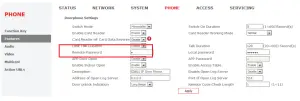
RFID Card
- Go to PHONE>>Features>>Doorphone Settings >> Card Reader Working Mode>>Set to Card issuing state.
- Register one or more RFID cards by approaching them to CD601 card reader area. The phone will beep after each successful registration.
- Add an access rule for each card through ACCESS>>Access Control Settings>>Add Access
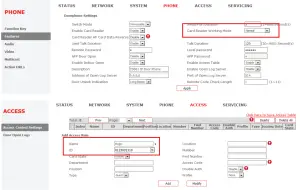
Rule>>Add a Name and select your Card ID from the drop down list. Then press Add To open the door approach an authorized card to the CD601’s RFID reader area.
Note: remember to return your CD601 Card Reader Working Mode to Normal state after you have issued the cards.
Declaration of conformity for the European Community

The CE logo shown on the products indicates that they are compliant with the basic requirements of all the applicable directives. You can download the declaration of conformity from the following address: www.swissvoice.net
Environment
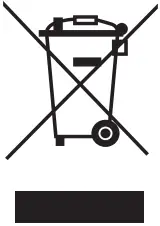
This symbol means that your inoperative electronic appliance must be collected separately and not mixed with the household waste. Help us to protect the environment in which we live!
(a)- If you are a professional user, please follow your supplier’s instructions.
(b)- If the appliance is rented to you or left in your care, please contact your service provider.
Please help us protect the environment in which we live!
Customer care
For quick assistance, please refer to the user guide. Our Swissvoice reseller will be happy to help with any further questions related to your Swissvoice terminal.
Notice of copyright and trademarks
Copyright ©2018 Atlinks Europe. All rights reserved. Atlinks Europe reserves the right to change the technical specifications of its products without prior notice, so as to make technical improvements or respect new regulations. Alcatel is a trademark of Nokia used under license by Atlinks.
Atlinks Europe
147 Ave Paul Doumer
92500 Rueil-Malmaison
France
Model : SD601
10001764 Rev.0 (EN/FR/ES/DE)