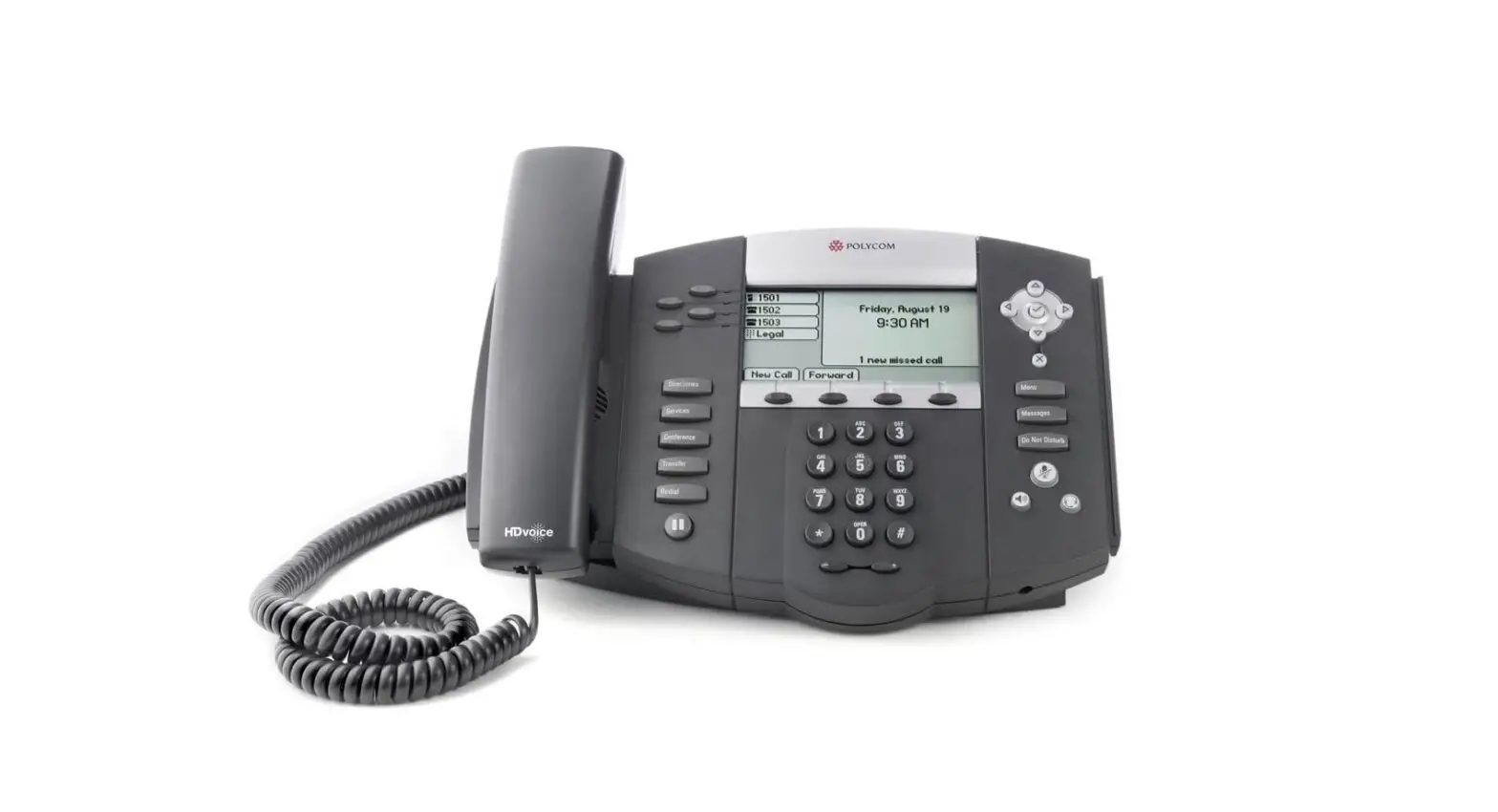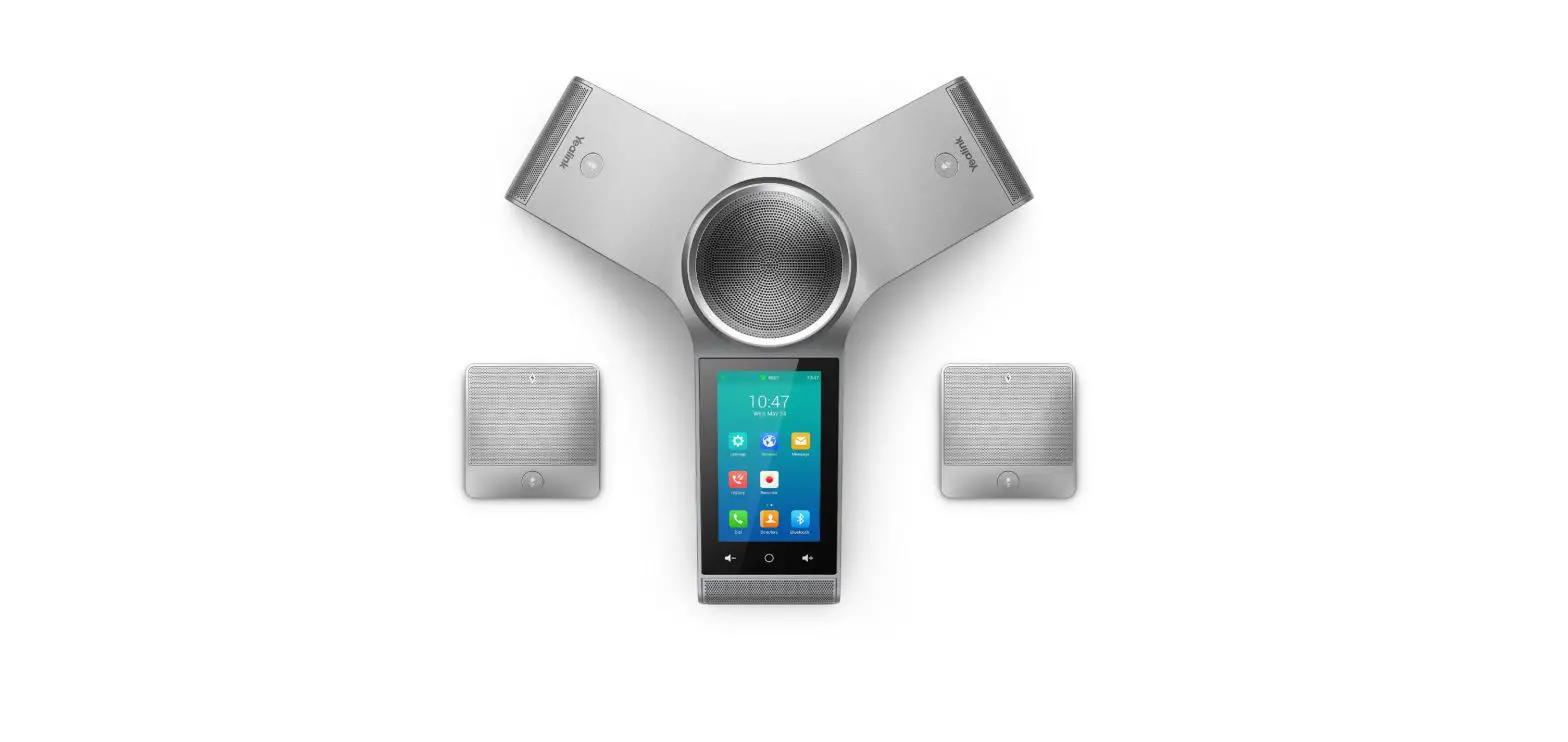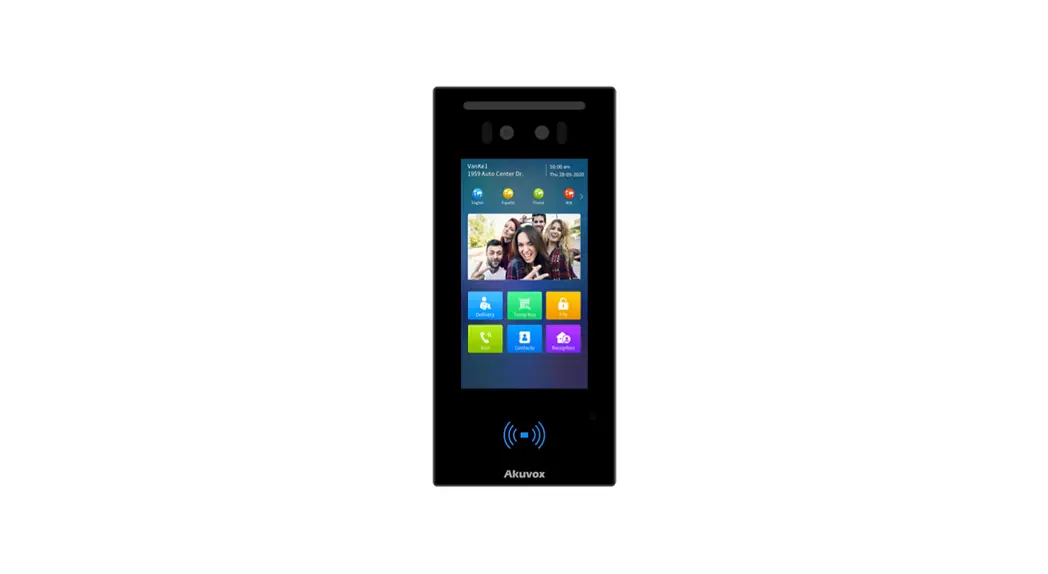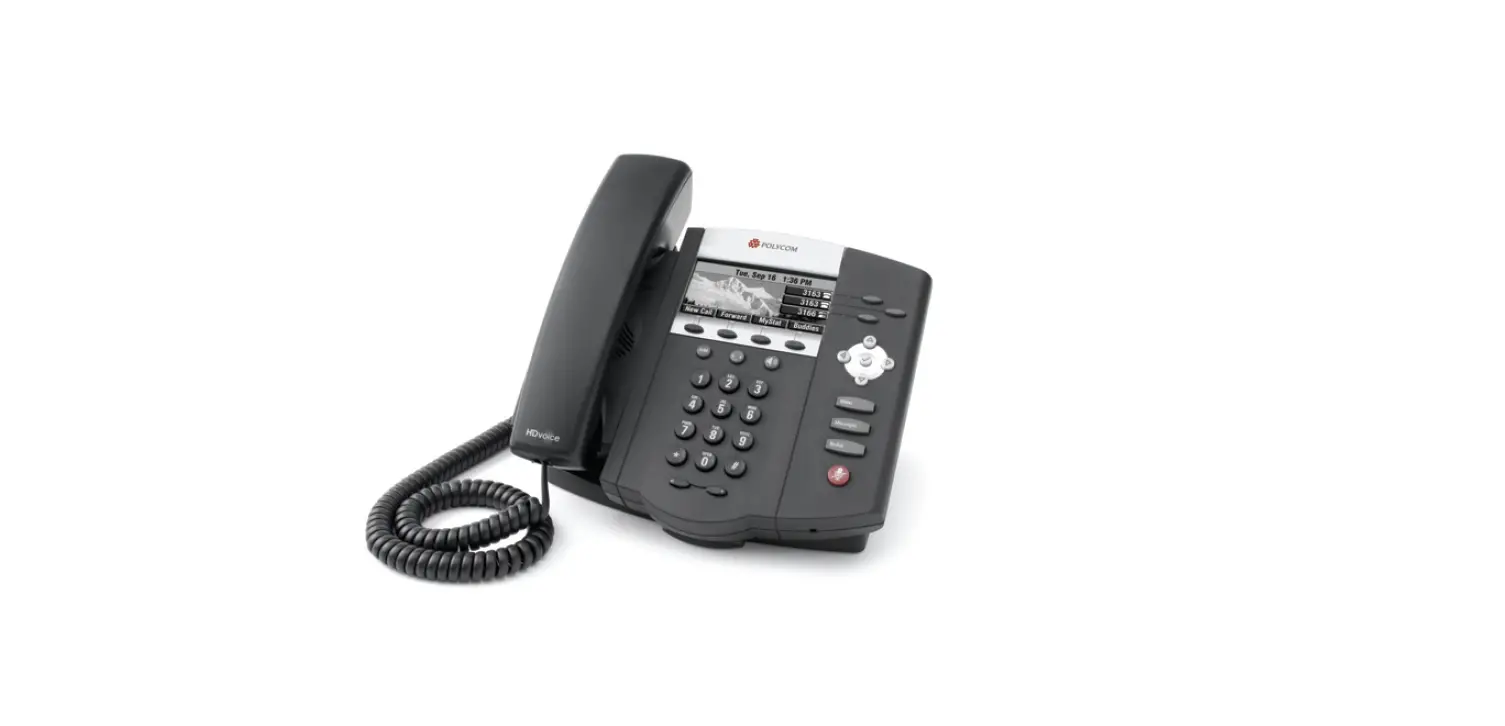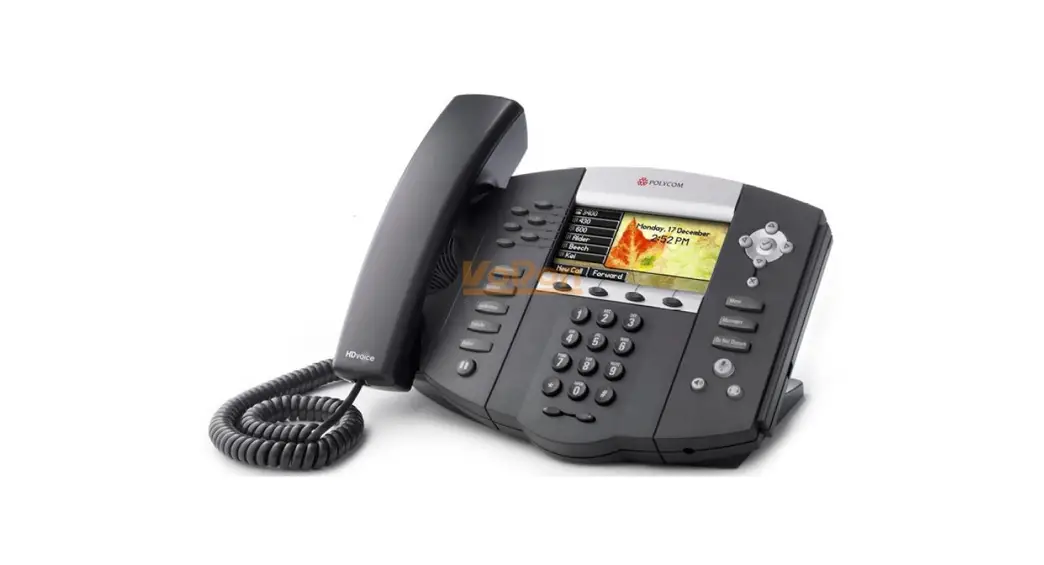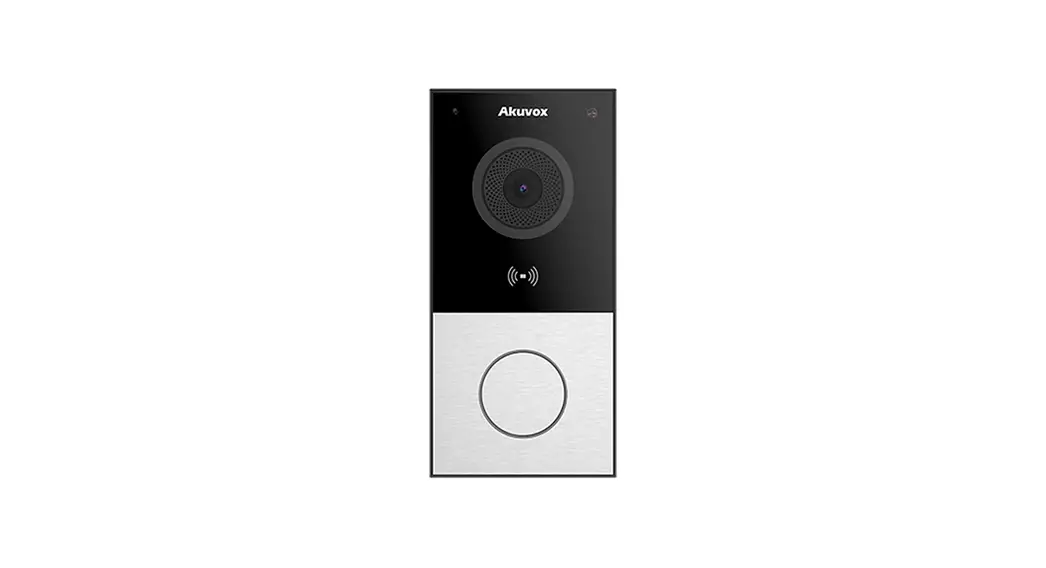
IP VOICE IPV54 Video Telephone User Guide
Contents hide
Make a Call
- Pick up the handset.
- Enter a number, and then press the Call so key.
Make a Call with a Headset
- Plug in headset and make sure the icon displays on the screen.
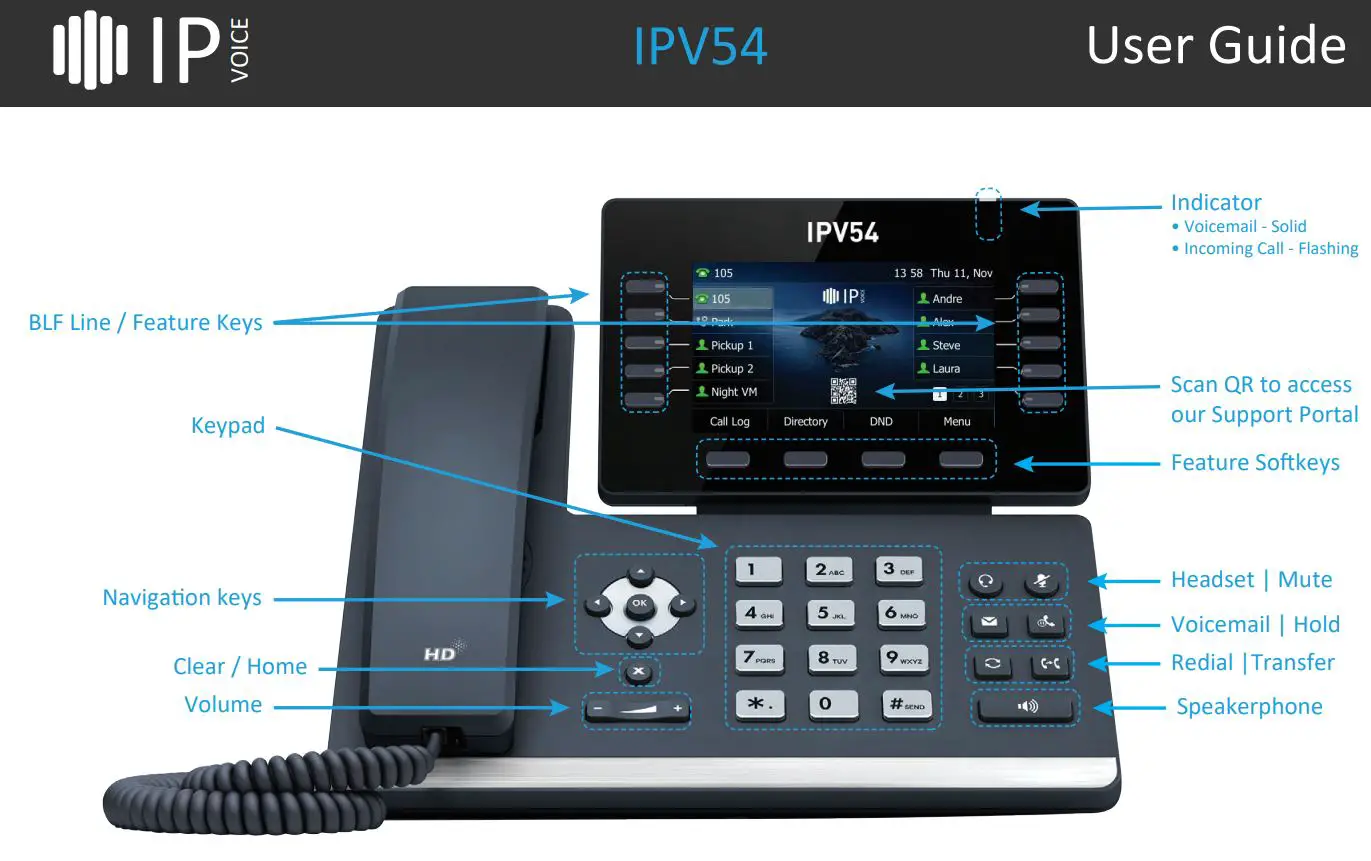
- Press Headset
 button.
 - Enter a number using the keypad and then press the Call so key or the Headset button
 button.
Make a Call with the Speakerphone
- Press Speakerphone

- Enter a number, and then press the Call so key.
Answer a Call
Pick up the handset or if you are using the speakerphone, press  button or Call soft key.
Put a Call on Hold
Press  or the Hold soft key during an active call.
To resume a held call, press button or the Resume soft key.
View Your Recent Calls
- Press the Call log so key when the phone is idle, press or button to
 scroll through the list.
 - Select an entry from the list, and use the Call so key to place the call.
- Press the Delete so key to delete the entry from the list.
Transfer a Call to Another Person
- From a call that is not on hold, press
 button or the Transfer so key.
 - Enter the other person’s phone number or press users BLF so key if you that feature enabled.
 button or the Transfer so key.
Add Another Person to a Call
- From a connected call that is not on hold, press the Conference so key.
- Enter the number of the second party, and then press the Call so key.
- Press the Conference so key again when the second party answers. All pares are now joined in the conference.
Mute Your Audio
- Press Mute
 button.
 - Press Mute button again to turn mute off.
 button.
Listen to Your Voice Messages
The Message Waging Indicator on the idle screen indicates that you have new voice messages waiting. The power indicator LED slow flashes red.
To listen to voice mail messages:
- Press or dial *123
- Follow the voice prompts to listen to your voice messages and enter your pin.
 or dial *123
Call Forwarding
Press  to enable predefined call forward
Press  to disable call forward
Adjust the Volume in a Call
Press Volume  left or right to adjust the handset, headset, or speakerphone volume, during a call.
Adjust the Ringtone Volume
Press Volume le or right to adjust the ringer volume when the phone is not in use.
Change the Ringtone
- Press the Menu so key when the phone is idle, and then select Basic > Sound > Ring Tones.
- Press to select. the desired ring tone.
- Press the Save so key to accept the change.
Call Pickup
Lift Handset and press Call Pickup softkey, or dial *88.
Do Not Disturb mode
To enable DO NOT DISTURB press the DND so key.
External Directory
- Press the Directory so key
- Use buttons to scroll through the list
- Select an entry form the list and use the Call so key to place the call.