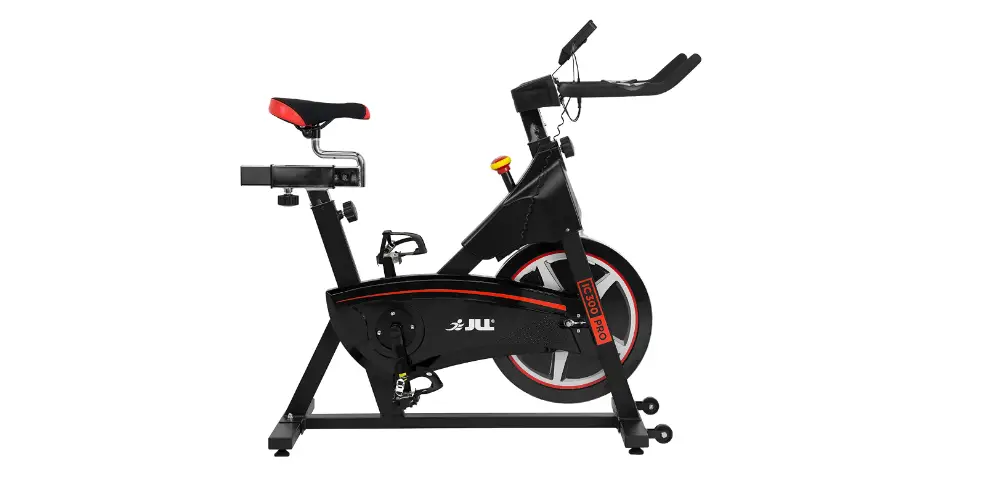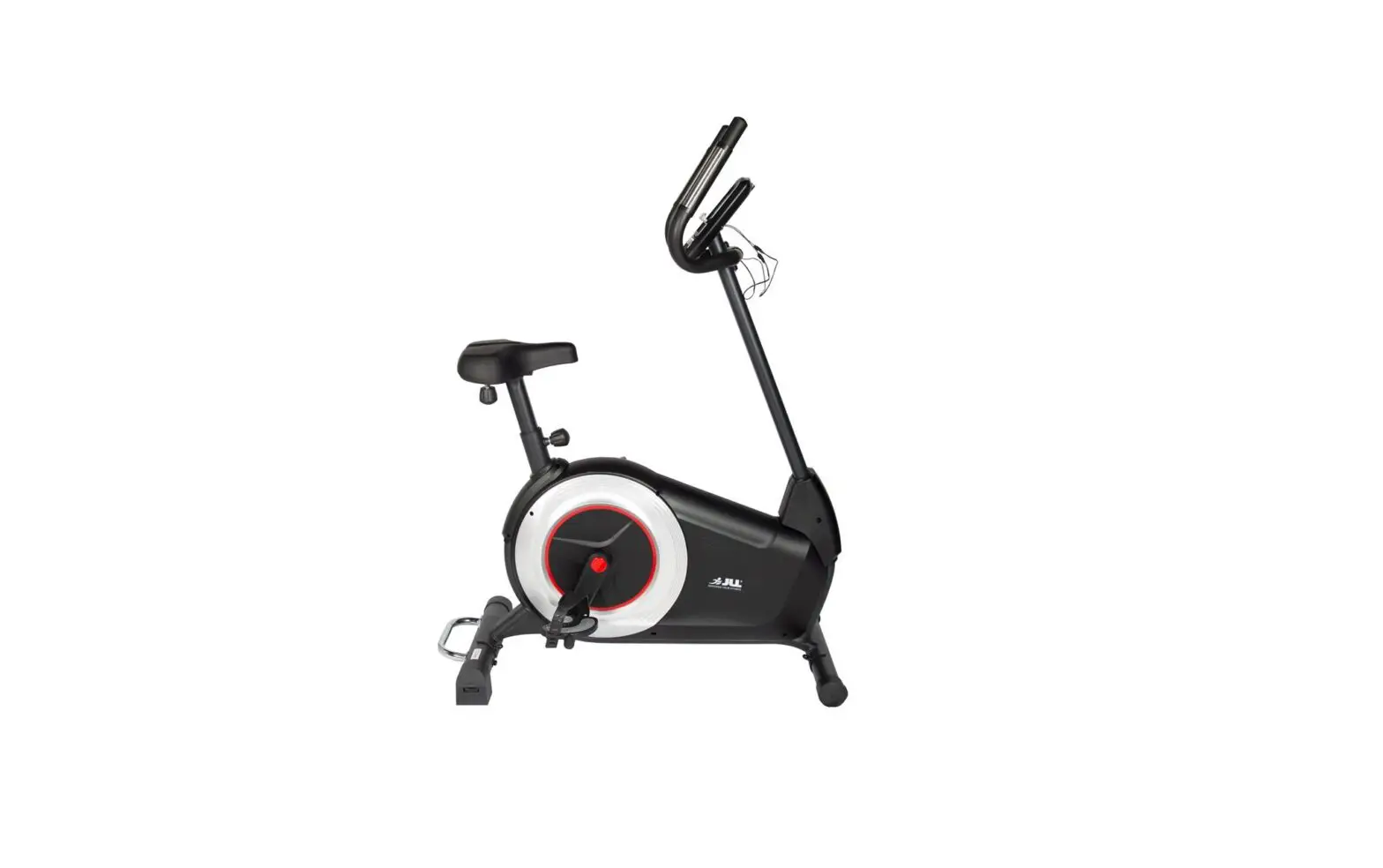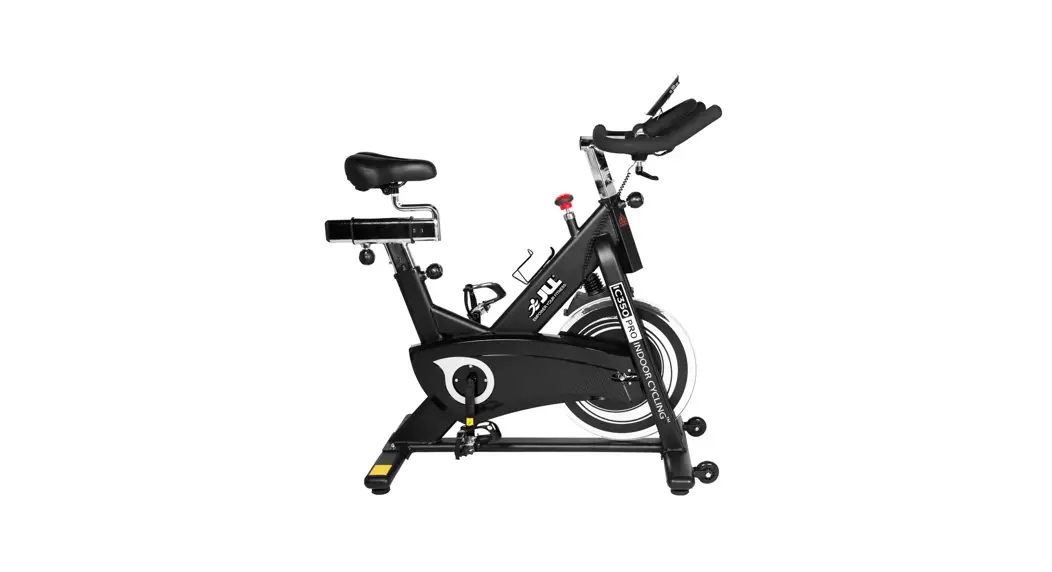
 INSTRUCTION GUIDE
JF150 MONITOR
Fitness JF150 Monitor
COPYRIGHT
The contents of this manual are subject to change without notice to improve quality.
© 2023 JLL Fitness Ltd
JLL Fitness Ltd owns the copyright for this manual.
Use or reproduction of this manual in parts or entirety without the authorization of JLL Fitness Ltd is prohibited.
SAFETY PRECAUTIONS
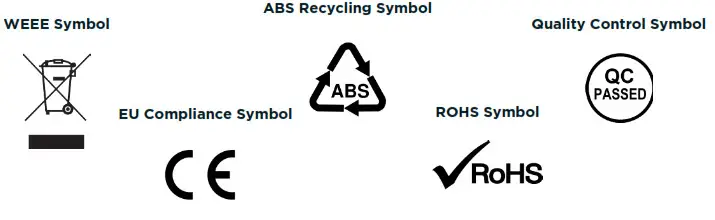
The monitor on this machine has been tested to the required standards, each of those passed regulations are shown via the following symbols:
WEEE – Waste Electrical and Electronic Equipment Recycling.
ABS – Acrylonitrile Butadiene Styrene often referred to as ABS is a type of plastic that is an opaque thermoplastic.
CE – The product conforms with relevant EU directives regarding health and safety or environmental protection.
QC Pass – A product which has fulfilled the requirements of a technical control and passed the outgoing exams.
ROHS – This is an abbreviation for “Restriction of (the use of certain) Hazardous Substances in electrical and electronic Equipment”.
CLEANING
Please take care when cleaning this monitor as the LCD screen can easily be scratched.
 | You will need a soft dry cloth |
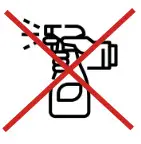 | Do not spray cleaning chemicals directly onto the monitor |
 | Do not apply water to the monitor as it is electrical and may damage the internal components |
INSTALLATION
STEP 1
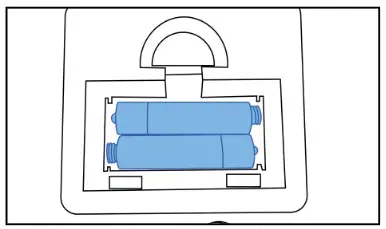
Insert the batteries, making sure they are the correct way round.
STEP 2
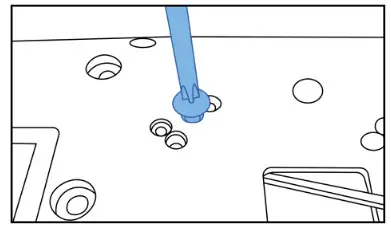
Remove the four screws from the back of the monitor.
STEP 3
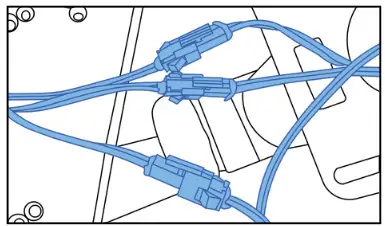
Connect the male to female wires from the base to the monitor.
STEP 4
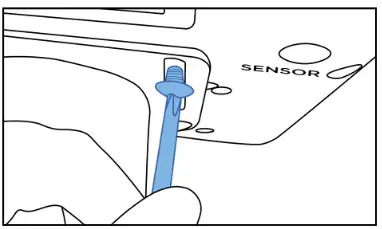
Secure the monitor to the base using the four screws previously removed.
OPERATION
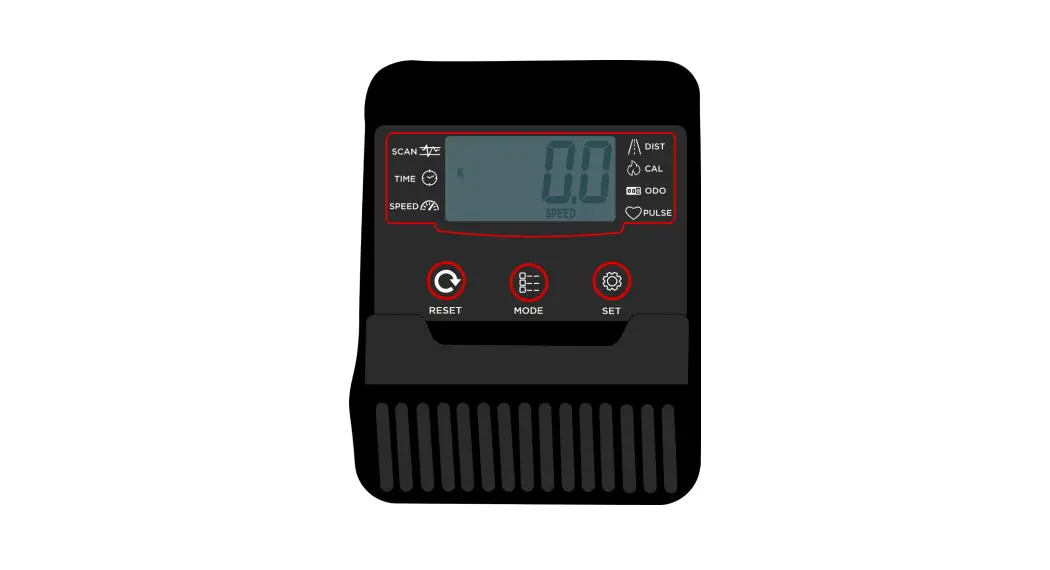
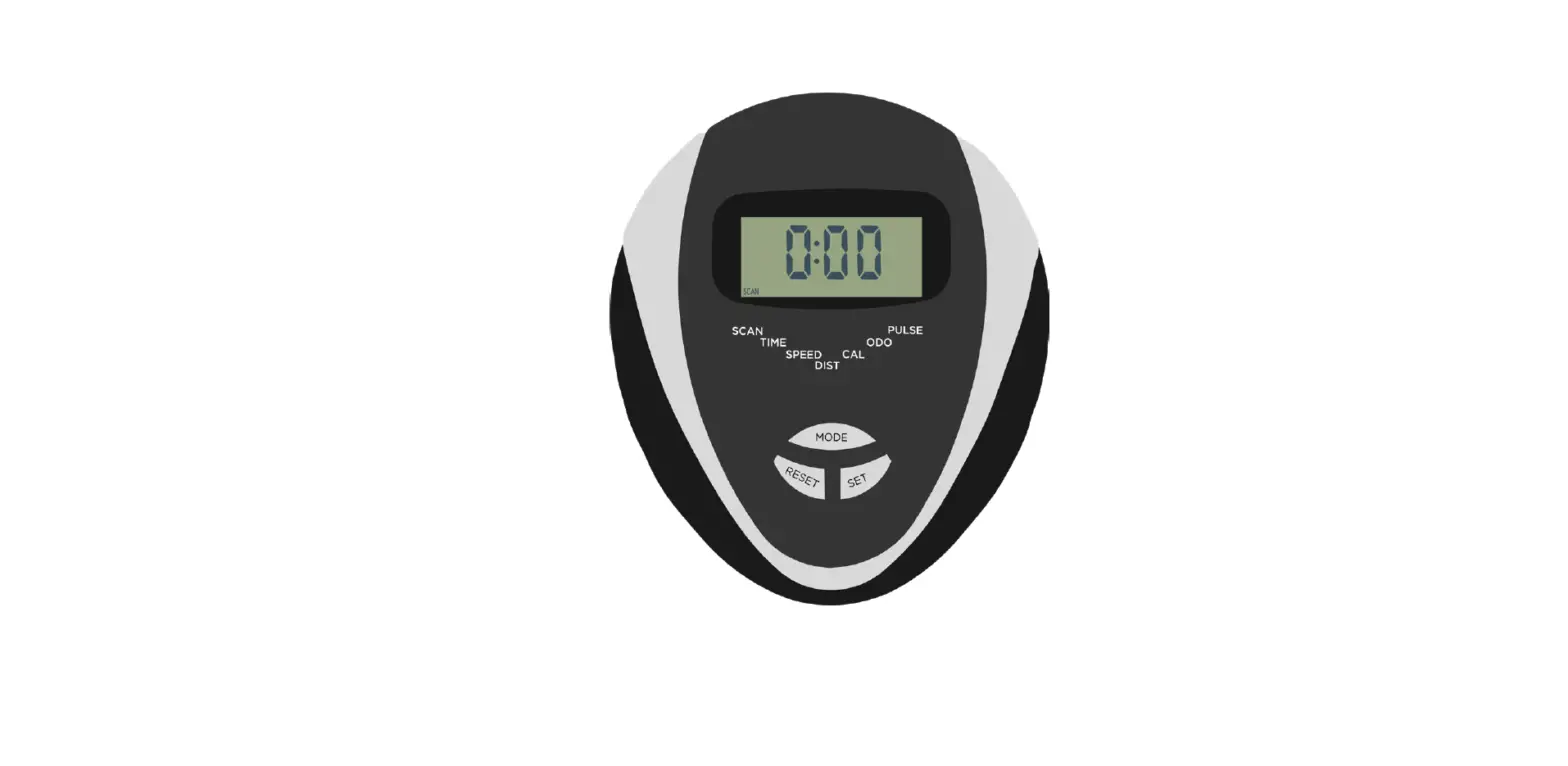
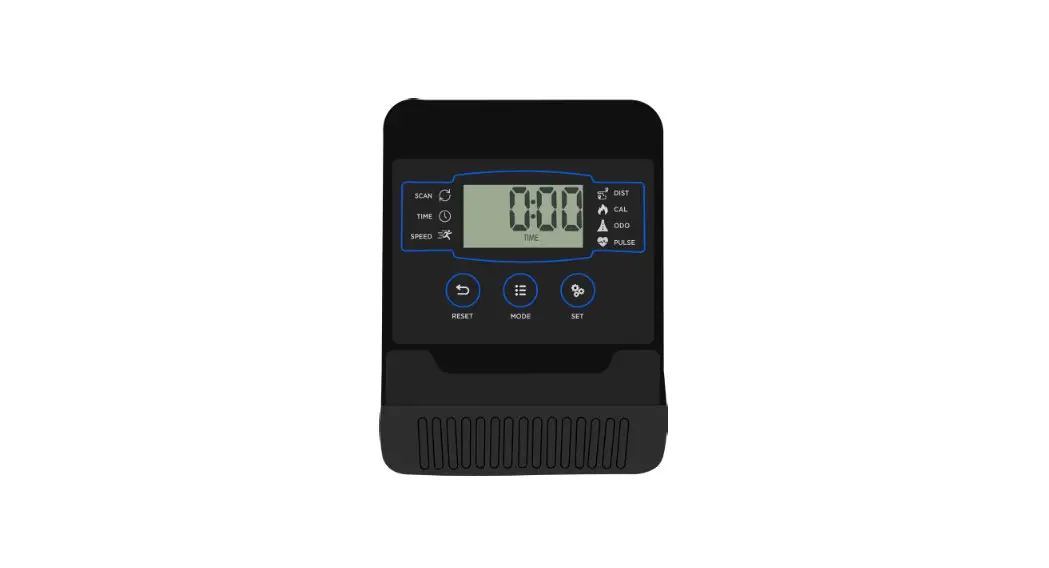
The JF150 monitor has a total of 6 readouts, displaying:
Time Speed Distance Heart Rate Calories Odometer
When first powered on, the monitor will automatically be in ‘Scan’ mode. This means the digits in the largest segment on the screen will change every few seconds between time, distance, speed etc. This will allow you to have an overview while training without pressing any buttons.
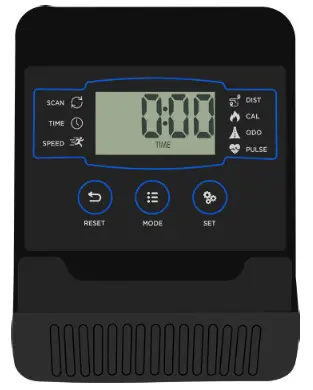
EXITING SCAN MODE
Press ‘MODE’ to exit scan mode and continuously press it to view each readout. If you are within scan mode, there will be a scan icon in the top left to indicate this.
SETTING TARGET PROGRAMS
On this monitor your are able to set a target time, distance, pulse and calories.
- Start by pressing ‘MODE’ until your chosen setting flashes.
- Then press ‘SET’ to change the digits to your desired target.
- Once set, begin your workout by pedalling and you will see the digits begin to change.
RESETTING YOUR MONITOR
Press and hold the ‘RESET’ button until all the digits come up and return to zero,
DATA READOUTS
| Readout | Measurement |
| Time | Minutes : Seconds |
| Speed | KM/H |
| Distance | Kilometers |
| Pulse | PPM (Pulsations Per Minute) |
| Odometer | Kilometers |
TROUBLESHOOT
| Issue | Resolutions |
| No power to the monitor | • Make sure the batteries are fully inserted and the correct way round. • Check your connection wires from the monitor to the base. They must not be trapped, fully connected and the pins must be straight. |
| No pulse reading | • Make sure the pulse plates are clean and dry. • Do not have any lotion on your hands. • Sweat can affect the reading. • Make sure both hands are fully gripping each plate. |
| Readings not changing | • This may be a result of a faulty sensor, open the casing and move a generic magnet back and forth over the small square black sensor. If the digits still aren’t changing you may need to request a new sensor from our customer service team. |
CONTACT DETAILS
 Tel: 0121 328 7507
 Email: [email protected]
 Live Chat: WWW.JLLFITNESS.CO.UK
@JLLFITNESS
 Buy Gym & Fitness Equipment Online | Empower Your Fitness | JLL Fitness