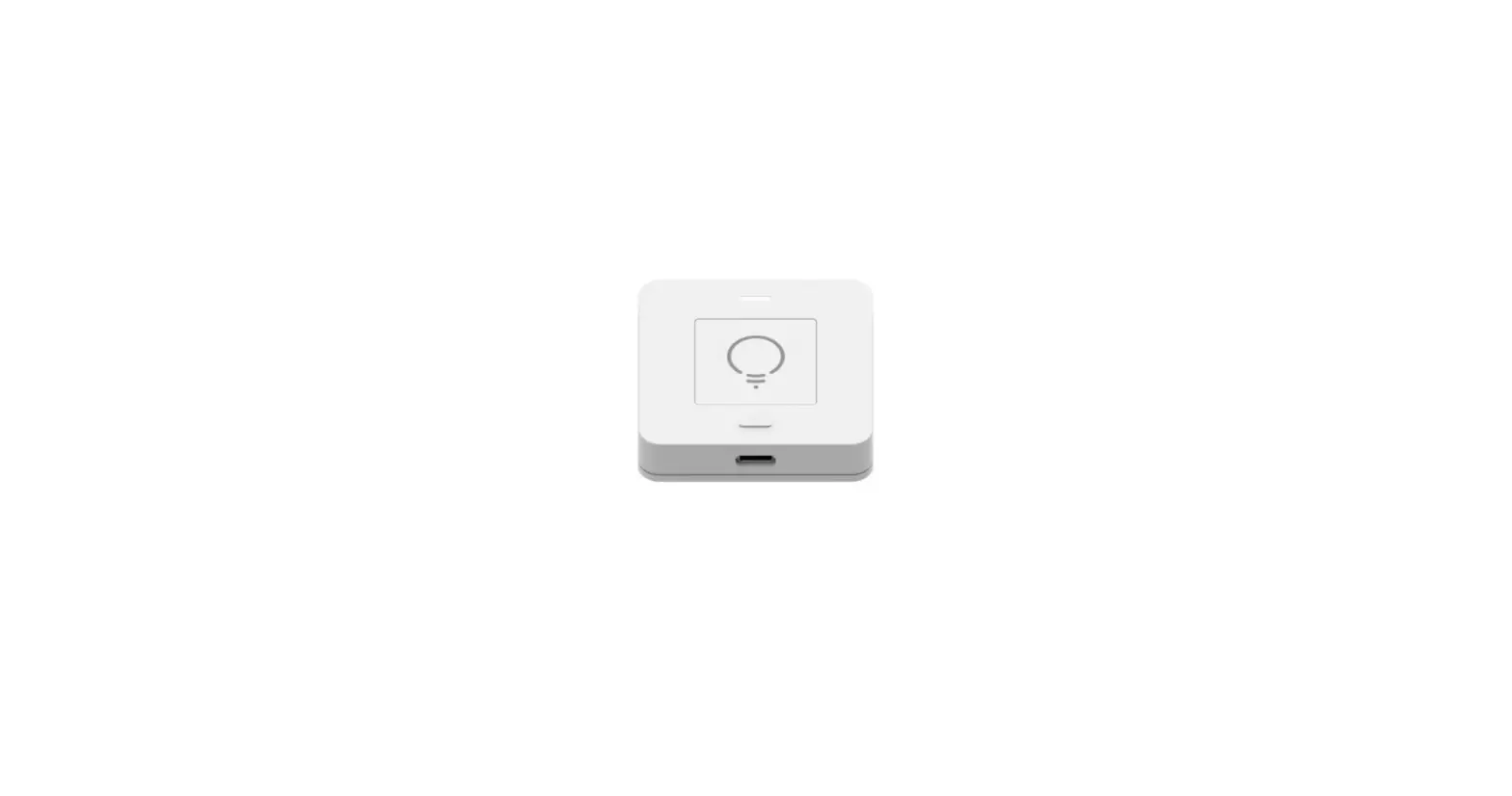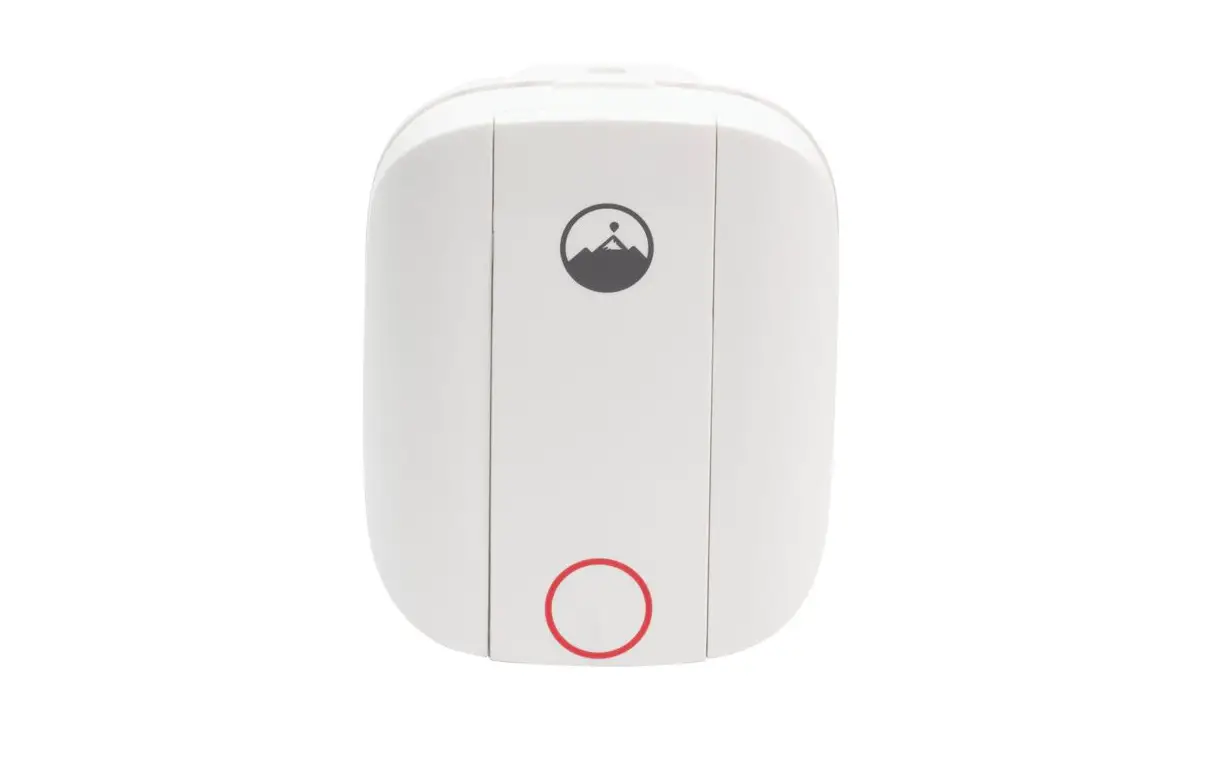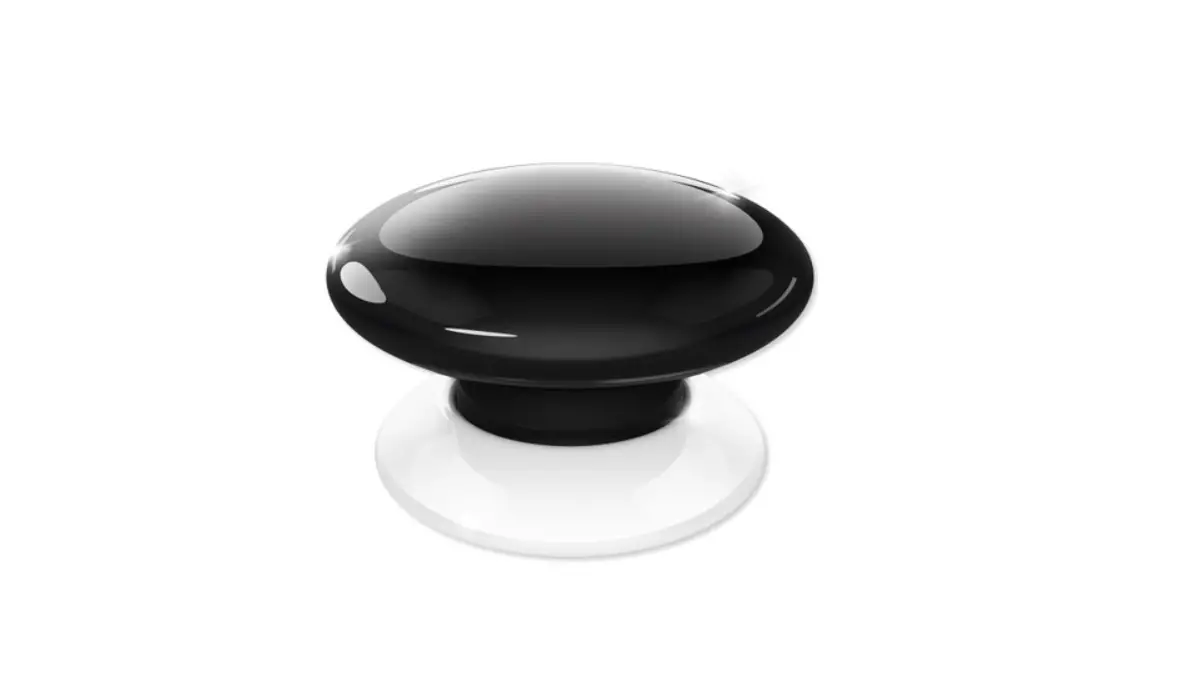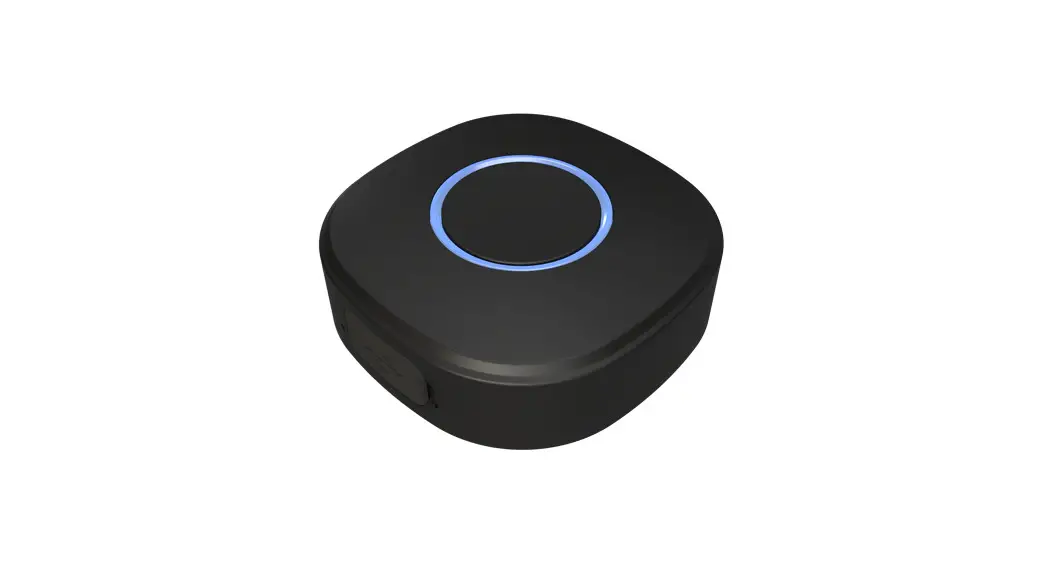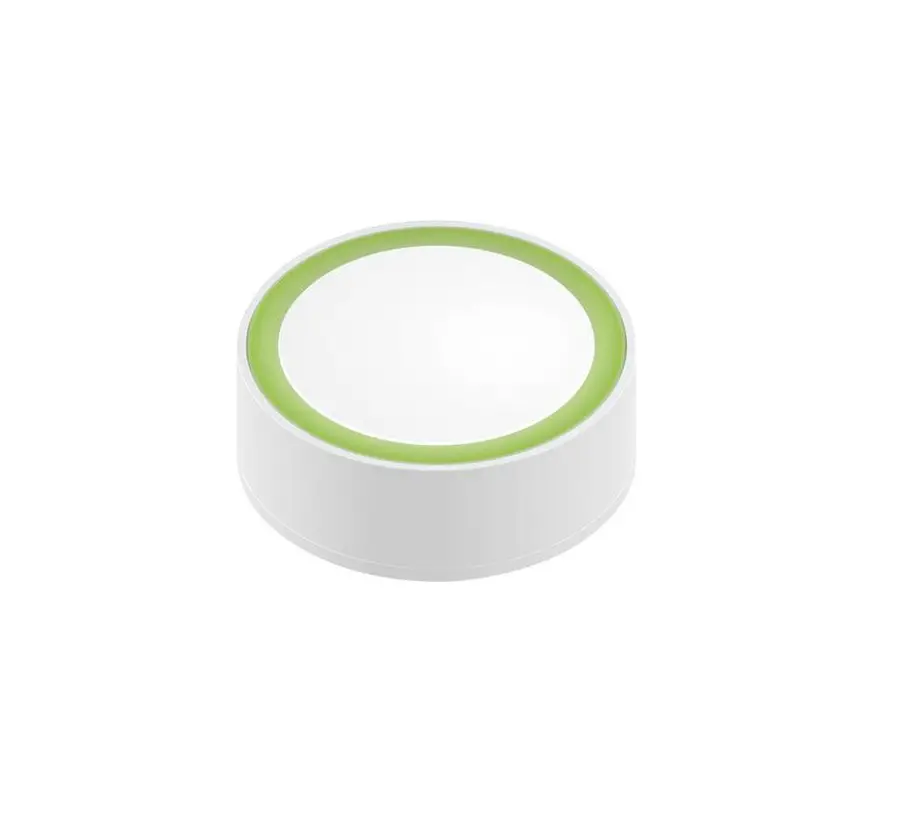
myStrom WiFi Button Plus
Quick Start
 Download the myStrom App
 Download the myStrom App
 |  |
 |  |
 LaunchApp
 LaunchApp
Open a free account or connect with your existing one
Add Wifi Button
 Add Wifi Button
Select «Add device» in the menu to add your new WiFi Button.
AII Done
 AII Done
The WiFi Button supports 3 programmable push-patterns.
Short Push (approx. 1/2 second)
Long Push (approx. 2 seconds)
2x sequential short pushes (within 2 seconds)
LED
| Off | WiFi Button inactive/ no power |
| White/ blinks every 15 seconds | WLAN connection Mode (WPS) for 2 minutes after Reset |
| Blinks white/red | Manual WLAN Connection Mode |
| Blinks 1 Ox white | Reset successful |
| Blinks 3x greenX | WPS successful |
| Blinks 3x red | WPS unsuccessful |
Connection Mode
| WPS | During 2. minutes – if not connected to a WLAN network or after Reset |
| Manual | Push button after 2 seconds during WPS Mode |
Reset
Push the button for 10 seconds> it will blink white/red> release
your finger> within 5 seconds, push it again, once> it will blink 10x white – this will Reset the WilFi Button to its factory settings. The connection to your WLAN network is lost.
Battery in this device: WG 602530 / 3.7V / 400mAh / Li-Po
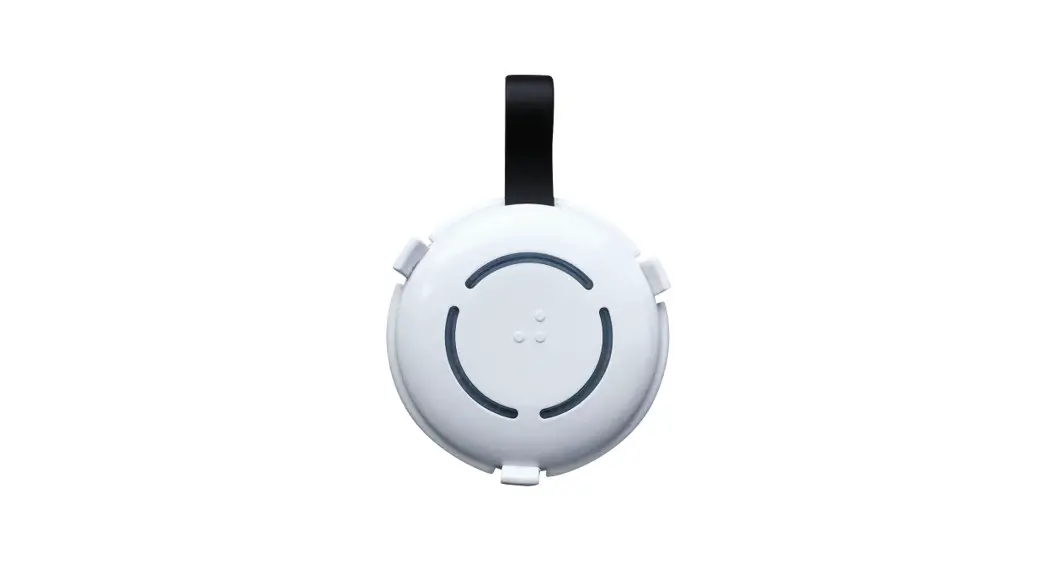
The battery and the device must be disposed of separately. To do this, open the device by pressing both halves apart and disconnect the battery from the electronics.
FAQ & Support
Recharge the built-in battery
Charge with the USB cable.
The WiFi Button is not working?
Place the WiFi Button close to your Router
Re-connect the WiFi Button
Reset it – the Button is now in WPS Mode for 2 minutes. Push the WPS button on your router. If the Button blinks 3x in green, it has reconnected. If it blinks 3x in red – please repeat the Reset procedure.
Further help & contact form mystrom.com/support