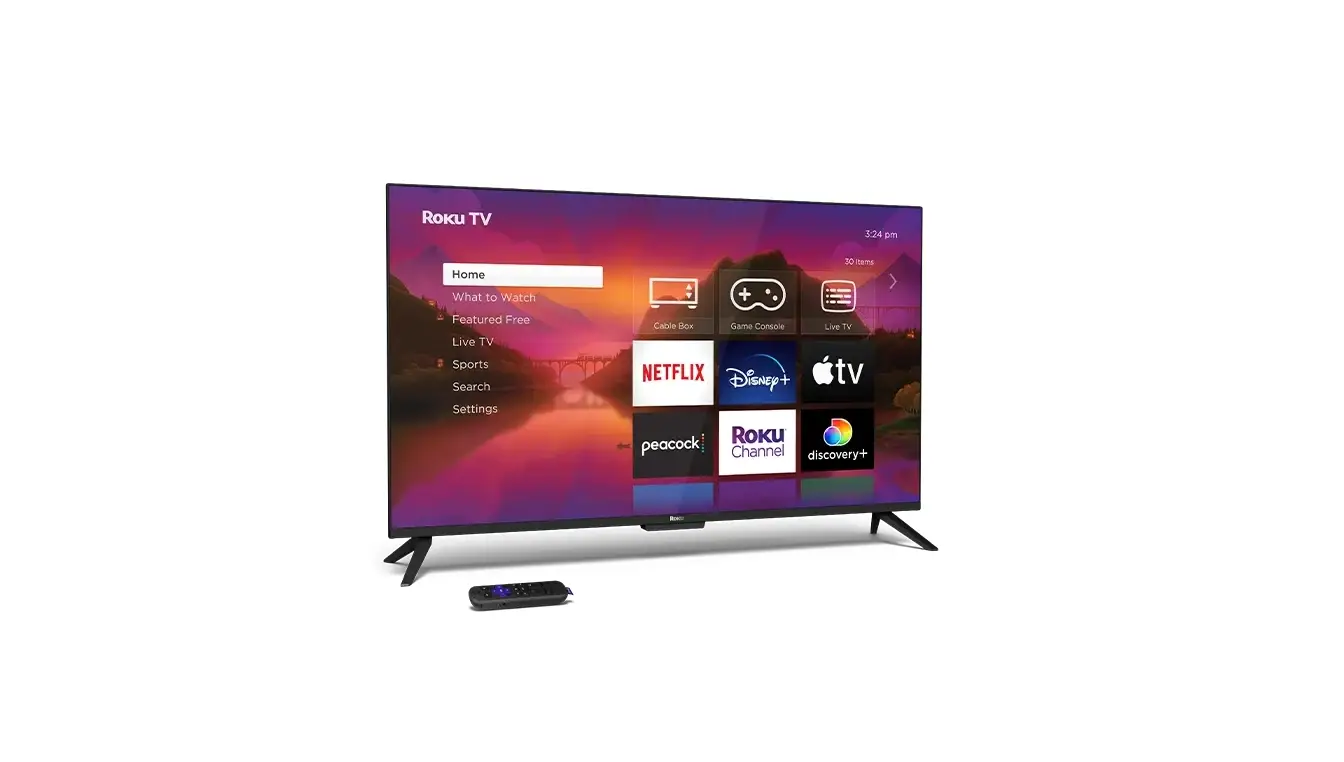
 Plus Series
4K QLED TV
Quick Start Guide
Need help?
Message & data rates may apply.
Visit
Message & data rates may apply.
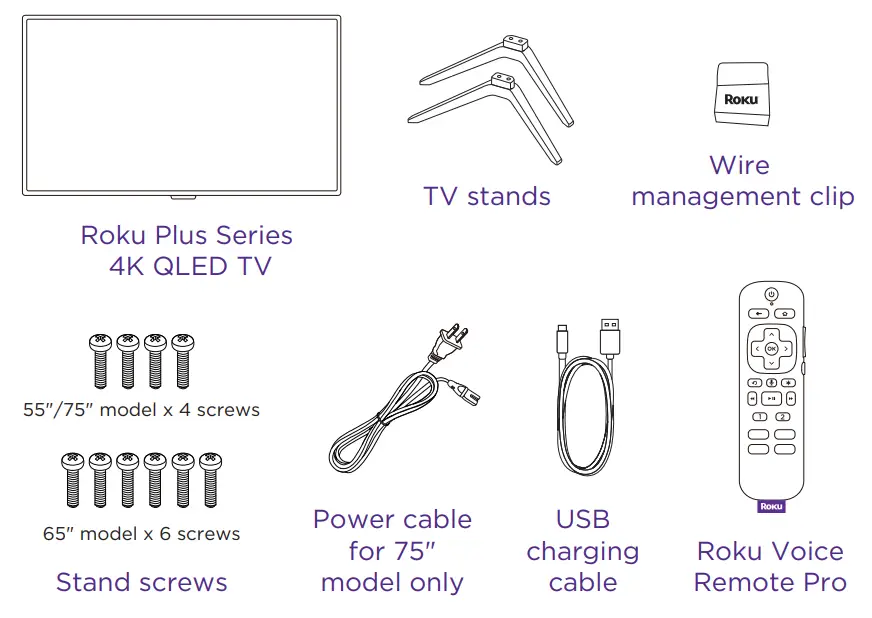
What’s included
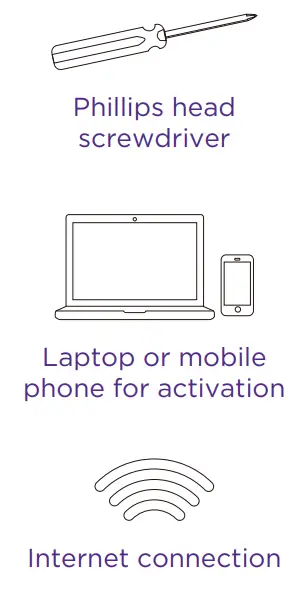
What you need
STEP 1: Set up your TV
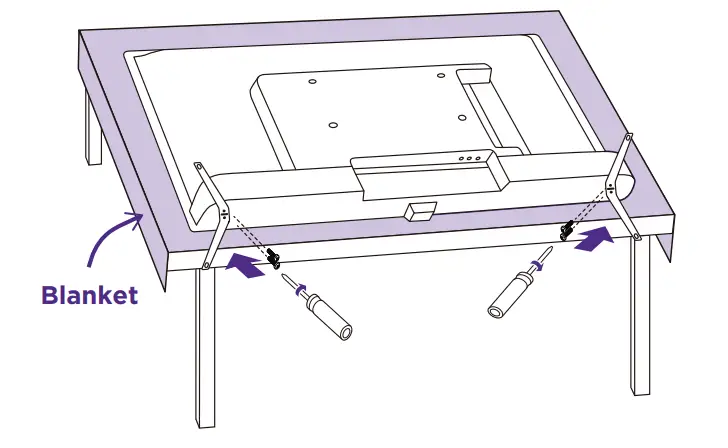
A Prepare a surface
Put a soft covering like a blanket down onto a clean, flat surface (make sure it’s larger than the TV) and place the TV on it.
B Attach the stands
Use a screwdriver and included screws to attach the stands.
C Set TV upright
Place your TV on a stable, flat surface.
Mounting your TV?
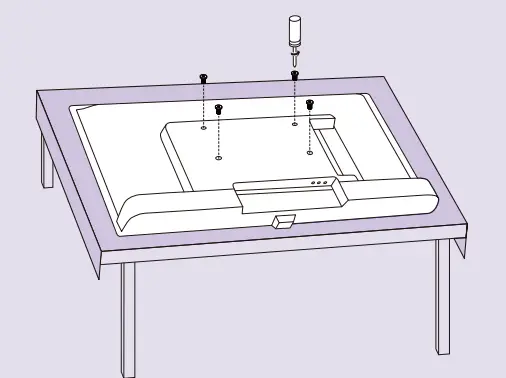
For instructions, skip these steps and visit go.roku.com/TV
STEP 2: Plug TV in and pair remote
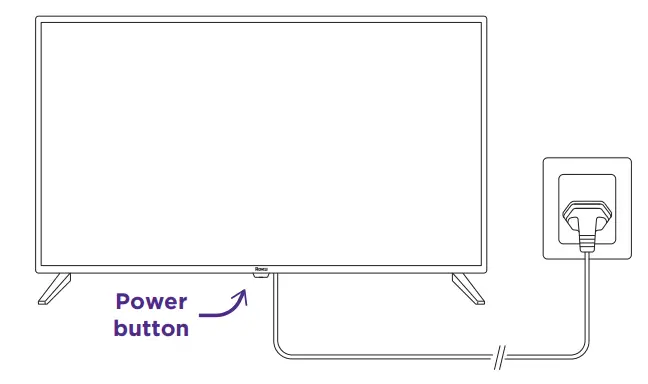
A Connect your TV
Plug your TV into a power outlet.
It should turn on automatically. If it doesn’t, press the power button.
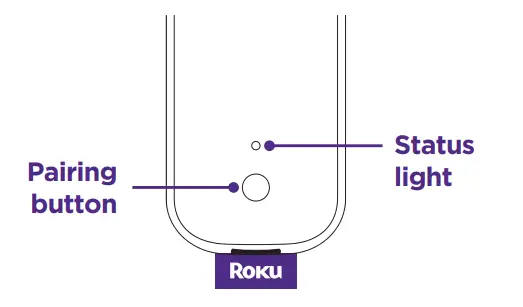
B Pair your remote
Press and hold the pairing button for 5 seconds until status light turns green and starts blinking.
Get to know your TV
Video connections
HDMI – Game consoles, DVD players
Composite – Analog devices, older game consoles
Antenna/Cable – Digital antenna, cable connection
Audio connections
HDMI eARC – AV receivers, soundbars (Recommended)
Optical (S/PDIF) – AV receivers, soundbars
Audio Out/Headphone – Wired headphones
Other connections
USB – Flash drive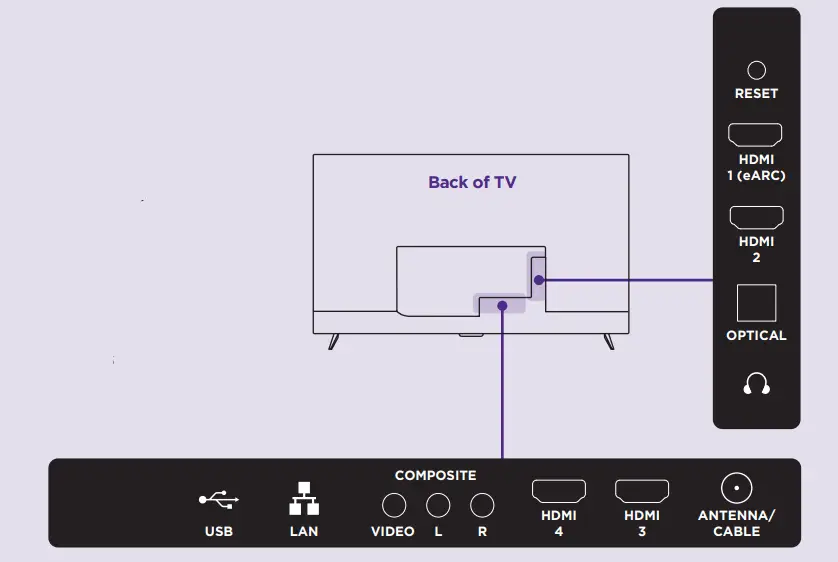
STEP 3: Activate your TV
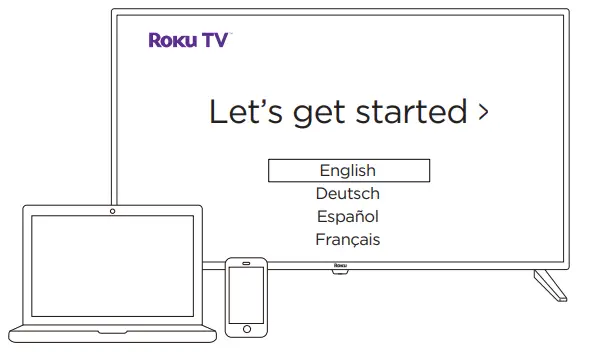
Connect to internet
Follow the instructions on your TV screen. Activate your TV by using your computer or smartphone to link a Roku account. IMPORTANT
Roku never charges for activation support.
Need help?
For help with setup, video tutorials, and more visit Need help?
For help with setup, video tutorials, and more visit go.roku.com/TV
Remote features
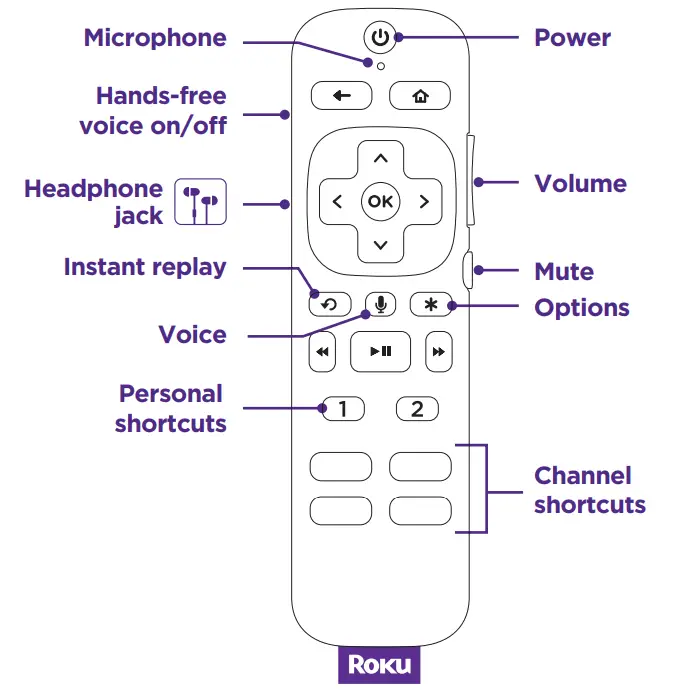
 | Hands-free voice Just say “Hey Roku” and a command to control your streaming even faster. Play entertainment, turn your TV on, adjust the volume, control playback, and more. |
 | Push-to-talk voice Press and hold the voice button if you don’t want to use hands-free voice. |
 | Private listening Plug headphones into your remote to use private listening. Your TV will mute automatically. |
 | Lost remote finder Say “Hey Roku, where’s my remote?” or press the power button on your TV. |
Frequently asked questions
Why do I need an internet connection?
You’ll need an internet connection to stream your favorite channels and for automatic software updates.
Why should I enter a payment method?
Saving a payment method makes it easy to rent or buy movies, subscribe to popular channels, and start free trials in just a click. No charges will be made without your authorization.
Charging your remote
Connect your remote to the USB charging cable and connect to either:
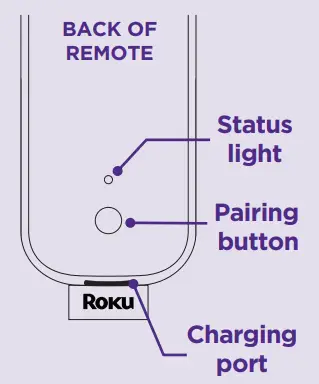
- the USB port on the back of your TV
- a wall outlet using a standard USB adaptor (like your phone charger)
The status light will stop blinking once your remote is finished charging. You’ll see a message on your TV when it’s time to charge again.
Note: To charge your remote while your TV is off, enable “Fast TV start” in the Power settings menu.
 Getting to know your TV|Learn about TV