
ChamSys Windows 10 Driver
Product Information
Windows 10 Driver Install
- The Windows 10 Driver Install is a manual installation process
required for certain ChamSys products. These products include the
Dual DMX Mini Wing, ChamSys MagicQ Midi/Timecode Interface, and
ChamSys Audio Interface. - This installation process involves updating the drivers for the hardware to ensure proper functionality on Windows 10 operating systems.
Product Usage Instructions
Windows 10 Driver Install
- Connect your hardware to your computer.
- Right-click on the Start Button and select Device Manager.
- Expand Universal Serial Bus Controllers.
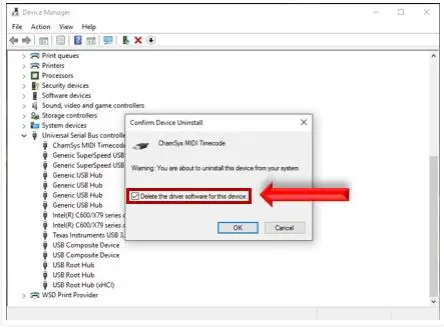
- Find your hardware (it may show as USB to Serial Converter), right-click on it, and select Uninstall. Skip this step and proceed to step 6 if your device shows up in Other Devices and is identified correctly. Check the “Delete the Driver Software for this Device” checkbox.
- Click OK, unplug your hardware, and reboot your PC.
- Reopen Device Manager, plug in, and power on your hardware.
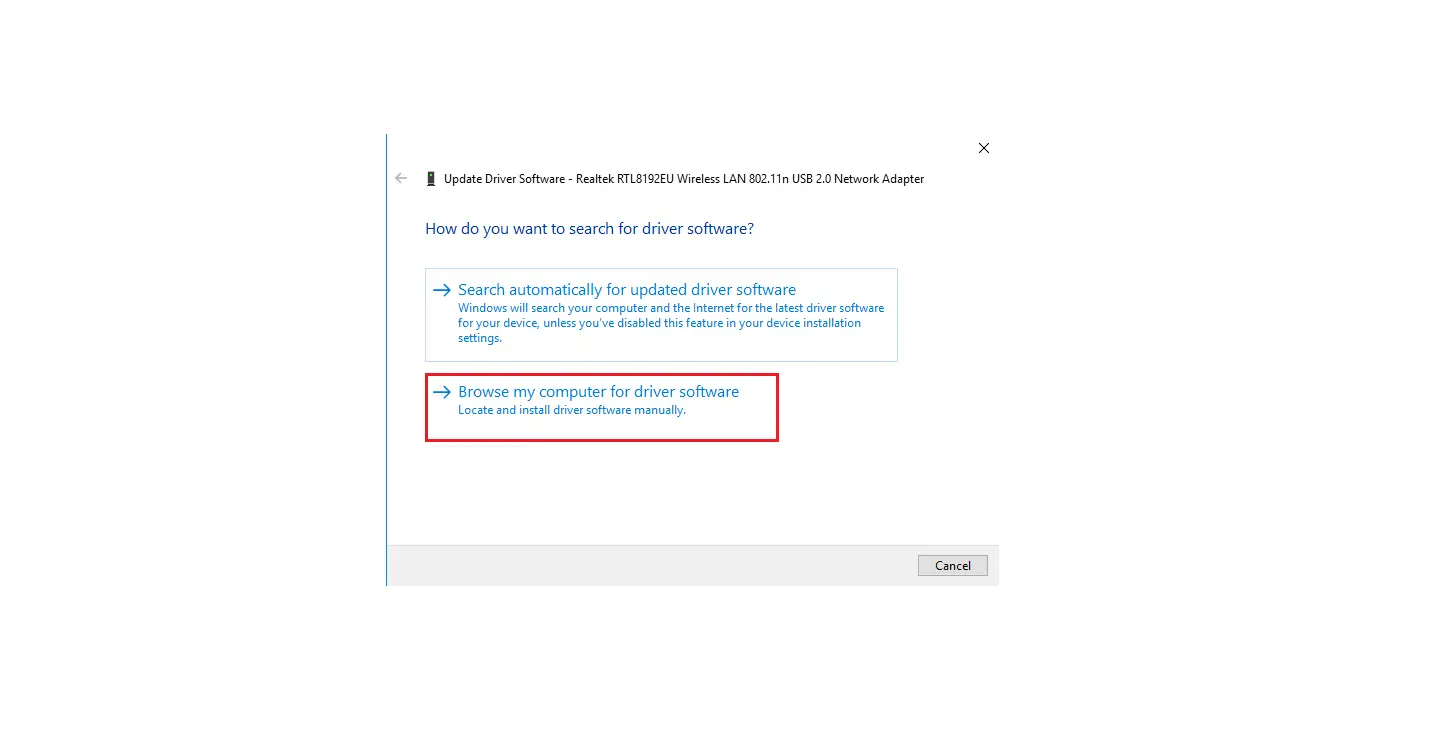
- Locate your hardware in Device Manager, right-click on it, and select Update Driver Software.
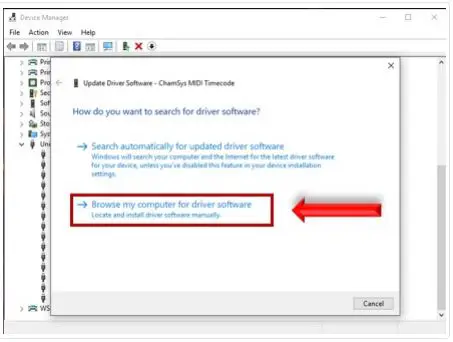
- Select “Browse my computer for driver software.”
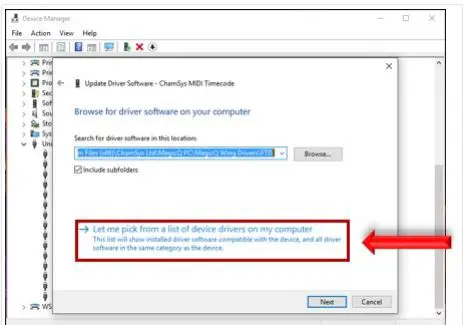
- Select “Let me pick from a list of drivers on my computer.”
- If Windows shows a screen asking what kind of device you are trying to install, choose “Display all Drivers.”
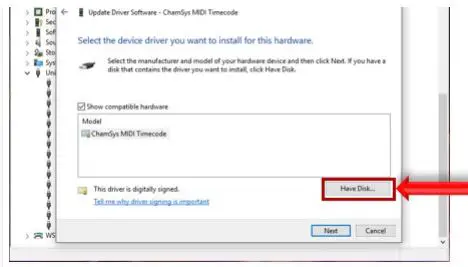
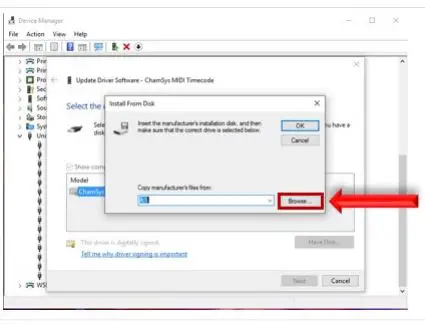
- If your hardware is not listed, choose “Have Disk.”
- Select “Browse” in the popup menu.
- Select the driver software for your specific hardware and click “Next.”
If you still need help with the Windows 10 Driver Install, please contact ChamSys support.
- Dual DMX
- Mini Wing
- Discontinued Products that need this installation performed manually as below: Chamsys MagicQ Midi/Timecode Interface
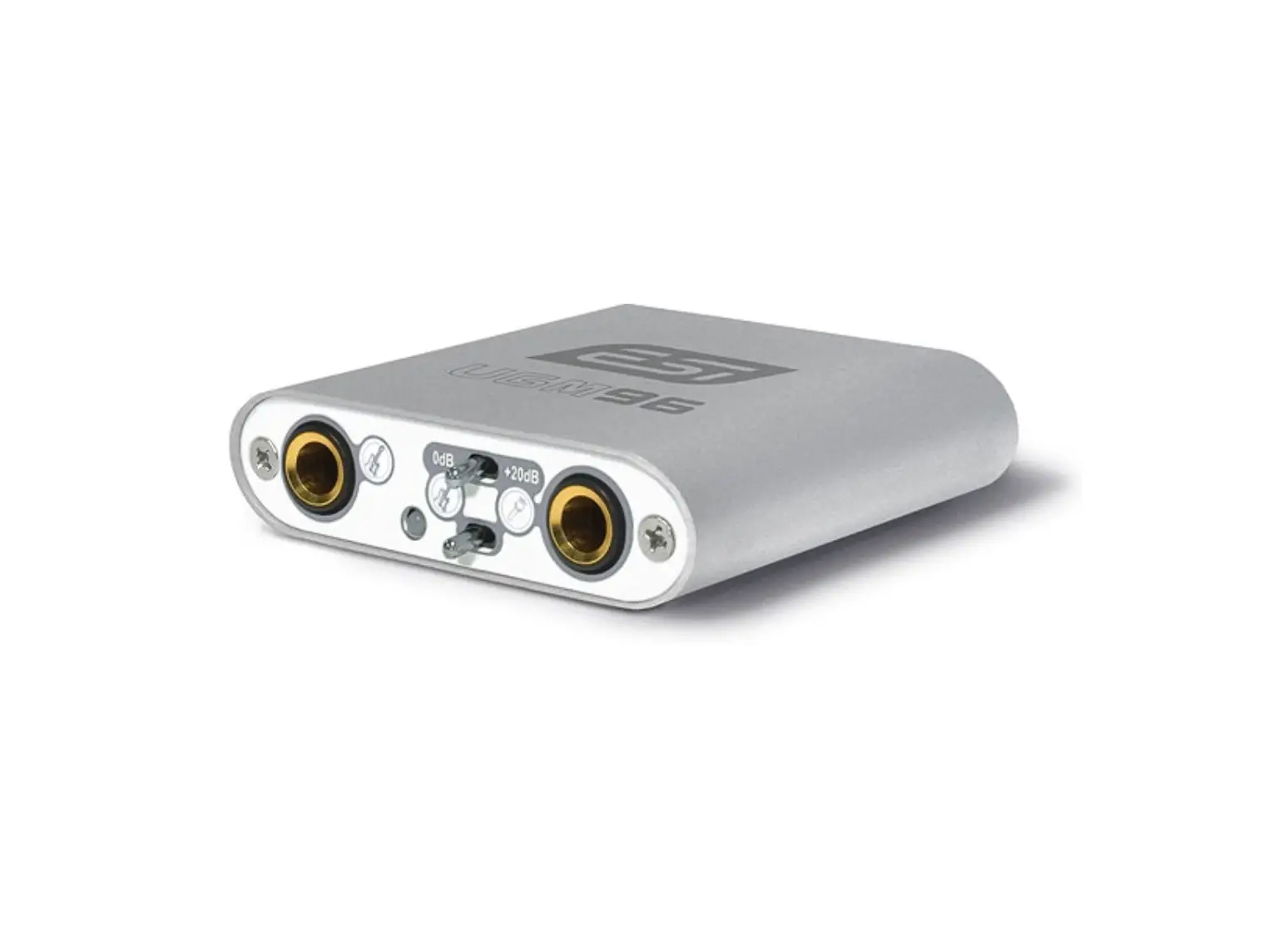
- ChamSys Audio Interface
Windows 10 Driver install
- Connect Hardware
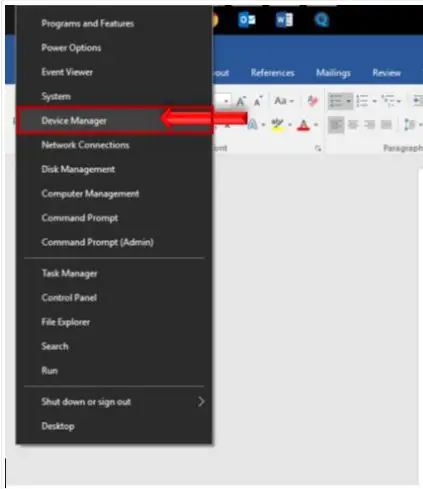
- Right Click on Start Button
- Select Device Manager

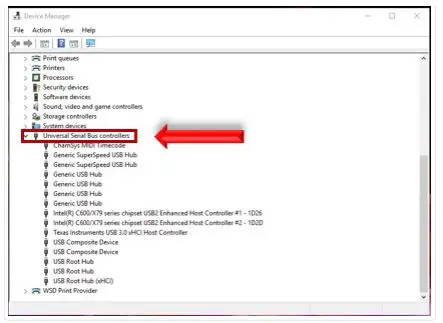
- Expand Universal Serial Bus Controllers

- Find Hardware (May show as USB to Serial Converter) Right Click Hardware
- Select Uninstall – skip this step and go directly to Update Drivers below if your device shows up in Other devices and is identified correctly
- Check “Delete the Driver Software for this Device” Check box

- Click OK
- Unplug Hardware
- Reboot PC
- Reopen Device Manager
- Plug in and power on hardware
- Locate hardware in Device manager
Right Click and select “Update Driver Software” - Select “Browse My Computer for Driver Software”

- Select “Let Me Pick From a List of Drivers on My Computer”

- On Occation Windows will show a screen asking what kind of device you are trying to install, if you don’t see the “Have Disk” just choose “Display all Drivers
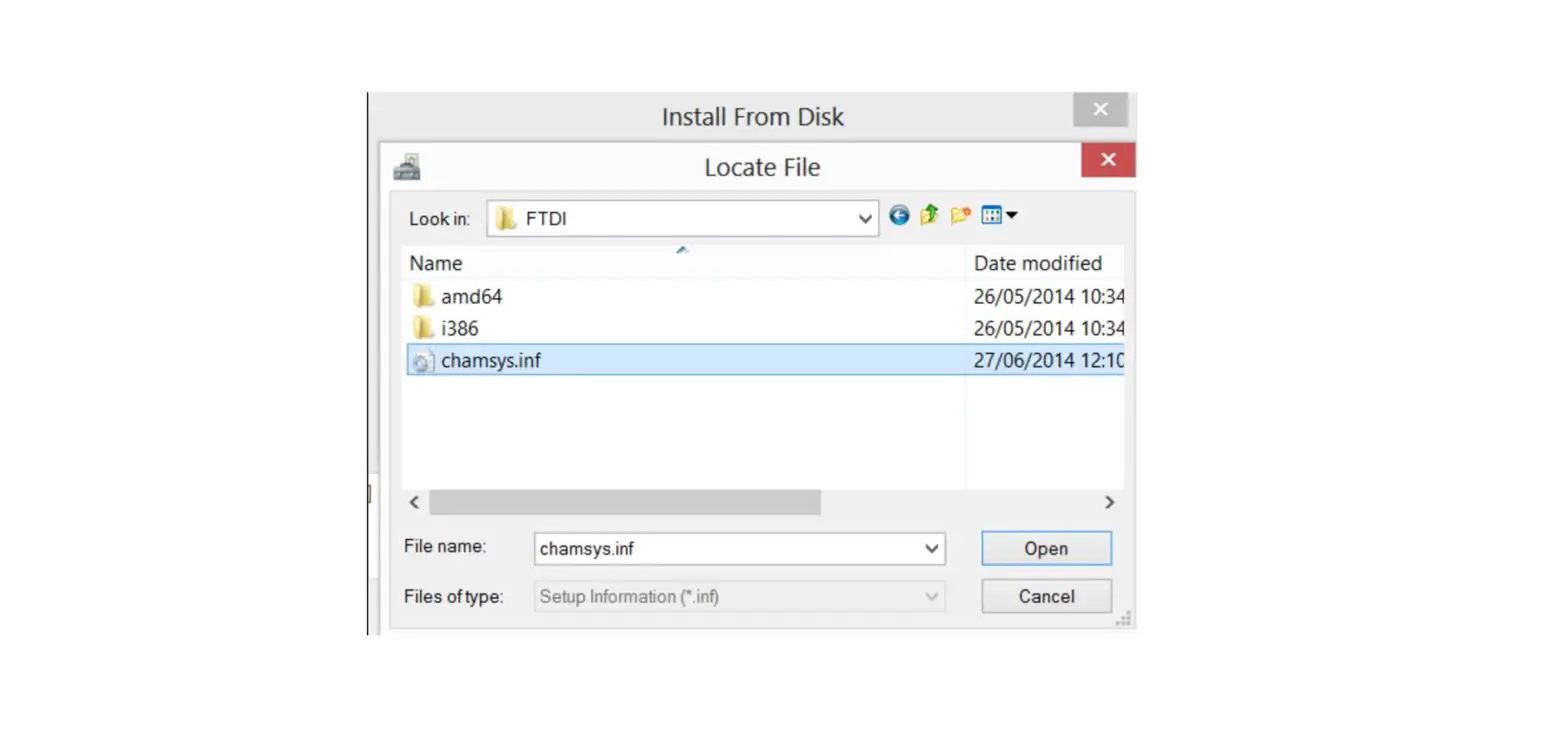
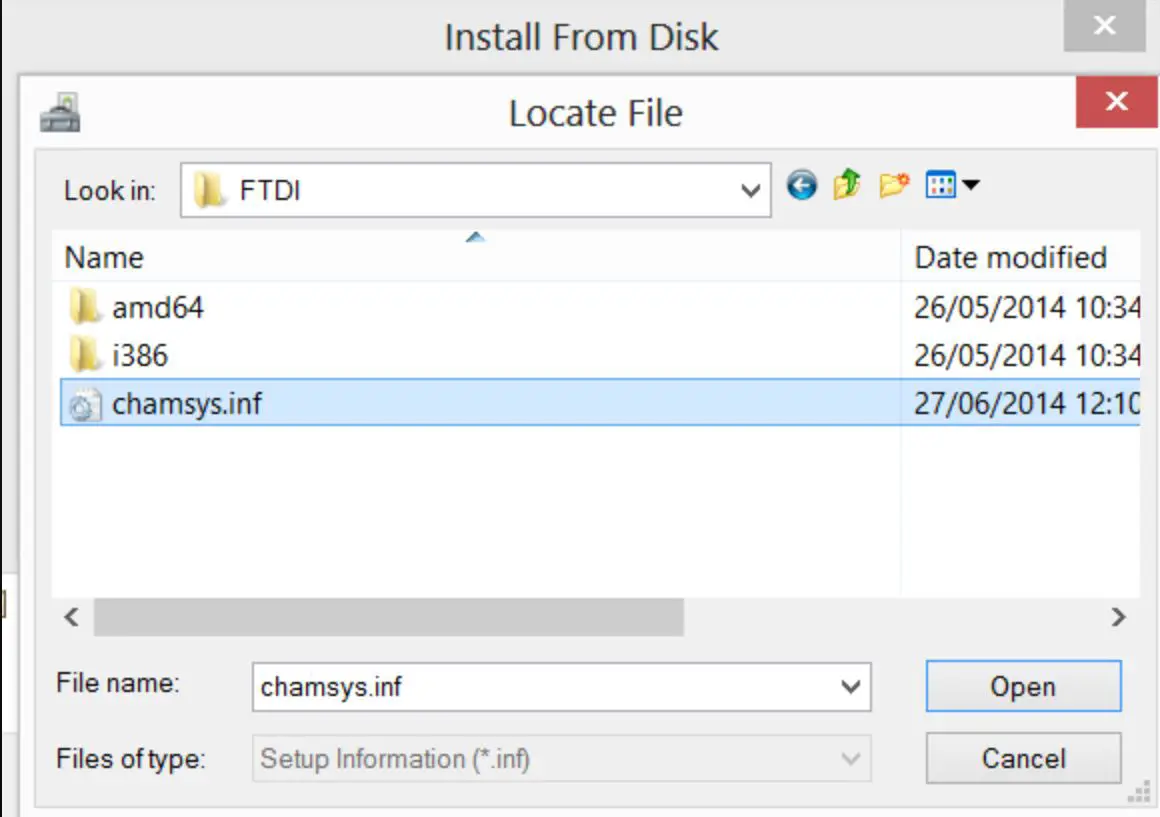
- If Hardware not listed choose “Have Disk”


- Select “Browse” in the popup

- Navigate to “C:\Program Files (x86)\ChamSys Ltd\MagicQ PC\MagicQ Wing Drivers” Depending on your Hardware Choose the Proper Folder and INF File
- Click OK to return to Update Driver Window
- Select Your Hardware from the Box in the Update Driver Window
- Click Next
- Confirm “Windows has successfully updated your driver software”
- Open MQPC
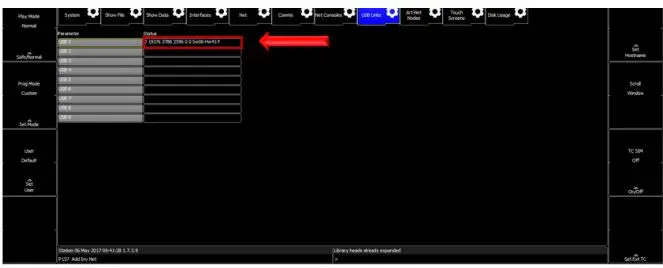
- To confirm Connection of hardware to MQPC goto “Setup>View system>View Status>USB Links


- Did this answer your question?
- Still need help? Contact Us (#)
- Last updated on February 8, 2022
- © ChamSys Ltd (http://www.chamsyslighting.com) 2022. Powered by Help Scout
- (https://www.helpscout.com/knowledge-base/?utm_source=docs&utm_medium=footerlink&utm_campaign=Docs+Branding)
- Windows 10 Driver install – ChamSys Knowledge Base https://info.chamsyslighting.com/article/155-windows-10-driver-install


 ChamSys - Lighting control software and hardware
 Windows 10 Driver install - ChamSys Knowledge Base