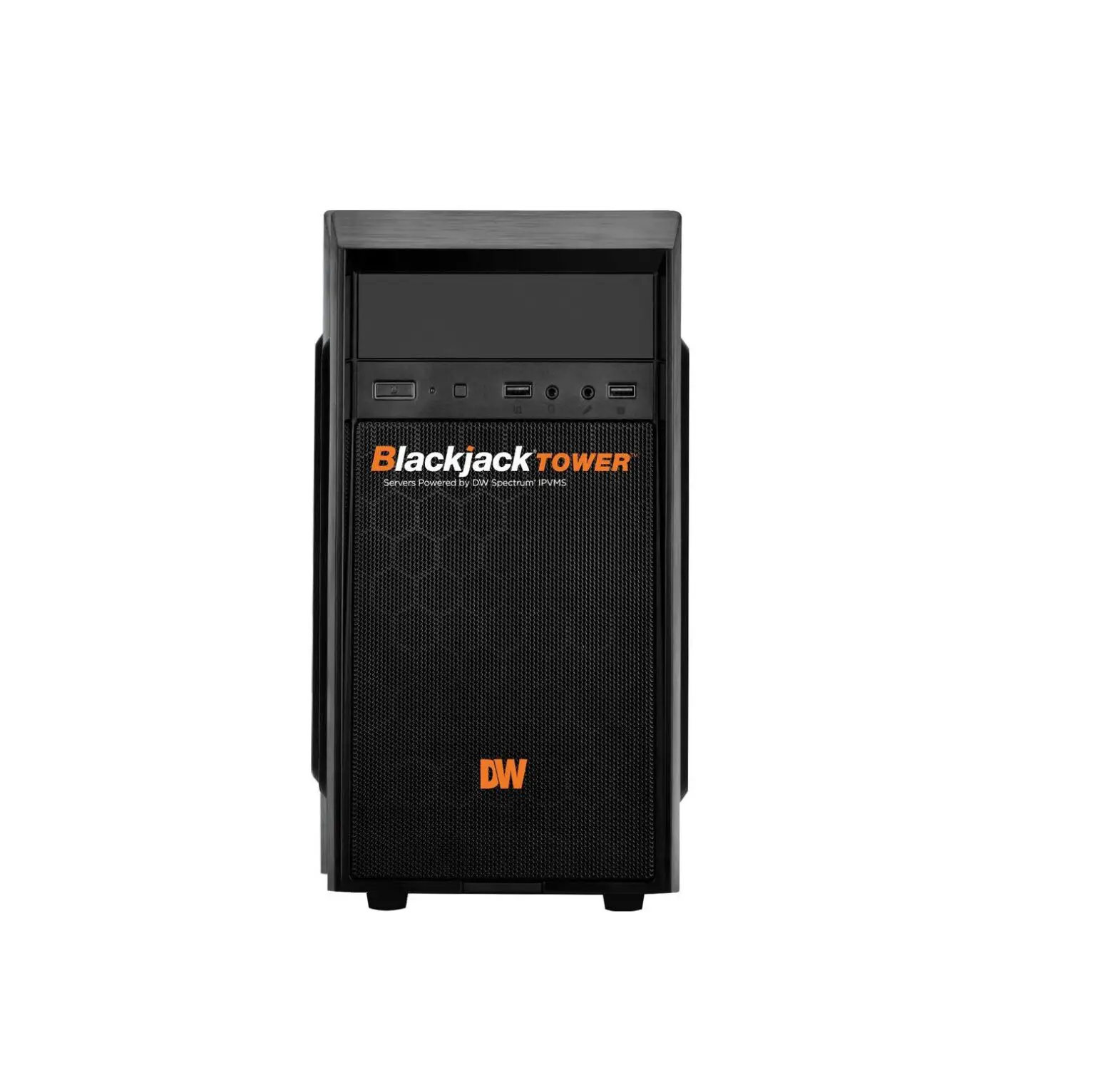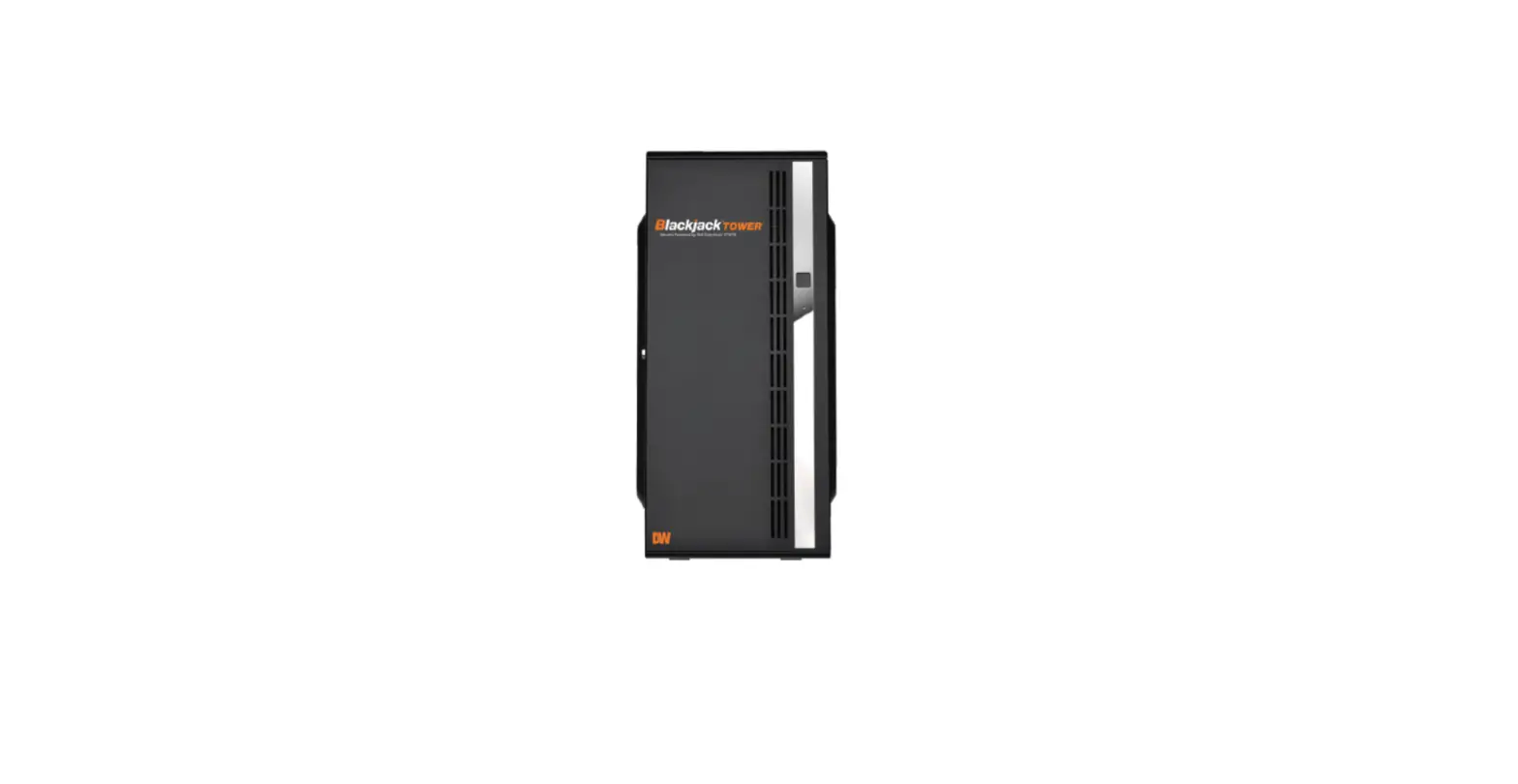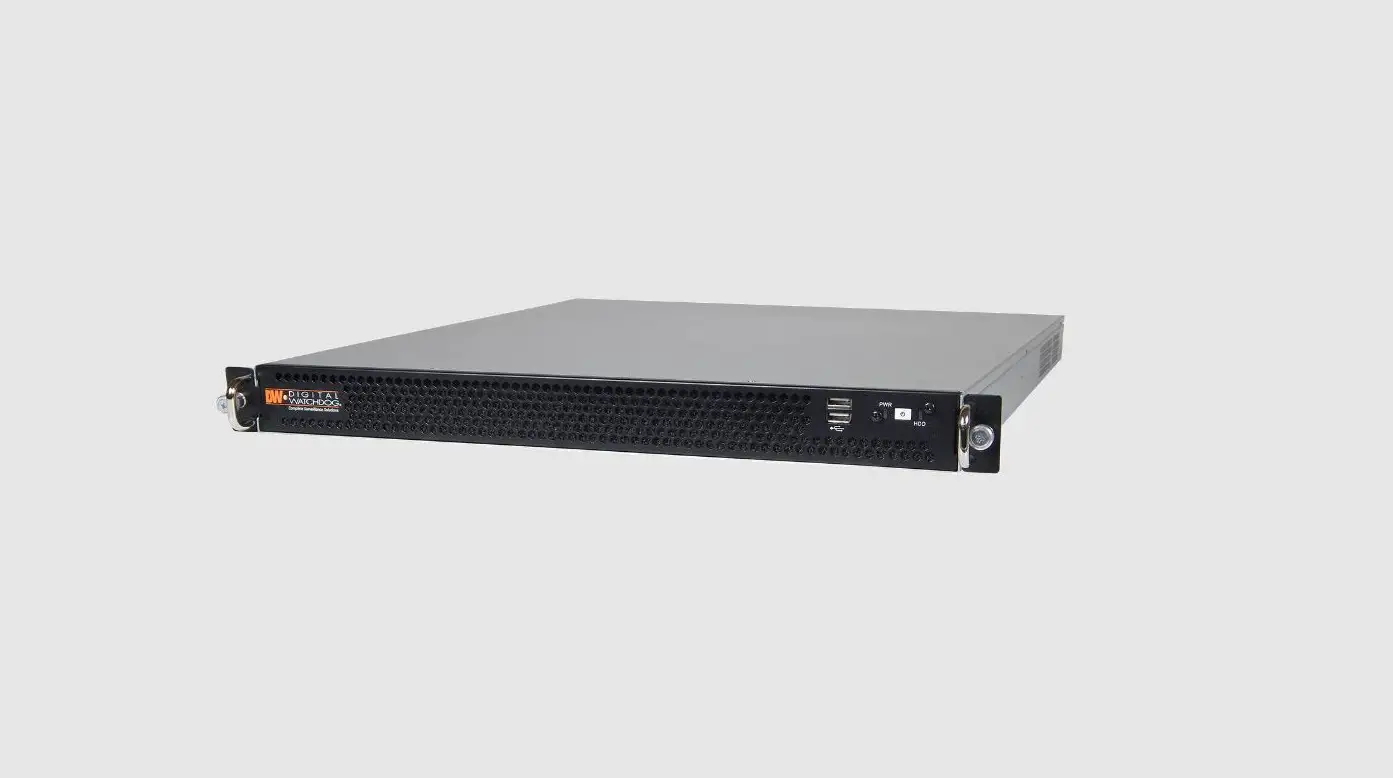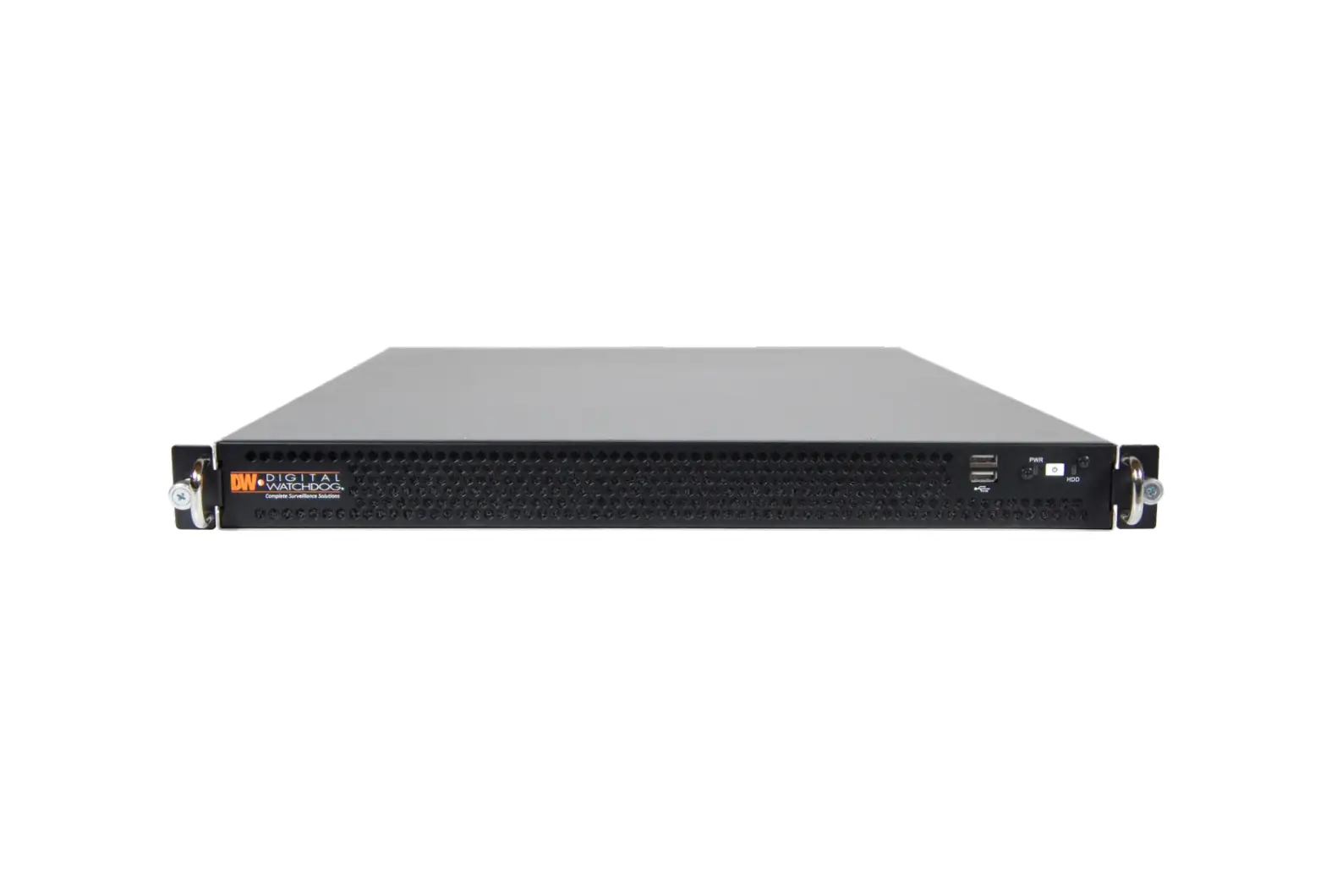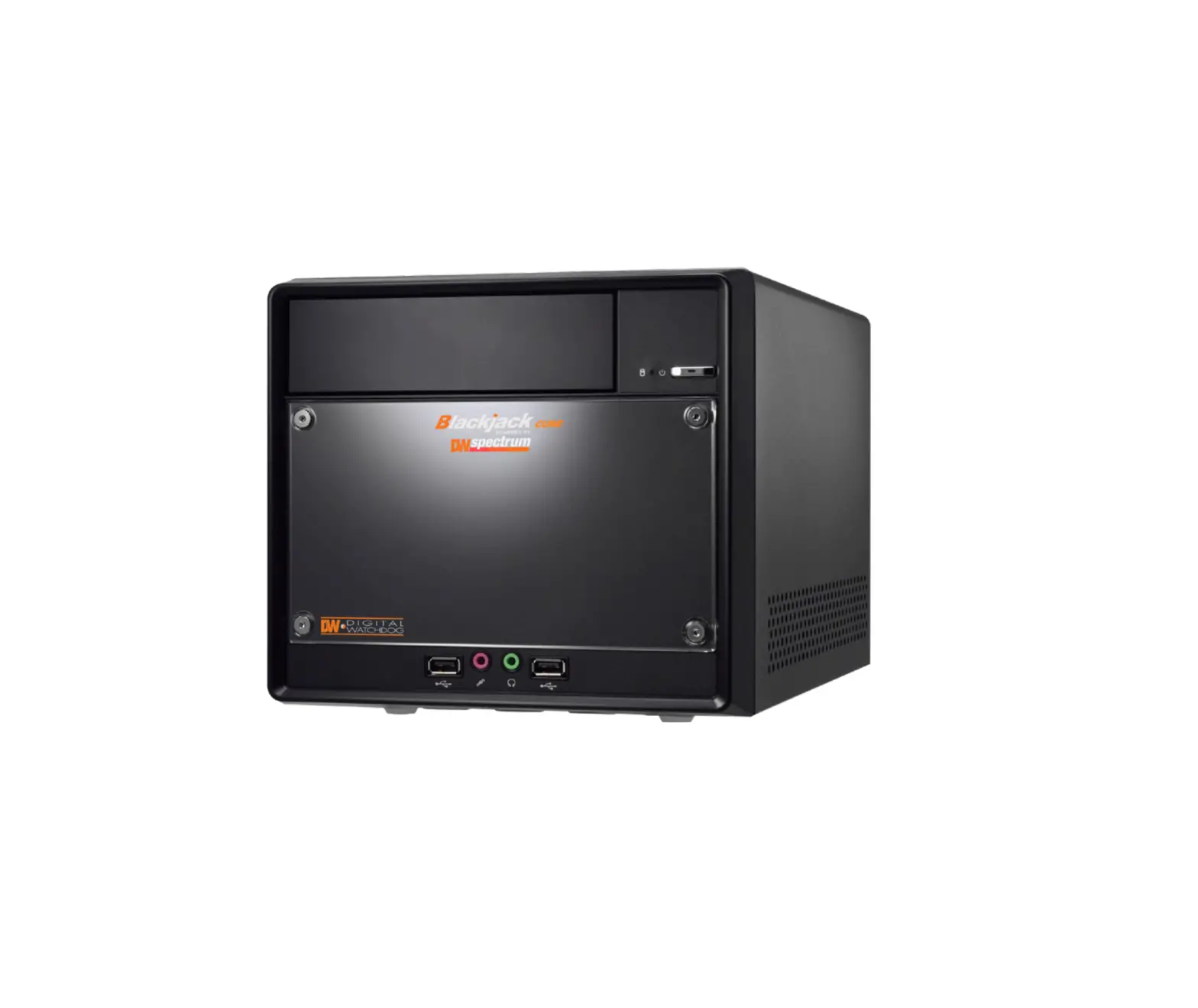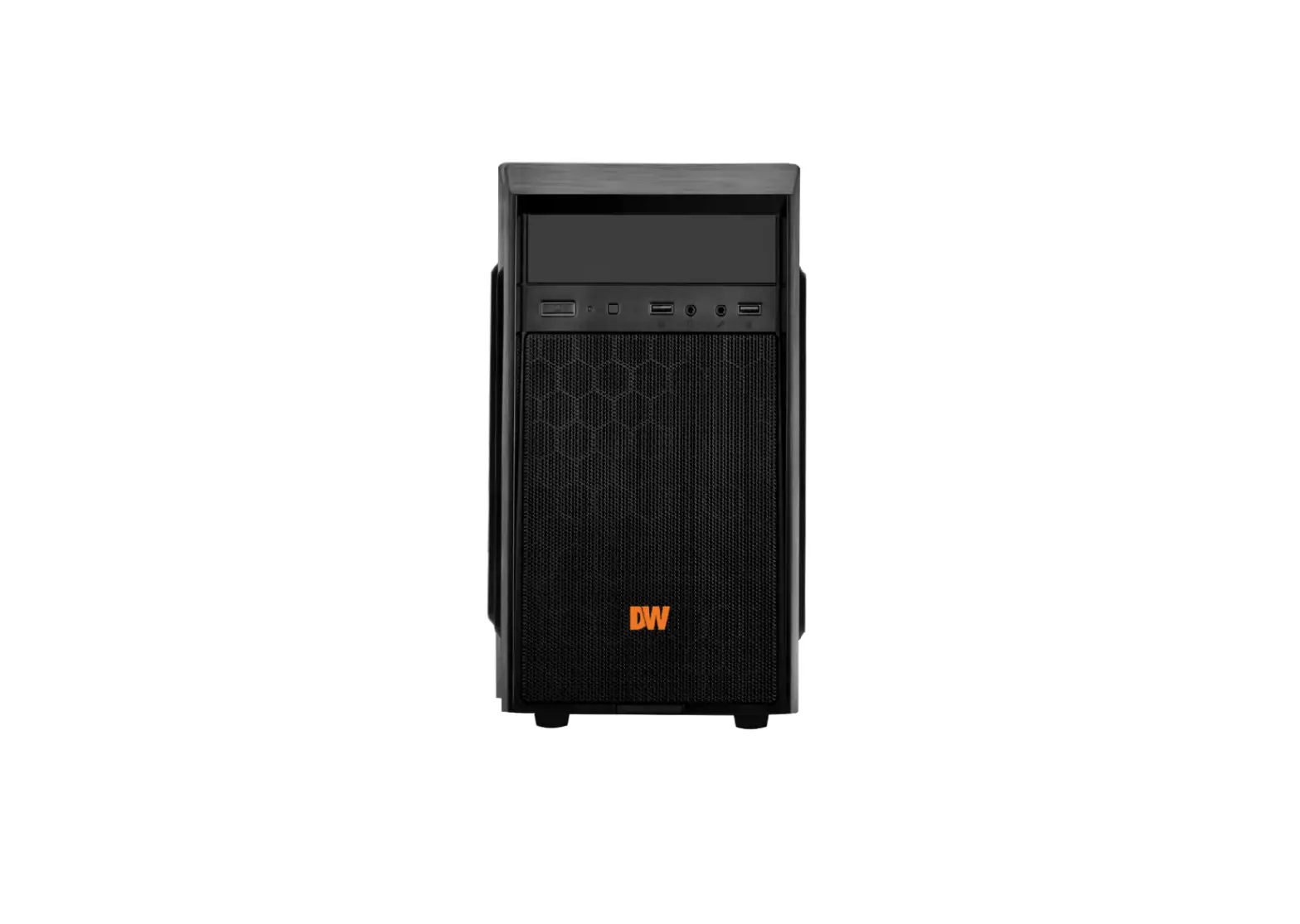
DIGITAL WATCHDOG DW-BJST51xxT Blackjack Tower Mid-Size Servers
| Default Login Information for DW Spectrum® IPVMS | |
| Username: admin | Password: admin12345 |
WHAT’S IN THE BOX
| Blackjack Tower™ server | 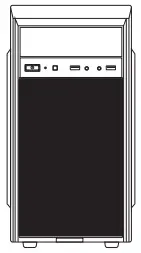 | 1 | Keyboard and mouse | 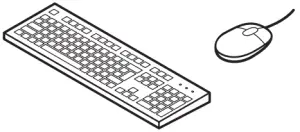 | 1 set |
| Quick start guide |  | 1 | Power cable | 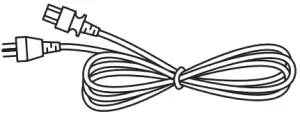 | 1 |
NOTE: Download all your support materials and tools in one place.
- Go to: http://www.digital-watchdog.com/support-download/.
- Search your product by entering the part number in the `Search by Product‘ search bar. Results for applicable part numbers will populate automatically based on the part number you enter.
- Click `Search‘. All supported materials, including manuals, Quick start guides (QSG), software and firmware will appear in the results.
Attention: This document is intended to serve as a quick reference for initial setup. See the DW Spectrum® full manual for more information on features and functionality.
BLACKJACK® TOWERTM MID-SIZE
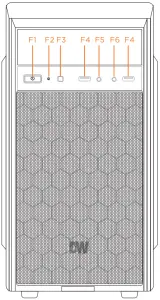
F1 Power button/LED
F2 HDD LED
F3 Reset button (not used)
F4 USB 2.0 port
F5 Audio output
F6 Audio input
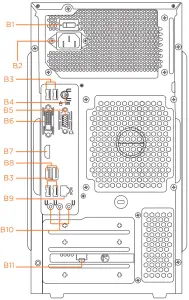
B1 Power supply on/off switch
B2 AC power socket
B3 USB 2.0 ports
B4 PS/2 keyboard/mouse port
B5 VGA port
B6 DVI port
B7 True HD port
B8 USB 3.0 ports
B9 Network port (LAN/WAN)
B10 Line in, line out and Mic in
B11 Network port (cameras)
| Default Login Information for DW Spectrum® IPVMS | |
| Username: admin | Password: admin12345 |
SPECIFICATIONS
| PART NUMBER | DW-BJST51xxT | |
| Included IP licenses | 4 | |
| Form factor | Mid-size tower | |
| Operating system | Windows® 10 OS | |
| CPU | Intel i5 processor | |
| Memory | 16GB | |
| Ethernet port | 2 x 1G Ethernet | |
| System | Max video storage rate (Mbps) | 360Mbps |
| Storage | Maximum HDD | 3 x HDD |
| Maximum storage | 18TB | |
| USB interface | Yes | |
| Video | Outputs | 1 x true HD, 1 x DVI, 1 x VGA, maximum 1 display output at a time |
| Video card | On-board Intel Graphics | |
| Pre-loaded VMS software | DW Spectrum® IPVMS | |
| Remote clients and mobile apps | Cross-platform – Windows®, Linux Ubuntu® and Mac®, iOS® and Android® | |
| Keyboard and mouse | Included | |
| Power supply | 400W** | |
| Operating temperature and humidity | 41°F~104°F (5°C~40°C), 20~90% RH | |
| Dimension (W x D x H) | 7.46” x 15.7” x 14.21” (189.52 x 398.8 x 631.02 mm) | |
| Warranty | 5 year limited | |
SETTING UP THE SERVER
STEP 1: Connect external devices, power and network.
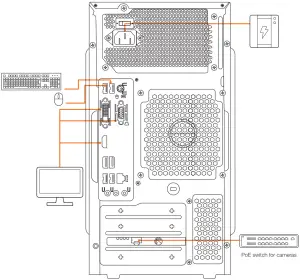
- Connect a monitor, USB keyboard, USB mouse and network cable to one of the Ethernet ports (B11 on the diagram). Configure the camera’s network first, then configure the server’s local network.
- Connect the server to an appropriate power source. It is recommended to use a UPS system.
* 750VA or higher is recommended. - Power up the server if the server does not turn on automatically by pressing the power button on the front of the server. (F1 on the diagram).
* Connecting the power cable to the live power source may turn on the server automatically.
* The power on/off switch must have the `-‘ pressed down.
STEP 2: Configure date and time
Windows®
- Double-click on the date and time icon on the desktop.

- Change time zone if it is not correct
 (default is UTC-08:00 Pacific Time).
Press OK after selecting the correct time zone.
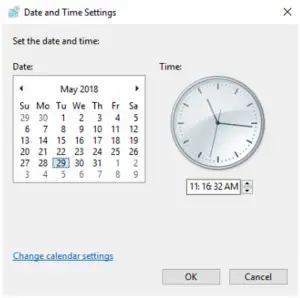
Click “Change date and time…” to update the date and time if they are not correct.
* Verify the time zone before updating the date and time. Time may show 2 or 3 hours off due to an incorrect time zone.
- Press OK after adjusting to the correct date and/or time.
- Press OK to close the date and time when done.

 (default is UTC-08:00 Pacific Time).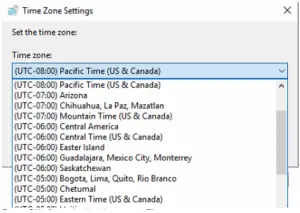

STEP 3: Configure network
Please have the following information ready before starting the network configuration.
Camera network | Local network (LAN) | |
IP address | ||
Subnet mask / Netmask | ||
Default gateway / Gateway | Not applicable | |
DNS servers | Not applicable |
* The camera network and local network cannot be on the same network.
NOTE: The Blackjack® server’s network settings are set to DHCP as default.
NOTE: If you are not sure what information to enter, contact your Network Administrator or Internet Service Provider for the information.
Windows®
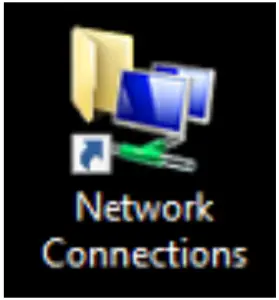
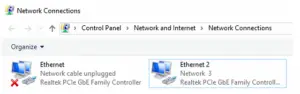
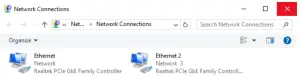
- Double click on the “Network Connections” on the desktop.

- Right-click on “Ethernet with cable connected” and click “Properties”.

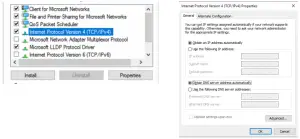
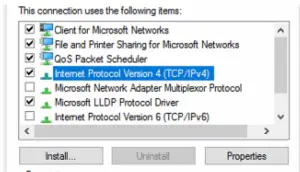
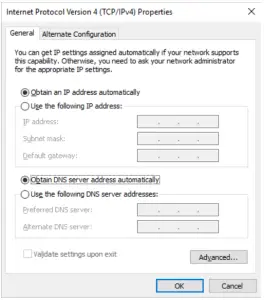
- Select “Internet Protocol Version 4 (TCP/IPv4)” and click “Properties”.

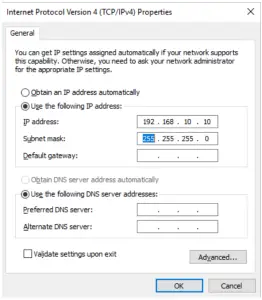
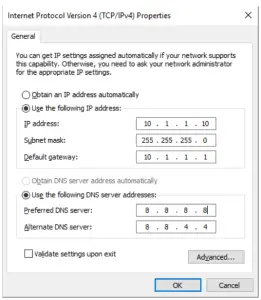
- Select “Use the following IP address” (Use the following DNS server addresses will be selected automatically).
- Enter the IP address and Subnet mask of the camera network. (Do not enter anything for the default gateway, preferred DNS server and alternate DNS server.
NOTE It must be the same network as the cameras and must not be the same network as the local network. Contact your network administrator for more information.
- Click OK to close then click close to go back to network connections.
Local Network - Right-click on the other Ethernet, the one with network cable unplugged, and click “Properties”.
- Select “Internet Protocol Version 4 (TCP/IPv4)” and click “Properties”.


- Select “Use the following IP address” (Use the following DNS server addresses will be selected automatically).
- Enter the IP address and subnet mask of the camera network.

- Click OK to close then click close to go back to network connections.
- Connect a network cable to the Ethernet port B9 on the diagram (page 2) to the switch on the local network.
- Close the network connections dialog.

CONFIGURE CAMERAS USING DW® IP FINDER™
Refer to the camera’s QSG to configure any DW® IP camera’s IP address using DW® IP finder™
DW® Spectrum® IPVMS client
SETTING UP DW SPECTRUM® MEDIA SERVER
Login: admin
Password: admin12345
STEP 1: Initial run from the Blackjack® server
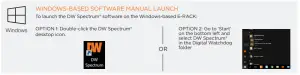
- Open the DW Spectrum® client by double click on the DW Spectrum® icon.

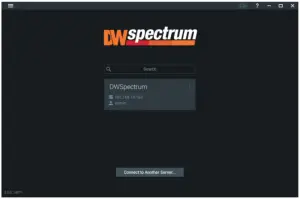
- Click on the pre-configured server.

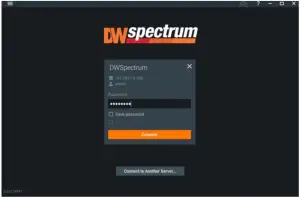
- Enter the password and click connect.
* Default password: admin12345 (case sensitive).
STEP 2: To rename the server
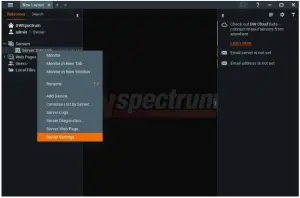
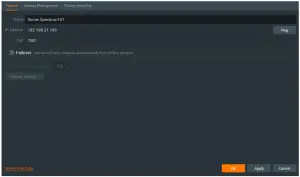
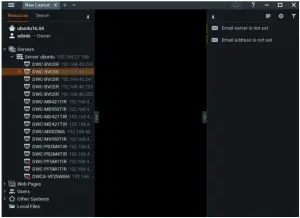
- Right-click on the server name listed on the resources then click server settings.
- Go to the general tab and enter the new server name in the name field. Click OK.

STEP 3: To check for updates
- Click on the menu
 then click “System Administration”.
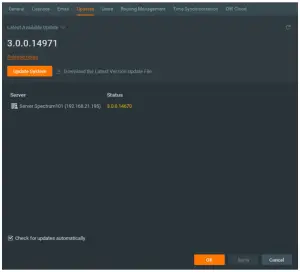
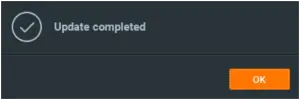
 - Go to the updates tab. If the system requires updating, click on the update system button.

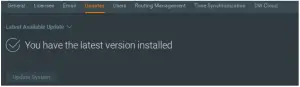
* If you are on the latest version, it will say “You have the latest version installed” and the Update System button will be disabled.
- Click OK when the update is completed.

 then click “System Administration”.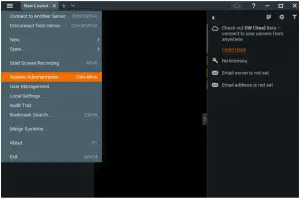
STEP 4: Enter and activate licenses
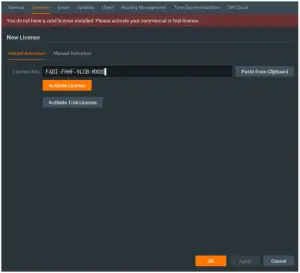
- Go to the system administration window and click on the license tab.
- Enter the license key and click “Activate License”. An Internet connection is required.
* Click on “Activate Trial License” if you have not purchased a valid license key.
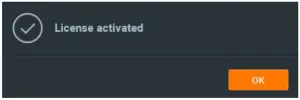
- Click OK when the license key is activated.
STEP 5: Configure recording
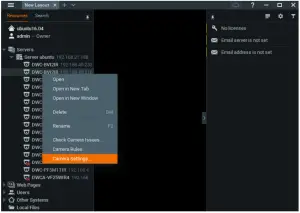
- Right-click on a camera in the resource tree to setup recording. Click on camera settings from the context menu.
- Go to the recordings tab.

- Click
 to turn on recording.
 - Configure the camera’s schedule settings for quality, FPS and recording type.
- Click and drag the mouse over the recording schedule to apply the settings to multiple days and times.
* Click “All” to apply the recording settings to the entire schedule.
- A red dot will appear next to the camera in the resource tree once recording is started.

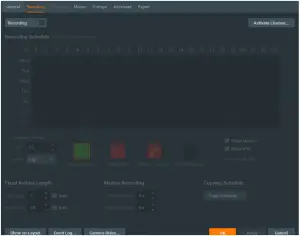
 to turn on recording.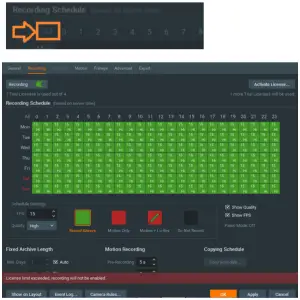
STEP 6: Backup database
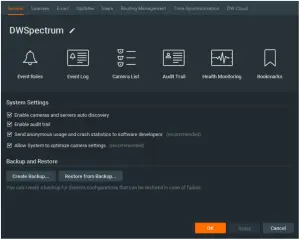
- Go to the system administration window and click on the general tab.

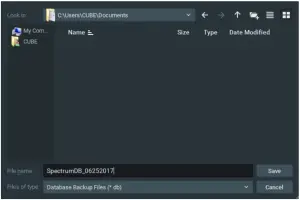
- Click “Create Backup…”.
- Navigate to the folder you want to save the database and enter a name for the backup file. Click “Save”.
* It is strongly recommended to backup your data to external storage media as well.
NOTE More information and instructions are available in the DW Spectrum® IPVMS user manual. 13
TROUBLESHOOTING TIPS
| Problem | Possible solutions |
| My camera does not auto-discover |
|
| Videos are slow |
|
| My camera appears disconnected |
|
| I cannot get playback video from my camera |
|
| I get an ‘unauthorized’ message on my camera |
|
SYSTEM REQUIREMENTS
| Single-monitor DW Spectrum workstation | Dual-monitor DW Spectrum workstation | Quad-monitor DW Spectrum workstation | ||
| Processor | Intel i5 8th gen or AMD Ryzen 5 3000 Quad-Core or better | Intel i7 8th gen or AMD Ryzen 7 3000 Quad-Core or better | Intel i9 or AMD Ryzen 9 Quad-Core or better | |
| Video card | Intel HD Graphics onboard GPU or better | Intel HD Graphics onboard GPU or better | GeForce GTX 1650 or better | |
| RAM | 8 GB DDR3 1600 MHz or better | 16 GB DDR3 1600 MHz or better | 32 GB or better | |
| NIC | 1Gbps or better | 2 x 1 Gbit or better | 2 x 1 Gbit or better | |
| Storage | Dedicated SSD or NVME disk for the OS, 128 GB or larger | Dedicated SSD or NVME disk for the OS, 128 GB or larger | Dedicated SSD or NVME disk for the OS, 128 GB or larger | |
| OS supported | Tested operating systems |
1 For Windows 10, recommend i5/i7 processors with 16GB RAM and video card with 4GB or higher RAM. | ||
| Operating system no longer supported |
| |||
* Except Storage Server version
Important: OS not listed will be not be supported by DW® Tech Support
Tel: +1 (866) 446-3595
Fax: (813) 888-9262
www.digital-watchdog.com
[email protected]

Copyright © Digital Watchdog. All rights reserved. Specifications and pricing are subject to change without notice.
 Digital Watchdog l Welcome
 Digital Watchdog l Welcome