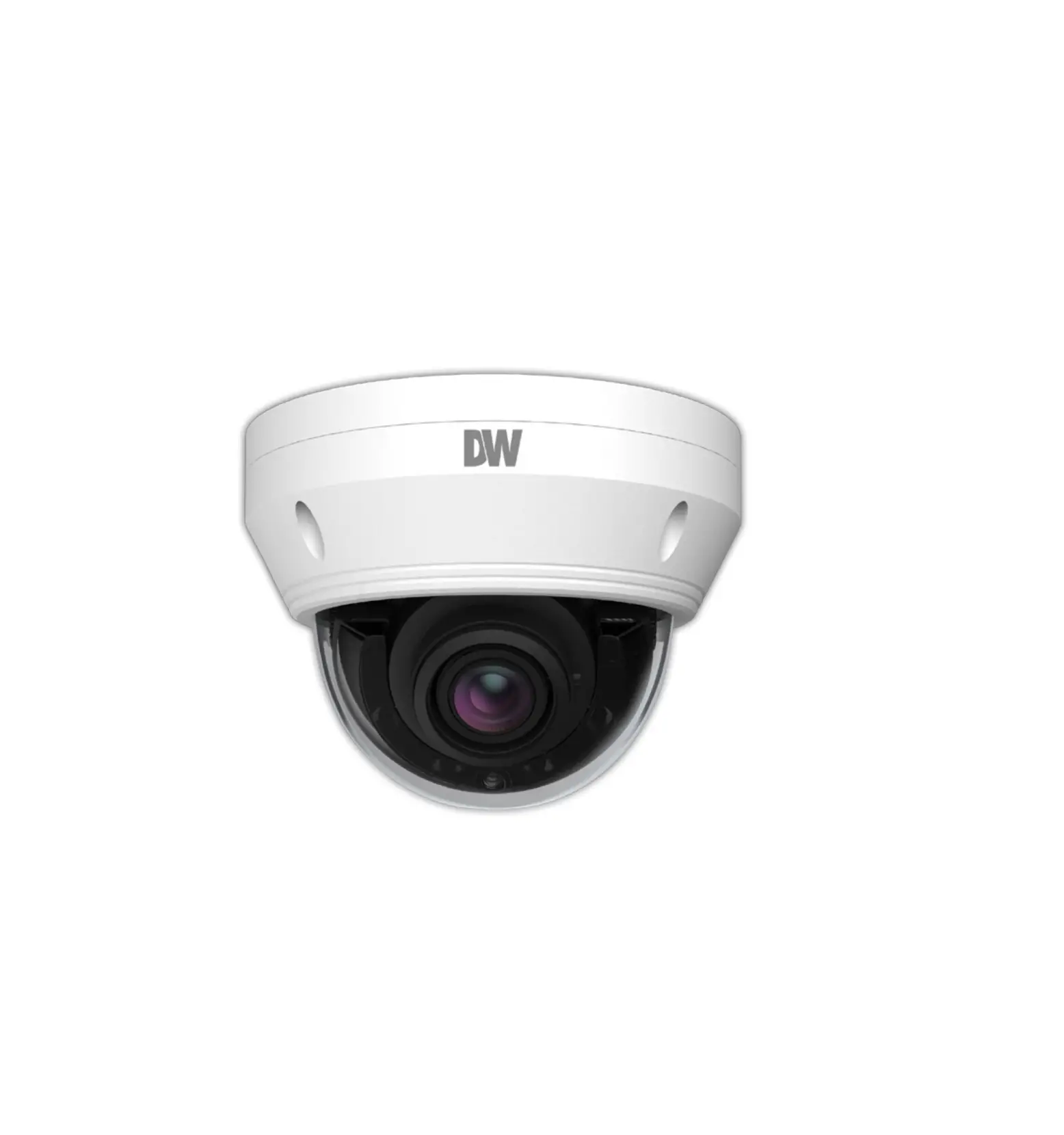
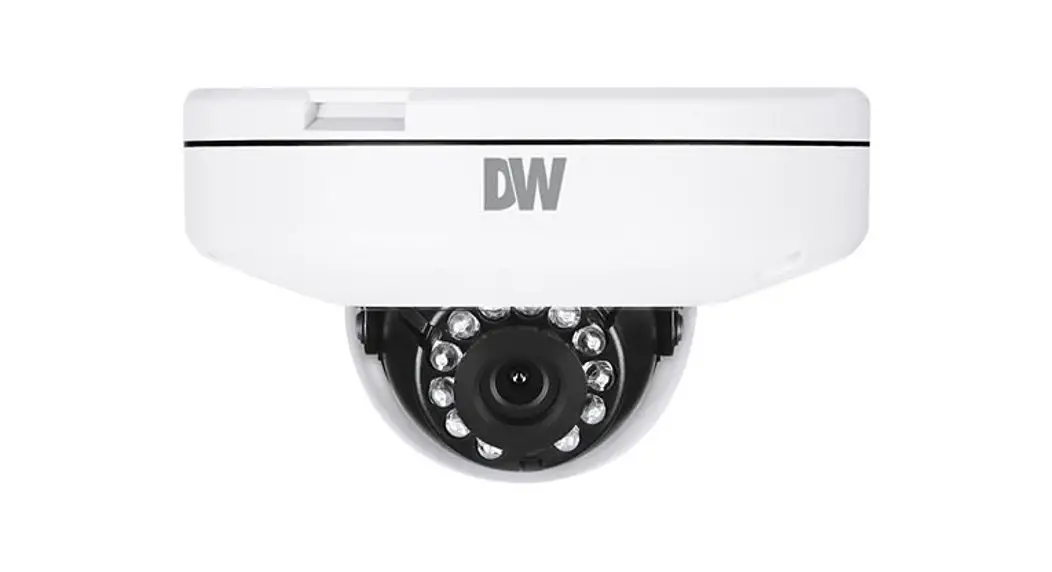
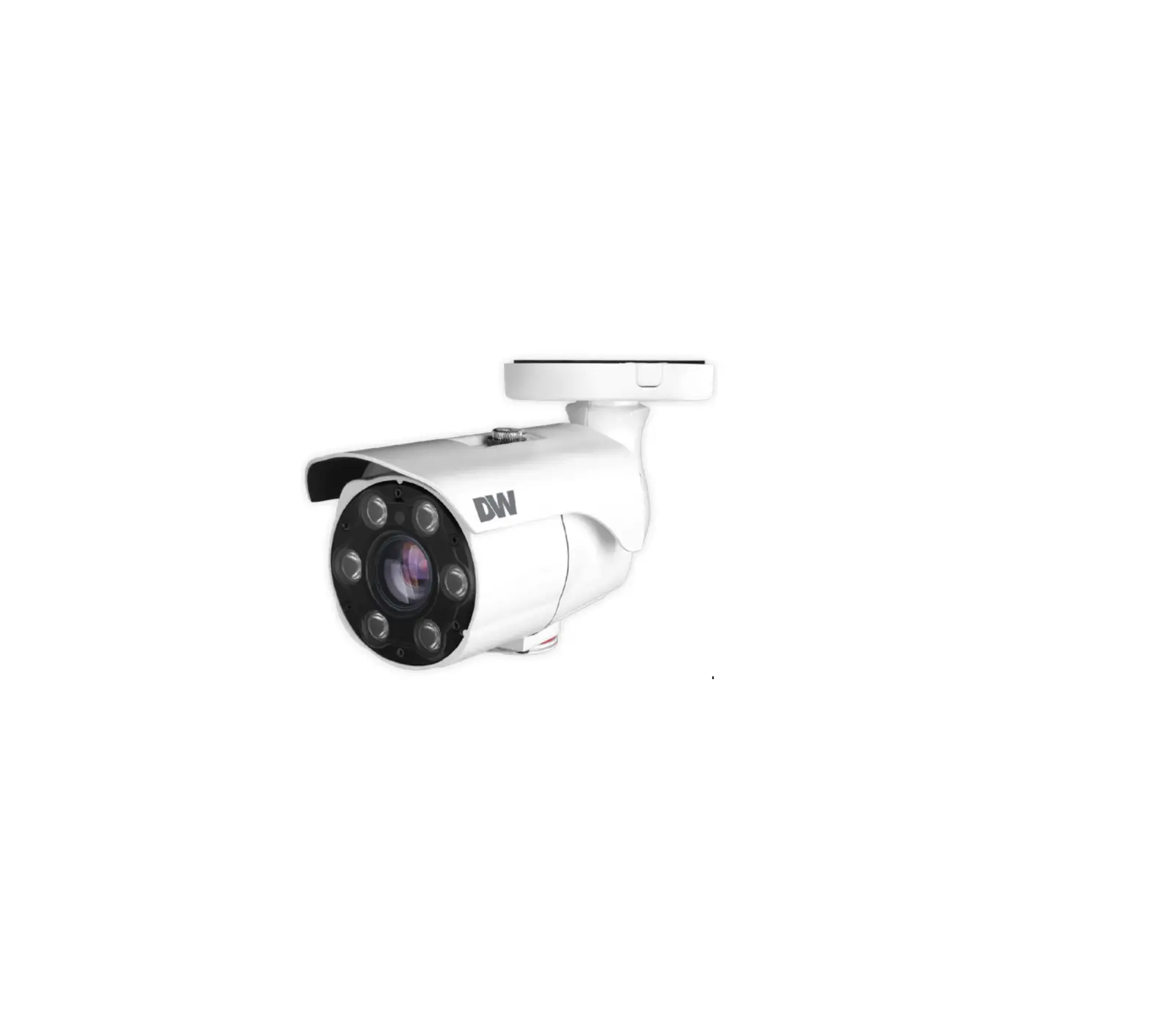
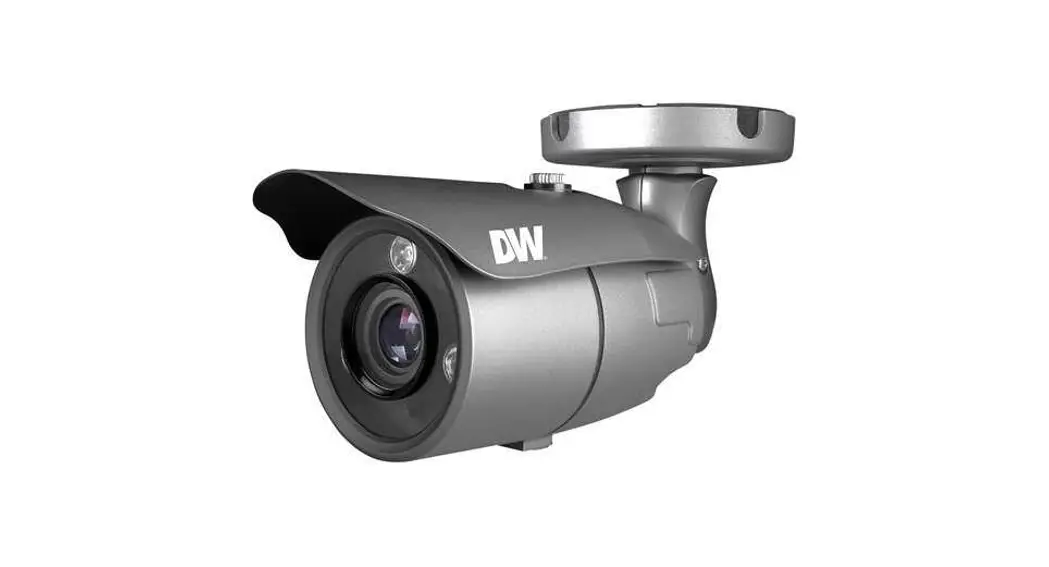
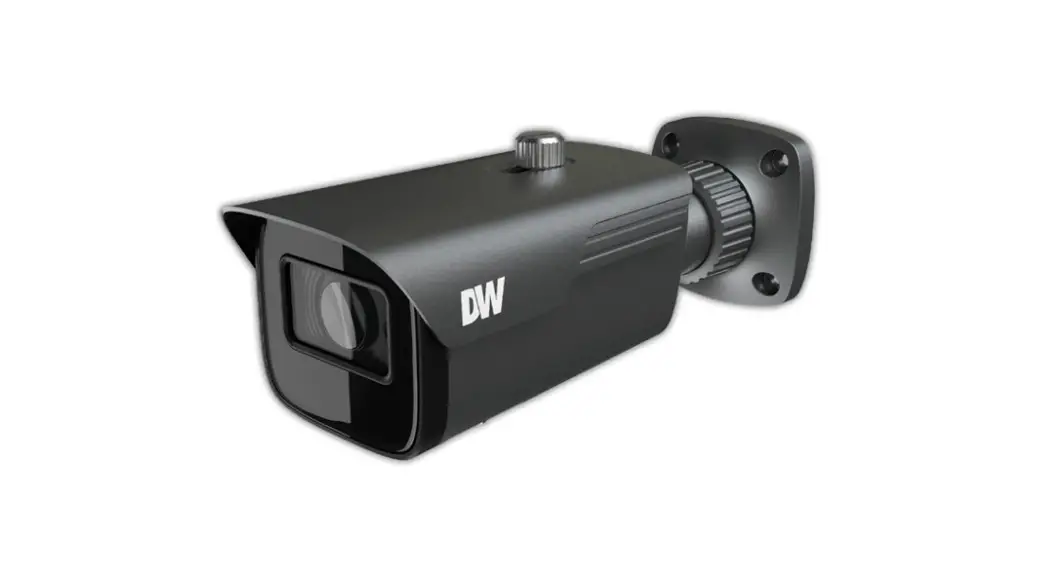
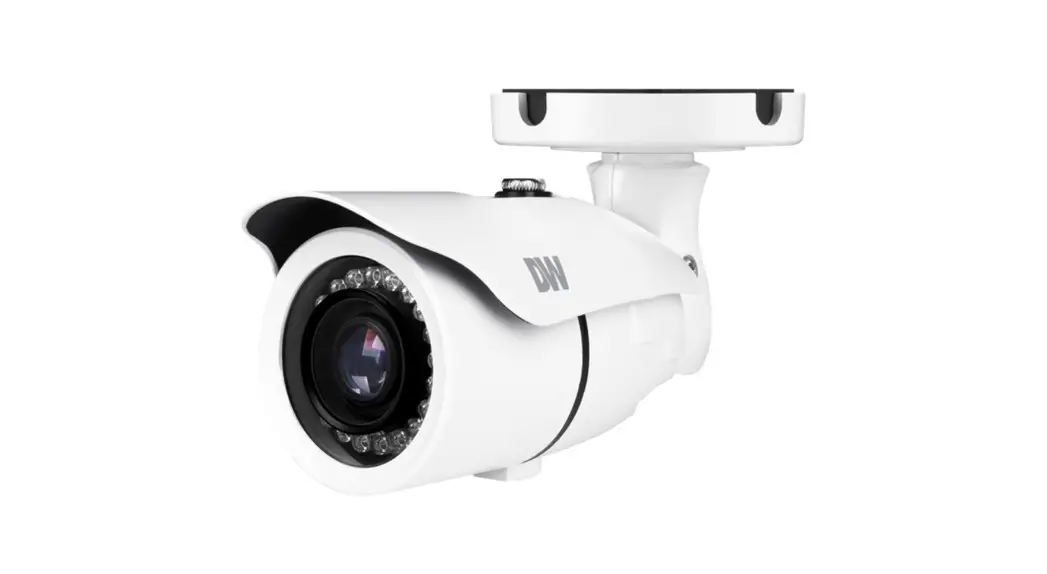
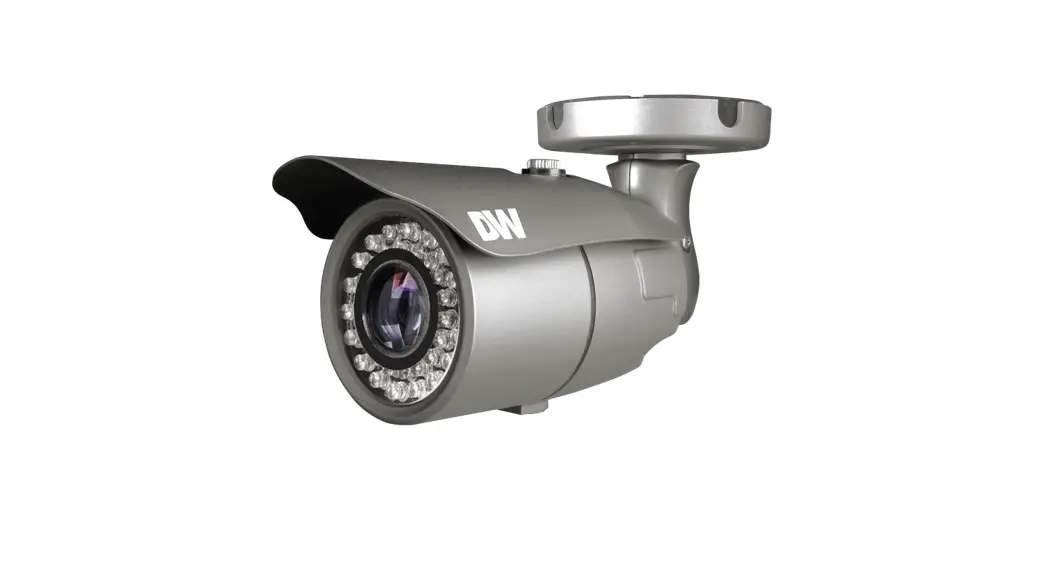
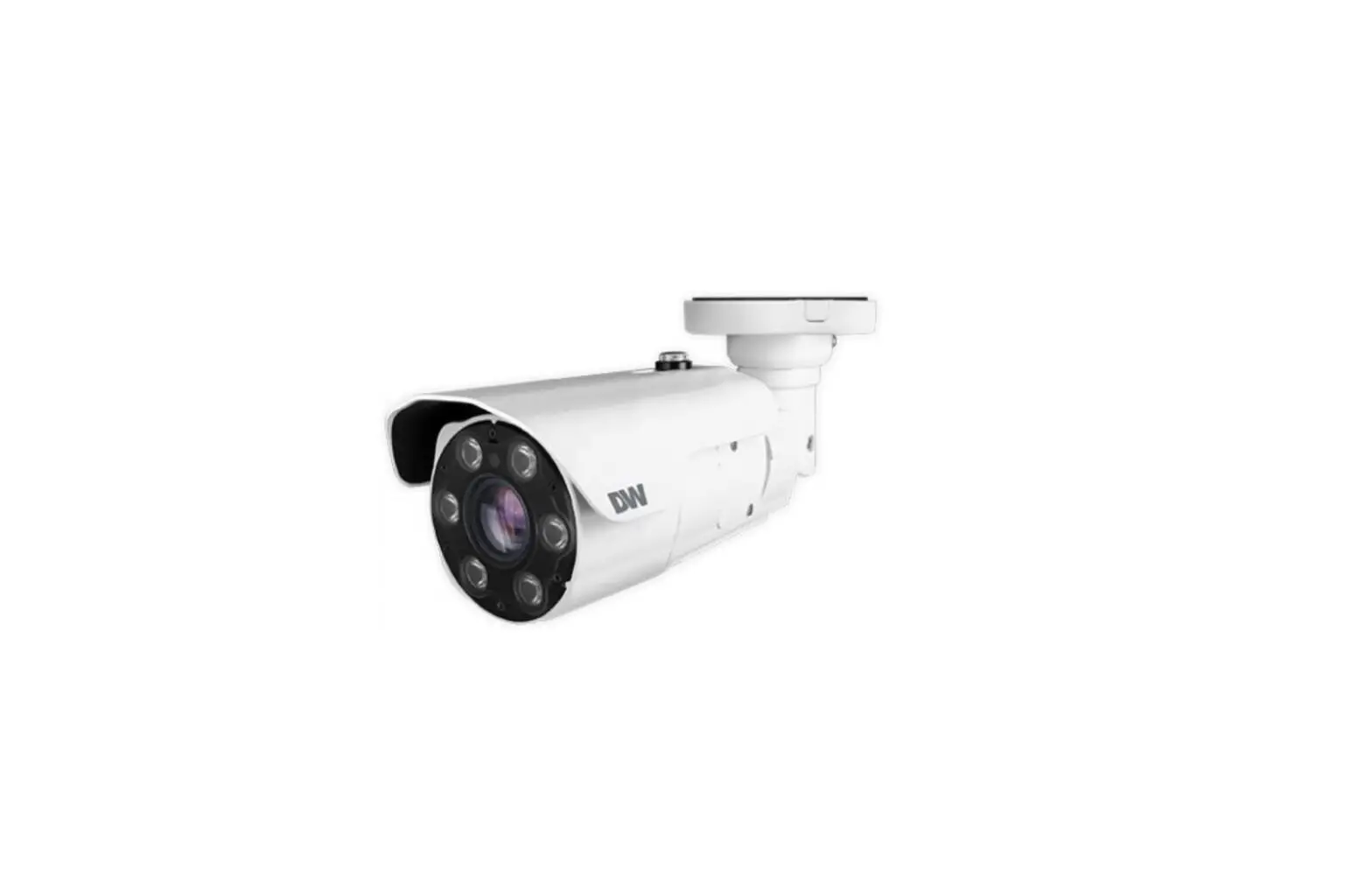
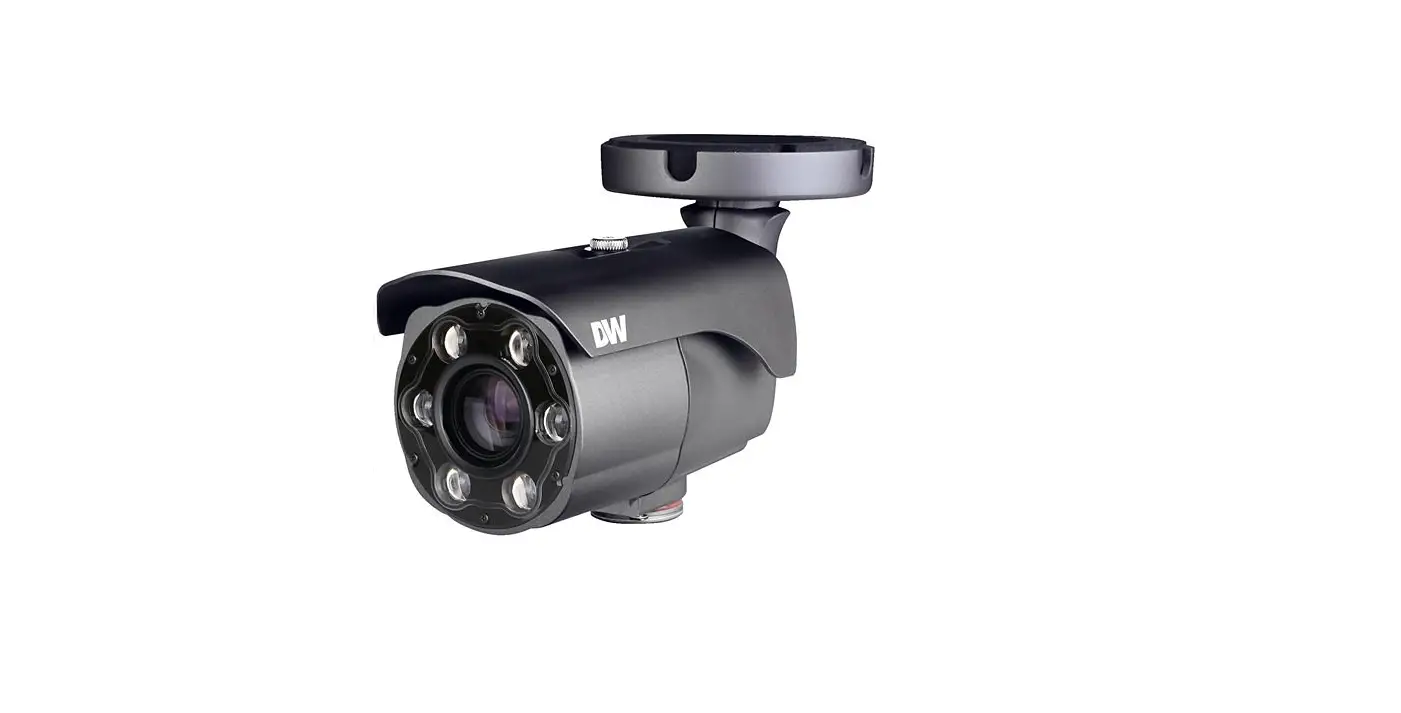
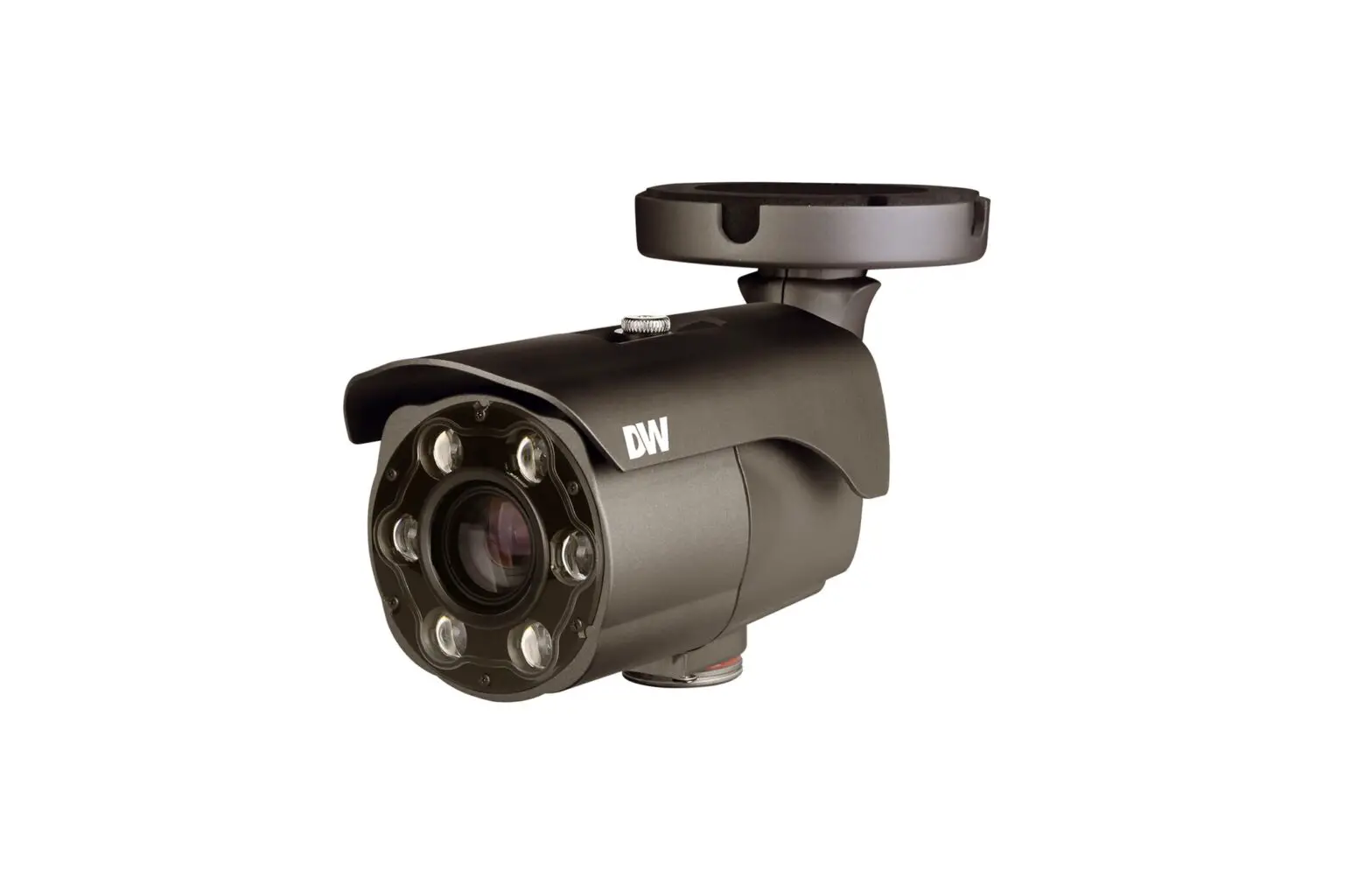
DWC-MB75Wi4TDMP, DWC-MB72Wi4TDMP MEGA PIX IP Camera
Product Information
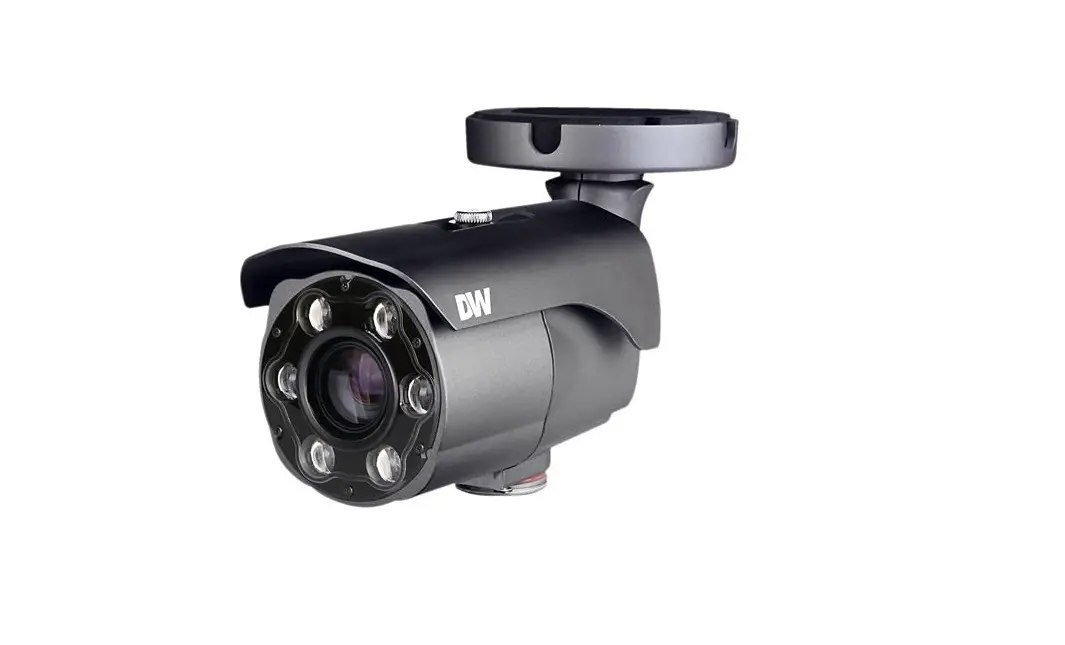
The product is a digital camera available in two models: 5MP
model DWC-MB75Wi4TDMP and 2.1MP/1080p model DWC-MB72Wi4TDMP. The
camera comes with a quick start guide, quick setup and download
guides, mounting template, moisture absorber, and a star wrench
(T-20). The camera requires a power source of DC 12V or PoE IEEE
802.3af Class 3 for DWC-MB75Wi4TDMP and DC 12V or PoE IEEE 802.3af
Class 2 for DWC-MB72Wi4TDMP. The maximum power consumption for
DWC-MB75Wi4TDMP is 6.5W (DC12V) or 8.3W (PoE) and for
DWC-MB72Wi4TDMP is 4.5W (DC12V) or 6.0W (PoE). The camera generates
enough heat to dry moisture during operation but it is recommended
to use the moisture absorber to prevent moisture from being
captured inside the camera’s housing.
Product Usage Instructions
- Download all support materials and tools from
http://www.digital-watchdog.com/resources by searching for the
product using the part number. - Read the entire instruction manual for complete and proper
installation and usage. - Ensure that the mounting surface can bear five times the weight
of the camera. - Do not let the cables get caught in improper places or the
electric line cover to be damaged. - Install the moisture absorber when mounting the camera to
prevent moisture from being captured inside the camera’s
housing. - Cut the card-type absorber along a dotted line, overlap and
attach them according to the direction of the arrow. - Using the mounting template sheet or the camera itself, mark
and drill the necessary holes in the wall or ceiling. - Pass the wires through and make all necessary connections.
- If using a PoE Switch or PoE Injector, connect the camera using
an Ethernet cable for both data and power. If not using a PoE
Switch or PoE Injector, connect the camera to the switch using an
Ethernet cable for data transmission and use a power adapter to
power the camera. - Pass the LAN cable through the waterproof cap, gasket, and the
rubber ring. Ensure that the o-ring is in place between a and b to
ensure moisture seal. In extreme environments, use of an
outdoor-rated sealer is recommended. - Mount the camera to the mounting surface and secure using the
screws and anchors included. - Loosen the pan and tilt screw at the base of the camera’s
bracket to adjust the camera’s view and position.
Quick Start Guide
5MP model DWC-MB75Wi4TDMP
2.1MP/1080p model DWC-MB72Wi4TDMP
Quick Setup and Download Guides
Mounting Template
Moisture Absorber and Absorber guide (Recommended)
WHAT’S IN THE BOX
1 set
Screws and Plastic Anchors 4pcs
1
Star Wrench (T-20)
1 set
Waterproof Cap and Rubber Rings (Black: ø0.15″ (ø4mm), White: ø0.19″ (ø5mm))
1 set 1
1 set
NOTE: Download all your support materials and tools in one place
1. Go to: http://www.digital-watchdog.com/resources 2. Search your product by entering the part number in the
`Search by Product’ search bar. Results for applicable part numbers will populate automatically based on the part number you enter. 3. Click `Search’. All supported materials, including manuals and quick start guide (QSGs) will appear in the results.
Attention: This document is intended to serve as a quick reference for initial set-up. It is recommended that the user read the entire instruction manual for complete and proper installation and usage.
Tel: +1 (866) 446-3595 / (813) 888-9555
Technical Support Hours: 9:00 AM 8:00 PM EST, Monday through Friday
digital-watchdog.com
STEP 1 PREPARING TO MOUNT THE CAMERA
1. The mounting surface must bear five times the weight of your camera. 2. Do not let the cables get caught in improper places or the electric line
cover to be damaged. This may cause a breakdown or fire. 3. CAUTION: These servicing instructions are for use by qualified service
personnel only. To reduce the risk of electric shock do not perform any servicing other than that contained in the operating instructions unless you are qualified to do so. 4. This product is intended to be supplied by a UL Listed Power Supply Unit marked “Class 2” or “LPS” or “PS2″ and rated 12 Vdc, 0.54A (DWCMB75Wi4TDMP) and 0.38A (DWC-MB72Wi4TDMP) min. 5. The wired LAN hub providing power over the Ethernet (PoE) in accordance with IEEE 802-3af shall be a UL Listed device with the output evaluated as a Limited Power Source as defined in UL60950-1 or PS2 as defined in UL62368-1. 6. Unit is intended for installation in a Network Environment 0 as defined in IEC TR 62102. As such, associated Ethernet wiring shall be limited to inside the building. 7. Install the moisture packet in the base of the camera’s lens. a. Remove the moisture absorber from the packaging. b. Cut the card and folder along the dotted line. c. Place the moisture absorber behind the camera’s lens module. See
drawing for more information. NOTE: The camera will generate enough heat to dry moisture
during operation. In most cases it will not need the moisture absorber for more than the first day. In cases where the camera can experience a moisture issue, users must keep the moisture absorber in the camera. The moisture absorber has an approximately 6-month life cycle, varying depending on the environment.
WARNING: It is highly recommended that you install the moisture absorber when mounting the camera. The moisture absorber prevents moisture from being captured inside the camera’s housing, which may cause image performance issues and damage the camera.
Please cut the card type absorber along a dotted line, overlap and attach them according to the direction of the arrow.
8. Using the mounting template sheet or the camera itself, mark and drill the necessary holes in the wall or ceiling.
STEP 2 POWERING THE CAMERA
Pass the wires through and make all necessary connections.
1. When using a PoE Switch or PoE Injector, connect the camera using an Ethernet cable for both data and power.
2. When not using a PoE Switch or PoE Injector, connect the camera to the switch using an Ethernet cable for data transmission and use a power adapter to power the camera.
Part number DWC-MB75Wi4TDMP DWC-MB72Wi4TDMP
Power requirements
DC 12V, PoE IEEE 802.3af Class 3 (Adapter not included).
DC 12V, PoE IEEE 802.3af Class 2 (Adapter not included).
Power consumption
DC12V: max 6.5W PoE: max 8.3W
DC12V: max 4.5W PoE: max 6.0W
STEP 3 INSTALLING THE CAMERA
1. The waterproof cap set comes with two rubber rings with different diameters. The black rubber ring has an internal diameter of ø0.15″ (ø4mm). The white rubber ring has an internal diameter of ø0.19” (ø5mm). When using the waterproof cap, use the rubber ring best suited for your network cable’s diameter.
a. Pass the LAN cable through the waterproof cap, gasket and the a rubber ring.
b. Connect the LAN cable to the camera’s network port b . c. c will be affixed to b with a ¼ turn counter-clockwise. d. Thread and twist d tightly to c .
d
a
b
c
NOTE: To ensure moisture seal, make sure the o-ring is in place between a and b . In extreme environments use of an outdoor rated sealer is recommended.
NOTE: Cables with ø4.5mm to ø5.5mm thickness should use the black rubber ring. Cables over ø5.5mm in thickness should use the white rubber ring.
2. Mount the camera to the mounting surface and secure using the screws and anchors included.
3. Loosen the pan and tilt screw at the base of the camera’s bracket to adjust the camera’s view and position.
Pan / tilt screw
Quick Start Guide
Mounting Template
Resetting the camera: To reset the camera, use the tip of a paper clip or a pencil and press the reset button. Pressing the button for five (5) seconds will initiate a camera-wide reset of all the settings, including network settings.
Reset button
NOTE: Please refer to DMP guide for additional information on integration and camera control.
Rev Date: 02/22
Copyright © Digital Watchdog. All rights reserved. Specifications and pricing are subject to change without notice.
 Digital Watchdog l Welcome
 Resources