USER GUIDE
kogon.com
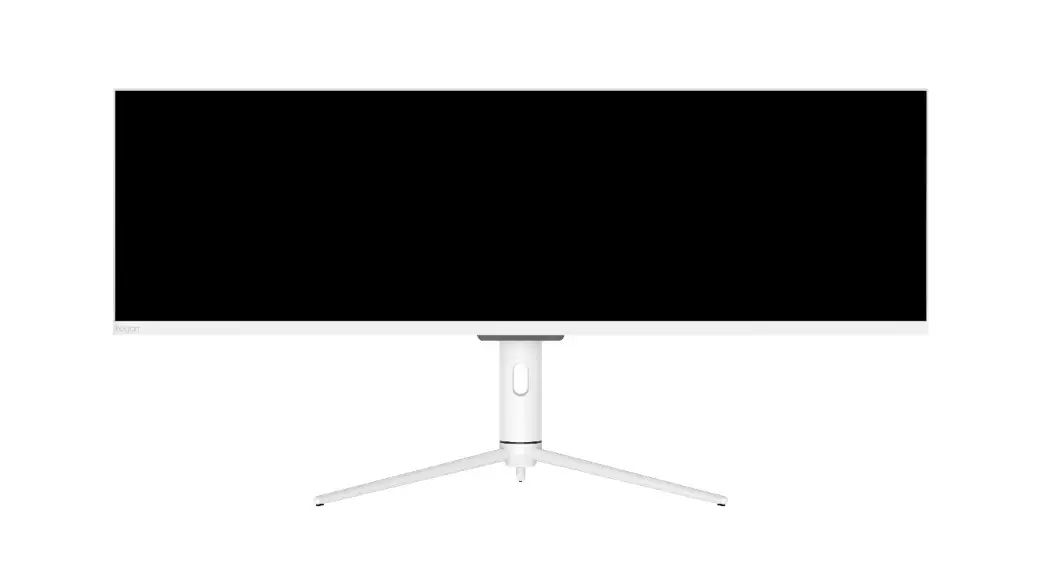
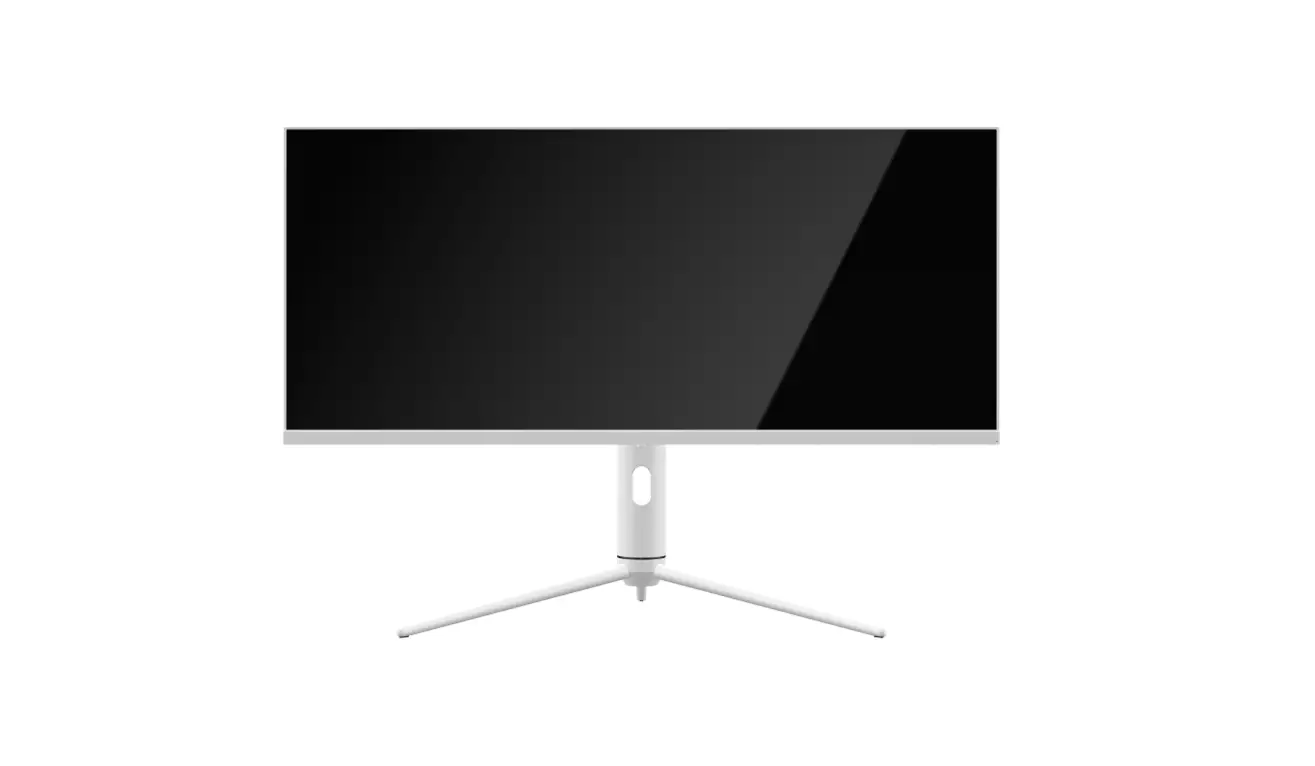
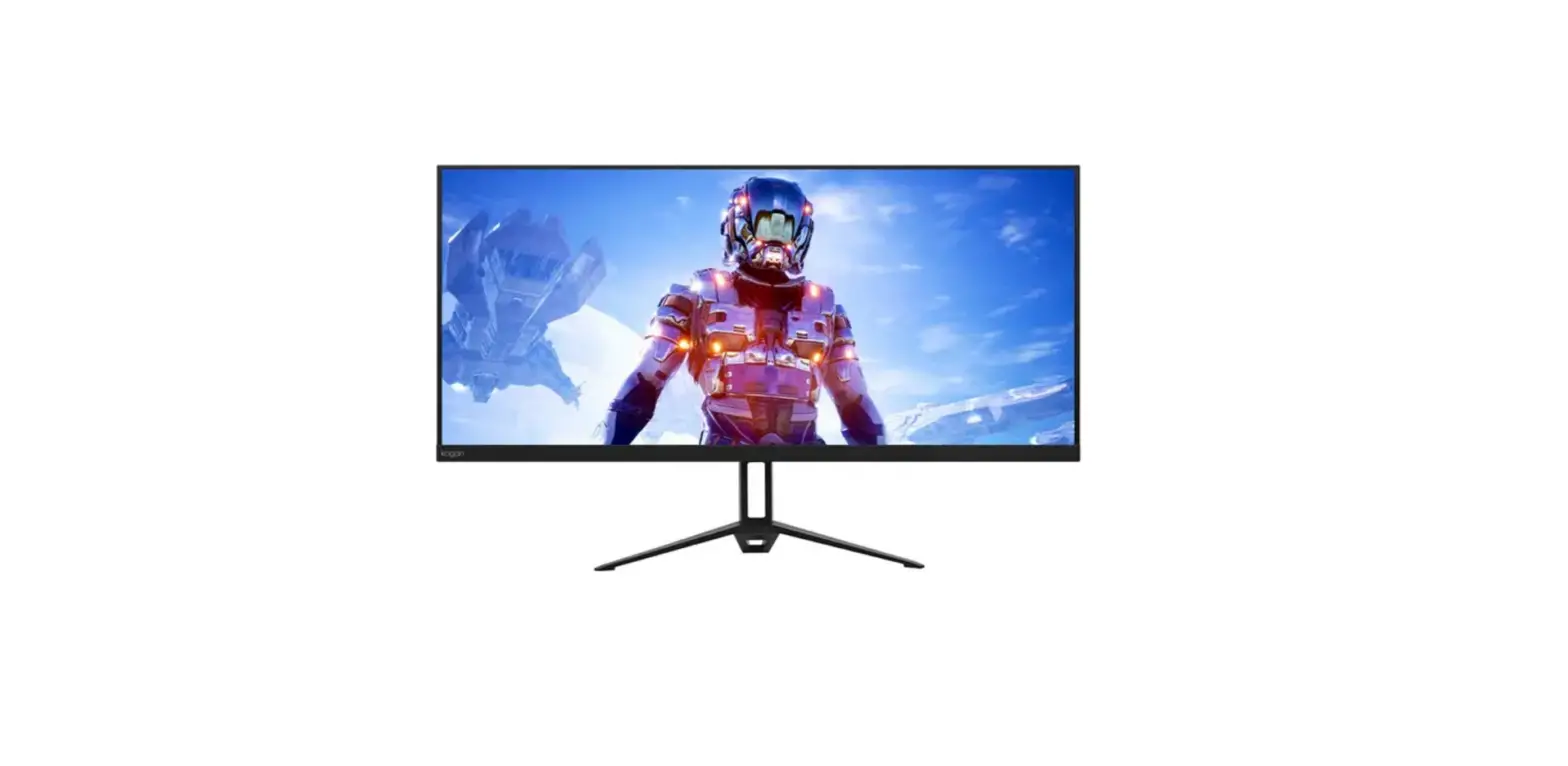
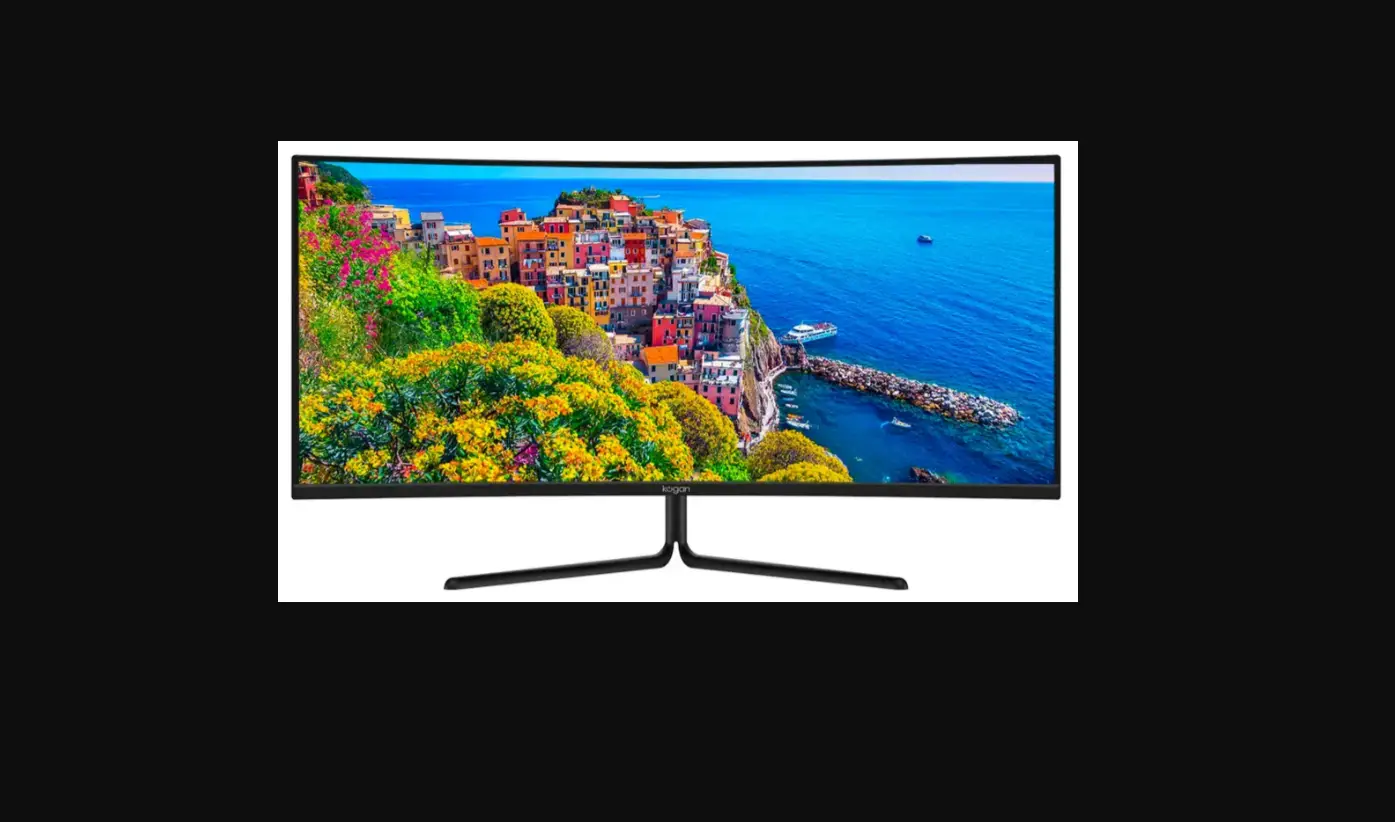
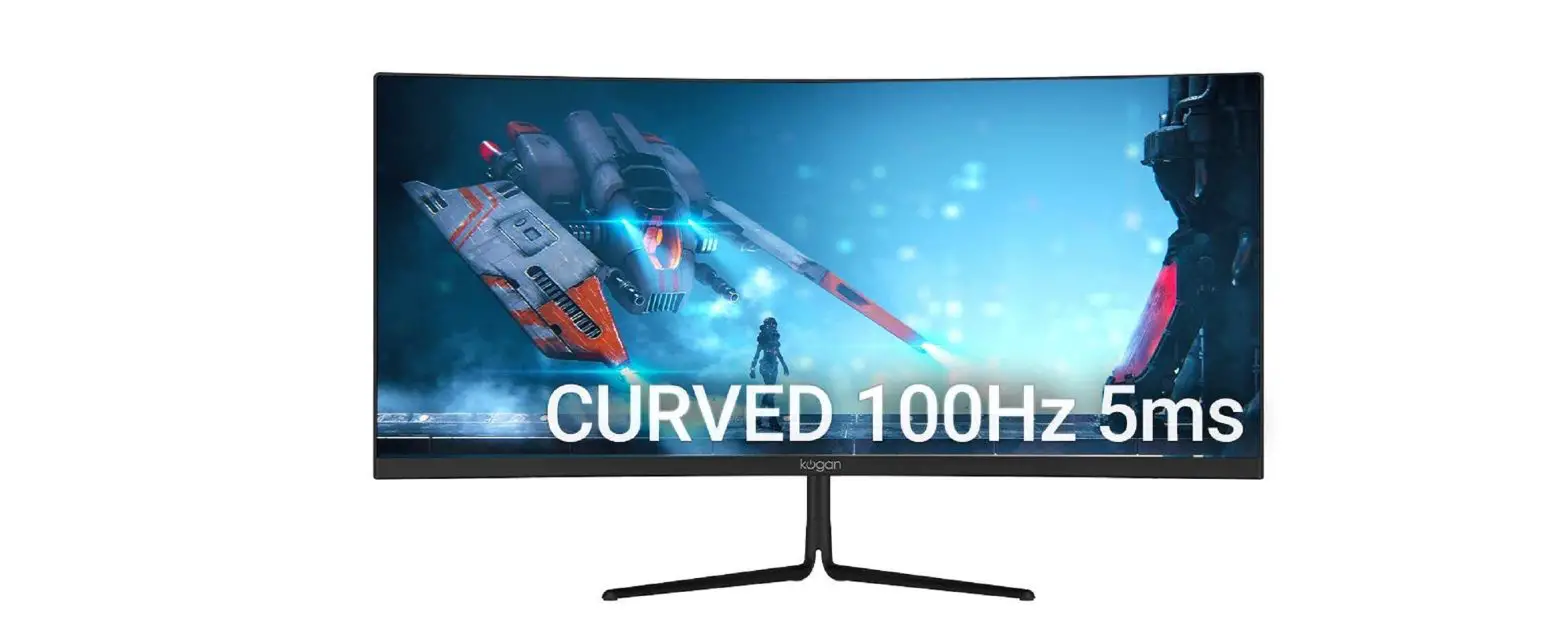
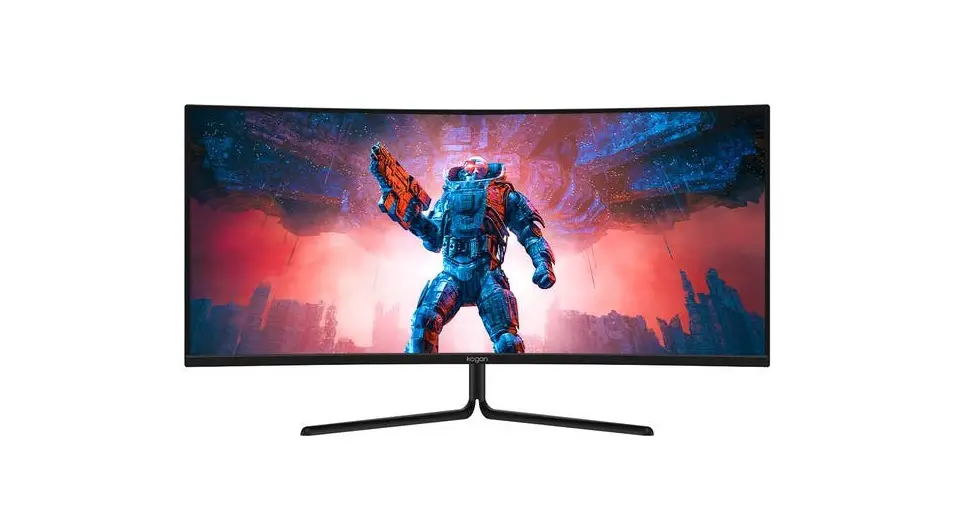
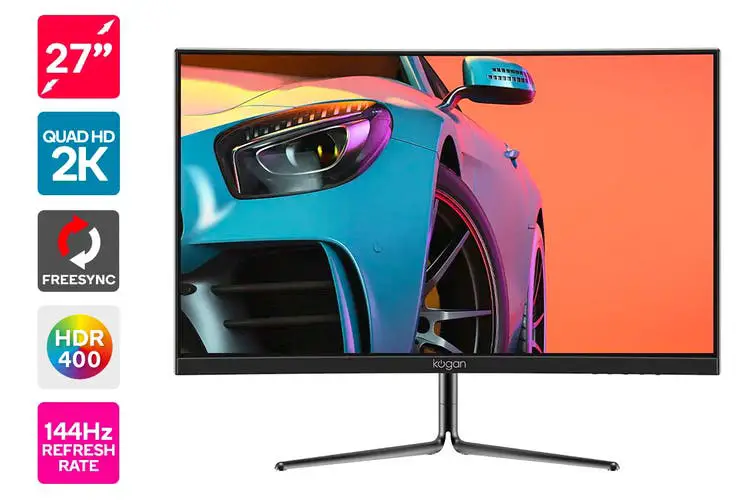
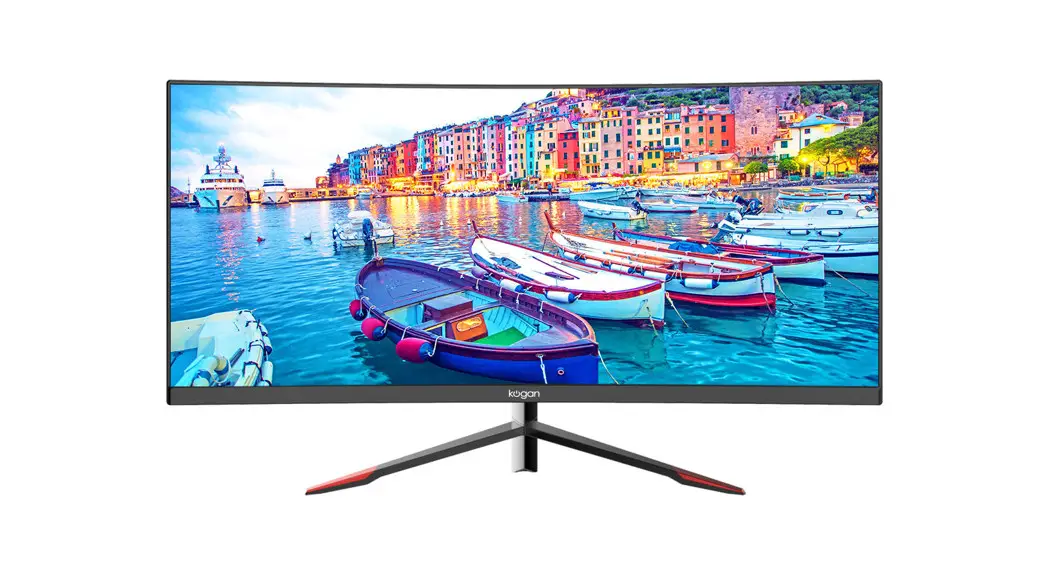
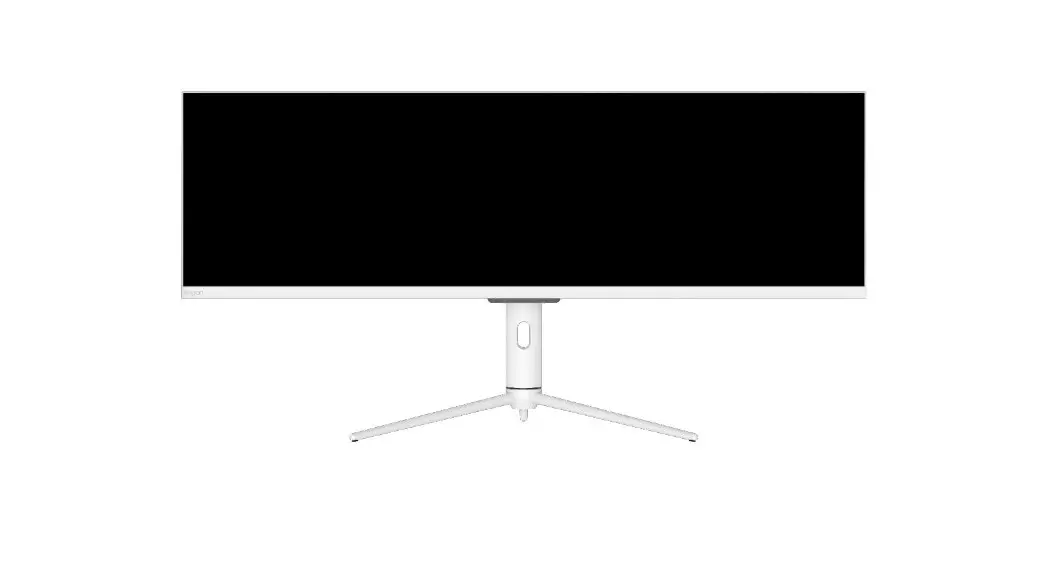
44″ ULTRAWIDE USB-C FREESYNC HDR MONITOR
(3840 x 1080 120Hz)
KAMN44UWCLA
SAFETY & WARNINGS
- Read all instructions before using the appliance and retain them for reference.
- Unplug the monitor before cleaning it.
- Use a dean, slightly-dampened cloth to wipe the main monitor body.
- To clean the screen: turn it off, unplug it and wait for it to cool completely, then wipe it with a dry microfibre cloth.
- Do not use cleaning alcohol, ammonia-based liquids, or other harsh cleaners.
- This monitor is designed with ventilation holes on the back of the casing. Do not cover or block them.
- Do not insert any object or spray any liquid into the vents.
- Avoid placing the monitor near heaters, stoves, fireplaces, or other sources of heat, as well as in rooms lacking adequate ventilation.
- Do not position the monitor in unsafe locations. If the monitor falls, it may be damaged and may injure nearby people.
- Unplug the monitor if it is not going to be used for an extended period.
- Do not place heavy objects on the monitor, its power cord, or any connected cable.
- Do not open the back panel of the monitor, as it contains a high-voltage current even when not plugged in.
 The terms HDMI and HDMI High-Definition Multimedia Interface, and the HDMI Logo are trademarks or registered trademarks of HDMI Licensing Administrator, Inc. in the United States and other countries.
WARNING – KEEP BATTERIES OUT OF REACH OF CHILDREN

- Swallowing may lead to serious injury or death in as little as 2 hours, due to chemical burns and potential perforation of the esophagus.
- If you suspect your child has swallowed or inserted a button battery immediately call the 24-hour Poisons Information Centre on 13 11 26 (Australia) or 0800 764 766 (New Zealand) for fast, expert advice.
- Examine devices and make sure the battery compartment is correctly secured, e.g. that the screw or other mechanical fastener is tightened. Do not use if the compartment is not secure.
- Dispose of used button batteries immediately and safely. Flat batteries can still be dangerous.
- Tell others about the risk associated with button batteries and how to keep their children safe.
COMPONENTS
OVERVIEW
Controls
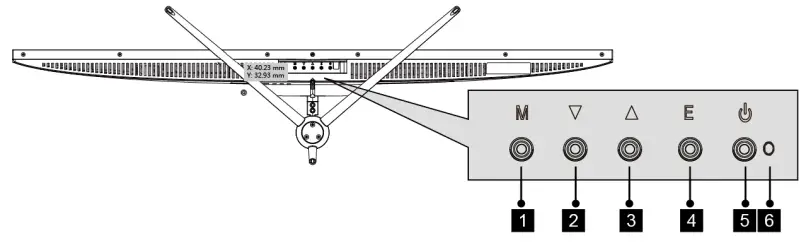
- Menu/Enter
- Down
- Up
- Exit
- Power On/Off
- LED indicator
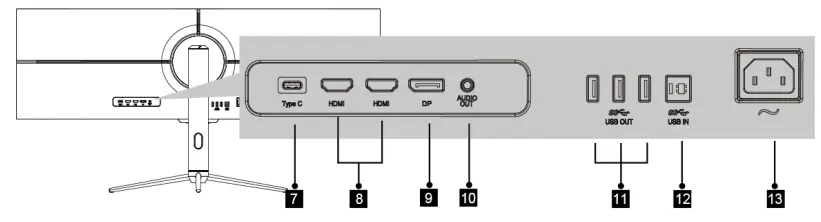
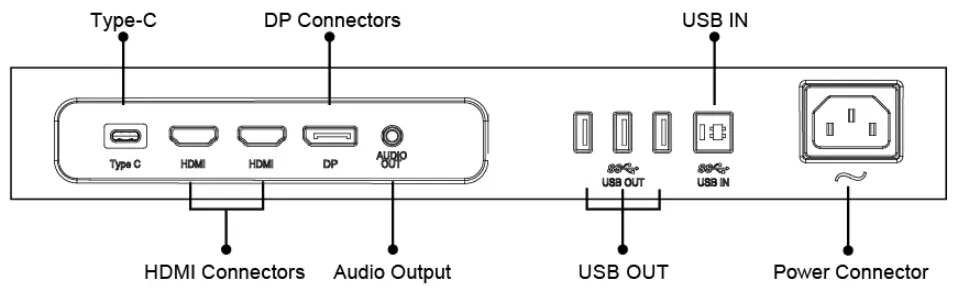
Ports
- Type -C input
- HDMI input
- DisplayPort input
- Audio output
- USB OUT (Type-A output)
- USB IN (Type-B input)
- Power input
STAND ASSEMBLY
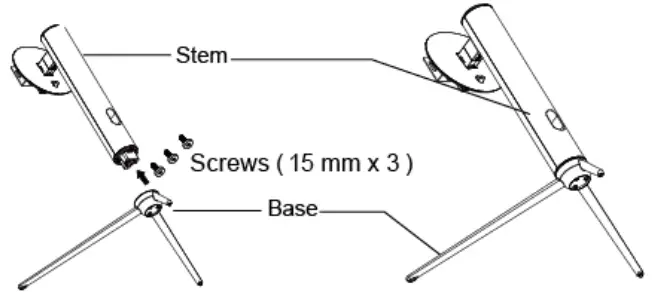
Installing the Stand Base
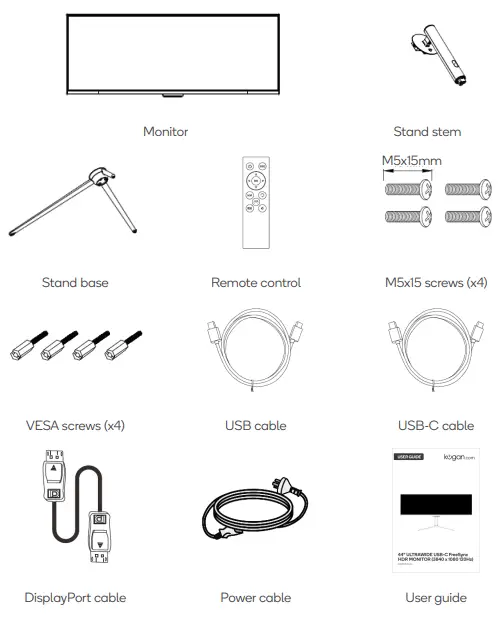
- Take out the two main parts of the stand. Then use the screwdriver and the screws to fasten the base to the stem.

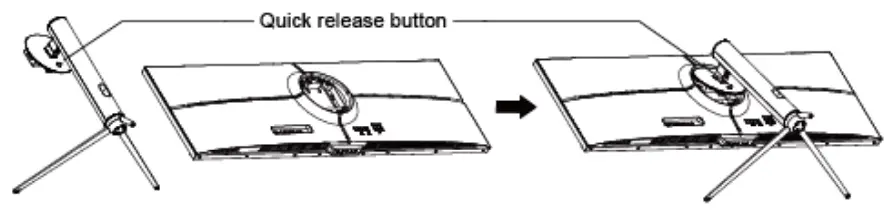
- Take out the monitor and put it on the flat foam. insert the stand on the back of the monitor.

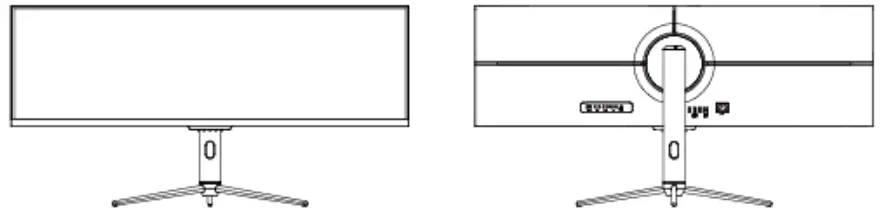
- Use both hands to stand the assembled monitor on a flat desktop.

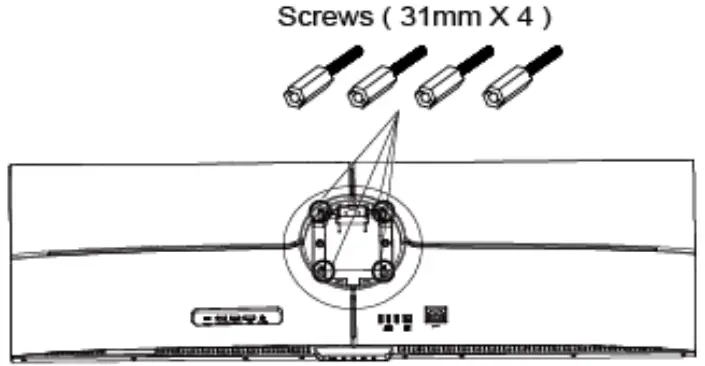
VESA MOUNT
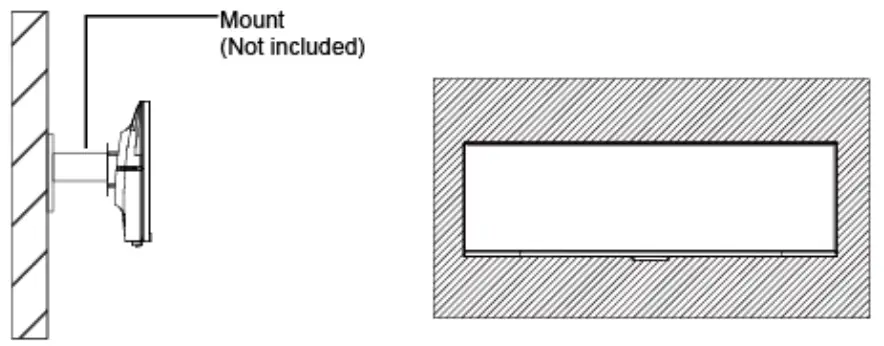
Follow the steps below to install onto a monitor arm or wall mount (not included)
- Press the button to remove the adapter on the back of the monitor, then tighten the included four VESA screws onto the mounting holes on the back of the monitor.

- Follow the directions supplied with your mount, stand, or accessory and install the monitor on the wall or fixture as desired.

CONNECTIVITY
Power Cable
Connect the included power cable to the power connector, then plug the other end into the power outlet.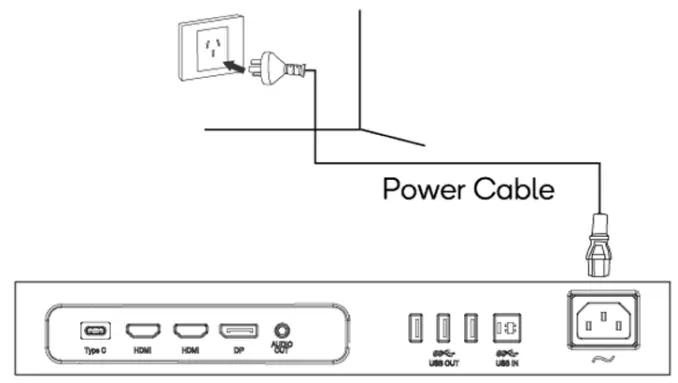
3.5mm Audio Out
Connect earphones or a set of external speakers to the 3.5mm port on the monitor to receive audio signals from your monitor. You may need to set the monitor to be your PC’s sound output. Earphones and other audio devices are not included.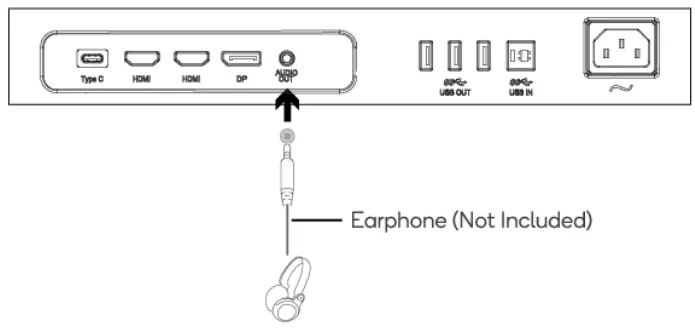
DisplayPort
Connect your computer to the monitor using the included DisplayPort cable.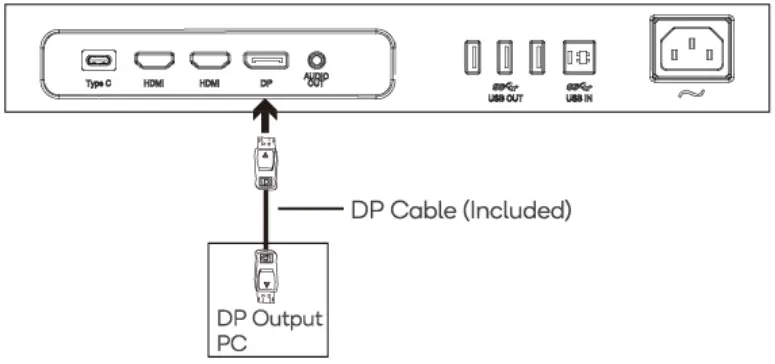
HDMI
Connect your computer to the monitor using an HDMI cable.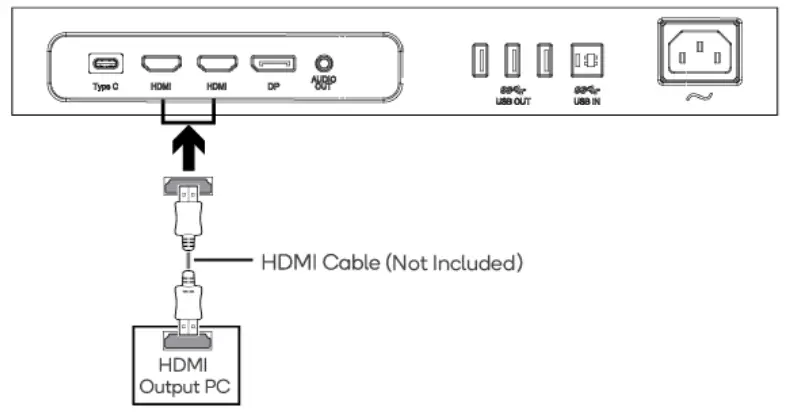
USB hub
To use the monitor’s integrated USB hub functionality. use the included USB-A to USB-B cable to connect a USB-A port on your PC to the monitor’s USB IN port.
You can now connect devices like a mouse, keyboard, and flash drive.
OPERATION
- Connect your computer to the monitor as outlined in Connectivity.

- Connect the power cable to your monitor, then connect the other end to your power source. It is recommended that you use a surge protector with adequate voltage if a wall outlet cannot be reached directly.
- Locate the power button on the monitor and press it to turn the monitor on.
FreeSync
The feature itself is off by default. In order to use this feature, please note you must have hardware with FreeSync capability, a DisplayPort or HDMI cable, and the latest graphic drivers. To use this feature, connect your computer and monitor with DisplayPort or HDMI. After connecting, you may receive a prompt to enable the feature on your computer. If you do not receive the prompt, you may need to enable the function in your graphics card menu.
See your graphics card manufacturer’s documentation for instructions on how to turn on and/or enable FreeSync.
Remote control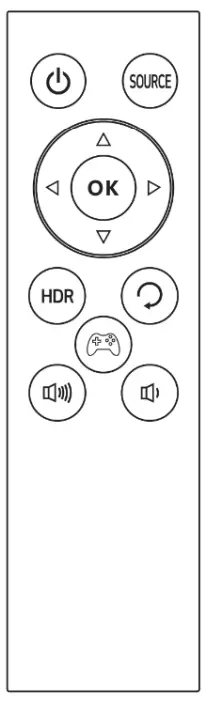
 | Press to turn the monitor on or off. |
 | Press to switch display input. |
| ok | Press to enter the OSD menu and confirm the setting. |
 | Press to navigate the OSD menu. |
 | Press to turn HDR on or off. |
 | Press to exit the OSD menu or return to the previous menu. |
 | Press to turn the Game plus mode on or off. |
 | Press to increase the volume |
 | Press to decrease volume. |
- Avoid pressing too remote buttons simultaneously as this may cause malfunctions.
- Avoid using the remote in areas with extreme temperature fluctuations.
- If the remote will not be used for extended periods of time, remove the battery.
- The remote control’s range is approximately 16.4-23 feet. Use it within this range.
- Use a 3V lithium battery (CR2032 or equivalent).
Remember: small batteries are easily swallowed by young children. Keep batteries away from children. Call 000 if you believe a battery was ingested.
INDICATOR LIGHT
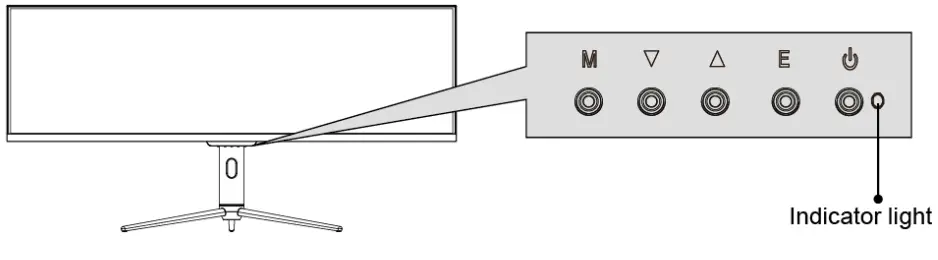 A solid blue light indicates that power is on and the monitor is operating normally.
A flashing blue light indicates no video input has been detected: ensure your computer is on and all video cables are fully inserted and/or connected.
ON-SCREEN DISPLAY
The On-Screen Display (OSD) menu may be used to adjust your monitor’s settings and appears on the screen after turning on the monitor and pressing the M button.
When using the monitor for the first time, the monitor will automatically be configured to optimal settings according to the graphics card detected.
- Press any one of the buttons(M/
 /
/  /E/
/E/ )to activate the navigation window.
- Press
 to enter the OSD menu.
- Pressor to browse functions.
Highlight the desired function, then press M to enter the sub-menu.
Pressorto browse sub-menus, then press M to highlight the desired function.
Pressor to highlight an option, then press M to confirm the settings and exit the current screen. - Press E to exit the current screen.
 /
/  /E/
/E/ )to activate the navigation window.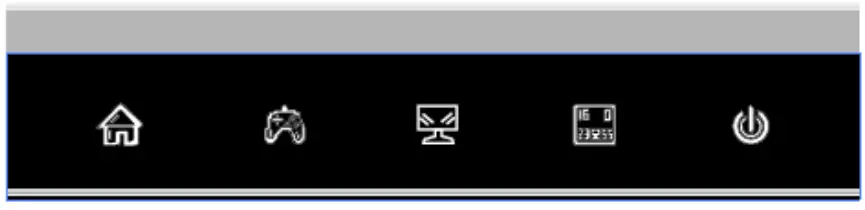
 to enter the OSD menu.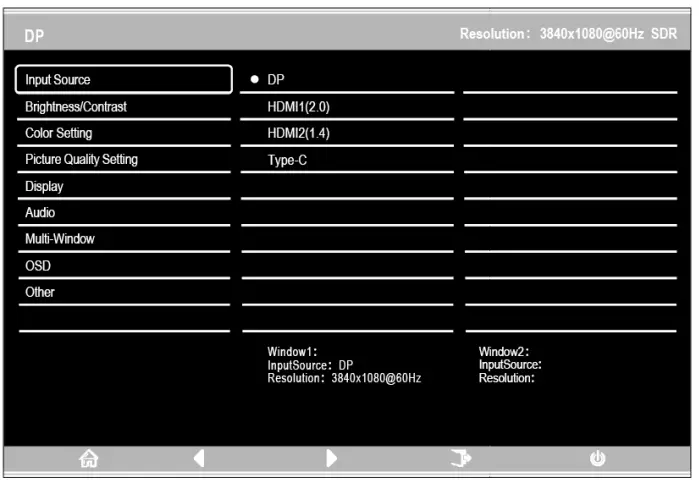
List of Functions
| Main Menu | Sub-Menu | Options | Description fl |
| Input Source | DP | N/A | Switch to DisplayPort input |
| HDMI 1(2.0) | N/A | Switch to HDMI signal input | |
| HDMI 2(1.4) | |||
| Type-C | N/A | Switch to Type-C signal input | |
| Brightness/ Contrast | Brightness | 0-100 | Adjust display brightness |
| Black level | 0-100 | Adjust display black levels | |
| Contrast | 0-100 | Adjust display contrast | |
| OCR | On. Off | Enable/disable DCR function | |
| Color Setting | Gamma | Comma 1.8/2.0/ 2.2/2.4/2.6 | Set Gamma add-in |
| Picture Mode | Standard, Photo. Movie, Game, FPS, RTS, sRGB | Set visual mode according to activity | |
| Color Temperature | Warm, Cool, User | Select color temperature | |
| Low Blue Light | 0-100 | Set blue light filtering level | |
| Hue | 0-100 | Adjust hue levels | |
| Saturation | 0-100 | Adjust saturation levels | |
| Picture Quality Setting | Sharpness | 0-100 | Set display sharpness |
| Response Time | Off, High, Middle, Low | Adjust the response time c the monitor | |
| Noise Reduction | Off. High. Middle. Low | Reduce the interference of image noise caused by signal source interference | |
| Super Resolution | Off. High. Middle. Low | When the resolution of the display screen is low, this function can be turned on to enhance the image resolution. | |
| Dynamic Luminous Control | On, Off | Compensate for grayscale display screen and strengthen the expression of grayscale | |
| MPRT | On. Off | Sets the moving picture response time | |
| Display | Aspect Ratio | Wide Screen, 4:3, 1:1, Auto | Select the on-screen aspect ratio |
| Audio | Mute | On, Off | Mute/unmute |
| Volume | 0-100 | Adjust audio volume |
| Audio Source | Auto Source. DR HDMI 1(2.0). HDMI 20.4), Type-C | Select audio input via HDMI, DisplayPort or Type-C | |
| Multi-Window | Multi-Window | Off, PIP Mode, PBP 2Win | Select PIP/PBP modes according to the number of input signals etc. |
| Sub Win2 Input | DP, HDMI 1(2.0), HDMI 20.4), Type- C | Select according to an input signal for PIP/PBP mode | |
| PIP Size | Small, Medium. Large | Adjust the PIP/PBP window size | |
| PIP Position | Top Right. Top Left. Bottom Right. Bottom Left | Adjust the PIP/PBP window position | |
| Swop | NONE | Swap the PIP/PBP signal sources | |
| OSD | Language | English, | Set OSD language |
| OSD H-Position | 0-100 | Adjust OSD horizontal position | |
| OSD V-Position | 0-100 | Adjust OSD vertical position | |
| OSD Transparency | 0-100 | Set OSD overall transparency | |
| OSD Time Out | 5-100 | Set how long the OSD remains open after lost input | |
| Other | DP Version | DP1.1. DP1.2 | DisplayPort compatibility setting |
| FreeSync (Adaptive Sync) | On. Off | Enable/disable FreeSync function | |
| HDR | Off, On, Auto-Detect | Enable/disable HDR mode | |
| Reset | None | Restore factory defaults |
GAMEPLUS SWITCHING
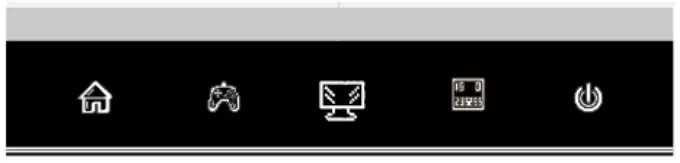
- 1. Press any one of the buttons(M/ / /E/ ) to activate the navigation window.

Press the button to switch Gameplus modes. According to the needs of your game, choose the corresponding game icon. These game icons are primarily designed to optimize your aim during shooting games, though they can be used for other scenarios.

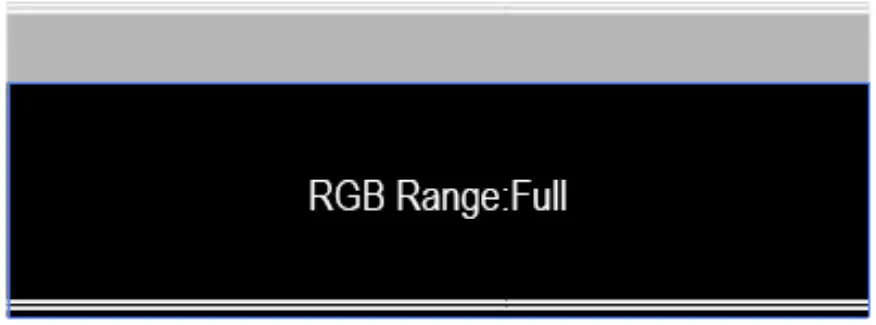
- Press the E button to switch RGB Ranges included Limited and Full. Full Range is suitable for most activities.


SPECIFICATIONS
| Model | KAMN44UWCLA |
| Screen Size | 44″ |
| Aspect Ratio | 32:09:00 |
| Backlight | E-LED |
| Brightness | 600 cd/m 2 (HDR on), 350 cd/m 2 (Ty p i c a l ) |
| Panel | IPS |
| Resolution | 3840 x 1080 |
| Refresh Rate | 120Hz |
| Response Time | 1ms |
| Viewing Angle | ≥178° (H) / 178° (V) |
| Contrast Ratio | 1000:01:00 |
| VESA Mounting | 100 x 100 |
| Colours | 1.07B |
| AMD FreeSync | Yes |
| Signal Input | DP1.2 * 1, HDMI1.4 * 1, HDMI2.0 * 1, USB-A 3.0*3, USB-B 3.0*1, USB-C 3.1*1 |
| Power | AC 100-240V~ 50/60Hz 2.2A |
| Audio | |
| Speakers | Yes |
| Audio Out | Yes |
| Additional Functions | |
| Low Blue Light | Yes |
| Physical Dimensions | |
| Dimensions (with stand) | 1089 x 547 x 287mm |
| Dimensions (without stand) | 1089 x 329 x 83mm |
| Net Weight | 11.5kg |
| Gross Weight | 14.4kg |
NOTES
—————————————————————————————————–
——————————————————————————————————
Need more information?
We hope that this user guide has given you the assistance needed for a simple set-up.
For the most up-to-date guide for your product, as well as any additional assistance you may require, head online to help.kogan.com