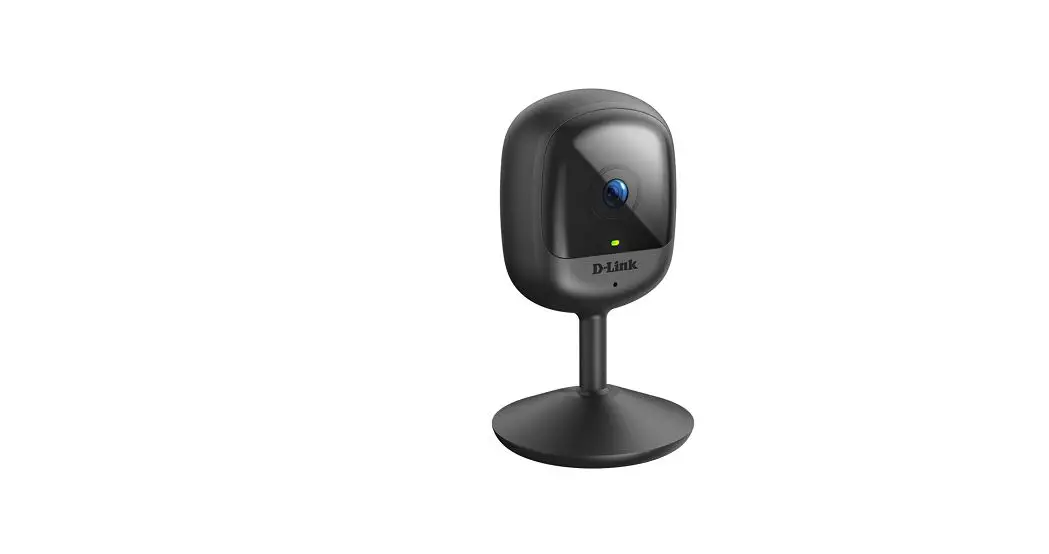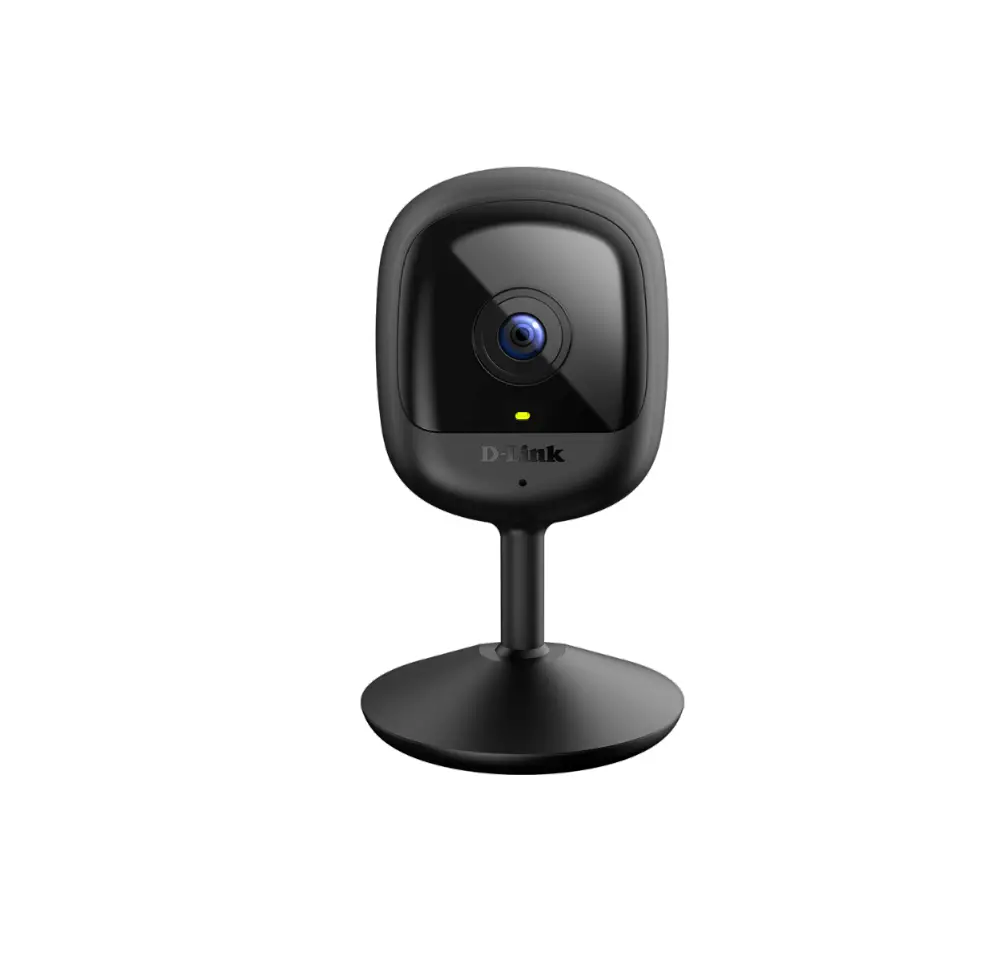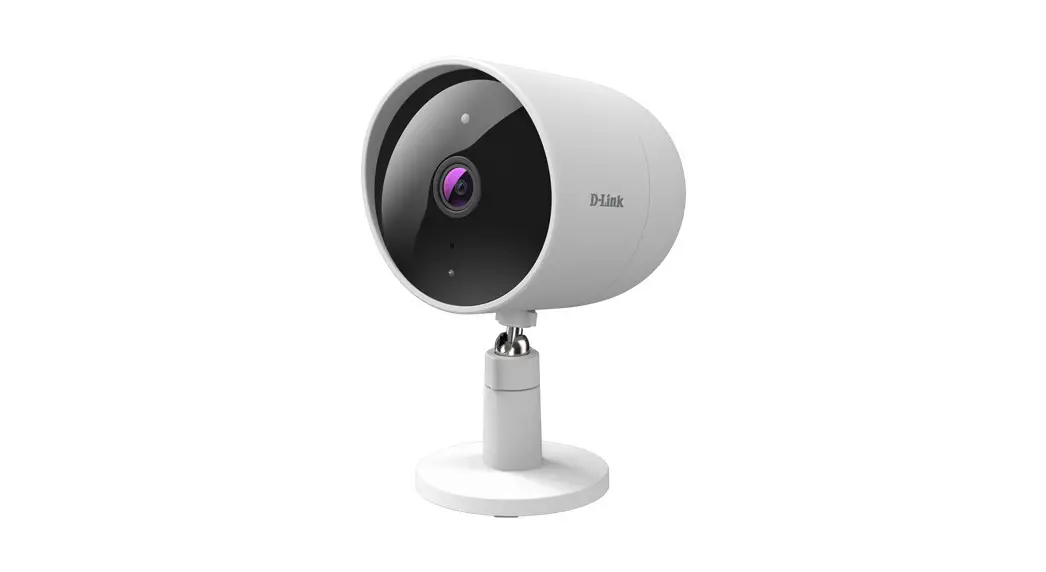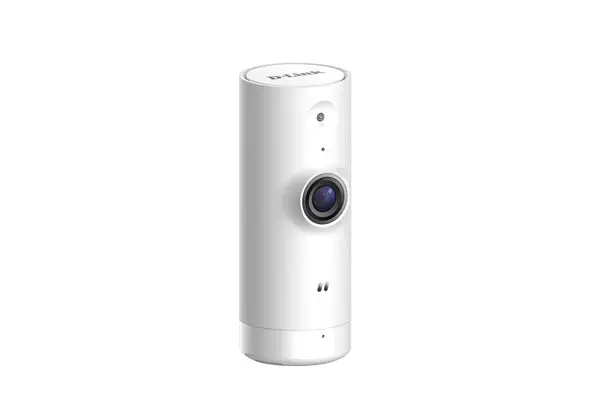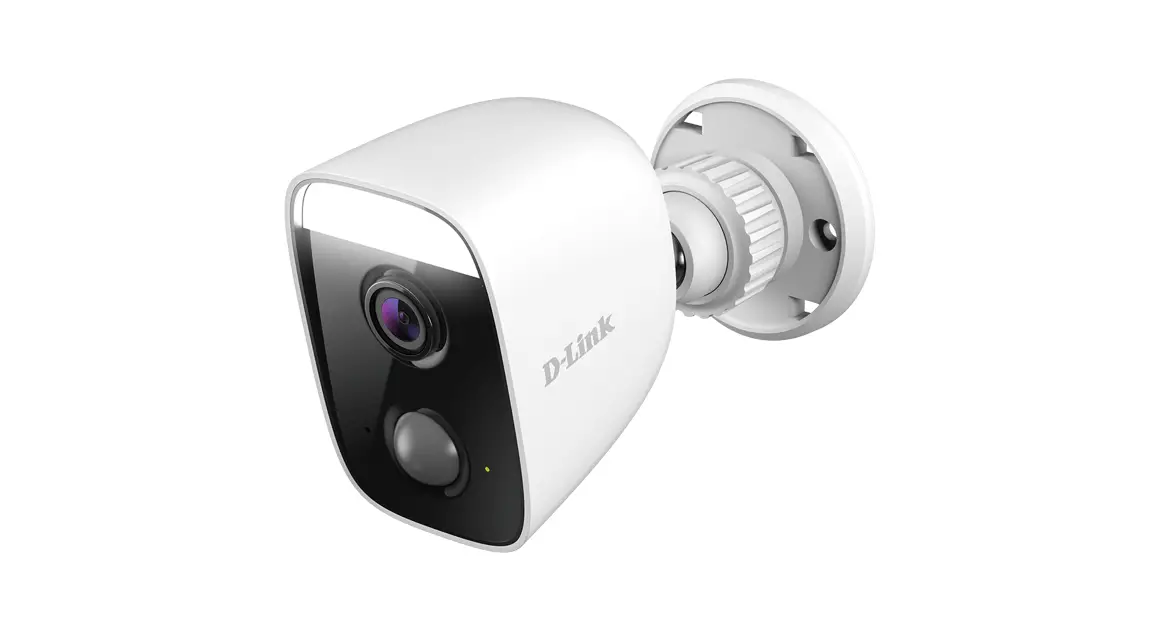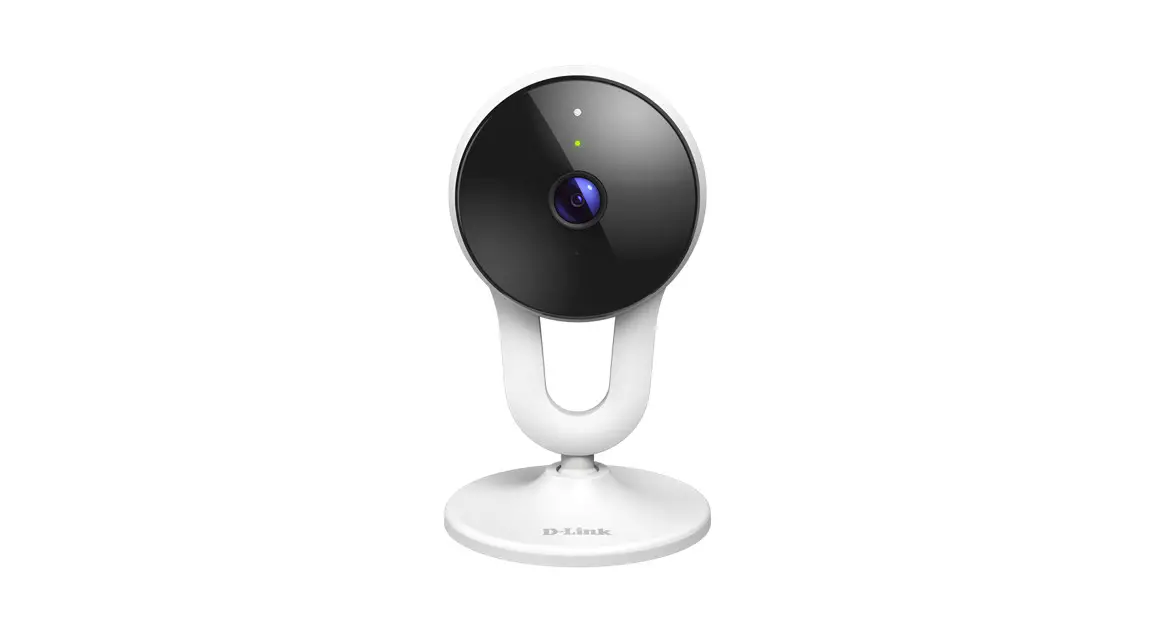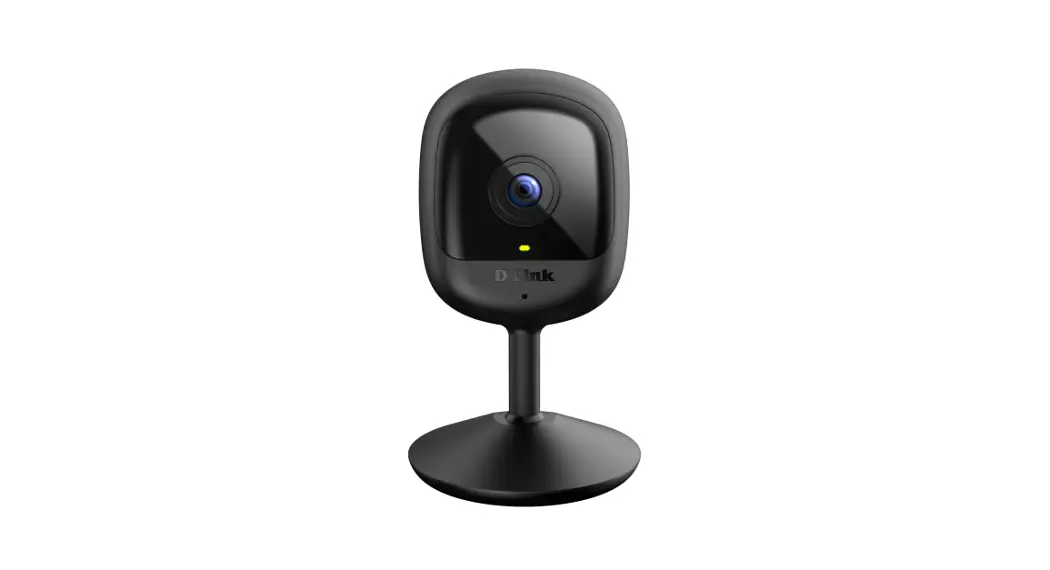

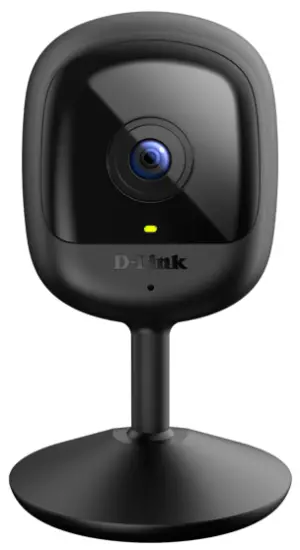
 Compact Full HD Wi-Fi Camera
DCS-6100LH
User Manual
02/18/2021
Hardware: A1
Manual Version: 1.01
Manual Overview
D-Link reserves the right to revise this publication and to make changes in the content hereof without obligation to notify any person or organization of such revisions or changes. Information in this document may become obsolete as our services and websites develop and change. Please refer to the www.mydlink.com website for the most current information.
Product Overview
Package Contents
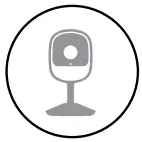 | Compact Full HD Wi-Fi Camera |
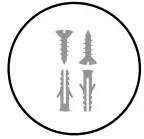 | Mounting Hardware |
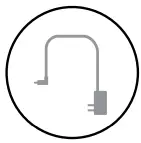 | MicroUSB Power Adapter |
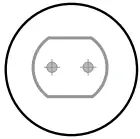 | Alignment Sticker |
 | Quick Installation Guide |
If any of the above items are missing, please contact your reseller.
Note: Using a power supply with a different voltage rating than the one included with your product will cause damage and void the warranty for this product.
Introduction
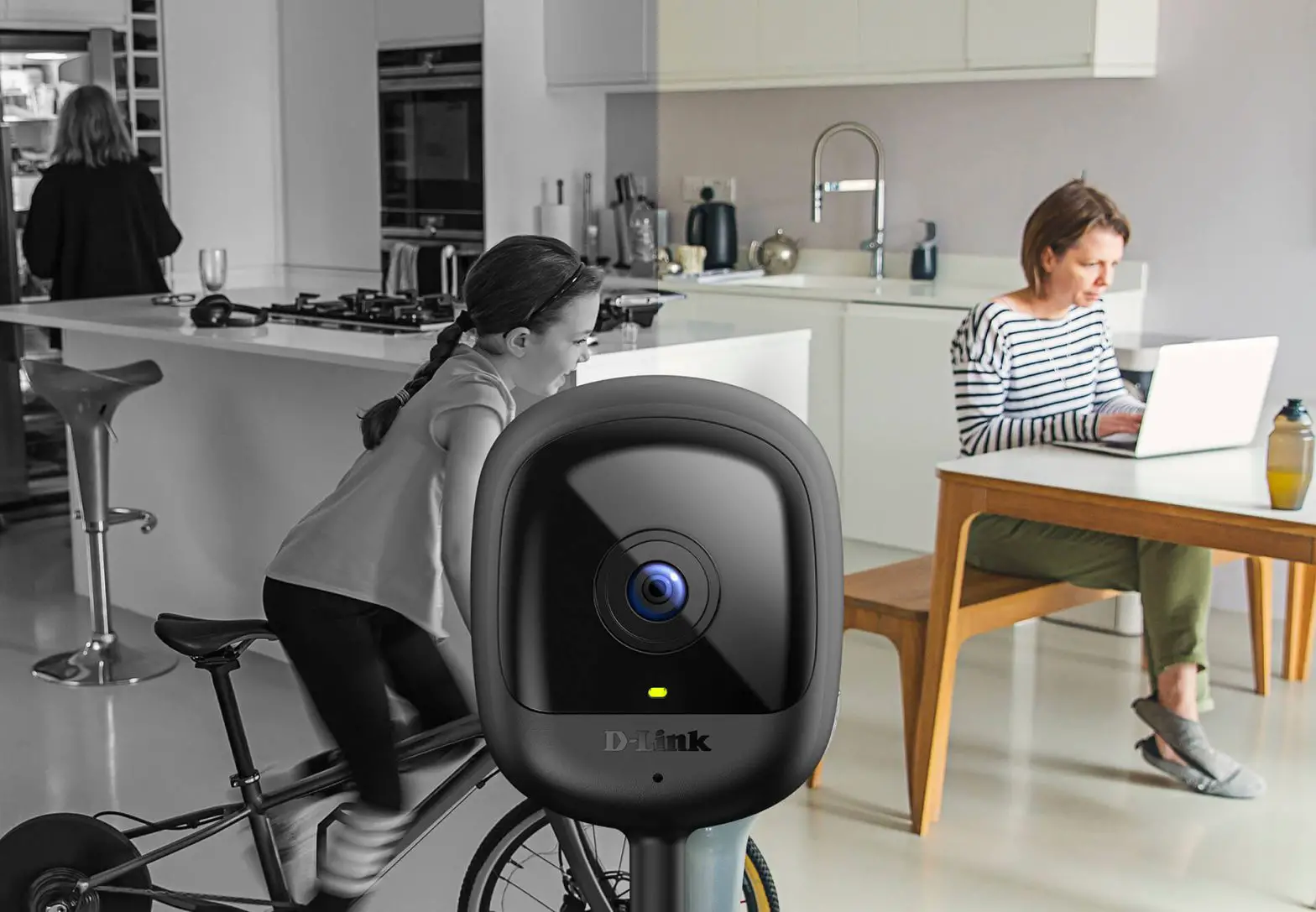
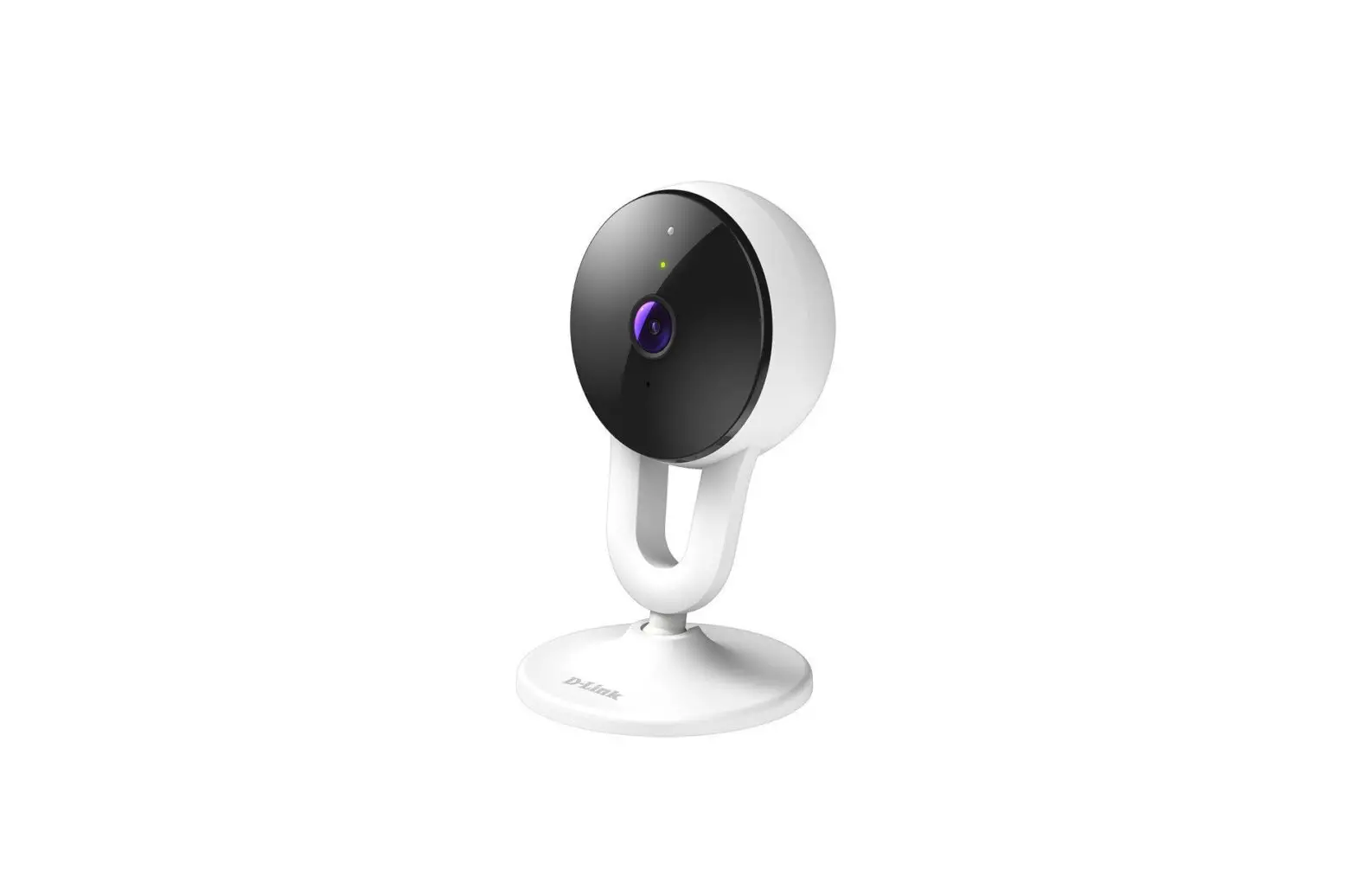
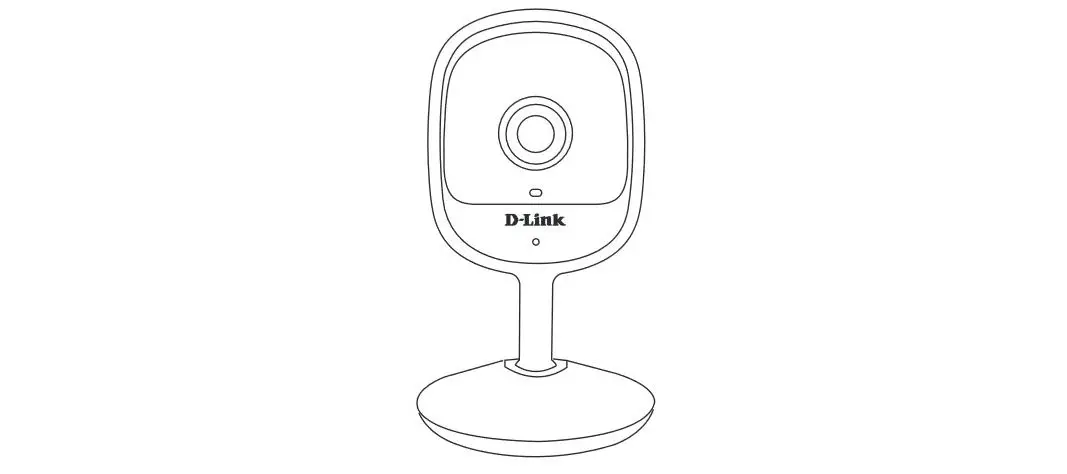
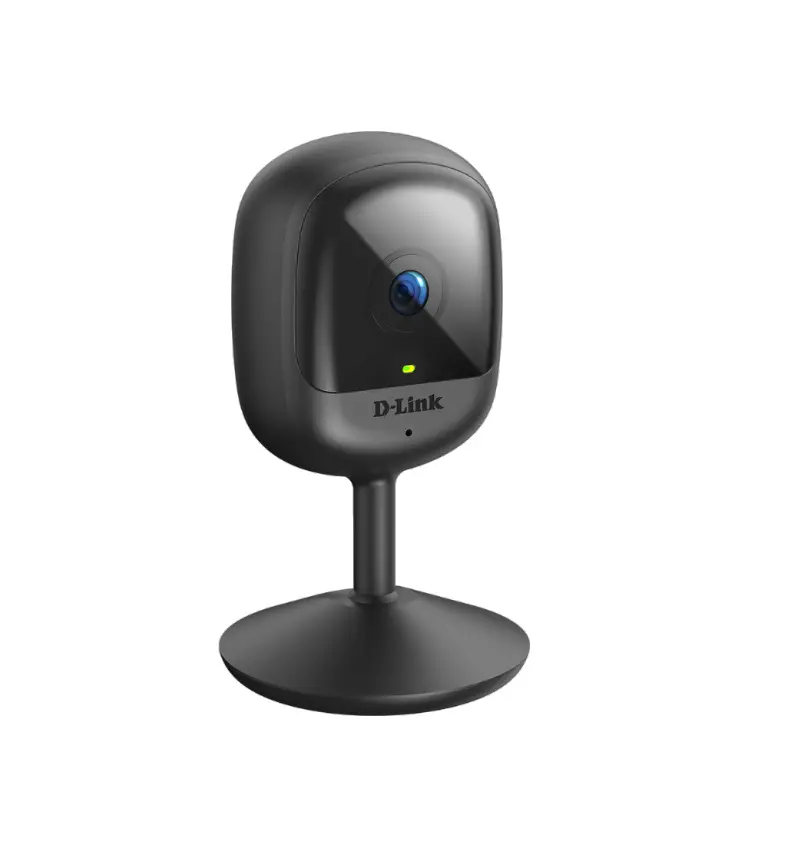
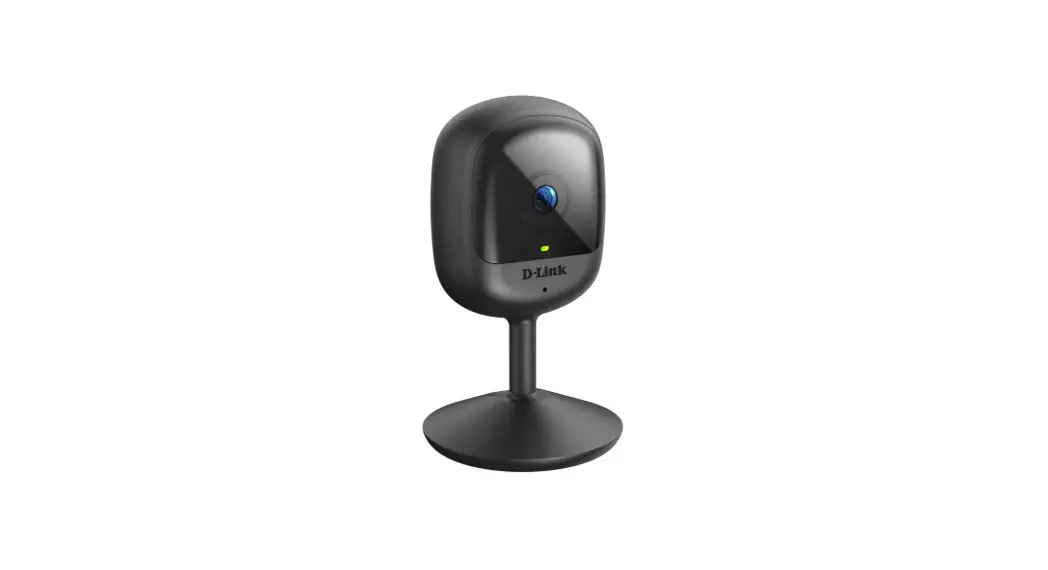
Sleek and discreet, the Compact Full HD Wi-Fi Camera blends enhanced smart home surveillance features with stylish, subtle design. IR night vision together with sound and motion detection alerts you instantly when something unexpected happens, giving you extra peace of mind with the latest in home security cameras.
System Requirements
| Network Requirements | • 802.11n/g wireless network • An Internet connection • A router connected to your broadband modem |
| mydlink™ App Requirements | • iOS or Android device (please refer to the mobile app’s store page to check whether your device is compatible) • Email account (for my link service registration) |
Hardware Overview
Front
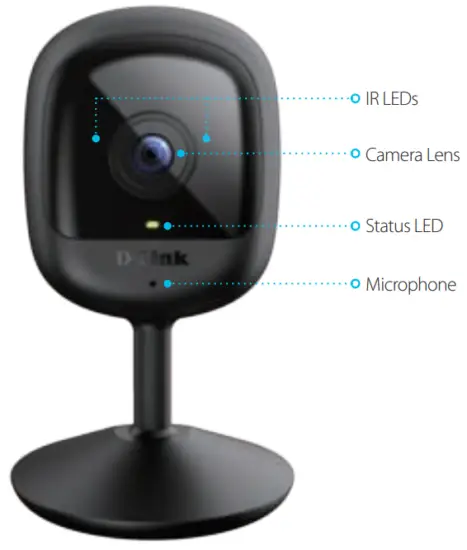
| IR LEDs | IR LEDs illuminate the device’s field of view in low-light environments. |
| Camera Lens | Records video of the surrounding area. |
| Status LED | See LED Behavior on page 5 for more information. |
| Microphone | Picks up sound near your camera. |
Back
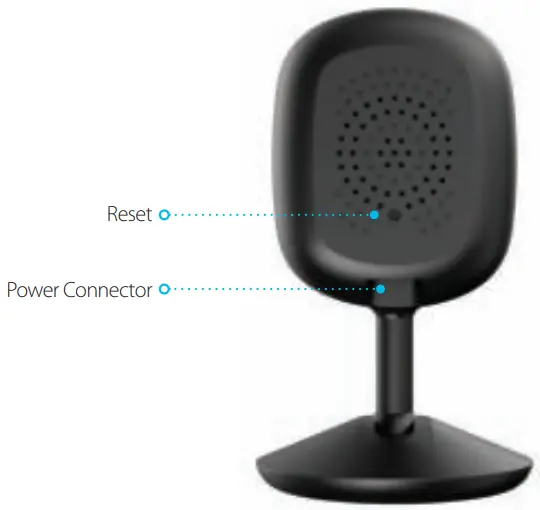
| Reset Button | Hold the recessed button down to reset the camera to factory default settings. |
| Power Connector | Attach your power adapter to this port to supply power to the device. |
LED Behavior
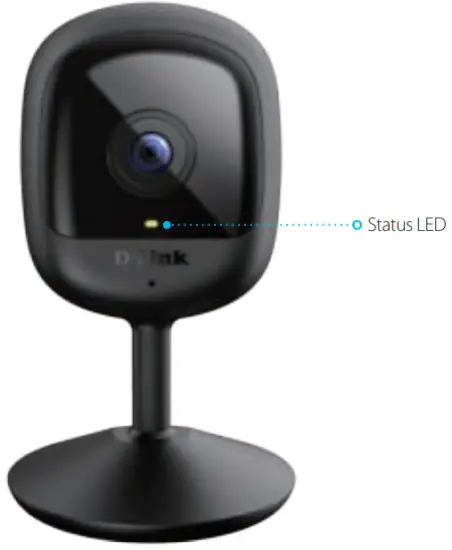
| Status LED |  | Connected to the network and mydlink. |
 | Booting up. | |
 | Wi-Fi connection lost. | |
 | Ready for set up. | |
 | Firmware being updated – do not power off. |
Installation
Safety
Please read all of the safety and operating instructions before using the device:
- Do not open the device or attempt to repair it.
- Do not submerge the device in liquid or attempt to clean it with liquids or solvents. To clean the device, disconnect it from the power outlet and use a damp towel to gently wipe it down.
Before You Begin
Plan the location of your camera:
- Verify that your camera is electrically rated to operate with the power available in your location.
- Connect the camera’s power adapter to an electrical outlet that is not controlled by a wall switch. This will help avoid accidentally turning off power to the device.
- Be sure to plug the device into a properly grounded electrical outlet in order to help prevent electrical shock.
- Make sure that the device is firmly mounted.
Wireless Installation Considerations
The DCS-6100LH Compact Full HD Wi-Fi Camera lets you view video footage from virtually anywhere within the operating range of your wireless network. Keep in mind that the number, thickness, and location of walls, ceilings, or other objects that the wireless signals must pass through may limit the range. Typical ranges vary depending on the types of materials and background RF (radio frequency) noise in your home or business. The key to maximizing wireless range is to follow these basic guidelines:
- Keep the number of walls and ceilings between the camera and wireless access point to a minimum – each wall or ceiling can reduce your camera’s range from 1 to 30 meters (3 to 90 feet). Position your devices so that the number of walls or ceilings is minimized.
- Be aware of the direct line between network devices. A wall that is 0.5 meters (1.5 feet) thick, at a 45-degree angle appears to be almost 1 meter (3 feet) thick. At a 2-degree angle, it looks over 14 meters (42 feet) thick! Position devices so that the signal will travel straight through a wall or ceiling (instead of at an angle) for better reception.
- Building materials make a difference. A solid metal door or aluminum studs may have a negative effect on range. Try to position access points, wireless routers, and cameras so that the signal passes through drywall or open doorways.
Materials and objects such as glass, steel, metal, walls with insulation, water (fish tanks), mirrors, file cabinets, brick, and concrete will degrade your wireless signal. - Keep your product away at least 1 to 2 meters (3 to 6 feet) from electrical devices or appliances that generate RF noise.
mydlink App Camera Setup
- Download the mydlink app from the App Store (iOS) or Google Play (Android) by scanning the QR code.
Note: Ensure that your device is wirelessly connected to the network that the DCS-6100LH will be in. https://d1rvtd08ngd4ef.cloudfront.net/new+mydlink/getUAP03.html?ios=1311150377&aos=com.dlink.mydlinkunified
 - Launch the mydlink app and create a new account or sign in to your existing account.
Note: If you are asked about allowing the app to access your location or to send notifications, select Allow. Make sure location services and Bluetooth are turned on in your phone’s settings.
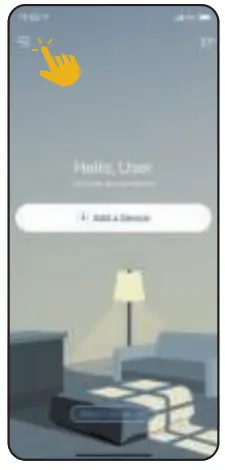
- After logging in, tap the Menu button in the top-left corner.

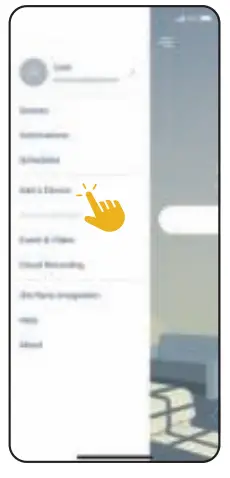
- Select Add a Device.
Follow the on-screen instructions to complete the device setup.
Mounting the Camera
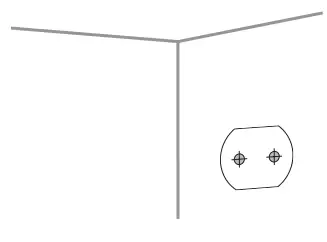
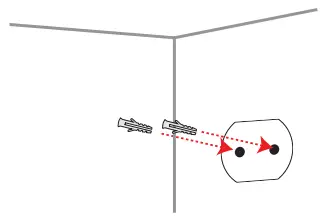
- Stick the alignment sticker where you would like to place the camera.

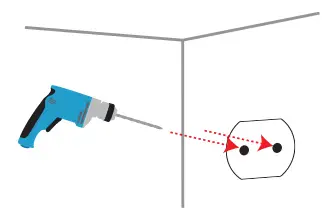
- Use an 8 mm drill bit to drill two 25 mm deep holes as indicated on the alignment sticker.

- Hammer in the plastic wall anchors to support the screws.

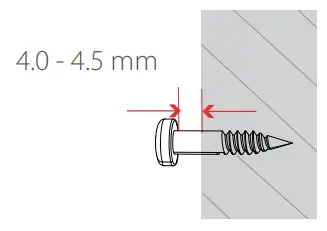
- Twist the screws into the anchors, leaving the top exposed. Do not overtighten the screws.

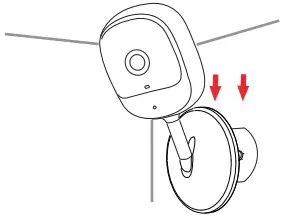
- Align the mounting holes on the bottom of the camera with the screws.
Slide the camera down to lock it into place.
Using the mydlink App
Controlling Your Device
Note: Screenshots are representative only. The mydlink app is constantly being updated and so may appear different.
After setting up your DCS-6100LH Compact Full HD Wi-Fi Camera with a mydlink account in the mydlink app, you will be able to remotely access your camera through the app. After signing in to your mydlink account, you will see a screen similar to the one on the right.
To access the device control options, tap to watch the live view, then tap again to access the control page. The following controls are available: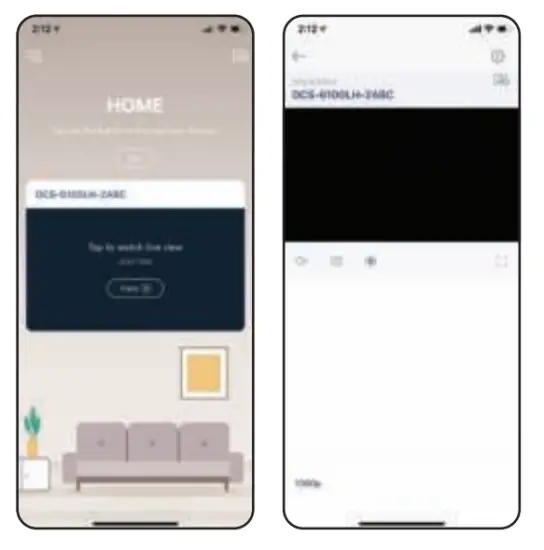
| Audio | Tap  to disable audio. Tap to disable audio. Tap  to enable audio. to enable audio. |
| Snapshot | Tap  to take a snapshot of the video stream. to take a snapshot of the video stream. |
| Recording | Tap  to enable video stream recording. to enable video stream recording. |
Device Settings
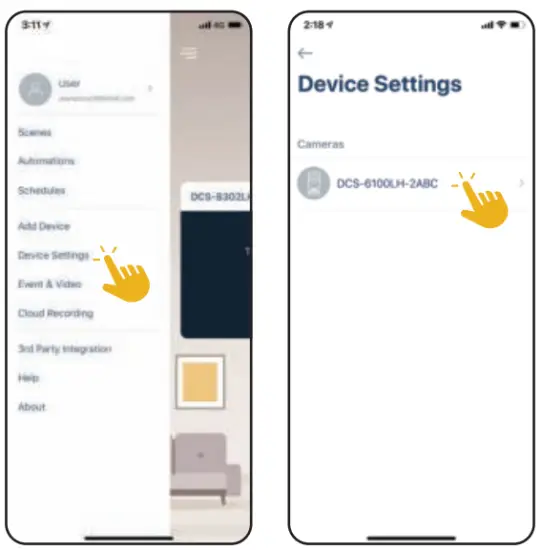
To access the Device Settings page:
- Tap

- Tap Device Settings.
- Tap the device you want to access the settings for.

The device page contains several options for you to configure your camera.
| 1 | Device Name | Tap to change the device’s name. | 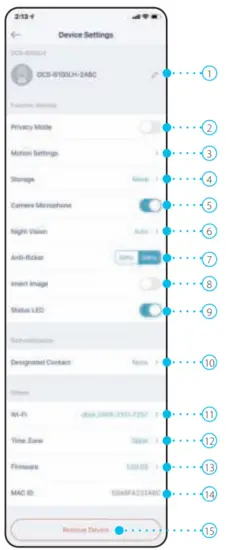 |
| 2 | Privacy Mode | Tap to enable. Privacy mode will disable the camera feed. | |
| 3 | Motion Settings | Tap to set the Motion area and sensitivity settings. | |
| 4 | Storage | Tap to change the video clips storage location from the microSD card to the cloud. You can also subscribe to my link Cloud from here and view your current subscription plan. Storage using an SD card can only be selected if the camera supports it. | |
| 5 | Camera Microphone | Tap to enable or disable picking up sound near your camera in live view and recordings. | |
| 6 | Night Vision | Tap to change night vision detection to On, Off, or Auto. | |
| 7 | Anti-Flicker | Reduces flicker in the video. Tap 50 Hz or 60 Hz depending on the frequency of your lights. | |
| 8 | Invert Image | Enable this to invert the camera view. | |
| 9 | Status LED | Disabling this will turn off the LED until you turn it back on. | |
| 10 | Designated Contact | Tap here to add, remove, or edit designated contacts that appear in the rich notification. | |
| 11 | Wi- A | Tap to see the current wireless network. Note: Tap Remove Device or press the reset button if you want to change wireless networks. | |
| 12 | Time Zone | Select the time zone to calibrate your device to. | |
| 13 | Firmware | This displays the installed version of the firmware on your device. Tap to enter the update settings. You can choose the most suitable time for automatic updates. | |
| 14 | MAC ID | Identifies the device for support issues. | |
| 15 | Remove Device | Tap this button to disconnect this device from your mydlink account. |
Troubleshooting
What do I do if my device is not working properly?
Reset the device and reinstall it. To reset your device, use a paper clip to press and hold the recessed Reset button until the
LED turns solid red.
During installation, ensure that:
- your router is connected to the Internet and has Wi-Fi enabled
- your mobile device has Wi-Fi enabled
- your my dlink device is in range of your Wi-Fi network
How can I use voice commands to control my device?
The device will work with both Amazon Alexa and Google Assistant. For setup instructions on these services, visit the following websites:
Alexa: dlink.com/en/alexa
The Google Assistant: dlink.com/en/google-assistant
Technical Specifications
| General | |
| Video Compression | H.264 |
| Max. Resolution | 2 Megapixel (Full HD) |
| Max. Frame | 1080p (1920 x 1080) |
| Image Sensor | 1/3” Progressive CMOS sensor |
| Day & Night – IR LED | 5 m (16 ft) |
| Focal Length | 3.3 mm |
| Aperture | F2.4 |
| Angle of View | (H) 90° (V) 60° (D) 110° |
| Mechanical PTZ | No |
| Audio | Built-in microphone |
| Audio Codec | MPEG-2 AAC LC |
| Functionality | |
| Wireless IEEE Standard | 802.11n/g wireless |
| Wi-Fi Operation Band | 2.4 GHz |
| Security Protocol | WPA3™ |
| Network Protocols | IPv4, Bonjour (mDNS and DNS-SD), RTSP, SRTP, RTP/SRTP, HTTPS |
| Software | |
| Device Management | mydlink app (iOS and Android), mydlink Portal |
| Features | Motion detection, Sound detection |
| Recording | my link is Cloud Recording |
| Notifications | Push notifications with a snapshot and quick action buttons (2 designated contact numbers and live view) |
| Voice Assistants | Amazon Alexa, the Google Assistant |
| Power Input | 100 to 240 V AC, 50/60 Hz |
| Power Output | 5 V DC 1.0 A |
| Max. Power Consumption | 4 W ± 5% |
| Cable Length | 1.5 m (4.9 ft) |
| Indoor / Outdoor | For indoor use |
| Operating Temperature | 0 to 40 °C (32 to 104 °F) |
| Storage Temperature | -20 to 70˚ C (-4 to 158 °F) |
| Operating Humidity | Max. 90% non-condensing |
| Storage Humidity | Max. 90% non-condensing |
| Weight | 65 g ± 5 g (2.3 oz ± 0.2 g) |
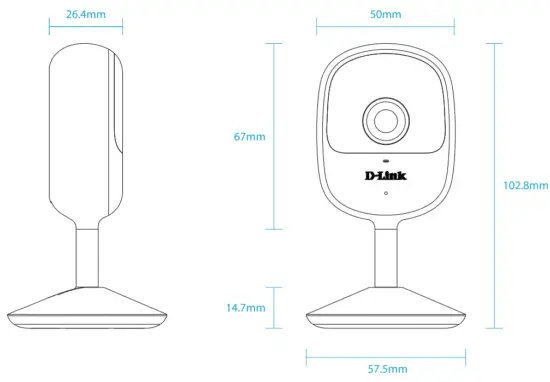
| Dimensions | 57.5 x 26.4 x 104 mm (2.3 x 1.0 x 4.1 in) |
 Regulatory Information
 Regulatory Information
Federal Communication Commission Interference Statement
This equipment has been tested and found to comply with the limits for a Class B digital device, pursuant to part 15 of the FCC Rules. These limits are designed to provide reasonable protection against harmful interference in a residential installation. This equipment generates, uses, and can radiate radio frequency energy and, if not installed and used in accordance with the instructions, may cause harmful interference to radio communications. However, there is no guarantee that interference will not occur in a particular installation. If this equipment does cause harmful interference to radio or television reception, which can be determined by turning the equipment off and on, the user is encouraged to try to correct the interference by one or more of the following measures:
– Reorient or relocate the receiving antenna.
– Increase the separation between the equipment and receiver.
– Connect the equipment into an outlet on a circuit different from that to which the receiver is connected.
– Consult the dealer or an experienced radio/TV technician for help.
FCC Radiation Exposure Statement
This device complies with FCC radiation exposure limits set forth for an uncontrolled environment and it also complies with Part 15 of the FCC RF Rules. This equipment must be installed and operated in accordance with provided instructions and the antenna(s) used for this transmitter must be installed to provide a separation distance of at least 20 cm from all persons and must not be co-located or operating in conjunction with any other antenna or transmitter. End-users and installers must be provided with antenna installation instructions and consider removing the collocation statement.
This device complies with Part 15 of the FCC Rules. Operation is subject to the following two conditions:
- This device may not cause harmful interference, and
- This device must accept any interference received, including interference that may cause undesired operation.
Caution:
Any changes or modifications not expressly approved by the party responsible for compliance could void the user’s authority to operate the equipment.
Innovation, Science and Economic Development Canada (ISED) Statement:
This device complies with Industry Canada’s license-exempt RSS. Operation is subject to the following two conditions:
(1) this device may not cause interference, and
(2) this device must accept any interference, including interference that may cause undesired operation of the device.
 | Frequency Band(s) Frequent and | Max. Output Power (EIRP) Max. Output Power |
| 2.4 G | 2.4 – 2.4835 GHz | 100 mW |
Warning Statement:
The power outlet should be near the device and easily accessible.
NOTICE OF WIRELESS RADIO LAN USAGE IN THE EUROPEAN COMMUNITY (FOR WIRELESS PRODUCTS ONLY):
- This device is restricted to indoor use when operated in the European Community using channels in the 5.15-5.35 GHz band to reduce the potential for interference.
- This device is a 2.4 GHz wideband transmission system (transceiver), intended for use in all EU member states and EFTA countries. This equipment may be operated in AL, AD, BE, BG, DK, DE, FI, FR, GR, GW, IS, IT, HR, LI, LU, MT, MK, MD, MC, NL, NO, AT, PL, PT, RO, SM, SE, RS, SK, ES, CI, HU, and CY.
Usage Notes:
- To remain in conformance with European National spectrum usage regulations, frequency and channel limitations will be applied to the products according to the country where the equipment will be deployed.
- This device is restricted from functioning in Ad-hoc mode while operating in 5 GHz. Ad-hoc mode is direct peer-to-peer communication between two client devices without an Access Point.
- Access points will support DFS (Dynamic Frequency Selection) and TPC (Transmit Power Control) functionality as required when operating in the 5 GHz band within the EU.
- Please refer to the product manual or datasheet to check whether your product uses 2.4 GHz and/or 5 GHz wireless.
SAFETY INSTRUCTIONS
The following general safety guidelines are provided to help ensure your own personal safety and protect your product from potential damage.
Remember to consult the product user instructions for more details.
- Static electricity can be harmful to electronic components. Discharge static electricity from your body (i.e. touching grounded bare metal) before touching the product.
- Do not attempt to service the product and never disassemble the product. For some products with a user-replaceable battery, please read and follow the instructions in the user manual.
- Do not spill food or liquid on your product and never push any objects into the openings of your product.
- Do not use this product near water, areas with high humidity, or condensation unless the product is specifically rated for outdoor application.
- Keep the product away from radiators and other heat sources.
- Always unplug the product from mains power before cleaning and use a dry lint-free cloth only.
Disposing of and Recycling Your Product
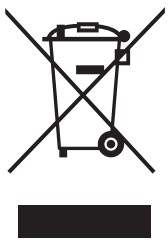 This symbol on the product or packaging means that according to local laws and regulations this product should not be disposed of in household waste but sent for recycling. Please take it to a collection point designated by your local authorities once it has reached the end of its life, some will accept products for free. By recycling the product and its packaging in this manner you help to conserve the environment and protect human health.
Manual Revisions
| Revision | Date | Description |
| 1.01 | February 18, 2021 | Initial release |
Trademarks
D-Link and the D-Link logo are trademarks or registered trademarks of D-Link Corporation or its subsidiaries in the United
States or other countries. All other company or product names mentioned herein are trademarks or registered trademarks
of their respective companies.
Copyright © 2021 by D-Link Corporation, Inc.
All rights reserved. This publication may not be reproduced, in whole or in part, without prior expressed written permission from D-Link Corporation, Inc.
 Consumer | D-Link
 CSR | D-Link
 Consumer | D-Link
 CSR | D-Link
 mydlink