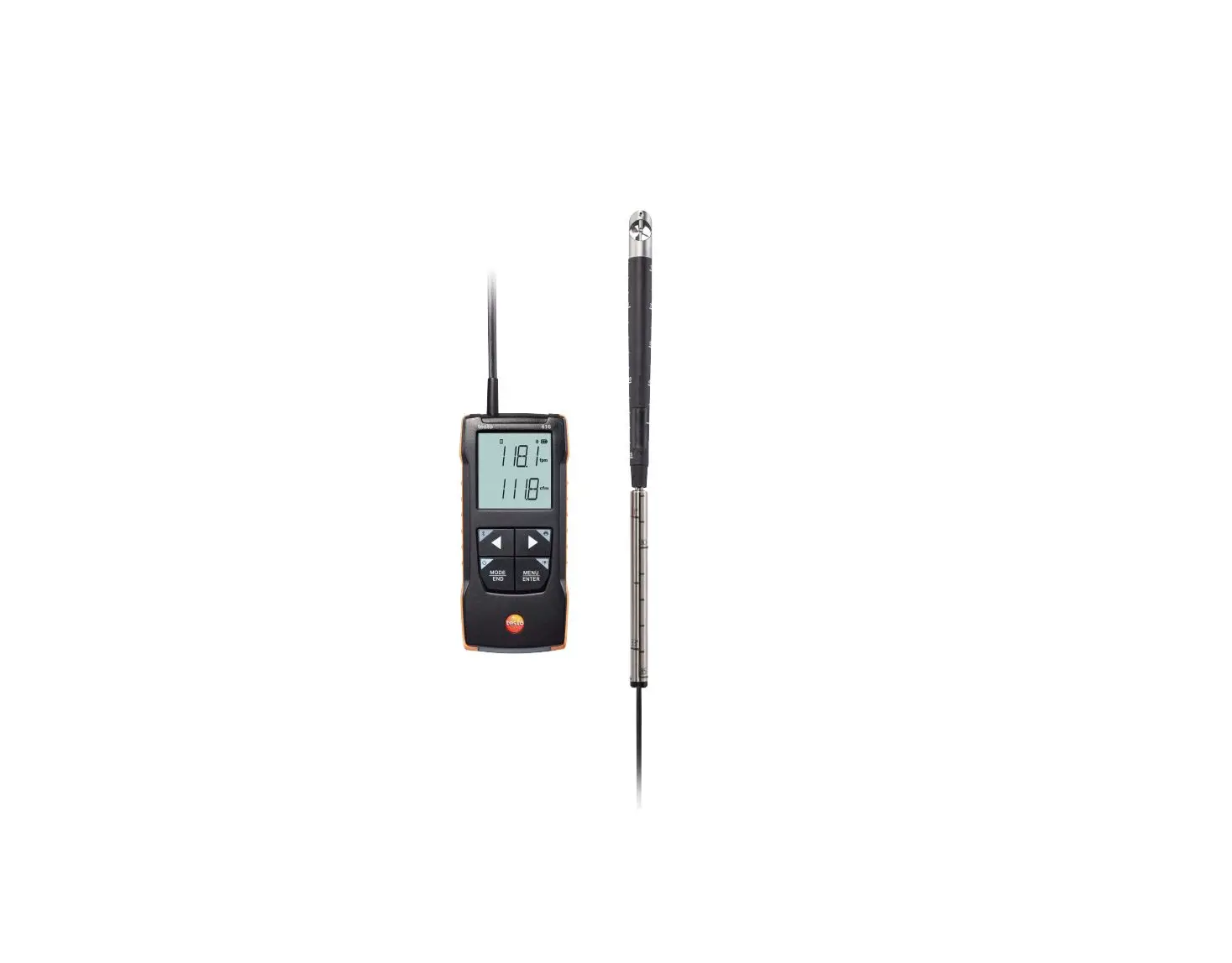

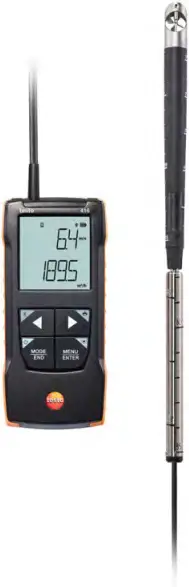
testo 416 – Digital 16 mm vane anemometer
0560 0416
Instruction manual
1 About this document
- The instruction manual is an integral part of the instrument.
- Keep this documentation to hand so that you can refer to it when necessary.
- Always use the complete original instruction manual.
- Please read this instruction manual through carefully and familiarize yourself with the product before putting it to use.
- Hand this instruction manual on to any subsequent users of the product.
- Pay particular attention to the safety instructions and warning advice in order to prevent injury and damage to the product.
2 Safety and disposal
2.1 Security
General safety instructions
- Only operate the product properly, for its intended purpose, and within the parameters specified in the technical data.
- Do not apply any force.
- Do not operate the instrument if there are signs of damage to the housing or connected cables.
- Dangers may also arise from objects to be measured or the measuring environment. Always comply with the locally valid safety regulations when carrying out measurements.
- Do not store the product together with solvents.
- Do not use any desiccants.
- Only perform maintenance and repair work on this instrument that is described in this documentation. Follow the prescribed steps exactly when doing the work.
- Use only original spare parts from Testo.
Batteries
- Improper use of batteries may cause the batteries to be destroyed, or lead to injury due to current surges, fire or escaping chemicals.
- Only use the batteries supplied in accordance with the instructions in the instruction manual.
- Do not short-circuit the batteries.
- Do not take the batteries apart and do not modify them.
- Do not expose the batteries to heavy impacts, water, fire or temperatures in excess of 60 °C.
- Do not store the batteries in the proximity of metal objects.
- In the event of contact with battery acid: rinse affected areas thoroughly with water, and if necessary consult a doctor.
- Do not use any leaky or damaged batteries.
Warnings
Always pay attention to any information denoted by the following warnings. Implement the precautionary measures specified!

Risk of death!

Indicates possible serious injury.

Indicates possible minor injury.

Indicates possible damage to equipment.
2.2 Disposal
- Dispose of faulty rechargeable batteries and spent batteries in accordance with the valid legal specifications.
- At the end of its useful life, deliver the product to the separate collection point for electric and electronic devices (observe local regulations) or return the product to Testo for disposal.
 WEEE Reg. No. DE 75334352
3 Product-specific information
- Do not carry out measurements on live components.
- Do not expose handles and feed lines to temperatures in excess of 70°C unless they are expressly approved for higher temperatures. Temperature specifications on probes/sensors refer only to the measuring range of the sensor system.
- Only open the measuring instrument if this is expressly described in the documentation for the purposes of maintenance or servicing.
4 Intended use
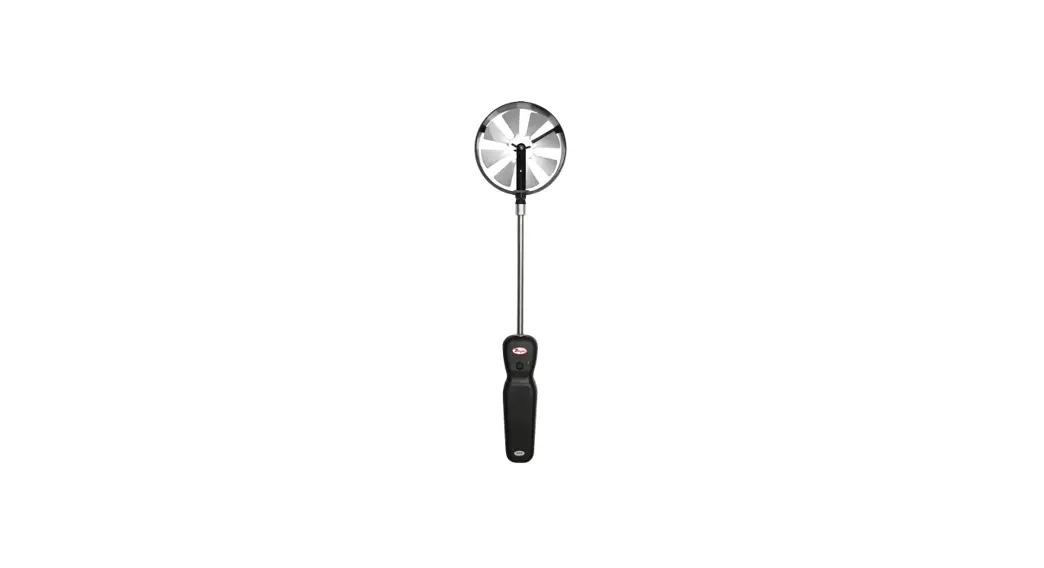
The testo 416 is a compact measuring instrument for measuring flow velocities by means of a permanently connected telescopic vane. It is intended for indoor use only.
The product is designed for the following tasks/areas:
- Volume flow measurements in ducts
The product should not be used in the following areas:
- In potentially explosive atmospheres.
- For diagnostic measurements in the medical field.
5 Product description
5.1 Instrument overview
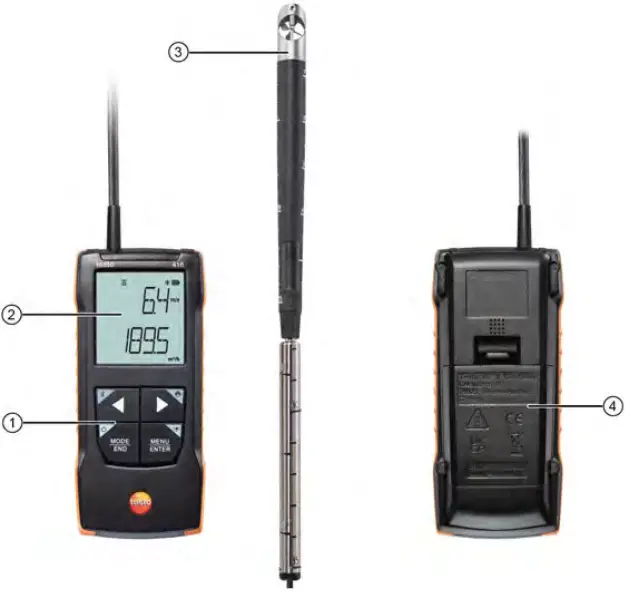 | |||
| 1 | Control keys | 2 | Display |
| 3 | Probe | 4 | Battery compartment |
Explanation of icons
 | Refer to instruction manual |
Damage to sensor possible!
– Do not touch sensor!
– Close the protective sleeve after the measurement.
6 First steps
6.1 Inserting / changing batteries
Serious risk of injury to the user and/or destruction of the instrument.
There is a risk of explosion if the batteries are replaced with ones that are the wrong type.
– Only use non-rechargeable alkaline batteries.
 | The instrument is switched off.
1 | Open the battery compartment (on the back of the instrument) via the snap lock.
2 | Insert or replace batteries (3 x AA alkaline batteries).
Observe the polarity!
3 | Close the battery compartment.
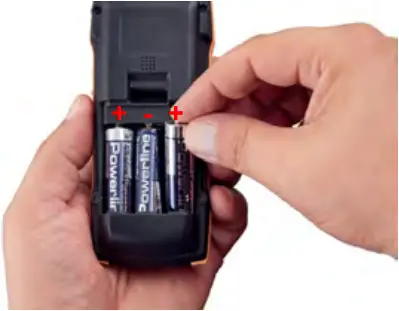
 When not in use for a long period: Take out the batteries.
Symbol explanation
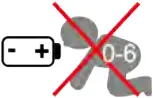 | Do not allow children under 6 years of age to play with batteries. |
 | Do not throw batteries in the trash. |
 | Do not charge batteries. |
 | Do not place batteries near fire. |
 | Batteries are recyclable. |
6.2 Getting to know the product
6.2.1 Connecting probes
The required probes are permanently connected or integrated. It is not possible to connect any additional sensors.
6.2.2 Switching the instrument on and off
Switching on
1 | Press the On/Off key (0.5 sec).
 | Measurement view is opened:
The current reading is displayed or —– lights up if no reading is available.
Switching off
1 | Press and hold down (2 sec) the On/Off key.
| The display turns off.
6.2.3 Switching the display illumination on and off
| The measuring instrument is switched on.
1 | Press and hold down (2 sec) the MENU/ENTER key.
| The display illumination is switched on or off.
6.3 Establishing a Bluetooth® connection
The instrument can be connected to the testo Smart App via Bluetooth® connection
| The measuring instrument is switched on.
| To enable the Bluetooth® connection for the first time, press and hold (approx. 2 sec) the  key.
key.
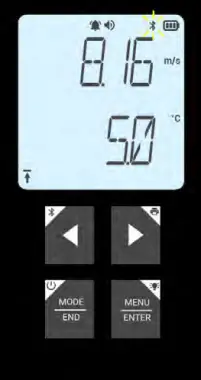
While the instrument is trying to establish a Bluetooth® connection, the  icon flashes on the display.
Bluetooth® remains enabled until it is disabled manually by pressing and holding (approx. 2 sec) the key.
The measuring instrument saves the Bluetooth® setting and, depending on the configuration, starts up with Bluetooth® enabled or disabled.
6.3.1 Establishing a Bluetooth® connection to the testo Smart App
To establish a connection via Bluetooth®, you need a tablet or smartphone with the Testo Smart App already installed on it.
You can get the App for iOS instruments in the App Store or for Android instruments in the Play Store.
Compatibility:
Requires iOS 13.0 or later/Android 8.0 or later, requires Bluetooth® 4.2.


| Bluetooth® is enabled in the measuring instrument.
1 | Open the testo Smart App.
| The app automatically searches for Bluetooth® devices in the vicinity.
2 | In the Sensors menu, check whether the required instrument is connected.
| If necessary, switch the instrument to be connected off and on again to restart the connection module.
| When the testo Smart App is connected to the measuring instrument, the  icon appears on the measuring instrument display.
The measuring instrument automatically synchronizes its date and time settings with the testo Smart App.
Once connected successfully, the current measured value from the measuring instrument appears on the app screen in the Live view.
7 Using the product
7.1 Controls on the measuring instrument
| The instrument is switched on.
| The testo Smart App is installed on the smartphone and connected to the instrument via Bluetooth®.
| Settings and controls are implemented either on the instrument or via the app.
If the measuring instrument is connected to the testo Smart App, settings can only be made via the app. The measuring instrument then remains in the measurement view and other menus, e.g. Settings, cannot be opened.
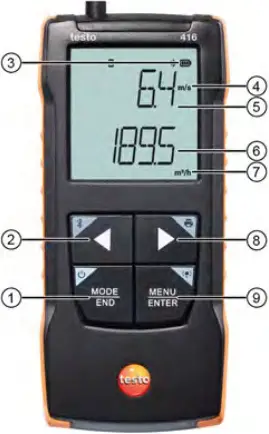 | ||
1 | On/Off / MODE/END key | |
2 | Bluetooth® / key | |
3 | Battery indicator | |
4 | Parameter 1 unit | |
5 | Parameter 1 measured value display | |
6 | Parameter 2 measured value display | |
7 | Parameter 2 selected unit | |
8 | Print /  key key | |
9 | Illumination / MENU/ENTER key | |
7.1.1 Implementing settings
Selecting, opening and setting functions
1 | Press the relevant key to select the functions
Secondary assignment (long press)
All keys with a grey corner have a secondary assignment, which can be selected by pressing and holding the key for a longer time (2 sec).
Adjustable functions
Ensure correct settings: all settings are transferred immediately. There is no Cancel function.
| Function | Setting options/comments |
Bluetooth® (long press) | Switch the Bluetooth® connection on or off |
Arrow left | Freeze reading (HOLD function), display maximum/minimum value. In configuration mode: |
On/Off (long press) | Switches the instrument on or off |
MODE/END | Select or end multi-point or continuous mean calculation. |
Display illumination (long press) | OFF (display illumination not active) or ON (display illumination active) |
MENU/ENTER | Open configuration mode Start continuous measurement / record multi-point readings In configuration mode: |
Print (long press) | Output readings via external printer |
Arrow right | In configuration mode: Increase value, select option |
7.1.2 Opening configuration mode
| The instrument is switched on and is in the measurement view.
1 | Press MENU/ENTER until the display changes.
| The instrument is now in configuration mode.
| Press MENU/ENTER to switch to the next function. You can leave configuration mode at any time. To do this, press MODE/END until the instrument has changed to the measurement view. Any changes that have already been made in configuration mode will be saved.
7.1.3 Setting the unit
| Configuration mode is open, “UNITS” is displayed.
1 | Press / to choose between metric (“METR”) and imperial (“IMPER”) units of measurement and confirm with MENU/ENTER.
2 | Press / to set the required unit for the top line (m/s, fpm) and confirm with MENU/ENTER.
3 | Press / to set the required unit for the bottom line (m3/h, l/s, cfm) and confirm with MENU/ENTER.
7.1.4 Setting the area
| Configuration mode is open, “AREA” is displayed.
1 | Press / to select whether the cross-sectional area is to be entered in m² or in mm² and confirm with MENU/ENTER.
2 | Press / to set the cross-sectional area and confirm with MENU/ENTER.
The measuring instrument can show a maximum of 5 digits in the display (99999 mm²). Conversions from m² to mm² with a value greater than 0.09 m² are therefore not possible!
7.1.5 Carrying out a reset of the setting menus
| Configuration mode is open, “M. RES” (menu reset) is displayed.
1 | Press / to select the required option and confirm with MENU/ENTER:
o NO: Do not carry out reset.
o YES: Carry out reset. All concealed menus that were hidden via the testo Smart App are displayed again.
| The instrument returns to measurement view.
7.1.6 Carrying out a reset of the measuring instrument
| Configuration mode is open, “RESET” is displayed.
1 | Press / to select the required option and confirm with MENU/ENTER:
o NO: Do not carry out reset.
o YES: Carry out reset. The instrument is reset to the factory settings.
| The instrument returns to measurement view.
7.2 Measuring
| The instrument is switched on and is in the measurement view.
1 | Position the probe.
Position the probe head in the flow so that the point marking shown on the probe head is exposed to the flow.
The correct measurement value is determined by rotating the probe slightly in both directions until the maximum value is displayed.
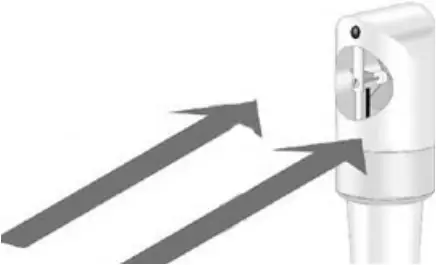
2 | Read the measured values on the display.
7.2.1 Freezing a reading, displaying the maximum/minimum value
The current reading can be frozen. The maximum and minimum values since the last time the instrument was switched on in the standard view or during a multi-point or continuous measurement can be displayed.
1 | Press several times until the desired value is displayed.
| The following are displayed in turn:
o Hold: frozen measured value
o Max: Maximum value
o Min: Minimum value
o Current measuring value
7.2.2 Resetting maximum/minimum values
The maximum/minimum values of all channels can be reset to the current reading.
1 | Press several times until Max or Min is shown.
2 | Hold down (approx. 2 s).
| All maximum and minimum values are reset to the current reading.
7.2.3 Carrying out multi-point mean calculation
1 | Press MODE/END.
|  flashes.
| The number of readings recorded is displayed in the upper line, while the current reading is displayed in the lower line.
2 | To record readings (in the desired quantity):
Press MENU/ENTER (several times).
3 | To end measurement and calculate the mean value:
Press MODE/END.
| and  flash.
The number of measured values and the calculated multi-point mean value are displayed.
4 | To switch back to the measuring view:
Press MODE/END.
7.2.4 Carrying out continuous mean calculation
1 | Press MODE/END twice.
|  flashes.
| The elapsed measuring time (mm:ss) is displayed in the upper line, while the current reading is displayed in the lower line.
2 | Start measurement:
Press MENU/ENTER.
3 | To interrupt/continue measurement:
Press MENU/ENTER each time.
4 | To end measurement and calculate the mean value:
Press MODE/END.
| and flash.
The measurement period and the calculated continuous mean value are displayed.
5 | To switch back to the measuring view:
Press MODE/END.
7.3 Printing data
| A testo Bluetooth®/IRDA printer (order no. 0554 0621) is connected via Bluetooth and switched on.
When first setting up a connection between the testo measuring instrument and the testo Bluetooth®/IRDA printer, the initialization phase can last up to 30 seconds.
1 | Press and hold to transfer the data to the printer.
| Data is printed out (LED on the printer lights up green).
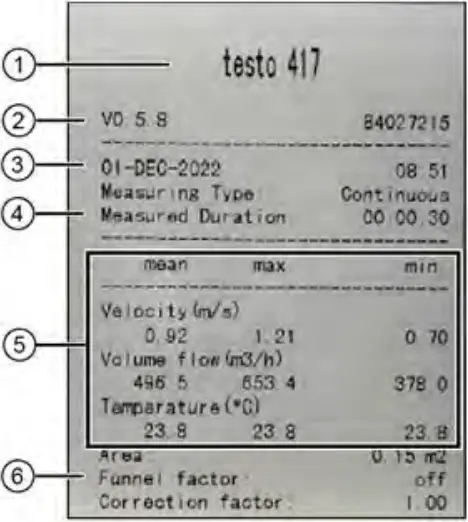 | |||
1 | Instrument name | 2 | Firmware version and serial number |
3 | Date and time of printout | 4 | Measuring type and measured duration |
5 | Measurement values | 6 | Measurement parameters |
8 Controls via testo Smart App
If the measuring instrument is connected to the testo Smart App, it is primarily operated via the app. The measuring instrument remains in the measurement view and settings menus cannot be opened on the measuring instrument.
8.1 Overview of operating controls
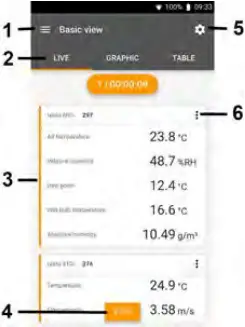 | |||
1 | Choice of applications | 2 | Switch between the views (live, graphic, table) |
3 | Display of connected measuring instruments including readings | 4 | Start/stop |
5 | Measurement configuration (the menu changes depending on the measuring instrument connected and the application selected) | 6 | Configuration of the measuring instrument |
Additional symbols on the user interface of the app (not numbered)
 | One level back |
 | Exit view |
 | Share measurement data/report |
 | Searching |
 | Favourite |
 | Deleting |
 | Further information |
 | Display report |
 | Multiple selection |
The Main menu can be accessed via the  icon at top left. To exit the main menu, select a menu or right-click on the guided menus. The last screen displayed is shown.
 | Measure | 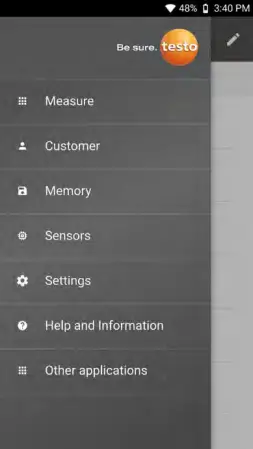 |
 | Customer | |
 | Memory | |
 | Sensors | |
 | Settings | |
 | Help and Information | |
| Other applications |
8.2 App options
8.2.1 Setting the language
1 | Click on .
2 | Select Settings.
3 | Select Language.
| A selection list is displayed.
4 | Select the required language.
| The language is changed.
8.2.2 Displaying App Info
In App Info you can find the version number of the installed App.
1 | Click on .
2 | Select Help and Information.
3 | Select Instrument information.
| The version number of the app and the ID are displayed.
8.2.3 Displaying the tutorial
The tutorial guides you through the first steps in operating the testo Smart App.
1 | Click on .
2 | Select Help and Information.
| The tutorial is displayed. In the tutorial, swipe to display the next page.
3 | Click X to quit the tutorial.
8.3.1 Selecting an application menu
1 | Click on .
| A selection of menus for various applications is displayed.
2 | Select the required application.
| Your selected application is displayed.
8.3.2 Setting favourites
1 | Click on .
| A selection of menus for various applications is displayed.
2 | Select the application you want to set as a favourite.
3 | Click on  .
.
| The star is displayed in orange:  .
.
8.3.3 Displaying information about an application
1 | Click on .
| A selection of applications is displayed.
2 | Click on  .
.
| The information about an application is displayed.
8.4 Making measuring instrument settings
| The measuring instrument is connected to the testo Smart App.
1 | Click on .
| The main menu opens.
2 | Click on Sensors.
| The Sensors menu opens.
3 | Click on the required measuring instrument.
| Information about the model, order number, serial number and firmware version is displayed.
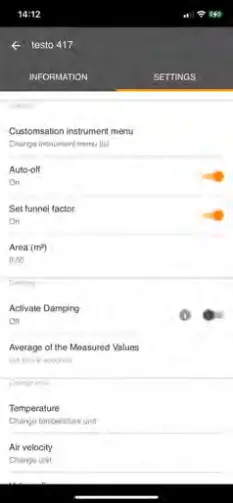
4 | Click on the Settings tab.
| – A window with settings for the respective measuring instrument opens.
In addition to the settings that can be performed on the measuring instrument, additional settings can also be made.
5 | Click on the blue text under a setting heading to activate or disable settings or to open an input window to enter a specific value or select a unit.
For details on the settings options, see the following sub-sections.
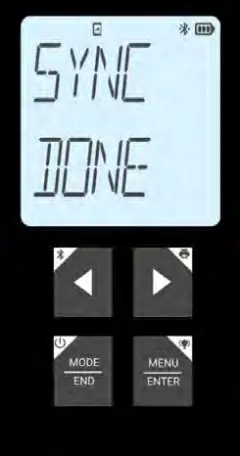
| Changes to the measuring instrument settings in the app are transferred directly to the measuring instrument. Synchronization with the app is confirmed on the measuring instrument via “SYNC DONE”.
8.4.1 Configuring the measuring instrument menu
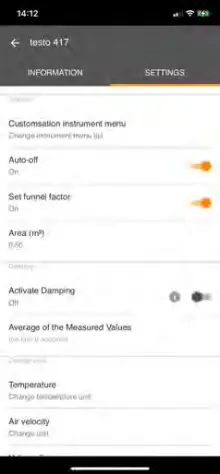
The testo Smart App can be used to set which settings menus should be available or hidden on the measuring instrument itself.
| The Settings tab in the Sensors menu is open.
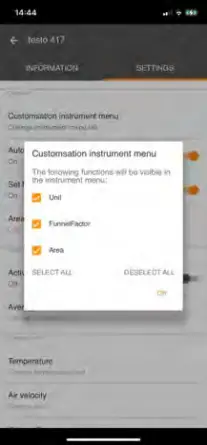
1 | Activate Customization instrument menu and click on the blue text Change instrument menu list under the settings heading.
| The Customization instrument menu dialogue opens.
On the measuring instrument, the following menus can be displayed or hidden:
o Setting the unit
o Area
o Funnel factor
(testo 417 only)
2 | Deactivate the checkboxes for the measuring instrument menus that are no longer to be displayed on the measuring instrument itself.
| The menus belonging to the deactivated entries will no longer be displayed in the measuring instrument menu after the next synchronization.
These settings can be reset via the menu reset “M.RES” and then all settings menus will be displayed on the measuring instrument again.
8.4.2 Setting Auto Off
| The Settings tab is open.
1 | Enable Activate Auto-off using the slider.
| The measuring instrument switches off automatically if no key is pressed for 10 min.
Exception: a frozen reading is shown on the display (“Hold” is displayed).
8.4.3 Activating damping
If the readings fluctuate wildly, it is advisable to damp the readings.
| The Settings tab is open.
1 | Enable Activate damping using the slider.
2 | Click on Average of the measured values.
| The window for Average of the measured values opens.
3 | Enter a value between 2 and 20 measured values.
| Changes to the measuring instrument settings in the app are transferred directly to the measuring instrument. Synchronization with the app is confirmed on the measuring instrument via “SYNC DONE”.
8.4.4 Setting the Correction Factor
If parts of the cross-sectional area are covered (e.g. by lattice bars), this can be corrected via the correction factor.
The correction factor indicates the proportion of free space in the cross-sectional area.
For example: If 20% of the area is covered, the correction factor must be set to 0.8 (80% free space).
The correction factor can only be set via the testo Smart App and not directly on the measuring instrument.
| The Settings tab is open.
1 | Select Correction factor.
2 | Enter the value for the correction factor and save.
| The changes are transferred to the measuring instrument and synchronization with the app is confirmed on the measuring instrument via “SYNC DONE”.
8.4.5 Setting the area
The cross-sectional area of the measuring point can be set both via the testo Smart App and directly on the measuring instrument.
The display of this setting on the measuring instrument cannot be hidden.
| The Settings tab is open.
1 | Select Area.
2 | Enter the value for the cross-sectional area and save.
| The changes are transferred to the measuring instrument and synchronization with the app is confirmed on the measuring instrument via “SYNC DONE”.
8.5 Display of the readings
The available readings can be displayed in different views.
- Live view:
The readings transmitted by the measuring probes can be displayed in a live view. Readings from all connected measuring probes are displayed. - Graphic view:
Up to four different readings can be displayed in graph format. Readings to be displayed can be selected by tapping on a reading above the diagram. - Table view:
In the table view, all readings are displayed in sequence according to date and time. Different readings from the individual measuring probes can be displayed by pressing .
.
8.6 Adjusting the view
1 | Click on  .
.
2 | Select Edit view.
| An overview of all measurement channels and their measurement parameters is displayed.
3 | Deselect the “check mark” to hide a measuring instrument’s measurement channel.
4 | Click  to select the unit of a measurement channel.
5 | Click OK to confirm the settings.
8.7 Exporting readings
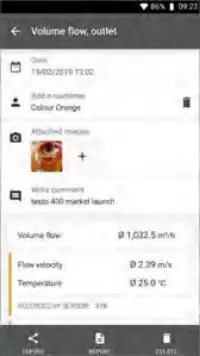 | |||
| Export | | Report |
| Delete | ||
1 | Click on .
2 | Select Memory.
3 | Click on Select measurement.
8.7.1 Excel (CSV) Export
1 | Click on  .
.
| A selection of export options is displayed.
2 |Click on Start export.
| A selection of sending/export options is displayed.
3 | Select the required sending/export options.
8.7.2 PDF Export
1 | Click on Report.
| A selection window is displayed.
2 | If required, activate the Create PDF with all readings button.
3 | Click on Create.
For measurements, please be aware that the option Create PDF with all readings is only possible up to 30 pages, due to the resulting file size and number of pages. In the testo DataControl software, however, PDF reports can be created for all measurements without any restrictions.
| A report containing all the information is created.
| A selection window is displayed. The report can be sent via e-mail or Bluetooth®.
4 | Click on E-mail or Bluetooth®.
| The report will be sent.
8.8 Perform Firmware update
Ensure that the option for Enable update for connected instruments in Instrument Information is always enabled.
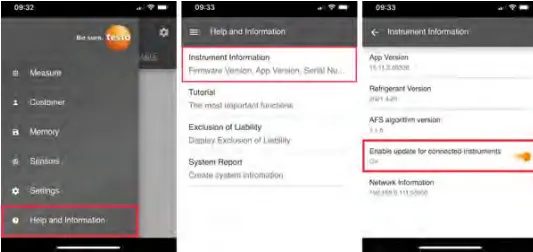
| If a new firmware is available for your measurement instrument, an update notification is shown after connecting the instrument with the testo Smart App.
1 | Click Start Update to perform the update.
If you click Later, the Update notification is shown again during the next connection.
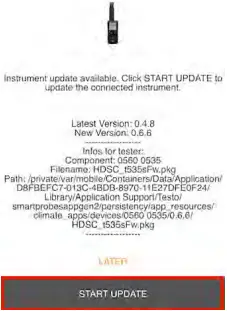
During the instrument update the Bluetooth connection must not be disconnected.
The update needs to be performed completely and takes approx. 5-10 minutes depending on the used smartphone.
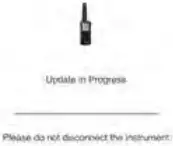
After the update the measuring instrument is restarting.
The firmware can be checked in the instrument menu or via the app.
A restart of the testo Smart App is recommended after the instrument update.
9 Maintaining the product
9.1 Inserting / changing batteries
Serious risk of injury to the user and/or destruction of the instrument.
There is a risk of explosion if the batteries are replaced with ones that are the wrong type.
– Only use non-rechargeable alkaline batteries.
| The instrument is switched off.
1 | Open the battery compartment (on the back of the instrument) via the snap lock.
2 | Insert or replace batteries (3 x AA alkaline batteries).
Observe the polarity!
3 | Close the battery compartment.
When not in use for a long period: Take out the batteries.
9.2 Cleaning the instrument
1 | If the housing of the instrument is dirty, clean it with a damp cloth.
Do not use any aggressive cleaning agents or solvents! Mild household cleaning agents and soap suds may be used.
10 Technical data for testo 416
- Adjustment conditions for flow probes:
Adjustment in free jet Ø 350 mm, reference pressure 1013 hPa, based on testo reference Laser Doppler Anemometer (LDA). - Low flow velocities may result in greater measurement uncertainties during humidity and temperature measurement! The probe should be switched on outside a duct under the following conditions:
Ambient temperature: 20°C
Flow: approx. 0 m/s.
Collapse the telescope after use and do not constrict with the cable. Start with the telescopic links closest to the handle.
| Feature | Value |
| Measurement parameters | m/s fpm m³/h cfm l/s |
| Accuracy | ±(0.2 m/s + 1% of measuring value) |
| Resolution | 0.1 m/s |
| Measuring range | 0.6 to 40 m/s |
| Operating temperature | -10 to +50 °C (measuring instrument) -10 to +70 °C (probe) |
| Storage temperature | -10 to +50 °C |
| Operating humidity | 0 to 80 %RH / For indoor use only |
| IP class | IP20 |
| Level of contamination | PD2 |
| Max. operating altitude | ≤ 2000 m above sea level |
| Nominal output | 2 W @ 4,5 V DC |
| Battery type | 3 x 1.5 V AA alkaline battery (included in the scope of delivery) |
| Battery life | >60 h |
| Dimensions | Measuring instrument: 171 x 60 x 28 mm Probe: 329 x Ø16 mm Cable: 1.5 m |
| Weight | 323 g |
11 Tips and assistance
11.1 Questions and answers
| Question | Possible cause | Possible solution |
 is displayed (top right on the display) is displayed (top right on the display) | Instrument battery is almost spent | Replace instrument battery |
| Instrument switches itself off |
|
|
| Display responds sluggishly | Ambient temperature is very low | Increase ambient temperature |
| Display: —– | Sensor error | Please contact your dealer or Customer Service. |
| Display: OOOOO | Permissible measuring range has been exceeded | Keep within the permissible measuring range |
| Display: UUUUU | Permissible measuring range has been undershot | Keep within the permissible measuring range |
| Display: BT Fail | Bluetooth connection could not be established |
|
| Display: Print Fail | Printout could not be performed successfully |
|
| Display: Probe Fail | Probe damage | Please contact your dealer or Customer Service. |
| Display: OTA Fail | The update process “over the air” of the measuring instrument could not be completed successfully. | Restart the measuring instrument and testo Smart App and check the Bluetooth® connection. |
| Display: APP Lost | Connection to the testo Smart App was interrupted. Keys are locked for 3 s. | Restart the measuring instrument and testo Smart App and check the Bluetooth® connection. |
11.2 Accessories and spare parts
| Description | Order no. |
| Bluetooth®/IRDA printer | 0554 0621 |
1.888.610.7664  www.calcert.com [email protected]
 Calcert