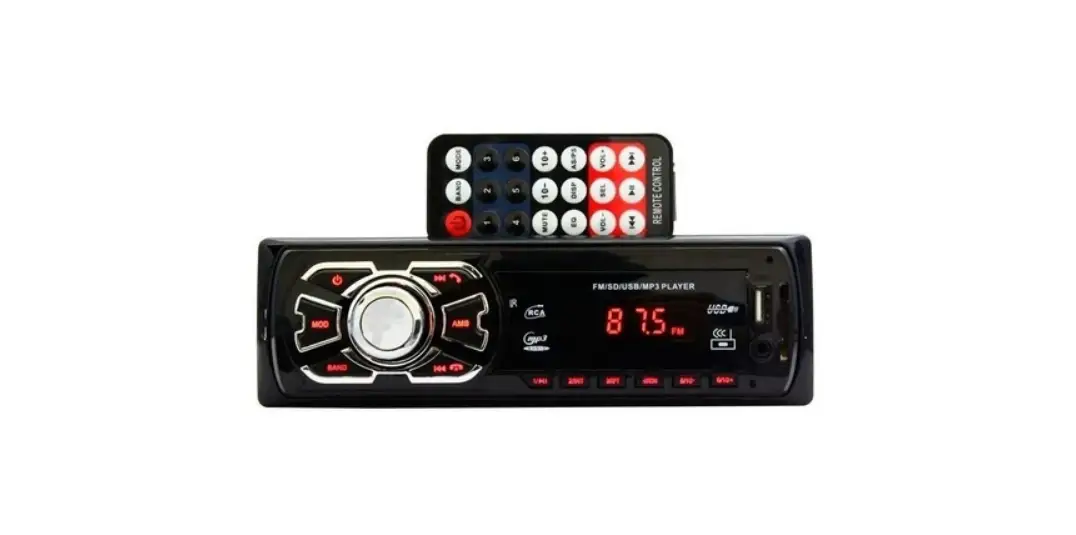
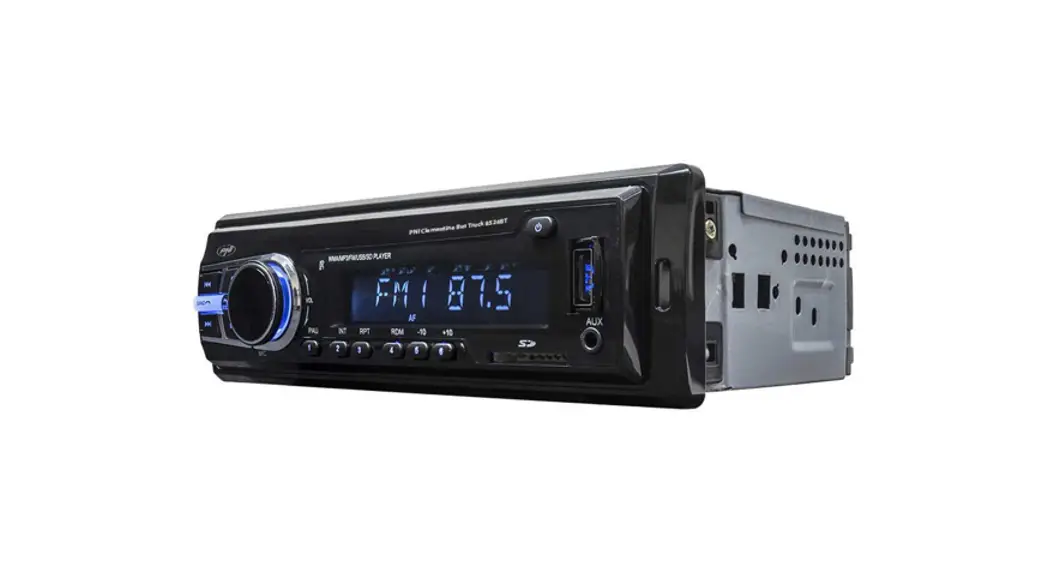
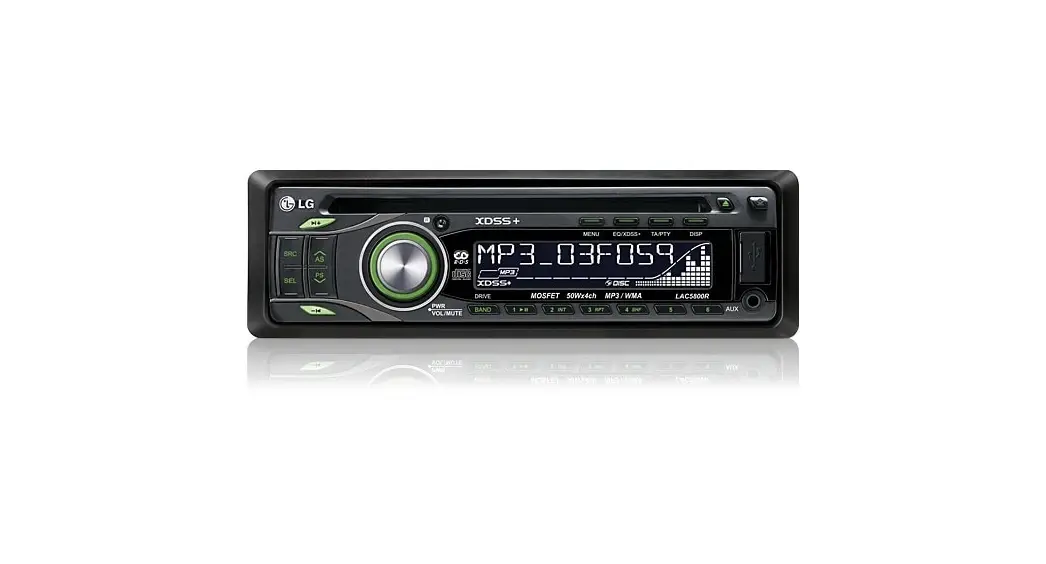
PLMR51B Car MP3 Player
Product Information:
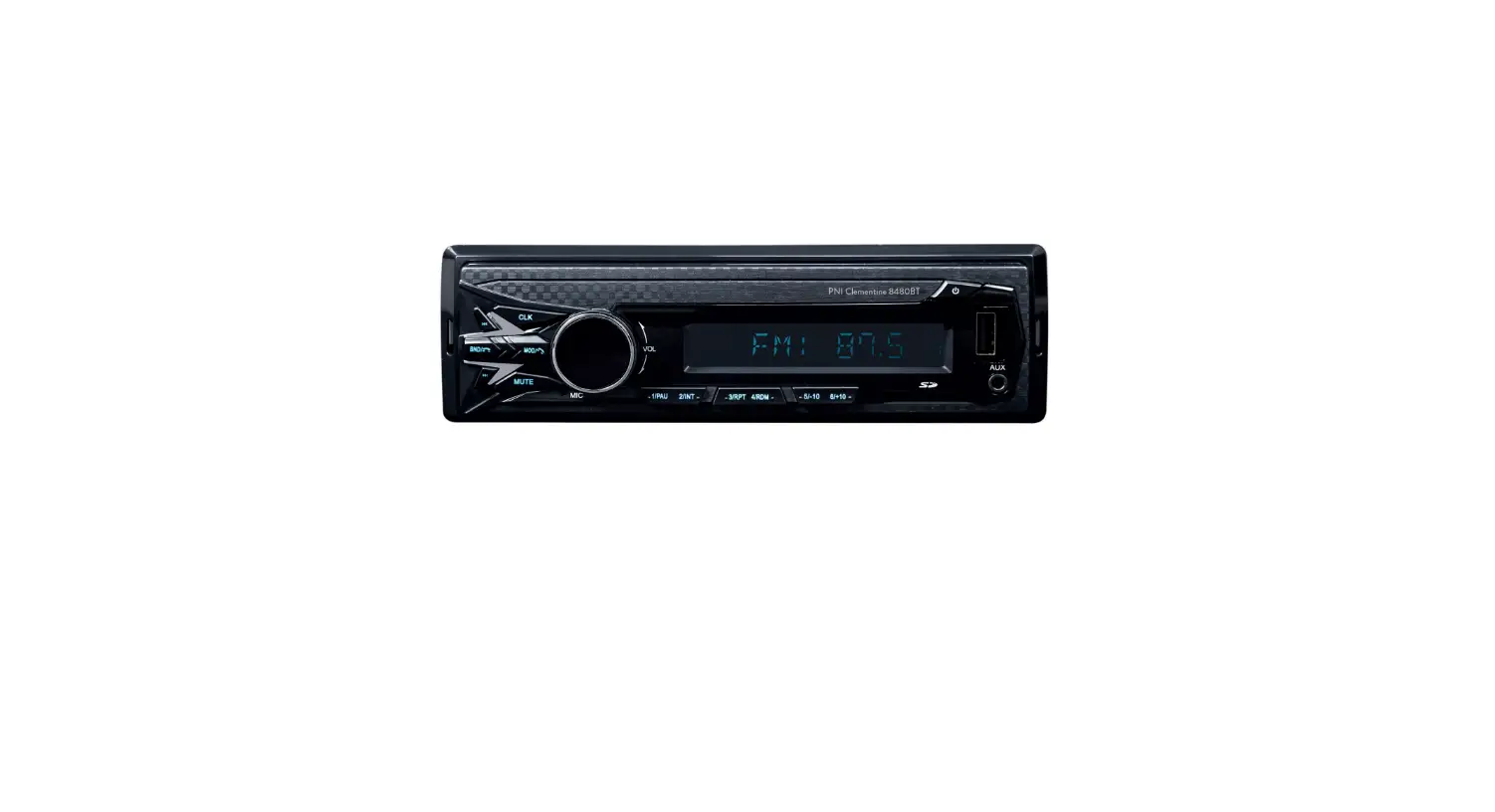
Product Name: Car MP3 player AM/FM/MP3/USB/AUX Stereo
Receiver
Model: PLM R5 1B
Features: Single DIN, 30 Preset Memory Stations, LCD Display
with Remote Control (Black)
Installation Instructions:
Preparation: The preparation kit is necessary
to mount the radio on the dashboard. Make sure to check the
installation kit before using it to ensure it is compatible with
your vehicle.
Installation Steps:
- Lift the left or right top corner of the plastic outer trim
ring, then pull it out to remove it. - Insert the two bracket keys into the left and right side of the
chassis to separate the chassis from the housing. - Install the mounting knob on the board.
Wiring Connections:
Precaution: +12V DC NEGATIVE EARTH
SWC: External MIC
FUSE: 15A
Front RCA Output: Left, Right
Rear RCA Output: Left, Right
Power/Speaker Connector
ANT: RADIO ANTENNA JACK
F-L: Front RCA Output (Left)
F-R: Front RCA Output (Right)
R-L: Rear RCA Output (Left)
R-R: Rear RCA Output (Right)
- (Power)/Mode(source) button
- SEL (select/menu) button and VOL (volume) knob
- Back to the previous configuration point
Setting the Clock:
- To display the Time, press the CLK button.
- To set the time, press and hold the CLK button until the time
starts flashing. - Press the or button on the front panel or on the remote control
to set the hour. - Press the CLK button and the minutes will start flashing.
- Press the or button on the front panel or on the remote control
to set the minutes.
Changing Source Mode:
Press the SRC button to switch between RADIO, BT (Bluetooth),
USB (with a USB device inserted), AUX-IN mode (input
assistant).
Adjusting Loudness:
Press the LOUD button on the remote control to change the loud
volume to boost the bass output frequency. Press again to turn it
off.
Preset Equalizer (EQ):
Press the EQ button on the front panel or on the remote control
to switch between EQ, OFF, CLASS, ROCK, POP, FLAT.
USB Port:
The USB port on this stereo device is designed for playing media
from USB memory devices.
General Operation:
Integrated Microphone: For voice reception when
making a call using the hands-free system.
Auxiliary Input Connector: 3.5mm auxiliary
input stereo is designed for devices with line output 3.5 mm or
hearing aids.
Resetting the System:
The RESET button is used to reset all factory settings
parameters. This function can be used when the LCD screen does not
work properly, if the sound is distorted, or when some of the
controls are disabled. Press the RELEASE button to release the
front panel and remove it, then use a thin object with a small tip
to press the RESET button for over 6 seconds.
Subwoofer Level Control:
Select the function to adjust audio, entry subwoofer, entry sw
level. Turn the knob to select level 0-8.
Subwoofer Frequency Control:
Select the function to adjust audio, entry subwoofer, entry sw
frequency. Turn the knob to select 80Hz/120Hz/160Hz.
PLM R5 1B
Car MP3 player AM/FM/MP3/USB/AUX Stereo Receiver,Single DIN,
30 Preset Memory Stations,LCD Display with Remote Control(Black)
INSTALLATION
Preparation The preparation kit is necessary to mount the radio on the dashboard, this kit is available at electronics stores and car audio specialists, check the installation kit before using it to make sure it is the right one for your vehicle.
INSTALL THE DEVICE 1. Lift the left or right top corner of the plastic outer trim ring
then pull it out to remove it. 2. Insert the two bracket keys into the left and right side of
the chassis to separate the chassis from the housing. 3. Install the mounting knob on the board. Check the
opening size of the sliding panel to be mounted. If the measurement is not large enough, carefully cut it until it slips easily on the opening. Do not force the handle in the opening so as not to bend it. Locate the series of dubbing tabs above, below and all sides to be mounted. Completely insert it to the opening of the board, bend the tabs as necessary towards outside to ensure it fits the board. 4. Slide the stereo into the opening in the dash, ensuring that the wires behind are tucked and not pinched. 5. Follow the wiring diagram carefully. Verify you’ve connected them correctly. CAUTION! Connect the unit to a 12 Volt power source with adequate ground. 6. Now that your wires are all completed, attach the front panel and turn ON the unit (the vehicle must be switched on). If the unit does not work, check the calibration again until the problem is solved. With the new car stereo secured into the bracket, all you need to do is plug the wiring harness back into the stereo and put the assembly back into place. 7. Slide the stereo into the opening in the dash, ensuring that the wires behind are tucked and not pinched. Sometimes this may take a few times when the vehicle has a tight dash opening. Tuck the wires back into an opening behind the unit. 8. Install the plastic outer trim ring 9. Snap all the pieces of trim back into place over the stereo. Double check that all screws and trim pieces are securely in place.Try out the new stereo. Turn the car power on again and play around with the stereo and its settings to be sure everything is in working order.
WIRING CONNECTIONS
PRECAUTION +12V DC NEGATIVE EARTH
SWC EXternal MIC
FUSE 15A
15A
Front RCA Output(Left)
HANDS FREE PUSH TO TALK
Rear RCA Output(Left) Rear RCA Output(Right) Front RCA Output(Right)
Power/speaker Connector
ANT:RADIO ANTENNA JACK F-L:Front RCA Output(Left) F-R:Front RCA Output(Right) R-L:Rear RCA Output(Left) R-R:Rear RCA Output(Right)
PUSH-TO-TALK · Allows you to access SIRI or GOOGLE voice via Wireless BT. · Your phone must support SIRI or GOOGLE voice. Once connected to BT, your phone will ask for access to your contact list. · Now you are ready to use PUSH-TO-TALK. Press the PUSH-TO-TALK icon.
You are ready to talk. Call “(CONTACT NAME)” The system will call without having to use your phone.
CONTROL PANEL BUTTONS
CONTROL PANEL BUTTONS
1. (Power)/Mode(source) button 2. SEL (select/menu) button and VOL (volume) knob 3. Back to the previous configuration point
Pess /Bass enhances the pulse function 4. Short press button display clock in all mode. In USB mode, Short press to select All info/Elapsed time/File info/Track info/clock operation. Long Press button turn off illumination on panel and touch any button to turn on illumination. 5. Folder up 6. Folder down 7. RPT (repeat), button 3 preset 8. RDM (random), button 4 preset 9. (pause/start), preset station 5 button 10. INT (intro) , preset button 6 station 11.Long Press BND button to activate SIRI. Short press BND button to change band. Short press BND button to pick up/cut off phone call. 12. (tune back, search back, crawl back, fast reverse) 13. (tune forward, search forward, crawl forward, fast forward) 14. IR remote control sensor 15. LCD screen 16. AS (automatic storage/preset station search, automatic search) 17. USB port 18 AUX IN (auxiliary input) 19. MIC hole (integrated microphone) 20. In power on mode, press the MUTE button to toggle mute ON or OFF. 21.Release front panel 22.RESET GENERAL OPERATION
Turn Unit ON/OFF · Press the power /Mode button on the front panel to turn ON the unit, and press and hold it again to turn OFF the unit. · Press the power button on the remote control to turn the unit ON or OFF.
Adjust Volume (VOL) · Rotate the VOL knob on the front panel or press the VOL+ /VOL- button on the remote control to increase or decrease the volume level.
FUNCTION ·Press the Volume knob and Rotate to select Audio/Display/Tuner/Clock/Beep/ Animation/Demo mode function. Press the Volume knob again to Select desire function mode.
AUDIO MODE ·Press the Volume knob and Rotate to select SW Level/Manual EQ/Q factor/Preset EQ/Bass boost/Loudness/Subwoofer set/Fader/Balance/X’Over/DTA Setting/Car type. ·Long Pless Volume knob to selet 2 way/3 way X’Over mode.
SW LEVEL ·Press the Volume knob and Rotate to select -13 ~ +13 level.
MANUAL EQ ·Press the Volume knob and Rotate to select 25 band frequencies level.
Q FACTOR ·Press the Volume knob and Rotate to select 1/1.5/2.5/3.5 different Q factor value.
PRESET EQ ·Press the Volume knob and Rotate to select user/Natural/Rock/Pop/Easy/Top40/ Jazz/Powerful.
BASS BOOST ·Press the Volume knob and Rotate to select Bass bosst level.
LOUDNESS ·Press the Volume knob and Rotate to select Loudness level.
SUBWOOFER SET ·Press the Volume knob and Rotate to Switch ON/OFF.
FADER ·Press the Volume knob and Rotate to select Fader position.
BALANCE ·Press the Volume knob and Rotate to select Balance position.
X’OVER ·Press the Volume knob and Rotate to select Tweeter/Front HPF/Rear HPF/ Subwoofer LPF.
TWEETER ·Press the Volume knob and Rotate to select Frequency/Gain left/Gain right.
FRONT HPF ·Press the Volume knob and Rotate to select Frequency/Gain.
REAR HPF ·Press the Volume knob and Rotate to select Frequency/Gain.
SUBWOOFER LPF ·Press the Volume knob and Rotate to select Frequency/Gain/Phase.
DTA SETTINT ·Press the Volume knob and Rotate to select Position/Distance/Gain/Data Reset/ Delay Unit.
CAR TYPE ·Press the Volume knob and Rotate to select Small/Medium/Large car type.
DISPLAY ·Press the Volume knob and Rotate to select Color Select/Spectrum/ID3 tag /Version/Dimmer/Language.
DIMMER ·Press the Volume knob and Rotate to select ON/OFF/Dimmer Time. ·Press the Dimmer Time to setting ON Time/OFF Time.
LANGUAGE SELECTION ·Press Volume button to select Function, enter display, enter language, turn the knob to select English/Spanish.
COLOR SELECT ·Press the Volume knob and Rotate to select custom R/G/B/Variable Scan/Red/Pink/ Purple/Blue/Cyan/Green/Yellow/Orange.
SPECTRUM ·Press the Volume knob and Rotate to switch ON/OFF.
SPECTRUM ·Press the Volume knob and Rotate to switch ON/OFF.
ID3 TAG ·Press the Volume knob and Rotate to switch ON/OFF.
VERSION ·Press the Volume button to check software version.
TUNER ·Press the Volume button to select Local Seek/Mono Set/Regional/RDS Set.
LOCAL SEEK ·Press the Volume button to rotate switch ON/OFF.
MONO SET ·Press the Volume button to rotate switch ON/OFF.
REGIONAL ·Press the Volume button to rotate to select country regions.
RDS SET ·Press the Volume button to rotate switch ON/OFF.
CLOCK ·Press the Volume knob and Rotate to select Clock Fornat/Clock adjust/Date Fornat/ Date Set.
BEEP ·Press the Volume button to rotate switch ON/OFF.
ANIMATION ·Press the Volume knob and Rotate to select ON/OFF and time interval of animation time.
DEMO MODE ·Press the Volume button to rotate switch ON/OFF.
Set the clock (CLK) 1. To display the Time press the CLK button. 2. To set the time, press and hold the CLK button and the time will start flashing. 3. Press the or button on the front panel or on the remote control to set the
time. 4. Press the CLK button and the minutes will start flashing. 5. Press the or button on the front panel or on the remote control to set the
minutes. 6. Short Press to Increase Bass Level Change the source mode (SRC) Press the SRC button to switch between the button RADIO, BT (Bluetooth), USB (with a USB device inserted), AUX-IN mode (input assistant).
Loudness: LOUD ON/OFF Press the LOUD button on the remote control to change the loud volume to boost the bass output frequency, press again, to turn it off.
DSP SMART ANDROID/IOS APP CONTROL
Subwoofer Control
Time Alignment Control
X’Over Control
25 EQ Control
Preset Equalizer (EQ) Press the EQ button on the front panel or on the remote control to switch between EQ, OFF, CLASS, ROCK, POP, FLAT.
USB port The USB port on this stereo device is designed for playing media from USB memory devices.
GENERAL OPERATION Integrated Microphone For voice reception when making a call using the hands-free system.
Auxiliary Input Connector 3.5mm auxiliary input stereo is designed for devices with line output 3.5 mm or hearing aids.
Reset System The RESET button is used to reset all factory settings parameters, this function can be used when the LCD screen does not work properly or if the sound is distorted, or when some of the controls are disable. Press the RELEASE button to release the front panel and remove it, use a thin object with a small tip to press the RESET button over 6 second.
Subwoofer Level control Select function to select audio, entry subwoofer, entry sw level, turn the knob to select level 0-8.
Subwoofer frequency control Select function to select audio, entry subwoofer,entry sw frequency,turn the knob to select 80Hz/120Hz/160Hz.
RADIO OPERATION Change Bands (BAND) Press the BAND button to switch between the FM1, FM2, FM3 bands. Each band stores up to six preset stations.
Manual Tuning ( / ) Press and hold the or button on the front panel or on the remote control to enter manual tuning mode. In manual tuning mode, press the or button to move the radio frequency number up or down one step.
Auto Seek Tuning ( / ) In standby mode or while not in manual tuning mode, quickly press the or button to move to the next/previous available station automatically.
To Store/Recall Preset Stations The radio can store 6 pre-set stations for each band (FM1, FM2 and FM3) for a total of 18 preset stations.
Memorize a station: · Turn the radio on and select the desired band and station. · Select a station by or button.
· Press and hold the desired preset button (numbered 1-6 on the face of the radio) for more than 2 seconds to save the station to that preset number.
To recall a preset station · Select the desired band. · Briefly press a preset button (numbered 1-6) to recall the corresponding preset
station.
Automatic Store station/ Preset station scan (AMS) Press and hold the AMS button for more than 2 seconds to select six strong stations and store them in the current band. The radio will automatically scan the current frequency and enter the six strongest stations into the preset memory positions for that band. Briefly press the AMS button on the remote control to recall each preset station that saved in the memories in each band.
LOCAL/DX In urban areas, most stations are strong enough and “LOCAL ON” mode should be selected. Switch to LOCAL OFF mode to search for stations with weaker signals. Press the LOC button on the remote control to choose local or distant reception mode.
STEREO/MONO FM station is received in stereo mode. However, if the signal is weak or reception is not as good as you would like, switching to MONO mode usually improves the overall sound quality. Press the ST button on the remote control to choose FM STEREO or MONO audio effect.
USB OPERATION Insert USB To play files from a USB device, open the USB port cover and insert the USB device into the port, the songs will begin to play automatically.
EJECT/USB · To eject a USB device, press the button to stop playback, then remove the
USB device. Play/Pause Press the (play/pause) button to pause or resume playback
Next/Previous Track · To play the next track, press the button. · To play the previous track, press the button.
Fast Forward/Backward · To fast forward, press and hold the button. · To fast backward, press and hold the button.
Introduction Scan Press the INT button to play the first 10 seconds of each track, press again to stop the introduction scan, and play the current track.
Repeating the same track Press the RPT button to repeat the current track, press again to stop repeat playback and resume normal playback.
Playing all tracks in random Press the RDM button to play all tracks in random order, press again to cancel this function.
Track/Folder Navigation · During a disc, USB mode, press the 5/-10 button to go backward 10 tracks. Press the 6/+10 button to jump forward 10 tracks. · During a MP3 disc, USB mode, press and hold the 5/-10 button to go back the previous folder. Press and hold the 6/+10 button to go to the next folder.
You can repeat this function depending on the number and level of folders. · These buttons have no this function if the USB device has no folders.
Select the track or file to play in MP3 format a. Press and hold the AMS button to direct select a music file. The “TRK0000” will
appear on the display. b. Turn the volume control to select the “first number”. Then press the button to
move the “first number” to the left and enter the next number. c. When the desired track number appears, confirm your selection by pressing SEL
button.
AUXILIARY INPUT OPERATION This receiver is equipped with an external auxiliary input jack (3.5mm) on the front panel which is compatible with audio output from an MP3 music player. Plug such a player into the AUX IN jack with a 3.5mm stereo audio cable and press the MODE button to switch to AUX input mode. “AUX IN” appears in the display.Listen to music from an external device through the speaker.
Note: Adjust the volume of the external device to a comfortable level with the receiver volume control.
WIRELESS BT STREAMING OPERATION Pair and Connect Prior to using the Wireless BT device as a hands-free system for a Wireless BTenabled mobile phone for the first time, you must pair and connect the two devices as follows: 1. In any mode, prior to pairing and connecting, the BT logo in the LCD indicating
that no device is connected. To begin pairing, enable BT mode on your mobile phone. 2. When the phone finds this ship/car audio system, the “PYLE” name will be displayed. 3. Choose the “PYLE” from the device list to pair and connect with this ship/car audio system. Upon confirming, the BT logo will stop flashing. 4. When pairing is complete, the mobile phone audio will automatically transfer to the ship/car audio system whenever a call is made or received, or when the mobile phone plays music.
Make a Call · To make a call, dial the call directly from the paired mobile phone. · To make a call with this Wireless BT hands free system:
a. When linking up the Wireless BT-enabled mobile phone to this BT hands-free system, press the button to access the dial telephone number mode, then press the “0~9”, * and # button on remote control to input the telephone number, and the entered number will be shown on the LCD display.
b. If a number has been incorrectly inputted, press the button to delete it. c. Press the button to make outgoing call.
Redial Last Dialed Number · Press and hold the button on the control panel to redial the last dialed phone
number
Answer a Call · When the mobile phone is called, the incoming telephone number displays on
the LCD. · To receive the call, press the button on the control panel.
Reject a Call or End a Call To reject or end the call, press the button on the control panel.
Switch Audio Between Car Audio and Mobile Phone During a call, press the VOL knob button to switch the audio source from the car audio system back to your mobile phone.
Adjust Talk Volume · During a call, use VOL knob or VOL+ /VOL- button to adjust the volume level.
Audio Streaming (A2DP) 1. Press the /Mode button to enter BT mode and display pause in the LCD display. 2. When a mobile device is paired, music played through that device will automati
cally be heard through the car audio system. 3. Press the or button to play the next or previous on the mobile phone. 4. Press the button to pause or resume music playback.
REMOTE CONTROL Name of buttons and location 1. (Power ON/OFF) Button switched on 2. VOL +/VOL- (volume up/down) 3. Band button, (reply call) 4. Button Tune down, seek down;
Track down, fast reverse 5. SEL (selection) button 6. button: Tune up, seek up; Track up, fast forward 7. Mute button, DEL (Delete) button 8. CLK (clock setting) button, (end call) button 9. button, preset station 1 button, keypad 1 10. INT (intro) button, preset station 2 button,
keypad 2 11. RPT (repeat) button, preset station 3 button,
keypad 3
12. RDM (random), preset station 4 button, keypad 4 13. -10 (previous 10 tracks), preset station 5 button, keypad 5 14. +10 (next 10 tracks), preset station 6 button, keypad 6 15. ST (stereo) button, keypad 7 16. LOUD (loudness) button, keypad 8 17. AMS (automatic music search) button, keypad 9 18. MODE button, keypad 19. EQ (Equalizer) button, keypad 0 20. LOC (local)/DX button, keypad #
Remove Insulating Sheet The remote control comes with an insulating sheet attached to the underside of the remote control, as illustrated on the right. The remote control will not work until the insulating sheet is removed.
Replace Lithium Battery Cell 1. When the lithium cell battery becomes weak,
replace it as illustrated on the right. 2. Press and hold the movable block in the direction
indicated by arrow 1. At the same time, pull the cell holder out of the remote control in the direction indicated by arrow 2. 3. Replace the old cell with a new one, making sure the (+) polarity is facing upward. 4. Re-insert the cell holder into the remote control
Remote Control Operation Position the emitting window of the remote control toward the sensor window of the unit.
· The operation angle for front panel remote control reception is about 30 degrees.
· The distance between the emitting window of the remote control and the sensor window of the unit should remain less 5 meters.
· Cell leakage may cause damage to the remote control. · Do not throw cells into as this may cause an explosion. · Keep battery cells out of reach of children.
14
FCC Statement This device complies with part 15 of the FCC rules. Operation is subject to the following tw o conditions: (1) this device may not cause harmful interference, and (2) this device must a ccept any interference received,including interference that may cause undesired operation. Caution: Changes or modifications not expressly approved by the party responsible for Compliance could void the user’s authority to operate the equipment. NOTE: This equipment has been tested and found to comply with the limits for a Class B d igital device, pursuant to part 15 of the FCC Rules. These limits are designed to provide re asonable protection against harmful interference in a residential installation. This equipmen t generates uses and can radiate radio frequency energy and, if not installed and used in a ccordance with the instructions, may cause harmful interference to radio communications. However, there is no guarantee that interference will not occur in a particular installation. If this equipment does cause harmful interference to radio or television reception, which can be determined by turning the equipment off and on, the user is encouraged to try to correct the interference by one or more of the following measures: – Reorient or relocate the receiving antenna. – Increase the separation between the equipment and receiver. – Connect the equipment into an outlet on a circuit different from that to which the receiver is connected. -Consult the dealer or an experienced radio/TV technician for help important announcem ent .
Radiation Exposure Statement To comply with FCC RF exposure compliance requirements, this grant is applicable to only mobile configurations. The antennas used for this transmitter must be installed to provide a separation distance of at least 20 cm from all persons and must not be co-located or operating in conjunction with any other antenna or transmitter.