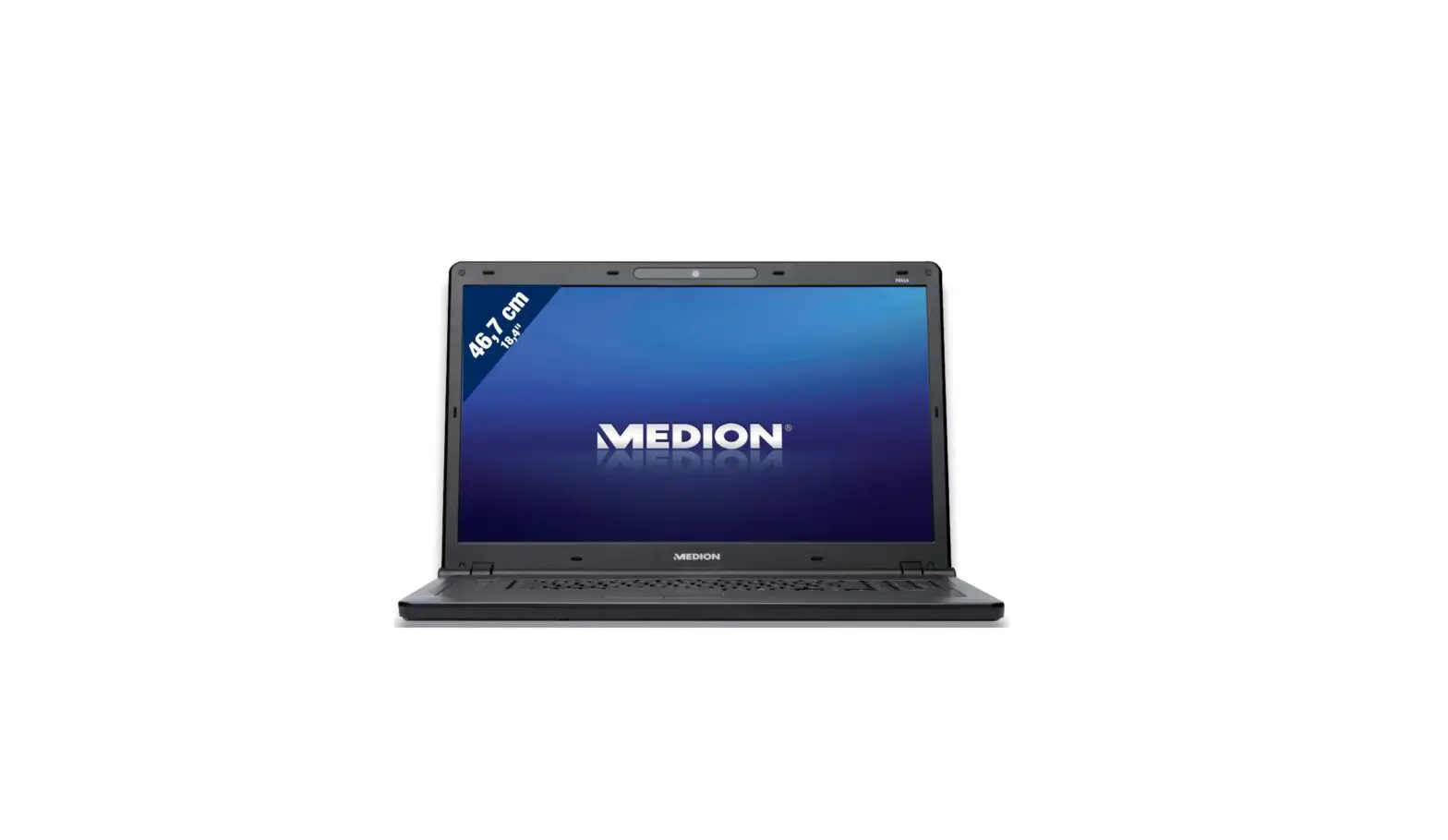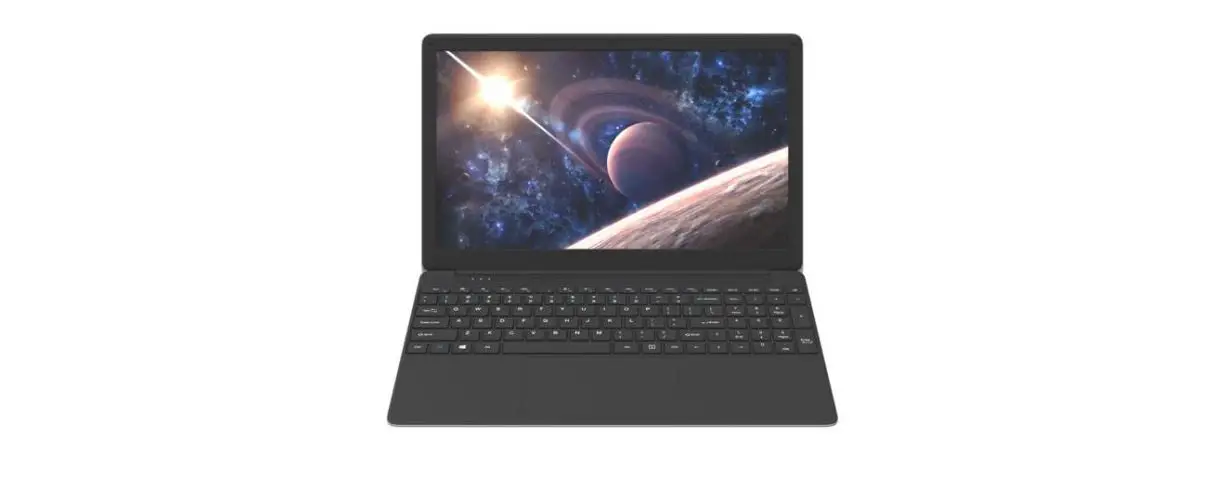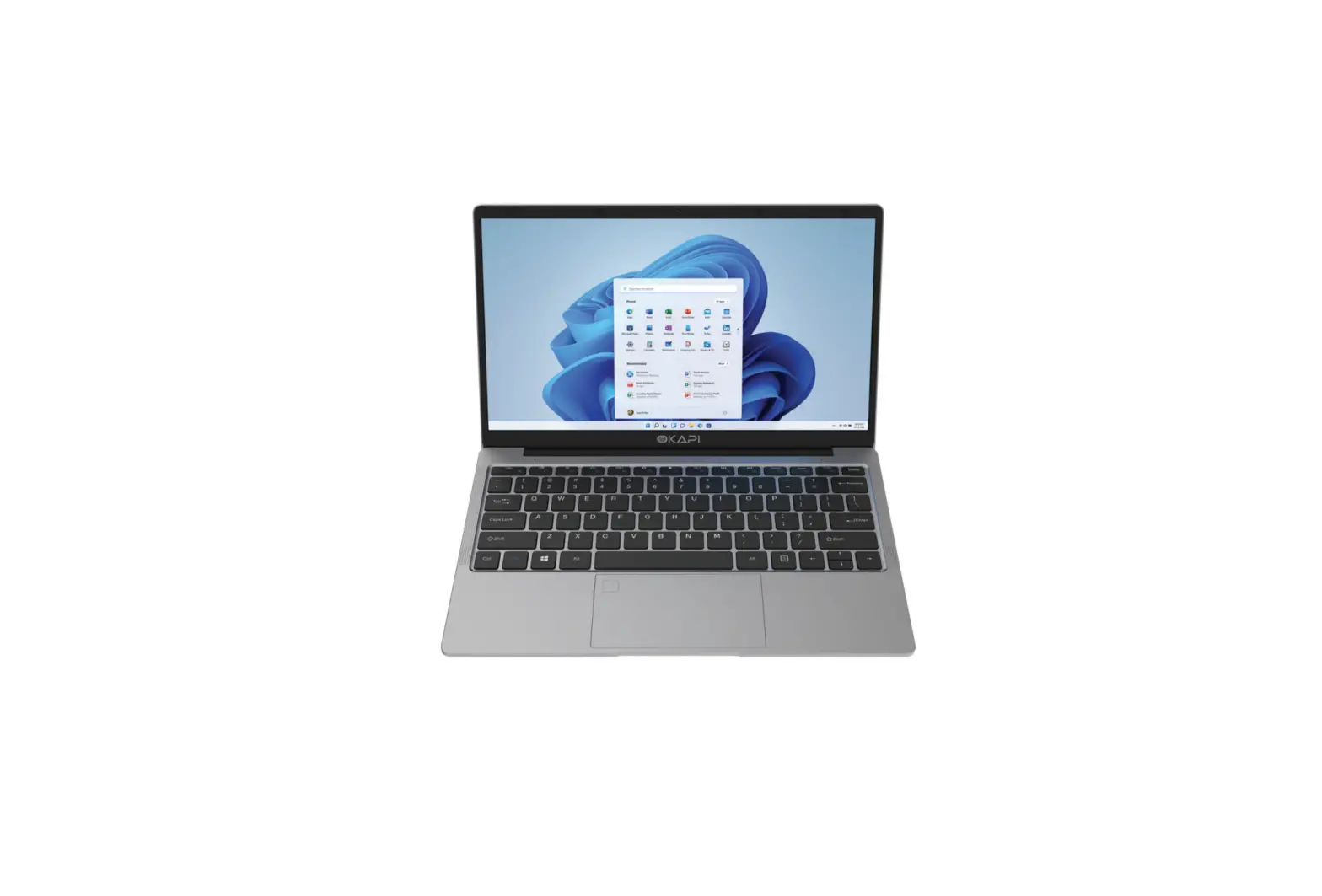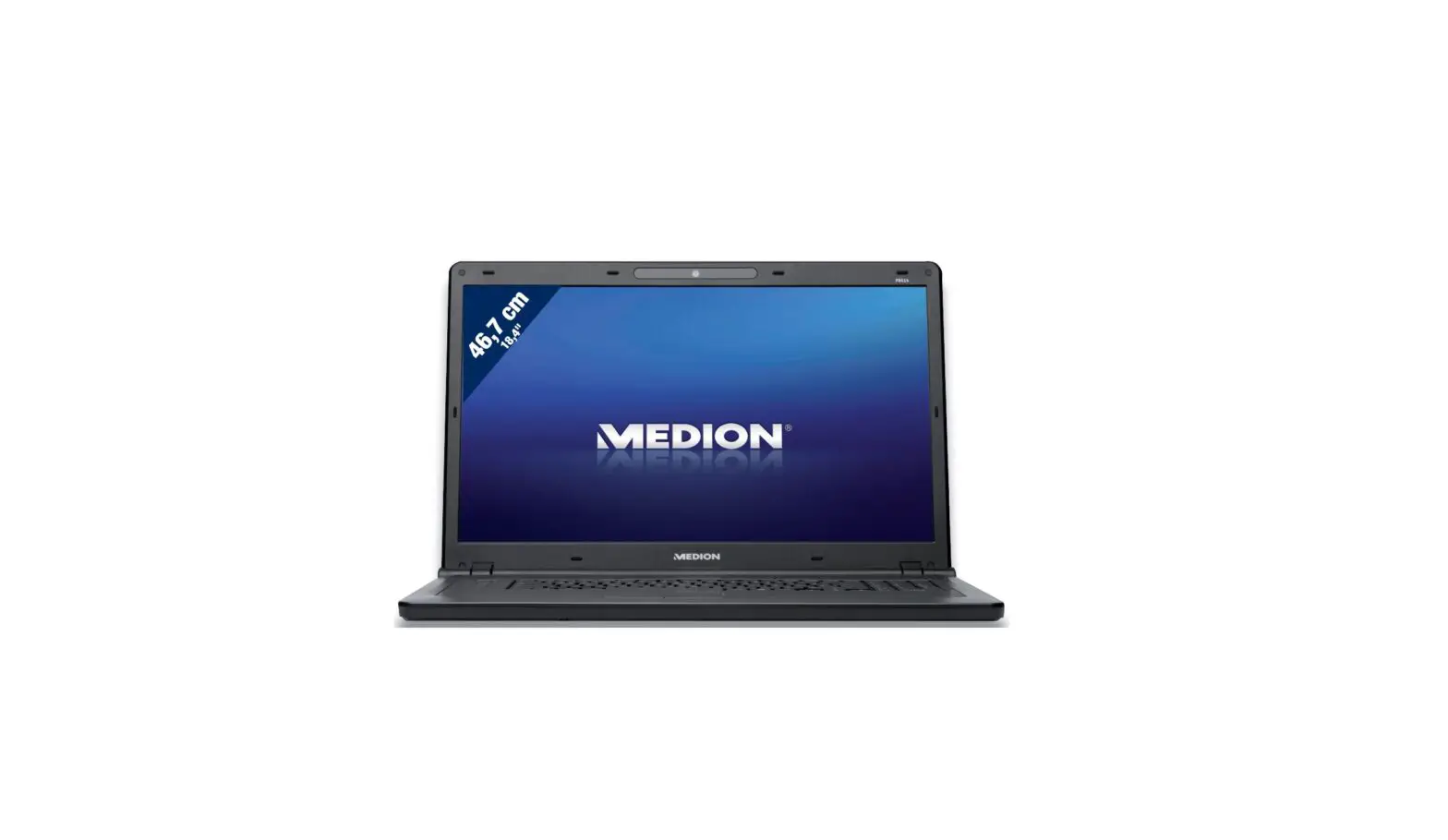

MEDION AKOYA P8614 i3-350M Notebook

Description
A protective foil is on the surfaces to protect the device against scratching during production and transportation. Pull off all the foil after you have set up the device correctly and before bringing it into operation.
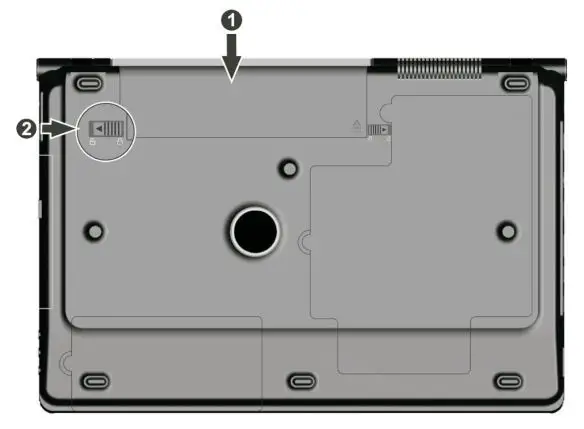
- Insert the battery
Always remember to secure the battery to prevent it from falling out by accident. Before use, insert the battery by sliding it into the compartment permit. Be sure to lock the battery to prevent it from falling out unintentionally. to avoid draining the battery.
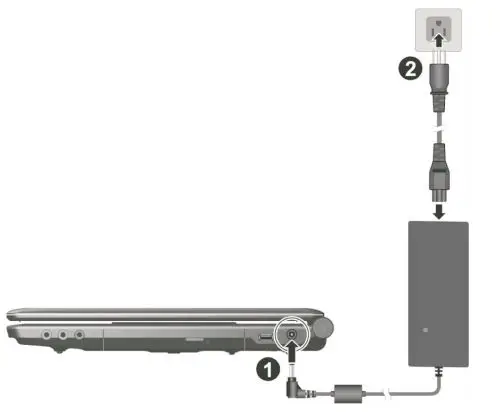
- Connecting the mains adapter
Your notebook comes with a universal AC power adapter that cher automatically adjusts to the available power source. They are supported following values: AC 100-240V~/ 50-60 Hz. Observe the safety instructions for the Power supply.
The adapter connects to an AC outlet with a power cord. The AC adapter DC cable connects to the right side of the notebook.
- Start the Notebook
Use your thumb and forefinger to fold the display to the desired position. The display should not be opened more than 120°. Try never to force it open.
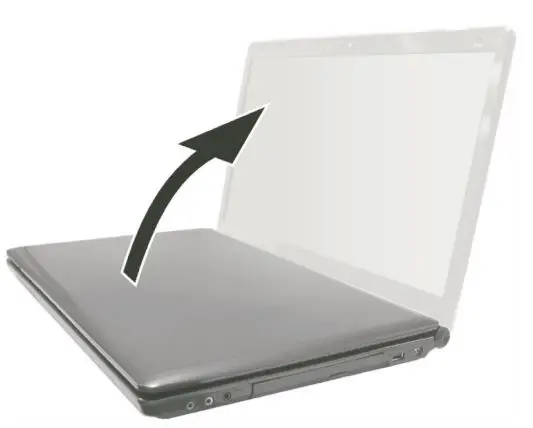
Flip up the screen and briefly press the on/off switch. The initial installation may take up to 30 minutes to complete. Do not unplug the notebook from the mains or switch it off during the initial installation. This may adversely affect the installation. Only switch the notebook off after installation has been completed successfully and the Windows desktop appears.
Overview
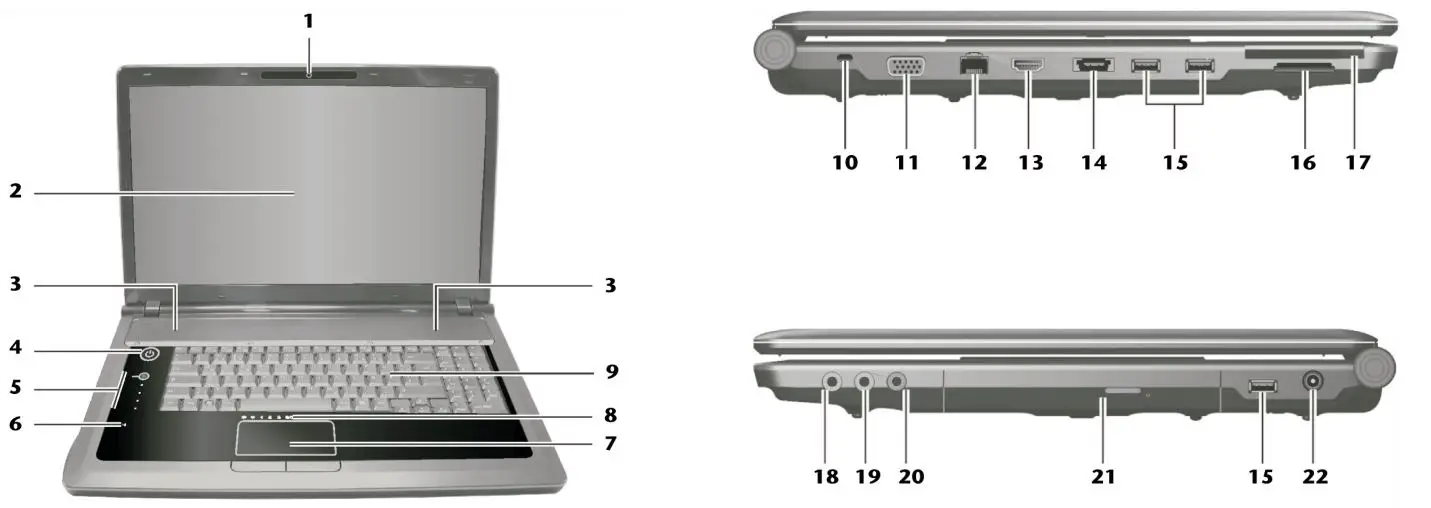
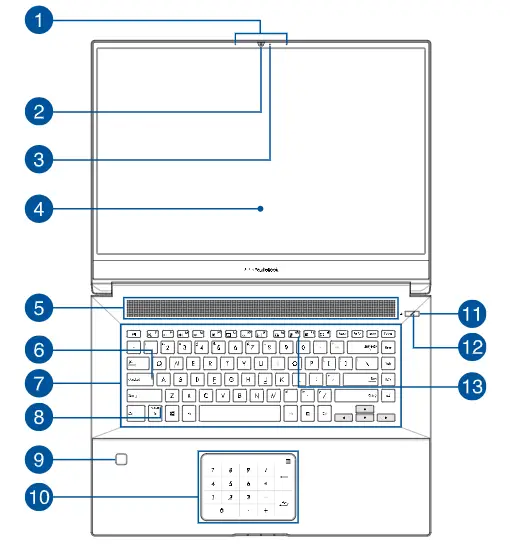
- Webcam
- TFT Display
- Stereo Speaker
- Power ON/OFF
- Multimedia Buttons
- Microphone
- Touchpad
- Device Indicators
- Keyboard
- Kensington Lock
- External monitor port VGA
- LAN Port (R]-45)
- HDMI Connector
- e-SATA / USB Port
- USB Port
- Multimedia Card Reader
- Express Card
- Audio Out*
- Microphone*
- Audio Out*/Digital Audio Out* (S/P-DIF, optical)
- Optical Drive
- Power Socket
Ports with dual function. Configuration is set with the included software.
Operating and Status Indicators
The system displays operational and power supply conditions via LEDs. The operational indicators turn on when the corresponding activity of the notebook occurs.
 Battery charge indicator
The following explains how this LED changes in the different behaves in certain situations:- The battery is charging.
- Low charge level.
 Access Indicator
If this LED lights up or flashes, the notebook is accessing the hard drive or the optical drive. Num Lock – numeric keypad
The numeric keyboard layout has been activated (Num Lock), when this LED is lit. Capital Lock
As soon as this LED starts to glow, the fixed key activates the capitalization feature (Caps Lock). In this case, the alphabetic characters are automatically capitalized. LAN wireless
Advertisement for seamless data exchange. It illuminates the display when the Wireless LAN function is turned on (a workaround option).
 Battery charge indicator
 Access Indicator
 Num Lock – numeric keypad
 Capital Lock
 LAN wireless
Media button
Starts Windows Media Center.
Play/Pause button
Starts playback of multimedia files or stops playback output at the selected position.
Stop Button
Stops playing multimedia files.
Next Title
Skips to the next track when playing multimedia files.
Previous Title
Skips to the previous track when playing multimedia files.
If a device with increased volume for a long time operated via headphones/earphones damage to the listener’s hearing cause.
Ethernet Network Connection
If your notebook is equipped with an Ethernet network connection, you can connect it connect a network. The following explanations refer to notebooks, that have a network connection. Connect one end with the RJ45 connector (western plug) to the network interface instead of your notebook (12) and the other to another computer or hub/switch.
FAQ’s