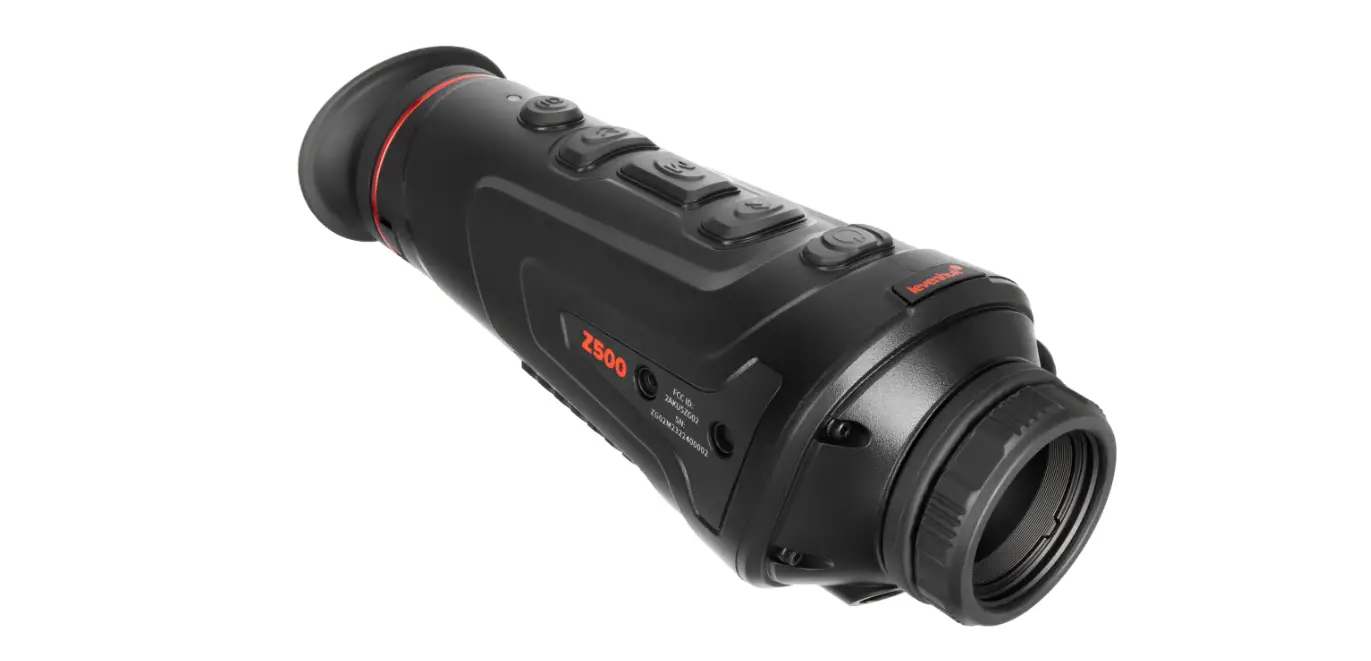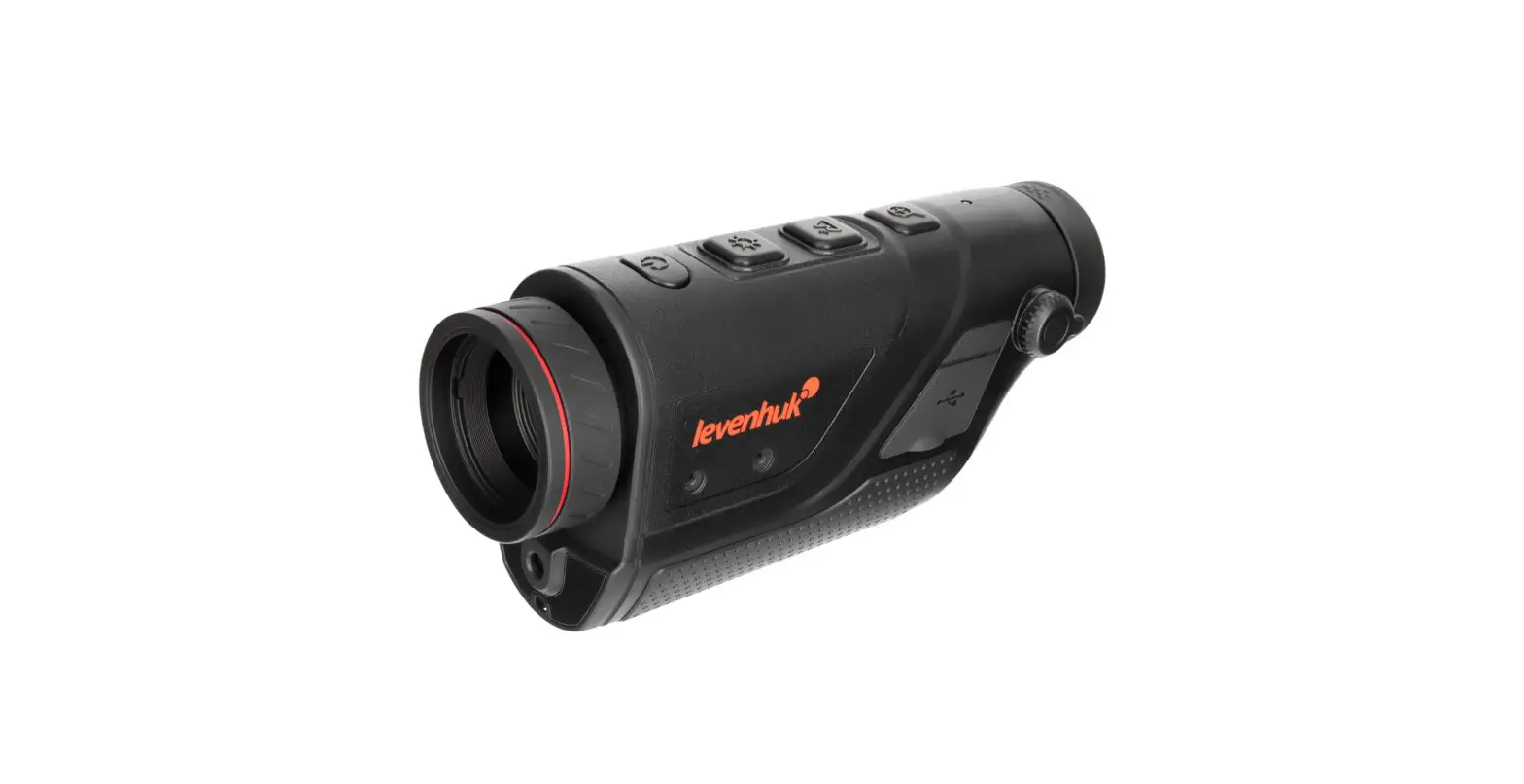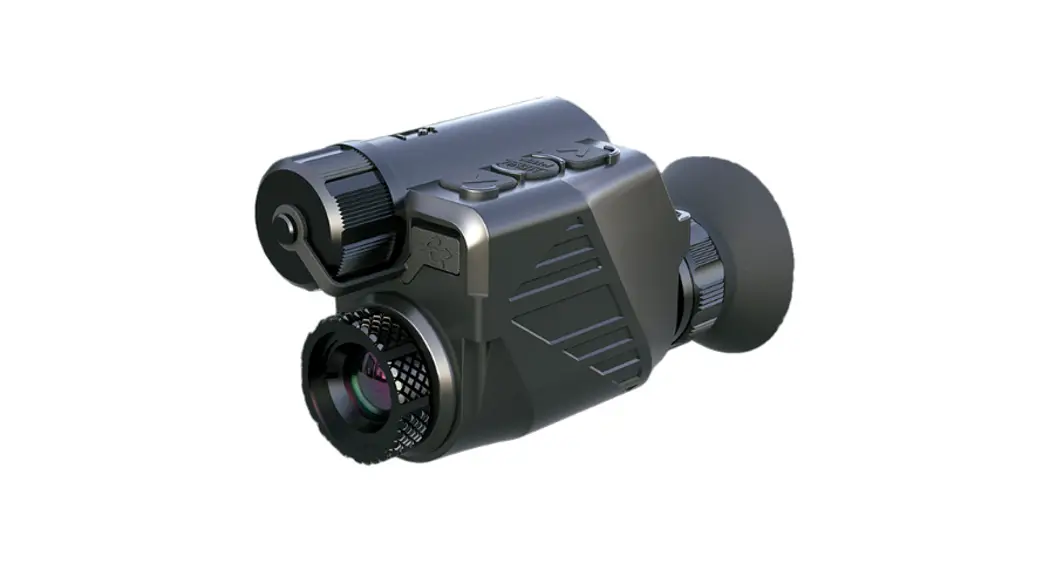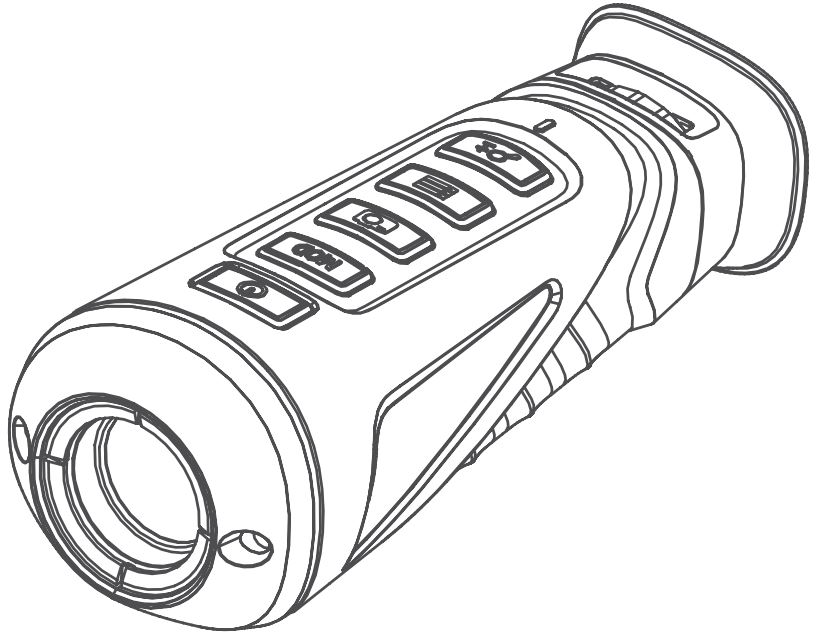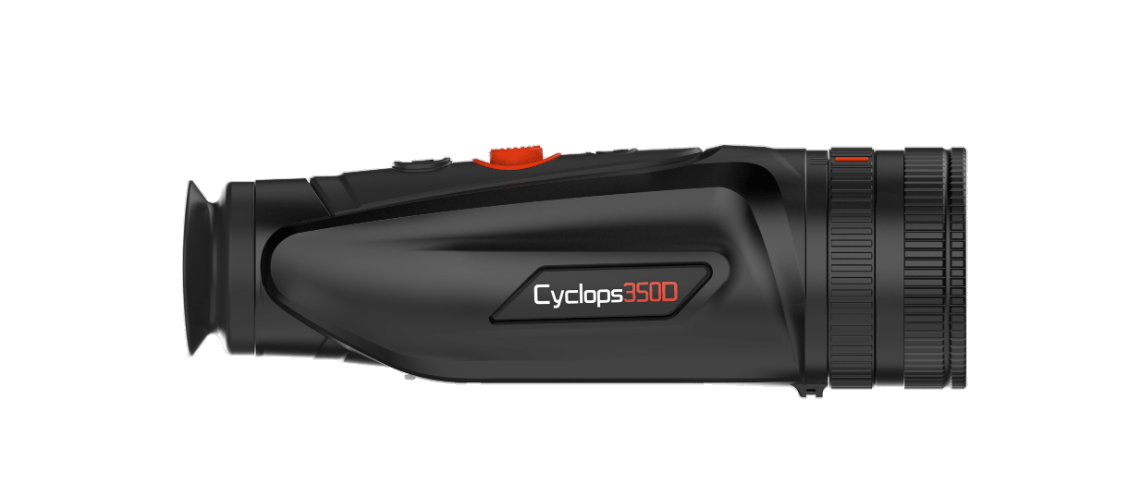

ThermTec Cyclops Series Thermal Monocular
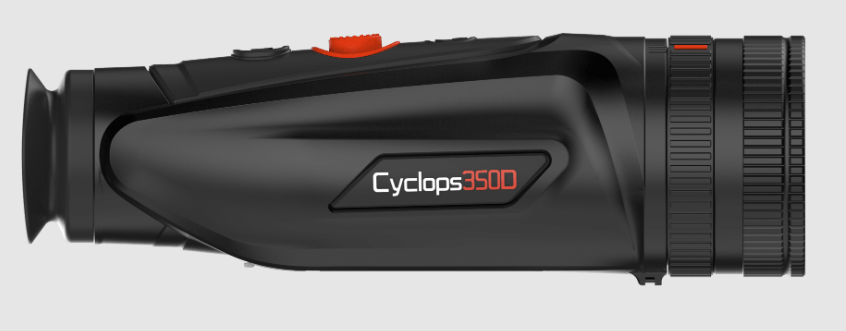
Introduction
- Product Introduction & Features
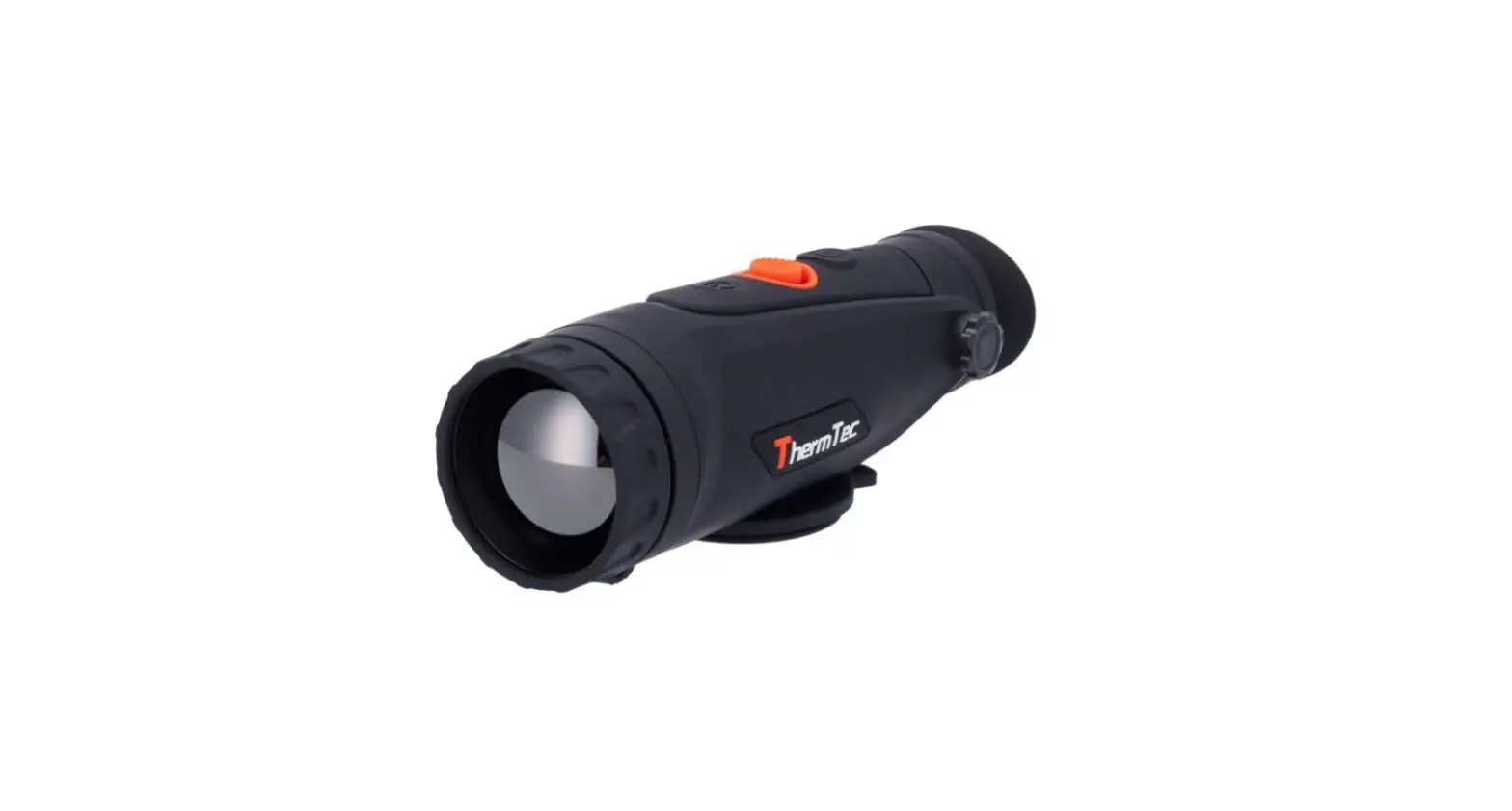
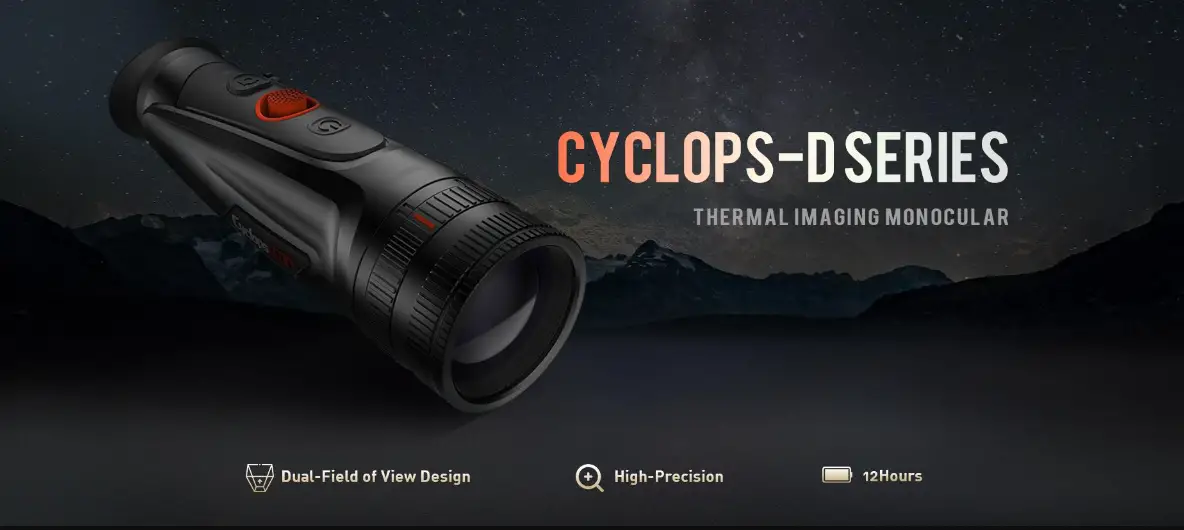
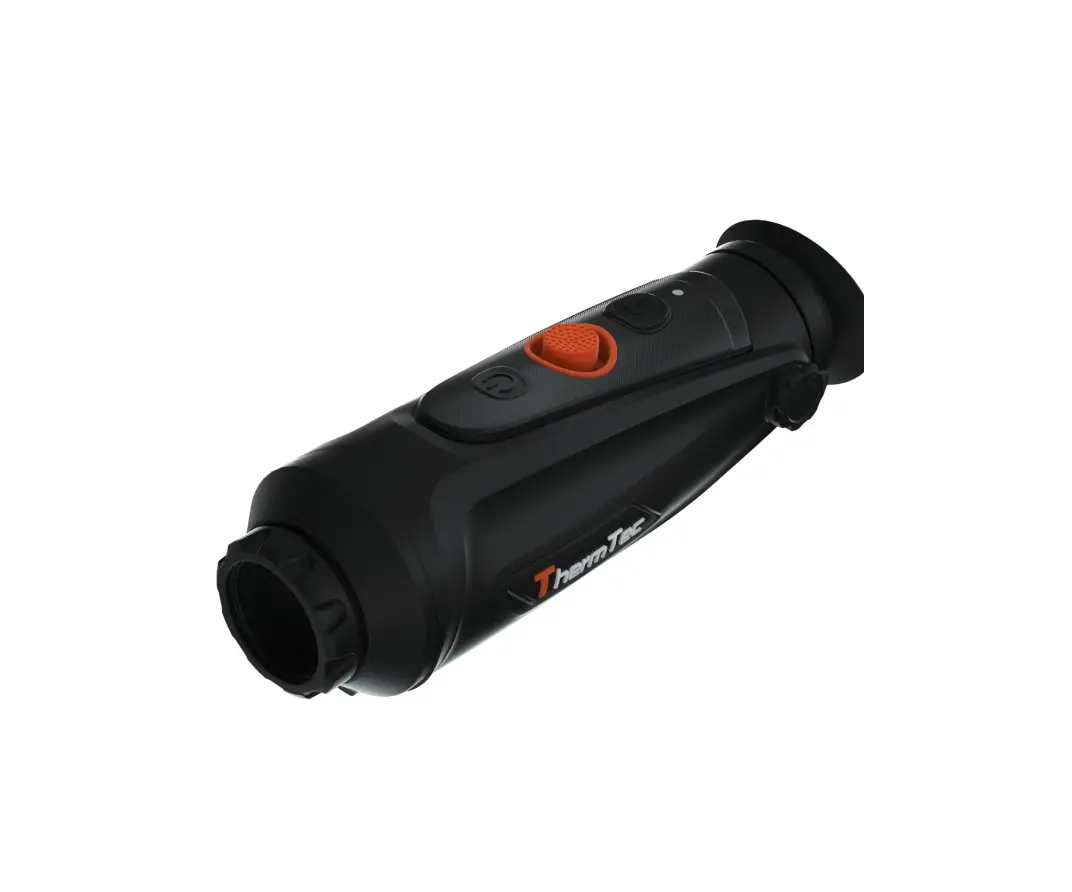
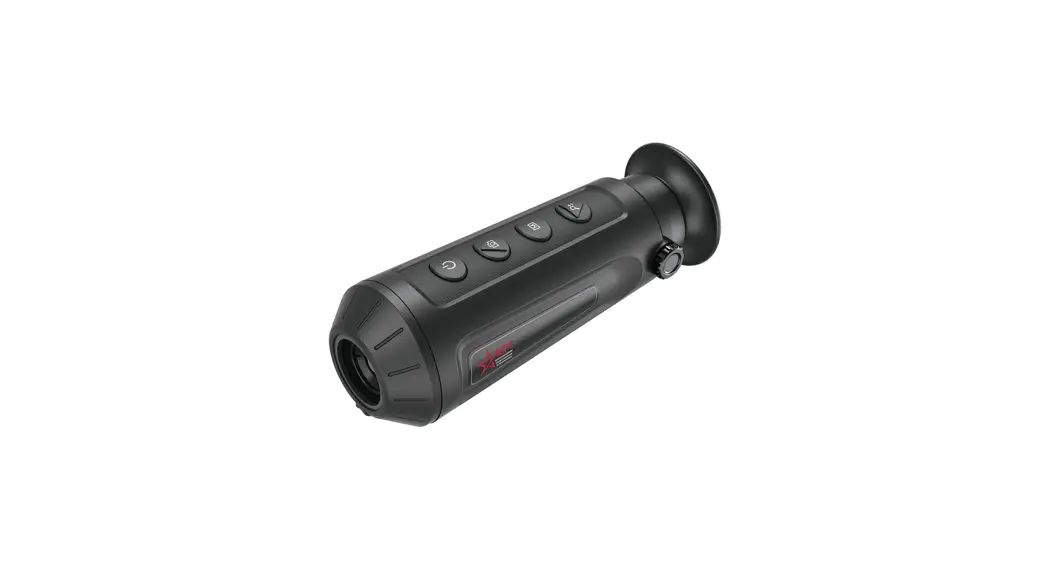
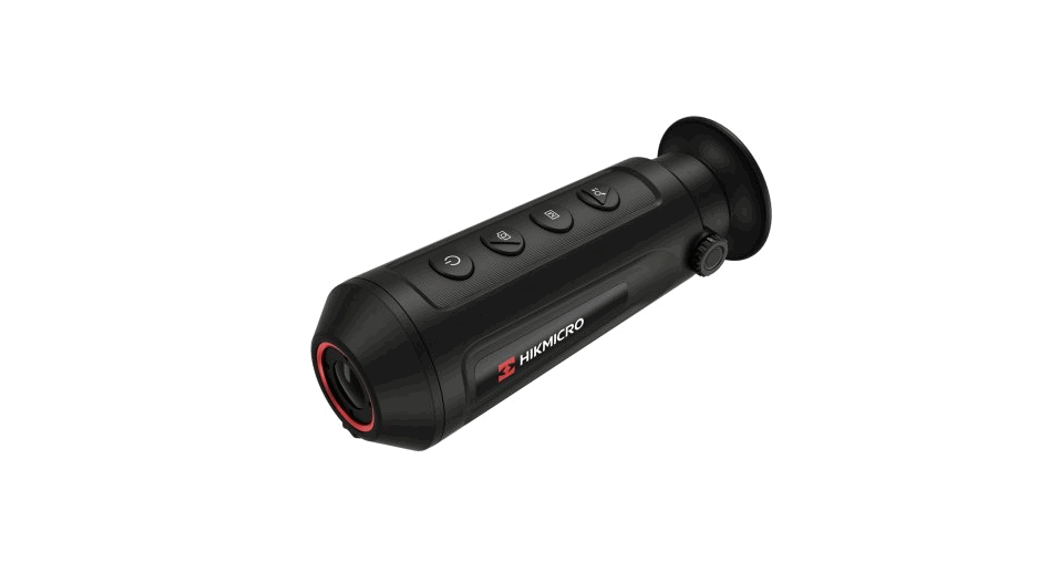
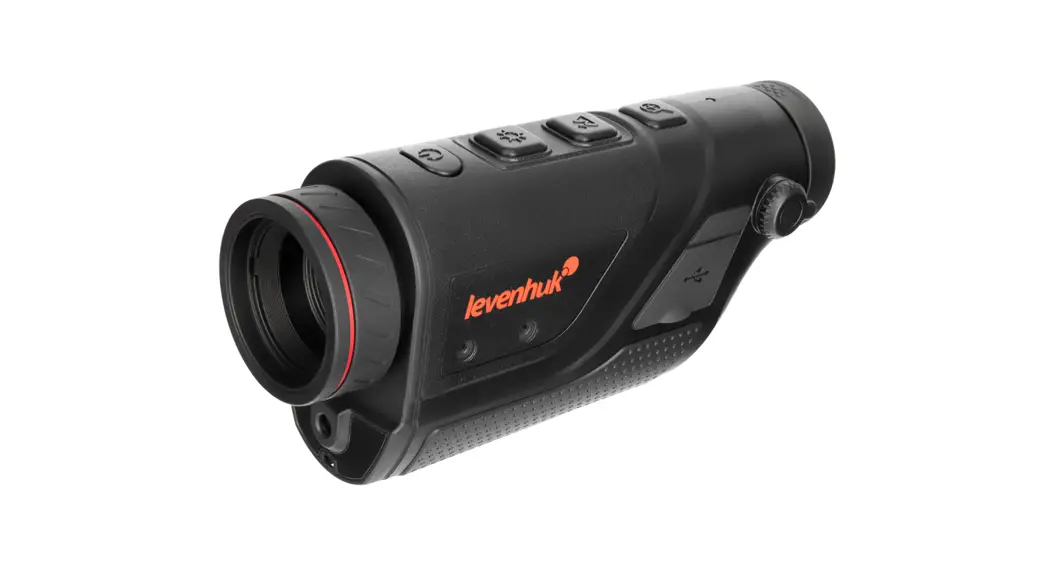
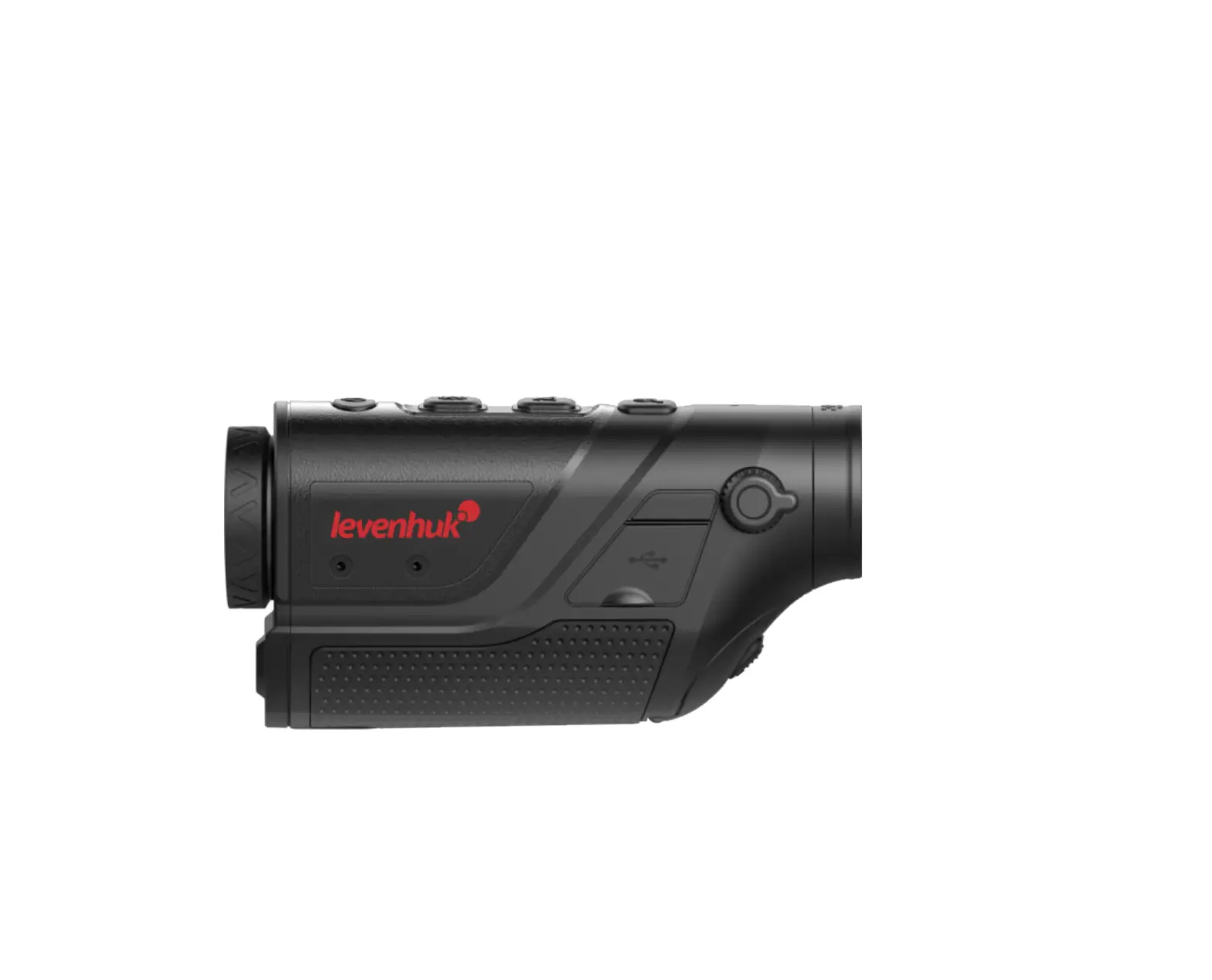
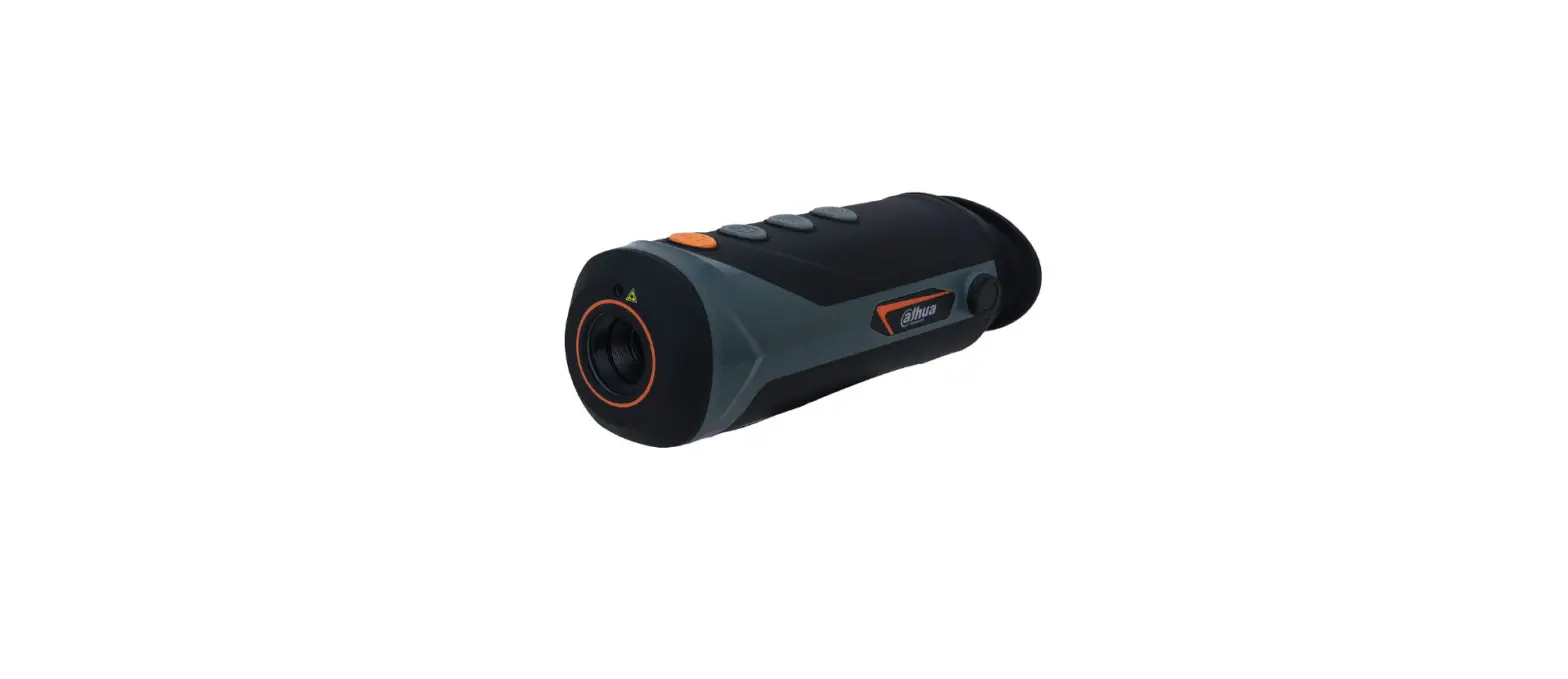
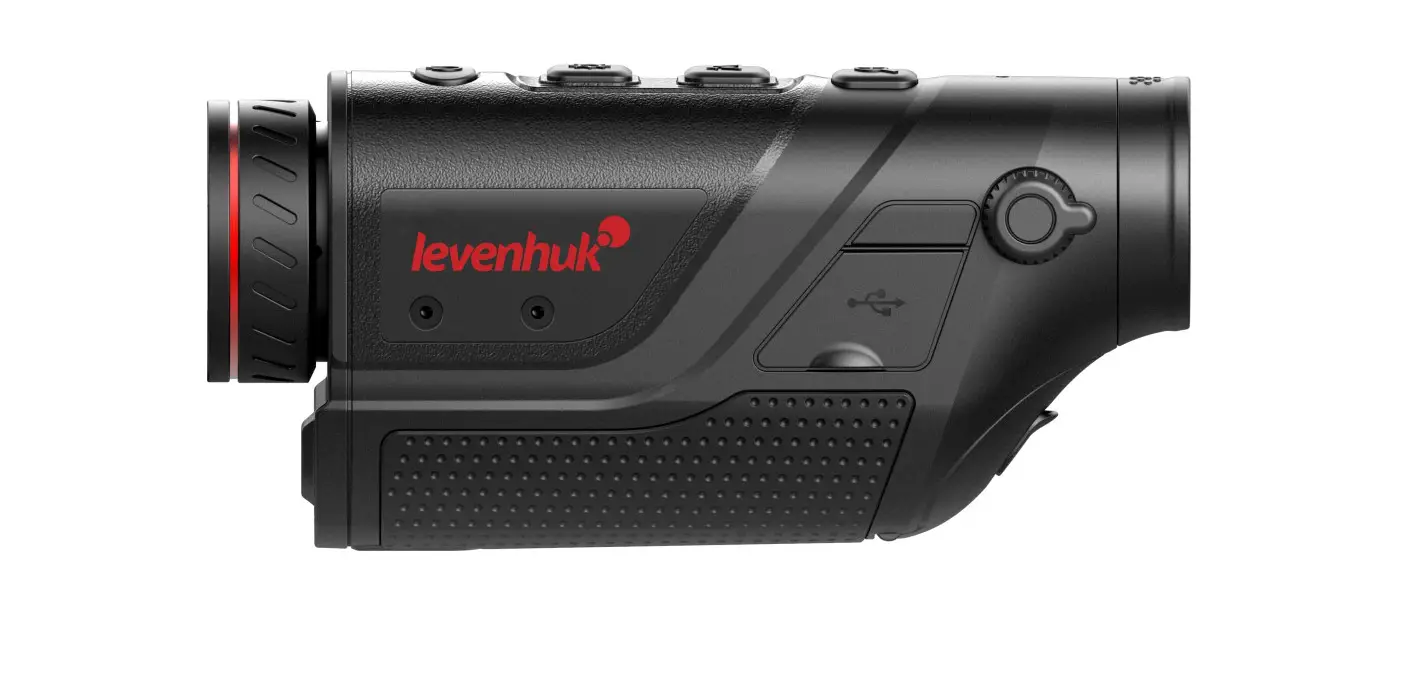
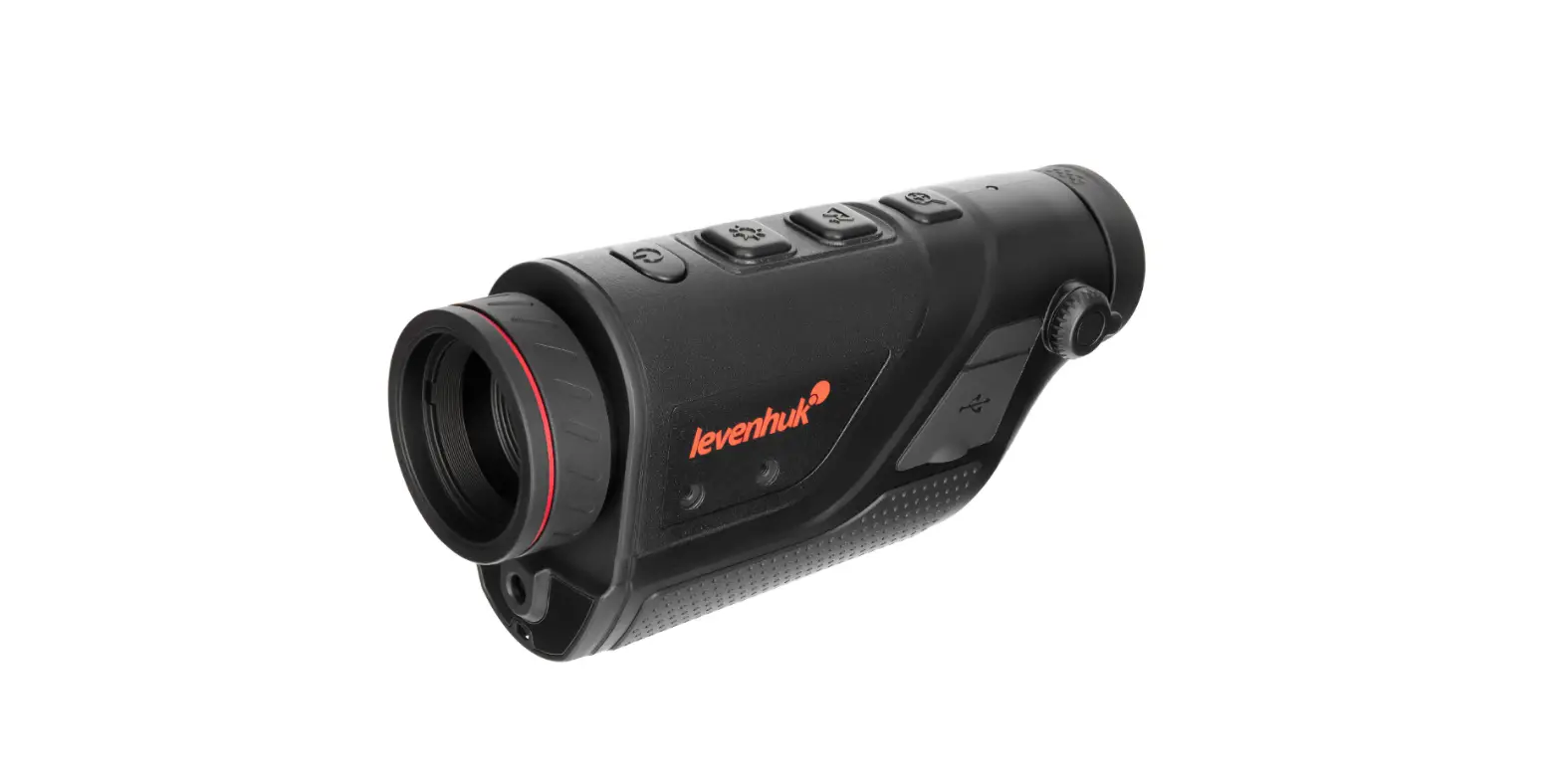
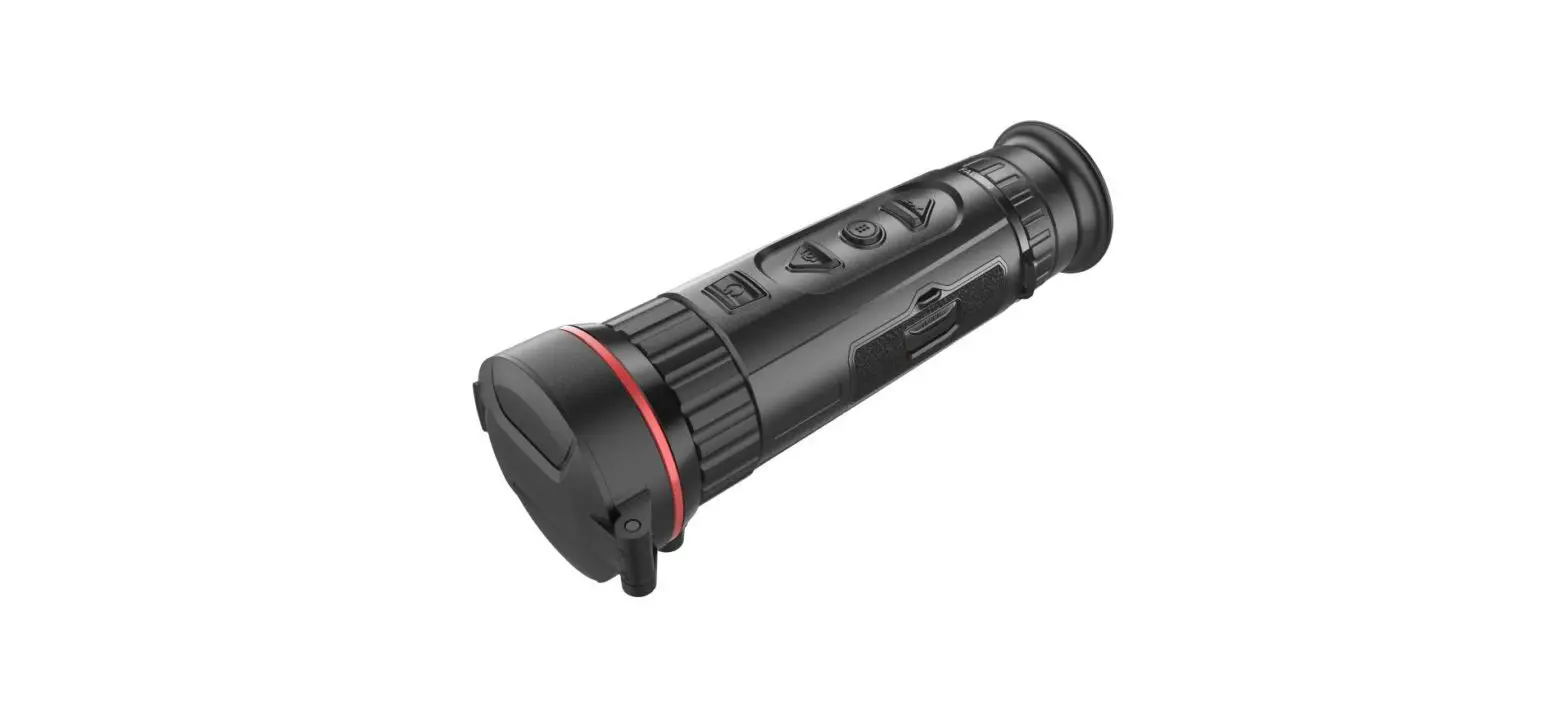
The Cyclops Series telescope, a new-generation intelligent thermal monocular developed by our company, has a 12μm uncooled infrared detector and can be equipped with 15mm/25mm/35mm lens and 1024×768 OLED high-definition display. With the intelligent AI image recognition algorithm, it enables users to see things at a glance even in complete darkness, providing reliable and high-quality visual images for night activities. In particular, the function of connecting with mobile phones brings infinite fun to users’ outdoor activities.
Product Features1. Mechanical rocker design: excellent control performance. - 12μm VOx detector: provide image with better quality.
- OLED display: The product adopts a 1024×768 high-resolution OLED display which has a high contrast and is comfortable for human eyes to watch. Moreover, it is adaptable to the environment and can work properly in the harsh environment of minus 20℃.
- AI intelligent ranging: Based on the deep learning algorithm, the monocular can automatically measure the object distance.
- Two-way Wi-Fi design: Not only enable user to control or view on app. by connecting monocular with smart devices like mobile phone, meanwhile, also maintain smart devices’ existed internet connection via 4G/5G, which allow the user to share the video or image with friends in real time.
- Photo and video playback.
- 12-hour endurance.
- GPS: Enable user to know his own coordinates in real time, which makes field activities safer.
- Smooth zooming: The product can realize continuous 1.0-6.0 HD zooming. Through the fingertip rocker operation, the eyepiece observation picture can be smoothly zoomed in or out, and the target can be flexibly searched and rapidly locked.
- IP67 protection design.
Detection Range
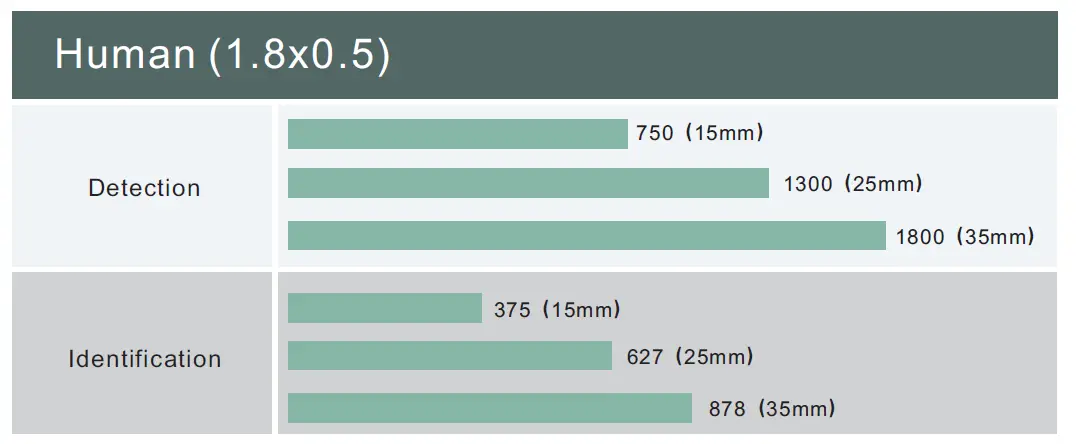
The illustration below shows the comparative range performance of the camera with different lens configurations. The data is based on detecting a man 1.8 meters tall*0.5 meters wide.
Application Scenarios
- Animal Observation
- Security Law Enforcement
- Outdoor Adventure
- Emergency Search and Rescue
Cautions
- Prevent hard objects from colliding the lens and eyepiece of the thermal imager to avoid damage to the optical lens.
- Do not aim the lens at high-temperature light sources, such as the sun, to avoid damage to the lens or thermal imaging detector.
- Do not use the product in extremely cold or hot environment. Refer to the product parameter table for specific temperature requirements.
- If the thermal imager is not used for a long time, it should be charged once every 3 months during the storage period.
- To use the product in water environment, first make sure that the USB cover at the bottom of the thermal imager is tightly closed.
- Do not irradiate the laser indicator of the thermal imager to human eyes.
- If the thermal imager doesn’t work properly, please contact the store or the nearest service center where the thermal imager is purchased. Do not disassemble or modify the thermal imager by yourself in any way.
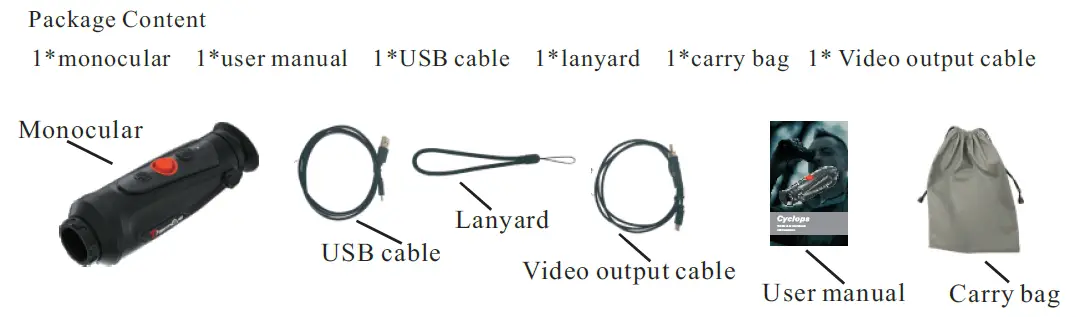
Packing Instruction
 Operating Camera
 Operating Camera
Charging the Camera
The camera’s battery should be fully charged prior to use.
Note: The battery is not user replaceable. To charge the camera’s battery:
- Lift the cover from the USB port.
- Plug the cable provided into the camera’s USB port.
- Plug the opposite end of the cable into a USB power source.
Note: When the power sign on the interface is red, it means you need to charge it immediately. The indicator is red when it is charging and turns green when it finishes charging. After it turns green, stop charging.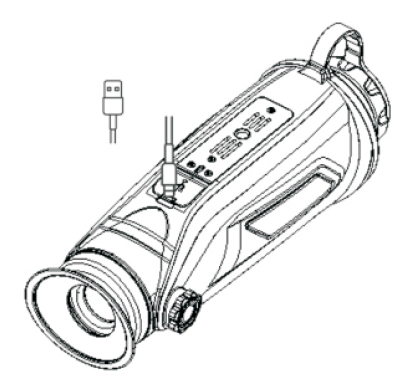
Power on/off
- Power On
Hold the POWER button for four seconds and startup picture will be shown.
Refer to the figure below for the main view of the monocular. - Power Off
When the monocular is turned on, hold the POWER button for four seconds to power off the device.
Buttons and Controls
Buttons features and introduction 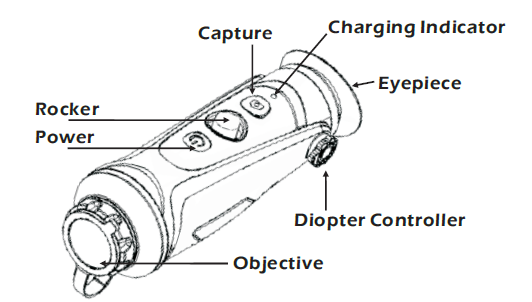
Buttons features 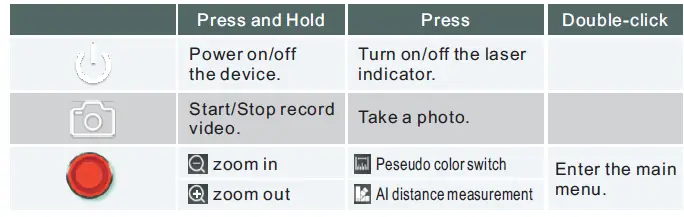
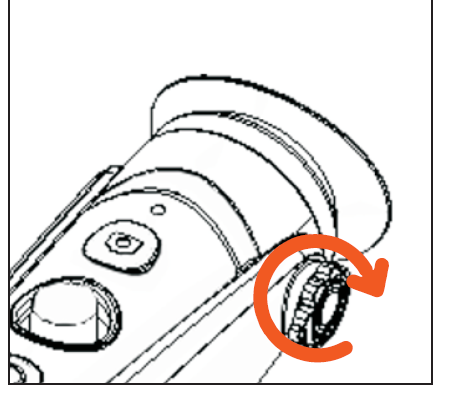
Lens Adjustment Diopter adjustment
Looking through the eyepiece, adjust the position of diopter level to optimize the image sharpness on the OLED display.
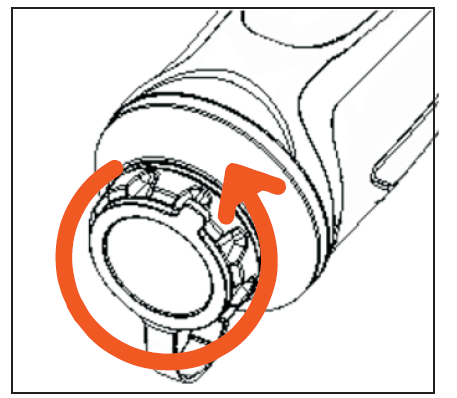
Objective lens focusing Manually adjust the objective lens focus when necessary.
Rocker operating
Zoom 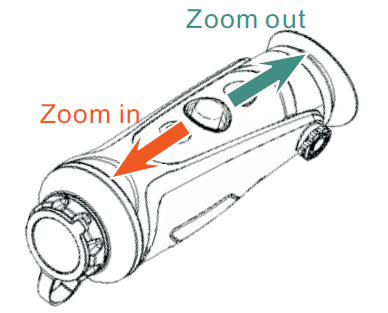 Pseudo color switch
Use the rocker key towards the right to switch pseudo color. 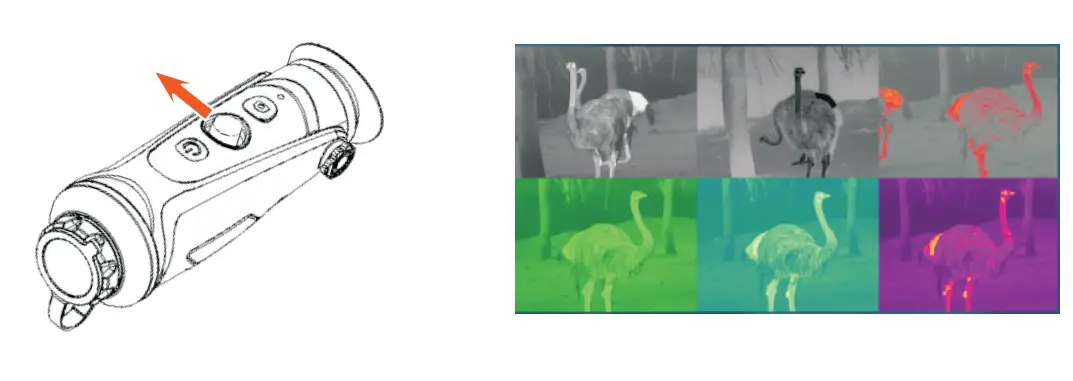
AI distance measurement
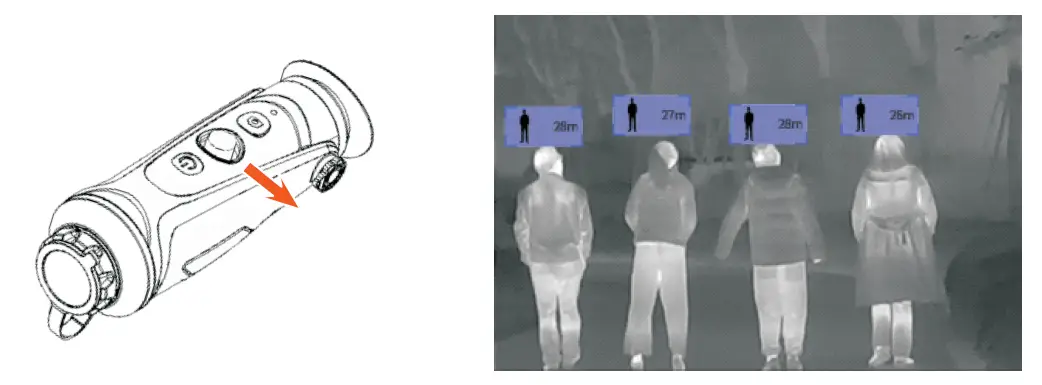
Use the rocker key towards the left to enable or disenable AI distance measurement function (before enable this function, you should make sure if monocular was in AI distance measuring mode, otherwise, refer to 3.4 for setting).
Photo/Record
- Press
 to take a photo. Then the photo icon in the upper left corner will flash once.
 - Press and hold to record. Then the recording icon in the upper left corner starts flashing, and the recording starts timing. Press and hold again to stop recording.
 to take a photo. Then the photo icon in the upper left corner will flash once.
Settings
Double-click the rocker button to enter Setting menu. Note: select by moving rocker button, confirm the selection by short-press the rocker button.
Image Setting
Mode/Sharpness/Denoise/ Brightness/Contrast/Image settings
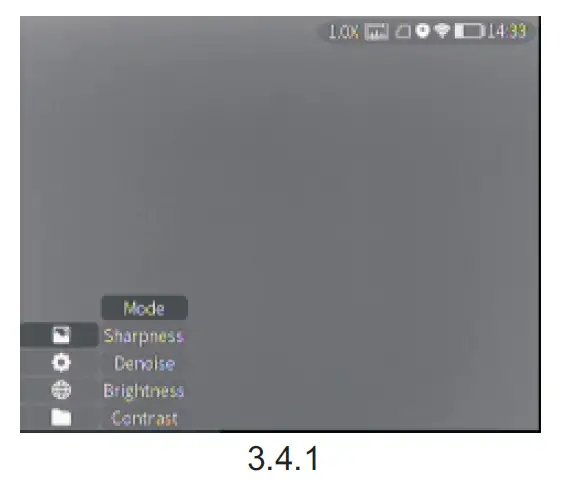 Image settings
| Mode | City mode | Especially enhance target’s detail. It’s recommended in bad weather. |
| Jungle mode | Gain both background and target’s detail with wide dynamic algorithm. | |
| Sharpness | 0-10 | Adjust the image sharpness to make the image edge sharper. Recommend value: 5 |
| Denoise | 0-10 | Adjust the image noise to make the image cleaner. Recommend value: 5 |
| Brightness | 1-10 | Adjust the image brightness to make the image brighter. Recommend value: 5 |
| Contrast | 1-10 | Adjust the image contrast to make the target more prominent in the image. Recommend value: 5 |
System Setting
Note: select by moving rocker button, confirm the selection by short-press the rocker button.
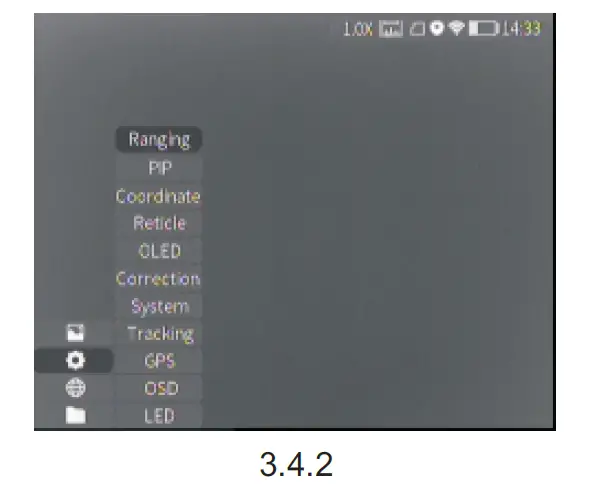
| System settings | ||
| Ranging | AI | AI distance measurement |
| MIL | MIL distance measurement | |
| PIP | Picture in picture | In the picture, the image is 2x enlarged from the center of the cross. |
| Coordinate | The position of the crosshair in the picture can be adjusted and separately saved. | |
| Reticle | 0-7 | Choose the style of the crosshair. 0 represents none, and 1-7 represents seven styles. |
| OLED | Hue | OLED hue has blue, purple and gray for option. |
| Brightness | ||
| Correction | Manual/Auto | The mask works to calibrate the uniformity of the image. |
| System | Reset | All configuration parameters are restored to the factory default values after reset. |
| Update | You can update and upgrade the device system. | |
| Language | Current system language | |
| Time zone | Select the local time zone and calibrate the time information. | |
| Blind pixel | The blind pixel in the picture can be replaced. | |
| Heat tracking | Turn on heat tracking to mark the target with the highest temperature in real time in the screen. | |
| GPS | Turn on GPS to obtain real-time satellite positioning, longitude and latitude coordinates and time information. | |
| OSD | Turn off OSD. The character information superimposed on the screen is turned off and the menu is frozen. Turn on OSD. Menu adjustment is recovered. | |
| LED | Turn off LED. The work indicator is turned off and the hidden work mode is started. | |
Network Connections

Download App
Search “Smart Thermal” on app. Store or scan the QR code to download it.
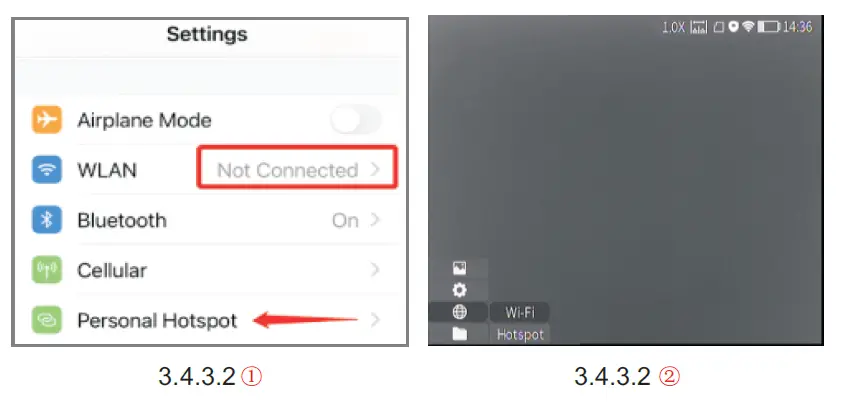
 Connect with Wi-Fi
- Open smart device’s personal hotspot.
- Enter by short-press on rocker button, select Wi-Fi to configure.
- Access the Wi-Fi submenu on monocular and select the Wi-Fi released by smart devices, then enter the password through the rocker button to connect the Wi-Fi.
- After the monocular connected the Wi-Fi, open the mobile APP to connect monocular.
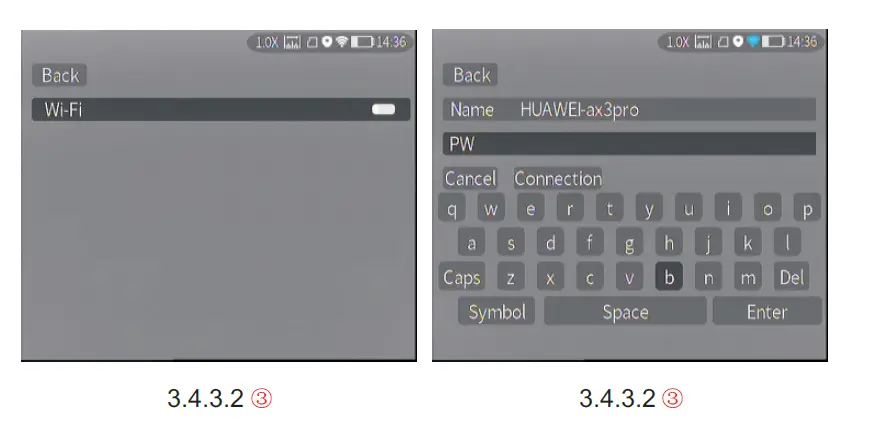
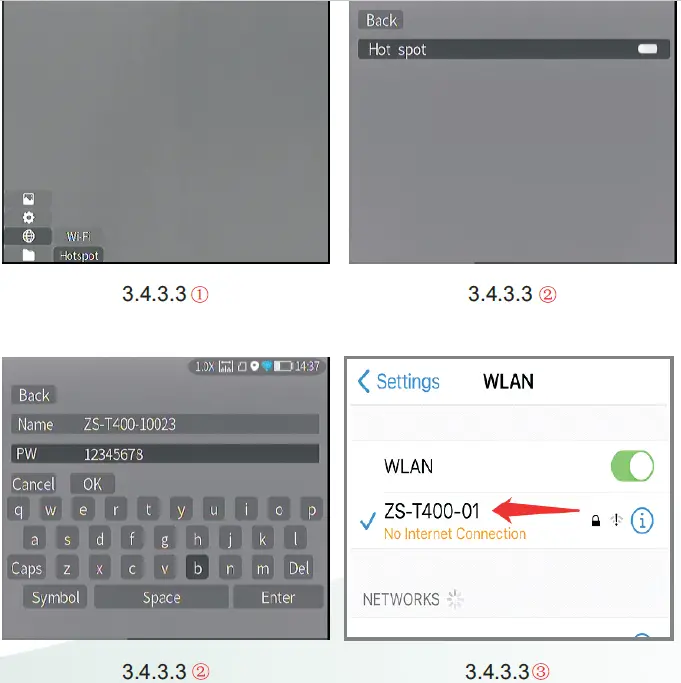
Connect with Hotspot
- Enter by short-press on rocker button, select Wi-Fi to configure.
- Access the hotspot submenu, monocular will release a hotspot network. Set the hotspot name and password and confirm them through the rocker button.
- Enable mobile device to connect with monocular Hotspot by setting the WLAN on mobile device.
- After mobile device connected with monocular Hotspot, open the mobile APP to connect monocular.
File Management
Enter by short-press on rocker button, select the image and video submenus to view the images and videos and play the videos.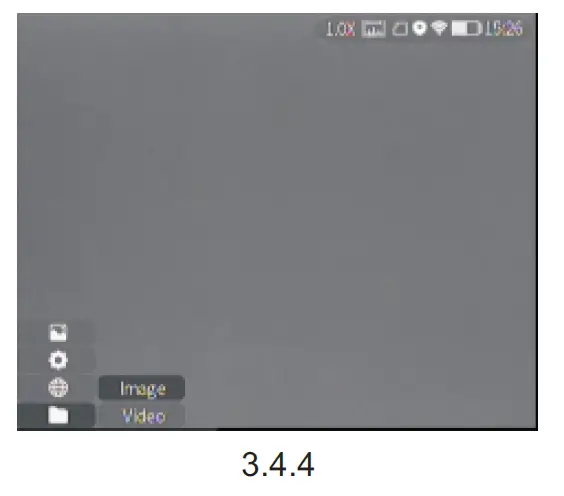
| File settings | ||
| Image | Access the image submenu, and select photo files through the rocker button for management. | |
| Video | Access the video submenu, and select video files through the rocker button for management. | |
External video& Read data
Power on the device before using a type-C to AV video cable to output analog video. When external display is connected, the OLED of the device automatically turns off the display.
Power on the device, use a type-C to USB cable to connect with the computer to read the video and image data in the memory.
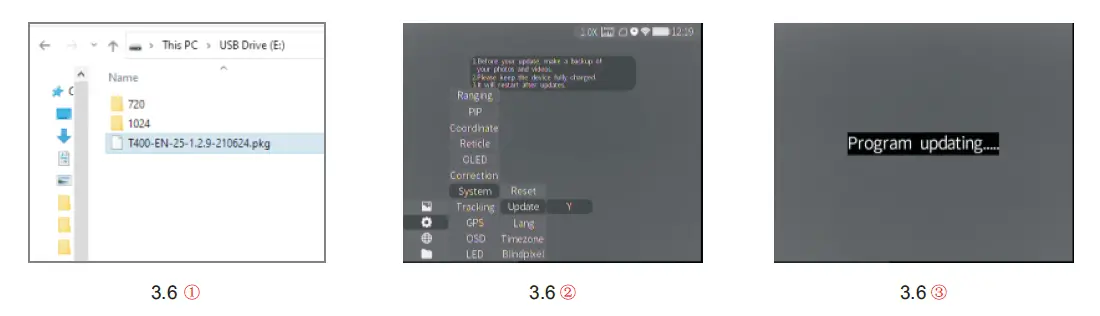
Note: video and image taken in analog format (usually taken by external display with analog output) will be saved in folder named “720”, video and image directly taken by monocular will be saved in folder named “1024”.
System Software Upgrade
- Connect the device to your computer and drag the upgrade file to the folder.
- Access the Setup menu and select Upgrade.
- The system will prompt that upgrading is in progress. When the upgrade succeeds, the device will restart automatically.
Technical Data
Datasheet
| Sensor Parameters | |||
| Detector Type | Vox Microbolometer | ||
| Resolution / Pixel Spacing | 384×288/12um | ||
| NETD | ≤40mk@300k | ||
| Frame Rate | 50Hz | ||
| Spectral Range | 8~14µm | ||
| Lens | 15mm (F#0.9, manual focus) | 25mm (F#1.0, manual focus) | 35mm(F#1.0, manual focus) |
| FOV | 17.5°x 13.1° | 10.5°x 7.9° | 7.5°x 5.6° |
| Identification Distance (1.8m man) | 375m | 627m | 878m |
| Image Processing | |||
| Digital Zoom | 1~6x continuous | ||
| Color Palette | 5+ | ||
| Noise Reduction | 3D noise reduction | ||
| Image Enhancement | IDE、HDR | ||
| Display | |||
| OLED | 0.39 inch,1024×768 resolution | ||
| Diopter Control | -5~+5 | ||
| Eye Distance | 40mm | ||
| Function | |||
| OLED | 3 modes | ||
| Language | English | ||
| Reticle | 6+, adjustable coordinates | ||
| Memory Card | 16G | ||
| AI Distance Measurement | Yes | ||
| Photo, Record, Playback | Yes | ||
| Heat Track | Yes | ||
| Laser Indicator | Yes | ||
| GPS | Yes | ||
| Power | |||
| Battery Type | Internal Cel(l 18650 Li battery x 2) | ||
| Battery Life | Continuous working time ≥ 12h | ||
| Interface | |||
| Type-C | Power charge, read data, output analog video | ||
| WI-FI | Two-way Wi-Fi connection, APP remote control | ||
| Environmental Parameters | |||
| Working Temperature | -20℃~+55℃ | ||
| Protection Level | IP67,1 meter drop resistance | ||
| Physical Parameters | |||
| Weight | 470g (with battery) | ||
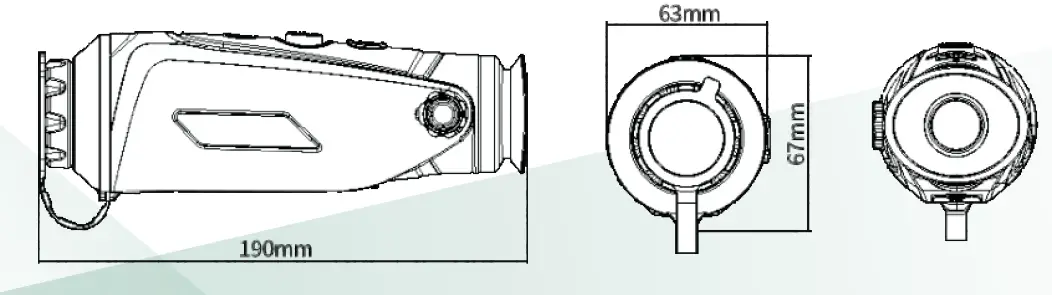
| Size | 67mm×63mm×190mm | ||
| Accessories | |||
| External Cable | Analog video cable, USB data cable | ||
| Other Accessory | Wrist strap, plush bag, user manual | ||
Dimensions
 ThermTec